
...
- Main menu buttons — to group menus by categories.
- Menu tabs and submenus — to manage the main information field.
- Edit Mode.
- Interface language selection button (Russian and English versions of the web-interface are available) and exit button — to terminate the web-interface session under this user.
- Main information field — to view submenu data.
- Information field — to display the software version installed on the controller.
Scroll Pagebreak
Interface main elements:
| Element | Action |
|---|---|
| Create new obkect |
| Remove object |
| Choose one or several objects |
| Menu for work with selected object |
| Update the information displayed on a page |
| Unregister all |
| Register all |
| Terminate all Airtune sessions |
| Enable Edit Mode |



Monitoring
Menu "Wireless" Якорь беспроводные беспроводные
| беспроводные | |
| беспроводные |
...
- IP Address – IP address of the connected device;
- Host name – network name of the connected device;
- SNR, dB – signal-to-noise ratio;
- Transmit Rate – modulation and channel rate when transmitting;
- Receive Rate – modulation and channel rate at reception;
- Режим IEEE 802.11 – wireless network standard;
- Authorized – client's authorization status;
- Domain – domain to which the user belongs;
- link Quality – parameter that displays the status of the link to the client, calculated based on the number of retransmitted packets sent to the client. The maximum value is 100% (all transmitted packets were sent on the first attempt), the minimum value is 0% (no packets were successfully sent to the client). The value of the parameter is calculated for the last 10 seconds;
- Link Quality Common – parameter that displays the state of the link to the client, calculated based on the number of retransmitted packets sent to the client. The maximum value is 100% (all transmitted packets were sent on the first attempt), the minimum value is 0% (no packets were successfully sent to the client). The value of the parameter is calculated for the whole time of client connection;
- Actual Transmit Rate, Kbit/s – actual speed of traffic transmission at the moment;
- Actual Receive Rate, Kbit/s – actual rate of traffic reception at the moment;
- Transmit, bytes – number of bytes transmitted to the connected device;
- Receive, bytes – number of bytes received from the connected device;
- Transmit, packets – number of packets transmitted to the connected device;
- Receive, packets – number of packets received from the connected device;
- Uptime – time of connection with Wi-Fi client;
- Transmit Bandwidth, MHz – channel frequency bandwidth on which the radio interface operates during transmission;
- Receive Bandwidth, MHz – channel frequency bandwidth on which the radio interface operates during receiving.
Scroll Pagebreak
RRM ReportsЯкорь rrm rrm
| rrm | |
| rrm |
The page displays optimization reports. By default, the last report is displayed. Select the required report date using the calendar.
...
- MAC Address – MAC address of the unregistered access point;
- Status – operating status of the access point;
- IP Address – IP address of the unregistered access point;
- Board Type – model of the unregistered access point;
- SW Version – firmware version of the unregistered access point;
- HW Version – hardware version of the device;
- Serial Number – serial number of the device set by the factory.
Scroll Pagebreak
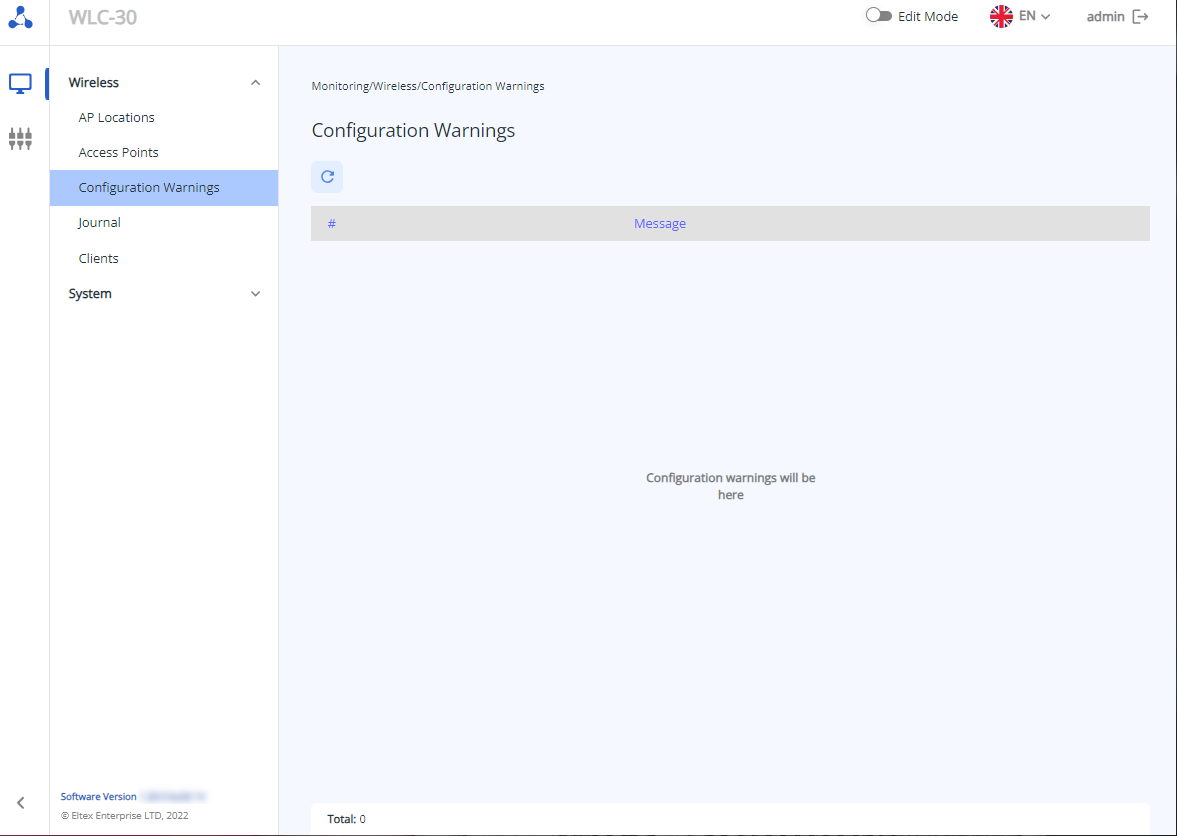
Submenu "Configuration Warnings"
...
The "Total" parameter displays the number of configuration warnings/errors.
Scroll Pagebreak
Submenu "Journal"
The «Journal» submenu displays events and activities with access points and clients.
...
- Description – SSID profile description. Possible values: string up to 255 characters. By default: none;
- Enable SSID – switch for eanbling/disabling SSID profile. Possible values: enabled/disabled. By default: disabled.
The color indication is displayed for profile status:
 – SSID profile is enabled
 – SSID profile is disabled
SSID – wireless network name that will be broadcast to users. Names containing a space must be enclosed in quotation marks. Possible values: string up to 32 characters. By default: none.
Примечание This parameter is obligatory when creating a SSID profile. - Security Mode – data encryption type used on a virtual AP. By default: disabled.
Possible values:
OWE
- WPA PSK
WPA2 PSK
- WPA3 PSK
- WPA/WPA2 PSK
- WPA2/WPA3 PSK
- WPA Enterprise
- WPA2 Enterprise
- WPA3 Enterprise
- WPA/WPA2 Enterprise
- WPA2/WPA3 Enterprise
- Disabled
Примечание WPA3 and WPA3 Enterprise security mode is supported only on WEP-3ax, WEP-30L, WOP-30L, WOP-30LS access points.
If you select a mixed security mode containing WPA3 (e.g., WPA2/WPA3), it will be applied only to those APs that support WPA3, and the maximum supported mode, in this case, WPA2, will be applied to the rest.
If you select WPA3-only security mode, the SSID will be applied only to APs that support it. The SSID will not be applied to the other APs.
- Key Format – WPA key format. By default: Clear-Text
Possible values:- Clear-Text
- Encrypted
- WPA Key – key for connecting to SSID, used when PSK security mode is selected. The key can be specified either in plaintext or as a hash sha512. By default: none.
Possible values:- if Clear-Text key format is selected, the key is specified as a string of 8 to 63 characters
- if Encrypted key format is selected, the key hash is set using sha512 algorithm with a string of 16 to 126 characters.
 is used to hide the key characters as you type, regardless of its format.
 RADIUS Profile – parameter allows selection of a previously created RADIUS server profile if Enterprise security mode is used, and also allows creation and configuration of a new profile.
Possible values: string up to 235 characters. By default: none.Информация To create and configure a new RADIUS profile, you must select “Create Profile” from the drop-down list.
Примечание The RADIUS server profile can be set only if one of the following security modes is selected:
- WPA Enterprise
- WPA2 Enterprise
- WPA3 Enterprise
- WPA/WPA2 Enterprise
- WPA2/WPA3 Enterprise
Band, GHz – frequency range in which the SSID on the wireless access point will broadcast. Possible values: 2.4 GHz, 5 GHz, 2.4 GHz and 5 GHz simultaneously. By default: none.
Примечание This parameter is obligatory when creating a SSID profile.
Band Steer Mode – switch enables the access points to prioritize the connection of dual-band wireless clients to a 5 GHz network. Possible values: enabled/disabled. By default: disabled.
Примечание For the function to work, both bands must be enabled in the SSID profile: 2.4 GHz and 5 GHz. - VLAN ID – VLAN ID from which the tag will be removed when Wi-Fi traffic is transmitted to clients connected to this SSID. The VLAN ID tag (when VLAN Trunk is not activated) will be applied to untagged traffic from clients when traffic flows in the opposite direction. Possible values: 1–4094. By default: disabled.
...
| Информация |
|---|
The password is a obligatory parameter and must be set when creating the AP profile. The other parameters will be created with default values if no changes are made. More detailed information can be found in section "AP profile configuration" and "AP Trace". |
Scroll Pagebreak
AP profile configuration configuration Якорь AP profile config AP profile config
...
| Примечание |
|---|
If an airtune profile is added to a location, some parameters of the AP radio interfaces in that location will be controlled by airtune (if airtune is also enabled globally on the "General settings" page). Accordingly, when airtune is enabled in a location, it is not reasonable to change parameters related to power and radio channels in the radio profiles of that location, as they will not be applied on the AP because these parameters are automatically configured through airtune. If you want to change the channel width or channel list for auto-selection on the APs, you must first disable airtune, apply the changes, and then re-enable airtune to automatically manage the channels according to the new settings. |
Scroll Pagebreak
The table contains the basic settings for each profile, such as:
...
The compliance of the power parameter values for each radio interface of the AP depending on the AP model is presented in the table:
| 2.4 GHz | |||||
|---|---|---|---|---|---|
| AP | minimal | low | middle | high | maximal |
| WEP-1L | 3 | 6 | 10 | 13 | 16 |
| WEP-2L | 3 | 6 | 10 | 13 | 16 |
| WOP-2L | 3 | 6 | 10 | 13 | 16 |
| WOP-20L | 8 | 10 | 12 | 14 | 16 |
| WEP-200L | 4 | 7 | 10 | 13 | 16 |
| WEP-30L | 0 | 4 | 8 | 12 | 16 |
| WOP-30L | 0 | 4 | 8 | 12 | 16 |
| WOP-30LS | 0 | 3 | 6 | 9 | 11 |
| WEP-3ax | 6 | 8 | 11 | 14 | 16 |
| WEP-2ac | 5 | 8 | 11 | 14 | 16 |
| WEP-2ac Smart | 5 | 8 | 11 | 14 | 16 |
| WOP-2ac:rev.B/rev.C | 5 | 8 | 11 | 14 | 16 |
| 5 GHz | |||||
| AP | minimal | low | middle | high | maximal |
| WEP-1L | 11 | 13 | 15 | 17 | 19 |
| WEP-2L | 11 | 13 | 15 | 17 | 19 |
| WOP-2L | 11 | 13 | 15 | 17 | 19 |
| WOP-20L | 11 | 13 | 15 | 17 | 19 |
| WEP-200L | 8 | 11 | 14 | 17 | 19 |
| WEP-30L | 0 | 5 | 10 | 15 | 19 |
| WOP-30L | 0 | 5 | 10 | 15 | 19 |
| WOP-30LS | 0 | 3 | 6 | 9 | 11 |
| WEP-3ax | 10 | 12 | 15 | 17 | 19 |
| WEP-2ac | 1 | 6 | 10 | 15 | 19 |
| WEP-2ac Smart | 11 | 13 | 15 | 17 | 19 |
| WOP-2ac:rev.B/rev.C | 1 | 6 | 10 | 15 | 19 |
Limit Channels – list of radio channels for automatic selection depending on the radio air.
By default:
...
- 36, 40, 44, 48 – for 5 GHz.
Scroll Pagebreak
Possible values:
- 1, 2, 3, 4, 5, 6, 7, 8, 9, 10, 11, 12, 13 – for 2.4 GHz;
...
After configuring the parameters, save and then apply the configuration using the appropriate buttons. If necessary, undo the changes and delete them using the "Delete" and "Rollback" buttons.
Scroll Pagebreak