This section describes operating system installation, as well as necessary and additional packages installation. The ECSS-10 system version 3.14 is running under Ubuntu Server 18.04.x LTS 64bit.
To install the OS, do the following:
After downloading from the installation media, select "Install Ubuntu Server".
Select system language and keyboard layout.
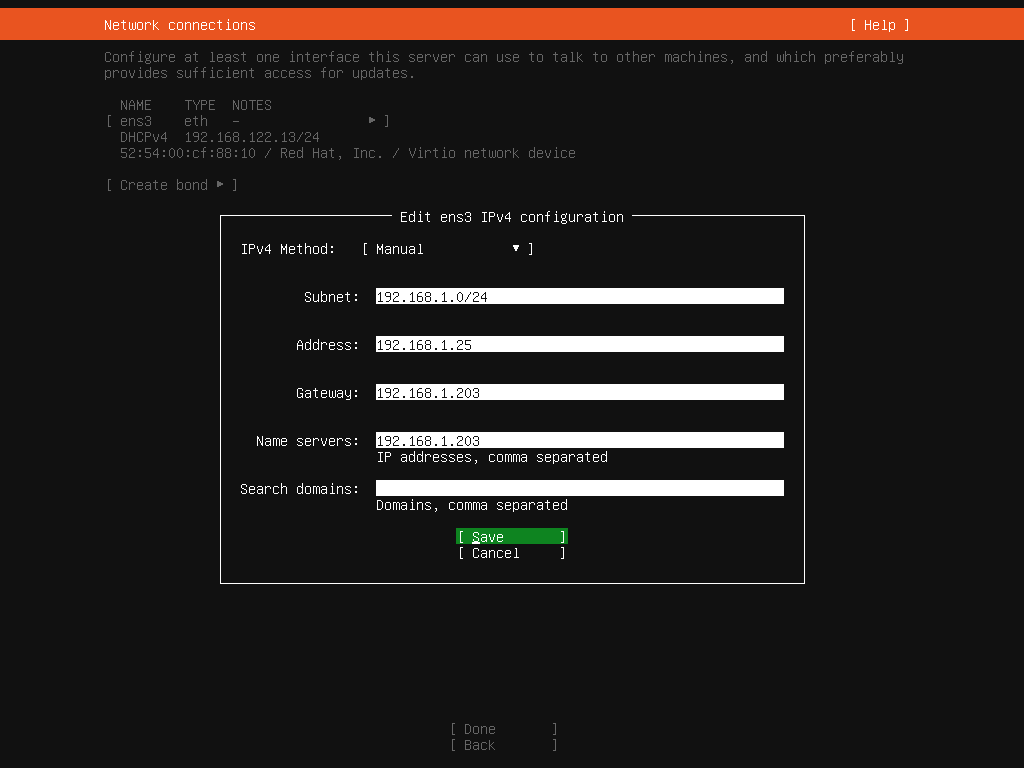
Configure network interface for the Internet connection:
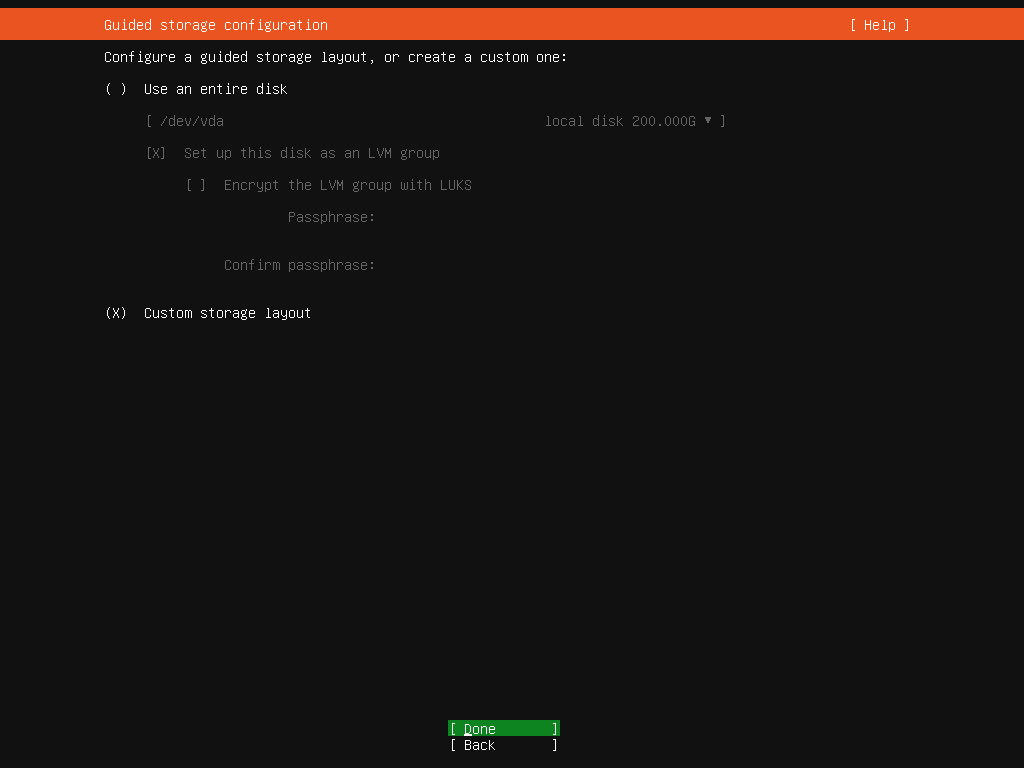
Select "Custom storage layout":
Next, create additional sections in LVM group in accordance with Table 1.
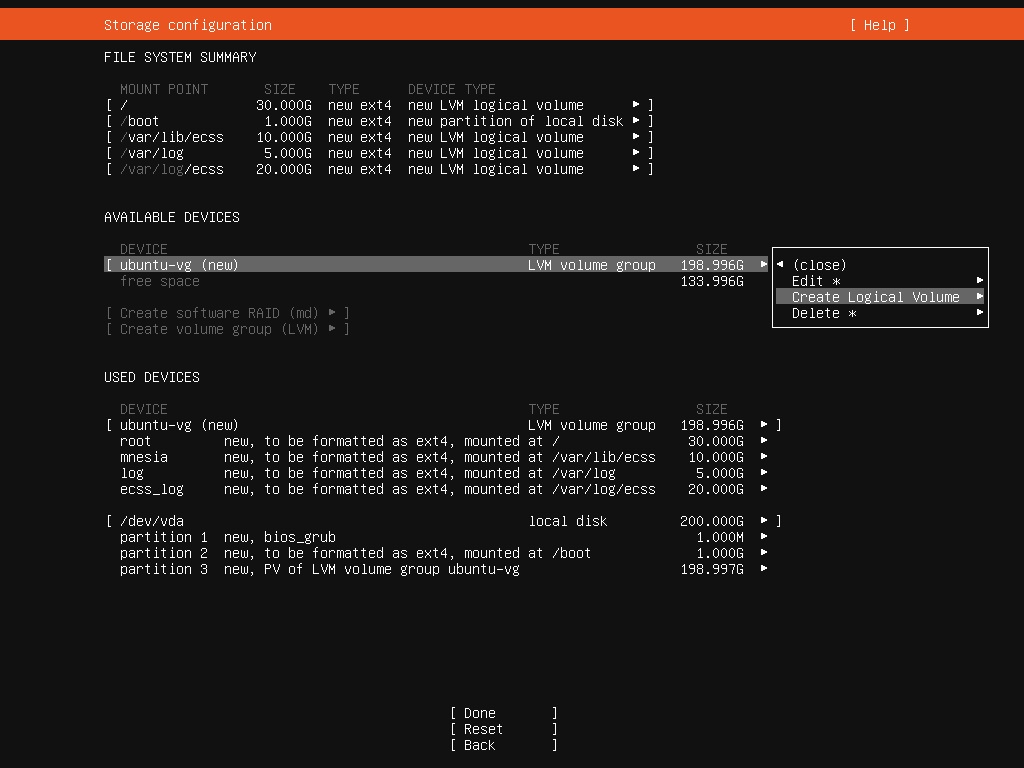
Table 1 — Option of placing information in the file system on physical media for servers
| 1 | Boot partition of the operating system (created automatically) | boot | raid 1:hdd1,hdd2 | boot | /boot | ext4 | 1 Gb | Primary |
| 2 | Root partition of the operating system | root | raid 1:hdd1,hdd2 | root | / | ext4 | 30 Gb | Logical |
| 3 | Information from local databases | mnesia | raid 1:hdd1, hdd2 | mnesia | /var/lib/ecss | ext4 | 10 Gb | Logical |
| 4 | Distributed database for storing media resources | glusterfs | raid 1:hdd1, hdd2 или hdd3 | glusterfs | /var/lib/ecss/glusterfs* | ext4 | Max Gb | Logical |
| 5 | Logs of OS subsystems functioning | log | raid 1:hdd1,hdd2 или hdd3 | log | /var/log | ext4 | 5 Gb | Logical |
| 6 | Logs of ECSS subsystems functioning | ecss_log | raid 1:hdd1,hdd2 или hdd3 | ecss_log | /var/log/ecss | ext4 | 20 Gb | Logical |
| 7 | Databases | ecss_db | raid 1:hdd1,hdd2 или hdd3 | ecss_db | /var/lib/ecss-mysql | ext4 | 100–400 Gb** | Logical |
| 8 | User Files | home | raid 1:hdd1,hdd2 или hdd3 | home | /home | ext4 | 10 Gb | Logical |
* If the server will not work in the cluster, then the /var/lib/ecss/restfs partition is created instead of glusterfs. ** Recommended value for Light, Light+, Midi series is 100Gb. Recommended value for Heavy series is 200Gb, for Super Heavy is 400Gb. |
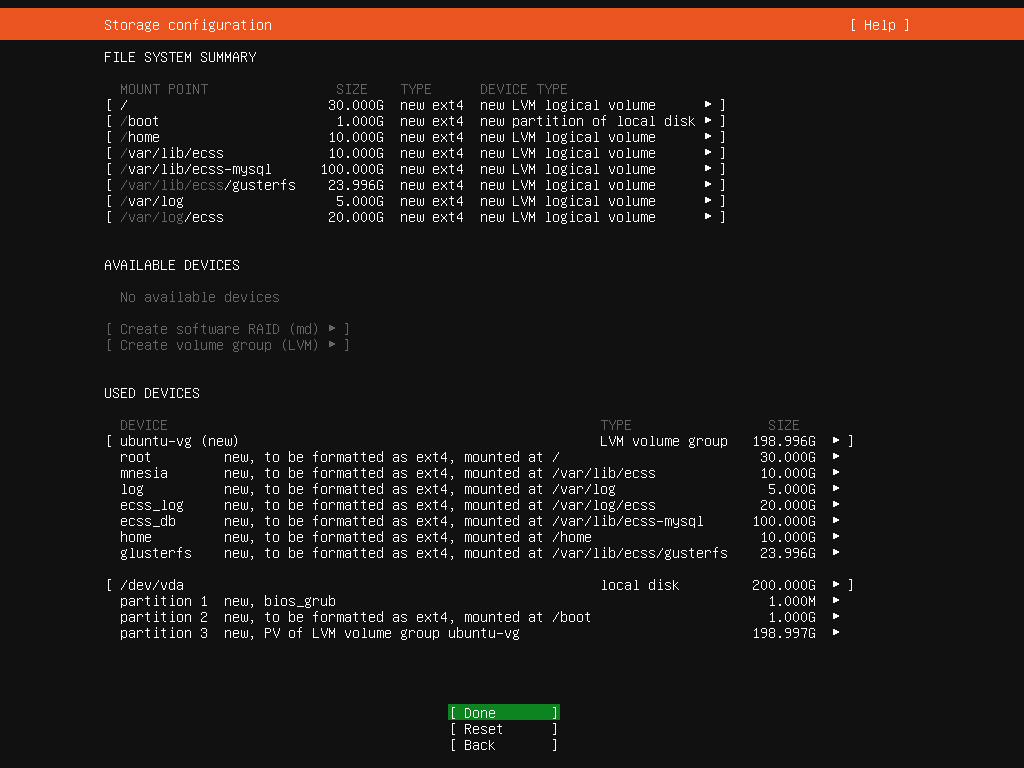
At least 200Gb of free space is required for system operation.
Example of creating partitions for 200Gb disk:
The "hostname" parameter must be configured in the system servers.
It is desirable to use the same user name on all servers of the system (any except for ssw). The ECSS-10 license is bound to eToken/rutoken key and to the computer name (hostname), so you need to use standard values. System user ssw is created when installing ecss-user package.
If using a single server, recommended hostname value is ecss1; At cluster system installation, value for the first server is ecss1, for the second — ecss2. |
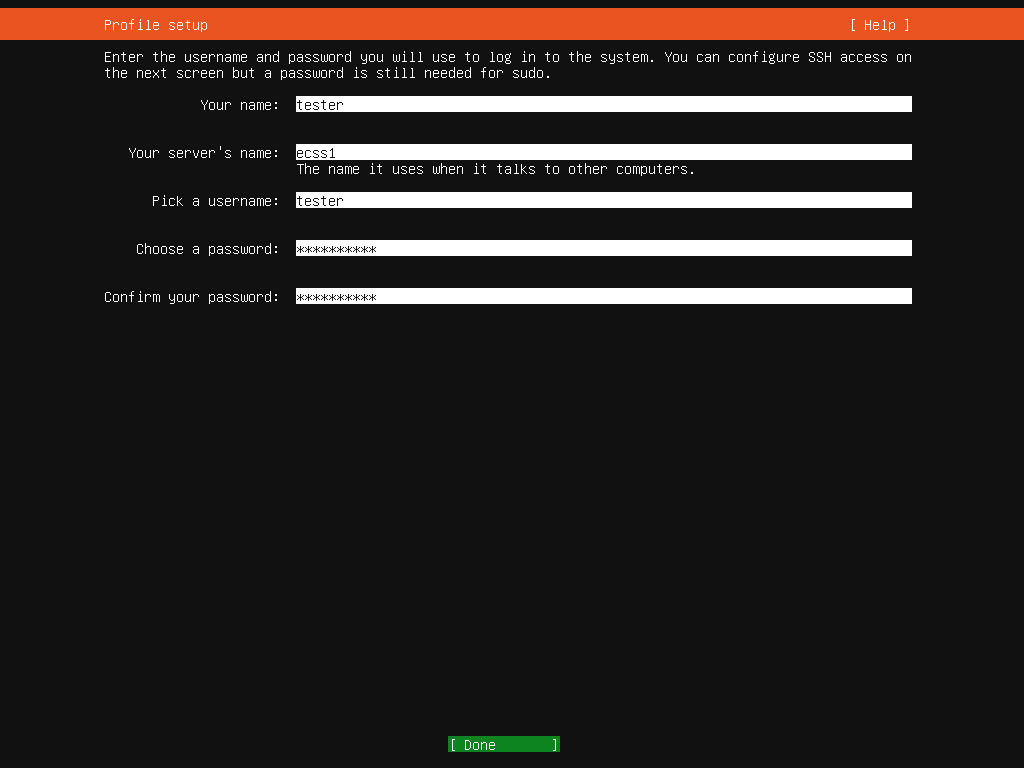
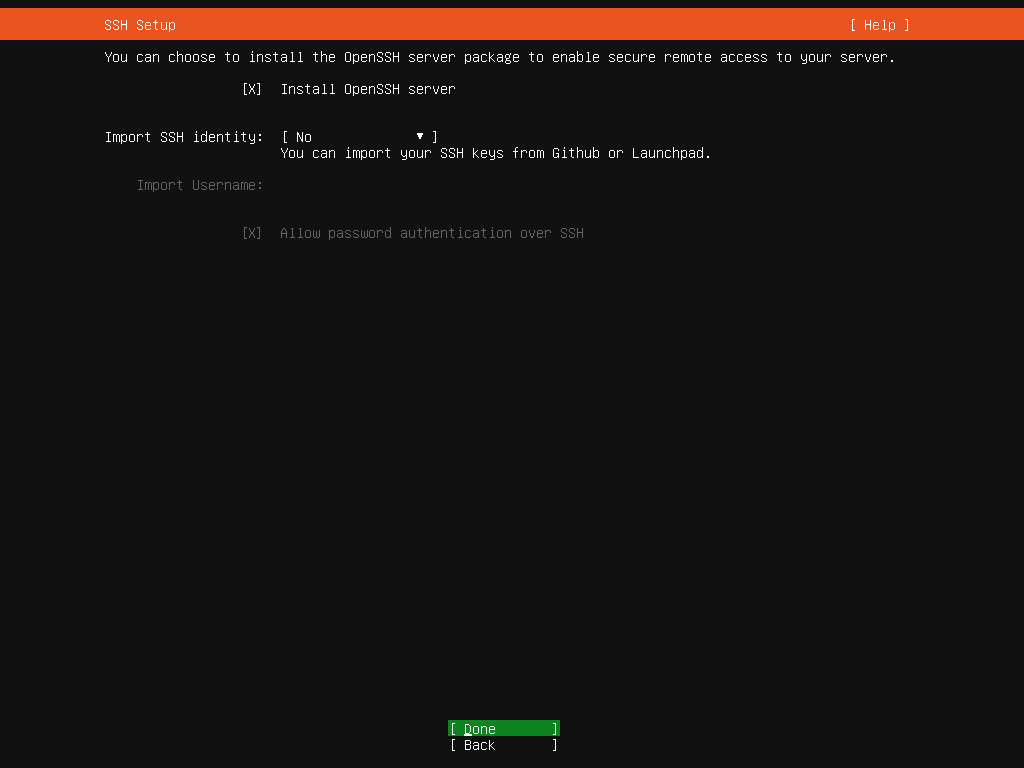
At the end of the OS installation, you will be prompted to install additional software for remote connection — you need to install OpenSSH server.
Swap file In Ubuntu 18.04 is located in root directory — /swap. img.
Upon completion of the operating system installation, you must disable SWAP: it cannot be used on servers with ECSS-10! |
To disable:
sudo swapoff -a sudo rm /swap.img |
When installing Ubuntu-18.04, setting a time zone is not prompted.
sudo timedatectl set-timezone Asia/Novosibirsk |
Basically system checking is about correctness of creating disk partitions and SSH access availability.
To display information about disk space state, enter df -h command. It shows total and occupied space of the sections. The partition sizes must correspond to the project and values entered during installation.
To check ssh access from a machine located on the same subnet with newly installed server, you need to run the following command :
ssh <user>@<IP_ecss> |
where:
The domain name of the ecss1 host must correspond to the address 127.0.1.1. You also need to register the ecss2 host address. To do this, you need to register the IP addresses of ecss hosts in the /etc/hosts file.
For example, for a cluster: ecss1 has the address 192.168.1.21, ecss2 — 192.168.1.22. These addresses must be registered in /etc/hosts:
ecss1:
127.0.0.1 localhost 127.0.1.1 ecss1 192.168.1.22 ecss2 |
ecss2:
127.0.0.1 localhost 127.0.1.1 ecss2 192.168.1.21 ecss1 |
On ECSS servers addresses obtaining via DHCP on network interfaces is not allowed! |
Network settings must be performed using Netplan.
Example:
Configure a server with 4 network interfaces with channel aggregation (802.3ad) and necessary VLANs. There is a gateway for Internet access — 192.168.1.203
sasha@ecss1:~$ cat /etc/netplan/10-ecss1_netplan.yaml
# netplan for ecss1
network:
    version: 2
    renderer: networkd
    ethernets:
        enp3s0f0:
            dhcp4: no
        enp3s0f1:
            dhcp4: no
        enp4s0f0:
            dhcp4: no
        enp4s0f1:
            dhcp4: no

    bonds:
        bond1:
            interfaces:
                - enp3s0f0
                - enp3s0f1
                - enp4s0f0
                - enp4s0f1
            parameters:
                mode: 802.3ad
            optional: true

    vlans:
        bond1.2:    # Voip internal vlan 2
            id: 2
            link: bond1
            addresses: [192.168.2.21/24]
        bond1.3:    # mgm internal vlan 3
            id: 3
            link: bond1
            addresses: [192.168.1.21/24]
            gateway4: 192.168.1.203
            nameservers:
                addresses: [192.168.1.203]
        bond1.476:
            id: 476 # mgm techology net vlan 476
            link: bond1
            addresses: [10.16.33.21/24]
            routes:
                - to: 10.16.0.0/16
                  via: 10.16.33.254
                  on-link: true
                - to: 10.136.16.0/24
                  via: 10.16.33.254
                  on-link: true
|
To apply new network settings, run the netplan apply command. No network or system restart is required.
Adding ELTEX repository:
sudo sh -c "echo 'deb [arch=amd64] http://archive.eltex.org/ssw/bionic/3.14 stable main extras external' > /etc/apt/sources.list.d/eltex-ecss10-stable.list" |
Note that you need to specify correct version of the operating system when adding ELTEX repository:
sudo sh -c "echo 'deb [arch=amd64] http://archive.eltex.org/ssw/smolensk/3.14 stable main extras external' > /etc/apt/sources.list.d/eltex-ecss10-stable.list" sudo sh -c "echo 'http://archive.eltex.org astra smolensk smolensk-extras' > /etc/apt/sources.list.d/eltex-ecss10-stable.list" |
Next, you need to import the key with the following command:
sudo apt-key adv --keyserver keyserver.ubuntu.com --recv-keys 33CB2B750F8BB6A5 |
Before starting the installation, you need to update the OS:
sudo apt update sudo apt upgrade |
List of mandatory service software:
sudo apt install ntp tcpdump vlan dnsmasq |
| ntp | NTP server |
| tcpdump | packet sniffer |
| vlan | VLAN management |
| dnsmasq | lightweight DNS/DHCP server |
List of recommended diagnostic and auxiliary software:
sudo apt install aptitude atop ethtool htop iotop mc minicom mtr-tiny nmap pptpd pv screen ssh tftpd vim sngrep tshark cpanminus gnuplot libgraph-easy-perl debconf-utils |
| aptitude | installing programs from repositories, it is recommended to use instead of apt/apt-get program |
| atop | host load monitoring with the function of periodically saving information to files |
| ethtool | viewing network interface statistics |
| htop | processes monitoring |
| iotop | input/output subsystems monitoring |
| mc | input/output subsystems monitoring |
| minicom | terminal for RS232 |
| mtr-tiny | fulfills ping and traceroute functions |
| nmap | port scanner |
| pptpd | VPN server |
| pv | inter-process exchange monitoring |
| screen | terminal multiplexer |
| ssh | SSH server and client |
| tftpd | TFTP server |
| vim | text editor |
| sngrep | sip tracing |
| tshark | wireshark console analog |
| cpanminus | viewing media traces (for viewing, use sudo spanm Graph::Easy command) |
| gnuplot | statistics graphs output |
| libgraph-easy-perl | Perl module for graphs transformation or rendering (to ASCII, HTML, SVG or viaGraphviz) |
| debconf-utils | set of utilities for working with debconf database |
This software is not required for the ECSS-10 system operation, however, it can simplify maintenance of the system and its individual components by exploitation and technical support engineers. |
List of required packages for redundancy schemes:
sudo apt install ifenslave-2.6 keepalived attr |
| ifenslave-2.6 | managing BOND interfaces |
| keepalived | monitoring service for server and services in a cluster |
| attr | file system attribute management service |
List of required packages for redundancy schemes:
sudo apt install bridge-utils ethtool |
| bridge-utils | managing bridge interfaces |
| ethtool | network interfaces management and monitoring |
To view installed packages, run the following command (this item is optional: it can be executed if you are not sure that some application is installed):
sudo dpkg --get-selections |
During ECSS packages installation, you will need to answer a number of questions to form required configuration. Questions templates are given below. |
For ECSS-10 system installation, you must install packages in order they are described in the documentation below.
The first step is to install ecss-mysql package.
Before installation, make sure that mysql server is not installed in the system, and /var/lib/mysql/ folder is empty. If necessary, delete all its contents with the following command:
|
To install MySQL server, run the following command:
sudo apt install ecss-mysql |
A number of questions will be asked to form the required configuration.
| Question | |
|---|---|
| Question template | ecss-mysql/mysql_params_user |
| Data type | string |
| Default value | root |
| Question | Login for MySQL root: |
| Description | Enter the login for mysql user with root access. |
| Question | |
| Question template | ecss-mysql/mysql_params_password |
| Data type | password |
| Question | Password for MySQL root: |
| Description | Enter the password for mysql user with root access. |
| Question | |
| Question template | ecss-mysql/mysql_ip_pattern |
| Data type | string |
| Default value | 127.0.0.% |
| Question | IP pattern for MySQL permission: |
| Description | Enter the mask of the IP-addresses pool for which the access to the database will be available.
|
If the system is deployed in cluster, then package installation and database replication configuration must be performed according to the instructions in MySQL master-master replication deployment scheme using keepalive appendix.
When installing package, MySQL server is installed with the necessary settings, and necessary databases are created. During installation, the following data will be requested:
The login must be remembered, as it will be required during installation of other nodes. It is also used in the process of creating backup copies of the system. |
Password for MySQL root — this password will be set for user specified in the answer to the previous question.
The password must be remembered, as it will be required during installation of other nodes. It is also used in the process of creating backup copies of the system. |
MySQL databases used by ECSS-10 system after installation will be stored in /var/lib/ecss-mysql. When installing ecss-mysql package, apt will ask about permission to change configuration file /etc/apparmor.d/local/usr.sbin.mysqld in order to change default path to MySQL databases. To install ecss-mysql successfully, you need to allow changes (enter "Y"). To avoid entering the answer to the question when installing the package, it is allowed to use additional keys when entering installation command:
sudo apt-get -o Dpkg::Options::="--force-confnew" install ecss-mysql |
Checking the correctness of the installation
To make sure that the installation is correct upon completion, check whether MySQL server is running:
systemctl status mysql
● mysql.service - MySQL Community Server
   Loaded: loaded (/lib/systemd/system/mysql.service; enabled; vendor preset: enabled)
  Drop-In: /etc/systemd/system/mysql.service.d
           └─override.conf
   Active: active (running) since Fri 2021-09-24 20:52:50 +07; 2 weeks 2 days ago
 Main PID: 12374 (mysqld)
    Tasks: 94 (limit: 4915)
   CGroup: /system.slice/mysql.service
           └─12374 /usr/sbin/mysqld --daemonize --pid-file=/run/mysqld/mysqld.pid

Sep 24 20:52:50 ecss1 systemd[1]: Starting MySQL Community Server...
Sep 24 20:52:50 ecss1 systemd[1]: Started MySQL Community Server. |
Try logging into MySQL database with a login(<LOGIN>)and a password (<PASSWORD>) specified during installation:
sudo mysql -u<LOGIN> -p<PASSWORD> mysql> |
If the installation is correct,MySQL server CLI will open.
You can immediately view the list of created databases:
mysql> SHOW DATABASES; +--------------------+ | Database | +--------------------+ | information_schema | | ecss_address_book | | ecss_audit | | ecss_calls_db | | ecss_dialer_db | | ecss_meeting_db | | ecss_numbers_db | | ecss_statistics | | ecss_subscribers | | ecss_system | | history_db | | mysql | | performance_schema | | sys | | web_conf | +--------------------+ |
To exit MySQL CLI, run "exit" command.
For security reasons, in versions mysql-5.7 and higher, the root login is allowed to be used only for logging in from the local host. |
Installation of mandatory ecss-node package includes installation and initial configuration of the main subsystems.
ecss-mysql should already be installed in the system |
To install ecss-node package, run the following command:
sudo apt install ecss-node |
During the package installation ssw user is created, on whose behalf all ecss services are launched*. The necessary directories are being created, DNS, SSL ceritificates, and NTP service are being configured. During the installation, questions necessary for the formation of configuration files will be asked.
| Question | |
|---|---|
| Question template | ecss-configuration/mysql_autoinstall |
| Data type | boolean |
| Default value | true |
| Question | Set DB config to default? |
| Description | If yes, mysql databases will be configured by default. |
| Question | |
| Question template | ecss-configuration/mysql_address |
| Data type | string |
| Default value | cocon.mysql.ecss |
| Question | IP or hostname of MySql server: |
| Description | Enter IP or host name where mysql is located |
| Question | |
| Question template | ecss-configuration/mysql_port |
| Data type | string |
| Default value | 3306 |
| Question | Port of MySql server: |
| Description | Enter port of mysql server |
| Question | |
| Question template | ecss-configuration/mysql_drive_overload_alarm |
| Data type | boolean |
| Default value | false |
| Question | Send ECSS-10 alarm in case of MySQL drive is overload: |
| Description | If yes, an alarm message will be displayed when the disk partition that hosts the mysql databases is full. |
| Question | |
| Question template | ecss-configuration/ntp_tos |
| Data type | boolean |
| Default value | false |
| Question | NTP: Do you want use settings for cluster? |
| Description | "Time synchronization on servers". The question is asked, if you want to enable tos orphan mode? — mode for the cluster that regulates synchronization (yes/no). |
| Question | |
| Question template | ecss-configuration/ntp_local |
| Data type | boolean |
| Default value | false |
| Question | NTP: Do you want to use other servers for time synchronization? |
| Description | It is suggested to use synchronization settings with local servers of the cluster. |
| Question | |
| Question template | ecss-configuration/ntp_server_external |
| Data type | string |
| Default value | ntp.ubuntu.com |
| Question | External NTP servers through a space: |
| Description | External NTP servers are requested — ntp.ubuntu.com by default. They are specified for nodes that regulate time and synchronize with an external source (addresses are specified separated by a space). |
| Question | |
| Question template | ecss-configuration/ntp_server |
| Data type | string |
| Default value | 127.0.0.1 |
| Question | NTP: Indicate local servers for synchronization separated a space: |
| Description | The local network servers between which synchronization will be performed are specified. |
| Question | |
| Question template | ecss-configuration/ntp_auto |
| Data type | boolean |
| Default value | false |
| Question | NTP: Do you want to define manually which networks should have access to ntp? |
| Description | Configure a list of subnets from which access is allowed for time synchronization with this server. |
| Question | |
| Question template | ecss-configuration/ntp_network |
| Data type | string |
| Question | NTP: Networks, which must have access to the ntp through a space: Format: <ip>|<mask> (x.x.x.x|255.255.255.0) |
| Description | Specify networks that can have access to this server so that other nodes, as well as other devices, can synchronize time with this server in the format: <network_address|network_mask> separated by space. |
| Question | |
| Question template | ecss-configuration/ntp_stratum_tos |
| Data type | string |
| Default value | 7 |
| Question | NTP: Set stratum for cluster: |
| Description | Strаtum cluster time accuracy. |
| Question | |
| Question template | ecss-copycdr/is_need |
| Data type | boolean |
| Default value | false |
| Question | Install ecss-copycdr utility? |
| Description | If yes, the ecss-copycdr utility will be installed and configured to copy the cdr to an external FTP/SFTP server and you will be prompted to enter the necessary settings. |
| Question | |
| Question template | ecss-call-api/core-ip |
| Data type | string |
| Default value | localhost |
| Question | IP address of core: |
| Description | Enter IP address of a core |
Relevant only if a self-signed certificate was generated,only then ecss10root.crt will be installed in the system (when copying, it also tries to download ecss10root.crt, or if this file was placed during manual installation). If there are already certificates, then no actions will be taken. At the end, the validity of the certificate is also checked.
To generate a new certificate, you need to delete ecss10.{pem,crt,key} and ecss10root.{crt,key}, then do dpkg-reconfigure ecss-user.
If you plan to install the system in cluster, then generate a certificate on the first server, and when installing ecss-node on the second server, select copying from the first server.
During installation, questions about certificates will be asked.
Methods of certificates configuring
Manual
If you select manual method for configuring certificates, a window will open with information that the installation can be continued after placing ecss10.{pem,crt,key} files into /etc/ecss/sll. This window may also open upon installation completion. Place necessary files in the required directory and start installation process again (restart the installation). If all actions were performed correctly, the installation will be completed and you can continue installing the system.
Generate a self-signed certificate (generate)
When choosing this method, the following questions will be generated:
The higher complexity of the key, the longer the installation will take (dhparam with a complexity of 8192 on an average performance machine takes about an hour). In the absence of special security requirements the default value can be left. After that, a notification will be displayed that it is necessary to remove the private root key to a safe place.
Copy existing certificates via SSH (copy)
When choosing this method, the following questions will be generated:
Copy via http
When choosing this method, the following questions will be generated:
http_terminal API is used
When choosing this method, the following questions will be generated:
During ecss-node package installation internal DNS addresses are being configured. Depending on the current system configuration the following message may be displayed during installation:
See "systemctl status dnsmasq.service" and "journalctl -xe" for details. invoke-rc.d: initscript dnsmasq, action "start" failed. ● dnsmasq.service - dnsmasq - A lightweight DHCP and caching DNS server |
This output during installation is normal and does not indicate any problems. The main thing is that after installation of ecss-node dnsmasq.service is active.
Example:
sasha@ecss1:~$ systemctl status dnsmasq.service
● dnsmasq.service - dnsmasq - A lightweight DHCP and caching DNS server
   Loaded: loaded (/lib/systemd/system/dnsmasq.service; enabled; vendor preset: enabled)
   Active: active (running) since Fri 2021-09-24 20:52:03 +07; 2 weeks 3 days ago
 Main PID: 10914 (dnsmasq)
    Tasks: 1 (limit: 4915)
   CGroup: /system.slice/dnsmasq.service
           └─10914 /usr/sbin/dnsmasq -x /run/dnsmasq/dnsmasq.pid -u dnsmasq -7 /etc/dnsmasq.d,.dpkg-dist,.dpkg-old,.dpkg-new --local-service --trust-anchor=.,19036,8,2,49aac11d7b6f6446702e54a1607371607a1a41

Sep 24 20:52:03 ecss1 systemd[1]: Starting dnsmasq - A lightweight DHCP and caching DNS server...
Sep 24 20:52:03 ecss1 dnsmasq[10890]: dnsmasq: syntax check OK.
Sep 24 20:52:03 ecss1 systemd[1]: Started dnsmasq - A lightweight DHCP and caching DNS server.
|
ecss-media-server package is a mandatory component for processing VoIP traffic. The media server is designed for processing speech and video information over RTP, organizing conferences, recording conversations, playing media files and various combinations of these modes.
To install, follow these steps:
sudo apt install ecss-media-server |
During installation, a number of questions will be asked in order to create necessary configuration files. If the system is non-redundant, you can refuse MSR settings. A default configuration will be created. If the system is redundant, it is enough to configure only the bind-address at the initial stage, the rest of the settings can be done later. See "Media server configuration".
RestFS is a component that provides HTTP API for working with files. To install, follow these steps:
sudo apt install ecss-restfs |
During installation, you will need to answer a number of questions in order to create necessary configuration files. It is enough to leave the default answers, and for the address book, select the mysql backend. If necessary, the settings can be changed later by reconfiguring the package.
sudo dpkg-reconfigure ecss-restfs |
Setting up RestFS is given in the section RestFS RestFS configuration.
The package includes a set of system audio files designed for playing answering machine phrases and use in IVR scenarios, as well as a set of tools for working with custom audio files.
To install, follow these steps:
sudo apt install ecss-media-resources |
Web configurator makes the system management more illustrative and comfortable. Web configurator installation is not mandatory, but recommended.
Web configurator is used to configure, monitor and debug the system from a remote workplace via web browser.
Also, during ecss-web-conf package installation, ecss-subscriber-portal-ui package is automatically installed. Application The Subscriber Portal of ECSS-10 system allows subscribers of the system to independently manage services, view information on completed calls, active conferences and also to configure their own IVR scripts for incoming calls.
To install, follow these steps:
sudo apt install ecss-web-conf |
The repository also contains additional packages that can be installed optionally based on the project.
To install additional packages, follow these steps:
sudo apt install <имя пакета 1> <имя пакета 2> ... <имя пакета N> |
List of available additional packages:
You can check dnsmasq operation by simple ping:
ping -c1 cocon.mysql.ecss ping -c1 dialer.mysql.ecss ping -c1 statistics.mysql.ecss ping -c1 tc.mysql.ecss ping -c1 tts.mysql.ecss ping -c1 controlchannel.zmq.ecss ping -c1 system.restfs.ecss |
All interfaces should be accessible.
| Before configuring NTP, make sure that ntp package is installed in the system. |
Example:
sasha@ecss1:~$ dpkg -l | grep ntp ii ntp 1:4.2.8p10+dfsg-5ubuntu7.3 amd64 Network Time Protocol daemon and utility programs ii sntp 1:4.2.8p10+dfsg-5ubuntu7.3 amd64 Network Time Protocol - sntp client |
Then it is recommended to set the value of the current system date as close to real time as possible. To do this, you can use manual time synchronization utility ntpdate.
Example for setting time from ntp.ubuntu.com server:
sudo ntpdate ntp.ubuntu.com |
date command displays current system time without parameters.
NTP configuration is configured during ecss-node package installation.
Example of NTP configuration for a cluster of 2 ecss servers with the following parameters:
| Parameter | Value |
|---|---|
| External NTP servers adresses |
|
| Local synchronization of cluster servers among themselves (orphan mode) | Yes, for the following addresses:
|
| Subnets from which other devices are allowed to synchronize with this server |
|
During the installation, several questions will be asked to form configuration file.
Below is an example of answers to the questions:
It is necessary to enter external servers separated by space (by default ntp.ubuntu.com):
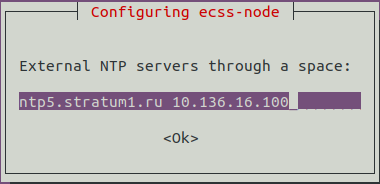
It is necessary to allow (Yes) or forbid (No) activation of the tos orphan mode (a mode for cluster in which servers independently regulate synchronization). If the system is installed in cluster, then the ECSS servers should have the same time, even if external NTP servers are unavailable. Therefore, it is necessary to select "Yes".
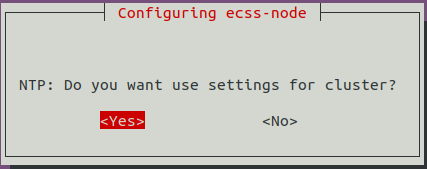
The accuracy of cluster time by Strаtum. By default — 7:
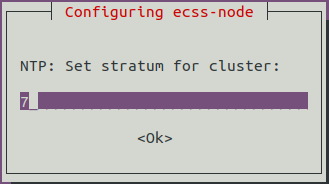
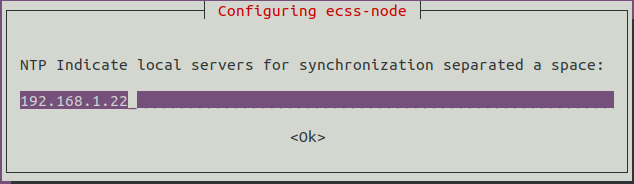
It is proposed to enter the addresses of neighboring cluster servers to synchronize them with each other. In this example ecss1 is configured, therefore ecss2 address is entered. When configuring ecss2, ecss1 address is entered correspondingly. If there are several servers, you need to list them separated by space.
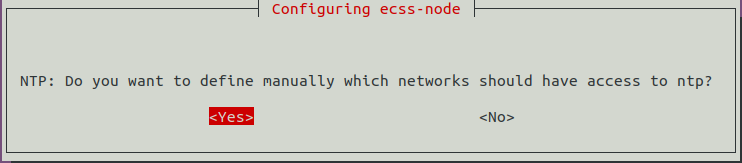
Next, it is proposed to configure subnets addresses from which other devices are allowed to synchronize with this server:
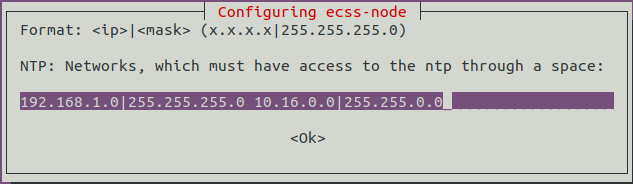
Networks that can have access to this server are specified so that other nodes, as well as other devices could synchronize time with this server. Format of networks specifying : <net_address|net_mask>. If there are several nets, you need to list them separated by space.
After installation, settings are saved in /etc/ecss/ecss-ntp.conf file. Example of the resulting file for ecss1 server:
# /etc/ntp.conf # http://www.k-max.name/linux/ntp-server-na-linux/ # In preinst a backup copy of the old one is made and the current one is installed # In postrm backup copy is uploaded # System clock offset driftfile /var/lib/ntp/ntp.drift # Logs logfile /var/log/ntp # Time synchronization statistics statsdir /var/log/ntpstats/ # Allows to record statistics: # loopstats - loopback statistics # peerstats - peers statistics # clockstats - driver statistics statistics loopstats peerstats clockstats filegen loopstats file loopstats type day enable filegen peerstats file peerstats type day enable filegen clockstats file clockstats type day enable # Orphan mode activation - time synchronization mode for clusters. Setting a stratum for it (accuracy level: a number from 1 to 16) # tos orphan <stratum> # TOS tos orphan 7 ### INSTALLED AUTOMAT BY ECSS10 # Local network servers # peer <ip|domain> # LOCAL_SERVERS peer 192.168.1.22 ### INSTALLED AUTOMAT BY ECSS10 # Internet servers # server xx.xx.xx.xx iburst # restrict xx.xx.xx.xx # INTERNET_SERVERS server ntp5.stratum1.ru iburst ### INSTALLED AUTOMAT BY ECSS10 restrict ntp5.stratum1.ru ### INSTALLED AUTOMAT BY ECSS10 server 10.136.16.100 iburst ### INSTALLED AUTOMAT BY ECSS10 restrict 10.136.16.100 ### INSTALLED AUTOMAT BY ECSS10 # Restricting access to a configurable server: # Ignore everything by default restrict -4 default kod notrap nomodify nopeer noquery limited restrict -6 default kod notrap nomodify nopeer noquery limited restrict source notrap nomodify noquery # Localhost without parameters means everything is allowed. The parameters are used only for restrictions. restrict 127.0.0.1 restrict ::1 |
For ecss2, the file will be the same, except for peer line to neighboring server (192.168.1.21):
peer 192.168.1.21 ### INSTALLED AUTOMAT BY ECSS10 |
In Orphan mode, servers in cluster synchronize from each other, determine the masters themselves and make sure that clocks run synchronously within the cluster. If NTP master server appears with a stratum value less than the value set for cluster, the cluster is automatically reconfigured to synchronize from it. Thus, the condition of the constant presence of a single time synchronization point is fulfilled.
All dependent devices in ECSS-10 system must synchronize from cluster servers. If using scheme without redundancy, you can refuse to configure cluster mode: then the configuration file will not have a section for configuring local servers to synchronize with each other.
It is not recommended to edit the configuration file manually, since when ecss-node package is updated, past settings from debconf database from the last reconfiguration of the package will be written to the file. |
The correct way is to use dpkg-reconfigure command.
sudo dpkg-reconfigure ecss-node |
If any changes were made in the configuration file manually, then to use dpkg-reconfigure command you need to restart the NTP service:
|
To view synchronization status information, use ntpq –p command. If using an additional –n key, the IP address will be specified instead of the server name:
Example:
sasha@ecss1:~$ ntpq -p
     remote           refid      st t when poll reach   delay   offset  jitter
==============================================================================
 ecss2           88.147.254.229   2 s   11   64  377    0.099   -1.169   0.357
+10.136.16.100   194.58.204.148   2 u   56  128  377    4.008   -2.482   0.339
*88.147.254.229  .PPS.            1 u  124  128  377   60.440    0.691   0.098
|
Parameters description:
The meaning of the characters before the server names
x — fake source, according to the intersection algorithm;
. — excluded from the candidates list due to the long distance;
- — removed from the list of candidates;
+ — included in the final list of candidates;
# — selected for synchronization, but there are 6 better candidates;
* — selected for synchronization;
o — for synchronization, but PPS is used;
space — a level is too large, a loop, or an obvious error;
After service start, it may take about 10 minutes to establish time synchronization with the base NTP server.
You can check status of the configured NTP server using ntpdate command:
sasha@ecss1:~$ sudo ntpdate -q localhost server 127.0.0.1, stratum 2, offset -0.000032, delay 0.02573 28 Sep 15:00:57 ntpdate[19002]: adjust time server 127.0.0.1 offset -0.000032 sec |
As seen, the server stratum value has become equal to 2.
Token is a USB license protection key. Its availability is necessary for the correct operation of the licensing system and SSW in general. Earlier ECSC servers came with eToken keys for the license purchase, recently new installations are equipped with Rutoken USB keys.
All the libraries necessary for RuToken operation are installed from ELTEX repository together with ecss-node package.
For normal operation of eToken, you need to install the following package:
|
Insert the token into server USB connector.
To check the USB key connection to the server, run the following command:
lsusb |
If the key is detected, the following line will be output:
for eToken:
Bus 003 Device 002: ID 0529:0620 Aladdin Knowledge Systems |
for Rutoken:
Bus 005 Device 002: ID 0a89:0030 |
If the key is not detected, execute the following commands in the specified sequence ( *restarting the SACSrv service for Rutoken is not required, because this service is only for eToken):
|
If the key was already connected to the server earlier and it was reconnected, it is recommended to restart the server.
To check token operation, you can use pkcs11-tool application. It is possible to check the following:
Output general information for the key:
for eToken
pkcs11-tool --module /usr/lib/libeToken.so -I Cryptoki version 2.1 Manufacturer SafeNet, Inc. Library eToken PKCS#11 (ver 8.1) Using slot 0 with a present token (0x0) |
for Rutoken:
pkcs11-tool --module /usr/lib/ecss/ecss-ds/lib/lpm_storage-<VERSION>/priv/x64/librtpkcs11ecp.so -I Cryptoki version 2.20 Manufacturer Aktiv Co. Library Rutoken ECP PKCS #11 library (ver 1.5) Using slot 0 with a present token (0x0) |
Display available slots with keys:
for eToken
pkcs11-tool --module /usr/lib/libeToken.so -L Available slots: Slot 0 (0x0): Aladdin eToken PRO USB 72K Java [Main Interface] 00 00 token label: ECSS 000001 token manuf: SafeNet Inc. token model: eToken token flags: rng, login required, PIN initialized, token initialized, other flags=0x200 serial num : 123456789 Slot 1 (0x1): (empty) Slot 2 (0x2): (empty) Slot 3 (0x3): (empty) Slot 4 (0x4): (empty) Slot 5 (0x5): (empty) |
for Rutoken:
pkcs11-tool --module /usr/lib/ecss/ecss-ds/lib/lpm_storage-<VERSION>/priv/x64/librtpkcs11ecp.so -L Available slots: Slot 0 (0x0): Aktiv Rutoken ECP 00 00 token label : ECSS 000001 token manufacturer : Aktiv Co. token model : Rutoken ECP token flags : rng, login required, PIN initialized, token initialized hardware version : 54.1 firmware version : 18.0 serial num : 123456789 Slot 1 (0x1): (empty) Slot 2 (0x2): (empty) Slot 3 (0x3): (empty) Slot 4 (0x4): (empty) Slot 5 (0x5): (empty) Slot 6 (0x6): (empty) Slot 7 (0x7): (empty) Slot 8 (0x8): (empty) Slot 9 (0x9): (empty) Slot 10 (0xa): (empty) Slot 11 (0xb): (empty) Slot 12 (0xc): (empty) Slot 13 (0xd): (empty) Slot 14 (0xe): (empty) |
Module location for Rutoken may vary depending on the version of DS subsystem. In general, the file is located in /usr/lib/ecss/ecss-ds/lib/lpm_storage-<SUBSYSTEM VERSION>/priv/x64/>librtpkcs11ecp.so. To check, use general command pkcs11-tool --module $(find /usr/lib/ecss/ecss-ds/lib/ -name librtpkcs11ecp.so | head -n1) -L. |
If problems with the key definition remain, contact technical support. |
To restart USB token, perform the following set of actions:
Install usb-reset utility:
sudo snap install usb-reset sudo snap connect usb-reset:hardware-observe core:hardware-observe sudo snap connect usb-reset:raw-usb core:raw-usb Slot 0 (0x0): Aktiv Rutoke |
Check that USB token has indeed frozen. Example:
pkcs11-tool --module /usr/lib/ecss/ecss-ds/lib/lpm_storage-3.14.8.70203.423017/priv/x64/librtpkcs11ecp.so -L |
The output should either show nothing at all, or show all slots as empty.
Get the idVendor, idProduct of the USB token. Command for Rutoken:
sudo lsusb -v | grep -C 10 "Rutoken ECP" |
Find the parameters idVendor, idProduct in the specified output:
lsusb -v  | grep -C 10 "Rutoken ECP"
FIXME: alloc bigger buffer for device capability descriptors
  bDescriptorType         1
  bcdUSB               2.00
  bDeviceClass            0 (Defined at Interface level)
  bDeviceSubClass         0
  bDeviceProtocol         0
  bMaxPacketSize0        16
  idVendor           0x0a89
  idProduct          0x0030
  bcdDevice            1.00
  iManufacturer           1 Aktiv
  iProduct                2 Rutoken ECP
  iSerial                 0
  bNumConfigurations      1
  Configuration Descriptor:
    bLength                 9
    bDescriptorType         2
    wTotalLength           93
    bNumInterfaces          1
    bConfigurationValue     1
    iConfiguration          0
bmAttributes 0x80 |
Restart the USB device:
sudo usb-reset <idVendor>:<idProduct> Пример: sudo usb-reset 0a89:0030 |
Check that the slot(s) appeared:
pkcs11-tool --module /usr/lib/ecss/ecss-ds/lib/lpm_storage-<VERSION>/priv/x64/librtpkcs11ecp.so -L Available slots: Slot 0 (0x0): Aktiv Rutoken ECP 00 00 ... |
If tokens disconnection from DEPO servers is periodically recorded, then syslog should be checked for EHCI driver errors. If errors are present, then it is necessary to go to Server BIOS and enable XHCI mode (BIOS path: Advanced/USB Configuration: XHCI Pre-Boot Driver — Enabled, XHCI — enabled).
Example of listen interface configuring for epmd service in accordance with the network configuration given in Configuring network interfaces section.
For the ecss1 server, the following sequence of actions must be performed:
Run the command:
sudo systemctl edit epmd.service |
A text editor window will open. Add the following section to the file (according to the network interface on which epmd is running: for example, for ecss1 — 192.168.1.1):
[Service] Environment="ERL_EPMD_ADDRESS=127.0.1.1,192.168.1.1" |
After saving the file, it is necessary to re-read the configuration:
sudo systemctl daemon-reload |
Next,it is required to restart the services:
sudo systemctl restart epmd.service |
Same sequence of actions is performed for ecss2, but 192.168.1.2 is specified instead of 192.168.1.1
| Addresses that have been configured in keepalived.conf cannot be used as ERL_EPMD_ADDRESS |
| Before starting work, check for Token availability in the system. |
To start and activate the operating system, perform the following set of actions:
Start mycelium and ds subsystems:
sudo systemctl start ecss-mycelium.service sudo systemctl start ecss-ds.service |
Check that services have started. Example for mycelium:
sasha@ecss1:~$ sudo systemctl status ecss-mycelium.service
[sudo] password for sasha:
● ecss-mycelium.service - daemon ecss-mycelium-14.10.44 of ecss-10
   Loaded: loaded (/lib/systemd/system/ecss-mycelium.service; enabled; vendor preset: enabled)
   Active: active (running) since Tue 2021-10-12 12:11:48 +07; 21h ago
 Main PID: 22921 (beam.smp)
    Tasks: 29 (limit: 4915)
   CGroup: /ecss.slice/ecss-mycelium.service
           ├─22921 ecss-mycelium -pc unicode -e 65536 -- -root /usr/lib/ecss/ecss-mycelium -progname erl -- -home /var/lib/ecss/home -- -noshell -noinput -mode embedded -config /tmp/mycelium1.config -boot_v
           ├─23023 erl_child_setup 1024
           ├─23052 inet_gethost 4
           ├─23053 inet_gethost 4
           ├─23054 sh -s disksup
           └─23055 /usr/lib/erlang/lib/os_mon-2.4.7/priv/bin/memsup

Oct 12 12:12:27 ecss1 ecss-mycelium[22921]: 12:12:27 I <0.1613.0> rps_tring:50 Alarm clear: node appear - "md1" - md1@ecss1
Oct 12 12:12:27 ecss1 ecss-mycelium[22921]: 12:12:27 I <0.1615.0> tring_client_em:50 Tring ecss10: "md1" - appear ([{role,mediator},{generation,<<"066203cba3d72206">>}])
Oct 12 12:12:27 ecss1 ecss-mycelium[22921]: 12:12:27 I <0.1615.0> tring_client_em:50 Tring ecss10: "md1"/md1@ecss1 - appear ([{tring_token_nodes,[{"ds1",ds1@ecss1},{"mycelium-testnew",mycelium1@ecss1}]},{ro
Oct 12 12:12:32 ecss1 ecss-mycelium[22921]: 12:12:32 I <0.1615.0> tring_client_em:50 Tring ecss10: "sip1" - appear ([{role,adapter},{generation,<<"066203cbf848a618">>}])
Oct 12 12:12:32 ecss1 ecss-mycelium[22921]: 12:12:32 I <0.1615.0> tring_client_em:50 Tring ecss10: "sip1"/sip1@ecss1 - appear ([{tring_token_nodes,[{"ds1",ds1@ecss1},{"md1",md1@ecss1},{"mycelium-testnew",my
Oct 12 12:12:35 ecss1 ecss-mycelium[22921]: 12:12:35 I <0.1613.0> rps_tring:50 Alarm clear: group appear - "core1"
Oct 12 12:12:35 ecss1 ecss-mycelium[22921]: 12:12:35 I <0.1615.0> tring_client_em:50 Tring ecss10: "core1" - appear ([{role,core},{generation,<<"066203cc23ebbd1d">>}])
Oct 12 12:12:35 ecss1 ecss-mycelium[22921]: 12:12:35 I <0.1615.0> tring_client_em:50 Tring ecss10: "core1"/core1@ecss1 - appear ([{tring_token_nodes,[{"mycelium-testnew",mycelium1@ecss1},{"md1",md1@ecss1},{
Oct 13 09:09:56 ecss1 ecss-mycelium[22921]: 09:09:56 I <0.6428.0> mysql_au:50 Cleaned 0 audit sessions
Oct 13 09:09:56 ecss1 ecss-mycelium[22921]: 09:09:56 I <0.6428.0> mysql_au:50 Cleaned 28 audit commands |
Example for ds:
sasha@ecss1:~$ sudo systemctl status ecss-ds.service
● ecss-ds.service - daemon ecss-ds-14.10.44 of ecss-10
   Loaded: loaded (/lib/systemd/system/ecss-ds.service; enabled; vendor preset: enabled)
   Active: active (running) since Tue 2021-10-12 12:11:59 +07; 21h ago
 Main PID: 23111 (beam.smp)
    Tasks: 38 (limit: 4915)
   CGroup: /ecss.slice/ecss-ds.service
           ├─23111 ecss-ds -pc unicode -K true -A 8 -t 2097152 -e 100000 -- -root /usr/lib/ecss/ecss-ds -progname erl -- -home /var/lib/ecss/home -- -noshell -noinput -mode embedded -config /tmp/ds1.config
           ├─23222 erl_child_setup 1024
           ├─23293 inet_gethost 4
           ├─23294 inet_gethost 4
           ├─23309 inet_gethost 4
           ├─23310 inet_gethost 4
           ├─23311 sh -s disksup
           └─23312 /usr/lib/erlang/lib/os_mon-2.4.7/priv/bin/memsup

Oct 12 12:11:59 ecss1 systemd[1]: Started daemon ecss-ds-14.10.44 of ecss-10.
Oct 12 12:11:59 ecss1 ecss-ds[23111]: release: ds1 3.14.10.44
Oct 12 12:11:59 ecss1 ecss-ds[23111]: ****
Oct 12 12:11:59 ecss1 ecss-ds[23111]: exec /usr/lib/erlang/erts-10.3.5.10/bin/erlexec     -noinput     -mode embedded     -config /tmp/ds1.config     -env ERL_CRASH_DUMP /var/log/ecss/ds/crashdumps/erl_cras
Oct 12 12:12:00 ecss1 ecss-ds[23111]: Starting Chronica...
Oct 12 12:12:00 ecss1 ecss-ds[23111]: Starting error_logger...
Oct 12 12:12:01 ecss1 ecss-ds[23111]: ok
Oct 12 12:12:01 ecss1 ecss-ds[23111]: starting OASYS {check boot env.}                                      ...done
Oct 12 12:12:01 ecss1 ecss-ds[23111]: starting OASYS {data control engine}                                  ...done
Oct 12 12:12:20 ecss1 systemd[1]: ecss-ds.service: Current command vanished from the unit file, execution of the command list won't be resumed.
|
Connect to the distributed CoCon Management Console:
ssh admin@localhost -p8023 |
| The default password for connecting to CoCoN management console is password. |
Next install passport and license. The process of setting license restrictions includes entering license code sequence and the passport of the USB Token key into the ECSS-10 database.
First, the passport is installed, then the license. |
Enter the passport and license data:
/cluster/storage/<CLUSTER>/licence/set-passport <PASSPORT> /cluster/storage/<CLUSTER>/licence/add [--force|--no-diff] <LICENCE> |
where:
By default, the system has a long-term data storage cluster named ds1. |
[--force] — skip command approval;no-diff] — do not display a comparison table of current and proposed license terms.If license and passport data are entered correctly, the system will issue a confirmation: ОК.
You can immediately check that the correct license restrictions have been applied:
/cluster/storage/<CLUSTER>/licence/current-limits |
Then disconnect from CoCon console by executing a command:
exit |
Run the remaining nodes:
sudo systemctl start ecss-core.service sudo systemctl start ecss-pa-sip.service sudo systemctl start ecss-mediator.service sudo systemctl start ecss-restfs.service sudo systemctl start ecss-web-conf.service sudo systemctl start ecss-media-server.service sudo systemctl start ecss-cc-ui.service sudo systemctl start ecss-teleconference-ui |
Also run ecss-pa-megaco (in case it is used):
sudo systemctl start ecss-pa-megaco.service |
Check that the services have started correctly by running the commands for each of them:
sudo systemctl status <SERVICE> |
where <SERVICE> is the name of service. The status should show the active state.
At this stage, the system is considered fully installed and ready for configuration.
When installing ECSS-10 system in a cluster, it is necessary to perform the following on both servers in accordance with the project:
It is necessary to specify the same cluster name on both servers for system operation. To do this, open mycelium1.config file in text editor:
sudo nano /etc/ecss/ecss-mycelium/mycelium1.config |
If "undefined" is specified in the "cluster_name" field, then specify an arbitrary name for this parameter, for example:
{cluster_name, my_cluster} |
Next, check in /etc/dnsmasq.d/ecss-broker file that primary and secondary broker addresses correspond to those specified during the installation of ecss-node package.
Example of file contents on ecss1 and ecss2 (file contents should be the same on both servers):
address=/primary.broker.ecss/192.168.1.1 address=/secondary.broker.ecss/192.168.1.2 |
| Addresses that have been configured in keepalived.conf cannot be used as primary.broker.ecss and secondary.broker.ecss. |
To work in a cluster, you need to configure RestFS operation based on a GlusterFS server.
Install Net-SNMP agent:
sudo aptitude install snmpd |
The standard port that snmpd uses is udp/161. The built-in ECSS agent uses the udp/1610 port by default, so they will not conflict with snmpd.
Make sure that the snmpd service has started successfully on port 161 and ECSS on port 1610::
sudo netstat -tulpan | grep 161 udp 0 0 127.0.0.1:161 0.0.0.0:* 7723/snmpd udp 0 0 0.0.0.0:1610 0.0.0.0:* 8245/ecss-mediator |
If you need to change the standard snmpd port, edit the configuration file /etc/snmp/snmpd.conf. For example:
agentAddress udp:127.0.0.1:3161 |
Save your changes.
Next, restart the snmpd service:
sudo systemctl restart snmpd.service |
Make sure that the snmpd service has started successfully on new port:
sudo netstat -tulpan | grep snmpd udp 0 0 127.0.0.1:3161 0.0.0.0:* 7723/snmpd |
Configuring VRRP Configuring the keepalived daemon to manage virtual addressesOne way to increase the fault tolerance of ECSS-10 is to use virtual IP addresses. A virtual IP address is an address that does not permanently belong to any specific node of the ECSS-10 cluster, but is automatically raised on the node that is currently able to serve requests. Thus:
To manage virtual addresses, the keepalived daemon is used, which implements the following functions:
General keepalived configuration It is recommended to use the VRRP version 3 protocol, because it provides a lower delay before address transfer in case the current active node is lost. When using the IPNET protocol on the network, the VRRP version 3 protocol must be used. To ensure prompt switching between worker nodes, it is the VRRP version 3 protocol that should be used, because it allows VRRP advertisements to be broadcast at 1/100 second (centisecond) intervals, unlike VRRP version 2, which operates at second intervals. However, VRRP version 2 is still functional in version 3.14 of ECSS. Version 3 of the VRRP protocol must be explicitly set in the configuration file, version 2 is used by default:
It is also recommended to configure the execution of the verification scripts as the nobody user (a system user without rights) and to enable the secure execution of scripts that are run as the root user. After defining the global options for the daemon, use the include option to include files with the configuration of virtual addresses. The keepalived configuration allows comments to be left. They are located in any part of the configuration starting with the # character and end with the end of the line. The basic daemon configuration is stored in /etc/keepalived/keepalived.conf Note. Many examples can be found on the network in which the authentication option is used when configuring VRRP. However, the keepalived documentation mentions that authentication was removed from VRRPv2 in the RFC3768 specification (https://tools.ietf.org/html/rfc3768) in 2004, as it did not provide real security and could result in two "masters". It is recommended to avoid using this section. In VRRP_v3 this option is disabled. Basic configuration (the same for all cluster nodes):
Configuring a virtual address for a SIP adapter In the given diagram two virtual addresses for SIP adapters are used. This allows distributing the load between nodes by configuring neighboring devices in such a way that some of them operate with one virtual address, and some with another. At the same time, under the condition of incomplete loading of the nodes, fault tolerance is preserved, because in case of failure of one of the nodes, the virtual address will be picked up by another node. The configuration is built in such a way that the first node is the master for the first virtual address of the SIP adapter. The second node will reserve this address. The configuration for the main address of the SIP adapter of the second node is mirrored — the second node is the master, the first node is a backup. The configuration of virtual addresses for the SIP adapter is recommended to be placed in a separate /etc/keepalived/pa-sip.conf file.
First node configuration
Second node configuration
Configuring virtual address for MySQL
MySQL database replication configuration is given in the MySQL master-master replication deployment scheme using keepalive section. An example of creating a typical configuration is given in the Examples of step-by-step initial configuration of ECSS-10 section. Configuring virtual address for IPNET Since multiple peer addresses are not supported over IPNET, allocate a virtual IP address when running ECSS-10 in a cluster. To ensure prompt switching between operating nodes, use the VRRP version 3 protocol, because it allows VRRP advertisements to be sent at 1/100th of a second (centisecond) intervals, unlike the VRRP version 2 protocol, which operates in second intervals. From the point of view of the IPNET protocol, this is important because the IPNET protocol implements its own keepalive messages. When using the VRRP version 2 protocol, the worst virtual IP address switching time will be four seconds, with the minimum allowable time for sending VRRP advertisements under the protocol of one second, which can be unacceptably long from the point of view of the IPNET keepalive mechanism and will lead to the destruction of the call from the opposite station. In the proposed configuration, VRRP advertisements are exchanged between nodes every 50ms. The VRRP advertising interval should be chosen based on the amount of network delay between nodes. The selected interval of 50ms allows you to quickly switch when nodes fail and to experience increase in network delay up to 150-200ms without false triggering. In case the nodes are widely distributed geographically, it may be necessary to slightly increase this interval, based on the actual characteristics of the network. However, this interval should not be made too large, because this may affect the stability of keeping active calls when switching the address to the reserve. The worst failover time for a master failure or loss of VRRP advertisements packets in case of network problems is The configuration of virtual addresses for IPNET is recommended to be placed in a separate /etc/keepalived/ipnet.conf file.
For more information about the keepalived and how to configure it, see the documentation. |
After everything is configured, proceed to system start and activation. The sequence of actions:
On ecss1:
After successful subsystems start on ecss1 and license activation all ecss2 services can be started.
To check the status of the cluster nodes, you need to log in to the command console (CoCon) on any of the servers:
ssh admin@<IP_ECSS> -p8023 |
where <IP_ECSS> is the IP address or domain name of ecss server.
Default password is password. After logging in, enter node/check-services command. Nodes of both servers should be displayed.
Example:
admin@mycelium1@ecss1:/$ node/check-services
Nodes:
    core1@ecss1     core1@ecss2
      ds1@ecss1       ds1@ecss2
      md1@ecss1       md1@ecss2
mycelium1@ecss1 mycelium1@ecss2
     sip1@ecss1      sip1@ecss2

All services are started |
it also necessary to check that the nodes "see" each other with node/nodes-info command. Example:
admin@mycelium1@ecss1:/$ node/nodes-info ┌───────────────┬───────────────────────────────┬─────────────────────┐ │ Node │ Erlang │ Mnesia │ ├───────────────┼───────────────────────────────┼─────────────────────┤ │core1@ecss1 │core1@ecss1,core1@ecss2 │not running │ │core1@ecss2 │core1@ecss1,core1@ecss2 │not running │ │ds1@ecss1 │ds1@ecss1,ds1@ecss2 │ds1@ecss1,ds1@ecss2 │ │ds1@ecss2 │ds1@ecss1,ds1@ecss2 │ds1@ecss1,ds1@ecss2 │ │md1@ecss1 │md1@ecss1,md1@ecss2 │md1@ecss1,md1@ecss2 │ │md1@ecss2 │md1@ecss1,md1@ecss2 │md1@ecss1,md1@ecss2 │ │mycelium1@ecss1│mycelium1@ecss1,mycelium1@ecss2│not running │ │mycelium1@ecss2│mycelium1@ecss1,mycelium1@ecss2│not running │ │sip1@ecss1 │sip1@ecss1,sip1@ecss2 │sip1@ecss1,sip1@ecss2│ │sip1@ecss2 │sip1@ecss1,sip1@ecss2 │sip1@ecss1,sip1@ecss2│ └───────────────┴───────────────────────────────┴─────────────────────┘ |
This completes the installation stage. After checking it can be proceeded to configuration.
If for some reason you need to decommission first server of ecss1 cluster out of service, then do the following on second ecss2 server:
Open /etc/hosts file:
sudo nano /etc/hosts |
Assign an address for the ecss1 host corresponding to the ecss2 host address:
127.0.0.1 localhost 127.0.1.1 ecss2 192.168.1.2 ecss1 # The following lines are desirable for IPv6 capable hosts ::1 localhost ip6-localhost ip6-loopback ff02::1 ip6-allnodes ff02::2 ip6-allrouters |
After completing all the installation procedures, you should check the correctness and completeness of the performed actions. To do this, use the checklist given in the section ECSS-10 installation checklist.