This section describes installation of the device into a rack and connection to a power supply.
The delivery package includes support brackets for rack installation and mounting screws to fix the device case on the brackets. To install the support brackets:
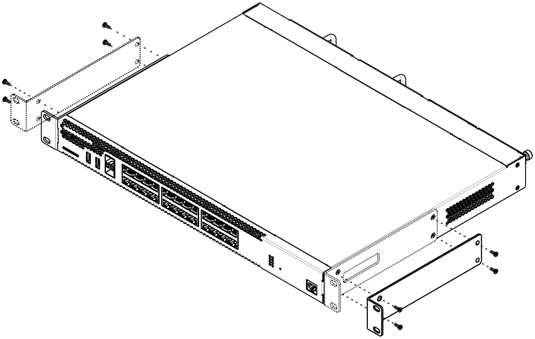
Figure 75 – Support brackets mounting
To install the device to the rack:
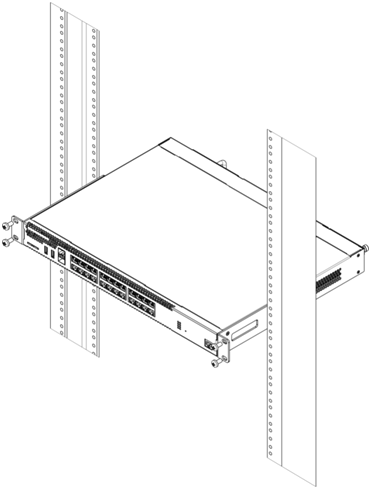
Figure 76 – Device rack installation
Device ventilation system is implemented using 'front-rear' layout. Vents are located on the front and side panels of the device; ventilation modules are located at the rear. Do not block air inlet and outlet vents to avoid components overheating and subsequent device malfunction. |
To install and connect to vESR, go to the vESR documentation section.
ESR-1000/1200/1500/1511/1700/3100/3200 routers and WLC-3200 controller can operate with one or two power modules. The second power module installation is necessary when the device operates under strict reliability requirements.
From the electric point of view, both places for power module installation are identical. In the context of device operation, the power module can be in the main and reserve slot. For information on priority see table 'Description of connectors, LEDs and controls located on router'. Power modules can be inserted and removed without powering the device off. When additional power module is inserted or removed, the router continues operation without reboot.
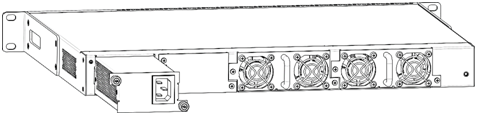
Figure 77 – Power module installation
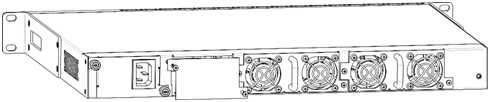
Figure 78 – Plug installation
Power module fault indication may be caused not only by the module failure, but also by the absence of the primary power supply. |
The state of power modules can be checked by the indication on the front panel of the router (see Light indication section) or by diagnostics, available through the router management interfaces.
Optical modules can be installed when the terminal is turned on or off. |
1. Insert the top SFP module into a slot with its open side down, and the bottom SFP module with its open side up.
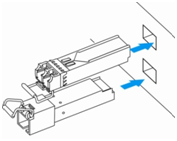
Figure 79 – SFP transceivers installation
2. Push the module into the device housing until it is secured with a clicking sound.
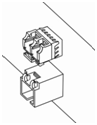
Figure 80 – Installed SFP transceivers
1. Flip the module handle to unlock the latch.
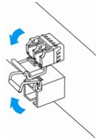
Figure 81 – Opening SFP transceiver latch
2. Remove the module from the slot.
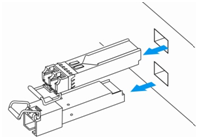
Figure 82 – SFP transceivers removal