To configure TLS authorization:
To generate a client certificate, you need to create a private-key, generate a csr, issue a client certificate, and create a pkcs12 container.
A private-key must be created for each client certificate. The RSA algorithm is used, the key size in bits is set in the range from 1024 to 4096 (optional, by default – 2048 bits).
The command has the form:
crypto generate private-key rsa [key size 1024-4096] filename <Filename for key .pem> |
If a “?” is written after filename, the tooltip will show a list of key files in the crypto:private-key/ directory.
wlc# crypto generate private-key rsa filename ? WORD(1-31 Name of file ----FILE---- default_ca_key.pem default_cert_key.pem tester.pem wlc-sa.key |
It is possible to select a file that already exists and overwrite it:
wlc# crypto generate private-key rsa 1024 filename tester.pem Destination file already exists. Do you really want to overwrite it? (y/N): y ..........++++++++++++++++++++++++++++++++++++++++++++++++++++++++++++++++ ..................++++++++++++++++++++++++++++++++++++++++++++++++++++++++++++++++ |
If there are too many files, only a part of the certificates will be listed:
wlc# crypto generate cert csr tester.csr ca ? CRYPTO FILES Select file: ----FILE---- E828C1000002.pem E828C1000004.pem E828C1000006.pem E828C1000008.pem E828C100000A.pem E828C100000C.pem E828C100000E.pem E828C1000010.pem E828C1000012.pem E828C1000014.pem E828C1000016.pem E828C1000018.pem E828C100001A.pem E828C100001C.pem E828C100001E.pem E828C1000020.pem E828C1000022.pem E828C1000024.pem E828C1000026.pem E828C1000028.pem E828C100002A.pem E828C100002C.pem E828C100002E.pem E828C1000030.pem E828C1000032.pem E828C1000034.pem E828C1000036.pem E828C1000038.pem E828C100003A.pem E828C100003C.pem E828C100003E.pem E828C1000040.pem E828C1000042.pem E828C1000044.pem E828C1000046.pem E828C1000048.pem E828C100004A.pem E828C100004C.pem E828C100004E.pem E828C1000050.pem E828C1000052.pem E828C1000054.pem E828C1000056.pem E828C1000058.pem E828C100005A.pem E828C100005C.pem E828C100005E.pem E828C1000060.pem E828C1000062.pem E828C1000064.pem E828C1000066.pem E828C1000068.pem E828C100006A.pem E828C100006C.pem E828C100006E.pem E828C1000070.pem E828C1000072.pem E828C1000074.pem E828C1000076.pem E828C1000078.pem E828C100007A.pem E828C100007C.pem E828C100007E.pem E828C1000080.pem E828C1000082.pem E828C1000084.pem E828C1000086.pem E828C1000088.pem E828C100008A.pem ... |
In this case, part of a word and a “?” can be entered to see the filtered entries:
wlc# crypto generate cert csr tester.csr ca d? CRYPTO FILES Select file: ----FILE---- default_ca.pem default_cert.pem |
The work with files is similar to the rest of the certificate generation commands.
wlc# crypto generate private-key rsa 4096 filename tester.pem .+...+..................+....+...+...+++++++++++++++++++++++++++++++++++++++++++++++++++++++++++++++++*...+.+++++++++++++++++++++++++++++++++++++++++++++++++++++++++++++++++*...+............+...........+.....................+.....+....+.. ++++++++++++++++++++++++++++++++++++++++++++++++++++++++++++++++++ |
When generating the csr, select the private-key (the file generated in the previous step), specify the common-name in the format <username>@<domain> and select the file to save the csr (filename). It is recommended to use real username and domain in common-name.
Optional parameters:
locality – client's location (1-128 characters);
wlc# crypto generate csr private-key tester.pem common-name tester@wlc.root filename tester.csr |
crypto generate csr private-key tester.pem alternative-name IP:10.10.10.10 common-name tester@wlc.root country ru email-address test@test.com locality 4_floor organization ELTEX organizational-unit wireless state Novosibirsk_oblast filename tester.csr |
The created csr can be viewed by using the show crypto certificates csr <filename> command:
wlc# show crypto certificates csr tester.csr
Version:                                1
Subject name:
    C(countryName):                     ru
    ST(stateOrProvinceName):            Novosibirsk_oblast
    L(localityName):                    4_floor
    O(organizationName):                ELTEX
    OU(organizationalUnitName):         wireless
    CN(commonName):                     tester@wlc.root
    emailAddress(emailAddress):         test@test.com
Signature:
    Algorithm:                          sha256WithRSAEncryption
    Value:                              32:DE:27:BE:38:E0:B4:1A:BE:57:0C:50:5E:05:D5:9F:3D:ED:
                                        12:EC:27:3F:42:17:3D:36:EC:72:4A:52:AF:0C:C1:FB:6A:CA:
                                        12:27:E7:C2:31:0A:5A:2D:5D:C3:5D:6B:80:6E:86:D1:66:06:
                                        4F:21:AC:A9:40:E7:1F:CC:FD:D0:9B:C4:D7:F0:56:84:19:07:
                                        1E:D4:28:0F:C9:36:26:D6:D1:9F:25:F6:73:04:DB:9A:31:94:
                                        79:BE:8D:8E:97:05:0E:F8:A7:CD:A7:F8:80:6E:E1:A2:7B:D5:
                                        D7:1F:73:8E:D0:C3:2E:F3:D2:EF:87:E0:9A:F8:F3:6B:A6:4D:
                                        E3:6C:5A:B7:6E:2A:61:DE:BF:8E:FB:94:D5:DC:40:15:39:70:
                                        43:AA:9B:B1:76:43:BA:7E:52:FD:46:6F:E3:1B:C0:19:09:86:
                                        6E:71:9B:37:BD:A5:B9:0C:E8:66:4E:8E:DF:E0:9B:70:07:48:
                                        15:CD:6F:8E:80:87:56:89:74:17:9D:C3:D5:2A:92:C4:BB:16:
                                        D9:09:E7:8A:EB:D0:3B:C4:A8:74:92:92:C3:39:40:3D:8E:62:
                                        7D:A7:B6:22:D9:5D:50:5D:BB:CD:B5:0D:47:D2:F6:C1:D6:FF:
                                        FA:18:58:15:A9:52:B1:D3:3C:94:A4:40:4B:15:D1:48:F8:53:
                                        E8:A8:3A:35
Subject Public Key Info:
    Algorithm:                          RSA
    Key size:                           2048
    Exponent:                           65537
    Modulus:                            00:AE:90:97:89:02:4D:49:6F:D7:45:9F:19:8D:4B:F7:30:6B:
                                        5C:DF:FE:2B:D0:E4:85:66:45:2E:2E:98:20:E8:B8:A2:42:29:
                                        C1:1A:A1:44:B4:DD:B1:BE:93:45:1F:0E:7A:A6:A9:C1:5B:D6:
                                        DD:74:4C:E6:DE:D2:B9:12:5A:8F:33:DE:21:64:08:BE:1B:D5:
                                        1B:C2:2C:07:AB:4D:40:3F:87:C7:60:41:EC:9C:48:35:D0:16:
                                        70:DD:A7:28:26:34:A4:54:E4:55:14:72:2A:0A:39:A8:39:E5:
                                        4A:CA:1F:D9:10:4C:7B:BC:BE:F4:08:64:CE:A0:43:7D:FA:EB:
                                        B4:7C:F7:0B:D6:AF:C9:AA:37:B9:9A:10:6F:3D:2F:D7:71:FC:
                                        DB:6C:76:E5:9F:25:DC:80:D6:BB:71:E7:9C:31:42:F8:A3:D4:
                                        67:E3:5D:F8:FB:9A:EF:44:E4:E3:C1:8C:00:23:9D:C0:37:76:
                                        23:9D:B5:B3:C4:45:D7:84:C9:10:4D:26:56:CF:6D:AA:F3:10:
                                        34:AC:C4:AC:7B:7A:CA:D1:BC:D6:D6:84:74:AB:42:FB:AE:56:
                                        EC:26:09:DF:A1:2B:B1:AD:D5:F7:78:8C:89:0D:B1:5F:A9:D1:
                                        23:63:8E:8E:BF:AE:26:F8:EC:39:8A:4C:45:5C:3B:AB:BE:40:
                                        23:7D:73:F2:A7
X509v3 Subject Alternative Name:
    Names:                              IP Address:10.10.10.10
    Critical:                           No
|
After generating the client csr, it has to be signed it with a CA certificate from the RADIUS server.
wlc# sh crypto certificates cert default_ca.pem
Version:                                3
Serial:                                 43:60:5B:D5:8E:6B:0A:56:39:0D:0D:D2:6E:25:CF:31:37:F3:
                                        EB:24
Subject name:
    C(countryName):                     RU
    ST(stateOrProvinceName):            Russia
    L(localityName):                    Novosibirsk
    O(organizationName):                Eltex Enterprise Ltd
    CN(commonName):                     Eltex default certificate authority
Issuer name:
    C(countryName):                     RU
    ST(stateOrProvinceName):            Russia
    L(localityName):                    Novosibirsk
    O(organizationName):                Eltex Enterprise Ltd
    CN(commonName):                     Eltex default certificate authority
Validity period:
    Valid after:                        25.12.2023 09:32:54
    Invalid after:                      01.12.2123 09:32:54
Signature:
    Algorithm:                          sha256WithRSAEncryption
    Value:                              3C:7B:5B:A1:E9:E4:61:67:86:09:F0:54:BF:1F:18:47:7D:D3:
                                        F6:F0:B2:96:24:AC:88:41:EE:ED:69:43:1D:45:BD:5F:00:85:
                                        CE:6D:02:90:80:38:CC:1D:78:EE:58:6B:22:1D:D4:62:A0:6D:
                                        FB:1A:AB:E7:5C:29:99:1F:4E:FD:0D:92:85:35:6C:0E:22:78:
                                        3F:37:26:41:E3:6B:74:21:5F:AC:EF:2C:55:19:5E:44:AA:63:
                                        FE:40:6C:76:C4:29:F2:DB:35:E1:7B:CA:7C:E0:0B:D1:26:2E:
                                        D5:33:46:0A:F4:B0:E3:03:7D:0D:93:7E:D3:86:77:90:C9:EB:
                                        58:31:51:A7:09:76:D5:06:B1:70:14:E9:04:0B:5C:D1:1B:B0:
                                        44:45:41:6C:DC:CD:E6:B4:0A:85:04:1C:4A:31:63:3C:03:AE:
                                        3C:84:CB:01:C3:20:97:74:C8:42:63:A2:F1:B1:68:92:2F:9D:
                                        35:3E:61:97:37:4E:97:CD:75:78:72:C5:D1:B7:8F:5F:78:E0:
                                        B3:96:BA:0D:DB:4D:E5:B0:43:BC:D1:94:42:02:FD:5B:A6:7A:
                                        CC:33:B5:4E:CF:8C:2C:91:16:E8:3E:14:2C:ED:48:5A:2C:CD:
                                        E4:1C:B6:3D:F7:B4:5D:C8:F9:89:6B:E4:DC:31:CD:C8:27:C5:
                                        6C:1F:B4:DA
Public key info:
    Algorithm:                          RSA
    Key size:                           2048
    Exponent:                           65537
    Modulus:                            00:B7:D2:A2:88:E1:4D:80:62:26:43:09:82:85:4B:5F:7C:B3:
                                        77:0E:D5:E3:7C:62:F5:5A:12:16:71:4E:DA:48:A3:B5:6A:3F:
                                        83:F2:9B:BA:89:E7:0F:52:C5:F1:F2:DD:D2:7E:42:3A:F1:8A:
                                        AF:EC:0D:3C:47:C2:9A:7E:DC:27:B6:AA:4C:B0:3F:AE:5D:4F:
                                        93:17:A9:9F:60:B3:29:3B:46:7C:BA:F7:6C:73:95:F2:0E:BC:
                                        71:00:D7:47:BC:5E:4F:FB:8F:B8:E2:50:91:41:30:CE:73:DA:
                                        1F:17:2D:94:21:02:24:D5:FA:EA:1A:18:C6:1C:DB:9F:B2:2A:
                                        27:0B:2F:65:35:A7:FB:1E:32:40:28:85:CD:F8:B1:46:68:48:
                                        AB:7E:E7:5F:4E:B7:0D:8D:40:1A:03:76:24:A2:63:10:0A:C2:
                                        69:CD:DA:3E:E3:A0:C0:EF:9F:BA:B4:D5:37:89:F7:E8:9E:79:
                                        C2:8E:1A:65:45:4B:7F:1D:F5:44:C5:BD:C8:D9:81:C3:6B:C2:
                                        A0:1A:C7:A0:78:B1:D3:F3:C4:9A:A2:A1:25:82:94:EC:56:B9:
                                        F2:45:60:EC:24:B2:3B:1A:32:C9:B5:47:8F:B9:DC:24:CC:2D:
                                        89:67:05:0D:8C:50:4F:D8:6B:A1:48:57:30:71:16:95:0A:49:
                                        5C:48:41:0B:15
X509v3 Subject key identifier:
    ID:                                 CE:26:E0:9F:6B:39:95:5F:2C:AC:99:87:70:EA:90:7D:7E:C7:
                                        86:40
    Critical:                           No
X509v3 Authority key identifier:
    ID:                                 CE:26:E0:9F:6B:39:95:5F:2C:AC:99:87:70:EA:90:7D:7E:C7:
                                        86:40
    Critical:                           No
X509v3 Basic Constraints:
    CA:                                 Yes
    Critical:                           Yes
|
The commandof certificate generation has the form:
crypto generate cert csr <csr file name> ca <CA certificate file name> private-key <CA certificate key file name> filename <crt file name for saving> |
wlc# crypto generate cert csr tester.csr ca default_ca.pem private-key default_ca_key.pem filename tester.crt Certificate request self-signature ok subject=C = ru, ST = Novosibirsk_oblast, L = 4_floor, O = ELTEX, OU = wireless, CN = tester@wlc.root, emailAddress = test@test.com |
wlc# sh crypto certificates cert tester.crt
Version:                                1
Serial:                                 56:5D:6F:19:3F:AB:17:5A:B5:7A:81:0F:0A:2A:AD:7F:9B:20:
                                        87:41
Subject name:
    C(countryName):                     ru
    ST(stateOrProvinceName):            Novosibirsk_oblast
    L(localityName):                    4_floor
    O(organizationName):                ELTEX
    OU(organizationalUnitName):         wireless
    CN(commonName):                     tester@wlc.root
    emailAddress(emailAddress):         test@test.com
Issuer name:
    C(countryName):                     RU
    ST(stateOrProvinceName):            Russia
    L(localityName):                    Novosibirsk
    O(organizationName):                Eltex Enterprise Ltd
    CN(commonName):                     Eltex default certificate authority
Validity period:
    Valid after:                        25.12.2023 09:40:47
    Invalid after:                      01.12.2123 09:40:47
Signature:
    Algorithm:                          sha256WithRSAEncryption
    Value:                              B5:8A:92:2A:A8:F0:82:0A:97:0D:D5:D1:5D:33:5F:F3:E2:A1:
                                        EE:3D:3D:F6:87:09:D0:4A:1F:E4:43:D8:E8:36:E5:A0:88:E2:
                                        80:80:59:EA:24:57:02:3D:3D:0A:21:4C:9C:FC:D8:88:27:3E:
                                        DF:96:75:A5:48:26:64:61:CE:ED:C9:91:AA:F4:10:63:2A:2D:
                                        95:8A:85:7E:55:68:8D:F3:08:F7:F4:08:61:1E:78:D5:51:75:
                                        89:23:E7:B5:49:18:55:E5:57:25:4C:3D:7E:65:73:60:AF:DC:
                                        50:72:2B:69:C8:A7:E7:03:7B:D7:C9:FF:5F:B2:17:3E:F0:71:
                                        46:E0:7F:14:77:00:D1:BB:B3:01:0F:4E:D0:F4:20:06:72:C2:
                                        62:53:D4:4C:84:E1:FD:95:3A:FE:18:77:AE:D8:ED:83:6C:47:
                                        4C:43:41:64:8E:60:38:8F:04:99:97:BE:C3:CB:DB:20:85:90:
                                        A9:0E:88:3D:D0:47:65:1D:CB:F5:9B:D9:87:36:9C:9B:CA:02:
                                        43:3F:45:34:F0:82:63:DA:A4:D3:88:07:10:E9:BD:F5:0C:BD:
                                        3C:E1:8A:2B:33:B9:07:F6:32:2A:D7:ED:91:8F:C3:F7:B2:C2:
                                        D1:B4:2A:F5:30:56:F2:5D:FF:DC:AC:03:C8:75:BA:D2:3F:3D:
                                        39:BD:59:2F
Public key info:
    Algorithm:                          RSA
    Key size:                           1024
    Exponent:                           65537
    Modulus:                            00:B0:52:66:23:B2:31:DE:EB:9F:44:BF:62:58:86:67:71:F0:
                                        79:A0:77:42:11:75:A3:F3:36:69:47:B5:5A:AD:64:98:9C:D4:
                                        29:E8:5D:89:E0:BB:90:6C:69:19:75:FC:B9:3F:B8:A5:D0:2E:
                                        47:59:A9:59:A1:6A:55:2E:70:3E:B3:AD:A8:FE:9B:33:C6:6C:
                                        90:B7:BD:4F:8D:C3:5C:6F:D5:39:9C:87:A1:54:C6:D2:E6:AC:
                                        F1:6A:23:77:36:6F:65:96:41:F5:06:08:EE:EA:C7:4C:C6:DA:
                                        F9:CA:9B:C5:69:3D:FF:18:09:8E:C9:E6:FE:3B:68:85:7B:F2:
                                        88:85:01
|
The .p12 format, also known as PKCS #12, is a standard container format used to store and exchange encrypted or signed data. It can contain private keys, certificates, certificate chains, and other related information. It is recommended to use the .p12 format specifically because it is supported by almost all operating systems, firmware, and devices, including Windows, macOS, Linux, Android, and iOS. .p12 format containers can be password protected, which provides an additional layer of security. The password can be used to encrypt private keys and certificates, making them accessible only to authorized users. The .p12 format can store not only certificates, but also an entire certificate chain, simplifying the process of installing and updating certificates on different devices.
The container generation command has the following form:
crypto generate pfx private-key <Client certificate key file name> cert <Client certificate file name> ca <CA file name> password ascii-text <Container password> filename <File name for certificate saving (.p12)> |
wlc# crypto generate pfx private-key tester.pem cert tester.crt ca default_ca.pem password ascii-text 12345678 filename tester.p12 |
Enable tls mode domain in the radius-server local settings:
wlc(config-radius)# tls mode domain |
For TLS authorization to work correctly, RADIUS profile and SSID profile must be configured to work with the required domain:
configure
	wlc
		ssid-profile default-ssid
    		description default-ssid
    		ssid wlc_tls_ssid
    		radius-profile tls-radius
  		exit
	    radius-profile tls-radius
    		auth-address 192.168.1.1
    		auth-password ascii-text encrypted 8CB5107EA7005AFF
    		domain wlc.root
exit |
To complete the WLC configuration, specify the generated certificate in the settings of the user for which it was generated. In the example common-name tester@wlc.root, so navigate to the settings of the tester user in the wlc.root domain and specify the name of this user's certificate file with the command:
crypto cert <file name> |
wlc# configure wlc(config)# radius-server local wlc(config-radius)# domain wlc.root wlc(config-radius-domain)# user tester wlc(config-radius-user)# crypto cert tester.crt |
Once configured, apply the changes:
wlc# commit wlc# confirm |
radius-server local
  nas ap
    key ascii-text encrypted 8CB5107EA7005AFF
    network 192.168.1.0/24
  exit
  nas local
    key ascii-text encrypted 8CB5107EA7005AFF
    network 127.0.0.1/32
  exit
  domain default
  exit
  domain wlc.root
    user tester
      password ascii-text encrypted 8CB5107EA7005AFF
      crypto cert tester.crt
    exit
  exit
  virtual-server default
    no proxy-mode
    auth-port 1812
    acct-port 1813
    enable
  exit
  enable
  tls mode domain
  crypto private-key default_cert_key.pem
  crypto cert default_cert.pem
  crypto ca default_ca.pem
exit |
To configure TLS-authorization, install the certificate container and the server CA certificate on the client device. To do this, export them from the WLC. This can be done with the copy command using ftp, http, https, scp, sftp, tftp protocols, as well as to USB and MMC devices.
The command to transfer a container with a certificate has the following form:
copy crypto:pfx/<Container name> <DESTINATION> |
where <DESTINATION> – popy path.
wlc# copy crypto:pfx/tester.p12 tftp://100.110.1.79:/tester.p12 |******************************************| 100% (2861B) Success! |
copy crypto:cert//<CA certificate file name> <DESTINATION> |
where <DESTINATION> – copy path.
wlc# copy crypto:cert/default_ca.pem tftp://100.110.1.79:/default_ca.pem |******************************************| 100% (2861B) Success! |
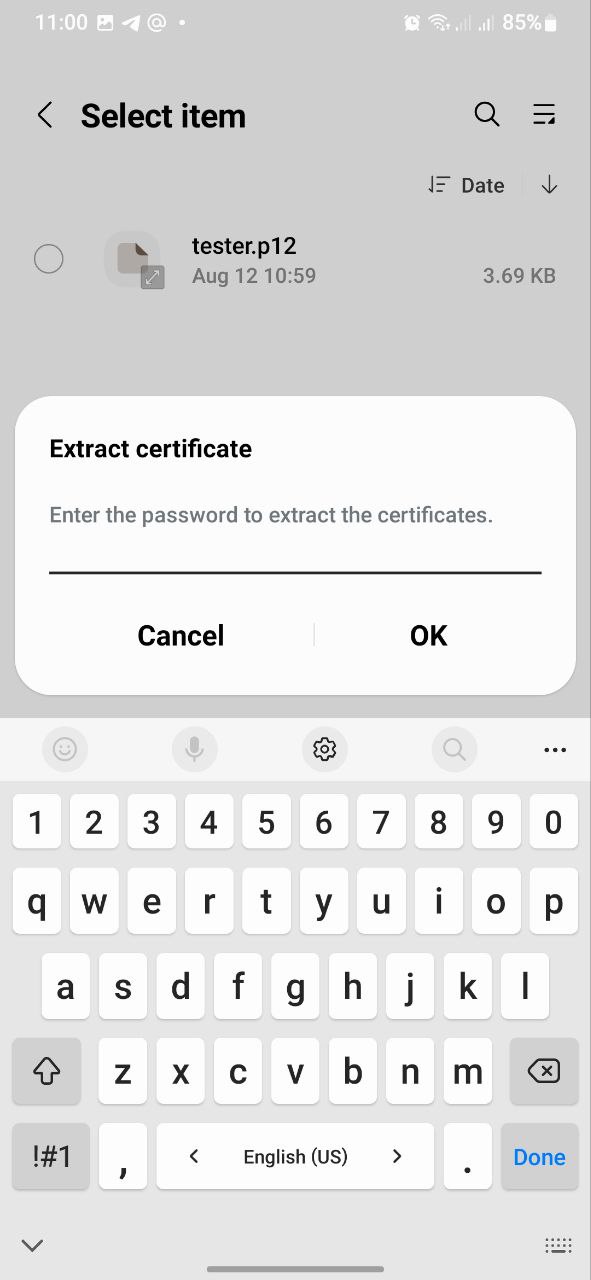
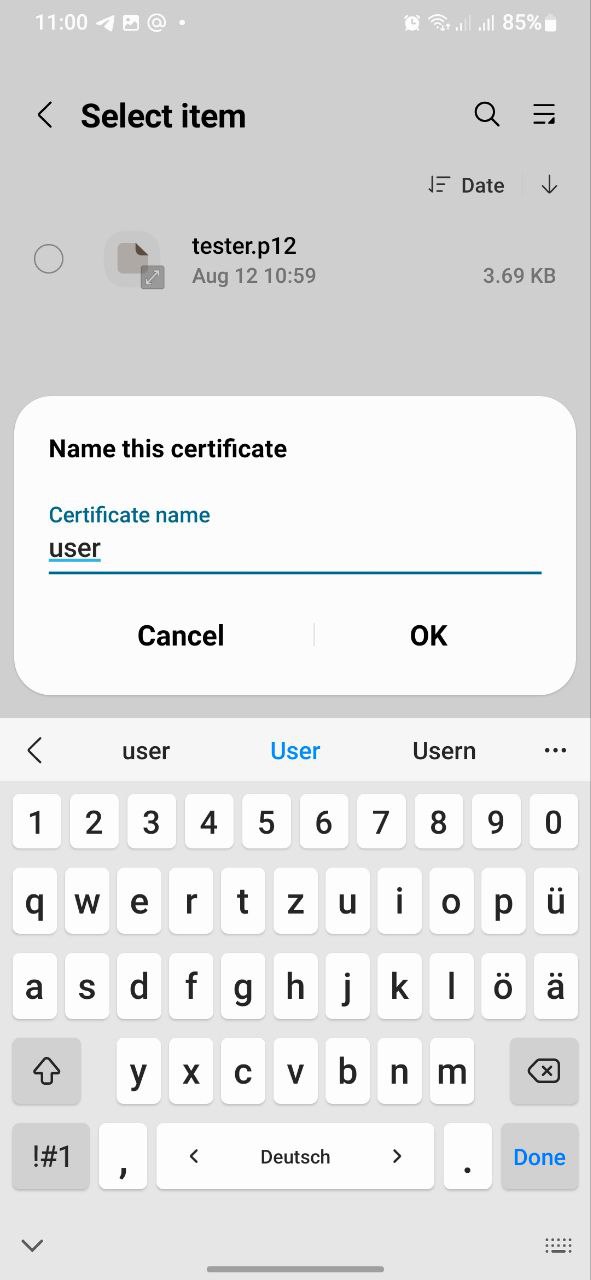
To install certificates on Android device, copy the contents of the archive to the client device.
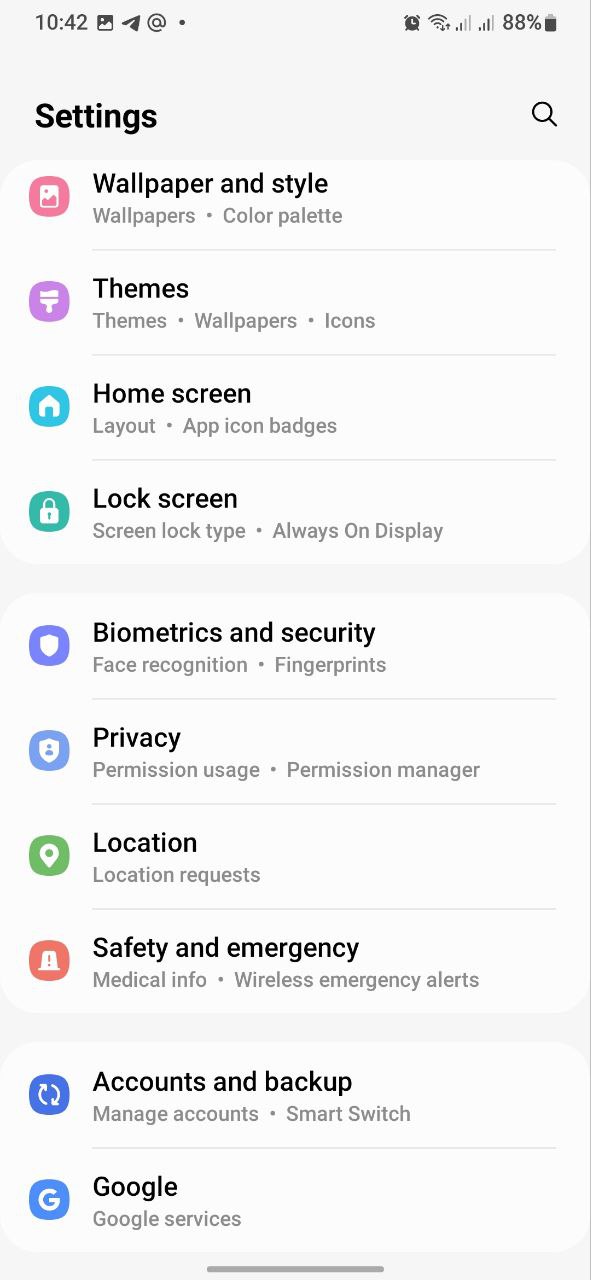
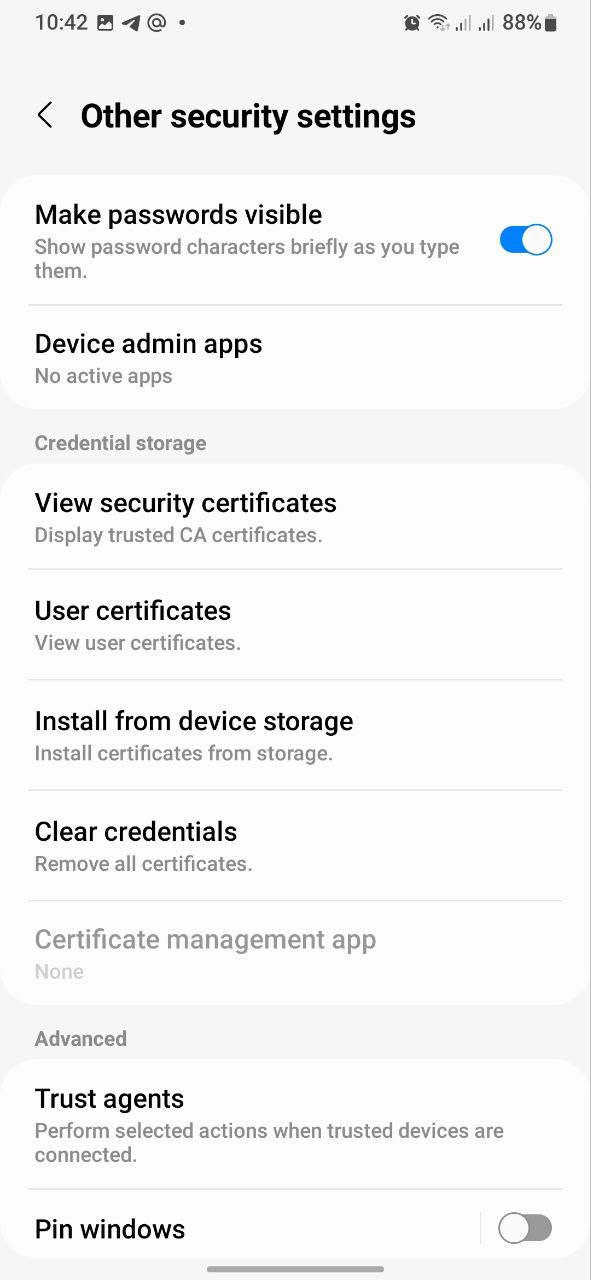
4. If there are old certificates, delete them with the "Clear credentials" button;
5. To load new certificates, click the "Install from device storage" button;
6. The root and user certificates are installed by clicking the "WI-FI certificate" button.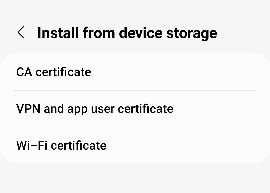
7. Select the location of the extracted archive;
8. To load the root certificate, select the "default_ca.pem" file, then enter its name;
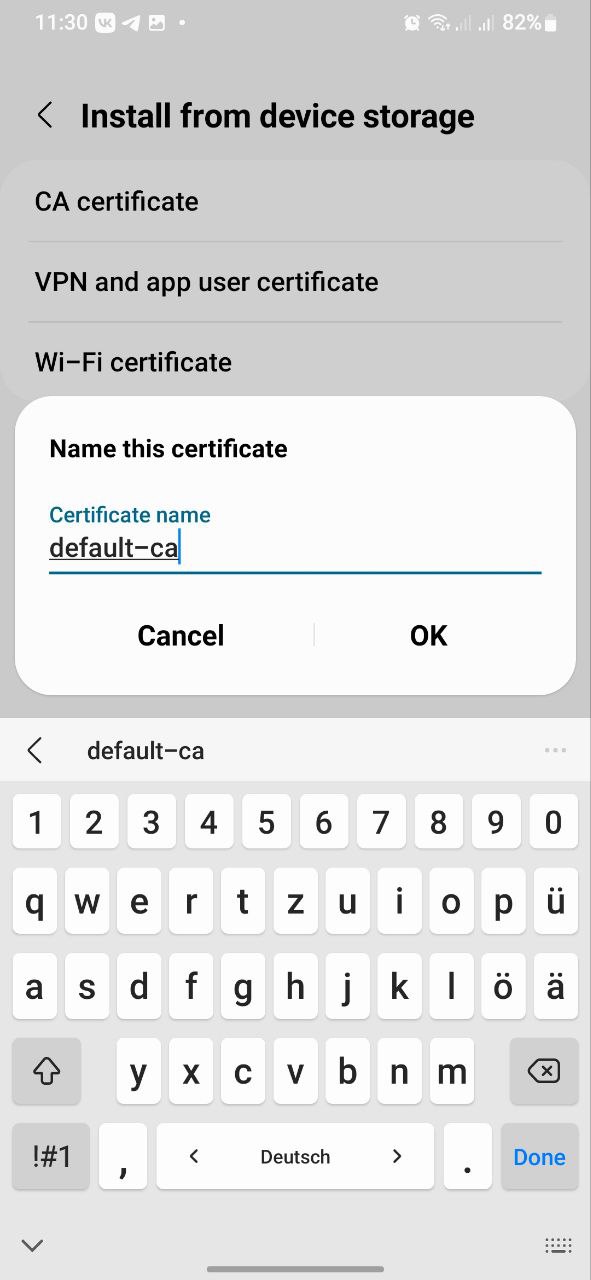
9. To load a client certificate, select the “tester.p12” file, then enter the password specified in the certificate and the name.
To install a certificate on your iOS device, send the certificate files (*.crt and *.p12) by mail to your e-mail address and open them on your phone or download the files to your phone via usb.
Having opened an email with an attached file using standard iOS applications (Safari, Mail), click on the file with *.crt extension. When installing the certificate, the system will warn about the unreliability of the profile, allow the installation and the certificate will be successfully installed.
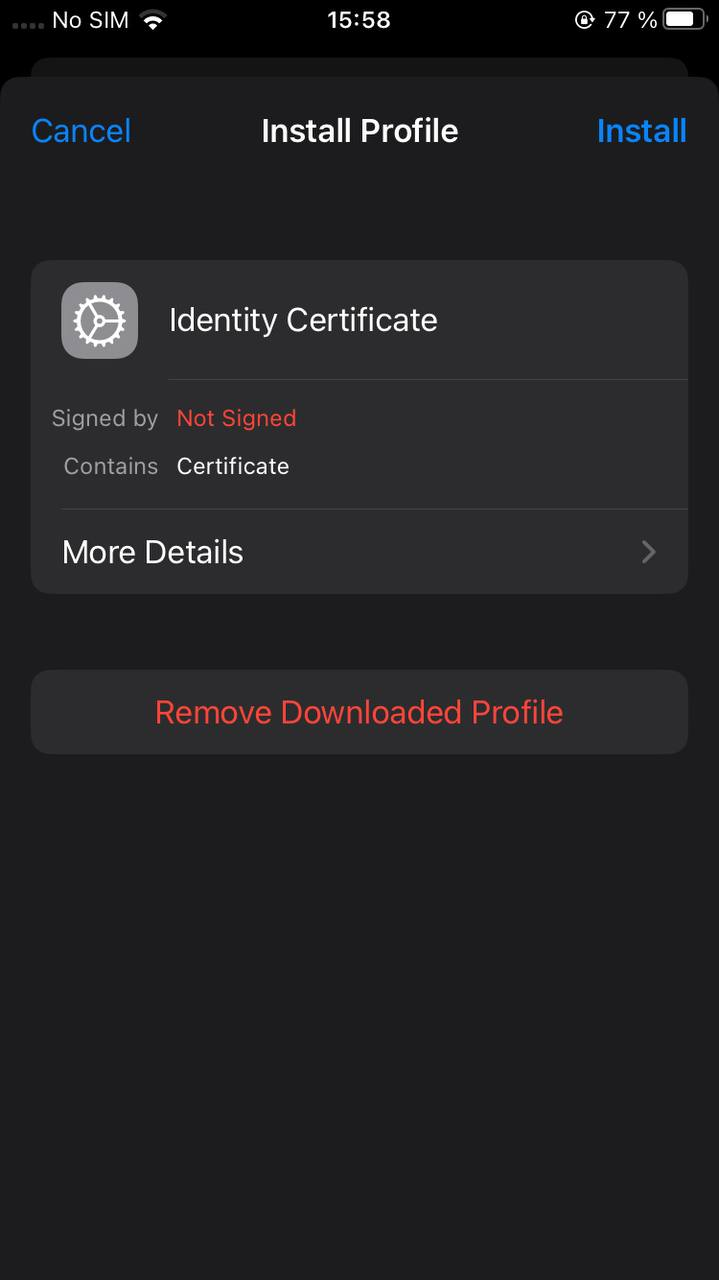
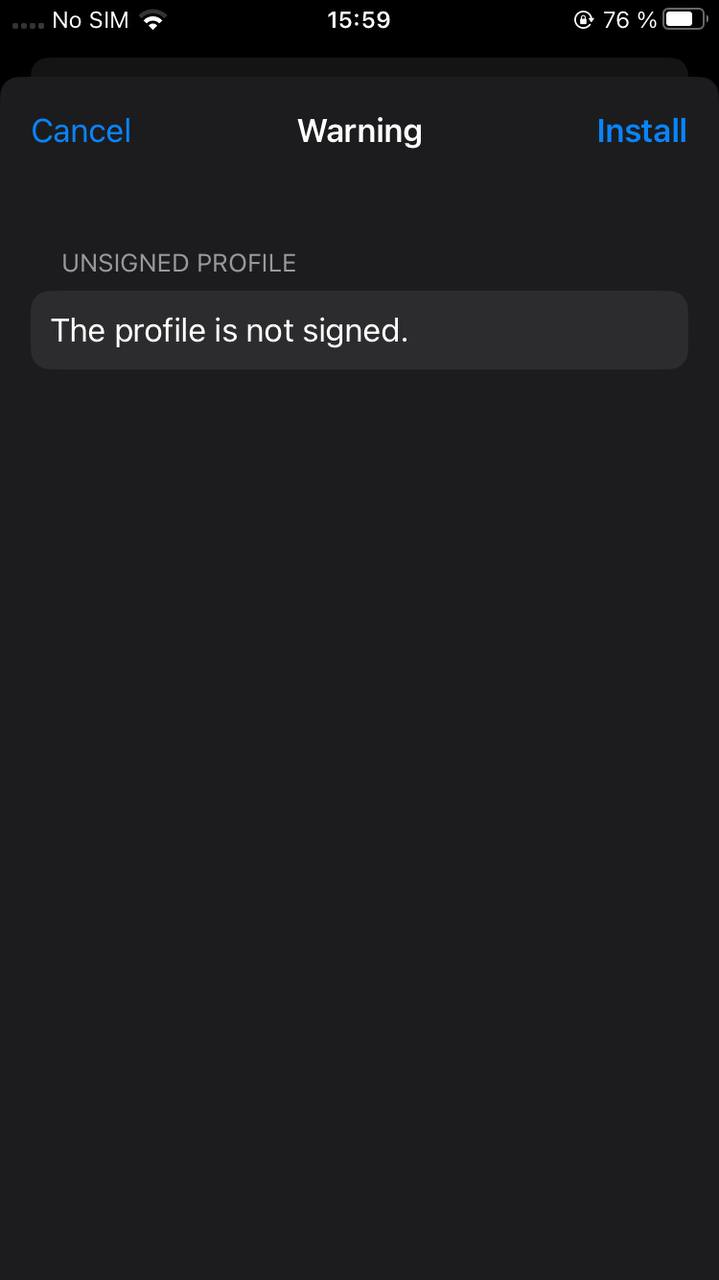
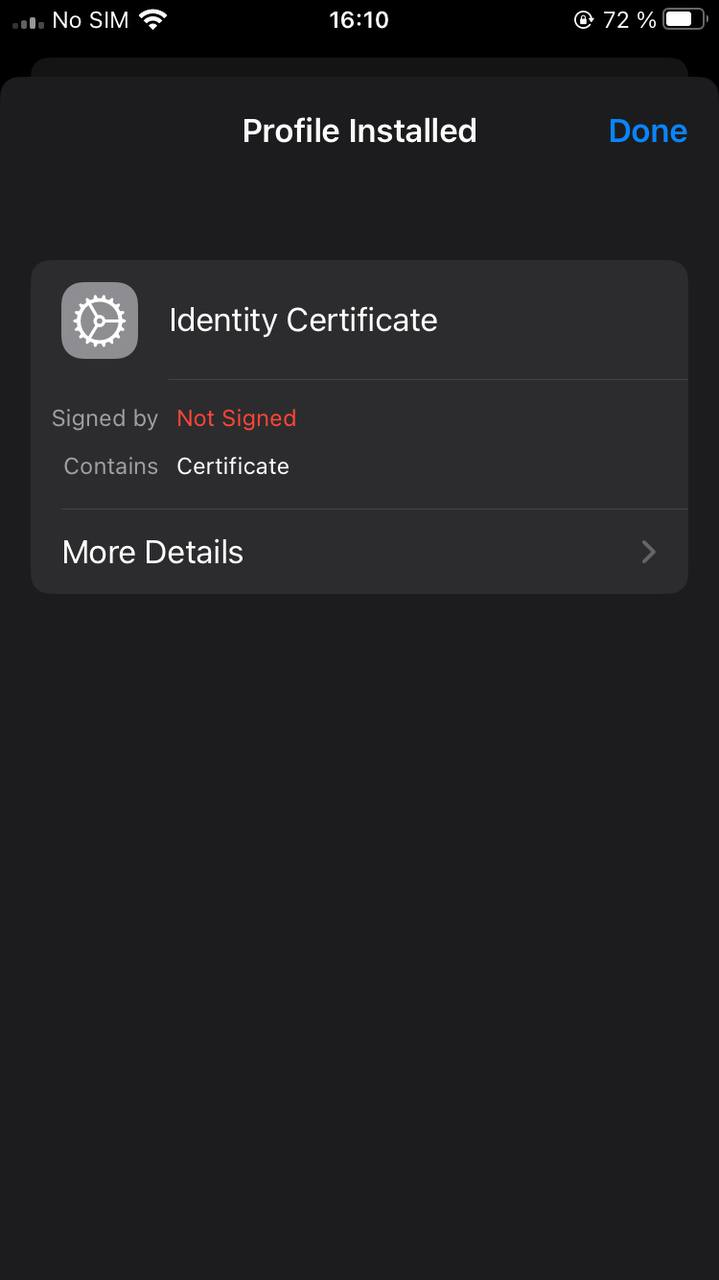
Installing a user certificate is the same as installing a root certificate. Next, enter the certificate password. The password corresponds to the Password parameter of the certificate, which is located in the .txt file.
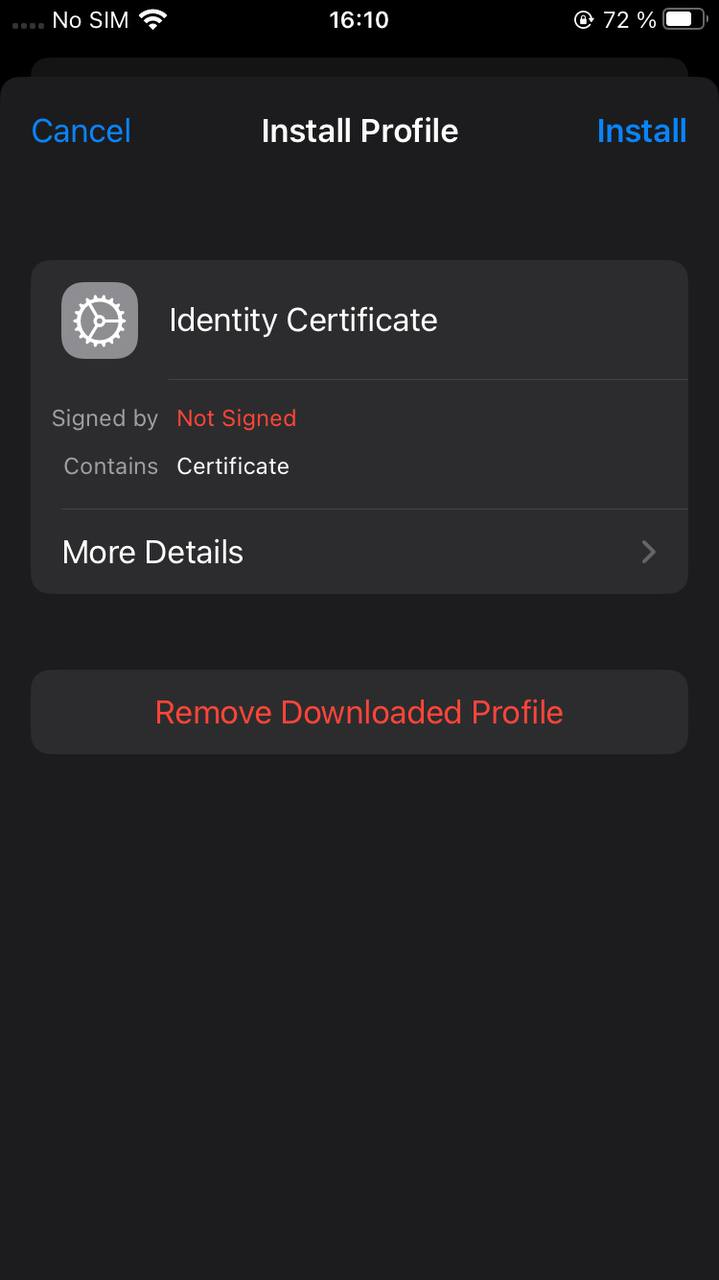
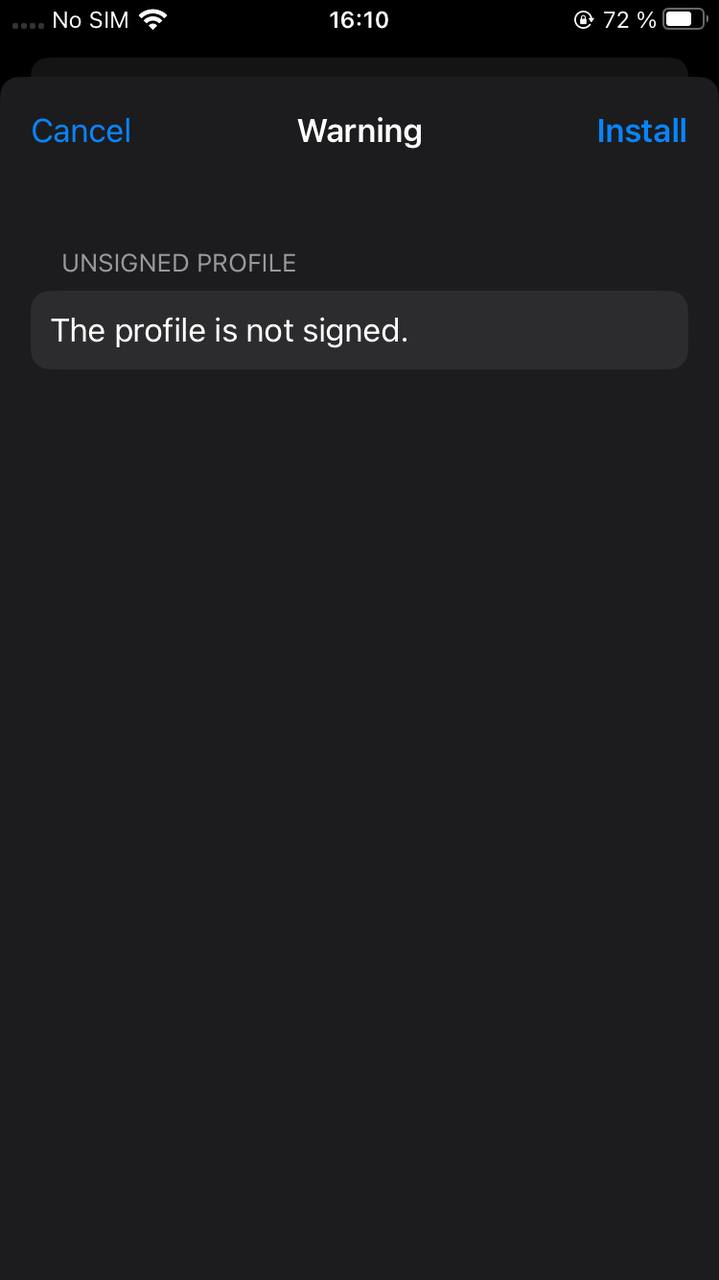
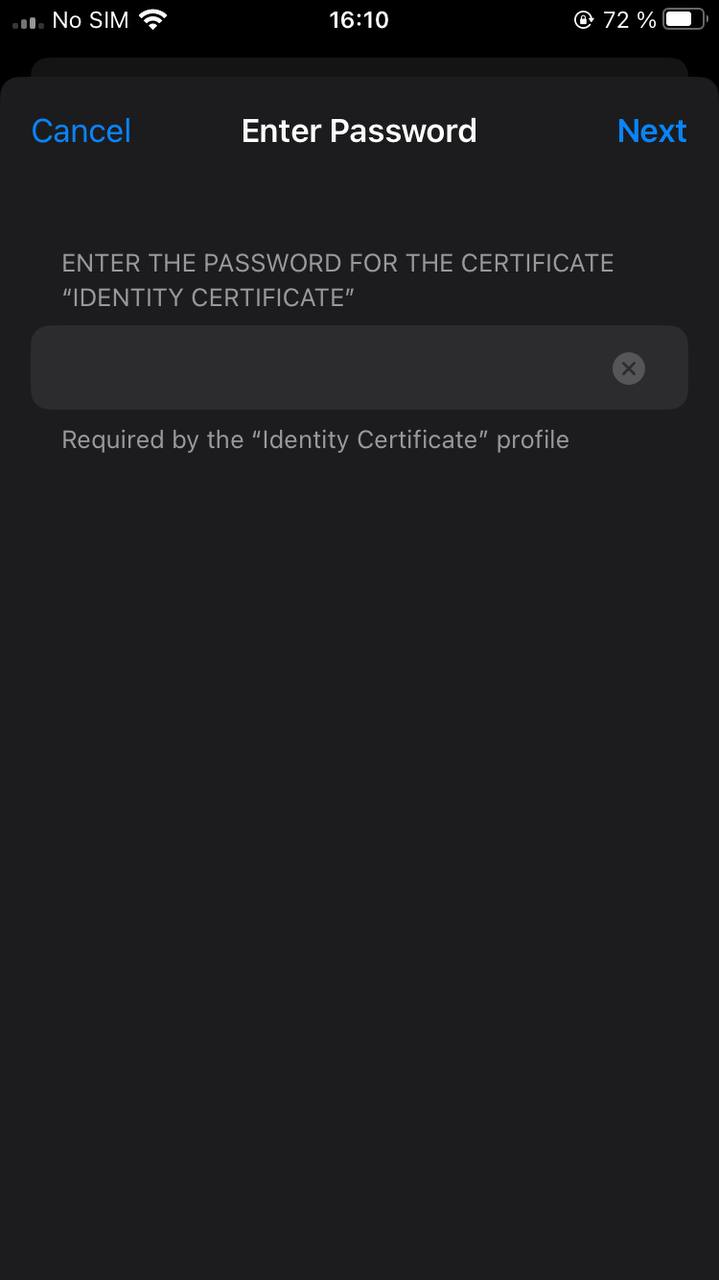
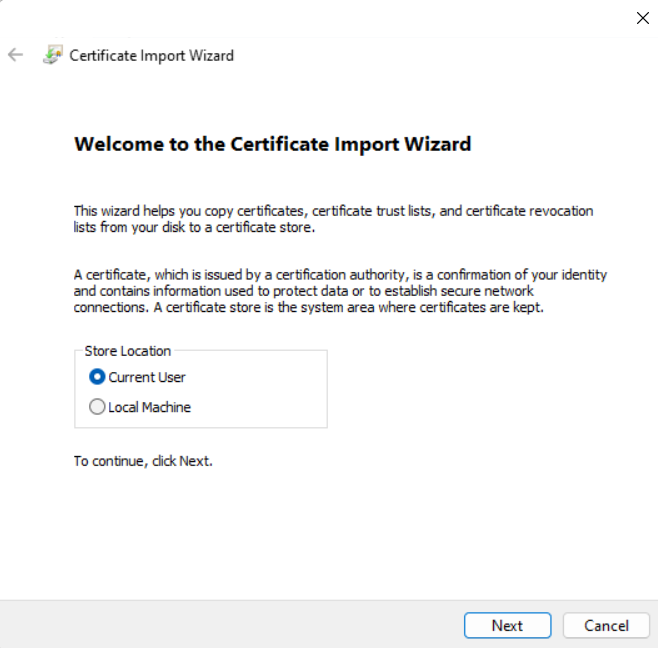
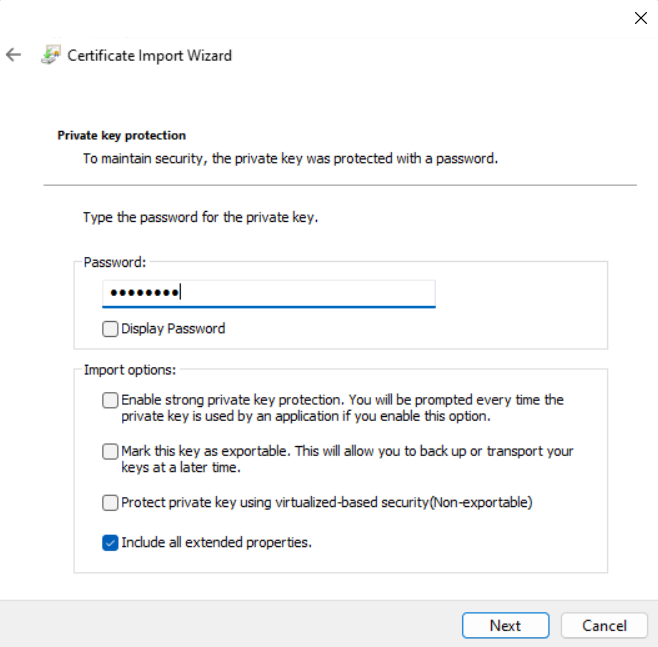
2. Enter the password. It matches the Password certificate parameter that was specified when generating the container on wlc.
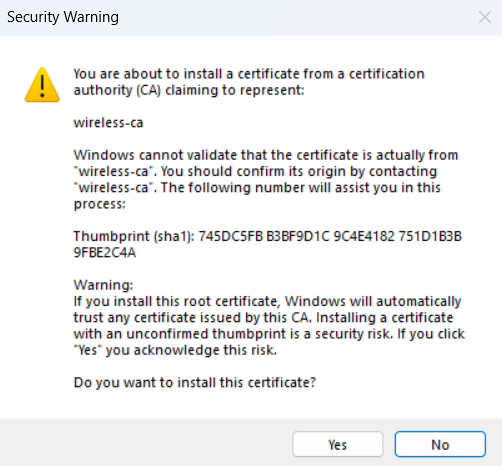
3. Confirm the installation of the user certificate.
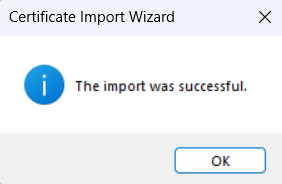
4. If the user certificate and root certificate are successfully installed, the following screen is displayed.
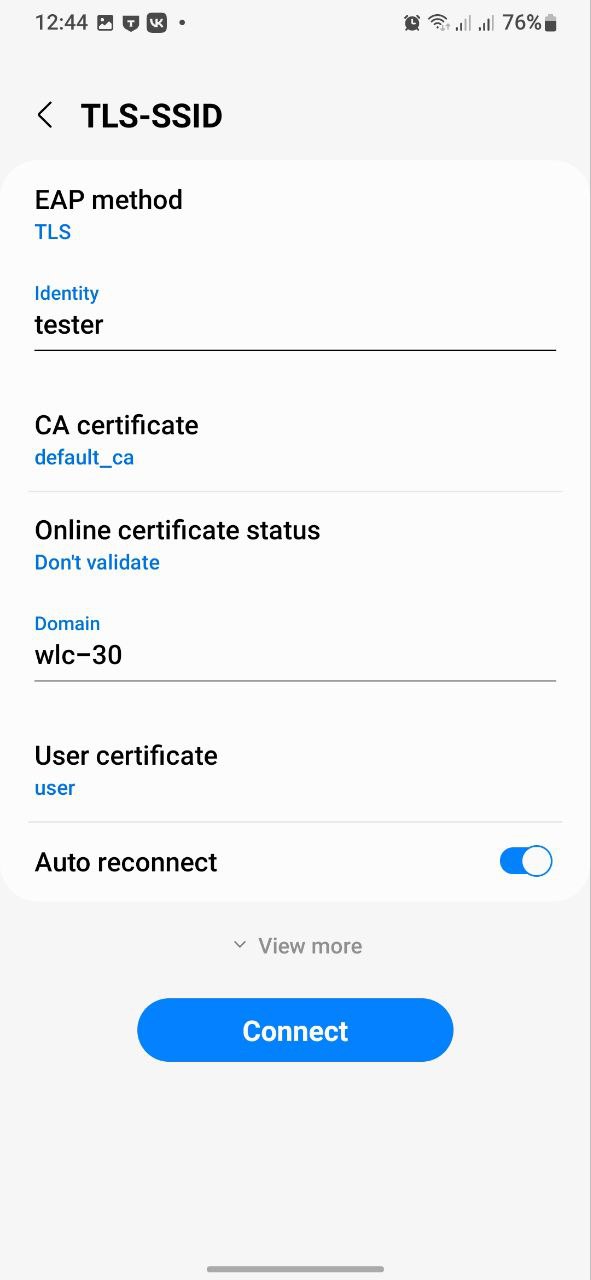
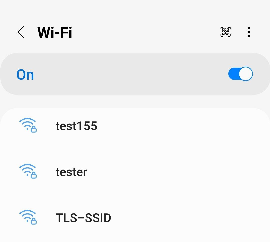 2. Set the network connection parameters:
EAP method: TLS
Certificate: default-ca
User certificate: user
Authorization: tester
The value of the "Authorization" parameter is set according to the user name in the certificate.
Domain: wlc-30
The value of the Domain parameter is set according to the value of the CN (commonName) parameter in the default_cert.pem server certificate.
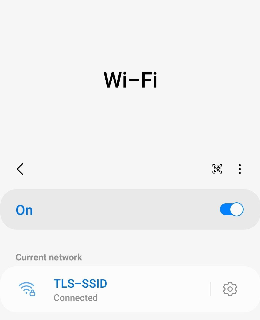
 3. If the parameters are entered correctly, authorization will be successful.
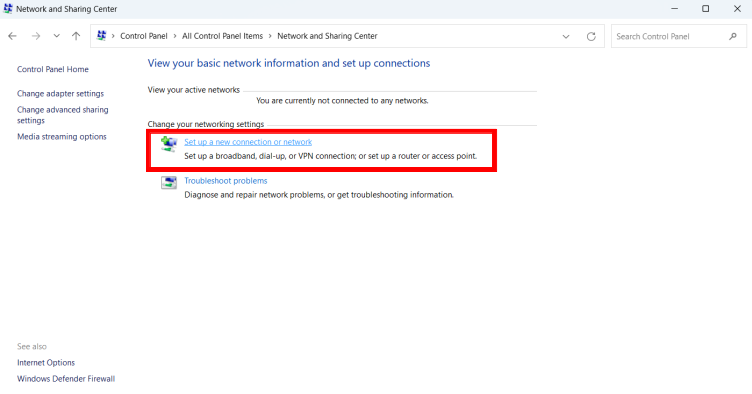
To create and configure a new connection, open "Network ans Sharing Center" → "Set up a new connection or network".
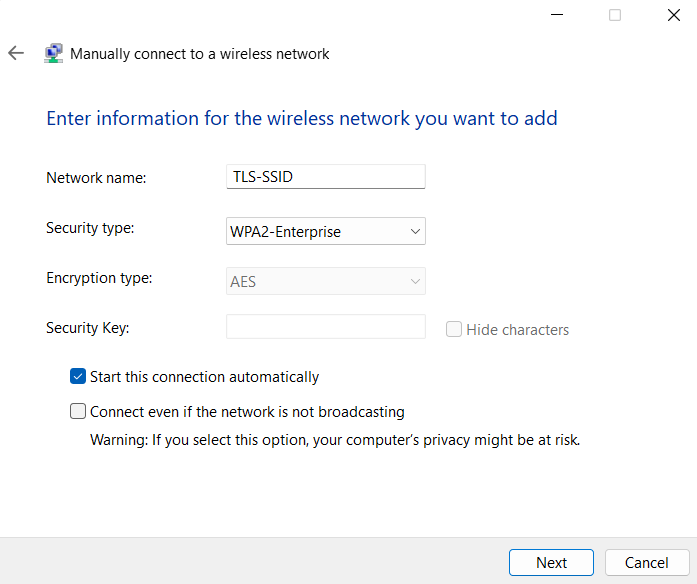
In the window that opens, select "Manually connect to a wireless network" and click "Next".
Enter information about the wireless network:
Check the "Start this connection automatically". Click "Next".
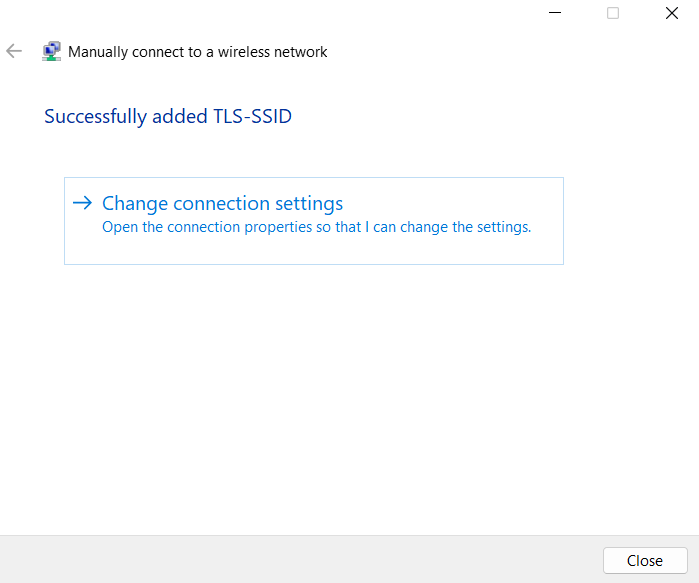
The network has been successfully added. Next, configure the connection settings.
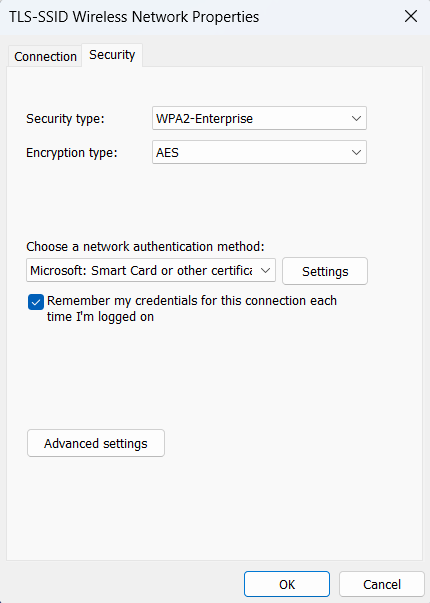
Open the "Security" section, select the authentication method "Microsoft: Smart Card or other certificate (EAP-TLS)". Click "Settings".
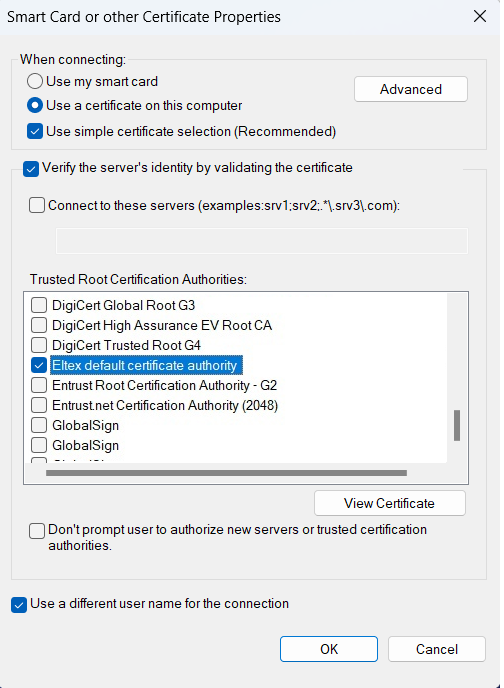
Check the followings:
In the Trusted Root Certification Authorities list, select the root certificate “Eltex default certificate authority”. This is the CA certificate that was installed when the client certificate was installed.
Click "ОК".
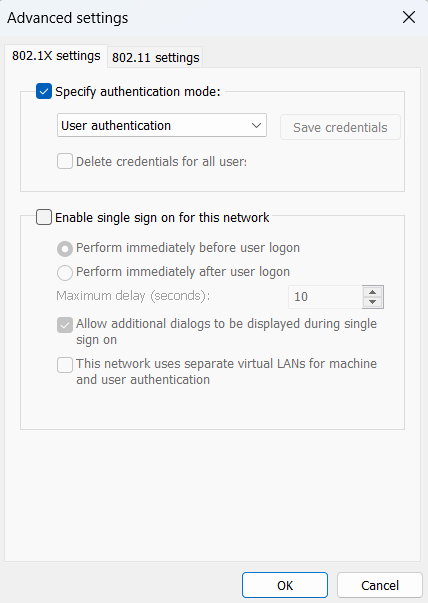
In the opened window choose "Advanced settings".
Specify the authentication mode – "User authentication". Click "ОК".
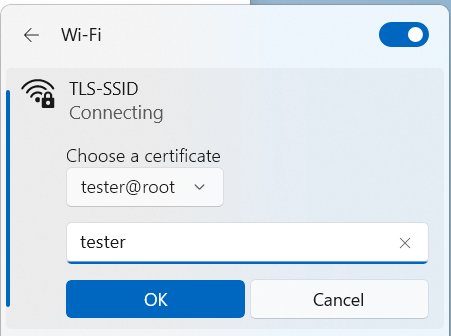
Find the desired network and click "Connect". Select the user certificate to connect to the network and enter the user login. Click "ОК".
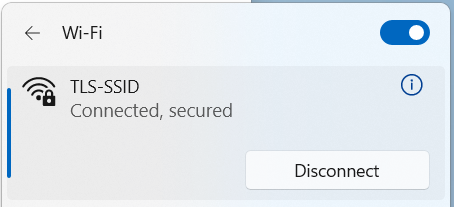
If the parameters are entered correctly, the connection will be successful.
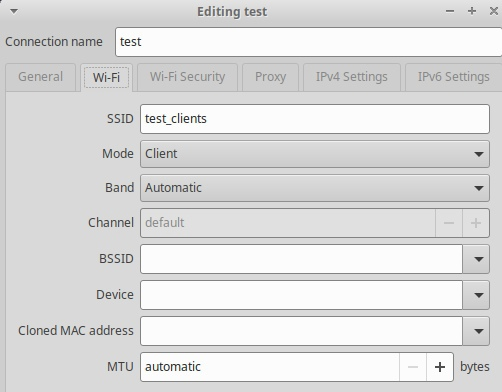
Create a new connection to the network: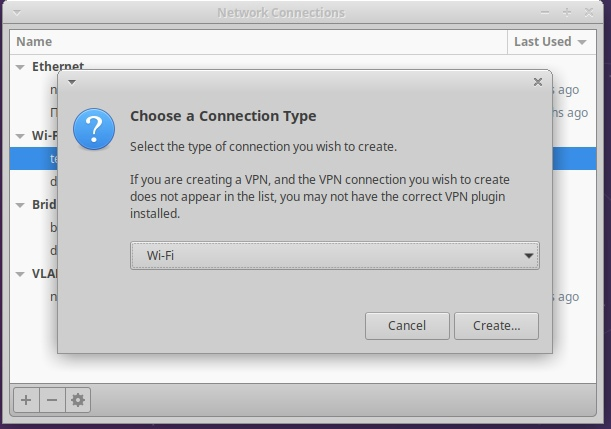
Specify ssid:
Enter the parameters to connect to the network:
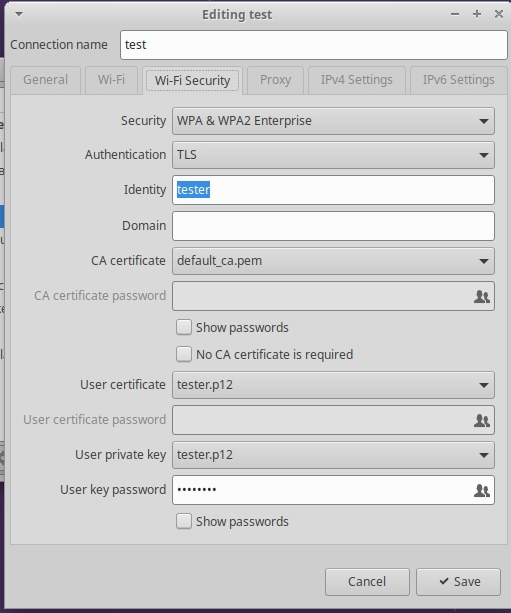
If the parameters are entered correctly, the connection will be successful.
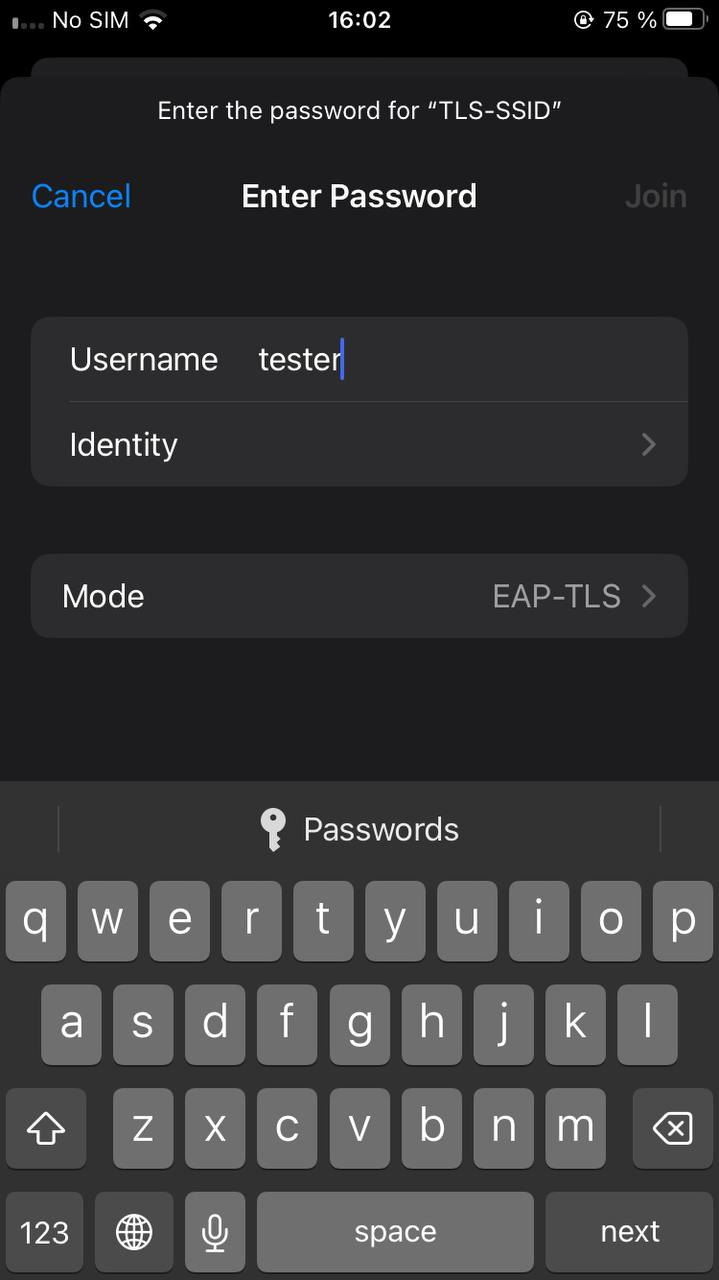
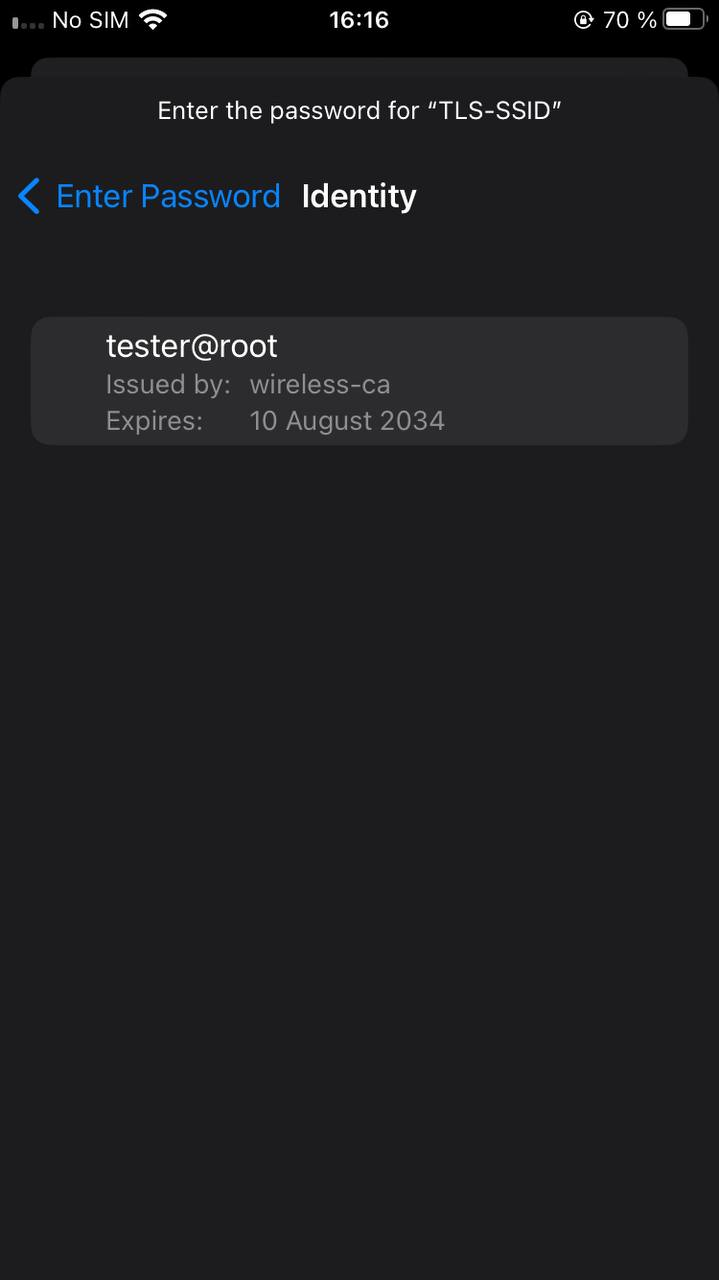
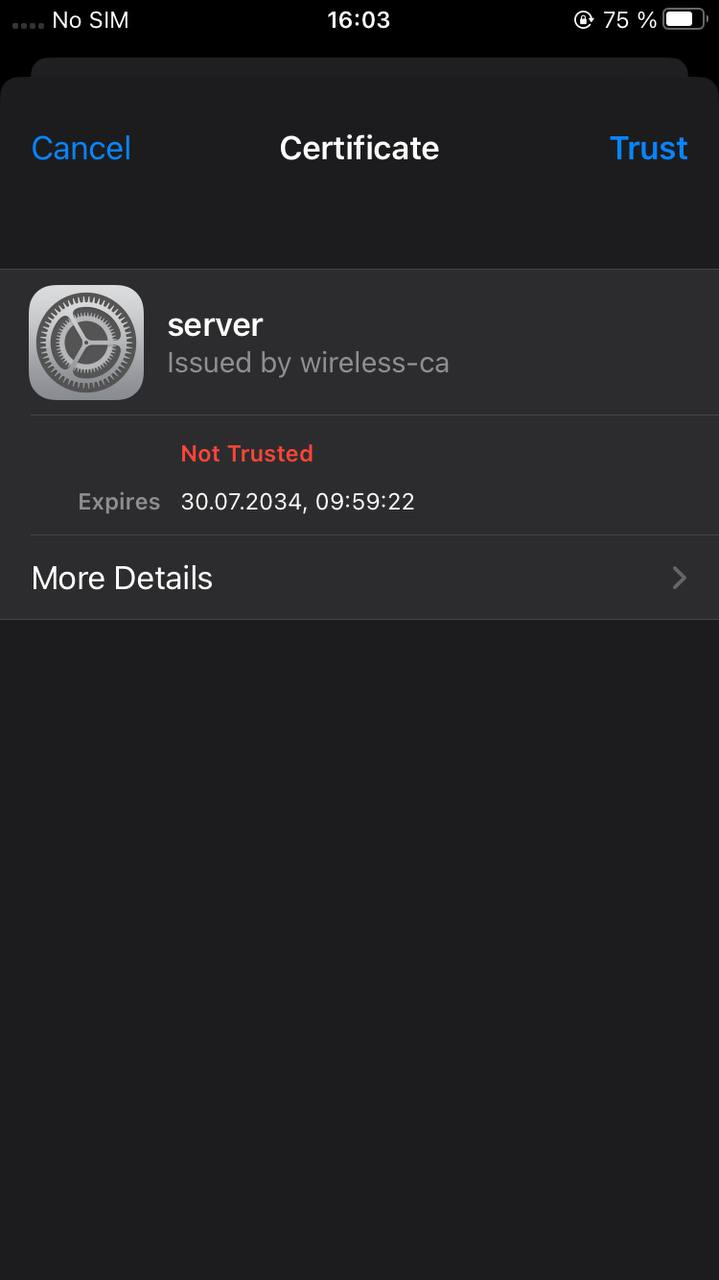
In the Wi-Fi settings menu, find the desired network. When connecting to the network, enter your personal login, select EAP-TLS mode. Click "Identity" and choose the certificate. Go back to entering password and click "Join". In the opened window click "Trust".
There are commands to update the default CA certificate and/or server certificate:
wlc# update crypto default ca wlc# update crypto default cert |
To replace the server certificate, download the new certificate, CA certificate, and server certificate key and place them in the crypto:cert/ and crypto:private-key/ directories. After downloading the files, you should specify the server and CA certificates and the server certificate key in the radius-server local settings. The default certificate is specified by default.
configure radius-server local crypto private-key my_cert_key.pem crypto cert my_cert.pem crypto ca my_ca.pem |
After updating or replacing certificates, reboot the WLC or restart the RADIUS server:
wlc(config)# radius-server local wlc(config-radius)# no enable wlc(config-radius)# do commit wlc(config-radius)# do restore wlc(config-radius)# do rollback |
After upgrading or replacing the server certificate, reissue the client certificates. |