

Start of operation on WLC
The web interface is enabled in initial configuration and is available via HTTPS protocol.
1. Open a web browser, e.g. Firefox, Opera, Chrome.
2. Enter the IP address of the controller in the browser address bar. Use URL: http://<ip-address_wlc> or https://<ip-address_wlc> to access the web-interface.
If the controller is successfully detected, the authorization page will be displayed in the browser window.
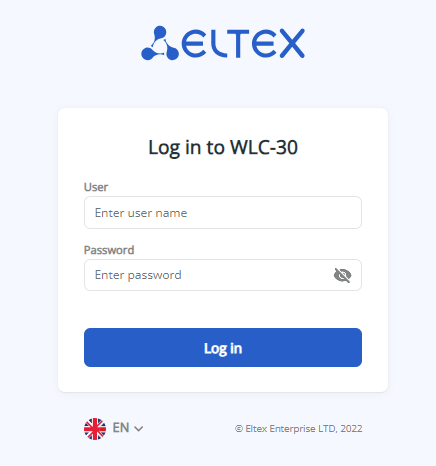
4. Enter user name and password.
By default: user login — admin, user password — password.
When first entered the password should be changed, The new password should be different from the dafault one. |
5. If the password is successfully changed, the "password has been changed" page will be displayed.
6. Click "Start" to go to the web interface.
Start of operation on ESR with WLC licence
On ESR devices by default the web interfaces is turned off. To activate it, use the following algorithm.
Activate the web interface via HTTP or HTTPS.
wlc# config
wlc(config)# ip http server
wlc(config)# ip https server
wlc(config)# end
wlc# commit
wlc# confirm |
Open TCP port 80 for HTTP server or 443 for HTTPS in Firewall. The example below shows the port 443.
Create web groups with 443 port.
object-group service web
  port-range 443
exit |
Enter the rule in trusted self.
security zone-pair trusted self
  rule 120
    action permit
    match protocol tcp
    match destination-port object-group web
    enable
  exit
exit |
Commit and confirm the configuration.
Open a web browser, e.g. Firefox, Opera, Chrome.
Enter the IP address of the controller in the browser address bar. Use URL: http://<ip-address_wlc> or https://<ip-address_wlc> to access the web-interface.
If the controller is successfully detected, the authorization page will be displayed in the browser window.
- Enter user name and password.
By default: user login — admin, user password — password. |
5. Click «Log In». The «Wireless» menu will be displayed.
Main elements of the web-interface
The figure below shows the navigation elements of the web-interface.
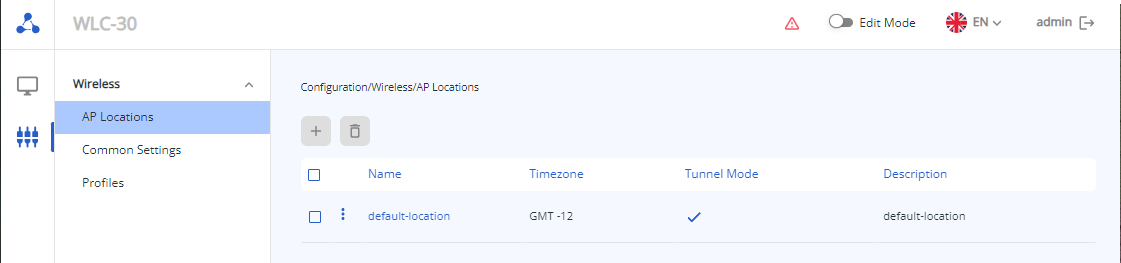 The user interface window is divided into five areas:
- Main menu buttons — to group menus by categories.
- Menu tabs and submenus — to manage the main information field.
- Edit Mode.
- Interface language selection button (Russian and English versions of the web-interface are available) and exit button — to terminate the web-interface session under this user.
- Main information field — to view submenu data.
- Information field — to display the software version installed on the controller.
Interface main elements:
| Element | Action |
|---|
| Create new obkect |
| Remove object |
| Choose one or several objects |
| Menu for work with selected object |
| Update the information displayed on a page |
| Unregister all |
| Register all |
| Terminate all Airtune sessions |
| Enable Edit Mode |
Monitoring
Menu "Wireless" 
Submenu "AP Locations"
The "AP Locations" submenu displays a list of locations, the distribution of APs across them, and the number of APs that are managed by the Airtune service.
This submenu also displays client information, the number of clients in each location, and the range distribution.
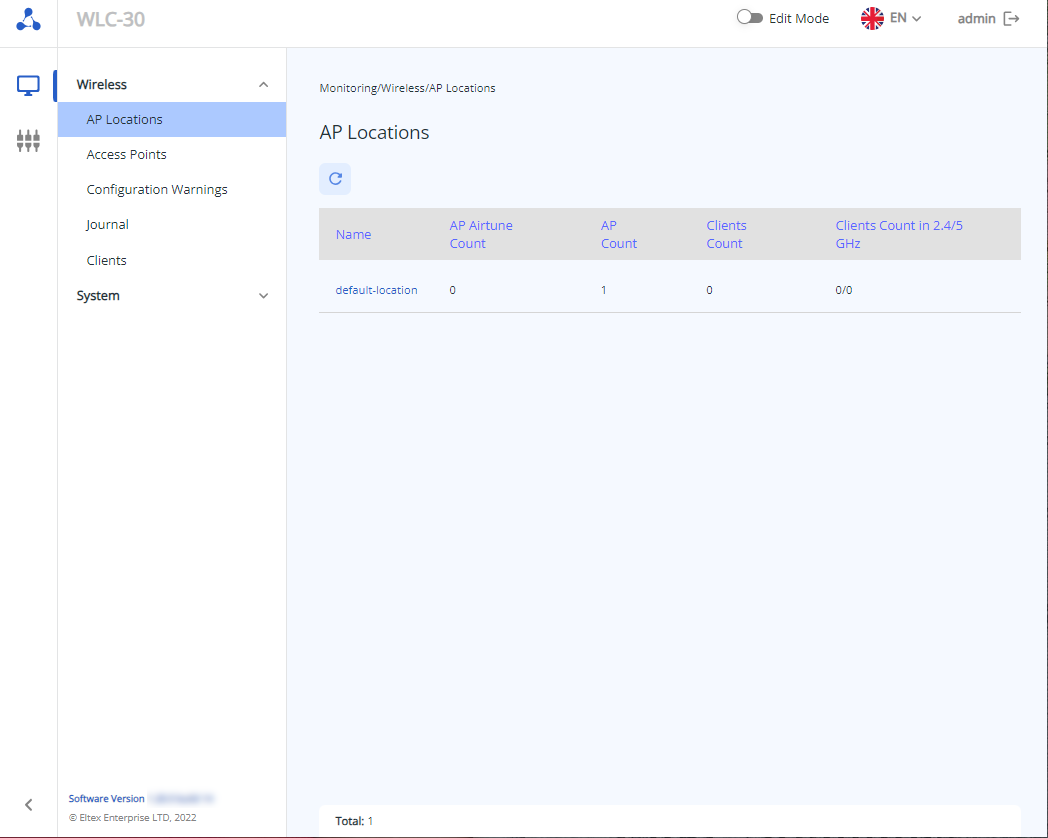
When moving to a location, the client table, optimization reports, access point sessions that are managed by Airtune service, optimization result and roaming statistics will be available.
Access Points
The page displays the APs that are registered and located in the selected location.
The "Total" parameter shows the number of registered APs in the selected location.
Use the "Unregister all" button to unregister the APs in the selected location. They will then move to "Access Points" → "New Access Points", if auto-registration is disabled. In case auto-registration is enabled, the APs will reappear in the location within 5 minutes.
The table contains the following information:
- MAC Address – MAC address of the registered access point, move to "Access Point" page by clicking;
- Unregister all – button allows to take the selected access point out of service and move it to the list of new access points;
- Status – status of the access point operation;
- IP Address – IP address of the registered access point;
- Board Type – model of the registered access point;
- SW Version – firmware version of the registered access point;
- Uptime – operating time since the last time the device was turned on or rebooted;
- Clients Count – number of clients connected to the registered access point, move to "Access Point"→ "Clients" page by clicking;
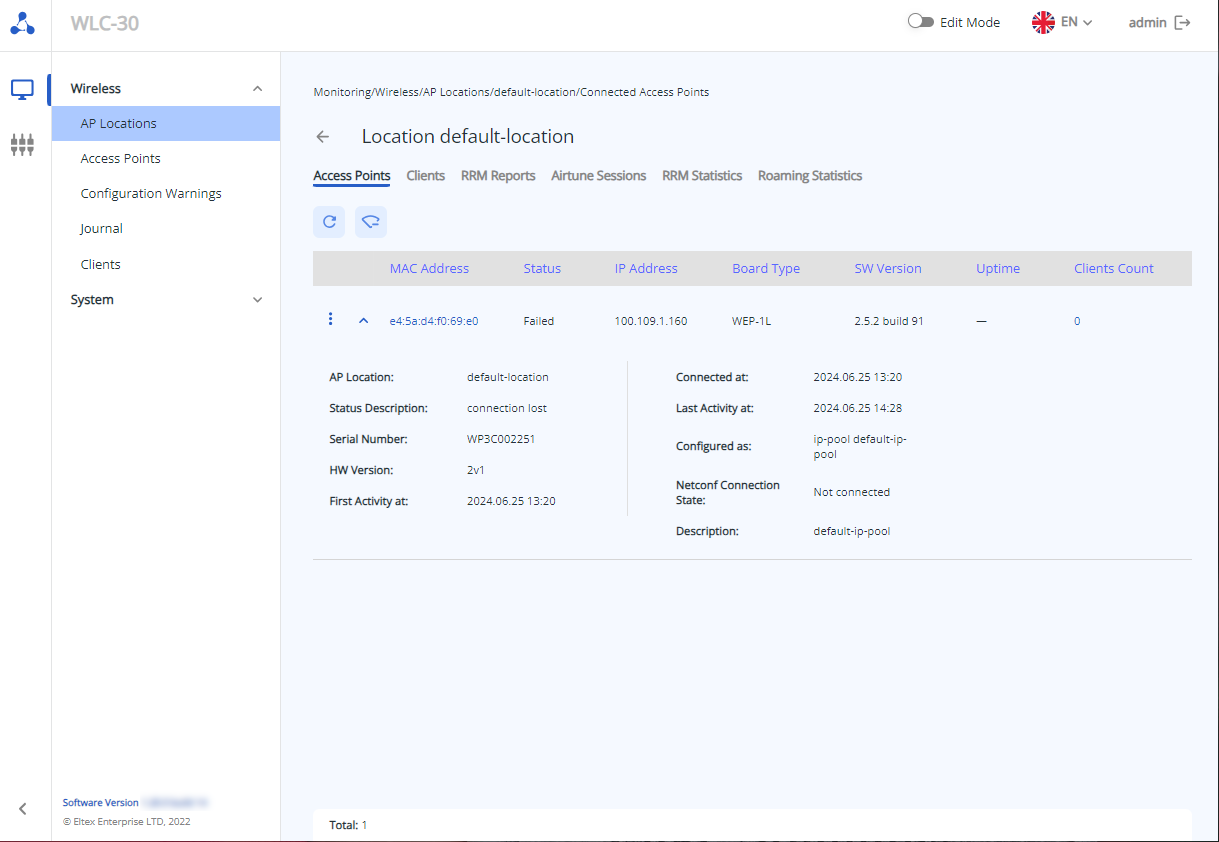
More information will be shown by clicking the  button:
- AP Location – name of the location to which the access point belongs;
- Status Description – additional status information if problems are detected on the access point;
- Serial Number – serial number of the device as set by the factory;
- HW Version – hardware version of the device;
- First Activity at – time when the access point was first registered on controller;
- Connected at – time at which the access point was last connected to the controller;
- Last activity at – time at which the controller last configured the access point;
- Configured as – profile with which the access point was configured;
- Netconf Connection State – status of the connection between the access point and the controller using the Netconf protocol;
- Description – text description of the access point, which was assigned to it when forming the profile.
Clients
The page contains information about the total number of clients, as well as their quantitative distribution by frequency bands.
In order to update the information on the page, click on the "Update" button.
The basic information includes the following parameters:
- Client MAC – MAC address of the connected device;
- AP MAC – MAC address of the access point to which the device is connected;
- AP Hostname – device name, by default the access point model is set. You can set the name via configuration;
- Interface – interface of interaction between the access point and the connected device;
- SSID – network name to which the device is connected;
- RSSI, dBm – level of the received signal;
- User name – user name specified during authorization in the network. In case of personal authorization or when connecting to an open network, the user name will remain empty.
To display more detailed information about a particular client, select it in the list and click .
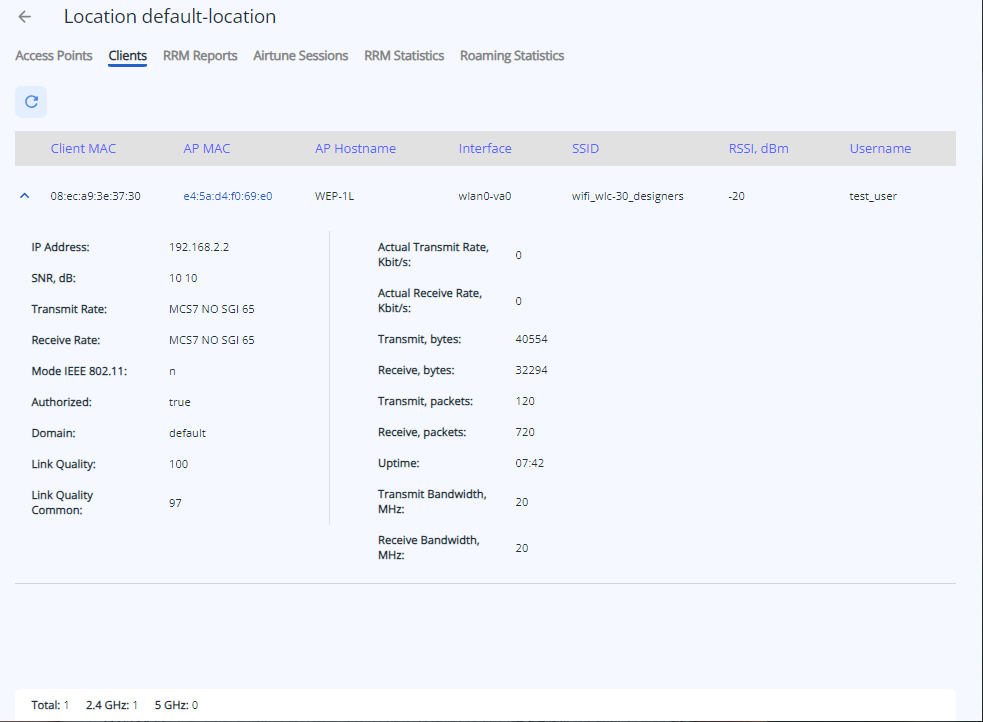 The detailed information includes the following parameters:
- IP Address – IP address of the connected device;
- Host name – network name of the connected device;
- SNR, dB – signal-to-noise ratio;
- Transmit Rate – modulation and channel rate when transmitting;
- Receive Rate – modulation and channel rate at reception;
- Режим IEEE 802.11 – wireless network standard;
- Authorized – client's authorization status;
- Domain – domain to which the user belongs;
- link Quality – parameter that displays the status of the link to the client, calculated based on the number of retransmitted packets sent to the client. The maximum value is 100% (all transmitted packets were sent on the first attempt), the minimum value is 0% (no packets were successfully sent to the client). The value of the parameter is calculated for the last 10 seconds;
- Link Quality Common – parameter that displays the state of the link to the client, calculated based on the number of retransmitted packets sent to the client. The maximum value is 100% (all transmitted packets were sent on the first attempt), the minimum value is 0% (no packets were successfully sent to the client). The value of the parameter is calculated for the whole time of client connection;
- Actual Transmit Rate, Kbit/s – actual speed of traffic transmission at the moment;
- Actual Receive Rate, Kbit/s – actual rate of traffic reception at the moment;
- Transmit, bytes – number of bytes transmitted to the connected device;
- Receive, bytes – number of bytes received from the connected device;
- Transmit, packets – number of packets transmitted to the connected device;
- Receive, packets – number of packets received from the connected device;
- Uptime – time of connection with Wi-Fi client;
- Transmit Bandwidth, MHz – channel frequency bandwidth on which the radio interface operates during transmission;
- Receive Bandwidth, MHz – channel frequency bandwidth on which the radio interface operates during receiving.
RRM Reports
The page displays optimization reports. By default, the last report is displayed. Select the required report date using the calendar.
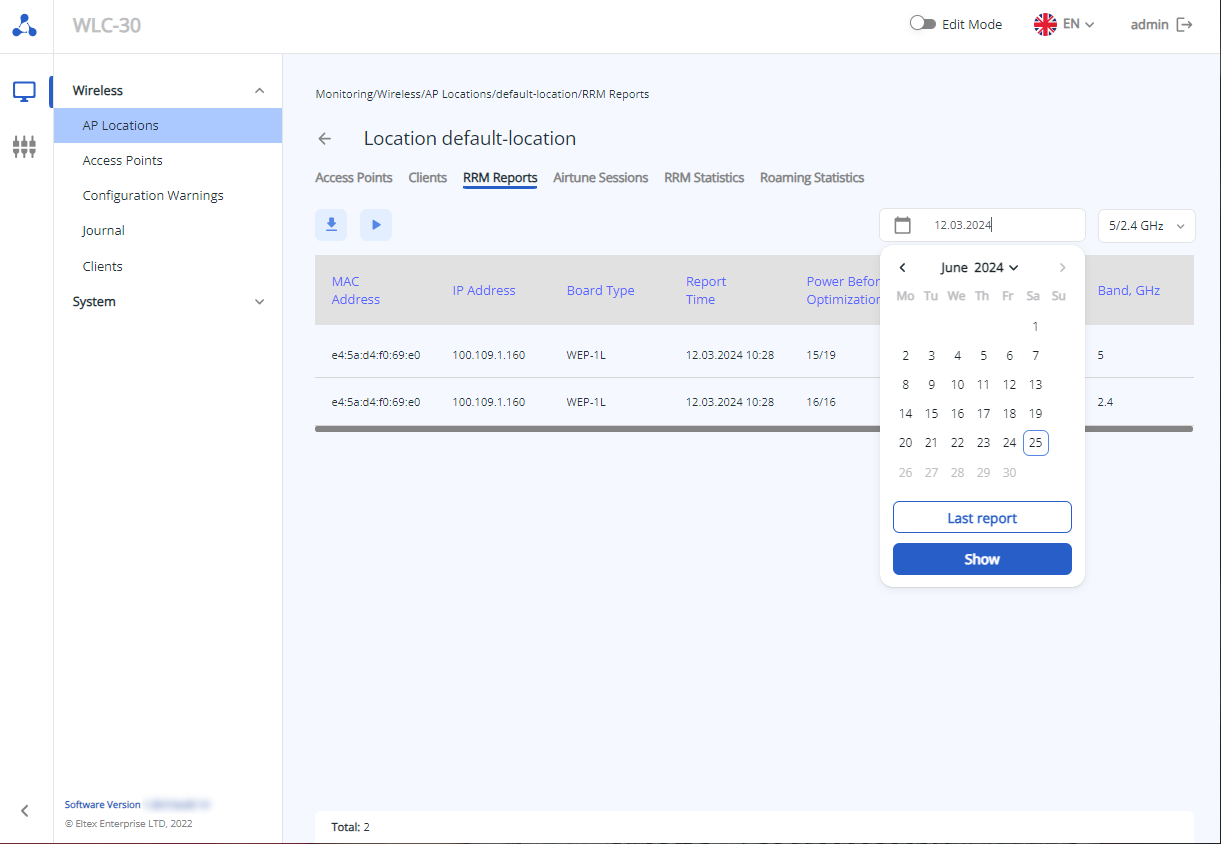
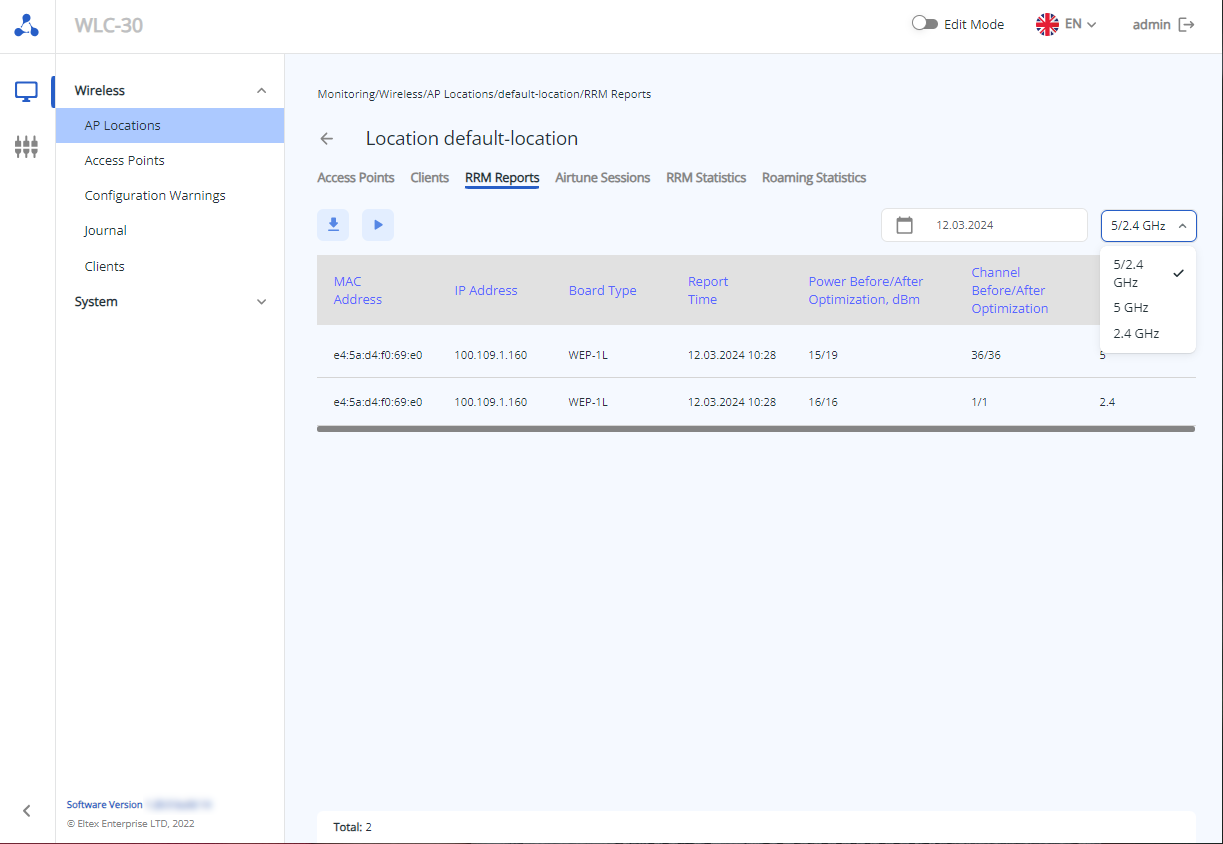
RRM reports can be filtered by frequency range.
On the page, it is possible to start optimization by clicking on the button.  . This process will take a few minutes.
It is possible to download reports by clicking on the  button.
The "Total" parameter displays the number of radio interfaces for which optimization was performed.
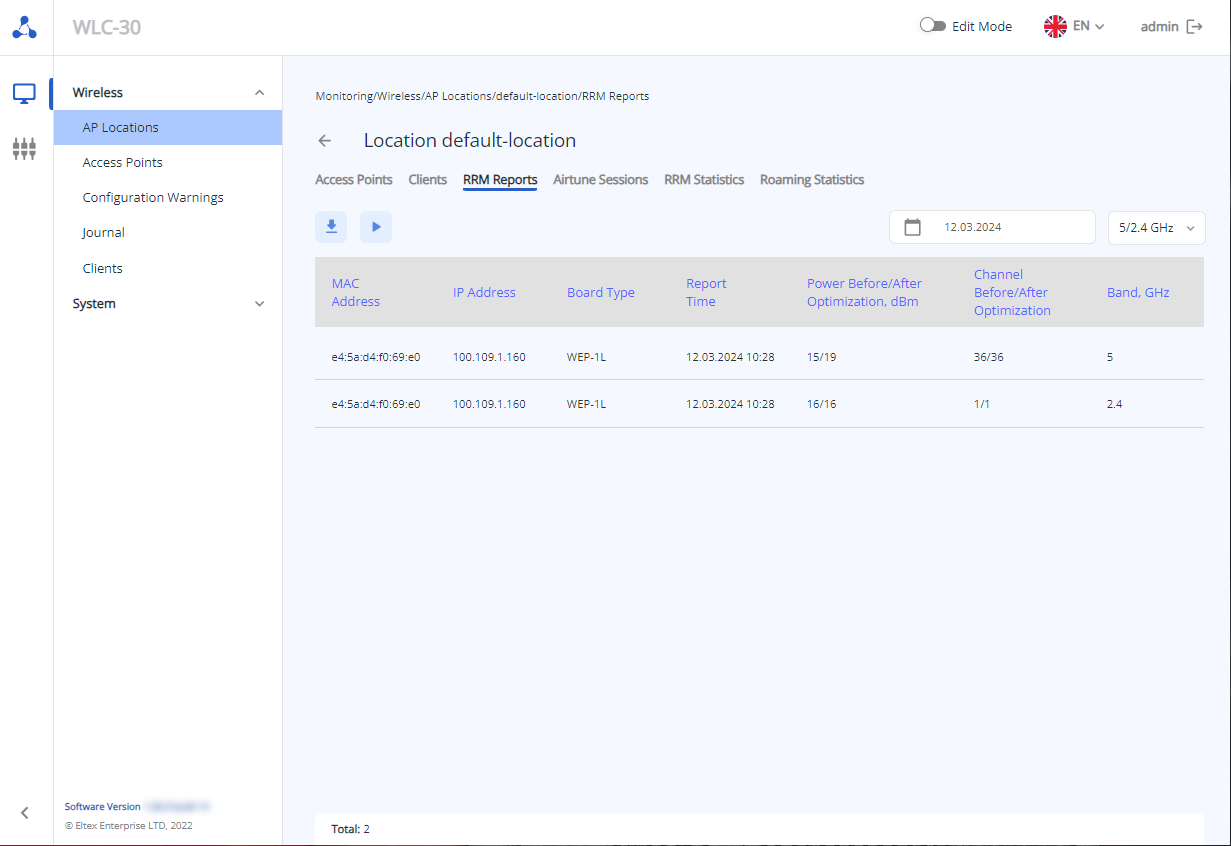
- MAC Address – MAC address of the AP that is managed by Airtune;
- IP Address – IP address of the access point that is managed by Airtune;
- Board Type – AP type that is managed by Airtune;
- Report Time – time at which the optimization report was generated;
- Power Before/After Optimization, dBm – AP power, the first number shows the value before optimization, the second value shows the power after optimization;
- Channel Before/After Optimization – access point radio interface channel, the first number shows the value before optimization, the second value shows the radio interface channel after optimization;
- Band, GHz – frequency range of the radio interface.
Airtune sessions
The page displays data about the access points that are currently under the control of the Airtune service.
Clicking the "Terminate all Airtune sessions" button disconnects all access points from the service, but reconnect them immediately if the service is not disabled for them in the configuration.
The "Total" parameter displays the number of APs currently managed by the Airtune service.
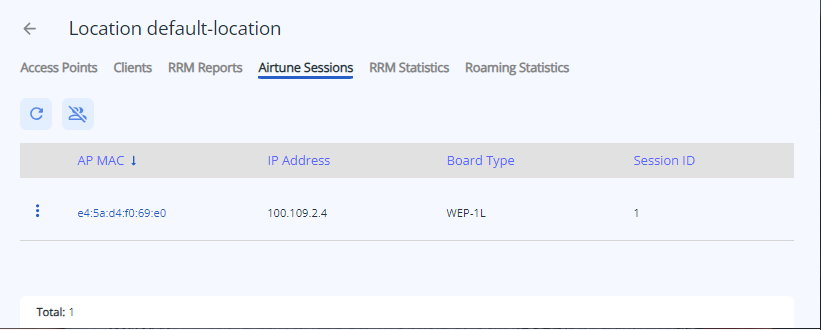
The table shows the following information:
- AP MAC – MAC address of the AP that is currently under the control of Airtune service, when clicked advanced session information page will open;
- IP Address – IP address of the access point that is currently under the control of the Airtune service;
- Board Type – model of the access point that is currently under the control of the Airtune service;
- Session ID – session ID number of the AP currently running the Airtune service.
Airtune Sessions
The page displays the parameters of radio interfaces and the list of SSIDs on them. In order to update the information on the page, click on the button .
.
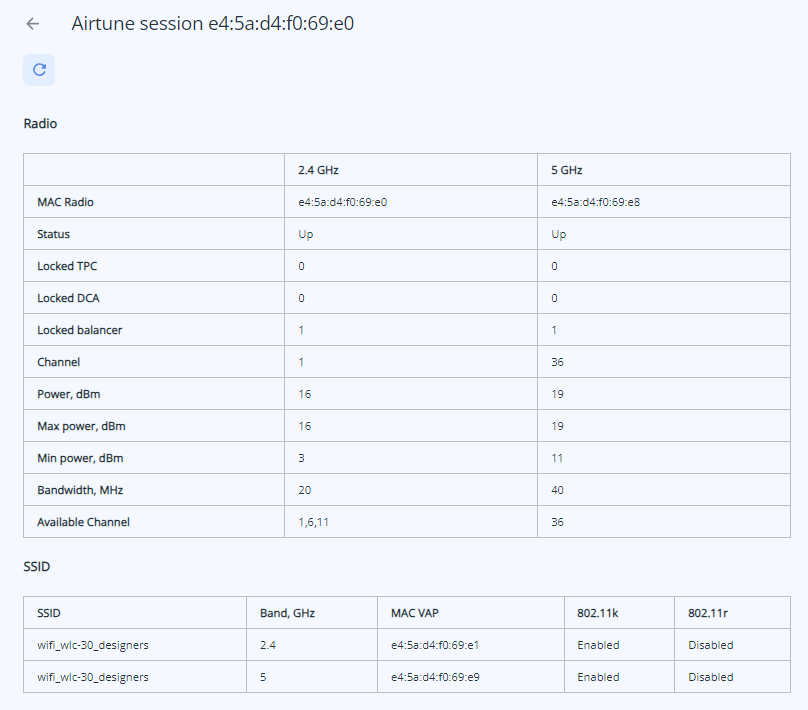 The "Radio" table is divided by frequency bands and contains the following parameters:
- MAC radio – MAC address of the radio interface of the access point, which is controlled by Airtune;
- Status – radio interface status: Up – radio interface is working, Down – radio interface is disabled;
- Locked TPC – status of the automatic power control lock: 0 – lock is disabled, 1 – lock is activated;
- Locked DCA – status of the automatic power control lock: 0 – lock is disabled, 1 – lock is activated;
- Channel – number of the wireless channel on which the radio interface operates;
- Power, dBm – signal power of the radio interface;
- Bandwidth, MHz – channel frequency bandwidth on which the radio interface operates;
- Max power, dBm – maximum signal power available to the radio interface;
- Min power, dBm – minimum signal power available for the radio interface;
- Available Channel – list of channels from which one channel is selected, which is assigned to the radio interface after optimization.
"SSID" table contains:
- SSID – name of the network that is broadcast to users;
- Band, GHz – frequency range of the radio interface;
- MAC VAP – MAC address of the virtual access point;
- 802.11k – activity status of synchronization of lists of neighboring 802.11k access points, which allows the client, when the signal from the current access point weakens, to search for a more suitable access point from the recommended list, without analyzing the whole air;
- 802.11r – status of key negotiation activity between access points for 802.11r roaming, which allows to significantly accelerate the process of client switching between access points, because the client will not need to go through a second full authorization on the opposite access point, only accelerated.
RRM Statistics
The page displays the parameters of the access point radio interfaces after the last optimization.
The "Total" parameter displays the number of radio interfaces. This list can be sorted by frequency range.
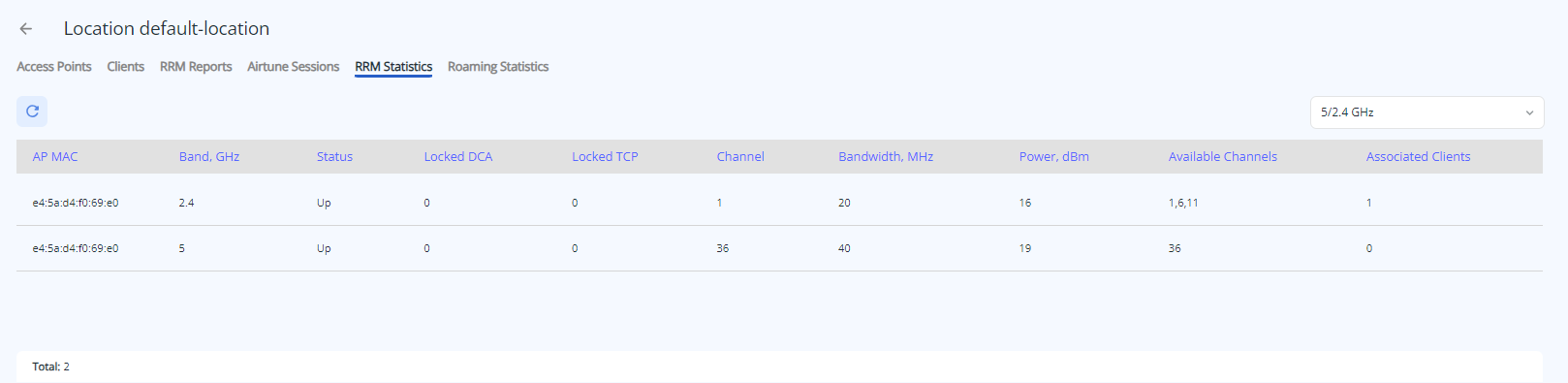
The table contains:
- AP MAC – MAC address of the access point that is managed by Airtune;
- Band, GHz – frequency range of the radio interface;
- Status – status of the radio interface: Up – radio interface is activated, Down – radio interface is disabled;
- Locked DCA – status of dynamic channel allocation blocking: 0 – blocking disabled, 1 – blocking activated;
- locked TPC – automatic power control lock status: 0 – lock disabled, 1 – lock activated;
- Channel – number of the wireless channel on which the radio interface operates;
- Bandwidth, MHz – channel frequency bandwidth on which the radio interface operates;
- Power, dBm – signal power of the radio interface;
- Available Channels – list of channels from which a channel is selected and assigned to the radio interface after optimization;
- Associated Clients – number of clients connected to the radio interface.
Roaming Statistics
The page displays the entire list of virtual interfaces (SSIDs) that are processed by Airtune service. The page is designed to display the current state of 802.11 k/r roaming configuration on all location access points, as well as a list of all neighbors between which the service has configured roaming.
The "Total" parameter displays the number of SSIDs configured on all access points. This list can be sorted by frequency range.
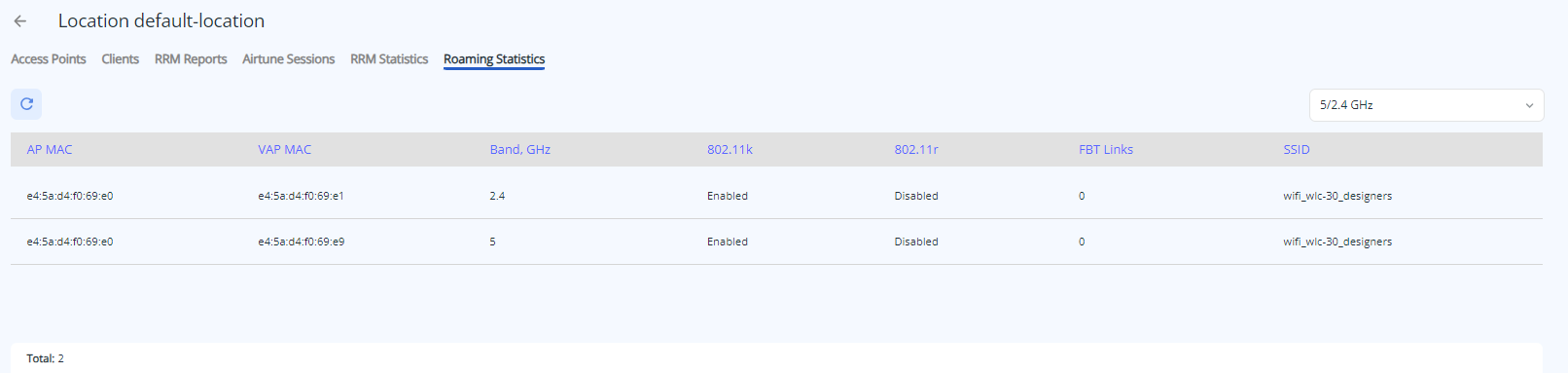
The table displays the following parameters:
- AP MAC – MAC address of the access point;
- VAP MAC – MAC address of the virtual access point;
- Band, GHz – frequency range of the radio interface;
- 802.11k – activity status of synchronization of lists of neighboring 802.11k access points, which allows the client, when the signal from the current access point weakens, to search for a more suitable access point from the recommended list, without analyzing the entire air;
- 802.11r – key negotiation activity status between access points for 802.11r roaming, which allows a client to significantly speed up the process of switching between access points, as the client will not need to go through a second full authorization on the oncoming access point, only an accelerated one.
- FBT Links – number of APs with which seamless 802.11r roaming has been configured, roaming neighbors are identified by a full match of SSID parameters such as 802.11r status, network name, and range;
- SSID – network name that is broadcast to users.
Submenu "Access Points"
The section contains lists of APs that can be registered and APs that have already been authorized on the controller.
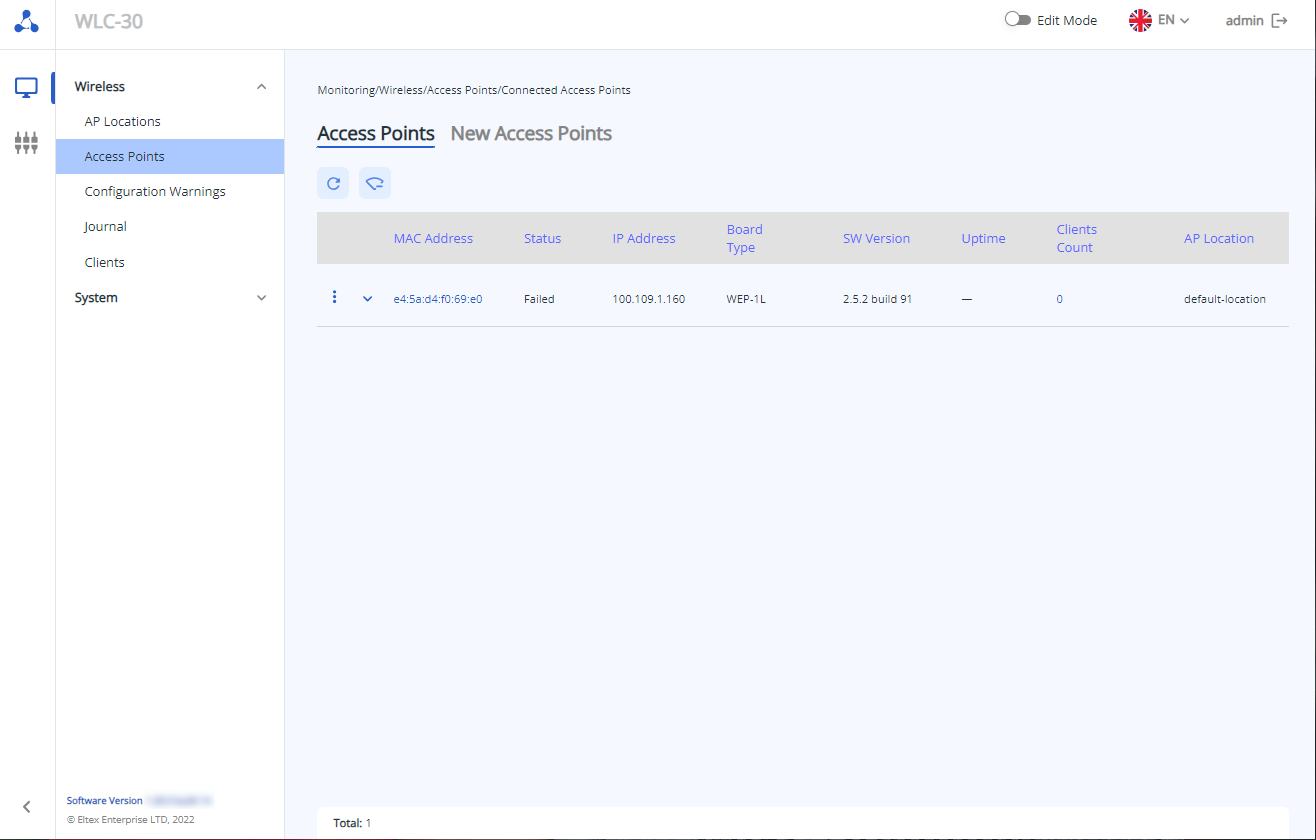
Access Points
The page displays the APs that are registered and under the control of the controller.
The "Total" parameter shows the number of registered APs.
Use the "Unregister all" button to unregister access points from maintenance. They will then move to the "New Access Points" section.
The table contains the following parameters:
- MAC Address – MAC address of the registered access point, when clicked the "New Access Points" page will open;
- Unregister all – remove the selected access point from the service and move it to the list of new access points;
- Status – access point operation status;
- IP Address– IP address of the registered access point;
- Board Type – registered access point model;
- SW Version – registered access point firmware option;
- Uptime – operating time since the last time the device was turned on or rebooted;
- Clients Count – number of clients connected to the registered access point, when clicked "Accees Point"→ "Clients" page will open;
- AP Location – location name to which the access point belongs.
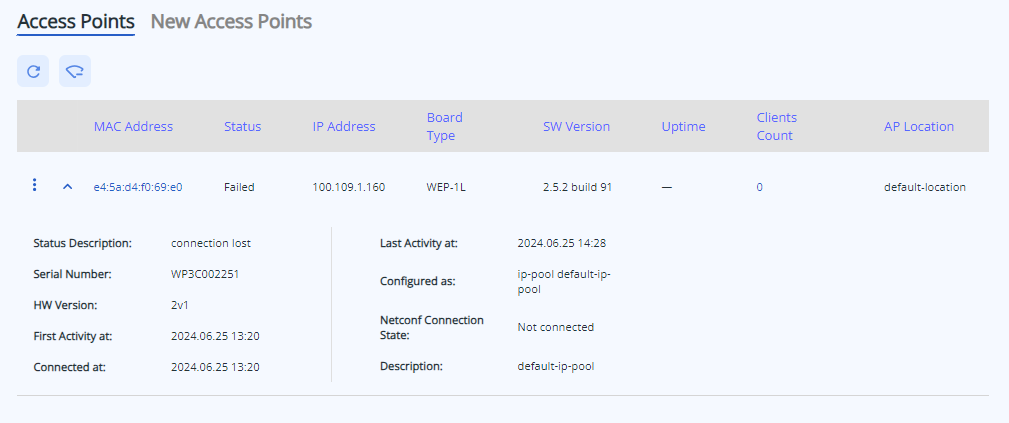
Clicking the button will display additional information:
- Status Description – additional status information in case there are problems detected on the AP;
- Serial Number – device serial number as set by the factory;
- HW Version – device firmware version;
- First Activity at – time when the access point was first registered with the controller;
- Connected at – time at which the access point was last connected to the controller;
- Last Activity at – time at which the controller last configured the access point;
- Configured as – profile with which the access point was configured;
- Netconf Connection State – status of the connection between the access point and the controller using the Netconf protocol;
- Description – text description of the access point, which was assigned to it when the profile was created.
Access Point
When clicking on the MAC address of the registered access point, the access point page will open, where the data on clients, radio interfaces and interfaces are presented.
Clients
The page contains a table of clients that are currently connected to the access point.
The "Total" parameter displays the number of clients from all frequency bands. "2.4", "5" show the number of clients in each band respectively.
The table contains the following information:
- MAC Address – MAC address of the client device;
- IP Address – IP address that the client device has received;
- SSID – name of the network to which the device is connected;
- Uptime – operating time since the client device was connected to the SSID;
- RSSI, dBm – level of the received signal;
- SNR, dB – signal-to-noise ratio;
- Mode IEEE 802.11 – wireless network standard;
- Link Quality – parameter that displays the state of the link to the client, calculated based on the number of retransmitted packets sent to the client. The maximum value is 100% (all transmitted packets were sent on the first attempt), the minimum value is 0% (no packets were successfully sent to the client);
- Username – user name specified during network authorization. In case of personal authorization or when connecting to an open network, the username will remain empty;
- Domain – domain to which the user belongs.
To view detailed information on the client, click on .
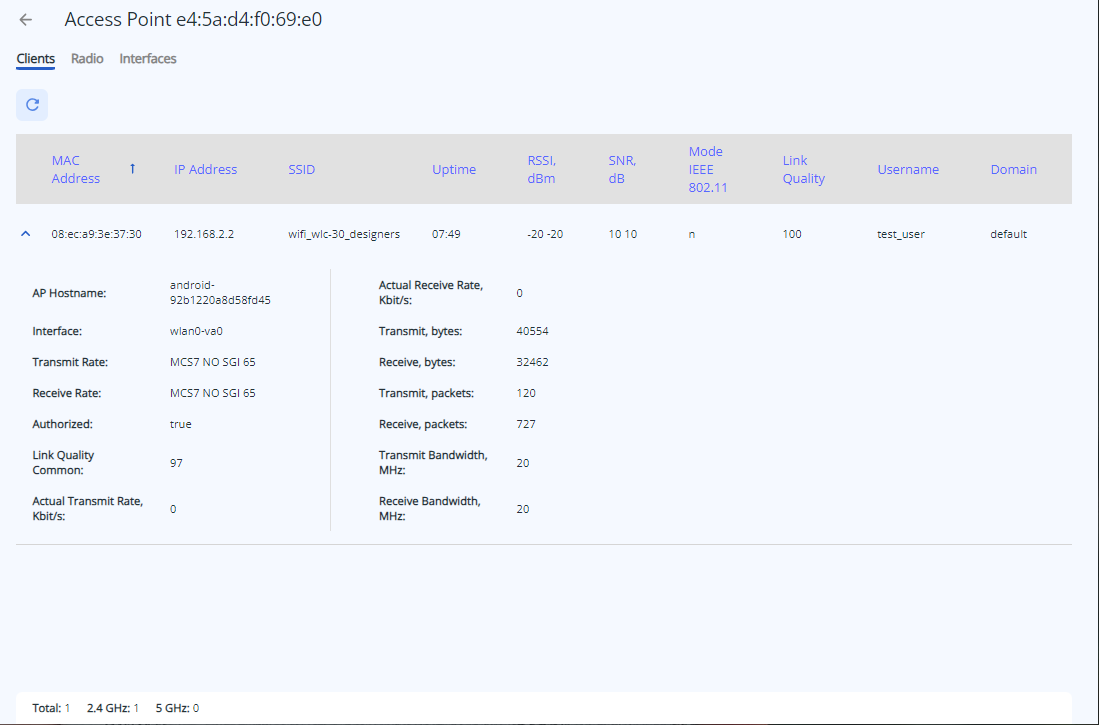 The client detailed information contains:
- AP Hostname – network name of the connected device;
- Interface – interface between the access point and the connected device;
- Transmit Rate – modulation and channel rate when transmitting;
- Receive Rate – modulation and channel rate when receiving;
- Authorized – client authorization status;
- link Quality Commomn – parameter that displays the status of the link to the client, calculated based on the number of retransmitted packets sent to the client. The maximum value is 100% (all transmitted packets were sent on the first attempt), the minimum value is 0% (no packets were successfully sent to the client). The value of the parameter is calculated for the whole time of client connection;
- Actual Transmit Rate, Kbit/s – actual rate of traffic transmission at the moment of time;
- Actual Receive Rate, Kbit/s – actual rate of traffic reception at the moment of time;
- Transmit, bytes – number of bytes transmitted to the connected device;
- Receive, bytes – number of bytes received from the connected device;
- Transmit, packets – number of packets transmitted to the connected device;
- Receive, packets – number of packets received from the connected device;
- Transmit Bandwidth, MHz – channel bandwidth on which the radio interface operates during transmission;
- Receive Bandwidth, MHz – channel bandwidth on which the radio interface operates during receiving.
Radio
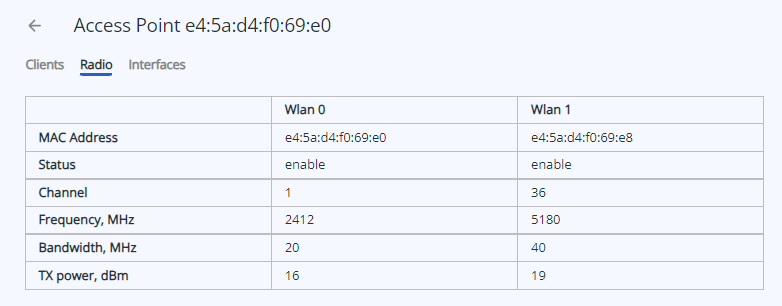 The table with basic parameters of radio interfaces is presented on the page:
- MAC Address – MAC address of the radio interface;
- Status – activity status of the radio interface;
- Channel – number of the wireless channel on which the radio interface operates;
- Frequency, MHz – frequency on which the radio interface operates;
- Bandwidth, MHz – channel frequency bandwidth on which the radio interface operates;
- TX power, dBm – signal power of the radio interface.
Interfaces
The page contains information on all interfaces of the access point.
The "Total" parameter displays the number of interfaces on the access point.
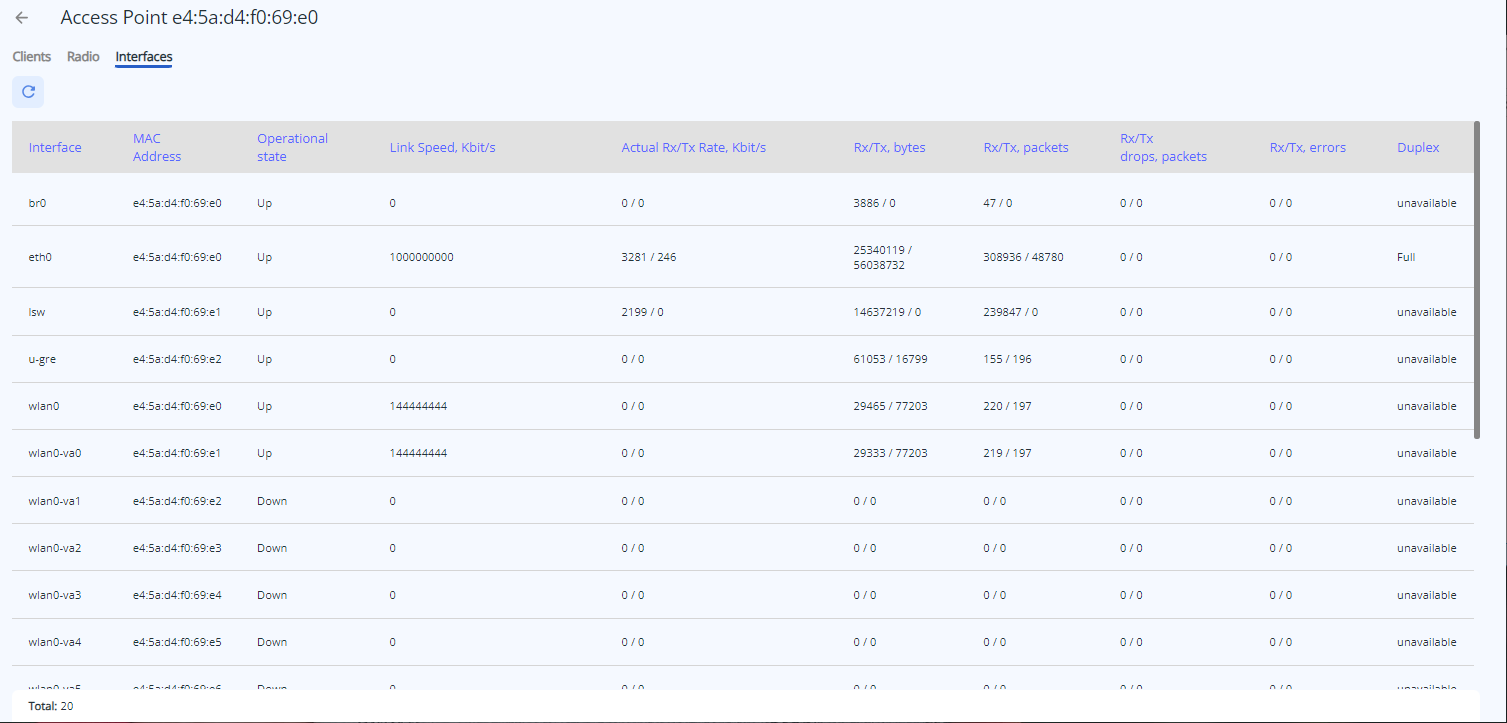
- Interface – interface name;
- MAC Address – interface MAC address;
- Operation state – activity status of the interface;
- Link Speed, Kbit/s – connection rate at the physical layer, which is used at the moment;
- Actual Rx/Tx Rate, Kbit/s – actual rate of traffic transmission at the moment;
- Rx/Tx, bytes – number of bytes received/transmitted to the connected device;
- Rx/Tx, packets – number of packets received/transmitted to the connected device;
- Rx/Tx drops, packets – number of packets discarded on reception/transmission;
- Rx/Tx errors – number of packets received/transmitted with errors to the connected device;
- Duplex – duplex operation mode on the interface.
New Access Points 
The page displays the access points that reached the controller and are waiting to be registered or are in the process of being registered.
The "Total" parameter displays the number of unregistered access points.
Access points can be registered by clicking the "Register all" button. After that they will move to the "Access Point" section.
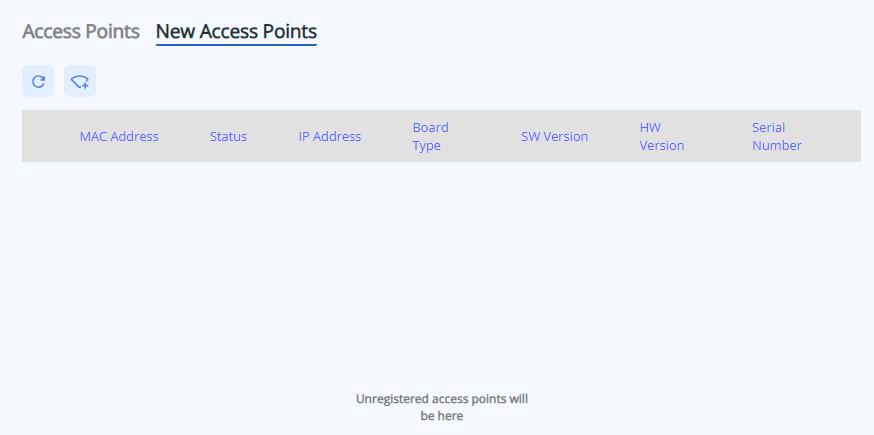
- MAC Address – MAC address of the unregistered access point;
- Status – operating status of the access point;
- IP Address – IP address of the unregistered access point;
- Board Type – model of the unregistered access point;
- SW Version – firmware version of the unregistered access point;
- HW Version – hardware version of the device;
- Serial Number – serial number of the device set by the factory.
Submenu "Configuration Warnings"
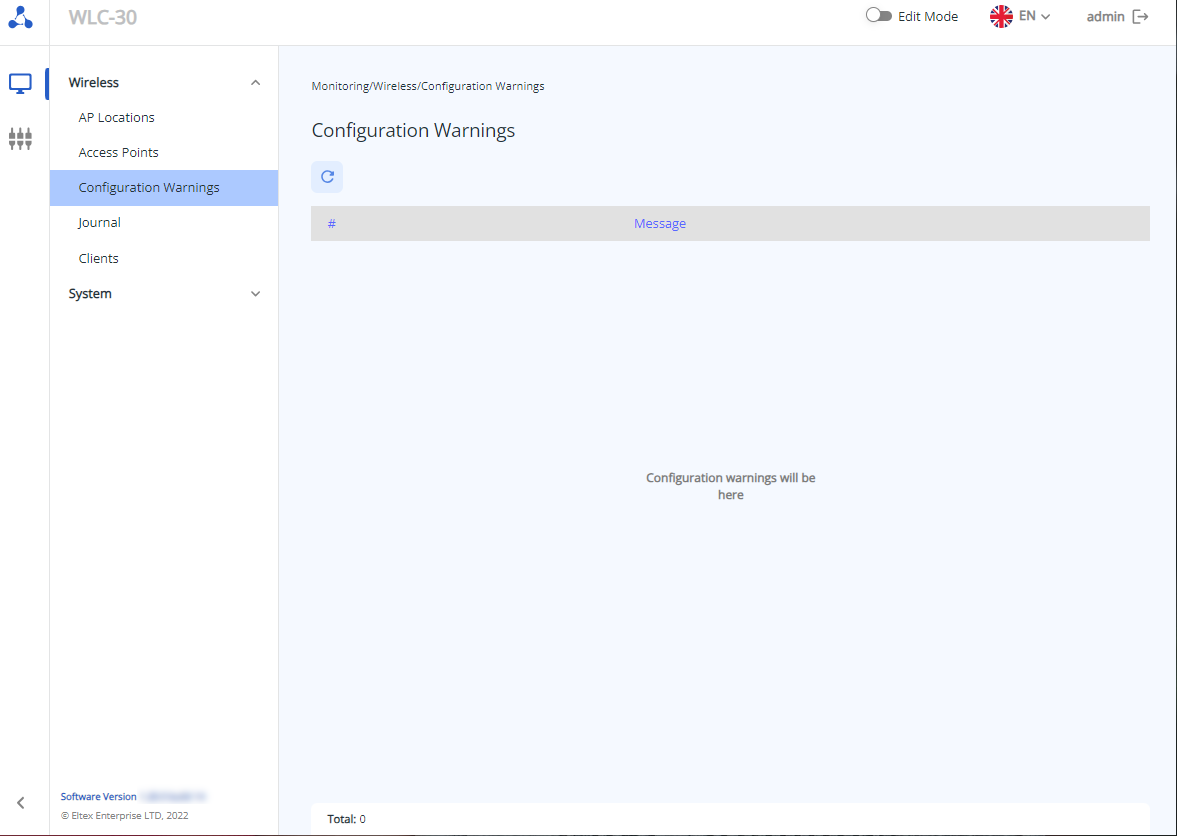
The page presents a table containing errors that occurred while configuring the controller, or warnings that parameters will not be applied for any reason.
The "Total" parameter displays the number of configuration warnings/errors.
Submenu "Journal"
The «Journal» submenu displays events and activities with access points and clients.
Access Points
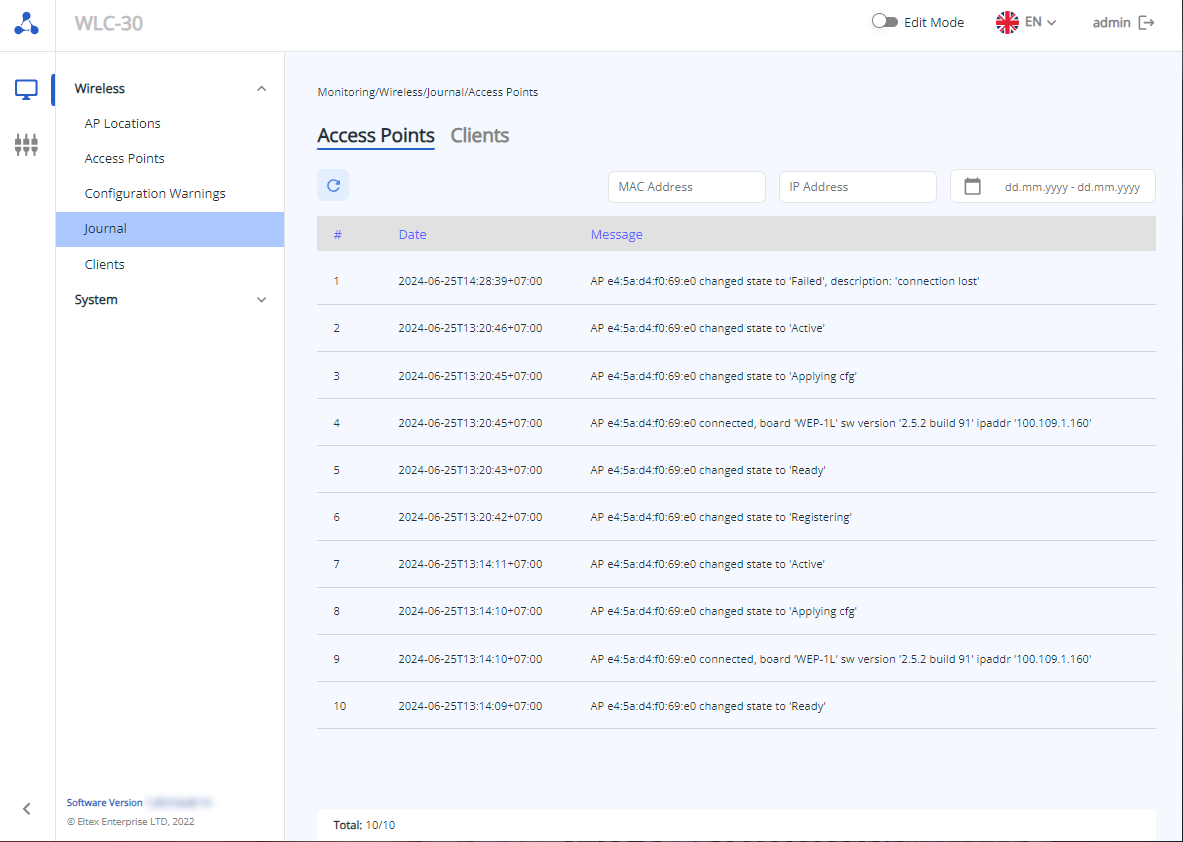
The page displays a timestamped log of events with access points.
The "Total" parameter displays the number of entries in the log.
The log is updated by clicking the button.
The log is searched by keywords in the "Message" column.
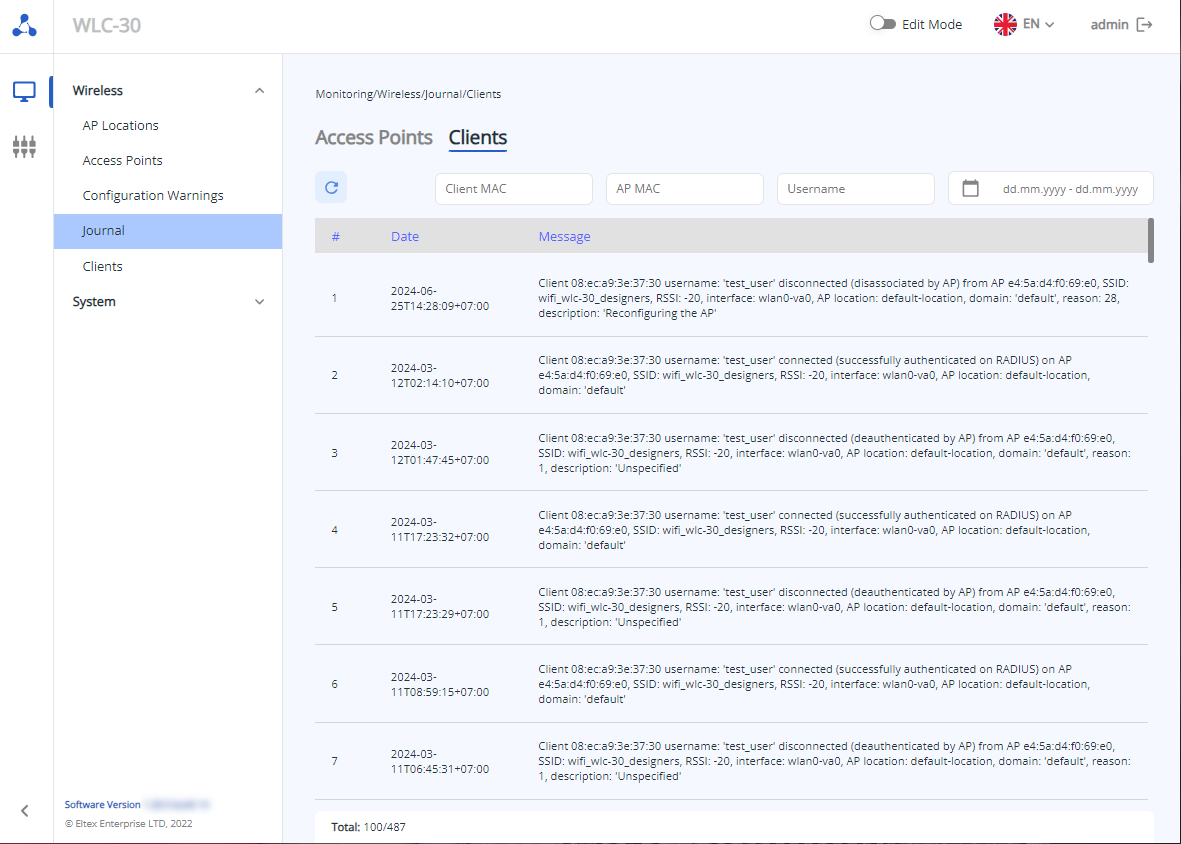
Clients
The page displays a timestamped log of Wi-Fi customer service events.
The "Total" parameter displays the number of entries in the log.
The log is updated by clicking the button.
The log is searched by keywords in the "Message" column.
Submenu "Clients"
The page displays the total number of clients, as well as their quantitative distribution by frequency bands. In order to update the information on the page, you should click on the «Update» button.
The table shows the basic information on the client:
- Client MAC – MAC address of the connected device;
- AP MAC – MAC address of the access point to which the device is connected;
- AP Hostname – device name, the default is the access point model. You can set the name via configuration;
- Interface – interface of interaction between the access point and the connected device;
- SSID – name of the network to which the device is connected;
- RSSI, dBm – level of the received signal;
- Location – location in which the access point is present to which the client device is connected;
- Username – user name specified during authorization in the network. In case of personal authorization or when connecting to an open network, the user name will remain empty.
To view detailed information on the client, click on button.
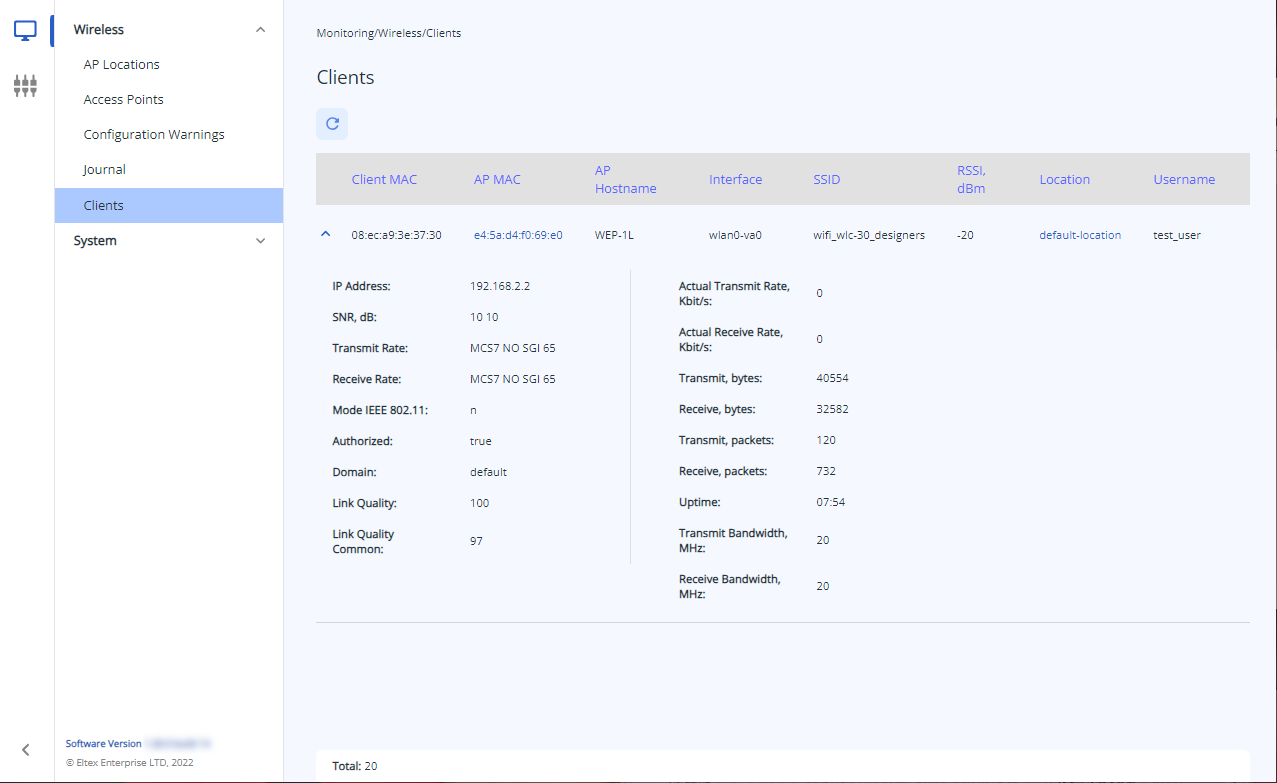 The detailed description includes the following parameters:
- IP Address – IP address of the connected device;
- Host Name – network name of the connected device;
- SNR, dB – signal-to-noise ratio;
- Transmit Rate– modulation and channel rate during transmission;
- Receive Rate – modulation and channel rate during reception;
- Mode IEEE 802.11 – wireless network standard;
- Authorised – authorization status of client;
- Domain – domain to which the user belongs;
- Link Quality – parameter that displays the status of the link to the client, calculated based on the number of retransmitted packets sent to the client. The maximum value is 100% (all transmitted packets were sent on the first attempt), the minimum value is 0% (no packets were successfully sent to the client). The value of the parameter is calculated for the last 10 seconds;
- Link Quality Common – parameter that displays the state of the link to the client, calculated based on the number of retransmitted packets sent to the client. The maximum value is 100% (all transmitted packets were sent on the first attempt), the minimum value is 0% (no packets were successfully sent to the client). The value of the parameter is calculated for the whole time of client connection;
- Actual Transmit Rate, Kbit/s – actual rate of traffic transmission at the moment;
- Actual Receive Rate, Kbit/s – actual rate of traffic reception at the moment;
- Transmit, bytes– number of bytes transmitted to the connected device;
- Receive, bytes – number of bytes received from the connected device;
- Transmit, packets – number of packets transmitted to the connected device;
- Receive, packets – number of packets received from the connected device;
- Uptime – time of connection with Wi-Fi client;
- Transmit Bandwidth, MHz – channel frequency bandwidth on which the radio interface operates during transmission;
- Receive Bandwidth, MHz – channel frequency bandwidth on which the radio interface operates during receiving.
Menu "System"
Submenu "Device Information"
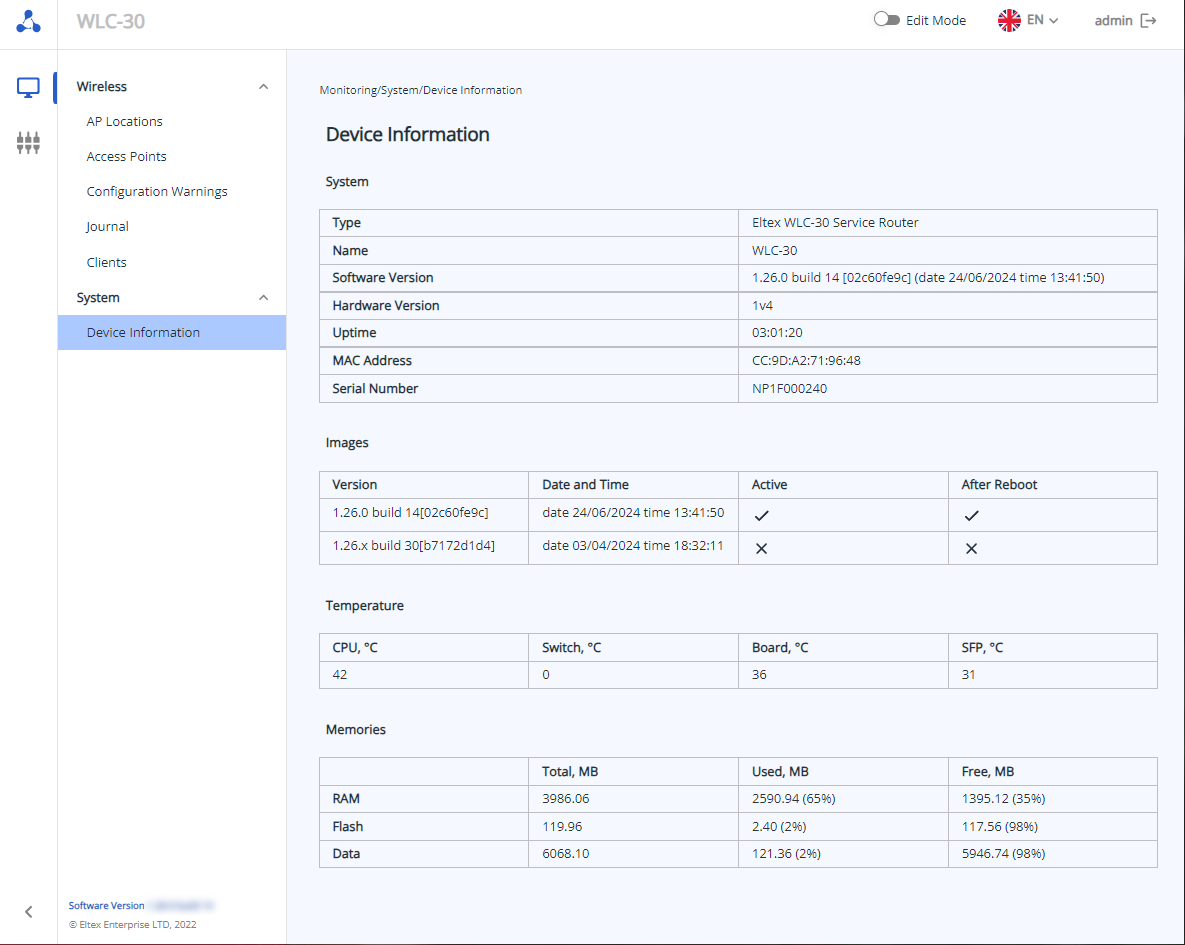
The "Device Information" submenu contains basic data about the controller system, loaded images, temperature and memory.
Menu "Wireless"
Submenu "AP Location"
The "AP location" page shows the locations available in the configuration. The table contains the basic settings for each location.
To create, delete and edit a location, the edit mode must be enabled. |
The table contains the basic parameters for each location, such as:
- Name
- Timezone
- Tunnel Mode
- Description
To edit an existing location, click on its name in the list. Configuring a location is divided into several steps, the steps can be performed in any order.
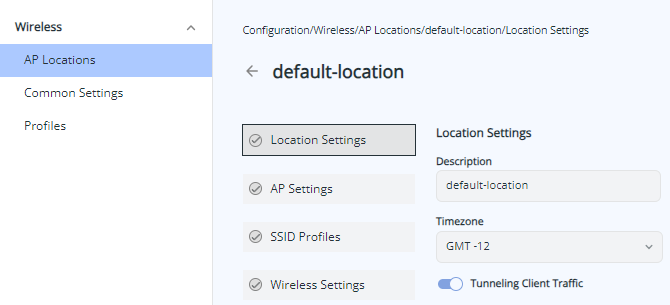
In the factory configuration, a location named "default-location" is created with the following settings:
- Description: default-location
- Tunnelling Client Traffic: enabled
- AP Settings: default-ap
- SSID profiles: default-ssid profile with Enterprise authorisation on local RADIUS server
- Radio Profiles: default_2g and default_5g
- Airtune Profiles: default_airtune
- AP Networks: AP of any subnet will be configured according to the settings of that location.
Local Settings
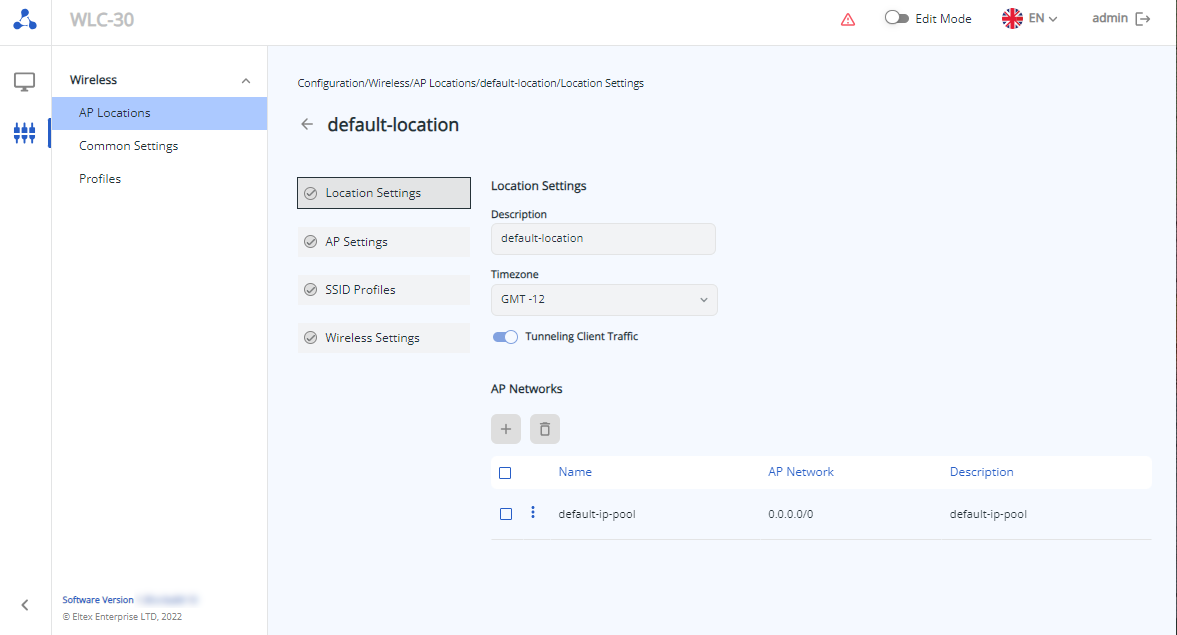
This step contains the location general settings:
- Description – location description. Possible values: string of up to 255 characters. By default: none;
- Timezone – timezone for the selected location. Airtune optimization and AP schedule updates will be triggered based on the timezone. Possible values: from -12 to +12. By default: timezone is set from the device configuration.
- tunneling Client Traffic – parameter allows enabling SoftGRE Data tunneling mode for AP which are in this location. Possible values: enabled/disabled. By default: disabled.
AP Networks
This section allows defining the subnets of the AP that will be configured according to the rules of this location. To create a new subnet, use the button "Create Network".
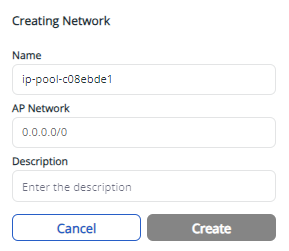
The following parameters are available:
- Name – subnet name. By default, the name is generated automatically and can be changed if necessary;
- AP Network – AP subnet, obligatory parameter. If the address of AP belongs to the specified subnet, AP during registration will enter this location and will be configured according to the set of configuration profiles included in the location. The same subnet cannot be configured for different locations. Using the 0.0.0.0.0/0 subnet allows APs from any subnet to be added to the location;
- Description – subnet description.
AP Settings
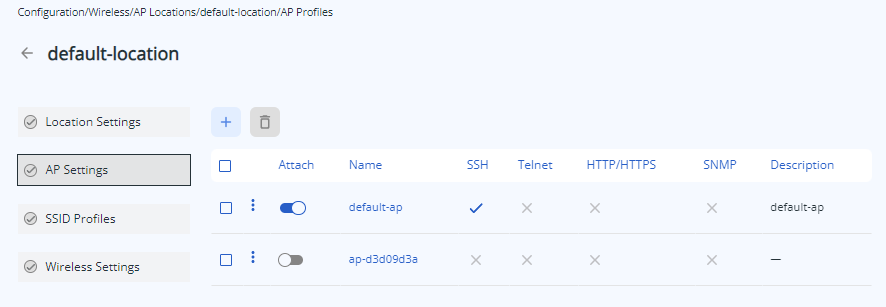
A profile with AP settings is added to the location. The presence of this profile in the location is obligatory. To add an existing profile to the location use “Attach”.
The table shows the basic settings of each profile. The complete profile settings contain:
- AP access password
- Settings for access services of the AP (HTTP/HTTPS/SSH/Telnet/SNMP)
- Logging settings for various AP services
- Settings for uploading logs from the AP to a TFTP server
If necessary, you can edit an existing profile by clicking on its name or create a new one. The creation procedure and description of parameters are available in the menu "AP".
SSID Profiles
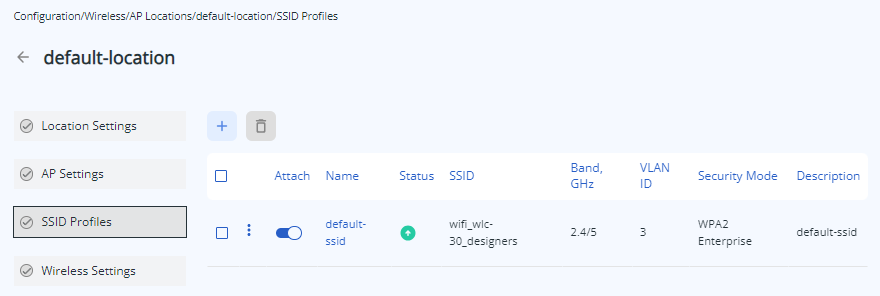 SSID profile can be added into a location. To do that use "Attach".
SSID profile main settings include:
- Name SSID
- Status SSID
- Security Mode
- Band
- VLAN ID
If necessary, you can edit an existing profile by clicking on its name or create a new one. The creation procedure and description of parameters are available in the menu "SSID".
Wireless Settings
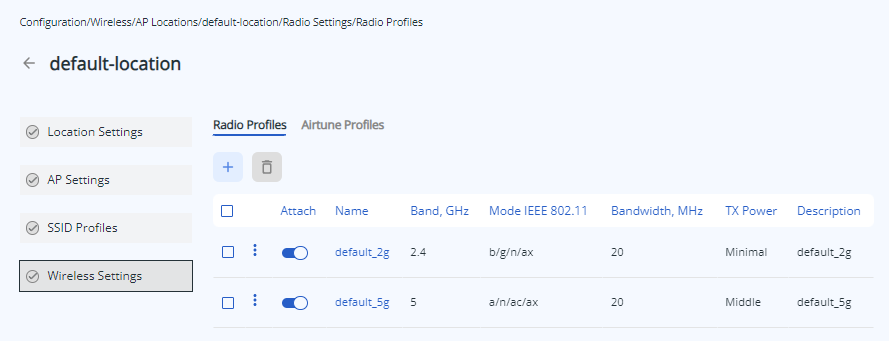
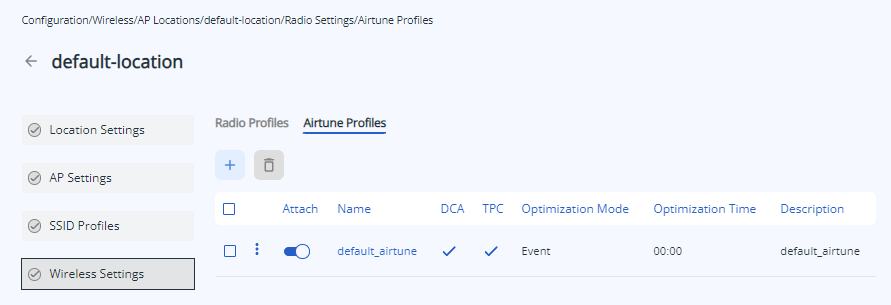
To add radio profiles and airtune profiles to the location use "Attach".
The presence of radio profiles for each band in the location is obligatory. The presence of an airtune profile indicates that some of the AP radio interface parameters in the location will be controlled by airtune (if airtune is also enabled globally on the "General Settings" page). Accordingly, when airtune is enabled in a location, there is no use to change parameters related to power and radio channels in the radio profiles of that location, as they will not be applied to the APs because these parameters are automatically configured through airtune. If you want to change the channel width or channel list for auto-selection on the APs, you must first disable airtune, apply the changes, and then re-enable airtune to automatically manage the channels according to the new settings.
If necessary, you can edit an existing profile by clicking on its name or create a new one. The radio creation procedure and description of parameters are available in the menu "Radio". The airtune profiles creation procedure and description of parameters are available in the menu "Airtune".
Submenu "Profiles"
SSID 
This page shows the SSID profiles available in the configuration. SSID profiles are intended for creating wireless networks with different types of authorization for users.
To create, delete and edit a profile, the edit mode must be enabled. |
The table includes general settings for each SSID profile such as:
- Name
- Status
- SSID
- Band, GHz
- VLAN ID
- Security Mode
- Description
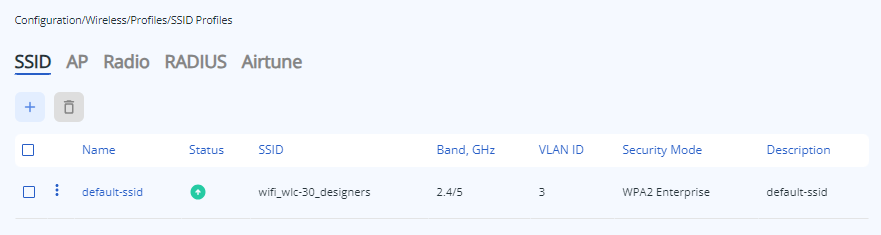 In the factory configuration, SSID profile is created with the following settings:
Common Settings:
- Description: default-ssid
- Enable SSID: enabled
- SSID: default-ssid
- Security Mode: WPA2 Enterprise
- RADIUS Profile: default-radius
- Band, GHz: 2.4/5
- Band Steer Mode: disabled
- VLAN ID: 3
Advcanced Settings:
- Broadcast SSID: enabled
- Client Station Limit: disabled
- Client Stations Isolation: disabled
- 802.11kv Support: enabled
- 802.11r Support: disabled
- PMKSA Caching: disabled
- Check Signal: disabled
- Check Signal Timeout, s: 10s
- Minimal Signal Level, dBm: -100
- Roaming Signal Level, dBm: -100
- VLAN Trunk Mode: disabled
- General VLAN Mode: disabled
- General VLAN ID: disabled
- Priority Type: 802.1p
- VLAN Priority: auto
- Local Switching: disabled
To create a new SSID profile, use the "Create Profile" button. A window with a task to create a profile with standard settings and a generated name (which can be changed) will be opened. After clicking the “Save” button, the profile page will open for customizing the settings. If you need to cancel the creation of a new profile, use the “Cancel” button.
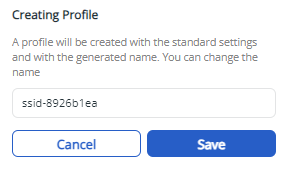
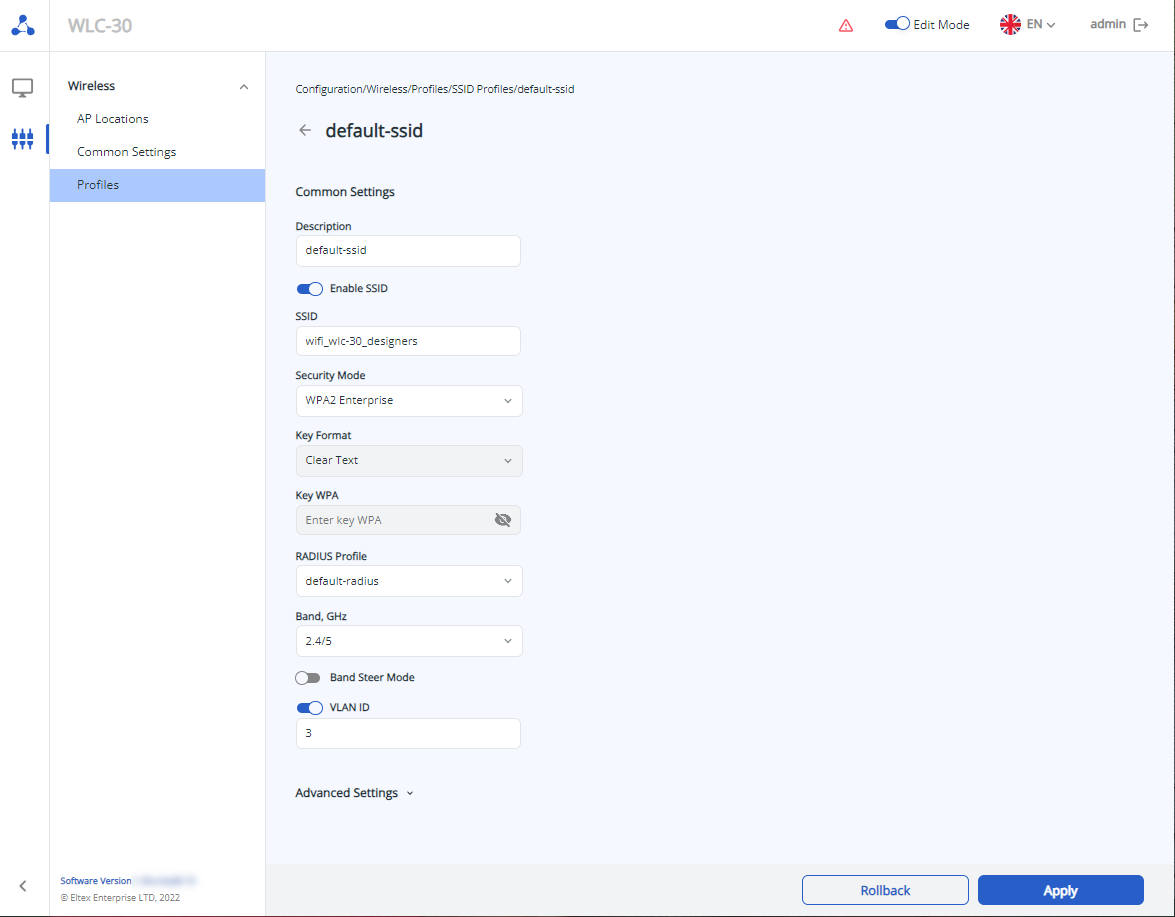 Common Settings
The page includes the following parameters:
- Description – SSID profile description. Possible values: string up to 255 characters. By default: none;
- Enable SSID – switch for eanbling/disabling SSID profile. Possible values: enabled/disabled. By default: disabled.
The color indication is displayed for profile status:
 – SSID profile is enabled
 – SSID profile is disabled
SSID – wireless network name that will be broadcast to users. Names containing a space must be enclosed in quotation marks. Possible values: string up to 32 characters. By default: none.
| This parameter is obligatory when creating a SSID profile. |
- Security Mode – data encryption type used on a virtual AP. By default: disabled.
Possible values:
OWE
- WPA PSK
WPA2 PSK
- WPA3 PSK
- WPA/WPA2 PSK
- WPA2/WPA3 PSK
- WPA Enterprise
- WPA2 Enterprise
- WPA3 Enterprise
- WPA/WPA2 Enterprise
- WPA2/WPA3 Enterprise
- Disabled
WPA3 and WPA3 Enterprise security mode is supported only on WEP-3ax, WEP-30L, WOP-30L, WOP-30LS access points. If you select a mixed security mode containing WPA3 (e.g., WPA2/WPA3), it will be applied only to those APs that support WPA3, and the maximum supported mode, in this case, WPA2, will be applied to the rest. If you select WPA3-only security mode, the SSID will be applied only to APs that support it. The SSID will not be applied to the other APs. |
- Key Format – WPA key format. By default: Clear-Text
Possible values: - WPA Key – key for connecting to SSID, used when PSK security mode is selected. The key can be specified either in plaintext or as a hash sha512. By default: none.
Possible values:
- if Clear-Text key format is selected, the key is specified as a string of 8 to 63 characters
- if Encrypted key format is selected, the key hash is set using sha512 algorithm with a string of 16 to 126 characters.
The icon  is used to hide the key characters as you type, regardless of its format.
 RADIUS Profile – parameter allows selection of a previously created RADIUS server profile if Enterprise security mode is used, and also allows creation and configuration of a new profile.
Possible values: string up to 235 characters. By default: none.
To create and configure a new RADIUS profile, you must select “Create Profile” from the drop-down list. |
The RADIUS server profile can be set only if one of the following security modes is selected: - WPA Enterprise
- WPA2 Enterprise
- WPA3 Enterprise
- WPA/WPA2 Enterprise
- WPA2/WPA3 Enterprise
|
Band, GHz – frequency range in which the SSID on the wireless access point will broadcast. Possible values: 2.4 GHz, 5 GHz, 2.4 GHz and 5 GHz simultaneously. By default: none.
This parameter is obligatory when creating a SSID profile. |
Band Steer Mode – switch enables the access points to prioritize the connection of dual-band wireless clients to a 5 GHz network. Possible values: enabled/disabled. By default: disabled.
| For the function to work, both bands must be enabled in the SSID profile: 2.4 GHz and 5 GHz. |
- VLAN ID – VLAN ID from which the tag will be removed when Wi-Fi traffic is transmitted to clients connected to this SSID. The VLAN ID tag (when VLAN Trunk is not activated) will be applied to untagged traffic from clients when traffic flows in the opposite direction. Possible values: 1–4094. By default: disabled.
Advanced Settings 
The advanced settings section is located at the bottom of the page and its parameters are hidden by default. To access the advanced settings, use the button  .
.
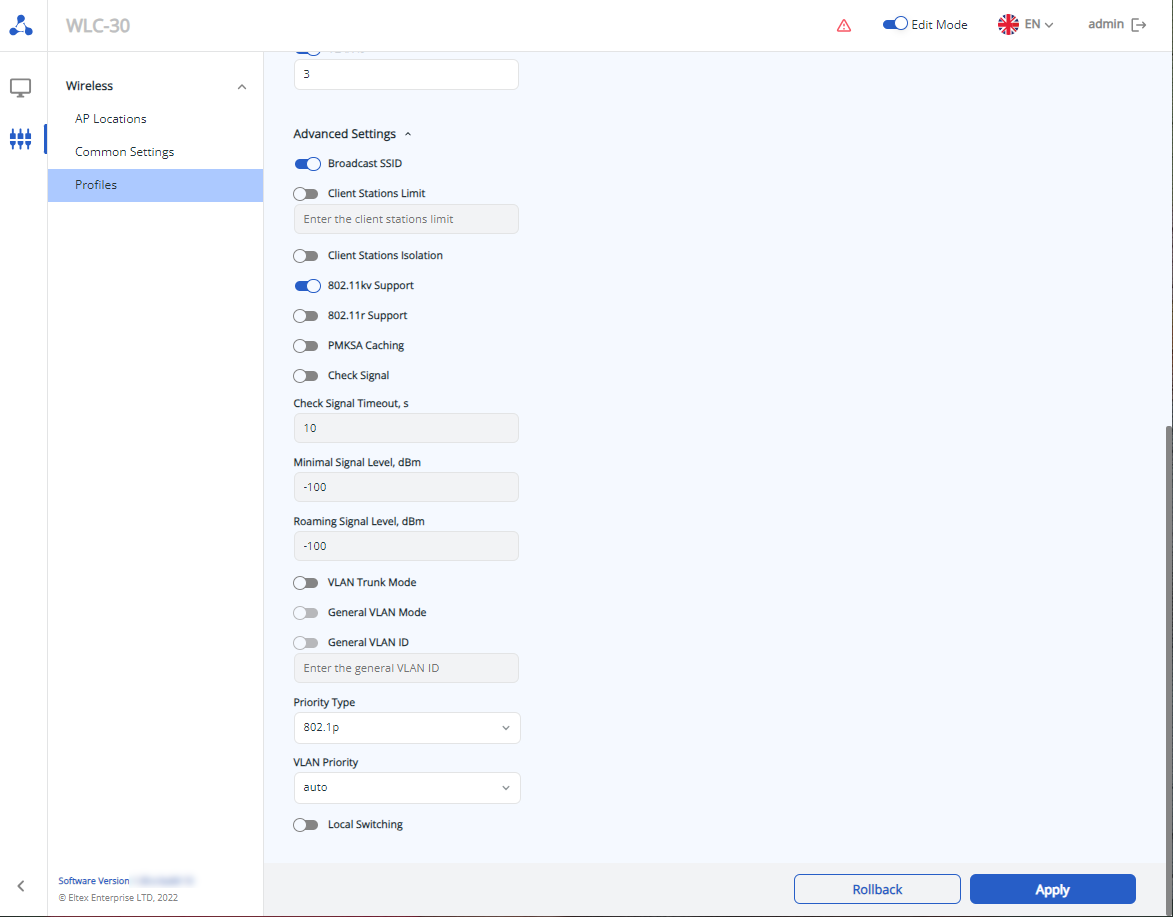 The page contains the following parameters:
After setting the parameters, save and then apply and confirm the configuration changes using the corresponding buttons. If necessary, cancel the changes and delete them using the buttons "Delete" and "Rollback".
AP 
This page shows the AP settings profiles available in the configuration. These profiles allow controlling access to the AP, configuring the password and managing SSH, Telnet, HTTP/HTTPS, SNMP services, as well as enabling and configuring the logging of internal AP services and uploading logs from the AP to a TFTP server.
To create, delete and edit a profile, the edit mode must be enabled. |
The table contains the basic parameters for each profile, such as:
- Name
- SSH
- Telnet
- HTTP/HTTPS
- SNMP
- Description
SSH/Telnet/HTTP/HTTPS/SNMP service status are sisplayed by icons:
 – server is enabled
 – server is disabled
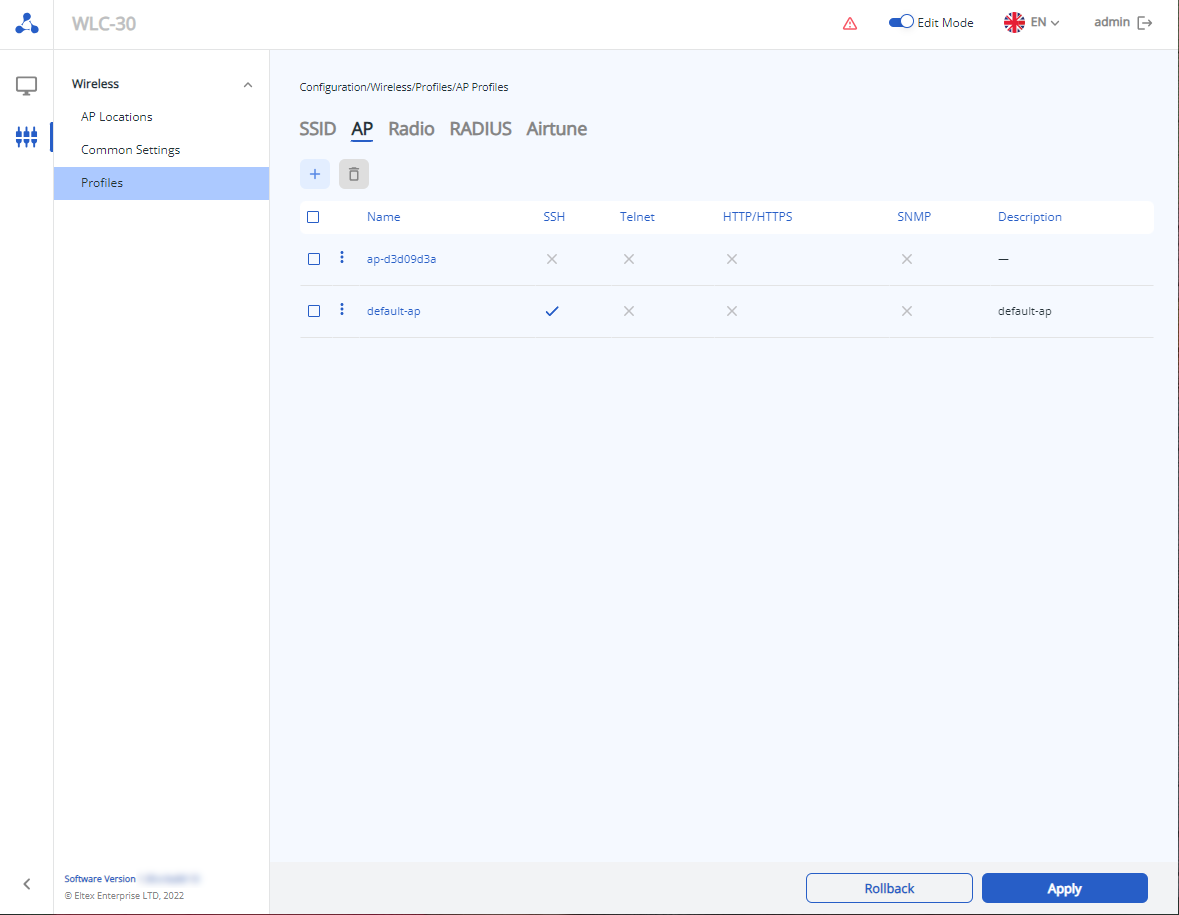 In the factory configuration, a profile named "default-ap" is created with the following settings:
- Description: default_ap
- Password Format: Encrypted
- Password: 8CB5107EA7005AFF
- SSH Server: disabled
- Telnet Server: disabled
- HTTP/HTTPS: disabled
- HTTP Port: 80
- HTTPS Port: 443
- SNMP: disabled
- RO Community: public
- RW Community: private
- Host for SNMP v1 Traps: none
- Host for SNMP v2 Traps: none
- Host for SNMP Inform: none
- Syslog: disabled
- Mode: Local File
- Server Address: none
- Server Port: 514
- File Size, KB: 1000
- AutoLog TFTP: disabled
- Server Address: disabled
- Log File Limit: 10000
- Upload Period, s: 600
- Ipload Retry: 3
- Trace setup mode: disabled for all services
In the factory configuration all SSH/Telnet/HTTP/HTTPS/SNMP services are disabled for default-ap profile. |
To create AP profile use the "Create Profile" button. A window with a task to create a profile with standard settings and a generated name (which can be changed) will be opened. After clicking the “Save” button, the profile page will open for customizing the settings. If you need to cancel the creation of a new profile, use the “Cancel” button.
The password is a obligatory parameter and must be set when creating the AP profile. The other parameters will be created with default values if no changes are made. More detailed information can be found in section "AP profile configuration" and "AP Trace". |
AP profile configuration 
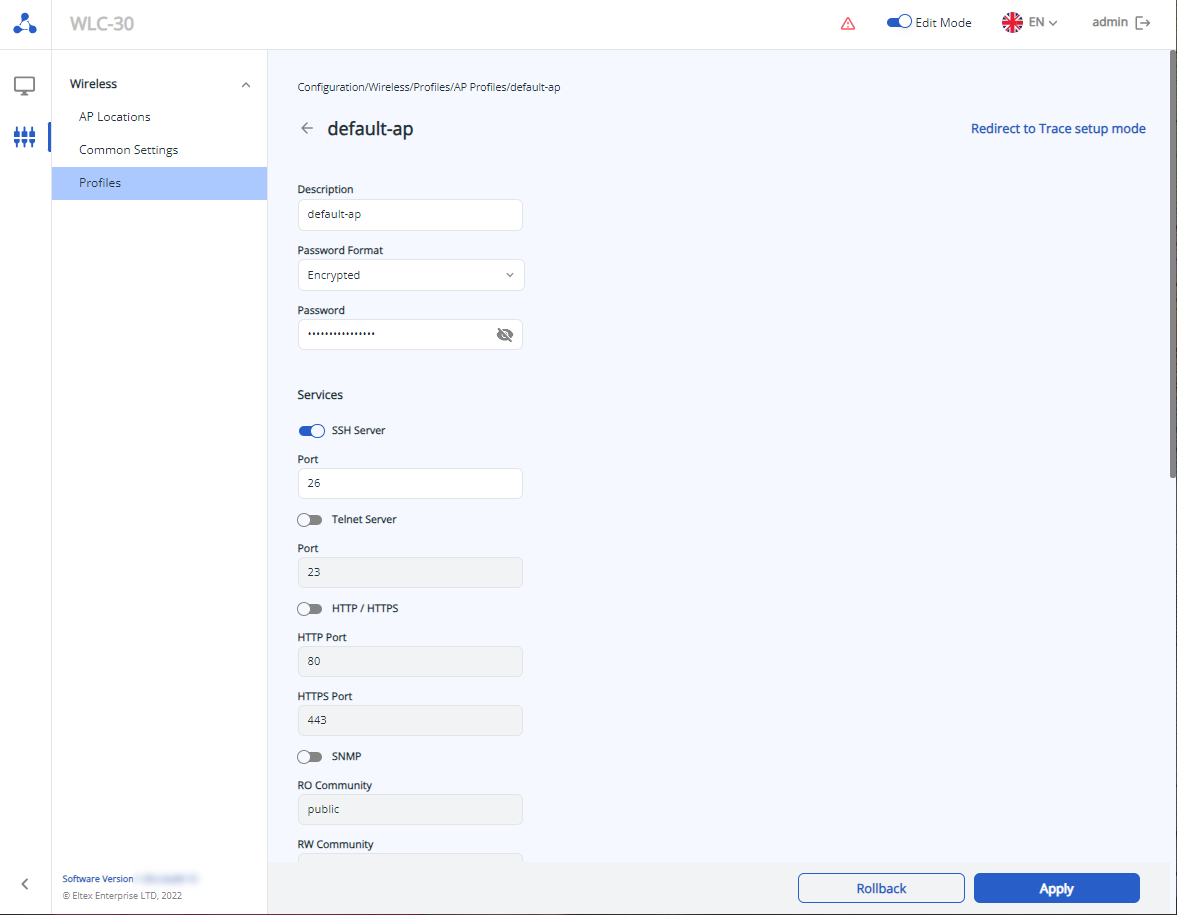
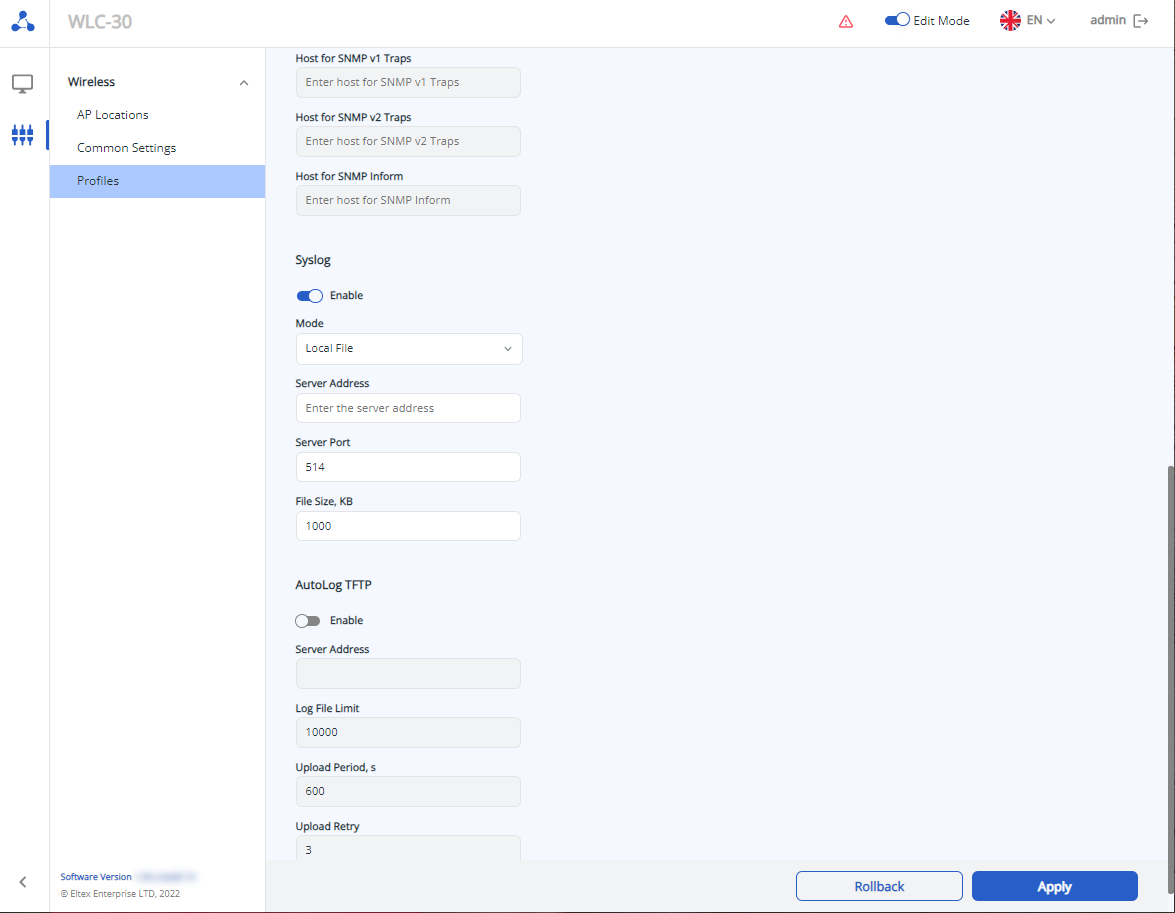
The page contains the following parameters:
- Description – description for the AP settings profile. Possible values: string up to 255 characters. By default: none;
- Password Format – parameter that specifies the format in which the password to control the AP will be set. By default: Clear Text:
Possible values:
- Password – password for controlling the AP. By default: none;
Possible values:
if Clear Text password format is selected, the password is specified as a string of 8 to 64 characters;
if Encrypted password format is selected, password hash by sha512 algorithm is set with a string of 16 to 128 characters.
After saving the configuration, the field format is forced to become Encrypted and then the password will be displayed and stored in hashed form. |
- Services:
- SSH Server – switch controls the ability to connect to the AP via SSH protocol. By default: none. Possible values: enabled/disabled:
- Port – port for connecting to the AP via SSH protocol. By default: 22. Possible values: 1–65535.
- Telnet Server – switch controls the ability to connect to the AP via Telnet protocol. By default: disabled. Possible values: enabled/disabled:
- Port – port for connecting to the AP via Telnet protocol. By default: 23. Possible values: 1–65535.
- HTTP/HTTPS – switch controls the ability to connect to the AP web configurator via HTTP and HTTPS. By default: disabled. Possible values: enabled/disabled:
- HTTP Port – port for connecting to the AP web configurator via HTTP.By default: 80. Possible values: 80, 1025–65535;
- HTTPS port – port for connecting to the AP web configurator via HTTPS. By default: 443. Possible values: 443, 1025–65535.
- SNMP – switch controls SNMP service operation on the AP. By default: disabled. Possible values: enabled/disabled:
- RO Community – parameter defines the community for SNMP access in read-only mode. By default: public. Possible values: string of 1–128 characters;
- RW Community – defines the community for SNMP read-write mode. By default: private. Possible values: string of 1–128 characters;
- Host for SNMP v1 Traps – host address for working with SNMP v1 traps. By default: none. The parameter is specified in the form: AAA.BBB.CCC.DDD, where each part takes values from 0 to 255;
- Host for SNMP v2 Traps – host address for working with SNMP v2 traps. By default: none. The parameter is specified in the form: AAA.BBB.CCC.DDD, where each part takes values from 0 to 255;
- Host for SNMP Inform – host address for working with messages of Inform type of SNMP protocol. By default: none. The parameter is specified in the form: AAA.BBB.CCC.DDD, where each part takes values from 0 to 255;
- Syslog – switch allows to enable or disable the syslog service on the AP. By default: enabled. Possible values: enabled/disabled:
- Mode – selects the operating mode of the syslog service on AP. By default: Local File. Possible values:
- Local File – syslog will only be written to a local file on the AP in the /var/log/ directory;
- Server and File – syslog will be written to a file on the AP and sent to the specified syslog server.
- Server Address – address of the syslog server to send the log from the AP. By default: none. The parameter is set in the form of IP address or domain name of the server;
- Server Port – syslog server port for sending logs from the AP. By default: 514. Possible values: 1–65535;
- File Size, KB – size of the syslog file on the access point, above which the log will be overwritten to ensure rotation. By default: 1000 KB. Possible values: 1–1000 KB.
- AutoLog TFTP – switch allows to enable or disable auto upload of logs from the AP. By default: disabled. Possible values: enabled/disabled:
- Server Address – IP address of the TFTP server for automatic upload of logs from the AP. By default: none. The parameter is specified in the form: AAA.BBB.CCC.DDD, where each part takes values from 0 to 255;
- Log File Limit – threshold value of the size of the folder with logs on the AP (/var/log/), above which logs will be automatically uploaded to the specified TFTP server if log upload to TFTP server is enabled. By default: 10000 KB. Possible values: 0–20000 KB;
- Upload Period, s – period of sending logs from the AP to the TFTP server when uploading logs to the TFTP server is enabled. By default: 600s. Possible values: 1–86400 s;
- Upload Retry – number of attempts to resend logs from the AP to the TFTP server when uploading logs to the TFTP server is enabled. By default: 3. Possible values: 0–5.
AP Trace 
The AP services trace setup page is opened by clicking the "Redirect to Trace setup mode" in the upper right corner of the AP settings profile.
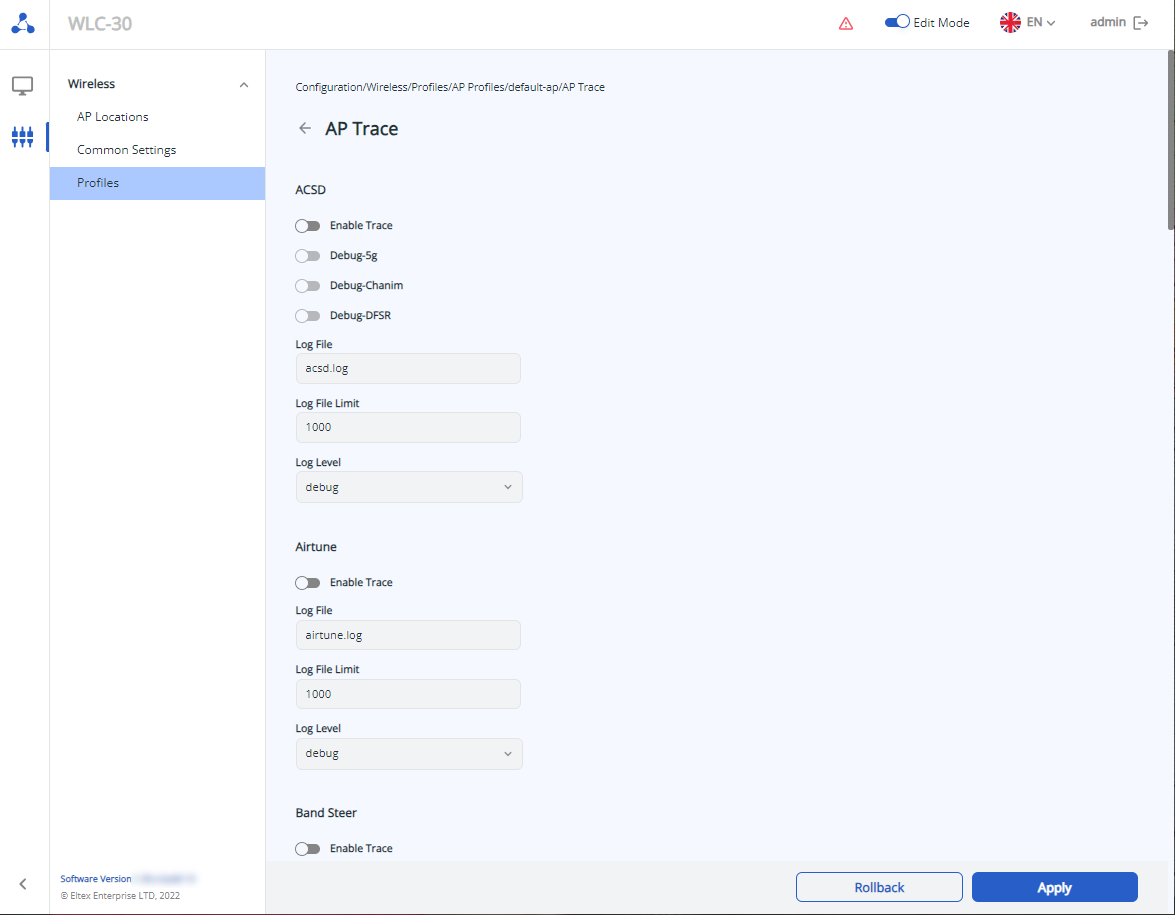 In most cases, AP services have the same logging settings, but some services have individual settings. In general, the logging settings of any service contain parameters:
Band Steer, Captive Portal services have no info level logging. |
Personalized service logging settings:
- ACSD
- Debug-5g – enables additional logging for the 5 GHz module of the RF channel auto-selection subsystem on AP. By default: disabled. Possible values: enabled/disabled;
- Debug-Chanim – enables additional logging for the chanim module of the RF channel auto-selection subsystem on AP. By default: disabled. Possible values: enabled/disabled;
- Debug-DFSR – enables additional logging for the DFSr module of the RF channel auto-selection subsystem on AP. By default: disabled. Possible values: enabled/disabled;
- Band Steer
- Band Steer STA MAC – allows to specify the MAC address of the Wi-Fi client station for which the log of the band steer subsystem on the access point will be recorded. By default: disabled. Possible values: MAC address of the Wi-Fi client station in the format HH:HH:HH:HH:HH:HH
- Captive Portal
- Captive Portal Redirector Debug – enables logging of the HTTP request redirector module on the access point. By default: disabled. Possible values: enabled/disabled.
After configuring the settings, save and then apply the configuration using the appropriate buttons. If necessary, undo the changes and delete them using the "Delete" and "Rollback".
Detailed information on working with the device configuration is described in the configuration section. After creating a profile, it will be displayed in the table of profiles "AP".
Radio
The page shows the radio interface settings profiles for the access points available in the configuration in the form of a table.
To create, delete and edit a profile, the edit mode must be enabled. |
If an airtune profile is added to a location, some parameters of the AP radio interfaces in that location will be controlled by airtune (if airtune is also enabled globally on the "General settings" page). Accordingly, when airtune is enabled in a location, it is not reasonable to change parameters related to power and radio channels in the radio profiles of that location, as they will not be applied on the AP because these parameters are automatically configured through airtune. If you want to change the channel width or channel list for auto-selection on the APs, you must first disable airtune, apply the changes, and then re-enable airtune to automatically manage the channels according to the new settings. |
The table contains the basic settings for each profile, such as:
- Name
- Band, GHz
- Mode IEEE 802.11
- Bandwidth, MHz
- Tx Power
- Description
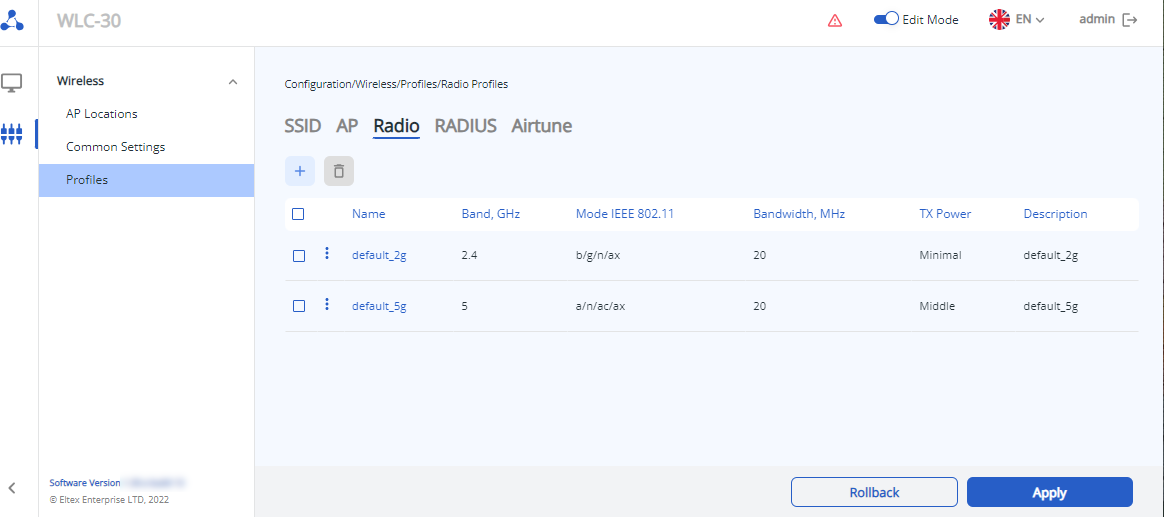
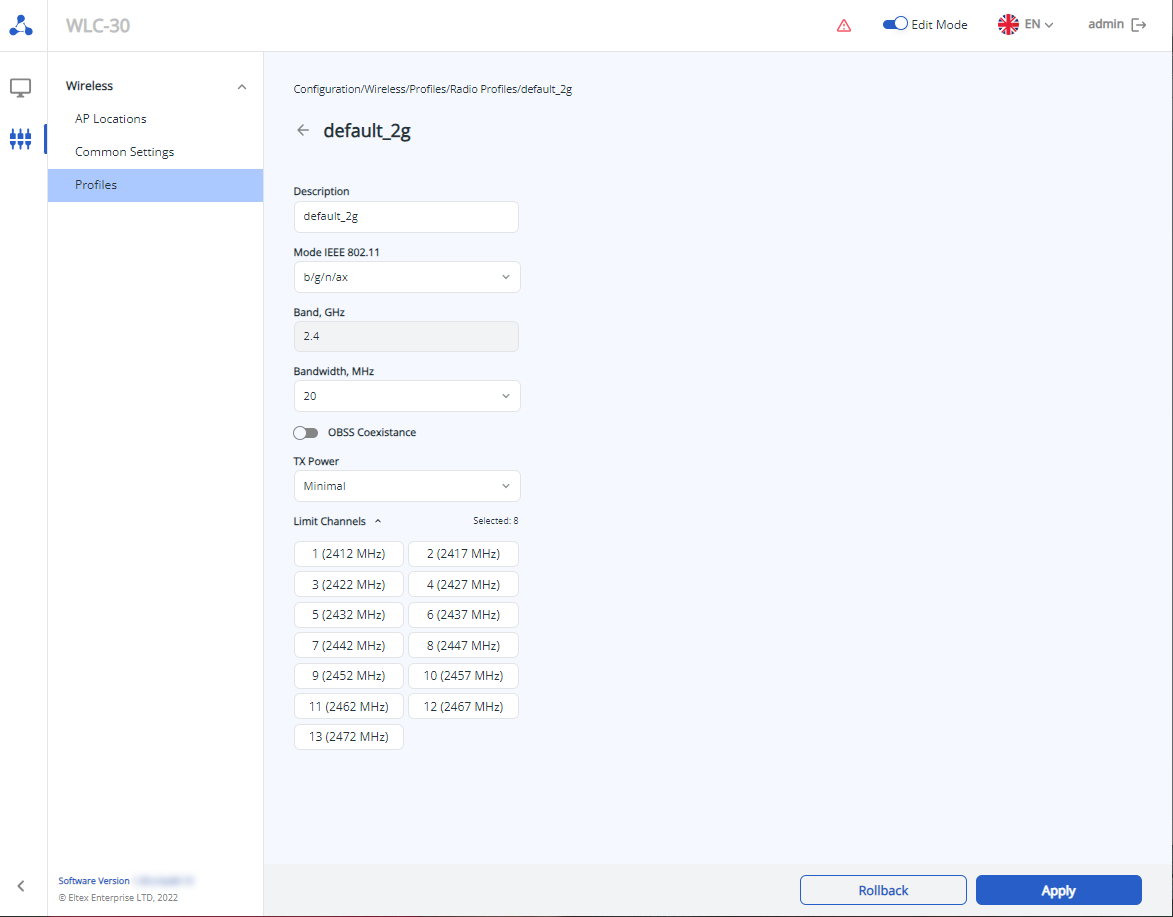
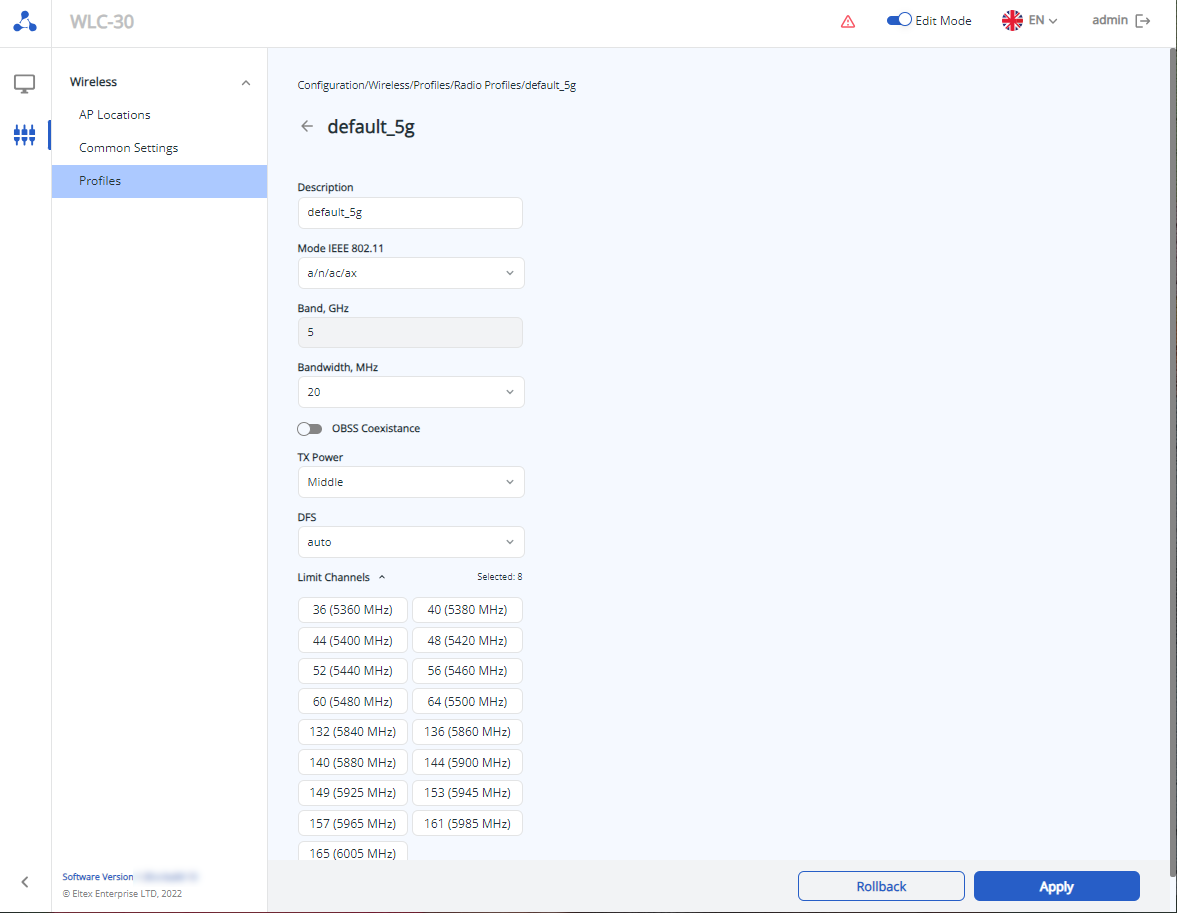 In the factory configuration, radio profiles named "default_2g" for 2.4 GHz and "default_5g" for 5 GHz are created with the following settings:
Profile default_2g:
- Description: default_2g
- Mode IEEE 802.11: b/g/n/ax
- Band: 2.4 GHz
- Bandwidth: 20 MHz
- Tx Power: maximal
- Limit Channels: 1,6,11
Profile default_5g:
- Description: default_5g
- Mode IEEE 802.11: a/n/ac/ax
- Band: 5 GHz
- Bandwidth: 20 MHz
- Tx Power: maximal
- Limit Channels: 36,40,44,48,52,56,40,64
To create new radio use the "Create Profile" button.
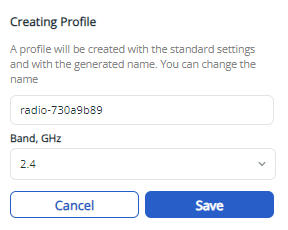
A window with a task to create a profile with standard settings and a generated name (which can be changed) will be opened. It is necessary to specify at once for which frequency range the profile is created. After clicking the “Apply” button, the profile page will open for customizing the settings. If you need to cancel the creation of a new profile, use the “Cancel” button.
The following parameters are shown on a radio profile page:
The compliance of the power parameter values for each radio interface of the AP depending on the AP model is presented in the table:
| 2.4 GHz |
|---|
| AP | minimal | low | middle | high | maximal |
|---|
| WEP-1L | 3 | 6 | 10 | 13 | 16 |
| WEP-2L | 3 | 6 | 10 | 13 | 16 |
| WOP-2L | 3 | 6 | 10 | 13 | 16 |
| WOP-20L | 8 | 10 | 12 | 14 | 16 |
| WEP-200L | 4 | 7 | 10 | 13 | 16 |
| WEP-30L | 0 | 4 | 8 | 12 | 16 |
| WOP-30L | 0 | 4 | 8 | 12 | 16 |
| WOP-30LS | 0 | 3 | 6 | 9 | 11 |
| WEP-3ax | 6 | 8 | 11 | 14 | 16 |
| WEP-2ac | 5 | 8 | 11 | 14 | 16 |
| WEP-2ac Smart | 5 | 8 | 11 | 14 | 16 |
| WOP-2ac:rev.B/rev.C | 5 | 8 | 11 | 14 | 16 |
| 5 GHz |
|---|
| AP | minimal | low | middle | high | maximal |
|---|
| WEP-1L | 11 | 13 | 15 | 17 | 19 |
| WEP-2L | 11 | 13 | 15 | 17 | 19 |
| WOP-2L | 11 | 13 | 15 | 17 | 19 |
| WOP-20L | 11 | 13 | 15 | 17 | 19 |
| WEP-200L | 8 | 11 | 14 | 17 | 19 |
| WEP-30L | 0 | 5 | 10 | 15 | 19 |
| WOP-30L | 0 | 5 | 10 | 15 | 19 |
| WOP-30LS | 0 | 3 | 6 | 9 | 11 |
| WEP-3ax | 10 | 12 | 15 | 17 | 19 |
| WEP-2ac | 1 | 6 | 10 | 15 | 19 |
| WEP-2ac Smart | 11 | 13 | 15 | 17 | 19 |
| WOP-2ac:rev.B/rev.C | 1 | 6 | 10 | 15 | 19 |
Limit Channels – list of radio channels for automatic selection depending on the radio air.
By default:
- 36, 40, 44, 48 – for 5 GHz.
Possible values:
- 1, 2, 3, 4, 5, 6, 7, 8, 9, 10, 11, 12, 13 – for 2.4 GHz;
- 36, 40, 44, 48, 52, 56, 60, 64, 132, 136, 140, 144, 149, 153, 157, 161,165 – for 5 GHz.
- DFS (only for 5 GHz) – parameter defines the dynamic frequency selection mode. This mechanism requires wireless devices to scan the radio airwaves and avoid using channels that coincide with those on which 5 GHz radar systems operate. By default: auto.
Possible values:- auto – mechanism is enabled;
- disabled – mechanism is disabled. DFS channels are not available for selection;
- forced – mechanism is disabled. DFS channels are available for selection;
After configuring the parameters, save and then apply the configuration using the corresponding buttons. If necessary, cancel the changes and delete them using the "Delete" and "Rollback" buttons.
RADIUS 
The page contains profiles that describe the parameters required for the access point to interact with the RADIUS server when authorizing Wi-Fi users, as well as for account collection.
To create, delete and edit a profile, the edit mode must be enabled. |
The table contains main parameters for each RADIUS profile, such as:
- Name
- Auth Server Address
- Auth Port
- Acct Server Address
- Acct Port
- Description
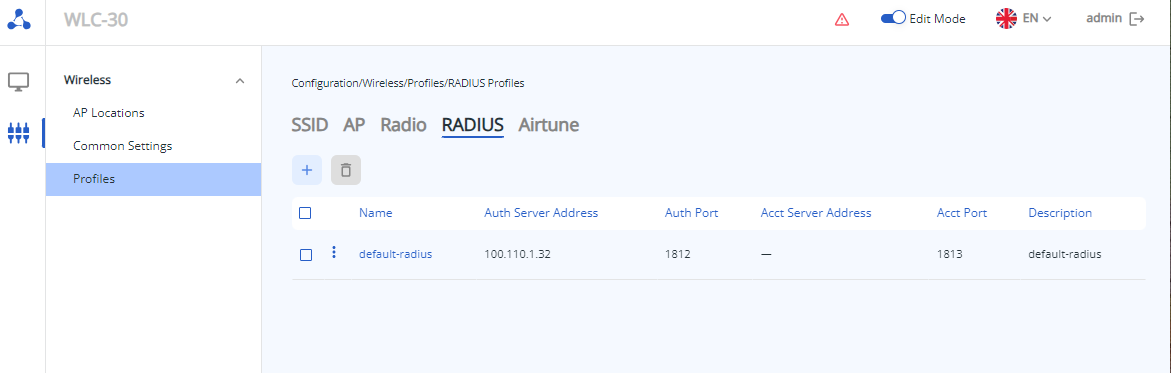 To edit an existing profile, click on its name. The profile settings page will be displayed.
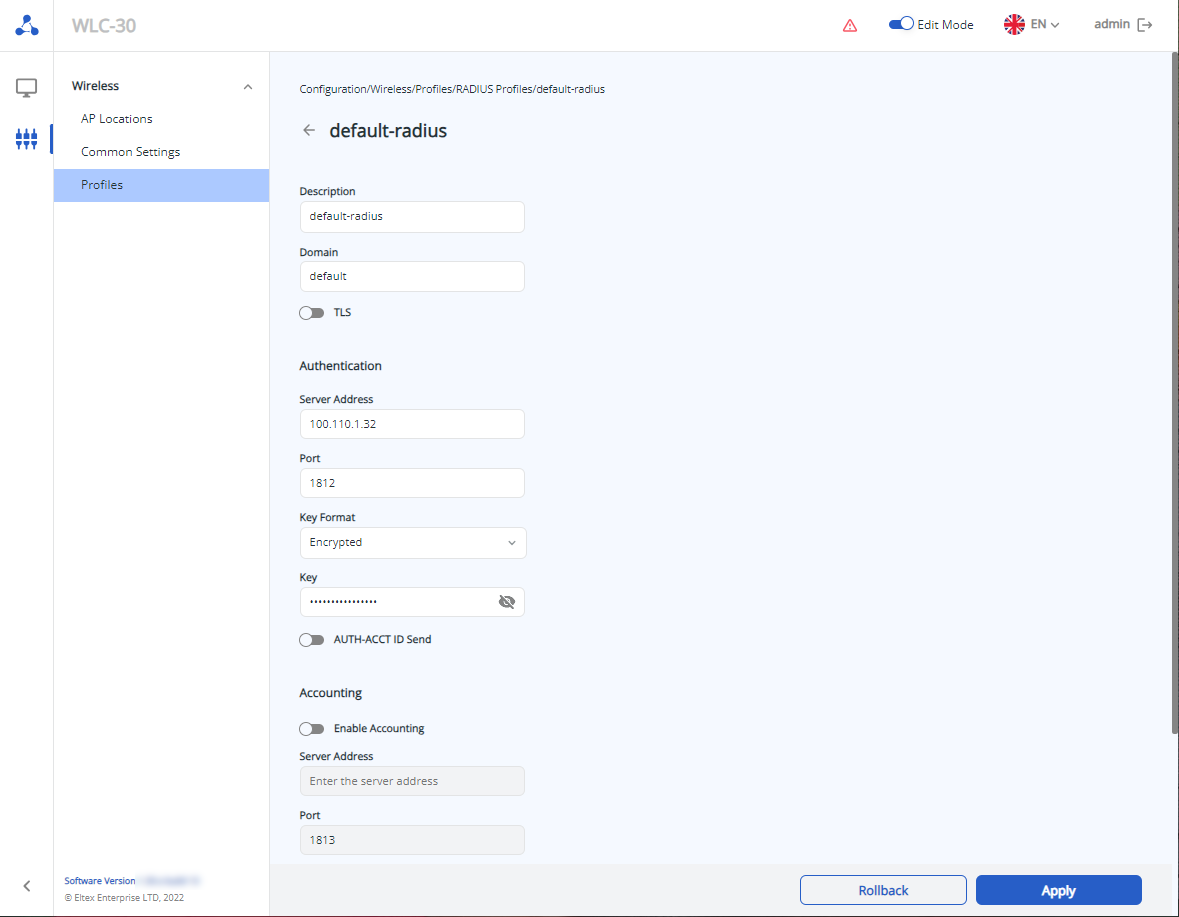 In the factory configuration, RADIUS profile is created with the following settings:
General:
- Description: default-radius
- Domain: default
- TLS: disabled
Authentication:
- Server Address: 192.168.1.1
- Port: 1812
- Key: 8CB5107EA7005AFF
- AUTH-ACCT ID Send: disabled
Accounting:
- Enable Accounting: disabled
- Server Address: отсутствует
- Port: 1813
- Key: отсутствует
- Interim Update: disabled
- Interim Interval: 600s
To create new RADIUS profile use "Create Profiles" button.
A window with a task to create a profile with standard settings and a generated name (which can be changed) will be opened. After clicking the “Save” button, the profile page will open for customizing the settings. If you need to cancel the creation of a new profile, use the “Cancel” button.
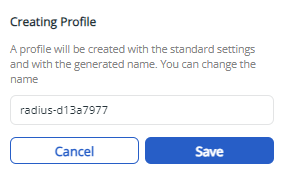 The following parameters are shown on a RADIUS profile page:
General:
- Description – profile description. By default: none. Possible values: random description is specified by a string of up to 255 characters.
- Domain – user domain. By default: none. Possible values: up to 235 characters.
- TLS – switch that controls the ability to use TLS during authorization. By default: disabled. Possible values: enabled/disabled.
Authentication:
- Server Address – authentication RADIUS server address. By default: none. Possible values: RADIUS server IP address in the format: AAA.BBB.CCC.DDD, where each part takes the values [0..255] or RADIUS server domain name.
The address of the authorization server is an obligatory parameter when creating a profile. |
The key is an obligatory parameter when creating a RADIUS profile. |
- AUTH-ACCT ID Send – switch activates the transmission of the session ID in account requests. By default: disabled.
Accounting:
- Enable Accounting – переключатель активирует отправку аккаунтинга на RADIUS-сервер. By default: disabled. Possible values: enabled/disabled.
- Server Address – RADIUS server address for the account. By default: none. Possible values: RADIUS server IP address in the format: AAA.BBB.CCC.DDD, where each part takes the values [0..255] or RADIUS server domain name.
- Port – RADIUS server port for sending the account. By default: 1813. Possible values: 1–65535.
- Key Format – specifies in what form the key of the RADIUS server used for accounting will be specified.
Possible values: - Key – RADIUS server key used for account. By default: none.
Possible values:- for Clear-Text key format – key is specified as a string of 8 to 63 characters
- for Encrypted key format – key is specified as a sha512 algorithm with a string of 16 to 126 characters
- Interim Update – switch activates periodic sending of the account to the RADIUS server. By default: disabled. Possible values: enabled/disabled.
- Interim Interval – period of time after which the account is sent to the RADIUS server. By default: 600 seconds. Possible values: 1–86400 seconds.
After configuring the parameters, save and then apply the configuration using the appropriate buttons. If necessary, undo the changes and delete them using the "Delete" and "Rollback" buttons.
Airtune 
The page contains Airtune profiles available in the configuration. Profiles of this service allow you to automatically configure such parameters of access point radio interfaces as power and channels, as well as allow you to manage client balancing and roaming settings.
To create, delete and edit a profile, the edit mode must be enabled. |
If an airtune profile is added to a location, some parameters of the AP radio interfaces in that location will be controlled by airtune (if airtune is also enabled globally on the "General settings" page). Accordingly, when airtune is enabled in a location, it is not reasonable to change parameters related to power and radio channels in the radio profiles of that location, as they will not be applied on the AP because these parameters are automatically configured through airtune. If you want to change the channel width or channel list for auto-selection on the APs, you must first disable airtune, apply the changes, and then re-enable airtune to automatically manage the channels according to the new settings. |
The following parameters are shown:
- Name
- DCA
- TCP
- Optimization Mode
- Optimization Time
- Description
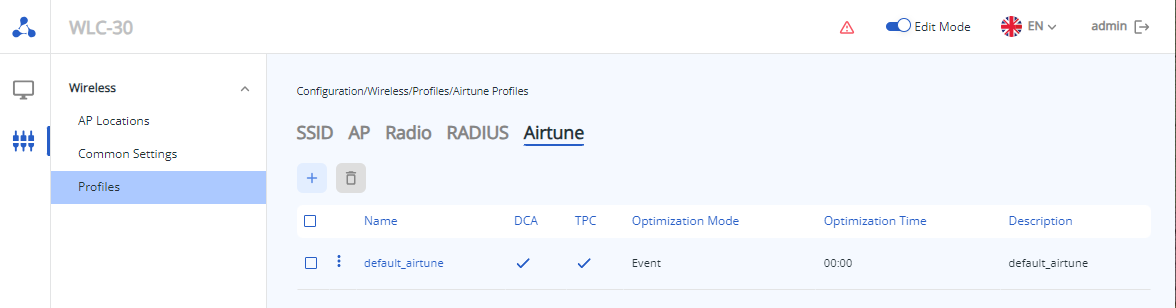 To edit an existing profile, click on its name. The profile settings page will be displayed.
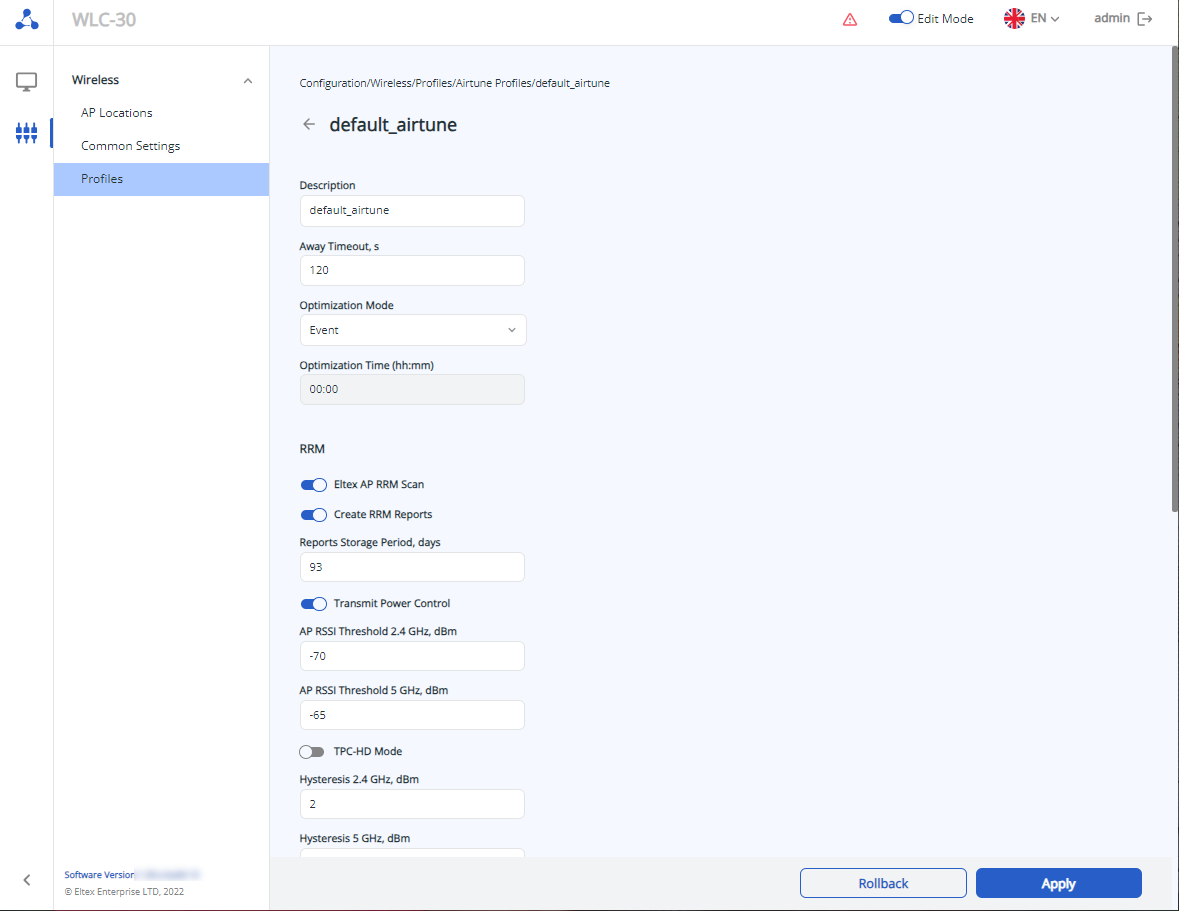
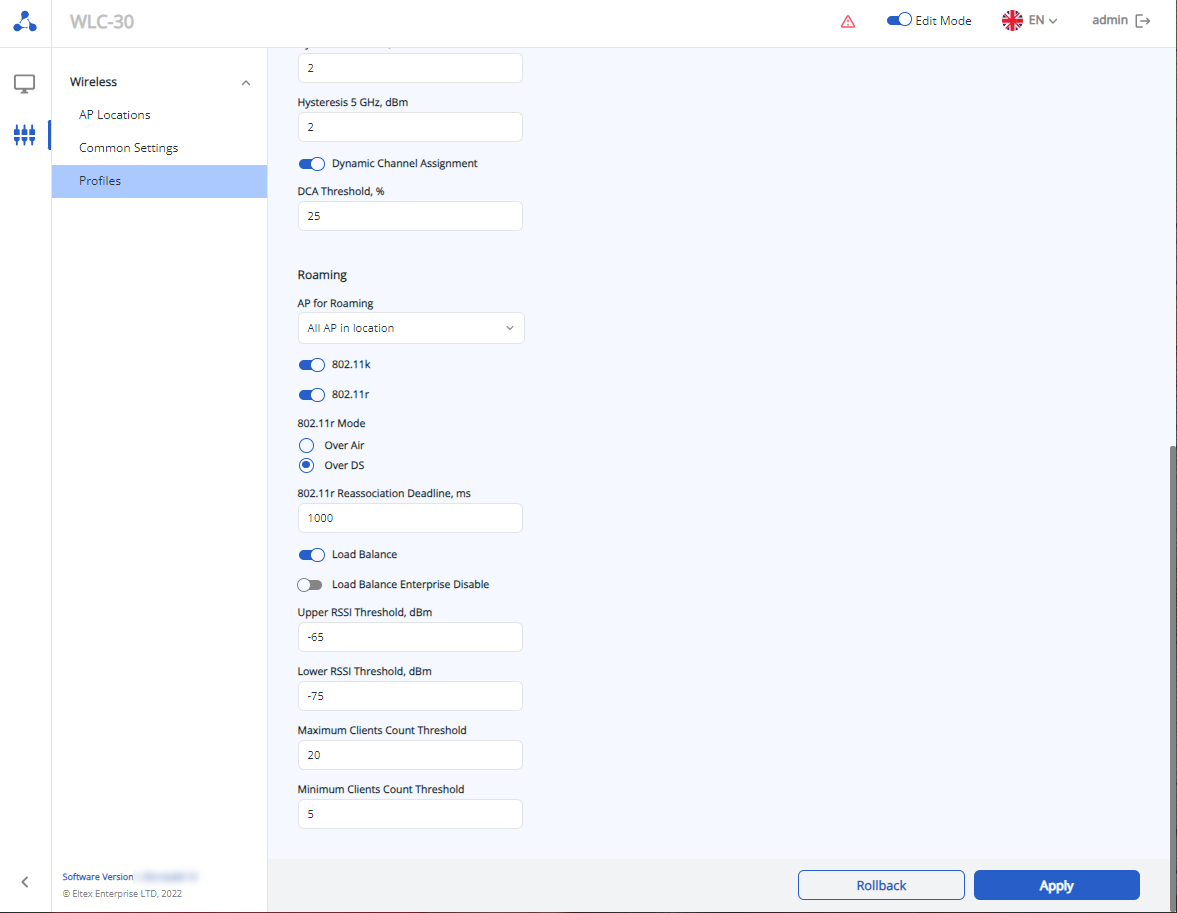 In the factory configuration, profile named "default-airtune" is created with the following settings:
General:
- Description: default-airtune
- Away Timeout: 100s
- Optimization Mode: event
- Pptimization Time: 00:00
RRM:
- Eltex AP RRM Scan: enabled
- Create RRM Reports: enabled
- Report Storage Period: 93 days
- Transmit Power Control: enabled
- AP RSSI Threshold 2.4 GHz: -70 dBm
- AP RSSI Threshold 5 GHz: -65 dBm
- TPC-HD Mode: disabled
- Hysteresis 2.4 GHz: 2 dBm
- Hysteresis 5 GHz: 2 dBm
- Dynamic Channel Assignment: enabled
- DCA Threshold: 25 %
Roaming:
- AP for Roaming: All AP in location
- 802.11k: enabled
- 802.11r: enabled
- 802.11r Mode: Over DS
- 802.11r Reassociation Deadline: 1000 ms
- Load Balance: enabled
- Load Balance Enterprise Disable: disable
- Upper RSSI Threshold: -65 dBm
- Lower RSSI Threshold: -75 dBm
- Maximum Clients Count Threshold: 20
- Minimum Clients Count Threshold: 5
To create new Airtune profile use "Create Profiles" button. A window with a task to create a profile with standard settings and a generated name (which can be changed) will be opened. After clicking the “Save” button, the profile page will open for customizing the settings. If you need to cancel the creation of a new profile, use the “Cancel” button.
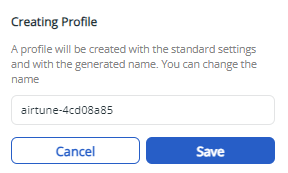 The following parameters are shown on Airtune profile page:
General:
- Description – profile description. By default: none. Possible values: random description is specified by a string of up to 255 characters.
- Away Timeout – protection interval for determining the availability of the AP by the server, i.e. the allowable time of waiting for the AP in case of connection loss, after which the service will consider the AP disconnected from the service. By default: 120 seconds. Possible values: 10–600 seconds.
- Optimization Mode – selection of the parameter by which optimization will be triggered. By default: event.
Possible values:- Event – enable event-based optimization functionality:
- Adding a new AP to the domain;
Deletion of a AP from the domain;
Loss of connection to one of the APs for more than 5 minutes.
- Time – enables the functionality of optimization by specified time;
- Full – enables the optimization functionality both by event and by specified time;
- None – disabling the optimization functionality.
- Optimization Time – time at which optimization will be triggered when the trigger containing the time is set. By default: 00:00. Possible values: time in the format hh:mm, where the first two digits are hours and the second two digits are minutes.
RRM:
- Eltex AP RRM Scan – switch activates accelerated scanning for Eltex AP. With this parameter enabled, the APs exchange special Action frames at one point in time in a specific frequency channel that the service has informed them. At the end of the exchange, they send a message to the service with the results obtained. The whole optimization process in this mode will take no more than a couple of minutes regardless of the number of APs in the domain. In case of the disabled parameter APs scan all channels in turn, taking into account the influence of competitive APs. In this case, the time required for optimization will increase as the number of APs increases (50-60 seconds for 1 AP). By default: enabled. Possible values: enabled/disabled.
- Create RRM Reports – switch activates generation of RRM reports. By default: enabled. Possible values: enabled/disabled.
- Reports Storage Period – storage time of RRM optimization reports. By default: 93. Possible values: 1–365 days.
- Transmit Power Control – switch activates automatic power control on the AP in the location. By default: enable. Possible values: enable/disable.
- AP RSSI Threshold 2.4 GHz – signal level with which neighboring APs should see each other in the 2.4 GHz band. Depending on the received RSSI level from the neighboring AP, the server will compare it with the level specified in this parameter and recommend to reduce (if the RSSI from the AP is higher) or increase the transmitter power of the AP (if the RSSI from the AP is lower). By default: -70 dBm. Possible values: from -100 to -1 dBm.
- AP RSSI Threshold 5 GHz – signal level with which neighboring APs should see each other in the 5 GHz band. Depending on the received RSSI level from the neighboring AP, the server will compare it with the level specified in this parameter and recommend to reduce (if the RSSI from the AP is higher) or increase the transmitter power of the AP (if the RSSI from the AP is lower). By default: -65 dBm. Possible values: from -100 to -1 dBm.
- TCP-HD Mode – switch activates the mode of automatic power optimization (TPC-HD) only on APs operating on the same channels. By default: disabled. Possible values: enabled/disabled.
- Hysteresis 2.4 GHz – allowable error for the frequency range 2.4 GHz. If the received signal lies within the range of the recommended signal level plus or minus the hysteresis value, power optimization should not be performed. By default: 2 dBm. Possible values: 1–10 dBm.
- Hysteresis 5 GHz – allowable error for the frequency range 5 GHz. If the received signal lies within the range of the recommended signal level plus or minus the hysteresis value, power optimization should not be performed. By default: 2 dBm. Possible values: 1–10 dBm.
- Dynamic Channel Assignment – switch enables the use of automatic channel assignment algorithm for each access point in the location to avoid interference between them. By default: enabled. Possible values: enabled/disabled.
- DCA Threshold – threshold of radio air change during dynamic channel allocation required to change channels. By default: 25 %. Possible values: 0–99 %.
Roaming:
- AP for Roaming – select AP for roaming. By default: all AP in location.
Possible values:- Neighors AP – APs will scan the air and determine which APs are neighbors in order to balance clients and roam only between adjacent APs (less extra traffic in the wired network, but more in the radio environment);
- All AP in location – service utilizes domain-wide functionality even if the APs are far apart (more traffic in the wired network, less in the radio environment).
- 802.11k – switch activates list synchronization for 802.11k roaming. 802.11k roaming can be organized between any networks (open/encrypted). If an AP is configured for 802.11k roaming, when a client connects, the AP sends it a list of "friendly" APs that the client can switch to while roaming. The list contains information about the MAC addresses of the APs and the channels on which they operate. Using 802.11k reduces the amount of time a client spends searching for another network while roaming, since the client does not have to scan for channels on which there are no target APs available for switching. This type of roaming is only possible for client devices that support 802.11k. By default: enabled. Possible values: enabled/disabled.
- 802.11r – switch activates the sending of keys for 802.11r roaming. This type of roaming is only available for client devices that support 802.11r. This type of roaming is only possible between VAP with WPA2/WPA3 PSK and WPA2/WPA3 Enterprise security modes. By default: enabled. Possible values: enabled/disabled.
- 802.11r Mode – mode of interaction with the target AP for 802.11r roaming. By default: Over-DS.
Possible values:
- 802.11r Reassociation Deadline – maximum period of time for APs to exchange client roaming attempt data (RRB packets). If no response is received after the timeout expires, the RRB request for seamless roaming is considered unsuccessful. By default: 1000 ms. Possible values: 1000–268431360 ms.
Parameters listed below are only aplicable for AP WEP-2ac, WEP-2ac Smart, WOP-2ac:revB and WOP-2ac:rev.C. |
- Load Balance – switch activates client balancing across all TDs in the domain, regardless of their actual location. The functionality is needed to evenly distribute clients among the APs to avoid overloading one of the APs if there is a more free AP in the client's line of sight. By default: enabled. Possible values: enabled/disabled.
- Load Balance Enterprise Disable – disables balancing of enterprise network clients between AP. By default: disabled. Possible values: enabled/disabled.
- Upper RSSI Threshold – upper limit of the zone end of stable signal reception from the client, i.e. the threshold of RSSI level from the client, when exceeding which the connected client will be considered in the "confident" zone and the search for a new AP will not start in case the AP is not overloaded. By default: -65 дБм. Possible values: from -100 to 1 dBm.
- Lower RSSI Threshold – lower limit of the end of the zone of stable signal reception from the client, i.e. the threshold of RSSI level from the client. If RSSI from the client is less than specified in this parameter, the client is considered to be in the "uncertain" zone. The service will try to find for the client an AP with "confident" reception for the subsequent switching of the client to the target AP. By default: -75 dBm. Possible values: from -100 to 1 dBm.
- Maximum Clients Count Threshold – threshold of the number of connected clients on the radio interface, if exceeded, the point will be considered overloaded. By default: 20. Possible values: 1–100 clients.
- Minimum Clients Count Threshold – threshold of the number of connected clients on the radio interface, when exceeded, the service will search for a more free AP for new clients (if it is not found, the client will continue working on the current AP). If the number of clients is less than the current threshold - the access point is considered free. By default: 5. Possible values: 1–100 clients.
After configuring the parameters, save and then apply the configuration using the appropriate buttons. If necessary, undo the changes and delete them using the "Delete" and "Rollback" buttons.
Submenu "Common Settings"
This section specifies the general controller settings, access point registration mode, and general Airtune service settings.
To edit common settings, the edit mode must be enabled. |
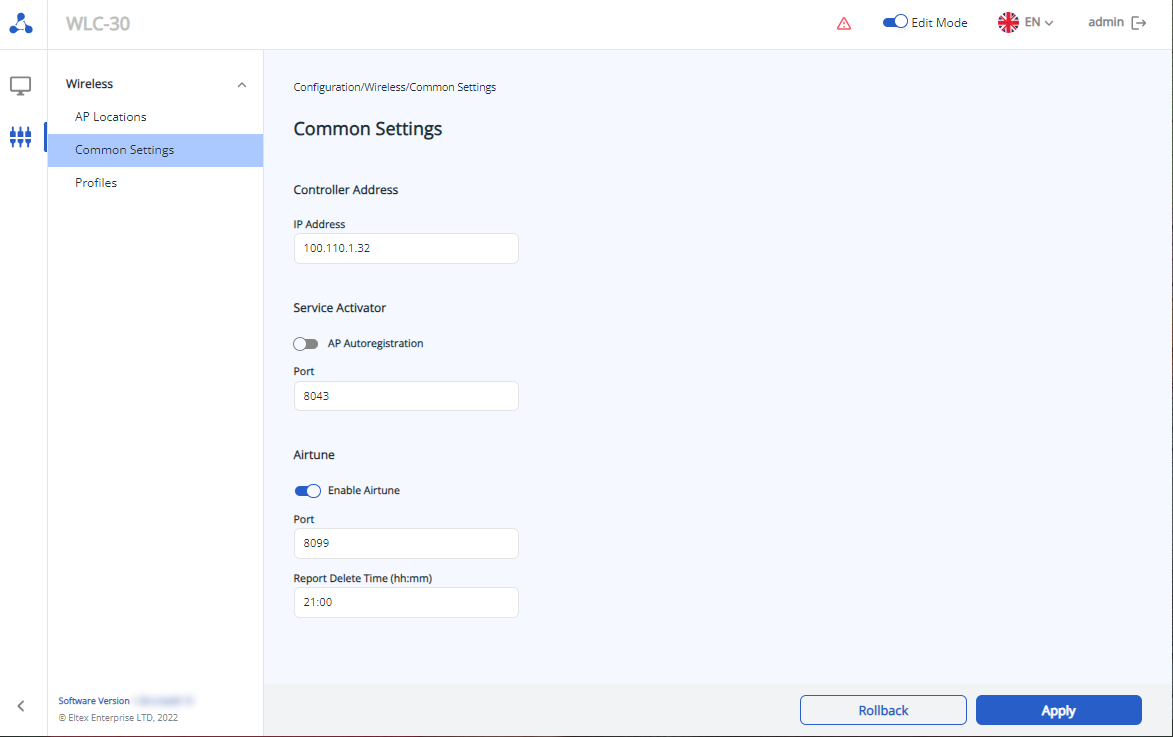 In the factory configuration, the general settings have the following values:
- IP Address: 192.168.1.1
- AP Autoregistration: enabled
- Port: 8043
- Airtune: enabled
- Port: 8099
- Report Delete Time: 21:00
The page includes following parameters:
Controller Address:
- IP Address – controller IP address over which the APs will interact with the WLC. By default: none. Parameter is in the format: AAA.BBB.CCC.DDD, where each part takes the values [0..255].
Service Activator:
- AP Autoregistration – switch activates the mode in which the AP coming to the controller will not wait for the administrator's actions for registration, i.e. registration will take place in automatic mode. If the switch is disabled, the administrator performs the registration of AP located on the "Monitoring/Wireless/Access Points/New Access Points" using "Register all" button or using the context menu for each detected access point. By default: disabled. Possible values: enabled/disabled;
- Port – port on which the AP registration service operates.By default: 8043. Possible values: 1024–65535.
Airtune:
- Enable Airtune – Airtune service global activation. By default: disabled;
- Port – port on which Airtune service is running. By default: 8099. Possible values: 1024–65535;
- Report Delete Time (hh:mm) – time at which optimization reports will be deleted. Set in a format hh:mm, where the first two digits are hours and the second two digits are minutes. By default: 21:00.
After configuring the parameters, save and then apply the configuration using the appropriate buttons. If necessary, undo the changes and delete them using the "Delete" and "Rollback" buttons.


