To create a new tariff, select the Tariff management tab of the RADIUS menu and click the Add button. Fill in the following fields in the opened window:
When a checkbox in the Portal authorization field is selected, the following parameters for portal authorization scripts become available for editing:
Several examples of typical states used for portal authorization are considered below.
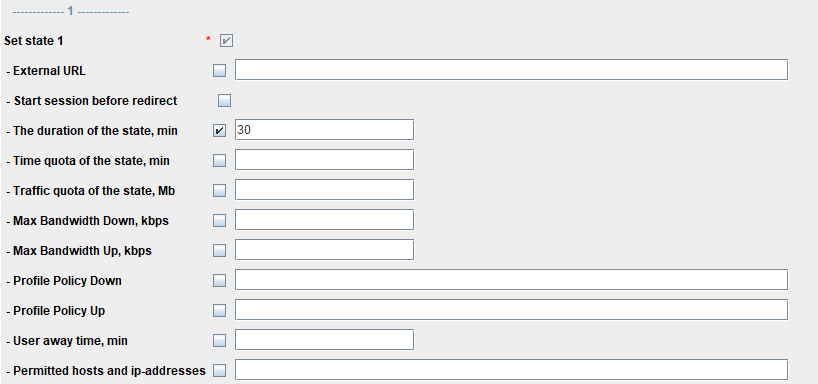
Description: within the tariff a user with portal authorization is granted time-limited Internet access. When the limit is exceeded, a user will be redirected to the session timeout page and informed of the session termination reason. After clicking the Close button, a user will be redirected to the authorization page.
Configuration: to set the tariff with time limit, enable The duration of state parameter in state 1 and define time limit in minutes.
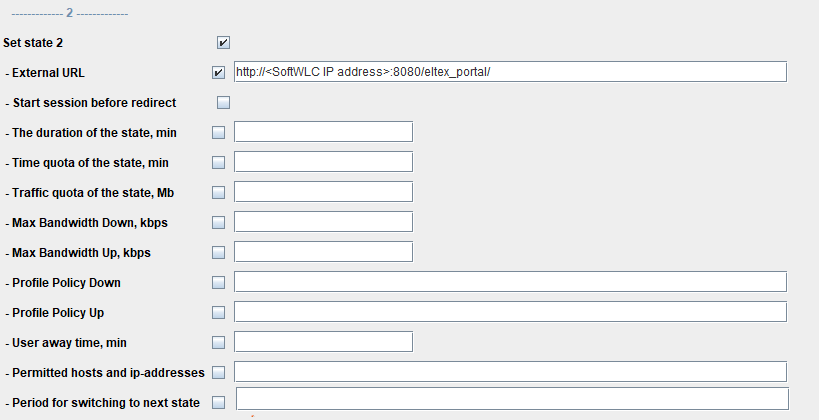
For the session timeout page to be displayed on expiry of time limit, enable state 2 and provide a link to captive portal in External URL field.
Description: the tariff consists of 2 states:
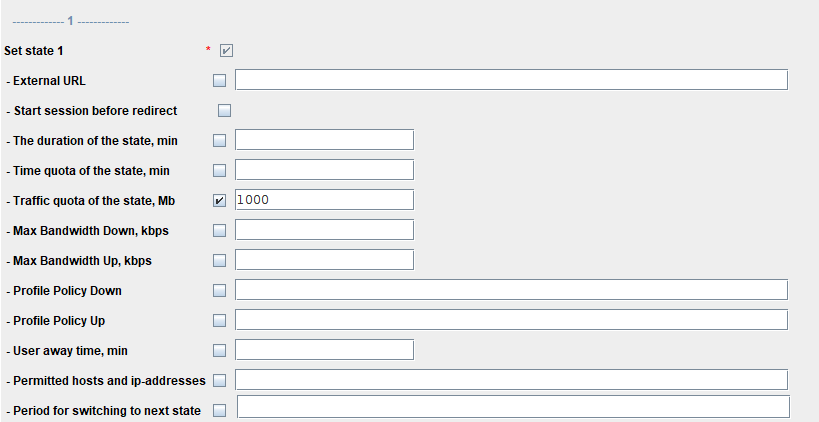
1. The duration of the state is not restricted, traffic quota is 1 GB. After this state, the user is redirected to the page created in portal settings with notification on the access quota.
2. Access Restricted page. The period of switching to the next state is once a day at 0:00.
| The Access Restricted page may be replaced with the page created in the portal settings with notification on the access quota. |
Configuration: to set the state 1, select the Traffic quota of the state checkbox in state 1 and define traffic quota as 1000 Mb.
To configure the state 2, select the state 2 checkbox and provide a link to http://<SoftWLC ip address>:8080/eltex_portal/access-limited in External URL field. Then select Start session before redirect and set Period for switching to next stage to midnight. You can configure the appearance of this page in the Portal Constructor by selecting the Access Restricted page on the Appearance tab.
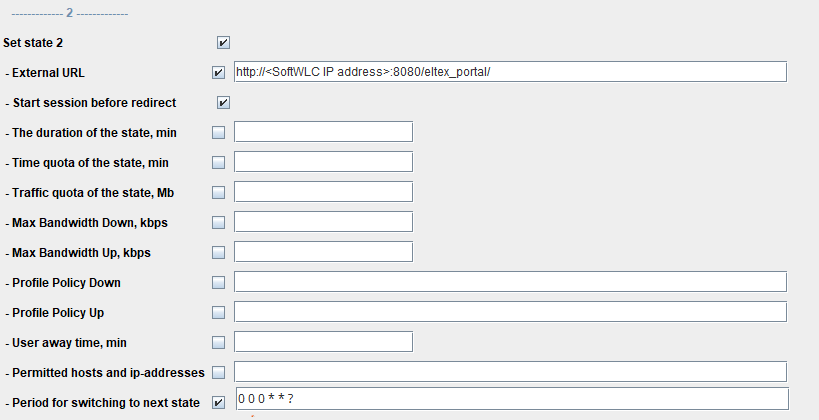
For this tariff to work correctly, Start session before redirect must be enabled. |
Fill in the tariff information updating block in the file /etc/eltex-pcrf/eltex-pcrf.json:
  "tariffs.update.interval" : {
    "interval" : 1,
    "unit" : "hours",
    "apb_enabled": true,
    "apb_host": "<IP-address>",
    "apb_port": 8090
}, |
and restart the service:
sudo service eltex-pcrf restart |
Description: the tariff consists of 3 states:
1. The duration of the state is 20 minutes, no bandwidth limit. After this state, a user is redirected to a page created in portal settings.
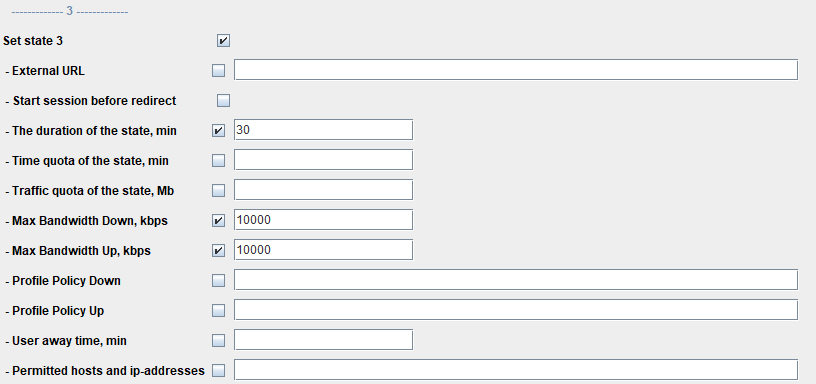
2. The duration of the state is 30 minutes, max Bandwidth Down/Up is 10 Mbps. The state is entered after clicking Continue button on the state 1 page.
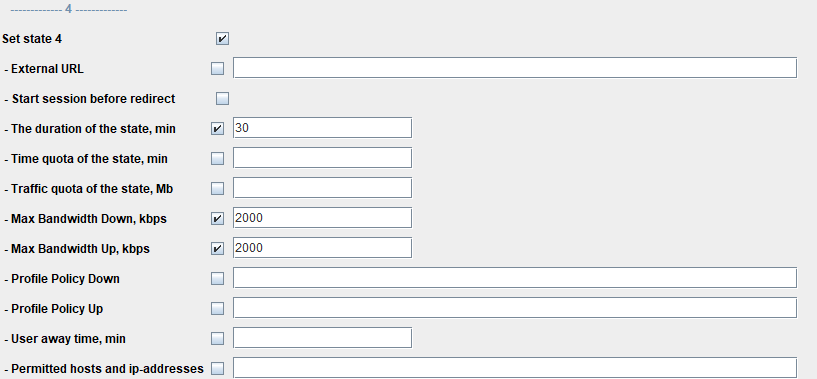
3. The duration of the state is 30 minutes, max Bandwidth Down/Up is 2 Mbps. After this state, a user is redirected to the session timeout page.
Configuration: to configure the state 1, select The duration of the state checkbox in state 1 and define 20-minute time limit.
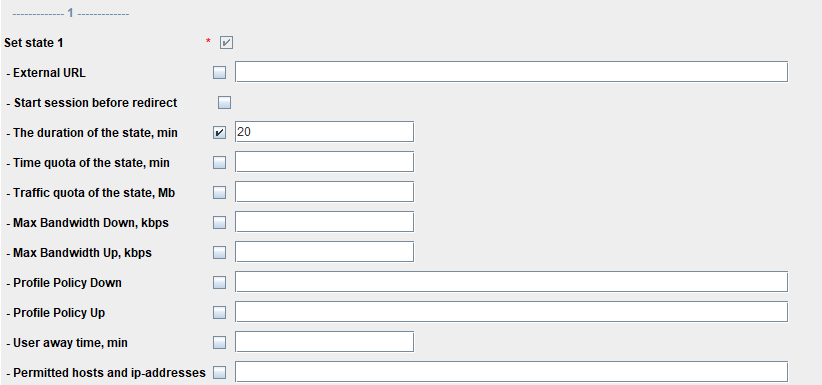
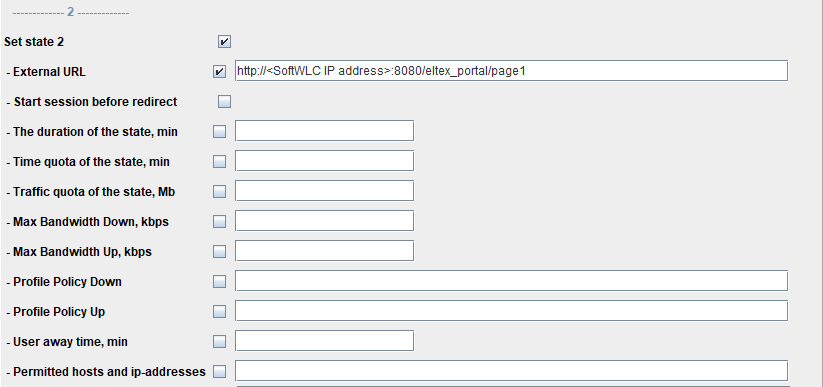
To set redirection to the page created in portal settings, select state 2 checkbox and provide a link to http://<ip">http://<SoftWLC ip address>:8080/eltex_portal/created_page_name in External URL address.
To configure the state 2, select The duration of the state checkbpx in state 3 and define 30-minute time limit. To set bandwidth limit, select Max Bandwidth Down and Max Bandwidth Up checkboxes and define 10000 kbps limit.
To configure the state 3, select The duration of the state checkbox in state 4 and define 30-minute time limit. To set bandwidth limit, select Max Bandwidth Down and Max Bandwidth Up checkboxes and define 2000 kbps limit.
Description: the tariff consists of 3 states:
1. The duration of the state is 20 minutes, no bandwidth limit. After this state, a user is redirected to a page created in portal settings.
2. The duration of the state is 30 minutes, max Bandwidth Down/Up is 10 Mbps. The state is entered after clicking Continue button on the state 1 page.
3. The duration of the state is 30 minutes, max Bandwidth Down/Up is 2 Mbps. After this state, a user is redirected to the session timeout page.
Configuration: to configure the case 1, select The duration of the state checkbox in state 1 and define 20-minute time limit.
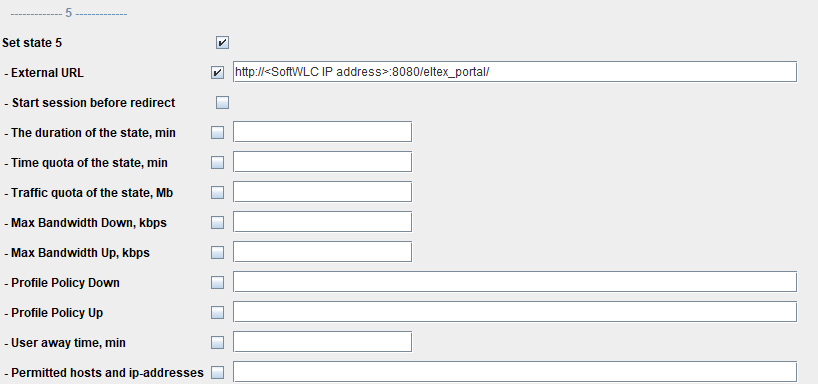
For the session termination page to be displayed, select state 5 checkbox after the state 3 is completed and provide a link to captive portal in it.
Description: within this tariff, a user is granted access to certain resources. When a user tries to open a resource that is not permitted, redirection to an external URL address is done. The duration of the state and Start session before redirect should be also set.
Configuration: to configure the tariff with limited access to resources, select External URL checkbox and provide URL address for user redirection after registration on the portal. Specify dns and ip addresses in Permitted hosts and ip-addresses field. Select Start session before redirect and The duration of the state checkboxes. Define time limit in minutes.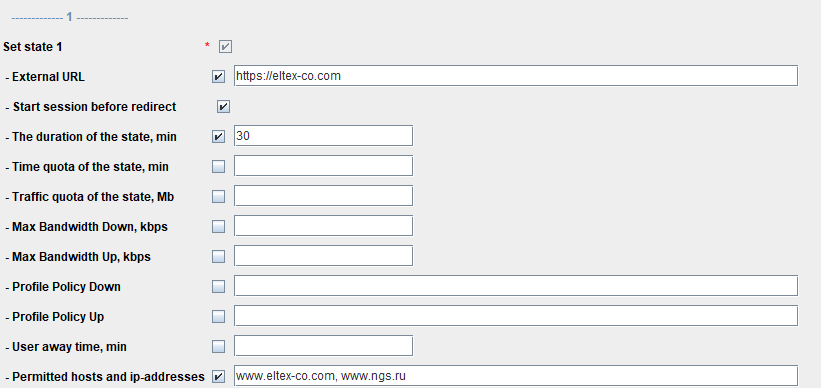
For the session timeout page to be displayed on expiry of time limit, select state 2 checkbox and provide a link to captive portal in External URL field.

For the tariff to work correctly on an access point, DNS server access should be configured on it. |
Description: The tariff consists of 2 states:
1. The duration of the state is not limited, Traffic quota of the state is 1 GB, and Bandwidth limit is 10 Mbps. After the case is completed, a user is redirected to the page created in portal settings with notification on the quota.
2. The duration of the state is 10000 minutes, max Bandwidth Down/Up is 1 Mbps and Period for switching to next state is once a day at 0:00. The state starts after clicking Continue button on the state 1 page.
Configuration: to configure the state 1, select Traffic quota of the state checkbox in state 1 and define 1000 Mb traffic quota. To set bandwidth limit, select Max Bandwidth Down and Max Bandwidth Up checkboxes and define 10000 kbps limit.
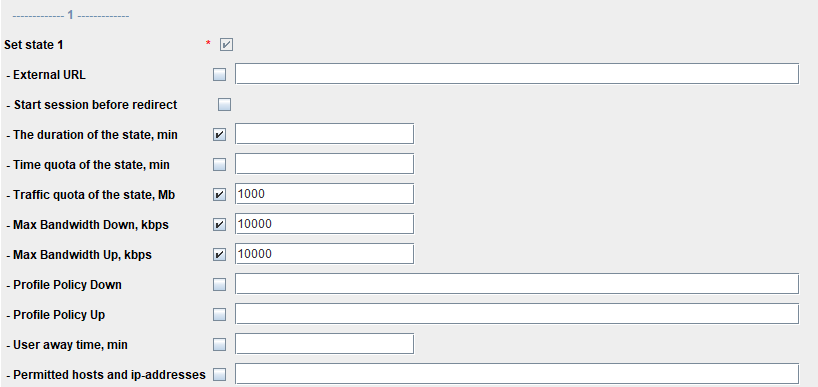
To set redirection to the page created in portal settings, select state 2 checkbox and provide a link to the page created in Portal Constructor http://<ip">http://<SoftWLC ip address>:8080/eltex_portal/page1 in External URL address.

To configure the state 2, select state 3 and define 1000 kbps limit in Max Bandwidth Down and Max Bandwidth Down fields. Set Period for switching to the next state to once a day at 0:00 and define The duration of the state that should be higher than the first parameter.
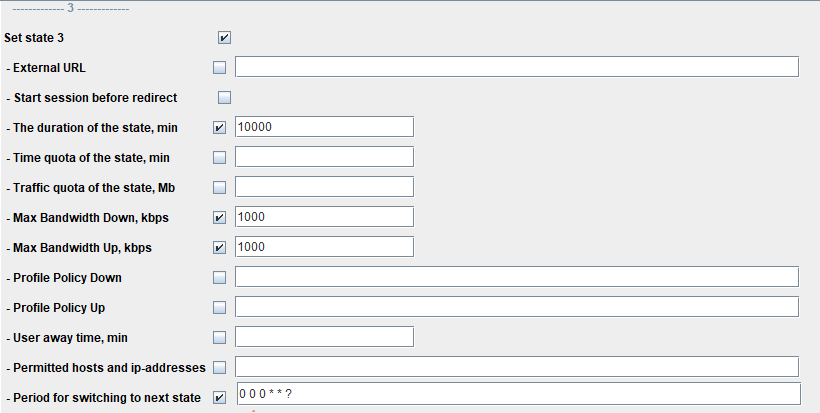
After 0:00, the user will switch to next state (to the state 1 for the example considered, as there are no more states enabled).