|
The file /etc/eltex-wifi-cab/system.xml contains settings to connect to MongoDB, NBI and authorization service.
<entry key="mongoaddress">mongodb://localhost:27017/wifi-customer-cab</entry> |
    <entry key="nbiaddress">http://localhost:8080/axis2/services/RadiusNbiService?wsdl</entry>
    <entry key="nbi.serviceLogin.user">softwlc_service</entry>
<entry key="nbi.serviceLogin.password">softwlc</entry> |
    <entry key="radius.auth.address">localhost</entry>
    <entry key="radius.auth.shareSecret">testing123</entry>
    <entry key="radius.auth.authPort">21812</entry>
<entry key="radius.auth.acctPort">21813</entry> |
The section "Settings" contains general settings of Wi-Fi B2B Admin Panel and allows creating its roles and users lists, configuring domains and interacting with other platform elements.
The section "Settings" contains 6 tabs:
Each tab is responsible for a certain group of settings. An opportunity to edit most settings is available only for a user with the role of a system administrator.
To save changes, click the button "Save", located at the top of the page. Settings are applied immediately, service restart is not needed.
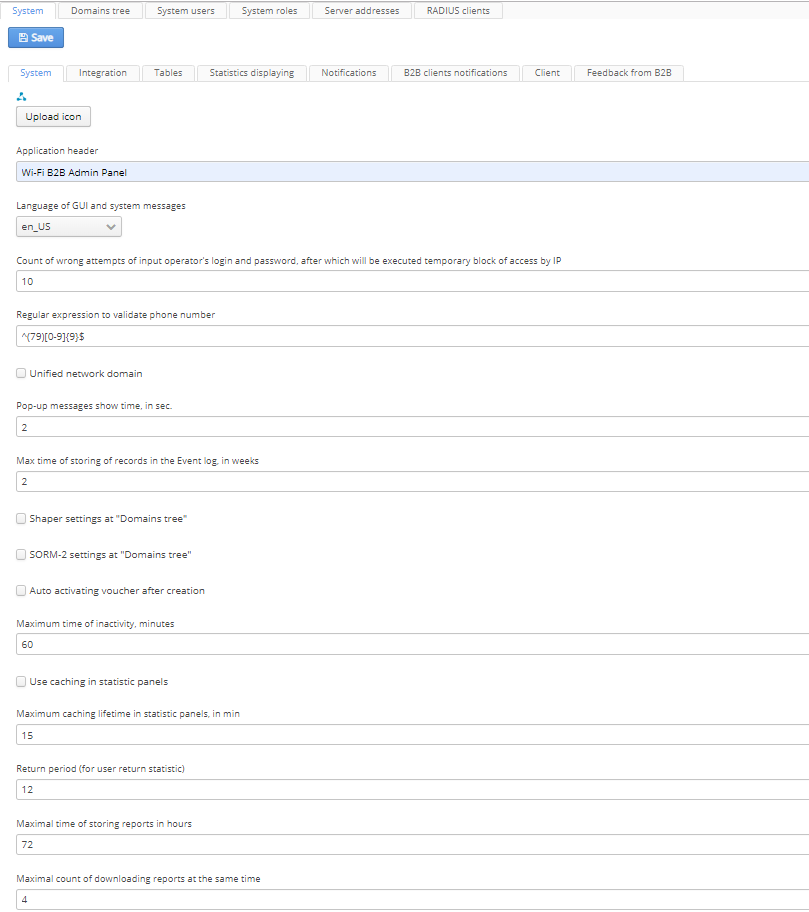
The tab "System" is the main tab for the Wi-Fi B2B Admin Panel configuration.
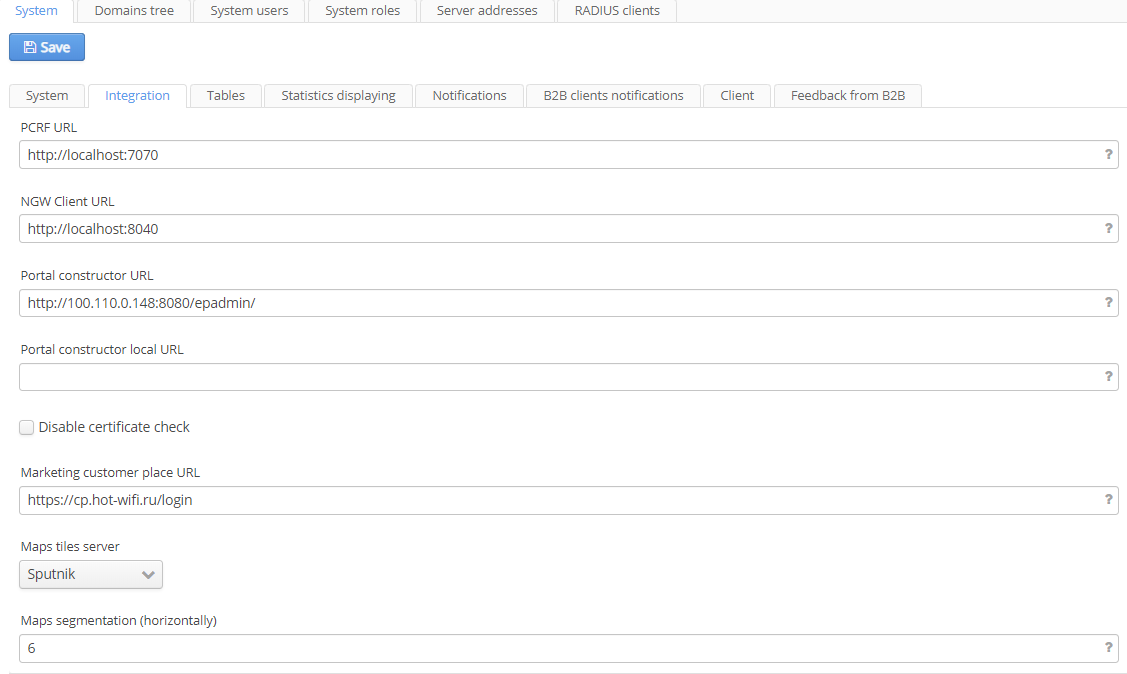
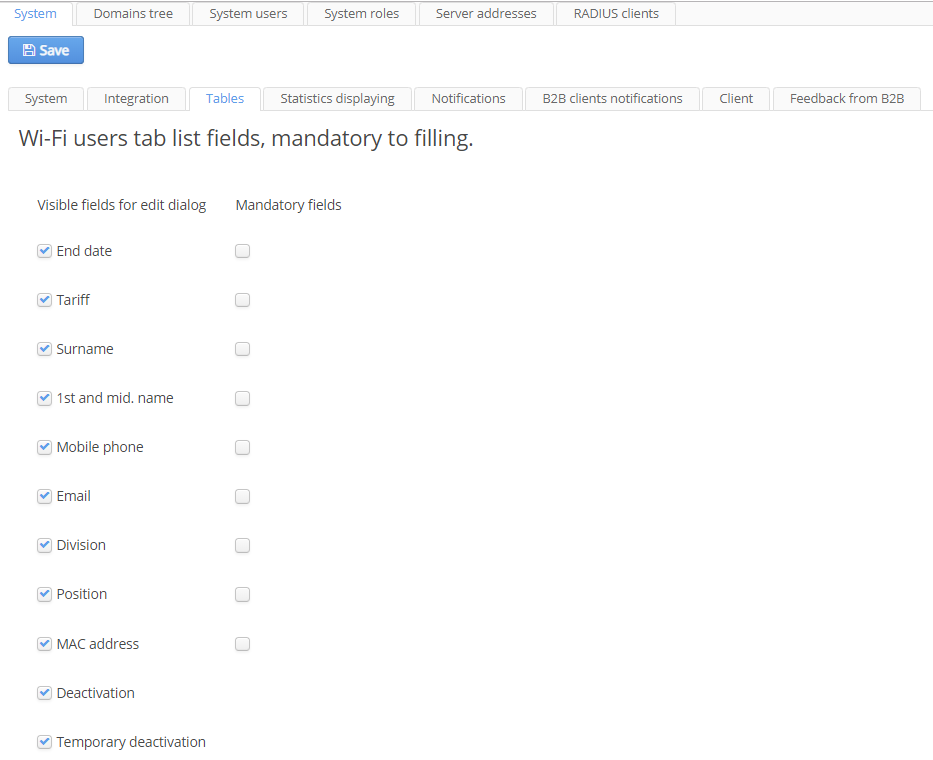
Configuring the fields that are obligatory when creating Wi-Fi users' accounts.
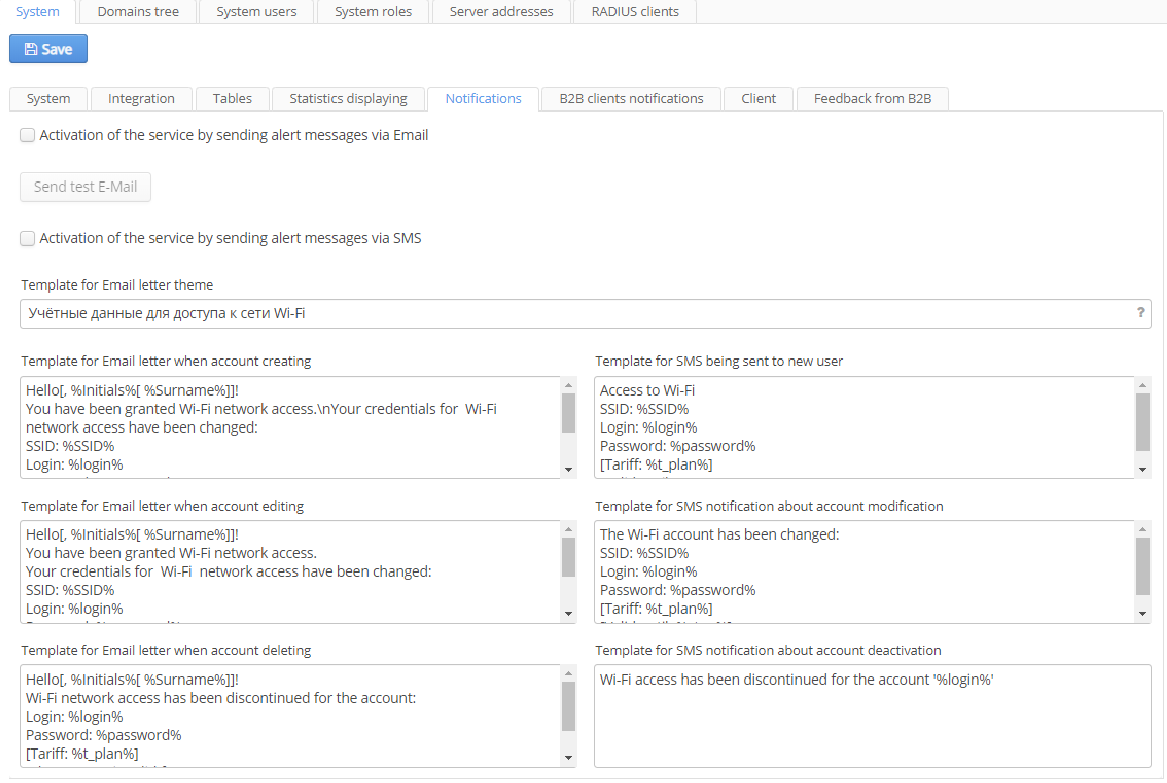
In this section, sending e-mail and SMS notifications to users is configured. To enable the service, check an appropriate checkbox.
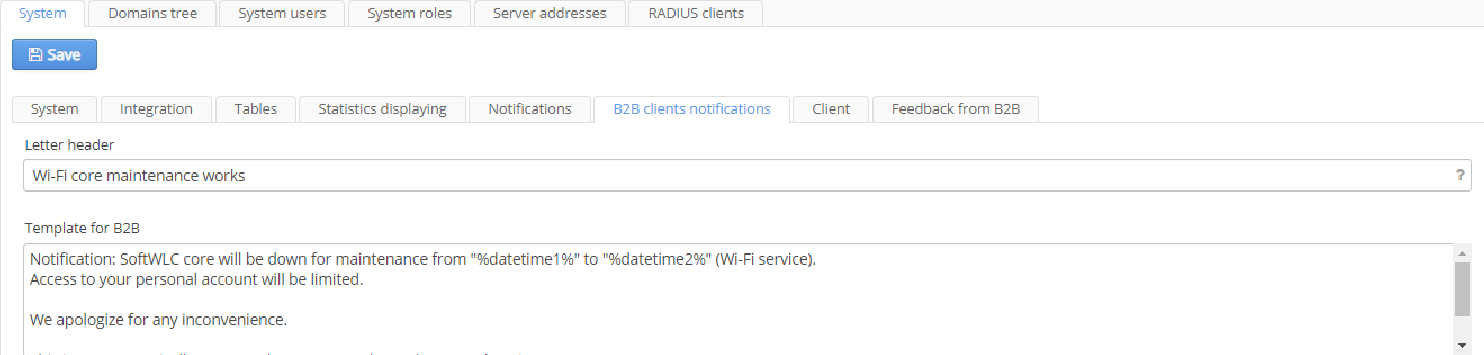
In this section, notifications on platform maintenance (causing access interruptions) that are sent to Admin Panel users (for Platform administrators and B2B clients having Admin Panel user accounts) are configured.

Technical support data – allows specifying a text displayed on the page "About".
Domains tree
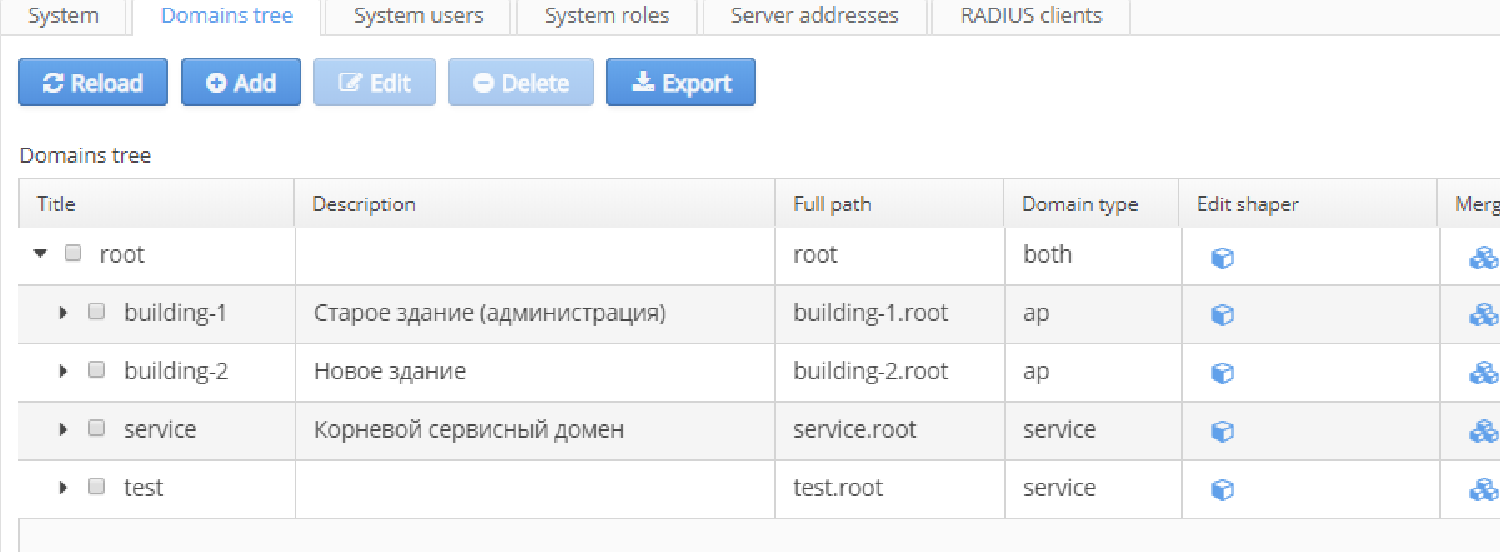
In this section, the Wi-Fi platform domains are managed.
Domains – string identifiers by which separation of access rights for SoftWLC monitoring and management is performed.
Domains structure – a hierarchy according to which parent elements contain child elements. A first-level domain is called a root domain. For federal-level projects, the domain "root" is recommended.
A domain name should consist of digits and Latin letters. A length of each element should not exceed 63 symbols. Total length of a domain in string representation should not exceed 255 symbols. A point should be a separator (in string representation).
A root domain is specified by a system administrator during installation and cannot be replaced with another one later! |
A table presented in the interface allows viewing a structure and elements of a domain tree.
A domain of a Wi-Fi user implies that a user belongs to a group and serves as a part of a pair login@domain that is a unique identifier of a user account within the Platform.
There are three types of domains in SoftWLC: Ap, Service, Both. If it is required to put access points and Wi-Fi users into different domains, access points should be put into domains with "Ap" type, and users should be put into domains with "Service" type. If there is no such a need, access points and Wi-Fi users should be put into a domain with "Both" type. Separation of access points and Wi-Fi users allows more flexibility in providing statistics data access within a big project.
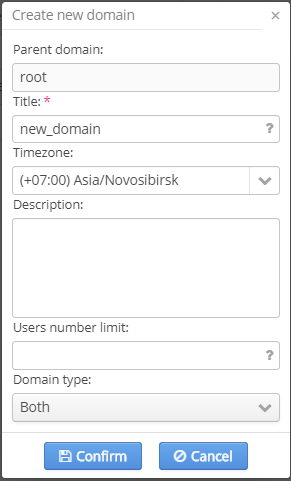
When the button "Add" is clicked, a dialog window for adding a new domain that contains a defined set of parameters is opened. "Title", "Description", "Users Number limit". Parameters marked with "*" are obligatory. An attempt to save an entry with obligatory fields that are not filled in or filled in incorrectly will be rejected. Problem fields will be highlighted red.
When the number of Wi-Fi users in a domain or a subdomain is modified, the program interface verifies that the total number of subdomain users is not higher than the total number of domain ones. A warning message is displayed on the screen. The interface does not allow creating subdomains with quotas higher than their parent domains' quotas.
The following command buttons are available in the dialog for domain adding/editing:
To edit a domain, select it from the table and click "Edit". A corresponding window will be opened. The following parameters can be edited: "Timezone", "Description" and "User Number limit".
| Beginning from the version 1.10, a domain name cannot be edited after its creation! Domain name change can be performed only by deleting a domain and creating it again. |
| Beginning from the version 1.9, domain deletion is available only for users with the role of SoftWLC platform administrator for security purposes. |
To delete a domain, select it and click "Delete". A domain can be deleted only with all its parameters. Confirmation via entering a user account password is required.
When the button "Delete" is clicked, a warning with all domain entries to be deleted is displayed:
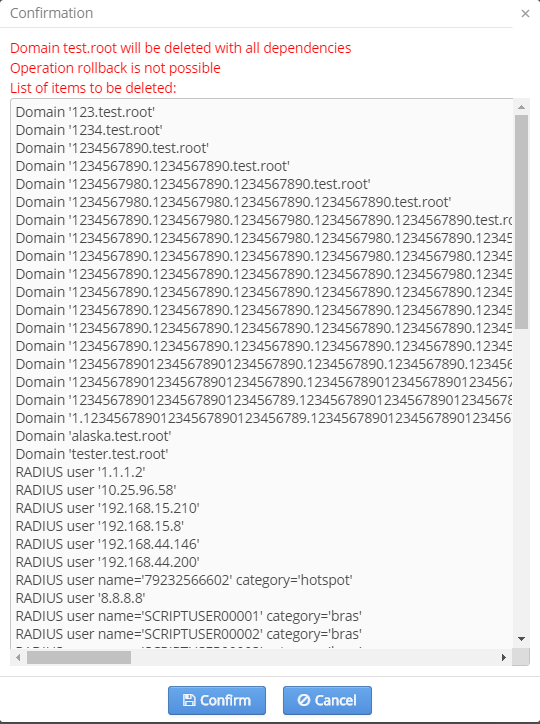
After clicking the button "Confirm", a password dialog will be displayed to confirm the operation.
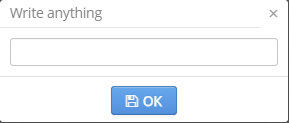
| If OK is clicked, a domain and all entities belonging to it (SSID, users, virtual portals, tariffs and others) will be deleted permanently. |
Domain list visibility is limited to a domain of an operator. An operator of a subsidiary or an organization can view and manage only entries of its domain or subdomain. Entries of other domains are not available.
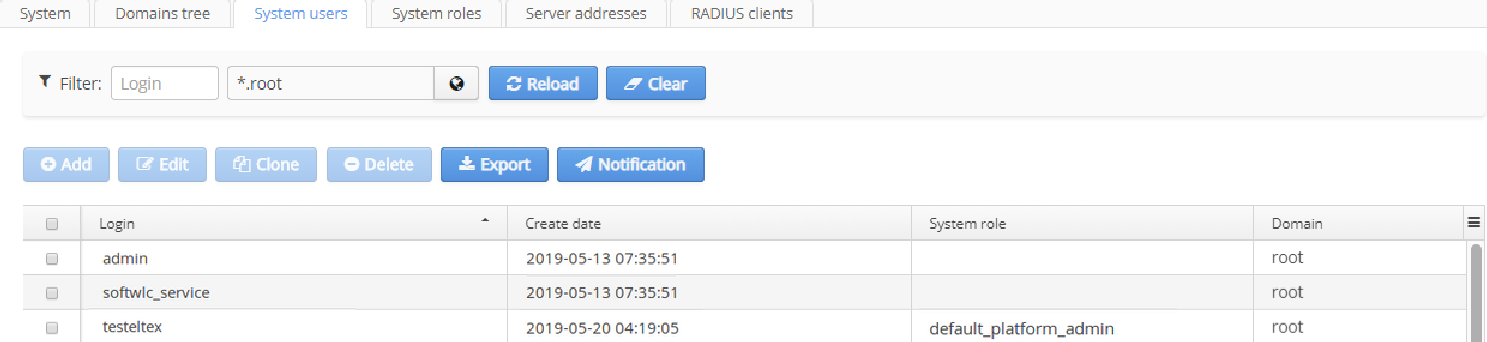
The tab "System users" is implied to manage users (operators) of services included into SoftWLC. User accounts configured in this tab are used to access the Wi-Fi B2B Admin Panel and the Portal Constructor.
The tab allows creating, deleting and cloning accounts of system operators. If lists are long, it is convenient to use filters.
User list visibility is limited to a domain. An operator of a subsidiary or an organization can view and manage only entries of its domain or subdomain. Entries of other domains are not available.
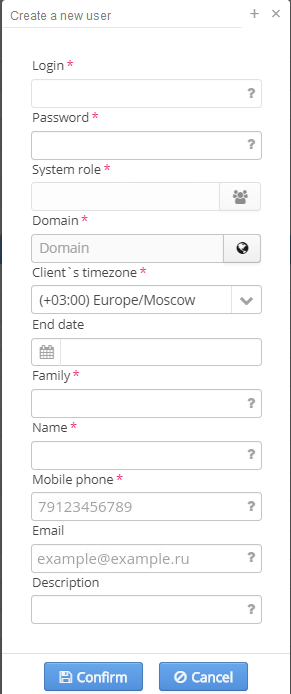
When the button "Add" is clicked, a dialog window for adding a system user that contains a defined set of parameters is opened. All the parameters are obligatory. An attempt to save an entry with obligatory fields that are not filled in or filled in incorrectly will be rejected. Problem fields will be highlighted red. When a mouse is over a field, a prompt is displayed.The set of parameters:
One user account can have only one system role but several domains. |
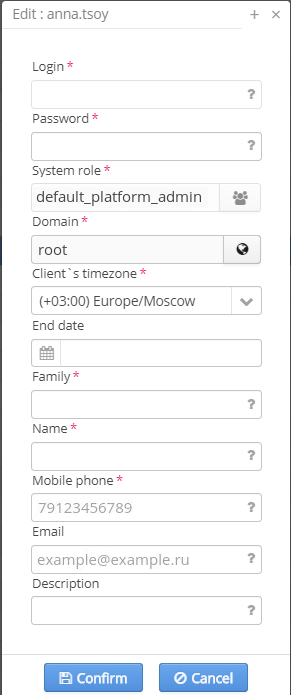
When the button "Clone" is clicked, a dialog window for cloning a system user that contains a defined set of parameters is opened. The parameters "System role", "Domain" and "Client's timezone" are copied from the account to be cloned. The other parameters are specified manually.
When the button "Notification" is clicked, a dialog window for sending e-mail notifications containing a message template specified in the menu "B2B clients notifications" is opened. In this window, a message can be edited for a certain case, and a domain to which a message will be sent can be selected.
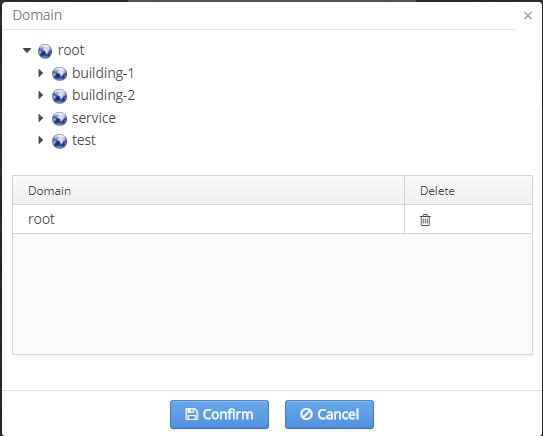
To select a domain for a user, a special widget showing a domain tree and a list of added domains is implemented.
 .
.When a checkbox on the left side of the table is checked for an entry, the button "Edit" is enabled. Click this button, and a dialog window similar to one for creating a user but including additional information on account creation date will be opened.
A user's login cannot be edited because the field "Login" is an entry identifier. If required, an entry can be deleted and created again.
To delete an entry, check a corresponding checkbox and click "Delete". Thus, several entries can be selected and deleted simultaneously. If the checkbox in the table header is checked, the whole table will be selected.
Unable to delete "admin". Users cannot delete their own accounts, i.e. the accounts under which they enter the system.
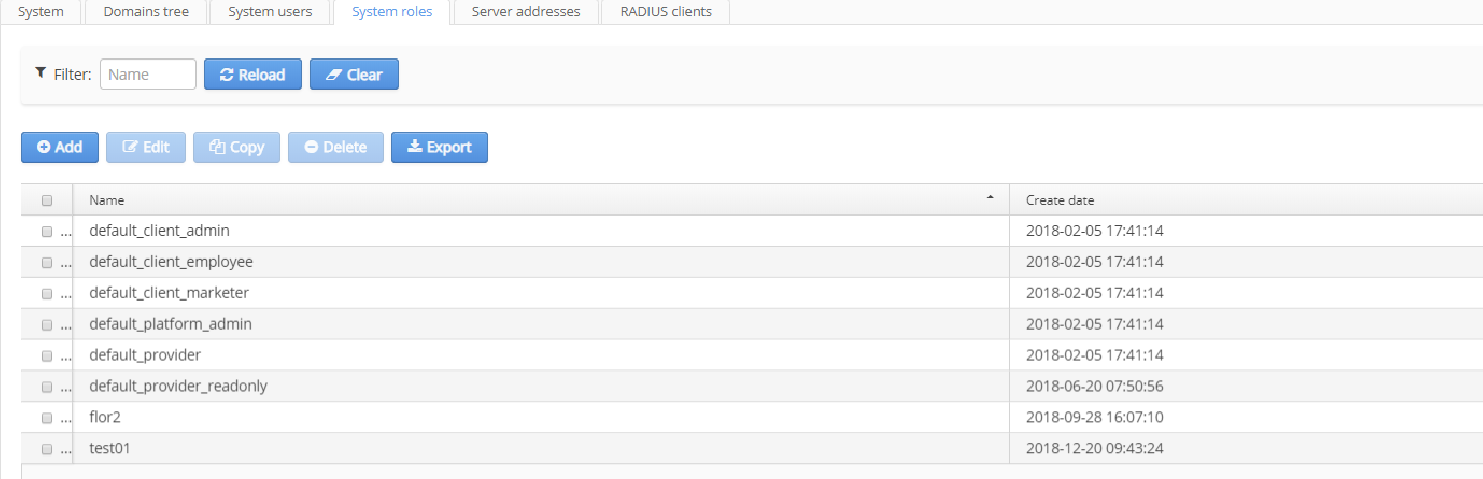
The tab "System roles" is used to configure management roles. Role is a set of attributes that allows structuring the Wi-Fi B2B Admin Panel users' (operators') rights and simplifying rights configuration.
Each system role has a name, a set of main attributes defining user rights in the systems "Wi-Fi B2B Admin Panel" and "Portal Constructor" and an expanded list of attributes that specifies user rights for each page of a system. All these allow creating a flexible Platform resources management scheme. For example, there is an opportunity to configure roles of Platform super user, telecommunication provider, company client etc. There can be a local administrator within each group (with rights that do not extend beyond their domain), operators with "read" access and operators with "read and write" access to any platform resources.

When the button "Add" is clicked, a dialog window for adding a system role that contains a defined set of parameters is opened. Fields marked with "*" are obligatory. An attempt to save an entry with obligatory fields that are not filled in or filled in incorrectly will be rejected. Problem fields will be highlighted red. When a mouse is over a field, a prompt is displayed.
The following command buttons are available:
The privileges given to system roles are described in the section Description of Admin Panel and Portal Constructor users' privileges
Instead of creating a role from scratch, roles created before can be used. To do that, select a role and click "Copy".
A window similar to the role creating/editing one will be opened. A new name should be specified, and required parameters should be changed in it.
To delete a role, select it and click "Delete". If a role is not used by existing users, it will be deleted after confirmation.

In the tab "Server addresses" an interface for registration of host addresses in multi-server installations is provided. IP addresses of all servers used for platform users authentication should be added to the table. That is, they are main and reserve addresses of hosts on which the systems "Wi-Fi B2B Admin Panel" and "Portal Constructor" are installed.
When all services are running on the same host and communicate via "localhost", address registration is not needed.
If the system is installed on several hosts, a primary address of a server with the "Wi-Fi B2B Admin Panel" installed can be specified via Eltex.EMS under super admin.
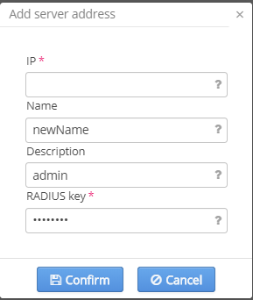
When the button "Add" is clicked, a dialog window for server address editing that contains a defined set of parameters appears. Fields marked with "*" are obligatory. An attempt to save an entry with obligatory fields that are not filled in or filled in incorrectly will be rejected. Problem fields will be highlighted red. When a mouse is over a field, a prompt is displayed.
When a checkbox on the left side of the table is checked for an entry, the button "Edit" is enabled. Click this button, and a dialog window for server address configuration will be opened. The window is described in the section "Adding a user".
To delete an entry, check a checkbox in a corresponding row and click "Delete". Deleting several entries simultaneously is available.
The number of users that can be logged in the Admin Panel and work with its WEB interface simultaneously is limited by licenses.
Administrative accounts ('admin','softwlc_service') are not included in the total number of logged in users when new accounts are created. However, they are included there when the number of simultaneous website visitors is calculated (when entering Admin Panel).
A license file is not included into eltex-wifi-cab package by default. In this mode, a demo license for 5 users can be used to evaluate the system.
Eltex specialists will generate a personal license file and create a e-Token key in the acquisition of licenses.
E-Token should be connected to a server's USB interface. If a server operates on a virtual machine, the key should be forwarded to a virtual machine.
The license file should be put into the following directory:
/etc/eltex-wifi-cab/
After that, tomcat service should be restarted.
To check if licenses have been applied successfully, select "License" in the "Help" tab of GUI EMS. Information on the current license and the maximum number of users is available in the tab.