|| DeviceType | IP camera |
|| DeviceName | SV-BA414-E |
|| DocTitleAdditional | User manual |
|| fwversion | Version 1.6.0 | |
Template: IP camera |
Notes and warnings
Notes contain additional information on using and configuring the device. |
Tips contain important information, tips or recommendations on device operation and setup. |
Product description
SV-BA414-E is a camera designed for real-time video surveillance. Due to the QuadHD resolution, the transmitted image is clear and detailed. PoE technology allows installing the camera everywhere, regardless of the location of the power supply. It also saves on the cost of power cables and makes the installation simple and not time-consuming.
Features and capabilities:
– Night vision provides clear images even in low-light conditions.
– Motion detection notifies you of events as they occur.
– Video archive provides options for saving recordings: to a memory card for local storage or to network storage1. If the local storage fails, all recordings will remain available on the network storage.
– PoE power supply.
1 Support for the function of saving records to network storage is under development. |
Technical specifications
| Interfaces |
|---|
| Ethernet | 1 × 10/100BASE-T (RJ-45), support for PoE |
| Memory card | 1 × MicroSD/SDHC/SDXC up to 128 GB |
| Network |
|---|
| Protocols | TCP/IP, UDP, ICMP, HTTP, HTTPS, SSL/TLS, QoS, DHCP, DNS, RTP, RTSP, RTMP, NTP, SMB, NFS, TFTP |
| API | ONVIF (Profile S, Profile T), WSS API |
| Security | password protection, complex password, HTTPS encryption, WS-Username token, WS-Username basic for ONVIF, TLS1.3 |
| User/host | up to 10 users, 2 user levels: administrator, operator |
| Operating system |
|---|
| Linux SDK |
| Sensor |
|---|
| Type | 1/3” progressive scan CMOS |
| Effective pixels | 4 MP |
| Lens and illumination |
|---|
| Focal distance | 2.8 mm |
| Aperture | F/2.0 |
| Field of view (horizontal) | 100° |
| Field of view (diagonal) | 116° |
| Field of view (vertical) | 52° |
| Angle adjustment (tilt) | from 0° to 105° |
| Angle adjustment (rotate) | from 0° to 360° |
| IR illumination | yes |
| IR range | up to 30 m |
| Image |
|---|
| Image | color |
| Maximum resolution | 2560 × 1440 |
| Maximum frame rate | 25 fps |
| Bit rate | up to 40 Mbps |
| Video compression | H.264, H.265 |
| Image quality improvement | BLC, DWDR, HLC, ANTI-FLICKER, DEFOG |
| Signal-to-noise ratio | no less than 50 dB |
| Minimum illumination | color: 0.03 lx, bw: 0 lx with IR |
| Audio |
|---|
| Built-in microphone | yes |
| Audio compression | PCM, AAC, MP2 |
| Voice pickup distance | up to 5 m |
| Physical specifications |
|---|
| Power supply | 12 V DC, PoE 802.3af (Mode A)1 |
| RAM | 128 MB |
| ROM | 32 MB |
| Housing | metal, plastic |
| Form factor | dome camera |
| Mount options | indoor and outdoor |
| Dimensions (H × D) | 90 × 110 mm |
| Weight | 0.39 kg |
| Operating temperature | from -40 to +60° |
| Operating humidity | no more than 90 % (non-condensing) |
| Ingress protection | IP66 |
| Lifetime | no less than 5 years |
1  Does not support PoE Mode B (power over pairs 4/5 and 7/8). Does not support PoE Mode B (power over pairs 4/5 and 7/8). |
Design
Top view
The top view of the camera (lens upwards) is shown in the figure below.
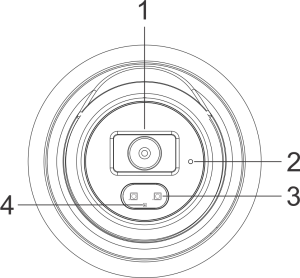
| № | Description |
|---|
| 1 | Lens |
| 2 | Microphone |
| 3 | LED lighting |
| 4 | Light sensor |
Front view
The front view of the camera is shown in the figure below.


Side view
The side view of the camera is shown in the figure below.
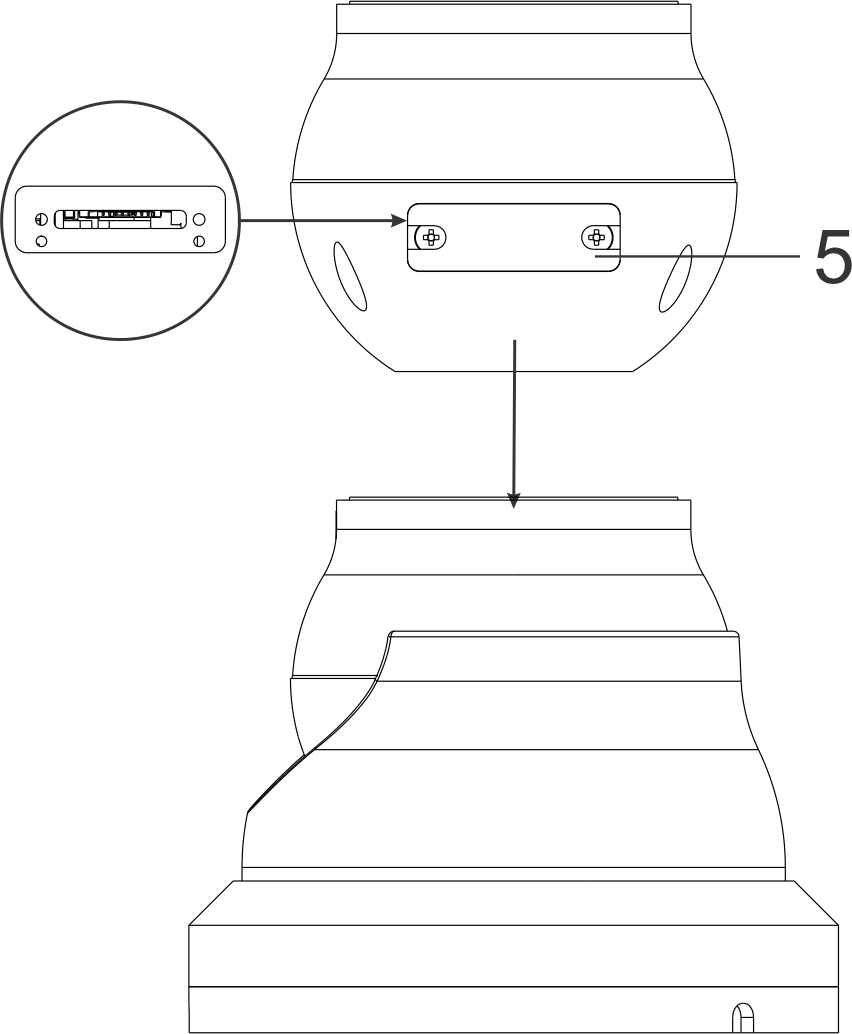
| № | Description |
|---|
| 5 | MicroSD card slot |
Base view
The base view of the camera is shown in the figure below.

Cable design
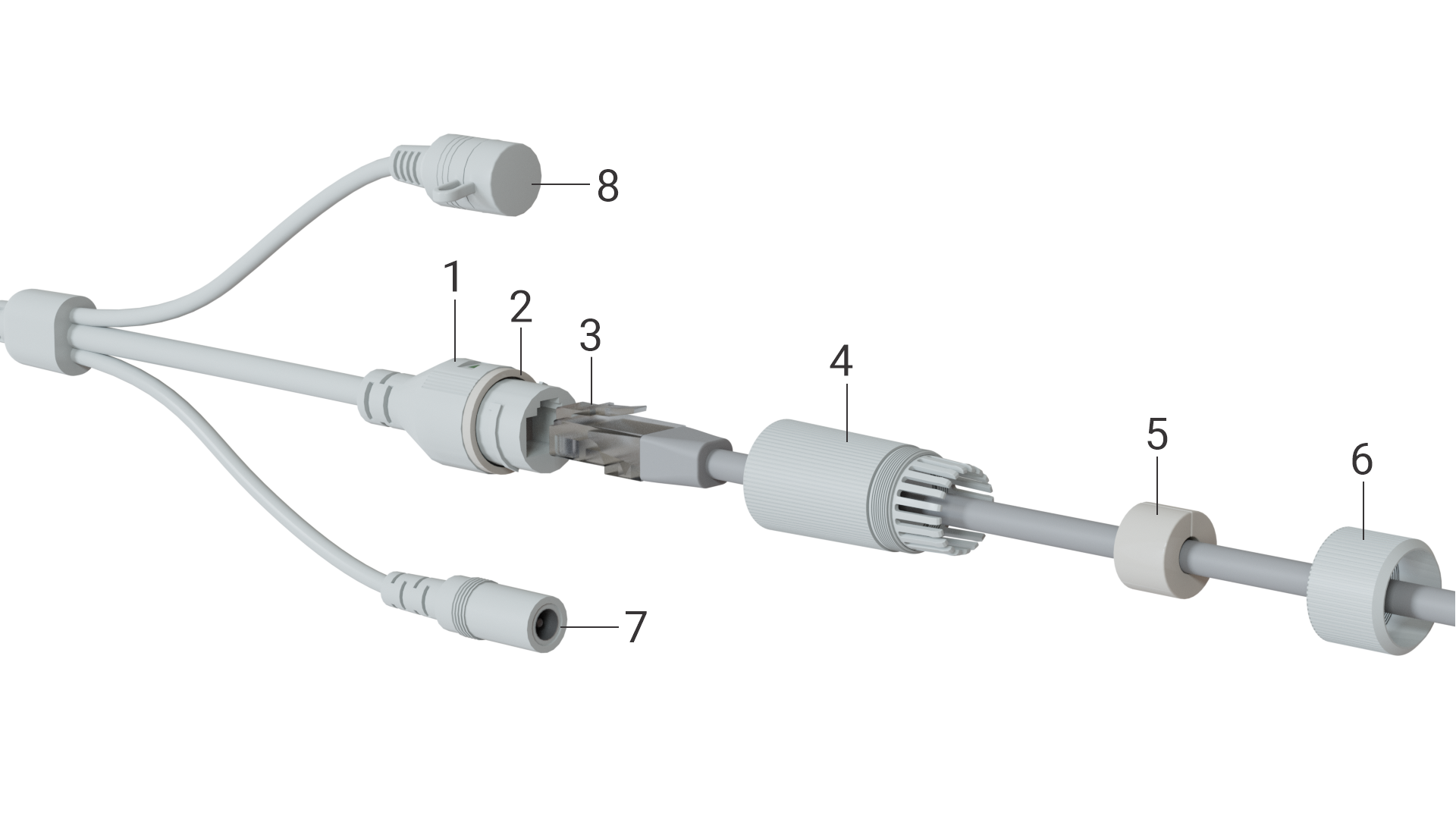
| № | Description |
|---|
| 1 | Network interface |
| 2 | Sealing ring |
| 3 | Ethernet cable |
| 4 | Cable gland |
| 5 | Waterproof ring |
| 6 | Locking nut |
| 7 | Power adapter connector |
| 8 | Reset button |
Delivery package
SV-BA414-E standard delivery package includes:
- SV-BA414-E IP camera;
- Mounting kit;
- Case mounting template;
- Installation and initial configuration guide.
Reset to factory settings
There are two ways to perform a factory reset:
- Software reset. In the device web interface, enter "System settings", select "Configuration" and click "Reset to Factory Default Settings".
- Hardware reset. The reset button is located on the cable. Remove the protective cap, then press and hold the reset button for three seconds. The camera will then reboot.
Operating conditions
- The camera is designed for indoor and outdoor usage.
- Do not install the device near heat sources.
- Do not expose the device to smoke, dust, water or other liquids. Do not mechanically damage the device.
- Do not open the device case. There are no user-serviceable elements inside the camera.
- At the end of its service life, do not dispose of the camera with normal household waste. Take it to an electronics recycling center.
Device installation
Selecting the camera location
- Determine the areas that need to be monitored. Consider that entrance doors, windows, and various objects may obstruct the camera's field of view and reduce it.
- Pay attention to the lighting where the camera is installed to ensure a clear image. Avoid direct sunlight and other bright light sources directed at the camera lens. Also consider light sources that may create shadows or glare in the image.
- Consider the location of the power supply. The use of extension cords or additional cables is not recommended, as this may impair the quality of the power supply.
Mounting using a bracket
The unit can be mounted on walls and ceiling. |
- Select a location for the camera based on the recommendations in the "Selecting a camera location" section.
- On the selected surface, mark where the four holes for the bracket will be drilled. Use the supplied template for this purpose.
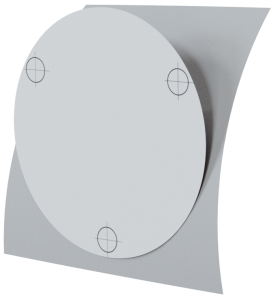
- Separate the template from the backing and stick it to the wall.
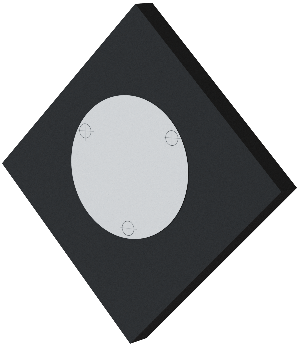
- Drill four holes according to the template. Use dowels if necessary.
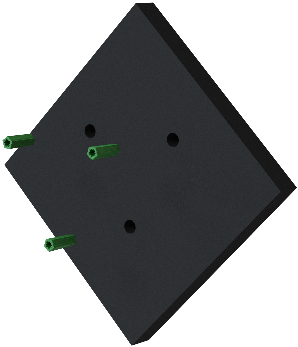
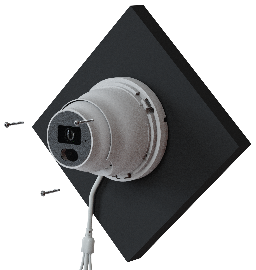
- Align the holes on the wall with the holes on the bracket and fix the camera with screws. To adjust the rotation of the camera, loosen the screw at the base of the camera. Adjust the position, then secure the screw again.
- Place the plastic ring over the camera, aligning the tabs with the slots on the camera housing. Twist the ring until it stops.
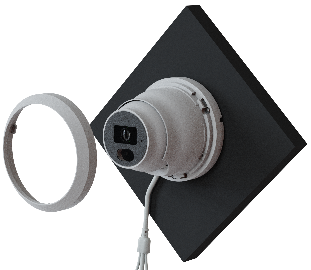
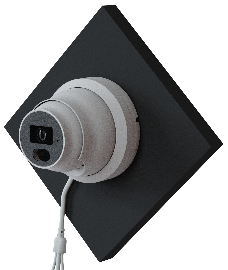
A view of the camera placed on the wall is shown in the figure below.
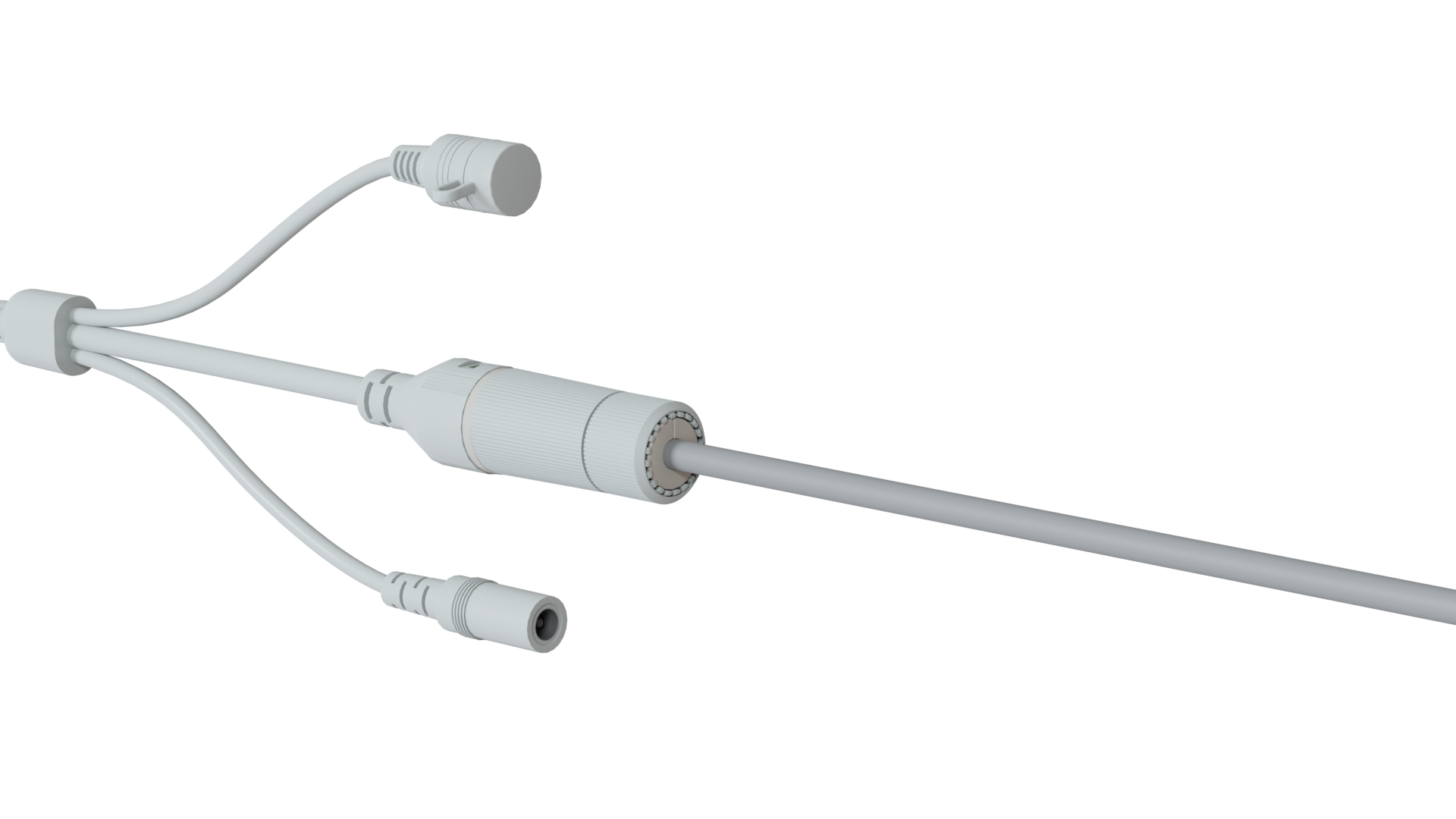
- Connect the Ethernet cable in the order shown in the image below: slide the O-ring (2) over the sealing cap of the network interface (1). Place the locking nut (6) and the cable gland (4) on the Ethernet cable (3). Insert the Ethernet cable (3) into the network interface. Tighten the cable gland (4) and fix it to the sealing cap (1). Slide the waterproof ring (5) over the sealing ring (4). Make sure that the ring fits snugly over the connector. Tighten the locking nut (6) and fix it to the cable gland(4). Once the Ethernet cable is connected and insulated, connect the power cable to the power connector (7).
The assembled cable is shown in the figure below.
Device management via the web interface
Getting started
- Connect the camera to the local network.
Open a web browser and enter the device's IP address obtained from the DHCP server in the address bar.
- The authorization page will be displayed in the browser window. Enter the username and password in the appropriate fields. (By default, the login is admin, the password is password).
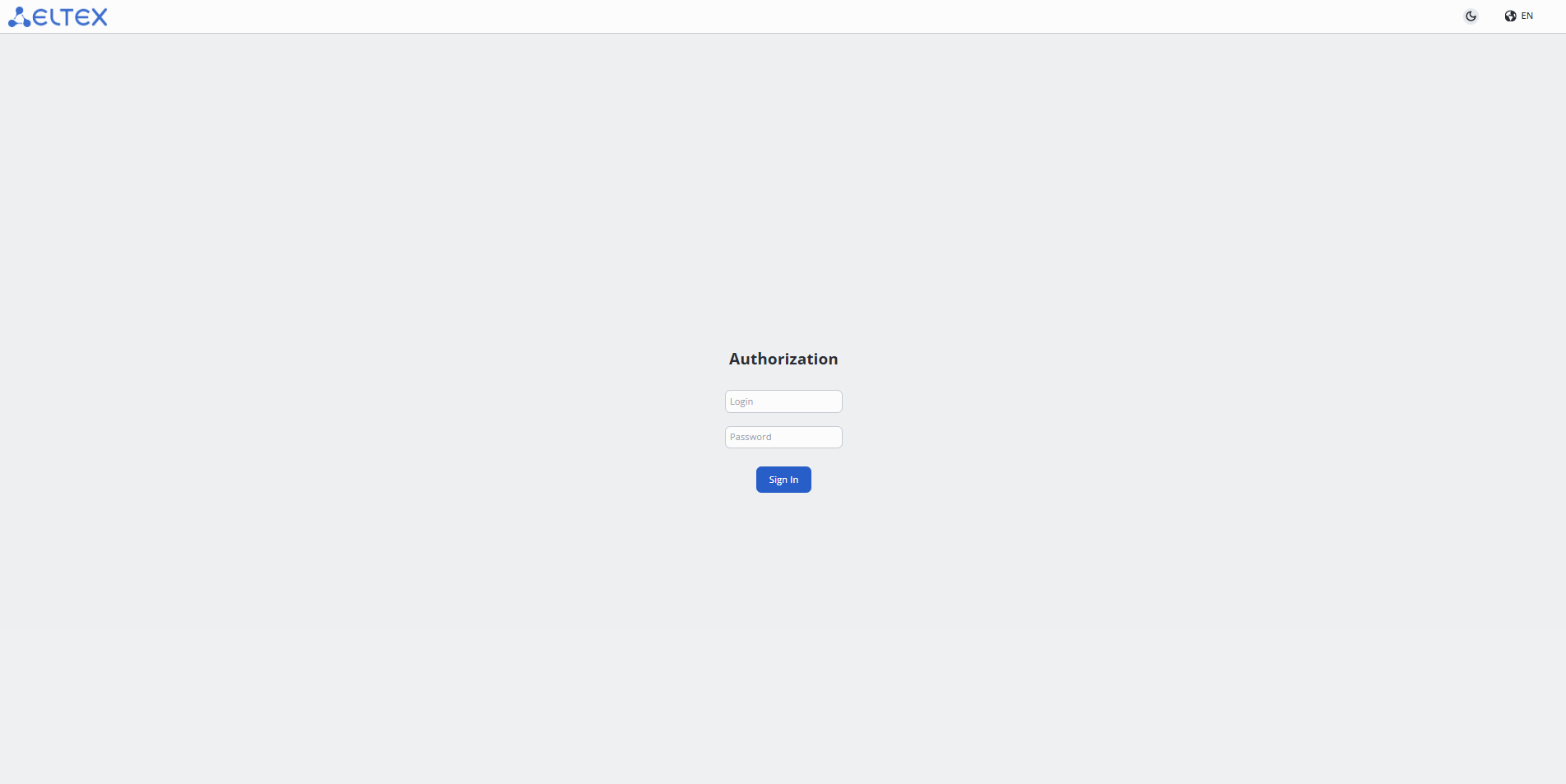
4. Click the "Sign in" button. The "Watch" page will open in the browser window.
"Watch" tab
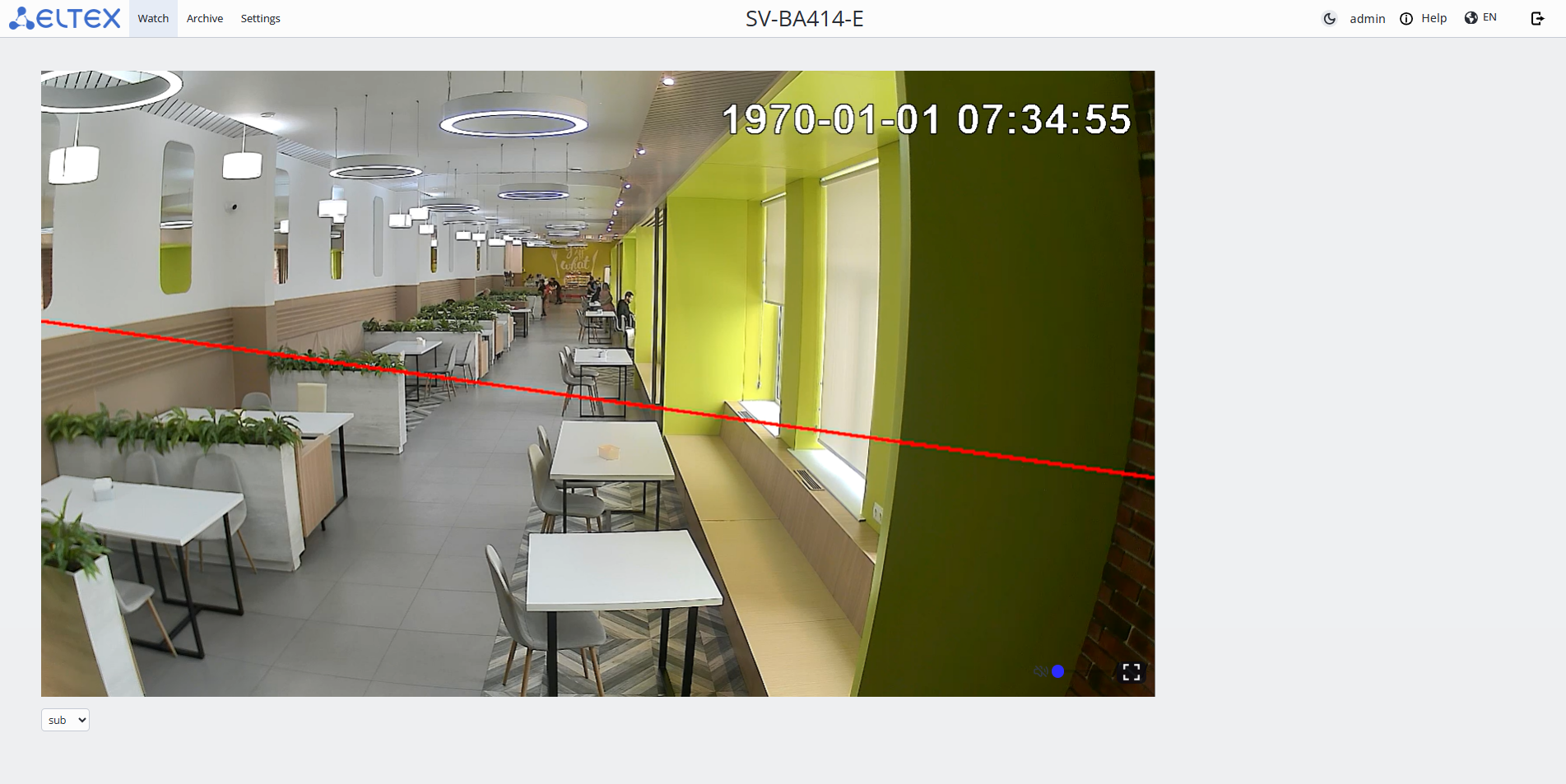
- Streams:
- Main — main stream, has better broadcast quality;
- Sub — secondary stream, has average broadcast quality;
- Mob — mobile stream, has low broadcast quality.
"Archive" tab
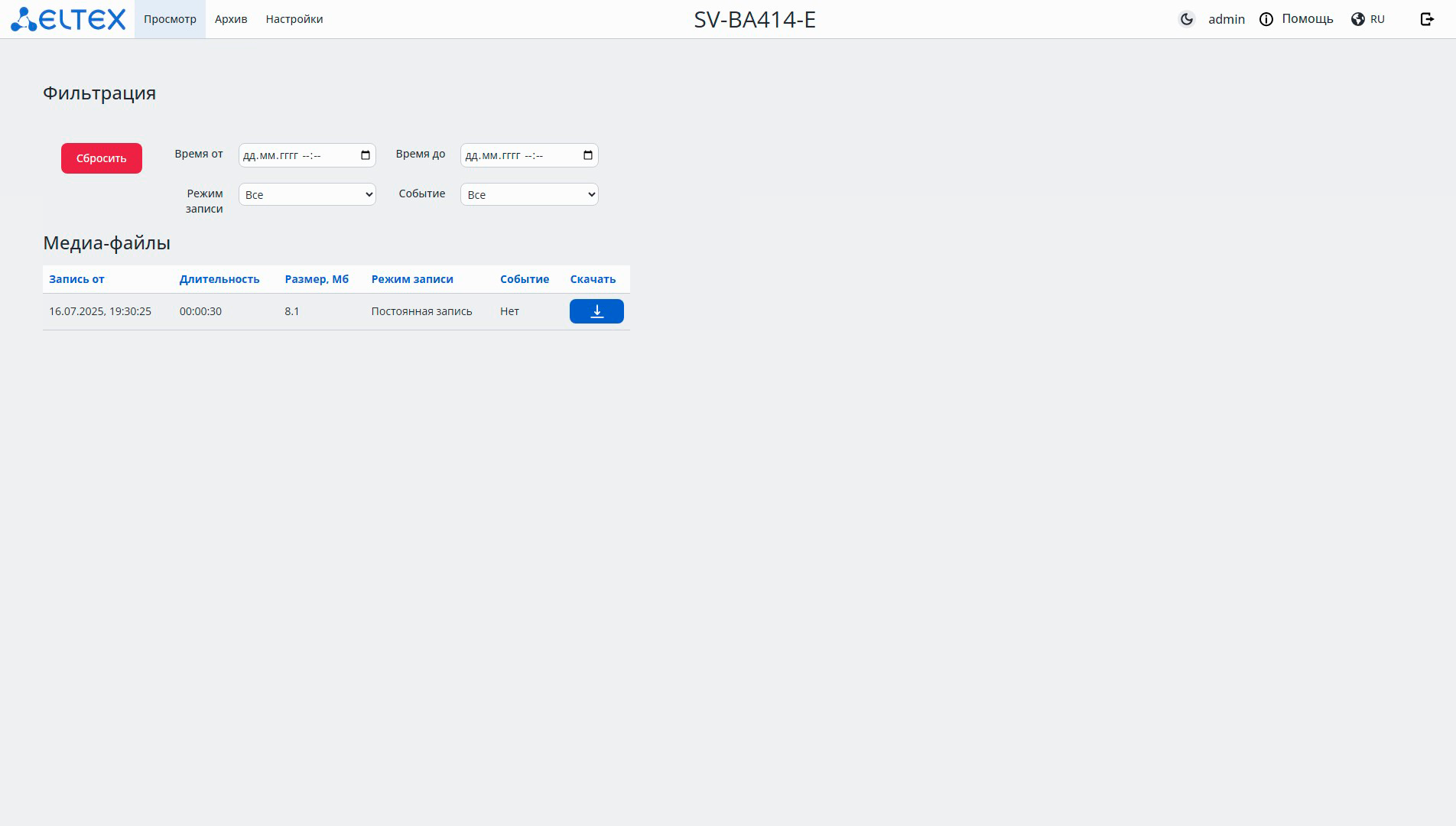
- Filtration — searching for records by specified parameters.
- Time from — filtering media files recorded starting from the specified date and time;
- Time to — filtering media files recorded up to the specified date and time;
- Record mode:
- All — displaying all media files;
- Permanent recording — displaying media files with the "Permanent recording" mode;
- Event recording — displaying media files with the "Event recording" mode.
- Event:
- All — displaying all media files;
- Motion — displaying media files with the "Motion" recording mode.
"Settings" tab
"Device Information" menu
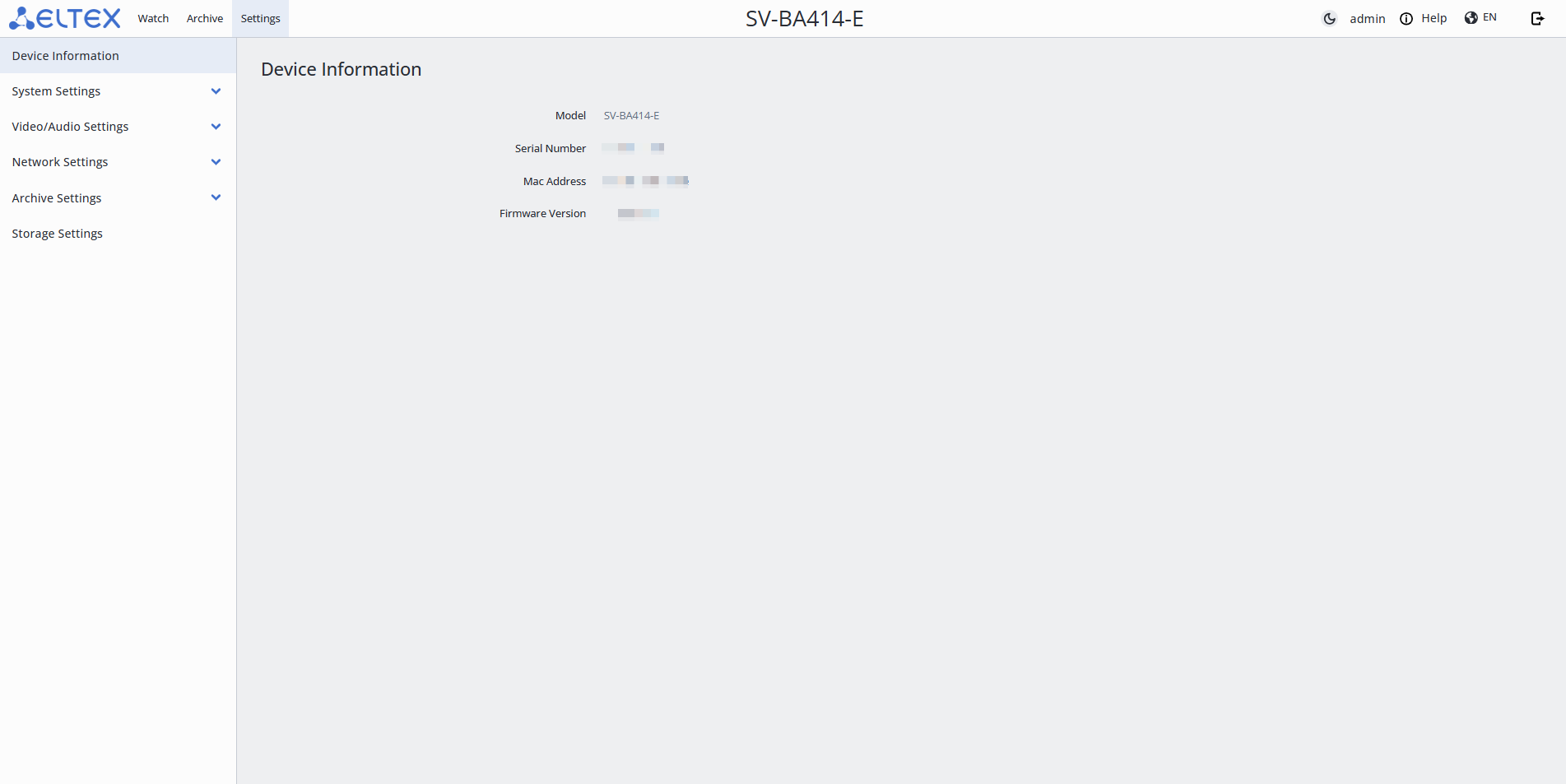
- Menu tabs — for grouping by categories: Watch, Archive, Settings;
- Web interface theme — dark and light;
- Username;
- Web interface help;
- Web interface language;
- Logout;
- Menu items;
- Device information:
- Model — device model name;
- Serial Number — device serial number;
- MAC Address — device MAC address;
- Firmware version — current device firmware version.
"System Settings" tab
"Date And Time"
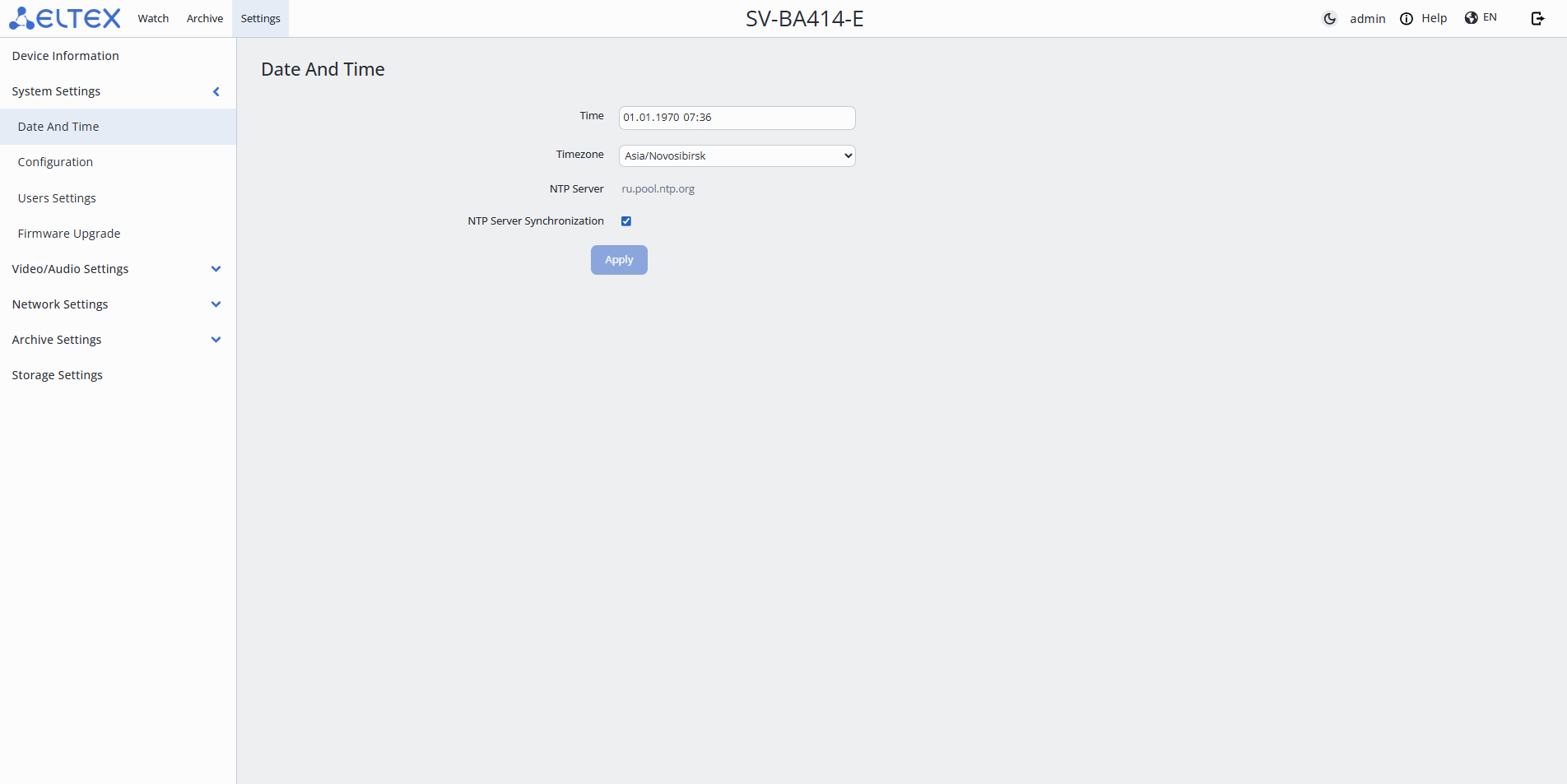
- Time — camera time. Can be edited if synchronization is not enabled;
- Timezone — camera time zone;
- NTP Server — NTP server address;
- NTP Server Synchronization — enabling NTP synchronization.
To save the settings, click the "Apply" button.
"Configuration"
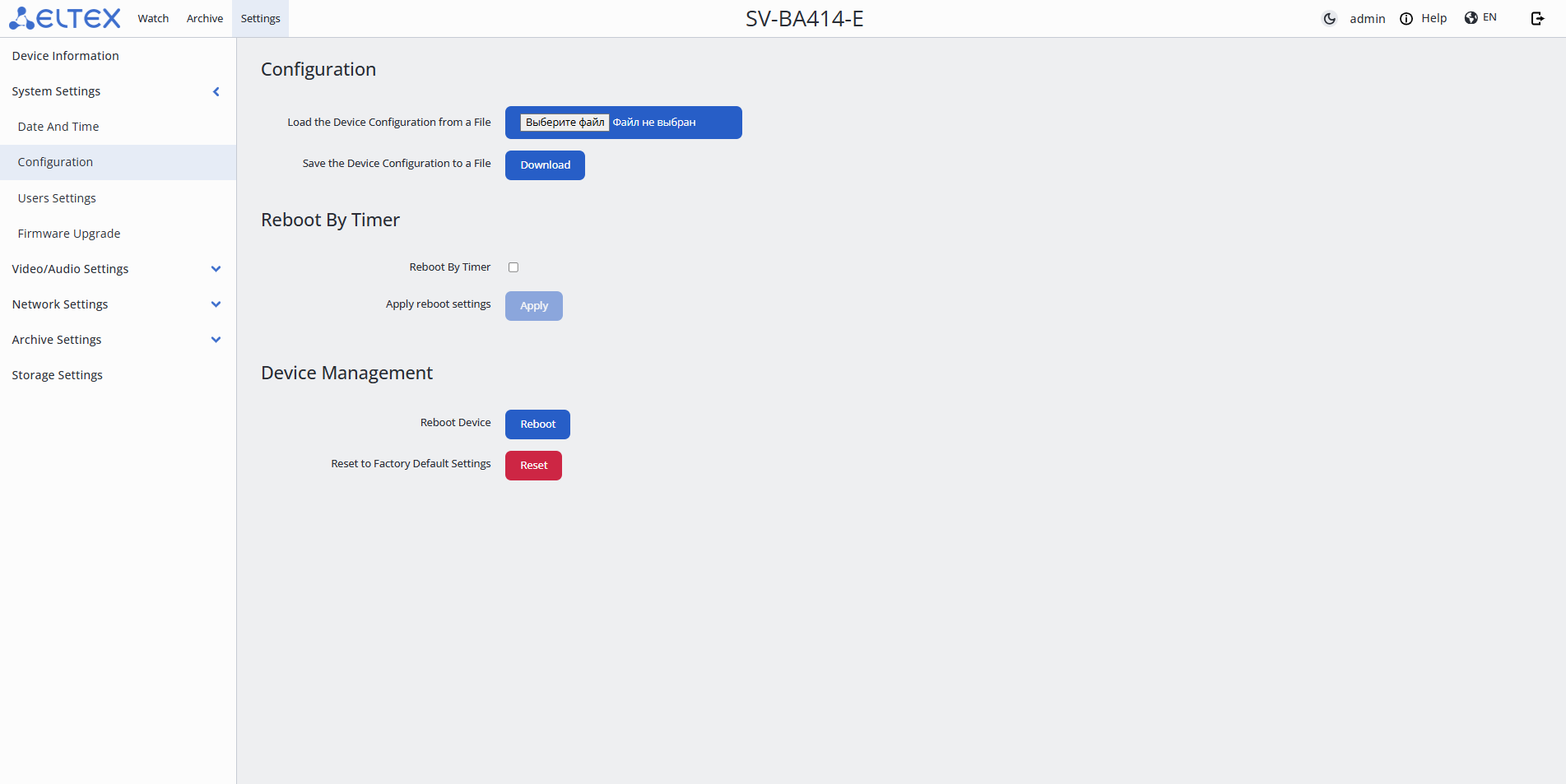
- Configuration — section for working with the device configuration:
- Load the Device Configuration from a File — select the file from which the camera will load its configuration;
- Save the Device Configuration to a File — export the device configuration for further use.
- Reboot By Timer — section for configuring automatic weekly reboot:
- Day — the day of the week when the reboot will occur;
- Time — the exact time when the reboot will occur.
- Device Management:
- Reboot Device;
- Reset to Factory Default Settings.
To save the settings, click the "Apply" button.
"Users Settings"
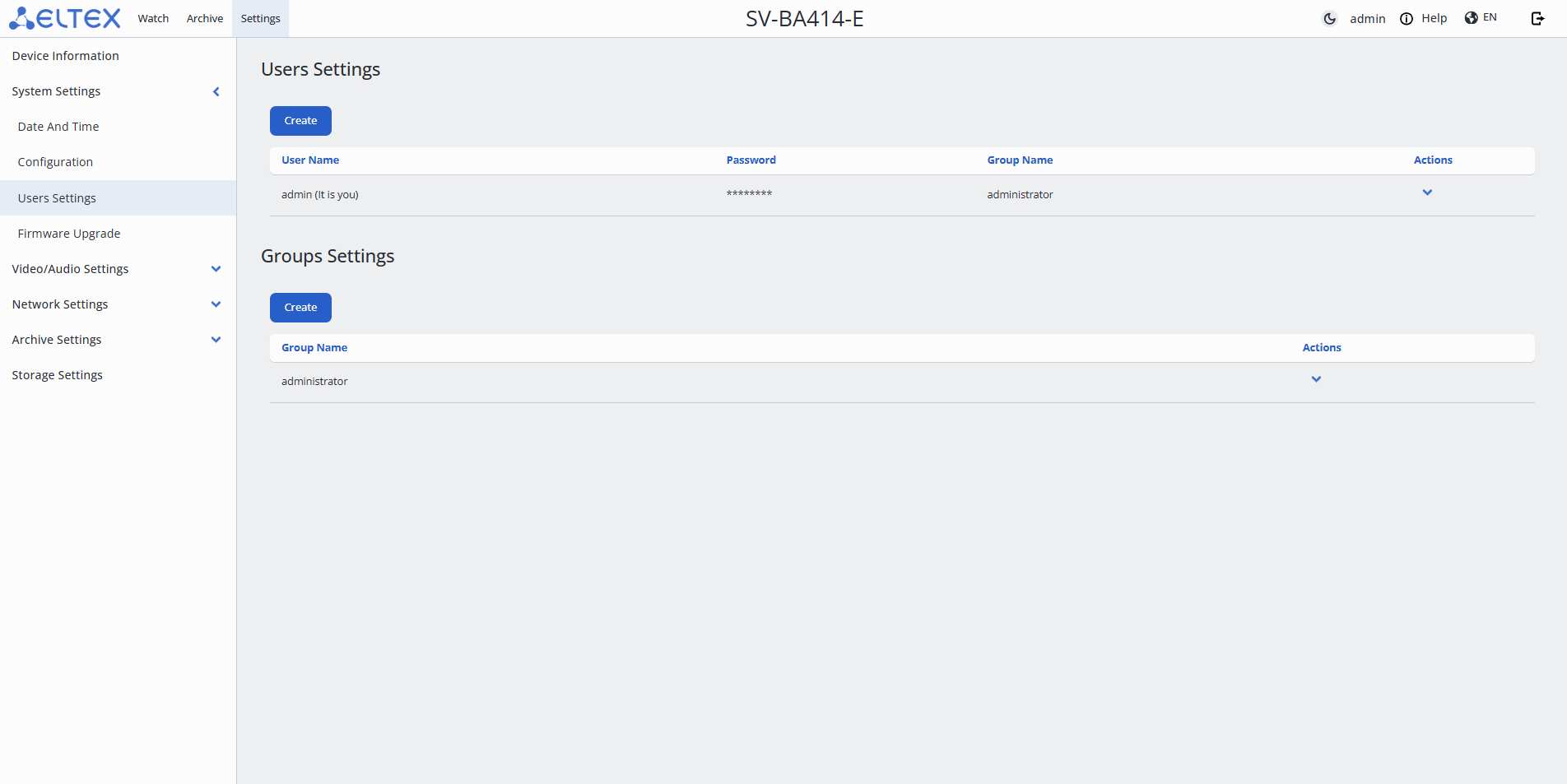
- Users Settings — creating a camera user for interaction with the web interface:
- User Name — user login;
- Password — user password;
- Group Name — group with specific access rights;
- Actions:
- Edit — change existing user parameters;
- Remove — delete user.
- Group Settings — group and access rights settings:
- Group Name — group name;
- Actions:
- Edit — change existing user parameters;
- Remove — delete group.
"Firmware Upgrade"
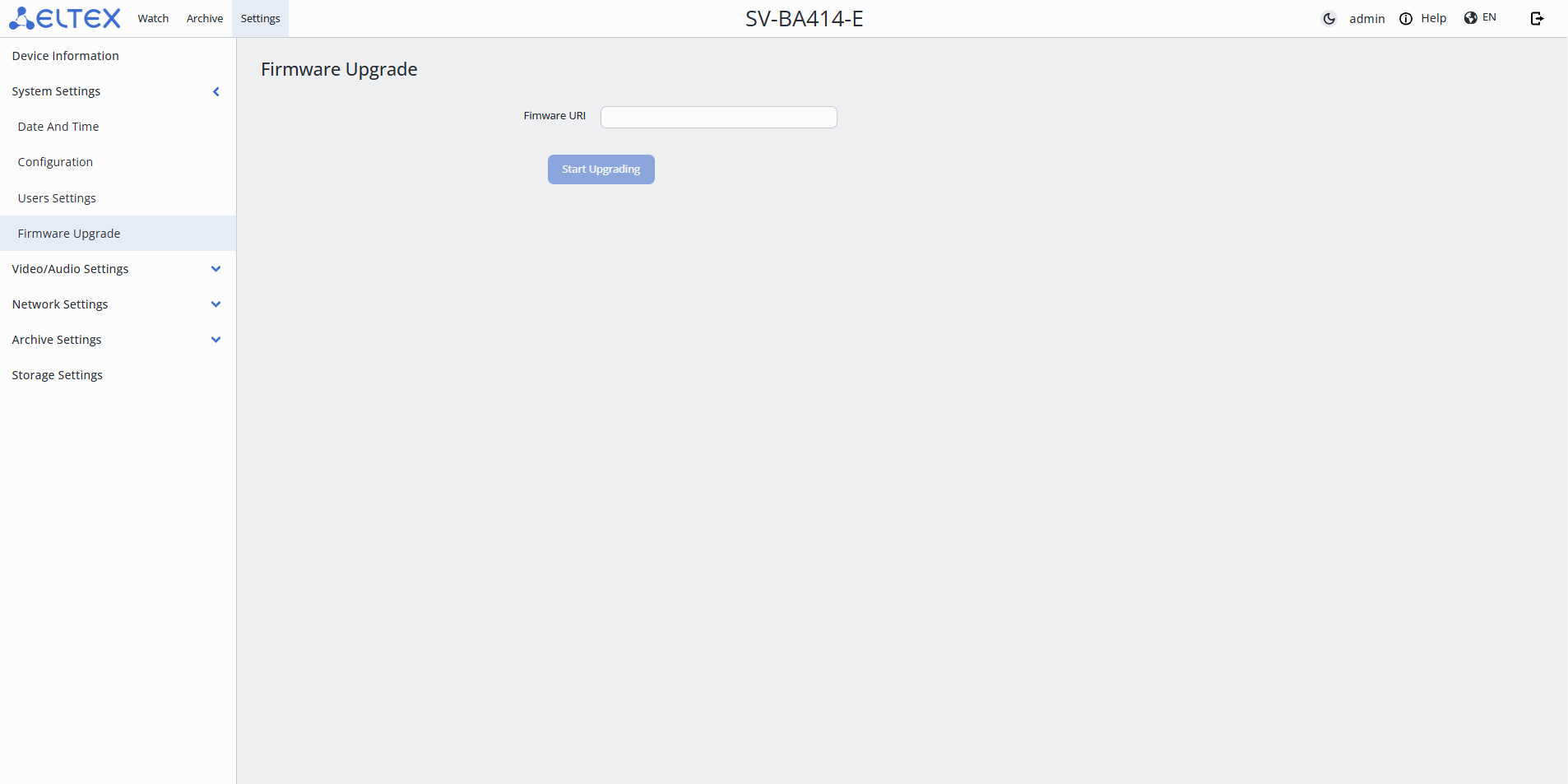
- Firmware URI — URI link from which the camera can download the firmware for updating.
To start the update, press the "Start Upgrading" button.
"Video/Audio Settings"
"Stream Settings"
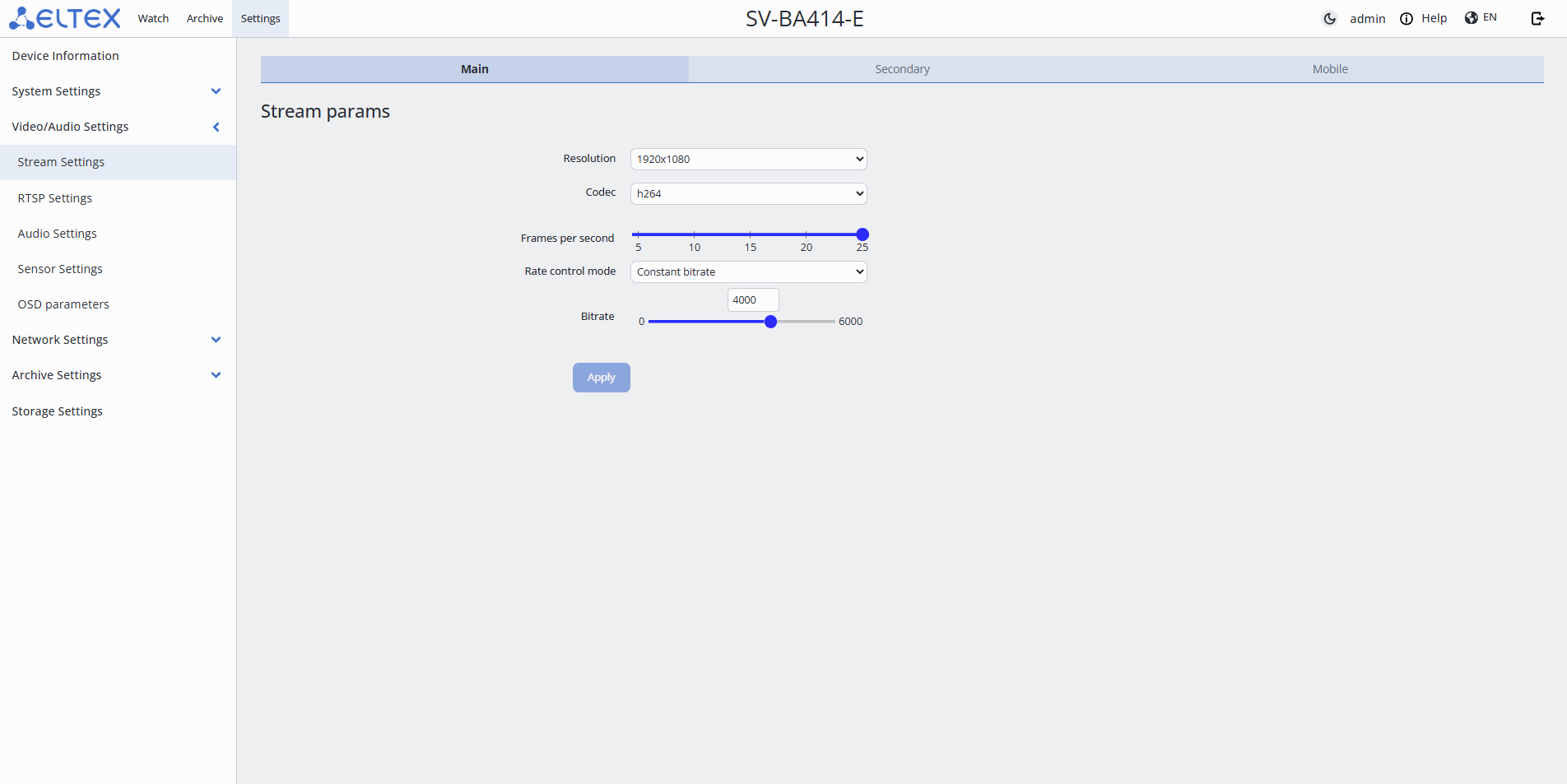
- Streams:
- Main — main stream, has the best broadcast quality;
- Secondary — secondary stream, has average broadcast quality;
- Mobile — mobile stream, has low broadcast quality.
- Stream params:
- Resolution — selection of the image resolution transmitted from the camera:
- 1280 × 720;
- 1920 × 1080;
- 2560 × 1440.
- Codec — selection of the video compression standard:
- Frames per second — number of frames that will be transmitted per second. The maximum frequency is 25 frames per second;
- Rate control mode — stream encoding mode:
- Constant bitrate — mode in which the stream has a constant bitrate set in the "Bitrate" field;
- Variable bitrate — mode in which the stream has a variable bitrate. The bitrate varies with the complexity of the image but does not exceed the "Maximum bitrate" value and on average adheres to the "Bitrate" value.
- Bitrate — amount of information transmitted by the camera. Increasing this parameter proportionally increases the quality of the transmitted image. Maximum bitrate — 6000 kbps.
To save the settings, click the "Apply" button.
"RTSP Settings"
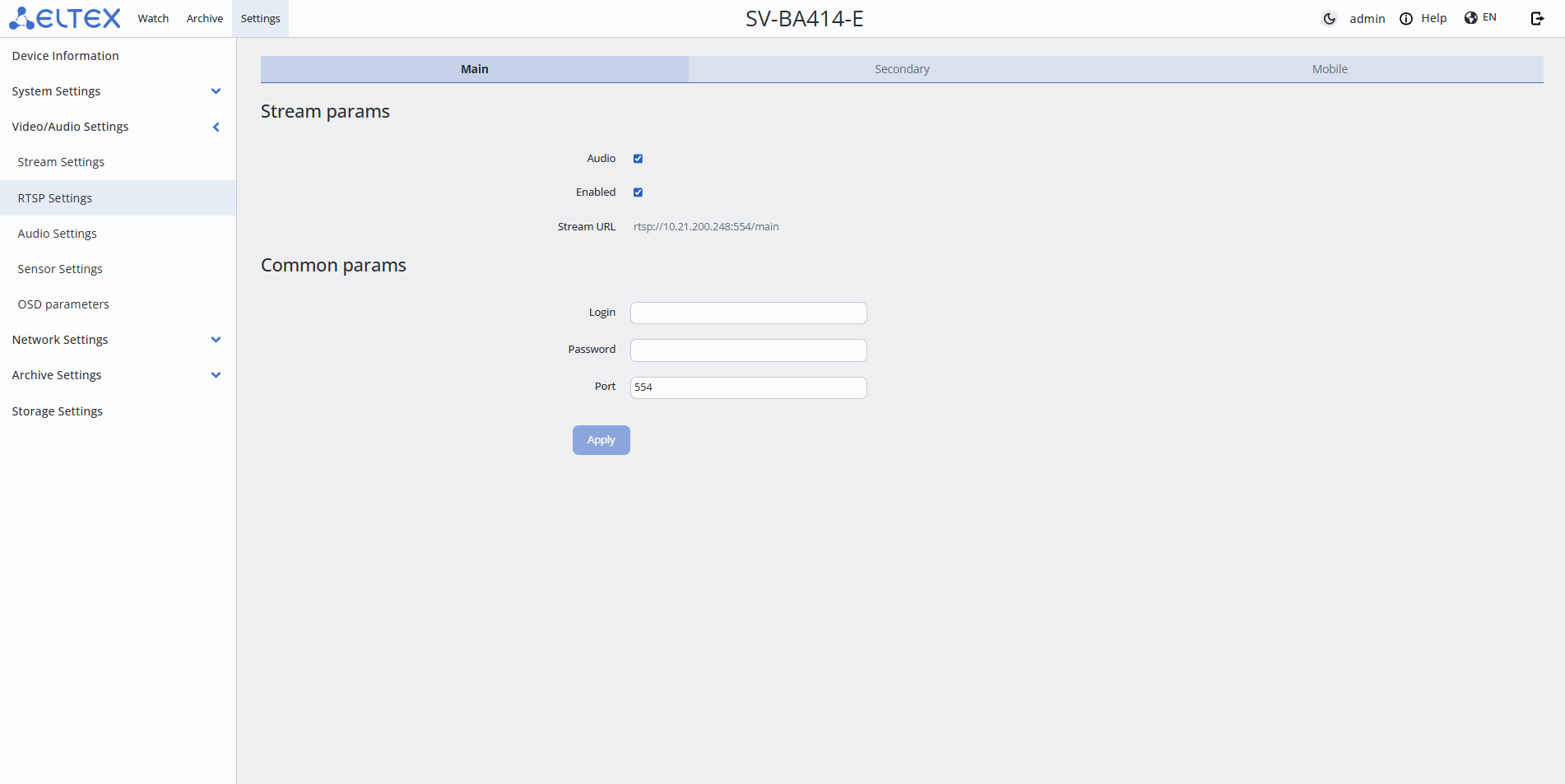
- Streams:
- Main — main stream, has the best broadcast quality;
- Secondary — secondary stream, has average broadcast quality;
- Mobile — mobile stream, has low broadcast quality.
- Sream params — section for configuring RTSP streaming:
- Audio — enable and disable audio in the stream;
- Enabled — enable and disable the stream;
- Stream URL — link to the selected stream considering the fields "Login", "Password", and "Port" in the "Common params" section;
- Common params:
- Login — username up to 63 characters in Latin alphabet and numbers;
- Password — user password up to 63 characters in Latin alphabet and numbers;
- Port — port through which the stream can be obtained from the RTSP server.
To save the settings, click the "Apply" button.
"Audio Settings"
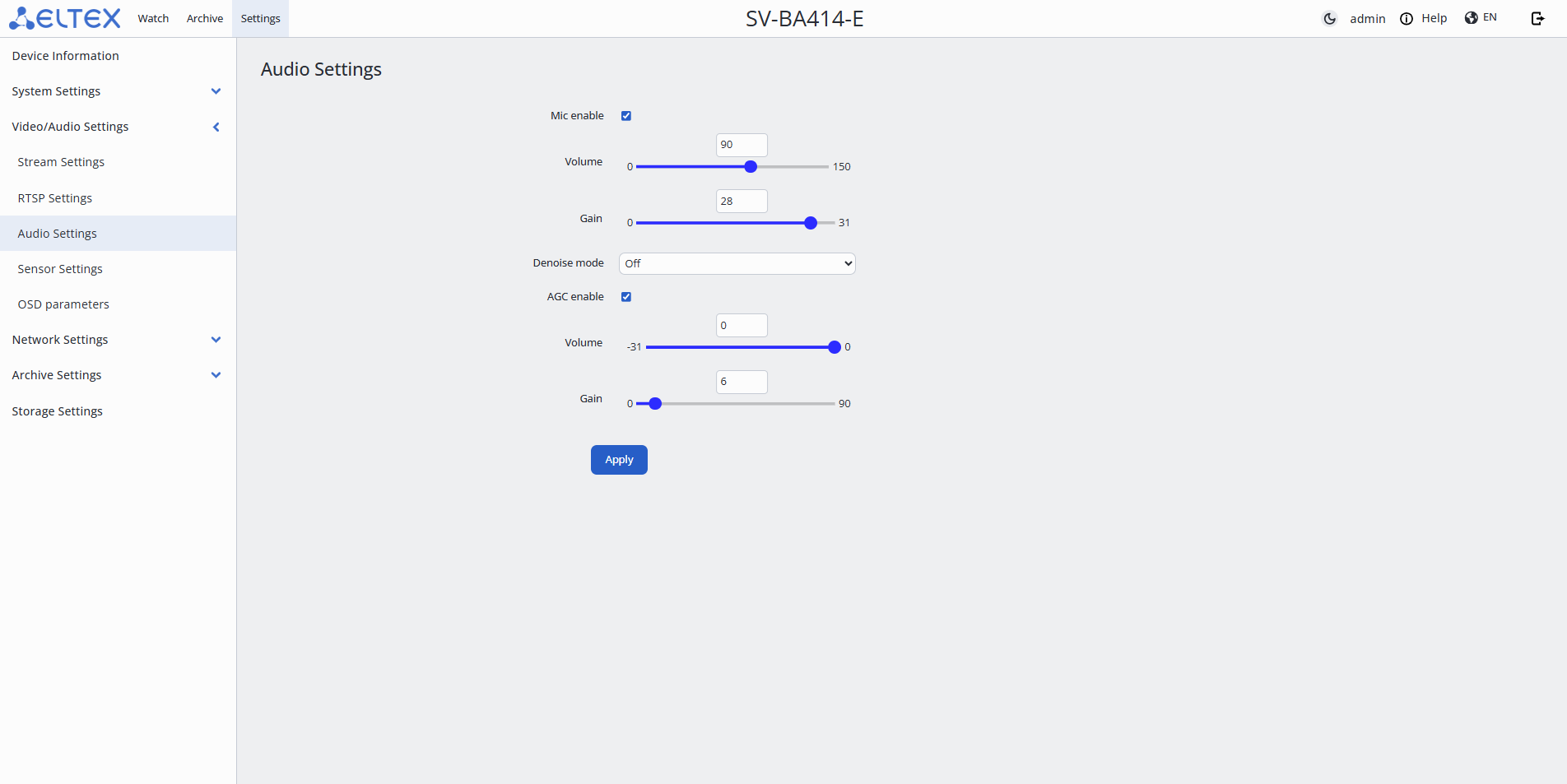
- Mic enable — enabling and disabling the microphone;
- Volume — microphone volume. Maximum value — 150 dB;
- Gain — microphone volume gain. Maximum value — 31 dB;
- Denoise mode:
- Off — noise damping off;
- Low — low noise damping;
- Medium — medium noise damping;
- High — high noise damping;
- Max — maximum noise damping.
- AGC enable:
- Volume — automatic microphone gain volume;
- Gain — microphone volume gain.
To save the settings, click the "Apply" button.
"Sensor Settings"
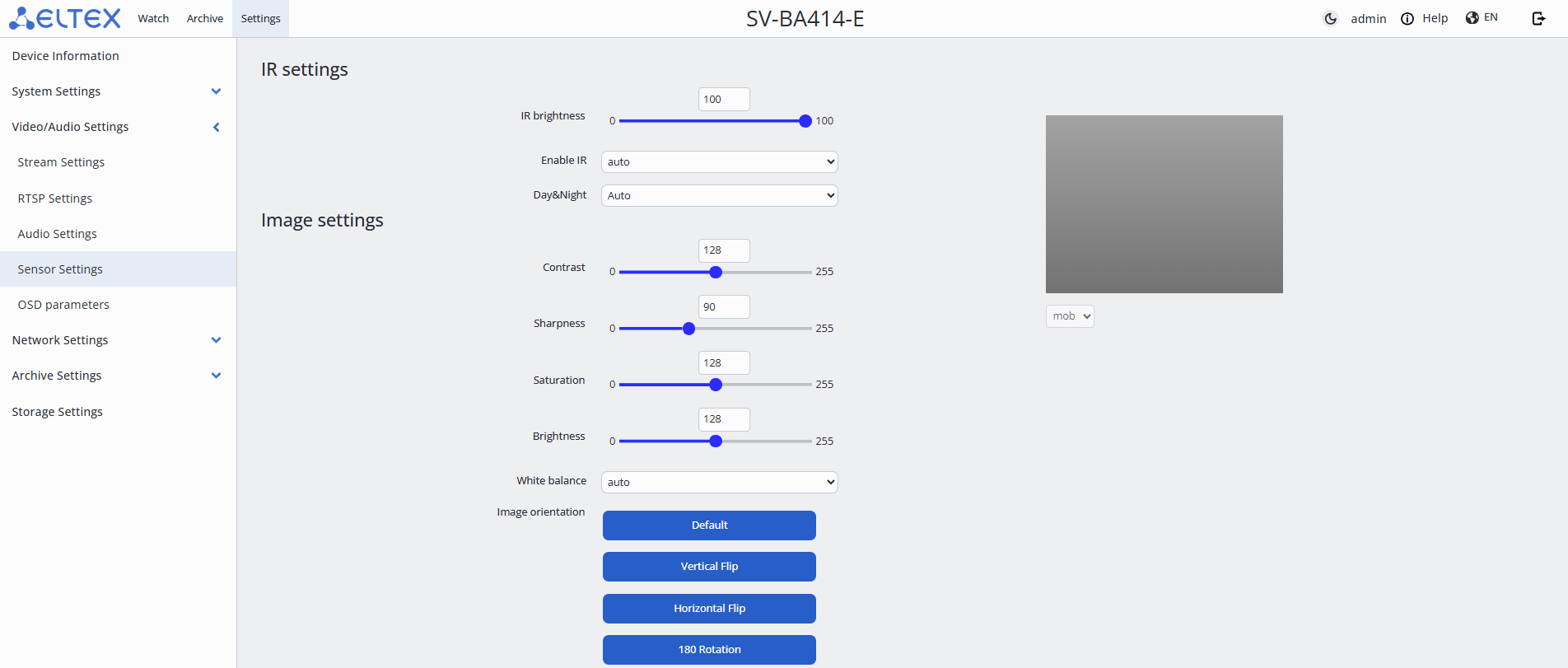
- IR settings:
- IR brightness;
- Enable IR:
- Day&Night — selection of infrared illumination mode:
- Auto — automatic switching between day and night mode based on light level;
- Day — infrared illumination is always off;
- Night — infrared illumination is always on.
- Image settings:
- Contrast — image contrast. It is possible to set a value in the range from 0 to 255. The default value is 128;
- Sharpness — image sharpness. It is possible to set a value in the range from 0 to 255. The default value is 90;
- Saturation — image saturation. It is possible to set a value in the range from 0 to 255. The default value is 128;
- Brightness — image brightness. It is possible to set a value in the range from 0 to 255. The default value is 128;
- White balance — used to adjust the color temperature depending on the environment:
- auto — automatic configuration;
- day — daylight;
- cloud — cloudy;
- inc — incandescent lamp;
- fluo — fluorescent light;
- twi — twilight;
- shade — shade;
- warm_fluo — warm fluorescent light.
- Image orientation — camera image management:
- Default — camera transmits the image as the user sees it with their own eyes;
- Vertical Flip — image is reflected along the vertical axis;
- Horizontal Flip — image is reflected along the horizontal axis;
- 180 Rotation — image is reflected vertically and horizontally, thus providing an image as in "Standard" mode for a physically inverted camera.
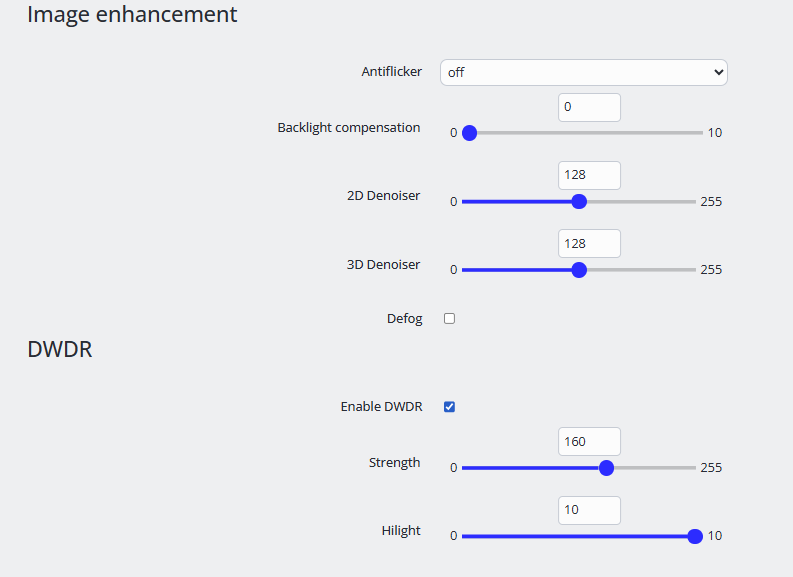
- Image enhancement:
- Antiflicker — compensation for lamp flicker from power grids of different frequencies:
- Backlight compensation — elimination of darkening when the object is against a bright light source. It is possible to set a value in the range from 0 to 10;
- 2D Denoiser — noise damping in each frame by analyzing neighboring pixels. It is possible to set a value in the range from 0 to 255. Default value — 128;
- 3D Denoiser — noise damping by analyzing both neighboring pixels and changes between frames. It is possible to set a value in the range from 0 to 255. Default value — 128;
- Defog — increasing image clarity and contrast in poor visibility conditions caused by fog or haze:
- Strength — it is possible to set a value in the range from 0 to 255.
- DWDR:
- Enable WDR — improving image visibility with any lighting level fluctuations:
- Strength — degree of brightening dark areas. It is possible to set a value in the range from 0 to 255;
- Hilight — degree of suppression of bright areas. It is possible to set a value in the range from 0 to 10.
"OSD parameters"
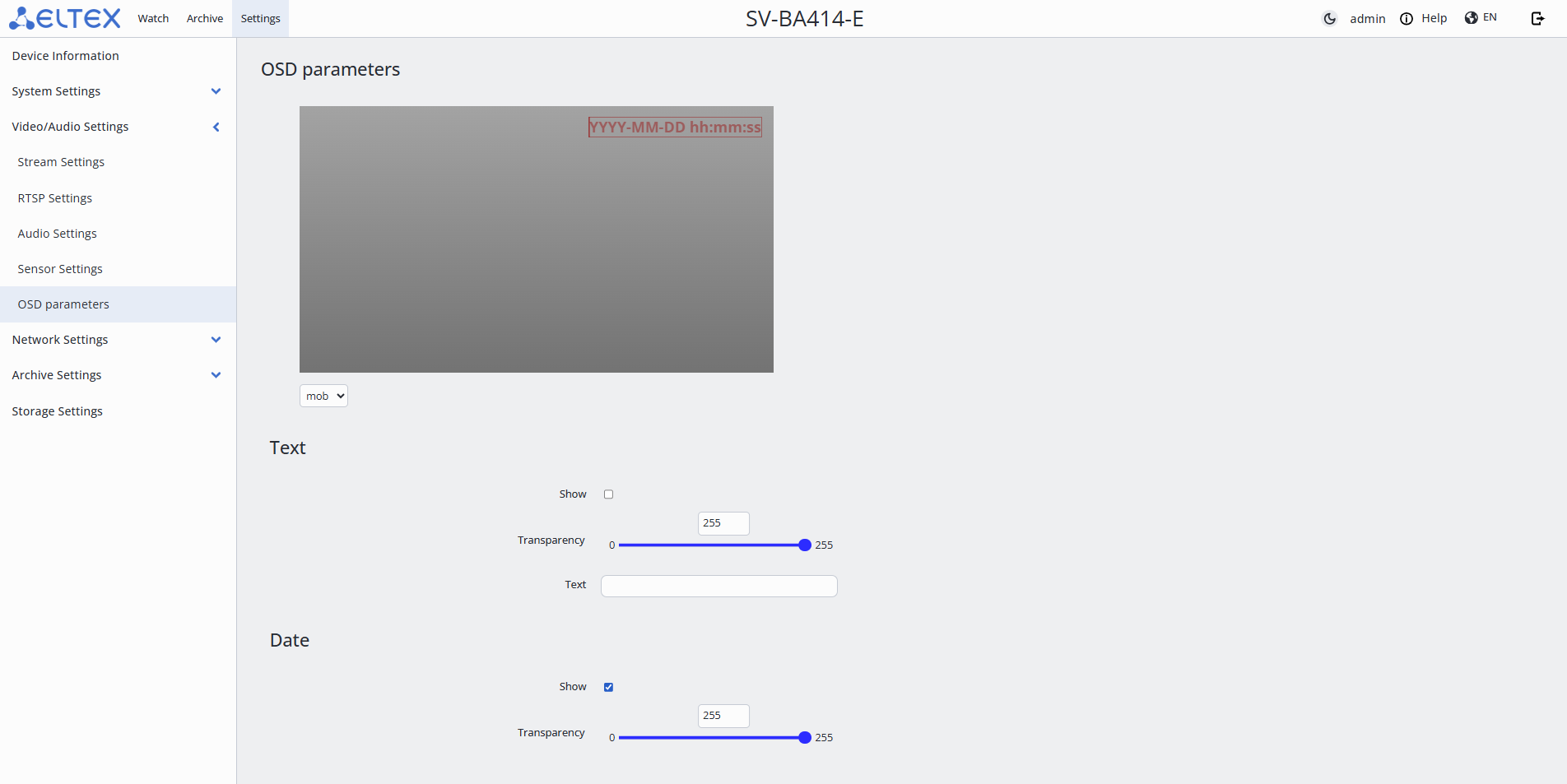
- OSD — On-Screen Display, text displayed on the screen;
- Text:
- Show — enable the display of user text;
- Transparency — transparency of the displayed text. It is possible to set a value in the range from 0 to 255;
- Text — field for entering text to display.
- Date:
- Show — enable the display of the date;
- Transparency — transparency of the displayed date. It is possible to set a value in the range from 0 to 255.
"Network Settings" menu
"Network"
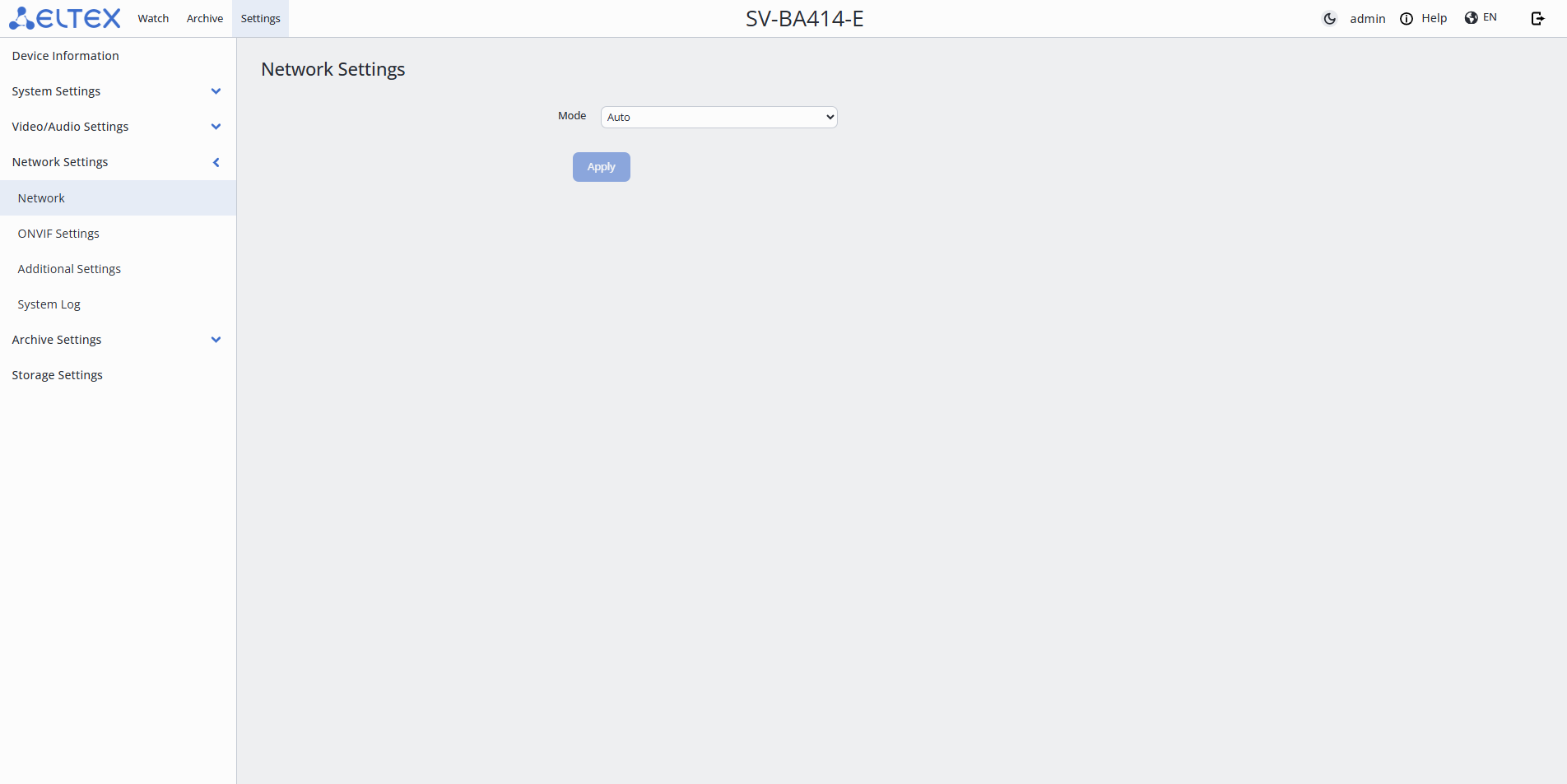
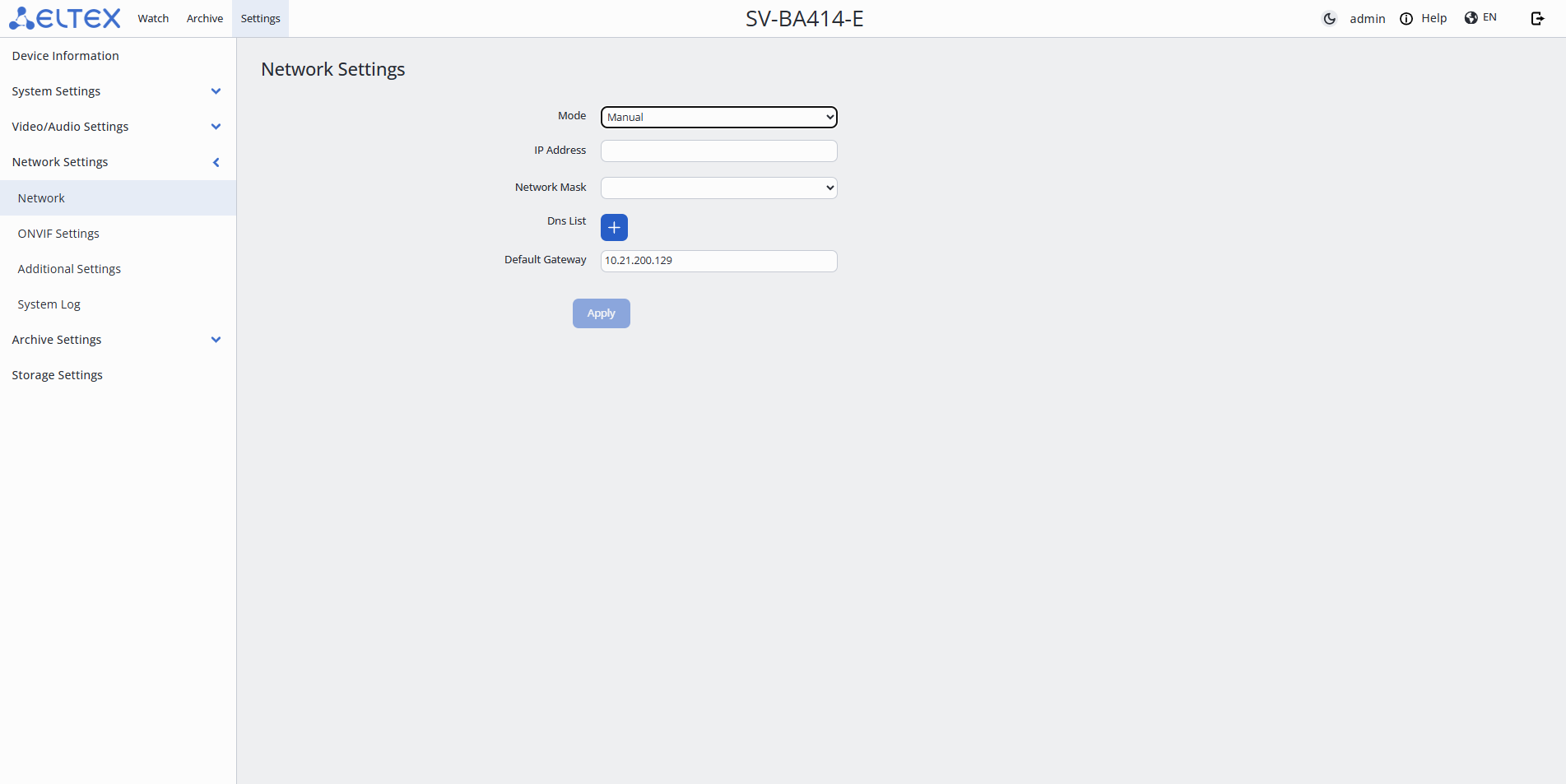
- Mode:
- Auto — obtaining all settings via DHCP;
- Manual — setting all network parameters manually:
- IP Address;
- Network Mask;
- Dns List — addresses of DNS servers;
- + — adding a backup DNS server;
- Default Gateway.
To save the settings, click the "Apply" button.
"ONVIF Settings"
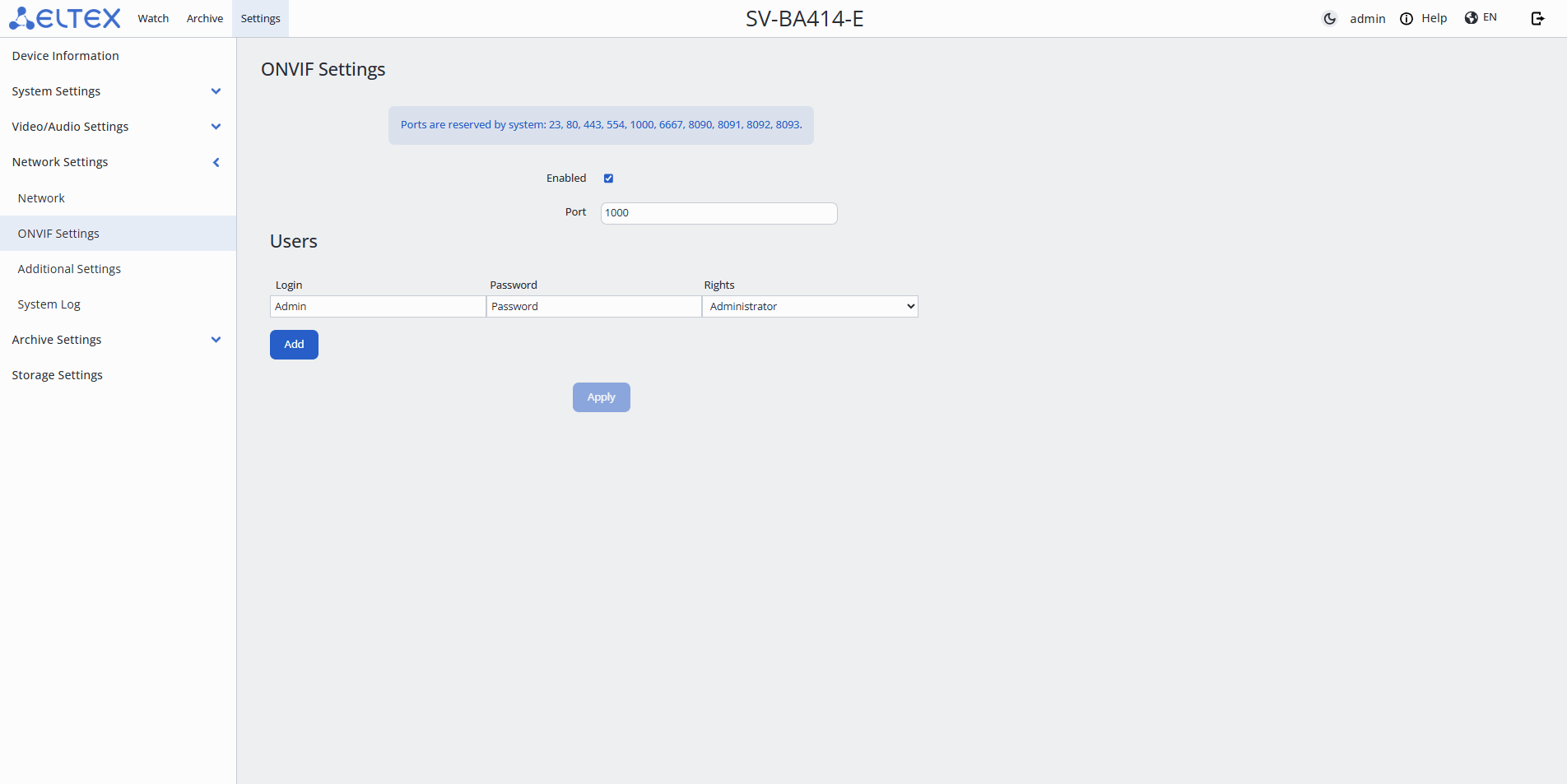
- Enabled — enabling the ONVIF protocol;
- Port — port through which the camera will interact with control systems via the ONVIF protocol. By default, port 1000 is used;
When configuring ports, it is necessary to pay attention to the ports reserved by the system to avoid port conflicts. Ports reserved by the system: 23, 80, 443, 554, 1000, 8090, 8091, 8092, 8093. |
- Users — creating users with specific access rights:
- Login — user login;
- Password — user password;
- Rights — user access level:
- Administrator — full access to all device functions;
- Operator — access to basic device functions. Cannot change settings or manage users;
- Media user — limited access (view only). No rights to change configuration;
- Anonymous — minimal rights (if allowed in settings). Usually view only without authorization.
To save the settings, click the "Apply" button.
"Additional Settings"
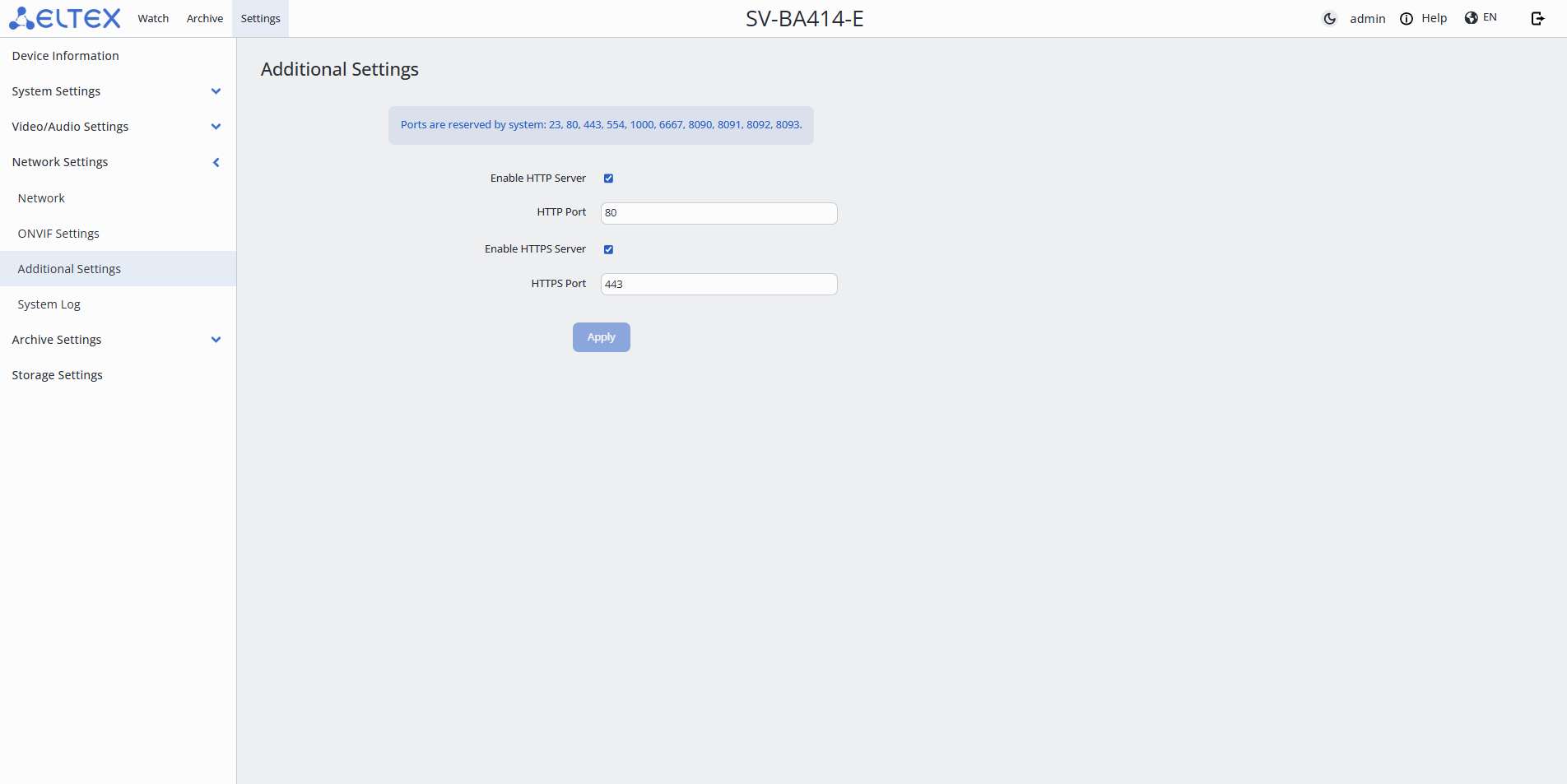
- Enable HTTP Server — access to the camera's web interface via the HTTP protocol;
- HTTP Port — port through which interaction with the camera's web interface via the HTTP protocol will be carried out. By default, port 80 is used;
When configuring ports, it is necessary to pay attention to the ports reserved by the system to avoid port conflicts. Ports reserved by the system: 23, 80, 443, 554, 1000, 8090, 8091, 8092, 8093. |
- Enable HTTPS Server — access to the camera's web interface via the HTTPS protocol;
- HTTPS Port — port through which interaction with the camera's web interface via the HTTPS protocol will be carried out. By default, port 443 is used.
To save the settings, click the "Apply" button.
"System Log"
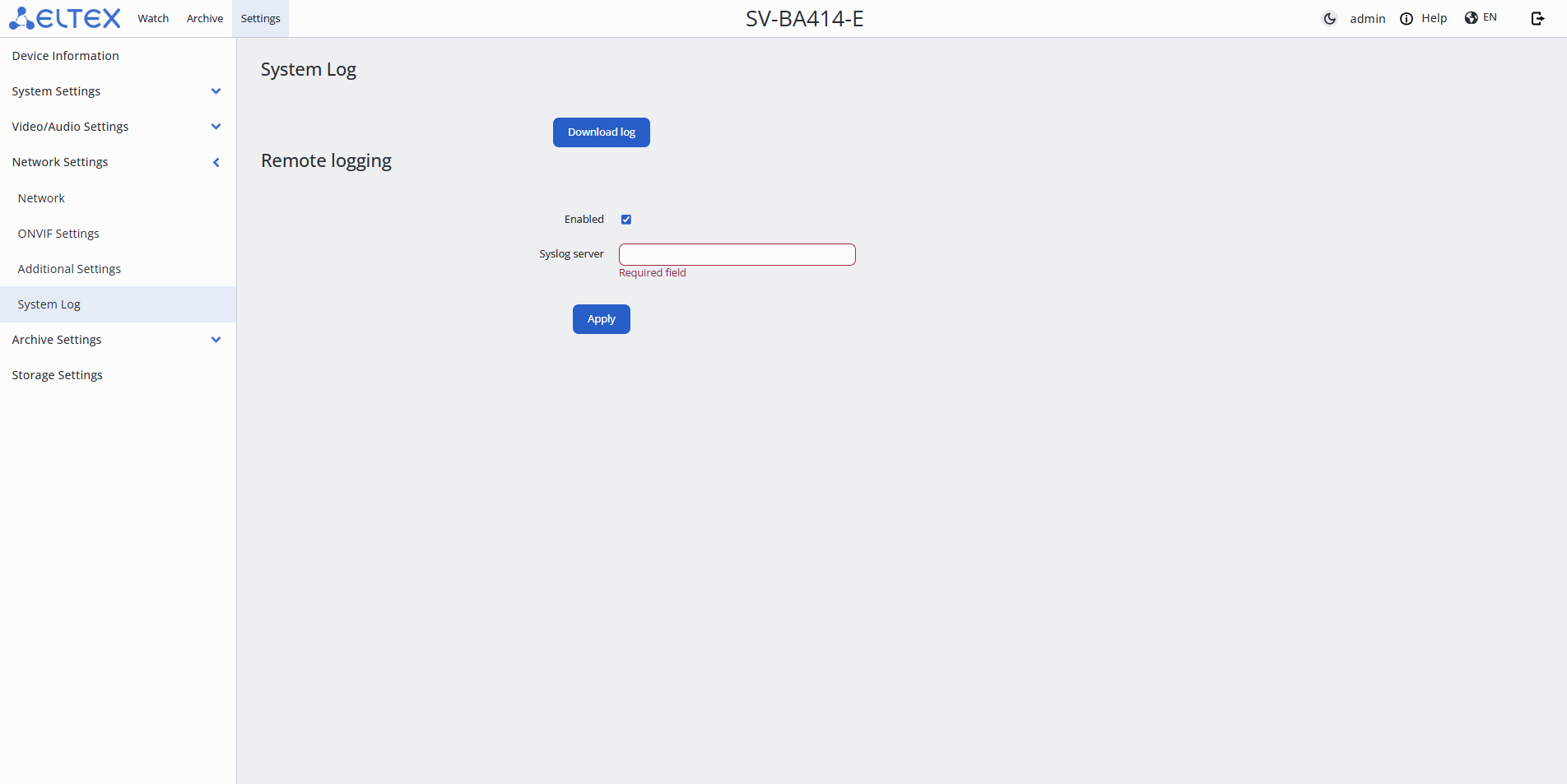
- Download log — download system log;
- Remote logging — section for configuring logs to a remote server:
- Syslog server — address of the remote syslog server.
To save the settings, click the "Apply" button.
"Archive Settings" menu
"Schedule"
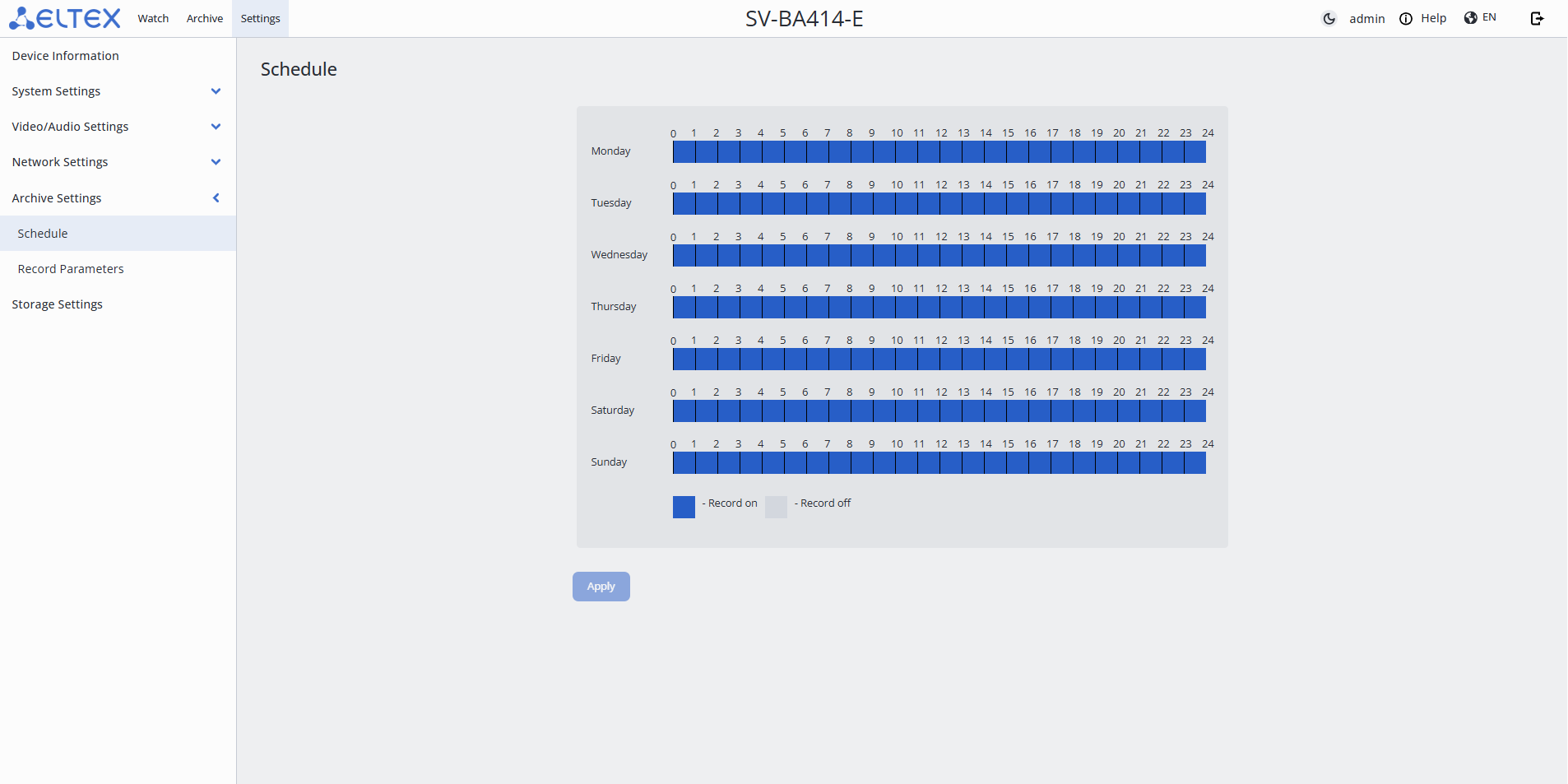
- Schedule — setting the period during which the camera will record. To select the necessary intervals, highlight them by clicking the left mouse button.
To save the settings, click the "Apply" button.
"Record Parameters"
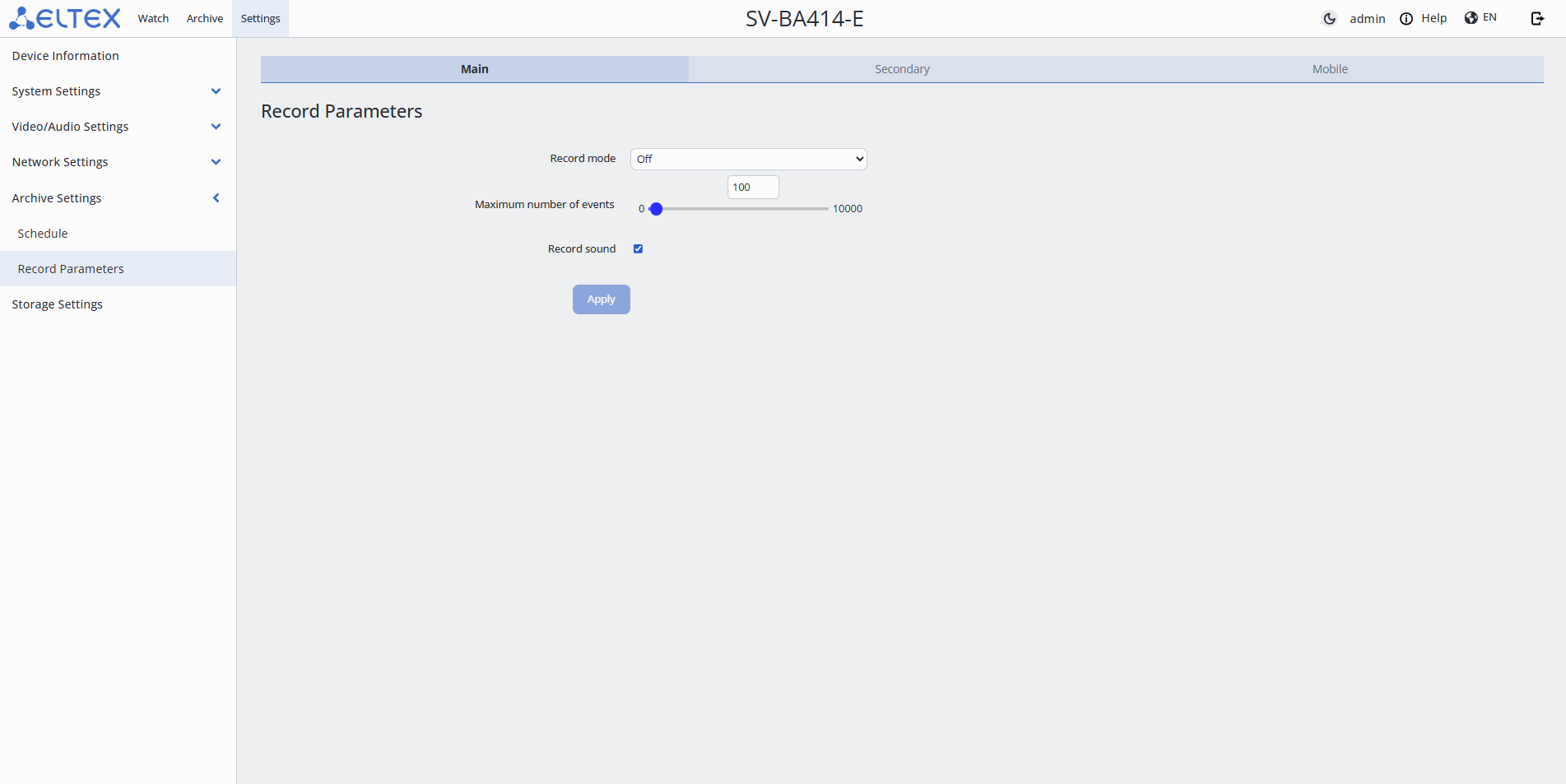
- Streams:
- Main — main stream, has the best broadcast quality;
- Secondary — secondary stream, has average broadcast quality;
- Mobile — mobile stream, has low broadcast quality.
- Record:
- Permanent recording — video recording is permanent;
- Event recording — video recording occurs only when an event is detected;
- Off — video recording is not conducted.
- Maximum number of events — saving a set number of events to a MicroSD card. If the number of events is exceeded, old recordings will be overwritten. It is possible to set a value in the range from 0 to 10000;
- Record sound — enable/disable the microphone during recording.
To save the settings, click the "Apply" button.
"Storage Settings" menu
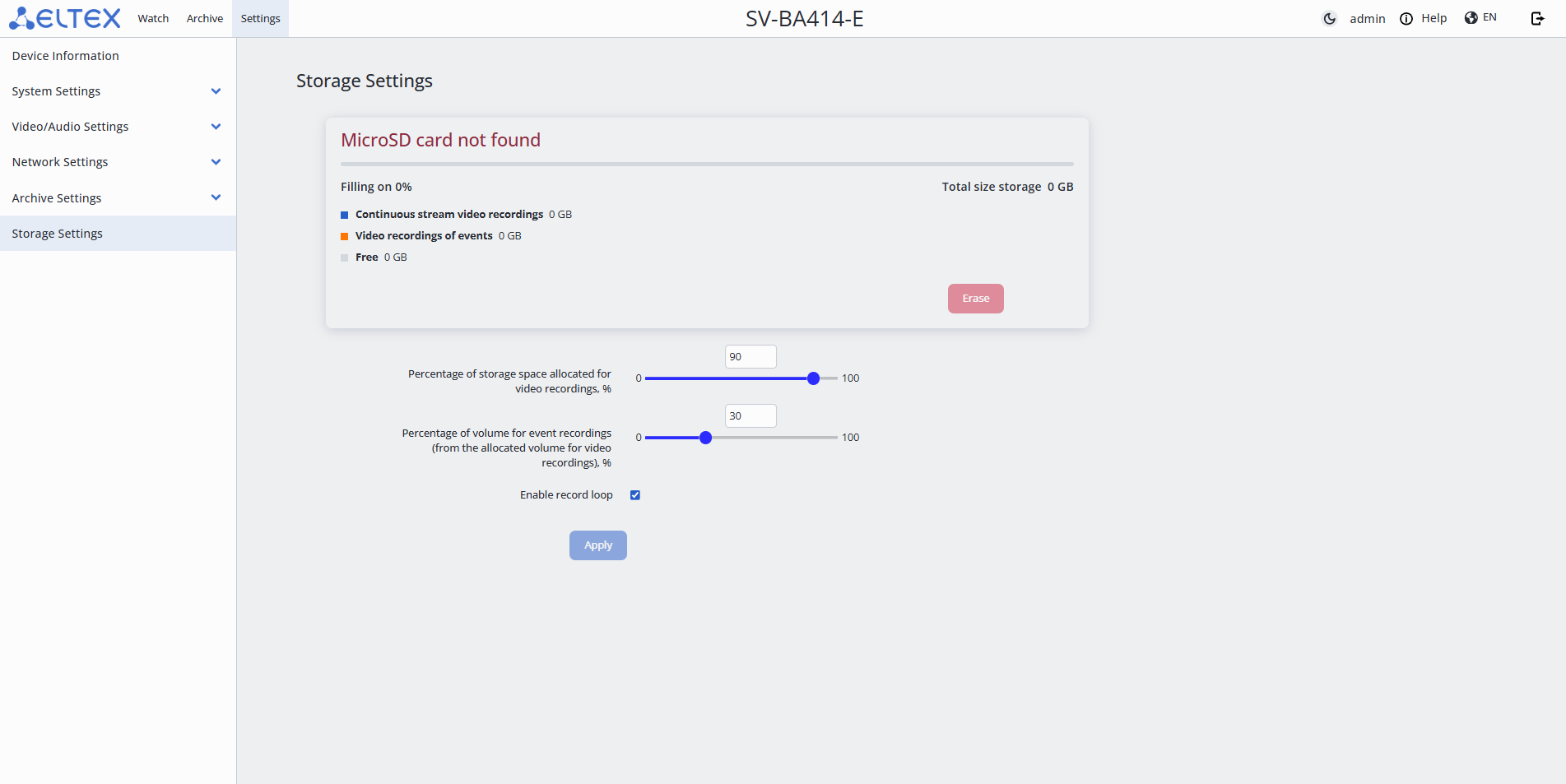
- Erase — formatting the MicroSD card for archive recording;
- Percentage of storage space allocated for video recordings, % — indicates what part of the total storage volume will be used for storing video. It is possible to set a value in the range from 0 to 100;
- Percentage of volume for event recordings (from the allocated volume for video recordings), % — indicates how much space from this volume will be allocated for event recordings. It is possible to set a value in the range from 0 to 100;
- Enable record loop — when the storage is full, old recordings will be overwritten with new ones.
When recording two streams with different recording modes, the storage volume is divided according to the set parameters. |
To save the settings, click the "Apply" button.