LTP-8(16)N, LTX-8(16) rev.B, LTX-8(16)C optical line terminals Application to the user manual Firmware version 1.11.0 (10.2025) |
|
Notes
Notes contain important information, tips or recommendations on device operation and configuration. |
Annotation
This manual provides information on safety precautions and installation procedures:
The following scheme is given as an example, figure 1:
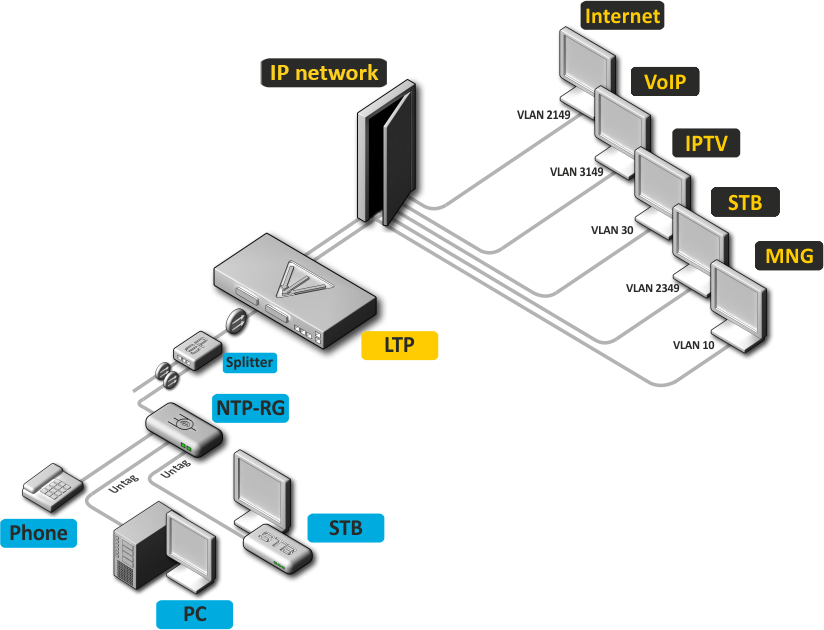
Figure 1 — Example of network configuration
VLAN used for services provision
Service type | VLAN used |
|---|---|
Internet | 1100 |
VoIP | 1101 |
IPTV (multicast) | 30 |
STB | 2349 |
MNG-ONT (acs) | 4094 |
MNG OLT | 3470 |
PC application supporting Telnet or SSH protocol operation or direct connection via the console port (e.g. HyperTerminal) is required.
General requirements
Any operation with the equipment should comply with the Rules for the technical operation of consumer electrical installations.
Operations with the terminal should be carried out only by personnel authorized in accordance with the safety requirements. |
Electrical safety requirements
Check the device for visible mechanical damage before installing and turning it on. In case of any damage, stop the installation, fill in a corresponding document and contact your supplier. If the terminal was exposed to low temperatures for a long time before installation, leave it for 2 hours at ambient temperature prior to operation. If the device was exposed to high humidity for a long time, leave it for at least 12 hours in normal conditions prior to turning it on.
The delivery package includes support brackets for rack installation and mounting screws to fix the terminal case on the brackets. To install the support brackets:

Figure 2 — Support brackets mounting for LTP-8(16)N
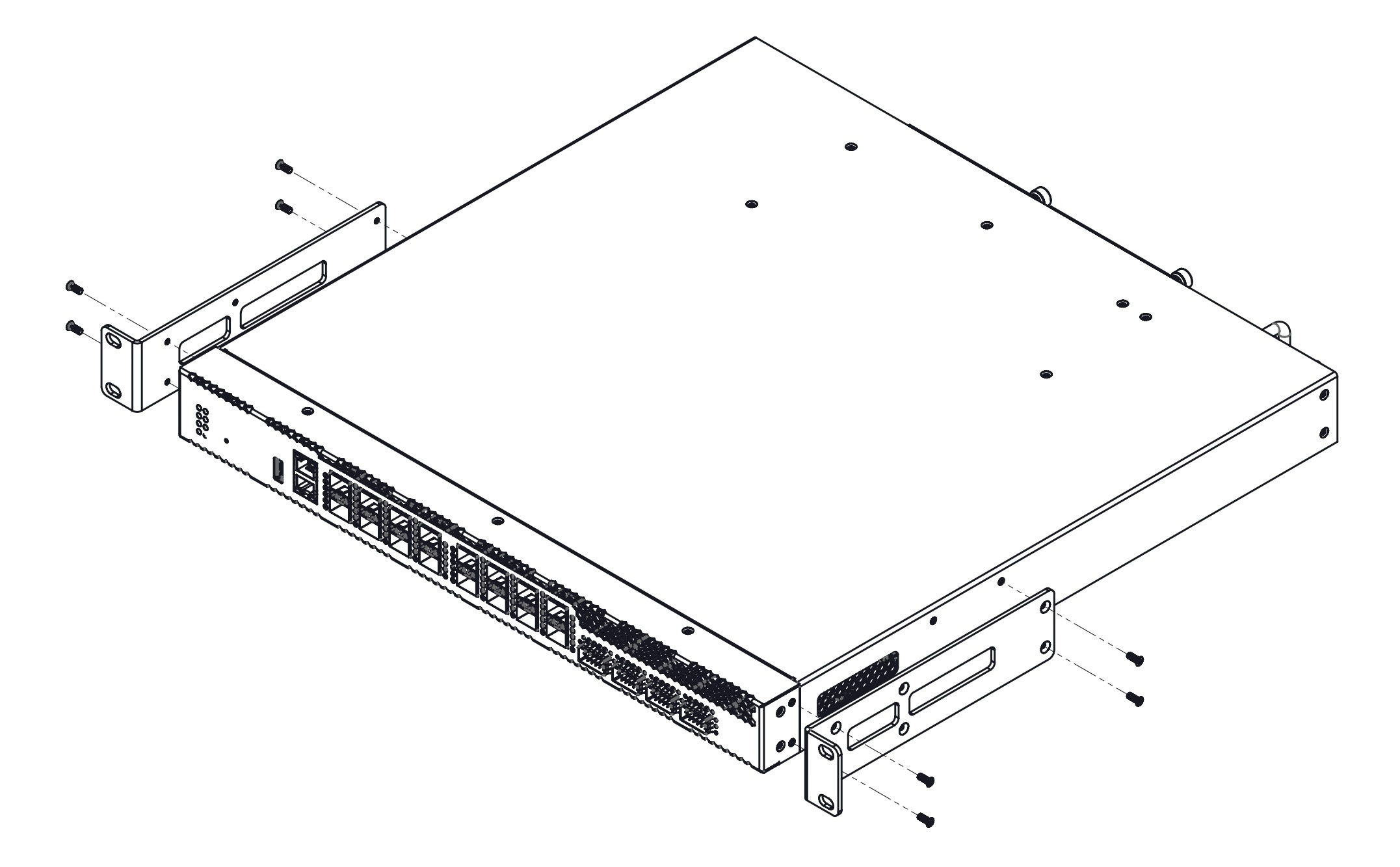
Figure 3 — Support brackets mounting for LTX-8(16), LTX-8(16) rev.B
To install the terminal to the rack:

Figure 4 — LTP-8(16)N rack installation
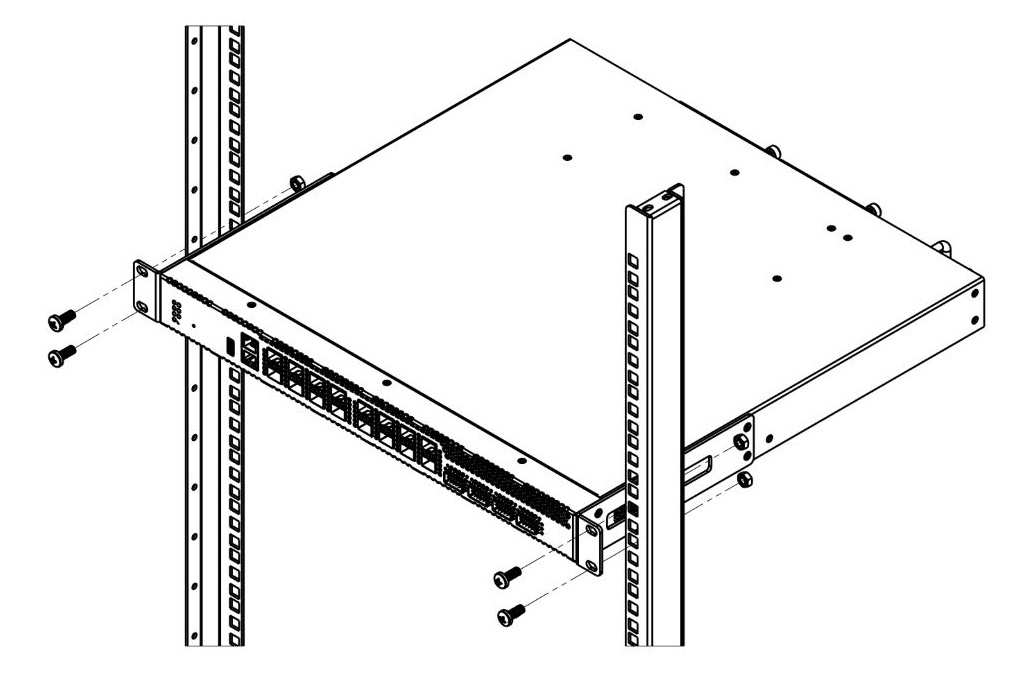
Figure 5 — LTX-8(16), LTX-8(16) rev.B rack installation
For support brackets mounting:
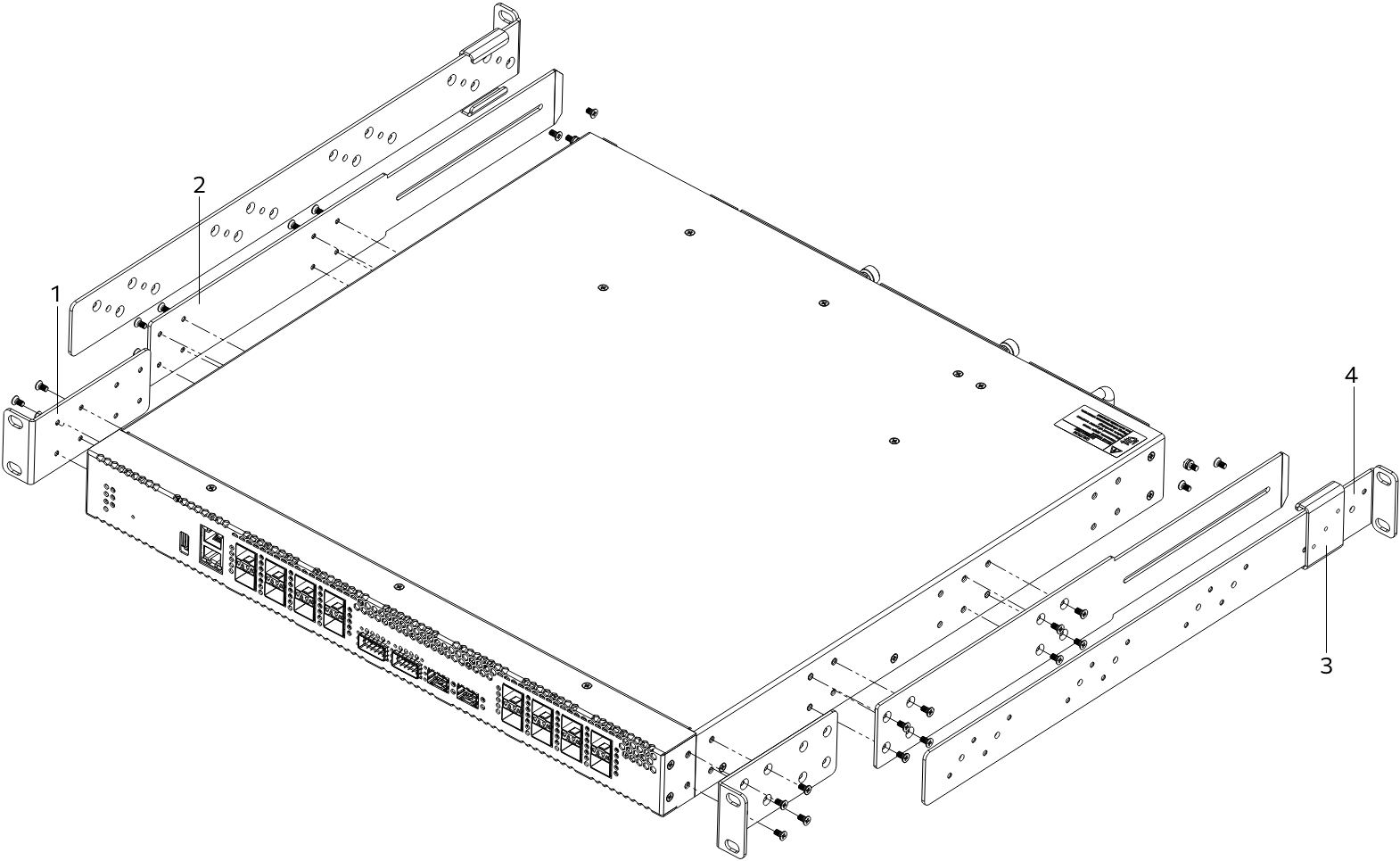
Figure 6 — Support brackets mounting for LTX-8(16)C
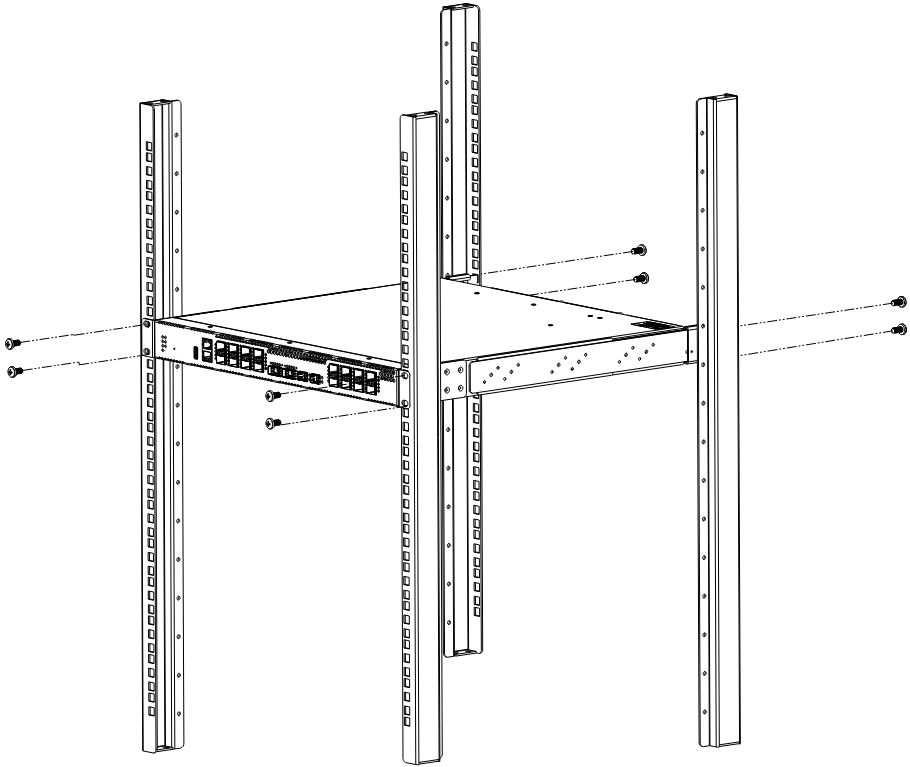
Figure 7 — LTX-8(16)C rack installation
The terminal is horizontally ventilated. The side panels have air vents. Do not block the air vents to avoid components overheating and subsequent terminal malfunction.
To avoid overheating and to provide necessary ventilation of the terminal, sufficient space should be provided above and below the terminal, not less than 10 cm. |
Depending on power supply requirements, the terminals can be supplemented with either an 220 V, 50 Hz AC power module or a 48 V DC power supply module. The installation location for the power module is shown in the Figures below.

Figure 8 — Power module installation for LTP-8(16)N
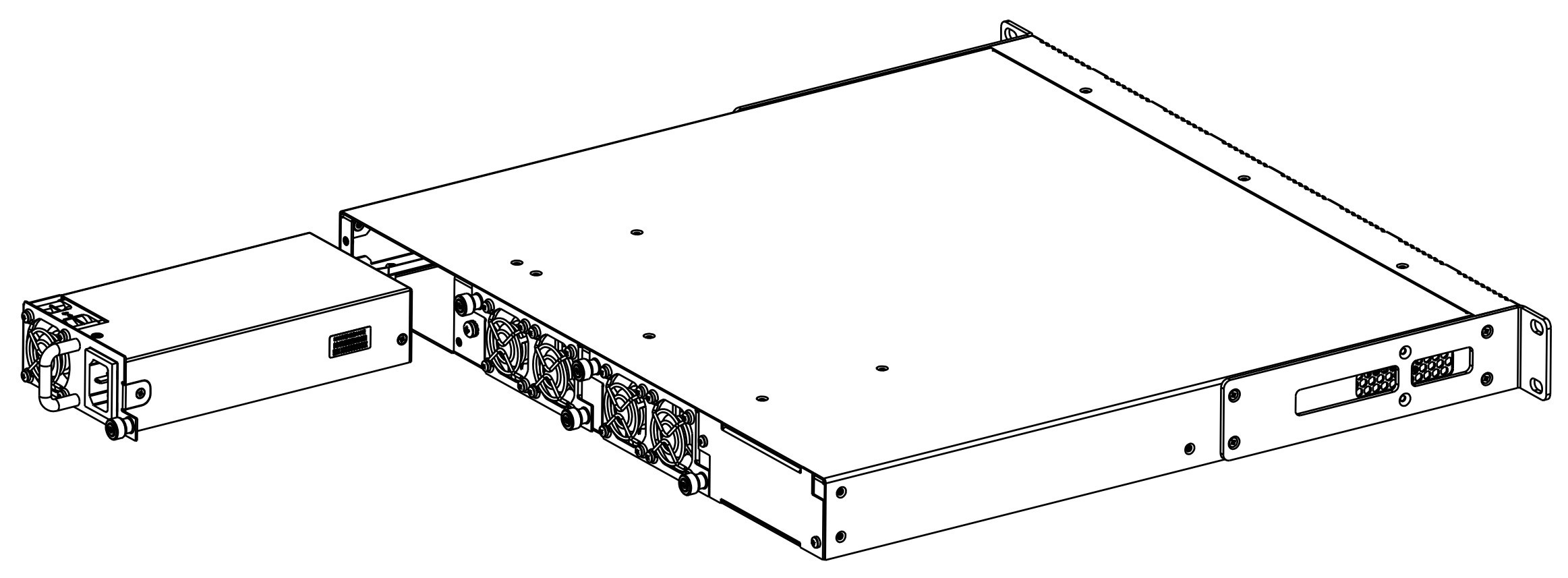
Figure 9 — Power module installation for LTX-8(16), LTX-8(16) rev.B
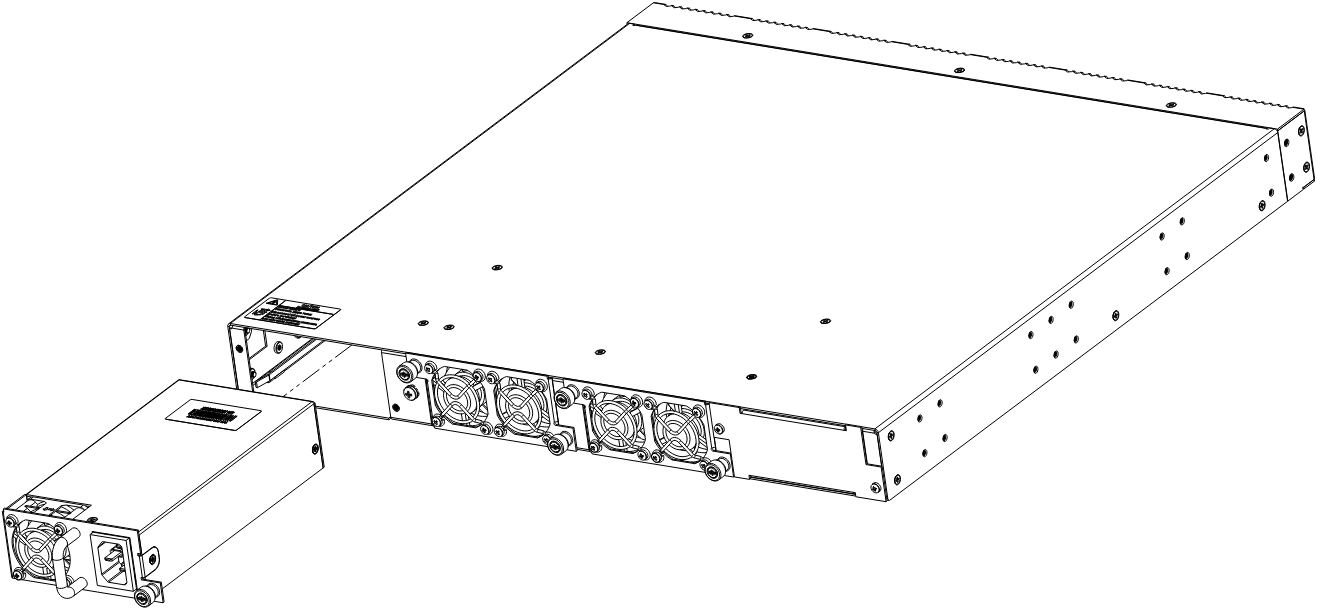
Figure 10 — Power module installation for LTX-8(16)C
The terminals can operate both with a single power module and two power modules. A second power module is necessary if a device is used in conditions requiring increased reliability. When using two power supply modules, it is allowed to supply power from different power supplies (with different voltages).

Figure 11 — Power modules installation for LTP-8(16)N
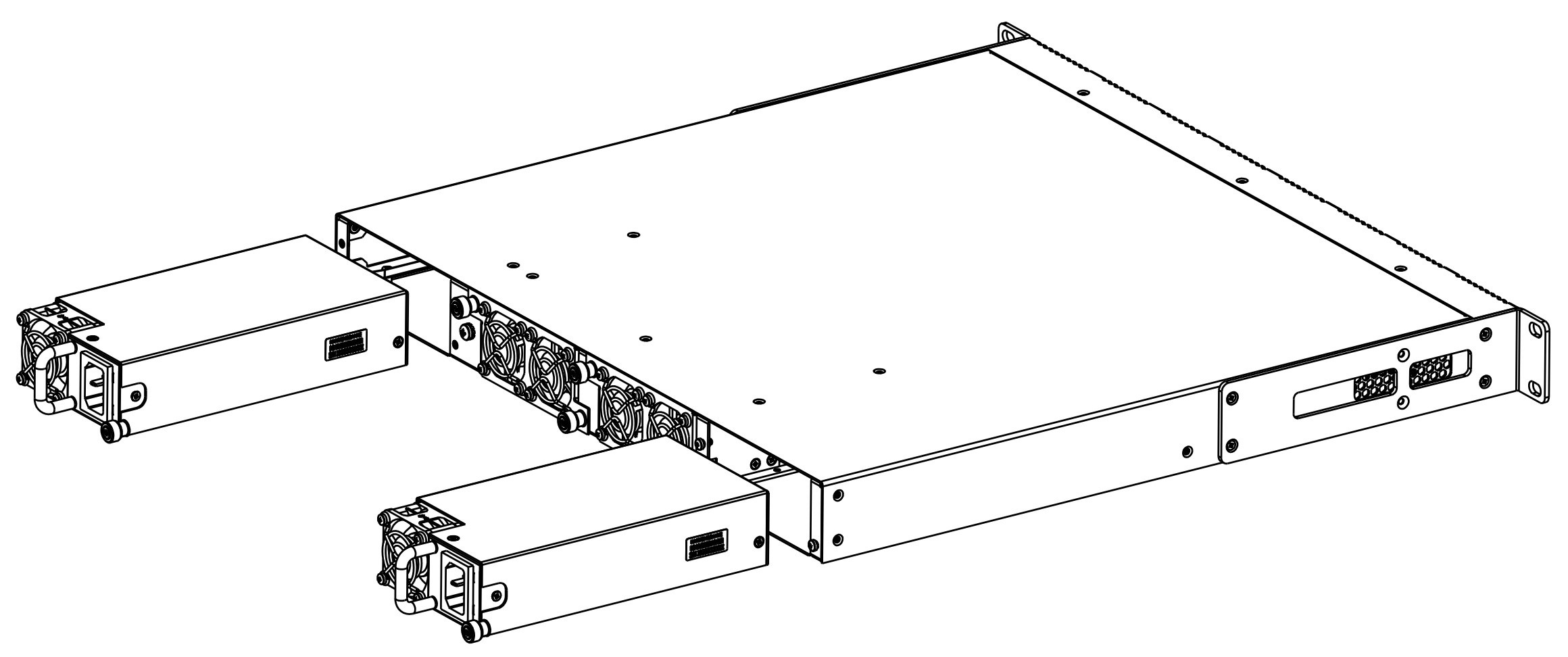
Figure 12 — Power modules installation for LTX-8(16), LTX-8(16) rev.B, LTX-16C
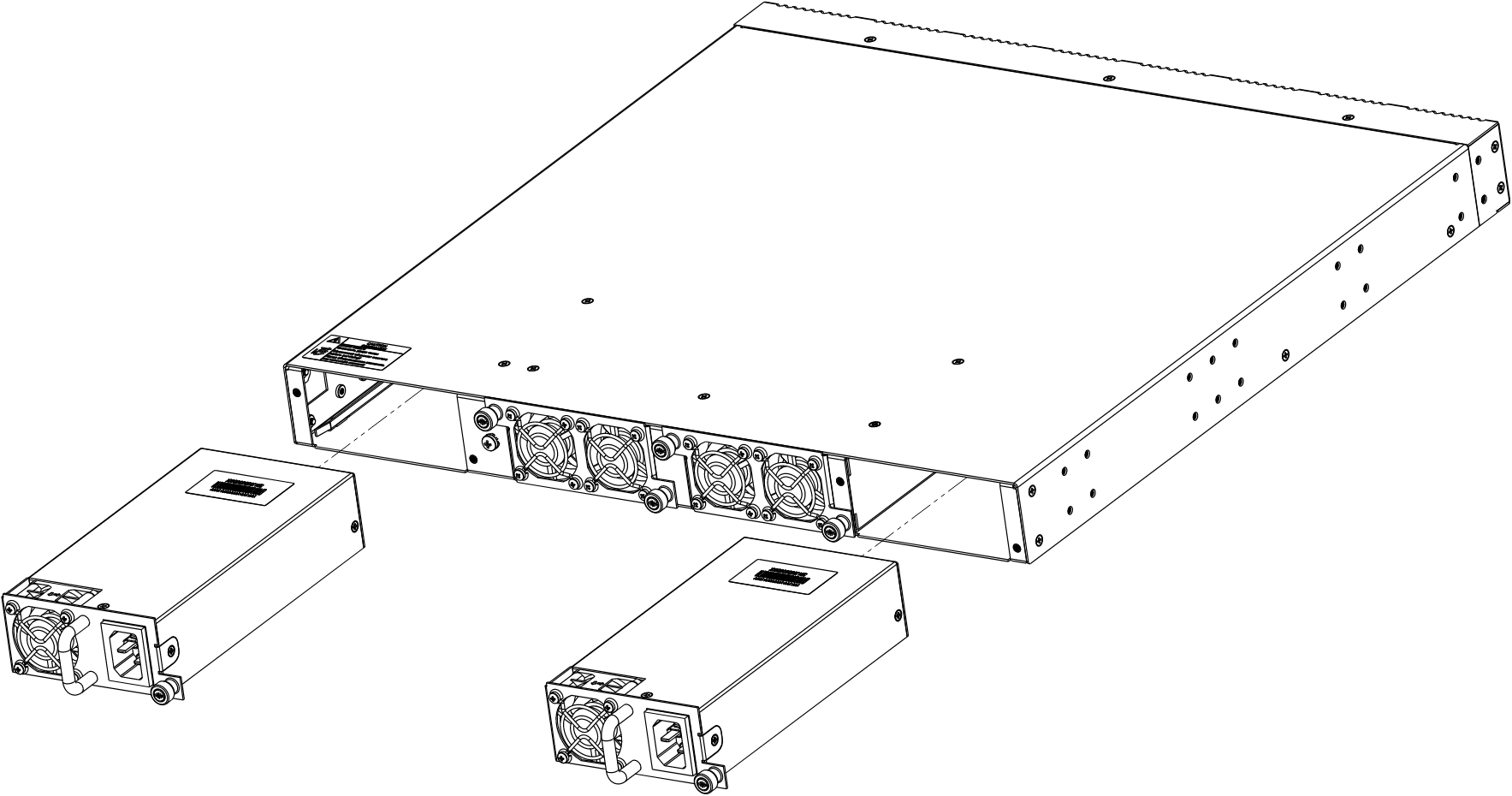
Figure 13 — Power modules installation for LTX-8(16)C
Locations for installing power modules are electrically equivalent. From the point of device usage, as for LTP-8(16)N, power module located closer to the edge is considered the main one, closer to the center is a backup one. For LTX-8(16), LTX-8(16) rev.B, LTX-8(16)C, power module located from the left side is considered the main one, power module from the right is a backup one. Power modules can be installed and removed without shutting down the device. When installing or removing additional power modules, the device continues to operate without restarting.
Power module installation procedure:
Connect network cable to OOB port of the device. To connect via SSH/Telnet, use the following factory settings:
For security reasons, it is recommended to change the default password when connecting for the first time (see Changing the user password section). |
If the device does not connect using the factory IP address, connect to it via the COM port using a terminal program and check the network settings (see Connecting via serial port section below).
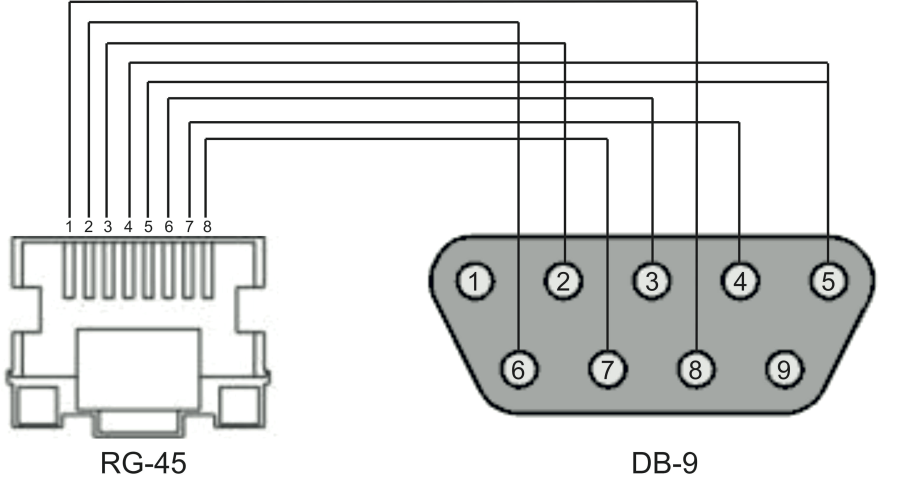
The null modem cable is used for connection. The null modem cable pin designation is given in APPENDIX A. RS-232 null-modem cable pin designation.
To connect via the serial port, the following settings must be set:
For security reasons, it is recommended to change the default password when connecting for the first time (see Changing the user password section). |
This manual shows an example of LTP-16N configuration. The command syntax is similar for LTX-8(16), LTX-8(16) rev.B, LTX-8(16)C and LTP-8N. |
Check the network settings with the show running-config management all command.
Check the network settings: LTP-16N# show running-config management all management ip 192.168.1.2 management mask 255.255.255.0 management gateway 0.0.0.0 management vid 1 |
Enter the configuration mode: LTP-16N# configure terminal Show created users: LTP-16N(configure)# do show running-config user all Set new password for the admin: LTP-16N(configure)# user admin password XXXX Set new password for the root: LTP-16N(configure)# user root password XXXX Apply the configuration: LTP-16N(configure)# do commit Save configuration: LTP-16N(configure)# do save |
For remote device management, set network parameters of the device according to the settings of the network that are intended to be used. Changing network parameters of the device is recommended when connecting to the CLI interface via serial port.
Enter the configuration mode: LTP-16N# configure terminal |
Set the required network settings, e.g. IP=192.168.205.105, Mask=255.255.255.0, Gateway=192.168.205.230, VLAN=4000.
LTP-16N(configure)# management ip 192.168.10.145 LTP-16N(configure)# management mask 255.255.240.0 LTP-16N(configure)# management gateway 192.168.2.1 LTP-16N(configure)# management vid 3470 LTP-16N(configure)# exit New network settings will be applied after applying/saving the configuration with the commit, save commands without rebooting the device: Apply the configuration: LTP-16N# commit Save the configuration: LTP-16N# save If VLAN will be used for control (in this example, VID=3470), add it to the configuration: Enter the configuration mode: LTP-16N# configure terminal Receive the traffic in VLAN from front-port 1: LTP-16N(configure)# interface front-port 1 LTP-16N(configure)# vlan allow 3470 LTP-16N(configure)# exit Apply the configuration: LTP-16N# commit Save the configuration: LTP-16N# save |
For proper operation of the devices, it is recommended to update the firmware.
The relevance of the installed firmware version can be checked with the technical support service of Eltex Enterprise LLC. A request can be made at https://eltex-co.com/support/. |
Upload the firmware file to the TFTP server (for example, firmware version 1.5.1 build 50).
Next, upload this file to LTP-16N using the following command:
Specify firmware file name and TFTP server address:

LTP-16N# copy tftp://192.168.11.40/ltp-16n-1.5.1-build50.fw.bin fs://firmware
  % Total    % Received % Xferd  Average Speed   Time    Time     Time  Current
                                 Dload  Upload   Total   Spent    Left  Speed
100 73.1M  100 73.1M    0     0  3663k      0  0:00:20  0:00:20 --:--:-- 3666k
100 73.1M  100 73.1M    0     0  3663k      0  0:00:20  0:00:20 --:--:-- 3663k

Success!
LTP-16N# |
Reboot the device with the reboot command:
Change the image, from which the next boot will be made:

LTP-16N# firmware select-image alternate

Reboot the device:

LTP-16N# reboot
Do you really want to reboot the system now? (y/n) y |
After device loading, the firmware version can be found by the show version command:
LTP-16N# show version
Eltex LTP-16N: software version 1.5.1 build 50 (ddd36dcc) on 10.04.2023 12:09 |
SNMP is used for monitoring and management of network devices.
Enter the configuration mode: LTP-16N# configure terminal Enable SNMP: LTP-16N(configure)# ip snmp enable: Specify version v2 and EMS server address: LTP-16N(configure)# ip snmp traps 192.168.10.43 type v2 Apply configuration: LTP-16N(configure)# do commit Save configuration: LTP-16N(configure)# do save |
Syslog is used for transmission of system event messages and error notifications to remote servers.
Enter the configuration mode: LTP-16N# configure terminal Enter the logging configuration: LTP-16N(configure)# logging Specify syslog server address: LTP-16N(config)(logging)# remote server ip 192.168.11.40 Apply configuration: LTP-16N(config)(logging)# do commit Save configuration: LTP-16N(config)(logging)# do save |
NTP is used to synchronize the time of a network device with a server.
Enter the configuration mode: LTP-16N# configure terminal Enable NTP service: LTP-16N(configure)# ip ntp enable Specify NTP server address: LTP-16N(configure)# ip ntp 192.168.10.43 Specify timezone: LTP-16N(configure)# ip ntp timezone hours 7 Apply configuration: LTP-16N(configure)# do commit Save configuration: LTP-16N(configure)# do save |
Configuration mode: LTP-16N# configure Receive traffic from front-port 1 to VLAN: LTP-16N(configure)# interface front-port 1 Add all the necessary VLANs: LTP-16N(config)(if-front-1)# vlan allow 1101,30,4094,1100,2349 Apply configuration: LTP-16N(configure)# do commit Save configuration: LTP-16N(configure)# do save |
If the configuration is not saved, then after reboot, the device will return to the last saved configuration. |
Enable IGMP SNOOPING globally: LTP-16N(configure)# ip igmp snooping enable VLAN 30 configuration mode: LTP-16N(configure)# vlan 30 Enable IGMP SNOOPING in VLAN multicast: LTP-16N(config)(vlan-30)# ip igmp snooping enable Enable IGMP query: LTP-16N(config)(vlan-30)# ip igmp snooping querier enable Apply configuration: LTP-16N(configure)# do commit LTP-16N(configure)# exit LTP-16N# exit Save configuration: LTP-16N# save |
Enter the configuration mode:
LTP-16N# configure terminal

Create and enter a Cross-Connect profile for the ONT Internet service:
LTP-16N(configure)# profile cross-connect INTERNET
LTP-16N(config)(profile-cross-connect-INTERNET)#

Specify the service VLAN of the Internet service:
LTP-16N(config)(profile-cross-connect-INTERNET)# outer vid 1100

Specify inner VLAN of Internet service on ONT:
LTP-16N(config)(profile-cross-connect-INTERNET)# user vid 10
LTP-16N(config)(profile-cross-connect-INTERNET)# exit

Create and enter a Cross-Connect profile for the ONT SIP VoIP service:
LTP-16N(configure)# profile cross-connect VOIP

Specify the service VLAN of the VoIP service:
LTP-16N(config)(profile-cross-connect-VOIP)# outer vid 1101

Specify inner VLAN of VoIP service on ONT:
LTP-16N(config)(profile-cross-connect-VOIP)# user vid 12
LTP-16N(config)(profile-cross-connect-VOIP)# exit

Create and enter a Cross-Connect profile for the multicast service:
LTP-16N(configure)# profile cross-connect MC_IPTV

Specify the service VLAN of the multicast service:
LTP-16N(config)(profile-cross-connect-MC_IPTV)# outer vid 30

Specify inner VLAN of multicast service on ONT:
LTP-16N(config)(profile-cross-connect-MC_IPTV)# user vid 30

Allow multicasting in this service:
LTP-16N(config)(profile-cross-connect-MC_IPTV)# multicast enable
LTP-16N(config)(profile-cross-connect-MC_IPTV)# exit

Create and enter a Cross-Connect profile for the ONT UC_IPTV service:
LTP-16N(configure)# profile cross-connect UC_IPTV

Specify the service VLAN of the STB unicast service:
LTP-16N(config)(profile-cross-connect-UC_IPTV)# outer vid 2349

Specify inner VLAN of STB unicast service on ONT:
LTP-16N(config)(profile-cross-connect-UC_IPTV)# user vid 11
LTP-16N(config)(profile-cross-connect-UC_IPTV)# exit

Create and enter a Cross-Connect profile for the management ONT service:
LTP-16N(configure)# profile cross-connect ACS

Specify service VLAN for management service:
LTP-16N(config)(profile-cross-connect-ACS)# outer vid 4094

Enable iphost for ACS:
LTP-16N(config)(profile-cross-connect-ACS)# iphost enable
LTP-16N(config)(profile-cross-connect-ACS)# exit

Create and enter a Management profile:
LTP-16N(configure)# profile management ACS

Specify login for authorization in ACS:
LTP-16N(config)(profile-management-ACS)# username test

Specify password for authorization in ACS:
LTP-16N(config)(profile-management-ACS)# password test_pass

Specify server address:
LTP-16N(config)(profile-management-ACS)# url http://192.168.200.1:9595

Create and switch to multicast profile:
LTP-16N(configure)# profile ports veip

Enable multicast on ONT:
LTP-16N(config)(profile-ports-veip)# veip multicast enable

Configuration of IGMP traffic mapping in VLAN 30 downstream:
LTP-16N(config)(profile-ports-veip)# veip igmp downstream vid 30

Configuration of IGMP traffic mapping in VLAN 30:
LTP-16N(config)(profile-ports-veip)# veip igmp upstream vid 30

Configuration of the multicast groups range:
LTP-16N(config)(profile-ports-veip)# igmp multicast dynamic-entry 1 vid 30 group 224.0.0.1 239.255.255.255

Apply configuration:
LTP-16N(config)(profile-ports-veip)# do commit
        Configuration committed successfully

Save configuration:
LTP-16N(config)(profile-ports-veip)# do save |
If the configuration is not saved, then after reboot, the device will return to the last saved configuration. |
Enter the configuration mode: LTP-16N# configure terminal Add and enter profile configuration: LTP-16N(configure)# profile pppoe-ia 1 Configure circuit_id format: LTP-16N(config)(profile-pppoe-ia-1)# circuit-id format %HOSTNAME%%ONTID% Configure remote_id format: LTP-16N(config)(profile-pppoe-ia-1)# remote-id format %HOSTNAME%%ONTID% Apply configuration: LTP-16N(config)(profile-pppoe-ia-1)# do commit Save configuration: LTP-16N(config)(profile-pppoe-ia-1)# do save Enable PPPoE snooping: LTP-16N(config)(profile-pppoe-ia-1)# exit LTP-16N(configure)# ip pppoe LTP-16N(config)(pppoe)# snooping enable Assign pppoe-ia 1 profile on OLT: LTP-16N(config)(pppoe)# pppoe-ia profile 1 Apply configuration: LTP-16N(configure)# do commit Save configuration: LTP-16N(configure)# do save |
Enter the configuration mode: LTP-16N# configure terminal Create profile and enter configuration: LTP-16N(configure)# profile dhcp-opt82 1 Transmit HOSTNAME LTP-16N and id ONT in data about the port from which the request to the DHCP relay came: LTP-16N(config)(profile-dhcp-opt82-1)# circuit-id format %HOSTNAME%%ONTID% Transmit HOSTNAME LTP-16N and id ONT in the ID of the DHCP relay itself: LTP-16N(config)(profile-dhcp-opt82-1)# remote-id format %HOSTNAME%%ONTID% Enable DHCP snooping: LTP-16N(config)(profile-dhcp-opt82-1) exit LTP-16N(configure)# ip dhcp LTP-16N(config)(dhcp)# snooping enable Assign created profile: LTP-16N(config)(dhcp)# opt82 profile 1 Apply configuration: LTP-16N(config)(dhcp)# do commit Save configuration: LTP-16N(config)(dhcp)# do save |
It is necessary to add ONT ELTX73000140 to the configuration to 2 ONT ID 1 channel and assign all the required profiles to it to provide the services.
View connected but not added ONTs:
LTP-16N# show interface ont 2 unactivated
-----------------------------------
pon-port 2 ONT unactivated list
-----------------------------------
        ##    PON-port    ONT ID          Serial         Status         RSSI             EquipmentID        Version
         1            2       n/a    ELTX73000140    UNACTIVATED          n/a                     n/a            n/a

Enter the configuration mode:
LTP-16N# configure terminal

enter 2 ONT ID 1 tree:
LTP-16N(configure)# interface ont 2/1

Assign the required ONT to this position:
LTP-16N(config)(if-ont-2/1)# serial ELTX73000140

Assign ports veip profile:
LTP-16N(config)(if-ont-2/1)# profile ports veip

Assign cross-connect INTERNET profile:
LTP-16N(config)(if-ont-2/1)# service 1 profile cross-connect INTERNET

Assign cross-connect VOIP:
LTP-16N(config)(if-ont-2/1)# service 2 profile cross-connect VOIP

Assign cross-connect MC_IPTV profile:
LTP-16N(config)(if-ont-2/1)# service 3 profile cross-connect MC_IPTV

Assign cross-connect UC_IPTV profile:
LTP-16N(config)(if-ont-2/1)# service 4 profile cross-connect UC_IPTV

Assign cross-connect ACS profile:
LTP-16N(config)(if-ont-2/1)# service 5 profile cross-connect ACS

Assign dba «dba 1» profile by default to all services used:
LTP-16N(config)(if-ont-2/1)# service 1 profile  dba dba1
LTP-16N(config)(if-ont-2/1)# service 2 profile  dba dba1
LTP-16N(config)(if-ont-2/1)# service 3 profile  dba dba1
LTP-16N(config)(if-ont-2/1)# service 4 profile  dba dba1
LTP-16N(config)(if-ont-2/1)# service 5 profile  dba dba1

Assign management profile:
LTP-16N(config)(if-ont-2/1)# profile management ACS

Apply configuration:
LTP-16N(config)(if-ont-2/1)# do commit

Save configuration:
LTP-16N(config)(if-ont-2/1)# do save |
Up to 128 ONTs per PON port can be connected to LTP-8(16)N. Up to 256 ONTs using XGS-PON technology or 128 ONTs using GPON technology can be connected to LTX-8(16), LTX-8(16) rev.B. Up to 256 ONTs using XGS-PON technology or 128 ONTs using GPON technology can be connected to LTX-8(16)C. On LTX-8(16)C, odd-numbered logical ports operate in GPON mode, while even-numbered ports operate in XGS-PON mode. This must be taken into account when configuring multiple ONTs, since it is not possible to set an ONT index higher than 128 for ports in GPON mode. |
Enter the configure view: LTP-16N# configure terminal Enter the acs configuration section: LTP-16N(config)# ip acs Enable auto configuration server with the acs-server enable command: LTP-16N(config)(acs)# acs-server enable Set vlan for ACS operation: LTP-16N(config)(acs)# acs-server vlan 4094 Specify login for ONT authorization in ACS: LTP-16N(config)(acs)# acs-server login test Specify password for ONT authorization in ACS: LTP-16N(config)(acs)# acs-server password test_pass Enable DHCP server: LTP-16N(config)(acs)# dhcp-server enable Specify the range of IP addresses issued by the server, where the starting and ending addresses of the range need to be specified: LTP-16N(config)(acs)# dhcp-server range 192.168.200.10 192.168.207.254 Enable the issue of option 43 in the DHCP-offer package for correct access of subscriber devices to the ACS: LTP-16N(config)(acs)# dhcp-server option-43 enable |
Enter the ACS: LTP-16N# acs Enter the ONT profiles configuration mode: LTP-16N(acs)# profile Add profile for ONT TEST: LTP-16N(acs-profile)# add profile TEST Enter the TEST profile configuration mode: LTP-16N(acs-profile)# profile TEST Insert all parameters from the profile from APPENDIX B (as an example, adding one parameter is shown): LTP-16N(acs-profile-name='TEST')# set property InternetGatewayDevice.LANDevice.1.LANHostConfigManagement.DHCPLeaseTime 3600 nocheck |
In case of question contact the technical support service of ELTEX Enterprise LLC. A request can be made at https://eltex-co.com/support/. |
Enter the ACS: LTP-16N(acs)# Enter the subscriber configuration mode: LTP-16N(acs)# user Add IVANOV subscriber: LTP-16N(acs-user)# add user IVANOV Enter IVANOV subscriber configuration mode: LTP-16N(acs-user)# user IVANOV Set ONT serial number for IVANOV subscriber. pon_serial for acs must be specified in hex, where 454C5458 is ELTX, 73000140 is the rest of pon_serial: LTP-16N(acs-user-subscriber='IVANOV')# set pon_serial 454C545873000140 Set ACS profile for IVANOV subscriber: LTP-16N(acs-user-subscriber='IVANOV')# set profile TEST Specify login for PPPoE session: (acs-user-subscriber='IVANOV')# set ppp_login test Specify password for PPPoE session: (acs-user-subscriber='IVANOV')# set ppp_password TEST Specify SIP PROXY address: (acs-user-subscriber='IVANOV')# set sip_proxy 212.122.111.55 Enable phone port 1: (acs-user-subscriber='IVANOV')# set voice1_enable enabled Specify phone number for port 1: (acs-user-subscriber='IVANOV')# set voice1_number 34234234 Specify password for phone number of port 1: (acs-user-subscriber='IVANOV')# set voice1_password test |
After completing the configuring, it is recommended to reset the subscriber terminal settings to the factory settings:
LTP-16N# send omci default interface ont 2/1 |
After subscriber terminal reboot, check all services:
View list of connected ONTs added to configuration
LTP-16N# show interface ont 2 online
-----------------------------------
pon-port 2 ONT online list
-----------------------------------
        ##    PON-port    ONT ID          Serial         Status         RSSI             EquipmentID        Version
1 2 1 ELTX73000140 OK -16.09 NTU-RG-5421G-Wac 2.5.0.4323 |
Objective
Configure the terminal in bridge mode, data transmission to the ONT side will be carried out in VLAN 1100. In such a configuration scheme, there will be untagged traffic from the ONT LAN port.
Solution
A distinctive feature of ONT NTU-1 is its operation in bridge mode only. Full configuration is performed by OLT using OMCI protocol without using an ACS server.
Enter the configuration mode: LTP-16N# configure Receive traffic from front-port 1 to VLAN: LTP-16N(configure)# interface front-port 1 LTP-16N(config)(if-front-1)# vlan allow 1100 Apply configuration: LTP-16N(configure)# do commit Save configuration: LTP-16N(configure)# do save |
Cross-connect and Ports profile configuration:
Enter the configuration mode: LTP-16N# configure terminal Create and enter the Cross-Connect profile for NTU-1: LTP-16N(configure)# profile cross-connect 1100_bridge Specify bridge operation mode: LTP-16N(config)(profile-cross-connect-1100_bridge)# ont-mode bridge Assign this Cross-connect to bridge group 10: LTP-16N(config)(profile-cross-connect-1100_bridge)# bridge group 10 Specify service VLAN for this service: LTP-16N(config)(profile-cross-connect-1100_bridge)# outer vid 1100 LTP-16N(config)(profile-cross-connect-1100_bridge)# exit LTP-16N(config)(profile-ports-NTU1)# do commit Create and enter profile for NTU-1: LTP-16N(configure)# profile ports NTU1 Add port 1 to bridge group 10: LTP-16N(config)(profile-ports-NTU1)# port 1 bridge group 10 Apply configuration: LTP-16N(config)(profile-ports-NTU1)# do commit Save configuration: LTP-16N(config)(profile-ports-NTU1)# do save |
Adding and configuring ONT NTU-1:
Enter the configuration mode: LTP-16N# configure terminal Enter 2 ONT ID 2 tree: LTP-16N(configure)# interface ont 2/2 Assign the required ONT to this position: LTP-16N(config)(if-ont-2/2)# serial ELTX7C000F2C Assign ports NTU-1 profile: LTP-16N(config)(if-ont-2/2)# profile ports NTU1 Assign cross-connect NTU-1 profile: LTP-16N(config)(if-ont-2/2)# service 1 profile cross-connect 1100_bridge Assign DBA profile by default: LTP-16N(config)(if-ont-2/2)# service 1 profile dba dba1 Apply configuration: LTP-16N(config)(if-ont-2/2)# do commit Save configuration: LTP-16N(config)(if-ont-2/2)# do save |
Configuration example of transmitting multiple VLANs in TRUNK mode via ONT NTU-1
In the current firmware version, it is possible to transmit up to 8 VLANs in trunk mode via ONT NTU-1.
In the example, transmission of VLANs 100 and 200 will be considered.
Configuration mode LTP-16N# configure |
Receive traffic in VLAN from front-port 1 LTP-16N(configure)# interface front-port 1 LTP-16N(config)(if-front-1)# vlan allow 100,200 Apply configuration: LTP-16N(config)(if-front-1)# do commit Save configuration: LTP-16N(config)(if-front-1)## do save |
Cross-connect and Ports profile configuration:
Enter the configuration mode: LTP-16N# configure terminal Create and enter a Cross-Connect profile for the NTU-1: LTP-16N(configure)# profile cross-connect NTU100 Set bridge operation mode: LTP-16N(config)(profile-cross-connect-NTU100)# ont-mode bridge Assign this Cross-connect to bridge group 20: LTP-16N(config)(profile-cross-connect-NTU100)# bridge group 20 Specify service VLAN for this service: LTP-16N(config)(profile-cross-connect-NTU100)# outer vid 100 Specify user VLAN for this service: LTP-16N(config)(profile-cross-connect-NTU100)# user vid 100 LTP-16N(config)(profile-cross-connect-NTU100)# exit Create and enter a Cross-Connect profile for NTU-1: LTP-16N(configure)# profile cross-connect NTU200 Set bridge operation mode: LTP-16N(config)(profile-cross-connect-NTU200)# ont-mode bridge Assign this Cross-connect to bridge group 20: LTP-16N(config)(profile-cross-connect-NTU200)# bridge group 20 Specify service VLAN for this service: LTP-16N(config)(profile-cross-connect-NTU200)# outer vid 200 Specify user VLAN for this service: LTP-16N(config)(profile-cross-connect-NTU200)# user vid 200 LTP-16N(config)(profile-cross-connect-NTU200)# exit |
Create and enter profile for NTU-1: LTP-16N(configure)# profile ports trunk Add port 0 to bridge group 20: LTP-16N(config)(profile-ports-trunk)# port 1 bridge group 20 Apply configuration: LTP-16N(config)(profile-ports-trunk)# do commit Save configuration: LTP-16N(config)(profile-ports-trunk)# do save |
Adding and configuring ONT NTU-1:
Enter the configuration mode: LTP-16N# configure terminal Enter 2 ONT ID 2 tree: LTP-16N(configure)# interface ont 2/2 Assign the required ONT to this position: LTP-16N(config)(if-ont-2/2)# serial ELTX7C000F2C Assign ports NTU1 profile: LTP-16N(config)(if-ont-2/2)# profile ports trunk Assign cross-connect NTU-1 profiles: LTP-16N(config)(if-ont-2/2)# service 1 profile cross-connect NTU100 LTP-16N(config)(if-ont-2/2)# service 2 profile cross-connect NTU200 Assign default DBA profiles: LTP-16N(config)(if-ont-2/2)# service 1 profile dba dba1 LTP-16N(config)(if-ont-2/2)# service 2 profile dba dba1 Apply configuration: LTP-16N(config)(if-ont-2/2)# do commit Save configuration: LTP-16N(config)(if-ont-2/2)# do save |
set property InternetGatewayDevice.LANDevice.1.LANHostConfigManagement.DHCPLeaseTime 3600 nocheck set property InternetGatewayDevice.LANDevice.1.LANHostConfigManagement.IPInterface.1.Enable 1 nocheck set property InternetGatewayDevice.LANDevice.1.LANHostConfigManagement.IPInterface.1.IPInterfaceAddressingType Static nocheck set property InternetGatewayDevice.LANDevice.1.LANHostConfigManagement.IPInterface.1.IPInterfaceIPAddress 192.168.1.1 nocheck set property InternetGatewayDevice.LANDevice.1.LANHostConfigManagement.IPInterface.1.IPInterfaceSubnetMask 255.255.255.0 nocheck set property InternetGatewayDevice.LANDevice.1.LANHostConfigManagement.MaxAddress 192.168.1.100 nocheck set property InternetGatewayDevice.LANDevice.1.LANHostConfigManagement.MinAddress 192.168.1.20 nocheck set property InternetGatewayDevice.LANDevice.1.LANHostConfigManagement.SubnetMask 255.255.255.0 nocheck set property InternetGatewayDevice.Layer2Bridging.Bridge.1.BridgeEnable 1 nocheck set property InternetGatewayDevice.Layer2Bridging.Bridge.1.BridgeName TR-HSI nocheck set property InternetGatewayDevice.Layer2Bridging.Bridge.2.BridgeEnable 1 nocheck set property InternetGatewayDevice.Layer2Bridging.Bridge.2.BridgeName HSI nocheck set property InternetGatewayDevice.Layer2Bridging.Bridge.3.BridgeEnable 1 nocheck set property InternetGatewayDevice.Layer2Bridging.Bridge.3.BridgeName IPTV nocheck set property InternetGatewayDevice.Layer2Bridging.Bridge.4.BridgeEnable 1 nocheck set property InternetGatewayDevice.Layer2Bridging.Bridge.4.BridgeName VoIP nocheck set property InternetGatewayDevice.Layer2Bridging.Bridge.5.BridgeEnable 1 nocheck set property InternetGatewayDevice.Layer2Bridging.Bridge.5.BridgeName Bridge nocheck set property InternetGatewayDevice.Layer2Bridging.Filter.1.FilterBridgeReference 1 nocheck set property InternetGatewayDevice.Layer2Bridging.Filter.1.FilterEnable 1 nocheck set property InternetGatewayDevice.Layer2Bridging.Filter.1.FilterInterface 1 nocheck set property InternetGatewayDevice.Layer2Bridging.Filter.10.FilterBridgeReference 1 nocheck set property InternetGatewayDevice.Layer2Bridging.Filter.10.FilterEnable 1 nocheck set property InternetGatewayDevice.Layer2Bridging.Filter.10.FilterInterface 11 nocheck set property InternetGatewayDevice.Layer2Bridging.Filter.11.FilterBridgeReference 1 nocheck set property InternetGatewayDevice.Layer2Bridging.Filter.11.FilterEnable 1 nocheck set property InternetGatewayDevice.Layer2Bridging.Filter.11.FilterInterface 12 nocheck set property InternetGatewayDevice.Layer2Bridging.Filter.12.FilterBridgeReference 1 nocheck set property InternetGatewayDevice.Layer2Bridging.Filter.12.FilterEnable 1 nocheck set property InternetGatewayDevice.Layer2Bridging.Filter.12.FilterInterface 13 nocheck set property InternetGatewayDevice.Layer2Bridging.Filter.13.FilterBridgeReference 1 nocheck set property InternetGatewayDevice.Layer2Bridging.Filter.13.FilterEnable 1 nocheck set property InternetGatewayDevice.Layer2Bridging.Filter.13.FilterInterface 14 nocheck set property InternetGatewayDevice.Layer2Bridging.Filter.14.FilterBridgeReference 1 nocheck set property InternetGatewayDevice.Layer2Bridging.Filter.14.FilterEnable 1 nocheck set property InternetGatewayDevice.Layer2Bridging.Filter.14.FilterInterface 16 nocheck set property InternetGatewayDevice.Layer2Bridging.Filter.15.FilterBridgeReference 1 nocheck set property InternetGatewayDevice.Layer2Bridging.Filter.15.FilterEnable 1 nocheck set property InternetGatewayDevice.Layer2Bridging.Filter.15.FilterInterface 5 nocheck set property InternetGatewayDevice.Layer2Bridging.Filter.16.FilterBridgeReference 2 nocheck set property InternetGatewayDevice.Layer2Bridging.Filter.16.FilterEnable 1 nocheck set property InternetGatewayDevice.Layer2Bridging.Filter.16.FilterInterface 17 nocheck set property InternetGatewayDevice.Layer2Bridging.Filter.17.FilterBridgeReference 2 nocheck set property InternetGatewayDevice.Layer2Bridging.Filter.17.FilterEnable 1 nocheck set property InternetGatewayDevice.Layer2Bridging.Filter.17.FilterInterface 5 nocheck set property InternetGatewayDevice.Layer2Bridging.Filter.18.FilterBridgeReference 3 nocheck set property InternetGatewayDevice.Layer2Bridging.Filter.18.FilterEnable 1 nocheck set property InternetGatewayDevice.Layer2Bridging.Filter.18.FilterInterface 18 nocheck set property InternetGatewayDevice.Layer2Bridging.Filter.19.FilterBridgeReference 3 nocheck set property InternetGatewayDevice.Layer2Bridging.Filter.19.FilterEnable 1 nocheck set property InternetGatewayDevice.Layer2Bridging.Filter.19.FilterInterface 5 nocheck set property InternetGatewayDevice.Layer2Bridging.Filter.20.FilterBridgeReference 4 nocheck set property InternetGatewayDevice.Layer2Bridging.Filter.20.FilterEnable 1 nocheck set property InternetGatewayDevice.Layer2Bridging.Filter.20.FilterInterface 5 nocheck set property InternetGatewayDevice.Layer2Bridging.Filter.2.FilterBridgeReference 1 nocheck set property InternetGatewayDevice.Layer2Bridging.Filter.2.FilterEnable 1 nocheck set property InternetGatewayDevice.Layer2Bridging.Filter.2.FilterInterface 2 nocheck set property InternetGatewayDevice.Layer2Bridging.Filter.3.FilterBridgeReference 1 nocheck set property InternetGatewayDevice.Layer2Bridging.Filter.3.FilterEnable 1 nocheck set property InternetGatewayDevice.Layer2Bridging.Filter.3.FilterInterface 3 nocheck set property InternetGatewayDevice.Layer2Bridging.Filter.4.FilterBridgeReference 4 nocheck set property InternetGatewayDevice.Layer2Bridging.Filter.4.FilterEnable 1 nocheck set property InternetGatewayDevice.Layer2Bridging.Filter.4.FilterInterface 4 nocheck set property InternetGatewayDevice.Layer2Bridging.Filter.5.FilterBridgeReference 1 nocheck set property InternetGatewayDevice.Layer2Bridging.Filter.5.FilterEnable 1 nocheck set property InternetGatewayDevice.Layer2Bridging.Filter.5.FilterInterface 6 nocheck set property InternetGatewayDevice.Layer2Bridging.Filter.6.FilterBridgeReference 1 nocheck set property InternetGatewayDevice.Layer2Bridging.Filter.6.FilterEnable 1 nocheck set property InternetGatewayDevice.Layer2Bridging.Filter.6.FilterInterface 7 nocheck set property InternetGatewayDevice.Layer2Bridging.Filter.7.FilterBridgeReference 1 nocheck set property InternetGatewayDevice.Layer2Bridging.Filter.7.FilterEnable 1 nocheck set property InternetGatewayDevice.Layer2Bridging.Filter.7.FilterInterface 8 nocheck set property InternetGatewayDevice.Layer2Bridging.Filter.8.FilterBridgeReference 1 nocheck set property InternetGatewayDevice.Layer2Bridging.Filter.8.FilterEnable 1 nocheck set property InternetGatewayDevice.Layer2Bridging.Filter.8.FilterInterface 9 nocheck set property InternetGatewayDevice.Layer2Bridging.Filter.9.FilterBridgeReference 1 nocheck set property InternetGatewayDevice.Layer2Bridging.Filter.9.FilterEnable 1 nocheck set property InternetGatewayDevice.Layer2Bridging.Filter.9.FilterInterface 10 nocheck set property InternetGatewayDevice.Layer2Bridging.Marking.1.MarkingBridgeReference 1 nocheck set property InternetGatewayDevice.Layer2Bridging.Marking.1.MarkingEnable 1 nocheck set property InternetGatewayDevice.Layer2Bridging.Marking.1.MarkingInterface 1 nocheck set property InternetGatewayDevice.Layer2Bridging.Marking.10.MarkingBridgeReference 1 nocheck set property InternetGatewayDevice.Layer2Bridging.Marking.10.MarkingEnable 1 nocheck set property InternetGatewayDevice.Layer2Bridging.Marking.10.MarkingInterface 12 nocheck set property InternetGatewayDevice.Layer2Bridging.Marking.11.MarkingBridgeReference 1 nocheck set property InternetGatewayDevice.Layer2Bridging.Marking.11.MarkingEnable 1 nocheck set property InternetGatewayDevice.Layer2Bridging.Marking.11.MarkingInterface 13 nocheck set property InternetGatewayDevice.Layer2Bridging.Marking.12.MarkingBridgeReference 1 nocheck set property InternetGatewayDevice.Layer2Bridging.Marking.12.MarkingEnable 1 nocheck set property InternetGatewayDevice.Layer2Bridging.Marking.12.MarkingInterface 14 nocheck set property InternetGatewayDevice.Layer2Bridging.Marking.13.MarkingBridgeReference 1 nocheck set property InternetGatewayDevice.Layer2Bridging.Marking.13.MarkingEnable 1 nocheck set property InternetGatewayDevice.Layer2Bridging.Marking.13.MarkingInterface 5 nocheck set property InternetGatewayDevice.Layer2Bridging.Marking.13.VLANIDUntag 0 nocheck set property InternetGatewayDevice.Layer2Bridging.Marking.14.MarkingBridgeReference 2 nocheck set property InternetGatewayDevice.Layer2Bridging.Marking.14.MarkingEnable 1 nocheck set property InternetGatewayDevice.Layer2Bridging.Marking.14.MarkingInterface 5 nocheck set property InternetGatewayDevice.Layer2Bridging.Marking.15.MarkingBridgeReference 3 nocheck set property InternetGatewayDevice.Layer2Bridging.Marking.15.MarkingEnable 1 nocheck set property InternetGatewayDevice.Layer2Bridging.Marking.15.MarkingInterface 5 nocheck set property InternetGatewayDevice.Layer2Bridging.Marking.15.VLANIDUntag 0 nocheck set property InternetGatewayDevice.Layer2Bridging.Marking.16.MarkingBridgeReference 4 nocheck set property InternetGatewayDevice.Layer2Bridging.Marking.16.MarkingEnable 1 nocheck set property InternetGatewayDevice.Layer2Bridging.Marking.16.MarkingInterface 5 nocheck set property InternetGatewayDevice.Layer2Bridging.Marking.16.VLANIDUntag 0 nocheck set property InternetGatewayDevice.Layer2Bridging.Marking.2.MarkingBridgeReference 1 nocheck set property InternetGatewayDevice.Layer2Bridging.Marking.2.MarkingEnable 1 nocheck set property InternetGatewayDevice.Layer2Bridging.Marking.2.MarkingInterface 2 nocheck set property InternetGatewayDevice.Layer2Bridging.Marking.3.MarkingBridgeReference 1 nocheck set property InternetGatewayDevice.Layer2Bridging.Marking.3.MarkingEnable 1 nocheck set property InternetGatewayDevice.Layer2Bridging.Marking.3.MarkingInterface 3 nocheck set property InternetGatewayDevice.Layer2Bridging.Marking.4.MarkingBridgeReference 4 nocheck set property InternetGatewayDevice.Layer2Bridging.Marking.4.MarkingEnable 1 nocheck set property InternetGatewayDevice.Layer2Bridging.Marking.4.MarkingInterface 4 nocheck set property InternetGatewayDevice.Layer2Bridging.Marking.5.EthernetPriorityMark 0 nocheck set property InternetGatewayDevice.Layer2Bridging.Marking.5.MarkingBridgeReference 1 nocheck set property InternetGatewayDevice.Layer2Bridging.Marking.5.MarkingEnable TRUE nocheck set property InternetGatewayDevice.Layer2Bridging.Marking.5.MarkingInterface 7 nocheck set property InternetGatewayDevice.Layer2Bridging.Marking.6.MarkingBridgeReference 1 nocheck set property InternetGatewayDevice.Layer2Bridging.Marking.6.MarkingEnable 1 nocheck set property InternetGatewayDevice.Layer2Bridging.Marking.6.MarkingInterface 8 nocheck set property InternetGatewayDevice.Layer2Bridging.Marking.7.MarkingBridgeReference 1 nocheck set property InternetGatewayDevice.Layer2Bridging.Marking.7.MarkingEnable 1 nocheck set property InternetGatewayDevice.Layer2Bridging.Marking.7.MarkingInterface 9 nocheck set property InternetGatewayDevice.Layer2Bridging.Marking.8.MarkingBridgeReference 1 nocheck set property InternetGatewayDevice.Layer2Bridging.Marking.8.MarkingEnable 1 nocheck set property InternetGatewayDevice.Layer2Bridging.Marking.8.MarkingInterface 10 nocheck set property InternetGatewayDevice.Layer2Bridging.Marking.9.MarkingBridgeReference 1 nocheck set property InternetGatewayDevice.Layer2Bridging.Marking.9.MarkingEnable 1 nocheck set property InternetGatewayDevice.Layer2Bridging.Marking.9.MarkingInterface 11 nocheck set property InternetGatewayDevice.WANDevice.1.WANConnectionDevice.1.WANIPConnection.1.Enable 1 nocheck set property InternetGatewayDevice.WANDevice.1.WANConnectionDevice.1.WANIPConnection.2.AddressingType DHCP nocheck set property InternetGatewayDevice.WANDevice.1.WANConnectionDevice.1.WANIPConnection.2.ConnectionType IP_Routed nocheck set property InternetGatewayDevice.WANDevice.1.WANConnectionDevice.1.WANIPConnection.2.Enable 1 nocheck set property InternetGatewayDevice.WANDevice.1.WANConnectionDevice.1.WANIPConnection.2.NATEnabled 1 nocheck set property InternetGatewayDevice.WANDevice.1.WANConnectionDevice.1.WANIPConnection.2.X_ELTEX_RU_FirewallEnabled 1 nocheck set property InternetGatewayDevice.WANDevice.1.WANConnectionDevice.1.WANIPConnection.2.X_RTK_ServiceType 1 nocheck set property InternetGatewayDevice.WANDevice.1.WANConnectionDevice.1.WANIPConnection.3.Enable 1 nocheck set property InternetGatewayDevice.WANDevice.1.WANConnectionDevice.1.WANIPConnection.3.AddressingType Static nocheck set property InternetGatewayDevice.WANDevice.1.WANConnectionDevice.1.WANIPConnection.3.ConnectionType IP_Routed nocheck set property InternetGatewayDevice.WANDevice.1.WANConnectionDevice.1.WANIPConnection.3.ExternalIPAddress 192.168.21.21 nocheck set property InternetGatewayDevice.WANDevice.1.WANConnectionDevice.1.WANIPConnection.3.SubnetMask 255.255.255.0 nocheck set property InternetGatewayDevice.WANDevice.1.WANConnectionDevice.1.WANIPConnection.3.DefaultGateway 192.168.21.1 nocheck set property InternetGatewayDevice.WANDevice.1.WANConnectionDevice.1.WANIPConnection.3.NATEnabled 0 nocheck set property InternetGatewayDevice.WANDevice.1.WANConnectionDevice.1.WANIPConnection.3.X_RTK_IGMPProxy 1 nocheck set property InternetGatewayDevice.WANDevice.1.WANConnectionDevice.1.WANIPConnection.4.Enable 1 nocheck set property InternetGatewayDevice.WANDevice.1.WANConnectionDevice.1.WANIPConnection.4.ConnectionType IP_Routed nocheck set property InternetGatewayDevice.WANDevice.1.WANConnectionDevice.1.WANIPConnection.4.AddressingType DHCP nocheck set property InternetGatewayDevice.WANDevice.1.WANConnectionDevice.1.WANIPConnection.4.DNSEnabled 1 nocheck set property InternetGatewayDevice.WANDevice.1.WANConnectionDevice.1.WANIPConnection.4.NATEnabled 0 nocheck set property InternetGatewayDevice.WANDevice.1.WANConnectionDevice.1.WANIPConnection.4.X_RTK_ServiceType 4 nocheck set property InternetGatewayDevice.Layer2Bridging.Marking.13.VLANIDMark 10 nocheck set property InternetGatewayDevice.Layer2Bridging.Bridge.2.VLANID 10 nocheck set property InternetGatewayDevice.Layer2Bridging.Marking.14.VLANIDMark 30 nocheck set property InternetGatewayDevice.Layer2Bridging.Bridge.3.VLANID 30 nocheck set property InternetGatewayDevice.Layer2Bridging.Marking.15.VLANIDMark 12 nocheck set property InternetGatewayDevice.Layer2Bridging.Bridge.4.VLANID 12 nocheck set property InternetGatewayDevice.Layer2Bridging.Marking.16.VLANIDMark 11 nocheck set property InternetGatewayDevice.Layer2Bridging.Bridge.5.VLANID 11 nocheck |
ONT states description
ONT state | Description |
|---|---|
FAIL | Failure in ONT operation |
INIT | ONT initialization |
AUTH | ONT is in authentication process |
AUTHFAILED | ONT authentication failure |
MIB UPLOAD | "MIB upload" request is sent to ONT |
CONFIG | ONT is in configuration process |
OK | ONT is in operation |
BLOCKED | ONT is blocked |
FWUPDATING | ONT is in firmware update process |
| OFFLINE | ONT is disabled at the moment |
PON interface states
Value | Description |
|---|---|
INIT | PON port initialization |
FAIL | Failure in PON port operation |
CONFIG | PON port is in configuration process |
SHUTDOWN | PON port is disabled (PON-port configuration is set to shutdown) |
OK | PON port is in normal operation state |
The LTX product line offers SFP-ONU solutions for both operating standards: NTU-SFP and NTX-SFP. Their configuration is identical, with the exception of selecting the port operating mode. Below are examples of SFP-ONU configurations with traffic passing in different modes: untagged, trunk mode, and tunnel mode.
When working with LTX, it is necessary to configure the PON port operating mode according to the used standard:
For correct operation in GPON mode, it is necessary to create a DBA profile with the recommended bandwidth settings:
This profile will need to be used when configuring interface ont instead of the default dba1 profile. |
Configuration example for VLAN transmission via an untagged ONT SFP-ONU
Task
Configure the terminal in bridge mode. Data transmission to the ONT will be carried out in VLAN 2149. Untagged traffic will be output from the SFP-ONU.
Solution
A distinctive feature of the ONT SFP-ONU is that it operates only in bridge mode. Full configuration is performed by the OLT using the OMCI protocol without the need for an ACS server.
Suppose the upstream switch is connected to front-port 1. Add the required VLAN to its configuration:
Enter the configuration mode: LTP-N# configure terminal Uplink-port configuration mode: LTP-N(configure)# interface front-port 1 Receive traffic in VLAN 2149 from front-port 1: LTP-N(config)(if-front-1)# vlan allow 2149 Apply configuration: LTP-N(config)(if-front-1)# do commit |
Cross-Connect and Ports profiles configuration:
Enter the configuration mode: LTP-N# configure terminal Create and enter the Cross-Connect profile for SFP-ONU: LTP-N(config)# profile cross-connect SFP Specify bridge mode operation: LTP-N(config)(profile-cross-connect-SFP)# ont-mode bridge Assign this Cross-connect to bridge group 20: LTP-N(config)(profile-cross-connect-SFP)# bridge group 20 Specify the service VLAN for this service: LTP-N(config)(profile-cross-connect-SFP)# outer vid 2149 LTP-N(config)(profile-cross-connect-SFP)# exit Create and enter the ports profile for SFP-ONU: LTP-N(config)# profile ports SFP Add port 1 in bridge group 20: LTP-N(config)(profile-ports-SFP)# port 1 bridge group 20 Apply configuration: LTP-N(config)(profile-ports-SFP)# do commit Save configuration: LTP-N(config)(profile-ports-SFP)# do save |
Adding and configuring ONT SFP-ONU:
Enter the configuration mode: LTP-N# configure terminal Assign the required ONT to this position: LTP-N(config)(if-ont-1/3)# serial 454C54581A2B3C4D Assign SFP ports profile: LTP-N(config)(if-ont-1/3)# profile ports SFP Assign cross-connect SFP-ONU profile: LTP-N(config)(if-ont-1/3)# service 1 profile cross-connect SFP Assign the default DBA profile: LTP-N(config)(if-ont-1/3)# service 1 profile dba dba1 Apply configuration: LTP-N(config)(if-ont-1/3)# do commit Save configuration: LTP-N(config)(if-ont-1/3)# do save |
Configuration example for several VLAN transmission via ONT SFP-ONU in TRUNK mode
The current firmware version allows for up to 30 VLANs to be transmitted in trunk mode via an ONT SFP-ONU.
Task
Configure simultaneous transmission of VLANs 100 and 200 via an SFP-ONU.
Solution
Add the required VLANs to the uplink port configuration:
Enter the configuration mode: LTP-N# configure terminal Uplink-port configuration mode: LTP-N(configure)# interface front-port 1 Receive traffic in VLAN 2149 from front-port 1: LTP-N(config)(if-front-1)# vlan allow 100,200 Apply configuration: LTP-N(config)(if-front-1)# do commit |
Cross-Connect and Ports profiles configuration:
Enter the configuration mode: LTP-N# configure terminal Create and enter the first Cross-Connect profile for SFP-ONU: LTP-N(config)# profile cross-connect SFP100 Specify bridge mode operation: LTP-N(config)(profile-cross-connect-SFP100)# ont-mode bridge Assign this Cross-connect to bridge group 20: LTP-N(config)(profile-cross-connect-SFP100)# bridge group 20 Specify the service VLAN for this service: LTP-N(config)(profile-cross-connect-SFP100)# outer vid 100 Specify the user VLAN for this service: LTP-N(config)(profile-cross-connect-SFP100)# user vid 100 LTP-N(config)(profile-cross-connect-SFP100)# exit Create and enter the second Cross-Connect profile for SFP-ONU: LTP-N(config)# profile cross-connect SFP200 Specify the service VLAN for this service: LTP-N(config)(profile-cross-connect-SFP200)# outer vid 200 Specify the user VLAN for this service: LTP-N(config)(profile-cross-connect-SFP200)# user vid 200 LTP-N(config)(profile-cross-connect-SFP200)# exit Create and enter the ports profile for SFP-ONU: LTP-N(config)# profile ports SFP100200 Add port 1 in bridge group 20: LTP-N(config)(profile-ports-SFP100200)# port 1 bridge group 20 Apply configuration: LTP-N(config)(profile-ports-SFP100200)# do commit Save configuration: LTP-N(config)(profile-ports-SFP100200)# do save |
Adding and configuring ONT SFP-ONU:
Enter the configuration mode: LTP-N# configure terminal Assign the required ONT to this position: LTP-N(config)(if-ont-1/3)# serial 454C5451A2B3C4D Assign ports SFP100200 profile: LTP-N(config)(if-ont-1/3)# profile ports SFP100200 Assign the first cross-connect SFP-ONU profile: LTP-N(config)(if-ont-1/3)# service 1 profile cross-connect SFP100 Assign the default DBA profile: LTP-N(config)(if-ont-1/3)# service 1 profile dba dba1 Assign the second cross-connect SFP-ONU profile: LTP-N(config)(if-ont-1/3)# service 2 profile cross-connect SFP200 Assign the default DBA profile: LTP-N(config)(if-ont-1/3)# service 2 profile dba dba1 Apply configuration: LTP-N(config)(if-ont-1/3)# do commit Save configuration: LTP-N(config)(if-ont-1/3)# do save |
Configuration example for VLAN transmission via ONT SFP-ONU in Tunnel mode
Task
A tunnel needs to be established in VLAN 700 for client services: IPoE (VLAN 100), PPPoE (VLAN 200), and multicast (VLAN 300). The OLT uplink receives double tagged traffic with these services in a single external tag, which will be used for tunneling: 700.100, 700.200, 700.300. They need to be passed to the switch connected to the OLT via SFP-ONU.
Solution
Add tunnel VLAN to the uplink interface configuration:
Enter the configuration mode: LTP-N# configure Uplink-port configuration mode: LTP-N(configure)# interface front-port 1 Receive traffic in VLAN 700 from front-port 1: LTP-N(config)(if-front-1)# vlan allow 700 Apply configuration: LTP-N(config)(if-front-1)# do commit |
Cross-Connect and Ports profiles configuration:
Create and enter the Cross-Connect profile for SFP-ONU: LTP-N(configure)# profile cross-connect tunnel Set a service architecture for 1-to-1: LTP-N(config)(profile-cross-connect-tunnel)# traffic-model 1-to-1 Specify bridge mode operation: LTP-N(config)(profile-cross-connect-tunnel)# ont-mode bridge Assign this Cross-connect to bridge group 20: LTP-16N(config)(profile-cross-connect-tunnel)# bridge group 20 Specify Tunneling VLAN LTP-N(config)(profile-cross-connect-tunnel)# outer vid 700 Enable multicast traffic passing LTP-N(config)(profile-cross-connect-tunnel)# multicast enable Specify the "tunnel" operating mode LTP-N(config)(profile-cross-connect-tunnel)# tag-mode tunnel Create and enter the ports profile for SFP-ONU: LTP-N(config)# profile ports tunnel Add port 1 in bridge group 20: LTP-N(config)(profile-ports-tunnel)# port 1 bridge group 20 Apply configuration: LTP-N(config)(profile-ports-tunnel)# do commit |
Adding and configuring ONT SFP-ONU:
Enter the configuration mode: LTP-N# configure terminal Assign the required ONT to this position: LTP-N(config)(if-ont-1/3)# serial 454C5451A2B3C4D Assign ports tunnel profile: LTP-N(config)(if-ont-1/3)# profile ports tunnel Assign cross-connect SFP-ONU profile: LTP-N(config)(if-ont-1/3)# service 1 profile cross-connect tunnel Assign the default DBA profile: LTP-N(config)(if-ont-1/3)# service 1 profile dba dba1 Apply configuration: LTP-N(config)(if-ont-1/3)# do commit |
To ensure proper flow of multicast traffic, it is necessary to disable IGMP snooping in the tunneling VLAN. To ensure proper flow of IPoE and PPPoE traffic in the tunneling VLAN, it is necessary to disable DHCP and PPPoE snooping:
Enter the VLAN tunneling configuration mode: LTP-16(configure)# vlan 700 Disable igmp snooping: LTP-N(config)(vlan-700)# no ip igmp snooping enable Return to the top configuration section: LTP-N(config)(vlan-700)# exit Go to ip dhcp configuration: LTP-N(configure)# ip dhcp Disable dhcp snooping in VLAN tunneling: LTP-N(config)(dhcp)# no snooping enable vlan 700 Return to the top configuration section: LTP-N(config)(dhcp)# exit Go to ip pppoe configuration: LTP-N(configure)# ip pppoe Disable PPPoE snooping: LTP-N(config)(pppoe)# no snooping enable Apply configuration: LTP-N(config)(pppoe)# do commit Save configuration: LTP-N(config)(pppoe)# do save |
Configuration example for VLAN transmission via ONT SFP-ONU in selective-tunnel mode
In addition to the previous settings, in tunnel mode it is needed to perform the following steps:
Change cross-connect operating mode to "selective-tunnel" LTP-N(configure)# profile cross-connect tunnel LTP-N(config)(profile-cross-connect-tunnel)# tag-mode selective-tunnel Specify the needed VLAN ID for the previously configured ONT service: LTP-N(config)(if-ont-1/3)# service 1 selective-tunnel vid 100,200,300 Apply configuration: LTP-N(config)(if-ont-1/3)# do commit |
Firmware version | Document version | Issue date | Revisions |
|---|---|---|---|
| 1.11.0 | Issue 17 | 27.06.2025 | Synchronization with firmware version 1.11.0 Added configuration example for VLAN transmission via ONT SFP-ONU in selective-tunnel mode |
| 1.10.3 | Issue 16 | 18.04.2025 | Synchronization with firmware version 1.10.3 Added support for LTX-8(16)C |
| 1.10.2 | Issue 15 | 31.01.2025 | Synchronization with firmware version 1.10.2 |
| 1.10.0 | Issue 14 | 27.12.2024 | Synchronization with firmware version 1.10.0 Added support for LTX-8(16) rev.B Added ONT SFP-ONU configuration |
| 1.9.0 | Issue 13 | 31.07.2024 | Synchronization with firmware version 1.9.0 |
| 1.8.1 | Issue 12 | 15.06.2024 | Synchronization with firmware version 1.8.1 |
| 1.8.0 | Issue 11 | 30.04.2024 | Synchronization with firmware version 1.8.0 |
| 1.7.1 | Issue 10 | 29.02.2024 | Synchronization with firmware version 1.7.1 |
| 1.7.0 | Issue 9 | 29.12.2023 | Synchronization with firmware version 1.7.0 |
| 1.6.3 | Issue 8 | 31.10.2023 | Synchronization with firmware version 1.6.3 |
| 1.6.2 | Issue 7 | 30.09.2023 | Synchronization with firmware version 1.6.2 Added support for LTP-8N |
| 1.6.0 | Issue 6 | 14.08.2023 | Synchronization with firmware version 1.6.0 |
| 1.5.1 | Issue 5 | 31.05.2023 | Synchronization with firmware version 1.5.1 Added support for LTX-8(16) |
| 1.5.0 | Issue 4 | 28.04.2023 | Synchronization with firmware version 1.5.0 Added support for built-in ACS |
| 1.4.0 | Issue 3 | 22.07.2022 | Synchronization with firmware version 1.4.0 |
| 1.3.1 | Issue 2 | 28.02.2022 | Synchronization with firmware version 1.3.1 |
1.3.0 | Issue 1 | 03.11.2021 | First issue |