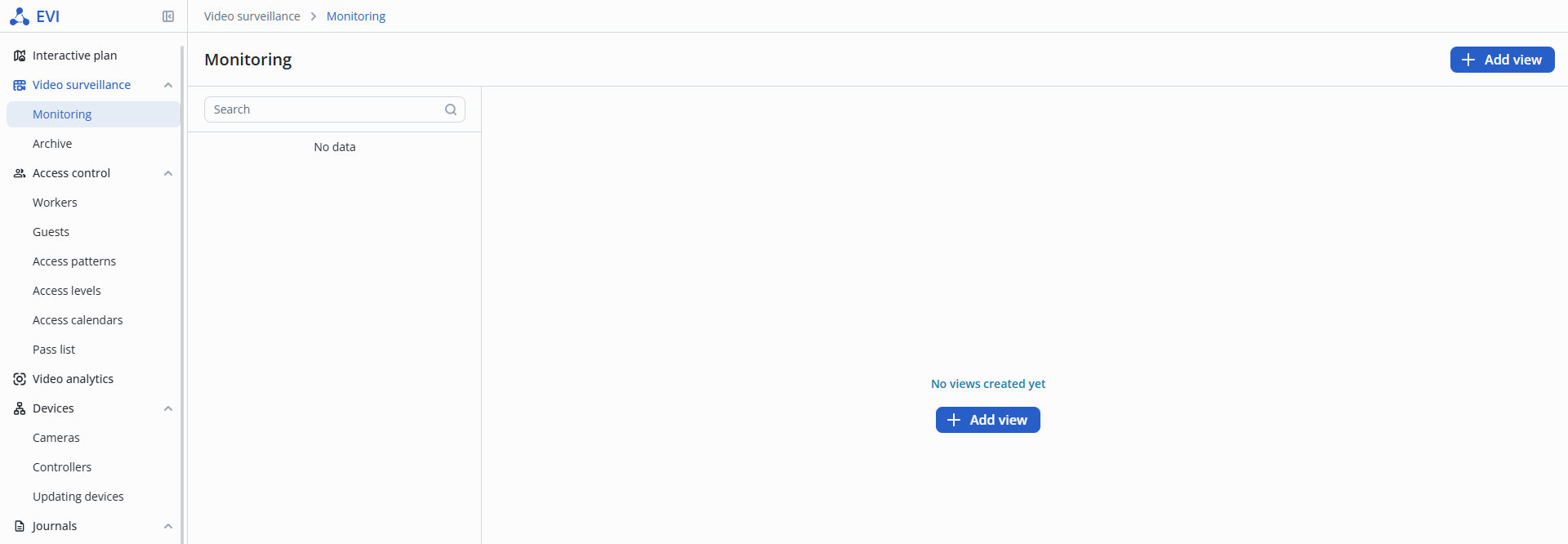
Monitoring — page in the Video surveillance section designed for working with views.
View — grid of cameras for the Security role, displayed in evi-video-client.
To create a view, switch to the Video surveillance section, select the Monitoring tab, and click the +Add view button.
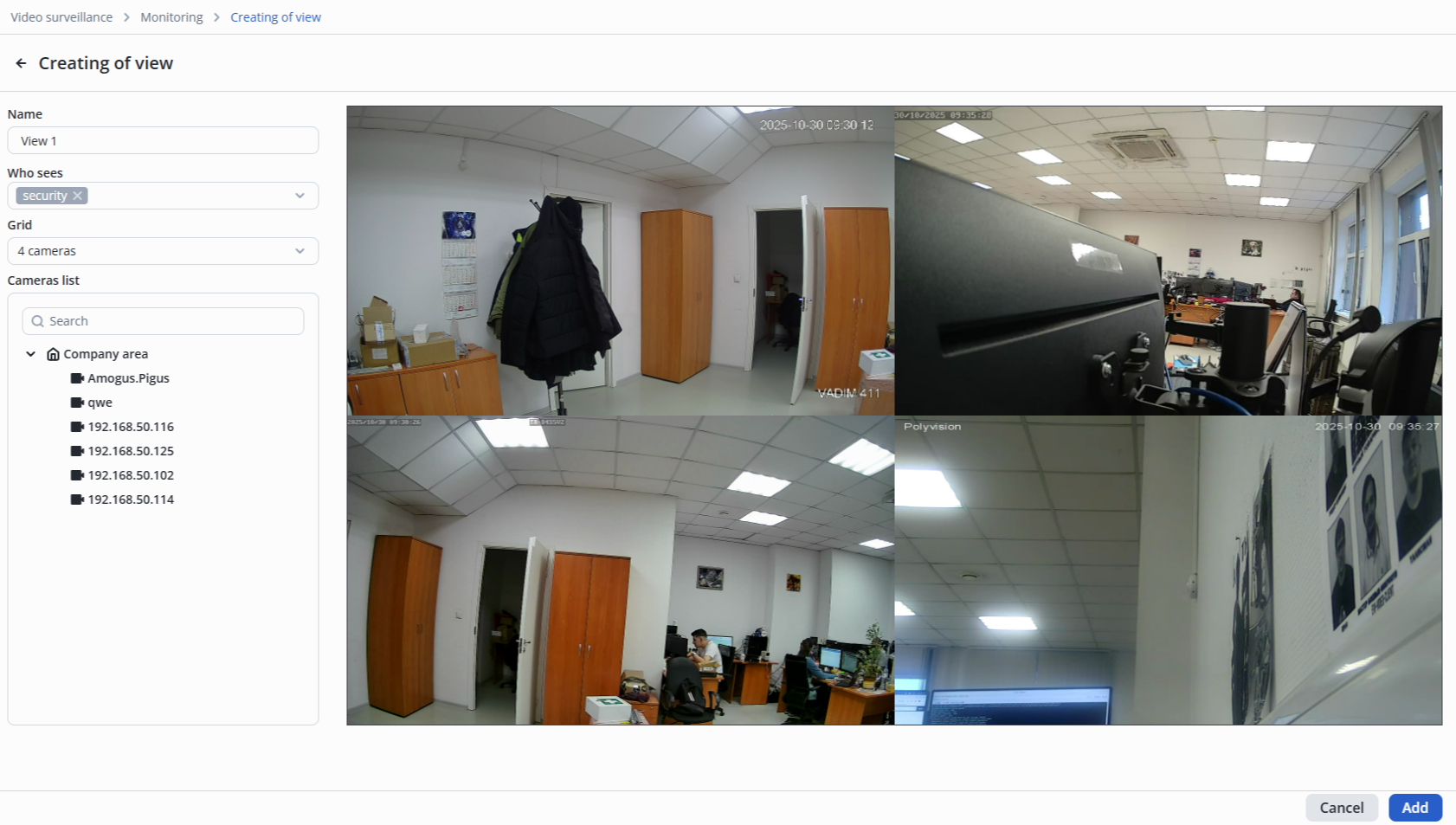
In the Name field, enter a name for the video view.
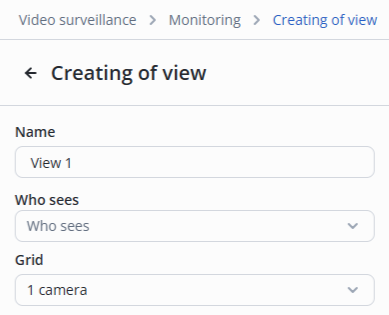
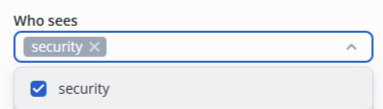
In the Who sees list, select the name of the user with the Security role.
From the Grid list, select the camera locations to be shown in evi-video-client.
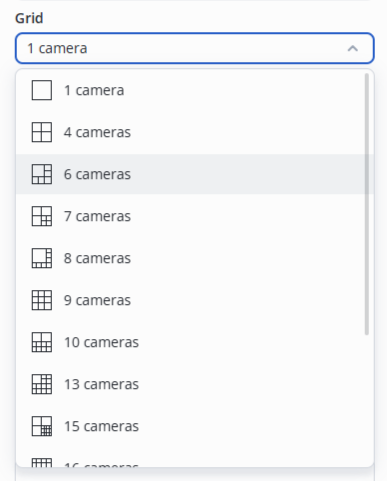
After selection, a grid of camera locations will appear on the right side of the screen.
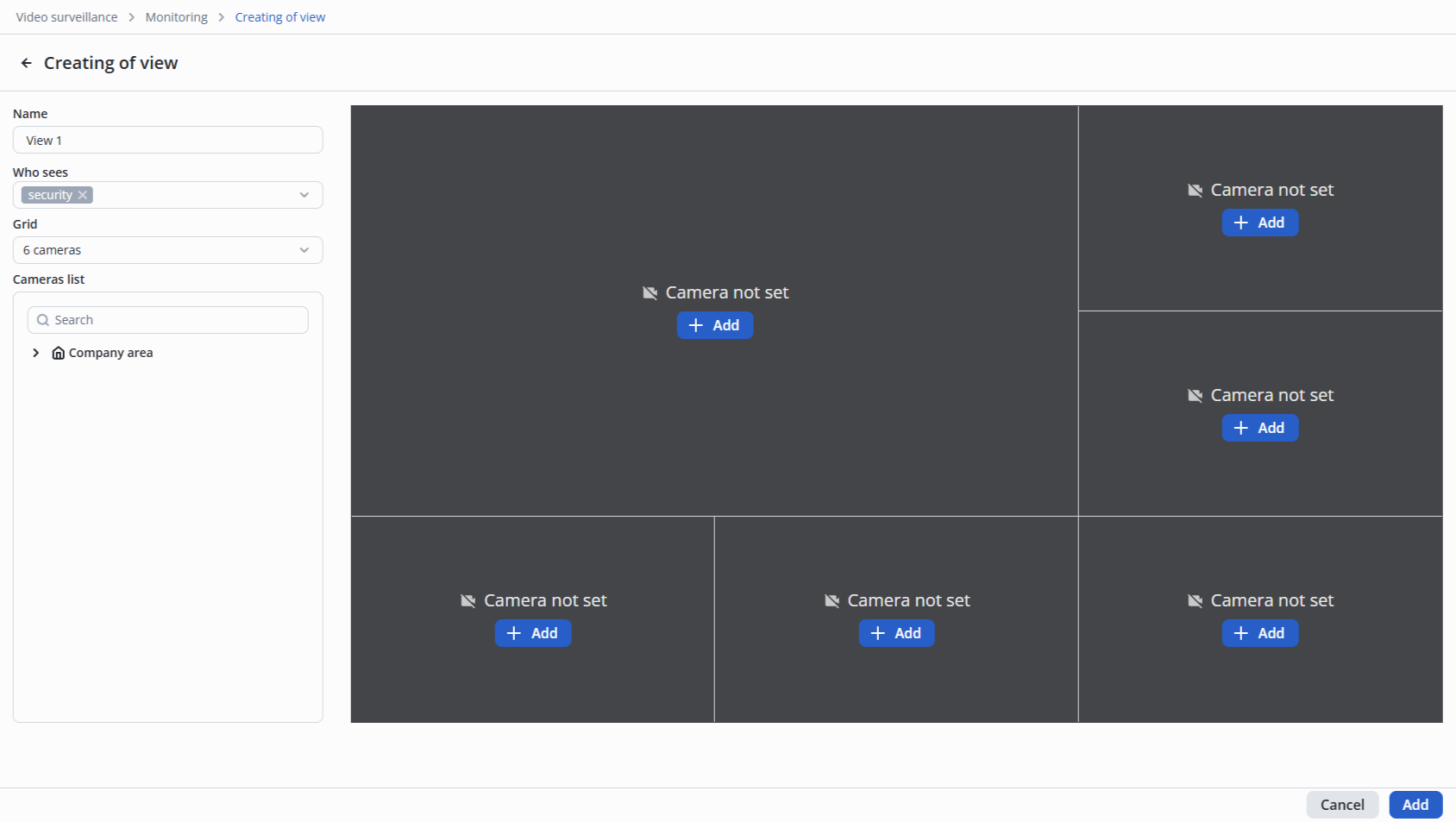
There are two ways to add cameras to the view:
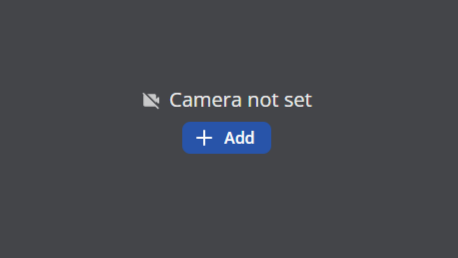
To add a camera to the video view, click the Add button.
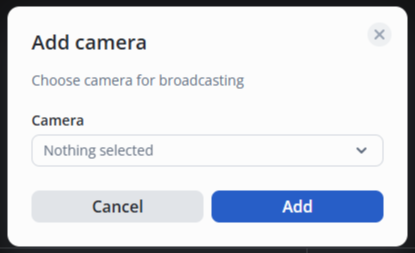
In the pop-up window that appears, open the drop-down list.
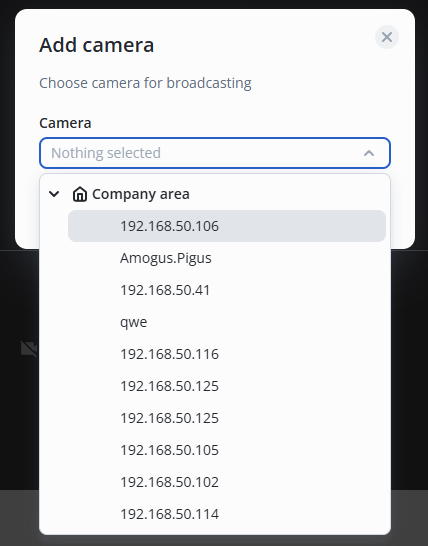
In the drop-down list, select the camera to add to the video view and click the Add button.
Find the desired camera in the camera list.
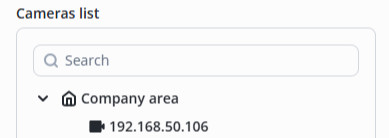
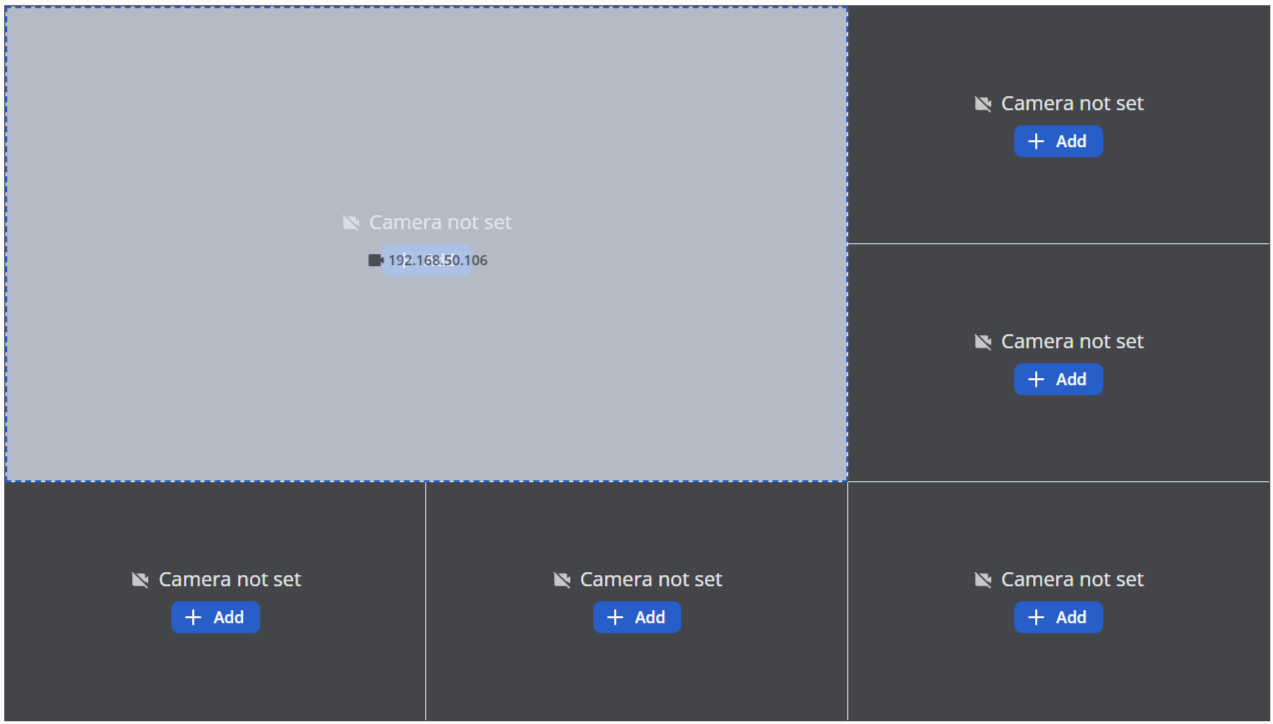
Move the mouse cursor over the desired camera and hold down the left mouse button. Without releasing the left mouse button, drag the camera to the desired cell in the view grid. Release the left mouse button after selecting the view cell.
To create a view with the selected cameras, click the Add button.
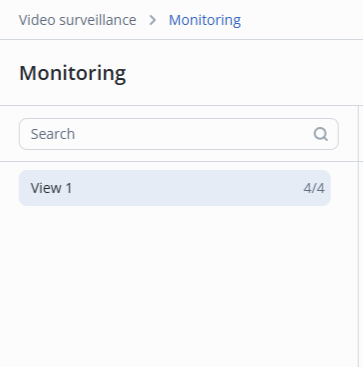
The added view will appear on the Monitoring page.
The created video view will be added to evi-video-client.