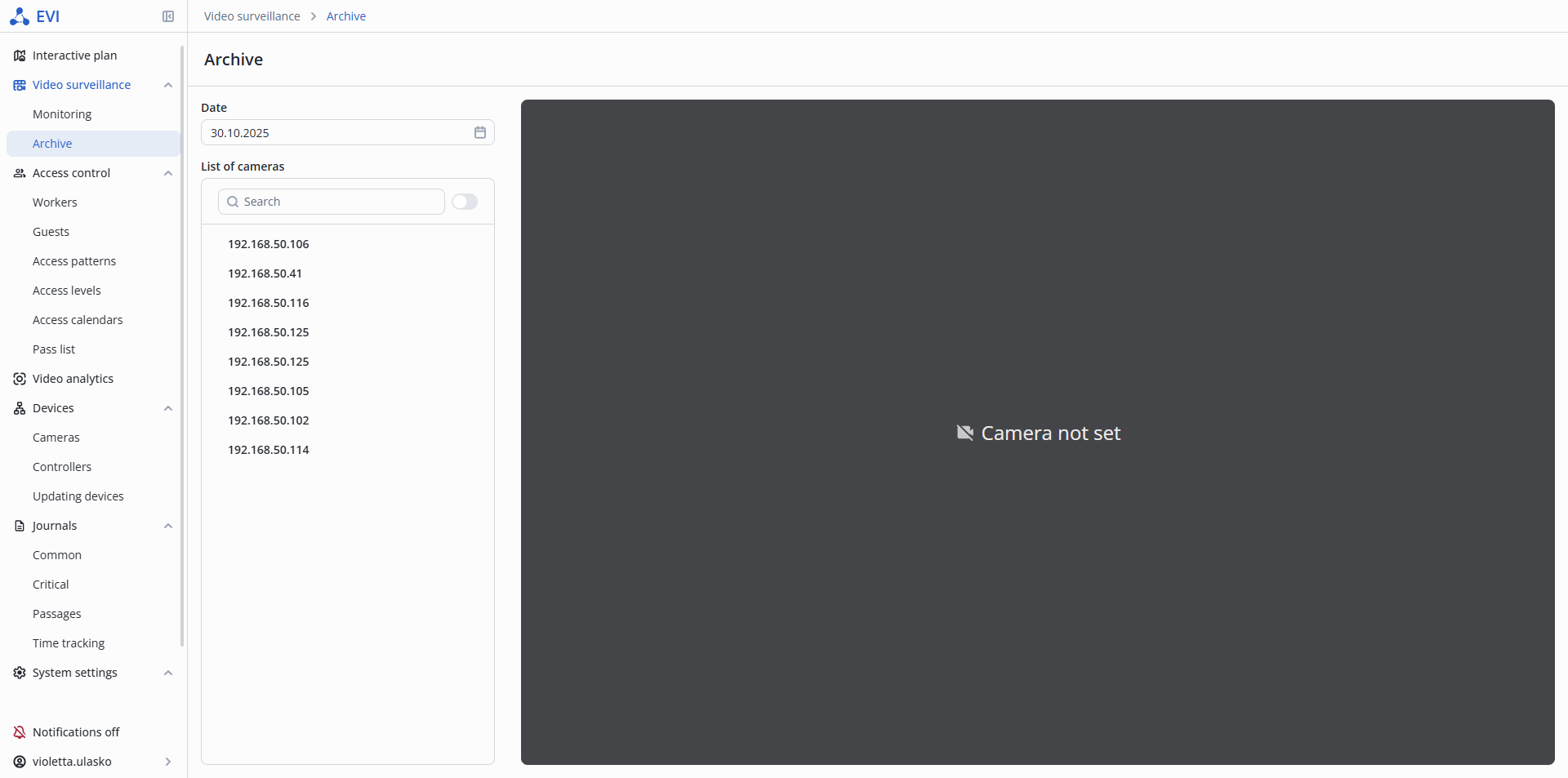
Archive — page in the Video surveillance section designed for configuring and viewing the archive on cameras.
To configure the archive on the camera, switch to the Archive page in the Video surveillance section.
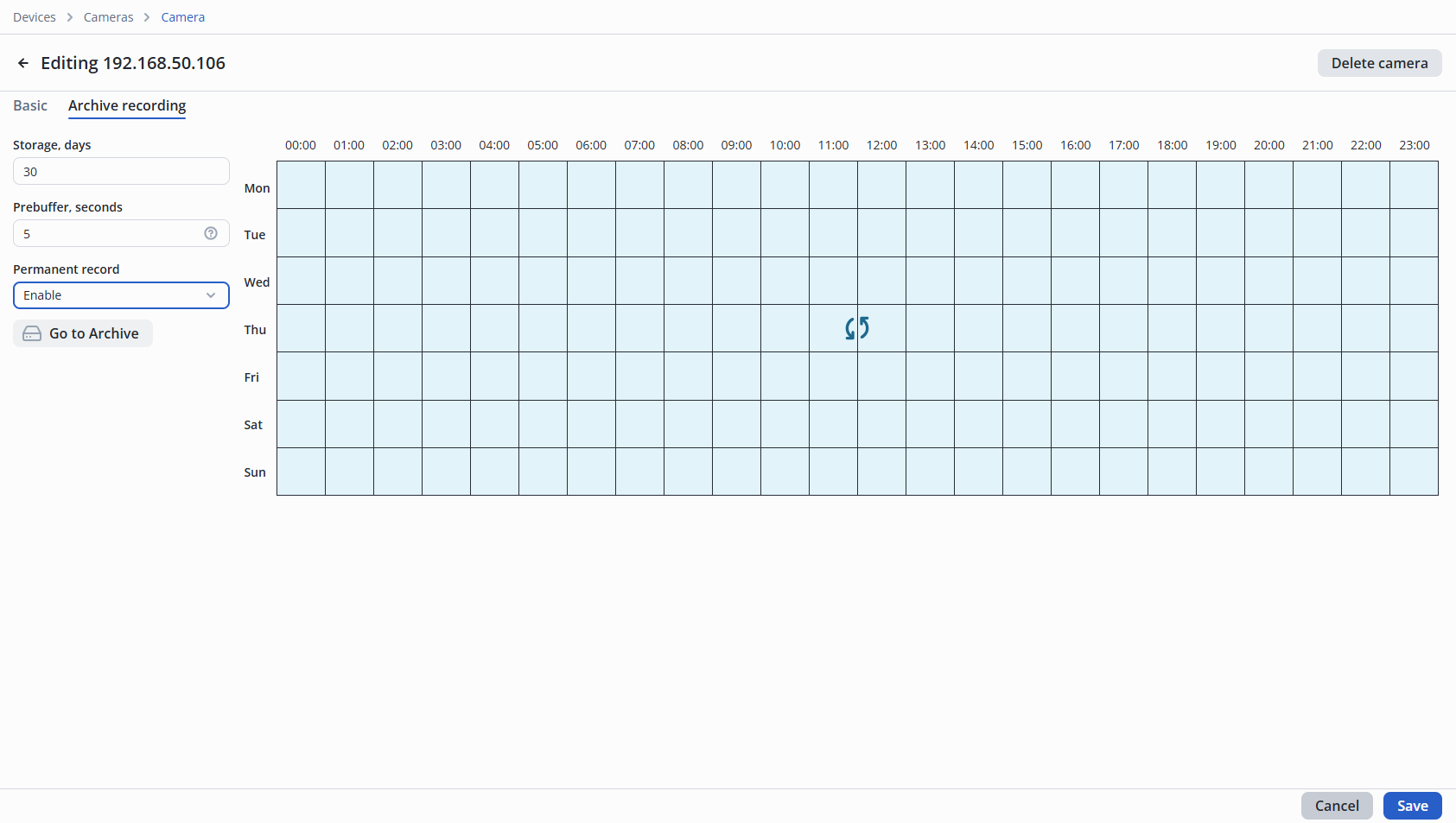
In the camera list, select the camera on which it is necessary to configure the archive, and click on the Archive settings button in the upper right corner.
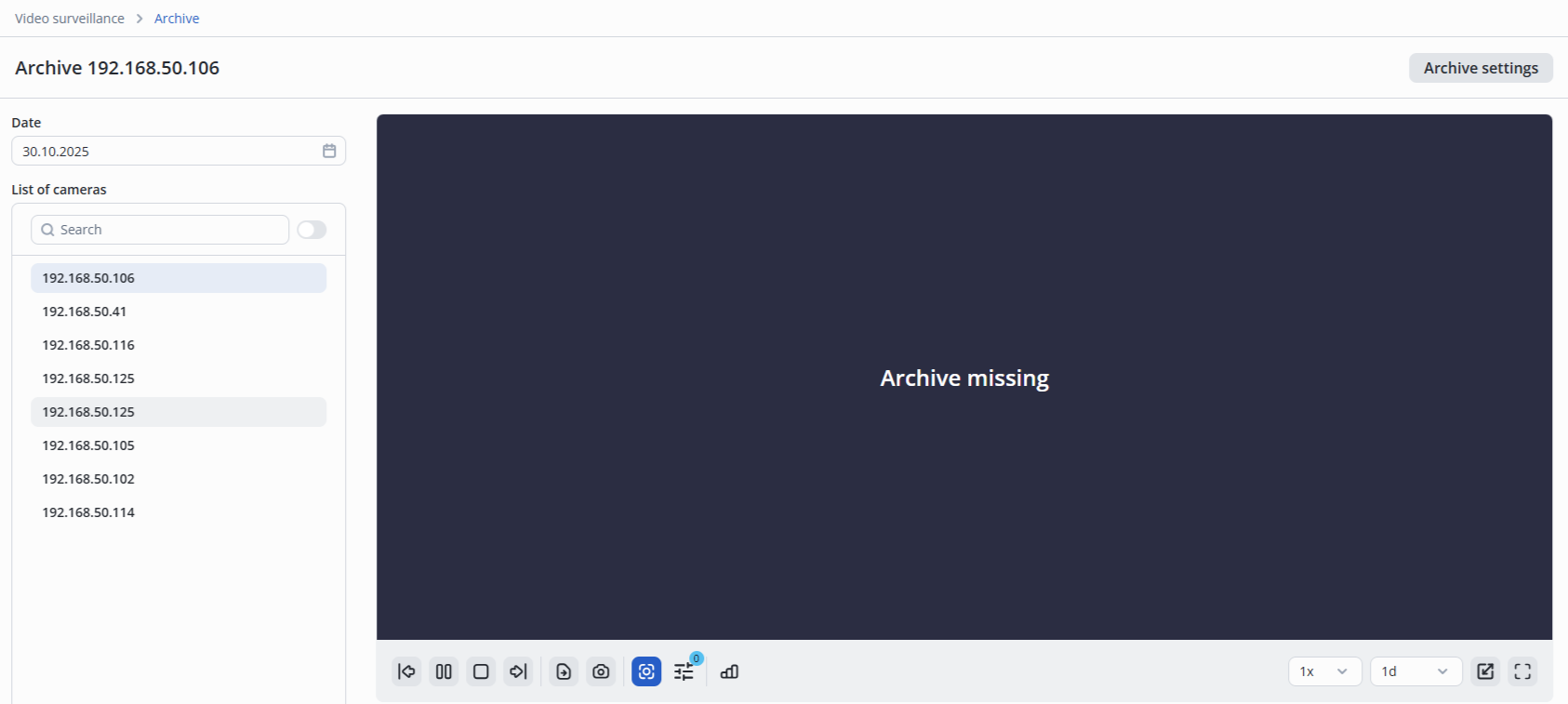
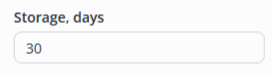
In the Storage field, enter the number of days the archive will be stored.
In the Prebuffer field, enter the number of seconds of recording before the event begins.
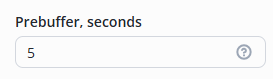
This setting is intended for use with the analytics module. If it is not necessary to work with the analytics module, this setting can be skipped. |
The Permanent record field is used to configure the permanent record type.
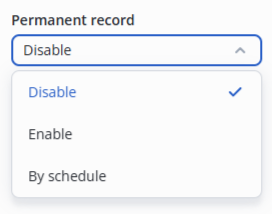
There are three types of continuous recording in the system. The default setting is Disable.
|
When selecting the By schedule type of continuous recording, the settings are configured using a schedule.
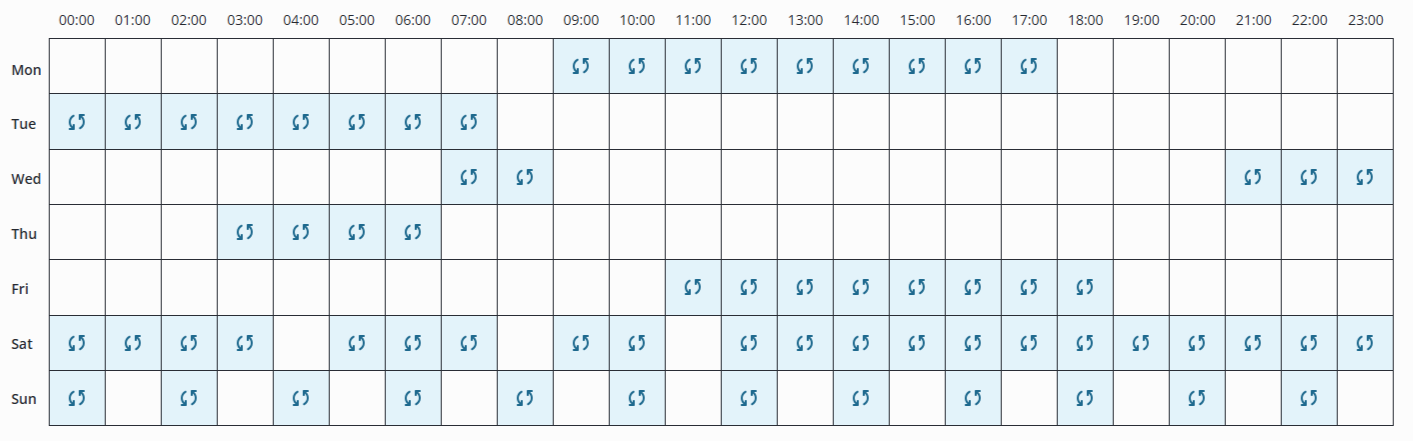
To save the archive settings, click the Save button.
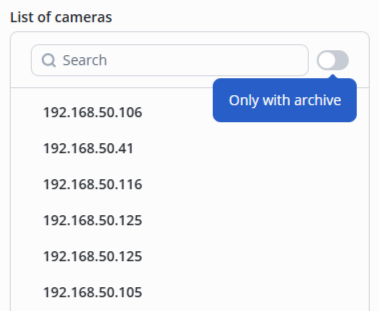
To view the archive, select the desired camera from the list. Cameras with recorded archives are marked with a green check mark in the list.
To display only cameras with archives, set the Only with archive switch to the ON position.
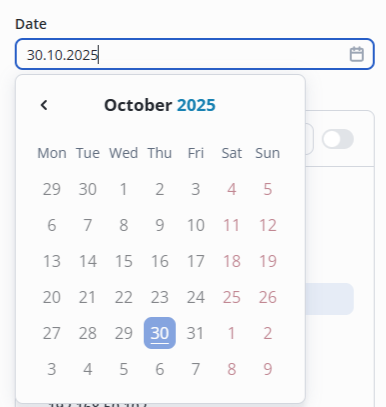
In the Date field, select the date for which the archive will be displayed. The current day is selected by default.
A player will open on the right side of the screen, which will start playing the archive for the selected date.
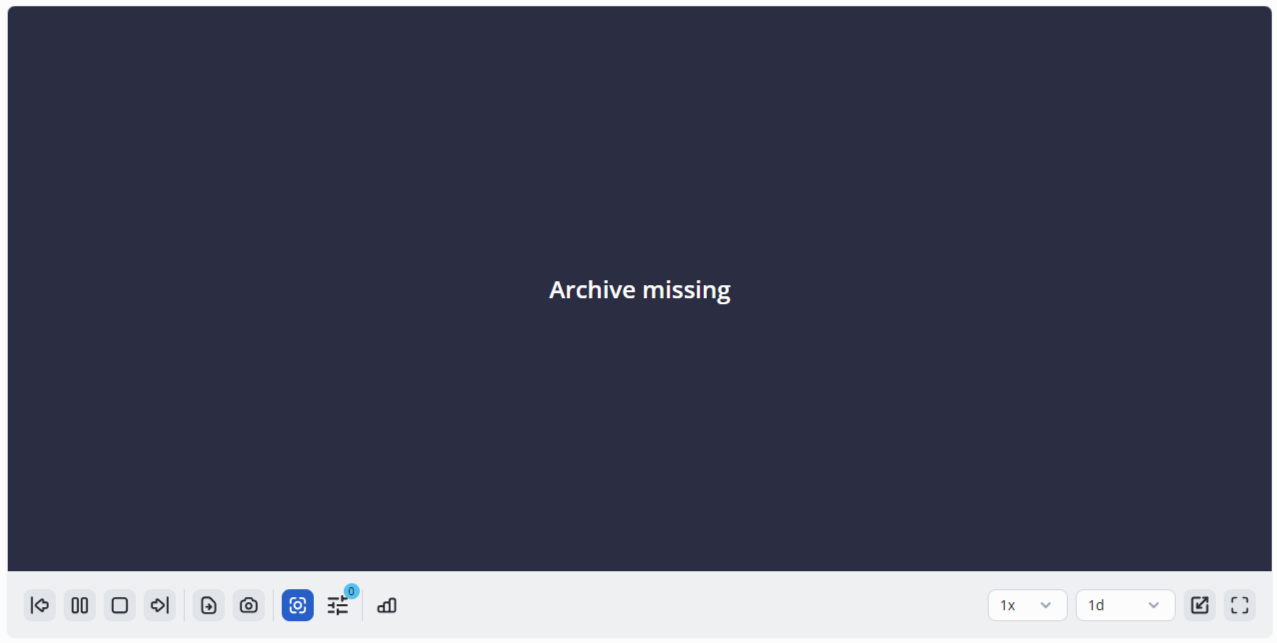
The availability of archived video recordings is highlighted on the timeline with gray markers. |
Player control buttons: