The page is used to organize access points, control relays and controllers, and to put devices on security.
Locations are necessary to track the movement history of workers and conveniently allocate access to them. |
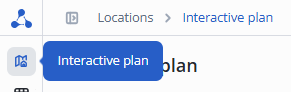
Select Interactive plan from the side menu.
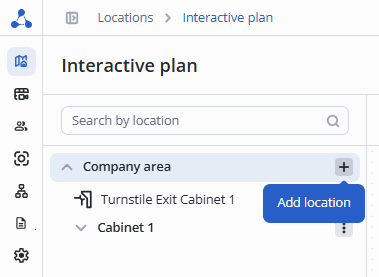
Click the + button under Company area, then Add location.
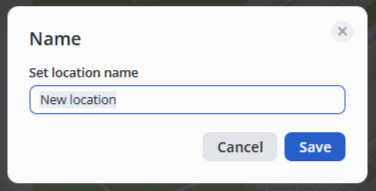
Enter the name of the new location (by default it is New location) and click save.
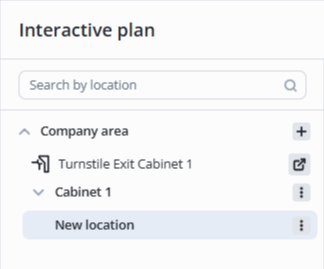
Location with the name New location will appear in the list.
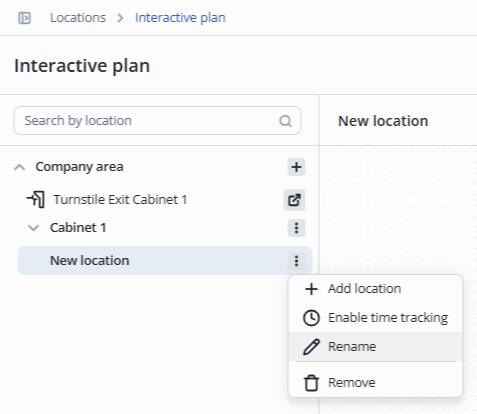
To rename a location, click on the three dots on the right side of the screen and select Rename.
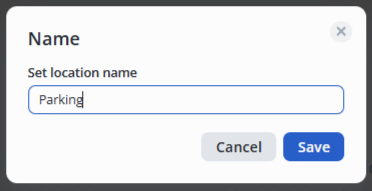
In the pop-up window, enter a name for the new location, for example, Parking, and save by pressing the Save button or the Enter key.
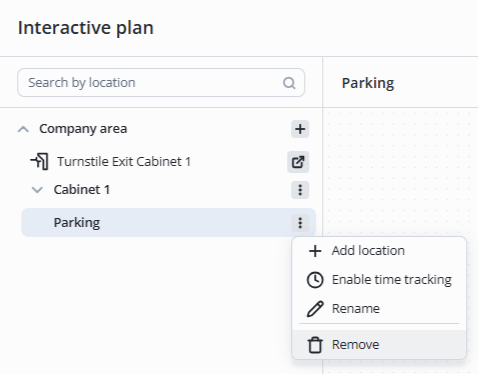
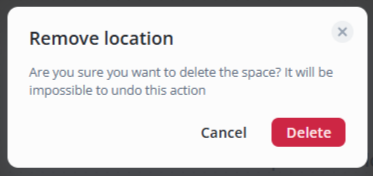
To remove a location, tap the three dots and select Remove.
In the pop-up window, click the Delete button.
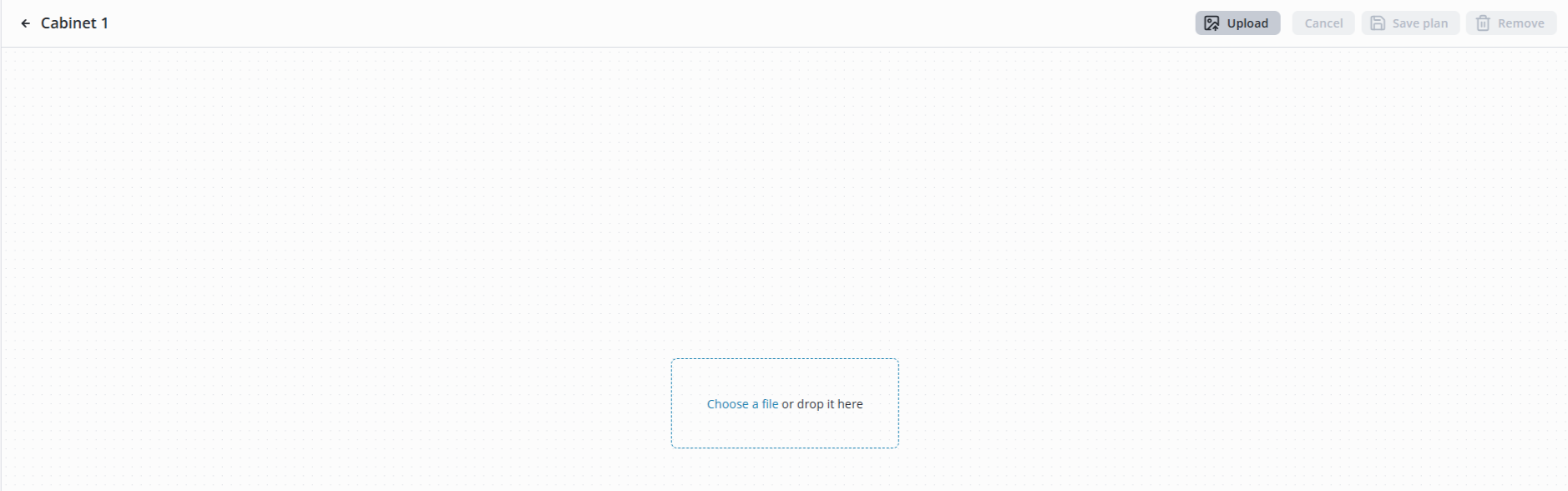
To add an image to the plan, select the required location and click the Edit button.

Click the Upload or Choose a file or drop it here button and select the plan image file from your computer.
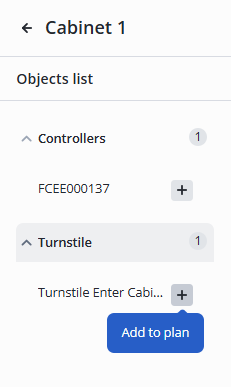
To add an object to the interactive plan, click the + button next to the object.
The objects added to the plan will be displayed in the upper left corner of the plan.
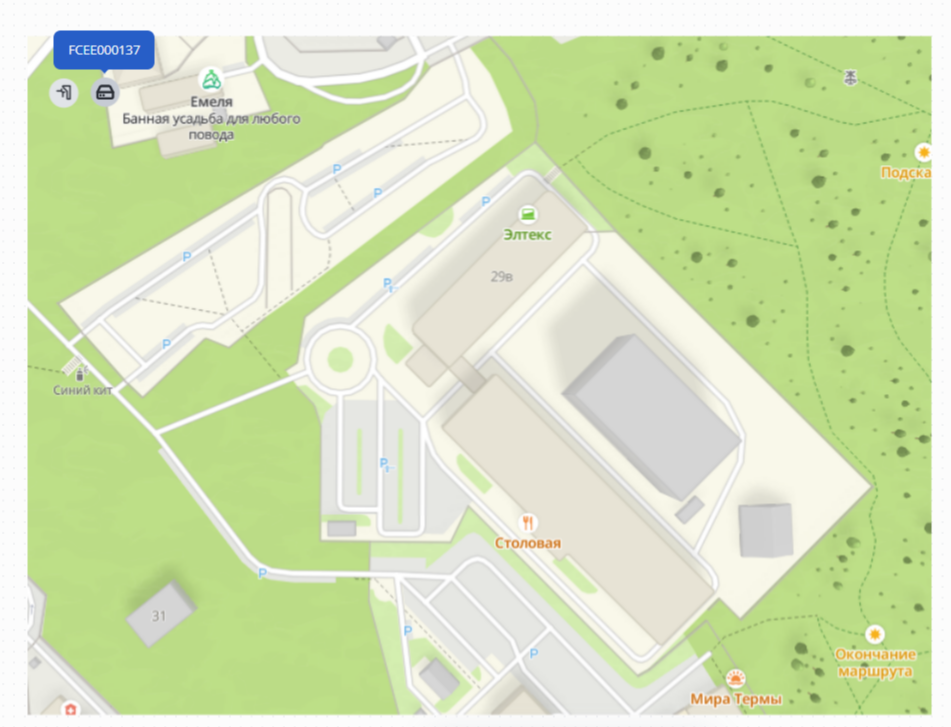
To move an object on the plan, click the Object moving button.
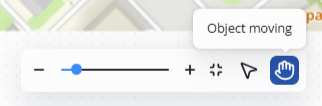
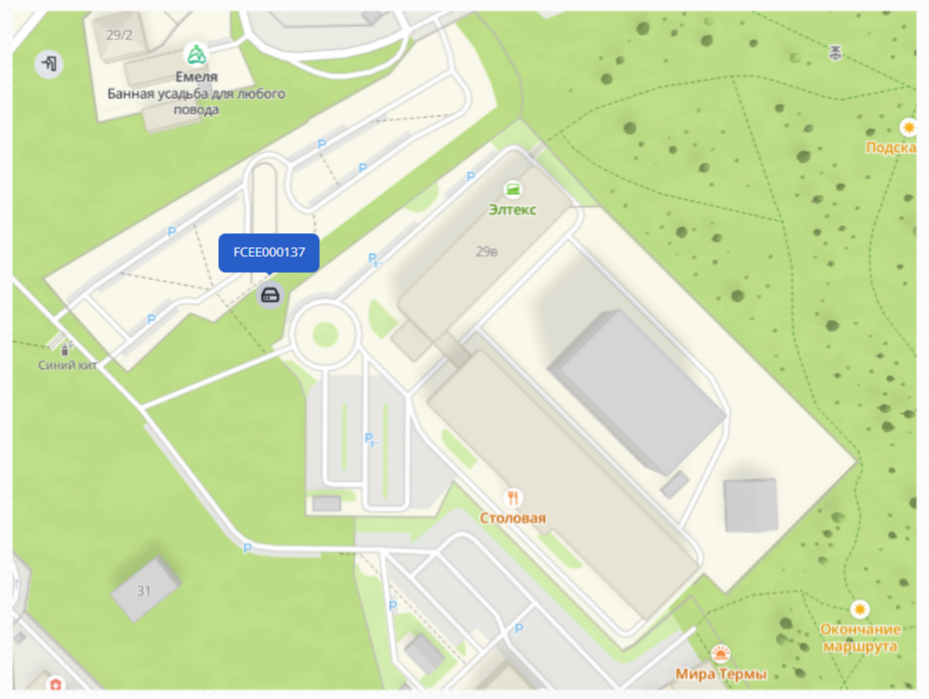
Place the cursor over the object and move it to the required location on the plan.
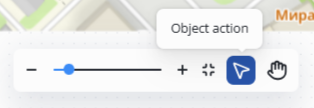
To remove an object from the plan, click the Object action button.
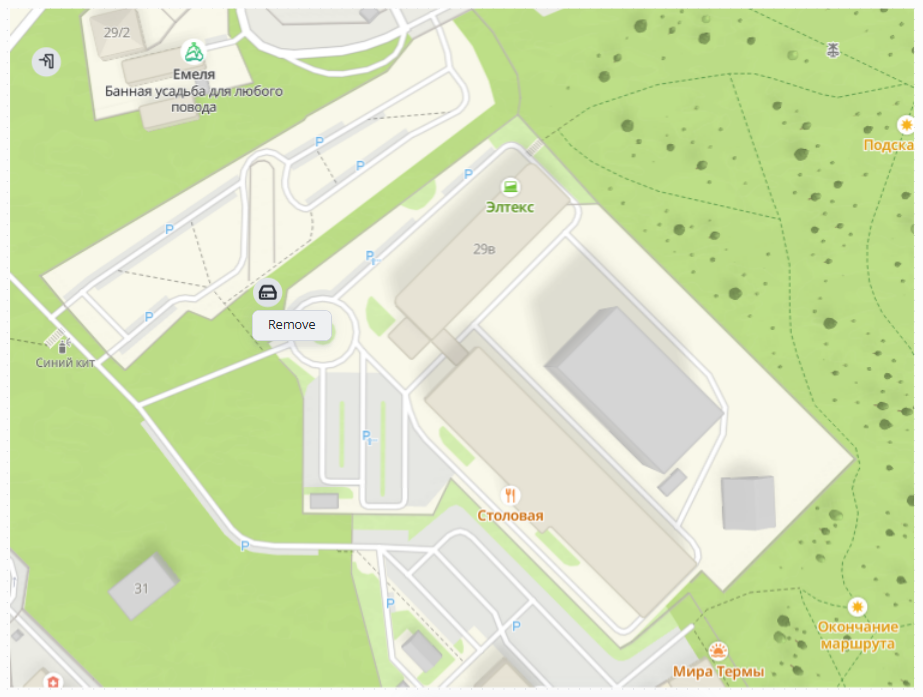
Click on the object and select Remove.
To save the plan, click the Save plan button.

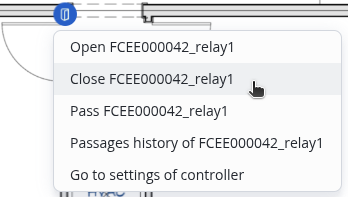
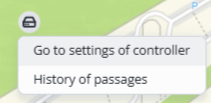
For the controller on the interactive plan, the following options are available:
For relays on the interactive plan, the following options are available: