Workers — a list of people who are granted access to premises in accordance with their authorization.
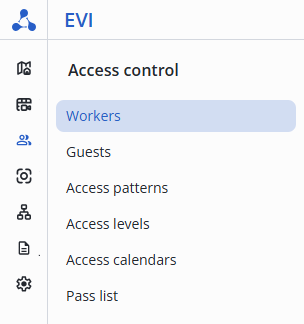
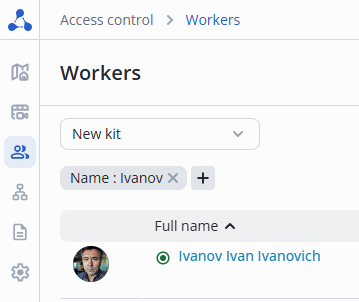
Enter the Workers page in the Access control section.
Click the + Add worker button.

To add a worker, it is sufficient to fill in the Surname and Name.
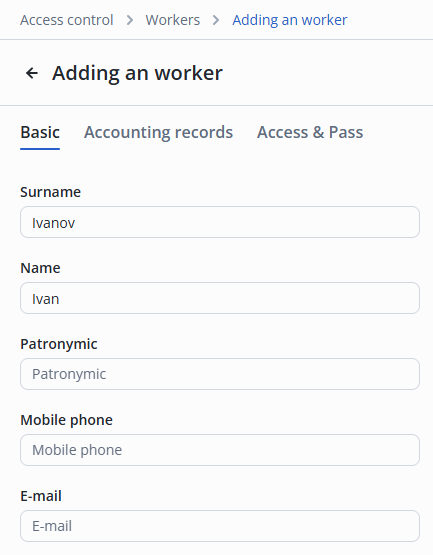
The page has 3 sections available for editing:
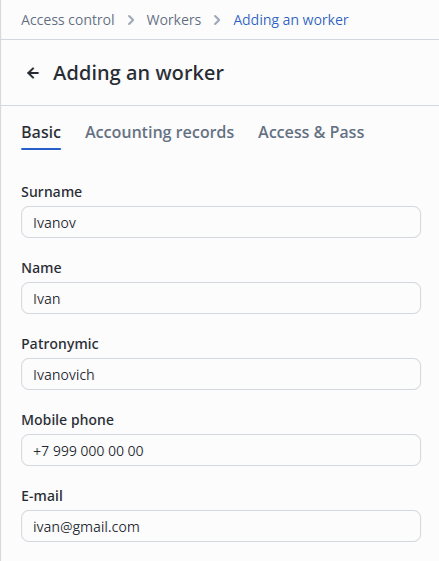
To add a photo, click the Upload photo button.
Select the worker's photo in the operating system's file manager window.
Crop the photo if required by clicking and pulling the blue edges, afterward click the Save button.

Switch to the edit section.
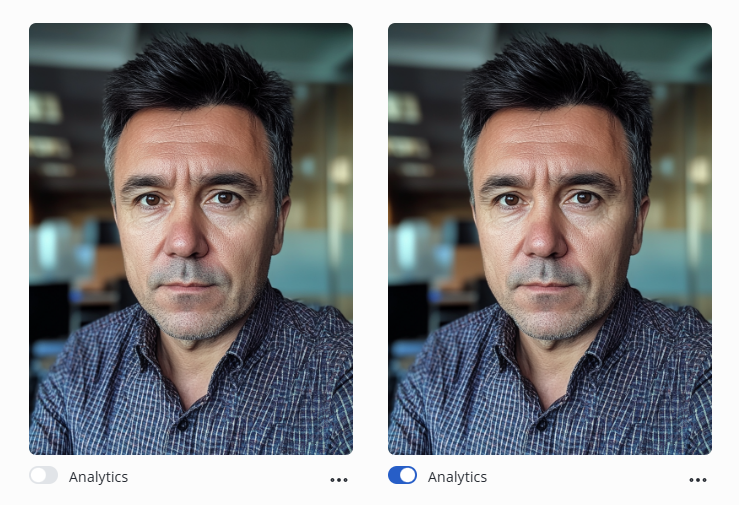
To activate analytics, turn the Analytics switch to the enabled position.
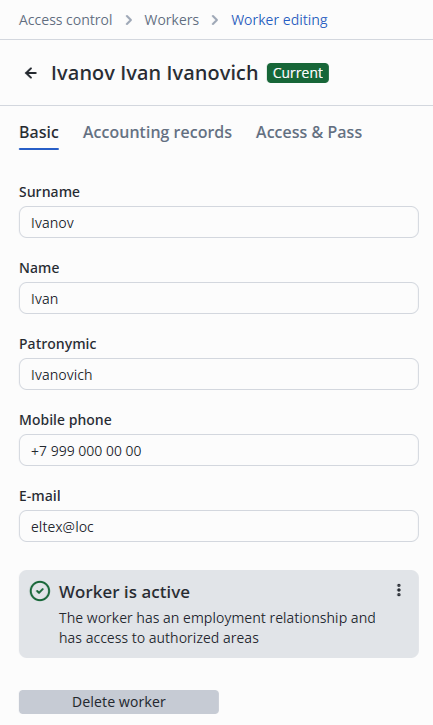
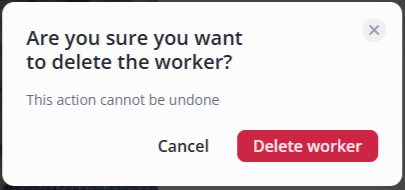
To remove a worker, click the Delete worker button.
In the pop-up window, click the Delete worker button.
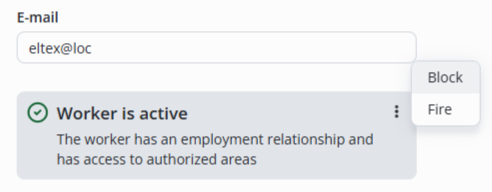
To block a worker, click on the three dots to the right of the Worker is active caption, then select Block.
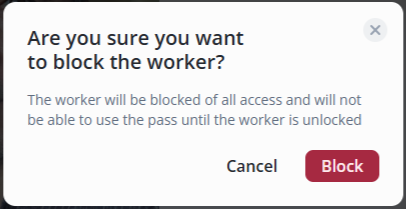
In the pop-up window, click the Block button.
The caption Current next to the worker`s name changed to Blocked.

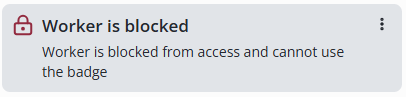
The info line changes from Worker is active to Worker is blocked.
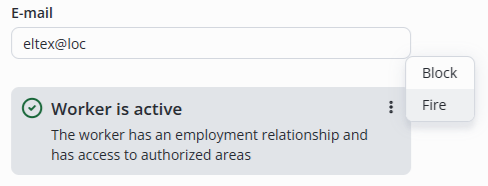
To fire a worker, click on the three dots to the right of the Worker is active caption, then select Fire.
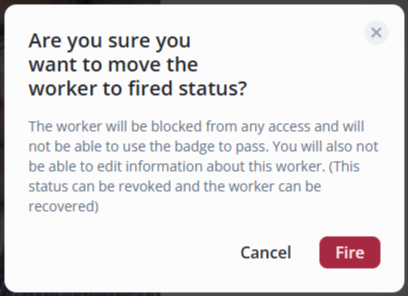
In the pop-up window, click the Fire button.
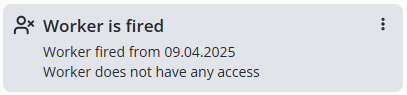
The info line changes from Worker is active to Worker is fired.
The section provides additional information about the worker:
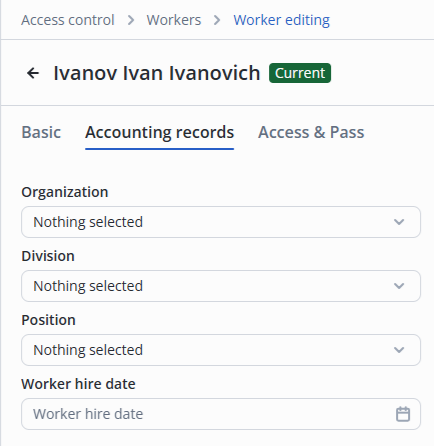
To add an organization, click on Nothing selected and enter a name in the field, such as Eltex.
After that, click the + Add "Eltex" button.
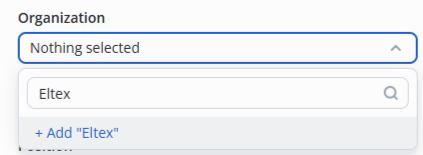
The organization is created. In the future it will be available for selection by any worker.
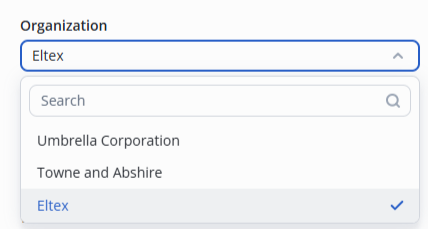
The interaction with Division and Position is similar.
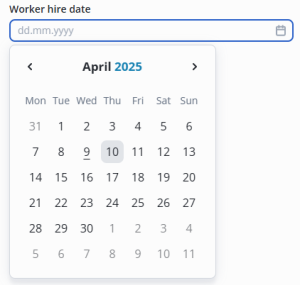
The worker hire date is selected by clicking on the input field and then selecting the day on the calendar, or by manually entering the date in the field.
In this section it is possible to configure which locations a worker may have access to and at what time. Passes and cars are also added here.
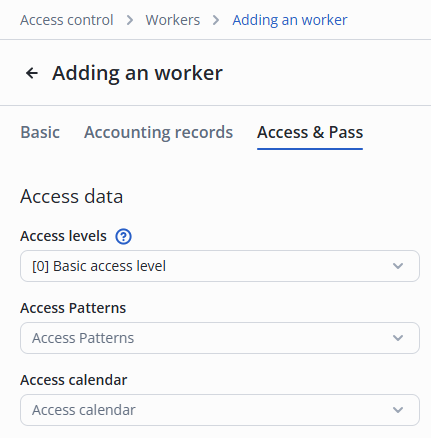
Worker access level means that the worker access priority is higher than the PACS controller schedule.
The worker is provided with access to the locations independently of the visit time specified in the PACS controller.
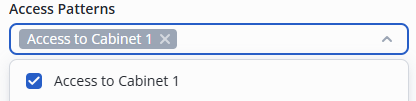
By selecting the access pattern, specify which locations the employee is provided access to.
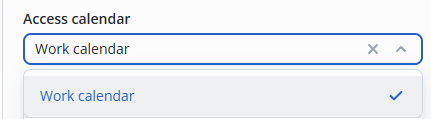
By selecting the access calendar, limit the time to visit the locations specified in the access pattern.
Section for adding, blocking and deleting worker passes.
Click the Access & Pass tab.
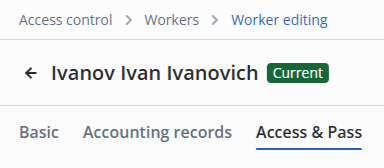
Click on the Add pass button in the Worker passes section.

Place the pass to the USB reader or enter the code from the pass. Example: 0004559976.
The pass code is entered without zeros. |
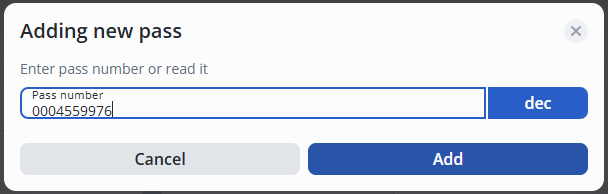
Click the Add button.
Click the Add button in the lower right corner to save the steps.
Returning a pass differs from deleting a pass only in that returning a pass requires confirmation of the pass number entry. |
To return a worker pass, click on the Return pass button in the pass card.
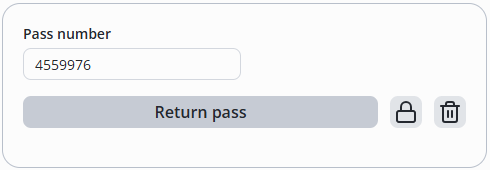
Place the pass to the USB reader or enter the code from the pass.
Click the Return button.
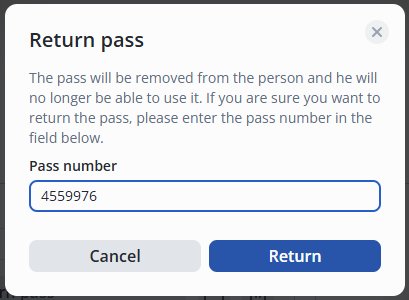
The pass will be considered returned and removed from the system.
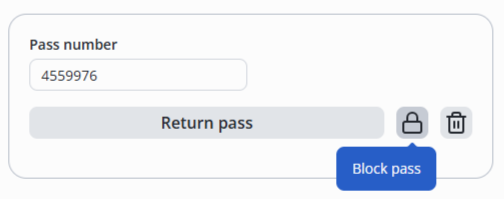
To block a worker pass, click the Block pass button in the pass card.
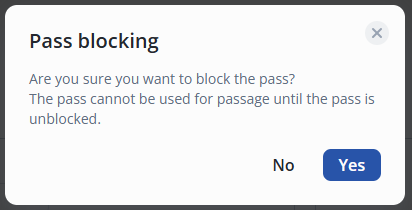
In the pop-up window, click the Yes button.
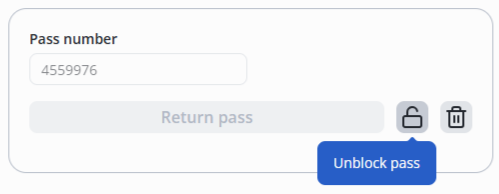
To unblock a pass, click on the Unblock pass button in the pass card.
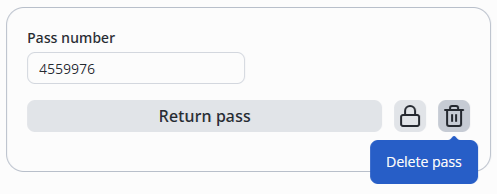
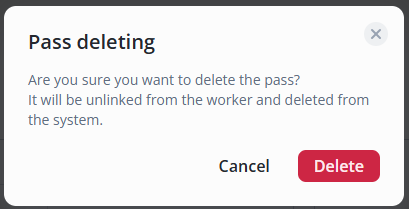
To delete a pass, click the Delete pass button in the pass card.
In the pop-up window, click the Yes button.
Section for adding, blocking and deleting a worker's car.
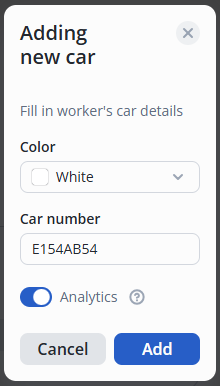
Click the Add car button in the Worker`s car section.

In the pop-up window, select the following:
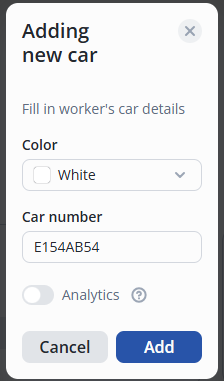
To block worker passage by license plate number, turn the switch to the active position.
Available only with Analytics module. |
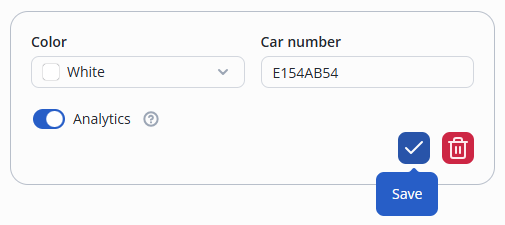
Then click the Save button in the car card.
To remove a car, click the Remove button in the car card.
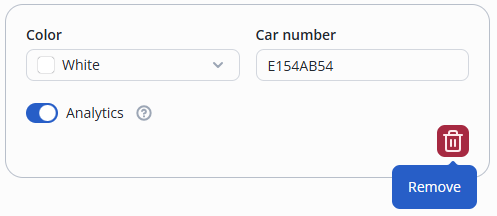
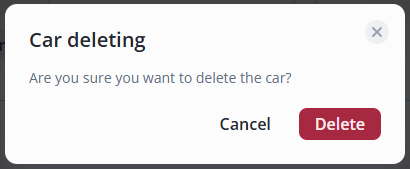
In the pop-up window, click the Delete button on the right.