The access calendar limits the worker/guest the time of the visit.
If an employee does not have an access calendar or the access calendar is empty, there is no time limit for a worker to visit locations.
There are two types of access calendars in the EVI Platform:
There is only one system guest calendar in version 1.4. The guest calendar is assigned to all guests by default. The calendar is empty therefore time access is limited. The calendar settings are prioritized over the time specified in the guest's visit period, thus the guest calendar must first be configured for guests to be able to pass. |
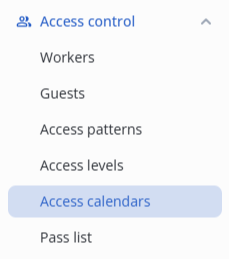
Enter the Access control section, and select the Access calendar item in the menu.
Click the Add calendar button.

Specify the name and description of the access calendar.
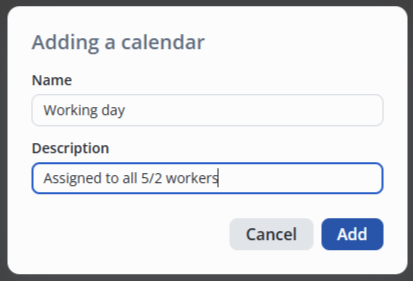
Click the Add button.
To edit Worker or Guest access calendar, click on the calendar name in the list.

The access calendar opens.
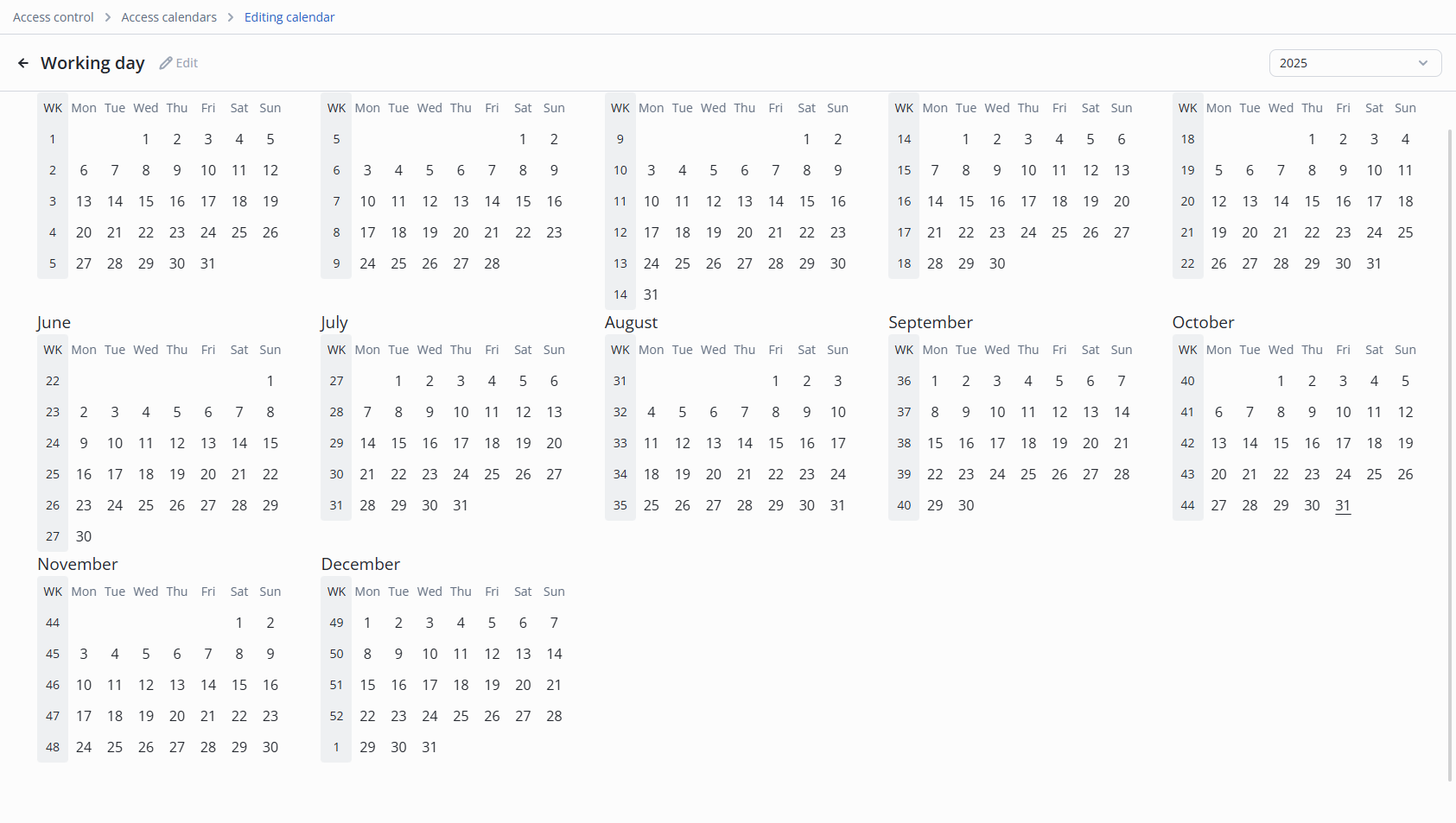
Example: during the year a standard five-day working pattern from 9:00 to 18:00.
To configure, as in the following example, it is necessary to select the entire year.
Select January 1 and then December 31.
In the pop-up window, the following settings are available:
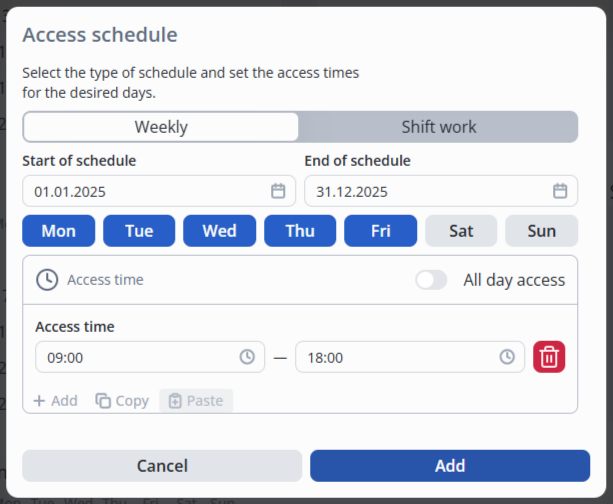
To configure, select the following:
Click the Add button.
The days of the calendar are colored blue.
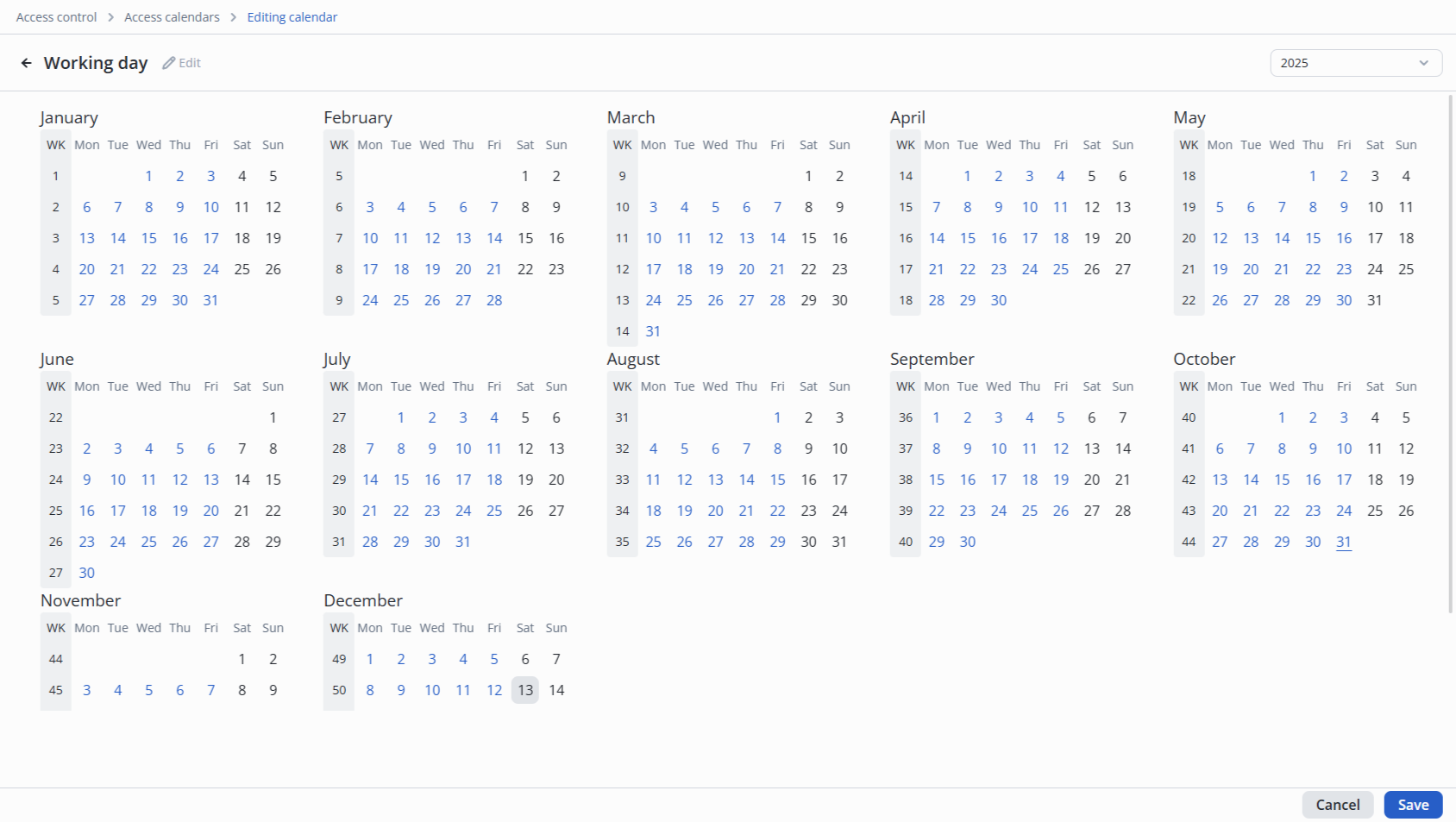
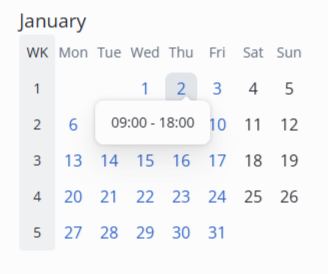
If you move the cursor over the date, the access time within the day is displayed.
To save changes in the calendar, click the Save button in the lower right corner.

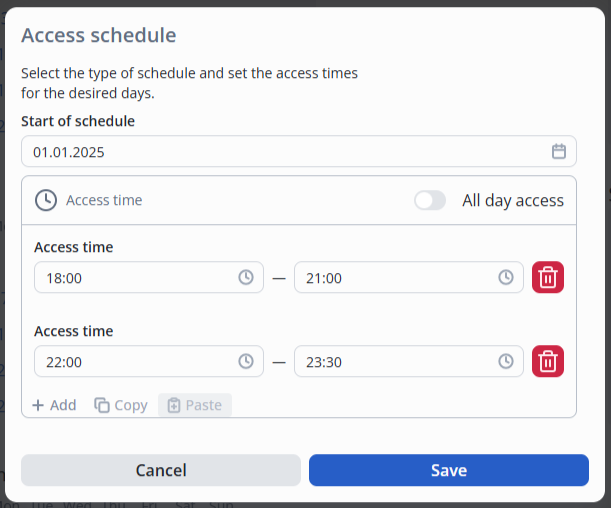
To add multiple time periods within one day, click the +Add caption.
Left click on the three dots in the calendar line.
Select the Remove option.

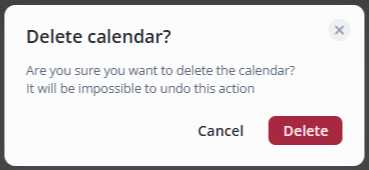
In the pop-up window, click the Delete button.