Firmware version 2.2.0 |
|
Notes and warnings
Notes contain additional information on using and configuring the device. |
Tips contain important information, tips or recommendations on device operation and setup. |
The IPA-ER-020 PACS controller is a multifunctional device designed for integration with the ELTEX access control system. Access may be granted via an RFID key, the "Exit" button, a command from the web interface, or an API command. The controller accommodates readers with Wiegand-26/34/37/40/42/58 interfaces for the retrieval of RFID keys. This device is capable of locally storing up to 10,000 keys and maintaining a log of 50,000 events. The device has a plastic housing and can be mounted on a DIN rail.
| IPA-ER-020 | |
| RAM | 128 MB |
| Flash | 32 MB |
| ОS | Linux |
| Ethernet interface | 10/100BASE-T |
| Connection types | static IP, DHCP |
| Power realy outputs with COM, N.O., N.C. contacts | 2 |
| Digital relay outputs for light loads | 2 |
| Wiegand interface | 2 |
| RS-485 interface | 1 |
| Digital fire alarm input | 1 |
| Digital input for connecting the external intrusion sensor | 1 |
| 1-Wire interface | 2 |
| Network protocols | SSH, NTP, ICMP, ARP, DNS, FTP, TFTP, HTTP(S) |
| Indication | power supply, device status, data reception and transmission, relay status, digital output status |
| Power supply voltage | 12 V |
| Operating temperature range | from –40 °С to +60 °С |
| Operating humidity | from 10% to 80% non-condensing |
| Dimensions (W × H × D) | 159.5 × 57.5 × 90.2 mm |
| Weight | 0.302 kg |
| Lifetime | no less than 5 years |
The figures below show the use of IPA-ER-020 controllers:
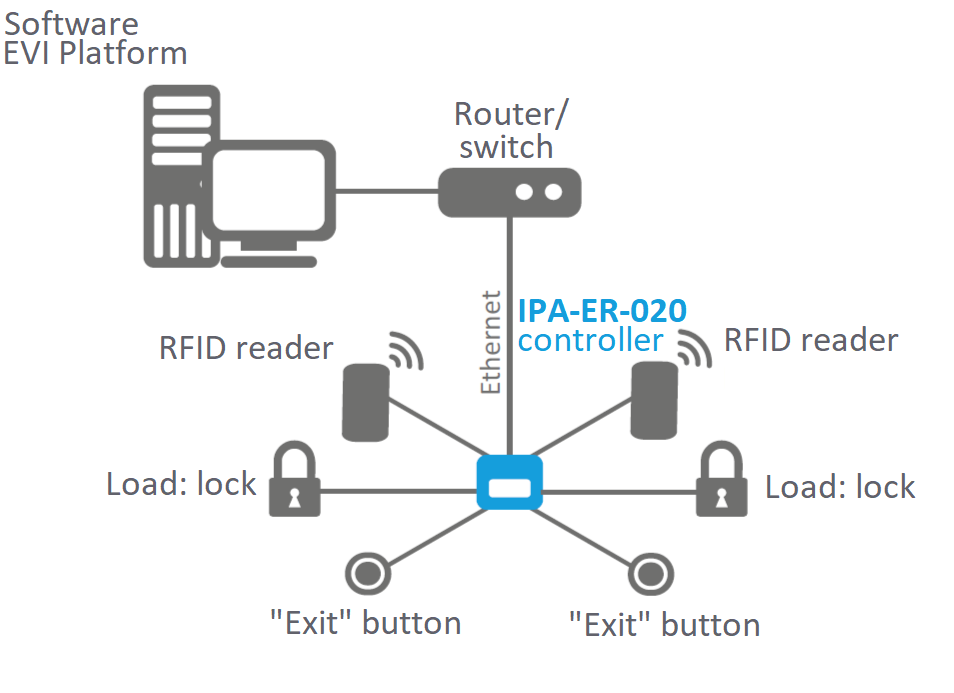
Figure 1 — IPA-ER-020 use case
The IPA-ER-020 controller is made in a plastic case measuring 159.5 × 57.5 × 90.2 mm with the ability to mount on a DIN rail.
The appearance of the device is shown in the figure below:
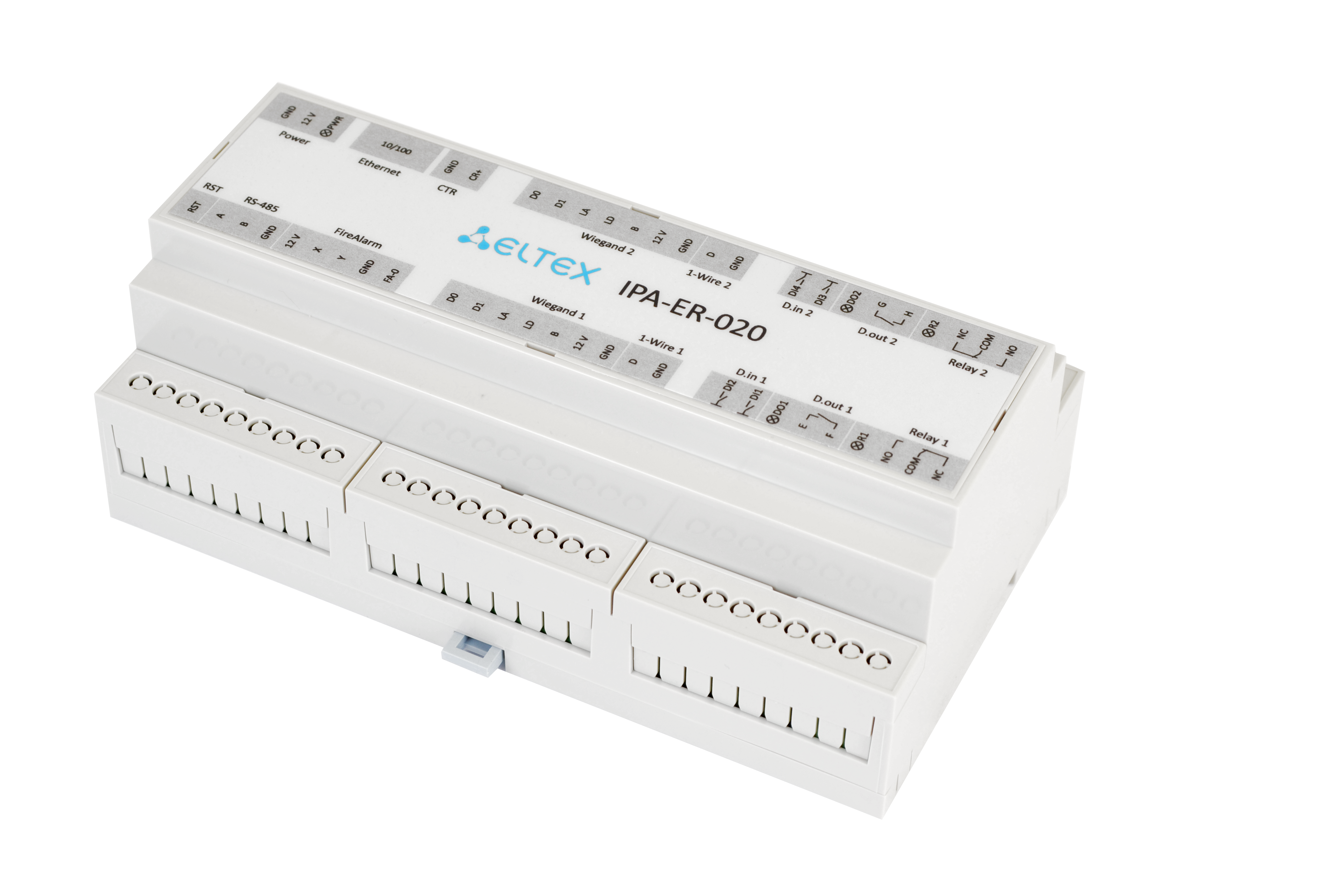
Figure 2 — Appearance of IPA-ER-020
The diagram below shows the functional elements of the devices:
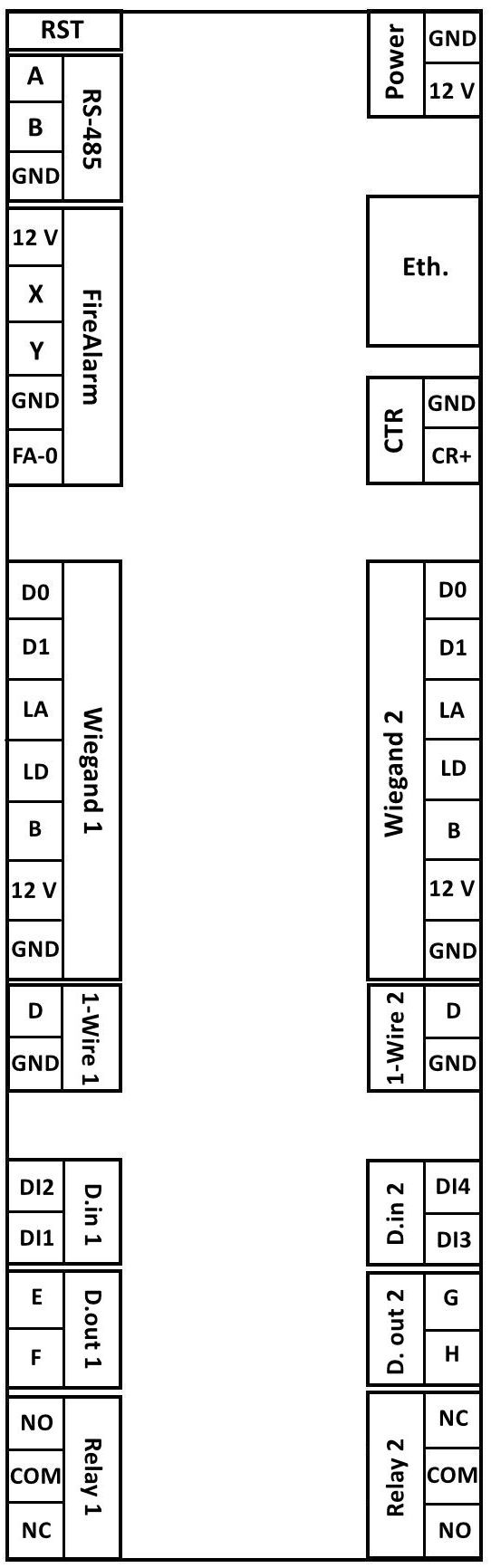
Figure 3 — Functional elements of IPA-ER-020
The description of the IPA-ER-020 elements is provided in the table below:
| Element | Description |
|---|---|
| RST — service button for reboot/reset settings | |
| RS-485 — connection contacts to the RS-485 bus: | |
| A | original signal transmission line contact |
| B | inverted signal transmission line contact |
| GND | COM |
| FireAlarm — fire alarm connection | |
| 12V | power supply 12 V |
| X | fire alarm input 1 |
| Y | fire alarm input 2 |
| GND | COM |
| FA-0 | contacts for setting the fire alarm actuation state |
| Wiegand 1, Wiegand 2 — connection contacts of the Wiegand RFID reader: | |
| D0 | data 0 |
| D1 | data 1 |
| LA | green LED |
| LD | red LED |
| B | beep |
| 12V | power supply 12 V |
| GND | COM |
| 1-Wire 1, 1-Wire 2 — connecting the device via the 1-Wire interface: | |
| D | data line |
| GND | COM |
| D.in 1, D.in 2 — digital dry contact inputs: | |
| DI1 | digital input 1 |
| DI2 | digital input 2 |
| DI3 | digital input 3 |
| DI4 | digital input 4 |
| D.out 1, D.out 2 — digital relay outputs for small loads: | |
| E | contact 1 of low-power relay 1 |
| F | contact 2 of low-power relay 1 |
| G | contact 1 of low-power relay 2 |
| H | contact 2 of low-power relay 2 |
| Relay 1, Relay 2 — power relay contacts: | |
| NO | contact state "normally open" |
| COM | common contact of power relay |
| NC | contact state "normally closed" |
| Power — controller power connection pins: | |
| GND | COM |
| 12V | power supply 12 V |
| Eth. — Ethernet network interface | |
| CTR — external sensor/button contacts: | |
| GND | COM |
| CR+ | signal contact |
The basic supply package includes:
Do not install near heat sources;
The following auxiliary equipment can be connected to IPA-ER-020 controller:
The assignment of digital DI1-4 inputs and the operating mode can be changed in the web configurator. |
The equipment is connected according to the contact group layout shown in Figure 3.
For starting the operation connect the patch cord to the Ethernet interface and supply 12V power to the device.
Power connection of IPA-ER-020 device is made to screw terminals GND and 12V, indicated on the decorative label as Power. To provide power, it is necessary to use a pulse power supply with the following output parameters: voltage +12 V, current 1.5 A.
A separate power supply must be used to connect the electromagnetic locks. Parameters of the unit are selected depending on parameters of locks. |
The maximum load current at the 12V output terminals of the Wiegand 1 and Wiegand 2 interfaces shall not exceed 50mA. To connect an additional load to the controller, for example, the backlight of the "Output" button, it is necessary to use the 12V contact of the FireAlarm interface. Maximum total load current shall not exceed 50mA. |
If it is necessary to provide backup power to the controller, it is allowed to use an uninterruptible power supply. |
IPA-ER-020 supports external fire alarms. When a fire alarm is triggered, the Relay 1 and Relay 2 power relays are forced to open. When the signal stops, the relays close and the controller returns to normal operation.
External fire alarms are connected to the FireAlarm contacts. There are two possible connection methods:
The logic of FireAlarm is determined by the position of the FA-0 jumper (options are shown in the figure below):
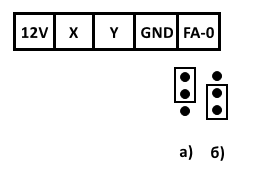
Figure 4 — FireAlarm interface FA-0 jumper positions
If the fire alarm uses the supply or removal of power as control (e.g. parallel to the lamp/annunciator) signals connect it to the controller via the FireAlarm X and Y contacts.
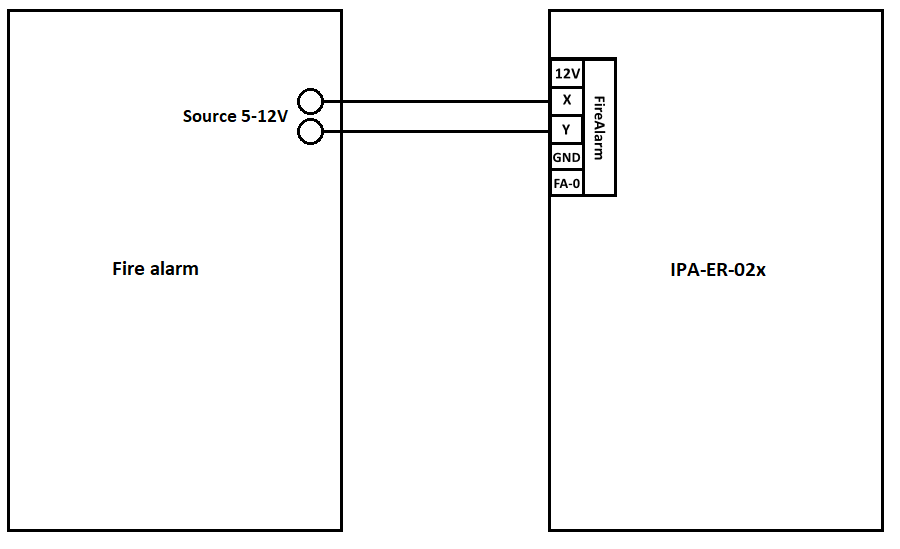
Figure 5 — Connection of fire alarm to FireAlarm by power actuation diagram
The voltage supplied from the fire alarm to the X and Y contacts must be at least 5 V. |
The polarity of the power connection to the X and Y pins is not important. |
| Jumper position FA-0 | Voltage between X-Y contacts | FireAlarm status |
|---|---|---|
| 1 | No | Inactive |
| 1 | Yes | Active |
| 2 | No | Active |
| 2 | Yes | Inactive |
FireAlarm status value:
If the fire alarm uses a dry contact type short or open key as control signals, connect pin 12V to pin X. Connect the lines from pins Y and GND to the fire alarm.
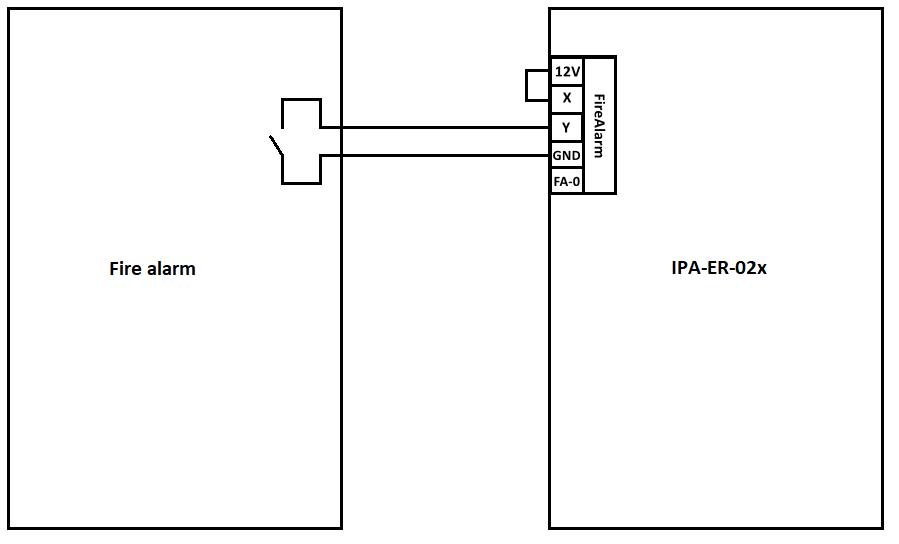
Figure 6 — Connection of fire alarm to FireAlarm by "dry contact" key actuation scheme
| Jumper position FA-0 | Y-GND status | FireAlarm status |
|---|---|---|
| 1 | Closed | Active |
| 1 | Open | Inactive |
| 2 | Closed | Inactive |
| 2 | Open | Active |
FireAlarm status value:
This section describes the configuration process through the web configurator.
After power-up, the device boots with a static IP address of 192.168.1.10 and waits for DHCP network settings. After the DHCP server responds, the device uses the data (IP address, mask, gateway) received from the server.
The web interface is available over HTTP.
When opening the web interface, an authorization page appears.:
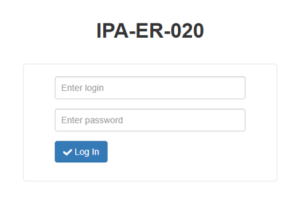
Figure 7 — Authorization page
Enter username and password in the appropriate fields and click "Log in."
Default parameters: login — admin, password — admin. |
1. Switch to the "Administration" -> "Security" page and, for security purposes, change the password of the admin user to arbitrary. The default value is admin.
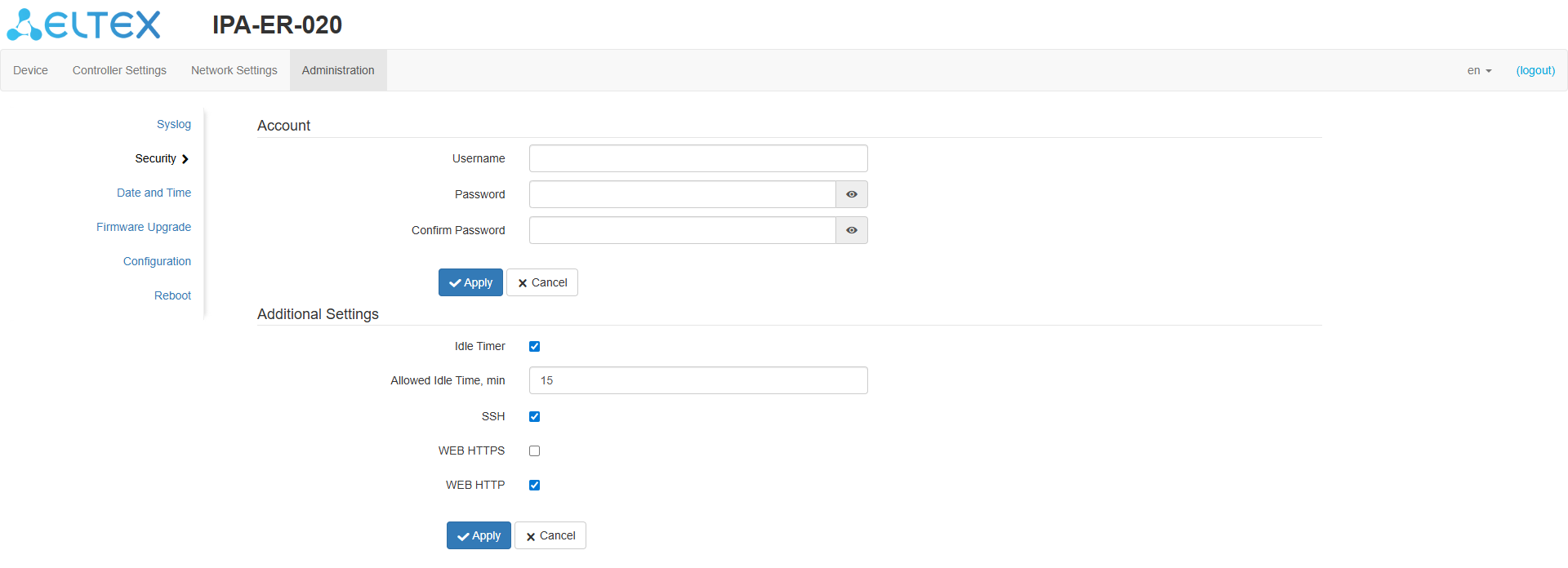
Figure 8 — "Security" page
To configure a network device, it is necessary to define the connection type:
For static configuration, the following data Is required:
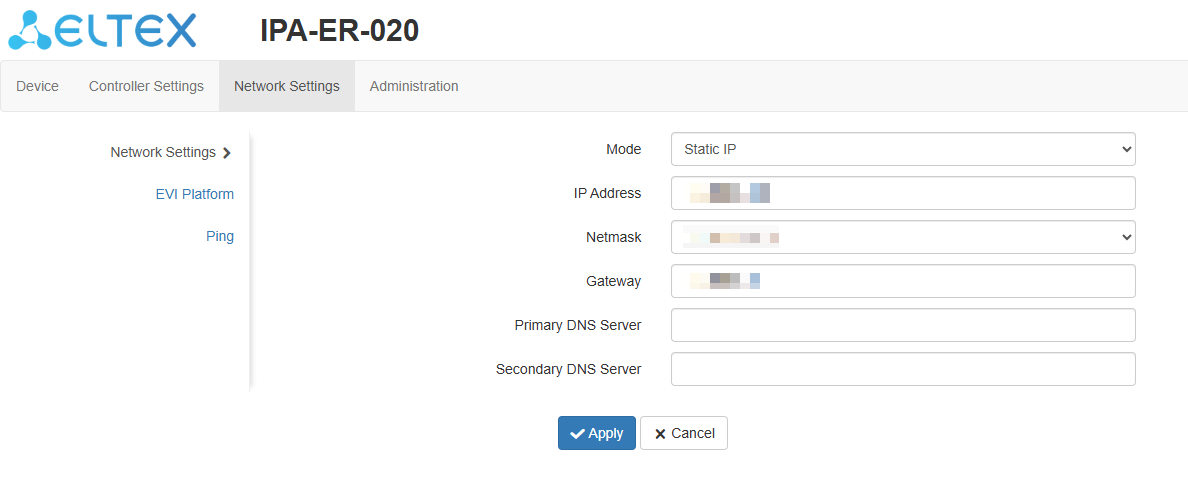
Figure 9 — "Static IP" mode
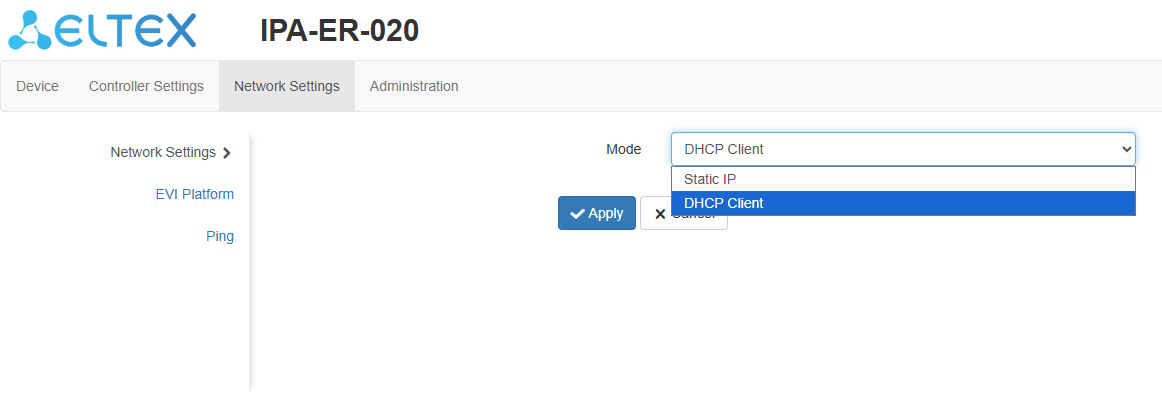
Figure 10 — "Network Settings" page
Switch to the "EVI Platform" page. When using the "DHCP client" mode, it is possible to specify option 43 (Vendor Specific Information) on the DHCP server to automatically connect the controller to the EVI platform. If it is necessary to to enter the address manually, check the box next to the "Specify manually" item and register the server address.
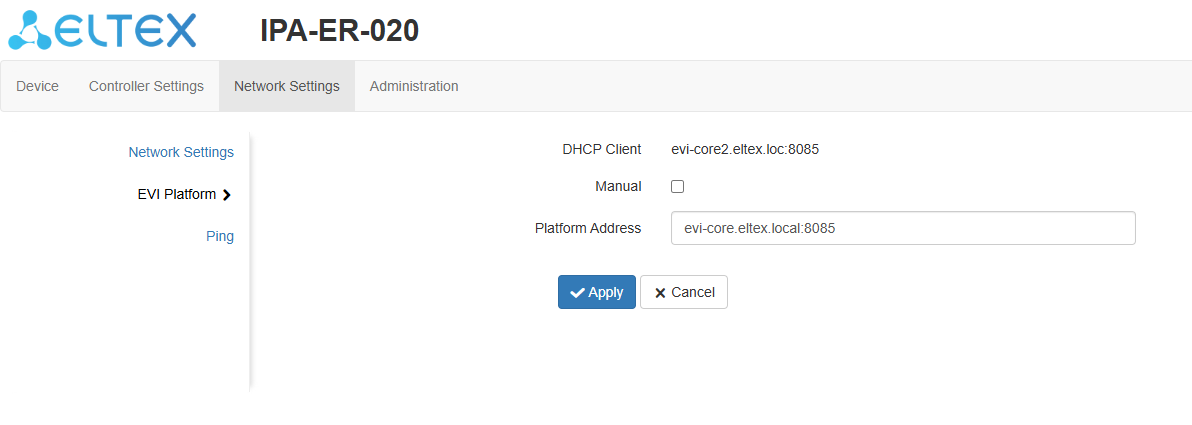
Figure 11 — "EVI Platform" page
Switch to the web interface to the "Controllers" page in the "Devices" section.
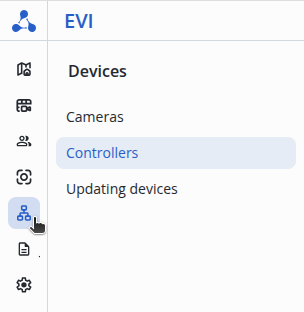
Figure 12 — "Devices" section
Click on the three dots to the left of the column of the "Name" table, select the "Authorize" item and click the "Authorize" button.
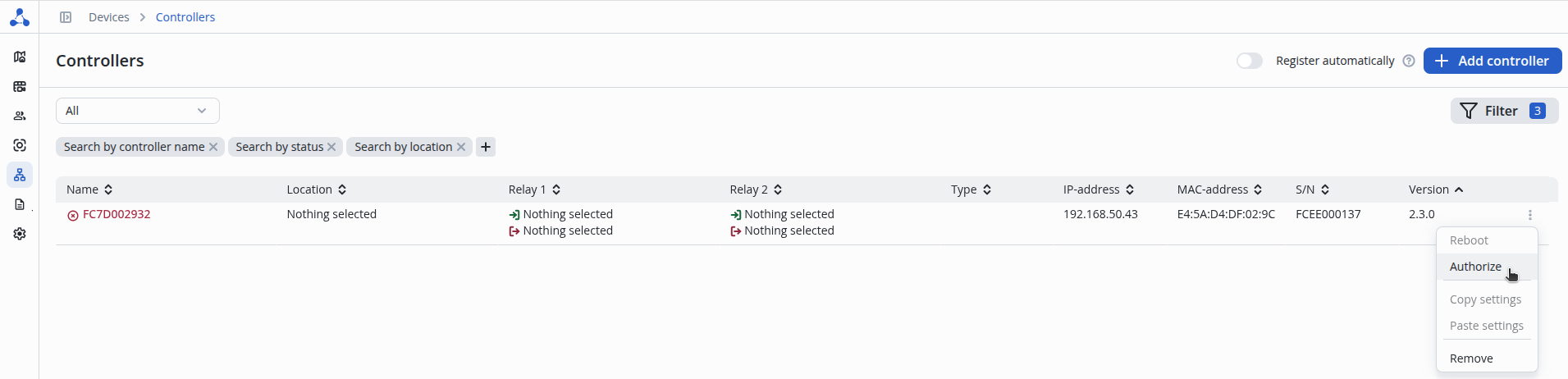
Figure 13 — "Controllers" page
The serial number is inserted automatically. Next, click the "Authorize" button.
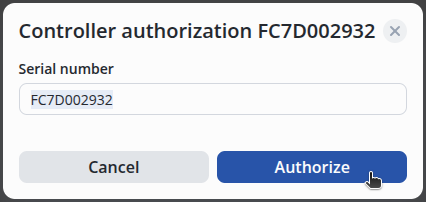
Figure 14 — Controller authorization
After authorization, a notification will appear on the screen stating that the operation was successful.
Also, in the "Devices" section on the "Controllers" page, it is possible to use the function of automatically adding a controller to the system.
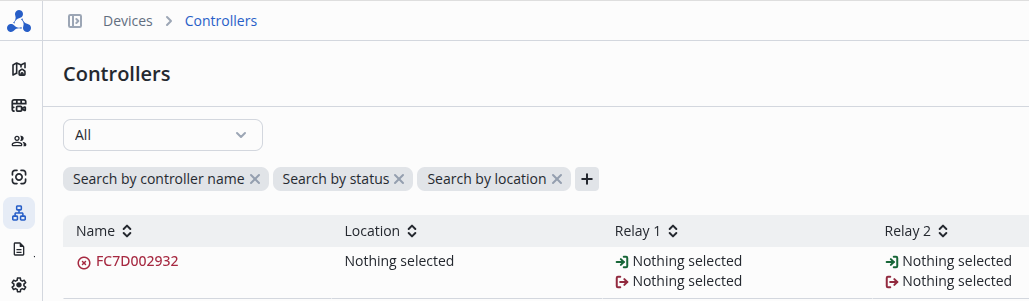
Figure 15 — "Controllers" page
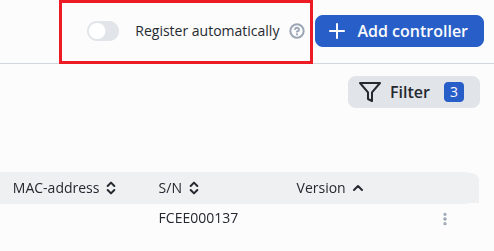
Figure 16 — Automatic controller addition function
The main elements of the web interface are shown in Figure 8.
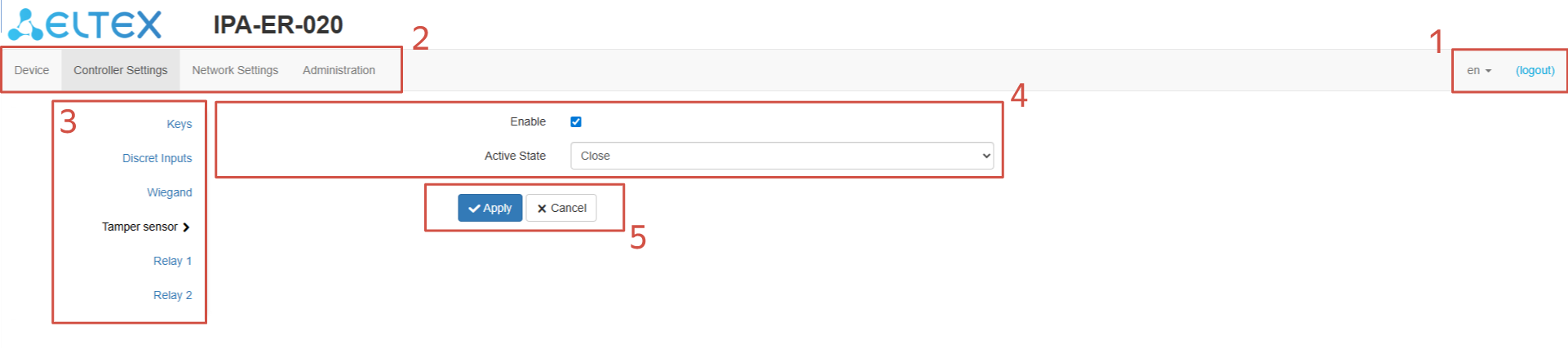
Figure 17 — Web interface navigation elements
1 — buttons for changing the language and exiting the web interface;
2 — upper horizontal tab menu;
3 — left vertical menu of tabs for making settings;
4 — shows the main device setting field corresponding to the selected tab from field 3;
5 — buttons for saving and canceling configuration changes.
This menu contains system information about the device and the status of the controller elements.
"System Information" submenu
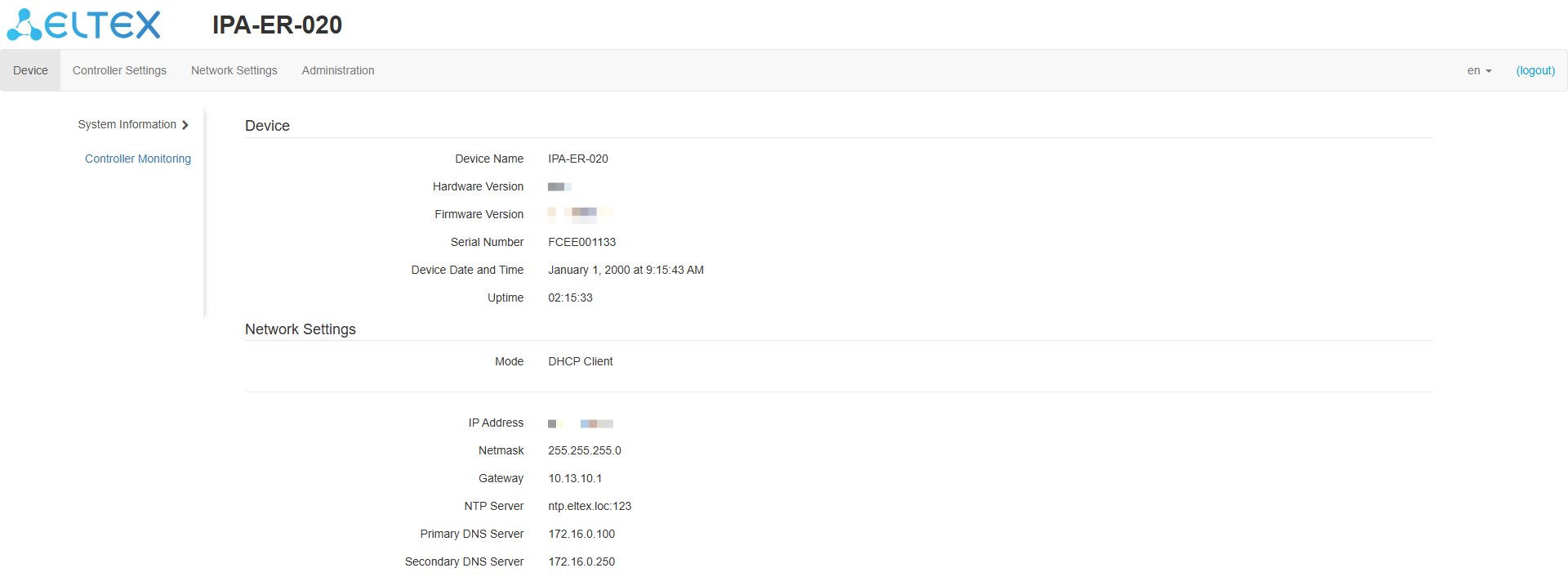
Figure 18 — "System Information" page
This page displays the following system information about the device:
"Controller Monitoring" submenu
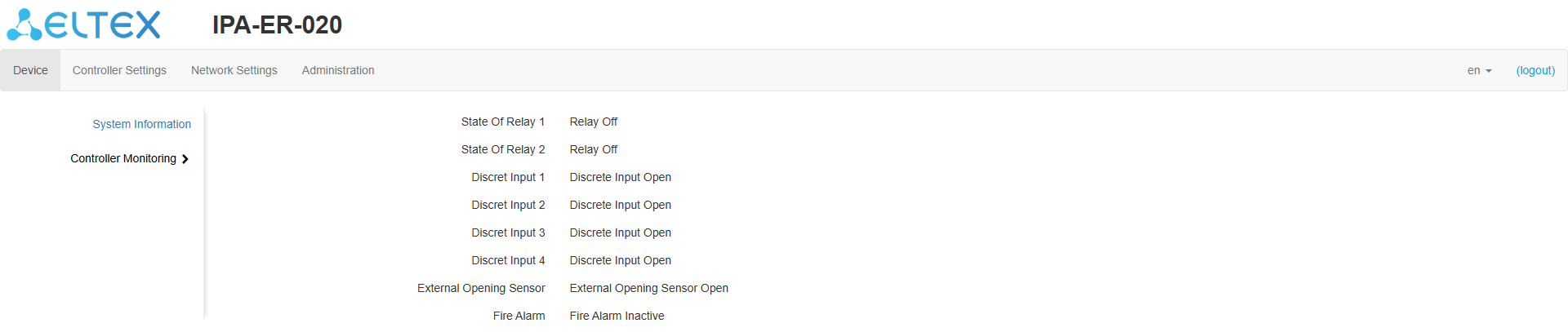
Figure 19 — "Controller Monitoring" page
This submenu displays the current status of the relay, discret inputs, external intrusion sensor and fire alarm.
This menu configures parameters related to the operation of relays, discret inputs, RFID keys and RFID reader interfaces.
"Keys" submenu
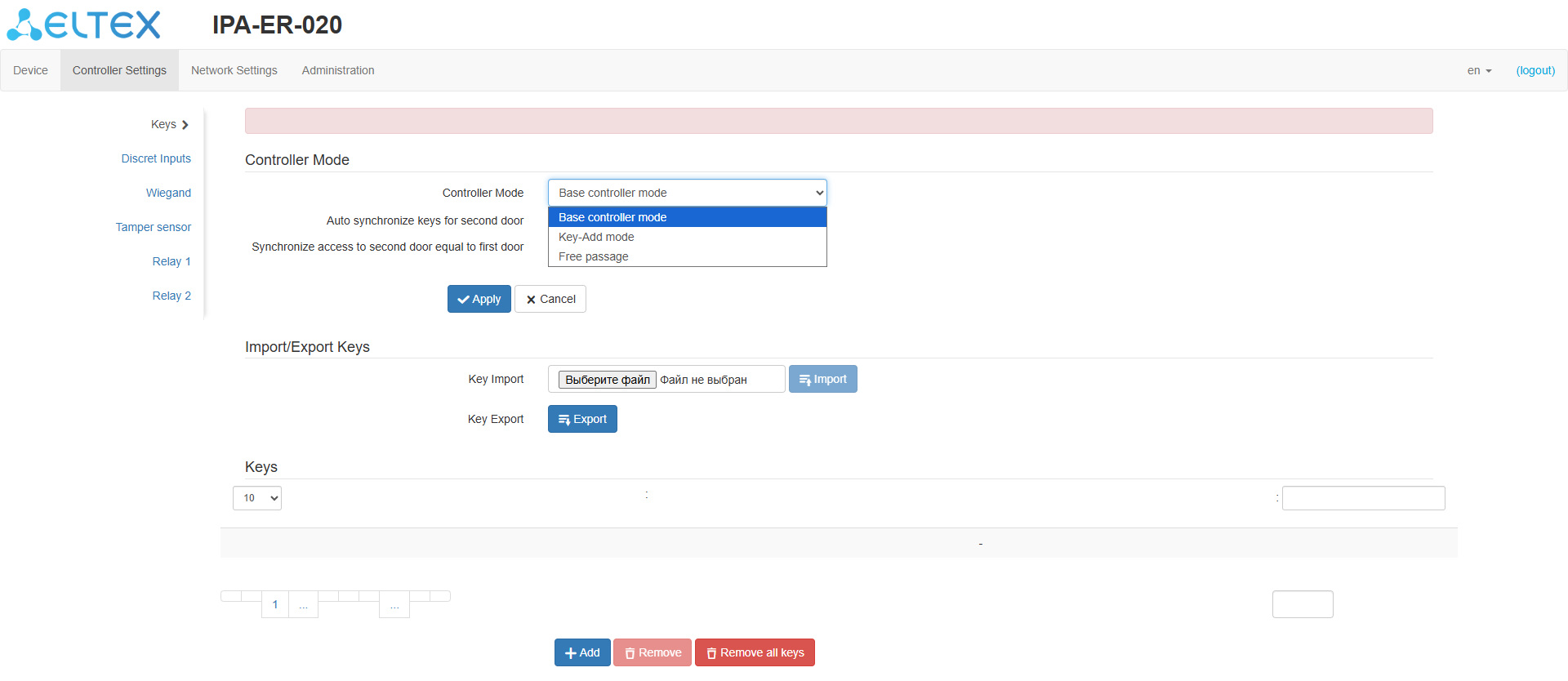
Figure 20 — "Keys" page
This submenu allows to configure the controller mode, import and export key files, and manually enter and delete keys.
The controller supports three operation modes:
Keys are imported and exported as a CSV file. The file looks as follows:
Key ID (14 characters, HEX encoding) | Description (double quotes) | Access |
Access can be 0-3. Parameter values are described below:
| 0 | Access denied |
| 1 | Access for relay 1 |
| 2 | Access for relay 2 |
| 3 | Access for relay 1 and 2 |
Example of filling import CSV file:
104AA12BC007FE | "Apartment 101" | 1 |
| 104AA25АА007FE | "Apartment 102" | 1 |
Keys smaller than 7 bytes will be automatically appended with zeros on the left side until a length of 14 characters is reached. For example, the key "1A0CBC35" will be written as "0000001A0CBC35." |
When saving a file in "CSV" format, it is necesssary to specify the extension "(.csv)" in the file name. If the formatting rules are not followed, the data will be corrupted. |
The keys are presented in the table with the ID, as well as the "Description" and "Access" fields.
"Discret Inputs" submenu
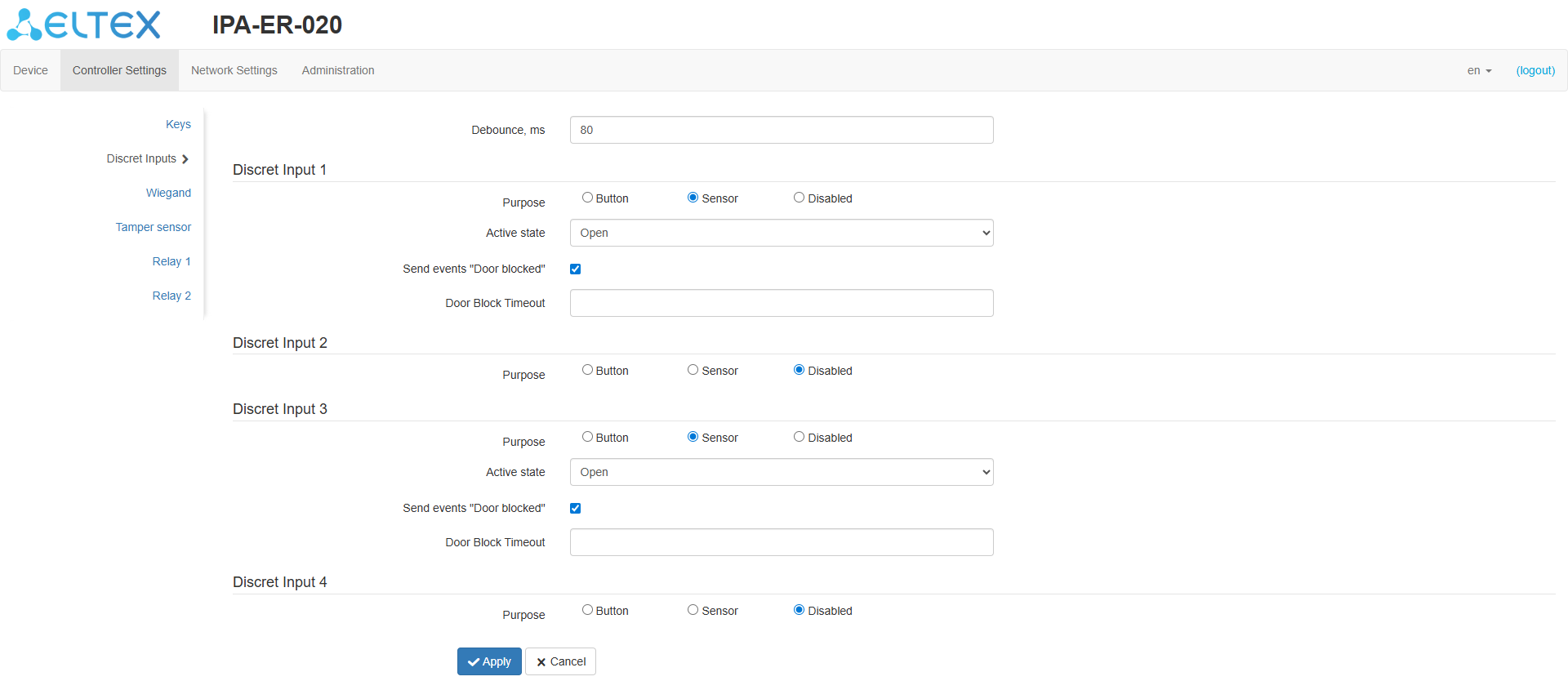
Figure 21 — "Discret Inputs" page
In this submenu, settings for the operation of discret inputs of the device are available:
"Wiegand" submenu
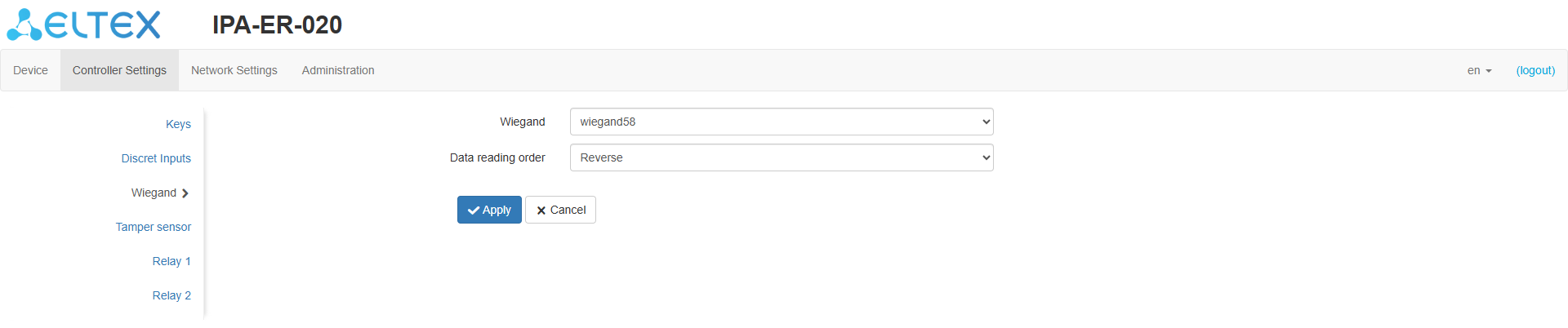
Figure 22 — "Wiegand" page
In this submenu, the operating mode of the Wiegand interface is selected. The following values are possible:
The default mode is "wiegand58." |
"Tamper sensor" submenu
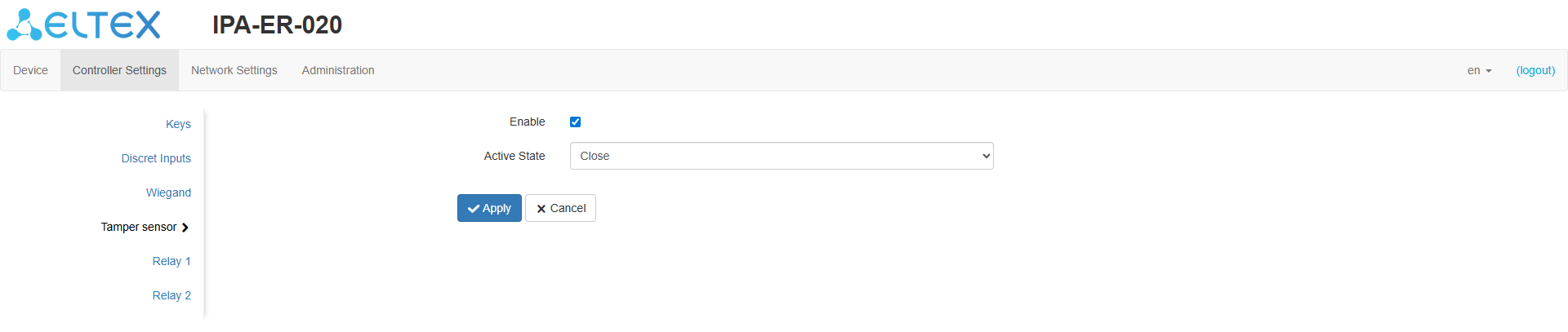
Figure 23 — "Tamper sensor" page
In this submenu, it is possible to activate the tamper sensor and select its trigger state.
By default, the tamper sensor is disabled. |
"Relay 1," "Relay 2" submenus
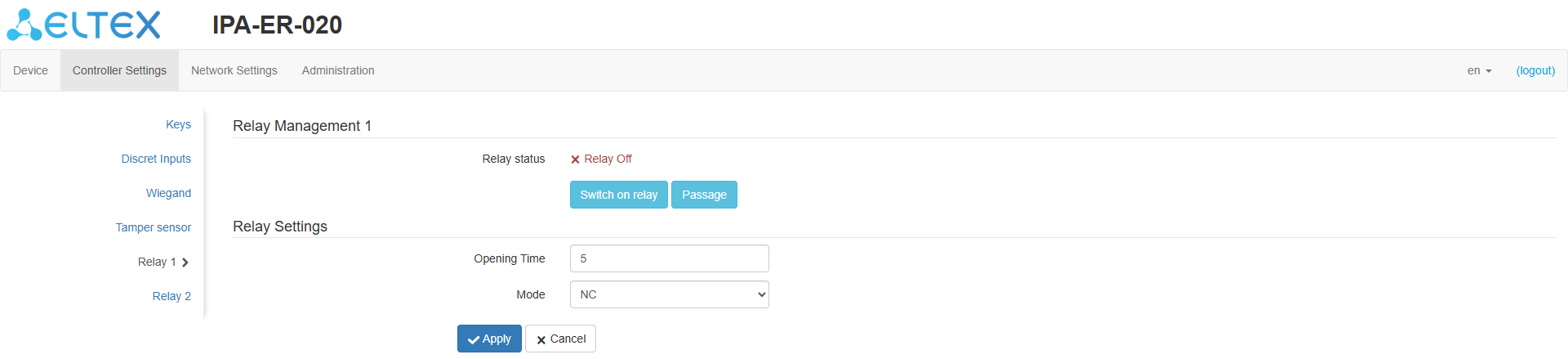
Figure 24 — "Relay 1" page
In these submenus there is a relay control button, which can be used to set the current state of "Relay On" or "Relay Off", set the time until the lock closes in key or button control mode (in seconds with a range of 1-30 seconds), and also select the relay operation mode.
The default time is 5 seconds. |
In this menu, the network interface and Ping utility settings are configured.
"Network Settings" submenu
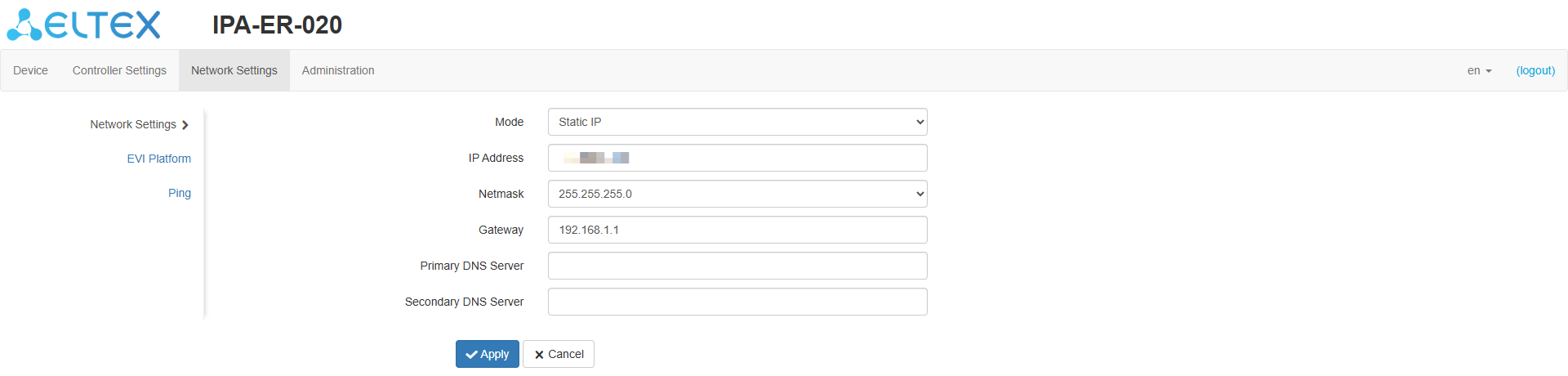
Figure 25 — "Network Settings" page
This submenu contains the following network settings:
"EVI Platform" submenu
This submenu contains the configuration of the link with the EVI Platform. The EVI Platform is a modular system for access control and management, video surveillance and analytics. Specify the platform address in the appropriate field. If it is necessary to enter the address manually, check the box next to the "Manual" item and register the server address.
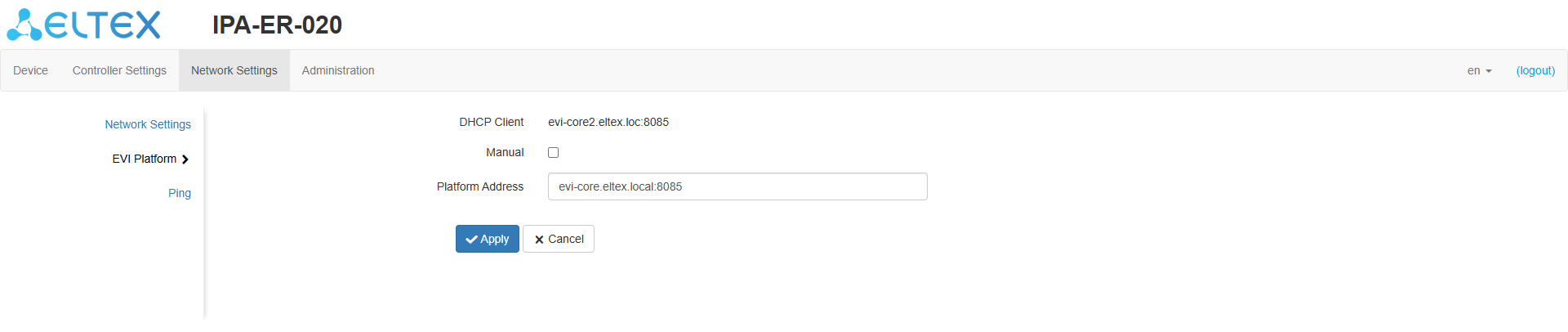
Figure 26 — "EVI Platform" page
"Ping" submenu

Figure 27 — "Ping" page
This submenu allows to launch the Ping utility. To do this, specify the requested address in the "Hostname" field.
Domain addresses and IPv4 addresses are supported. |
In this menu system log, security, date and time are configured, as well as configuration parameters and software updates. It is also possible to reboot the device.
"Syslog" submenu
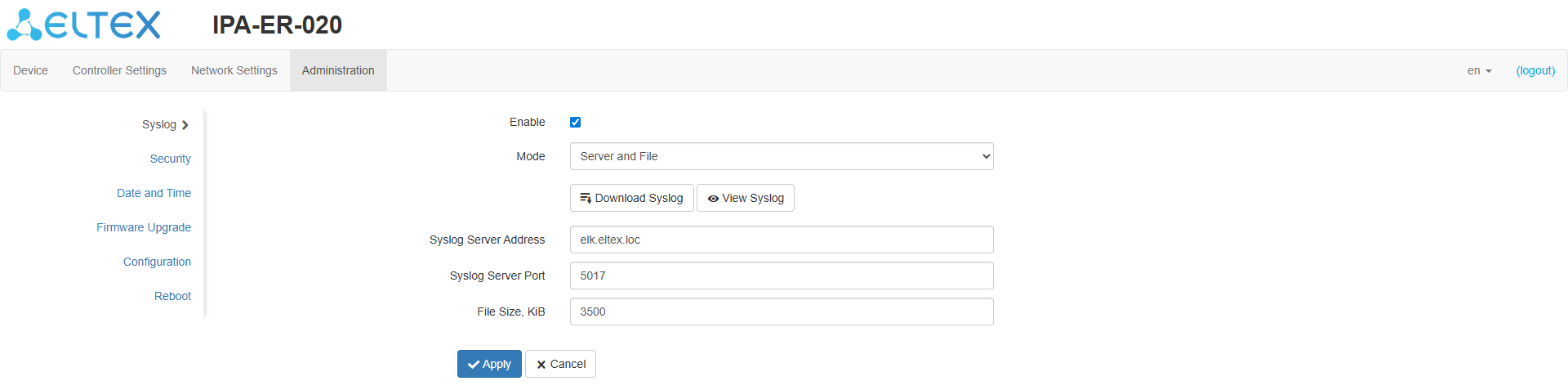
Figure 28 — "Syslog" page
The system log settings are configured in this submenu:
The following buttons are also available in the submenu:
View Syslog — view the current log content in a web browser.
The local log file stores the contents when the device is powered down and continues to write when power is restored. |
"Security" submenu
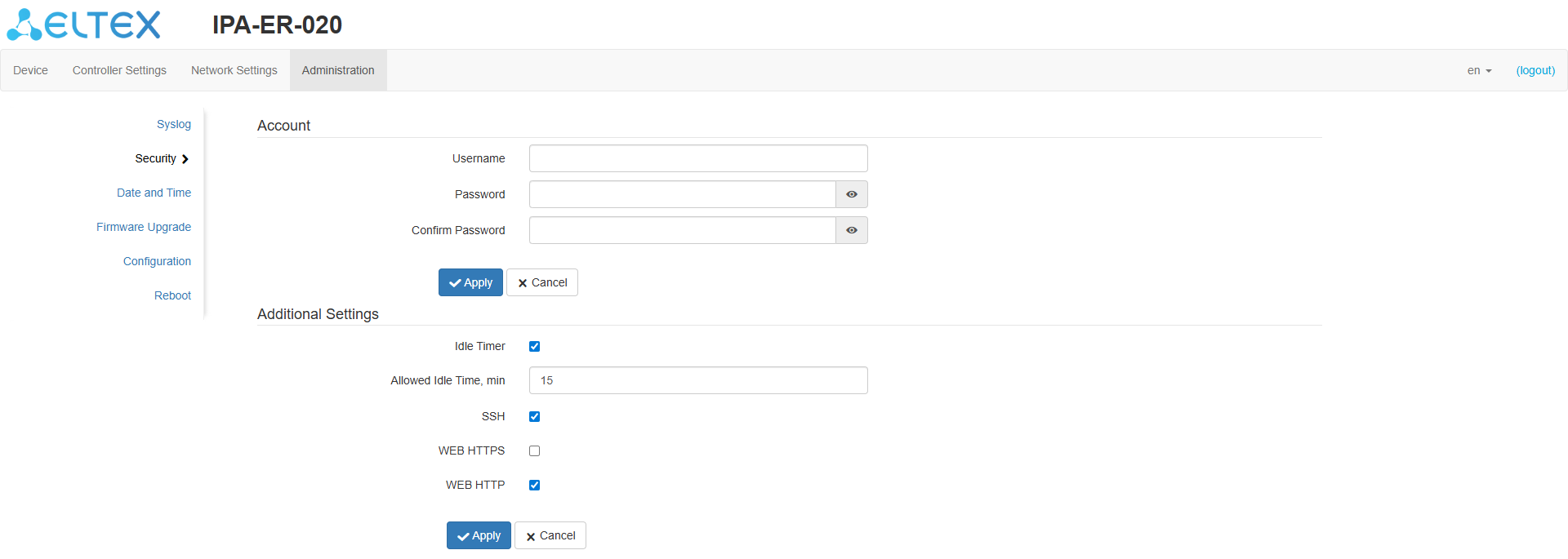
Figure 29 — "Security" page
This submenu allows to change the default user password value to an arbitrary one.
For security reasons, change the password of the admin user to arbitrary. Default password value is admin |
Additional settings allow to restrict or provide access to the device via SSH, HTTP and HTTPS interfaces, as well as configure an idle timer, after which the user automatically exits the device configurator.
"Date and Time" submenu
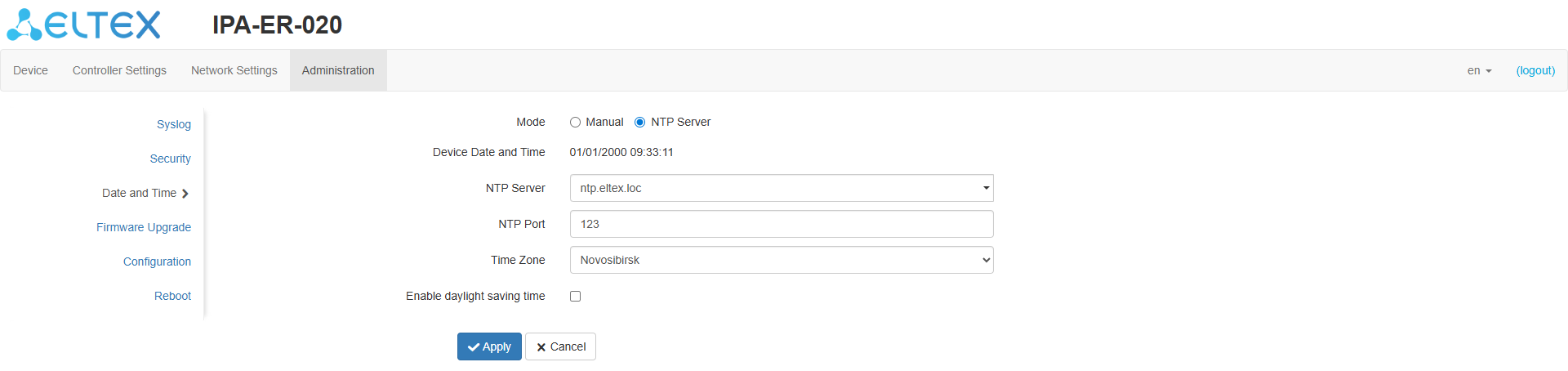
Figure 30 — "Date and Time" page
This submenu displays the current date and time on the device and configures the following options:
NTP server — the address of the NTP server for receiving data on the current date and time. It is not set by default;
By default, the device expects to receive the address of the NTP server via DHCP in option 42. |
"Enable daylight saving time" flag — automatic time conversion taking into account the time of year. Disabled by default.
The device supports the real-time clock (RTC) function, which allows you to keep correct time records in case of problems with the device's power supply. To activate the RTC function, a CR2032 battery must be inserted into the connector on the device board. The RTC value is synchronized when up-to-date data is received from the NTP server. |
"Firmware Upgrade" submenu
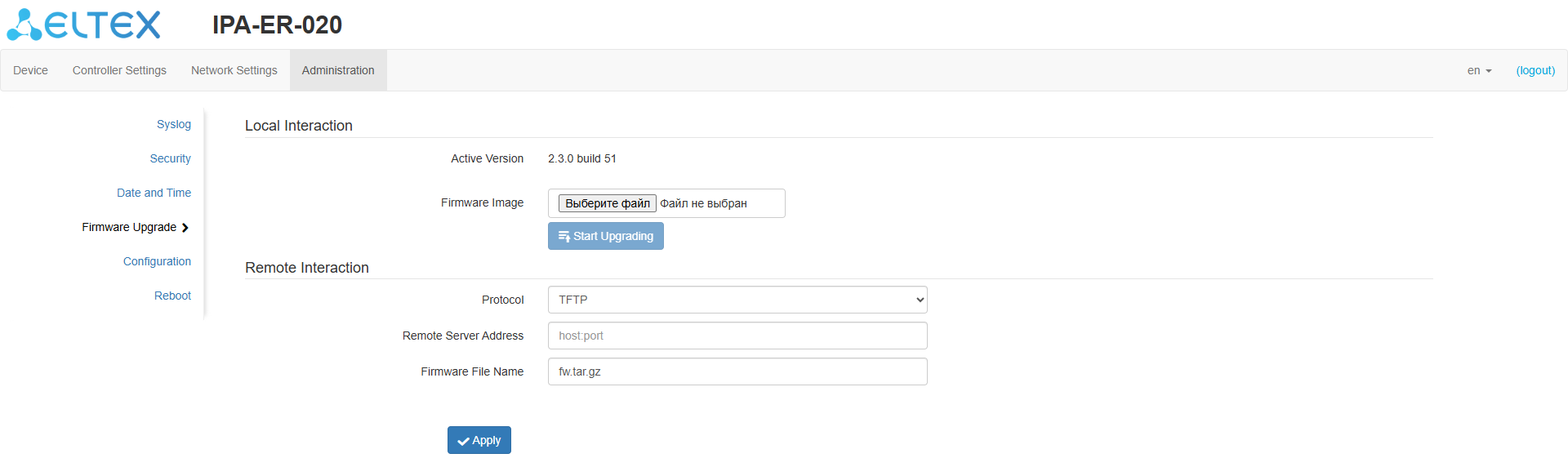
Figure 31 — "Firmware Upgrade" page
This submenu displays information on the current firmware version of the device and the download field of the firmware file for upgrading it. Software updates can also be performed by downloading the firmware file from an external TFTP, FTP, or HTTP(S) server.
Firmware upgrades are performed only on versions developed for this device. When running the upgrade on another device's firmware, an error message will be displayed. |
Do not power down the device during the software upgrade process. |
"Configuration" submenu
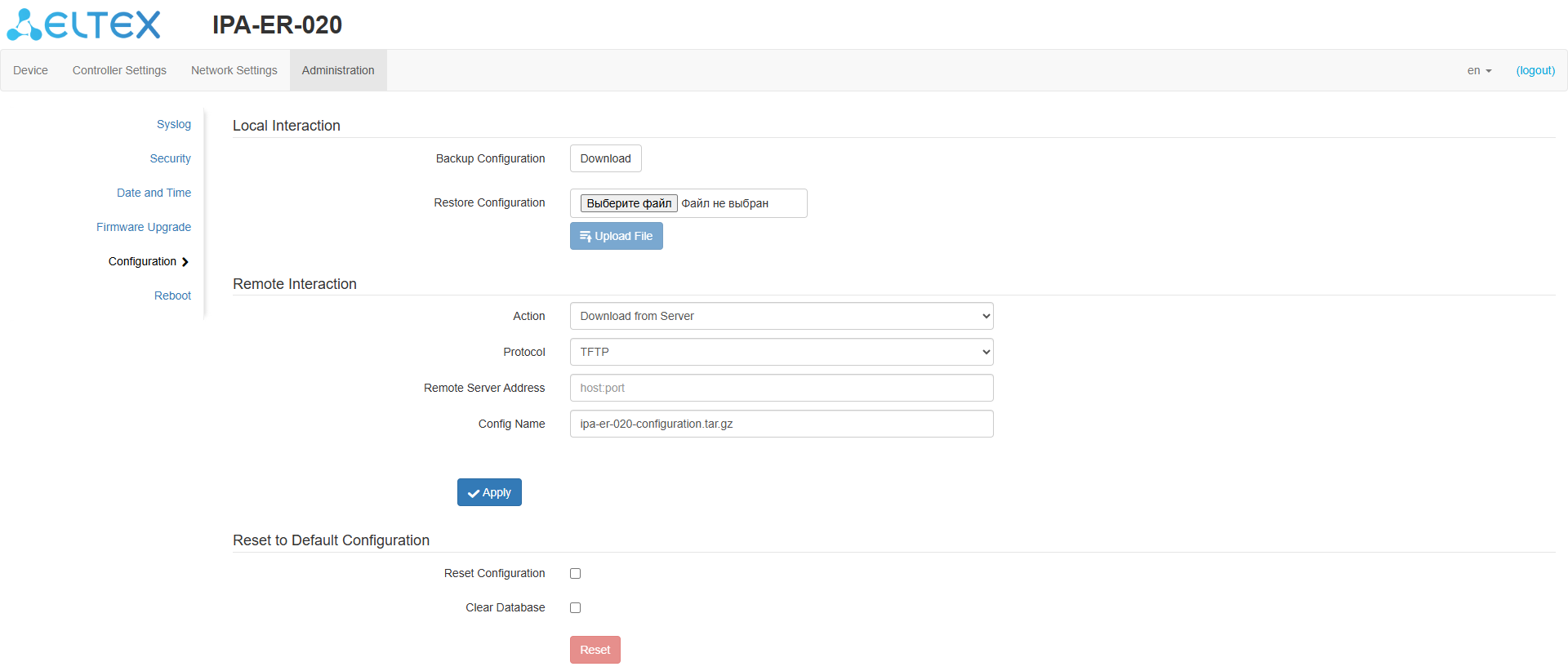
Figure 32 — "Configuration" page
The following actions are possible in this submenu:
Reset to Default Configuration — performing a configuration reset and/or database cleanup of stored keys.
A configuration reset can also be performed by holding the RST button on the device for 10 seconds. |
"Reboot" submenu
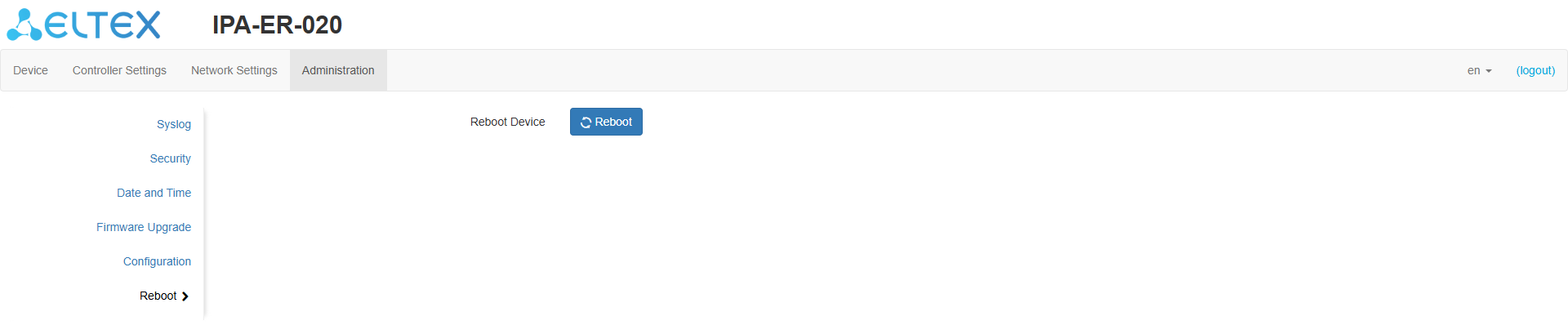
Figure 33 — "Reboot" page
The submenu allows to reboot the device by pressing the corresponding button.