Firmware version 2.8.0 (10.2025) IP address: http://192.168.1.10 |
|
Introduction
Annotation
Modern tendencies of telecommunication development necessitate operators to search for the most optimal technologies, allowing one to meet rapidly growing needs of subscribers, while maintaining at the same time consistency of business processes, development flexibility and reducing the costs of various services. Wireless technologies are spinning up more and more, and have paced a huge way for short time from unstable low-speed communication networks of low radius to broadband access networks equitable to speed of wired networks with high criteria to the quality of provided services.
WOP-30LI is a Wi-Fi access point. The device has a sealed enclosure, which allows the access point to be used outdoors in various climatic conditions at temperatures ranging from -45 to +65 °C.
This manual specifies intended purpose, main technical specifications, design, safe operation rules, and installation and configuration recommendations for WOP-30LI.
Symbols
Notes and warnings
Notes contain important information, tips or recommendations on device operation and setup. |
Warnings are used to inform the user about harmful situations for the device and the user alike, which could cause malfunction or data loss. |
Device description
Purpose
WOP-30LI is a next-generation industrial access point of Wi-Fi 6 (IEEE 802.11ax) that provides a high-speed and secure wireless network. Due to built-in 2 × 1GE and 2 × SFP (1G) ports, WOP-30LI allows connecting other devices and cascading multiple access points into one network.
WOP-30LI supports modern quality of service requirements and allows one to transmit the most important traffic in higher priority queues than normal. Prioritization is provided by the following QoS technologies: CoS (special tags in the VLAN packet field) and ToS (tags in the IP packet field). Support for traffic shaping on each VAP allows one to fully manage access, quality of service and restrictions both for all subscribers and for everyone in particular.
The durable, sealed enclosure of WOP-30LI with IP67 ingress protection is ideal for installing the device in extreme industrial facilities and open areas (factories, quarries, production buildings, large industrial complexes, warehouses, etc.).
Device specification
Interfaces:
- 2 ports of 10/100/1000BASE-T (RJ-45), including 1 port with PoE+ support;
- 1 port of 100/1000BASE-X (SFP);
- 1 port of 1000BASE-X (SFP);
- Wi-Fi 2.4 GHz IEEE 802.11b/g/n/ax;
- Wi-Fi 5 GHz IEEE 802.11a/n/ac/ax;
- 4 N-type connectors (female) for connecting external antennas (Omni, sector, panel, etc.).
Functions:
WLAN capabilities:
- support for IEEE 802.11a/b/g/n/ac/ax;
- support for roaming IEEE 802.11r/k/v;
- data aggregation, including A-MPDU (Tx/Rx) and A-MSDU (Rx);
- WMM-based packet priorities and planning;
- subscriber isolation within a single VAP;
- channel autoselect;
- dynamic frequency selection (DFS);
- support for hidden SSID;
- 14 virtual access points;
- third-party access points detection;
- spectrum analyzer;
- support for wireless bridges (WDS);
- support for APSD;
- support for client mode (STA).
Network features:
- automatic speed negotiation, duplex mode negotiation and MDI-MDI-X switch-over;
- VLAN support (Access, Trunk, General);
- DHCP client;
- GRE;
- transmission of subscriber traffic outside of tunnels;
- ACL;
- NTP;
- Syslog;
- IPv6;
- LLDP.
QoS functions:
- prioritization and packet scheduling based on profiles;
- bandwidth limiting for each VAP;
- bandwidth limiting for each client;
- WMM parameter modification.
Security:
- centralized authorization via RADIUS server (802.1X WPA/WPA2 WPA3 Enterprise);
- WPA/WPA2/WPA3/OWE encryption;
- Captive Portal;
- authorization via RADIUS server when logging into the device.
Figures 1, 2, and 3 show use cases of WOP-30LI.
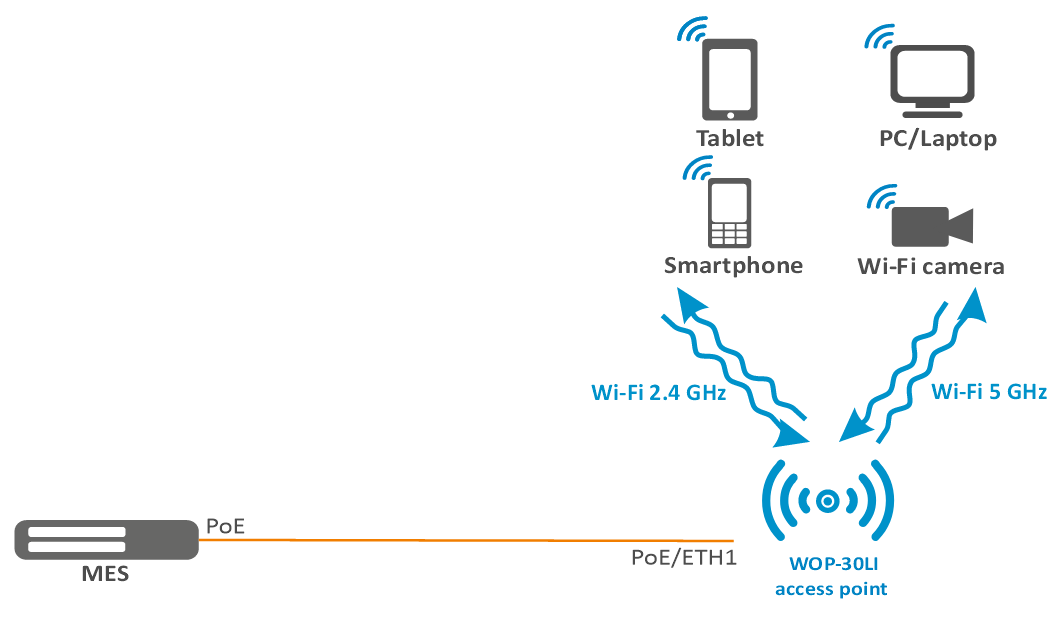
Figure 1 — Use case of WOP-30LI with PoE port
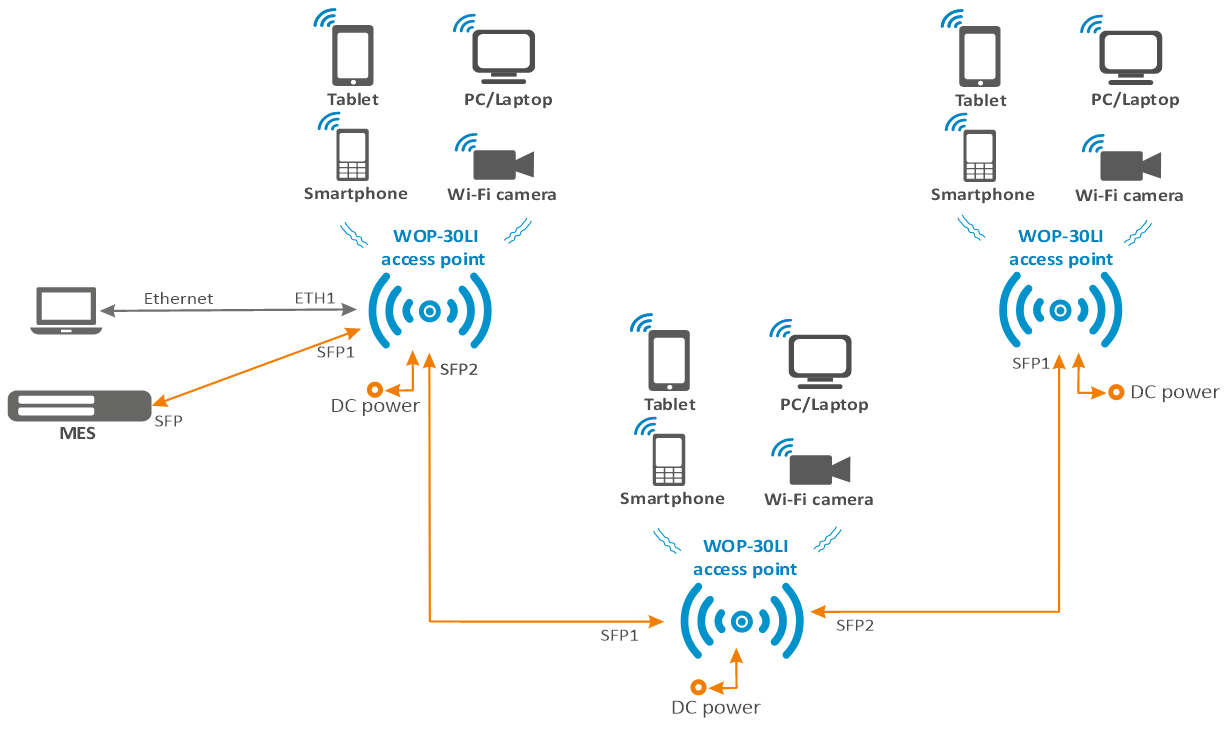
Figure 2 — Use case of WOP-30LI with DC power and SFP ports
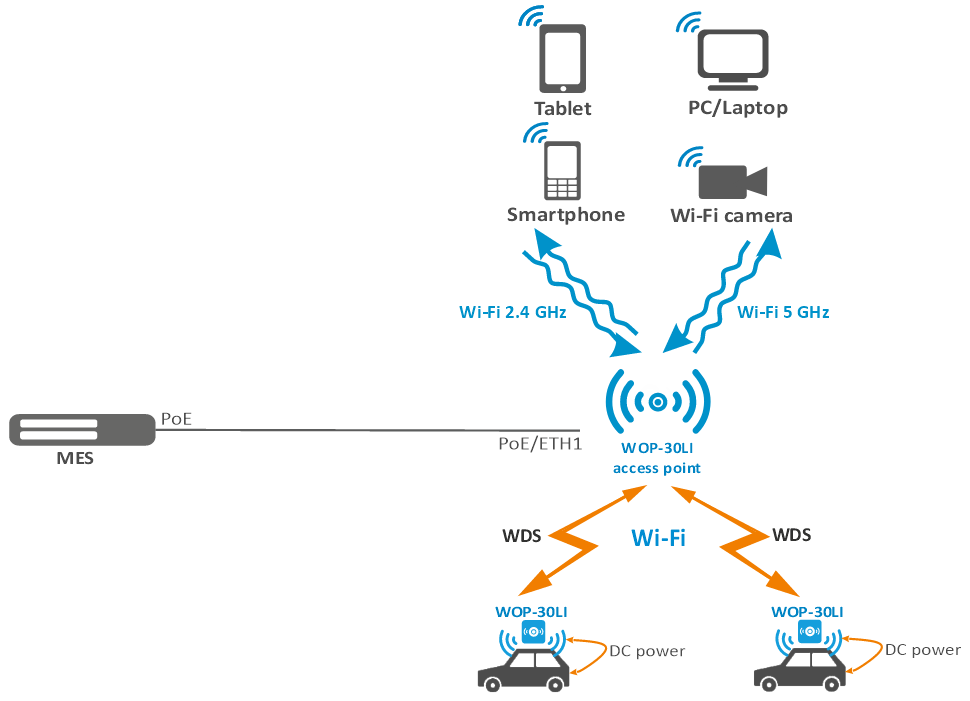
Figure 3 — Use case of WOP-30LI with DC power and WDS
Device technical specifications
Table 1 — Main specifications
| Ethernet interface parameters | |
|---|---|
| Number of ports | 2 |
| Electrical connector | RJ-45 |
| Data rate | 10/100/1000 Mbps, auto-negotiation |
| Standards | BASE-T |
| SFP interface parameters | |
| Number of ports | 2 |
| Electrical connector | SFP |
| Data rate | 100/1000 Mbps on SFP1 and 1000 Mbps on SFP2 |
| Standards | BASE-X |
| Wireless interface parameters | |
| Standards | 802.11a/b/g/n/ac/ax |
| Frequency range | 2400–2483.5 MHz; 5150–5350 MHz, 5470–5850 MHz |
| Modulation | BPSK, QPSK, 16QAM, 64QAM, 256QAM, 1024QAM |
| Operating channels | 802.11b/g/n/ax: 1–13 (2401–2483 MHz)
|
| Data rate | 2.4 GHz, 802.11ax: 574 Mbps |
| Maximum number of concurrent sessions | 2.4 GHz: 64 5 GHz: 64 |
| Maximum output power of the transmitter | 2.4 GHz: 20 dBm 5 GHz: 20 dBm |
| Receiver sensitivity | 2.4 GHz: up to -93 dBm 5 GHz: up to -94 dBm |
| Security | centralized authorization via RADIUS server (802.1X WPA/WPA2/WPA3 Enterprise) |
| The choice of antenna model depends on the use of the access point | |
| Radio interface with OFDMA and MU-MIMO 2×2 support | |
| Management | |
|---|---|
| Remote management | web interface, Telnet, SSH, CLI, SNMP, NETCONF |
| Access restriction | by password, authentication via RADIUS server |
| General parameters | |
| Flash | 128 MB SPI-NAND Flash |
| RAM | 256 MB DDR3 RAM |
| Power supply | PoE+ 48 V/56 V (IEEE 802.3at-2009) DC 12–56 V |
| Power consumption | no more than 17.5 W |
| Ingress protection | IP67 |
| Operating temperature range | from -45 to +65 °C |
| Relative humidity at 25 °C | up to 95 %, without condensation |
| Dimensions (W × H × D) | 308 × 253 × 91 mm 308 × 367 × 91 mm (with cable gland) |
| Weight | 3.2 kg |
| Service life | no less than 15 years |
Design 
WOP-30LI is made in an industrial-grade plastic enclosure. The layout of WOP-30LI is shown in Figure 4.
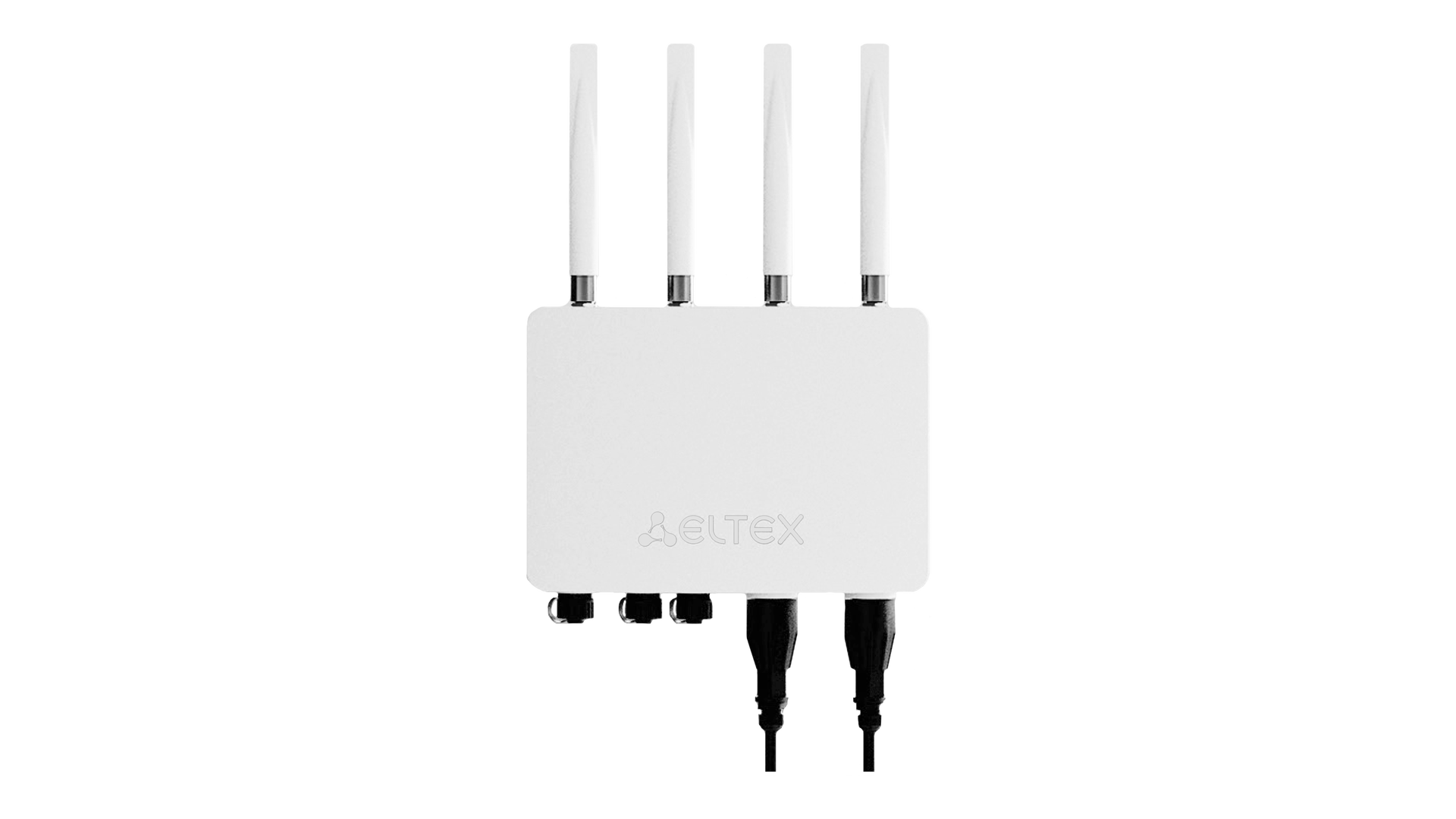
Figure 4 — WOP-30LI front panel layout
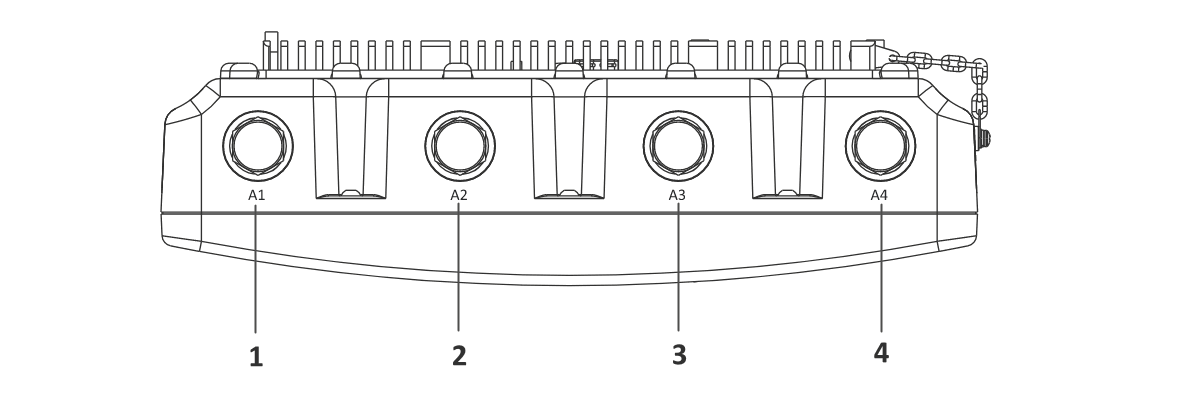
Figure 5 — WOP-30LI top panel layout
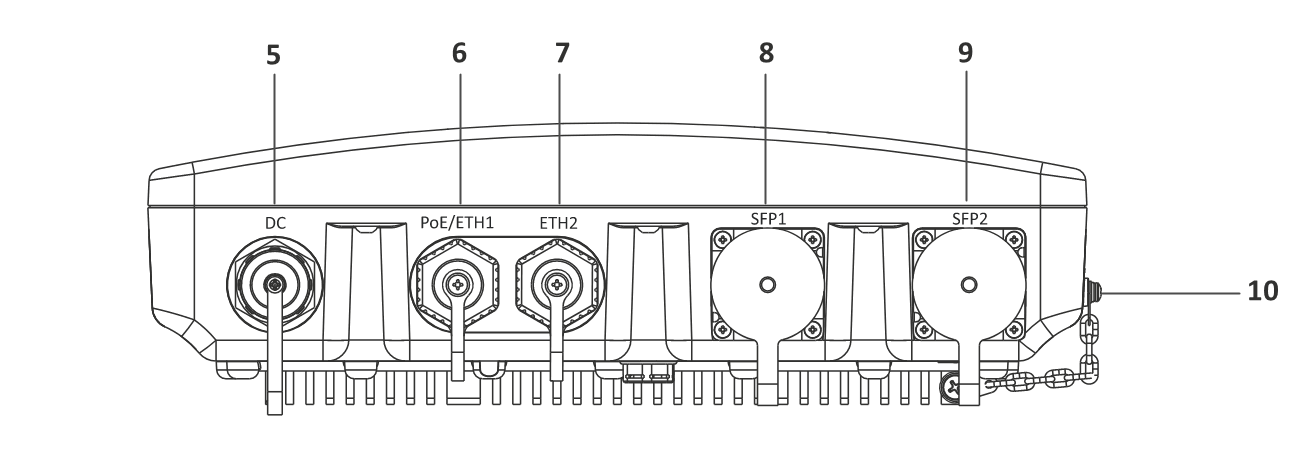
Figure 6 — WOP-30LI bottom panel layout
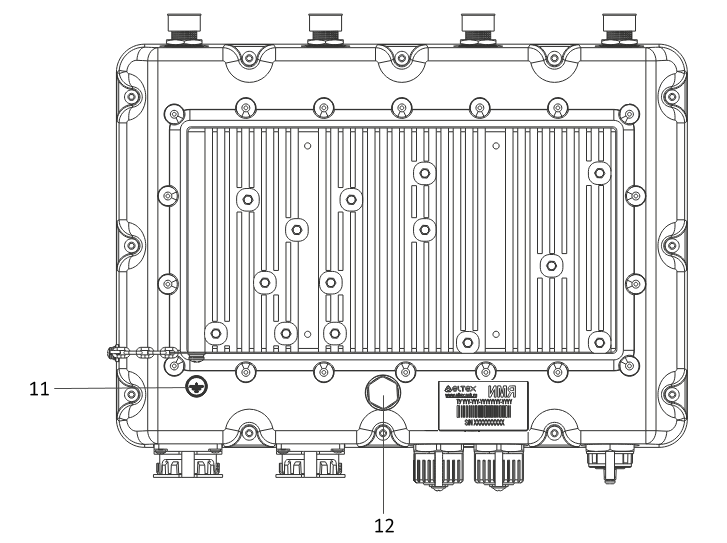
Figure 7 — WOP-30LI back panel layout
The device panels feature the following connectors and controls, Table 2.
Table 2 — Description of ports and controls
| № | Device element | Description |
|---|---|---|
| 1, 3 | A1, A3 | Radio 1 interface connectors for external 2.4 GHz antennas |
| 2, 4 | A2, A4 | Radio 2 interface connectors for external 5 GHz band antennas |
| 5 | DC | power connector |
| 6 | PoE/ETH1 | 10/100/1000 BASE-T port (RJ-45 connector with PoE+ support) |
| 7 | ETH2 | 10/100/1000 BASE-T port (RJ-45 connector) |
| 8 | SFP1 | 100/1000BASE-X port |
| 9 | SFP2 | 1000BASE-X port |
| 10 | F | functional button, sealed with a screw |
| 11 |
| grounding |
| 12 | membrane ventilation valve |

Restore the default configuration
The device can be reset to the factory configuration using the “F” button on the device. When the device is loaded, press and hold the “F” button (approximately 10–15 seconds). The device will be rebooted automatically.
DHCP client will be launched by default. If the address is not obtained via DHCP, the device will have the factory IP address — 192.168.1.10, and the following netmask — 255.255.255.0, and username/password for access via the web interface: admin/password.
Supply package
The supply package includes:
- WOP-30LI wireless access point;
- cable glands;
- cable part for the power connector;
- mounting kit;
- user manual on a CD (optional);
- technical passport.
 Rules and recommendations for the device installation
This section defines safety rules, installation recommendations, setup procedure and the device starting procedure.
Safety rules 
- Do not open the device case. There are no user serviceable parts inside the device.
- The unused antenna connectors must be covered with a protective cover, which is supplied with the device.
- Do not install this device during a thunderstorm. There may be a risk of lightning strike.
- The voltage, current and frequency requirements specified in this manual should be observed.
- Before connecting measuring instruments and a computer to the device, they should first be grounded. The potential difference between the housings of equipment and measuring instruments should not exceed 1 V.
- Before turning on the device, make sure the cables are intact and securely attached to the connectors.
- Do not install the device near heat sources or in rooms with temperatures below -45°C or above 65°C.
- When installing the device on high-rise structures, the established standards and requirements for work at height should be followed.
- The device should be operated by engineering and technical personnel who have undergone special training.
- Only suitable auxiliary equipment should be connected to the device.
- Do not turn on the power without antennas connected.
Installation recommendations 
- The recommended installation position: attaching to a pole/wall.
- Before installing the device and turning it on, check the device for visible mechanical defects. If defects are observed, stop the device installation, fill in the corresponding act and contact the supplier.
- When placing the device, in order to provide the best Wi-Fi coverage consider the following rules:
- Install the device at the center of a wireless network.
- Minimize the number of barriers (walls, ceilings, furniture, and etc.) between WOP-30LI and other wireless network devices.
- Do not install the device near (about 2 m) electrical and radio devices.
- It is not recommended to use radiophones and other equipment operating at frequency of 2.4 GHz or 5 GHz, within the range of a Wi-Fi network.
- Obstacles like glass/metal constructions, brick/concrete walls, water cans and mirrors can significantly reduce Wi-Fi action radius.
- When installing several access points, cell action radius must overlap with action radius of a neighboring cell at the level from -65 to -70 dBm. It is allowed to reduce the signal level to -75 dBm at cell boundaries, if it is not intended to use VoIP, video streaming and other sensitive to losses traffic in wireless network.
Calculating the number of required access points
When choosing the number of required access points, you should first evaluate the required coverage area, taking into account the antenna patterns in the horizontal and vertical planes.
For more accurate assessment, it is necessary to conduct a radio survey of the area. The coverage range of the access point depends on the installed antennas and the presence of obstacles. Table 3 shows approximate attenuation values.
Table 3 — Attenuation values
| Material | Change of signal level, dB | |
|---|---|---|
| 2.4 GHz | 5 GHz | |
| Organic glass | -0.3 | -0.9 |
| Brick | -4.5 | -14.6 |
| Glass | -0.5 | -1.7 |
Drywall | -0.5 | -0.8 |
| Particle board | -1.6 | -1.9 |
| Plywood | -1.9 | -1.8 |
| Plaster with wire cloth | -14.8 | -13.2 |
| Breeze block | -7 | -11 |
| Metal lattice (mesh 13 × 6 mm, metal 2 mm) | -21 | -13 |
Channel selection for neighboring access points
It is recommended to set non-overlapping channels to avoid interchannel interference among neighboring access points.

Figure 8 — General diagram of frequency channel overlap in the range of 2.4 GHz
Example of channel allocation scheme among neighboring access points in frequency range of 2.4 GHz when channel width is 20 MHz, see Figure 9.
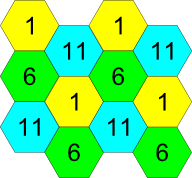
Figure 9 — Scheme of channel allocation among neighboring access points in the frequency range of 2.4 GHz when channel width is 20 MHz
Similarly, the procedure of channel allocation is recommended to save for access point allocation between floors, see Figure 10.
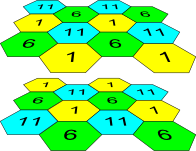
Figure 10 — Scheme of channel allocation between neighboring access points that are located between floors
With a channel width of 40 MHz there are no non-overlapping channels in the 2.4 GHz band. In such cases, you should select channels maximally separated from each other.
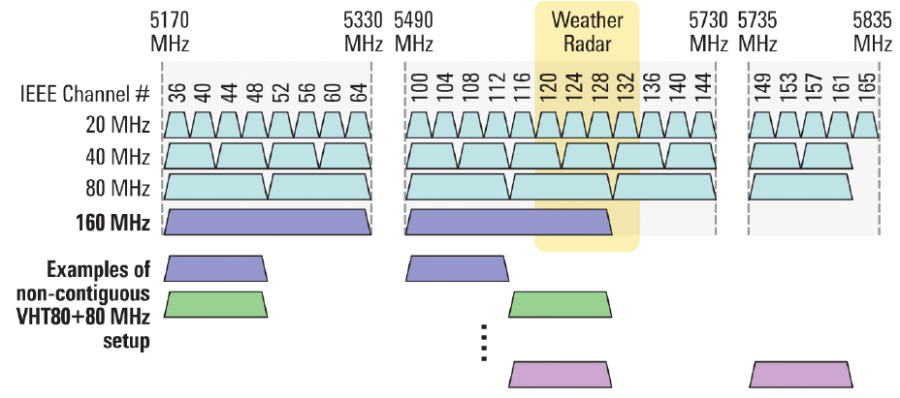
Figure 11 — Channels used in the 5 GHz band when channel width is 20, 40 or 80 MHz
Recommended SFP modules
When using SFP ports on the device, it is recommended to select the recommended SFP module models listed in Table 4.
Table 4 — Recommended SFP modules
| Name | Speed | Specifications | Temperature type |
| FH-SB3512IDS20/ FH-SB5312IDS20 | 1G | 1.25G SFP SC 1310/1550nm 20km | Industrial |
| FH-S3112IDL20 | 1G | 1.25G SFP LC 1310nm 20km | Industrial |
Installation
There are two mounting options for the WOP-30LI access point: it can be installed on a pole and on a wall.
Preparation for installation
1. Remove the device, mounting bracket, fastener kit, clamps, and cable glands from the package.
2. To mount the device on a wall or pole, install the bracket on the radiator located on the rear panel. Tighten the screws securely and be sure to use the washers supplied.
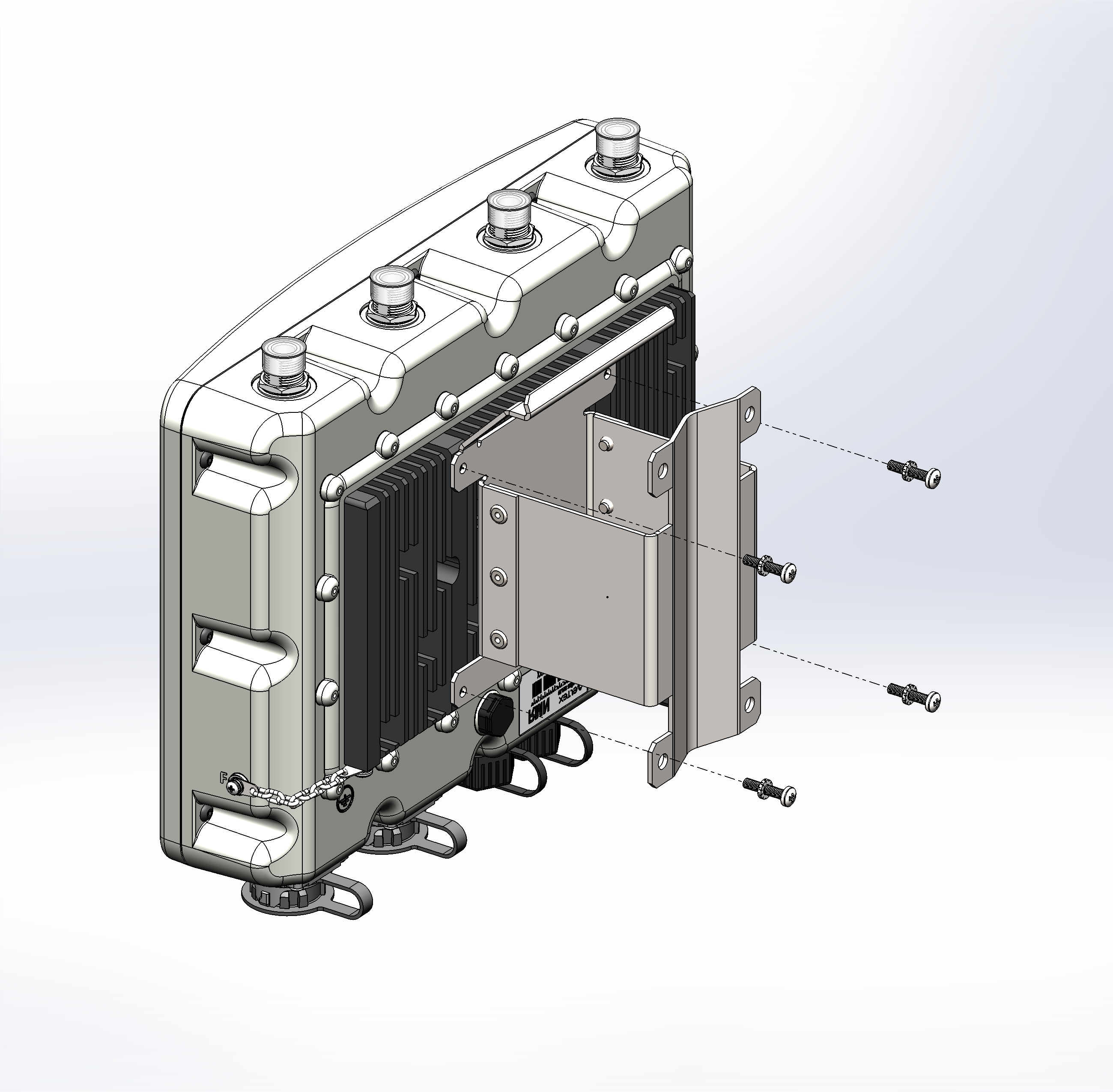
Figure 12 — Attaching the bracket to the device
3. When using Omni antennas, install them after removing the protective caps from the connectors.
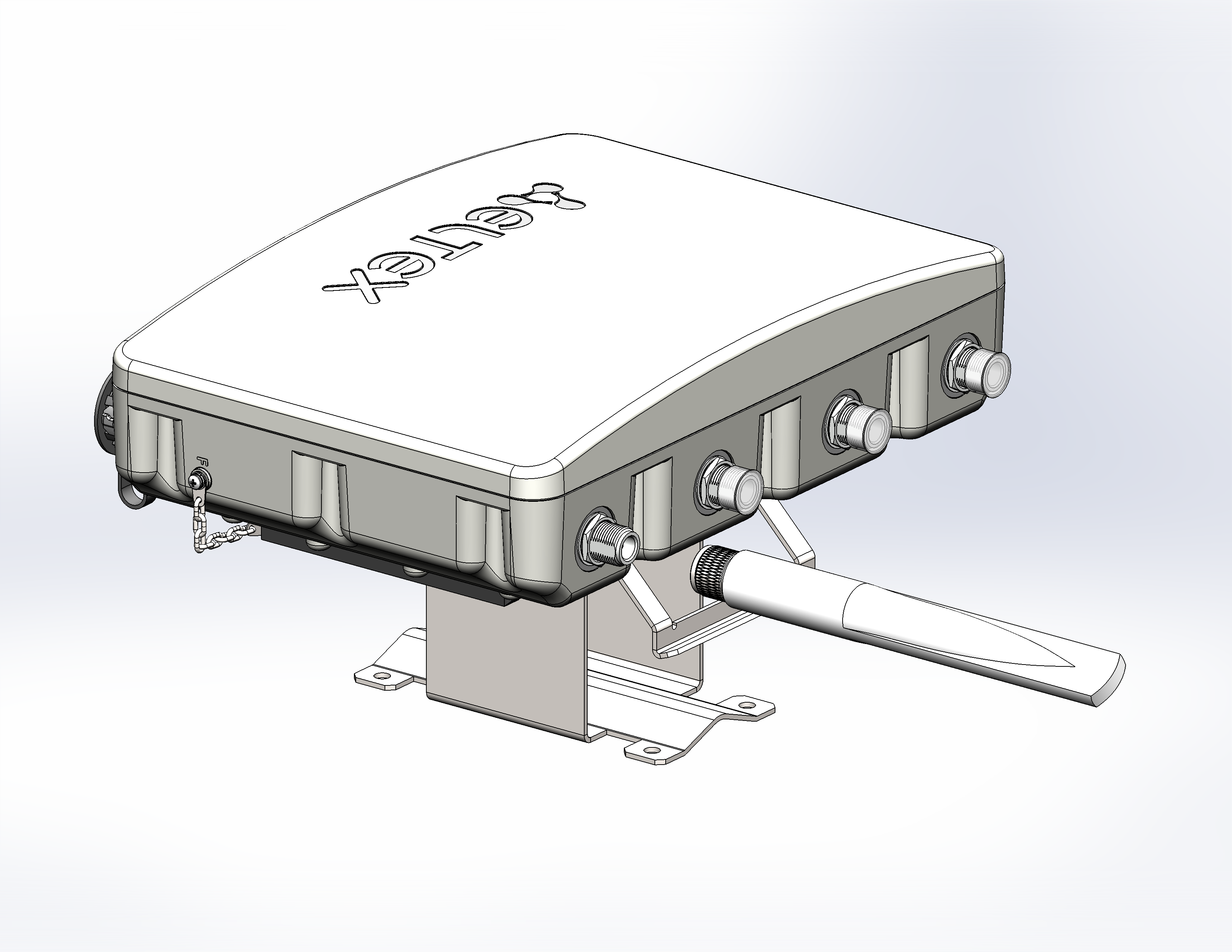
Figure 13 — Installing Omni antennas
4. Before installing the device on a wall or pole, connect the grounding terminal using the screw on the rear panel of the device.
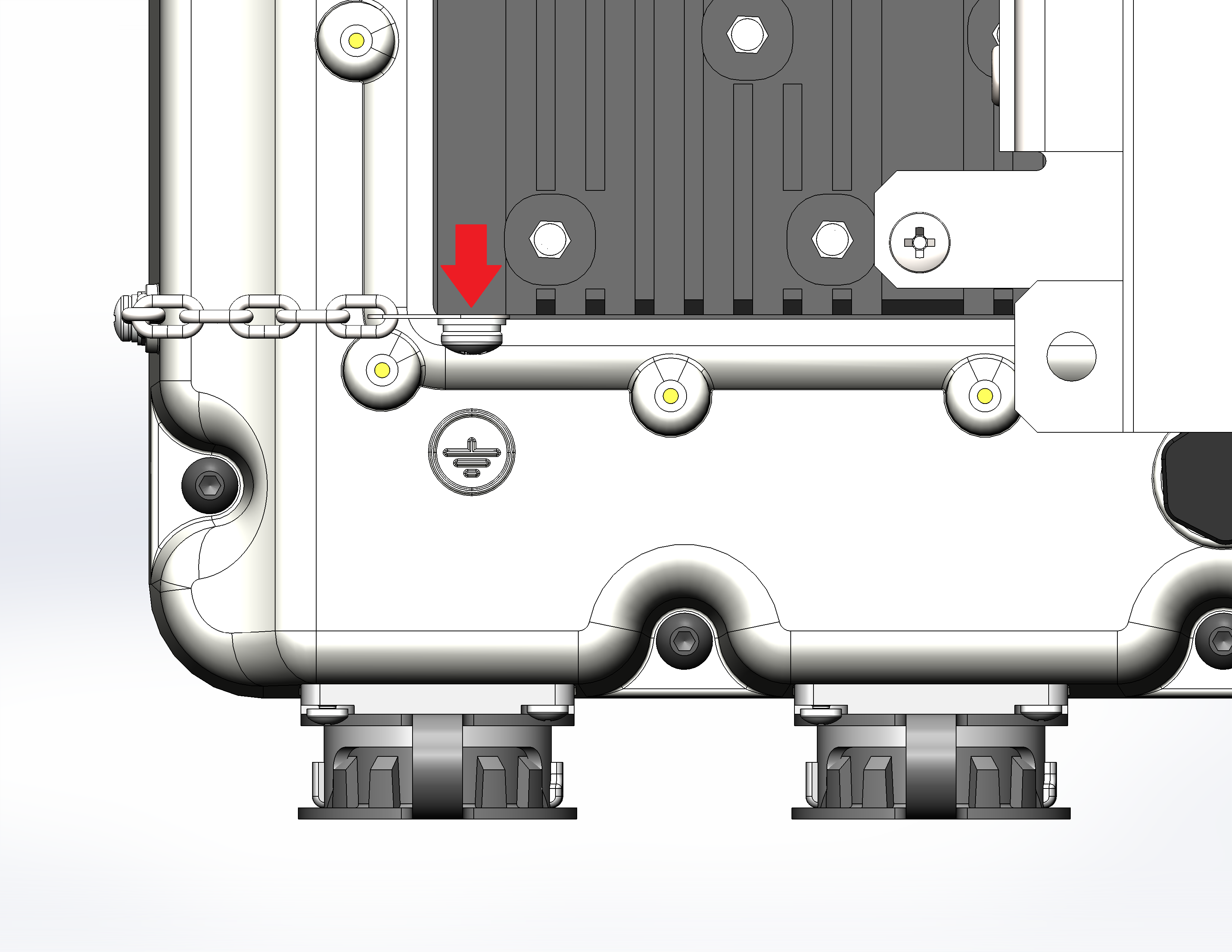
Figure 14 — Grounding the device
Grounding can also be implemented via the DC power connector; see section “DC power connection”. |
Device installation on a mast/pole
When installing the device, antennas or dust-proof (sealed) caps supplied with the device must be installed on the antenna connectors. Remove the caps immediately before connecting to the antenna connectors. |
1. Use the clamps supplied to secure the device to the pole/mast.
Follow the safety instructions and recommendations provided in the sections “Safety rules” and “Installation recommendations”.
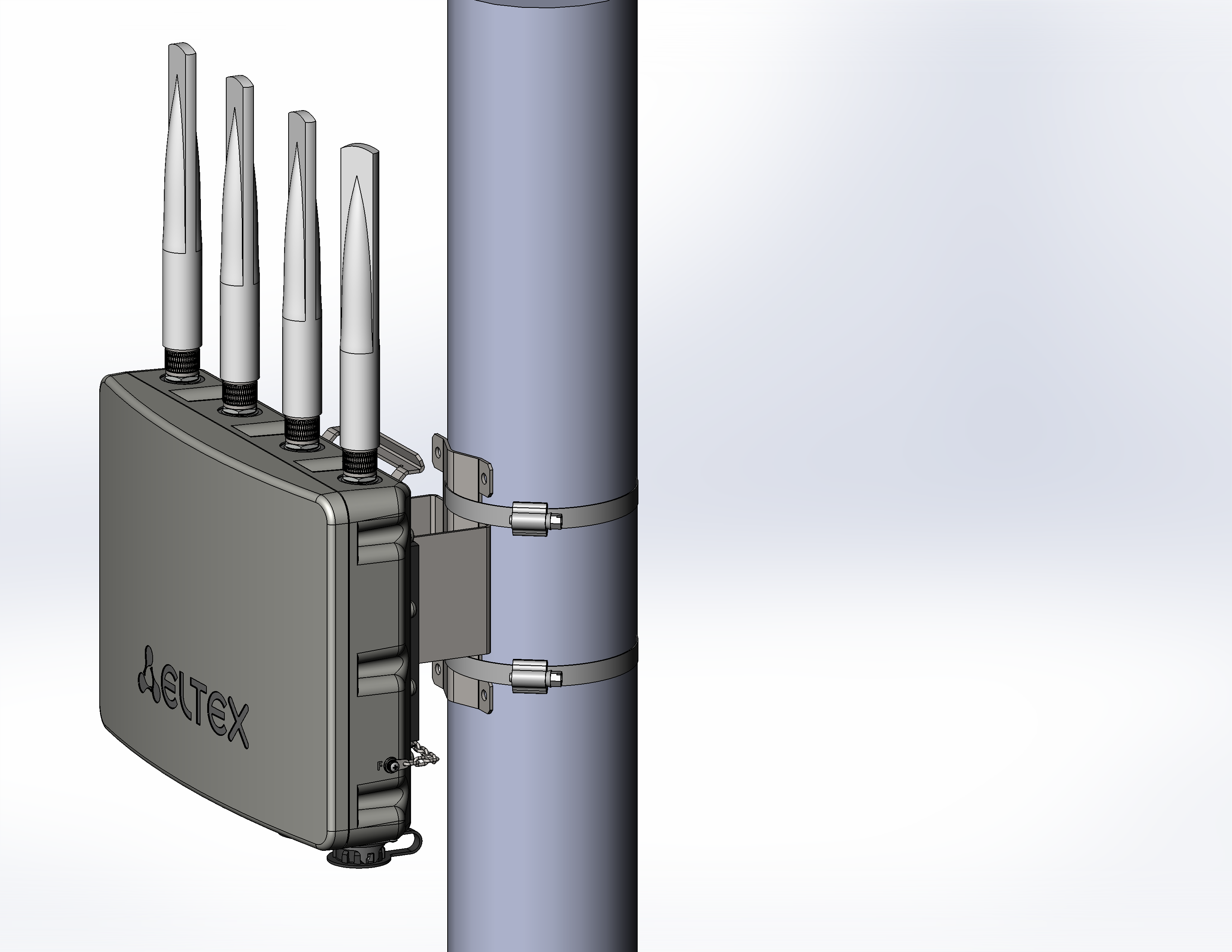
Figure 15 — Attaching the device to the pole
Device installation on a wall
When installing the device, antennas or dust-proof (sealed) caps supplied with the device must be installed on the antenna connectors. Remove the caps immediately before connecting to the antenna connectors. |
1. Use the template shown in Figure 16 to mark the mounting holes on the wall.
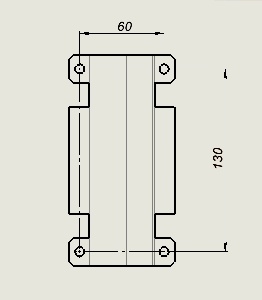
Figure 16 — Mounting hole template
2. Mount the device on the wall using M6 anchor bolts or wall plugs.
Follow the safety instructions and recommendations provided in the sections “Safety rules” and “Installation recommendations”.
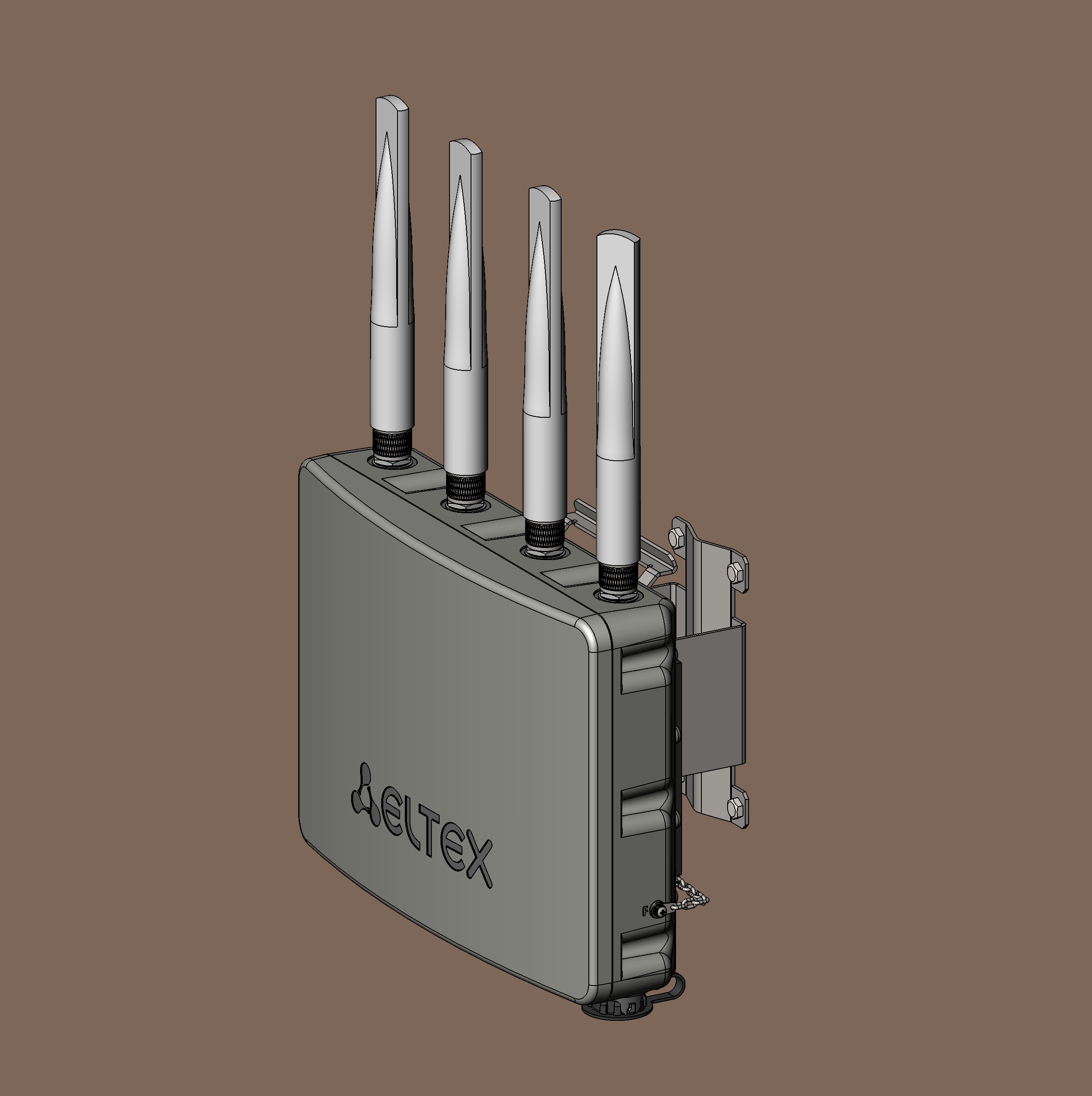
Figure 17 — Mounting the device on the wall
Device connection
Device power supply
1. Connect the Ethernet cable from WOP-30LI (PoE/ETH1 port) to the PoE port of the injector or to a switch port (IEEE 802.3at-2009). The procedure for connecting the Ethernet cable to WOP-30LI is described in section “Network cable connection”.
2. If you are using a PoE injector, connect it to a 220 V power outlet using the power cord.
3. If the device is powered by DC voltage, proceed to section “DC power connection”.
Do not power on the device without antennas connected. |
Network cable connection
1. The device is supplied with a cable gland for Ethernet ports. Unscrew the nut from the cable gland and remove the sealing sleeve from the body lamellas.
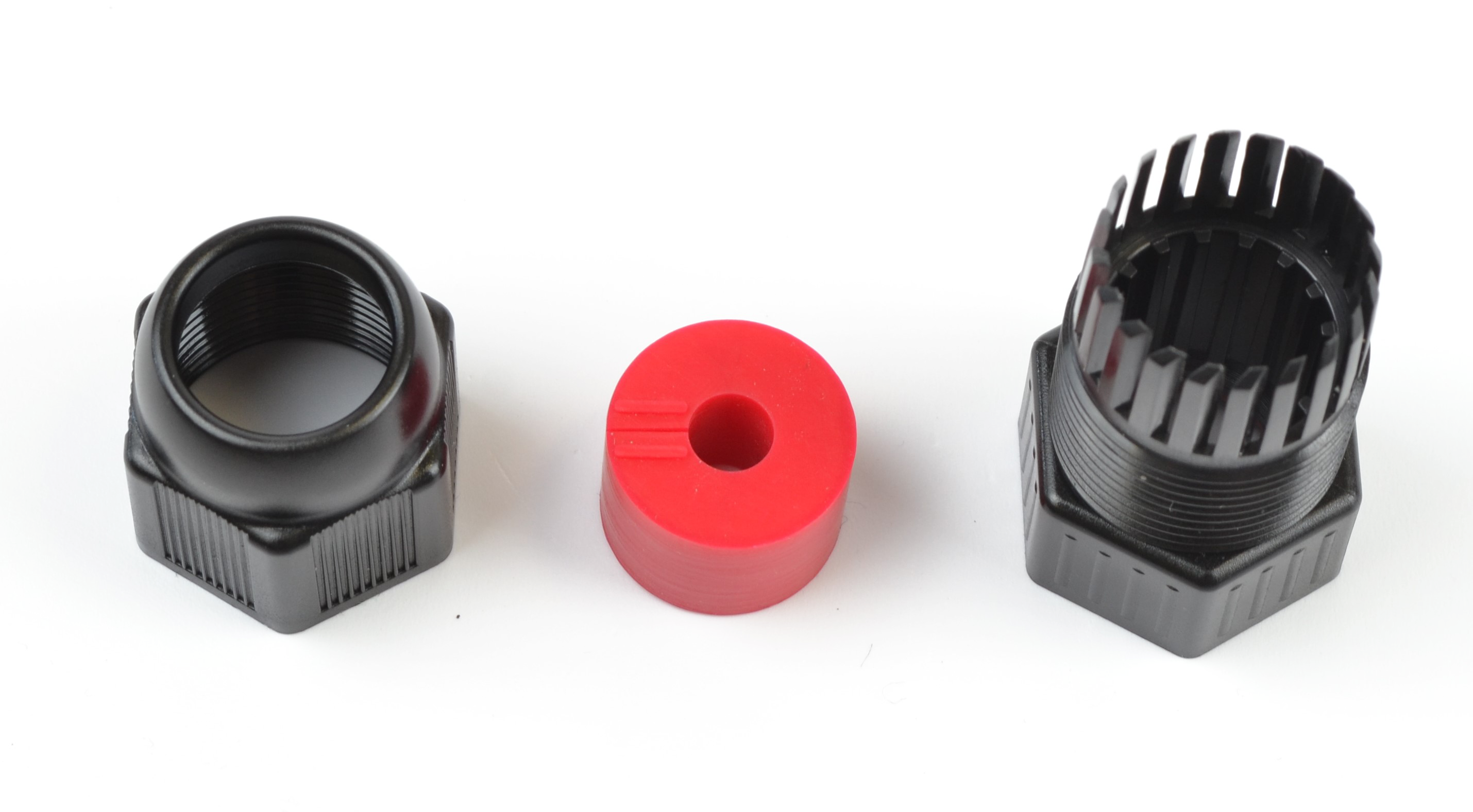
Figure 18 — Disassembled cable gland
2. Pass the cable with the RJ-45 connector through the opening of the cable gland nut.
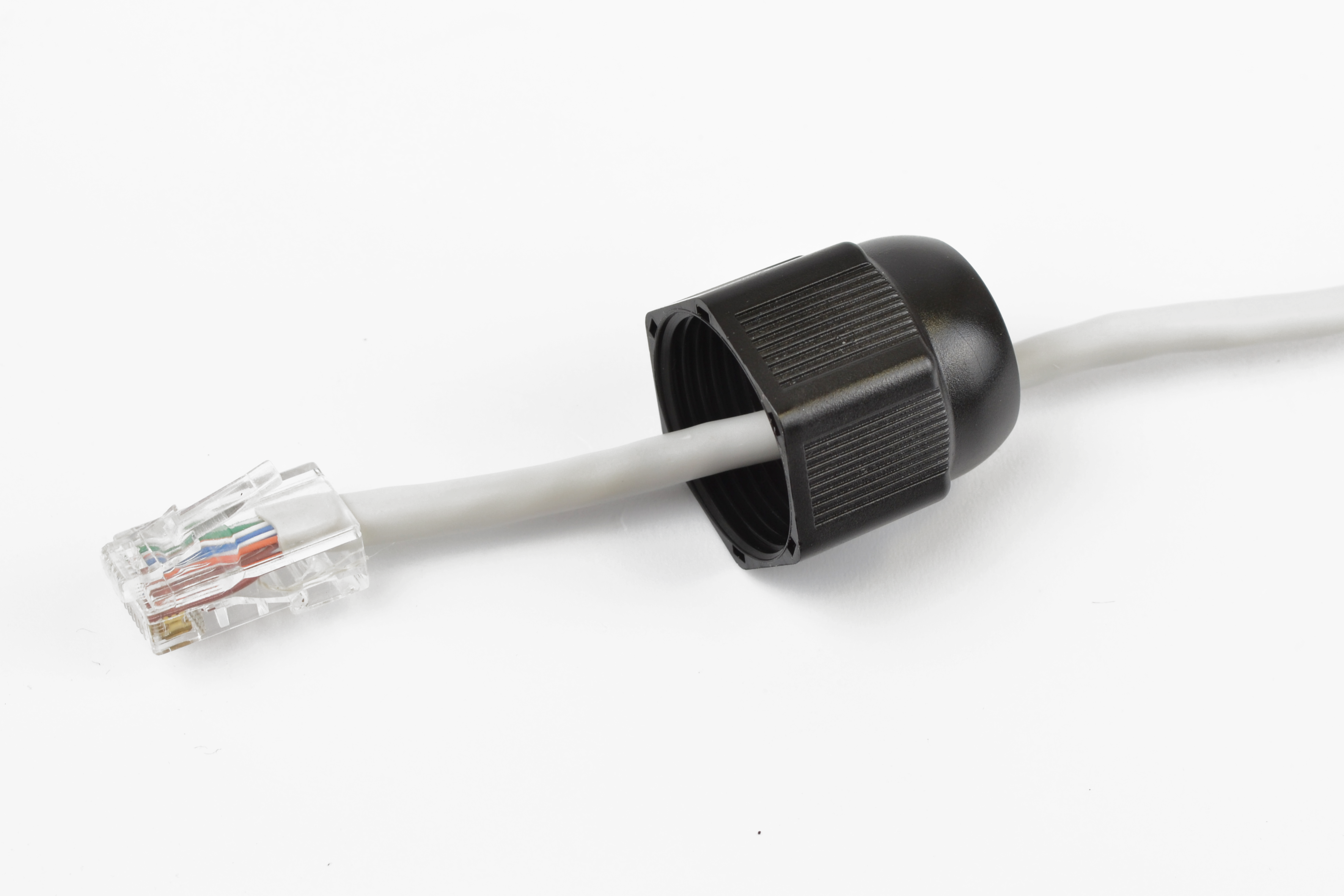
Figure 19 — Installing the cable gland nut on the cable
3. Install the split rubber sleeve on the cable between the connector and the previously installed nut.
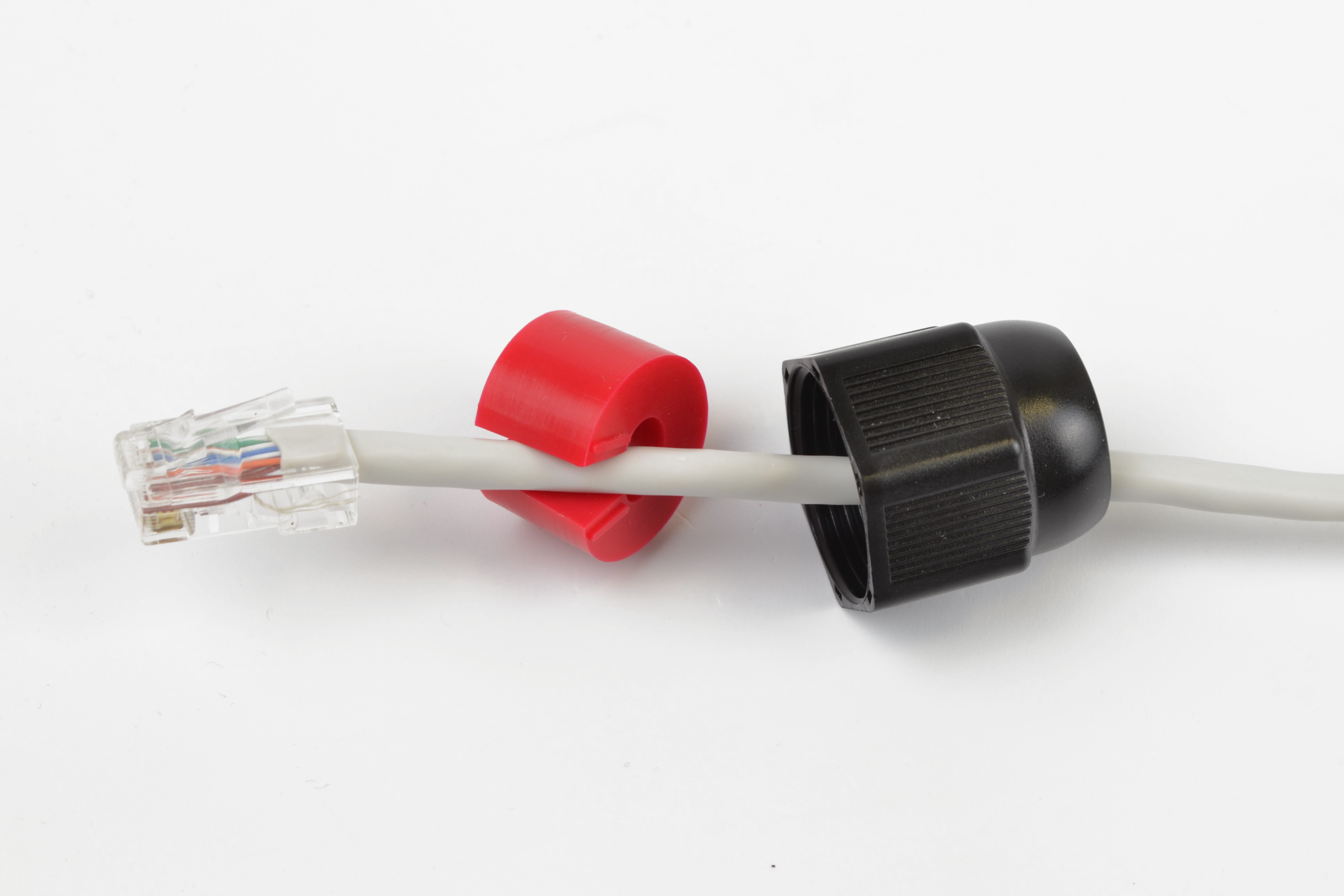
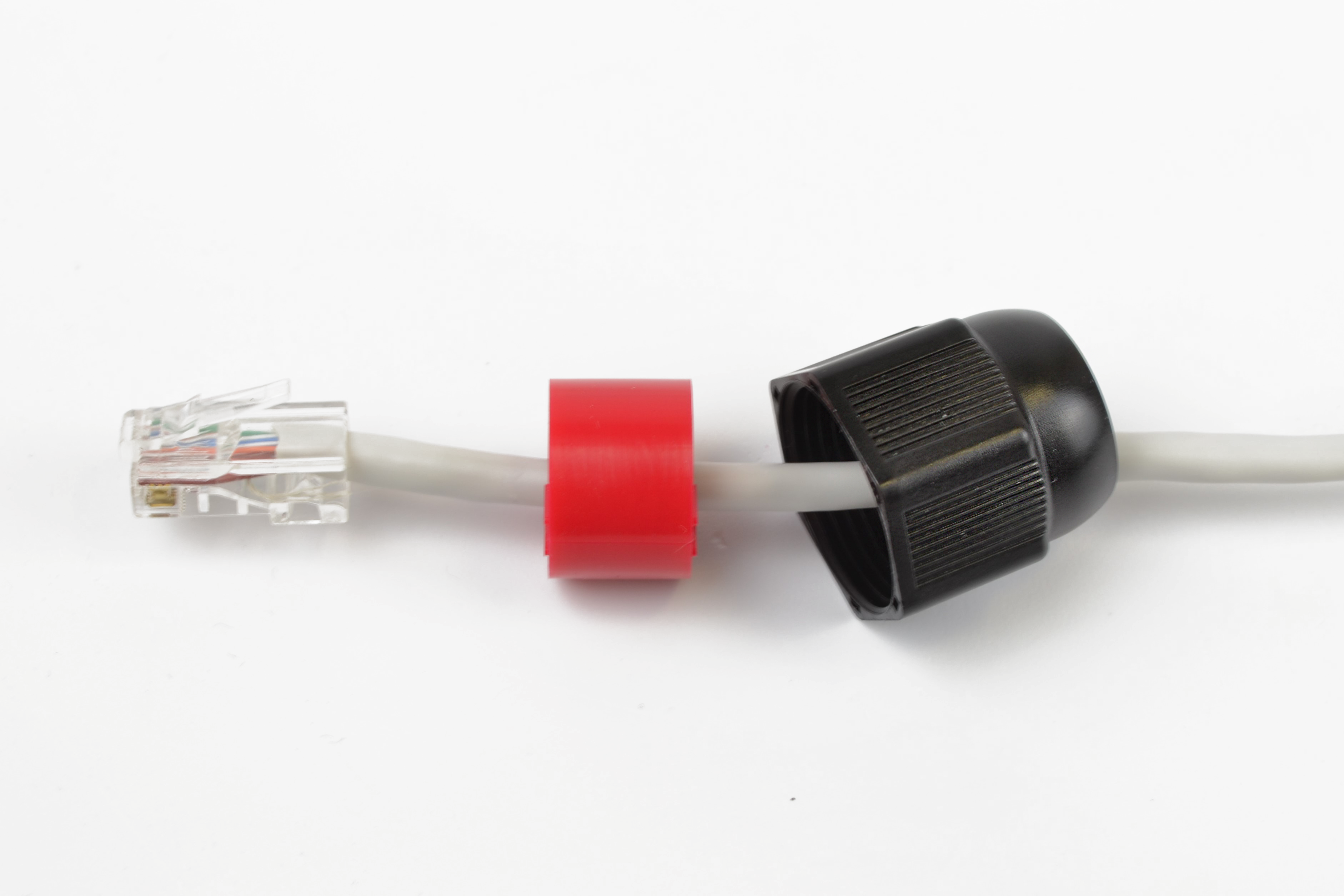
Figure 20 — Installing the rubber sleeve on the cable
4. Pass the cable with the connector through the cable gland body.
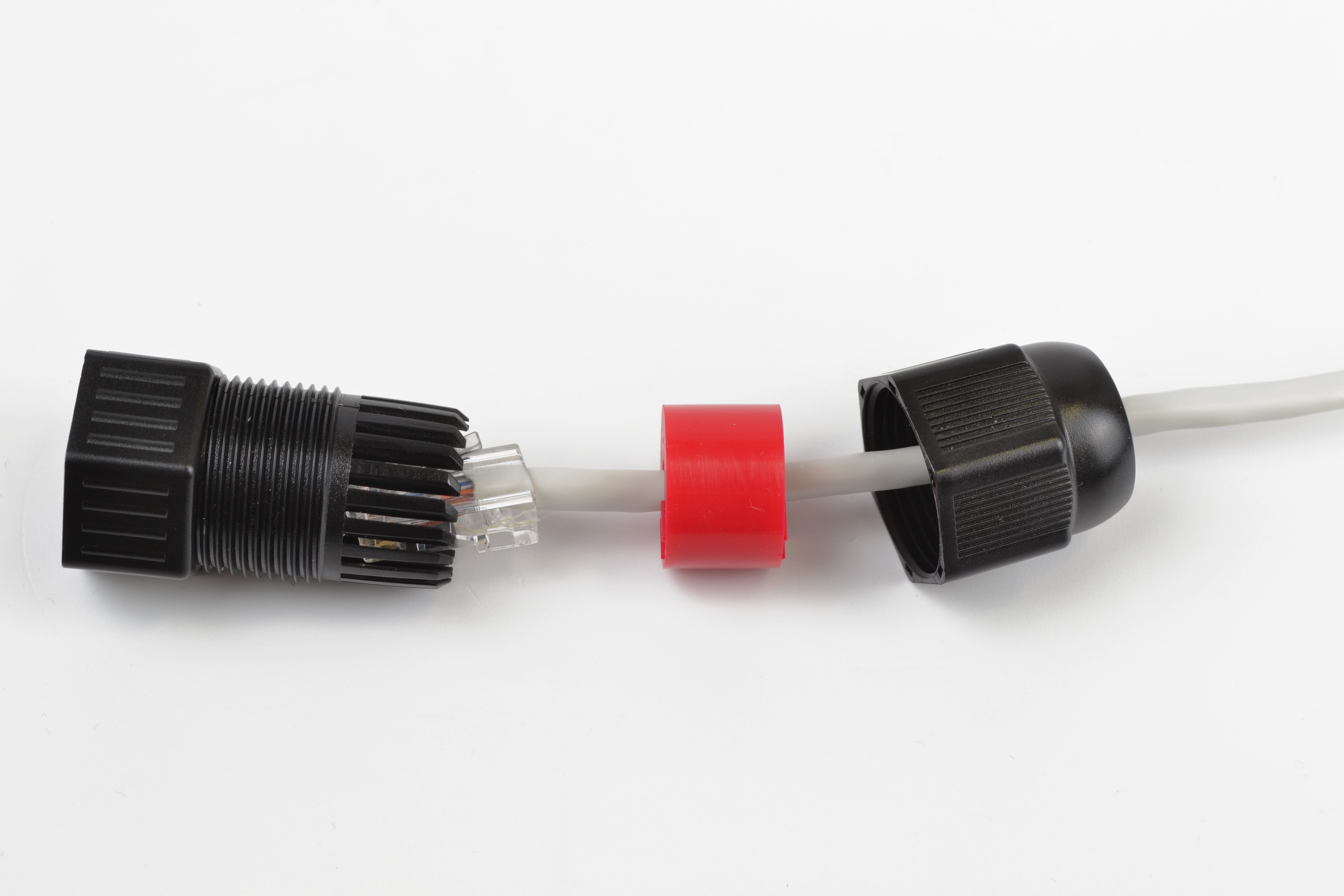
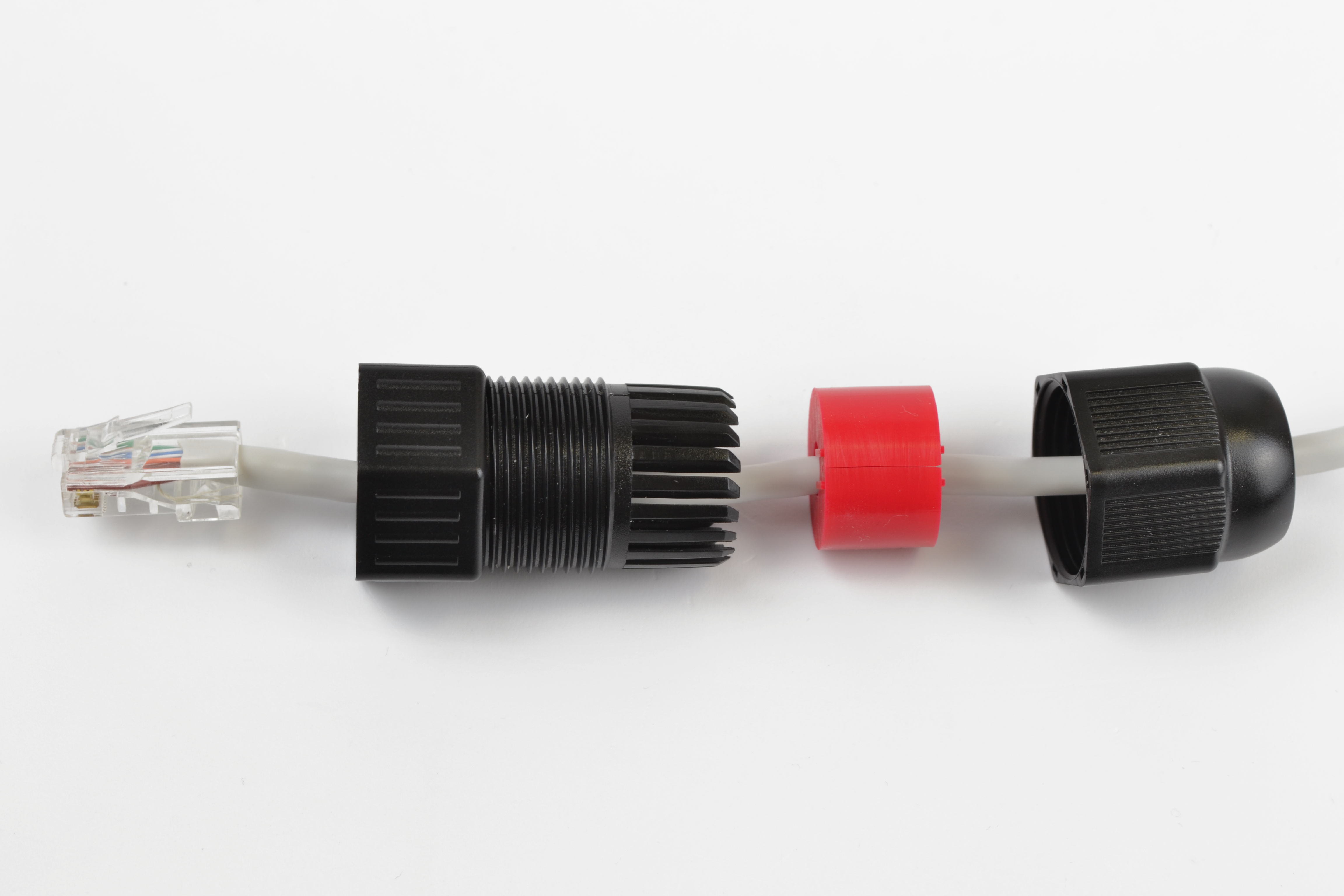
Figure 21 — Installing the cable gland body on the cable
5. Install the sealing sleeve into the lamellas of the cable gland body.
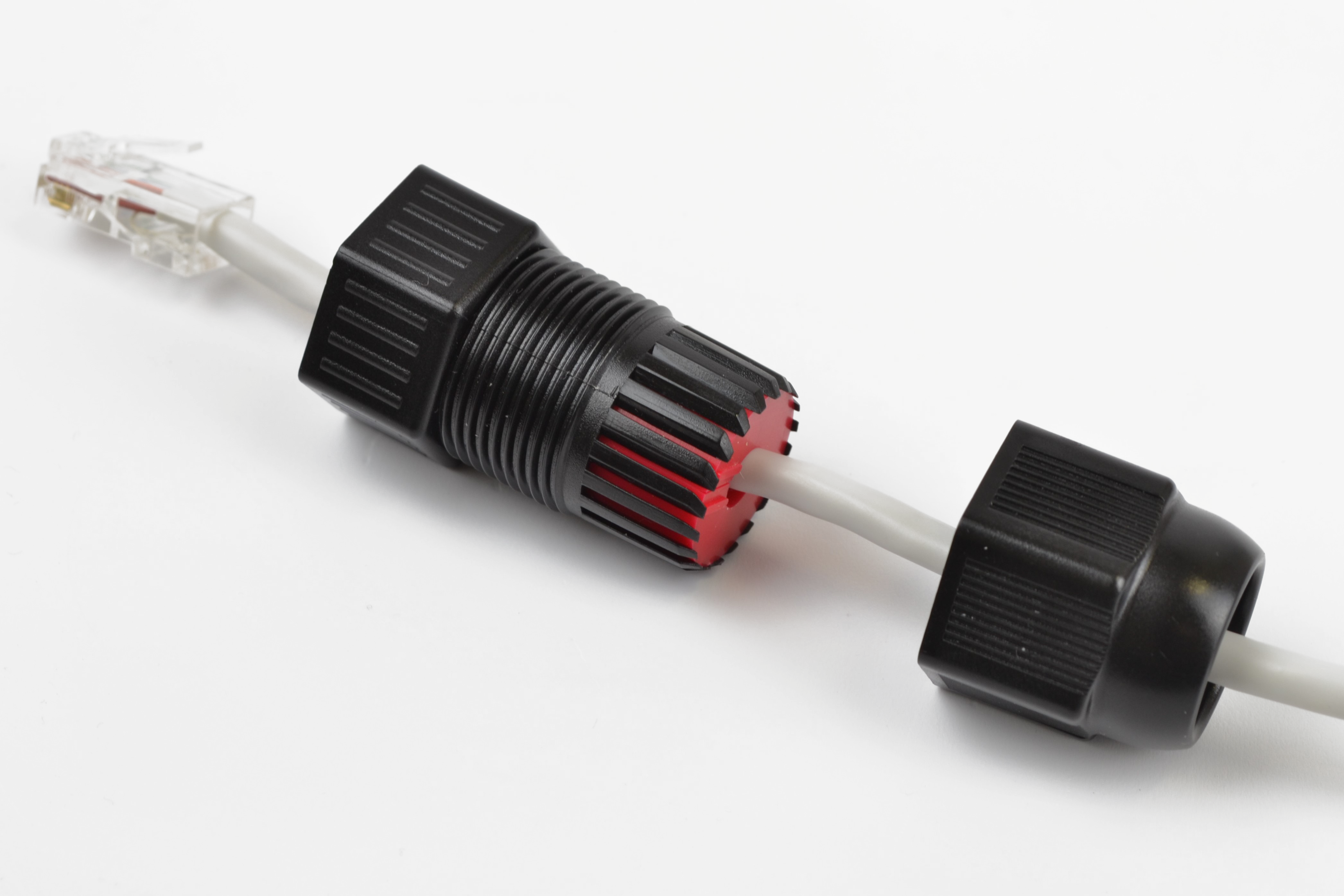
Figure 22 — Installing the sealing sleeve into the cable gland body
6. Screw the nut onto the cable gland housing by a couple of turns (do not tighten the nut; the cable must move freely inside the sealing sleeve).
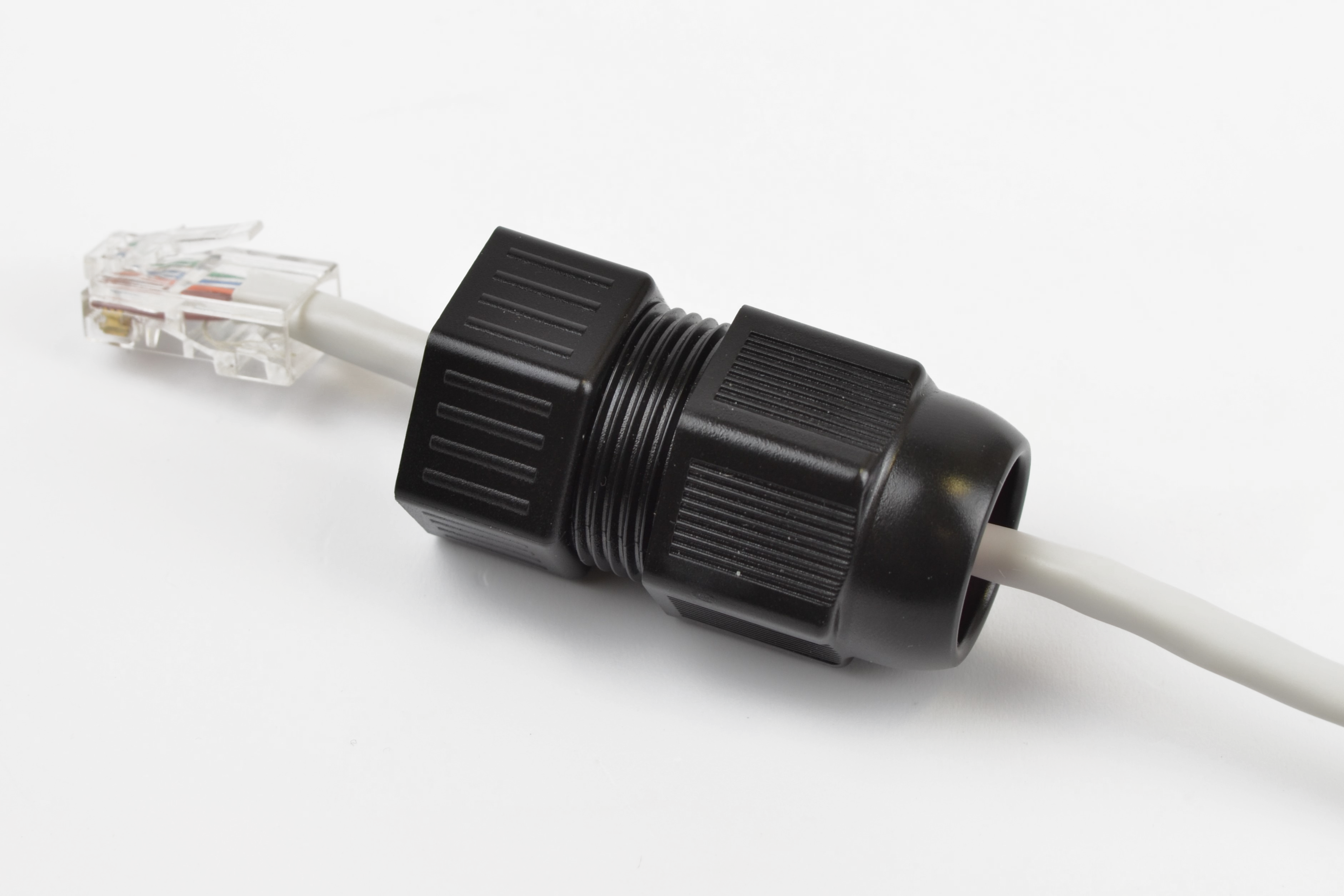
Figure 23 — Securing the cable gland on the cable
7. Insert the RJ-45 connector into the corresponding port on the device enclosure.
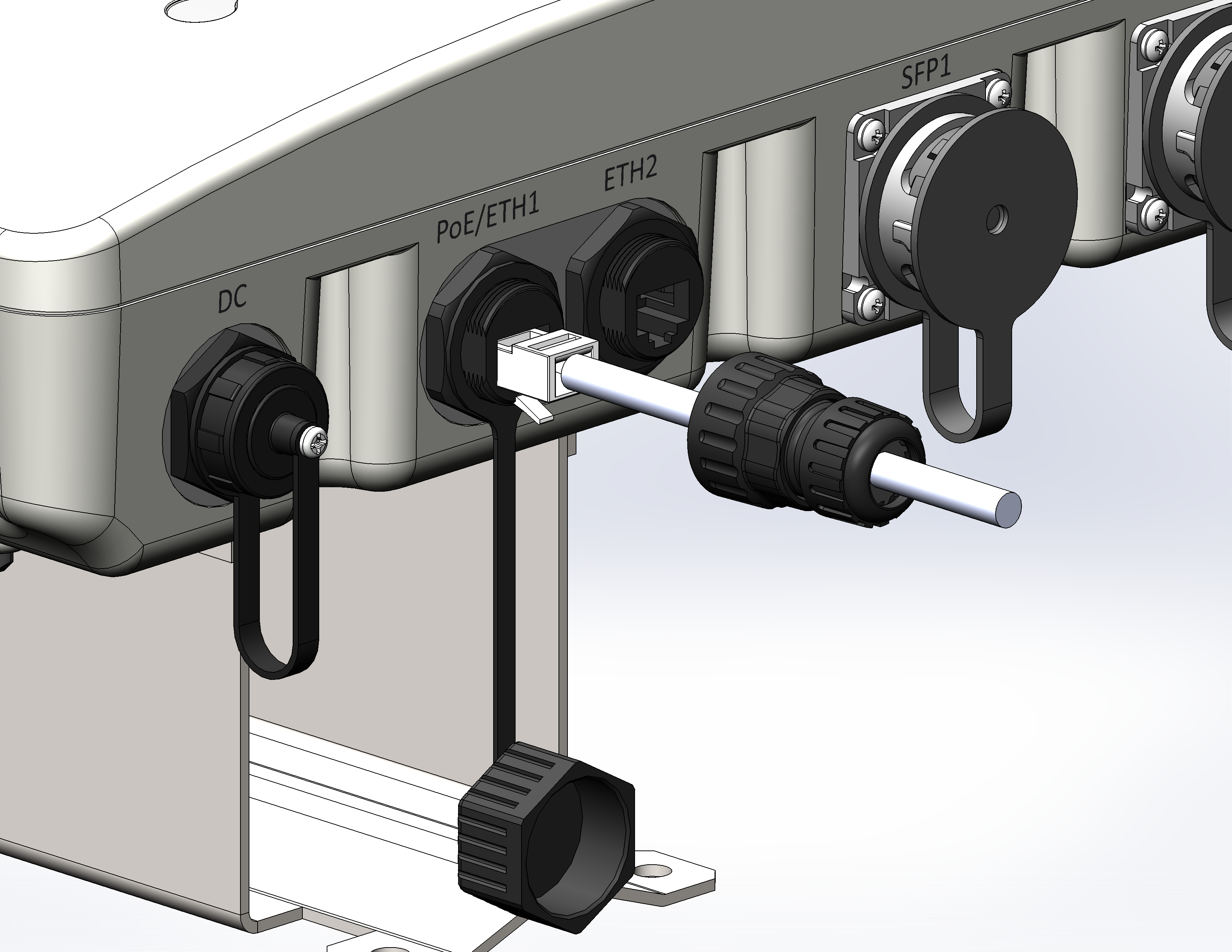
Figure 24 — Connecting the Ethernet cable
8. Screw the cable gland into the mating part on the device enclosure and tighten.
9. Tighten the cable gland nut until the sealing sleeve firmly grips the cable.
Incorrect installation of the cable gland may compromise the device sealing. |
To prevent device failure, the use of lightning protection is recommended. |
Optical cable connection
1. Install the SFP module into the optical port.
2. To install the optical cable, mount the cable gland for SFP ports as shown in Figure 25.
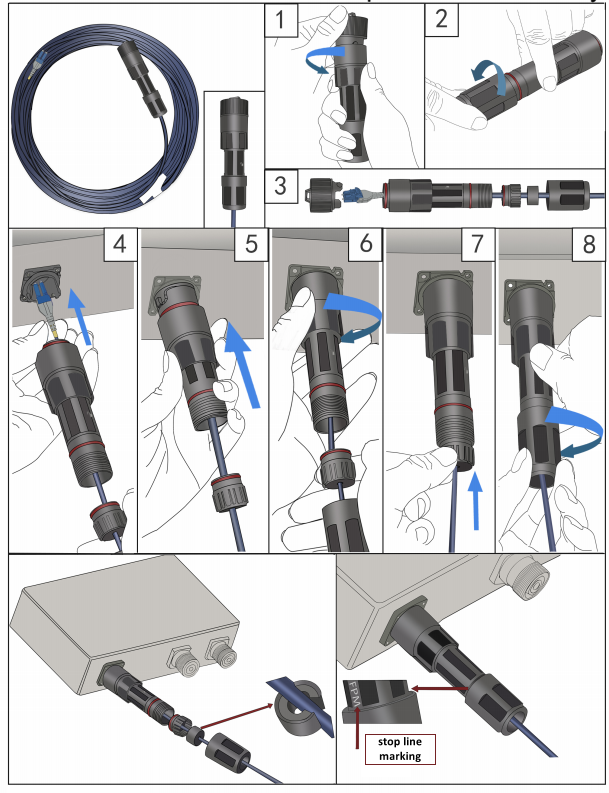
Figure 25 — Installing the optical cable
3. Remove the protective cap (1) and unscrew the compression nut from the ends of the cable gland (2).
4. Remove the split gland and pass the cable through the compression nut and the cable gland (3).
5. Remove the protective plug from the flange on the device enclosure (4).
6. Insert the optical cable into the SFP module connector (5).
7. Insert the cable gland into the open flange on the device and rotate it half a turn until it locks (6).
8. Install the split gland on the cable and insert it into the cable gland (7).
9. Tighten the compression nut firmly (8).
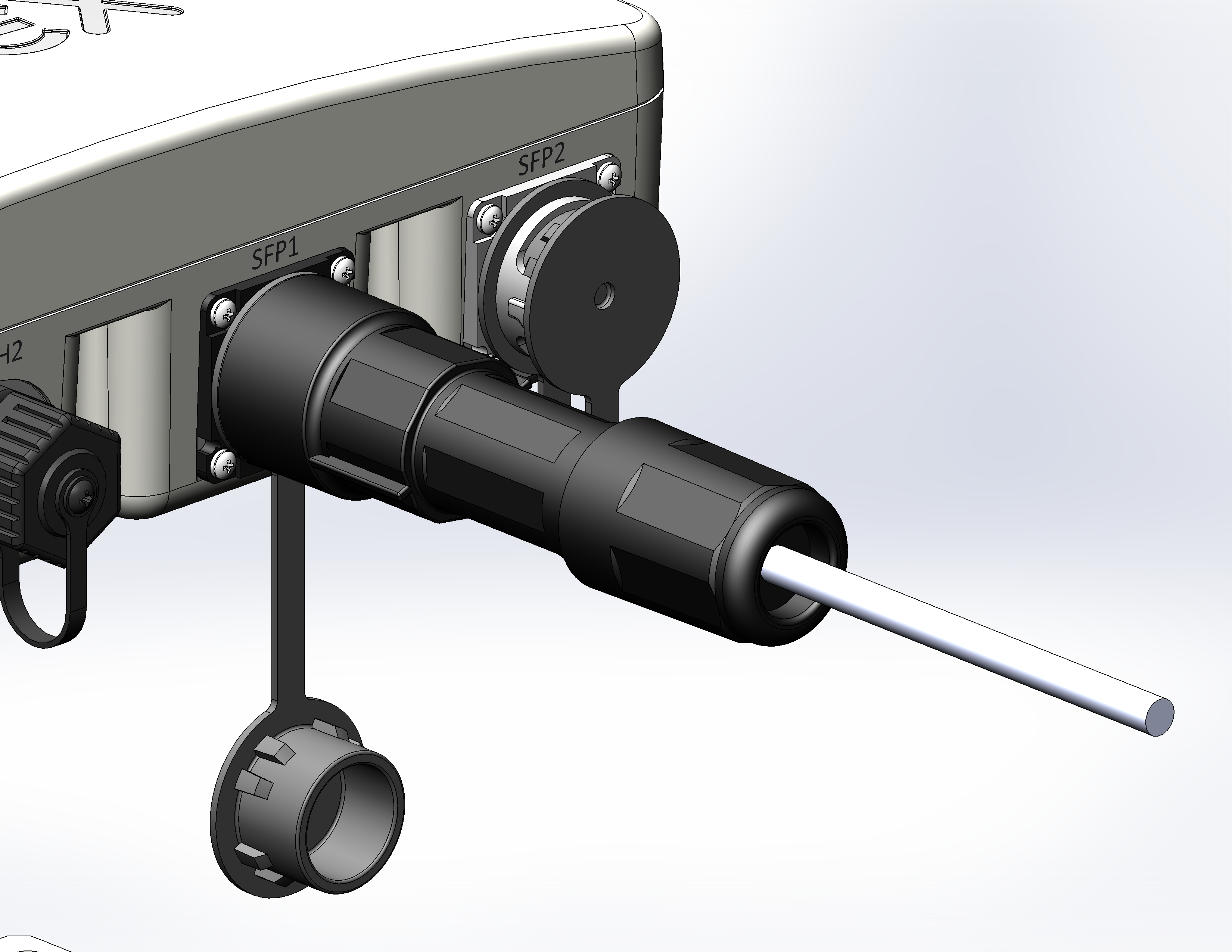
Figure 26 — Cable gland installed on the device
Incorrect installation of the cable gland may compromise the device sealing. |
DC power connection
1. Solder the mating part of the DC power connector.
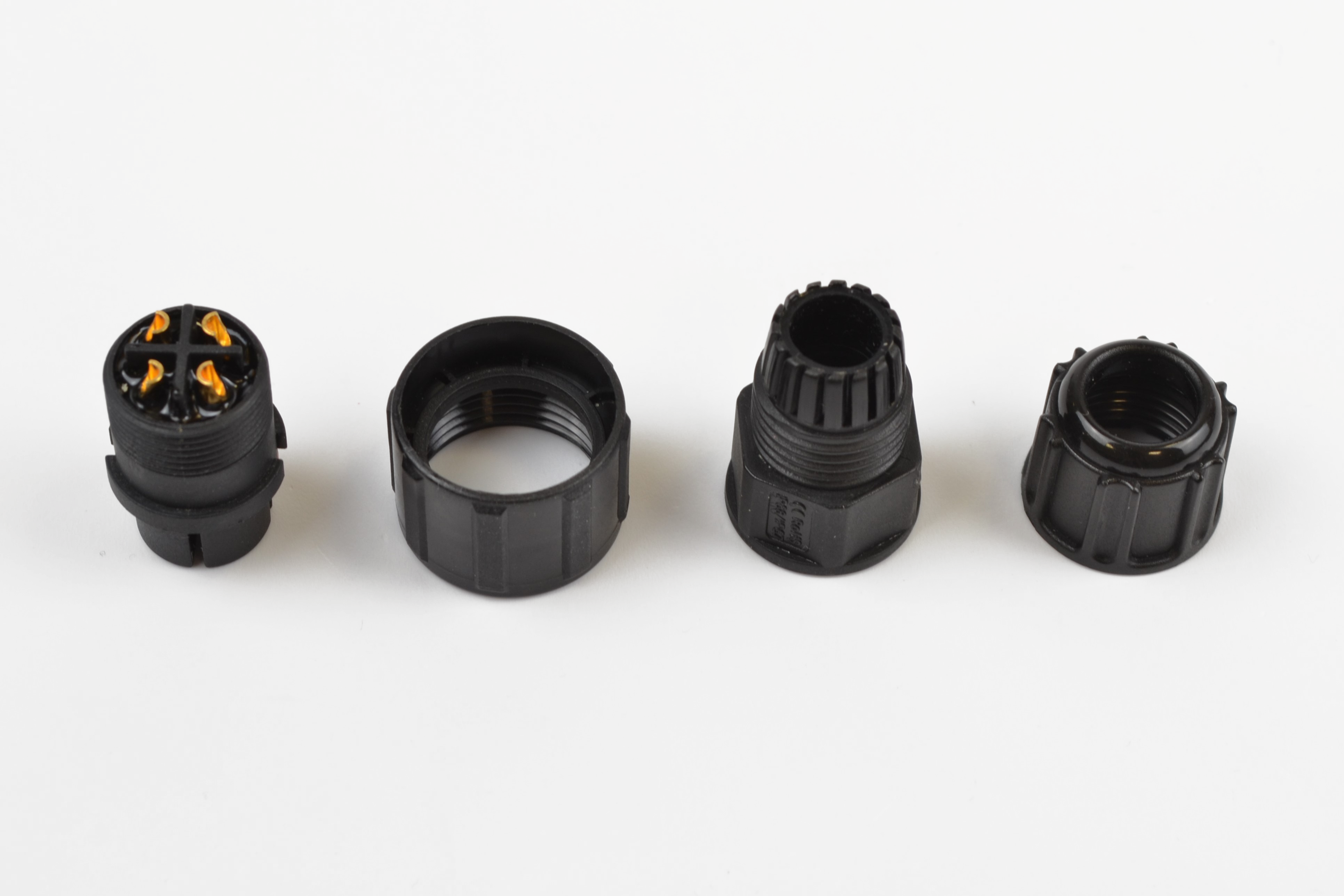
Figure 27 — Mating part of the sealed DC power connector
2. The pinout of the power connector on the device enclosure is shown in Figure 28.
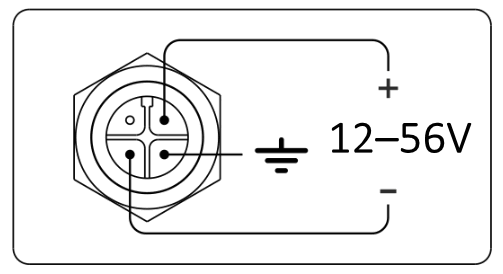
Figure 28 — DC power connector pinout on the device enclosure
3. Unscrew the cap, insert the power cable, and tighten the fixing nut. Installation of the soldered cable is shown in Figure 29.
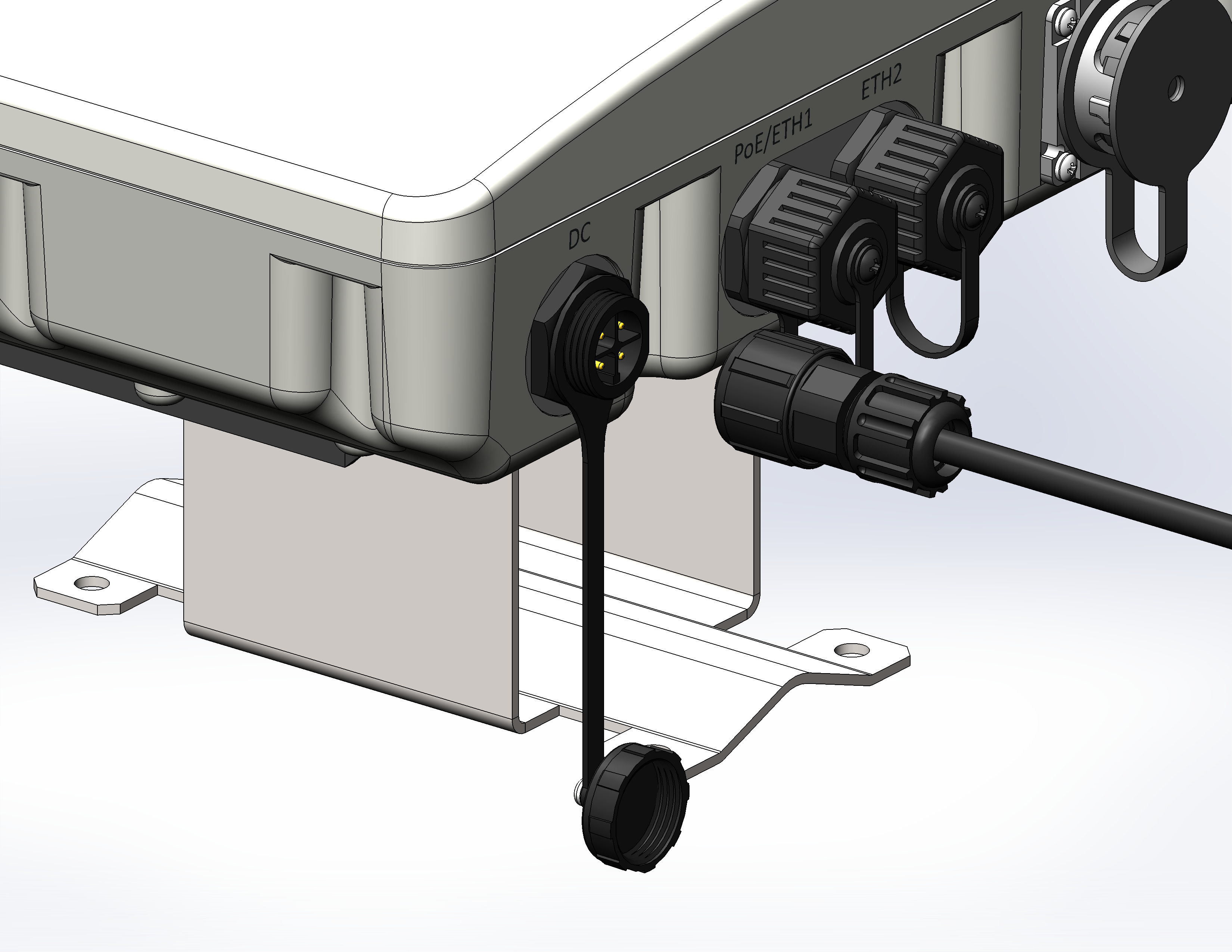
Figure 29 — DC power connection
Incorrect installation of the mating part of the DC power connector may compromise the device sealing. |
Antenna connection
Connect the antennas to the device following the instructions in section “Instructions for sealing antenna connectors”:
- When using Omni antennas: connect the antennas to the N-connectors of the device. It is recommended to perform this step during “Preparation for installation”.
- When using panel/sector antennas: connect the antennas to the N-connectors of the device using cable assemblies. Adjust the antenna position so that subscriber devices are within the coverage area of the installed antenna.
Instructions for sealing antenna connectors 
Sealing should be carried out on both sides of the cable. |
1. Before connecting the cable to the connector, inspect the cable sheath for damage, and also check if a sealing ring is in the connector nut, the location is shown in Figure 30 (a, b).
 Figure 30a
 Figure 30b
2. Connect the cable to the device connector (antenna) and tighten the nut as shown in Figure 31 (a, b).
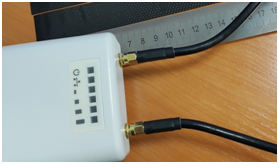 Figure 31a
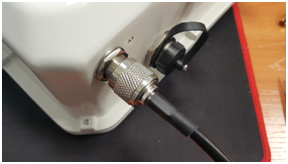 Figure 31b
3. Cut the rubber sealing tape to the appropriate length: one SMA connector (Figure 32a) requires 0.15 m of waterproofing tape, one N-type connector (Figure 32b) requires 0.3 m of waterproofing tape, as shown in Figure 32 (a, b).
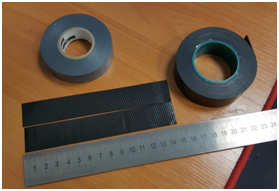
Figure 32a
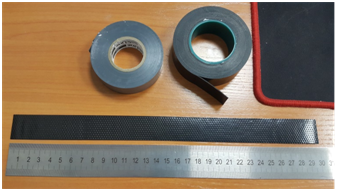
Figure 32b
4. Remove the protective layer from the rubber tape as shown in Figure 33.
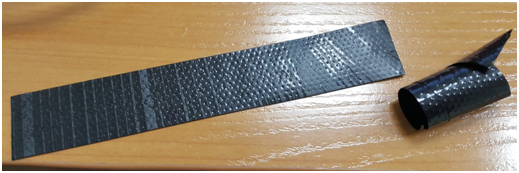 Figure 33
5. Start winding from the side of the cable, having previously stepped back from the crimping part by 10–15 mm. Fix the tip of the tape on the cable sheath at the angle of 15–25 degrees to the cable axis, and, slightly stretching the tape, start wrapping the cable and the connector, moving towards the device case. The tape turns should be laid on top of each other with an overlap, wrinkles on the turns are not allowed. The cable winding is shown in Figure 34 (a, b).
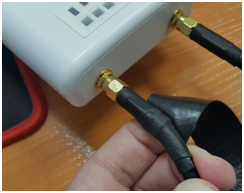 Figure 34a
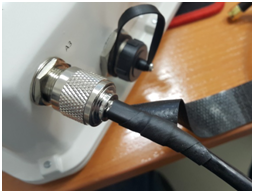 Figure 34b
6. Having reached the device case (antenna) with the edge of the tape, make a turn around the connector, pressing the edge of the tape to the case as much as possible, then continue winding the tape at a different angle, moving away from the body. When winding, do not forget to stretch the tape and press it tightly against the previously wound turns. At the tip of the tape, the stretch should be reduced and pressed tightly against the turns located on the cable sheath, as shown in Figure 35 (a, b).
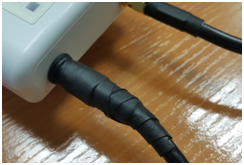 Figure 35a
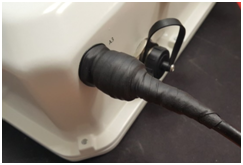 Figure 35b
7. Cut the PVC tape (duct tape) to the appropriate length: one SMA connector requires 0.28 m of the PVC tape, one N-type connector requires 0.6 m of the PVC tape. The PVC tape is required to protect the rubber tape from UV rays. The PVC tape is shown in Figure 36.
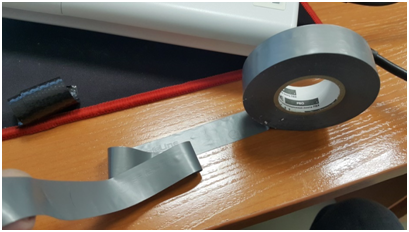
Figure 36
8. Start the winding from the cable sheath, having previously stepped back from the first turn of the rubber tape by 5–10 mm. Fix the tip of the PVC tape on the cable sheath at an angle of 15–25 degrees to the cable axis, and, slightly stretching the tape, start wrapping the cable and connector, moving towards the device case. The turns should be laid on top of each other with an overlap, wrinkles on the turns are not allowed. The cable winding is shown in Figure 37.
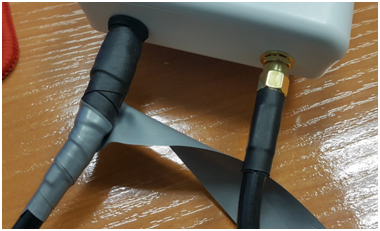
Figure 37
9. Having reached the case with the edge of the tape, make a turn around the connector, pressing the edge of the PVC tape to the device case as much as possible, then continue winding the tape at a different angle, moving away from the case. When winding, tightly apply the turns of the tape, avoiding wrinkles. On the last turns of the PVC tape, the stretch should be reduced to zero and the last turn should be laid without stretching, as shown in Figure 38 (a, b).
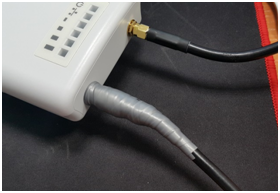 Figure 38a
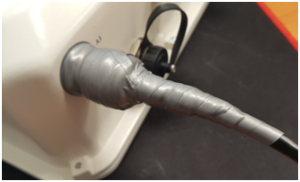 Figure 38b
10. Check the sealed connector for visible rubber tape.
Device management via the web interface
Getting started
In order to start the operation, connect to the device via WAN interface using a web browser:
1. Open a web browser, for example, Firefox, Opera, Chrome
2. Enter the device IP address in the browser address bar.
Factory IP address: 192.168.1.10, subnet mask: 255.255.255.0. By default, the device is capable to obtain an IP address via DHCP. |
When the device is successfully detected, username and password request page will be shown in the browser window.
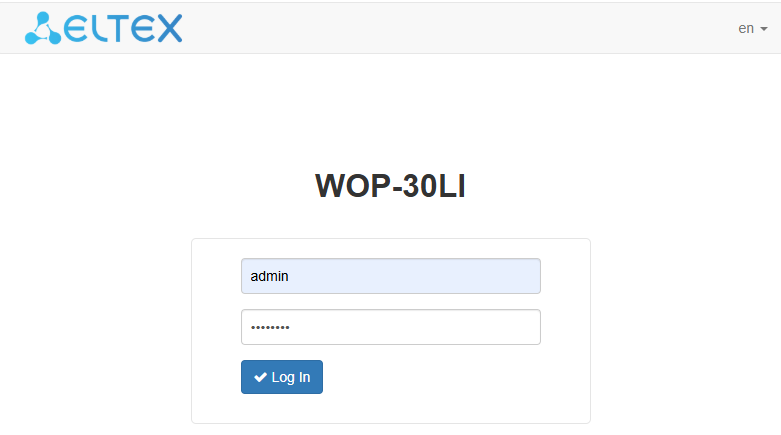
3. Enter username into “Enter login” and password into “Enter password” field.
Factory settings: login — admin, password — password. |
4. Click “Log In”. A menu for monitoring the device status will open in a browser window.
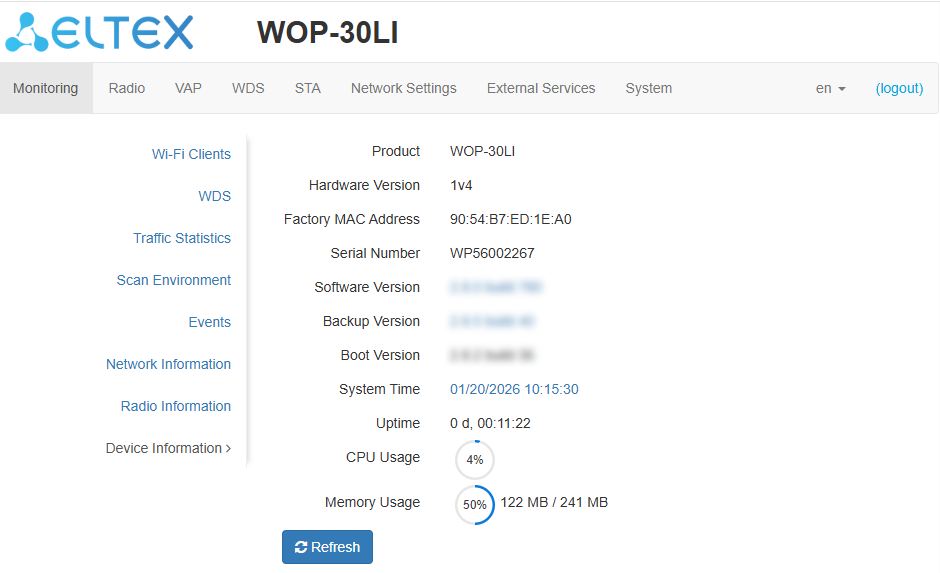
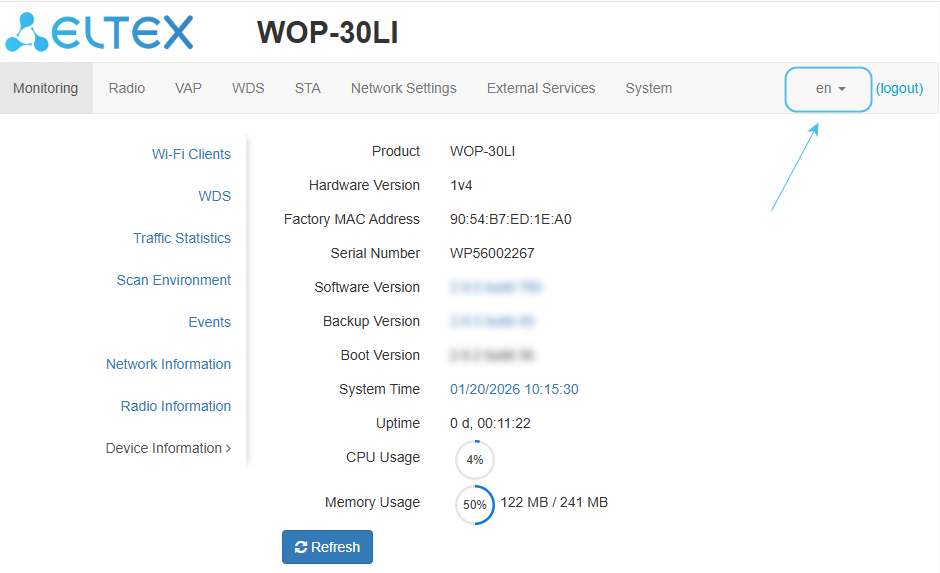
5. If necessary, select the information display language. Russian and English languages are available for WOP-30LI web interface.
Applying configuration and discarding changes
- Applying configuration
Clicking |
 starts the process of saving the configuration to the device flash memory and applying the new settings. All the settings come into operation without device rebooting.
The WOP-30LI web interface has a visual indication of the current status of the setting applying process (Table 5).
Table 5 — Visual indication of the current status of the setting application process
| Image | State description |
|---|---|
| Clicking “Apply” starts the process of saving the configuration to the device flash memory and applying the new settings. This is indicated by the icon |
| The |

 i
i2. Discarding changes
The button for discarding changes appears as follows:  .
.
The changes can be discarded only before clicking “Apply”. If you click “Apply”, all the changed parameters will be applied and saved to device memory. After clicking “Apply”, return to the previous settings will not be possible. |
Web interface main elements
Navigation elements of the web interface are shown in the figure below.
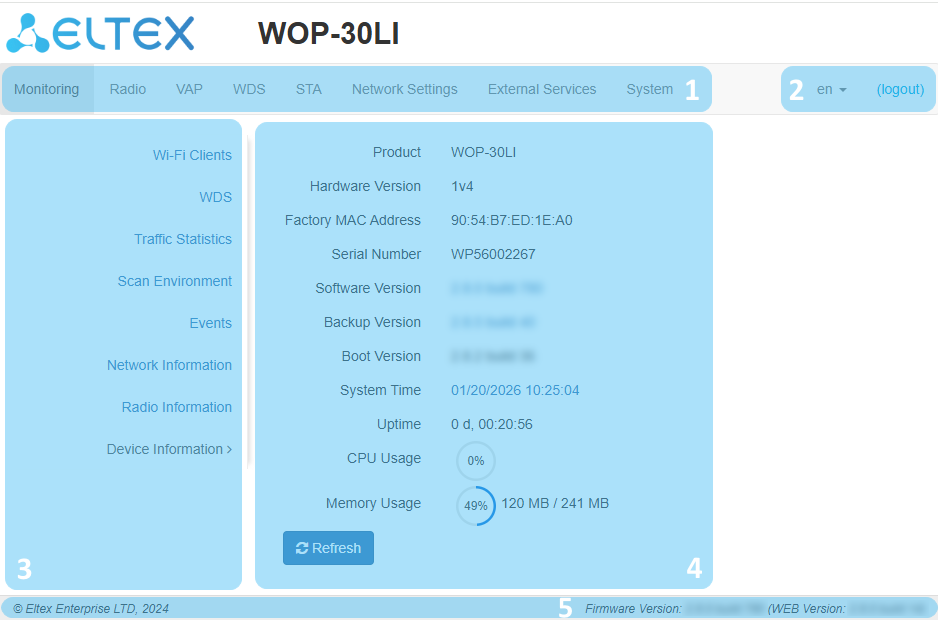
User interface window is divided into five general areas:
- Menu tabs categorize the submenu tabs: Monitoring, Radio, VAP, WDS, STA, Network Settings, External Services, System.
- Interface language selection and Logout button designed to end a session in the web interface under a given user.
- Submenu tabs allow one to control settings field.
- Device configuration field displays data and configuration.
- Information field displays current firmware version.
The “Monitoring” menu
In the “Monitoring” menu, the current system state can be viewed.
The “Wi-Fi Clients” submenu
The “Wi-Fi Clients” submenu displays information about the status of connected Wi-Fi clients.
Information on connected clients is not displayed in real time. In order to update the information on the page, click “Refresh”.
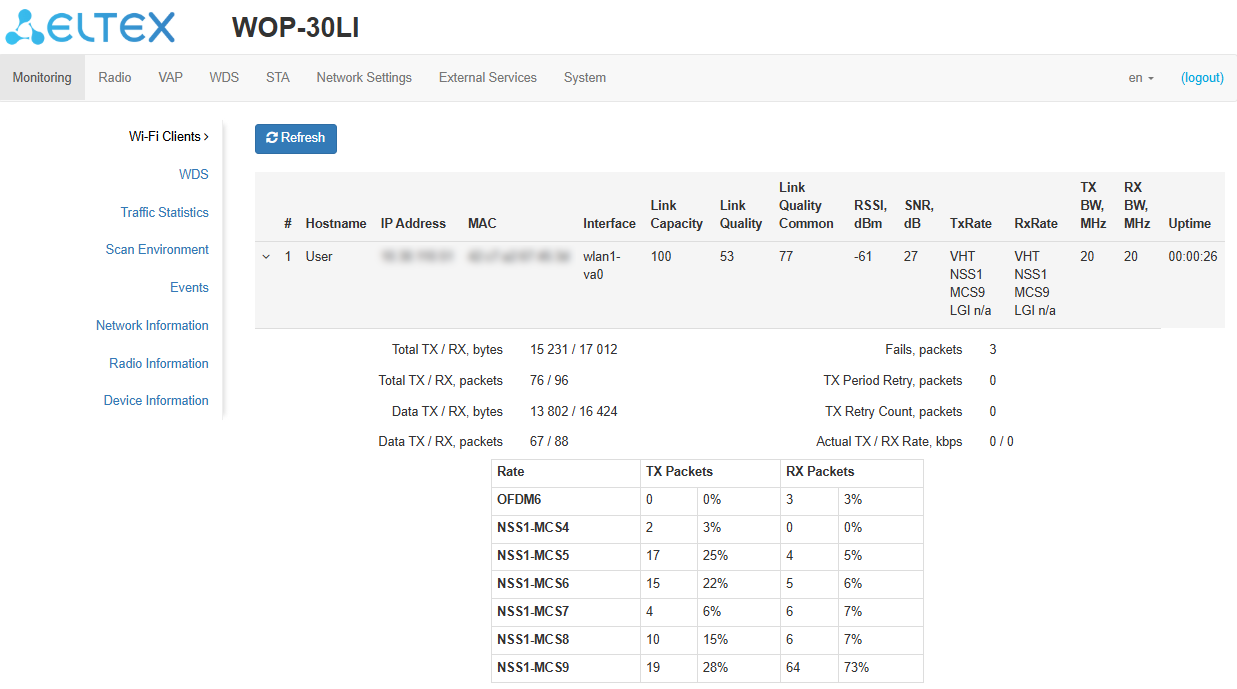
- # — number of the connected device in the list;
- Hostname — network name of the device;
- IP address — IP address of the connected device;
- MAC address — MAC address of the connected device;
- Interface — WOP-30LI interaction interface with the connected device;
- Link Capacity — parameter that displays the efficiency of modulation on the transmission used by an access point. It is calculated based on the number of packets transmitted to the client on each modulation, and the reduction factors. The maximum value is 100% (meaning that all packets are transmitted to the client at maximum modulation for the maximum Nss type supported by the client). The minimum value is 2% (in the case when the packets are transmitted on the modulation Nss1MCS0 for a client with MIMO 3×3 support). The parameter value is calculated for the last 10 seconds;
- Link Quality — parameter that displays the status of the link to the client, calculated based on the number of retransmit packets sent to the client. The maximum value is 100% (all transmitted packets were sent on the first attempt), the minimum value is 0% (no packets were successfully sent to the client). The parameter value is calculated for the last 10 s;
- Link Quality Common — parameter that displays the status of the link to the client, calculated based on the number of retransmit packets sent to the client. The maximum value is 100% (all transmitted packets were sent on the first attempt), the minimum value is 0% (no packets were successfully sent to the client). The parameter value is calculated for the entire client connection time;
- RSSI — received signal level, dBm;
- SNR — signal-to-noise ratio, dB;
- TxRate — channel data rate of transmission, Mbps;
- RxRate — channel data rate of receiving, Mbps;
- Tx BW — transmission bandwidth, MHz;
- Rx BW — reception bandwidth, MHz;
- Uptime — Wi-Fi client connection time.
To display more detailed information on a particular client, select it from the list. A detailed description includes the following options:
- Total TX/RX, bytes — number of bytes sent/received on the connected device;
- Total TX/RX, packets — number of packets sent/received on the connected device;
- Data TX/RX, bytes — number of bytes sent/received on the connected device;
- Data TX/RX, packets — number of packets sent/received on the connected device;
- Fails, packets — number of packets sent with errors on the connected device;
- TX Period Retry, packets — number of retries of transmission to the connected device for the last 10 seconds;
- TX Retry Count, packets — number of retries of transmission to the connected device during the entire connection;
- Actual TX/RX Rate, Kbps — current traffic transmission rate at the moment.
The “Wireless Peer” submenu
The “Wireless Peer” submenu displays information about the client (STA) mode connection to the access point.
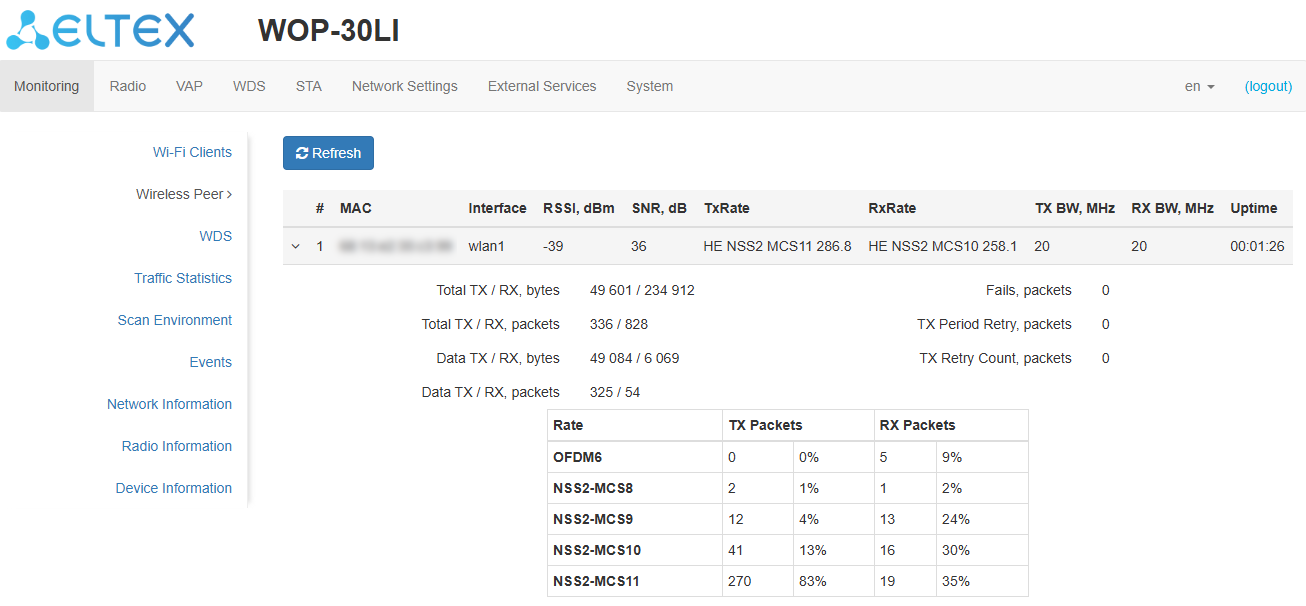
- # — number of the connected device in the list;
- MAC — MAC address of the connected device;
- Interface — WOP-30LI interaction interface with the connected device;
- RSSI — received signal level, dBm;
- SNR — signal-to-noise ratio, dB;
- TxRate — channel data rate of transmission, Mbps;
- RxRate — channel data rate of receiving, Mbps;
- TX BW — transmission bandwidth, MHz;
- RX BW — reception bandwidth, MHz;
- Uptime — Wi-Fi client connection time.
The “Wireless Peer” submenu becomes available after enabling the client (STA) mode on the access point. After disabling the client (STA) mode on the device, the “Wireless Peer” submenu will be hidden. |
The “WDS” submenu
The “WDS” submenu displays information about the status of WOP-30LI access points connected via WDS.
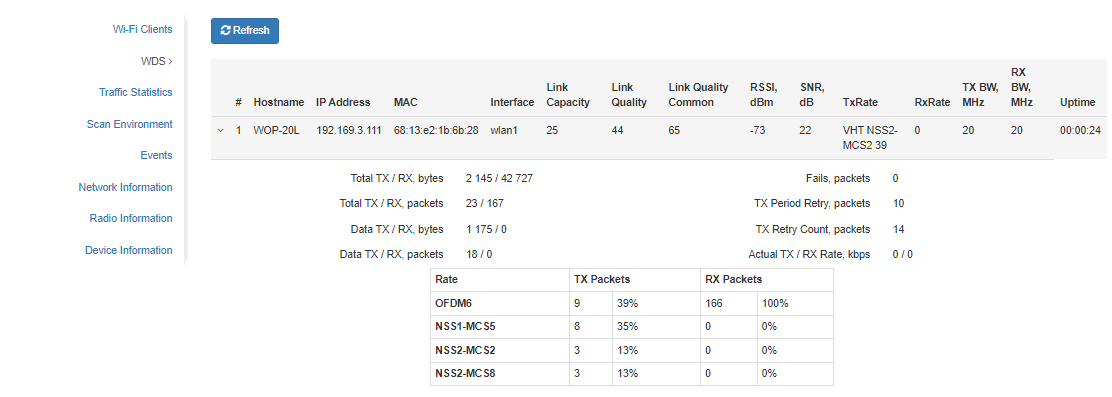
- # — number of the connected device in the list;
- Hostname — device network name;
- IP Address — IP address of the connected device;
- MAC — MAC address of the connected device;
- Interface — WOP-30LI interaction interface with the connected device;
- Link Capacity — parameter that displays how effectively the access point uses modulation to transmit. It is calculated based on the number of packets transmitted on each modulation to the client, and reduction factors. The maximum value is 100% (it means that all packets are transmitted to the client at maximum modulation for the maximum nss type supported by the client). The minimum value is 2% (in case when packets are transmitted on nss1mcs0 modulation for a client with MIMO 3×3 support). The parameter value is calculated for the last 10 seconds;
- Link Quality — parameter that displays the state of the link to the client, calculated based on the number of retransmit packets sent to the client. Maximum value — 100% (all transmitted packets were sent on the first attempt), minimum value — 0% (no packet to the client was successfully sent). The parameter value is calculated for the last 10 seconds;
- Link Quality Common — parameter that displays the status of the link to the client, calculated based on the number of retransmit packets sent to the client. The maximum value is 100% (all transmitted packets were sent on the first attempt), the minimum value is 0% (no packets were successfully sent to the client). The parameter value is calculated for the entire time of the client connection;
- RSSI — received signal level, dBm;
- SNR — signal-to-noise ratio, dB;
- TxRate — channel data rate of transmission, Mbps;
- RxRate — channel data rate of receiving, Mbps;
- TX BW — transmission bandwidth, MHz;
- RX BW — reception bandwidth, MHz;
- Uptime — Wi-Fi client connection time.
To display more detailed information on a particular client, select it from the list. A detailed description includes the following options:
- Total TX/RX, bytes — number of bytes sent/received on the connected device;
- Total TX/RX, packets — number of packets sent/received on the connected device;
- Data TX/RX, bytes — number of bytes sent/received on the connected device;
- Data TX/RX, packets — number of packets sent/received on the connected device;
- Fails, packets — number of packets sent with errors on the connected device;
- TX Period Retry, packets — number of retries of transmission to the connected device for the last 10 seconds;
- TX Retry Count, packets — number of retries of transmission to the connected device during the entire connection;
- Actual TX/RX Rate, Kbps — current traffic transmission rate at the moment.
The “Traffic Statistics” submenu
The “Traffic Statistics” section displays the diagrams of the speed of the transmitted/received traffic for the last 3 minutes, as well as statistics on the amount of transmitted/received traffic since the access point was turned on.
The LAN Tx/Rx diagram shows the speed of the transmitted/received traffic via Ethernet interface of the access point for the last 3 minutes. The graph is automatically updated every 6 seconds.
The WLAN0 and WLAN1 Tx/Rx graphs show the rate of transmitted/received traffic via Radio 2.4 GHz and Radio 5 GHz interfaces for the last 3 minutes. The graph is automatically updated every 6 seconds.
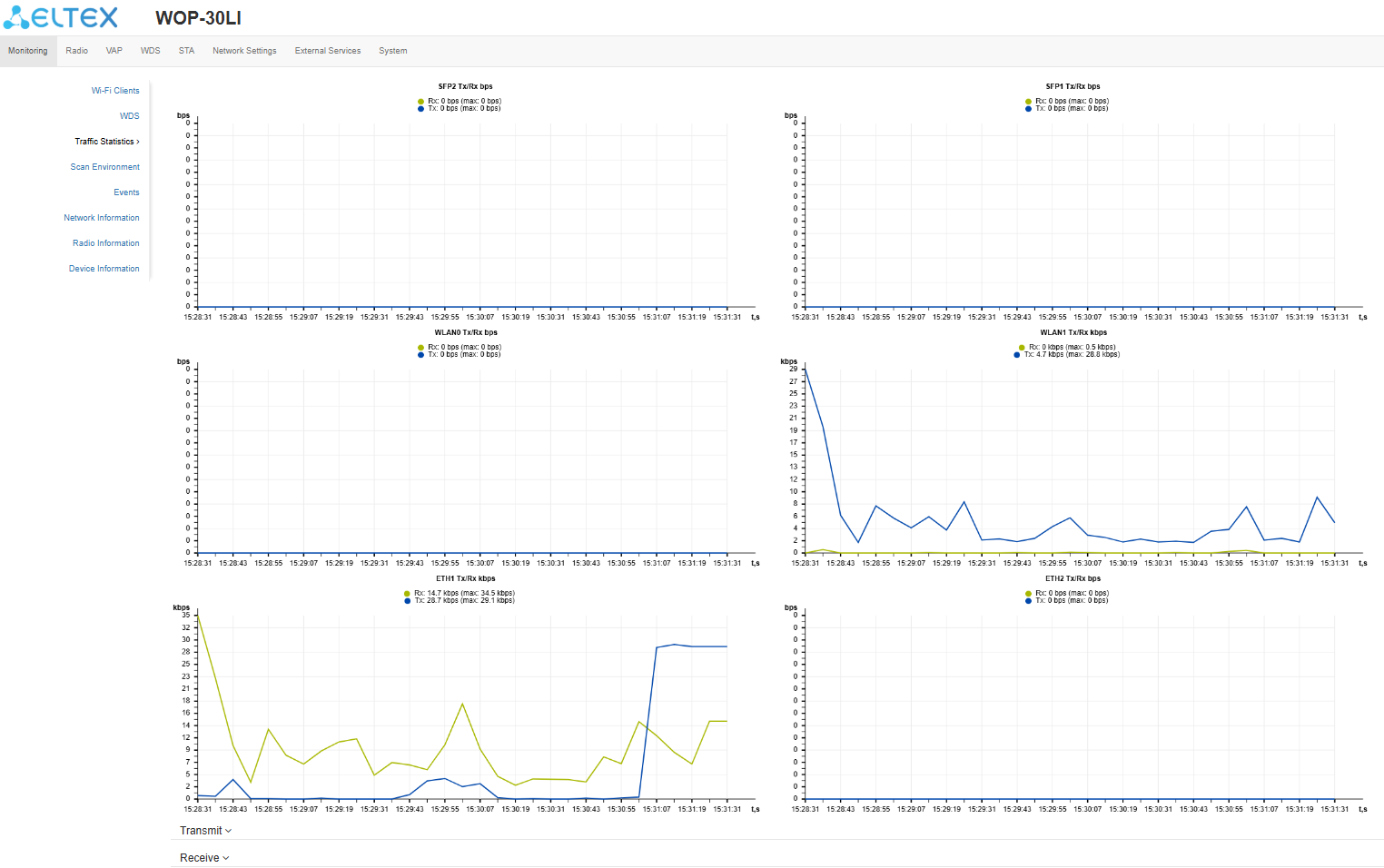
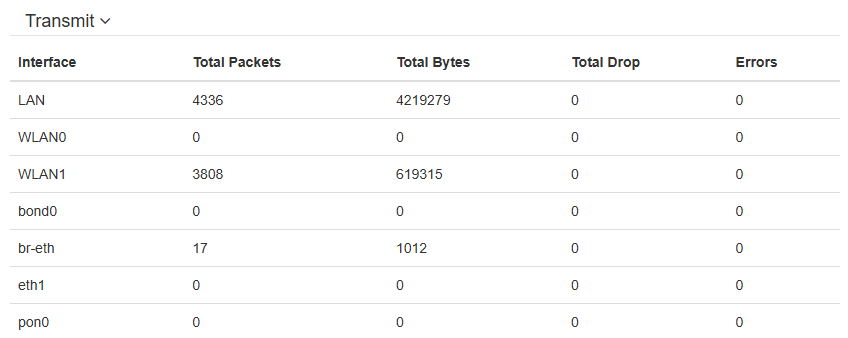
“Transmit” table description:
- Interface — name of the interface;
- Total packets — number of successfully sent packets;
- Total bytes — number of successfully sent bytes;
- Total drop — number of rejected packets;
- Errors — number of errors.
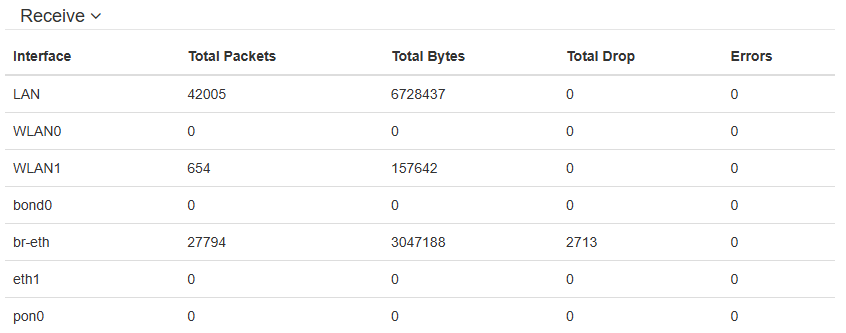
“Receive” table description:
- Interface — name of the interface;
- Total packets — number of successfully received packets;
- Total bytes — number of successfully received bytes;
- Total drop — number of rejected packets;
- Errors — number of errors.
The “Scan Environment” submenu
In the “Scan Environment” submenu, scanning of the surrounding radio is carried out and detection of neighboring access points.
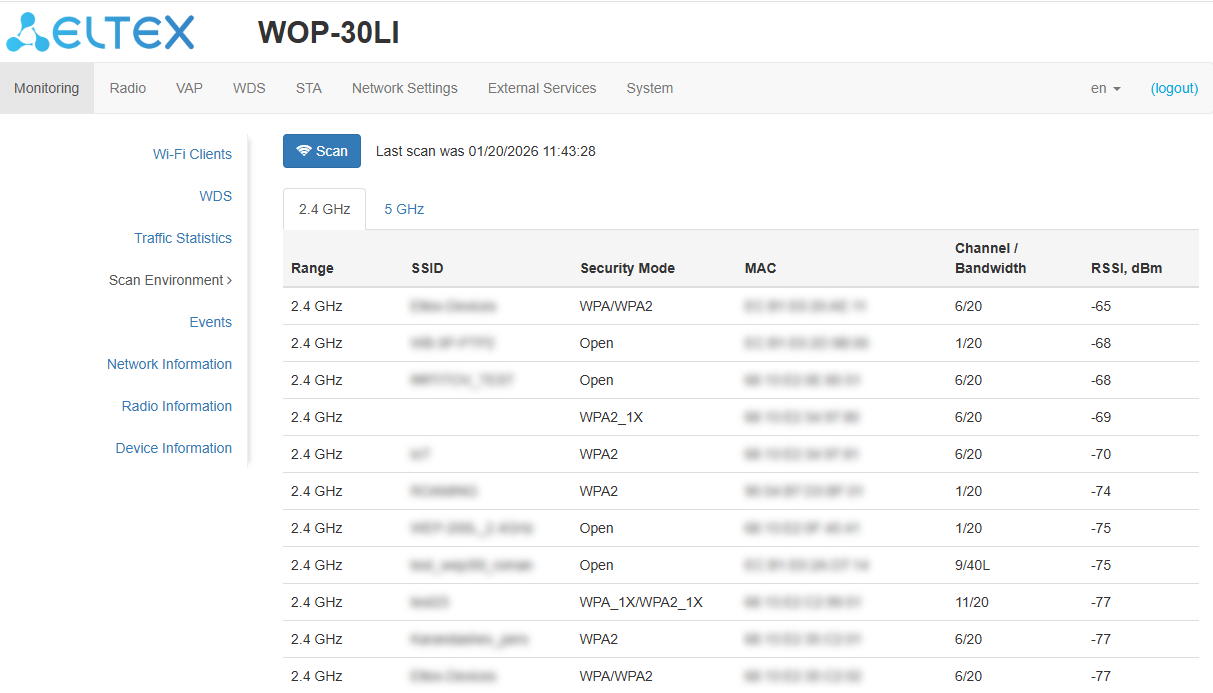
After clicking on the “Scan” button, the process will be launched. After the scan is completed, a list of detected access points and information about them will appear:
- Last scan was... — date and time of last scan;
- Range — specifies the range of 2.4 GHz or 5 GHz in which the access point was detected;
- SSID — SSID of the detected access point;
- Security mode — security mode of the detected access point;
- MAC — MAC address of the detected access point;
- Channel/Bandwidth — radio channel on which the detected access point operates;
- RSSI — the level with which the device receives the signal of the detected access point, dBm.
While scanning the environment, the device radio interface will be disabled, which will make it impossible to transfer data to Wi-Fi clients during scanning. |
 The “Events” submenu
In the “Events” submenu, it is possible to view a list of real-time informational messages which contains the following information:
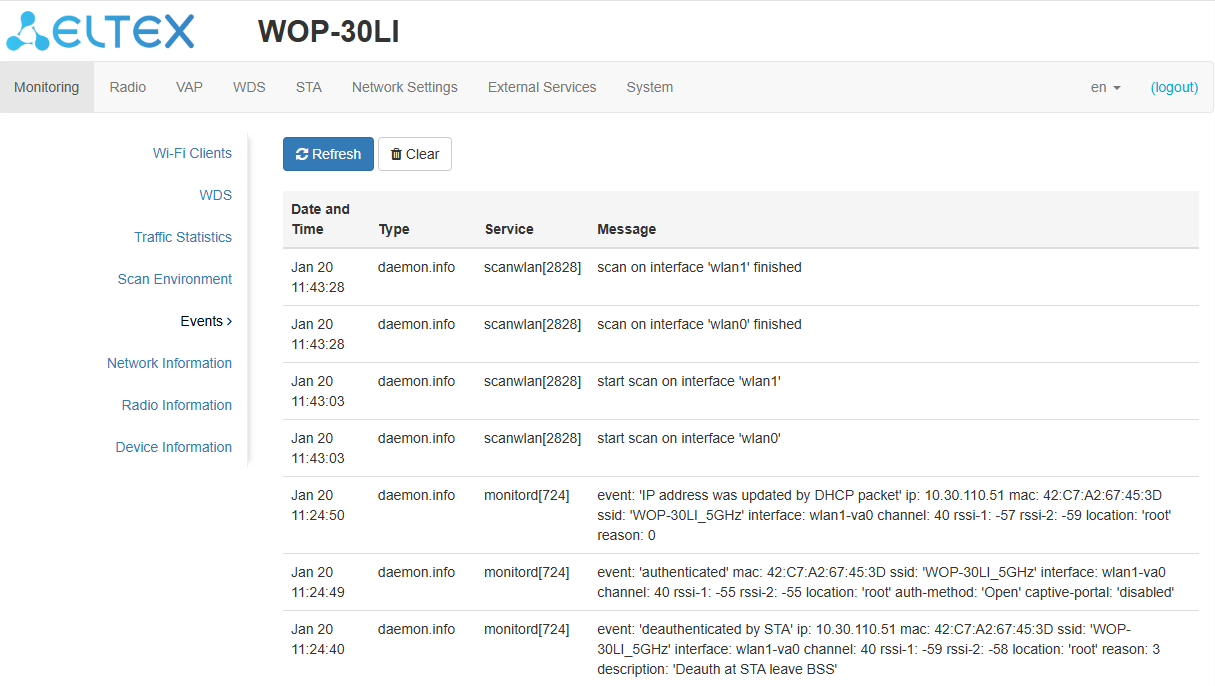
- Date and Time — date and time when the event was generated;
- Type — category and severity level of the event;
- Service — name of the process that generated the message;
- Message — event description.
Table 6 — Description of event severity levels
| Level | Message severity level | Description |
|---|---|---|
| 0 | Emergency | A critical error has occurred in the system, the system may not work properly |
| 1 | Alert | Immediate intervention is required |
| 2 | Critical | A critical error has occurred in the system |
| 3 | Error | An error has occurred in the system |
| 4 | Warning | Warning, non-emergency message |
| 5 | Notice | System notice, non-emergency message |
| 6 | Informational | Informational system messages |
| 7 | Debug | Debugging messages provide the user with information to correctly configure the system |
To receive new messages in the event log, click “Refresh“.
If necessary, all old messages can be deleted from the log by clicking on the “Clear” button.
The “Network Information” submenu
In the “Network Information” submenu, general network settings of the device can be viewed.
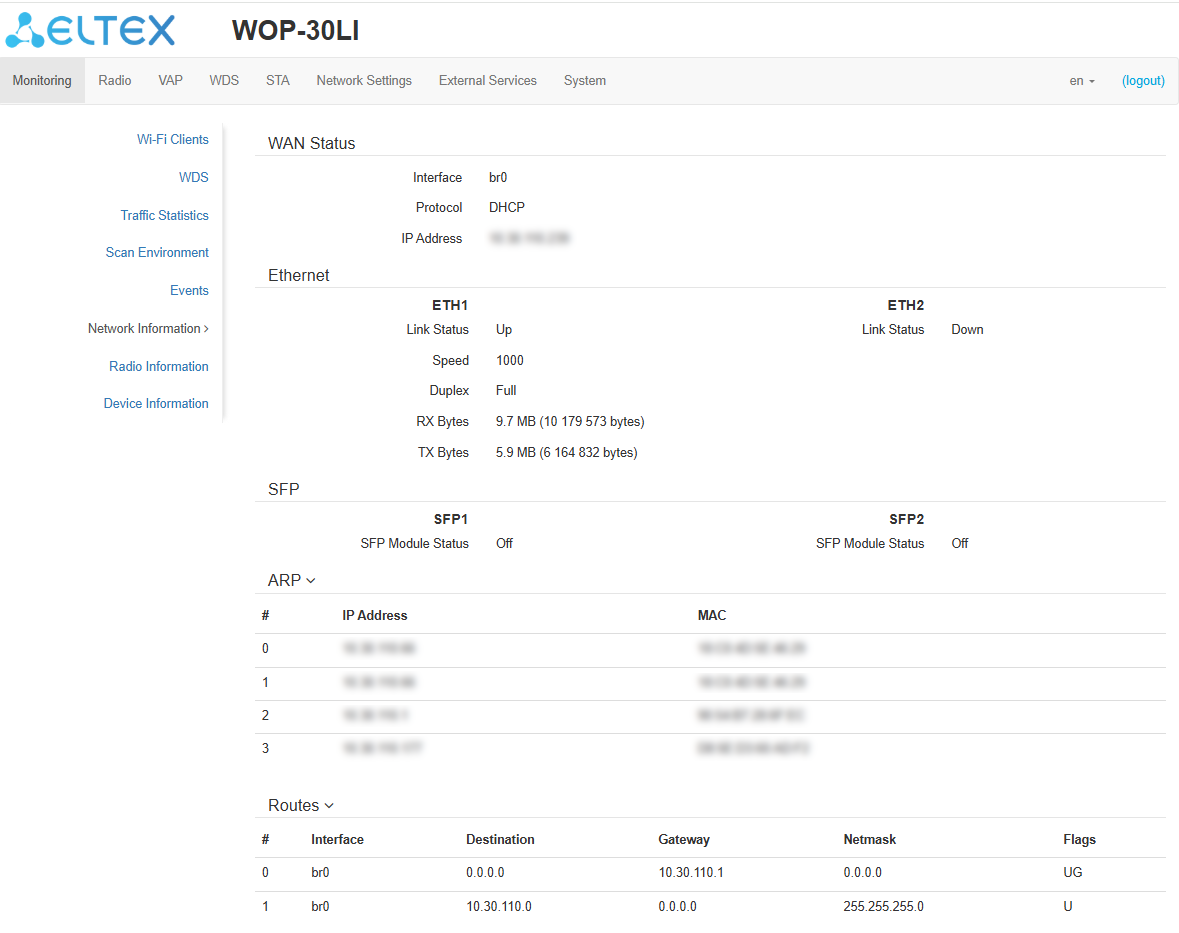
WAN Status:
- Interface — name of the bridge interface;
- Protocol — protocol used for access to WAN;
- IP address — device IP address in external network.
Ethernet:
- Link Status — Ethernet port status;
- Speed — Ethernet port connection speed;
- Duplex — data transfer mode:
- Full — full duplex;
- Half — half-duplex;
- RX Bytes — number of bytes received on the ETH1/ETH2 port;
- TX Bytes — number of bytes transmitted from the ETH1/ETH2 port.
SFP:
- SFP Module Status — displays the presence or absence of the SFP module;
- Port Status — operational status of the optical interface;
- Tx Fault — transmitter fault indication;
- LOS — loss of signal;
- Speed — data transmission rate;
- RX Bytes — number of bytes received on the SFP1/SFP2 port;
- TX Bytes — number of bytes transmitted to the SFP1/SFP2 port;
- Temperature — current temperature of the SFP module;
- Voltage — SFP module supply voltage;
- Current — SFP module laser bias current;
- Tx Power — transmitter output power;
- Rx Power — receiver input power.
ARP:
The ARP table contains mapping information between the IP and MAC addresses of neighboring network devices:
- IP address — device IP address;
- MAC — device MAC address.
Routes:
- Interface — name of the bridge interface;
- Destination — IP address of destination host or subnet that the route is established to;
- Gateway — IP address of the gateway through which access to the Destination is carried out;
- Netmask — subnet mask;
- Flags — certain route characteristics.
The following flag values exist:
- U — means that the route is created and passable;
- H — identifies the route to the specific host;
- G — means that the route lies through the external gateway. System network interface provides routes in the network with direct connection. All other routes lie through the external gateways. G flag is used for all routes except for the routes in the direct connection networks;
- R — indicates that the route was most likely created by a dynamic routing protocol running on the local system using the reinstate parameter;
- D — indicates that the route was added as a result of receiving an ICMP Redirect Message. When the system learns the route from the ICMP Redirect message, the route will be added into the routing table in order to exclude redirection for the following packets intended for the same destination;
- M — means that the route was modified — likely by a dynamic routing protocol running on a local system with the “mod” parameter applied;
- A — points to a buffered route to which an entry in the ARP table corresponds;
- C — means that the route source is the core routing buffer;
- L — indicates that the destination of the route is one of the addresses of this computer. Such “local routes” exist in the routing buffer only;
- B — means that the route destination is a broadcasting address. Such “broadcast routes” exist in the routing buffer only;
- I — indicates that the route is connected to a ring (loopback) interface for a purpose other than to access the ring network. Such “internal routes” exist in the routing buffer only;
- ! — means that datagrams sent to this address will be rejected by the system.
The “Radio Information” submenu
In the “Radio Information” submenu, the current status of WOP-30LI radio interfaces is displayed.
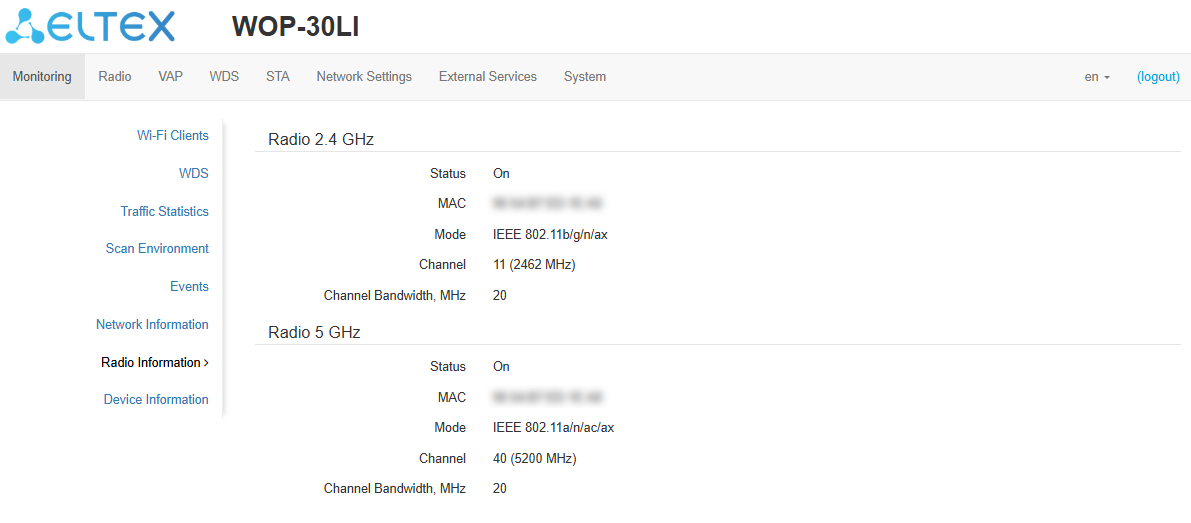
The access point radio interfaces can be in two states: “On” and “Off”. The status of each radio interface is shown in the “Status” field.
The Radio status depends on whether the radio interface has virtual access points (VAPs) enabled. In case there is at least one active VAP on the radio interface, Radio will be in “On” status, otherwise — “Off”.
Depending on the Radio status, the following information is available for monitoring:
“Off”:
- Status — radio interface state;
- MAC — radio interface MAC address;
- Mode — radio interface operation mode according to IEEE 802.11 standards.
“On”:
- Status — radio interface state;
- MAC — radio interface MAC address;
- Mode — radio interface operation mode according to IEEE 802.11 standards;
- Channel — number of the wireless channel on which the radio interface is running;
- Channel bandwidth, MHz — bandwidth of the channel on which the radio interface is running.
The “Device Information” submenu
The “Device Information” submenu displays main WOP-30LI parameters.
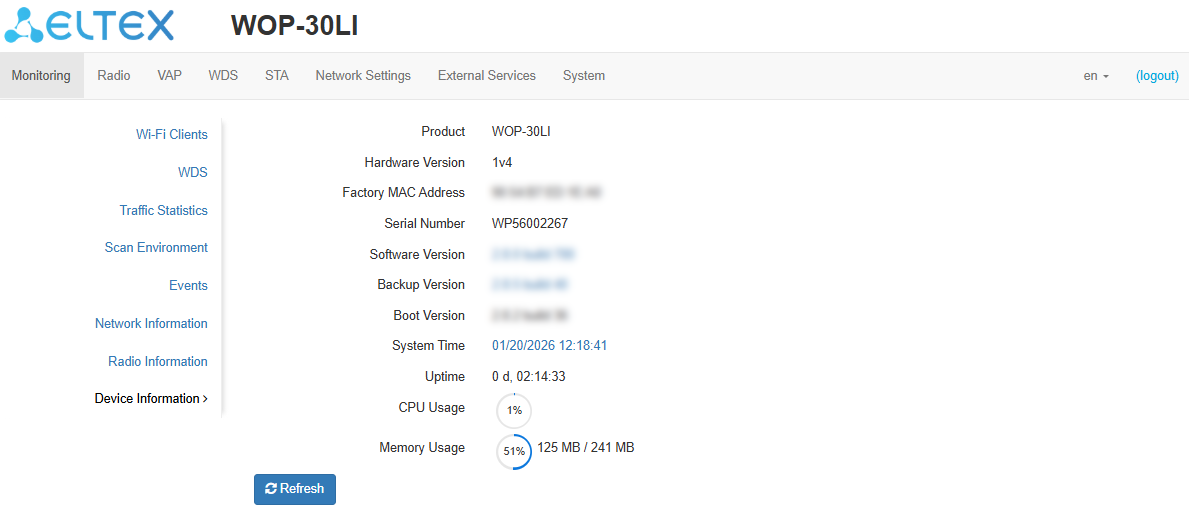
- Product — device model name;
- Hardware Version — device hardware version;
- Factory MAC Address — device WAN interface MAC address, factory set;
- Serial Number — device serial number, factory set;
- Software Version — device software version;
- Backup Version — previously installed firmware version;
- Boot Version — device firmware boot version;
- System Time — current time and date, set in the system;
- Uptime — operating time since the last time the device was turned on or rebooted;
- CPU Usage — average percentage of CPU load over the last 5 seconds;
- Memory Usage — percentage of device RAM usage.
The “Radio” menu
In the “Radio” menu, the wireless interface can be configured.
The “Radio 2.4 GHz” submenu
In the “Radio 2.4 GHz” submenu, the main parameters of the radio interface of the device operating in the 2.4 GHz band can be configured.
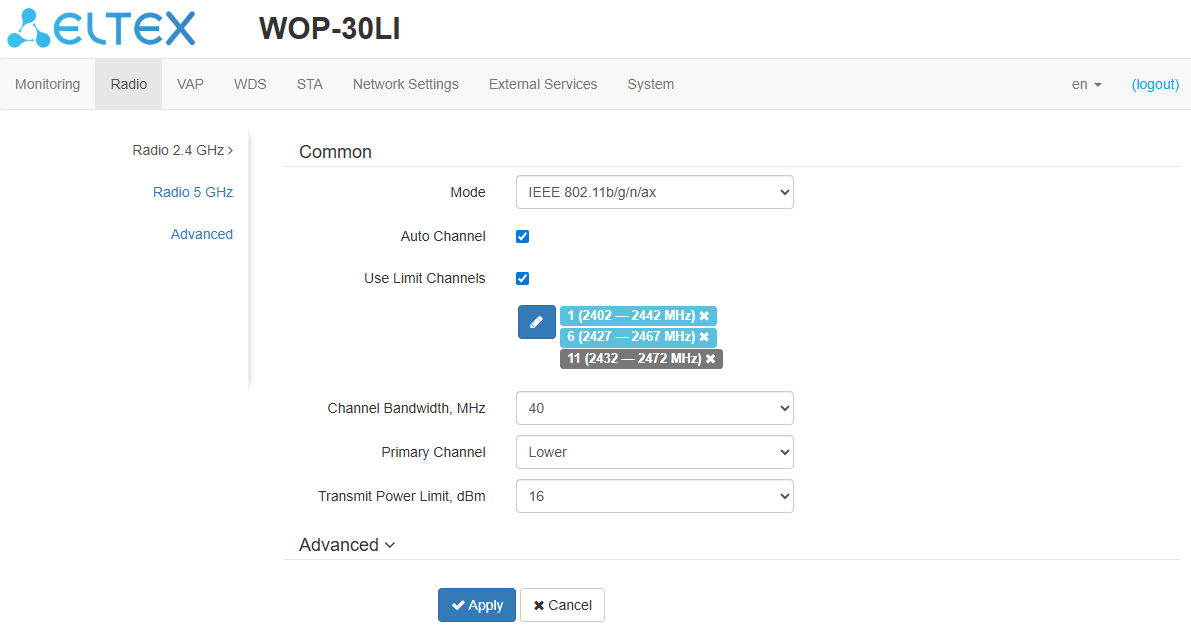
- Mode — interface operation mode according to the following standards:
- IEEE 802.11ax;
- IEEE 802.11n/ax;
- IEEE 802.11b/g;
- IEEE 802.11b/g/n;
- IEEE 802.11b/g/n/ax.
- Auto Channel — when checked, the device will automatically select the least congested radio channel for the Wi-Fi interface. When unchecked, manual configuration of a static operating channel becomes available;
- Channel — select channel for data transmission;
- Use Limit Channels — when checked, the access point will use a user-defined list of channels to work in automatic channel selection mode. If the “Use Limit channels” box is not checked or there are no channels in the list, the access point will select the operation channel from all available channels in the given band. 2.4 GHz band channels: 1–13;
- Channel Bandwidth, MHz — channel bandwidth, on which the access point operates. The parameter may take values 20 and 40 MHz;
- Primary Channel — the parameter can only be changed if the bandwidth of a statically specified channel is equal to 40 MHz. The 40 MHz channel can be considered as consisting of two 20 MHz channels, which border in the frequency range. These two 20 MHz channels are called primary and secondary channels. The primary channel is used by clients who only support 20 MHz channel bandwidth:
- Upper — the primary channel will be the upper 20 MHz channel in the 40 MHz band;
- Lower — the primary channel will be the lower 20 MHz channel in the 40 MHz band.
- Transmit Power Limit, dBm — adjustment of the signal strength of the Wi-Fi transmitter in dBm. Accepts value from 0 to 16 dBm.
If the “Use Limit channels” list contains a channel that is not available for selection, it will be marked in grey. In order for the new configuration to be applied to an access point, only available (blue highlighted) channels must be specified in the “Use Limit channels” list. Example. No settings have been made on the access point yet, Radio 2.4 GHz is set to 20 MHz “Channel Bandwidth” by default, and channels are specified in the “Use Limit channels” list: 1, 6, 11.
If you change the “Channel Bandwidth” parameter to 40 MHz and do not remove the “grey” channels from the list, then when you click on the “Apply” button in the browser an error will appear — “There are errors in data. Changes were not applied”. Accordingly, the access point configuration will not be changed. This is due to the fact that channels in the “Use Limit channels” list that are highlighted in grey do not fit the definition “Primary Channel” = Lower. |
In the “Advanced” section, it is possible to configure advanced radio interface parameters of the device.
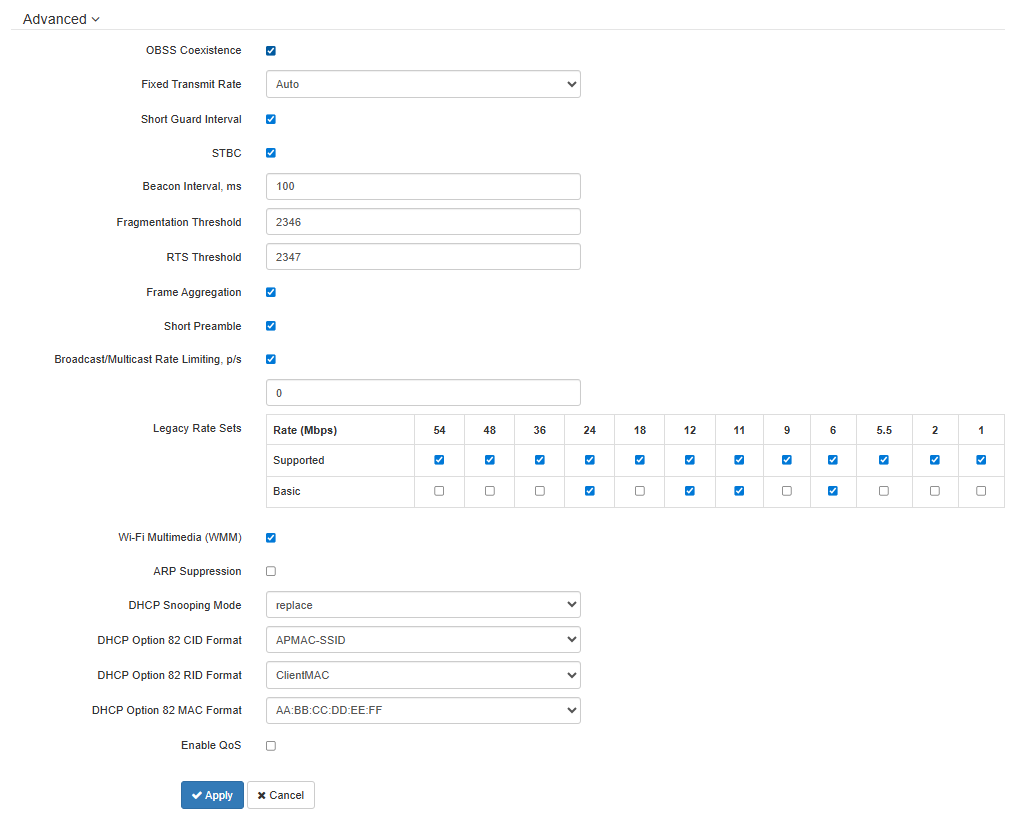
- OBSS Coexistence — automatic channel bandwidth reduction when the channel is loaded. When checked, the mode is enabled;
- Fixed Transmit Rate — fixed wireless data transfer rate, defined by IEEE 802.11 standards specifications;
- Short Guard Interval — support for Short Guard Interval. Access point transmits data using 400 ns guard interval (instead of 800 ns) to clients which also support Short Guard Interval;
- STBC — Space-Time Block Coding method dedicated to improve data transmission reliability. The field is only available if the selected operating mode includes 802.11n. When checked, the device transmits one data flow through several antennas. When unchecked, the device does not transmit the same data flow through several antennas;
- Beacon Interval, ms — beacon frames transmission period. The frames are sent to detect access points on the air. The parameter takes values from 20 to 2000 ms, by default: 100 ms;
- Fragmentation Threshold — frame fragmentation threshold, bytes. The parameter takes values 256–2346, by default: 2346;
- RTS Threshold — specifies the number of bytes over which the Request to Send will be sent. Decreasing this value may improve the performance of the access point when there are a lot of connected clients. However this reduces general throughput of wireless network. The parameter takes values from 0 to 2347, by default: 2347;
- Frame Aggregation — enable support for AMPDU/AMSDU;
- Short Preamble — use of the packet short preamble;
- Broadcast/Multicast Rate Limiting, p/s — when checked, transmission of broadcast / multicast traffic over the wireless network is restricted. Specify the limit for broadcast traffic in the popup window (p/s);
- Legacy Rate Sets — the sets of legacy data rates that are supported and advertised by the access point;
- Wi-Fi Multimedia (WMM) — WMM support activation (Wi-Fi Multimedia);
- ARP Suppression — a mechanism that converts ARP requests from Broadcast to Unicast;
- DHCP Snooping Mode — selection of DHCP option 82 processing policy. Available values for selection:
- ignore — option 82 processing is disabled. Default value;
- remove — access point deletes the value of option 82;
- replace — access point substitutes or replaces the value of option 82. When selecting this value to edit, the following parameters are opened:
- Option 82 CID format — replacement of the CID parameter value, can take values:
- APMAC-SSID — replacement of the CID parameter value to <MAC address of the access point>-<SSID name>. Default value;
- SSID — replacement of the CID parameter value to SSID name, to which the client is connected;
- custom — replacement of the CID parameter value to the value specified in the “Option 82 Unique CID”;
- Option 82 Unique CID — an arbitrary string of up to 52 characters that will be passed to the CID. If the parameter value is not set, the point will change the CID to the default value — APMAC-SSID.
- Option 82 RID format — replacement of the RID parameter value, can take the following values:
- ClientMAC — change the RID content to the MAC address of the client device. Default value;
- APMAC — change the RID content to the MAC address of the access point;
- APdomain — change the RID content to the domain in which the access point is located;
- custom — change the RID content to the value specified in the “Option 82 Unique RID”;
- Option 82 Unique RID — an arbitrary string of up to 63 characters that will be passed to the RID. If the parameter value is not set, the point will change the RID to the default value — ClientMAC.
- MAC-address format — selection of octet delimiters of the MAC address, which is transmitted in CID and RID:
- AA:BB:CC:DD:EE:FF — the delimiter is a colon (:). Default value;
- AA-BB-CC-DD-EE-FF — the delimiter is a dash (-).
- Option 82 CID format — replacement of the CID parameter value, can take values:
- Enable QoS — when checked, the setting of Quality of Service functions is available.
The following functions are available for quality assurance configuration:
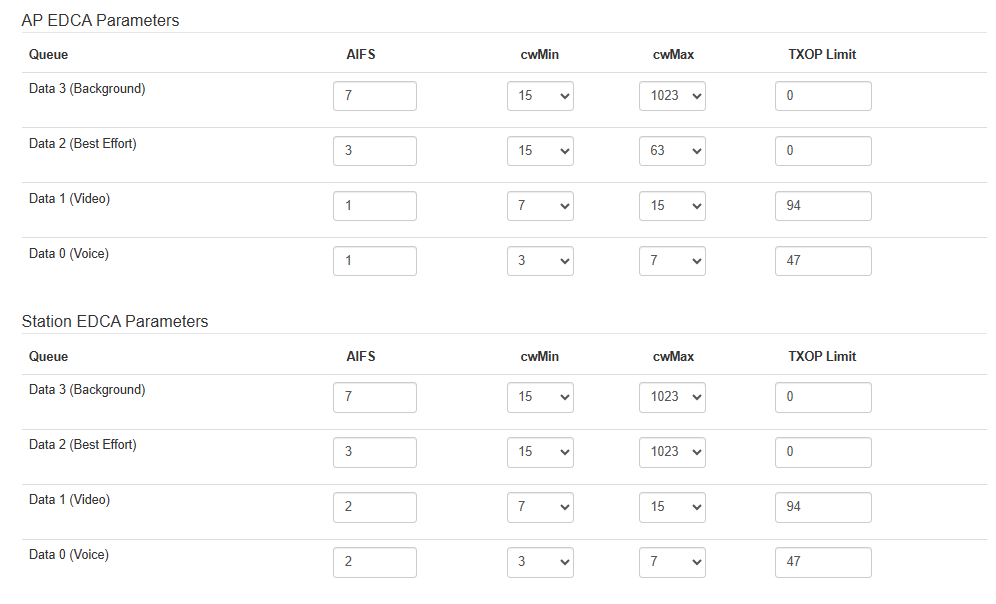
- AP EDCA parameters — access point settings table (traffic is transmitted from the access point to the client):
- Queue — predefined queues for various kinds of traffic:
- Data 3 (Background) — low priority queue, high bandwidth (802.1p: cs1, cs2 priorities);
- Data 2 (Best Effort) — middle priority queue, middle bandwidth and delay. Most of the traditional IP data is sent to this queue (802.1p: cs0, cs3 priorities);
- Data 1 (Video) — high priority queue, minimal delay. In this queue, time-sensitive video data is automatically processed (802.1p: cs4, cs5 priorities);
- Data 0 (Voice) — high priority queue, minimal delay. In this queue, time sensitive data is automatically processed, such as: VoIP, streaming video (802.1p: cs6, cs7 priorities).
- AIFS — Arbitration Inter-Frame Spacing, defines the waiting time of data frames, measured in slots, takes values 1–255;
- cwMin — the initial timeout value before resending a frame, specified in milliseconds, takes the values 1, 3, 7, 15, 31, 63, 127, 255, 511, 1023. The value of cwMin cannot exceed the value of cwMax;
- cwMax — the maximum timeout value before resending a frame, specified in milliseconds, takes the values 1, 3, 7, 15, 31, 63, 127, 255, 511, 1023. The value of cwMax must exceed the value of cwMin;
- TXOP Limit — this parameter is used only for data transmitted from the client station to the access point. The transmission capability is the time interval, in milliseconds, when the client WME station has the rights to initiate data transmission over the wireless medium to the access point, the maximum value is 65535 milliseconds;
- Queue — predefined queues for various kinds of traffic:
- Station EDCA parameters — table of client station parameter settings (traffic is transmitted from the client station to the access point). For description of table fields, see above.
To apply a new configuration and save settings to non-volatile memory, click “Apply”. Click “Cancel” to discard the changes.
The “Radio 5 GHz” submenu
In the “Radio 5 GHz” submenu, the main parameters of the radio interface of the device operating in the 5 GHz band can be configured.
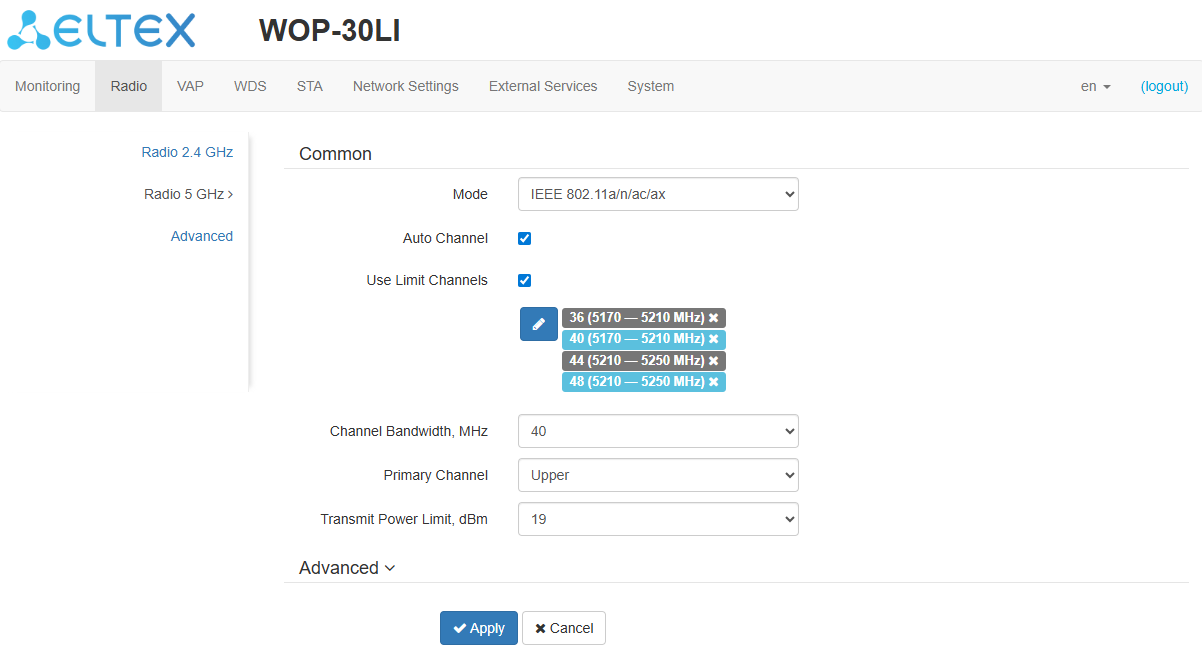
- Mode — select interface operation mode according to the following standards:
- IEEE 802.11ax;
- IEEE 802.11a/n/ac;
- IEEE 802.11a/n/ac/ax.
- Auto Channel — when checked, the device will automatically select the least congested radio channel for the Wi-Fi interface. When unchecked, manual configuration of a static operating channel becomes available;
- Channel — select channel for data transmission;
- Use Limit Channels — when checked, the access point will use a user-defined list of channels to work in automatic channel selection mode. If the “Use Limit channels” box is not checked or there are no channels in the list, the access point will select the operation channel from all available channels in the given band. 5 GHz band channels: 36–64, 132–144, 149–165;
- Channel Bandwidth, MHz — channel bandwidth, on which the access point operates. The parameter may take values of 20, 40 and 80 MHz;
- Primary Channel — the parameter can only be changed if the bandwidth of a statically specified channel is equal to 40 MHz. The 40 MHz channel can be considered as consisting of two 20 MHz channels, which border in the frequency range. These two 20 MHz channels are called primary and secondary channels. The primary channel is used by clients who only support 20 MHz channel bandwidth:
- Upper — the primary channel will be the upper 20 MHz channel in the 40 MHz band;
- Lower — the primary channel will be the lower 20 MHz channel in the 40 MHz band.
- Transmission Power Limit, dBm — transmitting Wi-Fi signal power adjustment, dBm. May take values between 0 and 19 dBm.
If the “Use Limit channels” list contains a channel that is not available for selection, it will be marked in grey. In order for the new configuration to be applied to an access point, only available (highlighted in blue) channels must be specified in the “Use Limit channels” list. Example. No settings have been made on the access point yet, Radio 5 GHz is set to 20 MHz “Channel Bandwidth” by default, and channels are specified in the “Use Limit channels” list: 36, 40, 44, 48. Suppose, it is required to set “Channel Bandwidth” to 40 MHz. When you change this parameter from 20 MHz to 40 MHz, the following happens:
If you change the “Channel Bandwidth” parameter to 40 MHz and do not remove the “grey” channels from the list, then when you click on the “Apply” button in the browser an error will appear: “There are errors in data. Changes were not applied”. Accordingly, the access point configuration will not be changed. This is due to the fact that channels in the “Use Limit channels” list that are highlighted in grey do not fit the definition “Primary Channel” = Upper. |
In the “Advanced” section, it is possible to configure advanced radio interface parameters of the device.
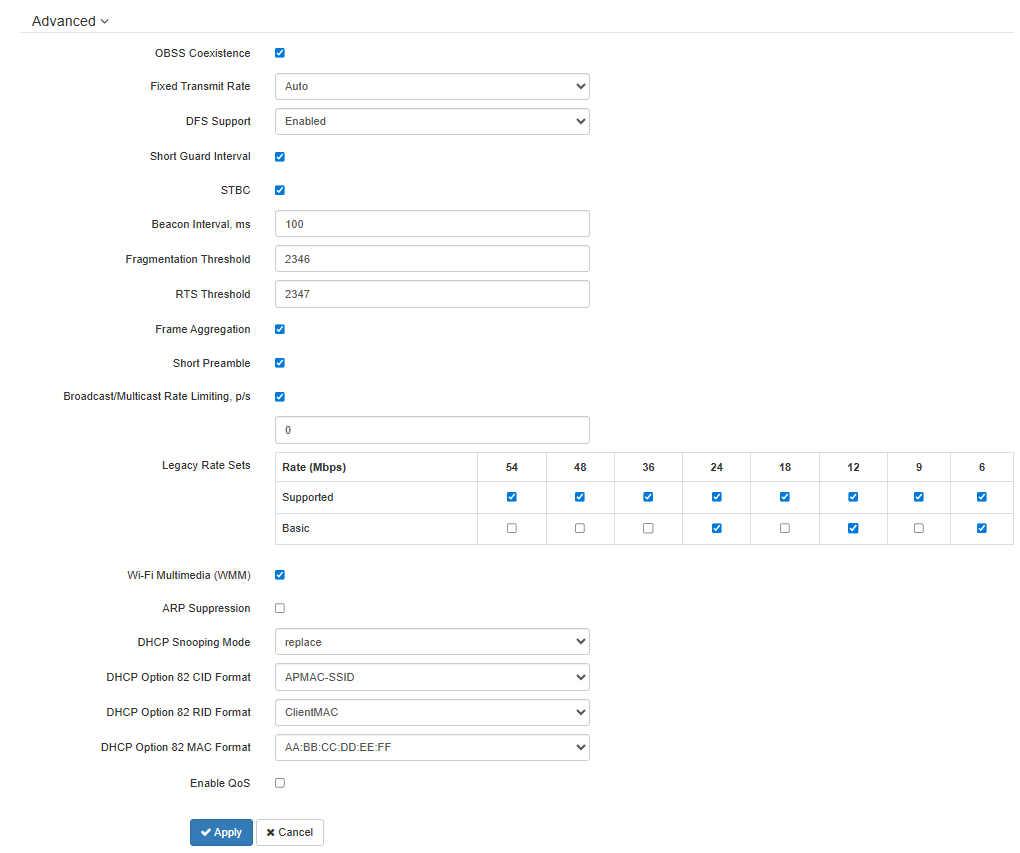
- OBSS Coexistence — automatic channel bandwidth reduction when the channel is loaded. When checked, the mode is enabled;
- Fixed Transmit Rate — fixed wireless data transfer rate, defined by IEEE 802.11 standards specifications;
- DFS Support — dynamic frequency selection mechanism. The mechanism demands wireless devices to scan environment and avoid using channels which coincide with radiolocation system's channels at 5 GHz:
- Enabled — mechanism is disabled. DFS channels are not available for selection;
- Disabled — mechanism is enabled;
- Forced — mechanism is disabled. DFS channels are available for selection;
- Short Guard Interval — support for Short Guard Interval. Access point transmits data using 400 ns guard interval (instead of 800 ns) to clients which also support Short Guard Interval;
- STBC — Space-Time Block Coding method dedicated to improve data transmission reliability. The field is only available if the selected operating mode includes 802.11n. When checked, the device transmits one data flow through several antennas. When unchecked, the device does not transmit the same data flow through several antennas;
- Beacon Interval, ms — beacon frames transmission period. The frames are sent to detect access points. The parameter takes values from 20 to 2000 ms, by default: 100 ms;
- Fragmentation Threshold — frame fragmentation threshold, bytes. The parameter takes values 256–2346, by default: 2346;
- RTS Threshold — specifies the number of bytes over which the Request to Send will be sent. Decreasing this value may improve the performance of the access point when there are a lot of connected clients. However this reduces general throughput of wireless network. The parameter takes values from 0 to 2347, by default: 2347;
- Frame aggregation — enables support for AMPDU/AMSDU;
- Short Preamble — use of the packet short preamble;
- Broadcast/Multicast Rate Limiting, p/s — when checked, transmission of broadcast / multicast traffic over the wireless network is restricted. Specify the limit for broadcast traffic in the popup window (p/s);
- Legacy Rate Sets — the sets of legacy data rates that are supported and advertised by the access point;
- Wi-Fi Multimedia (WMM) — WMM support activation (Wi-Fi Multimedia);
- ARP Suppression — a mechanism that converts ARP requests from Broadcast to Unicast;
- DHCP Snooping Mode — selection of DHCP option 82 processing policy. Available values for selection:
- ignore — option 82 processing is disabled. Default value;
- remove — access point deletes the value of option 82;
- replace — access point substitutes or replaces the value of option 82. When selecting this value to edit, the following parameters are opened:
- Option 82 CID format — replacement of the CID parameter value, can take values:
- APMAC-SSID — replacement of the CID parameter value to <MAC address of the access point>-<SSID name>. Default value;
- SSID — replacement of the CID parameter value to SSID name, to which the client is connected;
- custom — replacement of the CID parameter value to the value specified in the “Option 82 Unique CID”;
- Option 82 Unique CID — an arbitrary string of up to 52 characters that will be passed to the CID. If the parameter value is not set, the point will change the CID to the default value — APMAC-SSID.
- Option 82 RID format — replacement of the RID parameter value, can take the following values:
- ClientMAC — change the RID content to the MAC address of the client device. Default value;
- APMAC — change the RID content to the MAC address of the access point;
- APdomain — change the RID content to the domain in which the access point is located;
- custom — change the RID content to the value specified in the “Option 82 Unique RID”;
- Option 82 Unique RID — an arbitrary string of up to 63 characters that will be passed to the RID. If the parameter value is not set, the point will change the RID to the default value — ClientMAC.
- Option 82 MAC format — selection of octet delimiters of the MAC address, which is transmitted in CID and RID:
- AA:BB:CC:DD:EE:FF — the delimiter is a colon (:). Default value;
- AA-BB-CC-DD-EE-FF — the delimiter is a dash (-).
- Option 82 CID format — replacement of the CID parameter value, can take values:
- Enable QoS — when the flag is set, the setting of Quality of Service functions is available.
The following functions are available for quality assurance configuration:
- AP EDCA parameters — access point settings table (traffic is transmitted from the access point to the client):
- Queue — predefined queues for various kinds of traffic:
- Data 3 (Background) — low priority queue, high bandwidth (802.1p: cs1, cs2 priorities);
- Data 2 (Best Effort) — middle priority queue, middle bandwidth and delay. Most of the traditional IP data is sent to this queue (802.1p: cs0, cs3 priorities);
- Data 1 (Video) — high priority queue, minimal delay. In this queue, time-sensitive video data is automatically processed (802.1p: cs4, cs5 priorities);
- Data 0 (Voice) — high priority queue, minimal delay. In this queue, time sensitive data is automatically processed, such as: VoIP, streaming video (802.1p: cs6, cs7 priorities).
- AIFS — Arbitration Inter-Frame Spacing, defines the waiting time of data frames, measured in slots, takes values 1–255;
- cwMin — the initial timeout value before resending a frame, specified in milliseconds, takes the values 1, 3, 7, 15, 31, 63, 127, 255, 511, 1023. The value of cwMin cannot exceed the value of cwMax;
- cwMax — the maximum timeout value before resending a frame, specified in milliseconds, takes the values 1, 3, 7, 15, 31, 63, 127, 255, 511, 1023. The value of cwMax must exceed the value of cwMin;
- TXOP Limit — this parameter is used only for data transmitted from the client station to the access point. The transmission capability is the time interval, in milliseconds, when the client WME station has the rights to initiate data transmission over the wireless medium to the access point, the maximum value is 65535 milliseconds.
- Queue — predefined queues for various kinds of traffic:
- Station EDCA parameters — table of client station parameter settings (traffic is transmitted from the client station to the access point). For description of table fields, see above.
To apply a new configuration and save settings to non-volatile memory, click “Apply”. Click “Cancel” to discard the changes.
The “Advanced” submenu
In the “Advanced” section, it is possible to configure advanced radio interface parameters of the device.
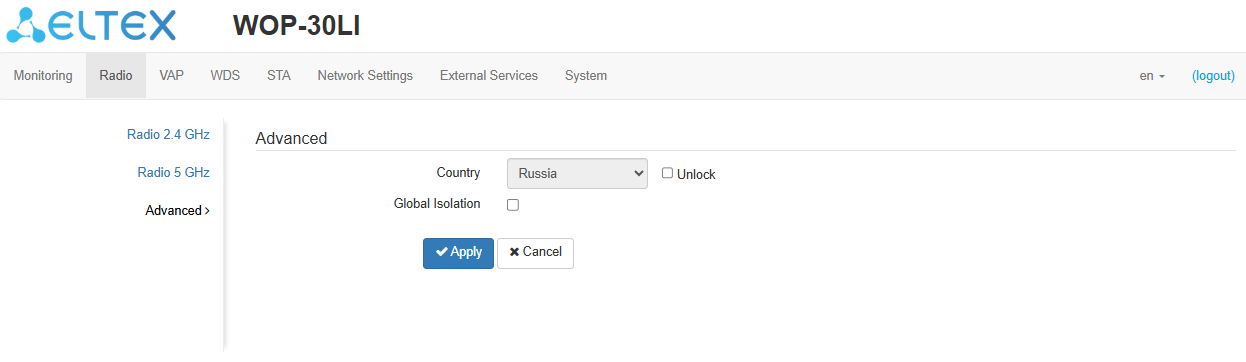
Country — the name of the country in which the access point operates. To select a country, check the “Unblock”. Depending on the value specified, country-specific frequency band and transmitter power restrictions will apply. The list of available frequency channels depends on the specified country, which affects the automatic selection of a channel in the Channel = Auto mode. If the client equipment is licensed for use in a different region, possibly, you will not be able to communicate with the access point.
Setting up local (regional) restrictions, including working on permitted frequency channels and output power is the responsibility of the installers.
Selecting the wrong region may result in compatibility issues with different client devices.
- Global Isolation — when checked, traffic isolation between clients of different VAPs and different radio interfaces is enabled.
To apply a new configuration and save settings to non-volatile memory, click “Apply”. Click “Cancel” to discard the changes.
The “VAP” menu
In the “VAP” menu, virtual Wi-Fi access points (VAP) can be configured.
After the client (STA) mode is enabled, VAP configuration becomes unavailable on the radio where the client (STA) mode was configured. |
The “Summary” submenu
The “Summary” submenu displays the settings of all VAPs on Radio 2.4 GHz and Radio 5 GHz radio interfaces. The settings of each virtual access point can be viewed in sections of VAP0–VAP6.
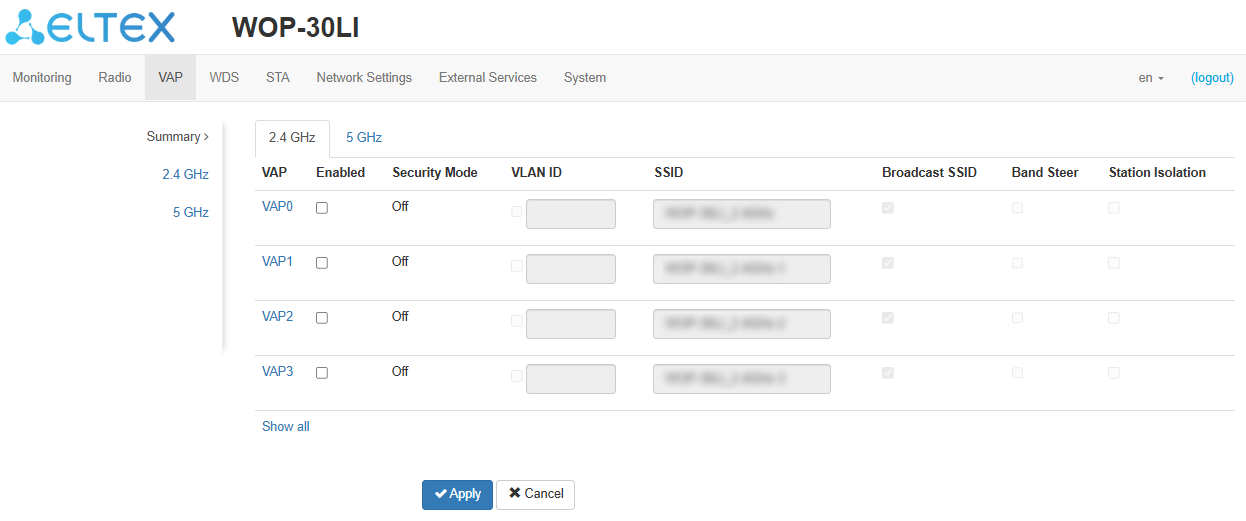
- VAP0–VAP6 — the sequence number of the virtual access point;
- Enabled — when checked, the virtual access point is enabled, otherwise it is disabled;
- Security Mode — the type of data encryption used on the virtual access point;
- VLAN ID — VLAN ID — VLAN number from which the tag will be removed when transmitting Wi-Fi traffic to clients connected to this VAP. When traffic flows in the opposite direction, untagged traffic from clients will be tagged with VLAN ID (when VLAN Trunk mode is disabled);
- SSID — virtual wireless network name;
- Broadcast SSID — when checked, SSID broadcasting is on, otherwise it is disabled;
- Band Steer — when checked, the priority connection of the client to 5 GHz network is active. In order for this feature to work, it is required to create a VAP with the same SSID on each radio interface and activate the “Band Steer” mode on them;
- Station Isolation — when checked, traffic isolation between clients in the same VAP is enabled.
After the client (STA) mode is enabled, VLAN ID configuration becomes unavailable. |
The “VAP” submenu
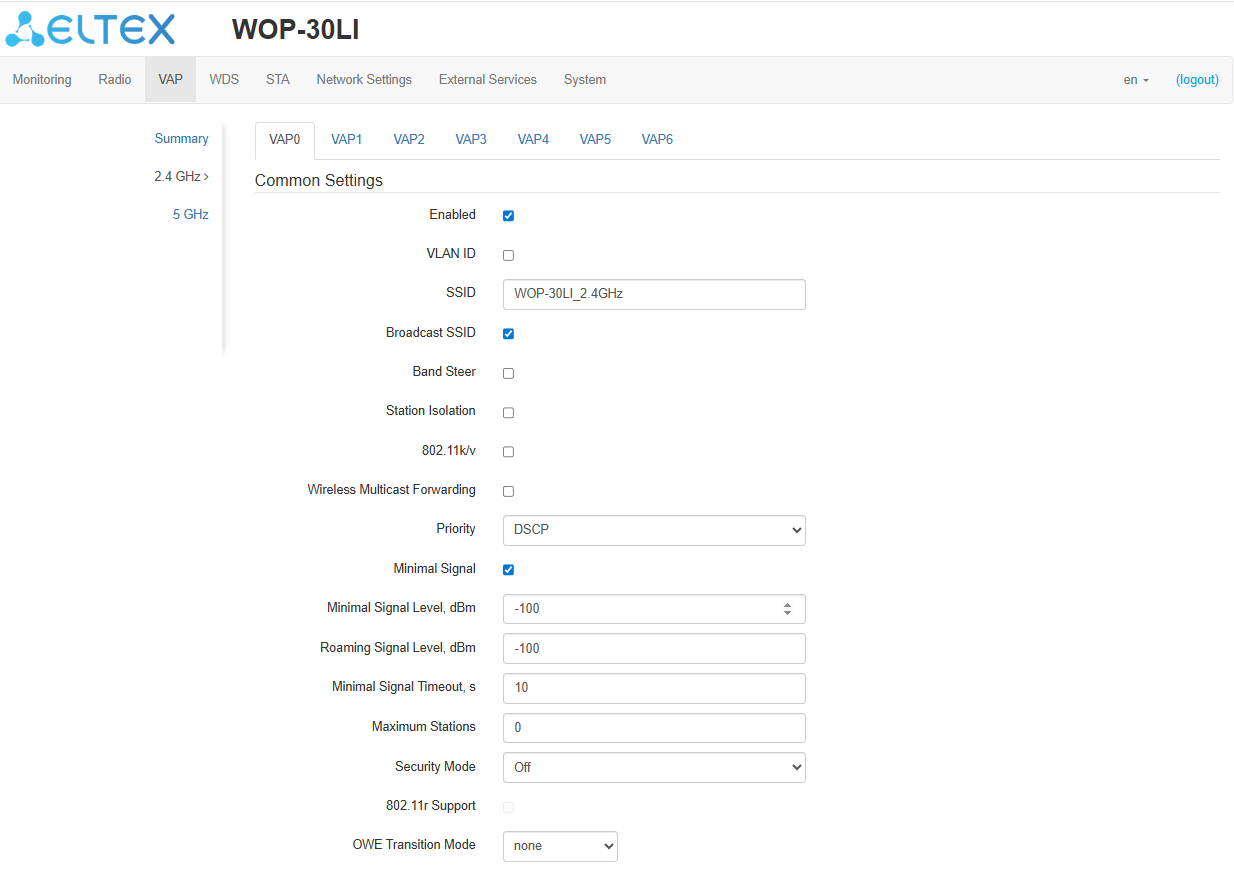
Common settings:
- Enabled — when checked, the virtual access point is enabled, otherwise it is disabled;
- VLAN ID — VLAN number from which the tag will be removed when transmitting Wi-Fi traffic to clients connected to this VAP. When traffic flows in the opposite direction, untagged traffic from clients will be tagged with VLAN ID (when VLAN Trunk mode is disabled);
- SSID — virtual wireless network name;
- Broadcast SSID — when checked, SSID broadcasting is on, otherwise it is disabled;
- Band Steer — when checked, the priority connection of the client to 5 GHz network is active. In order for this feature to work, it is required to create a VAP with the same SSID on each radio interface and activate the “Band Steer” mode on them;
- Station Isolation — when checked, traffic isolation between clients in the same VAP is enabled;
- 802.11k/v — enable support for 802.11k/v standards on virtual access point;
- Wireless Multicast Forwarding — when checked, traffic towards clients will be converted to Unicast before each client, when disabled, it will pass without modifications;
- Priority — select prioritization mode. Defines the field on the basis of which the traffic transmitted to the radio interface will be distributed in WMM queues:
DSCP — will analyze the priority from the DSCP field of the IP packet header;
- 802.1p — will analyze the priority from the CoS (Class of Service) field of the tagged packets.
- Minimal Signal — when checked, the function of disabling client Wi-Fi equipment when the signal level is low (Minimal Signal) is enabled. For the functionality to work, configure the following parameters:
- Minimal Signal Level, dBm — signal level in dBm, below which the client equipment is disconnected from the virtual network;
- Roaming Signal Level, dBm — roaming sensitivity level in dBm, below which the client equipment switches to another access point. The parameter should be higher than the “Minimum signal level”: if the “Minimum signal level” is equal to -75 dBm, then the “Roaming Signal Level” should be equal to, for example, -70 dBm;
- Minimal Signal Timeout, s — the period of time after which a decision is made to disconnect the client equipment from the virtual network.
- Maximum Stations — the maximum alllowable number of clients connected to the virtual network;
- Security Mode — wireless access security mode:
- Off — do not use encryption for data transfer. The access point is available for any subscriber to connect. For open networks, you can additionally configure “OWE Transition mode1”. In this field you should specify the interface with the OWE encryption type with which communication will be established;
- OWE (Opportunistic Wireless Encryption) — an encryption method that ensures the security of data transmitted over an unsecured network. In this case, users are not required to take any additional actions or enter a password to connect to the network.
When this mode is selected, a non-editable field “OWE Transition Mode1” is displayed, indicating the interface with an open encryption type with which connectivity is currently configured;
|
- WPA, WPA2, WPA/WPA2, WPA2/WPA3, WPA3 — encryption methods, when selecting one of the methods the following setting will be available:
- WPA Key — key/password required to connect to the virtual access point. The length of the key makes from 8 to 63 characters.
- WPA-Enterprise, WPA2-Enterprise, WPA/WPA2-Enterprise, WPA2/WPA3-Enterprise, WPA3-Enterprise — wireless channel encryption mode, in which the client is authorized on the centralized RADIUS server. To configure this security mode, specify the parameters of the RADIUS server. Also specify a key for the RADIUS server.
When selecting a specific security mode, the following settings will be available:
- WPA, WPA2, WPA/WPA2, WPA2/WPA3, WPA3 — encryption methods, when selecting one of the methods the following setting will be available:
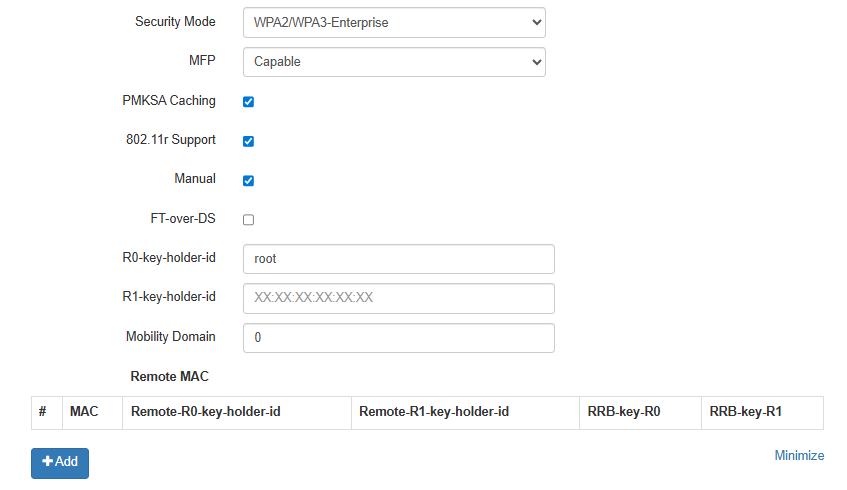
- MFP — management frame protection (available for WPA2, WPA3, WPA2/WPA3, WPA2-Enterprise, WPA2/WPA3-Enterprise and WPA3-Enterprise security modes, when selecting other security modes, MFP is set to the Disabled state, when selecting WPA3, WPA3-Enterprise security mode, MFP is set to the Enabled state):
- Not Required — management frame protection is disabled;
- Capable — protection works if the client supports MFP. Clients without MFP support can connect to this VAP;
- Required — management frame protection is enabled, clients that do not support MFP cannot connect.
- PMKSA Caching — when checked, enables caching of Enterprise client connection information. When this feature is enabled, the access point remembers the client device after authorization for 12 hours and does not require re-authentication on the RADIUS server if the device reconnects within that period. Enabling this feature reduces roaming time when the client returns to the access point in WPA Enterprise mode. This setting is available only when using Enterprise security modes;
- 802.11r — fast roaming functionality that works only with clients supporting the IEEE 802.11r standard. 802.11r roaming is possible only between VAPs operating in WPA2 security mode or higher:
- 802.11r Support — enables support for the 802.11r standard on the VAP;
- Manual — when checked, allows manual configuration of roaming parameters;
- FT-over-DS — enables the “Over the DS“ mode;
- R0-key-holder-id — unique key for this VAP, for example, the serial number;
- R1-key-holder-id — MAC address of the VAP (can be viewed using the ifconfig command output);
- Mobility Domain — the group number within which roaming can occur. Takes values from 0 to 65535;
- Remote MAC:
- MAC — MAC address of the VAP interface of the remote access point. Maximum number: 256;
- Remote-R0-key-holder-id — unique key that must match the “R0-key-holder-id“ on the remote AP’s VAP;
- Remote-R1-key-holder-id — MAC address of the VAP on the remote AP;
- RRB-key-R0 — random key. Must not match the “RRB-key-R1“, but must match the “RRB-key-R1“ of the remote AP. Key length: 16 characters;
- RRB-key-R1 — random key. Must not match the “RRB-key-R0“, but must match the “RRB-key-R0“ of the remote AP. Key length: 16 characters.
- 802.11r Support — enables support for the 802.11r standard on the VAP;
After the client (STA) mode is enabled, VLAN ID configuration becomes unavailable. |
RADIUS:
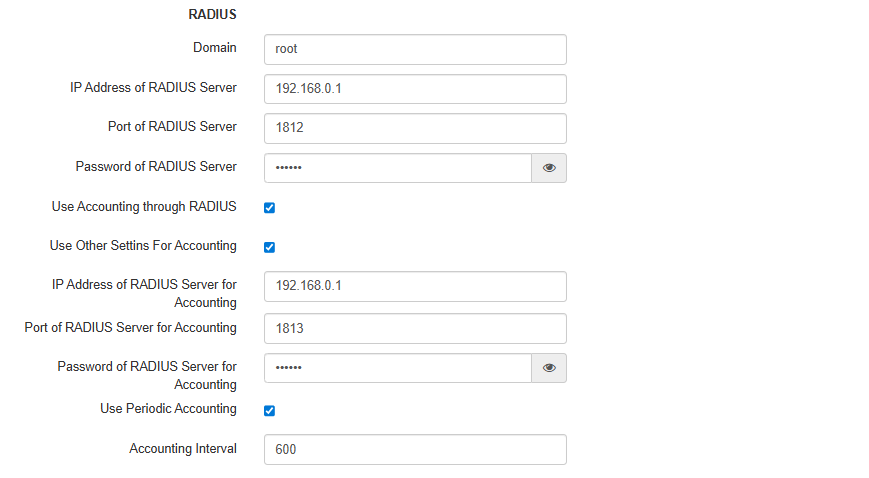
- Domain — user domain;
- IP Address of RADIUS Server — RADIUS server address;
- Port of RADIUS Server — port of the RADIUS server that used for aithentication and authorization;
- Password of RADIUS Server — password for the RADIUS server used for authentication and authorization;
- Use Accounting through RADIUS — when checked, “Accounting” messages will be sent to the RADIUS server;
- Use Other Settings For Accounting:
- IP Address of RADIUS Server for Accounting — address of the RADIUS server, used for accounting;
- Port of RADIUS Server for Accounting — port that will be used to collect accounts on the RADIUS server;
- Password of RADIUS Server for Accounting — password for the RADIUS server used for accounting.
- Use Periodic Accounting — enable periodic sending of “Accounting” messages to the RADIUS server. The interval for sending messages can be set in the “Accounting Interval” field.
Captive Portal:
When selecting one of the following security modes: Off, WPA, WPA2, WPA/WPA2, WPA3, WPA2/WPA3, a portal authorization setting is available on the VAP.
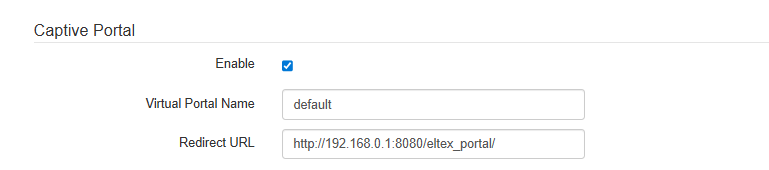
- Enable — when checked, authorization of users in the network will be performed via the virtual portal;
- Virtual Portal Name — name of the virtual portal to which the user will be redirected when connecting to the network;
- Redirect URL — the address of the external virtual portal to which the user will be redirected when connecting to the network.
Shapers:
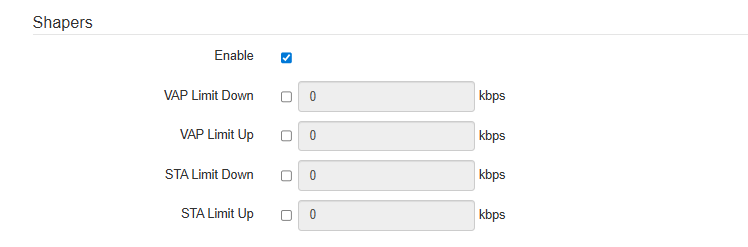
- Enable — activate the setting field;
- VAP Limit Down — restriction of bandwidth in the direction from the access point to the clients (in total) connected to this VAP, kbps;
- VAP Limit Up — restriction of bandwidth in the direction from the clients (in total) connected to this VAP, to the access point, kbps;
- STA Limit Down — restriction of bandwidth in the direction from the access point to the clients (each separately) connected to this VAP, kbps;
- STA Limit Up — restriction of bandwidth in the direction from the clients (each separately) connected to this VAP, to the access point, kbps.
To apply a new configuration and save settings to non-volatile memory, click “Apply”. Click “Cancel” to discard the changes.
MAC ACL:
This subsection is used to configure the lists of MAC addresses of clients that are allowed or denied to this VAP, depending on the selected access policy.
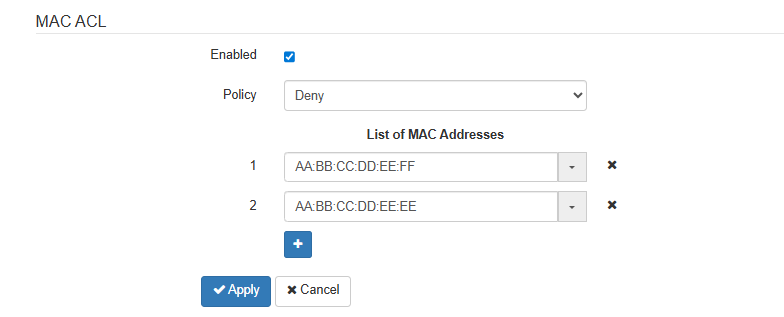
- Enabled — when checked, the chosen policy is active;
- Policy — access policy. Available options:
- Deny — specified MAC addresses will be denied to connect to this VAP, all others will be allowed;
- Allow — specified MAC addresses will be allowed to connect to this VAP, all others will be denied.
- List of MAC Addresses — list of MAC addresses of clients that are allowed or denied access to this VAP. Can contain up to 128 addresses.
To add an address to the list, click the  button and enter the MAC address in the appeared field. To remove an address from the list, click the
  button in the corresponding line.
To add to the list the MAC address of the client that is currently connected to the base station, click the  button at the end of the line and and select the desired address from the list, it will automatically be added to the field.
By default, the list displays up to 10 addresses. To see a full list if it contains more than 10 addresses, click the “Show all” button.

To apply a new configuration and save settings to non-volatile memory, click the “Apply” button. Click the “Cancel” button to discard the changes.
The “WDS” menu
In the “WDS” menu, the wireless bridges between WOP-30LI are configured.
When configuring a WDS connection, it is necessary to select the same channel and channel width in the radio interface settings on the the devices that will be connected via WDS. |
After the client (STA) mode is enabled, WDS configuration becomes unavailable on the radio where the client (STA) mode was configured. |
The “WDS” submenu
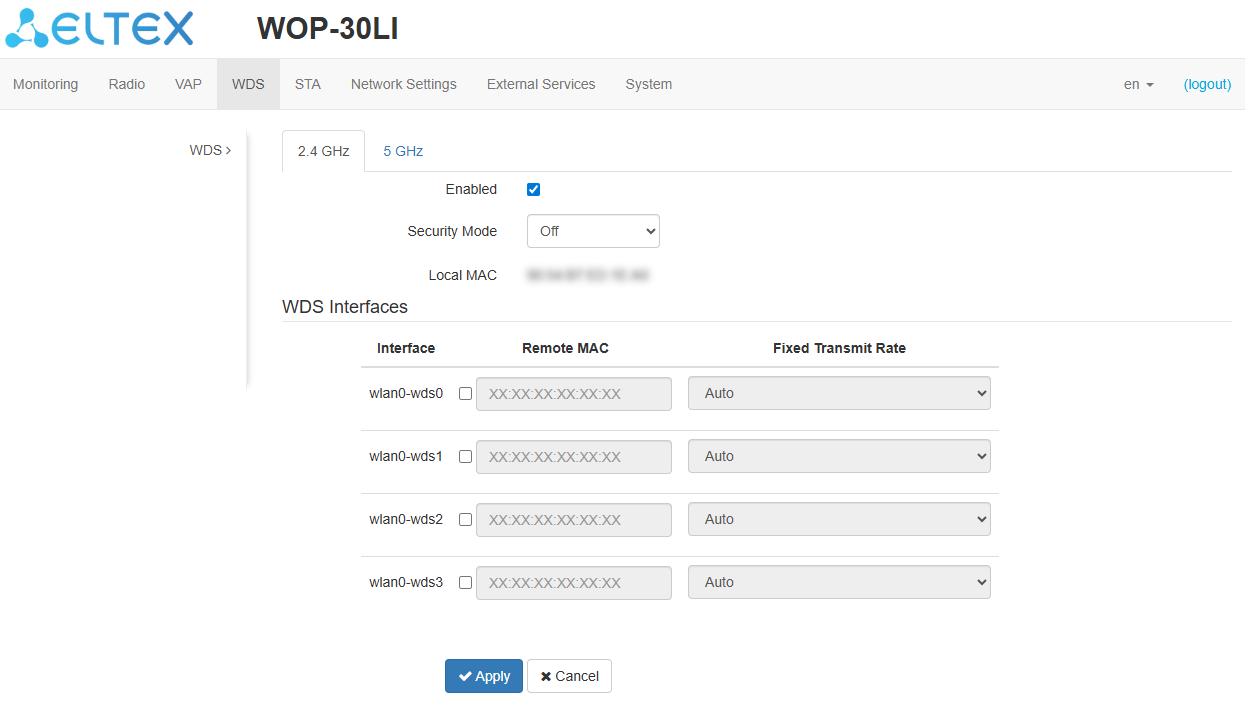
In the “2.4 GHz” and “5 GHz” tabs, select the radio interface of the device on which a wireless bridge should be built.
- Enabled — when checked, the wireless bridge mode is enabled, otherwise it is disabled;
- Security Mode — wireless access security mode:
- Off — do not use encryption for data transfer;
- WPA2 — encryption method, when selected, the following setting will be available:
- WPA Key — key/password required to connect to the remote access point. The key length is from 8 to 63 characters.
- Local MAC — MAC address of this device radio interface;
- Interface — selecting and enabling the WDS interface on which the wireless bridge will be built;
- Remote MAC — MAC address of the remote device radio interface, to which a wireless bridge is cofigured;
- Fixed Transmit Rate — fixed wireless data rate, defined by the specifications of the IEEE 802.11 standards. For each interface, select individually.
To apply a new configuration and save settings to non-volatile memory, click “Apply”. Click “Cancel” to discard the changes.
The “STA” menu
In the “STA” menu, the the client/station (STA) mode is configured.
The “STA” submenu
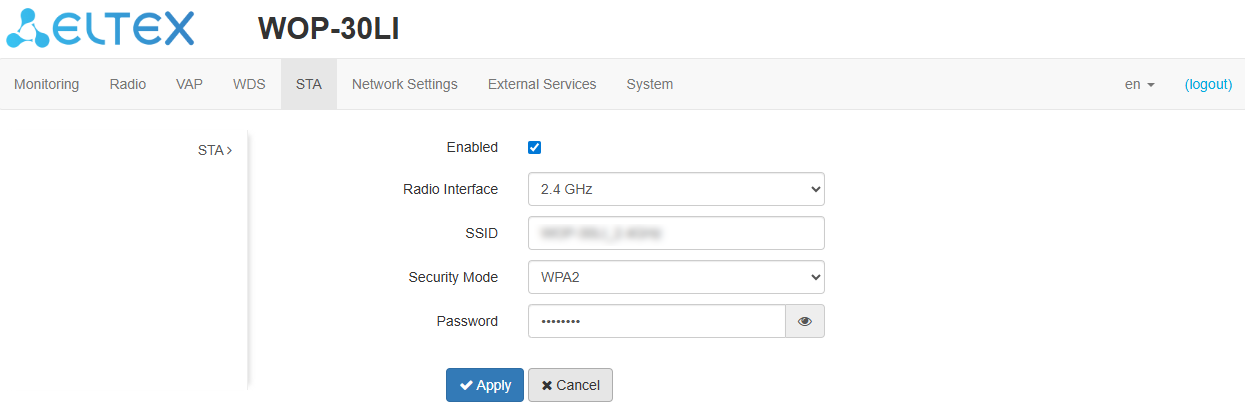
Connection:
- Enabled — when checked, the STA mode is enabled, otherwise it is disabled;
- Radio Interface — select the radio interface on which the client (STA) mode will be configured. Available options:
- 2.4 GHz;
- 5 GHz.
- SSID — virtual wireless network name;
- Security Mode — wireless access security mode:
- Off — do not use encryption for data transfer;
- WPA2, WPA3 — encryption methods, when one of the methods selected, the following setting will be available:
- Password — key/password required to connect to the remote access point. The key length is from 8 to 63 characters.
- OWE (Opportunistic Wireless Encryption) — an encryption method that provides security for data transmitted over an unsecured network.
To apply a new configuration and save settings to non-volatile memory, click “Apply”. Click “Cancel” to discard the changes.
The “Network Settings” menu
The “System Configuration” submenu
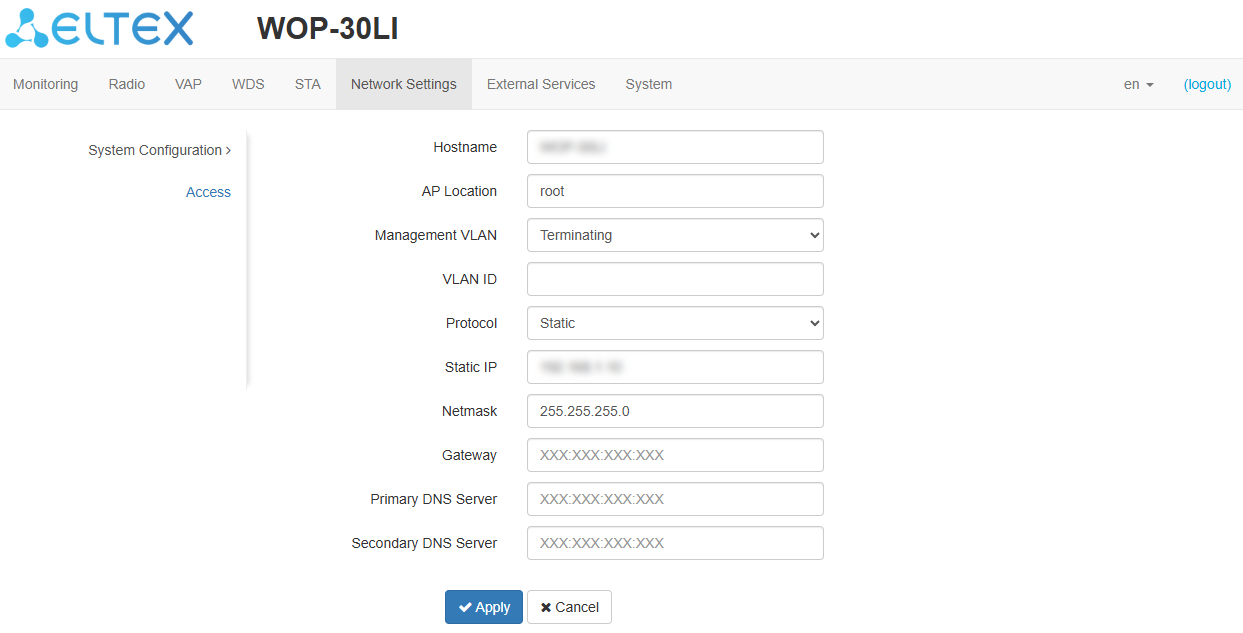
- Hostname — network name of the device, specified by string from 1 to 63 characters; latin uppercase and lowercase letters, digits, hyphen “-” (hyphen can not be the last character in the name);
- AP Location — domain of the EMS management system tree host where the access point is located;
- Management VLAN:
- Disabled — Management VLAN is not used;
- Terminating — the mode in which the management VLAN is terminated at the access point (in this case, clients connected via the radio interface do not have access to this VLAN);
- Forwarding — the mode in which the management VLAN is also transmitted to the radio interface (with the appropriate VAP configuration).
- VLAN ID — the VLAN ID used to access the device, takes values 1–4094;
- Protocol — select protocol for connection of the device via Ethernet interface to service provider network:
- DHCP — operation mode, when IP address, subnet mask, DNS server address, default gateway and other parameters required for operation are obtained from DHCP server automatically;
- Static — operation mode, when IP address and all the necessary parameters for WAN interface are assigned statically. If “Static” is selected, the following parameters will be available to set:
- Static IP — IP address of the device WAN interface in the provider network;
- Netmask — external subnet mask;
- Gateway — address, to which the packet is sent, if the route in routing table is not found for it.
- Primary DNS server, Secondary DNS server — IP addresses of DNS servers. If addresses of DNS servers are not automatically assigned via DHCP, set them manually.
After the client (STA) mode is enabled, Management VLAN configuration in Terminating and Forwarding modes becomes unavailable. |
To apply a new configuration and save settings to non-volatile memory, click “Apply”. Click “Cancel” to discard the changes.
The “Access” submenu
In the “Access” submenu, the access to the device via web interface, Telnet, SSH, NETCONF and SNMP can be configured.
- To enable access to the device via the web interface using the HTTP protocol, check the box next to “WEB”. In the window that appears, it is possible to change the HTTP port (default is 80). The range of acceptable port values, in addition to the default, is from 1025 to 65535 inclusive;
To enable access to the device via the web interface using the HTTPS protocol, check the box next to “WEB-HTTPS”. In the window that appears, it is possible to change the HTTPS port (default is 443). The range of acceptable port values, in addition to the default, is from 1025 to 65535 inclusive;
Ports for the HTTP and HTTPS protocols should not have the same value. |
- To enable access to the device via Telnet, check the box next to “Telnet”;
- To enable access to the device via SSH, check the box next to “SSH”;
- To enable access to the device via NETCONF, check the box next to “NETCONF”.
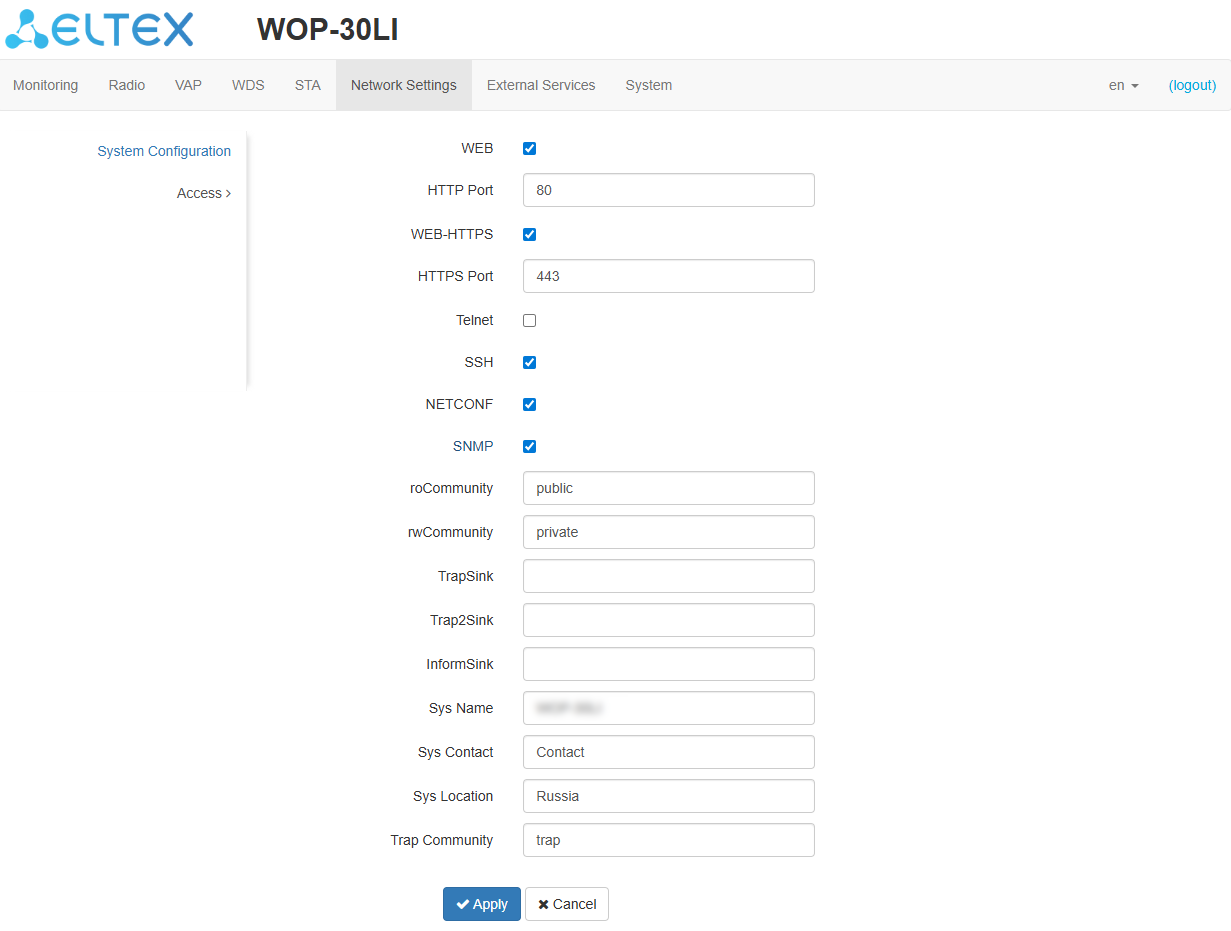
The WOP-30LI software allows changing the device configuration, monitoring the status of the access point and its sensors, as well as managing the device via SNMP.
To change the SNMP settings, check the box next to “SNMP”, the following SNMP agent options become available:
- roCommunity — a password to read the parameters (by default: public);
- rwCommunity — a password to write parameters (by default: private);
- TrapSink — IP address or domain name of SNMPv1-trap message recipient in HOST [COMMUNITY [PORT]] format;
- Trap2Sink — IP address or domain name of SNMPv2-trap message recipient in HOST [COMMUNITY [PORT]] format;
- InformSink — IP address or domain name of Inform message recipient in HOST [COMMUNITY [PORT]] format;
- Sys Name — device name;
- Sys Contact — device vendor contact information;
- Sys Location — device location information;
- Trap community — password enclosed in traps (default value: trap).
The list of objects which are supported for reading and configuring via SNMP is given below:
- eltexLtd.1.127.1 — monitoring of access point parameters and connected client devices;
- eltexLtd.1.127.3 — access point management;
- eltexLtd.1.127.5 — access point configuring.
eltexLtd — 1.3.6.1.4.1.35265 — Eltex Enterprise ID.
To apply a new configuration and save settings to non-volatile memory, click “Apply”. Click “Cancel” to discard the changes.
The “External Services” menu
The “Captive Portal” submenu
The “Captive Portal” submenu is used to enable and configure the APB service at the access point.
The APB service is used to provide portal roaming of clients between access points connected to the service.
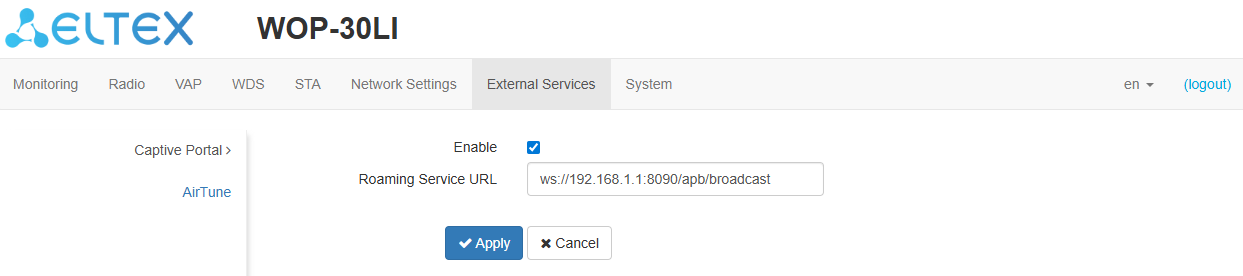
- Enable — when checked, the point will connect to the APB service, the address of which is specified in the “Roaming Service URL” field, to provide portal roaming of clients;
- Roaming Service URL — APB service address to support roaming in the portal authorization mode. Set in format: “ws://<host>:<port>/apb/broadcast”.
To apply a new configuration and save settings to non-volatile memory, click “Apply”. Click “Cancel” to discard the changes.
The “AirTune” submenu
The “AirTune” submenu is used to enable and configure the AirTune service on the access point.
The AirTune service is intended for Radio Resource Management and automatic configuration of 802.11 k/r seamless roaming.
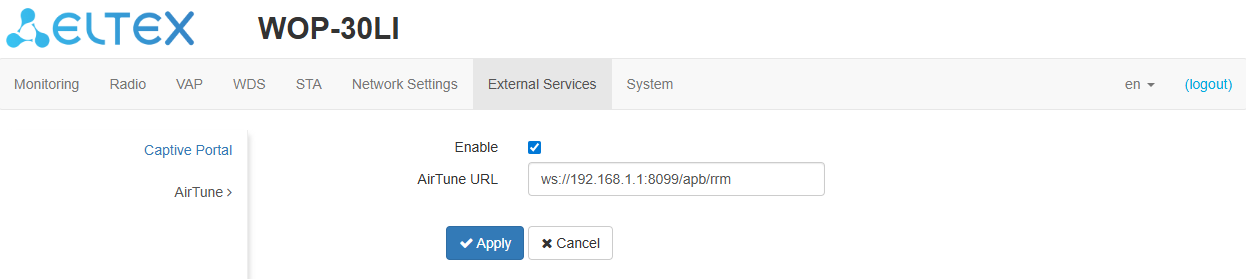
- Enable — when checked, the point will connect to the AirTune service, the address of which is specified in the “AirTune Service Address” field, to provide Radio Resource Management and/or 802.11 k/r roaming functions.
- AirTune URL — AirTune service address. Set in format: “ws://<host>:<port>/apb/rrm”.
To apply a new configuration and save settings to non-volatile memory, click “Apply”. Click “Cancel” to discard the changes.
The “System” menu
In the “System” menu, the user can configure the system, time, device access via different protocols, change password, and update device firmware.
The “Device Firmware Upgrade” submenu
The “Device Firmware Upgrade” submenu is used to upgrade the device firmware.
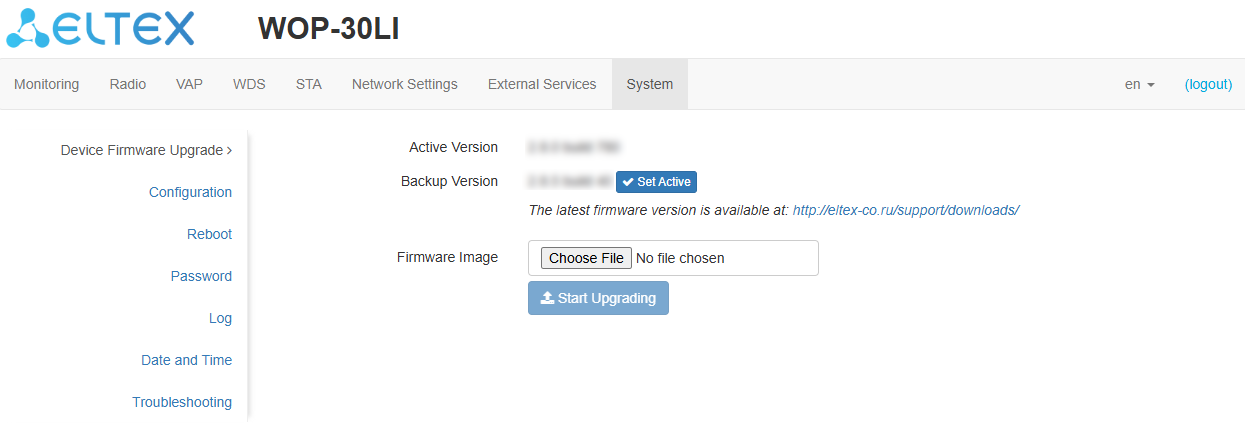
- Active Version — installed firmware version, which is operating at the moment;
- Backup version — installed firmware version which can be used in case of problems with the current active firmware version;
- Set active — button used to activate the backup firmware version, this will require a device reboot. The active firmware version will not be set as a backup.
Firmware upgrade
Download the firmware file from https://eltex-co.com/download/. To do this, select WOP-30LI from the list of devices and save the file on your computer. After that, click the “Choose File” button in the Firmware Image field and specify the path to the firmware file in .tar.gz format.
To start the update process, click the “Start Upgrading” button. The process may take several minutes (its current status will be shown on the page). The device will be automatically rebooted when the upgrade is completed.
Do not switch off or reboot the device during a firmware upgrade. |
The “Configuration” submenu
The “Configuration” submenu is used to save and update the current configuration.
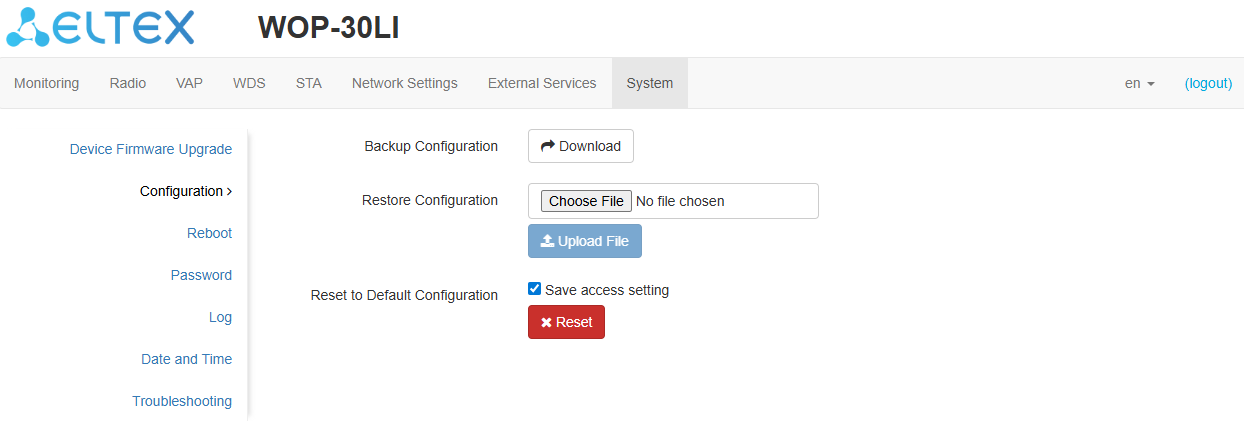
Backup Configuration
To save current device configuration to local computer click the “Download” button.
Restore Configuration
To upload the configuration file saved on the local computer, use the Restore Configuration item. To update the device configuration click the “Choose File” button, specify a file (in .tar.gz format) and click the “Upload File” button. Uploaded configuration will be applied automatically and does not require device reboot.
Reset to Default Configuration
To reset all the settings to default values, click the “Reset” button. If the “Save access setting” is checked, the configuration settings related to the device access (IP address settings, Telnet/SSH/SNMP/Netconf/Web access settings) will be saved.
The “Reboot” submenu
To reboot the device, click the “Reboot” button. The device reboot process takes about 1 minute.
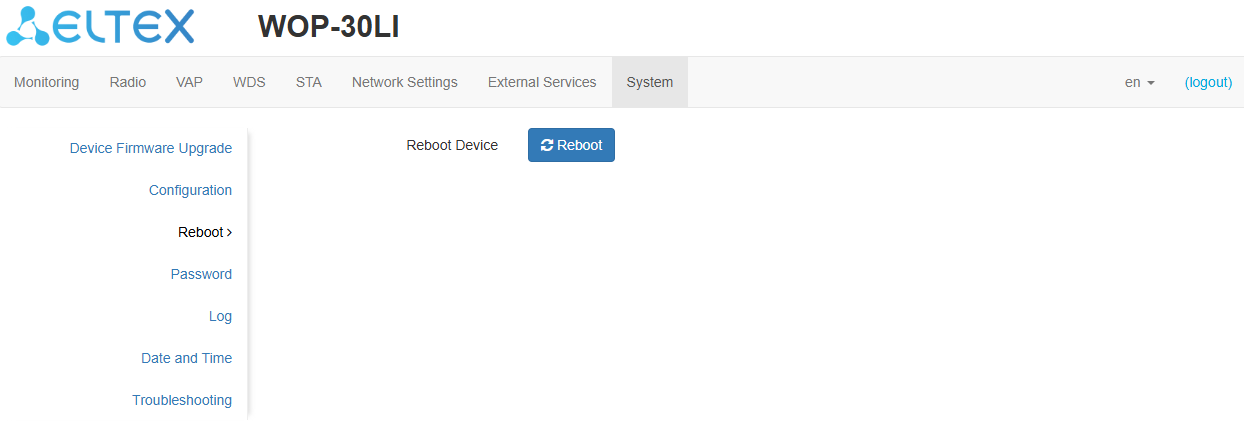
The “Password” submenu
When logging in via web interface, administrator (default password: password) has the full access to the device: read/write any settings, full device status monitoring.
To change the password, enter the new password first in the “Password” field, then in the “Confirm Password” field, and click the “Apply” button to save the new password.
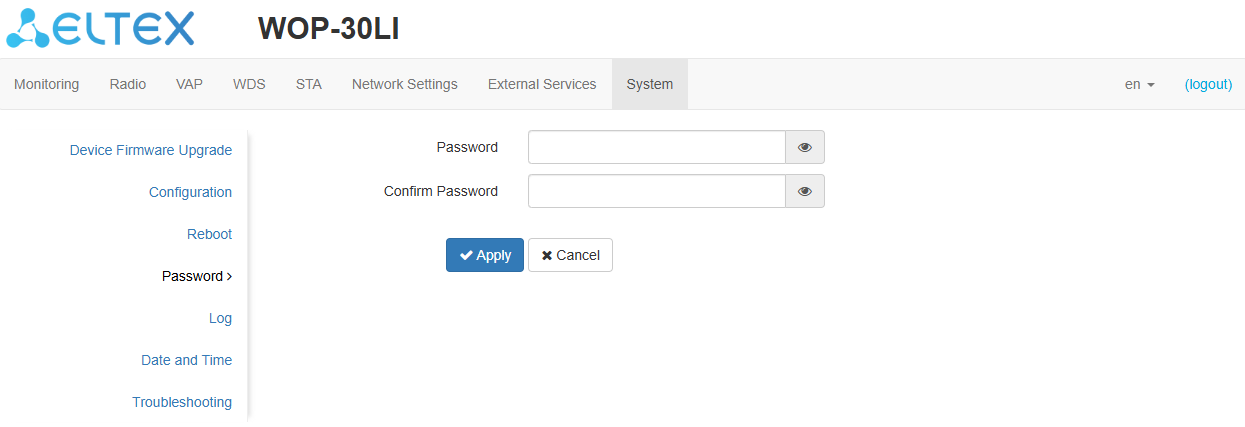
The “Log” submenu
The “Log” submenu is used to configure the output of various kinds of debugging messages of the system in order to detect the causes of problems in the operation of the device.
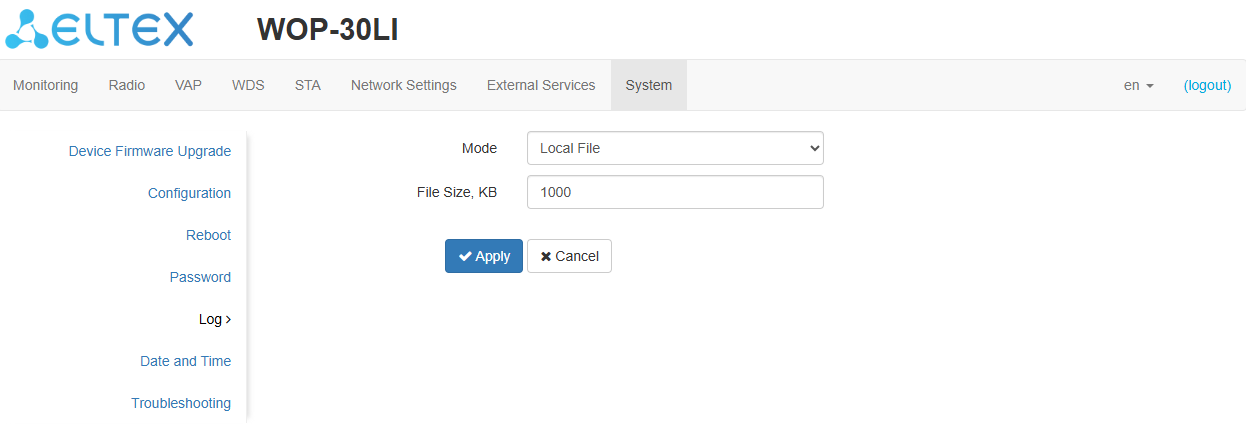
- Mode — Syslog agent operation mode:
- Local File — log information is stored in a local file and is available in the device web interface on the “Events” submenu;
- Server and File — log information is sent to a remote Syslog server and stored in a local file.
- Syslog Server Address — IP address or domain name of the Syslog server;
- Syslog Server Port — port for incoming Syslog server messages (default value: 514, valid values: from 1 to 65535);
- File Size, KB — maximum size of the log file (valid values: from 1 to 1000 KB).
To apply a new configuration and save settings to non-volatile memory, click “Apply”. Click “Cancel” to discard the changes.
The “Date and Time” submenu
The “Date and Time“ submenu is used to set the time manually or via the Network Time Protocol (NTP).
Manual
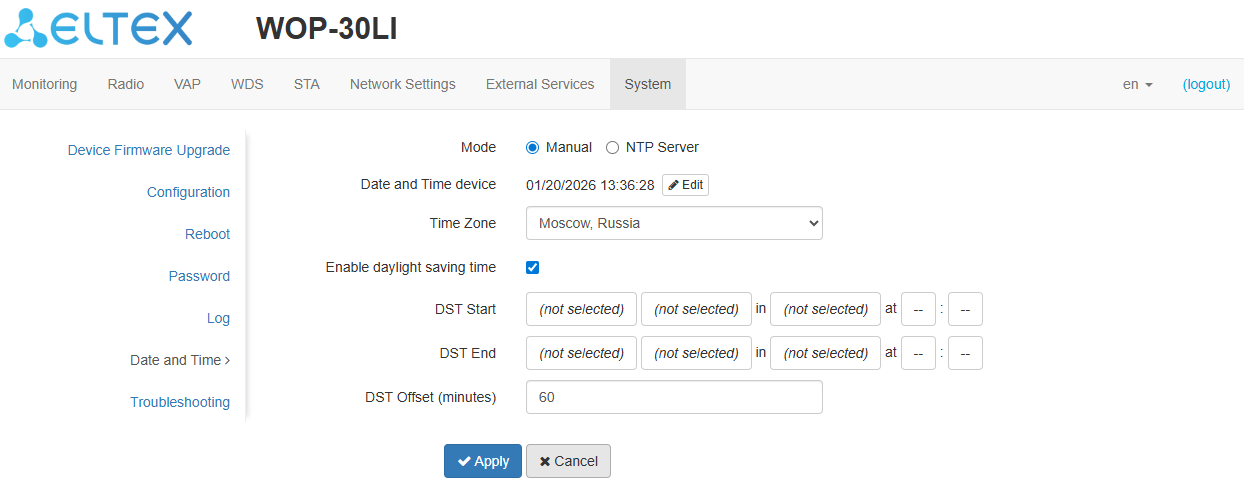
- Date and Time device — date and time on the device at the current moment. Click “Edit” to make corrections:
- Date, Time — set the current date and time or click “Set current date and time” to synchronize with the device;
- Time Zone — allows to set the timezone according to the nearest city for your region from the list;
- Enable daylight saving time — when selected, automatic daylight saving change will be performed automatically within the defined time period:
- DST Start — day and time, when daylight saving time is starting;
- DST End — day and time, when daylight saving time is ending;
- DST Offset (minutes) — time period in minutes, on which time offset is performing. The parameter can take a value from 0 to 720 minutes.
To apply a new configuration and save settings to non-volatile memory, click “Apply”. Click “Cancel” to discard the changes.
NTP server
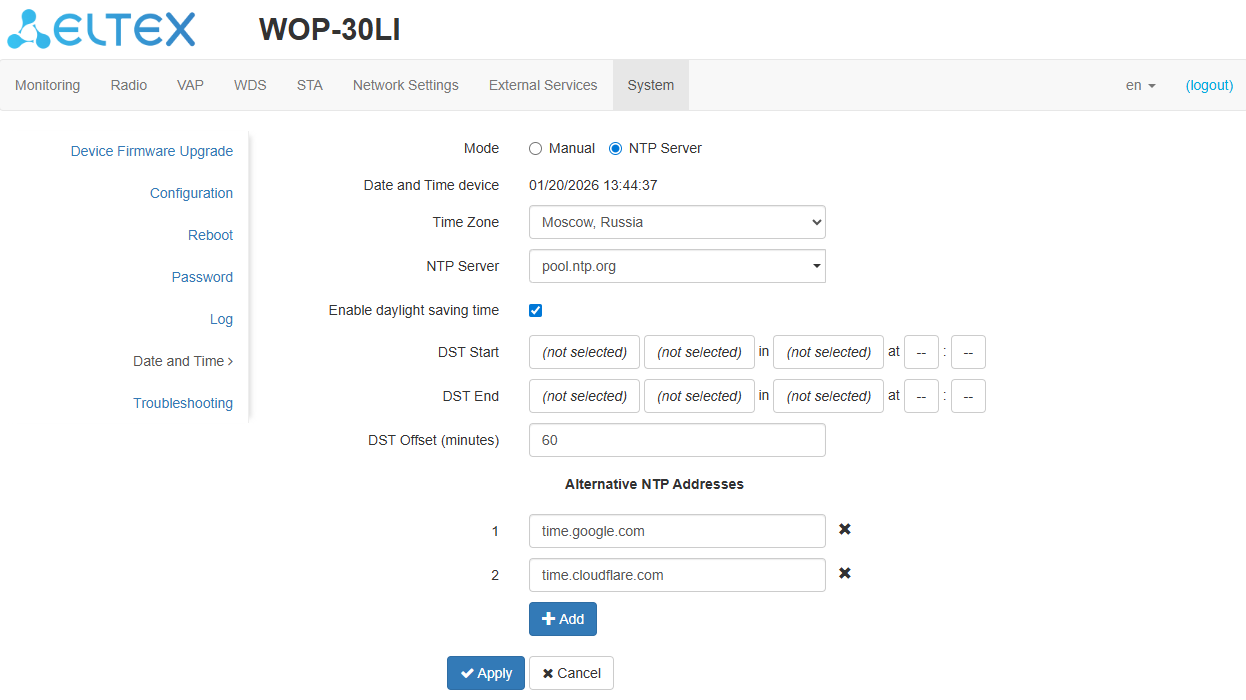
- Date and Time device — date and time set on the device;
- Time Zone — allows to set the time zone according to the nearest city for your region from the list;
- NTP Server — IP address/domain name of the time synchronization server. It is possible to specify an address or select from an existing list;
- Enable daylight saving time — when selected, automatic daylight saving change will be performed automatically within the defined time period:
- DST Start — day and time, when daylight saving time is starting;
- DST End — day and time, when daylight saving time is ending;
- DST Offset (minutes) — time period in minutes, on which time offset is performing. The parameter can take a value from 0 to 720 minutes.
- Alternative NTP Addresses — if the primary time synchronization server is unavailable, the device will contact the additional time synchronization servers. To add an address to the list, click “Add” and enter the server IP address or domain name in the field provided. To remove an address from the list, click in the corresponding row.
To apply a new configuration and save settings to non-volatile memory, click the “Apply” button. Click the “Cancel” button to discard the changes.
The “Troubleshooting” submenu
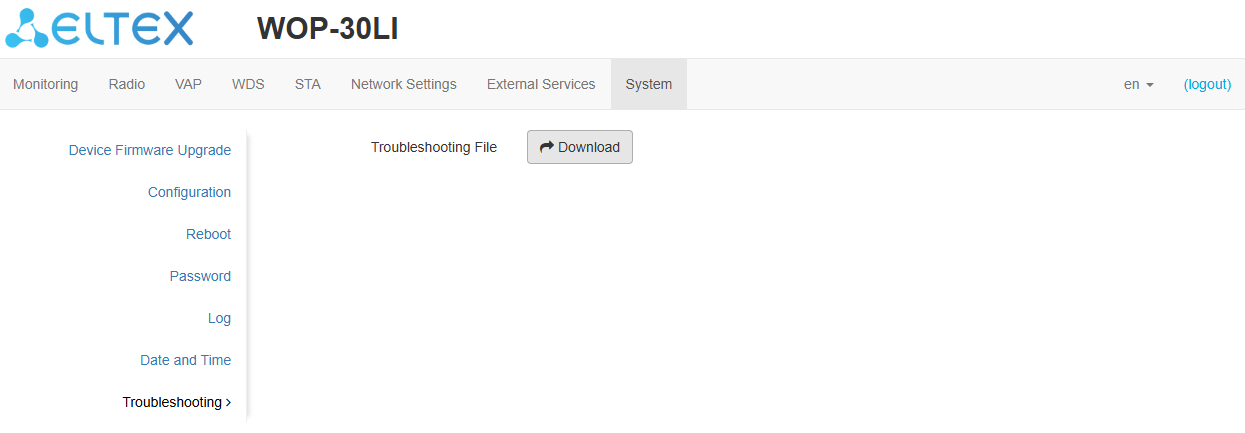
Troubleshooting file
To download the troubleshooting.tar.gz archive from the device to a local computer, click “Download”.
Device management via the command line
To display the existing settings of a particular configuration section, enter the show-config command. To get a hint about the possible values of a configuration parameter, press the key combination [Shift + ?] (in the English keyboard layout). To get a list of options available for editing in this configuration section, press the Tab key. To save the settings, enter the save command. To go back to the previous configuration section, enter the exit command. To go to the root section, enter the end command. |
Connection to the device
By default, WOP-30LI is configured to receive the address via DHCP. If this does not happen, it is possible to connect to the device using the factory IP address.
WOP-30LI factory IP address: 192.168.1.10, subnet mask: 255.255.255.0. |
Connection to the device is performed via SSH/Telnet:
ssh admin@<IP address of the device>, then enter the password telnet <IP address of the device>, enter login and password |
Network parameters configuration
WOP-30LI(root):/# configure Adding a static route WOP-30LI(config):/interface/br0/common# exit |
WOP-30LI(root):/# configure |
Starting from firmware version 2.2.0, it is possible to set MTU via DHCP (option 26). The MTU value obtained via DHCP has higher priority than the configured setting. |
The MTU size for a bridge should be no larger than the smallest MTU size on the interfaces within this bridge. |
WOP-30LI(root):/# configure |
Network parameters configuration via set-management-vlan-mode utility
Obtaining the network parameters via DHCP: WOP-30LI(root):/# set-management-vlan-mode off protocol dhcp Static settings: WOP-30LI(root):/# set-management-vlan-mode off protocol static-ip ip-addr X.X.X.X netmask Y.Y.Y.Y gateway Z.Z.Z.Z (where X.X.X.X — static IP address, Y.Y.Y.Y — subnet mask, Z.Z.Z.Z — gateway) |
Obtaining the network parameters via DHCP: WOP-30LI(root):/# set-management-vlan-mode terminating vlan-id X protocol dhcp (where X — VLAN ID used for access to the device. Acceptable values: 1–4094) Static settings: WOP-30LI(root):/# set-management-vlan-mode terminating vlan-id X protocol static-ip ip-addr X.X.X.X netmask Y.Y.Y.Y gateway Z.Z.Z.Z (where X — VLAN ID used for access to the device. Acceptable values: 1–4094; X.X.X.X — static IP address; Y.Y.Y.Y — subnet mask; Z.Z.Z.Z — gateway) |
Obtaining the network parameters via DHCP: WOP-30LI(root):/# set-management-vlan-mode forwarding vlan-id X protocol dhcp (where X — VLAN ID used for access to the device. Acceptable values: 1–4094) Static settings: WOP-30LI(root):/# set-management-vlan-mode forwarding vlan-id X protocol static-ip ip-addr X.X.X.X netmask Y.Y.Y.Y gateway Z.Z.Z.Z (where X — VLAN ID used for access to the device. Acceptable values: 1–4094; X.X.X.X — static IP address; Y.Y.Y.Y — subnet mask; Z.Z.Z.Z — gateway) |
WOP-30LI(root):/# save (save changes) |
Remote control configuration
WOP-30LI(root):/# configure |
WOP-30LI(root):/# configure |
IPv6 network parameters configuration
Access to the device via IPv6 protocol is disabled by default. |
WOP-30LI(root):/# configure |
WOP-30LI(root):/# configure |
Virtual Wi-Fi access points (VAP) configuration
When configuring a VAP, keep in mind that the interface names in the 2.4 GHz band start with wlan0, in the 5 GHz band with wlan1.
Table 7 — Commands for configuring security mode on VAP
| Security mode | Command to set the security mode |
|---|---|
| No password | mode off |
| WPA | mode WPA |
| WPA2 | mode WPA2 |
| WPA/WPA2 | mode WPA_WPA2 |
| WPA3 | mode WPA3 |
| WPA2/WPA3 | mode WPA2_WPA3 |
| OWE | mode OWE |
| WPA-Enterprise | mode WPA_1X |
| WPA2-Enterprise | mode WPA2_1X |
| WPA/WPA2-Enterprise | mode WPA_WPA2_1X |
| WPA2/WPA3-Enterprise | mode WPA2_WPA3_1X |
| WPA3-Enterprise | mode WPA3_1X |
Examples of VAP configuration with different security modes for Radio 5 GHz (wlan1) are provided below.
Configuration of VAP without encryption
WOP-30LI(root):/# configure |
Configuration of VAP with OWE encryption
WOP-30LI(root):/# configure |
Configuration of VAP with OWE and OWE Transition Mode
Only Wi-Fi 6 clients can connect to a VAP with OWE security mode. In order for other clients to be able to connect to such a VAP, it is required to configure OWE Transition Mode. In this mode, Wi-Fi 6 clients will be connected in OWE security mode, and all other clients will be connected in open mode. |
WOP-30LI(root):/# configure |
Configuration of VAP with WPA-Personal security mode
WOP-30LI(root):/# configure |
Configuration of VAP with Enterprise authorization
WOP-30LI(root):/# configure |
Configuration of VAP with Captive Portal
WOP-30LI(root):/# configure |
Configuration of VAP with external Captive Portal
WOP-30LI(root):/# configure |
WOP-30LI(config):/interface/wlan1-va0/vap/captive-portal# preauth-filter-mode acl (parameter that defines the basis for filtering traffic of unauthenticated clients. Acceptable values: acl, white-list. Default value: white-list) |
To learn about the operation algorithm with the external portal, see the diagram. |
Table 8 — Configuring the URL template for external Captive Portal
| Parameter | Description |
|---|---|
| <NAS_ID> | NAS-ID set on VAP or in the system. If neither of these parameters is set, then the MAC address of the access point will be used as NAS-ID in RADIUS and HTTP(S) packets in the “nas-id-format“ |
| <SWITCH_URL> | Domain name that is shown to the client when redirected |
| <AP_MAC> | MAC address of the access point |
| <CLIENT_MAC> | MAC address of the client |
| <SSID> | SSID |
| <ORIGINAL_URL> | URL that the client originally requested |
| <NAS_IP> | IP address of the access point |
| <AP_LOCATION> | Location of the access point |
Configuration of an additional RADIUS server on VAP
This functionality is only available for portal and Enterprise authentication modes. |
WOP-30LI(root):/# configure |
Advanced VAP settings
WOP-30LI(config):/interface/wlan1-va0/vap# vlan-id X (where X — VLAN ID number on VAP) |
WOP-30LI(config):/interface/wlan1-va0/vap# vlan-group X,Y-Z (where X, Y–Z — VLAN ID values that can be assigned to the VAP. Acceptable values: 1–4094. If the vlan-group parameter is configured, the vlan-id parameter will be ignored) |
WOP-30LI(config):/interface/wlan1-va0/vap# band-steer-mode true (enabling Band Steer mode. To disable, enter false) |
WOP-30LI(config):/interface/wlan1-va0/vap# vlan-trunk true (enabling VLAN Trunk on VAP. To disable, enter false) |
WOP-30LI(config):/interface/wlan1-va0/vap# general-vlan-mode true (enabling General VLAN on SSID. To disable, enter false) |
WOP-30LI(config):/interface/wlan1-va0/vap# priority-by-dscp false (priority analysis from CoS field (Class of Service) of the tagged packets. Value by default: true. In this case, the priority from DSCP header field of the IP packet is analyzed) |
WOP-30LI(config):/interface/wlan1-va0/vap/ap-security# mfp required (enabling management frame protection. required — requires MFP support from client, clients without an MFP support will not be able to connect. capable — compatible with MFP, clients without an MFP support can connect. To disable, enter off) |
WOP-30LI(config):/interface/wlan1-va0/vap/radius# tls-enable true (use TLS for authorization process. To disable, enter false) |
WOP-30LI(config):/interface/wlan1-va0/vap# hidden true (enable hidden SSID. To disable, enter false) |
WOP-30LI(config):/interface/wlan1-va0/vap# station-isolation true (enable traffic isolation between clients within a single VAP. To disable, enter false) |
WOP-30LI(config):/interface/wlan1-va0/vap# sta-limit X (where X — the maximum allowable number of clients connected to the virtual network) |
WOP-30LI(config):/interface/wlan0-va0/vap# arp-inspection true (enable inspection for source IP address spoofing in ARP packets. To disable, enter false. Default value: false) |
WOP-30LI(config):/interface/wlan1-va0/vap# wmf-bss-enable true (enable multicast traffic replication on VAP. To disable, enter false) |
WOP-30LI(config):/interface/wlan1-va0/vap# check-signal-enable true (enabling Minimal Signal functionality. To disable, enter false) |
WOP-30LI(config):/interface/wlan1-va0/vap# local-switching true (enabling subscribers traffic transmission outside of GRE tunnel. To disable, enter false. Default value: disabled) |
Configuring traffic shaper from the clients (each separately) connected to this VAP towards the access point: WOP-30LI(config):/interface/wlan1-va0/vap# shaper-per-sta-rx
WOP-30LI(config):/interface/wlan1-va0/vap# shaper-per-sta-tx
WOP-30LI(config):/interface/wlan1-va0/vap# shaper-per-vap-rx WOP-30LI(config):/interface/wlan1-va0/vap# shaper-per-vap-tx |
Configuring traffic shaper from the clients towards the access point: Configuring traffic shaper from the access point towards the clients: |
Configuring traffic shaper from the clients towards the access point: Configuring traffic shaper from the access point towards the clients: |
WOP-30LI(config):/interface/wlan1-va0/vap# acl |
If it is required by security policy to implement protection against connections of users duplicating the MAC address of a wired device (gateway, PC, etc.), use the fdb-filtering setting, which has the following operating modes:
WOP-30LI(config):/interface/wlan1-va0/vap# fdb-filtering |
802.11r configuration
This type of roaming is available only for client devices supporting 802.11r.
802.11r roaming is possible only between VAPs with WPA2/WPA3-Personal and WPA2/WPA3-Enterprise security modes.
See instructions for configuring VAP with WPA2-Personal security mode and others in Configuration of VAP with WPA-Personal security mode section.
Each VAP on the access points should be configured individually, eg. AP1(wlan1)↔AP2(wlan1), AP1(wlan0)↔AP2(wlan0), AP1(wlan1)↔AP3(wlan1), etc.
Below is the example of 802.11r configuring on two access points: AP1 and AP2.
WOP-30LI(config):/interface/wlan1-va0/vap/ft-config# enabled false |
WOP-30LI(config):/interface/wlan1-va0/vap/ft-config# enabled false |
802.11k configuration
Roaming based on 802.11k protocol can be configured between any types of networks (open/secure). If the access point is configured to operate with 802.11k protocol, when a client connects, the access point sends the list of “friendly” access points to which the client can switch in a roaming process. The list contains information about access points' MAC addresses and channels they work with.
The use of 802.11k allows to reduce the time for finding another network when roaming, since the client does not need to scan channels on which there are no target access points available for switching.
This type of roaming is available only for client devices supporting 802.11k.
Below is an example of configuring 802.11k on an access point — making a list of “friendly” access points.
WOP-30LI(config):/interface/wlan1-va0/vap/w80211kv-config# enabled false |
802.11v configuration
Roaming based on 802.11v protocol can be configured between any types of networks (open/secure). If the access point is configured to operate with 802.11v protocol, the device sends a special BSS Transition packet toward the client at the request of an administrator or controller (AirTune). This packet contains a recommendation for the client to initiate roaming. Whether the client device follows the recommendation of the access point cannot be guaranteed, as the final decision to switch to another access point is always made on the client side. When used in combination with the 802.11k standard, the BSS Transition Management message also includes a list of recommended access points for roaming. This list provides details on which channel each access point operates and the wireless standard used (IEEE 802.11n/ac/ax). The client then analyzes the environment and makes a decision based on signal strength, channel load, and the configuration of the remote access point.
This type of roaming is available only for client devices supporting 802.11v.
WOP-30LI(config):/interface/wlan1-va0/vap/w80211kv-config# enabled true (enable access point operation based on 802.11k/v protocol) |
WDS configuration
When configuring a WDS connection, on the devices that will be connected via WDS, it is necessary to select the same channel and channel width in the radio interface settings. More information about configuring the radio interface via the command line can be found in the Radio configuration section. |
Below is the configuration of a WDS connection on the Radio 5 GHz interface (wlan1).
WOP-30LI(root):/# configure |
The remote access point is configured in the same way.
AirTune configuration
WOP-30LI(config):/# airtune |
To enable automatic 802.11r configuration via the AirTune service on the access point, the 802.11r functionality must be enabled. To do this, apply the following settings:
WOP-30LI(config):/interface/wlan1-va0/vap/ft-config# enabled true (enable access point operation based on 802.11r protocol) |
To enable automatic 802.11k/v configuration via the AirTune service on the access point, the 802.11k/v functionality must be enabled on the SSID. To do this, apply the following settings:
WOP-30LI(config):/interface/wlan1-va0/vap/w80211kv-config# enabled true (enable 802.11k/v protocol support on a virtual access point) |
Radio configuration
By default, automatic channel selection is used in the Radio. To manually set the channel or change the transmit power, use the following commands:
WOP-30LI(root):/# configure |
Channels available for selection for radio 2.4 GHz:
Channels available for selection for radio 5 GHz:
|
The parameters tx-power-min and tx-power-max are only applicable when operating with the AirTune service is enabled. |
Advanced Radio settings
WOP-30LI(config):/interface/wlan0/wlan/radio# use-limit-channels true (enable use of limited list of channels in channel autoselection operation. To disable, enter false) |
WOP-30LI(config):/interface/wlan0/wlan/radio# use-limit-channels-client true (enable use of limited list of channels in STA mode. To disable, enter false. Defaul value: false) |
WOP-30LI(config):/interface/wlan0/wlan/radio# control-sideband lower (Acceptable values: lower, upper. Default value: Radio 1: lower; Radio 2: upper) |
WOP-30LI(config):/interface/wlan0/wlan/radio# sgi true (enabling the use of a Short Guard Interval for data transmission of 400 ns instead of 800 ns. To disable, enter false) |
WOP-30LI(config):/interface/wlan0/wlan/radio# stbc true (enabling the Space-Time Block Coding (STBC) method, aimed at improving the reliability of data transmission. To disable, enter false) |
WOP-30LI(config):/interface/wlan0/wlan/radio# aggregation true (enabling aggregation on Radio — support for AMPDU/AMSDU. To disable, enter false) |
WOP-30LI(config):/interface/wlan0/wlan/radio# short-preamble true (enabling the short packet preamble. To disable, enter false) |
WOP-30LI(config):/interface/wlan0/wlan/radio# wmm true (enabling the support for WMM (Wi-Fi Multimedia). To disable, enter false) |
Configuring is done only on Radio 5 GHz (wlan1) WOP-30LI(config):/interface/wlan1/wlan/radio# dfs X (where X — DFS mechanism operating mode. Acceptable values: forced — the mechanism is disabled, DFS channels are available for selection; auto — the mechanism is enabled; disabled — the mechanism is disabled, DFS channels are unavailable for selection) |
WOP-30LI(config):/interface/wlan0/wlan/radio# obss-coex true (enabling automatic channel width switch mode from 40 MHz to 20 MHz with a loaded radio environment. To disable, enter false) |
WOP-30LI(config):/interface/wlan0/wlan/radio# tx-broadcast-limit X (where X — restricting broadcast/multicast traffic over the wireless network, the limit for broadcast traffic is specified in packets per second) |
WOP-30LI(config):/interface/wlan0/wlan/radio# qos |
The configuration procedure for edca-sta is similar to that of edca-ap.
Configuring parameters for the be, vi, and vo queues is similar to configuring parameters for the bk queue.
DHCP option 82 configuration
DHCP option 82 is configured separately for each radio interface. This section provides examples of configuring option 82 for Radio 2.4 GHz — wlan0. |
DHCP snooping operating modes:
- ignore – option 82 processing is disabled. Default value;
- replace – the access point substitutes or replaces the value of option 82;
- remove – the access point removes the value of option 82.
WOP-30LI(root):/# configure |
If the option 82 replace processing policy is configured on the radio interface, the following parameters become available for configuration:
WOP-30LI(config):/interface/wlan0/common/dhcp-snooping# dhcp-option-82-CID-format custom (where custom — replacement of the CID content with the value specified in the dhcp-option-82-custom-CID parameter. The parameter can take values: APMAC-SSID — replacement of the CID content with <MAC address of the access point>-<SSID name>. SSID — replacement of the CID content with SSID name, to which the client is connected. Default value: APMAC-SSID) |
DHCP replication configuration
This configuration enables the functionality of converting broadcast DHCP responses from the server to unicast when they are transmitted to the wireless client. This allows to increase the stability of DHCP exchange between client and server in the radio environment. This is a global configuration that applies to all VAP radio interfaces. |
Below is the DHCP replication configuration for Radio 5 GHz (wlan1).
WOP-30LI(root):/# configure |
ARP replication configuration
ARP suppression is configured separately for each radio interface. This section provides examples of ARP suppression configuration for Radio 2.4 GHz — wlan0. |
After ARP suppression is enabled, the recipient's MAC address is replaced.
WOP-30LI(root):/# configure |
Configuration of STA mode
STA mode can be configured on wlan0 (the 2.4 GHz radio interface) or wlan1 (the 5 GHz radio interface).
WOP-30LI(root):/# configure |
WOP-30LI(root):/# configure |
WOP-30LI(root):/# configure |
System settings
Device firmware update
| WOP-30LI(root):/# firmware upload tftp <IP address of TFTP server> <Firmware file name> (example: firmware upload tftp 192.168.1.15 WOP-30LI-2.8.0_build_X.tar.gz) WOP-30LI(root):/# firmware upgrade |
| WOP-30LI(root):/# firmware upload http <URL for firmware uploading> (example: firmware upload http http://192.168.1.100:8080/files/WOP-30LI-2.8.0_build_X.tar.gz) WOP-30LI(root):/# firmware upgrade |
| WOP-30LI(root):/# firmware switch |
Device configuration management
| WOP-30LI(root):/# manage-config reset-to-default |
| WOP-30LI(root):/# manage-config reset-to-default-without-management |
| WOP-30LI(root):/# manage-config download tftp <IP address of TFTP server> (example: manage-config download tftp 192.168.1.15) |
| scp <User>@<Device IP address>:/etc/config/config.json config.json (example: scp admin@192.168.1.15:/etc/config/config.json config.json. This command is executed on the server/PC) |
WOP-30LI(root):/# manage-config upload tftp <IP address of TFTP server> <Configuration file name> (example: manage-config upload tftp 192.168.1.15 config.json) |
Device reboot
| WOP-30LI(root):/# reboot |
Authentication mode configuration
The device has a factory user account of admin with a password of password. This account cannot be deleted. You can change your password using the following commands.
WOP-30LI(root):/# configure |
It is possible to create additional users for local authentication as well as authentication via RADIUS.
New users should be assigned one of two roles: |
WOP-30LI(root):/# configure |
To authenticate via the RADIUS server, you need to configure access parameters to it.
WOP-30LI(root):/# configure |
When authenticating via the RADIUS server, it is necessary to create a local account that is similar to the account on the RADIUS server. |
Date and time configuration
WOP-30LI(root):/# configure |
Advanced system settings
WOP-30LI(root):/# configure |
WOP-30LI(root):/# configure |
WOP-30LI(root):/# configure |
WOP-30LI(root):/# configure |
WOP-30LI(root):/# configure |
WOP-30LI(root):/# configure |
Captive Portal configuration
WOP-30LI(root):/# configure |
DNS request for the domain name specified in ap-ip-alias will be intercepted by the access point. A response will be sent to this request, and the response will contain the IP address of the access point. |
WOP-30LI(root):/# configure |
The configuration is needed if the parameter names in the http response with code 302 differ from the default names accepted by the access point. |
Only Latin characters (any case) and the following symbols are allowed in the values of the redirect_url, error_url, username, and password parameters: $-_.!*'(). The length must be from 0 to 255 characters. |
WOP-30LI(root):/# configure |
When the adaptive mode is enabled, minimizing the authentication window on iOS devices does not cause the connection to be terminated. |
WOP-30LI(root):/# configure |
WOP-30LI(root):/# configure |
Portal certificate management
WOP-30LI(root):/# manage-certificates portal upload tftp <IP address of TFTP server> <File name> |
WOP-30LI(root):/# manage-certificates portal upload http <URL for uploading the firmware file> |
WOP-30LI(root):/# manage-certificates portal erase |
APB service configuration
The APB service is used to provide portal roaming of clients between access points connected to the service.
WOP-30LI(root):/# configure |
DAS server configuration
The DAS server functionality provides processing of RADIUS dynamic authorization requests by access points.
WOP-30LI(root):/# configure |
 Passive radio environment scanning manager configuration
To enable continuous scanning on the access point, configure the passive scanning manager “scand“.
WOP-30LI(root):/# configure |
Monitoring
Wi-Fi clients
WOP-30LI(root):/# monitoring associated-clients
|
Wireless Peer
WOP-30LI(root):/# monitoring wireless-peer
|
WDS
monitoring wds-entries <remote access point MAC address 1> ... <remote access point MAC address N> filter <parameter 1> ... <parameter N>, where <remote access point MAC address 1> ... <remote access point MAC address N> — MAC addresses of remote access points with established WDS bridges. To display information for all remote access points, enter all instead of <remote access point MAC address>; filter — keyword followed by monitoring parameters required to display information for one or more remote access points; <parameter 1> ... <parameter N> — monitoring parameter(s) required to display information for one or more remote access points. |
To display the list of access points with established WDS bridges, press the Tab key after entering monitoring wds-entries.
WOP-30LI(root):/# monitoring wds-entries <Tab>
|
To display the list of monitoring parameters, press the Tab key after entering filter.
WOP-30LI(root):/# monitoring wds-entries all filter <Tab>
|
WOP-30LI(root):/# monitoring wds-entries (or monitoring wds-entries all)
|
WOP-30LI(root):/# monitoring wds-entries e8:28:c1:da:cb:80 (it is possible to specify multiple MAC addresses, for example monitoring wds-entries e8:28:c1:da:cb:80 e8:28:c1:d1:43:15)
|
WOP-30LI(root):/# monitoring wds-entries e8:28:c1:d1:43:15 filter hw-addr ip-addr tx-rate rx-rate uptime (display a limited set of monitoring parameters for a specific access point. Multiple MAC addresses can be specified)
WOP-30LI(root):/# monitoring wds-entries all filter hw-addr rssi-1 rssi-2 wireless-mode (display a limited set of monitoring parameters for all access points)
|
Device information
WOP-30LI(root):/# monitoring information
|
Certificate information
WOP-30LI(root):/# monitoring certificate
|
Network information
WOP-30LI(root):/# monitoring wan-status
WOP-30LI(root):/# monitoring ethernet-ports
WOP-30LI(root):/# monitoring sfp
WOP-30LI(root):/# monitoring arp
WOP-30LI(root):/# monitoring route
WOP-30LI(root):/# monitoring lldp
|
Wireless interfaces
WOP-30LI(root):/# monitoring radio-interface
|
Event logging
WOP-30LI(root):/# monitoring events
|
Environment scan
While scanning the environment, the device radio interface will be disabled, which will make it impossible to transfer data to Wi-Fi clients during scanning. |
Active environment scanning
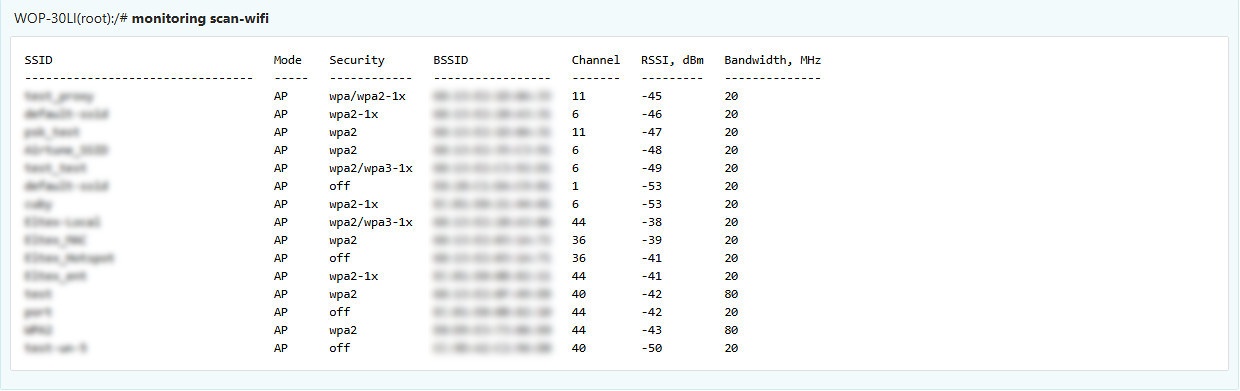
Passive environment scanning
The passive radio environment scanning manager must be enabled in advance.
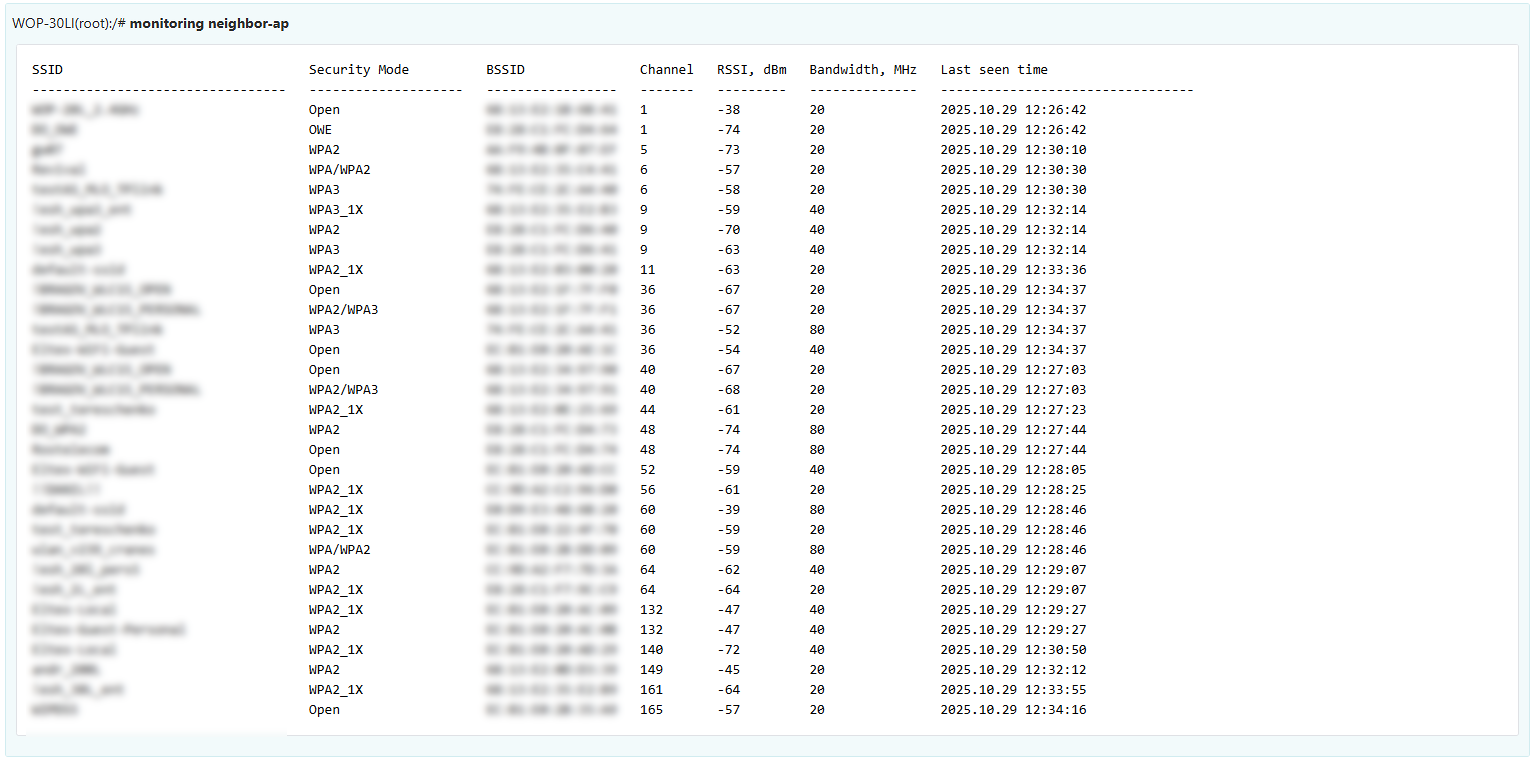
Spectrum analyzer
The spectrum analyzer provides information on channel congestion in the 2.4 and 5 GHz bands. The result is displayed as a percentage.
While the spectrum analyzer is running, all clients are disconnected from the access point. Clients will reconnect only after the spectrum analyzer has finished its operation. The analysis of all radio channels in both bands takes approximately 5 minutes. |
The spectrum analyzer scans all channels in the band regardless of the radio interface settings. For more information on configuring the radio interface via CLI, see the Radio configuration section. |
WOP-30LI(root):/# monitoring spectrum-analyzer
|
Troubleshooting information retrieval
WOP-30LI(root):/# get-troubleshooting-file |
After executing the command, a troubleshooting.tar.gz archive will be created, containing troubleshooting data and device status information.
The troubleshooting.tar.gz archive can be retrieved from the device to a server/PC using TFTP:
WOP-30LI(root):/# tftp -pl troubleshooting.tar.gz <TFTP server IP address>
|
The troubleshooting.tar.gz archive can be retrieved from the device to a server/PC using SCP:
scp <User>@<Access Point IP address>:troubleshooting.tar.gz troubleshooting.tar.gz (example: scp admin@192.168.1.15:troubleshooting.tar.gz troubleshooting.tar.gz. This command is executed on the server/PC) |
Auxiliary utilities
Traceroute utility
The utility shows which nodes (routers) the packet passes through, how much time it takes to process the packet at each node.
WOP-30LI(root):/# traceroute <tested host> |
WOP-30LI(root):/# traceroute eltex-co.ru |
Tcpdump utility
The tcpdump utility allows capturing packets on the specified interface.
To get information on how to work with the utility, use the following command:
WOP-30LI(config):/# tcpdump --help |
Traffic capture from the active interface
Ethernet interface packet capture.
WOP-30LI(root):/# tcpdump -i eth0 |
Ethernet interface packet capture with file saving.
WOP-30LI(root):/# tcpdump -i eth0 -env -w tcpdump.pcap |
Environment sniffer
Any VAP in the range from which the traffic is to be captured must be enabled on the access point. |
It is necessary to enable a special interface that catches all packets from the air on the working channel of the AP.
WOP-30LI(root):/# configure |
Wireless packet capture on the radio0 interface.
WOP-30LI(root):/# tcpdump -i radio0 |
Wireless packet capture on the radio0 interface with file saving.
WOP-30LI(root):/# tcpdump -i radio0 -env -w tcpdump.pcap |
Configuring remote traffic dump capture
The remote-capture section performs remote recording of a traffic dump.
The device supports the RPCAP protocol, which allows recording a traffic dump from the device interface on a remote machine in online mode.
To remotely capture packets from radio interfaces, it is required to connect the interfaces radio0 and/or radio1 |
WOP-30LI(root):/# configure |
For remote connection, use the RPCAP protocol, specify the device IP address and port. For this purpose, you can use a program such as Wireshark. Then get a list of interfaces available for sniffing from the device, select one of them and start capturing the dump from the remote interface.
Uploading the traffic dump file from the access point to a server
This command is executed on the server/PC.
| scp <User>@<Device IP address>:tcpdump.pcap tcpdump.pcap (example: scp admin@192.168.1.15:tcpdump.pcap tcpdump.pcap) |
Iperf utility
This utility is used to start a traffic flow from one device to another. The sending side is called the client, the receiving side is called the server.
To get information on how to work with the utility, use the following command:
WOP-30LI(root):/# iperf --help |
Example of launching a traffic stream from the access point to the server:
root@server:/# iperf -s |
WOP-30LI(root):/# iperf -c X.X.X.X (where X.X.X.X — IP address of the server) |
Radar mode configuration
The functionality is designed to collect information about client devices within the access point's range and transfer data to the collector server.
Configuring Radar with data transmission via HTTP protocol
WOP-30LI(root):/# configure |
Configuring Radar with data transmission via MQTT protocol
WOP-30LI(root):/# configure |
The list of changes
Document version | Issue date | Revisions |
|---|---|---|
| Version 1.3 | 10.2025 | Synchronization with firmware version 2.8.0 Added: 6.4.2 The “Wireless Peer“ submenu 6.8 The “STA” menu 6.8.1 The “STA” submenu 6.11.7 The “Troubleshooting” submenu 7.13 DAS server configuration 7.15.2 Wireless Peer 8.2.4 Uploading the traffic dump file from the access point to a server
7.3.7 Configuration of VAP with external Captive Portal 7.3.9 Advanced VAP settings 7.10.2 Device configuration management 7.11 Captive Portal configuration 7.16 Troubleshooting information retrieval |
| Version 1.2 | 06.2025 | Synchronization with firmware version 2.7.1 Added: 7.2.2 Remote control configuration 7.8 ARP replication configuration 7.13 DAS server configuration 7.14 Passive radio environment scanning manager configuration Changed: 7.3.6 Configuration of VAP with Captive Portal 7.3.7 Configuration of VAP with external Captive Portal 7.3.8 Configuration of an additional RADIUS server on VAP 7.15 Monitoring 7.15.9 Environment scan |
| Version 1.1 | 02.2025 | Synchronization with firmware version 2.6.1 Added: 7.3.8 Configuration of an additional RADIUS server on VAP 7.4 AirTune configuration 7.7 DHCP replication configuration 7.13.10 Troubleshooting information retrieval 8.4 Radar mode configuration 8.4.1 Configuring Radar with data transmission via HTTP protocol 8.4.2 Configuring Radar with data transmission via MQTT protocol Changed: 2.3 Device technical specifications 6.4.3 The “Traffic Statistics” submenu 6.4.6 The “Network Information” submenu 6.6.2 The “VAP” submenu 6.13 Configuring remote traffic dump capture 7.3.9 Advanced VAP settings 7.11.5 Network information |
| Version 1.0 | 07.2024 | First issue |
| Firmware version 2.8.0 | ||