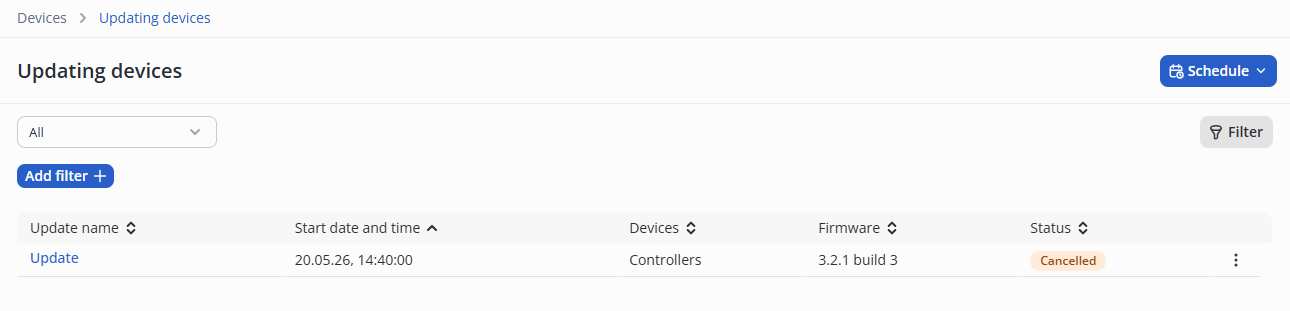
Go to the Updating devices page in the Devices tab.
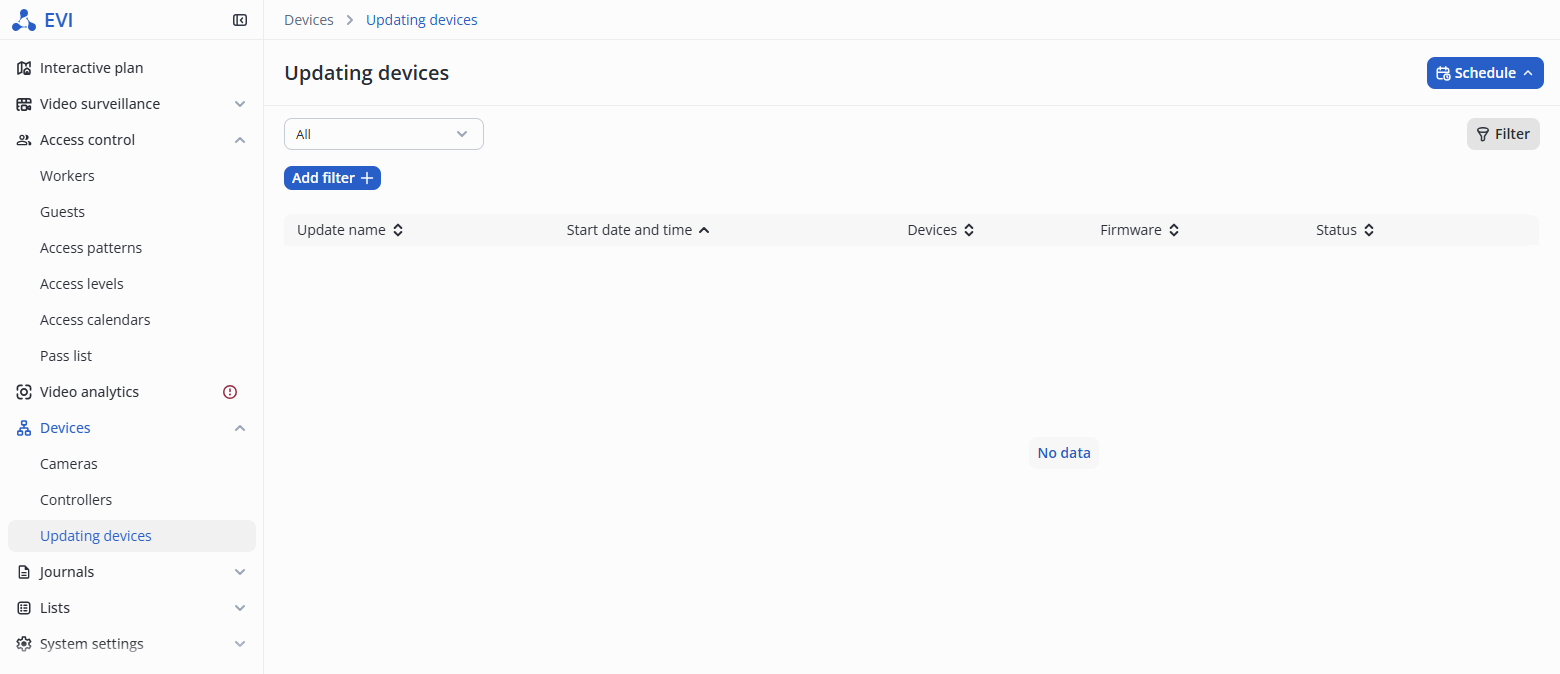
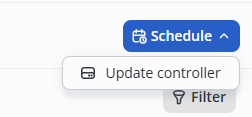
Click the Schedule button and select Update controller from the list.
Under Firmware file, click Download firmware. In the file explorer window that opens, select the file to install.
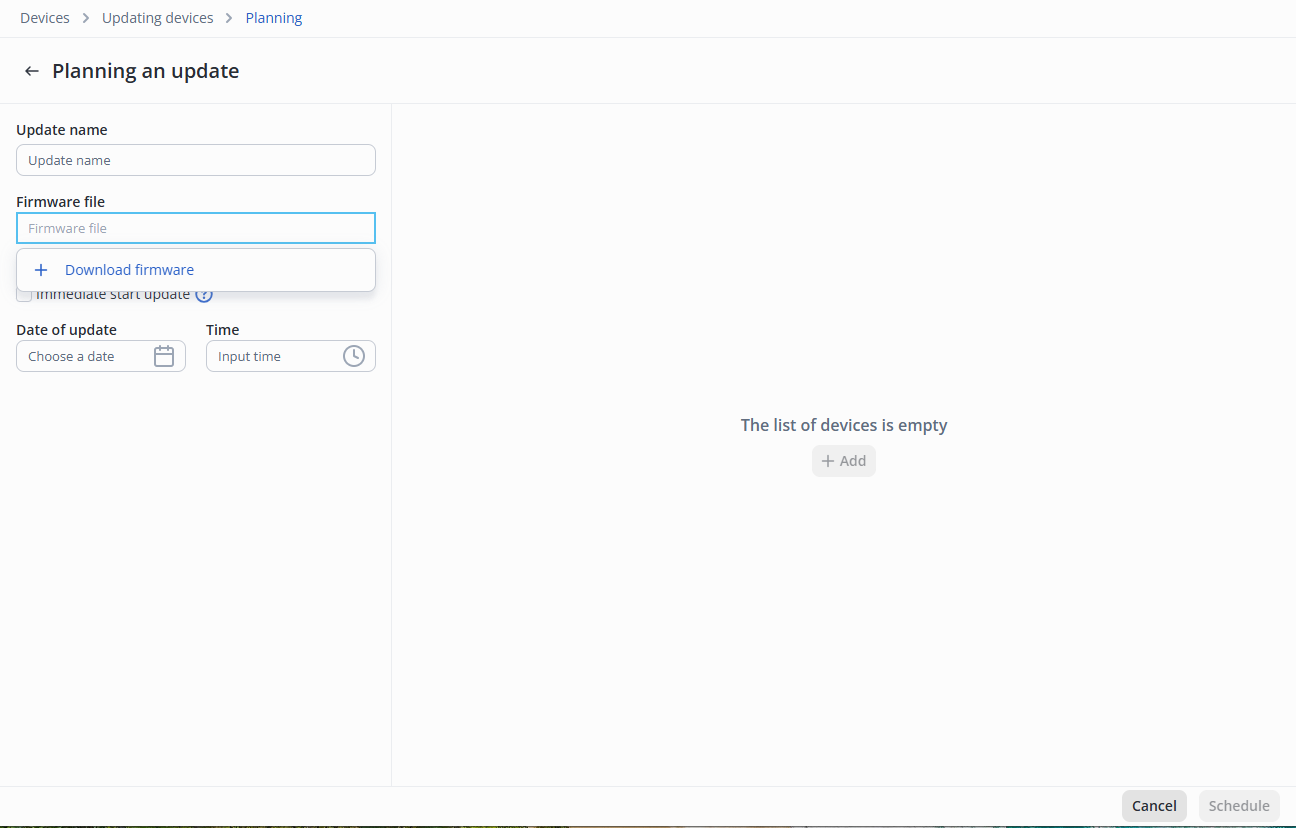
The Add button is now enabled.
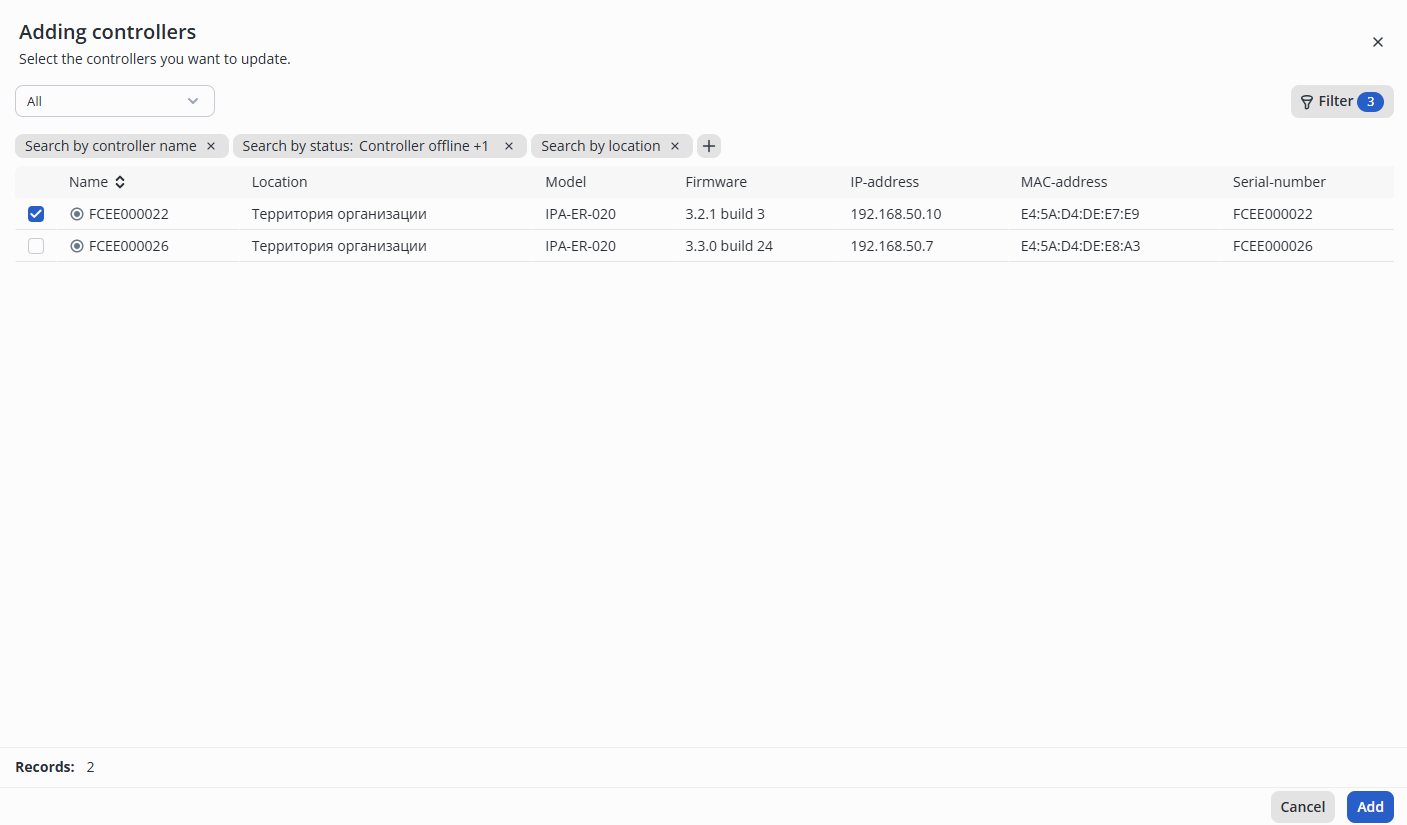
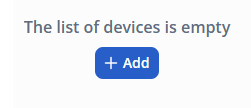 After clicking the Add button, a list of devices will open. Select the desired controller and click Add.
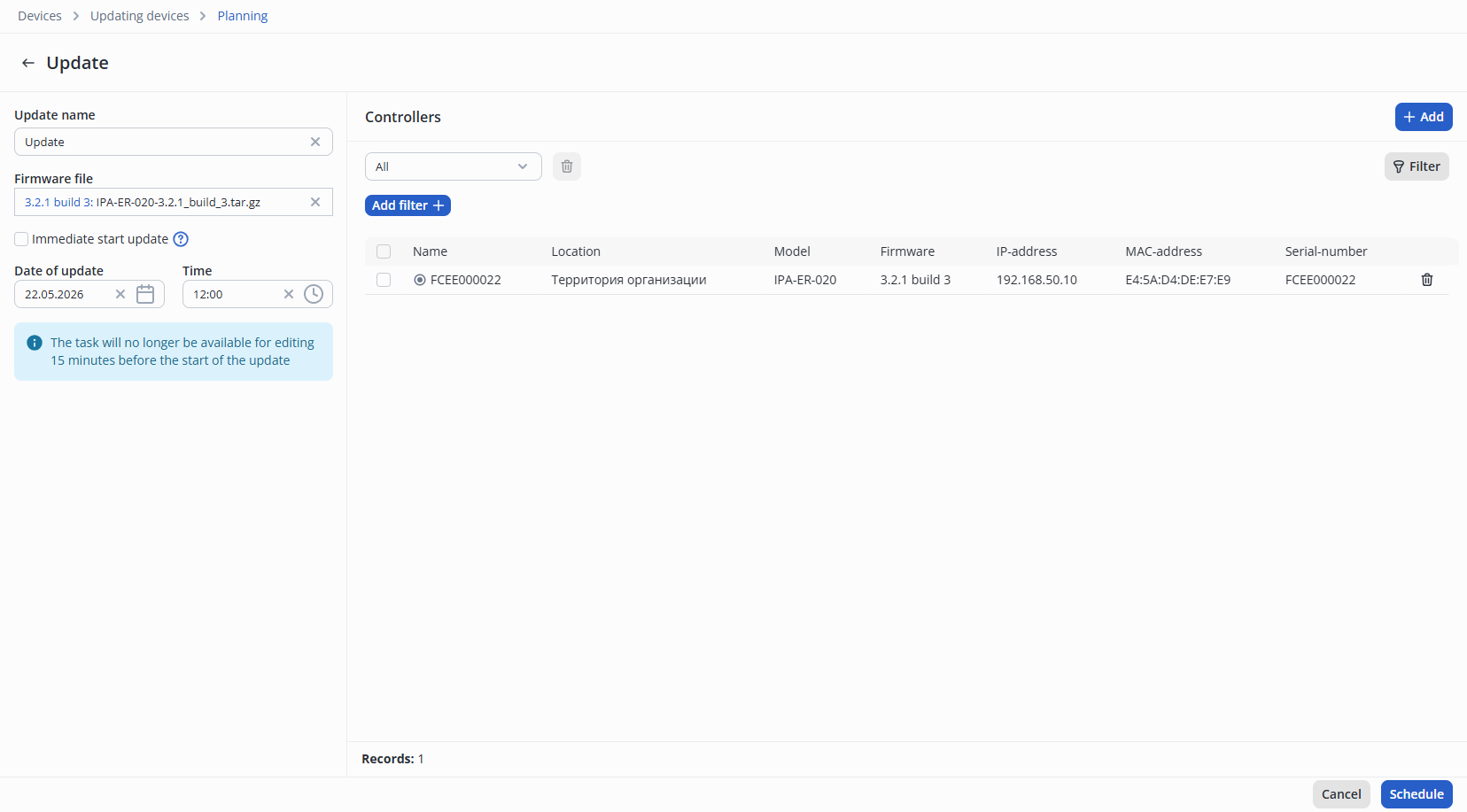
Enter the update name and the desired update date/time. If you need to run the task immediately, check the box next to Run update immediately, then click Schedule.
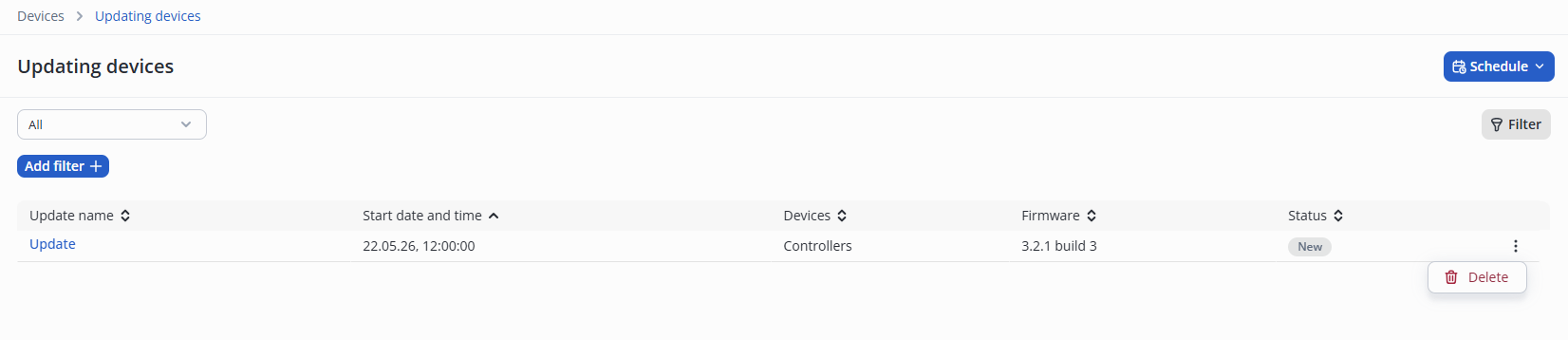
A new update task will appear on the Device updates page.

To delete a task, click the three dots on the right and select Delete.
15 minutes before the update begins, it can no longer be edited or deleted, but it is still possible to cancel it. To do so, click the three dots on the right and select Cancel update.
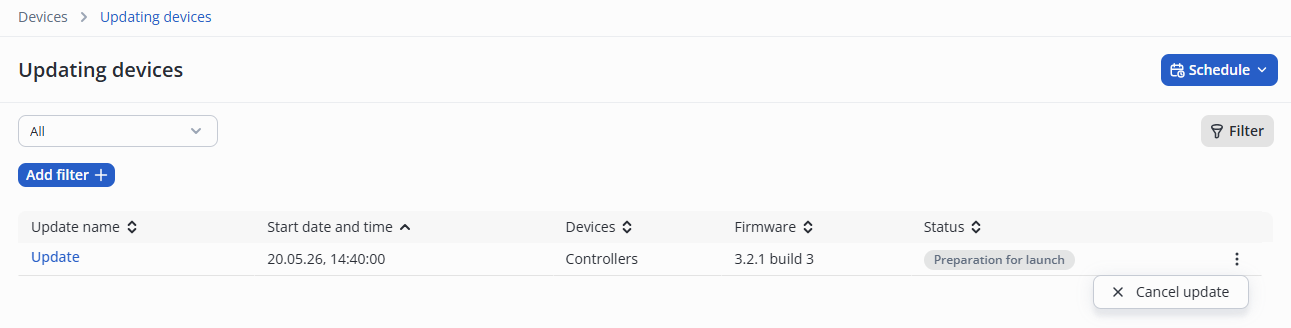 After cancellation, the status will change to Canceled.