vWLC fully replicates the functionality of WLC in a hardware form factor. vWLC factory configuration contains a basic set of parameters that allows users to quickly connect an access point to the controller and configure Wi-Fi on it.
vWLC has two interfaces configured by default:
For example, let's consider a connection diagram that assumes two interfaces on the server:
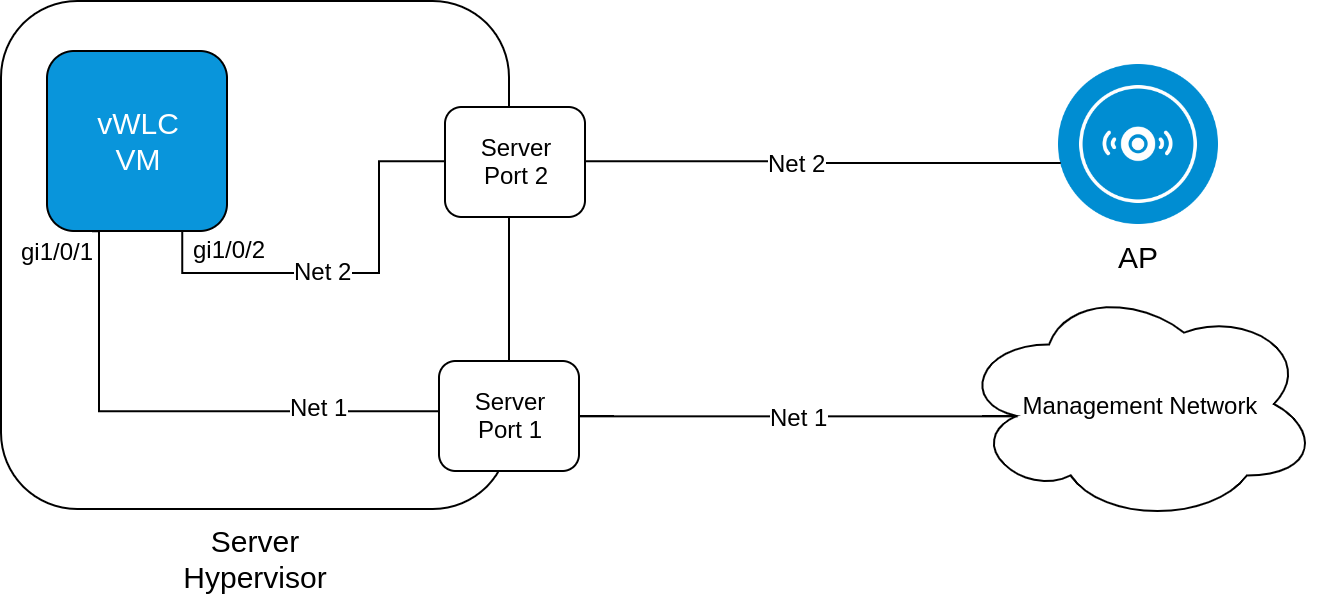
Рисунок 1 — vWLC connection diagram
If higher performance interfaces are used, it is necessary to transfer the settings from GigabitEthernet 1/0/1-2 to other interfaces. |
1. After launching vWLC and performing the show interface status command, the output will display the Bridge 3 interface, but the GigabitEthernet 1/0/1 and GigabitEthernet 1/0/2 interfaces will be missing:
vwlc# show interfaces status
Interface              Admin   Link    MTU     MAC address         Last change     Mode
                       State   State                               (d,h:m:s)
--------------------   -----   -----   -----   -----------------   -------------   ------------
br3 Up Up 1458 a6:00:00:00:00:00 00,00:00:35 routerport |
2. To display the available interfaces, go to the debug menu:
vwlc# debug |
3. Perform the show nic command to display the available interfaces:
vwlc(debug)# show nic
Interface    Permanent MAC        Connected    NIC model
----------   ------------------   ----------   ------------------------
virtio 1      08:00:27:9b:c6:f8    Yes          Virtio network device

virtio 2 08:00:27:da:16:25 Yes Virtio network device |
4. Then bind the 08:00:27:9b:c6:f8 MAC address to the GigabitEthernet 1/0/1 interface. Bind the 08:00:27:da:16:25 MAC address to the GigabitEthernet 1/0/2 interface of vWLC:
vwlc(debug)# nic bind mac 08:00:27:9b:c6:f8 gigabitethernet 1/0/1 vwlc(debug)# nic bind mac 08:00:27:da:16:25 gigabitethernet 1/0/2 |
5. Reload the device to apply settings:
vwlc# reload system |
6. After reloading, perform show interfaces status to check interface display.
vwlc# show interfaces status
Interface              Admin   Link    MTU     MAC address         Last change     Mode
                       State   State                               (d,h:m:s)
--------------------   -----   -----   -----   -----------------   -------------   ------------
gi1/0/1                Up      Up      1500    08:00:27:9b:c6:f8   00,00:00:35     routerport
gi1/0/2                Up      Up      1500    08:00:27:da:16:25   00,00:00:35     routerport
br3 Up Up 1458 a6:00:00:00:00:00 00,00:00:35 routerport |
If interface reassignment is required, see "Changing vWLC interface bindings".
When receiving an address, the access point will receive Option 43. Example of its factory default configuration:
ip dhcp-server pool ap-pool
  vendor-specific
    suboption 12 ascii-text "192.168.1.1"
    suboption 15 ascii-text "https://192.168.1.1:8043"
  exit
exit |
Option 12 contains the address for SoftGRE tunnel termination. Option 15 provides the controller address. |
After receiving an address, the access point will connect to the controller.
1. To display the address obtained by the access point via DHCP, perform show ip dhcp binding
vwlc# sh ip dhcp binding IP address MAC / Client ID Binding type Lease expires at ---------------- ------------------------------------------------------------- ------------ -------------------- 192.168.1.2 0x01e828c1dac9b0 active 2024-08-30 14:43:17 |
2. To get the current status of the access point and basic information about it, perform show wlc ap
vwlc# show wlc ap MAC address Status IP address SW version Hostname Ap-location Uptime Clients(2g/5g/all) ----------------- ---------------- --------------- ---------------- ------------------------------ ------------------------------ ---------------- ------------------ e8:28:c1:da:c9:b0 Active 192.168.1.2 2.5.6 build 7 WEP-1L default-location 00,00:21:03 0/0/0 |
3. To display the list of SSIDs that are configured on the access point and broadcasting over the air, perform show wlc ap vap
vwlc# show wlc ap vap MAC AP Hostname RadioID VapID SSID BSSID Auth type Clients ----------------- ---------------------------- ------- ----- ----------------- ----------------- -------------------- ------- e8:28:c1:da:c9:b0 WEP-1L 0 0 default-ssid e8:28:c1:da:c9:b1 WPA2 Enterprise 0 e8:28:c1:da:c9:b0 WEP-1L 1 0 default-ssid e8:28:c1:da:c9:b9 WPA2 Enterprise 0 |
The access point has successfully connected to vWLC, and the "default-ssid" SSID has been configured on it. To connect to it, a user account must be created in accordance with the "Quickstart" section of the WLC-series user manual. A detailed description of the configuration for the tulleled deployment scheme is given in the "Настрoйка WLC" section of the WLC-series manual.
See vWLC licensing.
To change interface bindings, for example, to swap gi1/0/1 and gi1/0/2, the following steps are required:
1. Perform show interfaces status to display the list of interfaces:
vwlc# show interfaces status
Interface              Admin   Link    MTU     MAC address         Last change     Mode
                       State   State                               (d,h:m:s)
--------------------   -----   -----   -----   -----------------   -------------   ------------
gi1/0/1                Up      Up      1500    08:00:27:f1:83:24   00,00:00:43     routerport
gi1/0/2                Up      Up      1500    08:00:27:54:5b:50   00,00:00:43     routerport
br3 Up Up 1458 a6:00:00:00:00:00 00,00:00:43 routerport |
2. Go to the debug menu:
vwlc# debug |
3. Perform show nic to display the list of interfaces and their connections to vWLC interfaces:
vwlc(debug)# show nic Interface Permanent MAC Connected NIC model ---------- ------------------ ---------- ------------------------ gi1/0/1 08:00:27:f1:83:24 Yes Virtio network device gi1/0/2 08:00:27:54:5b:50 Yes Virtio network device |
4. Perform no nic bind all to delete bindings from all the interfaces:
vwlc(debug)# no nic bind all Do you really want to unbind names from all interfaces? If Yes, after reboot names will be defined randomly for all connected NICs. (y/N): y Changes will be applied after reboot. |
5. Reload the device to apply settings:
vwlc# reload system |
6. Go to the debug menu to check the available interfaces:
vwlc# debug |
7. Perform show nic to display the available interfaces:
vwlc(debug)# show nic
Interface    Permanent MAC        Connected    NIC model
----------   ------------------   ----------   ------------------------
virtio 1      08:00:27:f1:83:24    Yes          Virtio network device

virtio 2 08:00:27:54:5b:50 Yes Virtio network device |
8. Bind the 08:00:27:54:5b:50 MAC address to the GigabitEthernet 1/0/1 interface. Bind the 08:00:27:f1:83:24 MAC address to the GigabitEthernet 1/0/2 interface of vWLC:
vwlc(debug)# nic bind mac 08:00:27:54:5b:50 gigabitethernet 1/0/1 vwlc(debug)# nic bind mac 08:00:27:f1:83:24 gigabitethernet 1/0/2 |
9. Reload the device to apply settings:
vwlc# reload system |
10. After reloading, perform show interfaces status to check interface display.
vwlc# show interfaces status
Interface              Admin   Link    MTU     MAC address         Last change     Mode
                       State   State                               (d,h:m:s)
--------------------   -----   -----   -----   -----------------   -------------   ------------
gi1/0/1                Up      Up      1500    08:00:27:54:5b:50   00,00:00:54     routerport
gi1/0/2                Up      Up      1500    08:00:27:f1:83:24   00,00:00:54     routerport
br3 Up Up 1458 a6:00:00:00:00:00 00,00:00:54 routerport |
To display logs in the console when connecting via a Serial Port, additional settings are required.
1. Enable the global configuration mode:
vwlc# config |
2. Go to the syslog console:
vwlc(config)# syslog console |
3. Perform virtual serial to enable a virtual Serial Port:
vwlc(config-syslog-console)# virtual-serial |
4. Apply the configuration:
vwlc# commit vwlc# confirm |
5. Reload the device:
vwlc# reload system |
After reloading, the logs will be displayed in the console when connected via the Serial Port.