
To install vWLC, start the virtual machine and connect to its console.
To install on a Bare Metal server, it is recommended to write the image using UNetbootin. Then, launch the vWLC installation from the recorded image.
Installing vWLC
1. Wait for the timer to finish or press "Enter".
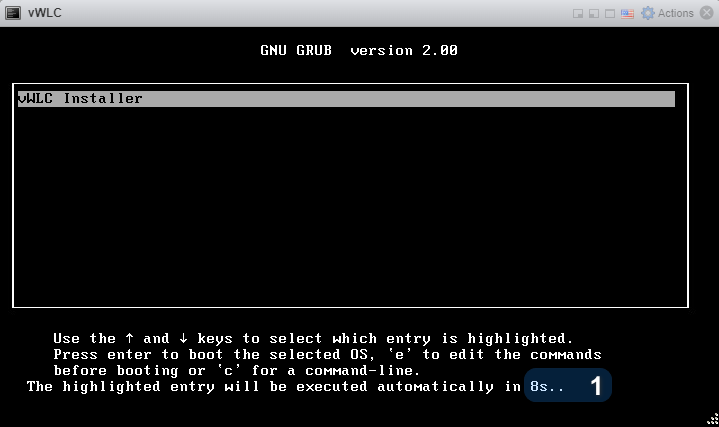
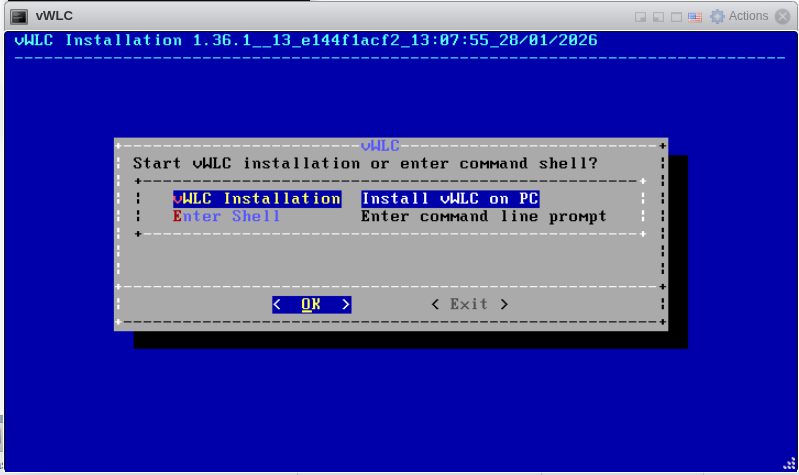
2. Use the "↑ ↓" arrows to select "vWLC Installation".
3. Use the "← →" arrows to select "OK", then press "Enter".
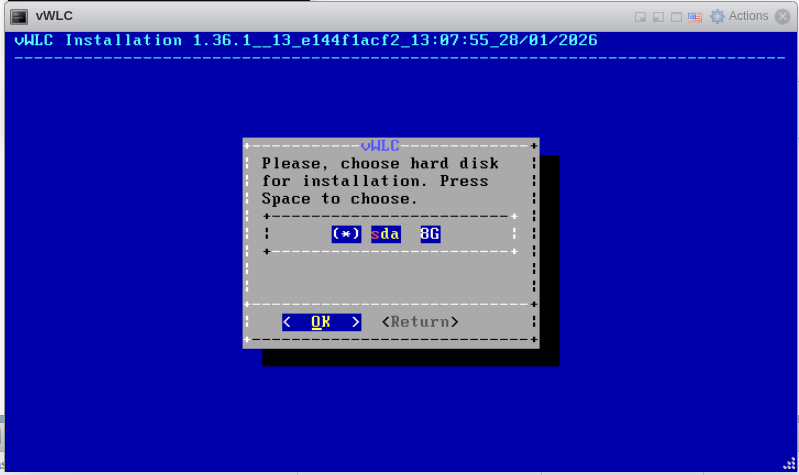
4. Press "Space", and an asterisk "*" will be displayed.
5. Use the "← →" arrows to select "OK", then press "Enter".
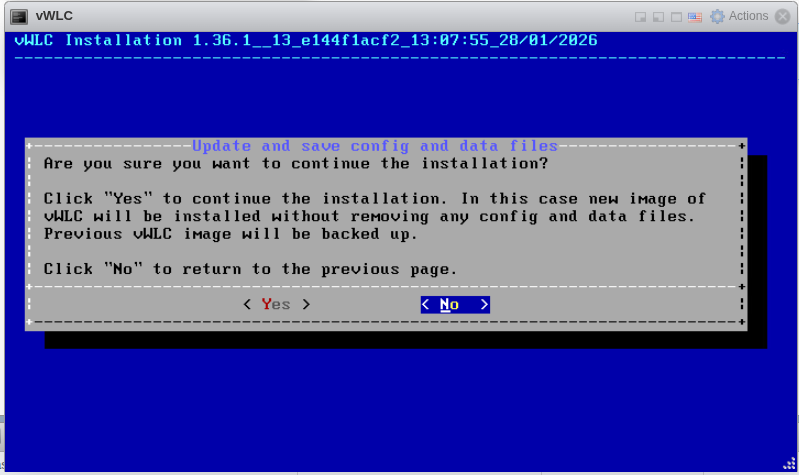
6. Use the "← →" arrows to select "Yes", then press "Enter".
Advanced settings
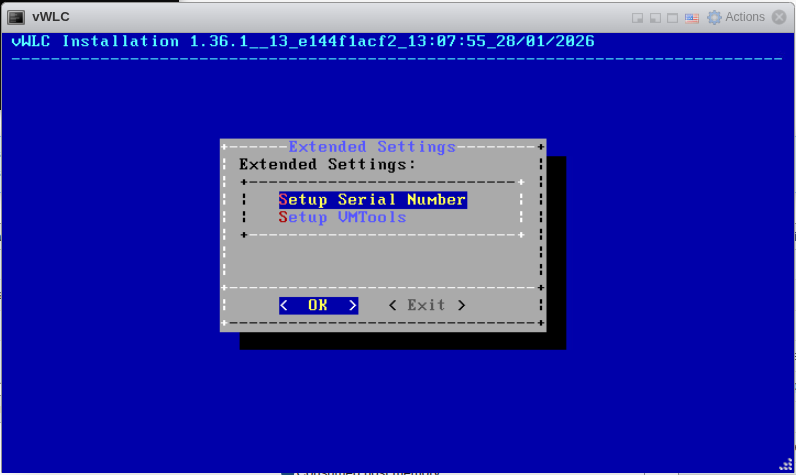
After clicking the "Yes" button, the advanced settings menu will be displayed. This menu allows specifying the serial number and activating the VMware Tools components.
Entering a serial number
If you have been issued a serial number for the ELM (Eltex Licence Manager) licensing system, install it by selecting <Setup Serial Number>:
If no serial number or component activation is required, you can proceed to the next section: Completing the installation.
The serial number can be specified from the CLI after installation: vWLC Quick Start.
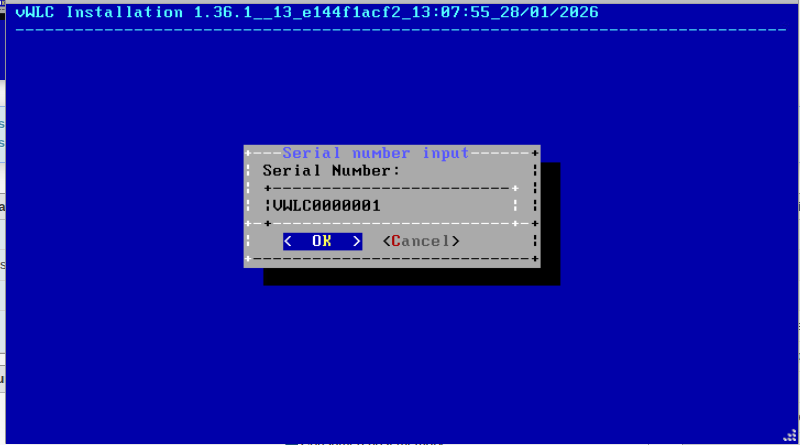
1. Enter the serial number, select <OK>, and press "Enter":
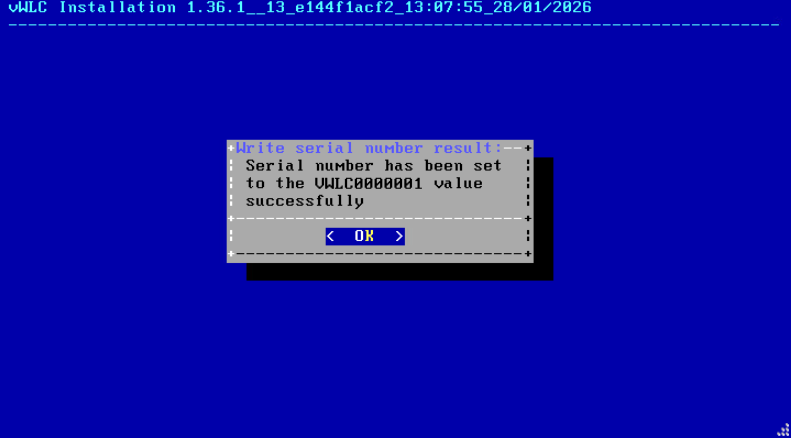
2. If the serial number is entered correctly, the following message will be displayed:
Enabling VMware Tools
The VMware Tools component can only be activated and operated on VMware ESXi hypervisors.
1. If VMware Tools components are required, they can be activated by selecting <Setup VMTools>:
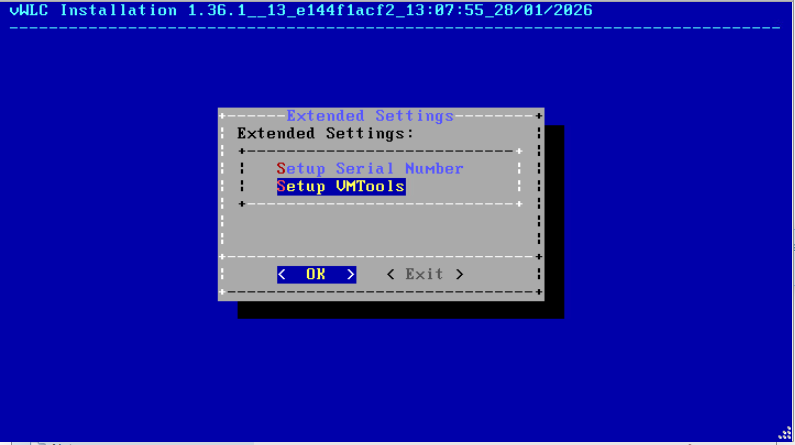
2. Press "Space", and an asterisk "*" will be displayed.
3. Use the "← →" arrows to select "OK", then press "Enter".
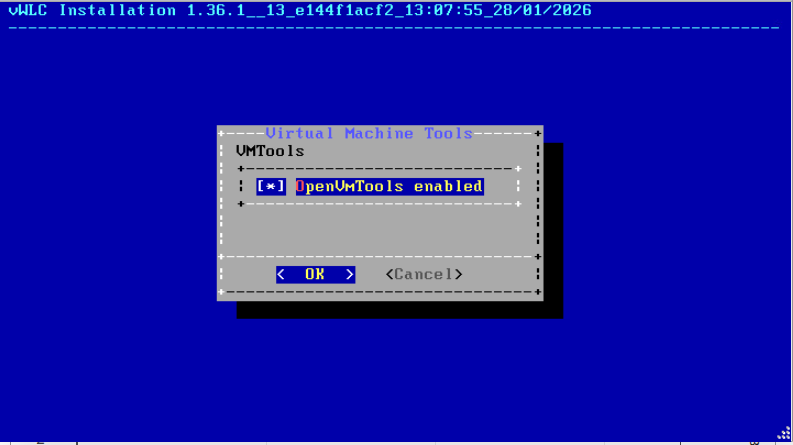
5. Upon successful activation of the components, the following message will be displayed:
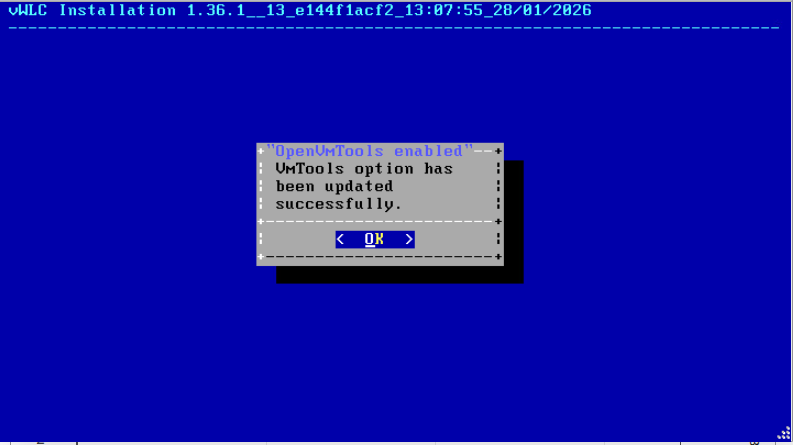
6. Press "Enter" to exit the menu and return to the "Extended Settings" menu.
7. To continue the installation, select "Exit" and press "Enter".
Completing the installation
After installation, you will see a message "Installation complete. Please, reboot".
Restart the device by entering the reboot command and pressing "Enter":

vWLC will be launched upon startup. For some hypervisors, it may be necessary to manually eject the ISO from the virtual drive.
To boot another firmware, it is not necessary to repeat the installation; it can be updated using the copy and boot system commands.