
Adding a camera to the platform
There are two ways of adding cameras:
- Manual addition (via RTSP link): it is necessary to know the RTSP link from the camera that is used to view the video stream;
- Multi-adding (via ONVIF standard): it is necessary to know the login and password of the camera for ONVIF, and to enable ONVIF on the camera if it is not enabled.
Manual addition
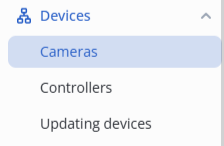
Switch to the Cameras page.
Left-click on the Add camera button and select Manual addition from the submenu that opens.

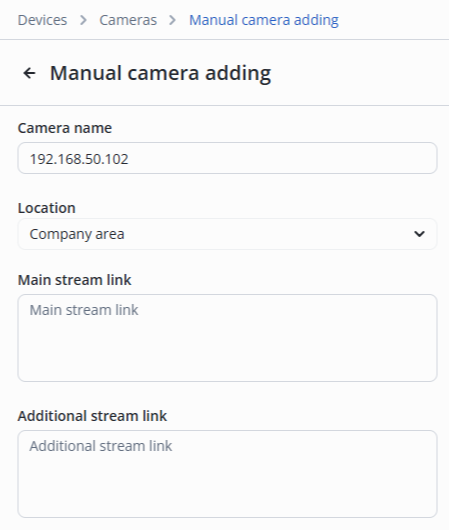
On the Manual addition page, it is necessary to fill in the following fields:
- Camera name — a text field to designate the camera;
- Location — the drop-down list shows the hierarchy. The camera location must correspond to the Input to parameter at the relay to be controlled;
- Main stream link — URL that points to the main video stream that provides the highest possible quality, used to display the video full screen;
- Additional stream link — URL that points to an additional video stream that provides the video in the lowest quality, used to display the preview.
After filling out, click the Manual addition button in the lower right corner.
The added camera is displayed in the list.

Multi-adding — Onvif
Switch to the Cameras page.
Left-click on the Add camera button and select Multi-adding from the submenu that opens.

Support for ONVIF protocol
Make sure that the cameras being added support ONVIF. ONVIF may be disabled by default on some cameras. To enable ONVIF, go to the web interface of the camera settings.
Also note that on some devices it is not possible to use the admin system user to connect via ONVIF. Therefore, it is recommended to create a separate user to work with ONVIF.
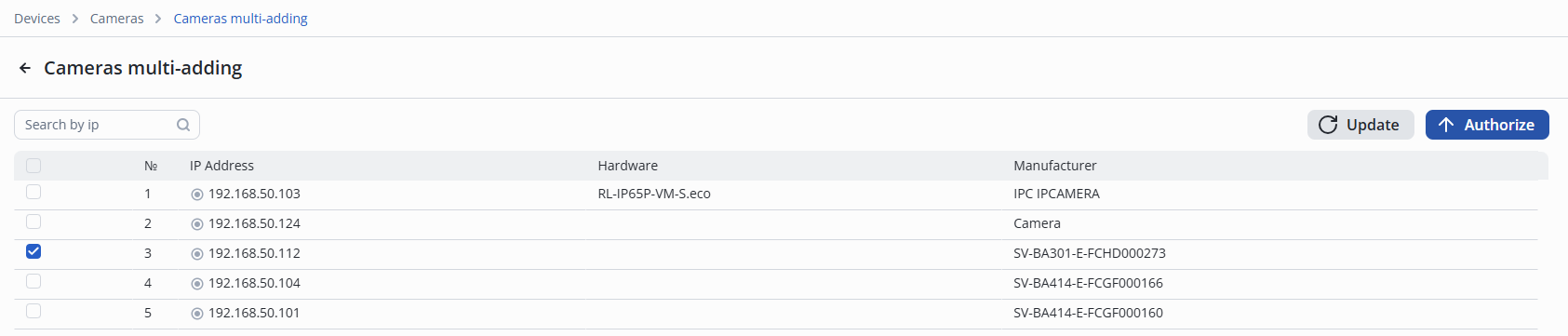
Click the Update button to search for cameras.
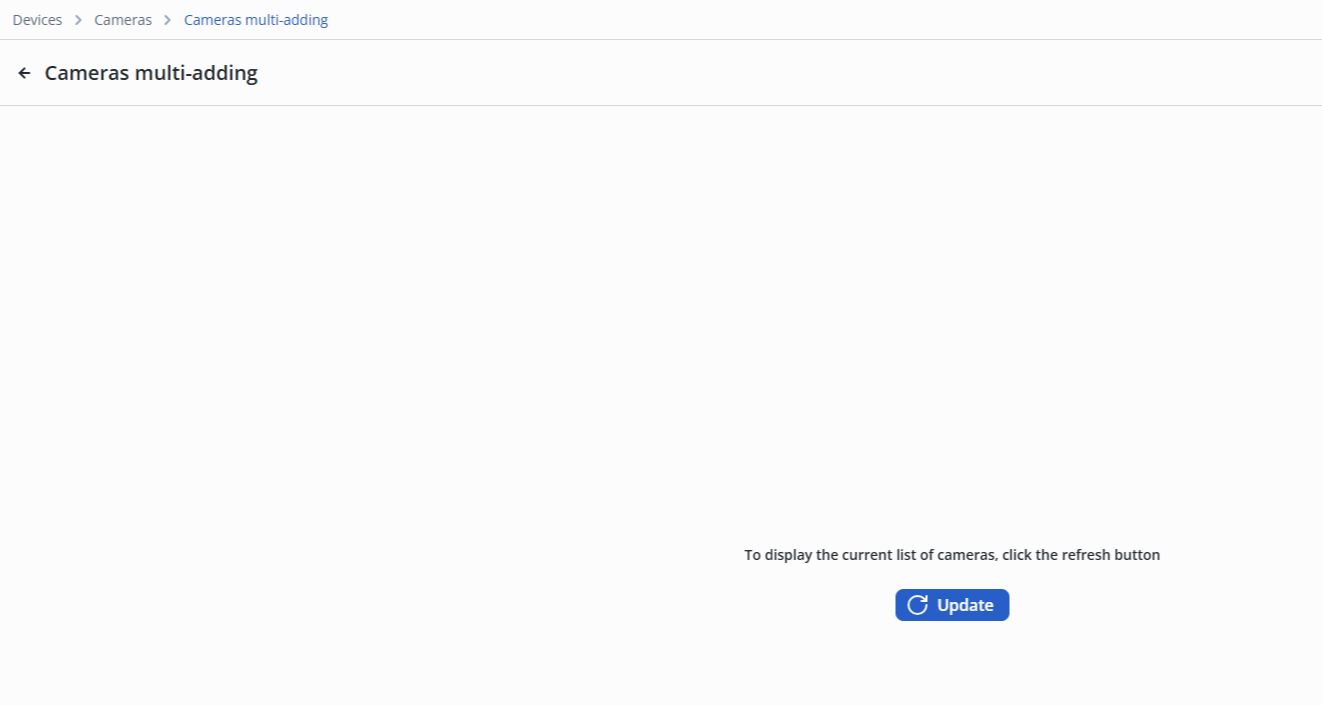
The cameras are searched only in the local network on the network interfaces of the server.
When the camera search is complete, mark the cameras for authorization.
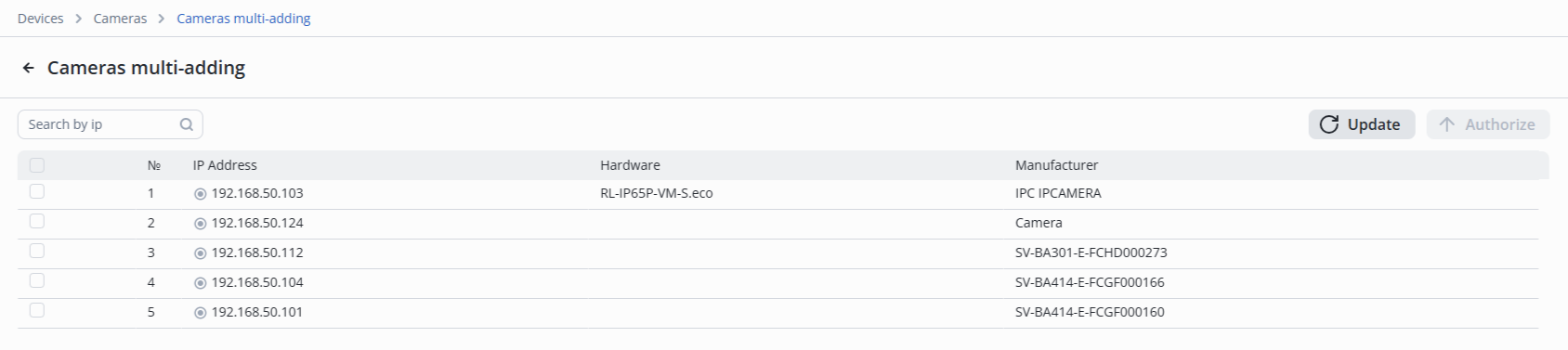
Click the Authorize button.
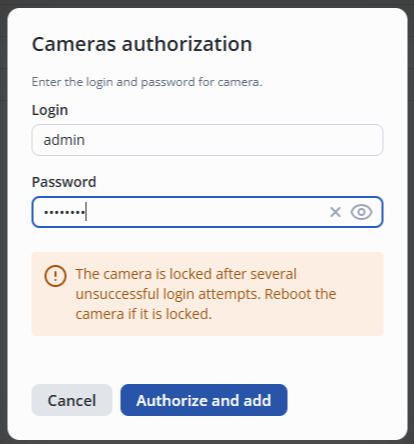
Enter Login and Password, and then click Authorize and Add.
If several cameras are selected to be added, the login and password for them must be the same.
After a successful addition, a notification will appear at the bottom middle of the screen that the operation was successful.

The camera will disappear from the list of found cameras.

The Vendor and Model fields are only filled in when adding a camera via Onvif.