
It is possible to view live or archived video recordings from the camera via the web interface.
To view the video stream from the camera, the latest version of your browser is required.
Chrome-based browsers are recommended.
Viewing a stream using a self-signed certificate
When using a self-signed certificate, it is necessary to confirm its exclusion in the player to view the video stream from the camera.
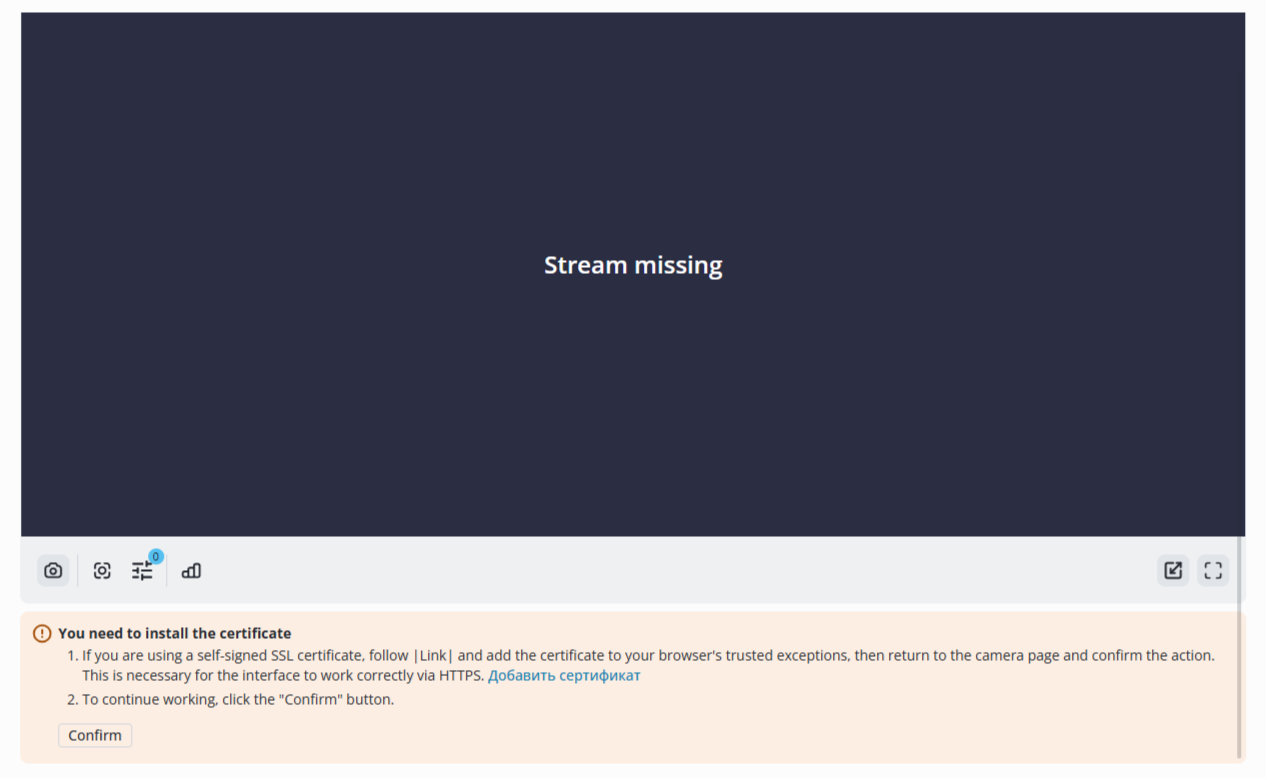
- Click the Add certificate button.
- Accept the certificate exception.
- Then return to the page with the player.
- Click the Confirm button and refresh the page.
Issues and their solutions
Problem: after clicking the Add certificate button, nothing opened and an error occurred.
Solution:
- Check the extern_host address in the configuration file /opt/evi-live/evi-live.conf;
- The extern_host address must match the IP address of the network interface of the server where evi-live is installed. Check the client's access to the server.
Problem: after confirming the certificate, the video is not displayed.
Solution:
- Check the availability of the camera stream via the VLC player by inserting the RTSP link into it.
- Restart the camera. Since cameras have a limited number of connections, they may have been exhausted.
Viewing camera stream with H.264 primary codec
In Linux and Windows, the H.264 codec does not require any additional steps to view.
Viewing camera stream with H.265 primary codec
Windows
To watch videos with the H.265 codec on Windows, use Google Chrome version 136 or higher.
Linux
To view streams with the main H.265 codec, it is necessary to:
- Open the camera page with the main H.265 codec in the browser.
- Download the plugin from the link.
- Install and check the status of the plugin by entering the following commands in the terminal:
sudo dpkg -i /path_to_file
sudo systemctl is-active evi-web-stream.service
active (expected status)
- Follow the link in the browser and confirm the certificate:
https://localhost:59999/ping
- Return to the camera editing page and click the Confirm button below the player.
Camera statuses
There are three camera statuses:
- Connected to camera stream;
- Unable to connect to camera stream;
- Connection to stream unavailable.
Long wait for camera image
The web browser may experience unstable performance when viewing video streams or archives from cameras.
In this case, it is recommended to use EVI Video Client.
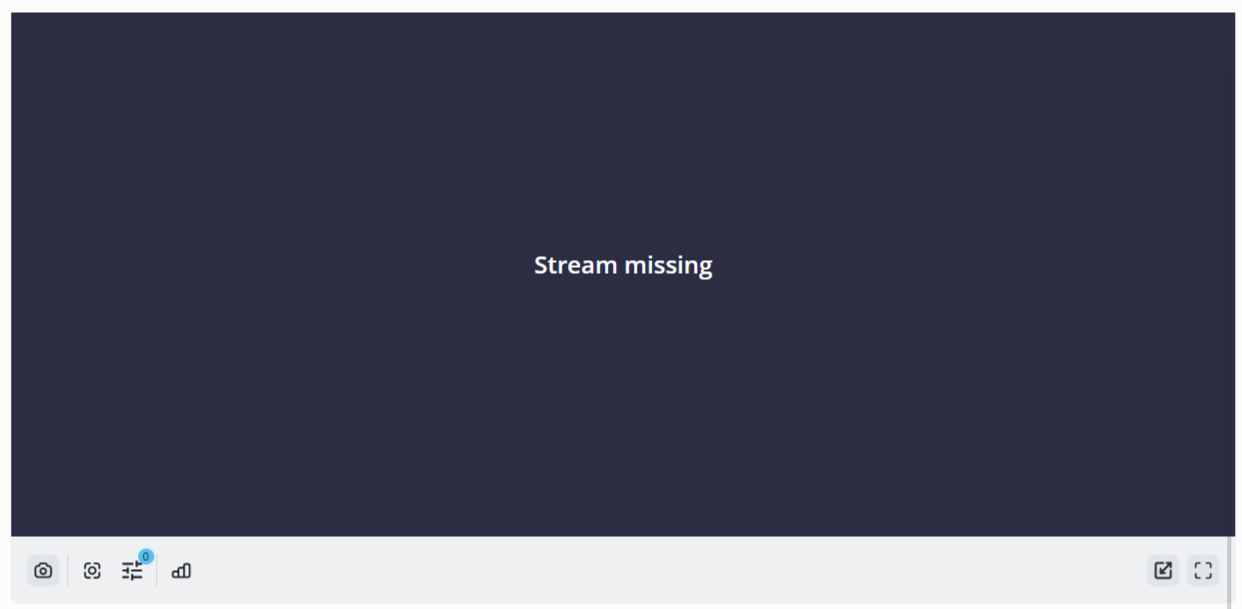
A dark screen with the message Stream missing means:
- Unable to connect to the camera stream;
- Self-signed certificate is not confirmed;
- The extern_ip address is specified incorrectly in the evi-live.conf configuration file.
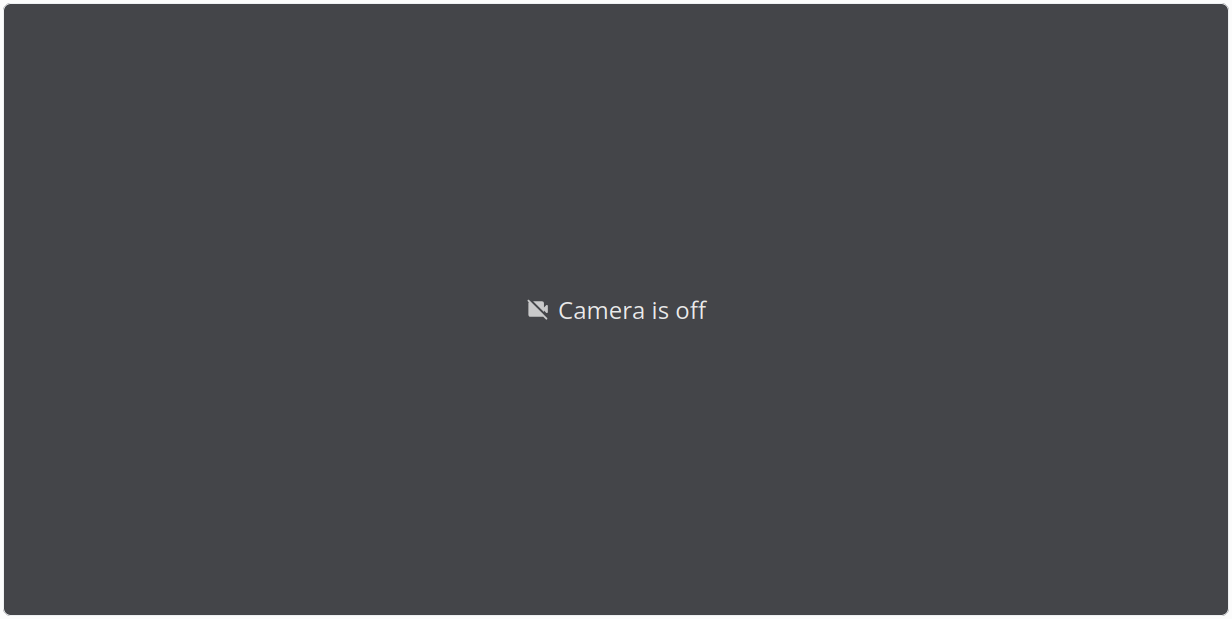
A gray screen with the message Camera is off means that receiving streams from the camera is disabled.
LIVE mode
LIVE mode — viewing video stream from the camera in real time. Viewing is carried out via a player in the browser.
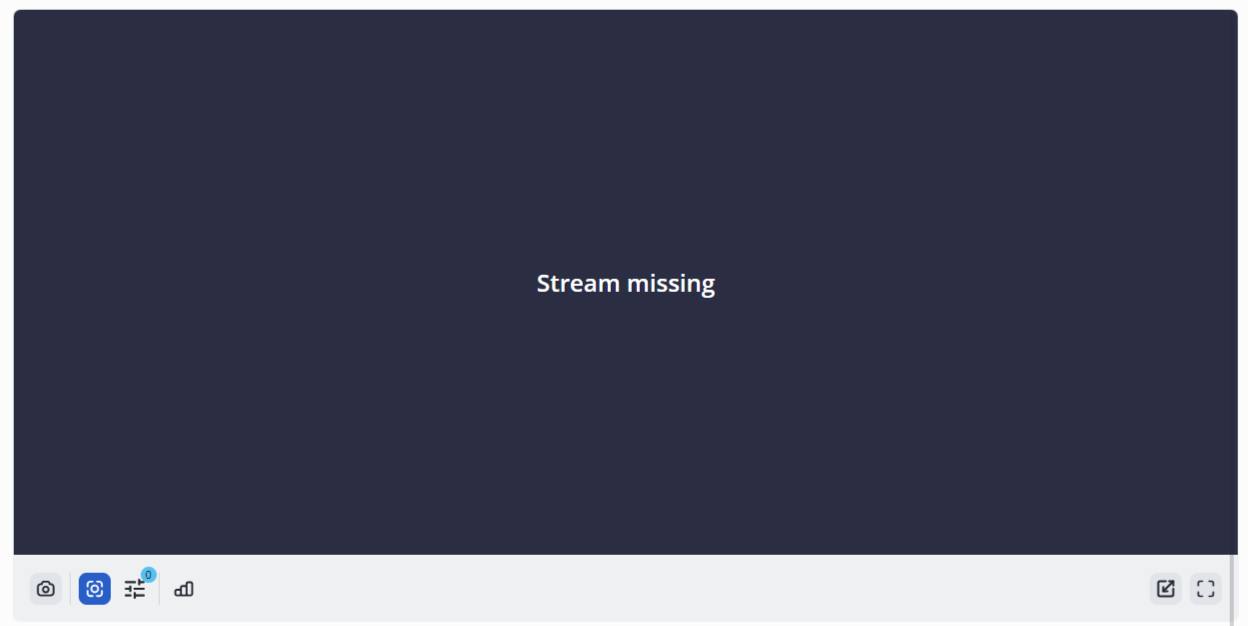
Player control buttons:
- Snapshot;
- Meta info on/off (analytics results and their zones/motion detector);
- Select meta for displaying;
- Show statistics;
- Change video aspect ratio;
- Fullscreen on.