BRAS functionality is supported on Eltex ESR-10/20/100/200/1000/1200/1500/1700 service routers. This functionality allows to provide the ability to identify Wi-Fi clients connecting to access points produced by different manufacturers. In general terms, the following functions are required from BRAS:
BRAS is an executive mechanism that applies certain policies to client traffic in accordance with the directives that are transmitted to it from the superior SoftWLC system, which makes decisions based on the data transmitted by BRAS. As part of SoftWLC, 2 modules interact with BRAS and send it directives to work with clients: PCRF and Portal.
In order to distinguish between clients BRAS needs some identifier that uniquely identifies the client. This identifier is the MAC of the client device. Therefore, it is necessary for BRAS to receive traffic with MAC headers of clients. For this purpose, it is necessary to provide L2-network between the client and BRAS or, alternatively, to forward the client traffic to BRAS inside the VPN through the L3-infrastructure of the operator. Further, in this documentation we will consider the L2 connection scheme, when the subscribers' traffic gets to BRAS using a vlan through the operator's L2 access network. To read the documentation on enabling ESR BRAS over the operator's L3 network, please refer to the link: BRAS. L3 WiFi - configuration guide.
The current document assumes that ESR is running software version 1.11.3, SoftWLC version 1.18.
It is assumed that BRAS and SoftWLC management suite are enabled in the core of the service provider's network, where it is possible to route an L2 link (vlan) from each AP for each SSID.
In Figure 2.1 below, the APs are connected to the switch, each SSID is in a separate vlan, they come to the ESR. When a new subscriber connects, a redirect is done to the authorization portal which is on the SoftWLC server. After authorization, the client has access to the Internet.
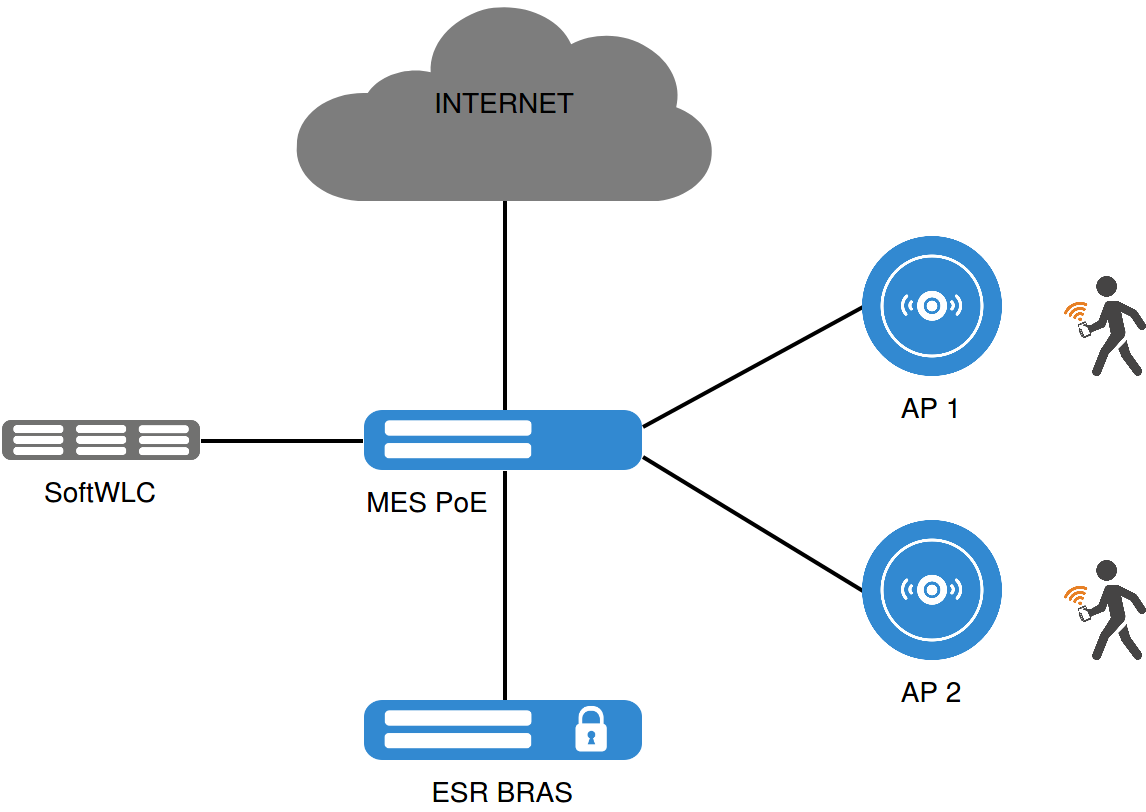
Fig. 2.1.
Below, in Fig. 2.2, the architecture of the ESR configuration is shown. The gi1/0/1 interface is used as an aplink (any physical interface can be used). Access to the Internet and to the SoftWLC complex is performed in separate subnets. The vlans with SSID1 and SSID2 come in one bridge type interface. Client traffic is released to the Internet using NAT on the ESR.
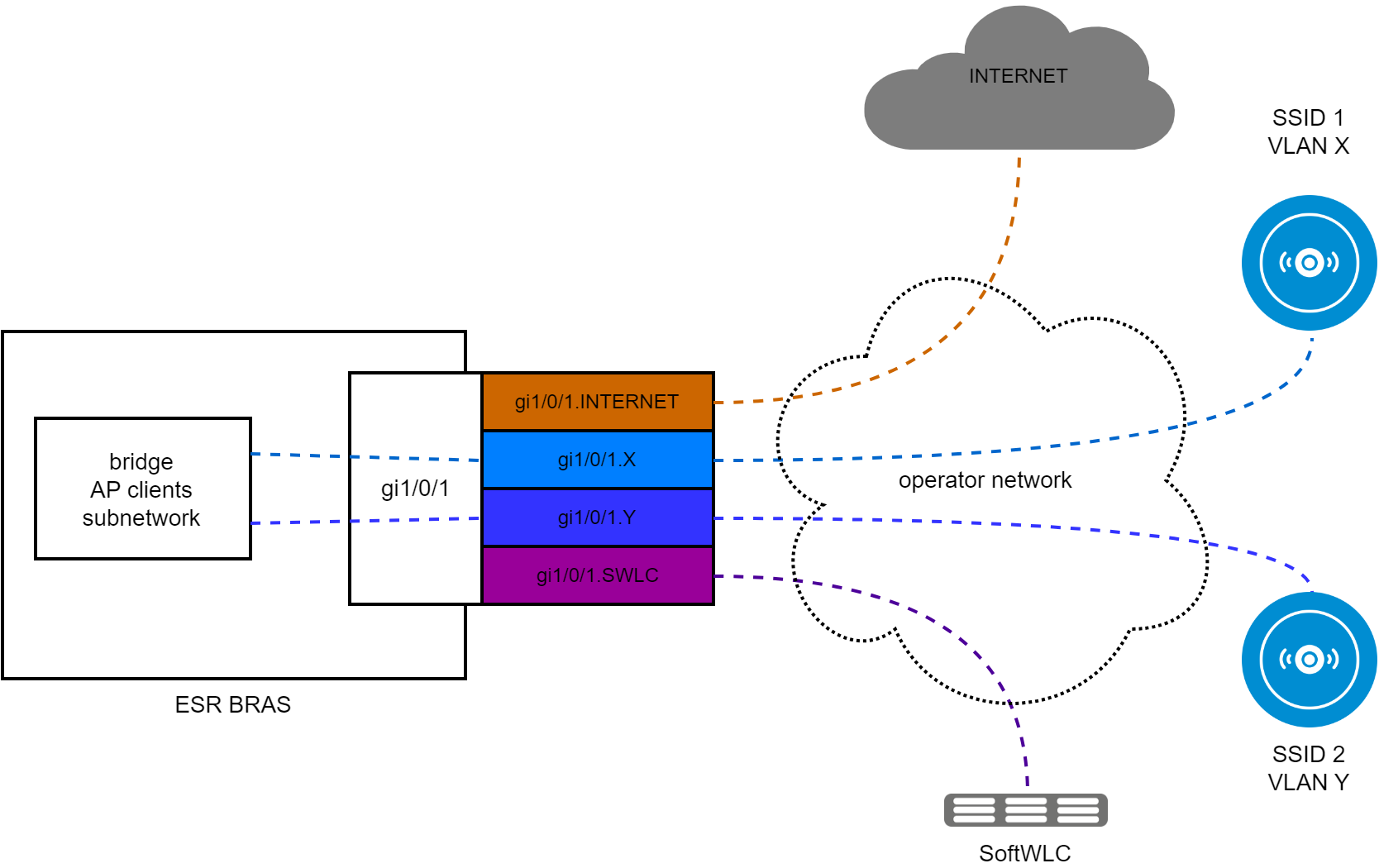
Fig. 2.2.
A bridge type interface is used for client termination because it allows to include different sub-interfaces and thereby terminate traffic from different vlan in the same address space, thus providing the possibility of seamless transition of clients from one vlan to another (this may be necessary if different vlans are used for the same SSID on different APs). At the same time, if subnetting for different SSIDs is required, multiple bridge-type interfaces can be used to terminate client vlans. For ESR BRAS to interact with the SoftWLC complex, it is sufficient to provide L3 connectivity.
1) One SSID is configured on the 1st AP.
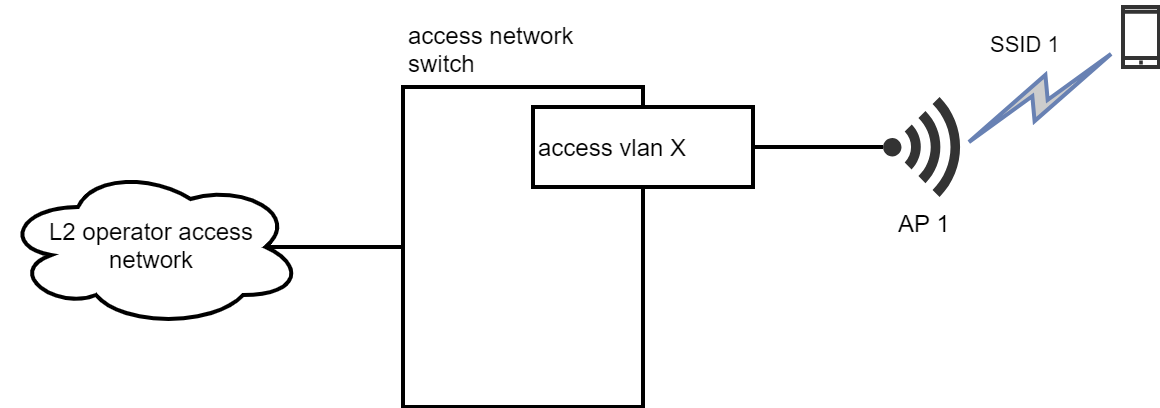
A single SSID is configured on the AP. The device is connected to the access port of the switch, which transmits all traffic through the operator's L2 access network to the ESR BRAS router in a unique vlan. In this case, it is possible to uniquely identify which AP and SSID the client traffic came from.
2) Two SSIDs (or more) are configured on 1 AP,

Two SSIDs with different names are configured on the AP. From the AP, traffic is untagged to one access port on the switch, which passes all traffic through the operator's L2 access network to the ESR BRAS router in a unique vlan. Thus, clients connected to different SSIDs get into one common channel. On the operator side, traffic from different SSIDs is not identified.
3.1) One SSID is configured on 2 or more APs.
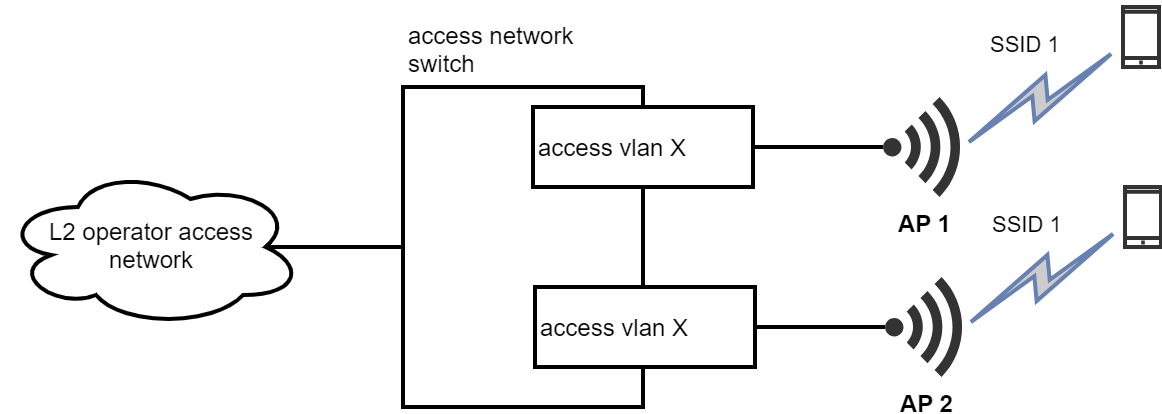
One SSID is configured on each AP. Traffic from the APs is untagged, the devices are connected to different access ports (but with the same vlan id) of switch 1, which passes all traffic through the operator's L2 access network to the ESR BRAS router in a unique vlan. In this way, clients connected to different APs get into one common channel. Traffic from different APs is not identified on the operator's side.
3.2) One SSID is configured on 2 or more APs.
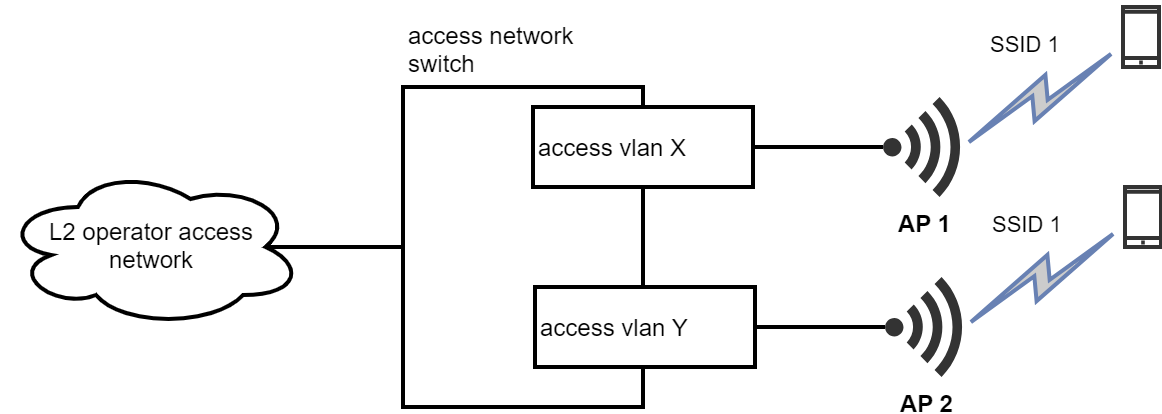
One SSID is configured on each AP. Traffic from the APs is untagged, the devices are connected to different access ports (but with the same vlan id) of switch 1, which passes all traffic through the operator's L2 access network to the ESR BRAS router in a unique vlan. In this way, clients connected to different APs get into one common channel. Traffic from different APs is not identified on the operator's side.
4.1) Two or more SSIDs are configured on 2 or more APs.
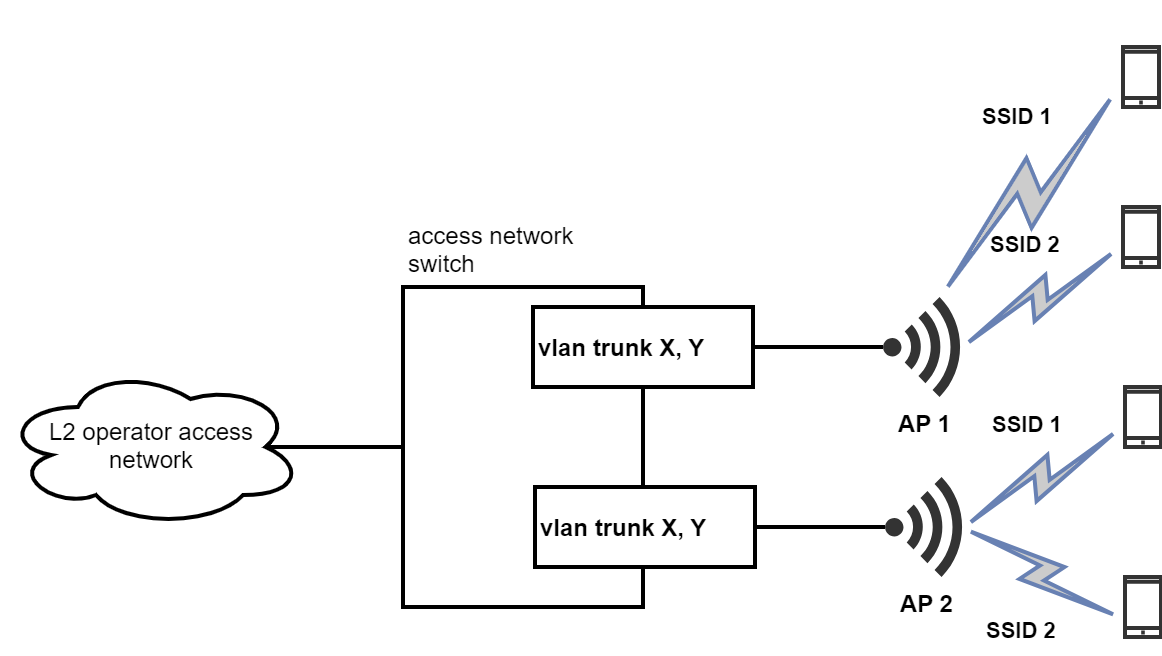
Two (or more) SSIDs with different names are configured on the AP. Each SSID from the AP is transmitted with a vlan tag (vlan settings are the same on all APs), to the trunk port of the switch, which forwards all traffic through the operator's L2 access network to the ESR BRAS router. Thus, the traffic of clients connected to different SSIDs can be uniquely identified. It is not possible to identify from which AP the traffic came from SSID.
4.2) Two or more SSIDs are configured on 2 or more APs.
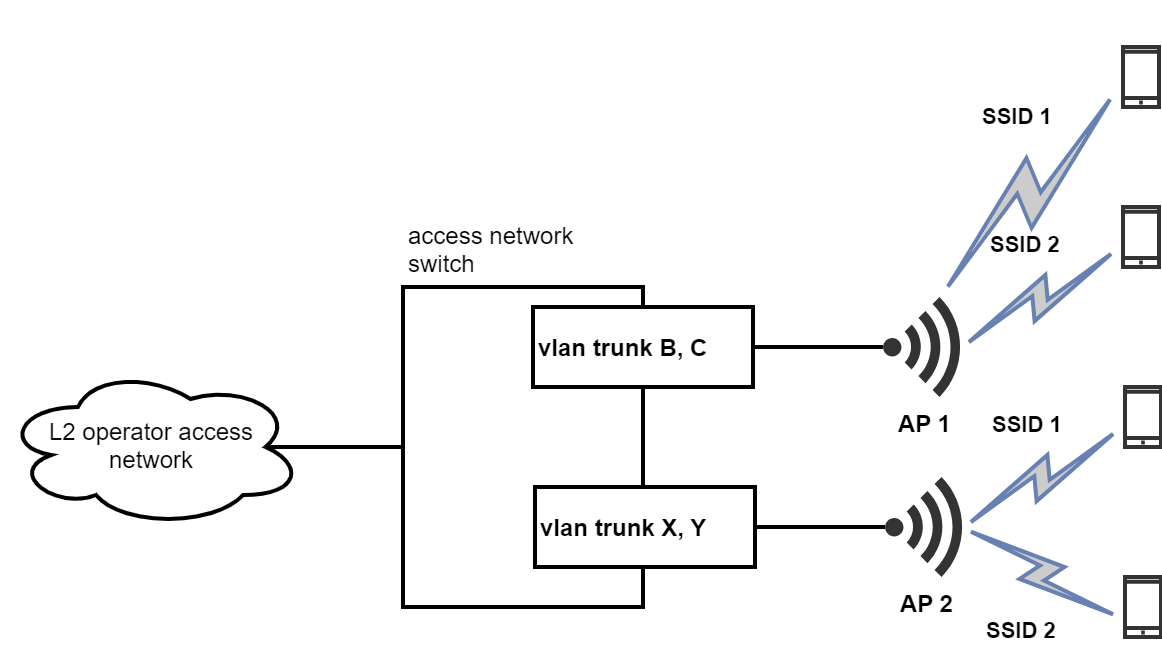
Two 2 (or more) SSIDs with different names are configured on the AP. Each SSID from the AP is transmitted with its own vlan tag (vlan settings on all APs are unique), to the trunk port of the switch, which transmits all traffic through the operator's L2 access network to the ESR BRAS router in unique vlans. Thus, the traffic of clients connected to different SSIDs, as well as the APs to which it is connected, can be uniquely identified.
Let's consider an example of configuring ESR and setting up SoftWLC complex to provide client authorization via BRAS. It is assumed that SoftWLC complex is placed on one host and is already installed. For more information on deploying the SoftWLC complex, please refer to the link: Wi-Fi controller (SoftWLC)
The following addressing will be used in the following example and description of the ESR configuration:
| Purpose | vlan | address/mask |
|---|---|---|
| Management subnetwork, access to SoftWLC | 2300 | 100.123.0.176/24 |
| Access to Internet | 3500 | 172.31.240.3/29 |
| AP clients subnet | 192.168.132.0/22 | |
| SSID 1 | 2336 | |
| SSID 2 | 2337 |
SotfWLC address is 100.123.0.2. Default gateway for ESR is 172.31.240.1.
Fig. 3.1 shows the architecture of ESR configuration with addressing. ESR is connected by "router-on-stick" scheme, using gi1/0/1 as uplink interface.
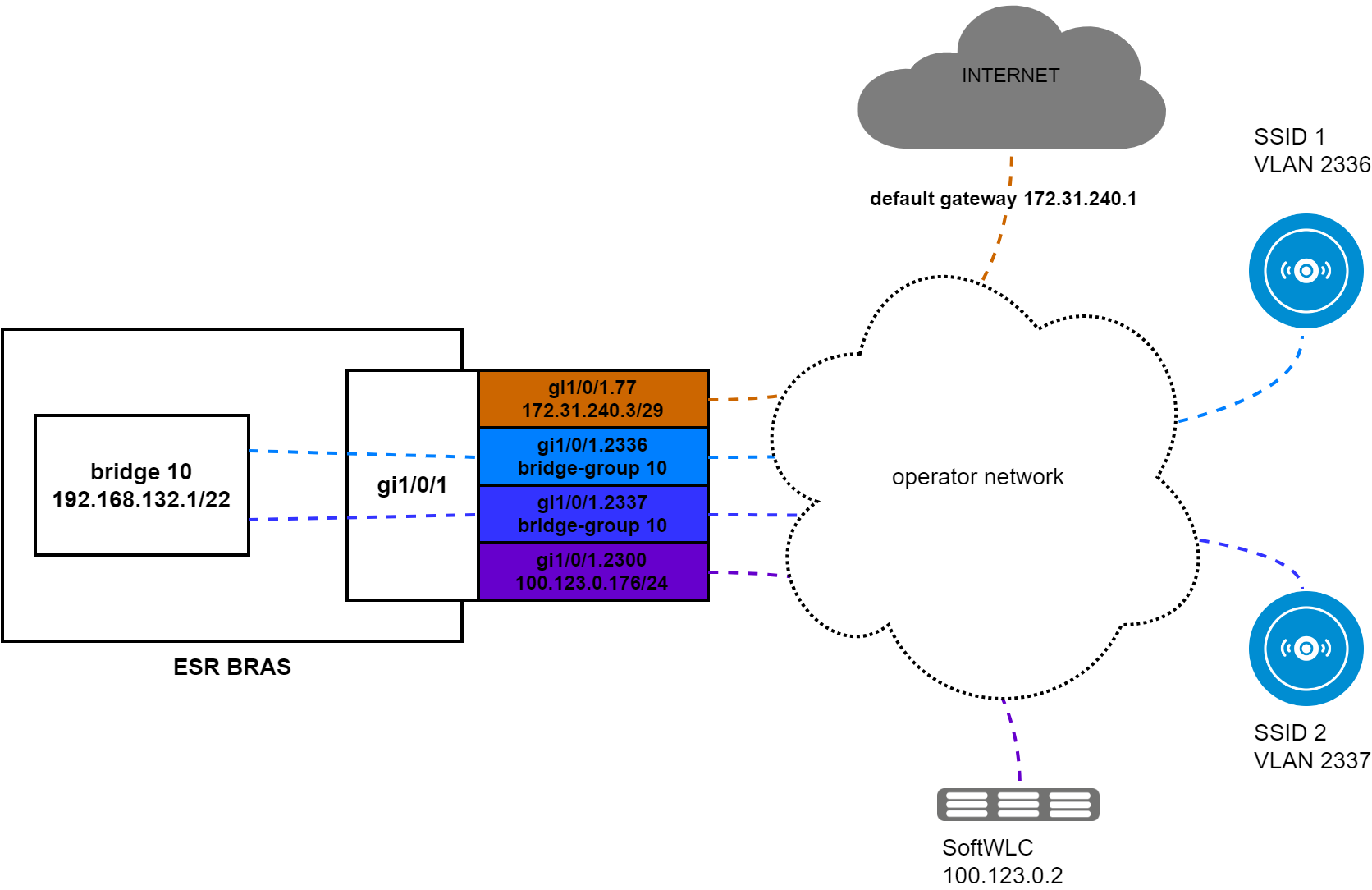
Fig. 3.1.
The principles should be followed when configuring the ESR:
1) First of all, perform general settings: assign addressing, configure access to ESR;
2) When configuring addressing, disable firewall on all L3 interfaces of ESR, except for the interface looking to the Internet;
3) Only after making sure that the clients and management traffic passes through correctly: clients receive addresses, there is access to the Internet, ESR has access to SoftWLC to configure BRAS;
4) After making sure that clients are successfully authorized on BRAS and have access to the Internet, configure the firewall and enable it on all interfaces.
Initial ESR configuration should be performed using a console connection and completely erase the old or factory configuration so that its remnants would not create problems in further configuration:
esr1000# copy system:default-config system:candidate-config Entire candidate configuration will be reset to default, all settings will be lost upon commit. Do you really want to continue? (y/N): y |******************************************| 100% (50B) Default configuration loaded successfully. |
Next, perform the initial configuration of the router:
security zone trusted exit security zone untrusted exit security zone users exit bridge 10 description "users" security-zone users ip firewall disable ip address 192.168.132.1/22 ip helper-address 100.123.0.2 enable exit interface gigabitethernet 1/0/1.77 description "UpLink" security-zone untrusted ip address 172.31.240.3/29 exit interface gigabitethernet 1/0/1.2300 description "mgmt" security-zone trusted ip firewall disable ip address 100.123.0.176/24 exit interface gigabitethernet 1/0/1.2336 bridge-group 10 exit interface gigabitethernet 1/0/1.2337 bridge-group 10 exit ip dhcp-relay ip route 0.0.0.0/0 172.31.240.1 ip telnet server ip ssh server |
Then apply this configuration (commit/confirm), after which the equipment can be placed in the rack and connected to it via ssh/telnet.
Configure NAT:
object-group network users
  ip prefix 192.168.132.0/22
exit

nat source
  pool nat_addr
    ip address-range 172.31.240.3
  exit
  ruleset nat_source
    to zone untrusted
    rule 1
      match source-address users
      action source-nat pool nat_addr
      enable
    exit
  exit
exit |
After applying this setting, it is necessary to make sure that the clients are successfully connected – they receive addresses and access the Internet, as well as in the presence of connectivity to SoftWLC. DHCP server configuration is not considered in this document, because it is a separate service and can be based on different software (it is recommended to use isc-dhcp-server). Until network connectivity problems are fixed at this stage, it makes no sense to proceed to further configuration.
Then configure interaction with SNMP and NTP servers. It is necessary for correct monitoring of ESR status from EMS:
snmp-server snmp-server system-shutdown snmp-server community "private1" rw snmp-server community "public11" ro snmp-server host 100.123.0.2 source-address 100.123.0.176 exit clock timezone gmt +7 ntp enable ntp server 100.123.0.2 exit |
BRAS configuration can be divided into the following steps:
1) Loading the BRAS license;
2) Configuring the interaction with the radius server;
3) Configuring the access-list to be used by BRAS services;
4) Configuring the BRAS service and enabling it on the appropriate bridges for client authorization.
1.1) Check the license availability:
esr1000# sh licence Active licence not found! |
There is no license. To obtain it, please contact the sales department of Eltex company.
1.2) After obtaining the license, upload it to ESR and check that it has been successfully uploaded:
esr1000# copy tftp://100.123.0.2:/NP07000030.lic system:licence |******************************************| 100% (678B) Licence loaded successfully. Please reboot system to apply changes. esr1000# sh licence Licence information ------------------- Name: eltex Version: 1.0 Type: ESR-1000 S/N: NP07000030 MAC: A8:F9:4B:AB:79:A0 Features: BRAS - Broadband Remote Access Server |
1.3) Reboot ESR:
esr1000# reload system Do you really want to reload system ? (y/N): y |
After rebooting, the BRAS configuration commands will become available.
2) Configure interaction with the radius server:
object-group network SoftWLC ip address-range 100.123.0.2 exit radius-server timeout 10 radius-server retransmit 5 radius-server host 100.123.0.2 key ascii-text testing123 timeout 11 priority 20 source-address 100.123.0.176 auth-port 31812 acct-port 31813 retransmit 10 dead-interval 10 exit aaa radius-profile PCRF radius-server host 100.123.0.2 exit das-server COA key ascii-text testing123 port 3799 clients object-group SoftWLC exit aaa das-profile COA das-server COA exit |
In this configuration we specified that interaction with the radius server is performed at the address 100.123.0.2 on ports 31812 and 31813, with the password testing123. These ports should be opened on the transport when ESR accesses PCRF (it is assumed that all SoftWLC components are on the same host). We also specified that when accessing from PCRF, ESR listens to calls on port 3799 from the address 100.123.0.2, with the password testing123. This port should be open on the transport when PCRF accesses ESR.
3) Configure the access-list to be used by BRAS services:
ip access-list extended WELCOME
  rule 1
    action permit
    match protocol tcp
    match destination-port 443
    enable
  exit
  rule 2
    action permit
    match protocol tcp
    match destination-port 8443
    enable
  exit
  rule 3
    action permit
    match protocol tcp
    match destination-port 80
    enable
  exit
  rule 4
    action permit
    match protocol tcp
    match destination-port 8080
    enable
  exit
exit

ip access-list extended INTERNET
  rule 1
    action permit
    enable
  exit
exit

ip access-list extended unauthUSER
  rule 1
    action permit
    match protocol udp
    match source-port 68
    match destination-port 67
    enable
  exit
  rule 2
    action permit
    match protocol udp
    match destination-port 53
    enable
  exit
exit |
4.1) Next, add the necessary BRAS settings on the client interface:
object-group network bras_users ip address-range 192.168.132.2-192.168.135.254 exit bridge 10 service-subscriber-control object-group bras_users location data10 exit |
In "service-subscriber-control object-group bras_users" configuration we specified that only users with addresses from the range specified in the bras_users group will be authorized. This is necessary to ensure that traffic from the bridge 10 address and broadcast traffic of the subnet will pass through unhindered. Instead, you can use the "service-subscriber-control any" setting, which will block any traffic from passing through until it is authorized. |
4.2) Then сonfigure BRAS:
This configuration specifies an address of 100.123.0.2 and port 7070 to download URL filtering lists and port 8080 to perform redirects. These ports must be open on the transport towards the PCRF.
subscriber-control filters-server-url http://100.123.0.2:7070/filters/file
subscriber-control
  aaa das-profile COA
  aaa sessions-radius-profile PCRF
  aaa services-radius-profile PCRF
  nas-ip-address 100.123.0.176
  session mac-authentication
  bypass-traffic-acl unauthUSER
  default-service
    class-map unauthUSER
    filter-name remote gosuslugi
    filter-action permit
    default-action redirect http://100.123.0.2:8080/eltex_portal/
  exit
  enable
exit |
At this stage ESR configuration for operation in BRAS mode is completed. To verify the operability, it is necessary to perform the settings on the SoftWLC complex side. It makes sense to proceed to the firewall configuration only after the BRAS operability check, so it will be discussed further, after the SoftWLC complex settings.
SoftWLC complex settings can be divided into global settings, which are performed once or when adding each new ESR BRAS; universal - they can be configured for an individual customer of the authorization service, and used in the settings of several or all customers; and individual settings, which are usually configured when connecting each new customer, even if they can be used in several different customers.
Global configuration can be divided into several steps:
1) Enabling BRAS interaction in the Portal Builder;
2) Creation of two mandatory URL filtering lists in personal account - welcome and gosuslugi;
3) Creation of mandatory WELCOME service in personal account;
3) Setting up interaction with BRAS in personal account;
4) Adding ESR BRAS to EMS and customizing interaction with it.
The first four items are performed once during initial deployment and configuration, the 5th item is performed when adding each new ESR BRAS.
1) Open the Portal Builder (Fig. 4.1.1) at http://<ip host address>:8080/epadmin and go to the "Interaction with BRAS" setting:
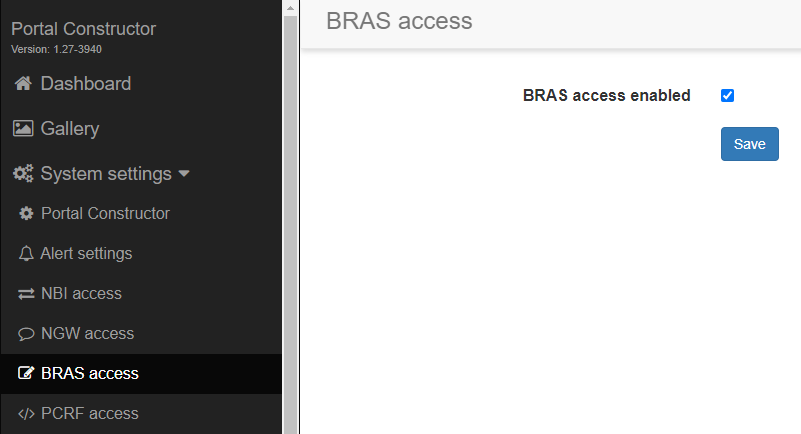
Fig. 4.1.1.
Enable:
Starting with SoftWLC version 1.18, the way the portal interacts with ESR BRAS has changed: the portal will only use PCRF queries when authorizing BRAS users, which resulted in the exclusion of ESR interaction settings.
|
2.1) Open the personal account http://<ip host address>:8080/wifi-cab/ and go to "PCRF Settings" → "URL Lists" and click the "Add" button (Fig. 4.2.1):
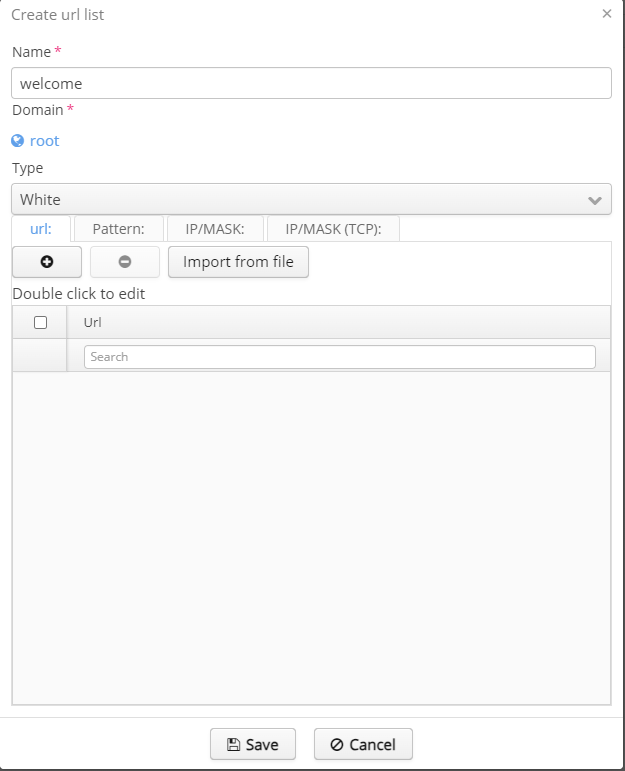
Fig. 4.2.1.
Set up the following:
 and in it specify "http://<ip address of the host with portal>:8080/eltex_portal/".
Then click "Save" to save the string and "Save" to save the list.
2.2) Similarly add gosuslugi filter list (Fig .4.2.2) which is used in BRAS filter-name remote gosuslugi:
The following table describes the statuses of the system indicators of the device and their values.
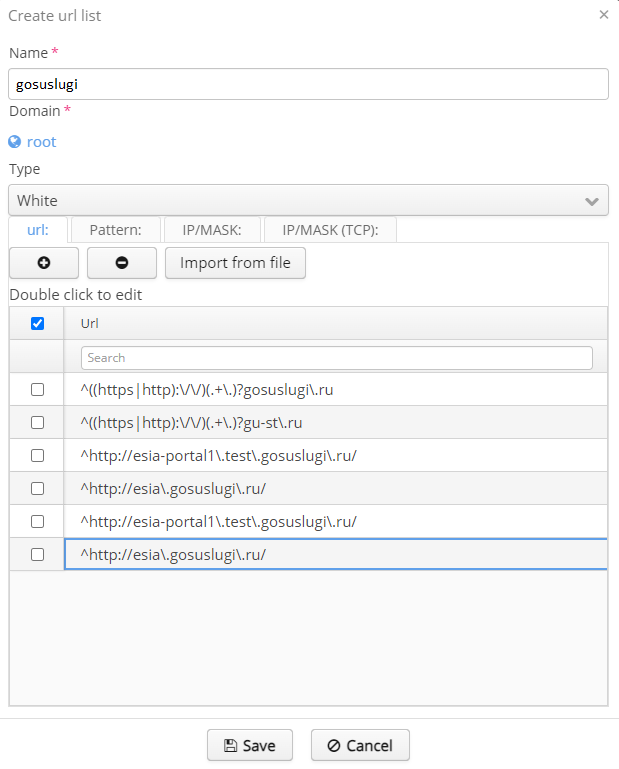
Fig. 4.2.2
Click "Save".
Configuring SoftWLC integration with EUIA is not considered in this document, you can find more details in the documentation section: Wi-Fi controller (SoftWLC).
3) After that go to the "Services and tariffs" section of personal account, select the "PCRF services" tab and click the "Add" button (Fig. 4.3.1):
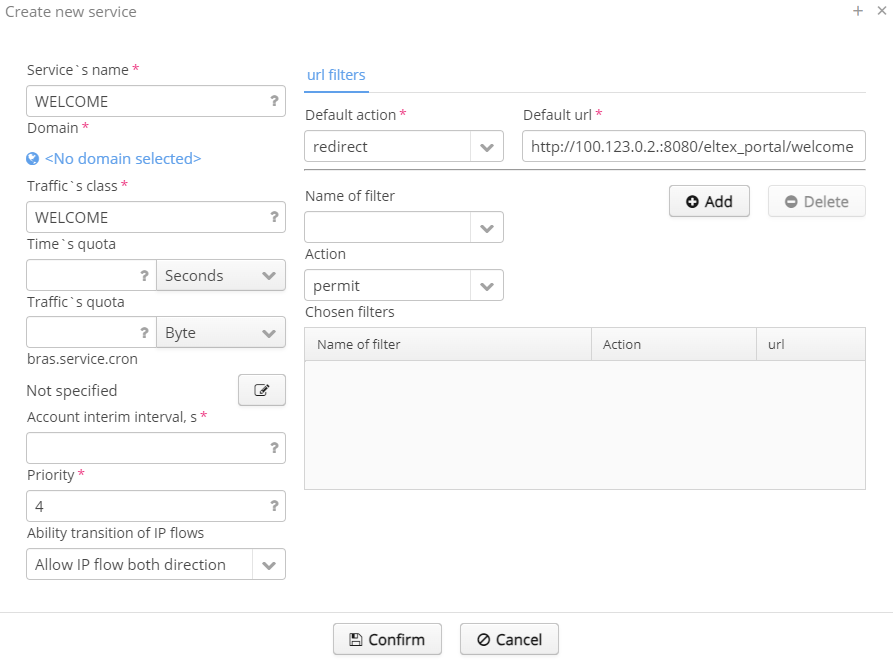
Fig. 4.3.1.
Configure the following:
This name must be the same as the ip access-list extended WELCOME configured on the ESR, including character case, because this is the access-list that the ESR will use when assigning this service. A name/register mismatch will cause BRAS to work incorrectly when assigning this service. |
Click the "Save" button. This service is official, it is necessary for the correct operation of the "Welcome" page and cannot be used in the tariff settings.
4) After that, in "PCRF Settings" of the personal account and open the "BRAS VRF" tab (Fig. 4.4.1):

Fig. 4.4.1.
This page configures the interaction with BRAS in different VRFs. For interaction in the default VRF there is already an entry created with default parameters. If you want to use a port and password different from the default ones when making CoA calls to ESR, you should check the current entry and click the "Edit" button, a window will open (Fig. 4.4.2):
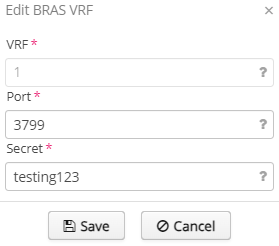
Fig. 4.4.2.
After changing the settings, click "Save". Earlier, in SoftWLC 1.17 and previous versions, this setting of these parameters was performed in the Portal Builder.
5.1) Then open EMS, create an eltex domain (the principles of setting up domains and nodes are not considered in this document), select the required node and add (by pressing the ) ESR to the object tree (Fig. 4.5.1):
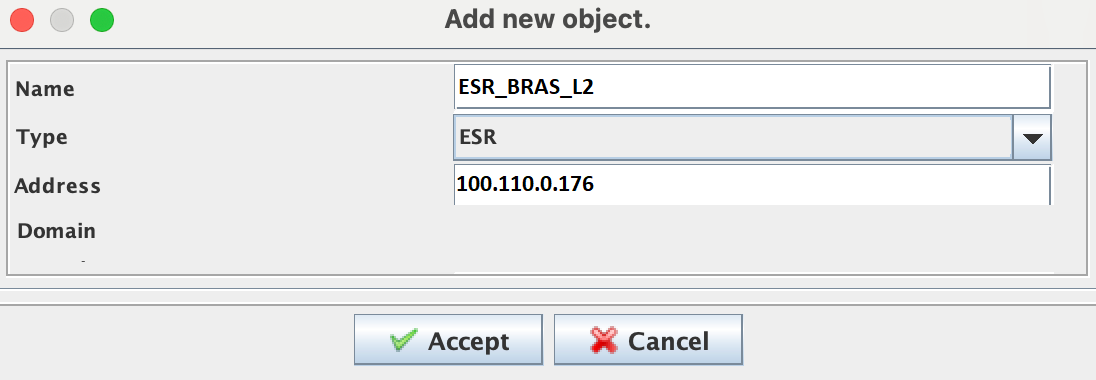 Fig. 4.5.1.
Specify:
Click the "Add" button.
5.2) After the ESR appears in the object tree (in case it does not appear - you should click the button  in the upper left corner of the EMS window), stand on it and open the "Access" tab on the right, and in it click "Edit" (Fig. 4.5.2):
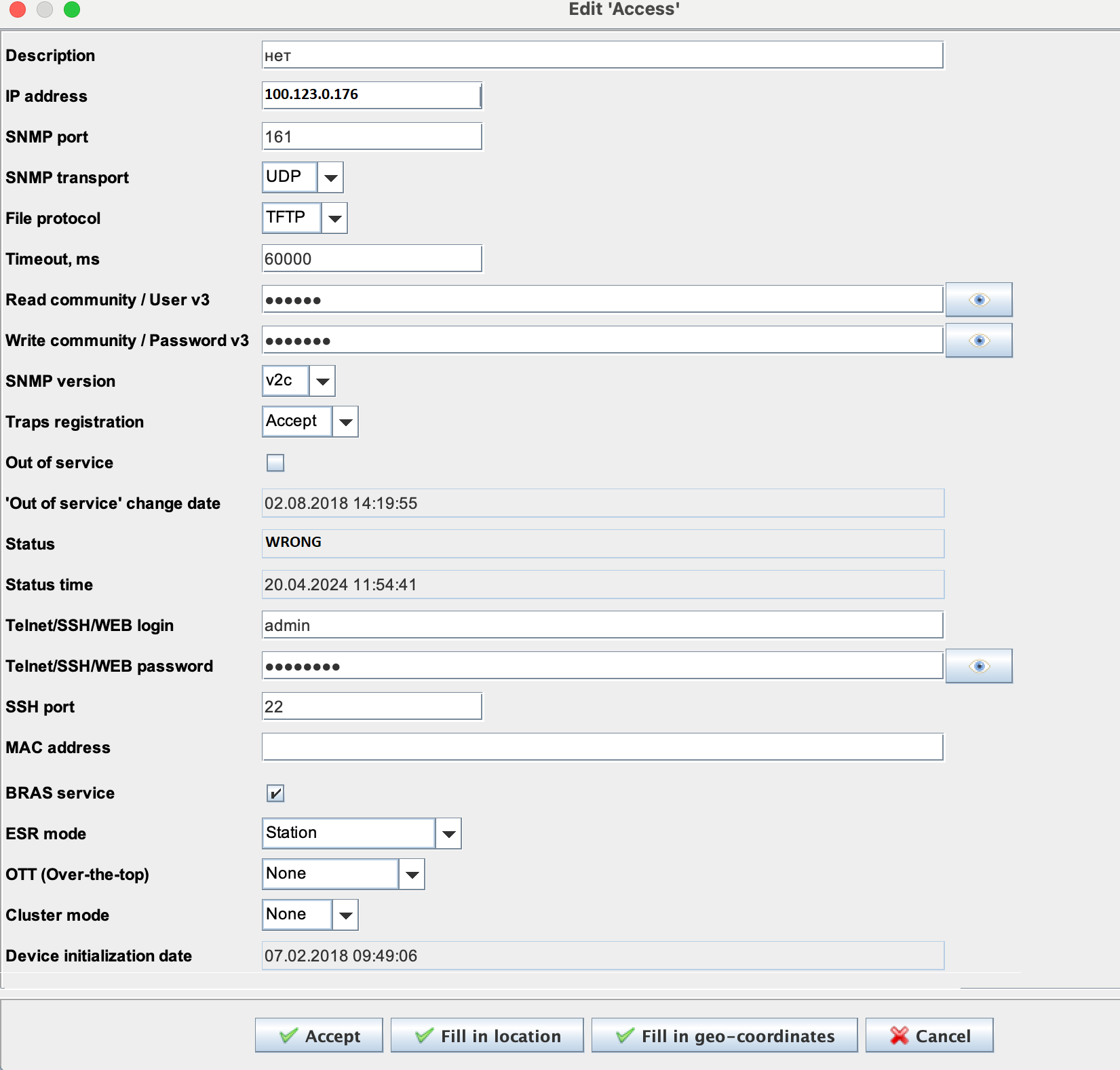 Fig. 4.5.2.
Specify:
Save the rest of the settings without changes and click "Accept".
5.3) Then in EMS it is necessary to specify the radius password for interaction with ESR from SoftWLC complex. To do this, open the menu "RADIUS" → "Access Point Management", find the ESR (if there are many addresses in the table - you can filter by IP address) and double-click on it to open the parameter editing window (Fig. 4.5.3):
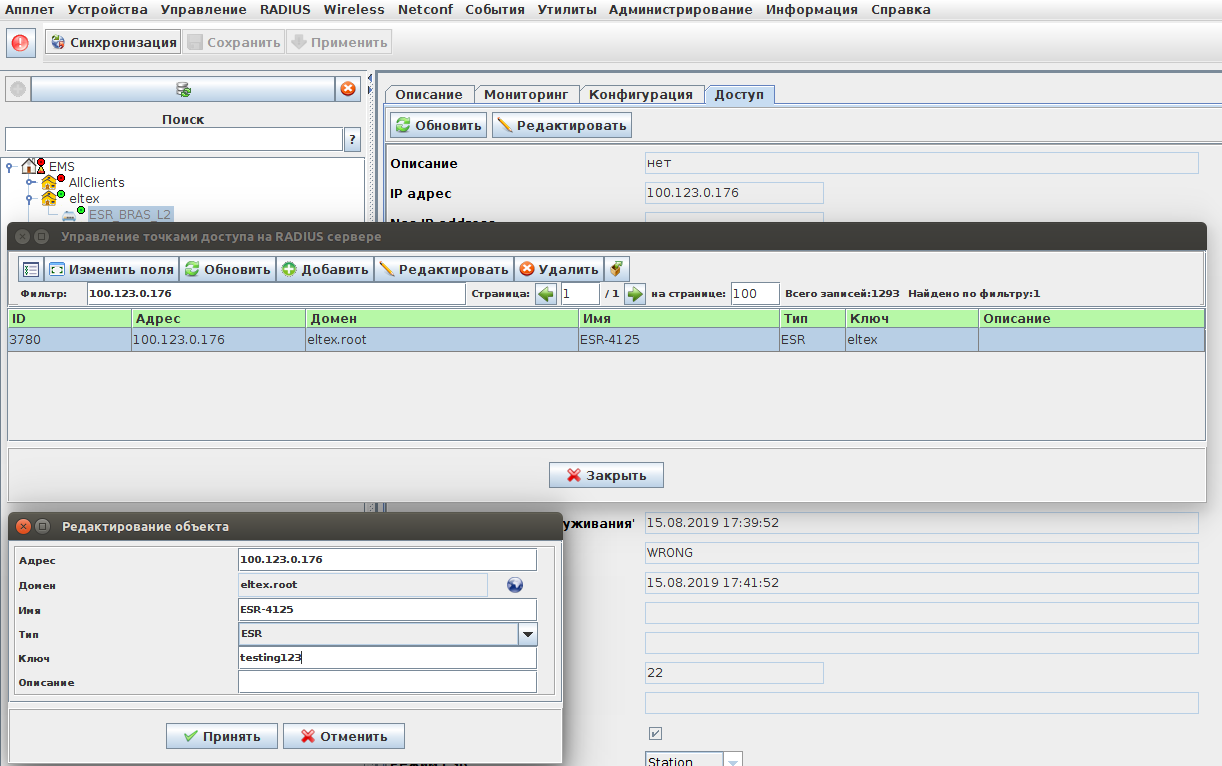
Fig. 4.5.3.
Correct "Key" to testing123 and click "Accept", then close the "Access Point Management on RADIUS Server" window.
The radius password must be the same for ESR and localhost (127.0.0.1), if 127.0.0.1 has not changed its password, it must be changed. |
Generl settings include settings of the customer's tariff. As a rule, if a standard Internet access service is required, the same tariff can be used for all customers. But if necessary it is possible to customize the tariff for an individual customer.
In the example below we consider the configuration of the tariff for access to the Internet without restrictions. Setting up the tariff includes setting up the PCRF service (the same service can be used in different tariffs), which will be used in the tariff and setting up the tariff itself.
Open personal account and go to "Services and tariffs" → "PCRF services" and click the add button - the "Create a new service" window will open (Fig. 4.2.1):
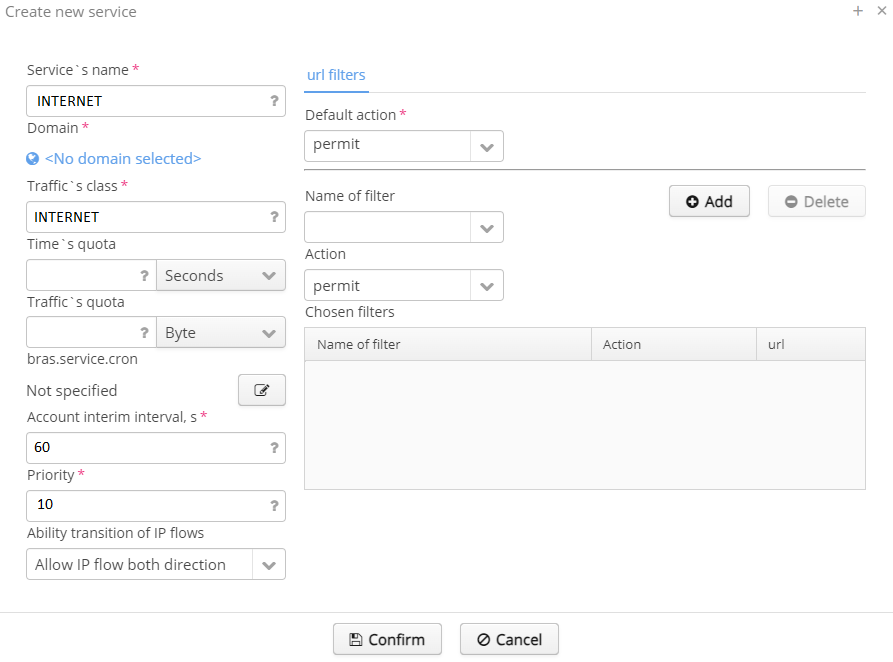
Fig. 4.2.1.
Configure:
This name must be the same as the ip access-list extended INTERNET configured on the ESR, including character case, because this is the access-list that the ESR will use when assigning this service. A name/register mismatch will cause BRAS to work incorrectly when assigning this service. |
Click "Save" button.
Open "Services and tariffs" → "Tariffs" in personal account and select the filter "PCRF/BRAS", thus proceeding to the configuration of BRAS tariffs (Fig. 4.2.2):
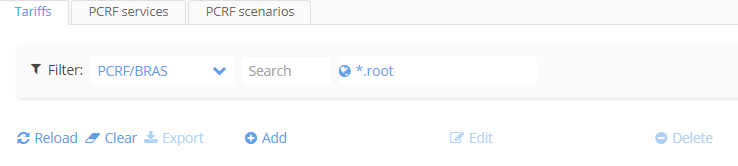
Fig. 4.2.2.
and click the "Add" button - the "Create new tariff" window will open (Fig. 4.2.3):
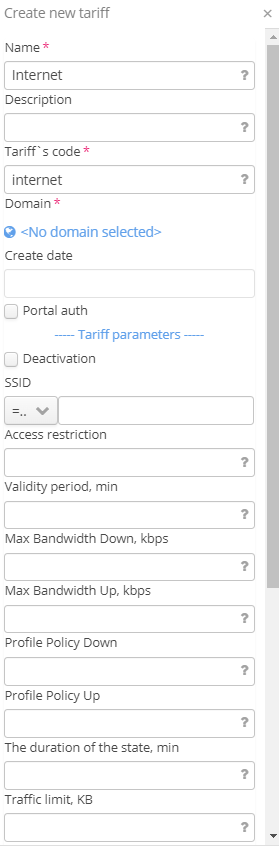
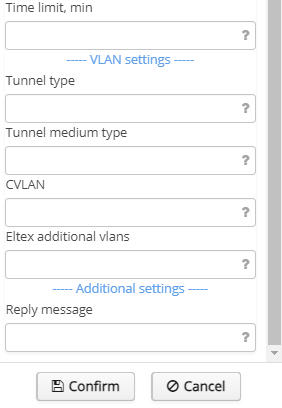
Fig. 4.2.3.
Configure:
Do not select the "WELCOME" service! If it is also selected - it will lead to incorrect operation of BRAS after authorization of the user and assignment of this tariff. |
Click the "Save" button.
Individual settings include portal configuration, SSID configuration and binding, and adding L2 subnets. A portal can be used for multiple customers, but this is rarely practiced. SSID configuration is usually unique for each geographic location of the connection; and if a unique vlan is used for the same SSID for each ФЗ, then for each such ФЗ. Within a single customer, the same portal is usually used in different SSIDs. In general, the order of configuration for each new customer is as follows:
1) creating a portal (if you plan to use an existing one, this step is skipped);
2) SSID creation and binding in EMS;
3) creation of L2 subnet in personal account.
1.1) Open the portal builder http://<ip portal address>:8080/epadmin and click on "Create a new virtual portal", then in the opened window (Fig. 4.3.1):
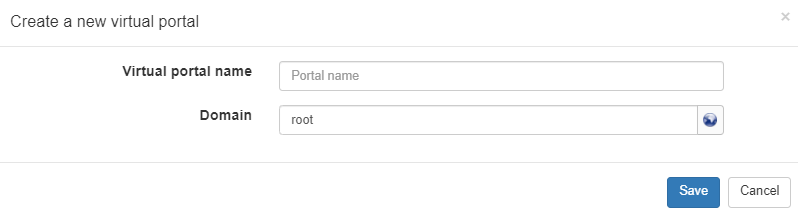 Fig. 4.3.1.
configure:
Click "Save" button. The transition to the created portal will be made automatically.
1.2) Note that in the portal builder for the above created portal "eltex" in the "Rates" tab there is a "default" tariff, designed to work with AP (Fig. 4.3.2):
 Fig. 4.3.2.
This tariff is not suitable for work with BRAS, but if you add a tariff like "Work via BRAS" - the portal can determine what type of authorization the user needs and will set the appropriate tariff. If you do not intend to use this portal for authorization of Eltex AP clients, you can click "Delete" and delete the tariff intended for AP.
1.3) Click the "Add" button at the bottom of the portal builder (Fig. 4.3.3).
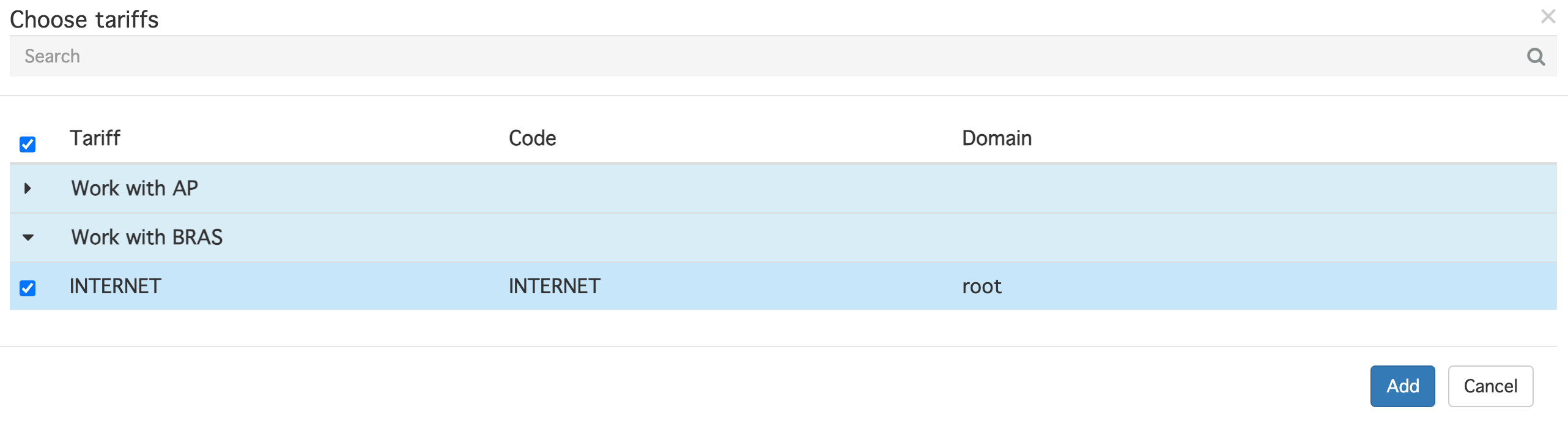
Fig. 4.3.3.
in the tariff selection window that opens, check the "internet" tariff that was set up earlier in the personal account and click "Add". Please note that it belongs to the group of tariffs "Work via BRAS".
1.4) Click the "Save" button at the bottom of the portal builder (Fig. 4.3.4):
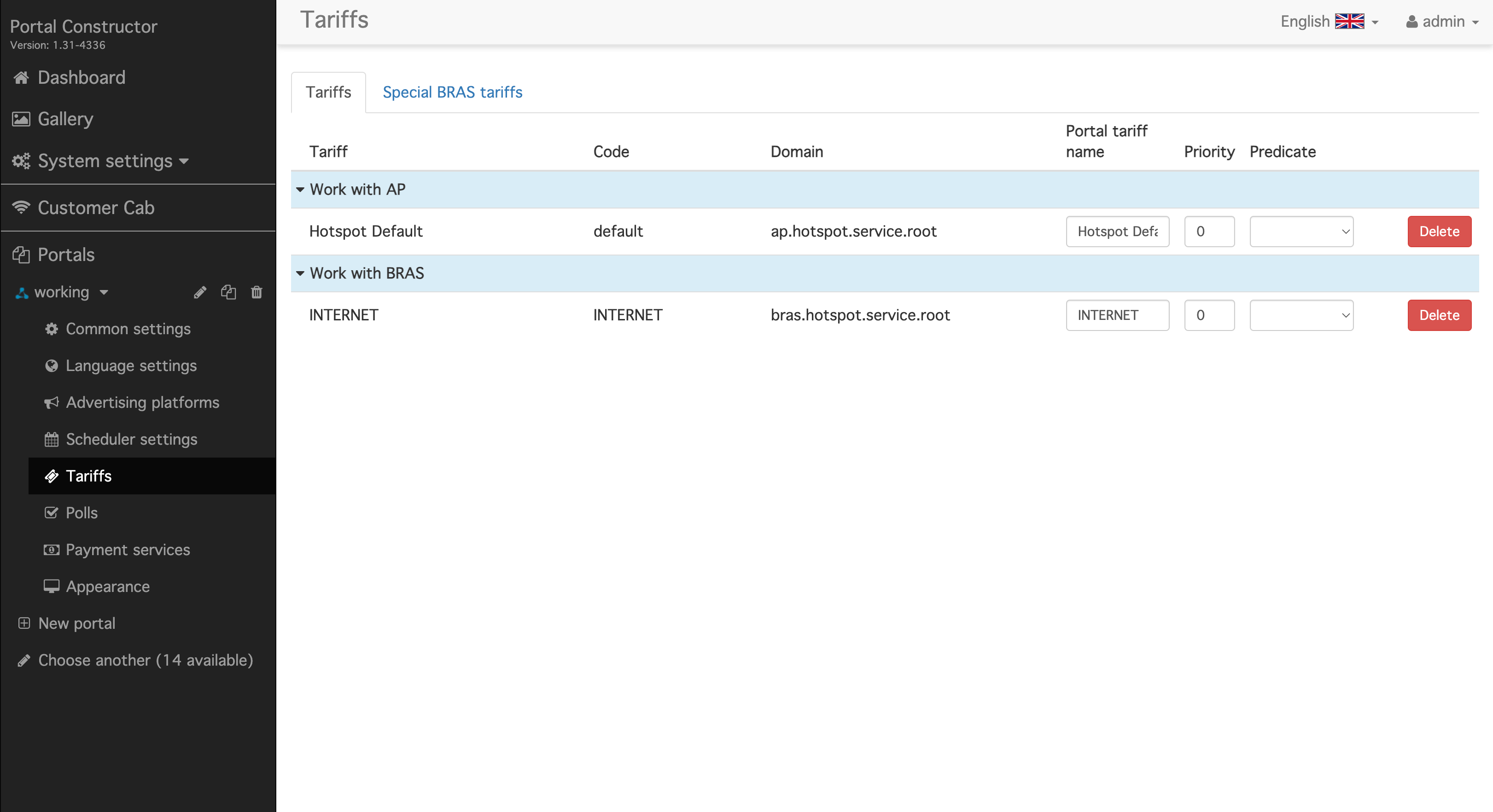
Fig. 4.3.4.
This completes the portal configuration. In the current document it is assumed that demo mode will be used for client authorization.
2.1) Open in EMS and open the menu "Wireless" → "SSID Manager" and in the "SSID Base" tab click the "Add SSID" button. The SSID creation window will open (Fig. 4.3.5):
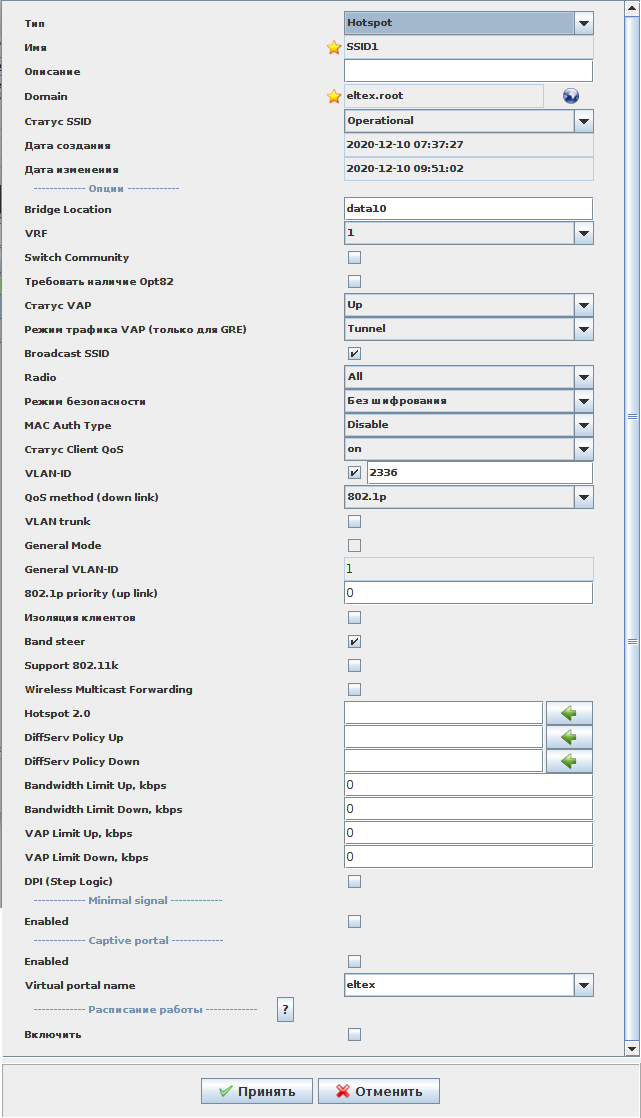
Fig. 4.3.5.
and configure:
Click "Accept".
Since the scheme to be configured assumes the presence of two SSIDs, we configure the second SSID for vlan 2337 in the same way (Fig. 4.3.6):
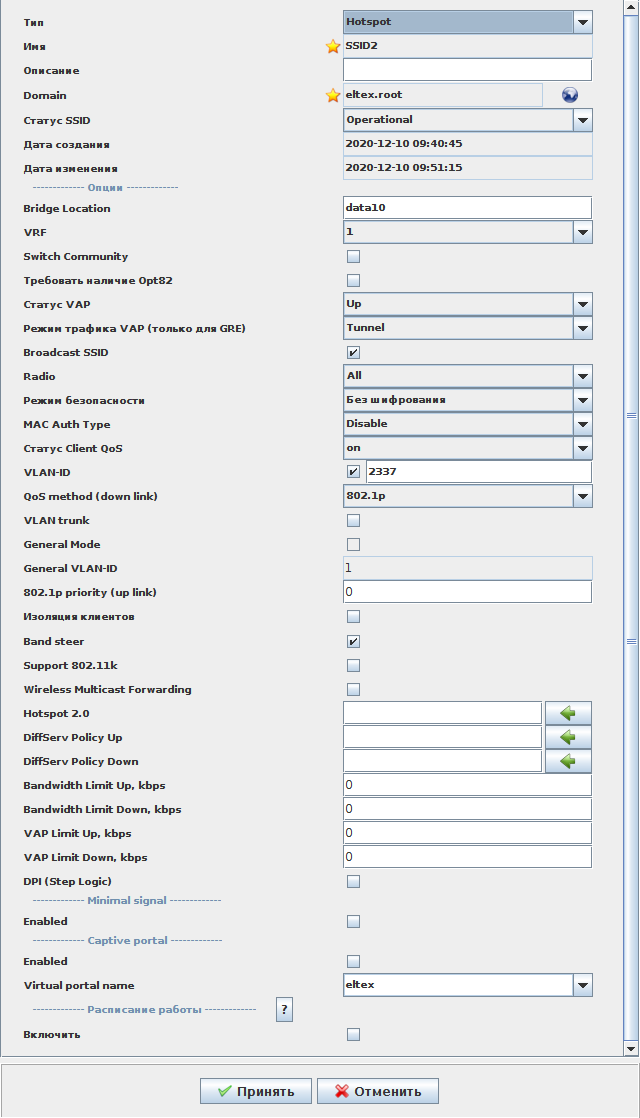
Fig. 4.3.6.
The only differences are in the vlan and SSID name.
2.2) Let's perform SSID binding. To do this, select SSID1 and SSID2 we created earlier and click the "Add SSID Binding" button. In the opened window (Fig. 4.3.7):
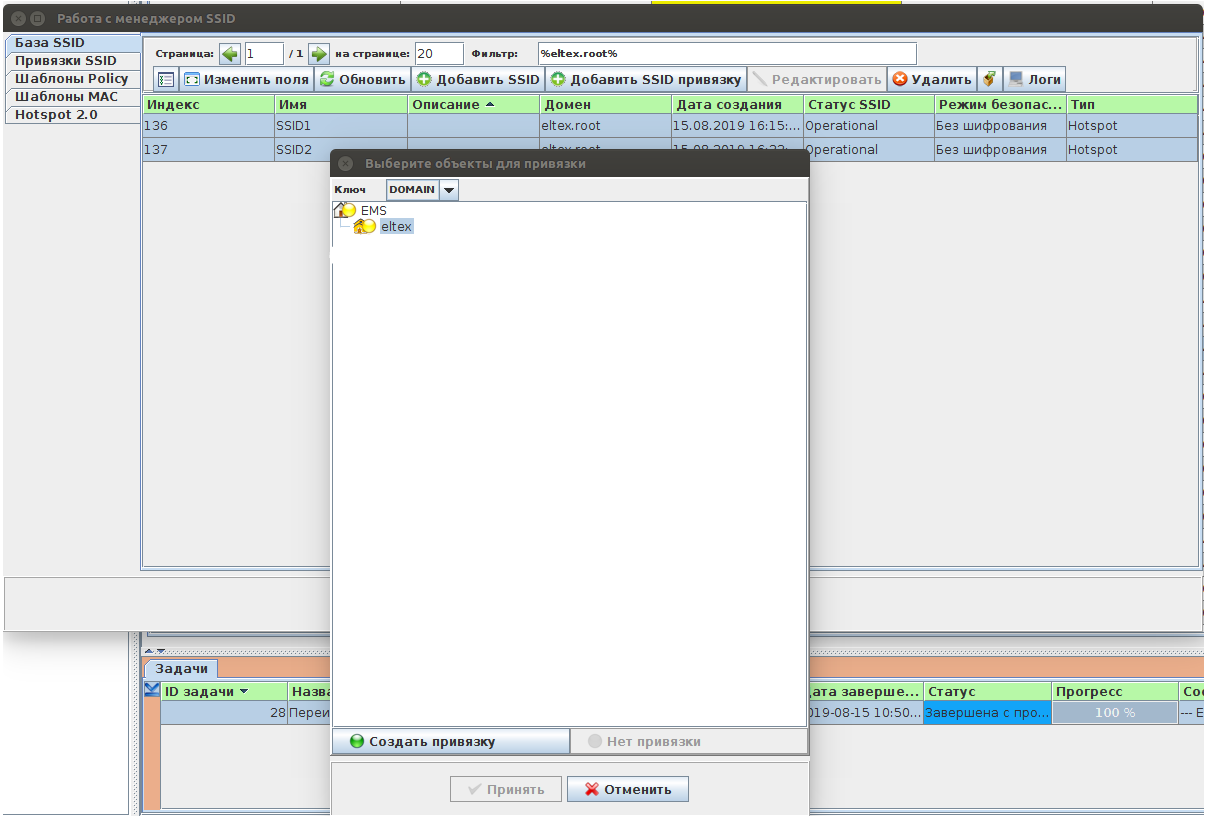
Fig. 4.3.7.
select "Key" - DOMAIN, and choose the eltex domain where our SSID will be located and click "Create binding". After that the "Accept" button will become available - click on it.
A question will appear - "Fix SSID bindings" - click "No", as it works only for Eltex AP and close the SSID manager. This completes the EMS configuration.
3.1) Open your personal account and go to "PCRF Settings" → "L2 subnets" and click "Add". The "Add subnet" window will open (Fig. 4.3.8):
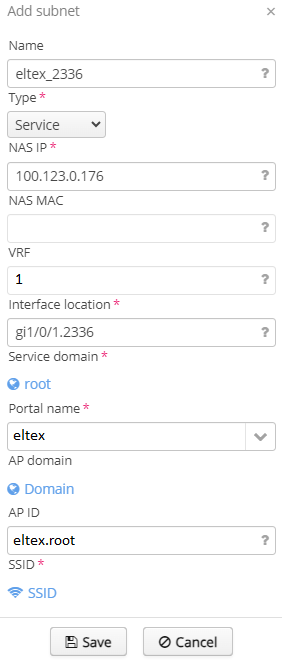 Fig. 4.3.8.
configure:
"SSID" - select SSID1:eltex.root
In order to be able to select the desired SSID, the "Service Domain" must match or be the parent of the "Domain" setting in the SSID settings. |
Click "Save" button.
Similarly, configure the L2 subnet for the second SSID (Fig. 4.3.9):
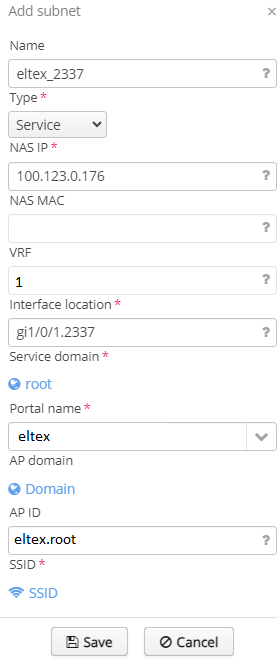
Fig. 4.3.9.
and save it.
This completes the configuration of SoftWLC complex to work with BRAS, then you need to connect to the previously configured vlan and make sure that there is a redirect to the portal, the ability to pass authorization in demo mode and access the Internet after authorization. Trableshooting when connecting BRAS clients is described in the link: BRAS. Troubleshooting Guide
During the initial ESR configuration, the firewall was disabled for ease of trabshooting. After the configuration is done and successful authorization and operation of clients through BRAS is verified, it is necessary to configure the firewall. The main purpose of firewall configuration is to prevent clients from accessing ESR, SoftWLC complex and resources of the operator's internal network.
The firewall on ESR works at the L3 level: to each L3 interface a security zone is assigned. Rules are formed on the basis of security zone-pair mappings. The names of trusted, untrusted and users zones used in this document may be labeled differently. The reserved security zone names that cannot be used are self and all. Fig. 5.1 shows the distribution of ESR interfaces by security zones:
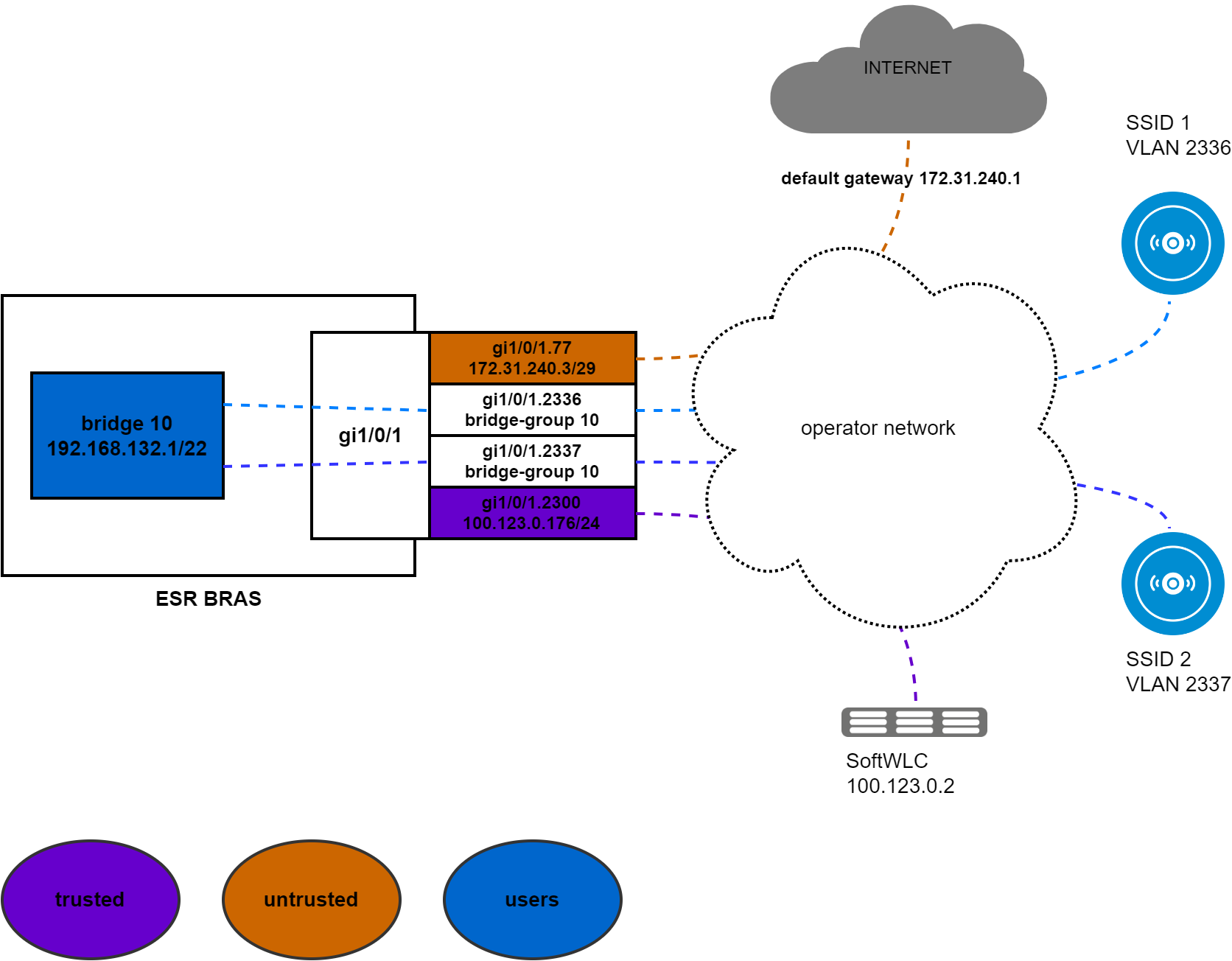
Fig. 5.1.
Bridge 10 - users zone.
The sub-interfaces gi1/0/1.2336 and gi1/0/1.2337 are included in bridge 10, they do not have their own ip addresses and therefore traffic coming through these interfaces is considered to come from the users zone. There is no need to configure security-zone on these interfaces; |
Gi1/0/1.77 - untrusted zone, as this interface looks towards the Internet;
The principles of firewall configuration are as follows:
Security zones and assigning them to interfaces was done during the initial ESR configuration.
Next, create objects for dhcp and dns services:
object-group service dhcp_server port-range 67 exit object-group service dhcp_client port-range 68 exit object-group service dns port-range 53 exit object-group service redirect port-range 3128-3159 exit |
The object-group service redirect service setting specifies the proxy ports listening for client connection. Their number depends on the ESR model. |
Configure filtering rules according to the firewall configuration principles selected above:
security zone-pair users untrusted
  rule 1
    action permit
    enable
  exit
exit
security zone-pair trusted self
  rule 1
    action permit
    enable
  exit
exit
security zone-pair trusted users
  rule 1
    action permit
    enable
  exit
exit
security zone-pair users self
  rule 1
    action permit
    match protocol udp
    match source-port dhcp_client
    match destination-port dhcp_server
    enable
  exit
  rule 2
    action permit
    match protocol tcp
    match destination-port redirect
    enable
  exit
exit
security zone-pair users trusted
  rule 1
    action permit
    match protocol udp
    match source-port dhcp_client
    match destination-port dhcp_server
    enable
  exit
  rule 2
    action permit
    match protocol udp
    match destination-port dns
    enable
  exit
exit |
Enable the firewall on interfaces where it was previously disabled:
bridge 10 no ip firewall disable exit interface gigabitethernet 1/0/1.77 no ip firewall disable exit interface gigabitethernet 1/0/1.2300 no ip firewall disable exit |
and apply the configuration.
Verify that authorization and Internet access are functional. After that the ESR BRAS configuration can be considered complete.
ESR full configuration:
object-group service dhcp_server
  port-range 67
exit
object-group service dhcp_client
  port-range 68
exit
object-group service dns
  port-range 53
exit
object-group service redirect
  port-range 3128-3131
exit

object-group network users
  ip prefix 192.168.132.0/22
exit
object-group network SoftWLC
  ip address-range 100.123.0.2
exit

radius-server timeout 10
radius-server retransmit 5
radius-server host 100.123.0.2
  key ascii-text encrypted 88B11079B9014FAAF7B9
  timeout 11
  priority 20
  source-address 100.123.0.176
  auth-port 31812
  acct-port 31813
  retransmit 10
  dead-interval 10
exit
aaa radius-profile PCRF
  radius-server host 100.123.0.2
exit
das-server COA
  key ascii-text encrypted 88B11079B9014FAAF7B9
  port 3799
  clients object-group SoftWLC
exit
aaa das-profile COA
  das-server COA
exit

security zone trusted
exit
security zone untrusted
exit
security zone users
exit

ip access-list extended WELCOME
  rule 1
    action permit
    match protocol tcp
    match destination-port 443
    enable
  exit
  rule 2
    action permit
    match protocol tcp
    match destination-port 8443
    enable
  exit
  rule 3
    action permit
    match protocol tcp
    match destination-port 80
    enable
  exit
  rule 4
    action permit
    match protocol tcp
    match destination-port 8080
    enable
  exit
exit

ip access-list extended INTERNET
  rule 1
    action permit
    enable
  exit
exit

ip access-list extended unauthUSER
  rule 1
    action permit
    match protocol udp
    match source-port 68
    match destination-port 67
    enable
  exit
  rule 2
    action permit
    match protocol udp
    match destination-port 53
    enable
  exit
exit

subscriber-control filters-server-url http://100.123.0.2:7070/filters/file
subscriber-control
  aaa das-profile COA
  aaa sessions-radius-profile PCRF
  aaa services-radius-profile PCRF
  nas-ip-address 100.123.0.176
  session mac-authentication
  bypass-traffic-acl unauthUSER
  default-service
    class-map unauthUSER
    filter-name remote gosuslugi
    filter-action permit
    default-action redirect http://100.123.0.2:8080/eltex_portal/
  exit
  enable
exit

snmp-server
snmp-server system-shutdown
snmp-server community "private1" rw
snmp-server community "public11" ro

snmp-server host 100.123.0.2
  source-address 100.123.0.176
exit

bridge 10
  description "users"
  security-zone users
  ip address 192.168.132.1/22
  ip helper-address 100.123.0.2
  service-subscriber-control any
  location data10
  enable
exit

interface gigabitethernet 1/0/1.77
  description "UpLink"
  security-zone untrusted
  ip address 172.31.240.3/29
exit
interface gigabitethernet 1/0/1.2300
  description "mgmt"
  security-zone trusted
  ip address 100.123.0.176/24
exit
interface gigabitethernet 1/0/1.2336
  bridge-group 10
exit
interface gigabitethernet 1/0/1.2337
exit
security zone-pair users untrusted
  rule 1
    action permit
    enable
  exit
exit
security zone-pair trusted self
  rule 1
    action permit
    enable
  exit
exit
security zone-pair trusted users
  rule 1
    action permit
    enable
  exit
exit
security zone-pair users self
  rule 1
    action permit
    match protocol udp
    match source-port dhcp_client
    match destination-port dhcp_server
    enable
  exit
  rule 2
    action permit
    match protocol tcp
    match destination-port redirect
    enable
  exit
exit
security zone-pair users trusted
  rule 1
    action permit
    match protocol udp
    match source-port dhcp_client
    match destination-port dhcp_server
    enable
  exit
  rule 2
    action permit
    match protocol udp
    match destination-port dns
    enable
  exit
exit

nat source
  pool nat_addr
    ip address-range 172.31.240.3
  exit
  ruleset nat_source
    to zone untrusted
    rule 1
      match source-address users
      action source-nat pool nat_addr
      enable
    exit
  exit
exit

ip dhcp-relay

ip route 0.0.0.0/0 172.31.240.1

ip telnet server
ip ssh server

clock timezone gmt +7

ntp enable
ntp server 100.123.0.2
exit |
ESR allows you to impose a speed limit (shaper) on the channel of clients within one office/SSID. ESR configuration is required to be performed to be able to use this functionality.
1) Enable the ESR:
ip firewall sessions classification enable |
Further setting depends on the type of ESR:
а) ESR1x/100/200/1000 has a software shaper. The fact of enabling shaper capability on these types of devices reduces their performance. It should be enabled only if this mode of operation is necessary. The shaper can operate either on one physical interface (in the up/down direction) or on two physical interfaces - one in the up direction and one in the down direction. The number of sub-interfaces on these physical interfaces does not matter for the functionality to work.
б) ESR1200/1700 has a hardware shaper, enabling which does not affect performance and it can work on all interfaces.
2.1) We perform settings on ESR1x/100/200/1000 (ESR1000 is used in the current example):
interface gigabitethernet 1/0/1 service-policy dynamic all exit |
and apply the configuration. This is the setting needed in the current example.
If interface gi1/0/1 is used as an uplink and clients are connected to interface gi1/0/2 for example, it is necessary to enable the use of shaper in the corresponding directions:
interface gigabitethernet 1/0/1 service-policy dynamic upstream exit interface gigabitethernet 1/0/2 service-policy dynamic downstream exit |
2.2) On ESR1200/1700 we perform:
interface service-port 1 service-policy dynamic exit |
Shapers are configured from the EMS. Open "Administration" → "Permissions and Users" → "Domains". In the opened list of domains, click on the required domain and press the button. The window for editing shapers will open (Fig. 6.2.1):
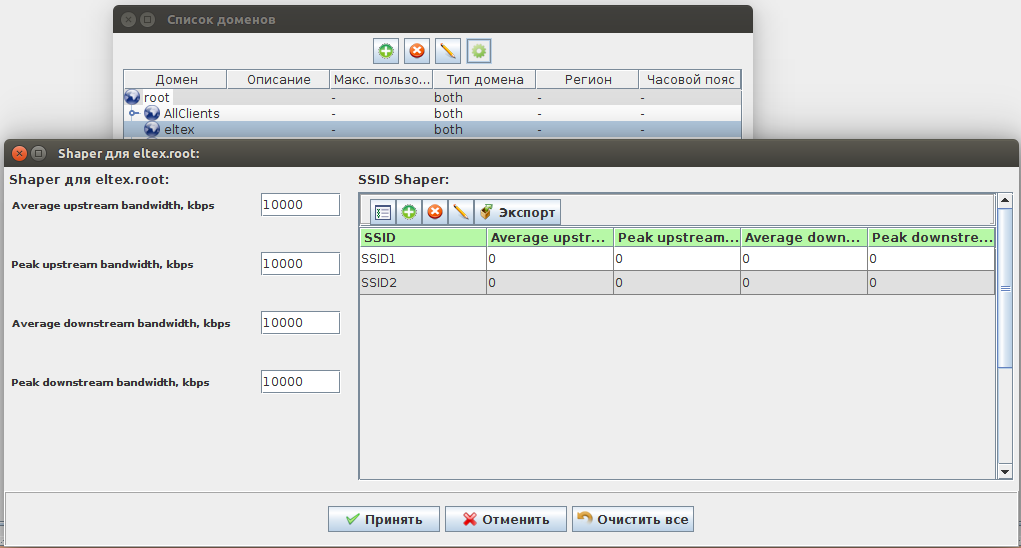
Fig. 6.2.1.
In this window to the left under Shaper for <domain> you can configure shapers that limit the download speed for all SSIDs in the domain. Specify:
After saving the settings, the command to change the speed will be sent to the ESR. The new value of shaper is applied and started with a delay of 1 min.
To configure the SSID limitation you should open the window of shaper editing, select the desired SSID in the window on the right (in the current example SSID1) and click the  button , the window of object editing will open (Fig. 6.2.2):
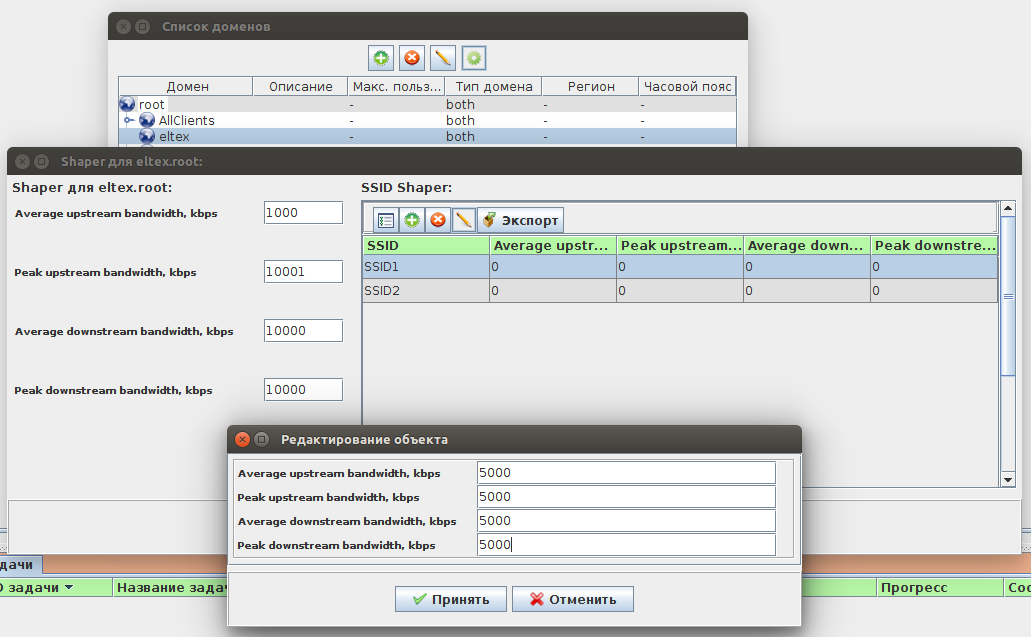
Fig. 6.2.2.
Average downstream bandwidth, kbps - 5000 - download speed limit, kbps;
After saving the settings, a command to change the speed will be sent to the ESR. The new shaper value will be applied and started with a delay of 1 min. Note that if there is a speed limit on the domain, then regardless of the speed limit settings on the SSID, their values, including total values cannot exceed this limit.