Firmware version 2.6 |
|
For detailed description of installing and launching ECCM refer to the Installation manual. |
To get started, connect to the system's web interface. Open a browser and enter the following in the address bar:
http://<ECCM_ADDRESS> (or https://<ECCM_ADDRESS> if using HTTPS),
where <ECCM_ADDRESS> – is the address of the ECCM server on your network (this can be an IP address or a domain name if there is a DNS configured).
The login page wil open:
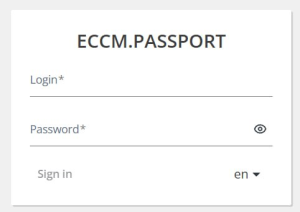
Enter your username and password in the corresponding fields and click the “Sign In” button.
When a user logs in for the first time, they must change their temporary password.
By default, the username is 'eccm' and the password is 'eccm'. |
Licensing for ECCM management system is performed using the ELM license server or via file-based licensing. |
After installation, the system provides a perpetual demo license for one device of each model. To work with multiple devices of the same model, it is necessary to install the appropriate license. For questions regarding the purchase of licenses and equipment, please contact the Eltex sales department by phone: +7 383 274-10-01, email: eltex@eltex.ru, or request a call via the website: http://eltex-co.com |
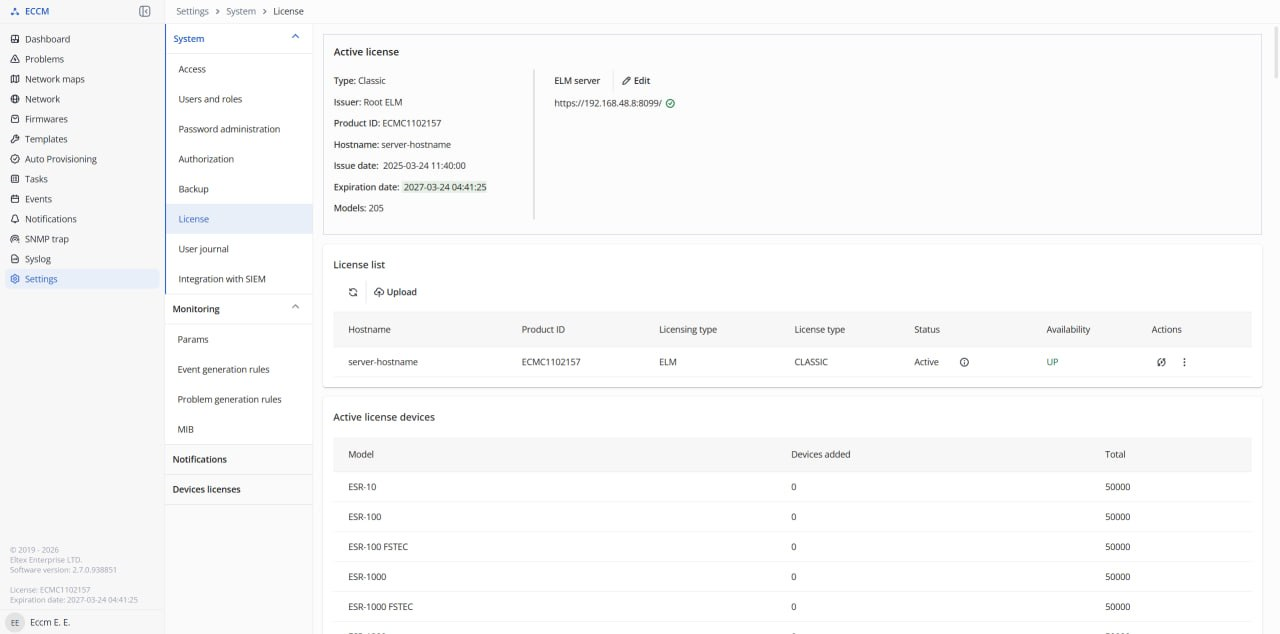
To configure the connection to the license server, select the “Settings” section and go to the “License” tab. The page will display information about the active license and the list of licenses:
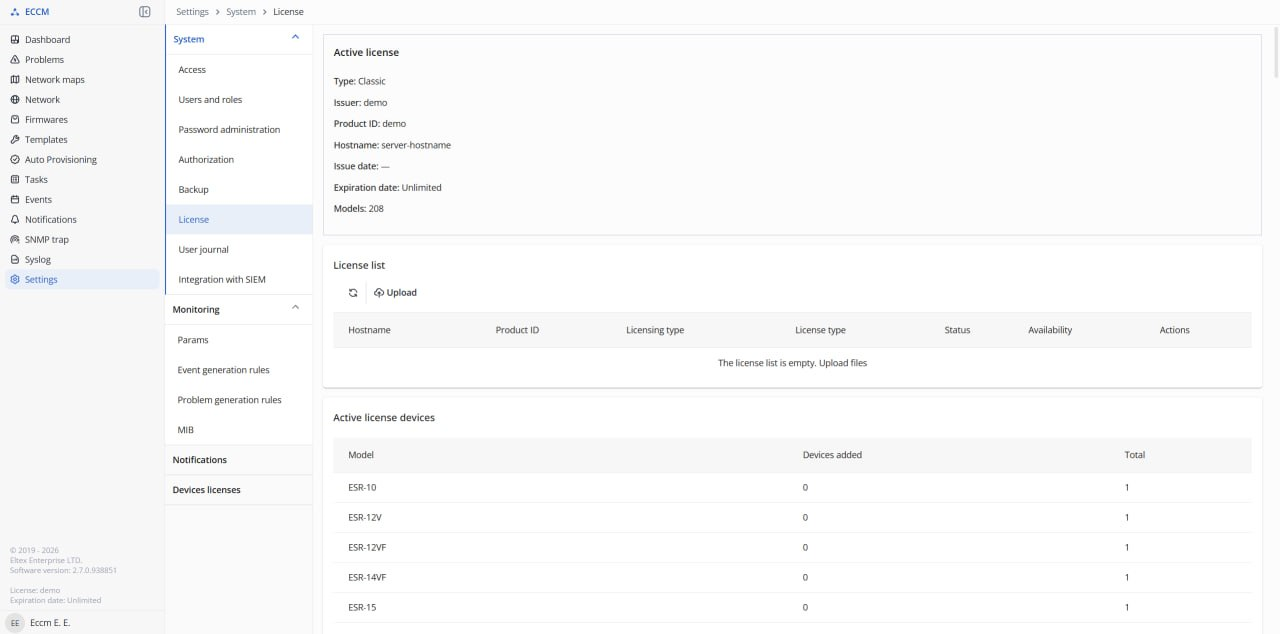
Click the “Upload” button. A license upload dialog box will open: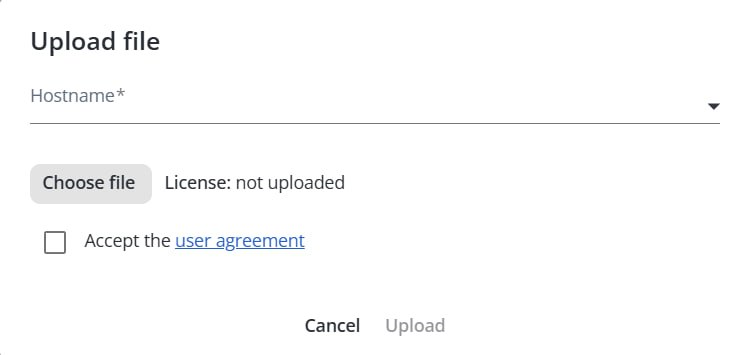
Click the “Choose File” button and select the license file in the window.
Select the hostname of the current ECCM server.
Click the “User agreement” link: the user agreement dialog box will open. After reviewing the terms of the agreement, click the “Accept” button. After closing the window, the “Accept the user agreement” checkbox will be automatically checked:
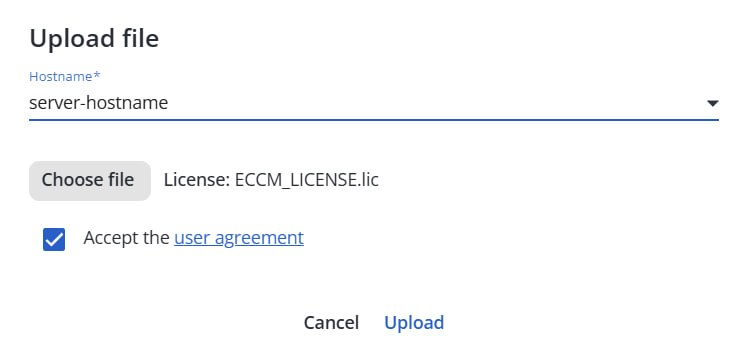
Click the “Upload” button. The uploaded license will appear in the “License list” table:

Click the “Activate” button in the table. The license activation dialog box will open. In the “URL” field, enter the URL for connecting to the license server in the “https://<ELM server address>:<ELM server port>” format:
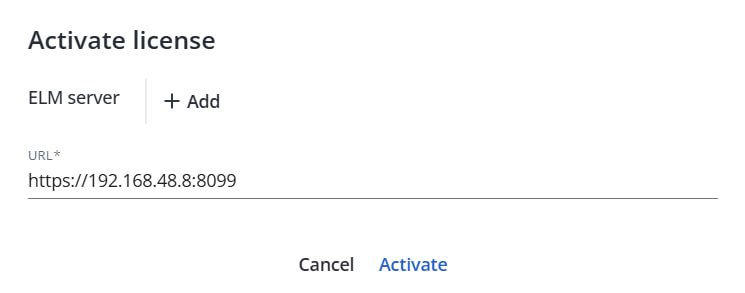
Click the “Activate” button. After connecting to the license server, the ECCM system will receive the current license:
Groups are logical combinations of devices. Groups are necessary for adding, managing, and monitoring equipment.
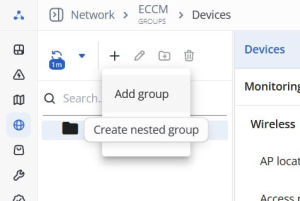
To create a group, go to the “Network” section, select a parent group in the object tree, click the “Add object” button, and select the “Add group” option. In the window that opens, enter the group name and select its type, then click the “Create” button.
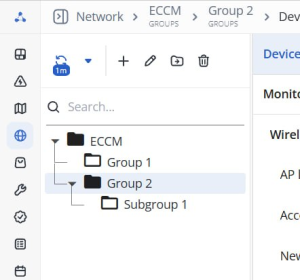
You can create a group in the ECCM root group, an empty group, or a group that contains other groups. You cannot create a new group within a group that contains devices, or within groups of “IP Factory,” “FWBA,” or “Cluster” type. |
The created groups will be displayed in the object tree.
To add a device to the system:
In the object tree, click on the name of the group to which you want to add the device(s);
A device can be added to an empty group or to a group that already contains devices. |
 button in the tree and select the “Add Devices” option. Then add devices to the system using one of the following methods:
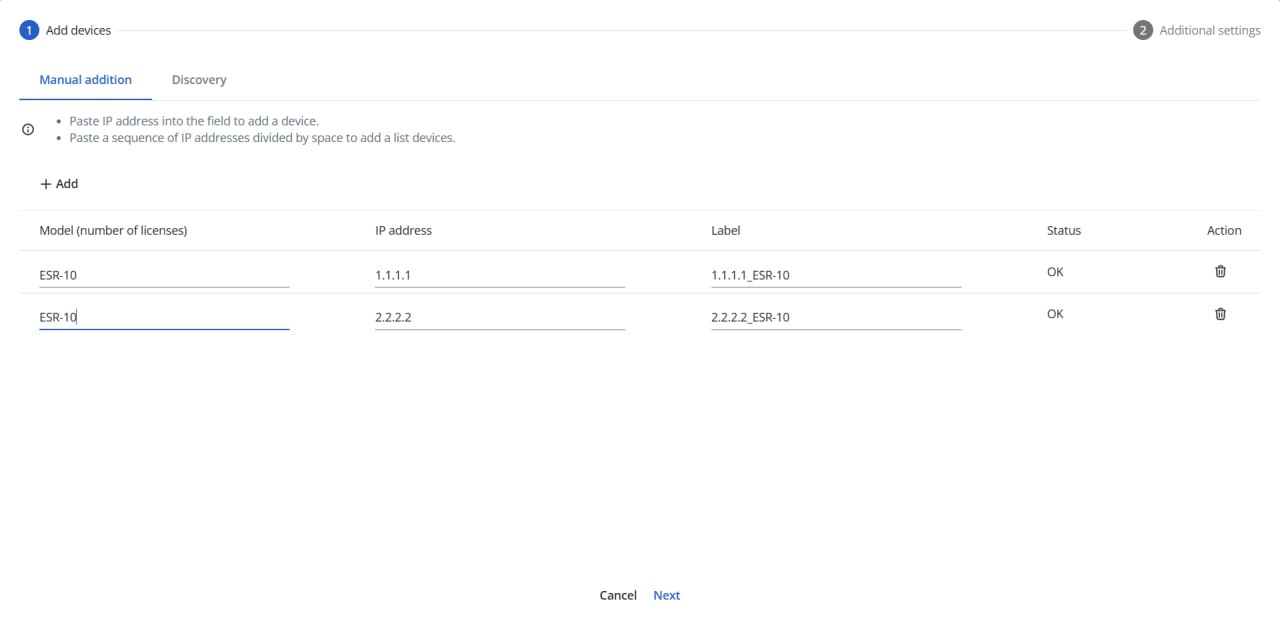
Method 1. Manually adding devices
In the device addition window, on the “Manual Addition” tab, enter the device’s IP address, select its model, and, if necessary, change the device name under which it will be displayed in the system. Click the “Next” button located at the bottom of the window.
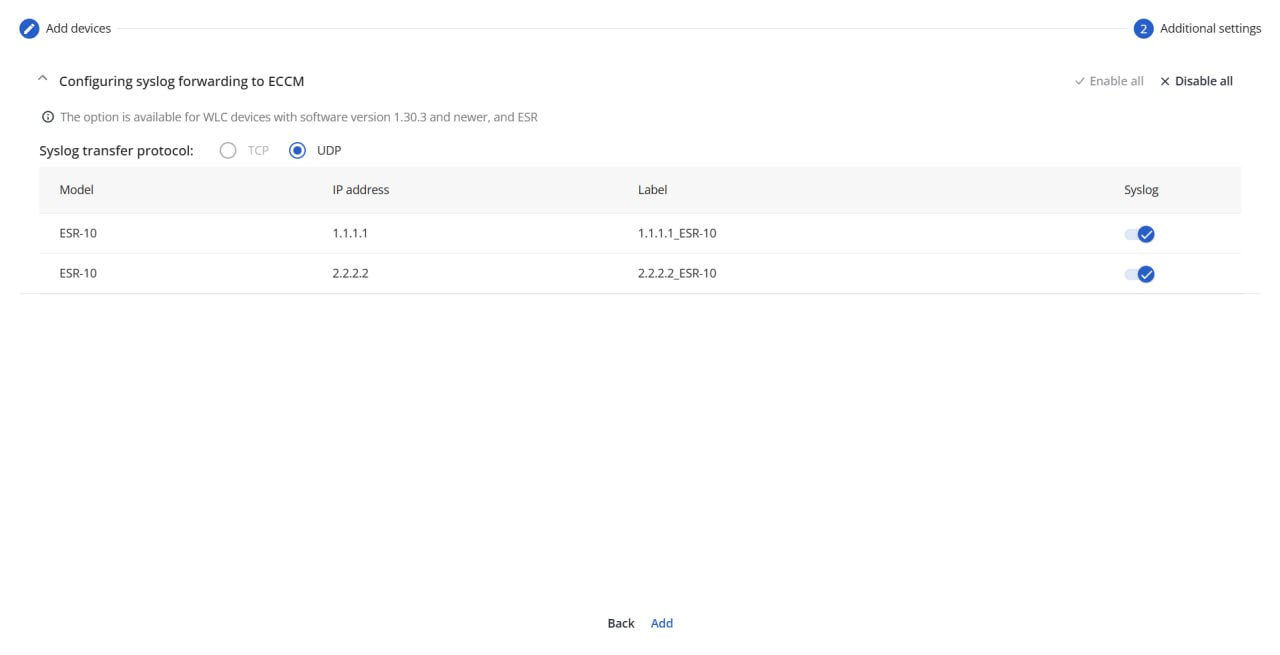
On the advanced settings page, select the devices for which you want to configure syslog message transmission to ECCM, and specify the syslog transmission protocol. Click the “Add” button at the bottom of the window:
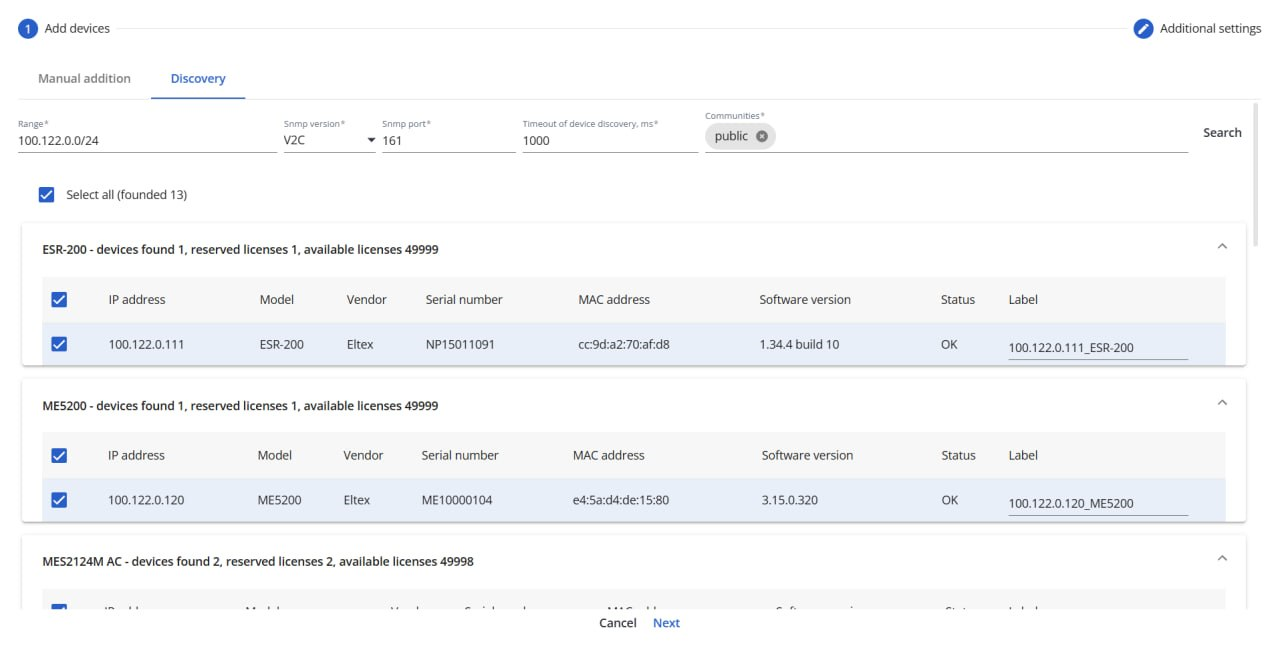
Method 2. Discovery
In the “Discovery” tab of the device addition window, devices connected to the network via the SNMP protocol can be detected. To do this, specify the search range and click the “Search” button. Select the devices you want to add to the system from the list of found devices, change their names (if necessary), and click the “Next” button.
On the additional settings page, select the devices for which the transmission of syslog messages to ECCM needs to be configured, and select the syslog transmission protocol. Click the “Add” button located at the bottom of the window:
The added devices will be displayed in the device table in the “Network” section:
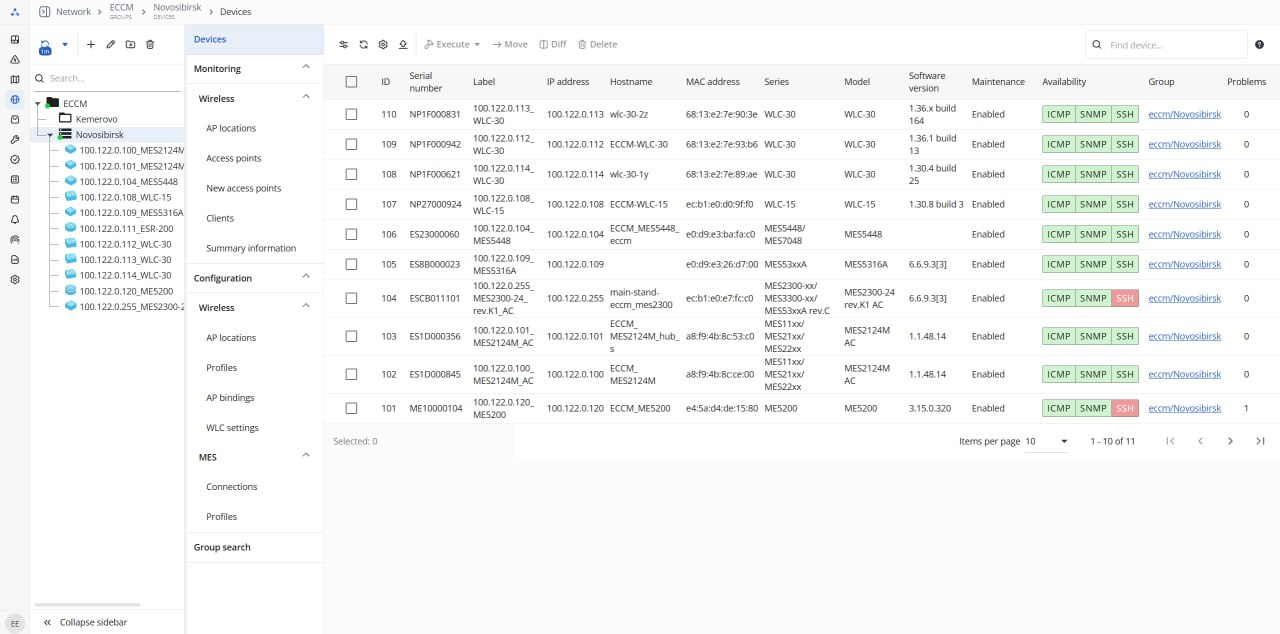
The “Wireless” section appears in the group menu if WLC devices are included in the system license. |
To view detailed information about a device, click on the row with its name in the table on the “Network” page or select the device in the object tree. The “Device” page will open:
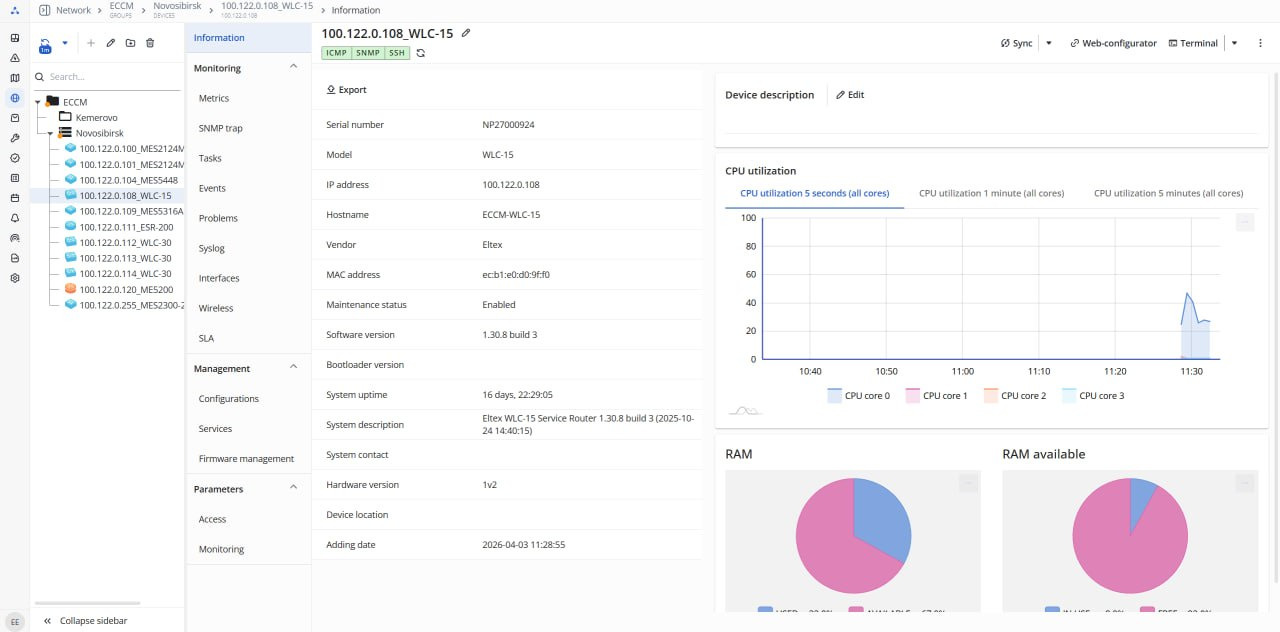
The system supports the collection of device metrics and parameters via the SNMP protocol. Device information is displayed in the “Information” and “Monitoring” menu sections on the device page.
During operation, ECCM polls the device using the ICMP, SNMP, and SSH protocols. Device availability statuses are displayed on the device page and in the device table in the “Network” section:
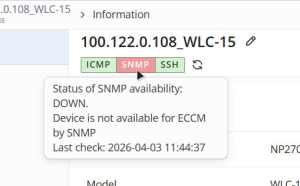
If the window with the protocol name is red, this means the device is not accessible via that protocol. If it is green, access is available.
In the example above, the device is not accessible via SNMP, but is accessible via ICMP and SSH.
Possible reasons for device unavailability (DOWN status):
|
To disable device polling via the protocol, as well as to configure the polling frequency and other parameters for monitoring the availability status of a specific device, go to the “Availability status” tab on the “Device page” → “Parameters” → “Monitoring” Global settings for polling the availability status of all devices added to the system can be changed via the “Availability status” tab on the “Settings” → “Monitoring” → “Params” → “Device monitoring” page. |
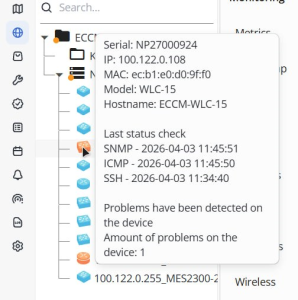
The device status is indicated by the color of the device icon in the object tree:
| Icon color | Description | |
|---|---|---|
| Blue | The device is available for use in the system |
| Grey | The device has not yet been synchronized |
| Dark grey | The device is not in service (blocked in the system) |
| Red | The device is unavailable |
| Orange | Problems have been detected on the device |
To view brief information about the device and see when its availability status was last checked, hover your cursor over the device icon:
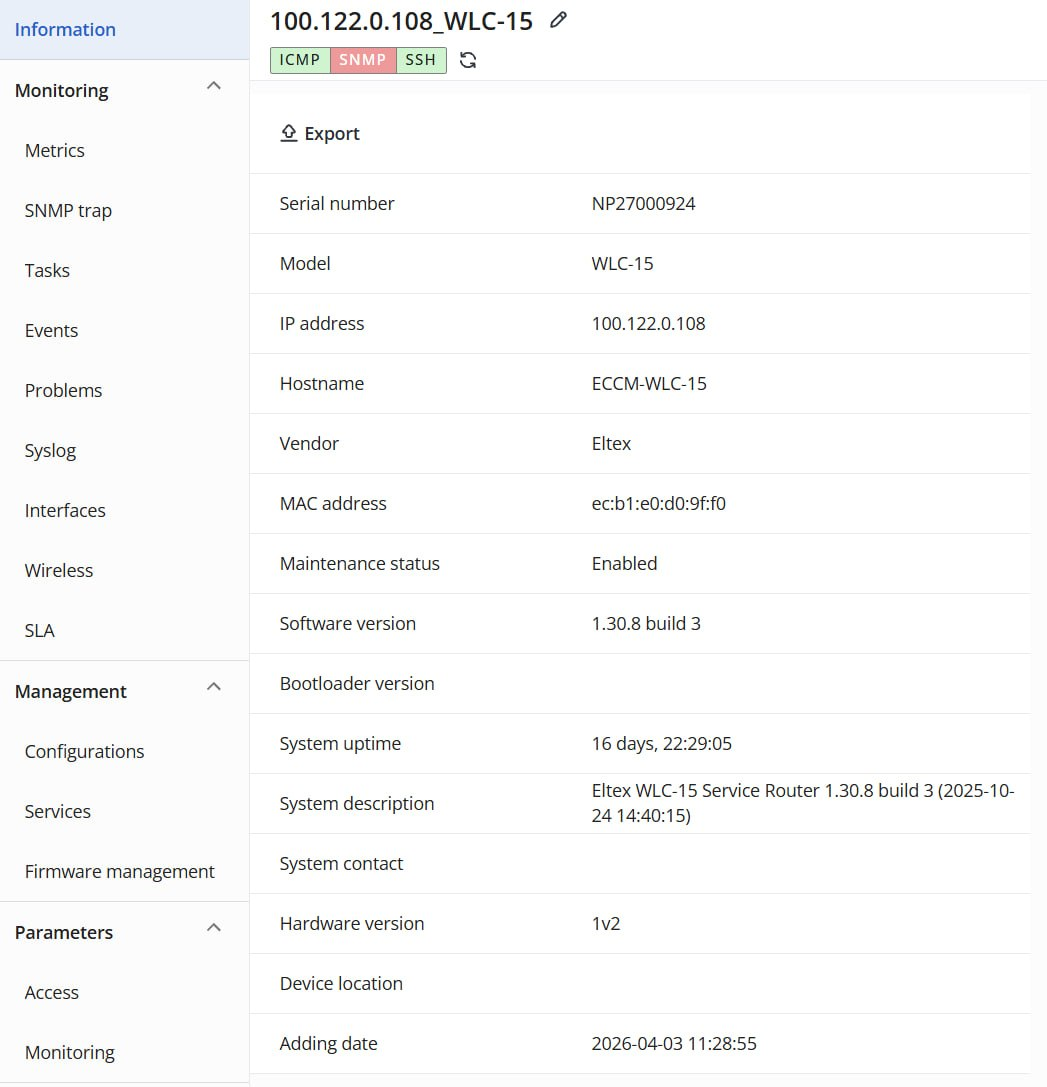
Device inventory information is located on the device page in the “Information” menu section. The “Export” button allows you to export the device’s inventory information to a CSV file.
To update device information, click the “Sync” button: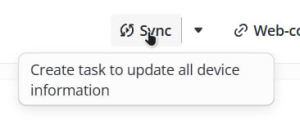
To update a specific type of information, click the  icon to the right of the “Sync” button and select from the list the type of data you want to retrieve from the device and update in the system:
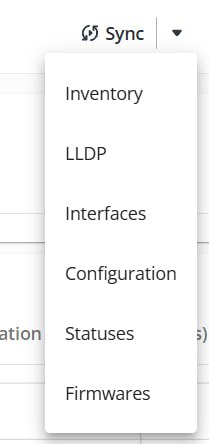
By default, inventory information is automatically updated by the system once an hour by sending an SNMP request to the device. You can disable inventory information collection or change the polling interval for a specific device in the “SNMP Metric Polling Intervals” tab on the “Device page” → “Parameters” → “Monitoring” page. Global settings for polling inventory information from all devices added to the system can be configured via the “SNMP metric polling intervals” tab on the “Settings” → “Monitoring” → ‘Params’ → “Device monitoring” page. |
To view device metrics, select the “Monitoring” → “Metrics” menu section.
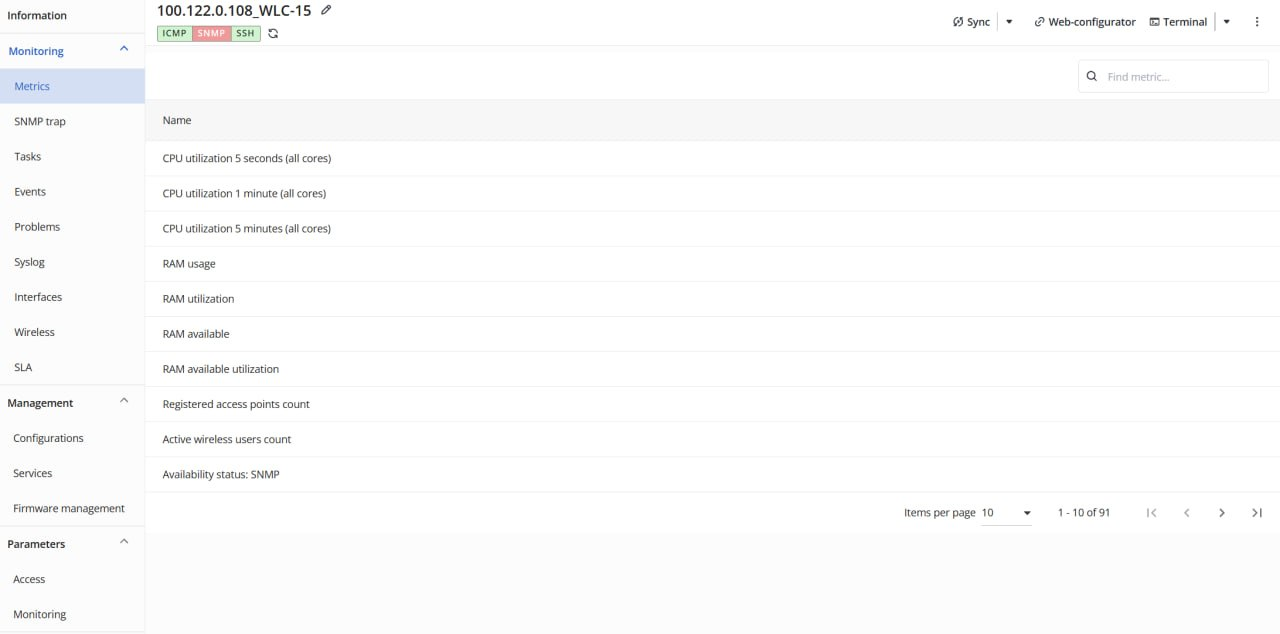
The page displays a table of device metrics. Clicking on a metric’s name opens its graph. On the graph, the sampling time range and data refresh interval can be configured.
The complete list of collected data types depends on the specific device and its configurations, such as the number of available processor cores or configured entities. General metrics, such as ICMP availability, are also monitored for all devices.
Device interface monitoring data is displayed in the “Monitoring” → “Interfaces” section on the device page.
Interface discovery occurs automatically every 5 minutes and is enabled by default. To manually trigger an update, click the  icon to the right of the “Sync” button and select “Interfaces” from the list that opens.
Interface metric updates are disabled by default. To update them, enable polling on the global monitoring settings page: “Settings” → “Monitoring” → ‘Params’ → “Device Monitoring” or on the device's personal settings page: “Device page” → “Parameters” → “Monitoring”. |
The “Lost” interface system status can take the following values:
Information about lost interfaces is deleted from the system database in accordance with the “Retention interval for lost entities” (20 minutes by default). You can change the retention interval for lost entities for all devices on the global settings page: “Settings” → “Monitoring” → ‘Params’ → “Device monitoring” or on the device's personal settings page: “Device page” → “Parameters” → “Monitoring”. |
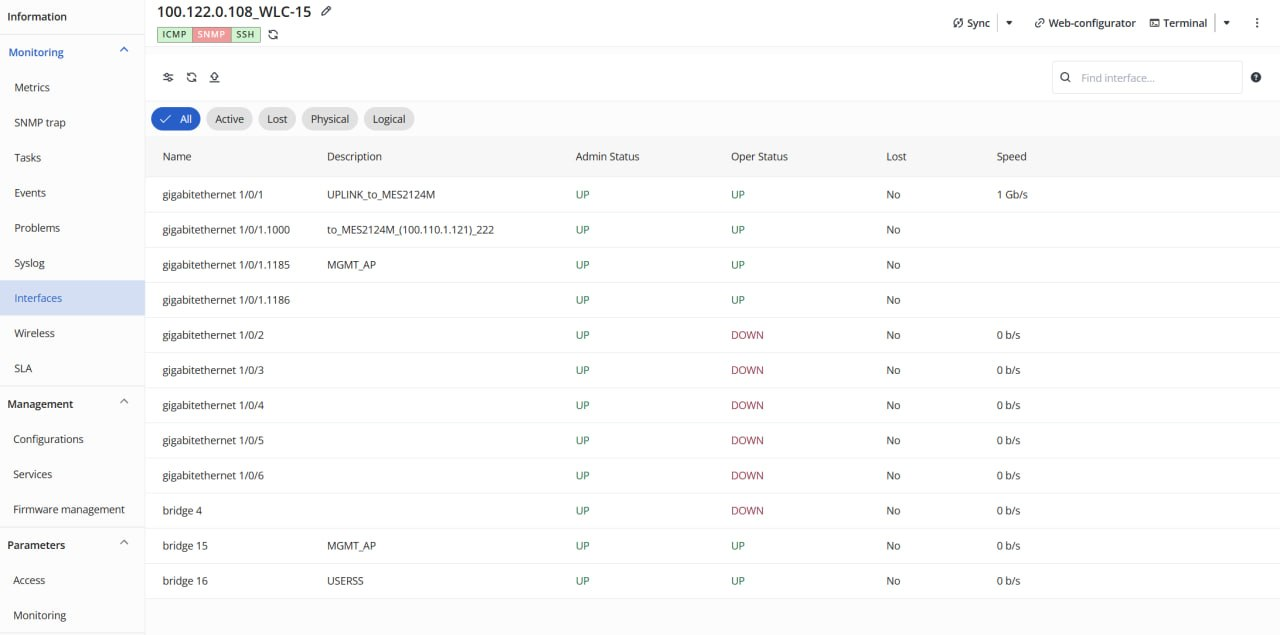
To get more detailed information about the desired interface (status, graphs of transmitted/received traffic, packets, and errors), click its name in the interface table.
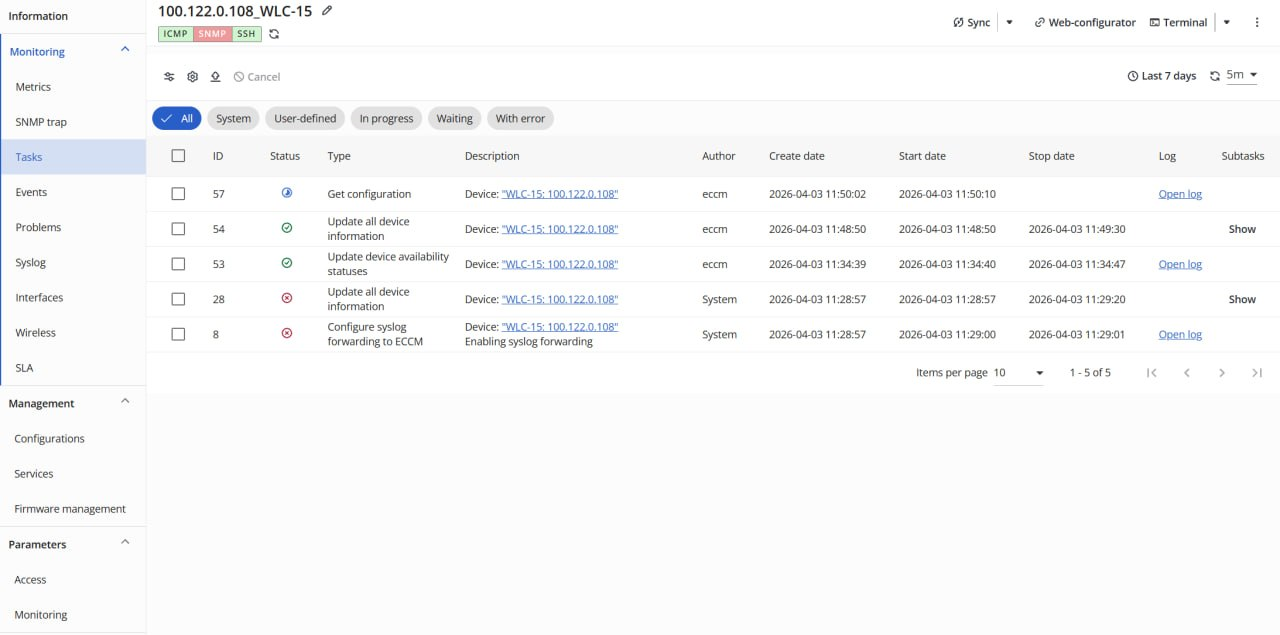
The “Monitoring” → “Tasks” section displays a table of tasks currently running in the system. The table includes the following details: task status, task type, author, subtasks, and the date and time the task was created, started, and completed.
When the task table is displayed, all subtasks are hidden: only the parent task with its overall status is shown. To view the subtasks, click the “Show” button in the “Subtasks” column.
To view the task execution log, click the “Open Log” link in the “Log” column.
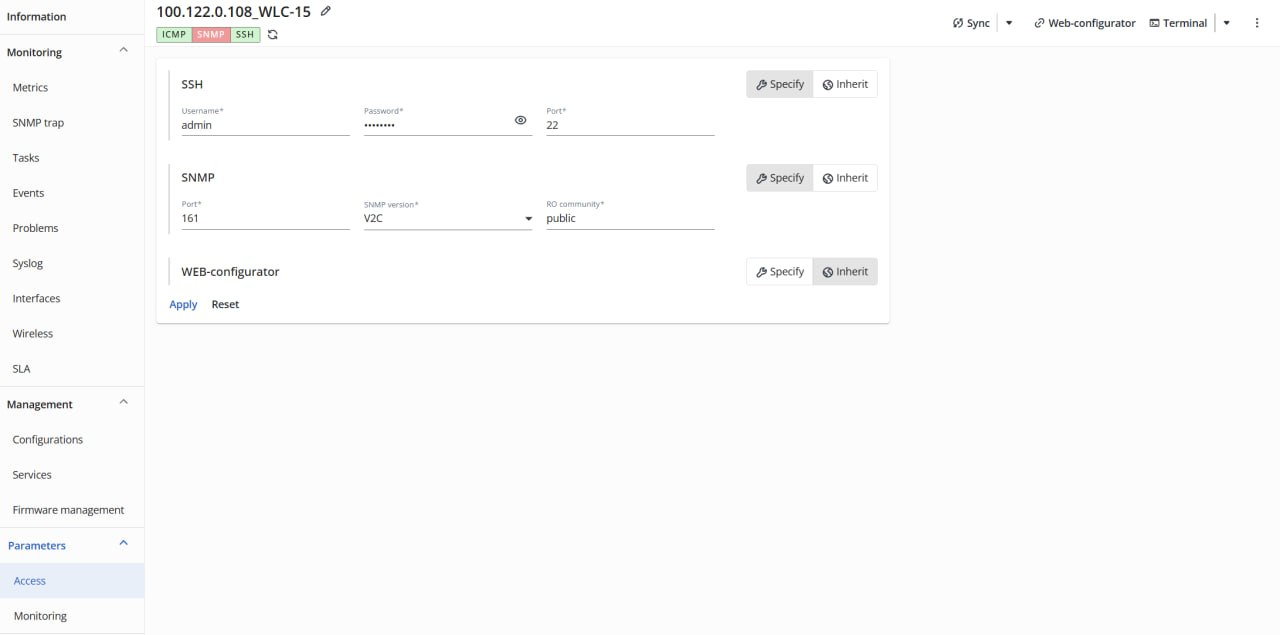
By default, access to the device uses the global (system-wide) access settings, which can be changed in the “Settings” → "System" → “Access” section.
To override the access settings for a specific device, go to the “Parameters” menu, select the “Access” tab, choose "Specify" in the desired access settings block, and specify the new settings. In the “Specify” mode, the system uses the settings from the selected access settings block on the page instead of the global settings.
Go to the “Management” → “Firmware Management” menu section on the device page. The table that opens will display a list of firmware installed on the device.
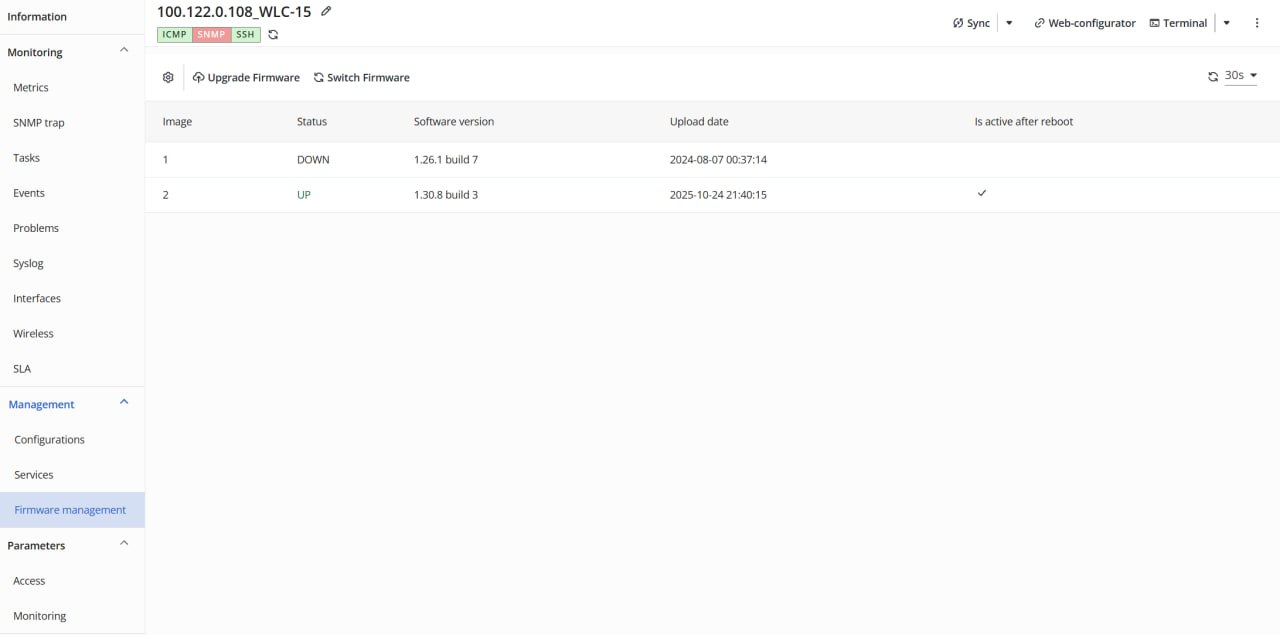
To obtain the latest information about the device's firmware, click the “Firmware” button in the “Sync” button menu or the “Sync” button. |
To update the device's firmware, click the “Upgrade Firmware” button: the update wizard window will open. The steps of the wizard are described below.
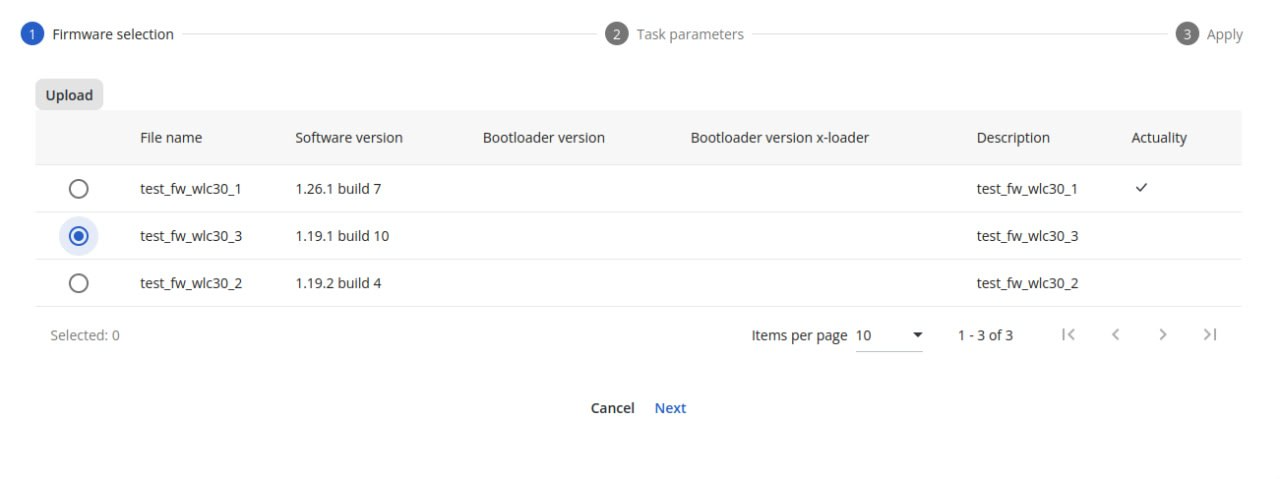
When selecting the MES14xx/MES24xx/MES3708, MES2424, MES2448/MES3400-xx/MES3710, or MES5448/MES7048 series, it is necessary to add a bootloader and specify its version. When selecting the ME series, the choice of U-boot/X-loader loaders is optional. |
The interface for viewing and managing device configurations is located in the “Management” → “Configurations” menu section on the device page.
For SMG devices, the “Configurations” section is not available. This type of device is configured using the web configurator. The button to access the web configurator is located at the top of the SMG device page. |
There are three types of device configurations in the system:
Running – the latest configuration received from the device (always displayed first in the configuration table);
Draft – a configuration prepared for uploading to the device;
Backup – a backup of the configuration from the device. When the current configuration is replaced with a new one, the old configuration is assigned the “Backup” type, and the new one is assigned the “Running” one.
To synchronize the device configuration, click the “Get configuration” button. The synchronization process runs automatically once an hour, as well as when a new device is added to the system.
To view a device's configuration, select the desired configuration in the table; it will then be displayed in preview mode in the window to the right of the table.
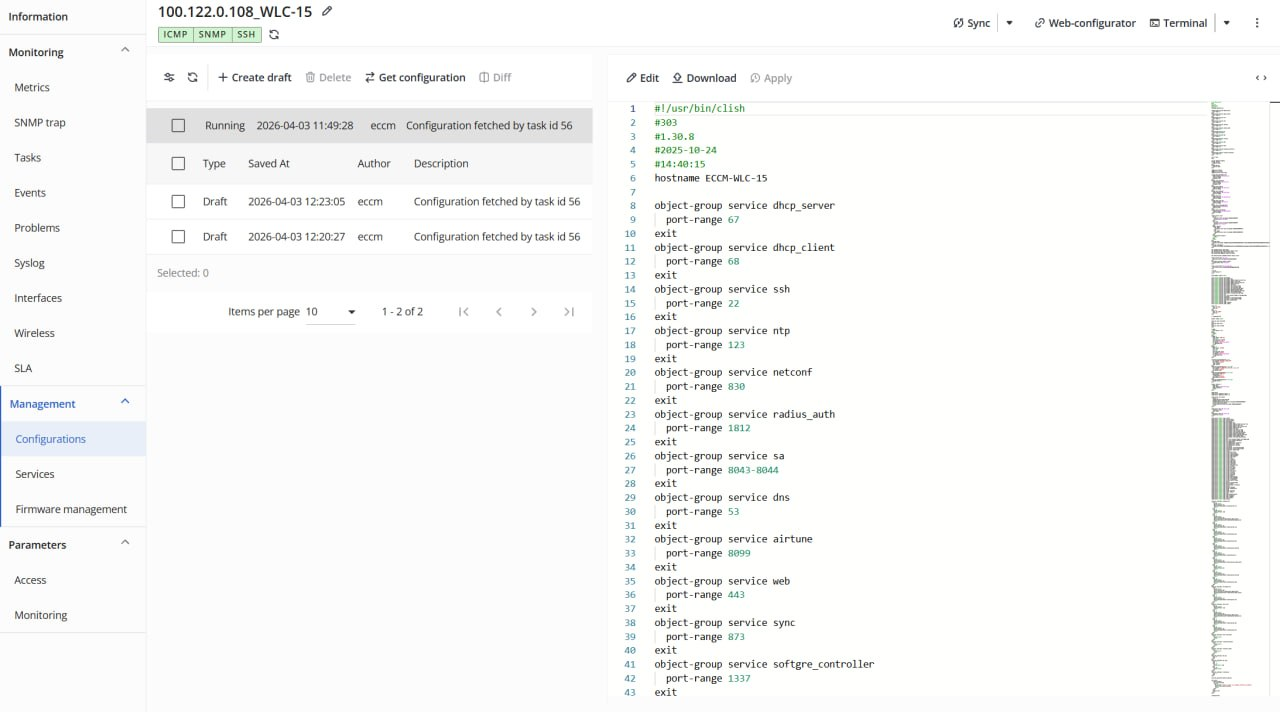
To compare configuration files for the same device, select (check) two configurations in the table and click the “Compare” button.
The configuration process differs for TAU/WLC/ESR/ME and MES devices. TAU/WLC/ESR/ME devices apply or reject the entire configuration, while MES devices apply individual changes immediately. Therefore, when working with ESR/WLC/ME/TAU, drafts containing the full device configuration are used, whereas for MES, drafts include only the necessary changes.
To edit an existing configuration, open the “Configurations” tab on the device page, select the configuration you need to change from the table, and click the “Edit” button: the configuration editor will open.
In the configuration editor, make the necessary changes and click one of the following buttons:
If you selected the “Save” option, select the new configuration from the list and click the “Apply” button to apply it.
Assume that an ESR router has been added to ECCM with the following configuration:
hostname ESR-TEST-10 syslog max-files 10 syslog file-size 10000 syslog cli-commands username techsupport password encrypted $6$n22HpZ8qlQzycF exit domain lookup enable domain name-server 1.1.1.1 security zone trusted exit security zone untrusted exit interface gigabitethernet 1/0/1 security-zone untrusted ip firewall disable ip address 100.110.0.130/23 exit snmp-server snmp-server location "Eltex-NSK4" snmp-server community "public" ro snmp-server community "private" rw ip route 0.0.0.0/0 100.110.0.1 ip telnet server ip ssh server clock timezone gmt +7 ntp enable ntp server 10.10.5.50 exit |
Task:
Procedure:
1. Go to the “Configurations” tab on the device page;
2. Click the “Get configuration” button to retrieve the device's current configuration;
3. Select the “Running” configuration in the configuration table and click the “Edit” button;
4. In the editor window that opens, make the necessary changes:
hostname ESR-TEST-10 syslog max-files 10 syslog file-size 10000 syslog cli-commands domain lookup enable domain name-server 1.1.1.1 security zone trusted exit security zone untrusted exit interface gigabitethernet 1/0/1 description "UPLink" security-zone untrusted ip firewall disable ip address 100.110.0.130/23 exit snmp-server snmp-server location "Room-444" snmp-server community "public" ro snmp-server community "private" rw ip route 0.0.0.0/0 100.110.0.1 ip telnet server ip ssh server clock timezone gmt +7 ntp enable ntp server 10.10.5.50 exit |
5. Click the “Save and apply” button. Once you've done this, an “Apply configuration” task will be created, and you can track its status in the ‘Monitoring’ → “Tasks” section;
6. Once the configuration application task is complete, the old configuration will be displayed as “Backup” in the configuration table, and the new configuration will be displayed as “Running.”
Assume that a MES switch has been added to ECCM with the following configuration:
no spanning-tree ! vlan database vlan 20 exit ! interface vlan 20 name OfficeNet exit ! hostname MES2324P ! enable password level 15 encrypted 5baa61e4c9b93f3f0682250b6cf8331b7ee68fd8 ! username admin password encrypted 5baa61e4c9b93f3f0682250b6cf8331b7ee68fd8 privilege 15 ! ip ssh server ! snmp-server server encrypted snmp-server community hXKI/nU2kUzqKGixTrnUEJk2X9/GnPd4ihiuEf9vIco= ro view Default encrypted snmp-server community 5O2f0coreE59RGZehVQFBLTUClcrZ1HxxBXSx3yu8I0= rw view Default ! interface gigabitethernet1/0/1 description PC switchport mode access vlan 20 exit ! interface gigabitethernet1/0/11 description to_office_network switchport mode trunk switchport trunk allowed vlan add 20 exit ! ! end |
Task:
Procedure:
1. Go to the “Configurations” tab on the device page;
2. Click the “Get configuration” button to retrieve the device's current configuration;
3. Select the “Running” configuration in the configuration table and click the “Edit” button;
4. In the editor window that opens, make the necessary changes:
vlan database vlan 1000 exit ! interface vlan 1000 name TestNet exit ! interface gigabitethernet1/0/11 switchport trunk allowed vlan add 1000 exit |
5. Click the “Save and apply” button. Once you've done this, an “Apply configuration” task will be created, and you can track its status in the ‘Monitoring’ → “Tasks” section;
6. Once the configuration application task is complete, the old configuration will be displayed as “Backup” in the configuration table, and the new configuration will be displayed as “Running.”
MES5448/MES7048 series switches have parameters theat are configured outside of the configuration mode (exec):
To configure parameters of interfaces and other protocols enter the "configure" command into the configuration template.
The complete documentation for the MES5448/7048 is available at the following link: MES5448, MES7048. User Manual. |
Example
Assume that the MES7048 switch has been added to ECCM with the following configuration:
serviceport protocol none serviceport ip 192.168.79.60 255.255.240.0 192.168.64.1 vlan database exit ip ssh server enable configure reset-button reload-only stack member 1 4 exit switch 1 priority 1 slot 1/0 3 set slot power 1/0 no set slot disable 1/0 username "admin" password 4fb1e35787dec level 15 encrypted line console exit line telnet exit line ssh exit ! snmp-server community "private" rw snmp-server community "public" ro router rip exit router ospf router-id 172.17.5.252 exit ipv6 router ospf exit exit |
Task:
Procedure:
1. Go to the “Configurations” tab on the device page;
2. Click the “Get configuration” button to retrieve the device's current configuration;
3. Click the "Create draft" button;
4. In the editor window that opens, make the necessary changes:
hostname "MES7048_TEST" <--- the "configure" mode is not required vlan database vlan 4000 vlan routing 4000 1 exit configure <--- below are "configure" mode commands interface 1/0/1 no shutdown vlan participation include 4000 vlan tagging 4000 exit exit |
5. Click the “Save and apply” button. Once you've done this, an “Apply configuration” task will be created, and you can track its status in the “Monitoring” → “Tasks” section;
6. Once the configuration application task is complete, the old configuration will be displayed as “Backup” in the configuration table, and the new configuration will be displayed as “Running.”
Assume that an ME series switch has been added to ECCM with the following configuration:
hostname R79

interface mgmt 0/fmc0/1
  ipv4 address 192.168.17.79/23
  vrf mgmt-intf
exit

vrf mgmt-intf
  rd 0:0
exit

router static
  vrf mgmt-intf
    address-family ipv4 unicast
      destination 0.0.0.0/0 192.168.16.1
      exit
    exit
  exit
exit

telnet server vrf mgmt-intf
exit

ssh server vrf mgmt-intf
exit |
Task:
Procedure:
1. Go to the “Configurations” tab on the device page;
2. Click the “Get configuration” button to retrieve the device's current configuration;
3. Select the “Running” configuration in the configuration table and click the “Edit” button;
4. In the editor window that opens, make the necessary changes:
hostname R79

interface mgmt 0/fmc0/1
  ipv4 address 192.168.17.79/23
  vrf mgmt-intf
exit

vrf mgmt-intf
  rd 0:0
exit

router static
  vrf mgmt-intf
    address-family ipv4 unicast
      destination 0.0.0.0/0 192.168.16.1
      exit
    exit
  exit
exit

telnet server vrf mgmt-intf
exit

ssh server vrf mgmt-intf
exit |
# New settings block

snmp server sysContact "Ivanov Ivan"
snmp server sysLocation "Novosibirsk"
snmp server vrf mgmt-intf
  community label eltex-ro
    community-name public
  exit
  user eltex-ro
    authentication access auth
    authentication algorithm md5
    authentication key password
  exit
exit

ntp vrf mgmt-intf
  server 192.168.16.113
  exit
exit
clock timezone gmt 7 |
5. Click the “Save and apply” button. Once you've done this, an “Apply configuration” task will be created, and you can track its status in the “Monitoring” → “Tasks” section;
6. Once the configuration application task is complete, the old configuration will be displayed as “Backup” in the configuration table, and the new configuration will be displayed as “Running.”
Assume that a WLC controller has been added to ECCM with the following configuration (in the example the only part of configuration is shown):
radius-server local
  nas local
    key ascii-text encrypted 8CB5107EA7005AFF
    network 127.0.0.1/32
  exit
  virtual-server default
    enable
  exit
  enable
exit
radius-server host 127.0.0.1
  key ascii-text encrypted 8CB5107EA7005AFF
exit
aaa radius-profile default_radius
  radius-server host 127.0.0.1
exit

vlan 3
  force-up
exit

interface gigabitethernet 1/0/1
  mode switchport
exit
bridge 1
  vlan 1
  ip firewall disable
  ip address 192.168.1.1/24
  no spanning-tree
  enable
exit

snmp-server
snmp-server community public ro

softgre-controller
  nas-ip-address 127.0.0.1
  data-tunnel configuration wlc
  aaa radius-profile default_radius
  keepalive-disable
  service-vlan add 3
  enable
exit

wlc
  outside-address 192.168.1.1
  service-activator
    aps join auto
  exit
  ap-location default-location
    mode tunnel
    ap-profile default-ap
    ssid-profile default-ssid
  exit
.....
  enable
exit

ip ssh server |
Task:
Procedure:
1. Go to the “Configurations” tab on the device page;
2. Click the “Get configuration” button to retrieve the device's current configuration;
3. Select the “Running” configuration in the configuration table and click the “Edit” button;
4. In the editor window that opens, make the necessary changes:
hostname WLC_floor2

radius-server local
  nas local
    key ascii-text encrypted 8CB5107EA7005AFF
    network 127.0.0.1/32
  exit
  virtual-server default
    enable
  exit
  enable
exit
radius-server host 127.0.0.1
  key ascii-text encrypted 8CB5107EA7005AFF
exit
aaa radius-profile default_radius
  radius-server host 127.0.0.1
exit

vlan 3
  force-up
exit

interface gigabitethernet 1/0/1
  mode switchport
exit
bridge 1
  vlan 1
  ip firewall disable
  ip address 192.168.1.1/24
  no spanning-tree
  enable
exit

snmp-server community public ro

softgre-controller
  nas-ip-address 127.0.0.1
  data-tunnel configuration wlc
  aaa radius-profile default_radius
  keepalive-disable
  service-vlan add 3
  enable
exit

wlc
  outside-address 192.168.1.1
  service-activator
    aps join auto
  exit
  ap-location default-location
    mode tunnel
    ap-profile default-ap
    ssid-profile default-ssid
  exit
  ssid-profile test_ssid
    ssid test_ssid
    vlan-id 3
    security-mode WPA2
    key-wpa ascii-text encrypted CDE65039E5591FA3
    band 5g
    enable
  exit
.....
  enable
exit

ip ssh server |
5. Click the “Save and apply” button. Once you've done this, an “Apply configuration” task will be created, and you can track its status in the “Monitoring” → “Tasks” section;
6. Once the configuration application task is complete, the old configuration will be displayed as “Backup” in the configuration table, and the new configuration will be displayed as “Running.”
Steps for using the web configurator:
1. Go to the device page;
2. Click the “Web-configurator” button located at the top of the page; a new tab with the device configurator's web interface will open automatically:

3. In the login window, enter your username and password to access the device:
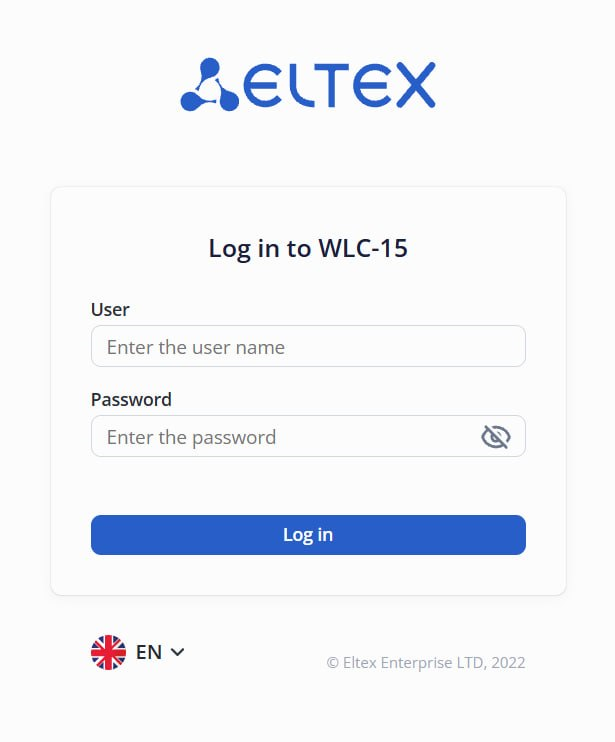
4. In the window that opens, make the necessary changes.
Assume that a TAU series VoIP gateway has been added to ECCM with the following configuration
network ntp enable ntp interval 60 ntp address 192.168.11.1 ntp timezone 7 vlan1 broadcast 100.110.1.255 vlan1 ipaddr 100.110.1.131 vlan1 netmask 255.255.254.0 vlan1 vid 1000 vlan1 enable snmp enable telnet control vlan1 exit passwd admin encrypted:8F7F9F9D976G5B97 devname ECCM-TAU-72 timer duration 20 |
Task:
Procedure:
1. Go to the “Configurations” tab on the device page;
2. Click the “Get configuration” button to retrieve the device's current configuration;
3. Select the “Running” configuration in the configuration table and click the “Edit” button;
4. In the editor window that opens, make the necessary changes:
network ntp enable ntp interval 60 ntp address 192.168.11.2 ntp timezone 7 vlan1 broadcast 100.110.1.255 vlan1 ipaddr 100.110.1.131 vlan1 netmask 255.255.254.0 vlan1 vid 1000 vlan1 enable vlan1 description "Main Network" snmp enable telnet control vlan1 exit devname ECCM-TAU-72 timer duration 20 |
5. Click the “Save and apply” button. Once you've done this, an “Apply configuration” task will be created, and you can track its status in the “Monitoring” → “Tasks” section;
6. Once the configuration application task is complete, the old configuration will be displayed as “Backup” in the configuration table, and the new configuration will be displayed as “Running.”
Steps for using the web configurator:
1. Go to the device page;
2. Click the “Web-configurator” button located at the top of the page; a new tab with the device configurator's web interface will open automatically:

3. In the login window, enter your username and password to access the device:
4. In the window that opens, make the necessary changes.
Assume that an SMG trunk gateway has been added to ECCM.
Task:
Procedure:
1.Go to the device page;
2. Click the “Web-configurator” button located at the top of the page; a new tab with the device configurator's web interface will open automatically:

3. In the login window, enter your username and password to access the device:
4. In the window that opens, make the necessary changes.
Templates consist of a sequence of CLI commands used to modify the configuration of the device. These commands will be applied to the device exactly as they are written in the template and in the same order.
To create a template, go to the “Templates” page and click the “Create” button. In the dialog box that opens, enter the template name in the corresponding field, enter the necessary configuration commands in the editor area, and click the “Create” button. The new template will appear in the list of templates:
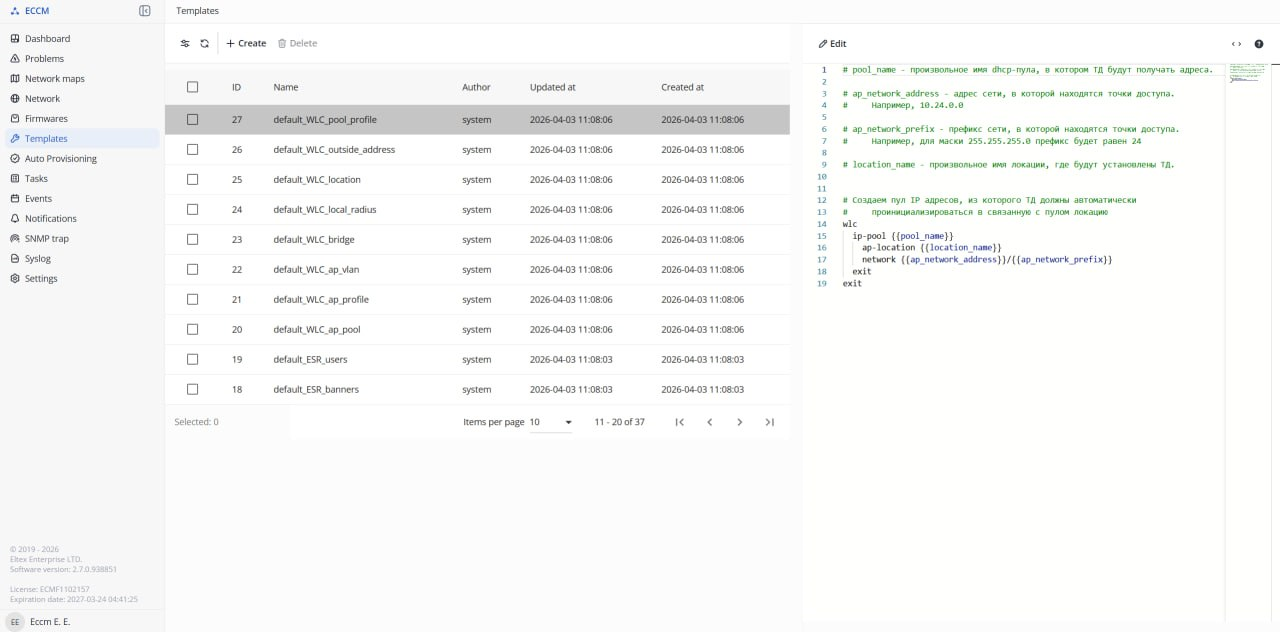
A template for creating a new "snmp community" parameter:
snmp-server community {{ community }} {{ mode }} |
A template for changing description and IP address of the gigabitethernet interface:
interface gigabitethernet {{ intf }}
 description {{ description }}
ip address {{ address }} |
In the examples above {{ community }}, {{ mode }}, {{ intf }}, {{ description }} and {{ address }} are variables, values of which are specified at the step 2 of the configuration wizard (details are provided in the "Applying the configuration template" section of this guide).
To apply a configuration template to one or more devices, go to the “Network” section. Check the boxes next to one or more devices in the table, then click the “Apply” button. Next, select the “Configure” option: the setup wizard window will open. The steps of the wizard are described below.
1. Selecting a template: In this step, you must select the configuration template to be deployed to the selected devices;
2. Filling variables: In this step, a form will open where you must specify a value for each user variable found in the template; you can also preview the template here;
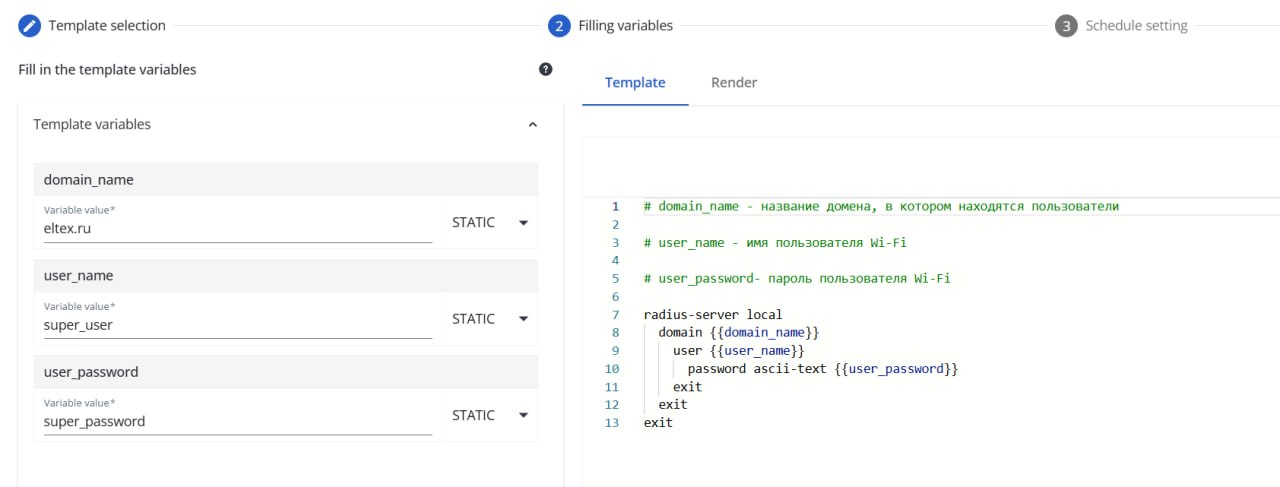
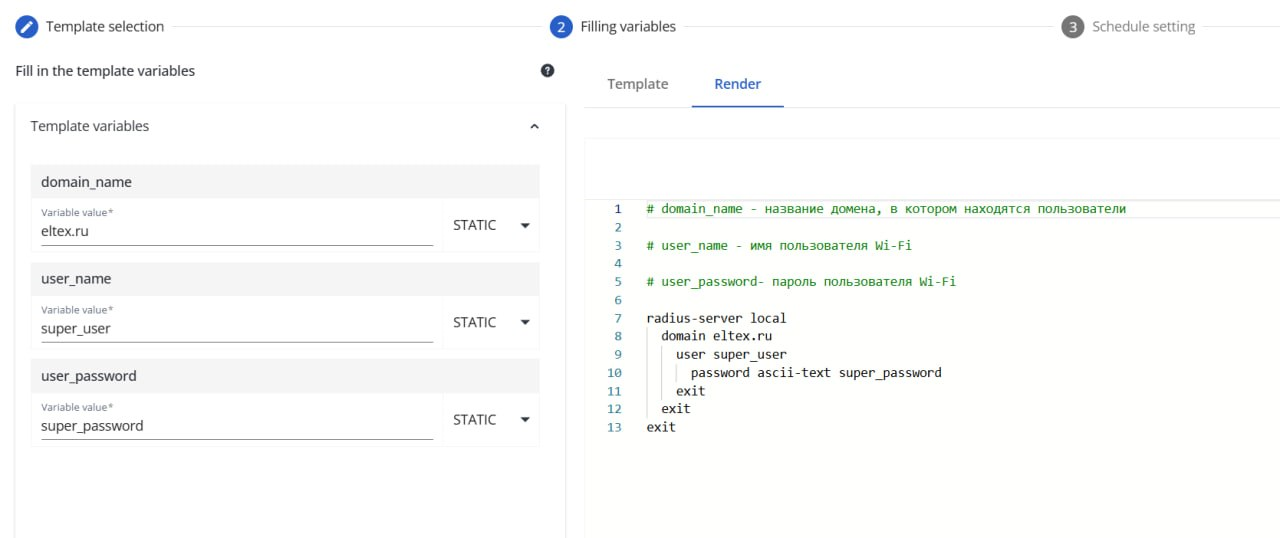
3. Schedule setting: In this step, you can configure the task start time and the update strategy (see the “Schedule setting” section of the User Guide for more details);
4. Apply: In this step, all previously specified schedule parameters, the selected template, and the list of devices are displayed on the screen. Clicking on a device in the table will open the configuration variant in the “Render” tab that will be applied to the device. After clicking the “Apply” button, a task will be created, which will begin at the time specified in step 3.
Event generation rules are designed to create events in the system. The data sources used for event logging include SNMP traps, logs, wireless events (WLC only), device SNMP metrics, and tasks performed on devices. Rules consist of groups of conditions combined using the logical operators “AND” or “OR.” Each individual condition, in turn, consists of a data element, a comparison operator, and a threshold value. When a trap or log is received, the system checks for compliance with existing rules: if the trap/log is found to match a rule, the system creates an event in the “Events” → “System” log. Event detection based on metrics, wireless events, and tasks works in a similar way, with the difference that metrics are collected directly by the system, wireless events are generated by the system itself based on logs received from WLC devices, and tasks are created within the system.
Task:
Create two event generation rules for all ESR routers with a severity level of “Critical” and names “esr interface linkDown” and “esr interface linkUp,” which will be triggered if the system detects “linkDown” and “linkUp” traps.
Solution:
1. Open the “Settings” → ‘Monitoring’ → “Event generation rules” page and click the “Create” button. The event generation rule creation window will open.
2. Create the "esr interface linkDown" rule. Fill in the following parameters:
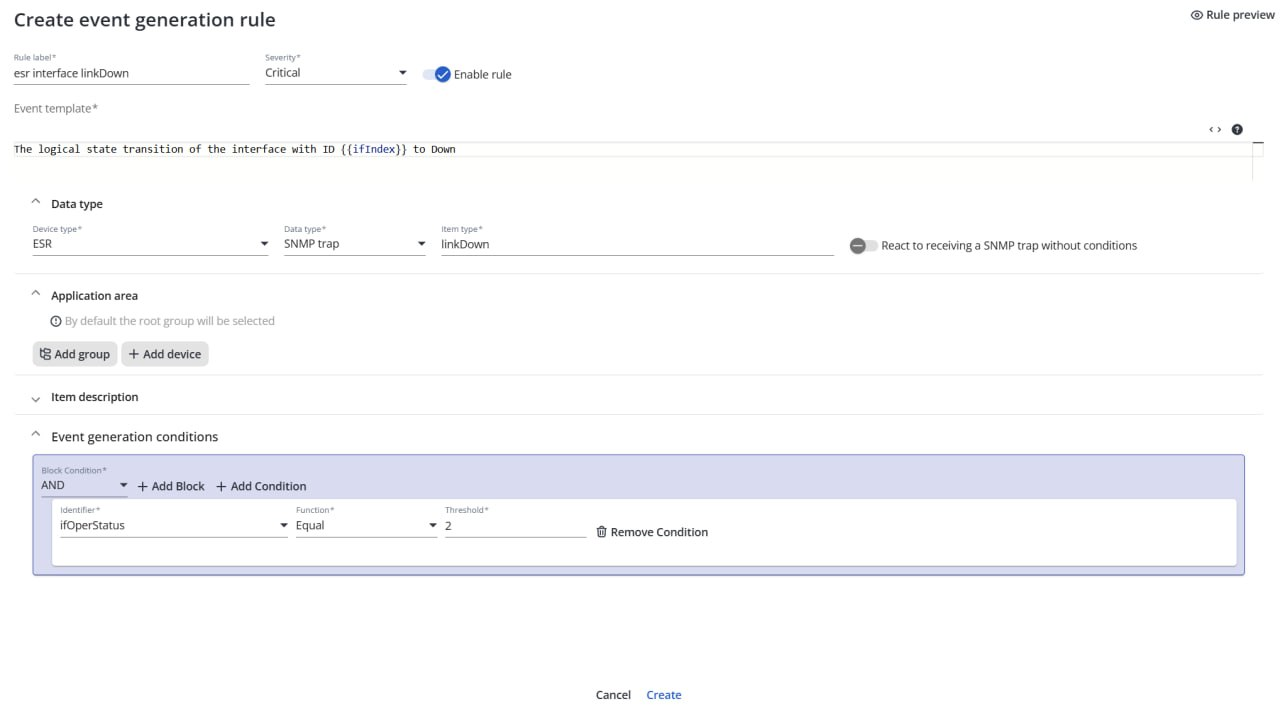
3. Click the "Create" button.
4. In the same way create the "esr interface linkUp" rule. Fill in the following parameters:
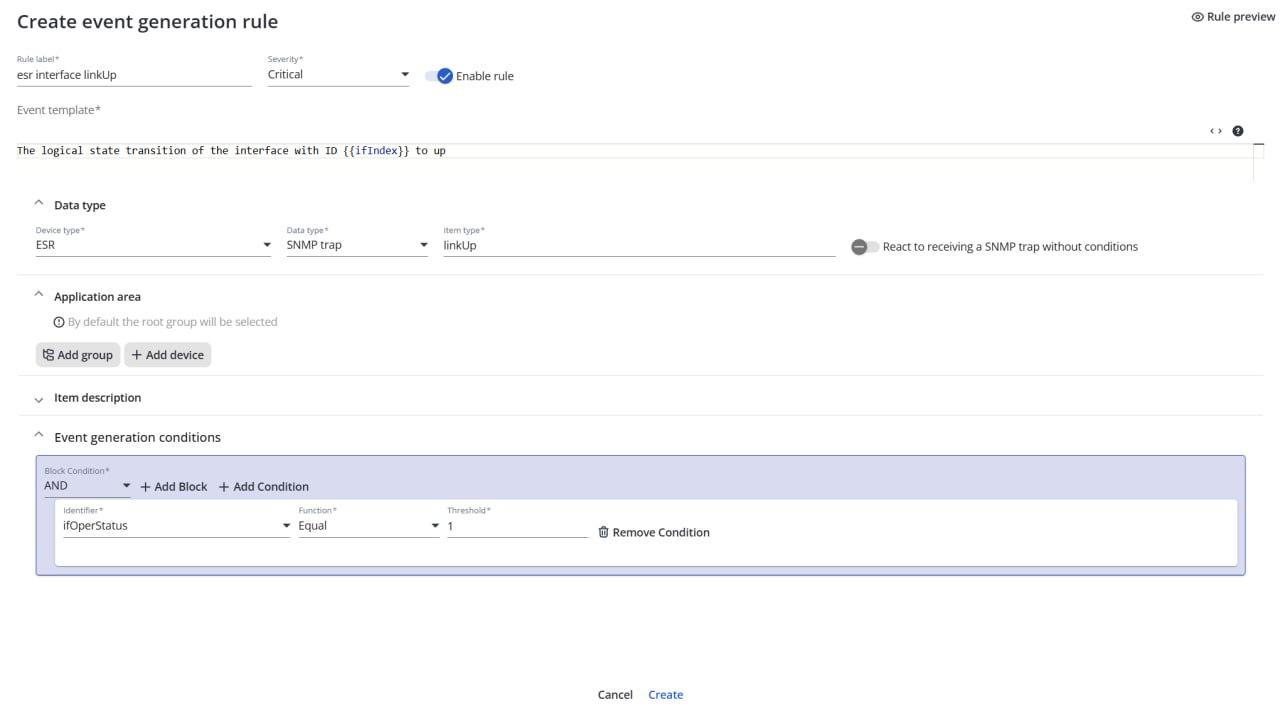
5.Click the "Create" button.
Conclusion:
These events will also be displayed on the specific device’s page in the “Device Monitoring” → “Events” section.
Problem generation rules are necessary for creating device problems in the system. The problem detection mechanism is based on counting the number of system events recorded over specific time intervals. Rules consist of groups of conditions linked using the logical operators “AND” or “OR.” Each individual condition, in turn, consists of a specific event, a comparison operator, the number of occurrences of that event, and problem keys that determine the uniqueness of the problem based on event fields. A time interval is specified for the entire rule, during which the problem data is analyzed. Within the rule, you can also set a problem normalization condition, the fulfillment of which will automatically close the created problems.
To create a problem generation rule, at least one event generation rule must exist in the system. |
Task:
Suppose there are two event generation rules in the system: “esr interface linkDown” and “esr interface linkUp”. You need to create a problem generation rule with a severity level of “Critical” and the name “esr interface status down,” which will trigger for each interface with a unique index associated with a device with a unique ID if the “esr interface linkDown” event has been logged one or more times within 5 minutes. Also, create a problem normalization rule that will automatically close the created problems for each interface with a unique index associated with a device with a unique ID, if the “esr interface linkUp” event has been logged one or more times within 5 minutes.
Solution:
1. Go to “Settings” → ‘Monitoring’ → “Problem generation rules” and click the “Create” button. A dialog box for creating a problem generation rule will open.
2. Fill in the following sections:
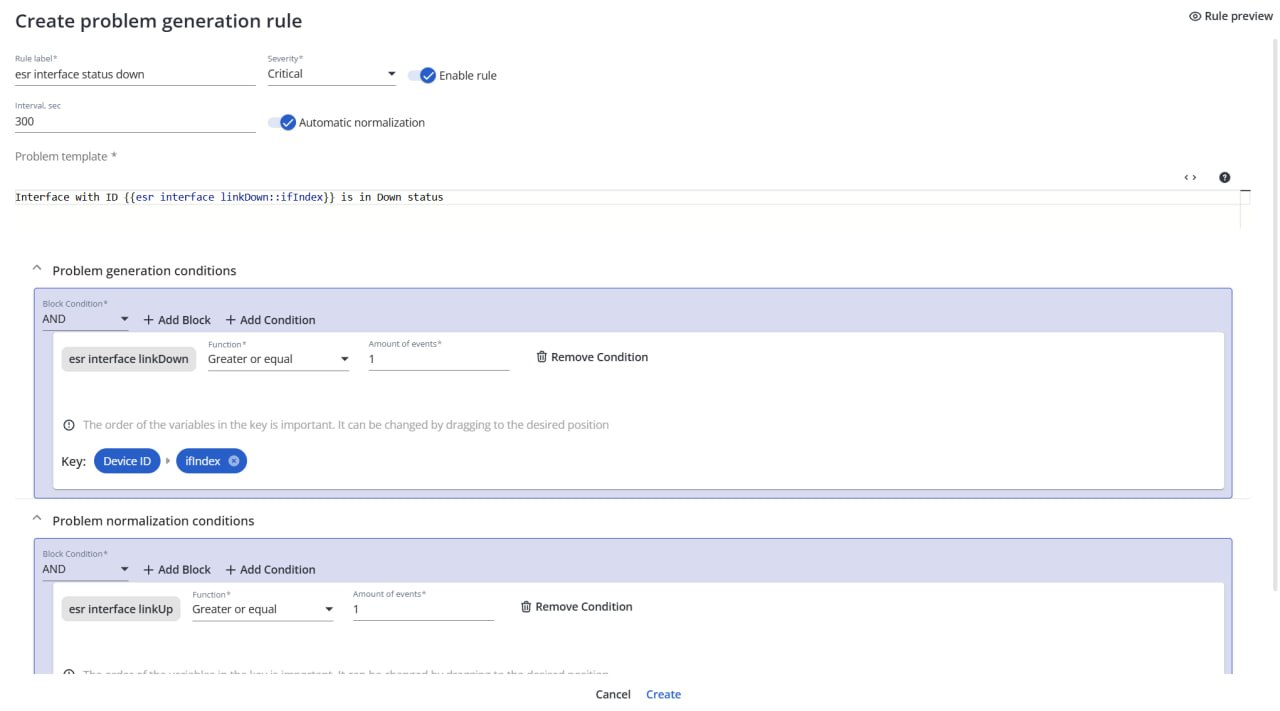
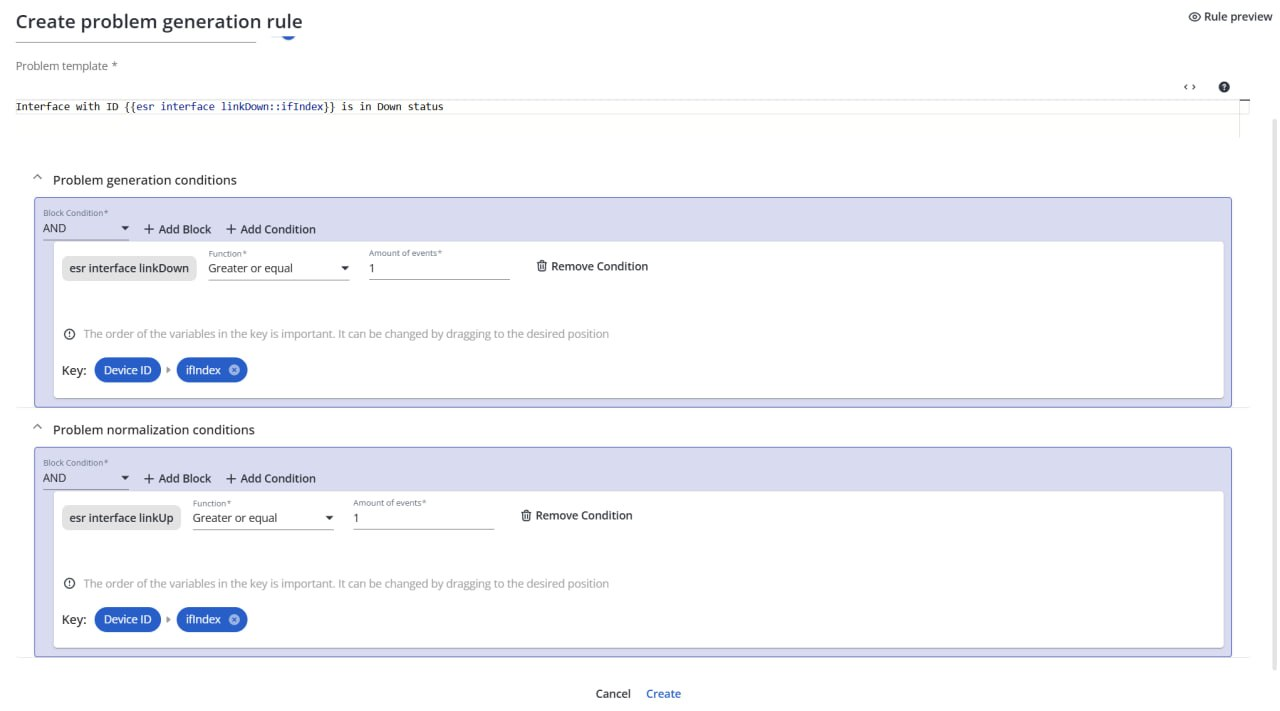
3. Click the "Create" button.
Conclusion:
If one or more “esr interface linkDown” events are detected by the system within a set interval of 300 seconds, an issue labeled “esr interface status down” will appear in the table on the “Issues” page, generated in accordance with the rule configured above. This issue will be automatically closed by the system if the issue normalization condition is met, specifically if one or more “esr interface linkUp” events are recorded within the set interval of 300 seconds."
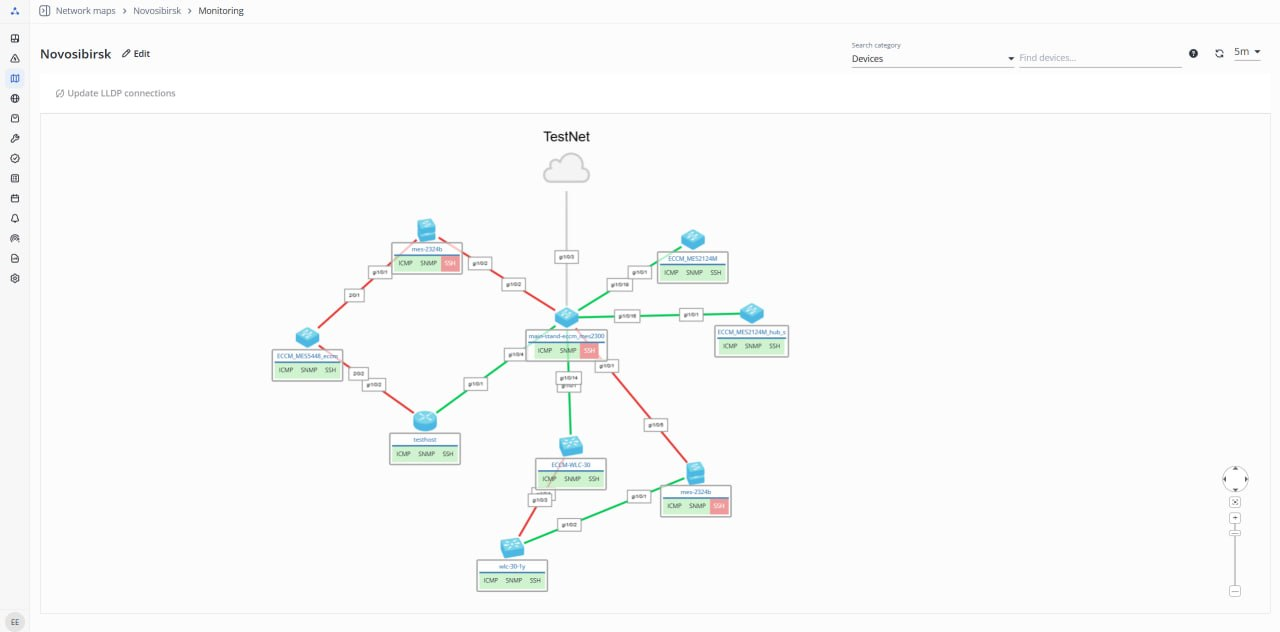
A network map is a logical, graphical, and schematic representation of the interactions between network devices. This section makes it possible to define device connections within a single group and monitor device availability on the map. The steps for creating a network map are listed below:
1. Open the “Network Maps” page and click the “Create” button. The network map editor will open;
2. Enter the map name in the “Name” field and select the group of devices to add in the “Group” field;
3. Click the “Add devices” button. In the window that opens, select the devices you want to display on the map and click “Select.” The device node will appear on the map;
4. To add a connection between nodes, hover the cursor over one of the devices, left-click on the point that appears on the device, and, holding the mouse button, drag it to the second device;
5. In the connection interface selection window that opens, select the interfaces via which the devices are connected (if LLDP is active on the devices, the connections between devices on the map will be established automatically);
6. Click the “Save” button.
To view the network map, open the “Network maps” page and click on its name in the table.
To create a new user account for the system, go to “Settings” → “System” → “Users and roles,” navigate to the “Users” tab, and click the “Create” button. The user creation form will open.
When creating a user, you can choose the user type: local or LDAP
In the form that opens, fill in the required fields (marked with an asterisk) and select the groups of devices and system objects to which the user will be granted access. To select an access group, click the “Add” button located at the bottom of the form, then specify the group and click “Select.”
After filling in all required fields in the “Create user” form, click the “Create” button located at the bottom of the form.
The role system provides flexible configuration of user privileges, which determine their level of access to various sections and system features.
By default, three roles are included in the system:
To create a new role, go to the “Settings” → “System” → “Users and roles” section, navigate to the “Roles” tab, and click the “Create” button. The role creation form will open. In the form that opens, fill in the required fields and select the privileges that will be available to the new role. After filling in the required fields in the “Create role” form, click the “Create” button located at the bottom of the form.


