Today, means of communication utilizing state-of-the-art hardware and software solutions evolve rapidly. At that, the following problem arises: how to implement new communication devices that utilize alternative data transmission principles into existing communication networks.
The solution is to use special equipment that interconnects the diverse network segments. Currently, such equipment is represented by digital gateways. They allow a gradual transition from existing communication networks to more efficient ones that utilize alternative operation principles.
At present, IP networks are considered to be the most efficient as they are weakly related to the data transfer environment or data type and also flexible and manageable. Designed and manufactured by Eltex, SMG digital gateway allows interfacing of traditional communication networks based on the circuit-switching principle with communication networks used packet-switching data transmission.
This operation manual details main features of SMG-1016M, SMG-2016 and SMG-3016 digital gateways. In this document you will find technical specifications of the gateway and its components. Also, it contains an overview of the operation procedure and software-based maintenance.
Digital gateways SMG-1016M, SMG-2016 and SMG-3016 allow interfacing of PSTN (E1) signalling and media streams and VoIP networks, and also perform media gateway functions (codec conversion, conference call establishing, tone signal/DTMF reception and generation, voice message output).
The number of E1 paths supported by SMG can reach 16, the number of conversational (media) channels on the E1 side is up to 495 and on the VoIP side is 768 (when using the G.711 codec with packetization time 20 ms or greater).
The gateway submodular design allows one to flexibly change the capacity, and the minimum number of module types makes it easier to expand and upgrade the system.
SMG is an optimal and robust solution for telecommunication infrastructure upgrade, development and migration from PSTN to NGN.
The gateway allows one to organize one E1 stream per SORM console. E1 stream operating according to the SORM protocol contains 28 conversational channels for listening controlled subscribers. During combined control, the audio traffic from А and В subscribers is mixed to the SORM stream voice channel. Mixing of sound streams is performed using a three-way conference on the VoIP submodule. One VoIP submodule supports 27 three-way conferences. Thus, to ensure the possibility of interception simultaneously on all channels of the E1 stream, it is necessary that at least 2 VoIP submodules were installed on the gateway.
SMG main specifications:
|
SIP/SIP-T/SIP-I functions:
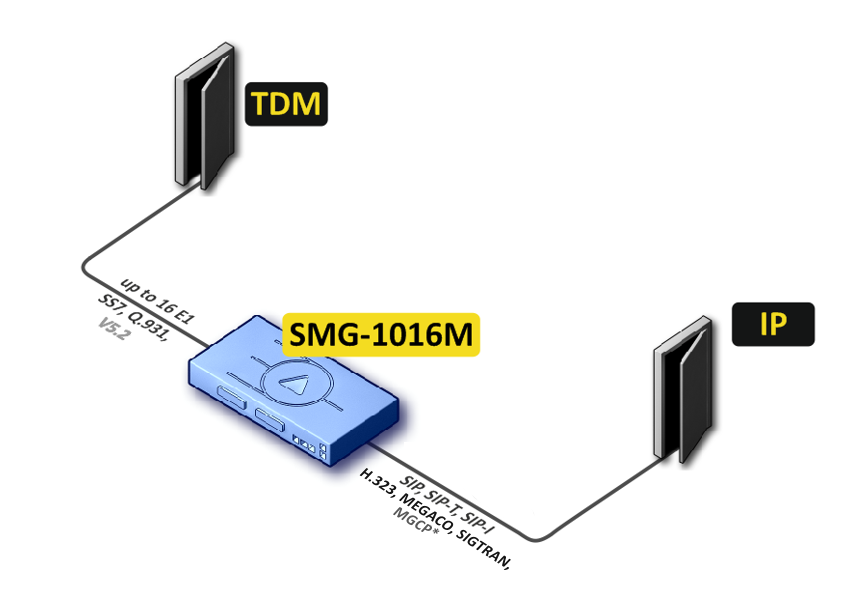
This manual covers several SMG device connection methods.
In this configuration, device enables connection for up to 16 E1 streams with various signalling protocols (SS7, ISDN PRI/QSIG/CORNET, V5.2) and maintenance for up to 768 channels uncompressed (G.711 codec), up to 432 channels compressed (G.729 A/20-80), or 324 T.38 fax channels.
Device connects to the IP network via 10/100/1000BASE-T network interface using H.323/SIP/SIP-T/ SIP-I protocols.
* – not supported in the current version
Figure 1 – Interfacing of TDM and VoIP network signalling and media streams
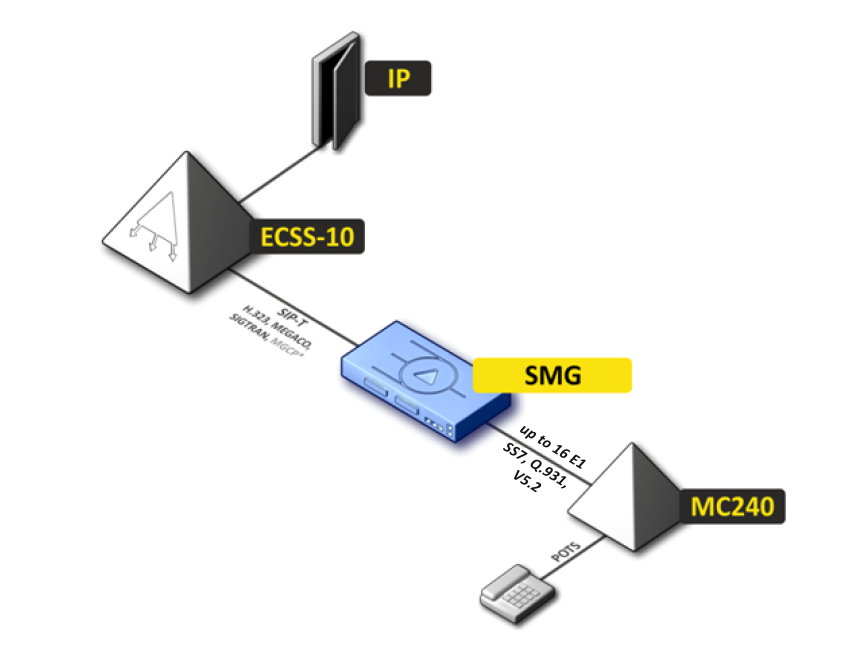
Figure 2 shows TDM and VoIP network interfacing example on interaction between МС240 digital PBX and ECSS-10 software switch.
* – not supported in the current version
Figure 2 – Interfacing of TDM and VoIP network signalling and media streams
In this configuration, device provides the registration of up to 2000 subscribers for SMG-1016M and up to 3000 for SMG-2016 and SMG-3016 as well as the interaction with PSTN network via 16 E1 streams with various signalling protocols (SS7, ISDN PRI/QSIG/CORNET, V5.2).
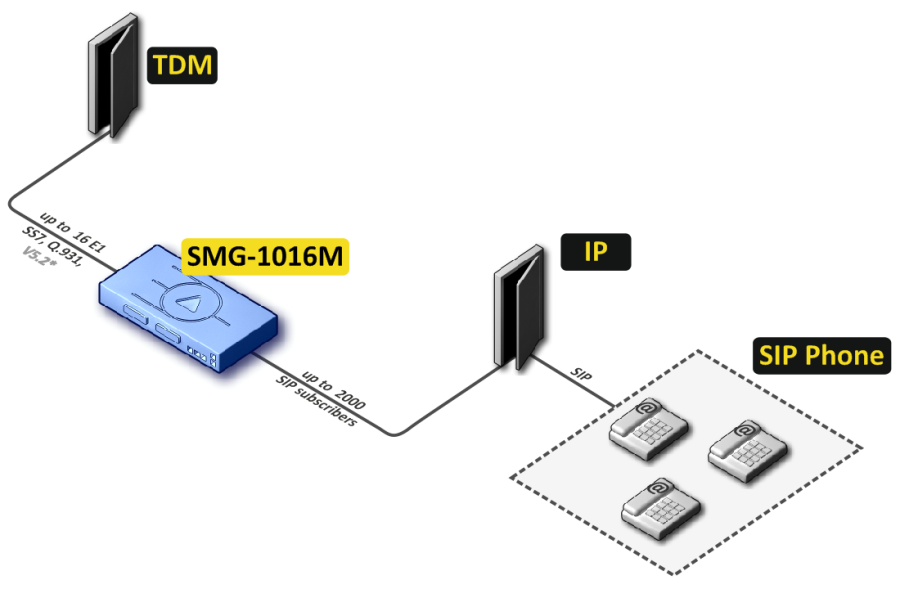
Figure 3 – Mini IP-PBX based on SMG-1016M
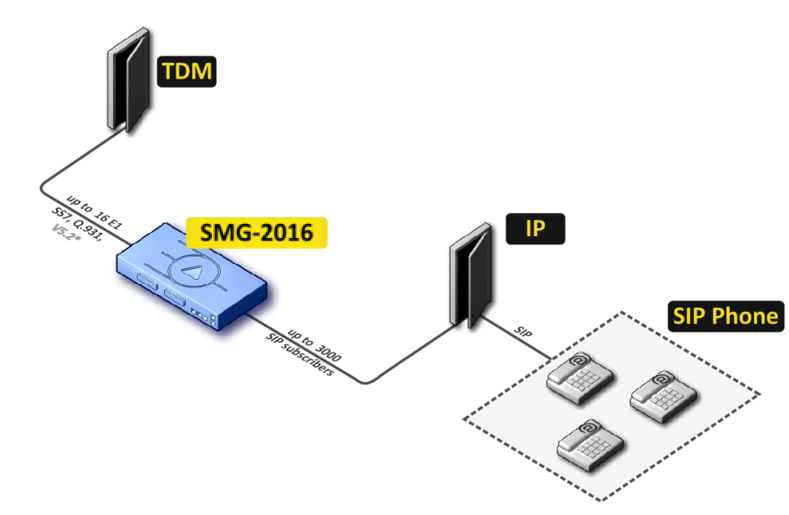
Figure 4 – Mini IP-PBX based on SMG-2016
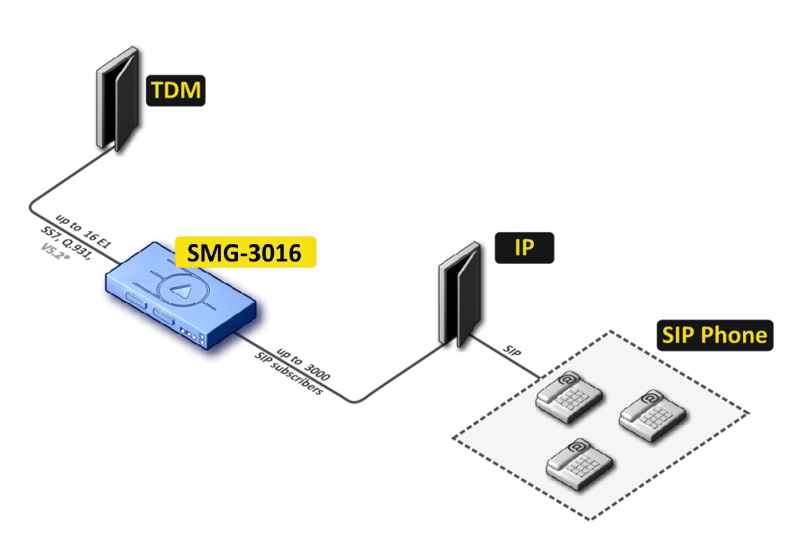
Figure 5 – Mini IP-PBX based on SMG-3016
The activation of additional features of IP PBX ECSS-10 software module allows to arrange outstation via V5.2 protocol and to service up to 2000 subscribers for SMG-1016M and up to 3000 subscribers for SMG-2016 and SMG-3016 with support for wide VAS set. As an outstation, the equipment with V5.2 AN support from any other manufacturer can be used.
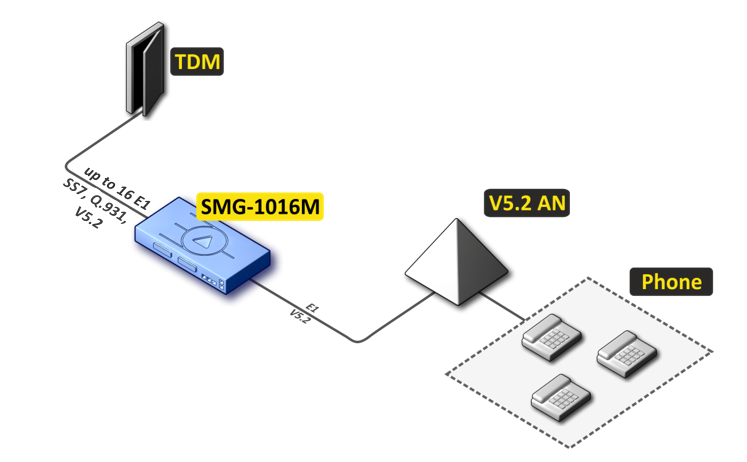
Figure 6 – V5.2 AN outstation based on SMG-1016M
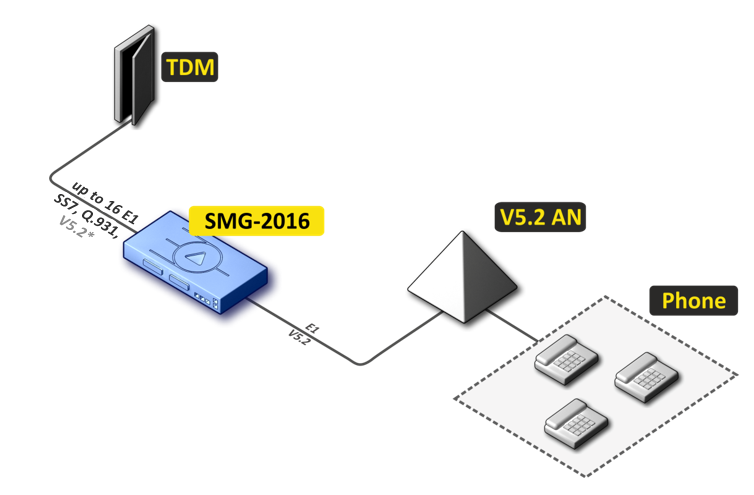
Figure 7 – V5.2 AN outstation based on SMG-2016
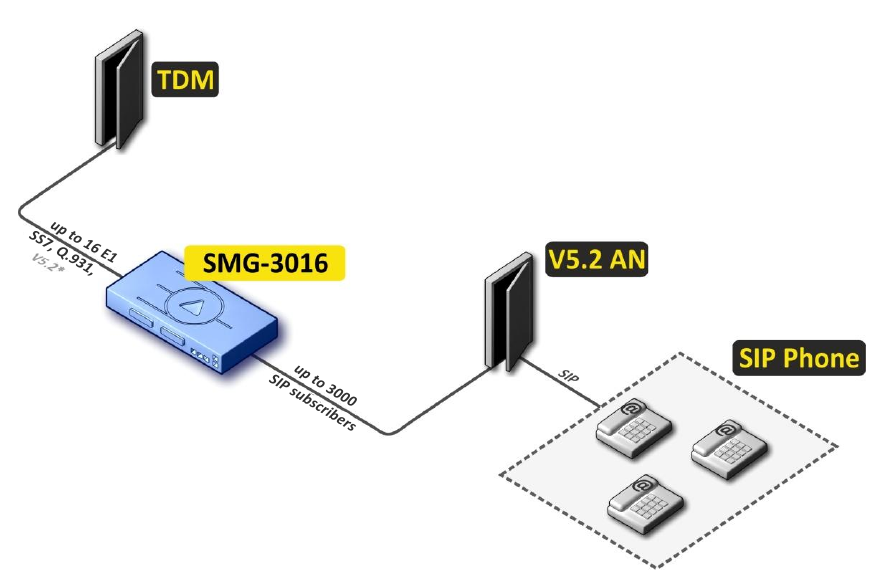
Figure 8 – V5.2 AN outstation based on SMG-3016
SMG-1016M has a submodule architecture and contains the following elements:
The figure below shows SMG-1016M functional diagram.
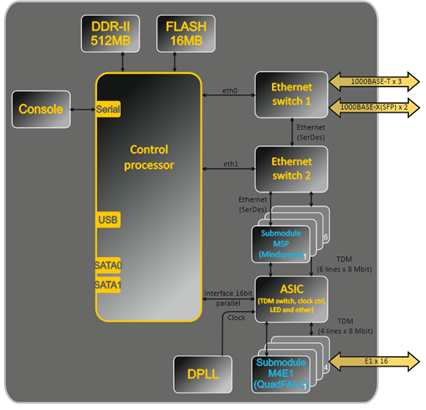
Figure 9 – SMG-1016M functional diagram
SMG-2016 has a submodule architecture and contains the following elements:
The figure below shows SMG-2016 functional diagram.
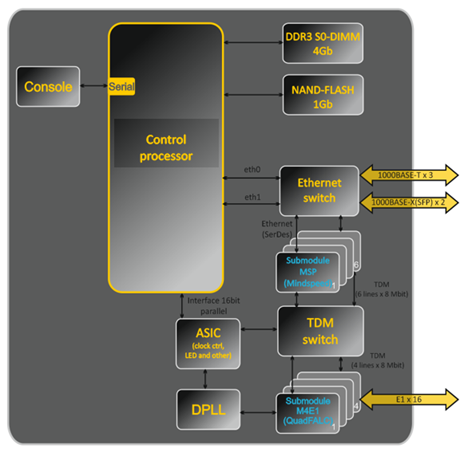
Figure 10 – SMG-2016 functional digram
SMG-3016 has a submodule architecture and contains the following elements:
The figure below shows SMG-3016 functional diagram.
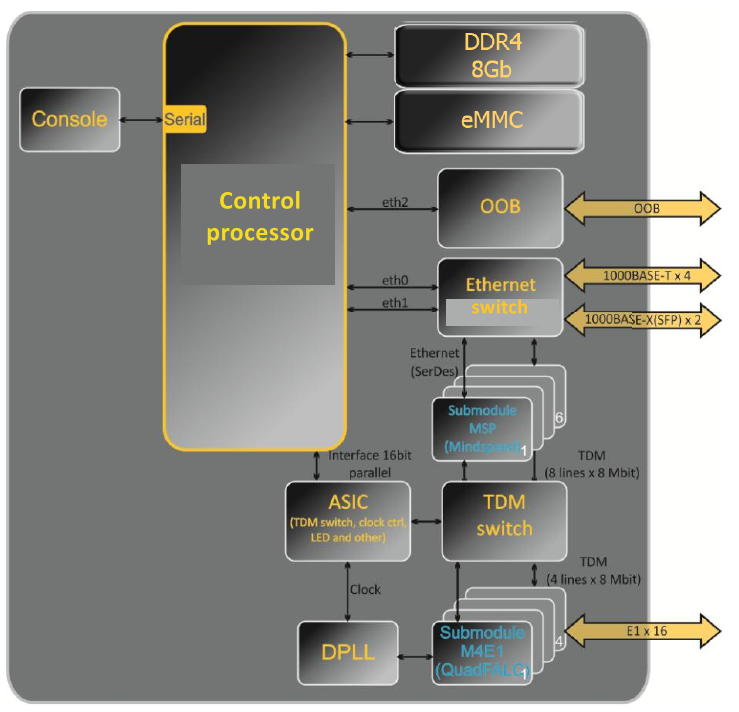
Figure 11 – SMG-3016 functional digram
In TDM-IP direction, signal coming to E1 streams is transferred to VoIP submodule audio codecs (6 lines x 128 TDM channels) via the intrasystem trunk to be encoded using one of the selected standards and transferred further in the form of digital packets to the Ethernet switch. In IP-TDM direction, digital packets coming from Ethernet switch are transferred to VoIP submodules to be decoded and transferred further to E1 streams via the intrasystem trunk.
External 2 Mbps E1 streams are transmitted to framers through matching transformers. At that, synchronization signal is extracted from the stream and issued to the common synchronization line of the device. The priority of synchronization lines is controlled at the software level according to the defined algorithm.
A switch fabric is integrated into the intrasystem trunk and enables communication between the E1 (C4E1) and VoIP (SM-VP-M300) submodules.
For SMG to operate, at least one SM-VP submodule should be installed. |
For device firmware architecture, see the figure below.
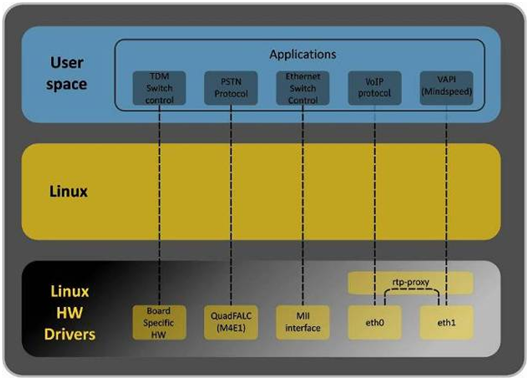
Figure 12 – SMG firmware architecture
Table below lists main specifications of the terminal.
Table 1 — Main specifications
VoIP protocols
Supported protocols | SIP-Т/SIP-I SIP SIP-Q MGCP1 MEGACO1 SIGTRAN (M2UA, IUA)1 SIGTRAN (M3UA)1 H.323v2/v3/v42 T.38 |
|
Audio Codecs
Codecs | G.711 a-law (hereinafter G.711A) G.711 μ-law (hereinafter G.711U) G.729 A/B G.723.1 (6.3 Kbps; 5.3 Kbps) G.726 (32 Kbps) G.722 |
Quantity of VoIP channels supported by a submodule depending on the codec type
Codec/packetization time, ms | Channel quantity |
|---|---|
G.711 (A/U) / 20-60 G.711 (A/U) / 10 G.729 A / 20-80 G.729 A / 10 G.723.1 (6.3 Kbps, 5.3 Kbps) G.726 / 20 G.726 / 10 G.7221 Т.38 | 128 112 72 62 58 98 88 - 54 |
TDM channels per submodule | 128 |
Three-way conferences per submodule | 27 |
|
Electrical Ethernet interface specifications
Number of interfaces | SMG-1016M | SMG-2016, SMG-3016 |
3 | 4 | |
Electrical port | RJ-45 | |
Data rate | Auto-detection, 10/100/1000 Mbps, duplex | |
Supported standards | 10/100/1000BASE-T | |
Optical Ethernet interface specifications
Number of interfaces | SMG-1016M | SMG-2016, SMG-3016 |
2 | 2 combo ports | |
Optical port | Mini-Gbic (SFP): 1)duplex, double fiber, wave length 1310 nm (Single-Mode), 1000BASE-LX (LС connector), distance — up to 10 km, supply voltage — 3.3 V 2) duplex, single fiber, reception/transmission wave lengths 1310/1550 nm, 1000BASE-LX (SC connector), distance — up to 10 km, supply voltage — 3.3 V | |
Data rate | 1000 Mbps, duplex | |
Supported standards | 1000BASE-X | |
Console parameters
RS-232 serial port | |
Data transfer rate | 115200 bps |
Electrical signal parameters | According to ITU-T V.28 guidelines |
E1 interface parameters
Number of channels | According to ITU-T G.703, G.704 guidelines |
Line data transer rate | 2048 kbps |
Line code | HDB3, AMI |
Line output signal | 3.0 V peak for 120 Ω load 2.37 V peak for 75 Ω load (accordimg to CCITT G.703 guidelines) |
Input signal from the line | from 0 to -6 dB in relation to standard output impulse |
Elastic buffer | 2 frame capacity |
Signalling protocols | DSS1/EDSS1 (ISDN PRI Q.931), QSIG and CORNET for subscriber name transmission, SS7 |
Redundancy
| Master-slave redundancy | Only for SMG-2016 and SMG-3016 |
| E1 redundancy | Only for SMG-2016 and SMG-3016 |
Number of conference participants
| Device | Number |
|---|---|
| SMG-1016М | The maximum number of participants for all conferences is 40. There can be no more than 40 participants in one conference. Example: 1 conference of 40 participants; 10 conferences of 4 participants, etc. |
| SMG-2016 | The maximum number of participants for all conferences is 160. There can be no more than 40 participants in one conference. Example: 4 conferences of 40 participants; 10 conferences of 16 participants, etc. |
| SMG-3016 | The maximum number of participants for all conferences is 160. There can be no more than 40 participants in one conference. Example: 4 conferences of 40 participants; 10 conferences of 16 participants, etc. |
Supported file system for external media
| Device | Disk partitions | File system |
|---|---|---|
| SMG-1016M | MBR | USB flash – NTFS, FAT32, ext2, ext3, ext4 USB HDD – NTFS, ext2 |
| GPT | Not supported | |
| SMG-2016 | MBR | HDD – NTFS, ext2 USB flash – NTFS, FAT32, ext2, ext3, ext4 USB HDD – NTFS, ext2 |
| GPT | HDD – NTFS, ext2 USB flash – NTFS, FAT32, ext2, ext3, ext4 USB HDD – NTFS, ext2 | |
| SMG-3016 | MBR | HDD – NTFS, ext2 USB flash – NTFS, FAT32, ext2, ext3, ext4 USB HDD – NTFS, ext2 |
| GPT | HDD – NTFS, ext2 USB flash – NTFS, FAT32, ext2, ext3, ext4 USB HDD – NTFS, ext2 |
Supported interfaces
| Device | Interface |
|---|---|
| SMG-1016M/2016 | SATA2 |
| SMG-3016 | SATA3 |
External synchronization signal parameters
Number of synchronisation inputs | 2 |
Cable type | Symmetric 2-wire line (twisted pair) |
Input impedance of synchronization receivers | 120 Ohm |
Incoming signal parameters | According to ITU-T G.703 recommendations, section 15: 2048 kHz synchronization interface (T12) |
Shape and frequency of incoming signal | Squarewave signal 2048 kHz |
General parameters
Operating temperature range | From 0 to +40 °С | ||
Relative humidity | Up to 80 % | ||
Noise level | From 44 to 60 dB | ||
Power options | – Single AC or DC power supply; – Two AC or DC hot-swappable power modules. | ||
Power supply | AC | DC | |
Supply voltage | 100–240 V, 47–63 Hz | 36–72 V | |
| PM designation | РМ160-220/12 | РМ100-48/12 | |
| PM rated power | 160 W | 100 W | |
Power consumption | No more than 50 W | ||
Dimensions (W × H × D) | SMG-1016M | SMG-2016, SMG-3016 | |
430 × 45 × 260 mm | 430 × 45 × 340 mm | ||
Form-factor | 19" form-factor, 1U size | ||
Net Weight | Complete device package | SMG-1016M | SMG-2016, SMG-3016 |
3.2 kg | 5.3 kg | ||
Power supply | 0.5 kg | ||
Vent panel | 0.1 kg | ||
SATA storage device 1 | 0.1 kg | ||
| Lifetime | no less than 15 years | ||
|
SMG-1016M digital gateway has a metal case available for 19” rack-mount 1U shelf installation.
The front panel of the device is shown in the figure below.

Figure 13 – SMG-1016M front panel layout
Connectors, LEDs and controls located on the front panel of the device are listed in table 2.
Table 2 — Description of connectors, LEDs, and controls located on the front panel
№ | Front panel element | Description |
|---|---|---|
1 | USB | USB port for external storage device connection |
2 | F | Function button |
3 | Console | RS-232 console port for local device management (for connector wiring see Appendix А) |
4 | 10/100/1000 0..2 | 3 × RJ-45 ports of Ethernet 10/100/1000BASE-T interfaces |
5 | SFP 0, SFP 1 | 2 chassis for 1000BASE-X Gigabit uplink interface optical SFP modules used for IP network connection |
6 | E1 Line 0..7, E1 Line 8..15 | 2 × CENC-36M connectors for Е1 streams connection (for connector wiring see Appendix А) |
7 | SATA-0, SATA-1 | SATA interface activity indicators |
8 | Info1, Info2 | SFP optical interface activity indicators |
9 | Alarm | Device alarm indicator |
10 | Status | Device operation indicator |
The rear panel of the device is shown in the figure below.

Figure 14 – SMG-1016M rear panel layout
The following table lists rear panel connectors of the switch.
Table 3 — Description of rear panel connectors of the switch
№ | Rear panel element | Description |
|---|---|---|
1 | Power supply connector | Connector for power supply (Power supply #0) |
| 2 | Power supply connector | Connector for power supply (Power supply #1) |
3 | Removable fans | Removable ventilation modules with hot-swapping |
4 | Ground connection point | Ground connection point of the device |
SMG-2016 digital gateway has a metal case available for 19” rack-mount 1U shelf installation.
The front panel of the device is shown in the figure below.

Figure 15 – SMG-2016 front panel layout
Connectors, LEDs and controls located on the front panel of the device are listed in table 4.
Table 4 — Description of connectors, LEDs, and controls located on the front panel
№ | Front panel element | Description |
|---|---|---|
1 | SATA disk ports | SATA drive trays |
2 | F | Function button |
3 | Console | Console port for local device management (for connector wiring see Appendix А) |
4 | USB | USB port for external storage device connection |
5 | 0, 1 | 2 x 10/100/1000BASE-T Gigabit uplink interface RJ-45 Ethernet connectors used for IP network connection |
6 | 2, 3 | 2 chassis for 1000BASE-X uplink interface SFP modules used for IP network connection |
2 × 10/100/1000BASE-T Gigabit uplink interface RJ-45 connectors used for IP network connection | ||
7 | E1 Line 0..15 | 16 × RJ-48 connectors for Е1 streams connection (for connector wiring see Appendix А) |
8 | Sync.0, Sync.1 | 2 × RJ-45 ports for connection of external synchronization sources |
Indicators | ||
9 | Alarm | Device alarm indicator |
Status | Device operation indicator | |
Sync.1 | Sync.1 external synchronization interface operation indicator | |
Sync.0 | Sync.0 external synchronization interface operation indicator | |
Power | Device power indicator | |
RPS | Device aux power indicator | |
FAN | Fan operation indicator | |
USB | USB operation indicator | |
The rear panel of the device is shown in the figure below.

Figure 16 – SMG-2016 rear panel layout
The following table lists rear panel connectors of the switch.
Table 5 — Description of rear panel connectors of the switch
№ | Rear panle element | Description |
|---|---|---|
1 | Power modules | Modules with connector for power supply (Power module #0) |
| 2 | Power modules | Modules with connector for power supply (Power module #1) |
3 | Fan panels | Removable ventilation modules with hot-swapping |
4 | Ground connection point | Ground connection point of the device |
SMG-3016 digital gateway has a metal case available for 19” rack-mount 1U shelf installation.
The front panel of the device is shown in the figure below.

Figure 17 – SMG-3016 front panel layout
Connectors, LEDs and controls located on the front panel of the device are listed in table 6.
Table 6 — Description of connectors, LEDs, and controls located on the front panel
№ | Front panel element | Description |
|---|---|---|
1 | SATA disk ports | SATA drive trays |
2 | Console | Console port for local device management (for connector wiring see Appendix А) |
| 3 | OOB | Out-of-band Ethernet port for device configuration. The port does not have the ability to switch with other SMG ports |
4 | F | Function button |
5 | USB | USB port for external storage device connection |
6 | 1, 2 | 2 × 10/100/1000BASE-T Gigabit uplink interface RJ-45 Ethernet connectors used for IP network connection |
7 | 3, 4 | 2 chassis for 1000BASE-X uplink interface SFP modules used for IP network connection |
2 × 10/100/1000BASE-T Gigabit uplink interface RJ-45 connectors used for IP network connection | ||
8 | E1 Line 0..15 | 16 × RJ-48 connectors for Е1 streams connection (for connector wiring see Appendix А) |
9 | Sync.1, Sync.2 | 2 × RJ-45 ports for connection of external synchronization sources |
Indicators | ||
10 | Alarm | Device alarm indicator |
Status | Device operation indicator | |
Sync.1 | Sync.1 external synchronization interface operation indicator | |
Sync.2 | Sync.2 external synchronization interface operation indicator | |
Power | Device power indicator | |
RPS | Device aux power indicator | |
FAN | Fan operation indicator | |
USB | USB operation indicator | |
The rear panel of the device is shown in the figure below.

Figure 18 – SMG-3016 rear panel layout
The following table lists rear panel connectors of the switch.
Table 7 — Description of rear panel connectors of the switch
№ | Rear panel element | Description |
|---|---|---|
1 | Power modules | Modules with connector for power supply (Power module #1) |
| 2 | Power modules | Modules with connector for power supply (Power module #2) |
3 | Fan panels | Removable ventilation modules with hot-swapping |
4 | Ground connection point | Ground connection point of the device |
LED indicators located on the front panel represent the current state of the device.
For device light indication in operation, see the table below.
Table 8 — Light indication of the device status in operation
Indicator | Indicator state | Device state |
|---|---|---|
Info1 | Off | SFP0 link lost |
Solid green | SFP0 link in operation | |
Info2 | Off | SFP1 link lost |
Solid green | SFP1 link in operation | |
Solid red | Device is loading | |
Alarm | Flashes red | Critical device failure |
Solid red | Non-critical device failure | |
Solid yellow | No failures, there are non-critical warnings | |
Solid green | Normal operation | |
Status | Solid green | Normal operation |
Off | Device power lost |
For device light indication in operation, see the table below.
Table 9 — Light indication of the device in operation
Indicator | Indicator state | Device state |
|---|---|---|
Alarm | Flashes red | Critical device failure |
Solid red | Non-critical device failure | |
Solid yellow | No failures, there are non-critical warnings | |
Solid green | Normal operation | |
Status
| Solid green | Normal operation |
Off | Device power lost | |
Мигает попеременно оранжевым и зелёным | Устройство находится в режиме SLAVE (подробнее о работе резерва в Appendix K. SMG redundancy function) | |
Sync.0, Sync.1 | Solid green | Synchronization from an external source is active, synchronization is being captured from the source |
| Solid red | Synchronization from an external source is active, external source is not connected (no frequency in the range) | |
| Solid orange | Synchronization from an external source is not active, external source connected (frequency is in the range) | |
| Flashes orange | Frequency output mode | |
Off | Synchronization from an external source is not active, not configured for frequency output, external source is not connected (no frequency in the range) | |
Power | Solid green | Power from Power supply no.0 |
| Flashes orange | Power supply no.0 is installed, but not energized | |
RPS | Solid green | Power supply no.1 is installed and energized |
Solid red | Power supply no.1 is installed, but not energized | |
Off | Power supply no.1 is not installed | |
FAN | Solid green | All removable fan modules are installed, all fans are operational |
Solid orange | All removable fan modules are installed, some fans are nonoperating | |
Solid red | Single or both removable fan modules are not installed | |
USB | Solid green | USB flash is installed |
Off | USB flash is not installed |
For device light indication in operation, see the table below.
Table 10 — Light indication of the device in operation
Indicator | Indicator state | Device state |
|---|---|---|
Alarm | Flashes red | Critical device failure |
Solid red | Non-critical device failure | |
Solid yellow | No failures, there are non-critical warnings | |
Solid green | Normal operation | |
Status
| Solid green | Normal operation |
Off | Device power lost | |
Мигает попеременно оранжевым и зелёным | Устройство находится в режиме SLAVE (подробнее о работе резерва в Appendix K. SMG redundancy function) | |
Sync.1, Sync.2 | Solid green | Synchronization from an external source is active, synchronization is being captured from the source |
| Solid red | Synchronization from an external source is active, external source is not connected (no frequency in the range) | |
| Solid orange | Synchronization from an external source is not active, external source connected (frequency is in the range) | |
| Flashes orange | Frequency output mode | |
Off | External synchronization source is not connected | |
Power | Solid green | Power from Power supply no.1 |
Solid orange | Power supply no.1 is installed, but not energized | |
RPS | Solid green | Power supply no.2 is installed and energized |
Solid red | Power supply no.2 is installed, but not energized | |
Off | Power supply no.2 is not installed | |
FAN | Solid green | All removable fan modules are installed, all fans are operational |
Solid orange | All removable fan modules are installed, some fans are nonoperating | |
Solid red | Single or both removable fan modules are not installed | |
USB | Solid green | USB flash is installed |
Off | USB flash is not installed |
For LED indication of Е11 stream status, see the table below.
|
Table 11 — Indication of E1 stream status
RJ-48 ports | Indication (flashing period) | ||
|---|---|---|---|
Status | Red | Yellow | Green |
Е1 is disabled in the gateway configuration | Off | Off | Off |
E1 stream failure state | Flashes | Off | Off |
Loss of signal (LoS) | On | Off | Off |
AIS failure | On | Flashes (200 мс) | Off |
LOF failure | On | On | Off |
LOMF failure | On | On | Off |
E1 stream normal operation | Off | Off | On |
Failure on the remote host (RAI) | Off | Flashes (200 ms) | Flashes (200 ms) |
E1 stream is in operation, there are SLIPs in the stream | Off | Flashes (300 ms) | Flashes (1500 ms) |
E1 stream test is being performed | Flashes | Flashes (200 ms) | Flashes (200 ms) |
The status of the Ethernet interfaces is indicated by LED indicators built into the 1000/100 connector and is shown in the table below.
Table 12 — Light indication of Ethernet 1000/100 interfaces
Device status | LED/Status | |
|---|---|---|
Yellow LED 1000/100 | Green LED 1000/100 | |
Port operates in 1000BASE-T, data transfer is inactive | Solid on | Solid on |
Port operates in 1000BASE-T mode, data transfer | Solid on | Flashes |
Port operates in 10/100BASE-TX mode, no data transfer | Off | Solid on |
Port operates in 10/100BASE-TX mode, data transfer | Off | Flashes |
For light indication during startup and reset to factory defaults, see the table below.
Table 13 — Light indication during startup and reset to factory defaults
№ | Indication | Reset to factory defaults procedure (device is on) | |||
|---|---|---|---|---|---|
Info1 | Info1 | Alarm | Status | ||
1 | Yellow | Yellow | Yellow | Yellow | Press and hold F button for 1 second until the following pattern appears, then release the button. The device will be rebooted in 3 seconds. |
2 | Green | Red | Yellow | Red | Reset to factory defaults has been initiated. This LED pattern will appear only when the device startup begins. |
3 | Yellow | Yellow | Yellow | Yellow | At this step, LED functionality check will be performed — all LEDs will turn on yellow including SATA-0 and SATA-1. |
4 | Off | Off | Green | Green | At this step, the gateway operating system will be loaded. To change network parameters and restore the device configuration to factory defaults, when the pattern appears press and hold F button for 40–45 seconds. (When you press and hold the button, pattern 2 may appear shortly; ignore it and continue holding the button until the pattern 4 appears.) |
5 | Yellow | Yellow | Yellow | Yellow | When the pattern appears, release F button. After a while, the following message will be displayed in the console. <<<BOOTING IN SAFE-MODE.RESTORING DEFAULT PARAMETERS>>> Reset to factory settings is complete. |
Do not hold F button pressed during the device reset procedure — device operation will be halted. To resume the operation, you will have to power-on reset the device. |
Also, the device can be reset to factory configuration during the device startup. In this case, skip the 1st step. |
For light indication during startup and reset to factory defaults, see the table below.
Table 14 — Light indication during startup and reset to factory defaults
№ | Indication | Reset to factory defaults procedure (device in operation) | |||
|---|---|---|---|---|---|
Alarm | Status | Sync.0 | Sync.1 | ||
1 | Yellow | Yellow | Yellow | Yellow | Press and hold F button for 1 second until the following pattern appears. The device will be rebooted in 3 seconds. |
2 | Yellow | Red | Yellow | Yellow | Reset to factory configuration has been initiated. This LED pattern will appear only when the device startup begins. |
3 | Green | Green | - | - | At this step, the gateway operating system will be loaded. To change network parameters and restore the device configuration to factory defaults, when the pattern appears press and hold F button for 40–45 seconds. |
4 | Yellow | Yellow | - | - | When the pattern appears, release F button. After a while, the following message will be displayed in the console. <<<BOOTING IN SAFE-MODE.RESTORING DEFAULT PARAMETERS>>> Reset to factory settings is complete. |
State of POWER, RPS, FAN, and USB LEDs during reset procedure can be ignored. Also, the device can be reset to factory configuration during the device startup. In this case, skip the 1st step. |
The table below lists detailed description of faults represented by the status of Alarm LED.
CDR file saving indication When FTP server is not available, CDRs will be saved to the device RAM. Storage space for CDR files amounts to 30 MB. When the memory is filled within the specific limits, the fault will be indicated. |
Table 15 — Fault LED Indication
Alarm LED state | Fault level | Fault description |
|---|---|---|
Flashes red | Critical | Configuration error |
SIP module loss | ||
SS7 link set fault (when 'Fault indication' checkbox is selected in 'Routing/SS7 linksets' menu) | ||
Stream fault (when 'Alarm indication' checkbox is selected in 'Е1 streams/Physical parameters' menu) | ||
FTP server is unavailable, utilization of RAM for CDR file storage exceeds 50 % | ||
Solid red | Errors | SS7 link fault (when 'Fault indication' checkbox is selected in 'Routing/SS7 linksets' menu) |
VoIP submodule (MSP) loss | ||
Synchronization fault (free-run mode operation) | ||
FTP server is unavailable, utilization of RAM for CDR file storage is more than 15 % | ||
Solid yellow | Warning | Remote stream fault |
Synchronization from the lower priority source (the one with the higher priority is not available) | ||
FTP server is unavailable, utilization of RAM for CDR file storage is more than 5 % | ||
CPS fault threshold is exceeded for one of the trunk groups | ||
INVITE duplication failure received from emergency call service node |
‘F’ button is used to reboot the device, restore the factory configuration and recover forgotten password.
To perform reset to factory defaults on operating device, see section Light indication during startup and reset to factory defaults: tables 13, 14.
When the factory configuration is restored, you can access the device by IP address 192.168.1.2 (mask 255.255.255.0):
Next, it is possible to save the factory configuration, restore password or reboot the device.
To save the factory configuration:
The gateway will be restarted with the factory configuration.
*********************************************
*        Welcome to SMG-1016M               *
*********************************************

smg login: admin
Password: rootpasswd

********************************************
*           Welcome to  SMG-1016M           *
********************************************

Welcome! It is Wed Mar 11 08:45:20 NOVT 2015
SMG> sh
/home/admin # save
tar: removing leading '/' from member names
**********
**********
***Saved successful
New image 1
Restored successful
/home/admin # reboot |
Процедура сброса пароля:
The gateway will be restarted with new configuration and new password.
В случае перезагрузки без выполнения каких-либо действий, на устройстве восстановится текущая конфигурация без сброса пароля. The gateway will be restarted with new configuration and old password.
*********************************************
*        Welcome to SMG-1016M               *
*********************************************

smg login: admin
Password: rootpasswd

********************************************
*           Welcome to  SMG-1016M           *
********************************************

Welcome! It is Fri Jul  2 12:57:56 UTC 2010
SMG> sh
/home/admin # restore
New image 1
Restored successful
/home/admin # passwd admin
Changing password for admin
New password: 1q2w3e4r5t6y
Retype password: 1q2w3e4r5t6y
Password for admin changed by root
/home/admin # save
tar: removing leading '/' from member names
**********
**********
***Saved successful
New image 0
Restored successful
# reboot |
При наличии доступа к CLI для сброса пароля достаточно перейти в режим конфигурирования и ввести команду web user password <USER_INDEX> <LEN>, where:
If you have access to the CLI, to reset the password in configuration mode enter web user password <USER_INDEX> <LEN> command, where:
Executing this command will generate a new temporary random password of the specified length for the selected user:
********************************************
*           Welcome to  SMG-2016           *
********************************************

Welcome! It is Mon May 26 11:00:07 GMT+6 2025
SMG2016> config
Entering configuration mode.
SMG2016-[CONFIG]> web user password 0 10
New password for 'admin': Yjh@(%o26h |
The first time you log in to the website using a new temporary password, the system will ask you to change it. |
The web user list command can be used to display a list of all web users:
********************************************
*           Welcome to  SMG-2016           *
********************************************

Welcome! It is Mon May 26 11:00:07 GMT+6 2025
SMG2016> config
Entering configuration mode.
SMG2016-[CONFIG]> web user list
        [0] admin
[1] test |
If you do not have access to the CLI, follow these steps to reset the password:
It is not recommended to save the configuration via the web interface when resetting a password, as this may result in the loss of the gateway saved configuration. Use the save command from shell mode. |
The gateway will be restarted with current configuration and new password.
If the device is rebooted without taking any action, the current configuration will be restored without the password being reset. The gateway will boot up with the current configuration and the old password.
*********************************************
*        Welcome to SMG-1016M               *
*********************************************

smg login: admin
Password: rootpasswd

********************************************
*           Welcome to  SMG-1016M           *
********************************************

Welcome! It is Fri Jul  2 12:57:56 UTC 2010
SMG> sh
/home/admin # restore
New image 1
Restored successful |
At this stage, the password is changed via the web interface.
/home/admin # save tar: removing leading '/' from member names ********** ********** ***Saved successful New image 0 Restored successful # reboot |
SMG-1016M standard delivery package includes:
SMG-2016 standard delivery package includes:
SMG-3016 standard delivery package includes:
Any operations with the equipment should comply to the Safety Rules for Operation of Customers' Electrical Installations.
Operations with the equipment should be carried out only by personnel authorized in accordance with the safety requirements. |
Before operating the device, all engineers should undergo special training.
The device should be connected only to properly functioning supplementary equipment.
The digital gateway can be permanently used provided the following requirements are met:
The device should not be exposed to mechanical shock, vibration, smoke, dust, water, and chemicals.
To avoid components overheating which may result in device malfunction, do not block air vents or place objects on the equipment.
Prior to connecting the device to a power source, ensure that the equipment case is grounded. The grounding wire should be securely connected to the ground connection point. The resistance between theground connection point and grounding busbar should be less than 0.1 Ohm.
PC and measurement instruments should be grounded prior to connection to the device. The potential difference between the equipment case and the cases of the instruments should be less than 1 V.
Prior to turning the device on, ensure that all cables are undamaged and securely connected.
Make sure the device power sources are off, when installing or removing the case.
Installation and removal of submodules should only be carried out with the power off, following the section Power module installation.
In order to avoid failures caused by electrostatic discharge, it is strongly recommended to wear ESD belt, shoes or wrist strap to prevent electrostatic charge accumulation (if the wrist strap is used, make sure it fits tightly against the skin), and to ground the cord before operating the equipment.
The device should be powered from 48 V DC power supply with grounded positive potential or from the remote 220 V AC power supply.
Permissible variations of 48 V DC power supply voltage are from 36 V to 72 V.
When the power supply voltage is restored after being below the permissible threshold, the device specifications will be restored automatically.
The equipment should operate normally, when the power supply interference is below the values listed in the table below.
Table 16 — Permissible interference requirements for DC power supply
Interference type | Value |
|---|---|
Permissible voltage deviation from rated value, %: duration 50 ms duration 5 ms | -20 40 |
Harmonical component voltage ripple, mV eff, up to 300 Hz 300 Hz to 150 kHz | 50 7 |
Voltage values of interference produced by the equipment in the power supply circuit should not exceed values listed in the table below.
Table 17 – Requirements to interference produced by equipment in power supply circuit
| Interference type | Value |
|---|---|
Total interference in the range of 25 Hz to 150 Hz, mV eff. | 50 |
Selective interference in the range of 300 Hz to 150 kHz | 7 |
Weighted (psophometric) interference, mV psoph. | 2 |
AC power supply parameters should be as follows:
Check the device for visible mechanical damage before installing and turning it on. In case of any damage, stop the installation, fill in a corresponding document and contact your supplier.
The device should be installed on premises with access restricted only to service personnel.
If the device was exposed to low temperatures for a long time before installation, leave it for 2 hours at room temperature prior to operation. If the device was exposed to high humidity for a long time, leave it for at least 12 hours in normal conditions prior to turning it on.
Mount the device. The device is intended to be installed into 19" rack using the mounting set or mounted on the horizontally oriented perforated shelf.
After installation, ground the device case. This should be done prior to connecting the device to the power supply. An insulated multiconductor wire should be used for grounding. The device grounding and the grounding wire section should comply with Electric Installation Code. The ground connection point is located at the right bottom corner of the rear panel, see figure 14, figure 16, figure 18.
Connect digital streams, optical and electrical Ethernet cables to corresponding gateway connectors.
To protect digital streams from extraneous voltages, the linear side of the cross-connect should be equipped with integrated protection devices. It is recommended to use KRONE complex protection plugs “Com Protect 2/1 CP HGB 180 A1”. |
The delivery package includes support brackets for rack installation and mounting screws to attach brackets on the device case.
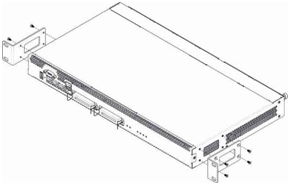
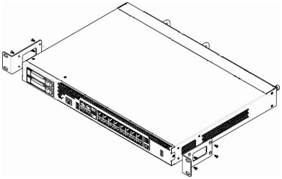
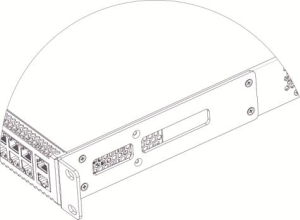
Figure 19 – Attaching support brackets for SMG-1016M (left top), SMG-2016 (right top) and SMG-3016 (bottom)
To install the brackets:
Repeat steps 1 and 2 for the second support bracket.
To install the device to the rack:
To dismount a device, disconnect cables and remove support bracket screws from the rack. Remove the device from the rack.
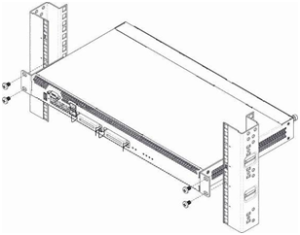
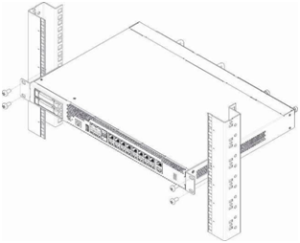
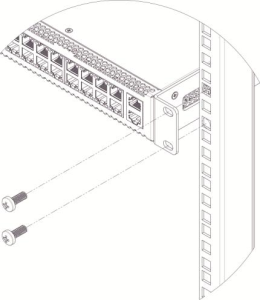
Figure 20 – Device rack installation for SMG-1016M (left top), SMG-2016 (right top) and SMG-3016 (bottom)
Device can operate with one or two power modules. The second power module installation is necessary when the device operates under strict reliability requirements.
From the electric point of view, both places for power module installation are identical. In the context of device operation, the power module located closer to the edge is considered as the main module, and the one closer to the center — as the backup module. Power modules can be inserted and removed without powering the device off. When additional power module is inserted or removed, the device continues operation without reboot.
The device has two fuses with nominal current 3.15 A. The fuses are not user-serviceable. They should be replaced by the qualified service specialists in the manufacturer's service center.
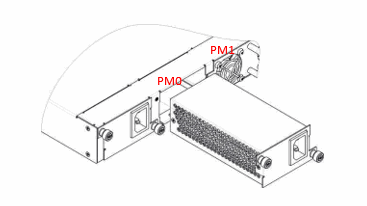
Figure 21 – Power module installation
First, disconnect SMG from the power supply, disconnect all the cables and remove the device from rack if necessary (see Device rack installation).
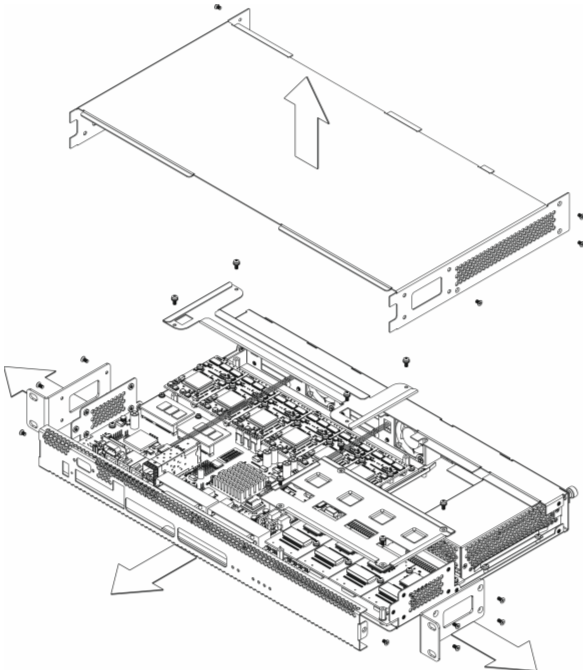
Figure 22 – SMG-1016M housing removal procedure
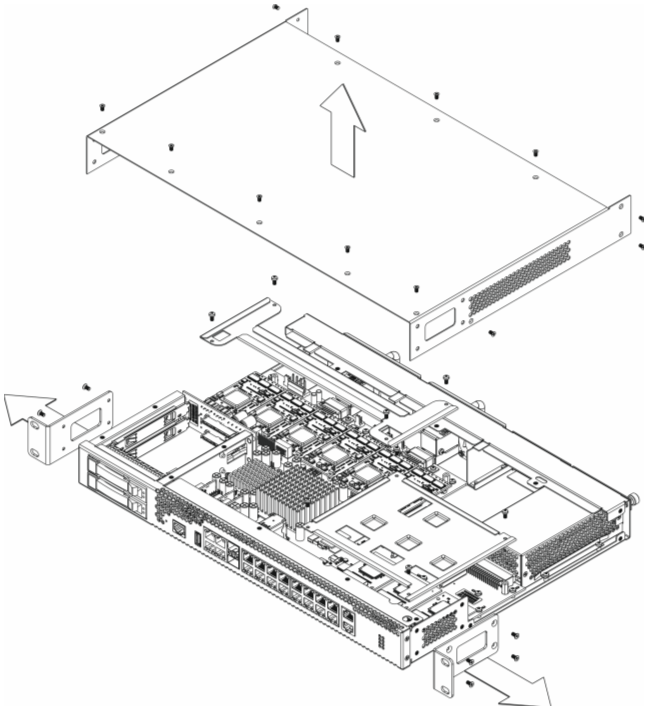
Figure 23 – SMG-2016 housing removal procedure
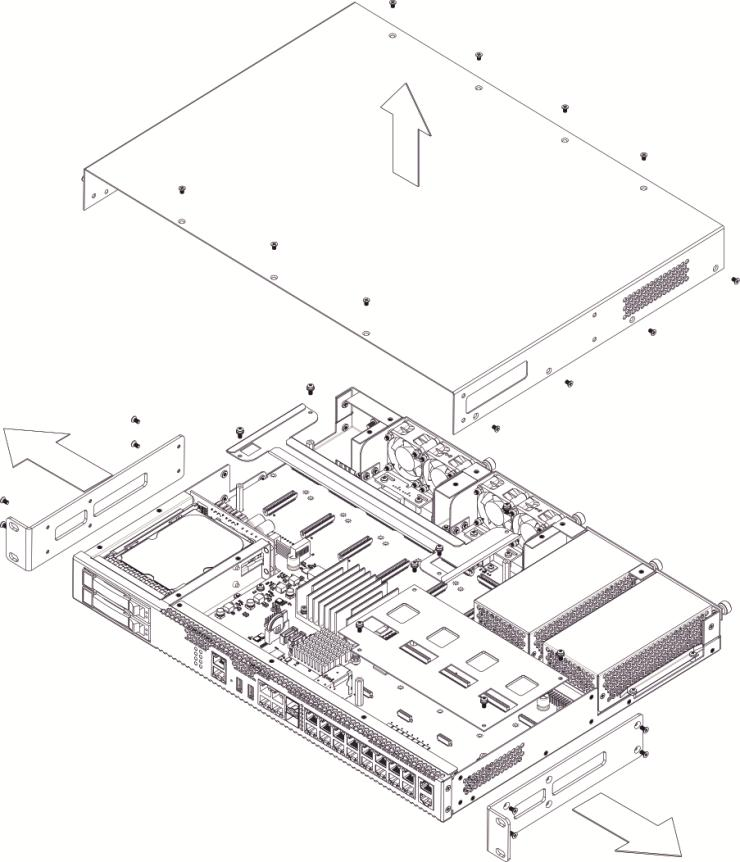
Figure 24 – SMG-3016 housing removal procedure
For the device assembly, repeat all mentioned steps in the reverse order.
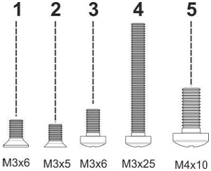
Figure 25 – Types of screws used for SMG assembly
The figure above shows types of screws used for device assembly into the housing:
During the device assembly, avoid using inappropriate screw type for the operations specified. Changing screw type may cause the device failure. |
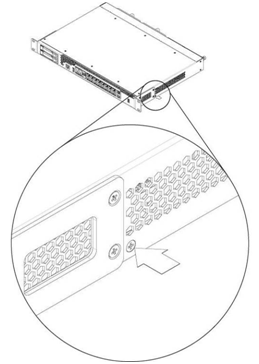
Figure 26 – SMG assembly into housing
During SMG assembly, install the screw provided by the manufacturer into the place as shown in the figure above. Changing screw type may cause the device failure. |
Device features modular design and may accommodate up to 6 × IP submodules IP SM-VP-M300 (Submodule MSP) and up to 4 × E1 stream submodules (Submodule C4E1) in slots shown in the figures below.
The device requires at least one SM-VP-M300 module to operate. The required quantity of submodules for full operation of the device is calculated based on the required number of E1 streams, active VoIP channels (taking into account the codecs used) and the presence of SORM.
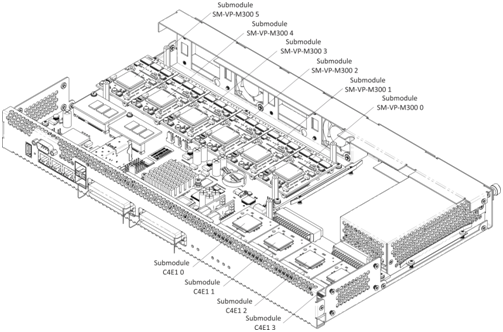
Figure 27 – SMG-1016M submodule location
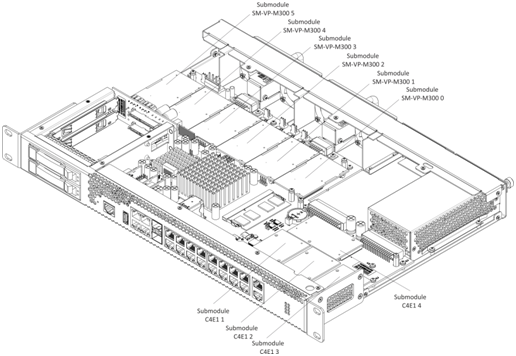
Figure 28 – SMG-2016 submodule location
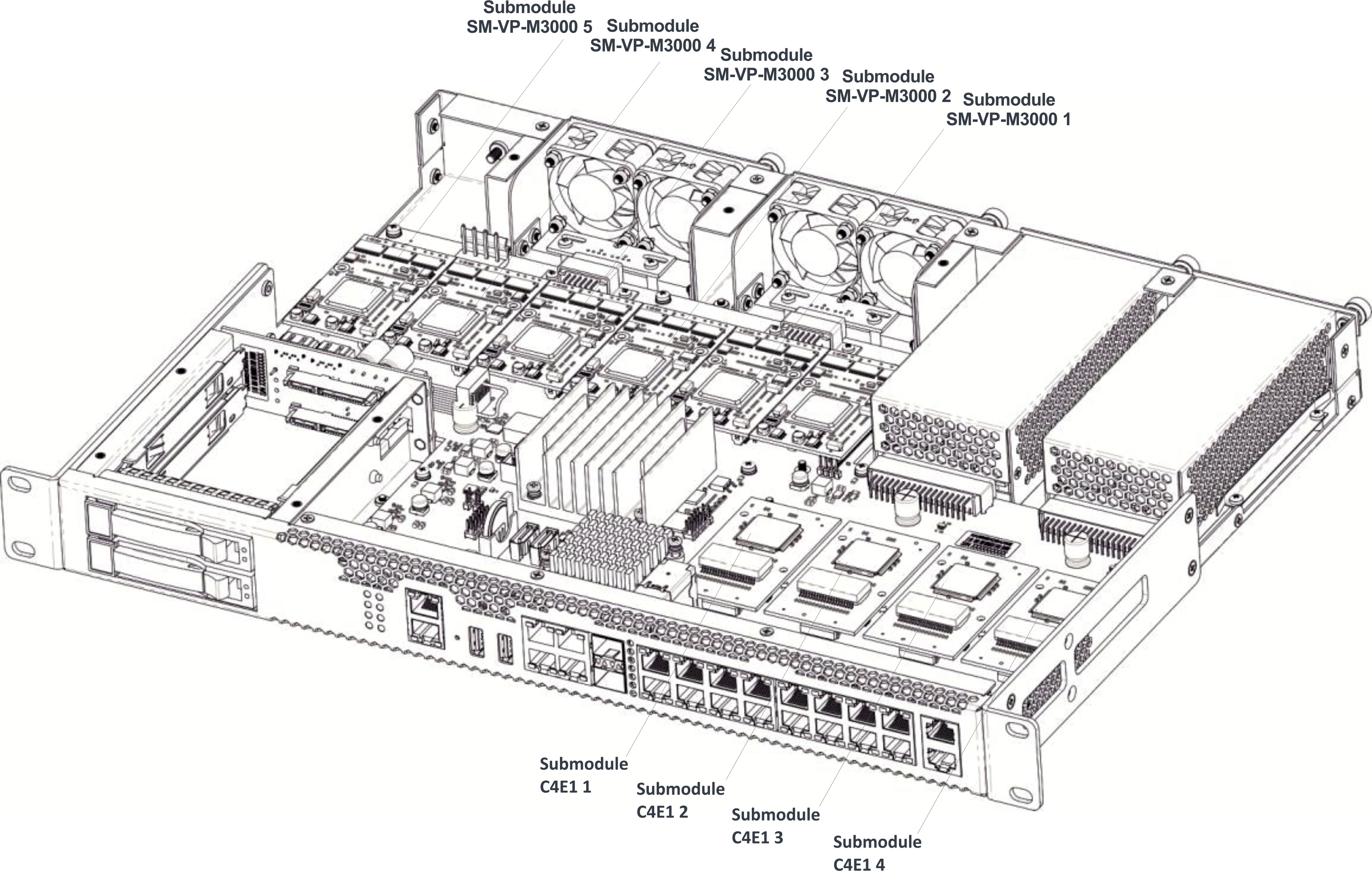
Figure 29 – SMG-3016 submodule location
SMG submodule installation order:
1. Check if the device is powered on.
2. If the voltage is present, disconnect the power supply.
3. Remove the device from the rack if necessary (see section Device rack installation).
4. Remove the device housing (see section Removing the housing).
5. In some hardware revisions, submodules are covered with specially shaped plates to prevent submodules from falling out during transportation (see section Removing the housing, figures 22, 23, 24). In this case, the plate should be removed.
6. Install the module into the empty position (see figures 27, 28, 29).
6.1 Install washers on the board, install brass standoffs on them.
6.2 Install the submodule onto the brass standoffs, making sure that the connectors are tightly connected to the submodule.
6.3 Fix the module using the screws.
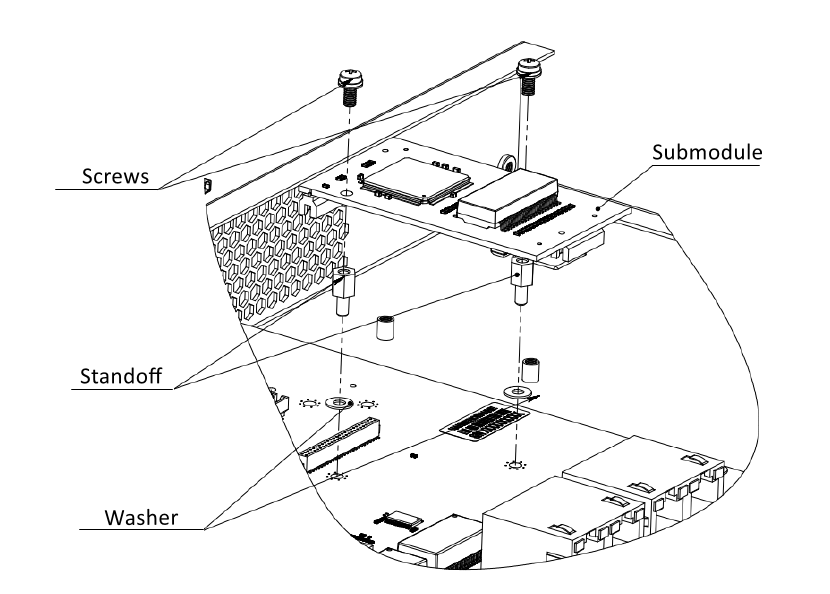
Figure 30 – Submodule installation on the board
6.4 Install the module on the board, making sure that the connectors are tightly connected to the submodule.
6.5 Secure the submodule using sealant to fix the submodule on the board.
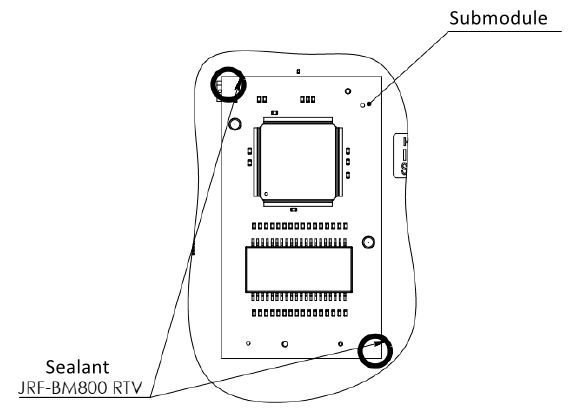
Figure 31 – Submodule installation on the board
7. For the positions of C4E1 submodules, the following correspondence is established with the numbers of E1 streams:
For SMG-1016M
For SMG-2016
For SMG-3016
8. Remount the restrictor plates above the submodules (if any), assemble the housing, install the device into the rack (if required).
The device design allows replacing the ventilation units even when the power is on.
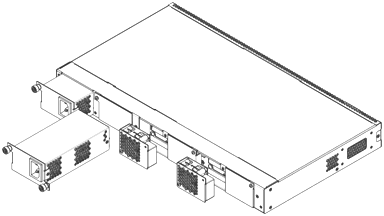
Figure 32 – SMG-1016M ventilation unit. Installation into case
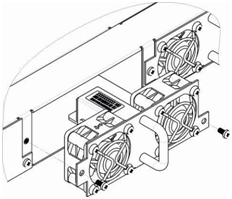
Figure 33 – SMG-2016 ventilation unit. Installation into case
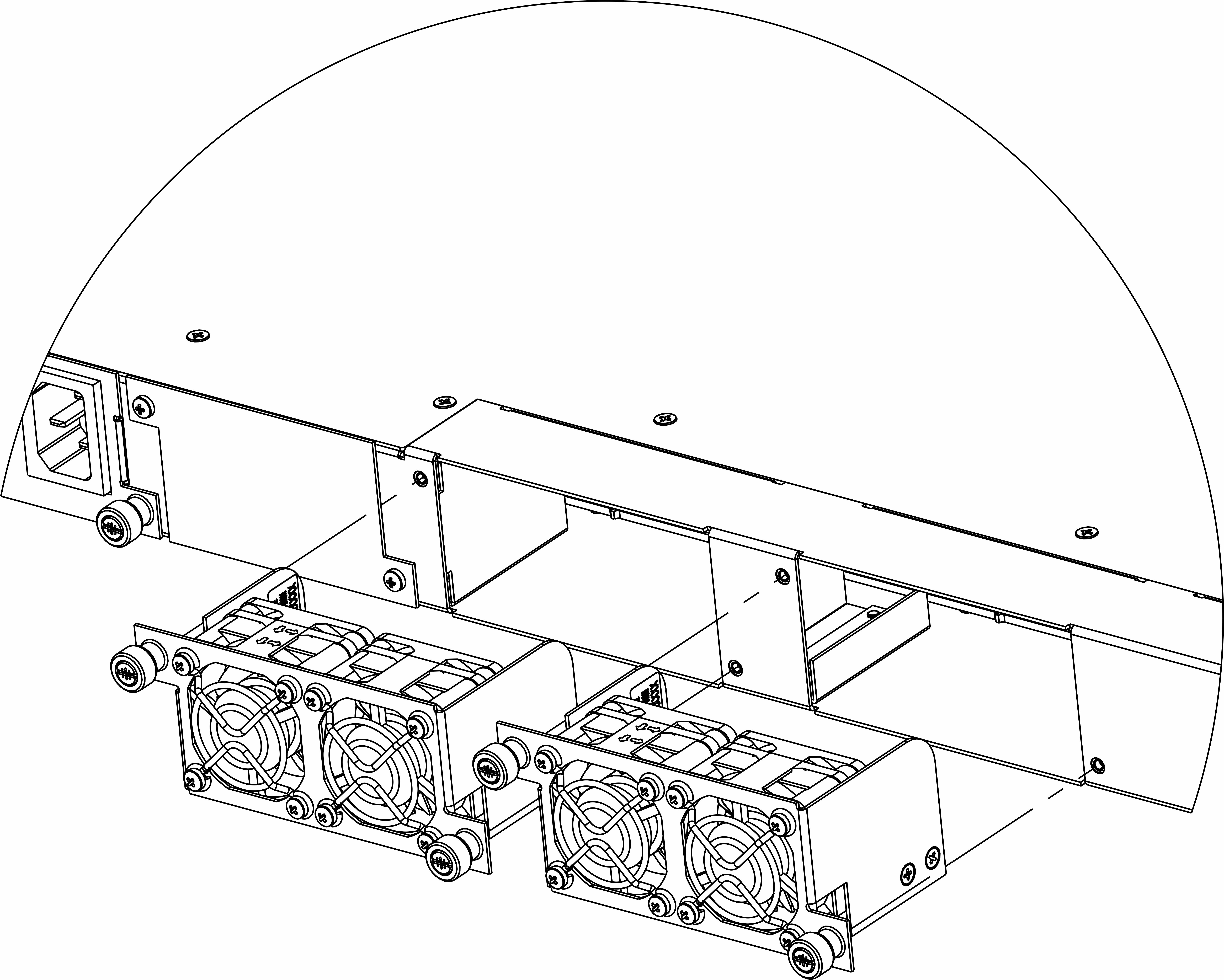
Figure 34 – SMG-2016 rev.B. ventilation unit. Installation into case
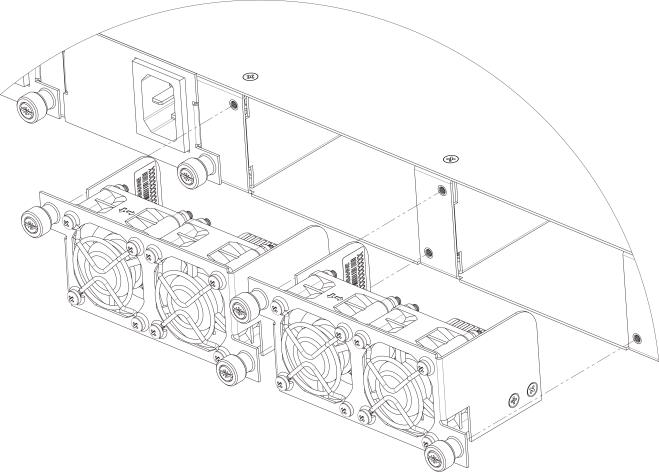
Figure 35 – SMG-3016 ventilation unit. Installation into case
To remove a ventilation unit, perform the following actions:
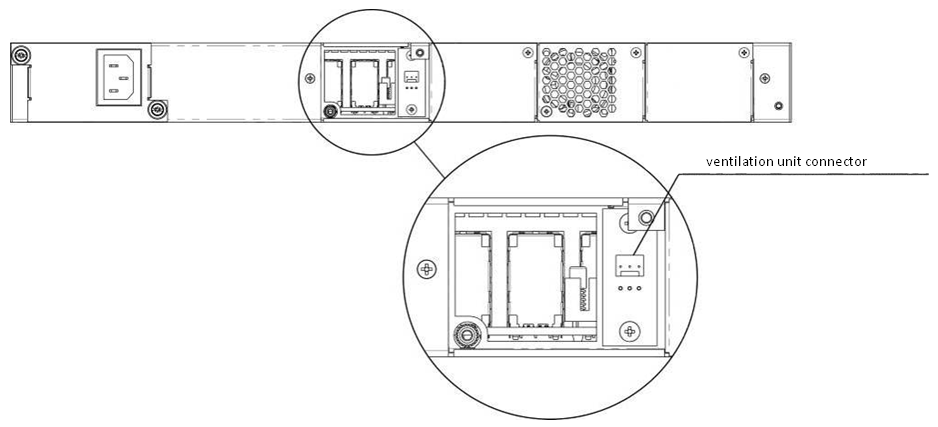
Figure 36 – SMG-1016M ventilation unit connector
To install a ventilation unit, perform the following actions:
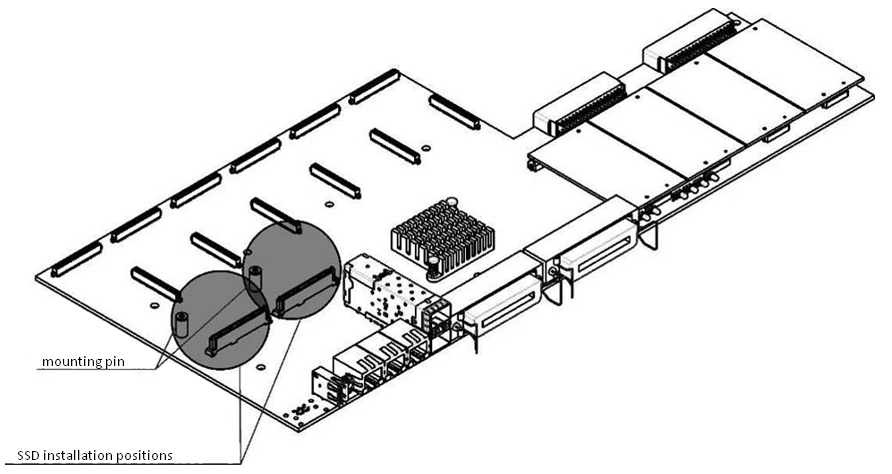
Figure 37 – SSD installation procedure
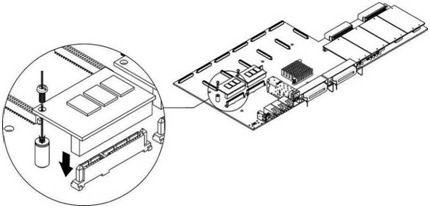
Figure 38 – SSD mounting procedure
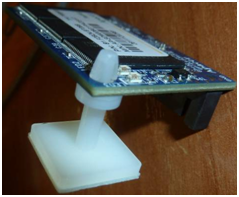
To remove the SSD, repeat all mentioned steps in the reverse order.
SATA drives may be additionally included in the device delivery package. Connection slot is designed for 2.5" drives with a thickness of up to 12.5 mm".
Installation of SATA drives:
To remove the SATA drive, repeat all mentioned steps in the reverse order.
SATA drives can be installed/removed when the device is powered on.
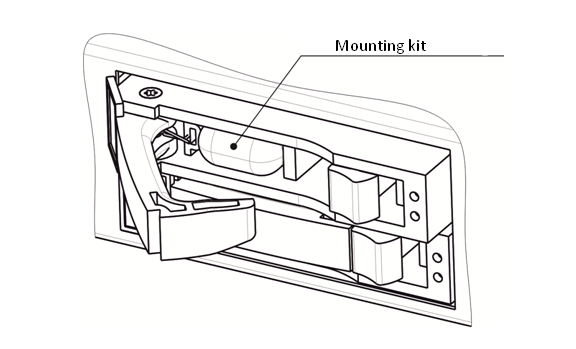
Figure 39 – Mounting kit location
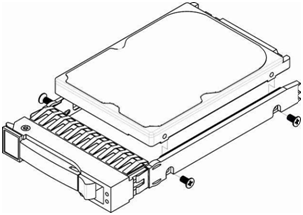
Figure 40 – Mounting SATA drive into drive tray
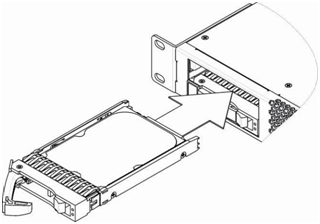
Figure 41 – Installation of SATA drive into device case
RTC (electric circuit designed for automatic chronometric data metering — current time, date, day of the week, etc.) located on the device board has a battery which specifications are listed in the table below.
Table 18 — RTC battery specifications
Battery type | Lithium |
Form factor | CR2032 (CR2024 installation is possible) |
Voltage | 3 V |
Capacity | 225 mA |
Diameter | 20 mm |
Thickness | 3.2 mm |
Lifetime | 5 years |
Storage conditions | from -20 to +35 °С |
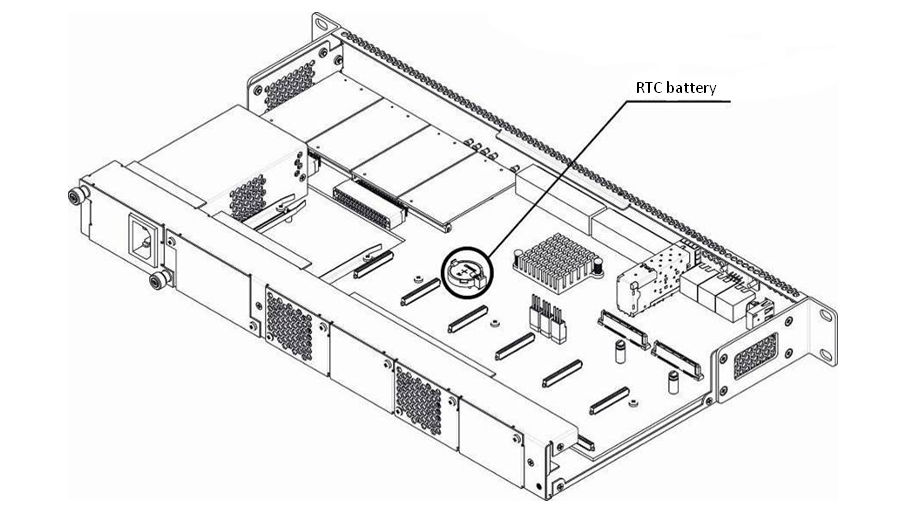
Figure 42 – RTC battery location for SMG-1016M
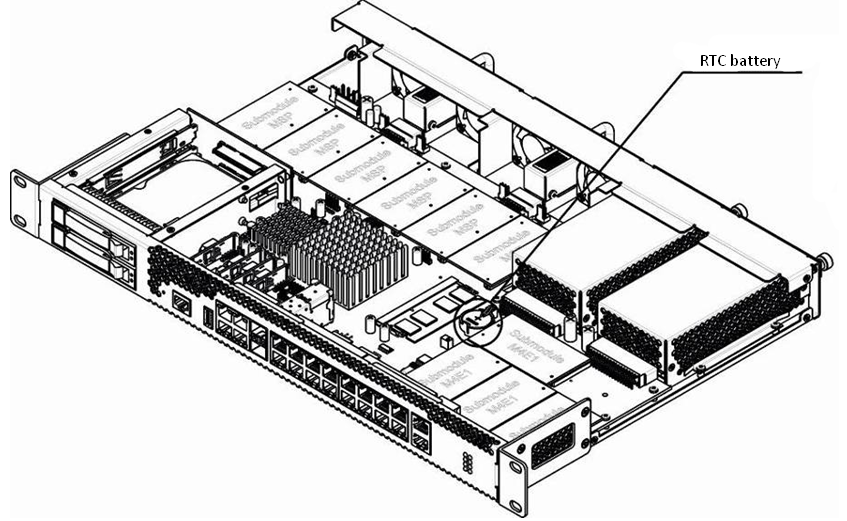
Figure 43 – RTC battery location for SMG-2016
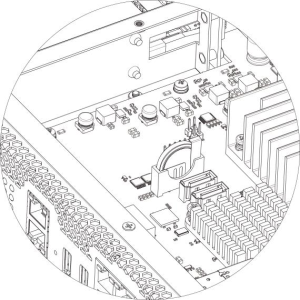
Figure 44 – RTC battery location for SMG-3016
If the battery lifetime is expired, replace it with a new one to ensure correct and continuous operation. The replacement procedure as follows:
For the device assembly, repeat all mentioned steps in the reverse order.
If NTP syncronization is disabled, aet the system date and time after RTC battery replacement. |
Used batteries should be recycled accordingly. |
The easiest way to configure and monitor the device is to use the web configurator, so it is recommended to use it for these purposes.
In order to prevent an unauthorized access to the device, it is recommended to change the password for Telnet and Console access (default username: admin, password: rootpasswd) and administrator password for web configurator access. For setting password for Telnet and Console access, see section Change device access password via CLI. For setting password for web configurator access, see section Management. It is recommended to write down and store defined passwords in a safe place, inaccessible by intruders.
In order to prevent device configuration data loss, e.g. after reset to factory configuration, it is recommended to make configuration backup copies and store them on a PC each time significant changes are made.
To ensure the device safety, follow the recommendations described in Appendix М. Safety recommendations. |
