The interface appearance may vary. |
To configure the device, establish connection in the web-browser (hypertext document viewer), such as Google, Firefox, Internet Explorer, etc. Enter device IP address into address bar of the web browser.
Factory IP address of the SMG device: 192.168.1.2, network mask: 255.255.255.0. |
Upon entering IP address, the device will request username and password. it is also pissible to choose the language that will be used in the interface.
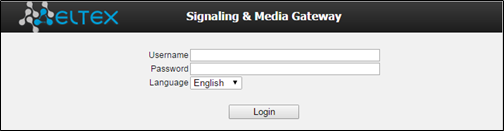
Initial startup username: admin, password: rootpasswd. |
After logging in with the default password, the system will ask you to create and enter a new password that meets the security criteria shown to the right of the input fields. The system automatically checks the password’s security; requirements that are met are marked with  , that are not are marked with –
  .
.
User password is valid for 90 days. |
If the password has expired, after successfully logging in with the old password, the user will see a message and be prompted to enter a new password that meets the criteria described above.
When web configurator access is established, the «System information» page will be displayed.
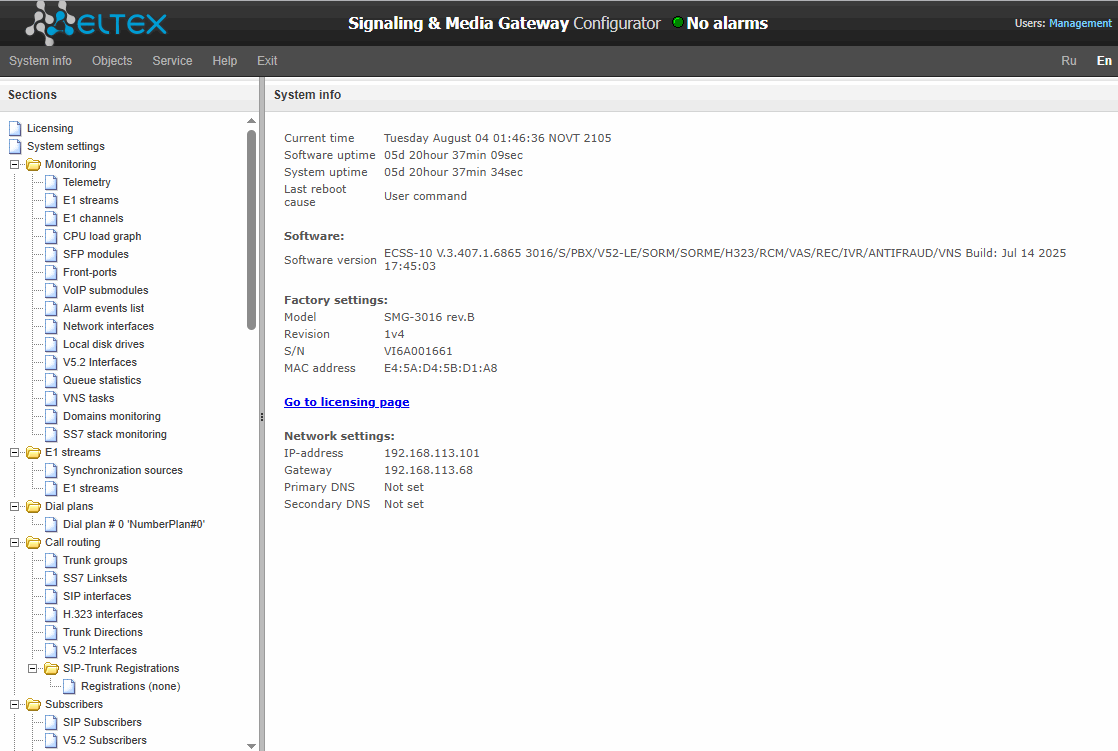
The figure below shows web configurator navigation elements.
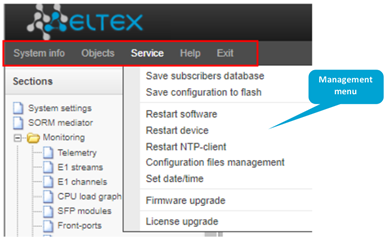
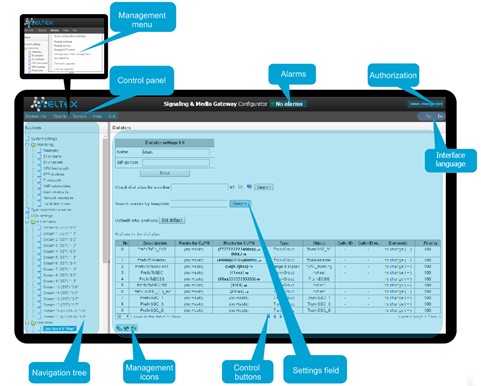
Figure 45 – Web configurator navigation elements
The user interface is divided into several areas:
Navigation tree | is used for access to management sections. Navigation tree contains the hierarchy of management sections and menus. |
Settings field | is based on the user selection in navigation tree. Allows to view device settings and enter configuration data. |
Control panel | panel for setting field objects and device firmware status management. |
Management menu | drop-down menus of the panel for settings field objects and device firmware status management. |
Alarms | displays the current highest-priority fault and servers as a link for the fault events log operations. |
Authorization | link for management of passwords used to access the web configurator. |
Interface language | buttons to select the interface language. |
Management icons | control that allow for the settings field objects management; duplicate 'Objects' menu of the control panel: |
Management buttons | comtol for working with settings field. |
To prevent unauthorized access to device in the future, it is recommended to change password (see 'Users: Management' menu).
The ('Tip') |
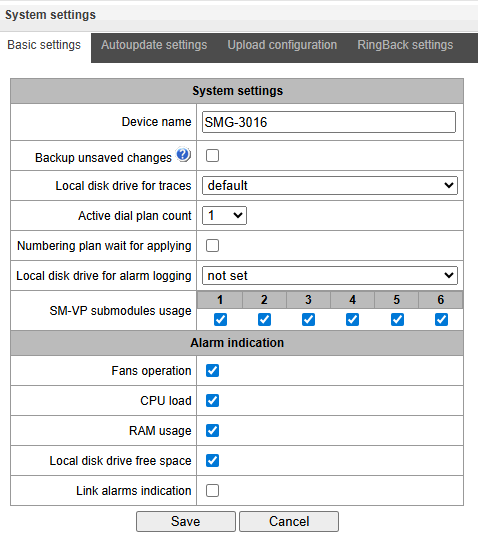
System settings → Basic settings
Example of alarm.txt file
File format description:
0, 1, 2… – event sequence number;
24/09/13 – event occurrence date;
20:03:22 – event occurrence time;
ALARM/OK – event current state (ОК – alarm is resolved, ALARM – alarm is active).
Table 19 — Alarm message examples
Alarm message | Meaning |
|---|---|
Configuration error | Configuration file error |
SIP module lost | Failure of a software module responsible for VoIP operation |
Linkset down | SS7 link set failure |
Е1 stream alarm | Е1 stream failure |
SS7 link alarm | SS& signal channel failure |
Synchronization from a lower priority source | Primary synchronization source is lost, current source has lower priority |
Е1-Line-Remote-Alarm | Е1 stream remote fault |
FTP error. CDR-send failed | Failed to send CDR file to remote storage |
Software started | Device software startup |
Alarm indication
Autoupdate settings
System settings → Autoupdate settings
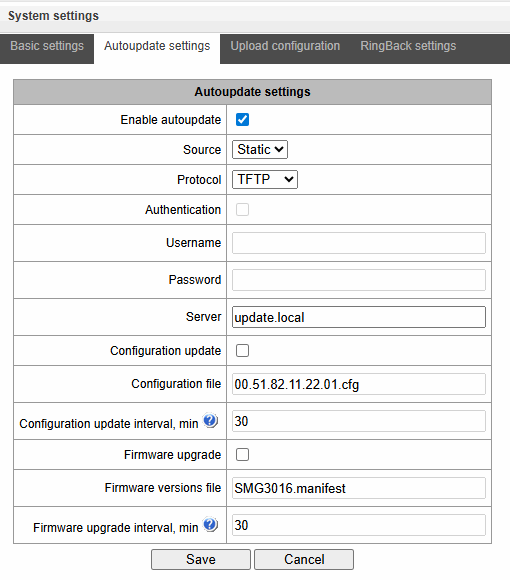
SMG can automatically receive configuration and software version files from the auto-configuration server (hereinafter referred to as the “server”) with a specified period.
After downloading the configuration, SMG will wait for all active calls to end, after which will apply the new configuration or before a reboot.
Firmware version description file contains information about firmware versions on the server: versions and file names. In this file, the time to update can be also set. The file format should be as follows:
<Firmware version>;<Firmware file name>;<Permitted update time, hour>
Example of firmware description file:
3.7.0.1944;smg1016m_firmware_3.7.0.1944.bin
3.8.0.2050;smg1016m_firmware_3.8.0.2050.bin;9-13
Upload configuration
System settings → Upload configuration
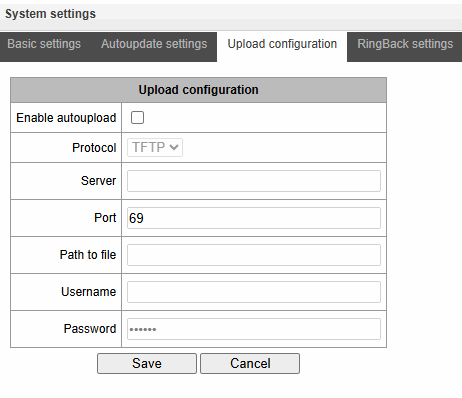
SMG can upload a configuration to FTP/TFTP/SCP-server automatically each time it is saved to nonvolatile memory.
Ringback settings
System settings → Ringback settings
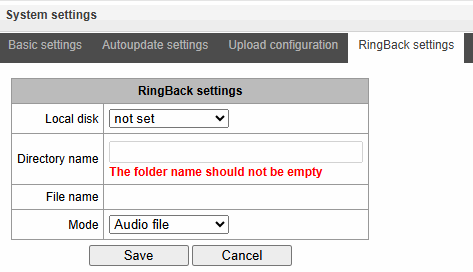
RingBack settings allow replacing the standard ringing sound with any other one, similarly operation of the “Replace the horn” service.
The ‘Overview’ submenu allows you to upload, select and delete the audio files you want to use as RBT:
System settings → RingBack settings → Browse
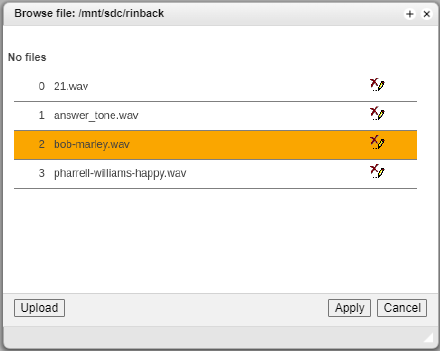
Audio files in WAV and MP3 formats, up to 2 MB in size, are supported. Once uploaded, the files are automatically converted to WAV format, using the G.711a codec, 8-bit, 8 kHz, mono. |
When setting up RBT from the ‘System parameters’ item, the audio file is applied to all subscribers and system trunk groups.
There are several levels of settings, each next “more detailed” level has priority over previous:
Monitoring → Telemetry
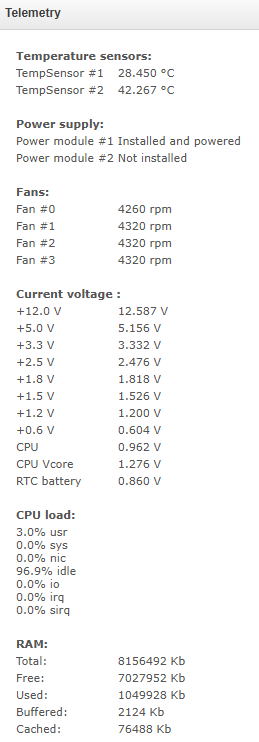
This section contains information on the device telemetric sensor readings as well as the information on power supplies and fans installed.
Temperature sensors:
For SMG-1016M, SMG-3016:
For SMG-2016 :
Power supply:
Possible power supply states:
Fans 1:
|
Voltage 1:
Current voltage 2:
CPU load:
|
The section displays information about installed chips on C4E1 submodules, as well as E1 stream monitoring and statistics.
Monitoring → E1 streams
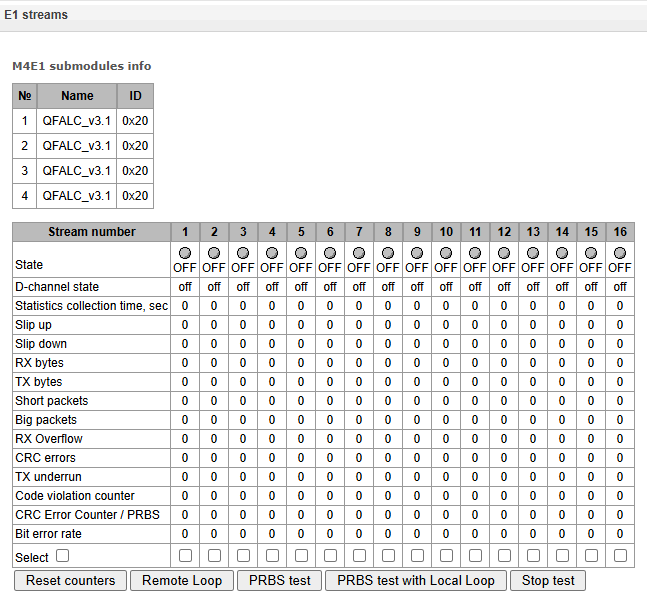
For E1 chips, the table indicates the position number in which it is installed (see Submodule installation), chip name and identifier.
Stream parameters:
The following buttons are below the table:
This section contains information on E1 stream channel status. In the upper part of the field, there is E1 stream channel matrix, where channel numbers are defined in rows and stream numbers are defined in columns (their assigned signalling protocol listed in parentheses). In the lower part of the field, there are information tables and the management table.
Information tables
Connection information for stream # and channel #:
Stream state – information table with matrix symbol interpretations:
Channel state – information table with matrix symbol interpretation:
If one of the C4Е1 submodules is missing, the message "C4E1 submodule is not installed, channel monitoring is unavailable ".
Channel state updates in 5 seconds interval.
Link management
To enable stream management, left-click the stream name. The field will become highlighted, for example, the screenshot below shows the information for Stream 1 (SS7). Next, in 'SS7 link management' table, select the field with the required action and left-click it. Pop-up informational message about the command execution will be shown on screen.
Monitoring → E1 channels
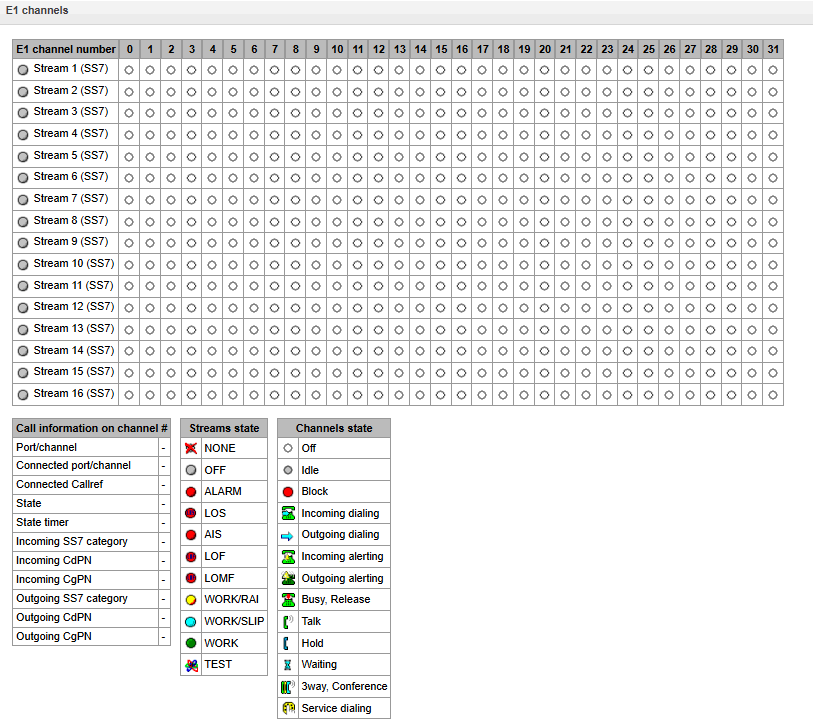
SS7 link management – SS7 signal link management:
Channel management
To enable management for a channel in a stream, left-click its icon. The field will become highlighted, for example, the screenshot below shows the information for Channel 11 in Stream 0 (SS7). Next, in 'SS7 channel management' table, select the field with the required action and left-click it. Pop-up informational message about the command execution will be shown on screen.
Group operations for channels in a stream can be performed. To do this, select the range of channels while holding <SHIFT> key. |
Monitoring → E1 channels
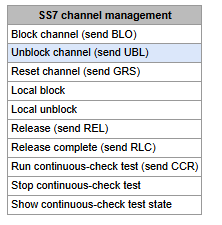
SS7 channel management – SS7 (CIC) channel management table:
This section contains information on CPU utilization in real time (10-minute interval). Statistics charts are based on average data for each 3-second device operation interval.
Monitoring → CPU load graph
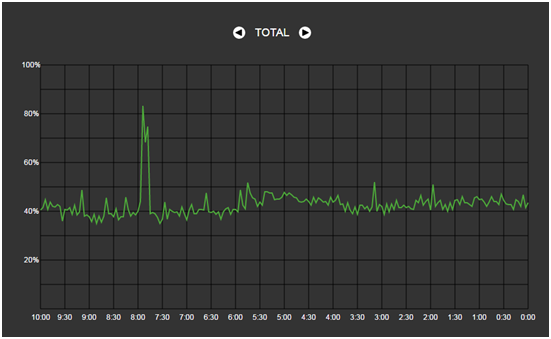
To navigate between specific parameters in monitoring charts, use buttons and
and  . To facilitate visual identification, all charts have different colors.
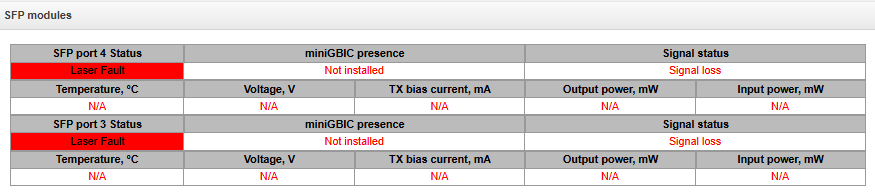
This section contains status indication and optical line parameters.
Monitoring → SFP modules
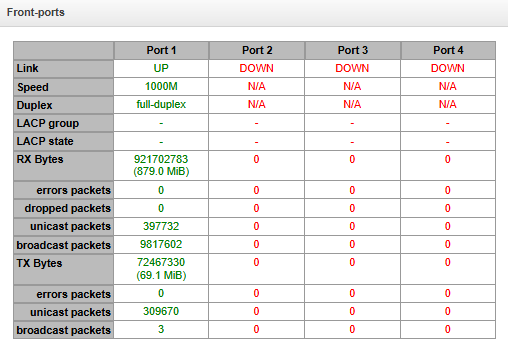
This section contains information about physical switch port state – link state, committed data rate and mode of transmission. Dual port (copper and optical connectors) is marked with ‘SFP’ label near its number. There is no label, if dual port is active and connected with copper cable.
Monitoring → Front-ports
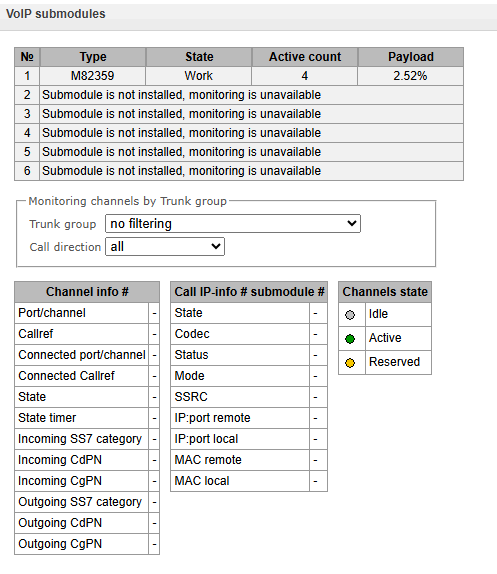
This section contains information on SM-VP submodules installed and their channel state.
Monitoring → VoIP submodules
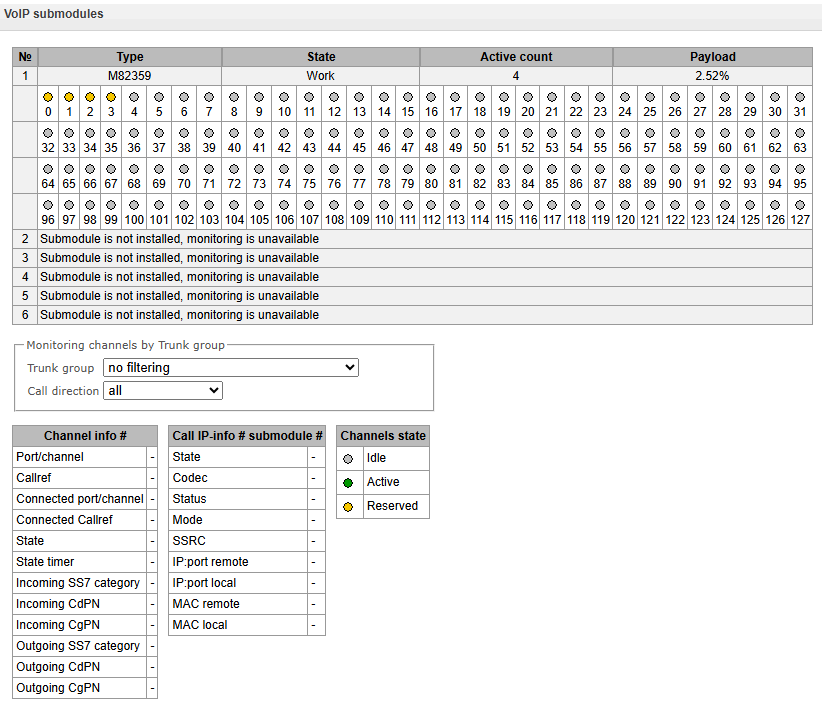
For channel state monitoring, left-click the row containing the required submodule number. To hide the information, left-click the row again.
Monitoring → VoIP submodules→ Type (M82359)
Channel info#:
Channels state:
To view detailed channel information, left-click to select it from the table.
Call IP info# submodule#:
There is the 'Disconnect the call' button below the tables with channel status, which allows one to forcibly terminate the connection.
When using a SORM license, one of the submodules is completely allocated for ensuring combined control (see section Application and Appendix E. SORM function configuration). In this case, the state of the submodule is displayed as Reserved, channel monitoring of this module is not produced. |
When a failure occurs, related information containing the fault stream number, SS7 link set, signal link or faulty module will be displayed on the web configurator header. If there are multiple active alarms, the most critical alarm at the given moment will be shown in the web configurator header.
When there are no alarms, the message 'No alarms' will be shown.

Table 20 — Alarm message examples
Alarm message | Meaning |
|---|---|
Configuration is not read | Configuration file error |
SIP module connection error | Failure of a software module responsible for SIP operation |
SS7 Linkset failed | SS7 likset failure |
E1 stream alarm | Е1 stream failure |
SS7 link alarm | SS7 signal channel failure |
Synchronization from low-priority source | Primary syncronization source is lost, priority of the currnet source is lower |
E1 stream remote alarm | Е1 stream remote fault |
Synchronization from low-priority source | Primary synchronization source is lost, priority of the current source is lower |
Failed to send CDR files to remote storage | Failed to send CDR file to remote storage |
VoIP submodule connection error | No connection to SM-VP submodule |
ОRAM is alomost running out | High RAM utilization alarm |
No power on the power module | Primary power main is missing on one of the power modules |
H.323 module connection error | Failure of a software module responsible for H.323 operation |
CPU high temperature | Temperature: 70 °C – warning 85 °C – alarm 100 °C – critical alarm |
SIP interface is not responding on OPTIONS requests | One of the SIP interfaces is not available |
High CPU load | Load: more tha 90 % – warning more than 95 % – alarm |
fans malfunction | One or multiple fans are inoperable |
Low free space on a USB/Hdd drive | Low free space on one of the external storage devices |
CPS threshold is exceeded from 'TrunkGroupName' | Number of call coming to one of the trunk groups per second exceeds the value defined by «Alarm CU value» option |
SIP interface INVITE duplication error | Duplication failures of INVITE received from emergency call service node. FAilure might occur if duplication server is not available |
KPD1/KPD2 down | KPD1/KPD2 is not in operation |
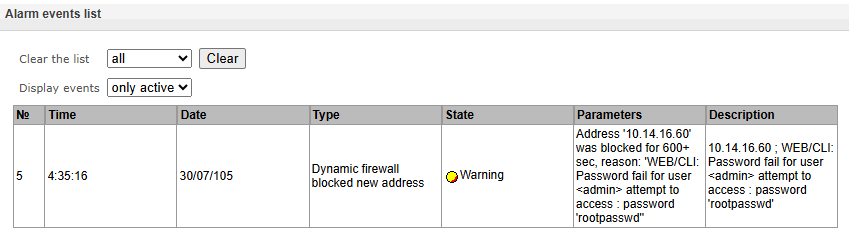
The 'Alarm events list' menu displays a list of emergency events, ranked by date, time and events. 'Only active' events show current accidents on the device in this moment. 'All events' display all available alarm information. Also there is a 'Clear' button, which deletes all information from the current log.
Monitoring → Alarm events list → Only active
Monitoring → Alarm events list → All events
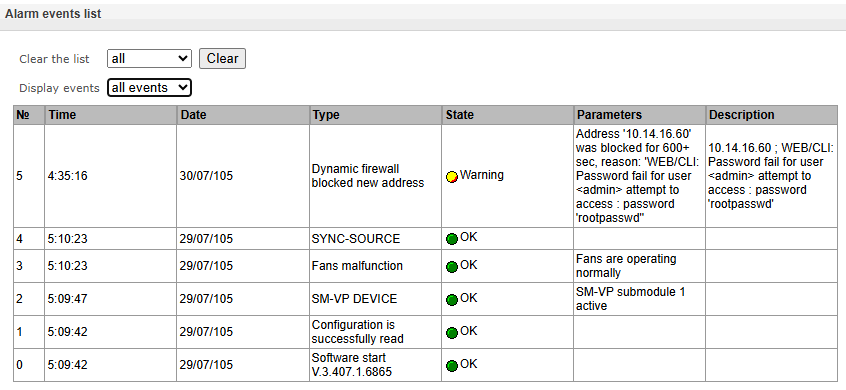
Alarm events list:
This section allows monitoring of network interfaces (tagged/untagged/VPN) and viewing users connected to VPN device.
Monitoring → Network interfaces
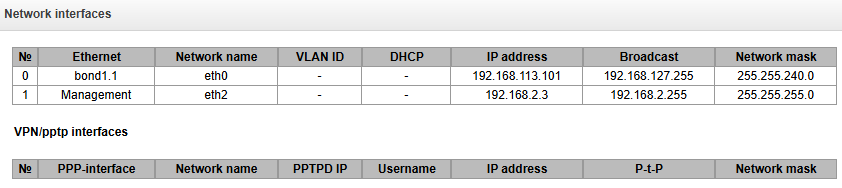
VPN/pptp interfaces
This section contains information on the connected storage media.
Monitoring → Local disk drive
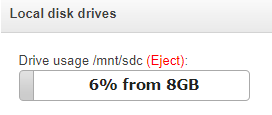
The names of external drives are linked to the interface ports:
Devices are named according to the /dev/sdX. |
SMG1016M | ||||
|---|---|---|---|---|
SSD № 1 | /dev/sda* | |||
SSD № 2 | /dev/sdb* | |||
USB | /dev/sdc* | |||
SMG2016 | ||||
HDD № 1 | /dev/sda* | |||
HDD № 2 | /dev/sdb* | |||
USB | /dev/sdc* | |||
SMG3016 | ||||
HDD № 1 | /dev/sda* | |||
HDD № 2 | /dev/sdb* | |||
USB | /dev/sdc* | |||
The state of V5.2 interfaces is displayed in this section1.
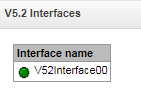
|
This section displays queue operation statistics.
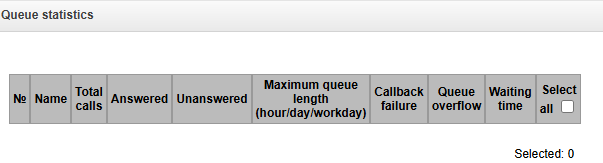
ID queue — queue identifier;
Total calls — total number of calls received in the queue;
Answered — number of successful calls ending with an operator response;
Unaswered — number of calls in which the caller hung up without waiting an operator response;
Maximum queue length (hour/day/workday) — maximum queue length per last hour/day/working day. Last hour/day is a periodic time interval, repeating every hour/24 hours respectively, the beginning of the first interval is necessary to count from the moment the software starts. Time intervals of the working day are set in the group settings call;
Callback failure — number of unsuccessful attempts to call back the subscriber, when using the callback option2;
|
Queue overflow — number of calls rejected due to queue overflow;
Waiting time — average waiting time for an operator response, a response is generated based on this value. To clear queue statistics, check ‘Select’ opposite those queues whose statistics need to be cleared, and click the appeared ‘Clear selected’ button.
Monitoring → VNS tasks
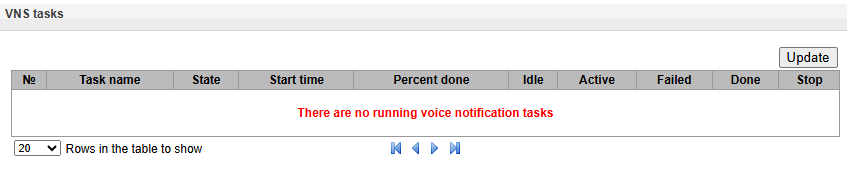
This section displays the status of running voice notification systems1.
|
This section displays a list mapping domain names to their IP addresses (local DNS cache).
Monitoring → Domains monitoring
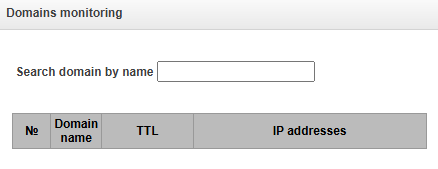
The SMG Domain Name System is designed such that, upon the first request to the DNS server, the mapping between the domain name and its IP address is stored in the local DNS cache. To speed up the processing of subsequent queries for this domain name, SMG uses the existing local cache. The duration for which records are stored in the cache corresponds to the TTL parameter received from the DNS server.
There is no time limit on the storage of records from the ‘Domain Name List’ table; the TTL for these records is always zero.
This section1 displays the status of the netlinks configured on the device.
See more about netlink configuration in Appendix M. SS7 stack monitoring.
Monitoring → SS7 stack monitoring
|
The signalling and parameters of each E1 stream are configured in this section.
To synchronize the device with multiple sources, priority list algorithm has been implemented. Its meaning is as follows: when sync signal from the current source is lost, the list lookup is performed to identify active signals from the lower priority sources. When the higher priority signal is restored, the system will switch to that signal. Also, you may use multiple sources of the same priority; at that, when the same priority signal is restored, the system will not switch to that signal.
Up to 16 synchronization sources can be specified (each of 16 E1 streams and 2 external sources).
The ports receiving external signals have the impedance of 120 Ohm. The incoming signal should have the parameters given in ITU-T G.703 recommendation, section 15, 2048 kHz syncronization interface (T12).
E1 streams → Synchronization sources
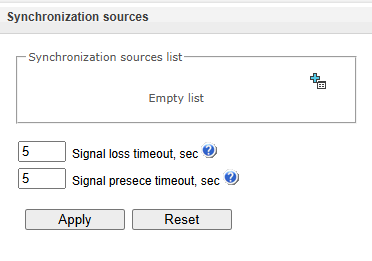
To generate the list, use the following buttons:
 – «Add source»;
 – «Remove».
To change the source priority, use "Up"/"Down" buttons located next to each source. The highest priority value is 0, the lowest priority value is 15.
If D-channel is configured for the stream originating the synchnization signal (for SS7 or PRI protocol), make sure that D-channel is in operation, otherwise the synchronization signal will not be captured from the stream that will cause slips. |
The signaling protocol used on the stream is selected in the drop-down list ‘Signaling protocol’.
E1 stream → Stream 0 (Q.931-U) → Physical settings/Q.931
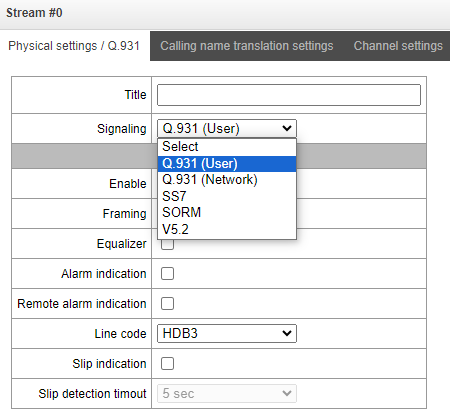
The device supports the following signals:
V5.2 interfaces:
|
Physical settings:
E1 streams → Stream 0 (Q.931-U) → Physical settings/Q.931
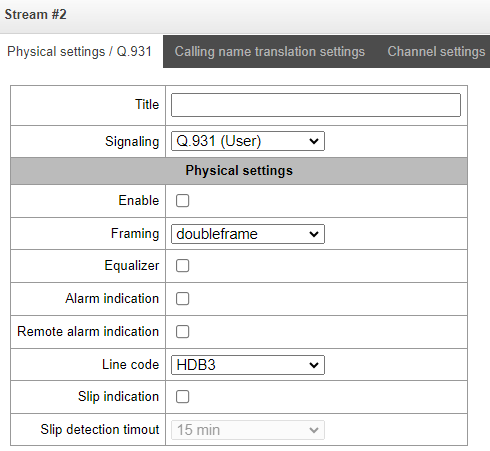
E1 streams → Stream 0 (Q.931-U) → Physical settings/Q.931
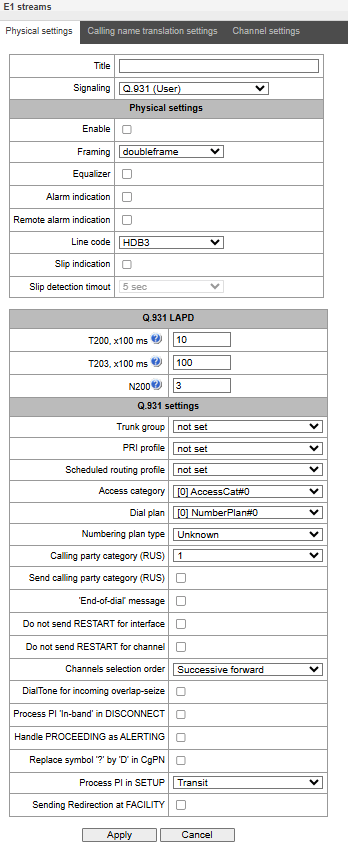
Q.931 LAPD – LAPD channel level settings of Q.931 protocol
Q.931 settings
Send calling part category – enables Caller ID category transmission as the first digit of a number in CgPN information element of the SETUP message.
For proper operation, support for this mode on the opposite side is necessary. |
Replace symbol ‘?’ by ‘D’ in CgPN – when checked, if a received SETUP message in CgPN receives a ‘?’, it will be replaced by ‘D’.
This tab is used to configure the way of name reception/transmission and coding of received/transmitted name.
E1 streams → Stream 0 (Q.931-U) → Calling name and translation settings
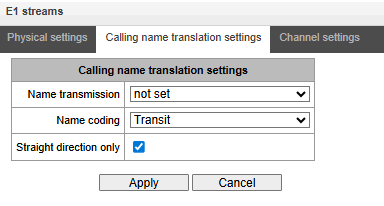
The method selected for name reception/transmission and coding of received/transmitted name works only in a configurable E1 stream. Transmission between streams differing by the settings of name transmission parameters is possible. In case of such transmission, the SMG performs recoding by itself to harmonize the sides.
E1 streams → Stream 0 (Q.931-U) → Channel settings
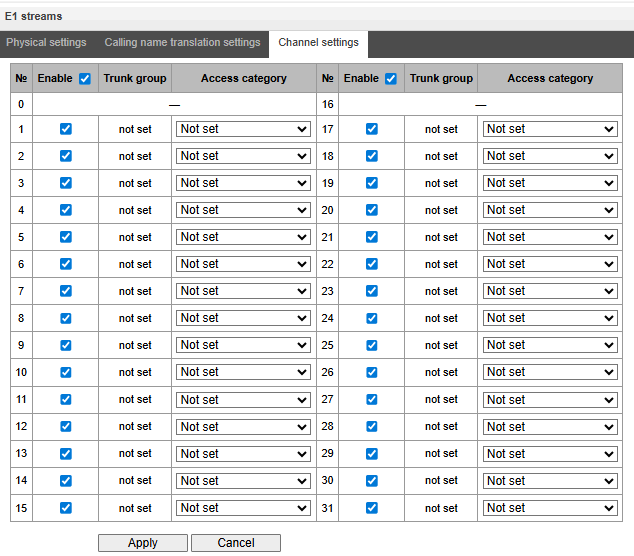
This menu is used to enable/disable E1 stream channel. To do that, select/clear checkbox against the corresponding channel. ‘Trunk group’ column displays number of group where these channels are configured (used only when trunk group is assigned to channels, not to the whole stream).
In the ‘Access Category’ column, it is possible to select the required access category for each E1 stream channel individually.
E1 streams → Stream 0 (SS7) → Physical settings/SS7
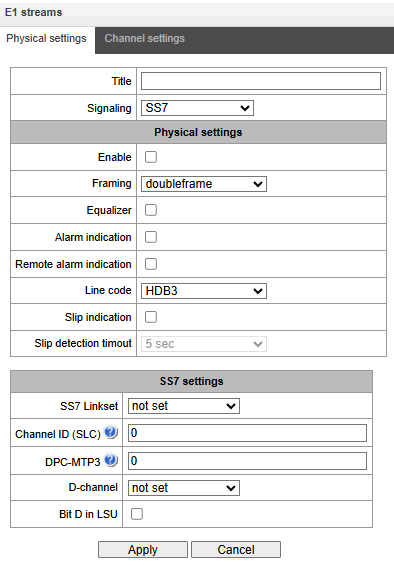
SS-7 settings:
D-channel – number of the channel interval that will be used for signaling transmission;
Move to 'Channel settings' tab after changing the number of D channel on a stream with SS7 and set the appropriate CIC for the same channel timeslot that you are already set for D channel. |
Bit D in LSU – set value 1 for bit D in status field (SF) of a signal unit LSSU (D–F bits in status field SF are reserved).
E1 streams → Stream 0 (SS7) → Channel settings
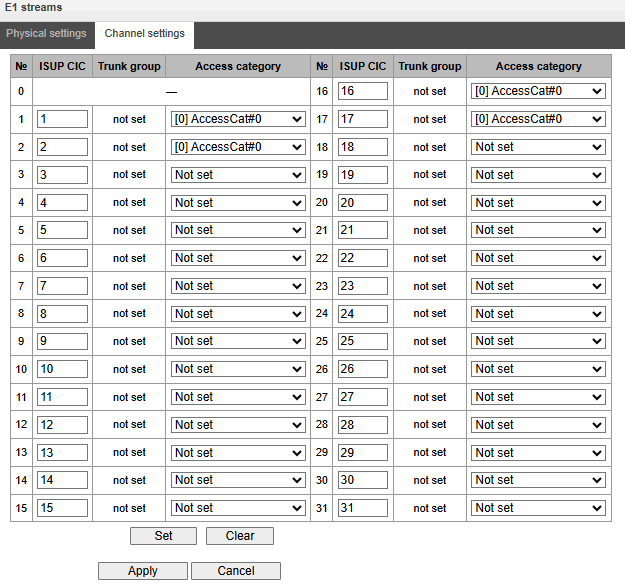
To automatically number conversation channels, click the ‘Set’ button.
E1 streams → Stream 0 (SS7) → Channel settings → Set
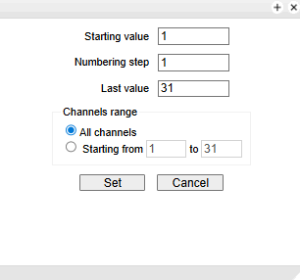
The following menu will be displayed:
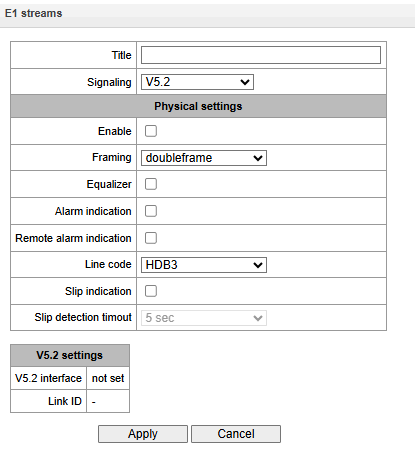
The assignment of a stream to the V5.2 interface is made in the V5.2 interface parameters.
This section displays the current V5.2 interface to which this stream is assigned for reference, as well as the stream identifier inside the V5.2 interface.
E1 streams → Stream 0 (SS7) → Physical settings/V5.2
E1 streams → Stream 0 (SS7) → Physical settings/SORM
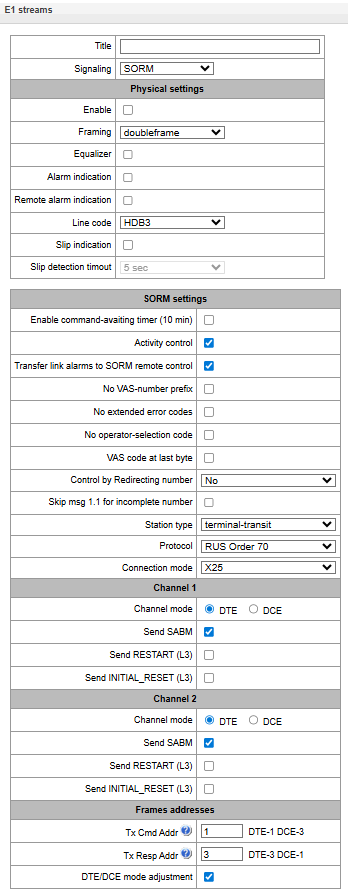
Connection mode:
X25 – signal channels are organized via the X25 protocol, using 30-31 channels of E1 stream;
TCP – signal channels are organized via the TCP protocol. The settings are active only when selecting ‘TCP connection mode’):
Port 1 – virtual TCP port to organize the signal channel of command and control center 1;
Port 2 – virtual TCP port to organize the signal channel of command and control center 2;
Network interface – selecting the device network interface.
Channel operation mode:
Channel settings:
Frames addresses:
It is not allowed to install the SORM protocol on multiple streams. After selecting the SORM protocol on one of the streams, it is necessary to restart the software. The factory password for SORM is '123456'. |
It is not recommended to disable the 'DTE/DCE mode adjustment' option, because this could lead to malfunction of the device. |
Modification of numbers on the SORM stream serves only to futher configure interaction with SORM remote control in some exceptional configurations and should not be used with normal SORM setup. The need to use modifiers is determined by a qualified specialist. The procedure for setting up SORM is described in the section Appendix E. SORM function configuration. |
Modifiers of incoming numbers – selecting a table of modifiers intended for analysis and modification of the subscriber's telephone number in SORM messages received from the console.
Modifiers of outgoing number – selecting a table of modifiers intended for analysis and modification of the subscriber's phone number in SORM messages sent to the remote control.
Always modify B-number – an option required to modify all B-numbers, the outgoing number modifier has been not previously applied for the number dialed by the local subscriber.
Modifiers of controlled numbers – selecting a table of modifiers intended for analysis and modification of the subscriber's phone number before selecting it for sending to the SORM control panel.
This section is used to configure the device dial plan.
The device has up to 16 independent dial plans (up to 255 for SMG-2016 and SMG-3016 with VAS license). Each dial plan can have its own subscribers and prefixes.
The number of active plans is configured in the System settings.
There are 4 criteria by which calls are routed on the device:
search by calling number – CgPN (Calling Party Number) and called party – CdPN(Called Party Number);
Upon entering a call into the dial plan, its routing begins, initially search for a match with CgPN number masks takes place. If there is a prefix with ‘AND’ logic (masks are specified by CgPN and CdPN, and a match was found for both parameters) and a prefix with the same mask is found according to CgPN, then if the “Priority” parameter is equal, the call will go through the prefix with the ‘AND’ logic, because this mask is considered to be more accurate. If the priority of the prefix with ‘AND’ is lower, then the call will go by prefix with ‘OR’.
If, when searching by CgPN, two prefixes with ‘AND’ logic are found, and the CgPN mask is the same, then CdPN is compared and the call is routed using a prefix with a more accurate mask.
Далее происходит поиск по базе сконфигурированных на устройстве абонентов. В случае нахождения совпадения по префиксу с маской CgPN или по базе абонентов происходит маршрутизация вызова и дальнейший поиск прекращается.
Searching and routing a call through the database of configured subscribers is carried out even when the call parameters match the CgPN number masks.
If the call parameters do not match the CgPN masks and the subscriber number, a search occurs across all CdPN masks configured in the dial plan.
If masks for CgPN and CdPN numbers are simultaneously configured in the prefix parameters and the logical operator 'OR' is set, the this rule works according to the logic 'OR', i.e. simultaneous analysis by CgPN and CdPN numbers dies not occur. If masks for CgPN and CdPN numbers are simultaneously configured in the prefix parameters and the logical operator 'AND' is set, the this rule works according to the logic 'AND', i.e. for routing a call using this prefix, the CgPN and CdPN masks should match. |
Dial plans → Dial plan # 0 'NumberPlan#0'
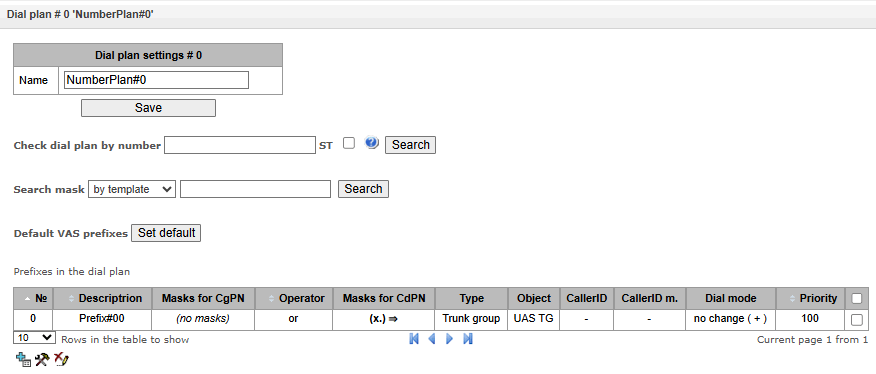
Dial plan settings:
Check dial plan by number – checks if routing is possible for the number entered into this field.
The check is performed by callee and caller masks and thorugh the configured SIP subscriber database.
Search mask – prefix search by number pattern, name, direction, prefix type, trunk direction, trunk group.
The check provides information on routing capability for this number:
Copying prefixes to another dial plan:
To create a new prefix, open the ‘Objects’ menu and click ‘Add an object’ or click the  button located below the list, and enter prefix parameters in the opened form:
Dial plans→ Dial plan # 0 'NumberPlan#0' →
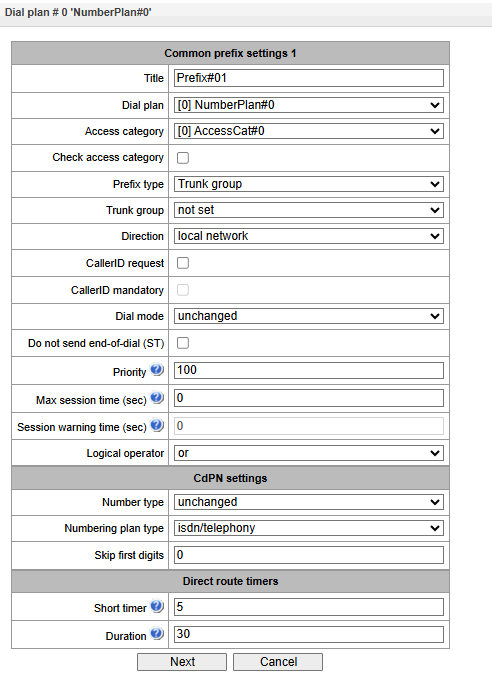
Common prefix settings:
|
Parameters of the ‘Trunk Group and Trunk Direction’ Prefix:
Common Prefix Parameters:
Logical operator:
– OR – if CgPN and CdPN masks are on the prefix, there is no simultaneous analysis by CgPN and CdPN numbers;
– AND – simultaneous analysis by CgPN and CdPN number is performed.
For correct operation of prefixes with the logical operator ‘AND’, it is necessary to configure a mask for CgPN and CdPN. If one of the masks is missing, the prefix does not work.
CdPN Settings:
Direct route timers (used when trunk groups are directly connected without prefix mask analysis – the Direct Prefix function in trunk group settings).
These timers work only when dialling in the overlap mode:
Parameters of the ‘Change dial plan’ Prefix:
Priority – if there are some overlapping masks in the dial plan, the call will be made into the prefix with a higher priority. The value of 0 is the highest priority, 100 is the lowest priority;
Max session time (sec) – limit duration of calls passed through this prefix;
– OR – if CgPN and CdPN masks are on the prefix, there is no simultaneous analysis by CgPN and CdPN numbers;
– AND – simultaneous analysis by CgPN and CdPN number is performed.
For correct operation of prefixes with the logical operator ‘AND’, it is necessary to configure a mask for CgPN and CdPN. If one of the masks is missing, the prefix does not work.
Modifiers when changing the dial plan:
Parameters of the ‘VAS Prefix’
Number masks for VAS prefix always should be ended with # symbol.
Parameters of the ‘Pickup Group’ Prefix
– OR – if CgPN and CdPN masks are on the prefix, there is no simultaneous analysis by CgPN and CdPN numbers;
– AND – simultaneous analysis by CgPN and CdPN number is performed.
For correct operation of prefixes with the logical operator ‘AND’, it is necessary to configure a mask for CgPN and CdPN. If one of the masks is missing, the prefix does not work.
Direct route timers
Parameters of the ‘IVR Scenario’ Prefix
– OR – if CgPN and CdPN masks are on the prefix, there is no simultaneous analysis by CgPN and CdPN numbers;
– AND – simultaneous analysis by CgPN and CdPN number is performed.
For correct operation of prefixes with the logical operator ‘AND’, it is necessary to configure a mask for CgPN and CdPN. If one of the masks is missing, the prefix does not work.
Direct route timers:
Common prefix settings:
Launching VNS task using a prefix does not work for local subscribers; subscribers can only launch VNS tasks by entering a feature code. |
Logical operator:
– OR – if CgPN and CdPN masks are on the prefix, there is no simultaneous analysis by CgPN and CdPN numbers;
– AND – simultaneous analysis by CgPN and CdPN number is performed.
For correct operation of prefixes with the logical operator ‘AND’, it is necessary to configure a mask for CgPN and CdPN. If one of the masks is missing, the prefix does not work.
Direct route timers:
Masks lists:
For created dial plans, the ‘Masks List’ section allows configuring the masks of numbers for routing by this prefix.
Dial plans → Dial plan # 0 'NumberPlan#0' → Object
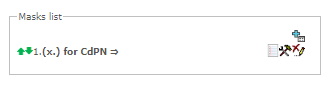
To generate the list, use the following buttons:
– Add mask;
 – Edit mask;
– Remove mask;
 – View mask.
Using green arrows to the left of the created mask, the entries can be moved in the table by prioritizing them.
Dial plans → Dial plan # 0 'NumberPlan#0' → Object →
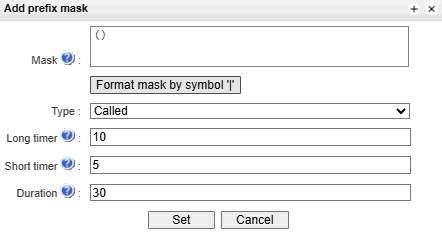
To edit a prefix, double-click the prefix row in the prefix table with the left button or select the prefix and click thebutton below the list.
To delete a prefix, select the prefix and click the button below the list or open the ‘Objects’ menu and select ‘Remove Object’.
Number mask is a set of templ (templates) delimited by the special character ‘|’. The mask should be enclosed into parentheses. (templ) is equal to (templ1|templ2|...|templN).
Syntax:
the range ([1-5]ХХХ) – all 4-digit numbers that begin with 1,2,3,4 or 5;
the enumeration ([138]xx) – all 3-digit numbers that begin with 1,3 or 8).
(-) – the mask used only in CgPN number modifier tables for calls without caller number. Allows the caller number to be added if it was missing and also specifies indicators for that number.
Negation excludes only the specified pattern; it does not allow all numbers except the one specified. Negation only works in conjunction with other patterns. |
If a numbering plan contains overlapping and mutually exclusive prefixes, the prefix with the most precise mask for a specific number will take precedence when processing that number within the plan, for example: Prefix 1: (2xxxx) Prefix 2: (23xxx) When the number 23456 is received in the numbering plan, it will be processed using prefix 2. Masks containing an arbitrary number of repetitions (x.) or a range of repetitions {min, max} have a lower priority than masks specifying an exact number of characters, for example: Prefix 1: (2x{4,7}) Prefix 2: (23xxx) When the number 23456 is added to the numbering plan, it will be processed under the prefix 2. Masks specifying a range of repetitions {min, max} take precedence over masks with an unspecified number of repetitions (x.), for example: Prefix 1: (2x.) Prefix 2: (2x{4,7}) When the number 23456 is entered into the numbering plan, it will be processed under the prefix 2. |
Example 1.
(#XX#|*#XX#|*XX*X.#|112|011|0[1-4]|6[2-9]ХХХ|5[24]XXXXX|810X{11, 15})
The mask contains 9 templates:
Example 2.
A dial plan configuration is required to allow all numbers that begin with 1 and have the length of 3, to be routed to Trunk0, and number 117 to be individually routed to Trunk1.
To solve this task, configure the following prefixes:
Templates of the second prefix overlap all “1xx” numbers except for 117.
Example 3.
It is required to configure a dial plan by deleting a few numbers from the group. Number group: 2340000-2349999, excluded numbers: 2341111, 2341112, 2341113, 2341114, 2341115, 2341234.
Such mask is set as follows: (234xxxx|!234111[1-5]|!2341234)
Consider an example of timer operation for dialling with 011 number overlap (example 1 from the previous section). Let us assume that the timer has the following values set:
L=10 seconds
S=5 seconds
Receiving the first digit — 0. A mask for such a dial matches to 2 rules: 011 and 0[1-4]. The first received digit does not provide any complete match to any of the rules, therefore the L-timer is activated (10 seconds) to wait for the next digit. If the next digit does not come in 10 seconds, a timeout will be registered. Since there are no matches to the rules, the timeout will result in dial error.
Receiving the second digit — 1. Receiving the second digit results in a match to rule 6: 0[1-4] (prefix 01). Since the match is found, but there may also be a further match to rule 5 (that is 011), the S-timer is activated (5 seconds) to wait for the next digit. If the next digit does not come in 5 seconds, a timeout will be registered. Since there is a match to a rule, the call will be successfully directed according to this mask.
Receiving the third digit — 1. There is no match to rule 6 anymore, but the number matches rule 5 now. This match is final, since the mask has no more rules for further matches. The call is immediately routed according to rule 5.
Objective
The following range of numbers is allocated to SMG: 26000 – 26199. However, not all numbers can be assigned to subscribers immediately. When an unassigned call arrives to a number in this range, SMG will reject it with release cause 3 – No route to destination. But since this numbering is local to the gateway, it should have sent release cause 1 – Unallocated (unassigned) number.
Solution
For correct release cause transmission, local numbering should be created — configure a ‘subscribers pool’ type prefix.
To do this, in the Dial plans section, add a new prefix with subscribers pool as the Prefix Type parameter value. In the prefix settings, add a list of prefix masks of the Called type. For the number range 26000–26199 specified in the objective, the mask will be as follows: (26[0-1]xx).
Call routing → TrunkGroup

A trunk group is a set of connection lines (trunks), which can be as follows: E1 stream channels, data transmission bandwidth (IP channels). E1 stream channels are used for Q.931 and SS7. IP channel interfaces are SIP/SIP-T/SIP-I/H.323. To edit a trunk group double-click the corresponding row in the group table with the left mouse button or select the group and click thebutton below the list.
To delete a trunk group, select the group and click thebutton below the list or open the Objects menu and select Remove Object.
Up to 255 trunk groups can be created.
To add a trunk group click the , button, then fill in the following fields:
Call routing → TrunkGroups →
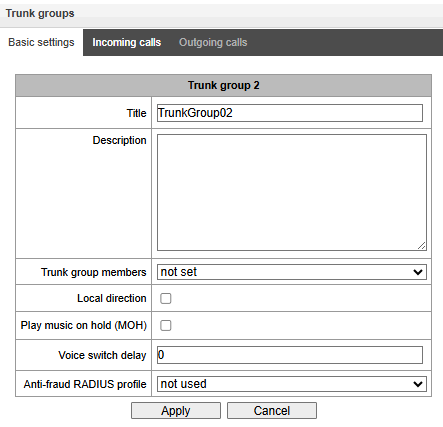
To access a trunk group, the device configuration should include prefixes that perform transition to this group. |
Call routing → TrunkGroups → → Basic settings
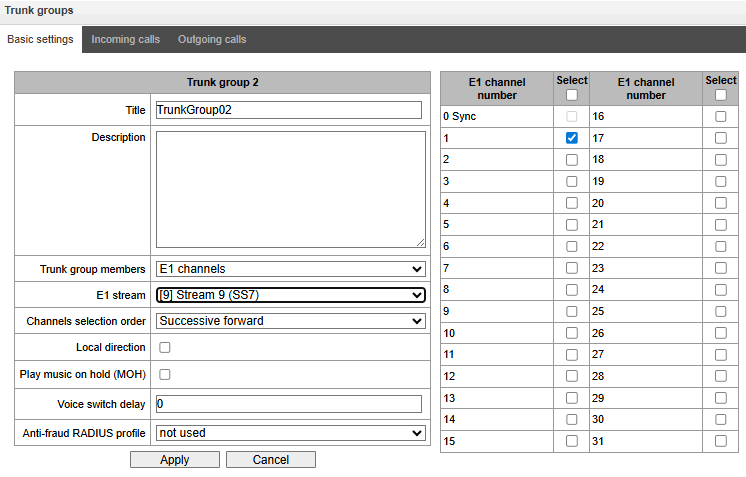
A single trunk group may be assigned to channels only within a single E1 stream. |
It is impossible to set trunk group with SS7 Linkset and trunk group with E1 streams from the same SS7 Linkset simultaneously. |
Call routing → TrunkGroups → → Incoming calls
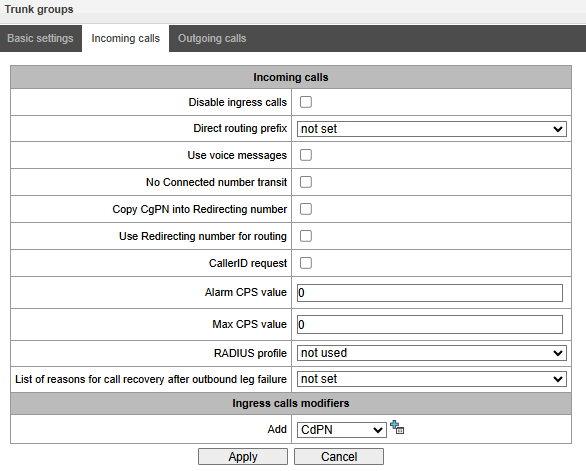
Incoming calls modifiers
Call routing → TrunkGroups → → Outgoing calls
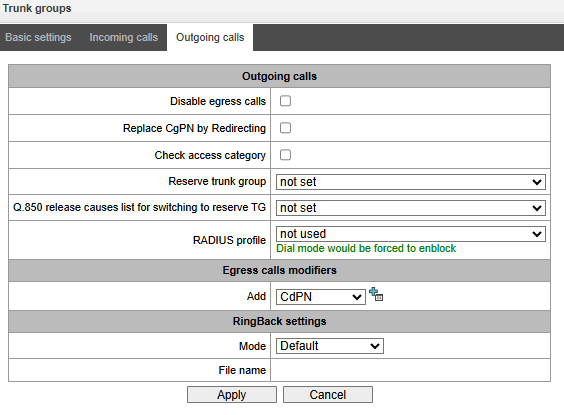
Outgoing calls modifiers
To create, edit, or remove groups (as well as other objects), use the ‘Objects’ — ‘Add object’, ‘Objects’ — ‘Edit object’ and ‘Objects’ — ‘Remove object’ menus and the following buttons:
– Add a truck group;
– Edit trunk group parameters;
– Remove a trunk group.
RingBack settings
Mode:
Call routing → SS7 Linkset

For SS7 protocol configuration, see E1 streams SS7 signalling protocol configuration). |
SS7 Linkset is a set of signaling links in one direction. To create, edit, or remove linkset, use the ‘Objects’ — ‘Add object’, ‘Objects’ — ‘Edit object’ and ‘Objects’ — ‘Remove object’ menus and the following buttons:
– Add SS7 Linkset;
– Edit SS7 Linkset;
– Remove SS7 Linkset.
Call routing → SS7 Linkset →
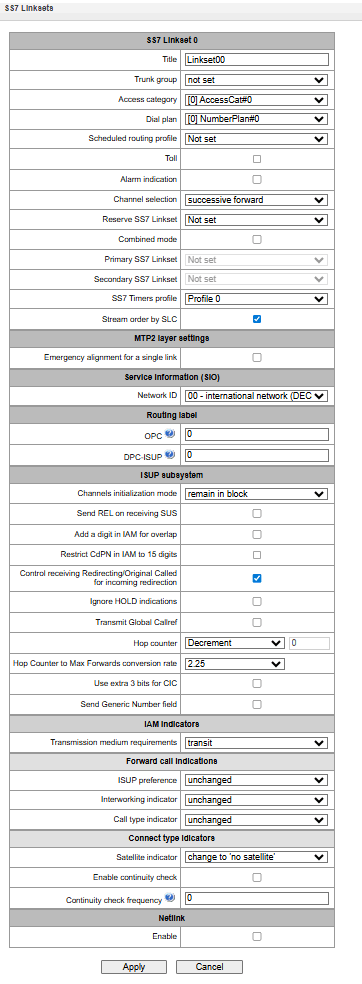
SS7 Linkset;
To minimize conflicts during communication with neighboring PBXes, it is recommended to set inverse channel engagement types. |
In the combined mode operation, the signalling payload will be distributed evenly (50/50) between the primary and secondary SS7 linksets. |
Stream order by SLC – affects the operation of the Order of channel engagement setting. With this option enabled, the order of engaged E1 streams is determined by the SLC number (sorted from a smaller SLC to a larger one), with this option disabled the order is determined by the E1 stream index.
MTP2 Layer settings
Service information (SIO)
Routing label
ISUP subsystem
IAM indicators
Forward call indications
Connect type indicators
Satellite indicator – identifies the presence of a satellite channel:
For the gateway, you may assign the correspondence of SS categories to Caller ID categories. For configuration, see section SS7 categories.
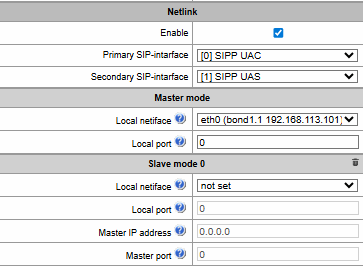
Netlink:
Configuration of the device operating mode when SS-7 streams are stacked, and related parameters.
Master mode:
Slave mode:
In slave mode, it is possible to establish up to four simultaneous outgoing connections.
Detailed description of the operation and configuration of SS-7 stream stacking is provided in Appendix M. SS7 stack monitoring.
Examples
SMG connection method example for operation in SS7 quasi-associated mode via signaling transition points (STP):
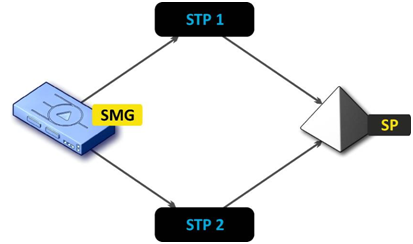
Figure 46 – SMG connection method for operation in SS7 quasi-associated mode via STP
Objective
It is necessary to provide the SMG connection to the remote signalling point (SP) using two signal links. The first signal link should pass through the signalling transition point STP 1 and the second signal link should pass through the STP 2.
Point code: SMG = 22, STP 1 = 155, STP 2 = 166, SP = 23.
Solution
In addition to the basic settings, set the 'origination code (OPC) = 22 and ISUP destination code (DPC-ISUP) = 23 in 'SS7 link set' menu.
Let us assume that stream 0 is connected to STP1 and stream 1 to STP 2. In the stream settings, one should specify: SS7 'Signalling protocol', configure CIC numbering correctly and select the required E1 stream time slot for signalling D-channel, select the pre-created SS7 link set in 'SS7 link set' settings and define the parameter 'MTP3 destination code (DPC-MTP3)' equal to 155 for stream 0, and 166 for stream 1.
SMG connection method example for operation in SS7 quasi-associated mode via PBX with STP features:
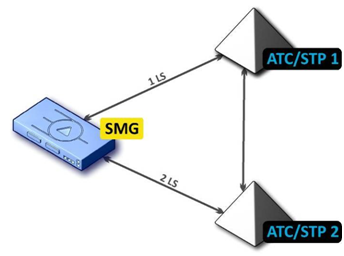
Figure 47 – SMG connection method for operation in SS7 quasi-associated mode via PBX with STP (LS – SS7 Link Set)
Objective
It is necessary to provide SMG connection to a couple of PBXes with STP features (PBX/STP); when the failure occurs in the main circuit group 1LS between SMG and PBX/STP 1, signalling messages should be sent via 2LS.
Solution
Let us assume that SMG stream 0 is connected to PBX/STP 1 and used for the first SS7 link set configuration, SMG stream 1 is connected to PBX/STP 2 and used for the second SS7 link set configuration. In the stream settings, specify: SS7 'Signalling protocol', configure CIC numbering correctly and select the required E1 stream time slot for signalling D-channel, select the second SS7 link set in the ‘Reserve SS7 Linkset' setting in the first SS7 link set configuration.
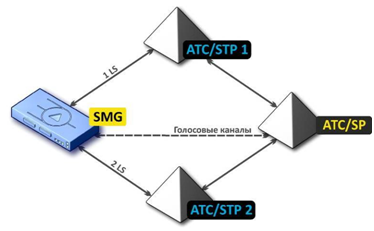
Figure 48 – SMG connection method for operation in combined mode
Objective
Only the voice channels exist between SMG and PBX/SP, signalling traffic should be transferred via PBX/STP 1 and PBX/STP 2.
Solution
Let us assume that SMG stream 0 is connected to PBX/STP 1 and used for the first SS7 linkset configuration, SMG stream 1 is connected to PBX/STP 2 and used for the second SS7 linkset configuration, SMG stream 2 is connected to PBX/SP and used for the third SS7 linkset configuration. In the stream settings, you should specify: SS7 'Signalling protocol', configure CIC numbering correctly and for streams 0 and 1 select the required E1 stream time slot for signalling D-channel, select the first SS7 linkset in the 'Primary SS7 Linkset' setting and the second SS7 linkset in the 'Secondary SS7 link set' setting in the third SS7 link set configuration.
This section describes configuration of general parameters for SIP stack, custom settings for each direction operating via SIP/SIP-Т/SIP-I protocols, and SIP subscriber profiles.
SIP (Session Initiation Protocol) is a signalling protocol, which used in IP telephony. It facilitates basic call management tasks such as session start and termination.
SIP network addressing is based on the SIP URI scheme:
sip:user@host:port;uri-parameters
user – the number of a SIP subscriber;
@ – a separator located between the number and domain of the SIP subscriber;
host – domain or IP address of the SIP subscriber;
port – the UDP port used for subscriber's SIP service operation;
uri-parameters – additional parameters.
One of the additional SIP URI parameters is user=phone. If this parameter is specified, the syntax of the SIP subscriber number (in the user part) should match the TEL URI syntax described in RFC 3966. In this case, SMG PBX will process requests that contain ‘+’, ‘;’, ‘=’, ‘?’ in the SIP subscriber number, and will automatically add ‘+’ before the called number for international calls using the SIP-T protocol.
Call routing → SIP interfaces → Settings
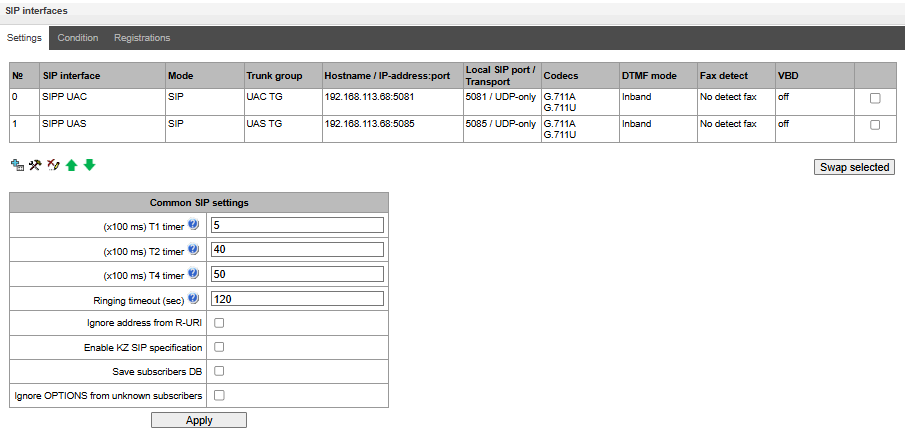
Common SIP settings
The SIP protocol defines two types of responses to connection initiating requests (INVITE) — provisional and final. 2хх, 3хх, 4хх, 5хх and 6хх-class responses are final, their transfer is reliable and confirmed by the ACK message. 1хх-class responses, except for the 100 Trying response, are provisional and do not have a confirmation (RFC3261). These responses contain information on the current INVITE request processing step; in SIP-T/SIP-I protocols, SS-7 messages are encapsulated into 1xx class responses, therefore the loss of these responses is unacceptable. Utilisation of reliable provisional responses is also realised in the SIP protocol (RFC3262) and is defined by the 100rel tag in the initiating request. In this case, provisional responses are confirmed by a PRACK message.
Up to 255 interfaces can be created. To create, edit, or remove SIP/SIP-T interfaces, use the Objects – Add Object, Objects – Edit Object, or Objects – Remove Object menus and the following buttons:
– Add interface;
– Edit interface parameters;
– Remove interface;
 – Move interfaces up or down.
Moving a SIP profile will log out all users associated with it. |
The signal processor of the gateway encodes analogue voice traffic and fax/modem data into digital signals and performs its reverse decoding. The gateway supports the following codecs: G.711A, G.711U, G.722, G.723.1, G.726, G.729, Т.38 protocol and CLEARMODE.
G.711 is a PCM codec without compression of voice data. To ensure correct operation, this codec should be supported by all manufacturers of VoIP equipment. G.711A and G.711U codecs differ from each other in encoding law (А-law is a linear encoding and U-law is a non-linear). The U-law encoding is used in North America, and the A-law encoding – in Europe.
G.722 – ITU-T standard broadband voice codec operating at bit rates of 48, 56 and 64 kbps. The codec technology is based on ADPCM.
|
G.726 is an ITU-T standard for adaptive pulse code modulation — ADPCM and describes voice transmission with a bandwidth of 16, 24, 32, and 40 kilobits/sec. G.726-32 replaces G.721, which describes ADPCM voice transmission with a bandwidth of 32 kilobits/sec.
G.723.1 is a codec with speech information compression, provides two operating modes: 6.3 Kbit/s and 5.3 Kbps. The G.723.1 codec has a speech activity detector and provides generation of comfortable noise at the remote end during the silent period (Annex A).
G.729 is also a voice compression codec and provides a bit rate of 8 Kbps Similar to the G.723.1 codec, the G.729 codec supports speech activity detection and ensures the generation of comfortable noise (Annex B).
T.38 is a standard that describes the transmission of fax messages in real time over IP networks. Signals and data transmitted by a fax machine are encoded into T.38 protocol packets. In generated packets, redundancy can be introduced — data from previous packets, which allows carring out reliable fax transmission over unstable channels.
CLEARMODE is a mode in which signal encoding/decoding is not used. Used for transparent transmission of digital information 64 kbit/s (RFC4040).
To create SIP/SIP-T interfaces, use the ‘Objects’ menu – ‘Add object’ or the , button, when pressed, the following menu appears:
Call routing → SIP interfaces → Settings →→ SIP interface settings
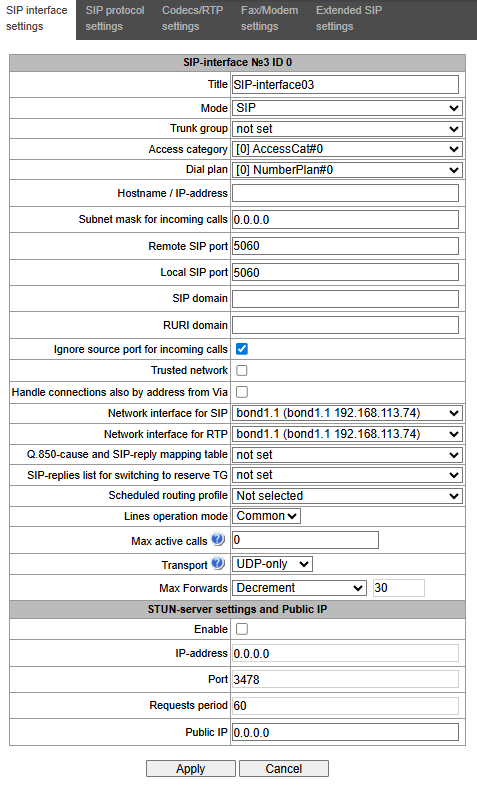
Lines operation mode – setting lines operation mode to limit the number of simultaneous calls via this interface:
Common – considering the total number of simultaneous calls (incoming and outgoing) via this interface;
Separate – incoming and outgoing calls are counted separately.
Ingress lines number – number of simultaneous incoming calls via this SIP interface. The field is displayed if Separate operation mode is selected;
Egress lines number – number of simultaneous outgoing calls via this SIP interface. The field is displayed if Separate operation mode is selected;
Node ID – an identifier used for generating a global Callref. The range of allowed values is [0;255]. The option is only available for SIP-I.
|
In ‘SIP Profile’ mode, changing the settings for ‘SIP Signalling Receive Port’, ‘Signalling Network Interface’ or ‘Transport’, or switching modes, will result in the registration of subscribers associated with this SIP profile being reset. |
STUN server settings and Public IP
STUN network protocol (RFC 5389) allows applications located behind a network address translation server (NAT) to discover their external IP address and port mapped to an internal port. Used when SMG is located behind a NAT. To identify external device address, use STUN or Public IP (used separately).
Before signalling message transmission, the request (Binding Request) has been sent to the STUN server from the interface; in the response (Binding Response) message, STUN server communicates device IP address and port (udp) that are used by SMG in signalling message generation.
Requests to STUN server has been generated before each SIP signalling message transmission, but not more often than the configured request period time.
Public IP setting is not used in the ‘SIP profile’ interface mode.
Call routing → SIP interfaces → Settings → → SIP protocol settings
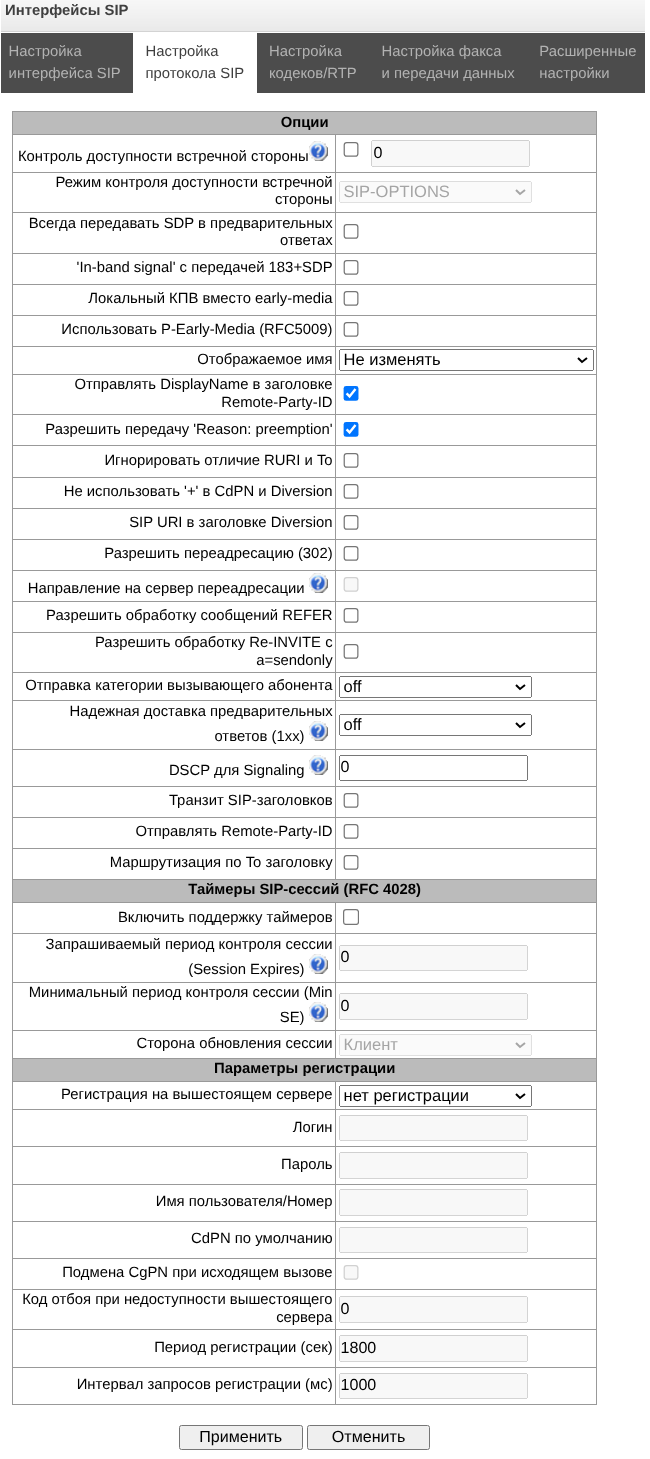
Setting options for SIP/SIP-T/SIP-I protocols
UDP-CRLF – device will send an empty UDP packet at specified opposite party control intervals; the opposite party response to an empty UDP packet is not applicable; consequently, the failure status will not be initiated on the device.
These methodds are also used to maintain the NAT connection. |
DSCP for Signaling – a service type (DSCP) for SIP signalling traffic;
The DSCP value for Signalling must be the same for all directions with the same transport parameter (network interface + signalling receive port). DSCP for RTP and DSCP for SIP settings will be ignored when using VLAN for RTP transmission and signaling. To prioritize traffic in this case there will be used Class of Service VLAN. |
SIP-session timers (RFC 4028)
Refresher side – defines the party to renew the session (client (uac) – client (calling) party, server (uas) – server (called) party).
In version 3.405, it is now possible to use session timers in a setup with transit registration. For the timers to function correctly in this scenario, you must enable the ‘Enable timer support’ option on the SIP profile containing transit subscribers and on the SIP interface with transit registration associated with that profile. |
Registration settings1:
|
Setting options for SIP profile
Call routing → SIP interfaces → Settings → SIP interface #1 → SIP protocol settings
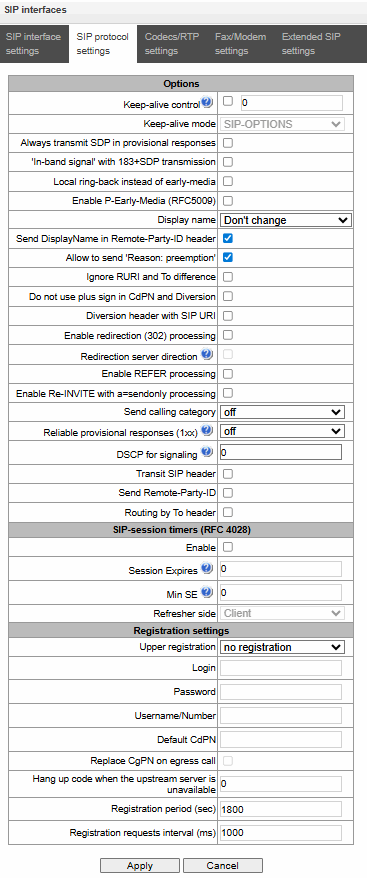
UDP-CRLF – device will send an empty UDP packet at specified opposite party control intervals; the opposite party response to an empty UDP packet is not applicable; consequently, the failure status will not be initiated on the device.
These methods are also used to maintain the NAT connection. |
The DSCP value for Signalling must be the same for all directions with the same transport parameter (network interface + signalling receive port). DSCP for RTP and DSCP for SIP settings will be ignored when using VLAN for RTP transmission and signaling. To prioritize traffic in this case there will be used Class of Service VLAN. |
Routing by To header – option enables call routing using the CdPN value from the To header (by default, the CdPN value from the RURI is used).
Expires
NAT settings
This option is only available if the “Always send SDP in preliminary replies” feature is enabled. |
SIP Session Timers (RFC 4028)
In version 3.405, it is now possible to use session timers in a setup with transit registration. For the timers to function correctly in this scenario, you must enable the ‘Enable timer support’ option on the SIP profile containing transit subscribers and on the SIP interface with transit registration associated with that profile. |
Upper registration settings1:
|
In transit registration mode, all calls to and from transit subscribers will be routed via the upstream server. |
Setting options for SIP-Q
UDP-CRLF – device will send an empty UDP packet at specified opposite party control intervals; the opposite party response to an empty UDP packet is not applicable; consequently, the failure status will not be initiated on the device.
These methods are also used to maintain the NAT connection. |
The DSCP value for Signalling must be the same for all directions with the same transport parameter (network interface + signalling receive port). DSCP for RTP and DSCP for SIP settings will be ignored when using VLAN for RTP transmission and signaling. To prioritize traffic in this case there will be used Class of Service VLAN. |
SIP-session timers (RFC 4028)
‘Codecs/RTP settings’ tab
Call routing → SIP interfaces → Settings →→ Codecs/RTP settings
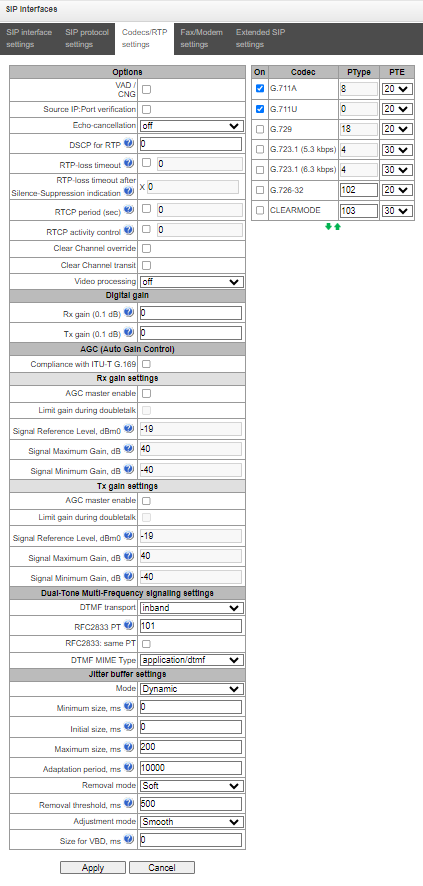
Options
DSCP for RTP – service type (DSCP) for RTP and UDPTL (T.38) packets;
The DSCP setting for RTP and DSCP setting for SIP will be ignored while using VLAN for RTP transmission and signalling. Class of Service VLAN is used for prioritization in this case. |
Clear Channel – channel established for the transparent digital data transfer; when this channel is established, the device will not attempt to recode it and will transfer it transparently. To establish such a connection, reception of 'Transmission Medium Requirement' field is required with the following values:
Video processing:
Digital gain:
AGC (Auto Gain Control):
Rx gain settings:
Tx gain settings:
Dual-Tone Multi-Frequency transmit settings:
SIP-NOTIFY – NOTIFY messages are used via SIP protocol and out-of-band. This DTMF transmission is an implementation of the method that is used on Cisco equipment.
In order to be able to use extension dialing during the call, make sure that the similar DTMF tone transmission method is configured on the opposite gateway. |
flash/*/# – set/remove a call on hold by pressing Flash or ‘*’ or ‘#’ on the telephone handset.
1 This option is available only for SIP profile mode. |
Dual-Tone Multi-Frequency receive settings:
Jitter buffer parameters:
Codecs:
In this section, you may select codecs for an interface and an order of their usage on connection establishment. Codec with the highest priority should be placed in top position.
Click the left mouse button to highlight the row with the selected codec. Use arrow buttons (up, down) to change the codec priority.
When VAD/CNG are enabled, G.729 codec operates as G.729B, otherwise as G729A, and G.723.1 codec operates with annex А support, otherwise without annex А support. |
Call routing → SIP interfaces → Configuration → → Fax/Modem settings
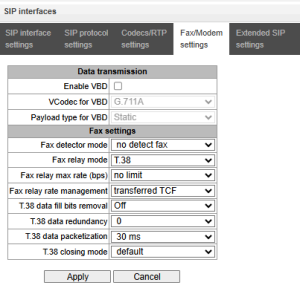
Data transmission:
Fax settings:
V.21 signal may also be detected from fax performing transmission. |
'Service type' (IP DSCP) field value for RTP, T.38 and SIP/SIP-T/SIP-I:
0 (DSCP 0x00, Diffserv 0x00) – standard forwarding (Best effort) – default value
8 (DSCP 0x08, Diffserv 0x20) – Class 1;
10 (DSCP 0x0A, Diffserv 0x28) – assured forwarding, low drop precedence (Class1, AF11);
12 (DSCP 0x0C, Diffserv 0x30) – assured forwarding, medium drop precedenceа (Class1, AF12);
14 (DSCP 0x0E, Diffserv 0x38) – assured forwarding, high drop precedence (Class1, AF13);
16 (DSCP 0x10, Diffserv 0x40) – Class 2;
18 (DSCP 0x12, Diffserv 0x48) – assured forwarding, low drop precedence (Class2, AF21);
20 (DSCP 0x14, Diffserv 0x50) – assured forwarding, medium drop precedence (Class2, AF22);
22 (DSCP 0x16, Diffserv 0x58) – assured forwarding, high drop precedence (Class2, AF23);
24 (DSCP 0x18, Diffserv 0x60) – Class 3;
26 (DSCP 0x1A, Diffserv 0x68) – assured forwarding, low drop precedence (Class3, AF31);
28 (DSCP 0x1C, Diffserv 0x70) – assured forwarding, medium drop precedence (Class3, AF32);
30 (DSCP 0x1E, Diffserv 0x78) – assured forwarding, high drop precedence (Class3, AF33);
32 (DSCP 0x20, Diffserv 0x80) – Class 4;
34 (DSCP 0x22, Diffserv 0x88) – assured forwarding, low drop precedence (Class4, AF41);
36 (DSCP 0x24, Diffserv 0x90) – assured forwarding, medium drop precedence (Class4, AF42)
38 (DSCP 0x26, Diffserv 0x98) – assured forwarding, high drop precedence (Class4, AF43);
40 (DSCP 0x28, Diffserv 0xA0) – Class 5;
46 (DSCP 0x2E, Diffserv 0xB8) – expedited forwarding (Class5, Expedited Forwarding).
IP Precedence:
0 – IPP0 (Routine);
8 – IPP1 (Priority);
16 – IPP2 (Immediate);
24 – IPP3 (Flash);
32 – IPP4 (Flash Override);
40 – IPP5 (Critical);
48 – IPP6 (Internetwork Control);
56 – IPP7 (Network Control).
In this section, extended SIP settings are configured. These settings allow modifying SIP message fields using defined rules.
Call routing → SIP interfaces → Configuration → → Extended SIP settings
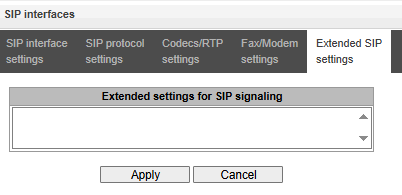
Field entry format
[sipheader:HEADER_NAME=operation],[sipheader:...],...
where:
Change of SIP headers:
Disable – allow removing the selected headers from SIP messages.
List of mandatory SIP message headers that must not be ignored or transit: via, from, to, call-id, cseq, contact, content-type, content-length. |
Example:
Original headings: Accept: application/SDP User-Agent: TAU-8.IP X-UniqueTag: 12345678 90abcdef 12345678 90abcdef Modification rule: [sipheader:Accept=disable],[sipheader:user-agent=disable] Result: All SIP messages sent by the device via this SIP interface will be sent without the Accept and user-agent fields Modification rule: [unique-tag=disable] Result: All SIP messages sent by the device via this SIP interface will be sent without the X-UniqueTag. |
Insert – allow inserting the specified headers into SIP messages.
Example:
Modification rule: [sipheader:insert[LIST_OF_HEADERS]:RemoteIp=+(TEXT)] - Add the field in all queries: [sipheader:insert:RemoteIp=+(example.SMG)] - Only in INVITE: [sipheader:insert,INVITE:RemoteIp=+(example.SMG)] - Only in mentioned queries (f.e. INVITE and ACK): [sipheader:insert,INVITE,ACK:RemoteIp=+(example.SMG)] Result: Mentioned SIP messages sent by the device via this SIP interface will include a new RemoteIp:example.SMG field |
Transit – allow a group of headers from the first leg to be transferred without modification.
To implement changes to SIP headers, enable the ‘SIP Header Transit’ option on the SIP interface from which the headers will be extracted. |
List of mandatory SIP message headers that must not be ignored or transit: via, from, to, call-id, cseq, contact, content-type, content-length. |
Example:
Original headers on first leg: P-Asserted-Identity: sip: username@domain P-Called-Party-ID: sip: username@domain Privacy: id Subject: Test call Modification rule: [sipheader:[LIST_OF_MESSAGES]: [HEADER_MASK]=transit] [sipheader:[HEADER_MASK]=transit] - All headers, starting with "P-" [sipheader:P-=transit] Modification rule rule: [sipheader:=transit] will not work, because *characters can replace only the part of the name. Result: The specified headings will appear on the second leg: P-Asserted-Identity: sip:username@domain P-Called-Party-ID: sip:username@domain Modification rule: - In INVITE and 200 messages: [sipheader:INVITE,200:Subject=transit] - In any messages: [sipheader:Subject=transit] Result: The specified heading will appear on the second leg: Subject: Test call |
Modification rules – set of rules allow to modify selected headers in SIP messages.
Modification rules are described by the following characters:
• $ – keep the text that follows;
• ! – delete the remaining text;
• +(ABC) – add the text specified;
• -(ABC) – delete the text specified.
For implementation examples of operation rules, see table 21 below.
Table 21 — Implementation examples of operation rules
| Operation | Initial header | Rule | Result | ||
| Add text at the beginning | Accept: application/SDP | [sipheader:accept=+(application/ISUP,)$] | Accept: application/ISUP,application/SDP | ||
| Add text at the end | Accept: application/SDP | [sipheader:accept=$+(,application/ISUP)] | Accept: application/SDP,application/ISUP | ||
| Delete text | Accept: application/SDP,application/ISUP | [sipheader:accept=-(application/SDP,)$] | Accept: application/ISUP | ||
| Delete beginning from the specific place | Accept: application/SDP,text/plain | [sipheader:accept=-(text)!] | Accept: application/SDP | ||
| Replace text completely | Accept: application/SDP | [sipheader:accept=+(application/ISUP)!] | Accept: application/ISUP | ||
| Replace text | Accept: application/SDP,text/plain | [sipheader:accept=-(SDP)+(ISUP)$] | Accept: application/ISUP,text/plain | ||
| Replace text, discarding data at the end | Accept: application/SDP,text/plain | [sipheader:accept=-(SDP)+(ISUP)!] | Accept: application/ISUP | ||
| Complete the text | To: "Ivanov A.A." <sip:123@eltex> | [sipheader:to=-(eltex)+(eltexdomain.loc)$] | To: "Ivanov A.A." <sip:123@eltexdomain.loc> | ||
| Example of a complex modification | From: <sip:who@host>;tag=aBc | [sipheader:from=+(DISPLAY )-(who)+(12345)-(>)+(;user=phone>)$+(;line=abc)] | From: DISPLAY <sip:12345@host;user=phone>;tag=aBc;line=abc | ||
| Additional rules | |||||
Transmit X-UniqueTag content in another title | X-UniqueTag: 12345678 90abcdef 12345678 90abcdef | [unique-tag=NewHeader-Name] | NewHeader-Name: 12345678 90abcdef 12345678 90abcdef | ||
| Using TO instead of RURI for routing | Get:
| [siprequest:cdpn=to] | Send:
| ||
| Enable sending history-info in the redirected call | [siprequest:history=true] | Diversion will be replaced with History-Info when redirecting | |||
To set up receiving Display Name from a third-party server, it is necessary to add a setting in the form line in the menu item ‘Extended SIP settings’.
SMG polls the server(s) at a specified interval and stores the current name. When calling, names are requested for the initiator and destination. If there are no current ones in the database, then they are used default configured subscriber names (from SIP subscriber settings).
Configuration string format:
STRING:: ldap:ID:display:INTERVAL:DIRECTION:IP:PORT:LOGIN:PASSWORD:BASE[:ATTRPHONE:ATTRDISPLAY] |
• ID – record identifier, for several interfaces there may be the same description, in this case the identifier should also be the same; in particular, it solves the issue duplication of records for sip profiles (when all users of the same profile will have the same record);
• INTERVAL – database update interval (minutes);
• DIRECTION – for which subscriber to use:
• sip – value for From when calling from the SIP side and To when calling to the SIP side;
• exchange – value for To when calling from the SIP side and From when calling to the SIP side;
• * – both names are requested in one paragraph.
• IP – LDAP server address;
• PORT – LDAP server port:
• * – for shortness, it can be specified instead of the usual LDAP port 389.
• LOGIN – database username;
• PASSWORD – database user password;
• BASE – path to the server subscriber database;
• ATTRPHONE – attribute describing in the database the number by which the name will be searched. The parameter is optional, may not be specified: default value: telephoneNumber;
• ATTRDISPLAY – attribute describing DisplayName in the database. The parameter is optional, may not be specified, default value: displayName.
Configuration string format:
Full format: [ldap:L1:display:30:sip:192.168.23.187:389:cn=user,dc=smg,dc=com:userpassword:dc=smg,dc=com:telephoneNumber:displayName] Short format: [ldap:L1:display:30:*:192.168.23.187:*:cn=user,dc=smg,dc=com:userpassword:dc=smg,dc=com] |
There is a limit of 2,000 records that can be retrieved from the LDAP server. If this limit is exceeded, the function may not work correctly. |
Using user=phone in RURI
This feature allows setting or change the user= parameter in the RURI.
Setting:
[siprequest:user=phone] [siprequest:user=ip] (instead of "ip" any value can be used, other than "phone"). |
Table 22 — Rules for adding the user=phone parameter to the RURI depending on the interface type
| Interface type | Setting | In RURI specify ;user=phone |
|---|---|---|
| trunk | no | yes |
| trunk | siprequest:user=phone | yes |
| trunk | siprequest:user=ip | no |
| user | no | no |
| user | siprequest:user=phone | yes |
| user | siprequest:user=ip | no |
This feature allow restricting call transfer if the Refer-To and RURI fields match.
Setting:
[siprequest:refer-back=disable] |
For example, if the query contains the following headings
REFER sip:521@192.168.113.132:5060 SIP/2.0 ... Refer-To: <sip:521@192.168.113.132> ... |
with advanced settings enabled, such a request will result in a 400 Bad Request response.
This feature allows the 183 Session Progress response, containing an embedded SDP, to be transferred to the Alerting+inband channel on the PRI link.
Setting:
[sipresponse:183=alert] |
In this section, H.3231 stack general configuration parameters, custom settings for each direction operating via H.323 protocol.
H.323 protocol is a signaling protocol used in VoIP applications for multimedia data transmission via packed-based data networks. It performs basic call management tasks such as starting and finishing session.
H.323 signaling is a stack of protocols based on the Q.931 recommendation implemented in ISDN. The gateway uses the following recommendations: H.225.0 and H.245.
SMG may operate within a method that may or may not feature the Gatekeeper. The separate license allows using SMG gateway as a gatekeeper and to interact with Directory gatekeeper for defining subscriber location.
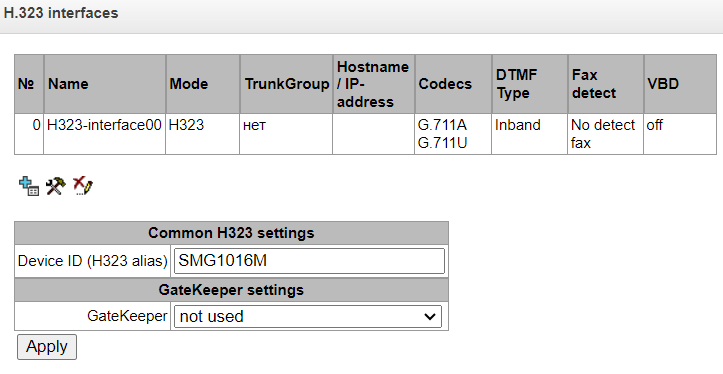
Call routing → H.323 interfaces
|
Common H323 settings:
GateKeeper settings:
Settings for ‘remote’ mode:
Call routing → H.323 interfaces → Remote mode
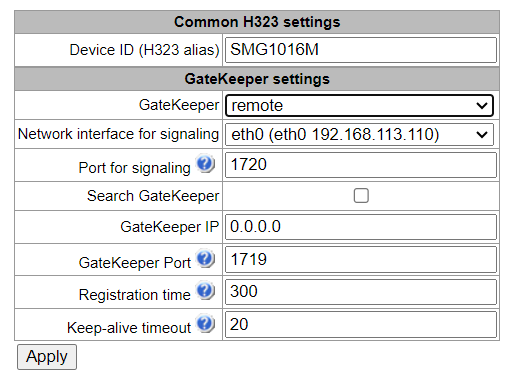
Keep-alive timeout – time period in seconds, after which the device will renew its registration on a gatekeeper.
To reliably re-register a device to Gatekeeper, the re-registration period value ‘Keep Alive Time’ should be set to 2/3 of the ‘Time To Live’ registration period. In this case, it is recommended to configure the ‘Time To Live’ parameter the same as on Gatekeeper, so that the value of the ‘Keep Alive Time’ gateway re-registration period was not greater than or equal to the ‘Time To Live’ value sent in Gatekeeper responses. Otherwise, incorrect configuration may cause Gatekeeper to remove registration from the gateway before the gateway re-registers, which in turn lead to termination of all active connections, established through the gatekeeper. |
When settings are applied in this section, H.323 will be restarted and all established H.323 voice connections will be forcibly terminated, also H323-MODULE LOST fault may appear shortly |
Settings for ‘local’ mode1:
Call routing → H.323 interfaces → Local mode
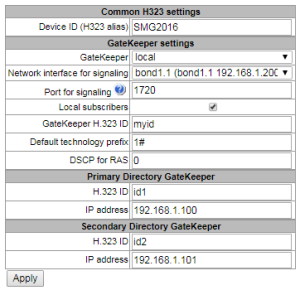
The interaction of local GateKeeper and Directory GateKeeper is performed as follows: While egress call: SMG transmits location request (RAS LRQ) to Directory GateKeeper. Directory GateKeeper defines the subscriber location and transmits its signal address in location confirm message (RAS LCF). If the Directory GateKeeper cannot define the location, the call will be released with the location reject message (RAS LRJ). While ingress call: Directory GateKeeper transmits location request (RAS LRQ) to SMG. If the callee is a subscriber of SMG, SMG transmits its signal address in location confirm message (RAS LCF). If the callee is not a subscriber of SMG, but has a registered technology prefix, SMG transmits a signal address of a device which registered this prefix in location confirm (RAS LCF). If there is no registered prefix, SMG releases the call with location reject message (RAS LRJ).
|
Call routing → H.323 interfaces → → H.323 interface settings
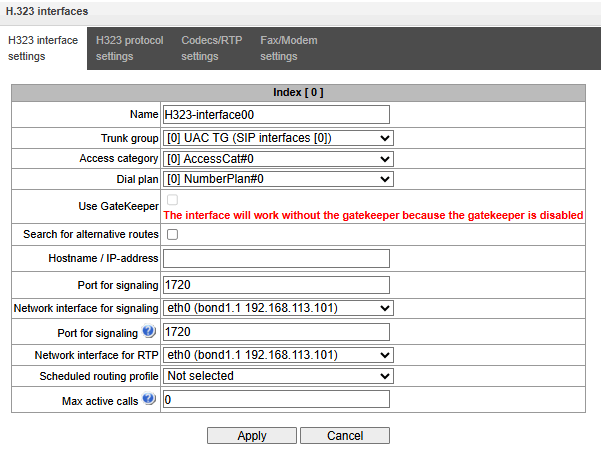
Search for alternative routes — allows calls to be routed between different VLANs (mutually exclusive with the ‘Cisco 1700 Adaptation’ option);
Call routing → H.323 interfaces → → H323 protocol settings
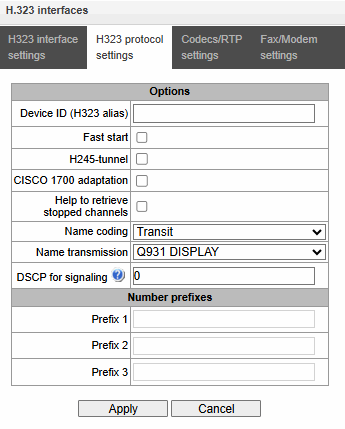
CISCO 1700 adaptation:
Bandwidth for Adminssion Request is 64000;
For outgoing calls:
DSCP for Signaling – service class (DSCP) for signalling traffic (H.323);
The DSCP value for Signalling must be the same for all directions with the same transport parameter (network interface + signalling receive port). The DSCP for RTP and DSCP for SIP settings will be ignored while using VLAN for RTP transmission and signalling. Class of Service VLAN will be used for traffic prioritization in this case. |
Call routing → H.232 interfaces → → Codecs/RTP settings
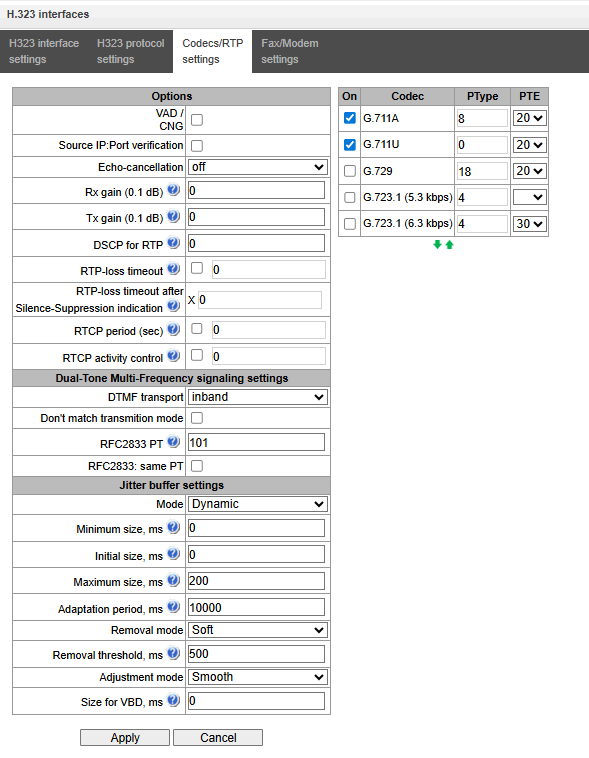
Options:
The DSCP for RTP and DSCP for SIP settings will be ignored while using VLAN for RTP transmission and signalling. Class of Service VLAN is used for traffic prioritization in this case. |
Dual-Tone Multi-Frequency (DTMF) signaling setting:
In order to be able to use extension dialing during the call, make sure that the similar DTMF tone transmission method is configured on the opposite gateway. |
Jitter buffer settings:
Codecs:
In this section, codecs for an interface and an order of their usage on connection establishment can be selected. Codec with the highest priority should be placed in top position.
Click the left mouse button to highlight the row with the selected codec. Use arrow buttons (up, down) to change the codec priority.
On — when checked, use a codec specified in the adjacent field;
Codec — codec, used for voice data transmission. Supported codecs: G.711A, G.711U, G.729A, G.729B, G.723.1.
When VAD/CNG are enabled, G.729 codec operates as G.729B, otherwise as G729A, and G.723.1 codec operates with annex А support, otherwise without annex А support. |
Call routing → H.232 interfaces → → Fax/Modem settings
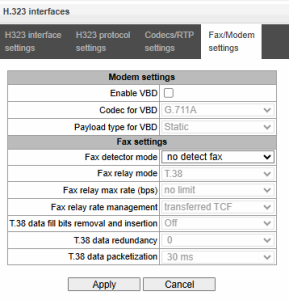
Modem settings:
Fax settings:
V.21 signal may also be detected from fax performing transmission. |
Trunk direction is a set of trunk groups. For a call to a trunk direction, you may specify the selection order for trunk groups comprising this direction.
Call routing → Trunk Directions

To create, edit or remove trunk directions, use 'Objects’ — 'Add object', 'Objects’ — 'Edit object' and 'Objects’ — 'Remove object' menus and the following buttons:
– 'Add direction'
– 'Edit direction parameters'
– 'Remove direction'
To access the trunk direction, the device configuration should include prefixes that perform transition to this direction. |
Call routing → Trunk Directions →
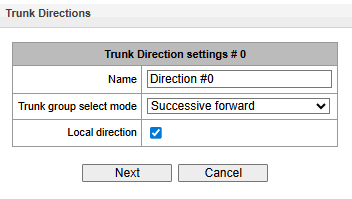
List of trunk groups in direction:
Call routing → Trunk Directions → → Trunk Direction settings # 0 →
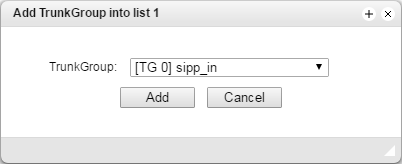
To add or remove trunk groups, use the following buttons:
– 'Add'
– 'Remove'
Use arrow buttons (up, down) to change the trunk group order in the list.
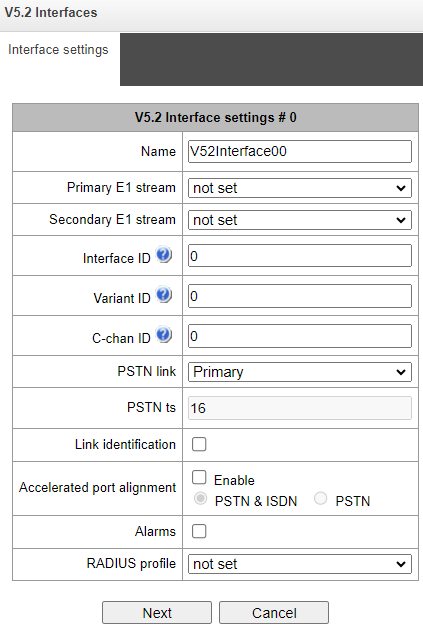
The menu is dedicated to V5.2 interface parameters configuration. To add a new interface into the configuration, click in the left screen part with highlighted ‘V5.2 Interfaces’. The quantity of created interfaces should be equal to the quantity of outstations.
Call routing → V5.2 interface → Interface selection → Interface settings
 – ‘Add E1 stream’
When adding a new E1 stream it is necessary to specify its LinkID in the filed opposite the drop-down streams list.
To change the order of E1 streams in the list, use the arrows (down, up).
This section is intended for binding created V5.2 subscribers to this V5.2 interface. Each cell for a subscriber contains a “Layer 3 address”, which is unique within one interface.
Routing → V5.2 interfaces → Object → Subscribers list
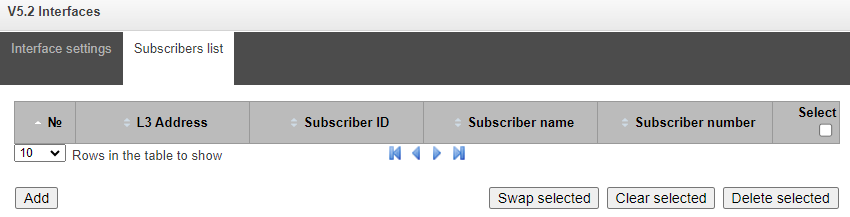
To edit the list, use the buttons:
SIP-Trunk Registrations → Registrations → Settings
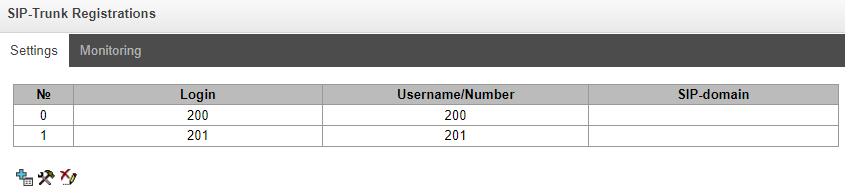
Configuring subscriber registration and authentication parameters for interfaces with subscriber registration type.
Registration settings:
In the list of SIP interfaces, registration binding to a specific SIP interface is assigned/removed. This allows one to define a list of subscribers who are allowed to make calls via this interface.
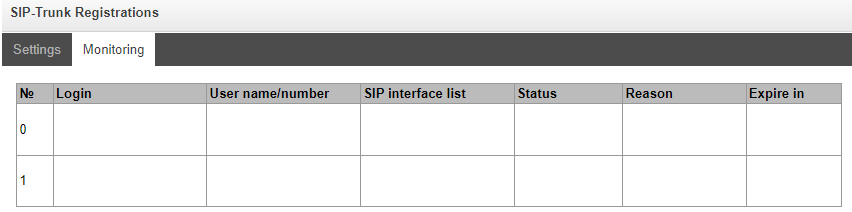
When selecting the ‘Monitoring’ item in the drop-down list, a table for monitoring is displayed subscriber registration on the upstream server.
SIP-Trunk Registrations → Registrations → Monitoring
The menu is intended to configure the parameters of PRI, V5.2, SIP subscribers1, as well as for PBX and PRI profiles.
|
Subscribers → SIP Subscribers → Configuration
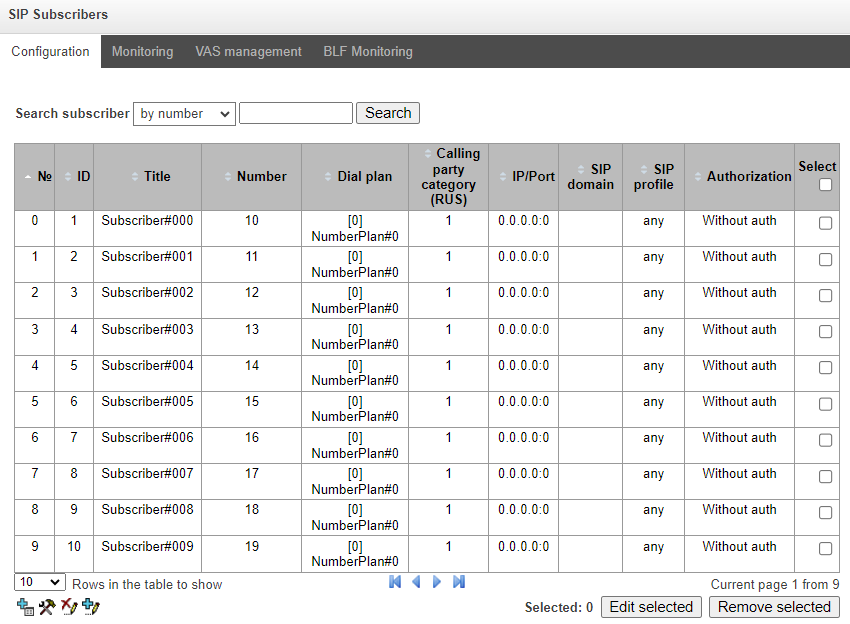
Search subscriber — checking the presence of a subscriber in the database of configured SIP subscribers, it is possible to check by name, number, callerID, IP address: Port, SIP domain, SIP profile, PBX profile and dial plans;
Edit selected — pressing the button takes you to the group menu editing parameters of selected subscribers (opposite to which the flag is set ‘Select’). To be able to edit, set the ‘Edit’ flag opposite the required parameter. A description of the parameters for configuration is given below;
Remove selected — pressing the button allows to delete a group of selected subscribers.
Import – import a subscriber database from a .json file. More details in Appendix P. Example of SMG configuration;
Export – save the subscriber database to a .json file. More details in Appendix P. Example of SMG configuration.
To create, edit and delete an individual subscriber record, use the ‘Objects’ menu – ‘Add object’, ‘Objects’ – ‘Edit object’ and ‘Objects’ – ‘Delete object’, and also buttons:
– 'Add subscriber’
– 'Edit subscriber parameters'
– 'Remove subscriber’
Subscribers → SIP subscribers → Configuration →
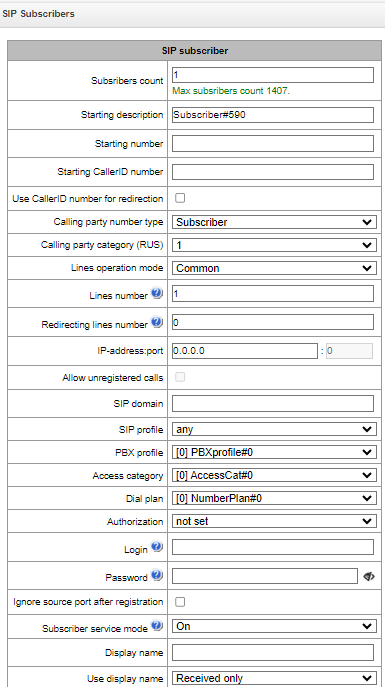
Example:
Command | Result | |
|---|---|---|
| qwe6453%CMD+1% | qwe6453 qwe6454 qwe6455 qwe6456 |
| %CMD+1%secret | 0secret | |
| pass999%CMD-1% | pass999 |
| cred%CMD-1% | cred0 | |
%CMDRAND% | 1a2s3d%CMDRAND3% | 1a2s3d*6F 1a2s3d4#E 1a2s3d2yT 1a2s3d*^d |
%CMDRAND4[*#951753]% | 9#55 | |
%CMDRAND% | 7JRzedHg |
departmen networks;
denied 5: incoming calls are allowed, outgoing calls are completely prohibited;
denied 6: incoming calls are allowed, outgoing calls are allowed only to special services;
denied 7: incoming calls are allowed, outgoing calls are allowed for local and department networks;
denied 8: incoming calls are allowed, outgoing calls are allowed only within the local, department and zone networks;
Multiple registration (SIP-forking)
Multiple registration of up to five clients on one account is allowed. Registration is possible as on the same or on different network interfaces. The call goes to all registered contacts simultaneously. Working with priorities (q-parameter) will be implemented in subsequent versions.
SIP-forking – enabling multiple registration on a subscriber;
Max registered contacts number – allowed valid registration range on one subscriber (Range of acceptable values [2; 5]).
Subscriptions:
Up to 1000 subscribers for SMG-1016M. |
Subscribe to BLF events – разрешает абоненту подписываться на события BLF других абонентов;
Subscribe to Presence events – разрешает абоненту подписываться на статус регистрации (доступности) других абонентов.
|
Directions (local network, special service, zone network, department network, national communication, international communication) are specified when configuring the prefix in the dial plan in Direction field. |
Intercom call settings:
Examples:
Answer-Mode: Auto;
Alert-Info: Auto Answer;
Alert-Info: info=alert-autoanswer;
Alert-Info: Ring Answer;
Alert-Info: info=RingAnswer;
Alert-Info: Intercom;
Alert-Info: info=intercom;
Call-Info: =\;answer-after=0;
Call-Info: \\;answer-after=0;
Call-Info: ;answer-after=0;
VAS settings:
CLIRO – service to overcome the ban on issuing a caller's number;
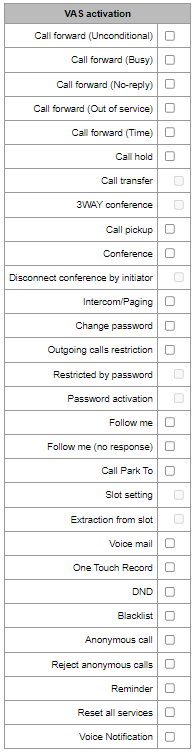
Enable VAS1 – connection of VAS services for the subscriber. Upon selecting this item, the table ‘VAS activation’ will become available.
|
RingBack settings:
Allows configuring audio file playback individually.
Modes:
Default – refer to the settings in the system parameters;
RingBack – play the default Ringback, ignoring the settings in the system parameters;
Audio file – replacing the standard Ringback sound with a sound of your choice, which was uploaded during the Ringback configuration stage under the ‘System Settings’ menu.
Voice Notification:
|
Launching a notification – enable subscribers to run VNS tasks;
Confirmation code – set a personal code to confirm receipt of an alert;
Operator access category – select a category that allow/deny subscriber access to the relevant tasks and VNS reports.
VAS activation
Subscribers → SIP Subscribers → Configuration → → Enable VAS
|
To use the ‘Conference by List’ service, you must create a call group (in the Call group section) and specify a ‘Conference Number’ for it. To include all members of the call group in a conference call, you must dial the service prefix of type ‘Conference’ followed by the conference number specified in the call group. For example, if the conference number is ‘12345’ and the VAS Conference service prefix is ‘*71*x{1,20}#’, to bring the group members into the conference, you must dial ‘*71*12345#’. |
A subscriber may have different numbers in different dial plans, and when a call is passing through the dial plan change prefix, the subscriber's CgPN number is automatically replaced with the number in the appropriate dial plan, for example:
The subscriber has an internal short numbering; accordingly, it is registered at the gateway under a short number, when accessing an external network, each such subscriber should enter its own number in international format as a CgPN. Access to the external network is via prefix 9.
To solve this problem, it is necessary to activate 2 dial plans in the ‘System parameters’ section, create a list of subscribers with short numbering on the gateway, indicate its external number in the ‘Additional numbers’ in the ‘Dial plan #1’ field for each subscriber. In the dial plan #1, a prefix for accessing the external network should be created; in the ‘dial plan # 0’ a prefix ‘(9x.)’ with ‘change dial plan’ type should be created, which will switch to the dial plan #1. When a subscriber dials a full number with 9 at the beginning, the call will go through the “Change a dial plan” prefix type, and in the dial plan 1 the CgPN number will be automatically replaced with its external number.
Subscribers → SIP Subscribers → Configuration → Configulation selection → Additional numbers
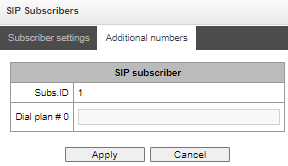
Dial plan #0-16 – additional subscriber number in the corresponding dial plan.
In this section, VAS settings for subscribers are configured.
Each subscriber is provided with VAS services, but to use a specific service it is necessary to active it with an operator. The operator can create a service plan from several VAS functions, to do this, in the Configuration of SIP subscribers section, set the ‘Enable VAS’ flag and the flags opposite the necessary functions of the VAS.
The subscriber can manage the status of services from the phone. The following functions are available:
After entering the activation code or canceling the service, the subscriber can hear either a ‘Confirmation’ signal (3 short signals), or ‘Busy’ signal (periodic signal with a duration signal/pause – 0.35/0.35 s). The ‘Confirmation’ signal indicates that the service has been successfully activated or cancelled, the ‘Busy’ signal indicates that the subscriber is not connected to this service.
Calling the service through VAS prefixes always ends with a “#” symbol. |
After entering the service verification code, the subscriber can hear either the ‘Station Answer’ signal (continuous signal) or ‘Busy’ signal. The ‘Station Answer’ signal indicates that the service is enabled and activated for the subscriber, the ‘Busy’” signal indicates that either the service is disabled oк the subscriber is not connected to this service.
The menu displays only those numbers for which the ‘Enable VAS’ flag is set in the configuration menu (Configuration of SIP subscribers section).
Subscribers → SIP subscribers → VAS management

Subscribers → SIP subscribers → VAS management → Object
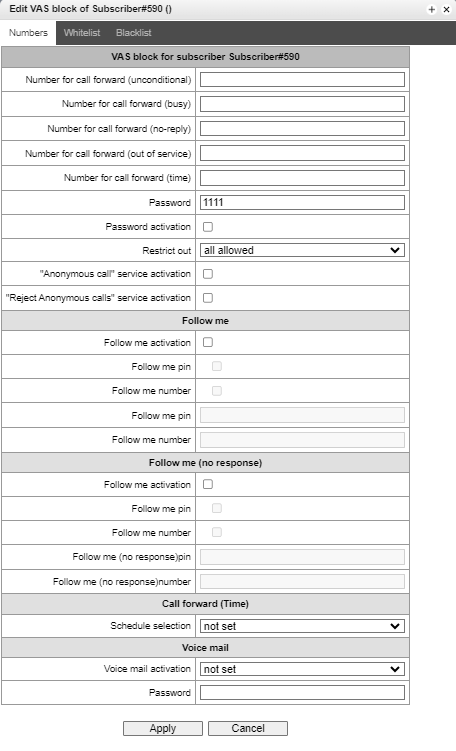
Call forward (Time):
Voice mail:
Autoredial:
Autoredial with callback:
‘White List’ tab – on this tab, one can activate ‘Do Not Disturb’ service and set white list of numbers that can call a subscriber, despite the ban.
‘Black List’ tab – on this tab, one can activate the ‘Black List’ service and set a black list of numbers that cannot call a subscriber.
A detailed description of the operation and configuration of VAS services is given in Appendix H. Working with VAS services.
Upon selecting the ‘Monitoring’ item in the drop-down list, a table of subscriber states is displayed
Subscribers → SIP Subscribers → Monitoring
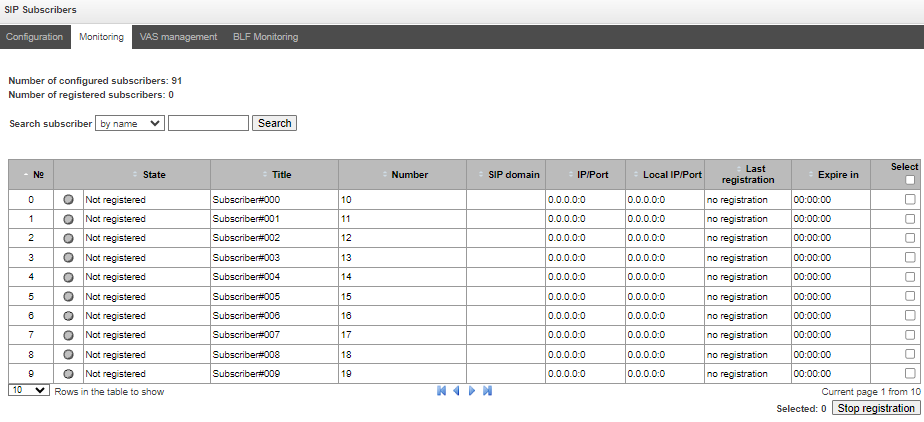
Click the ‘Stop registration’ button to forcibly reset the registration for selected subscribers.
RBX profiles are used to assign additional settings to SIP subscribers.
Subscribers → PBX profiles

To create, edit, or remove profile, use the Objects – Add Object, Objects – Edit Object or Objects – Remove Object menus and the following buttons:
– Add;
– Edit;
– Remove.
PBX profiles:
Subscribers → PBX profiles → Oblect
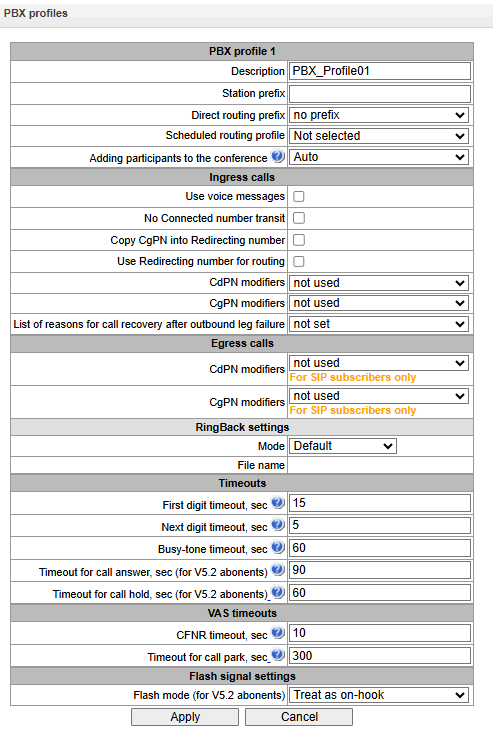
Description – profile name;
Station prefix – prefix added to the beginning of a SIP CgPN;
Direct routing prefix – routing to the prefix without analysing the calling or called subscriber’s number. Designed to route all calls from a SIP subscriber to the trunk group configured in the direct prefix, regardless of the dialled number (without creating masks in the prefixes);
Scheduled routing profile – selection of the ‘scheduled routing’ service profile, which is configured in the ‘Internal Resources’ section.
Ingress calls:
Use voice messages – whe checked, pre-recorded voice messages stored on the device are played when a specific event occurs; see Appendix G. Voice messages and music on hold (MOH);
No Connected number transit – deny Connected number;
Copy CgPN into Redlirecting number – when checked, if there is no Redirecting number in the incoming call, it will be generated from the CgPN number;
Use Redirecting number for routing – when checked, the Redirecting number field is used when employing SS7 or Q.931 signalling protocols, or the SIP protocol’s diversion field, to route an incoming call according to the CgPN number masking scheme;
CdPN modifiers – intended for modifications based on the analysis of the called party’s number received from the subscriber’s equipment;
CgPN modifiers – intended for modifications based on the analysis of the calling party’s number received from the subscriber’s equipment.
Egress calls:
CdPN modifiers – intended for modifications based on the analysis of the called subscriber’s number, prior to sending the call to the subscriber’s equipment;
CgPN modifiers – intended for modifications based on the analysis of the calling subscriber’s number, prior to sending the call to the subscriber’s equipment.
RingBack settings:
Allows configuring the ringback of an audio file for a group of subscribers who belong to a specific PBX profile.
Modes:
Default – refer to the settings in the system parameters.х;
RingBack – play the default Ringback, ignoring the settings in the system parameters;
Audio file – replacing the standard Ringback sound with a sound of your choice, which was uploaded during the Ringback configuration stage under the ‘System Settings’ menu.
Timeouts:
First digit timeout, sec – таймаут ожидания первой цифры, после нажатия абонентом клавиши FLASH при использовании услуги «Передача вызова». По истечении данного таймаута абоненту будет выдаваться сигнал «занято», диапазон 5–20 секунд;
Next digit timeout, sec – таймаут ожидания следующей за первой цифры набора номера при использовании услуги «Передача вызова». По истечении данного таймаута будет определен конец набора номера, и вызов будет смаршрутизирован, диапазон 5-20 секунд;
Busy-tone timeout, sec – таймаут выдачи сигнала «занято» в случае неуспешного набора номера абонента при использовании услуги «передачи вызова». По истечении данного таймаута произойдет переключение вызова на абонента, который находится на удержании;
Timeout for call answer, sec (for V5.2 abonents) – таймаут ответа абонента при входящем звонке, по его истечению вызывающему абоненту отправиться разъединение;
Timeout for call hold, sec (for V5.2 abonents) – таймаут нахождения абонента в состоянии удержания.
VAS timeouts:
CFNR timeouts, sec – таймаут, по истечении которого у абонента после поступление на него звонка сработает услуга ДВО «переадресация по неответу», диапазон 5–60 секунд;
Timeout for call park, sec – таймаут, по истечении которого у абонента после установки его в слот на парковку сработает обратный вызов на инициатора установки в слот.
Flash signal settings:
Flash mode (for V5.2 abonents):
Treat as on-hook – сигнал flash будет восприниматься как разъединение;
flash1,2,3 – выбор блока параметров сигнала flash. Сам блок параметров настраивается на AN.
Subscribers → SIP Subscribers → Object
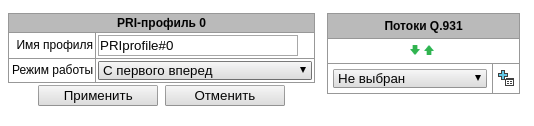
PRI profiles are used to configure PRI subscribers:
Description – PRI profile menu;
Work mode – determines the order in which channels are occupied:
Start first forward;
Start last backward.
Egress calls modifiers:
CdPN – intended for modifications based on the analysis of the called subscriber number transmitted to the outgoing channel;
CgPN – intended for modifications based on the analysis of the calling subscriber number transmitted to the outgoing channel;
Original CdPN – intended for modifications based on the analysis of the original called party number transmitted to the outgoing channel;
RedirPN – intended for modifications based on the analysis of the redirecting number transmitted to the outgoing channel.
Q.931 Streams – streams are selected that will be associated with PRI subscribers.
Ingress calls/egress calls modifiers for PRI subscribers work as follows.
For example, on the trunk group of the E1 stream, to which PRI subscribers are attached, for ingress calls the CgPN (Table1) and CdPN (Table0) modifiers are set on the PBX profile to which PRI subscribers are attached, the CgPN (Table3) and CdPN (Table2) modifiers are also set for ingress calls. In all tables the selection mask is set as (x.)
A call comes from E1 stream:
1. The rule for CgPN from the modifier Table1 is applied.
2. The CgPN number ia checked for a PRI subscriber.
3a. If the call is not from a PRI subscriber, the call is processed as from a regular trunk; the remaining modifiers tied to the trunk group on the incoming connection will be applied.
3b. If the call is from a PRI subscriber, the remaining modifiers tied to the trunk group and the PBX profile are applied. The order of modifiers is as follows:
– The CgPN rule from Table3 is applied
– The CdPN rule from Table1 is applied
– The CdPN rule from Table3 is applied
– The CgPN rule from Table0 is applied
– The CgPN rule from Table2 is applied
– The CdPN rule from Table0 is applied
– The CdPN rule from Table2 is applied
The egress calls modifiers on a PRI profile are triggered if the call is routed to a PRI subscriber associated with this profile.
In this section, the dynamic subscriber groups can be configured.
Dynamic registration uses digest authentication on a RADIUS server (RFC 5090, RFC-no-challenge, draft-sterman) for subscribers.
Subscribers → Dynamic subscribers groups → Configuration

To create, edit, or remove an entry, use the Objects – Add Object, Objects – Edit Object or Objects – Remove Object menus and the following buttons:
– Add subscribers;
– Edit subscriber parameters;
– Remove subscriber.
It is possible to create up to 64 groups of dynamic subscribers.
Subscribers → Dynamic subscribes groups → Configuration → Object
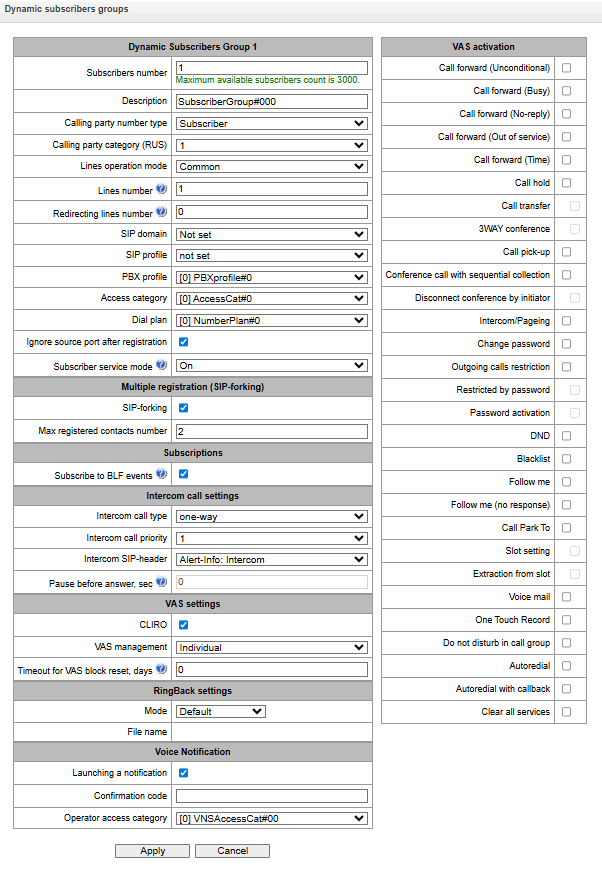
Dynamic Subscribers Group:
Subscribers number – the number of subscribers in the group;
Description – name of the dynamic subscriber group;
Calling party number type – type of the subscriber number;
Calling party category (RUS) – subscriber's Caller ID category;
Lines operation mode – setting limits on the number of simultaneous calls. Can take two values: Common and Separate. The Common mode takes into account the total number of simultaneous calls in which the subscriber can take part; in the Separate mode, incoming and outgoing calls are counted separately;
Lines number – the number of simultaneous calls in which the subscriber can take part. The field appears if the line mode is set to Common. The range of possible values is [1;255] or 0 – no limits;
Ingress lines number1 – the number of simultaneous incoming calls to the subscriber. The field appears if the line mode is set to Separate. The range of possible values is [1;255] or 0 – no limits;
Egress lines number1 – the number of simultaneous outgoing calls from the subscriber. The field appears if the line mode is set to Separate. The range of possible values is [1;255] or 0 – no limits;
|
SIP domain – identifies the domain to which the subscriber belongs. It is sent by the subscriber gateway as the “host” parameter in the SIP URI of the from and to fields (see section Timer operation examples);
SIP profile – select the SIP profile. The SIP profile defines the most of the subscriber settings. Selecting “Any” profile makes it possible to register a sip subscriber on any of the available sip profiles in the system (see section SIP/SIP-T/SIP-I, SIP profiles section);
РВХ profile – select the РВХ profile (see section PBX profiles);
Access category – select an access category;
Dial plan – define the dial plan for the subscriber;
Ignore source port after registration – after registration, messages from subscribers can arrive from any port;
Subscriber service mode – set a limit on the incoming and outgoing communication for the subscriber:
off: the port is out of service. The subscriber number is present in the dial plan, but the subscriber terminal cannot be registered. Therefore, incoming calls will be rejected with the out of order cause; outgoing calls cannot be initiated;
on: all types of communication are available;
off 1: ;incoming communication is enabled; outgoing communication is to special services only;
off 2: incoming communication is disabled; outgoing communication is to special services only;
denied 1: full prohibition for incoming and outgoing calls. Calls will be routed according to the dial plan, but be rejected;
denied 2: full prohibition for incoming and outgoing calls, except for special services;
denied 3: incoming calls are prohibited, outgoing calls are allowed;
denied 4: incoming calls are prohibited, outgoing calls are allowed only for local and department communication;
denied 5: incoming calls are allowed, outgoing calls are fully prohibited;
denied 6: incoming calls are allowed, outgoing calls are allowed only for special services;
denied 7: incoming calls are allowed, outgoing calls are allowed only for local and private communication;
denied 8: incoming calls are allowed, outgoing calls are allowed only for local and private and zone communication;
denied 9: incoming calls are allowed, outgoing calls are allowed only for local, private, zone and national communication;
ignore: the number is excluded from the dial plan. The number is completely excluded from the subscriber number list of the dial plan. If this number is called, the call will be rejected with the no route to destination cause, or it will be routed to the appropriate prefix in the dial plan.
Directions (local network, emergency, zone network, department network, national network, international network) are specified when configuring the prefix in the Direction field of the dial plan. |
Intercom call settings
Examples:
Intercom SIP header – select a SIP header to be sent to the callee in the INVITE message during an intercom/paging call:
Answer-Mode: Auto;
Alert-Info: Auto Answer;
Alert-Info: info=alert-autoanswer;
Alert-Info: Ring Answer;
Alert-Info: info=RingAnswer;
Alert-Info: Intercom;
Alert-Info: info=intercom;
Call-Info: =\;answer-after=0;
Call-Info: \\;answer-after=0;
Call-Info: ;answer-after=0.
Pause before answer, sec – the pause duration before answering an intercom/paging call, which can be transmitted in the ‘answer-after’ header.
VAS settings:
CLIRO – a service for overriding the prohibition on caller number identification;
VAS management – selects how VAS services will be activated for dynamic subscribers:
Not used – do not enable VAS services for dynamic subscribers;
Individual – VAS services can be configured for each subscriber individually via the gateway configurator. If this option is selected, the VAS Activation table will become available (see section SIP Subsribers);
From RADIUS – for dynamic subscribers, VAS settings will be sent in the RADIUS server responses. For details, see Appendix D. Transmission of VAS settings from RADIUS server for dynamic subscribers.
RingBack settings:
Allows configuring audio file playback individually.
Modes:
Default – refer to the settings in the system parameters.х;
RingBack – play the default Ringback, ignoring the settings in the system parameters;
Audio file – replacing the standard Ringback sound with a sound of your choice, which was uploaded during the Ringback configuration stage under the ‘System Settings’ menu.
Voice Notification:
|
Launching a notification – enable subscribers to run VNS tasks;
Confirmation code – set a personal code to confirm receipt of an alert;
Operator access category – select a category that allow/deny subscriber access to the relevant tasks and VNS reports.
Subscribers → Dynamic subcribers groups → Monitoring
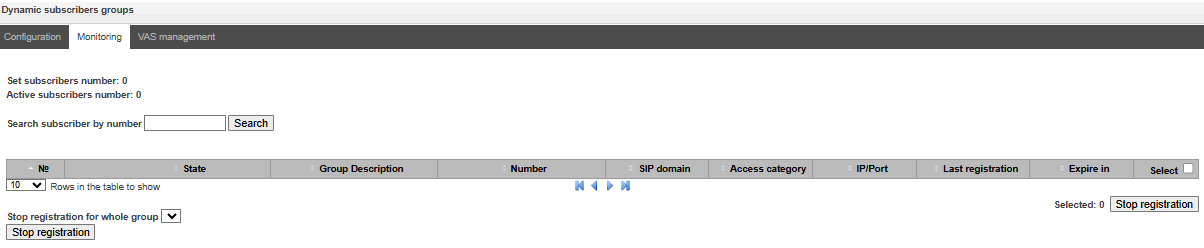
Click the ‘Search’ button to search entries for the subscriber with the specified number.
State – subscriber registration status (registered, not registered, registration expired);
Group Description – arbitrary text description of the group;
Number – the subscriber number;
SIP domain – the domain to which the subscriber belongs;
IP/Port – IP address and port of the subscriber;
Last registration – the time of the last registration;
Expire in – the time remaining before the registration expiration;
Select – when this option is checked, this entry in the table will be processed when you click the Reset registration button;
Stop registration – forcibly reset the registration for a selected subscriber.
Click the ‘Stop registration’ button to reset the registration of all subscribers in the specified group. You can select a group from the drop-down list.
Subscribers → Dynamic subcribers groups → VAS management
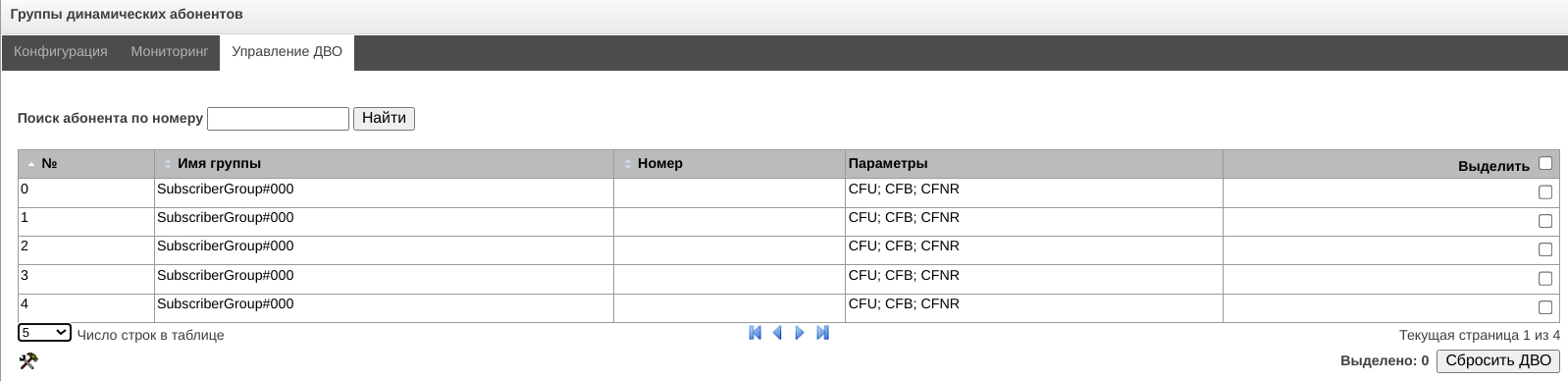
Click the ‘Search’ button to search entries for the subscriber with the specified number.
Group name – arbitrary text description of the group;
Number – the subscriber number;
Parameters – subscriber VAS parameters;
Select – when this option is checked, this entry in the table will be processed when you click the ‘Reset VAS’
Click the ‘Reset VAS’ button to forcibly reset the VAS settings for selected subscribers.
Subscribers → V5.2 Subscribers → Configuration
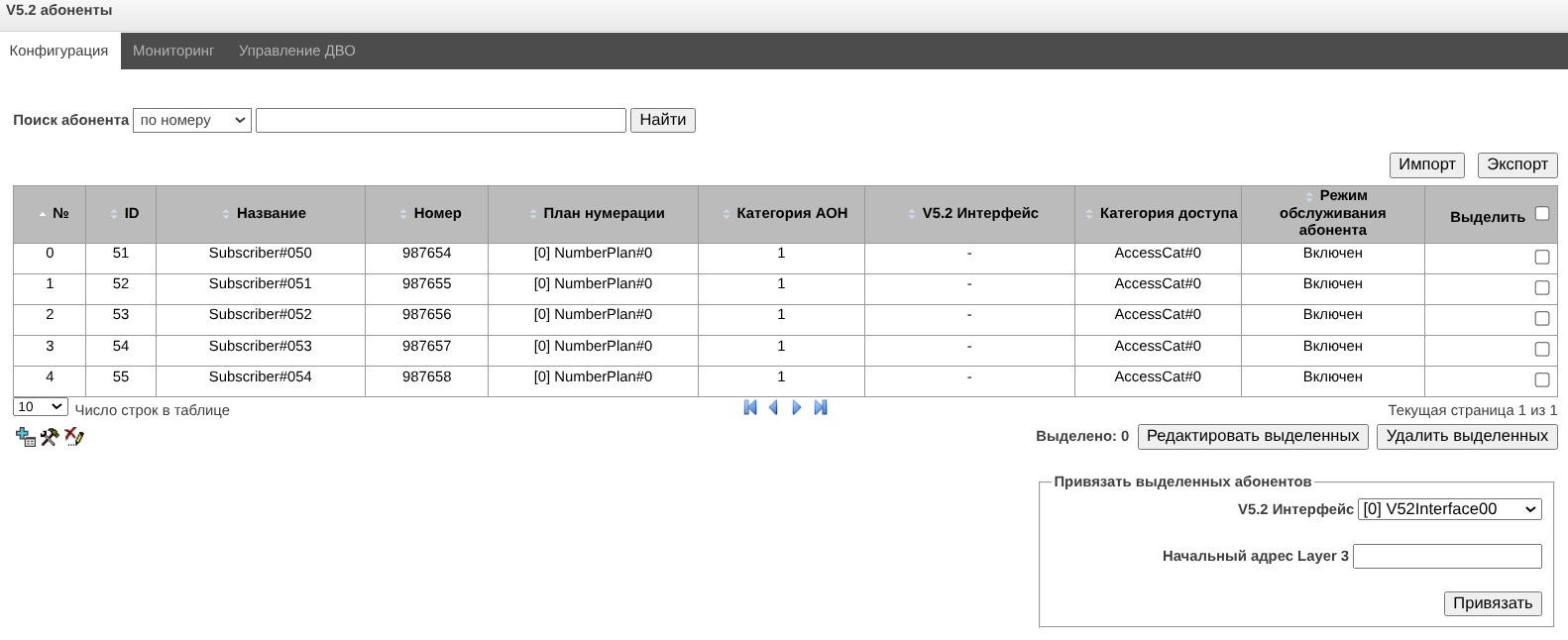
Search subscriber – checking the presence of a subscriber in the database of configured V5.2 subscribers. Can be checked by name, number, caller ID number, PBX profile, dial plans, V5.2 interface;
Edit selected – pressing the button allows going to the group editing menu of selected subscribers (opposite to which the flag is set ‘Select’). To be able to edit, set the ‘Edit’ flag opposite the required parameter. A description of the parameters for configuration is given below;
Remove selected – pressing the button allows group deletion of selected subscribers.
Import – import a subscriber database from a .json file. More details in Appendix P. Example of SMG configuration;
Export – save the subscriber database to a .json file. More details in Appendix P. Example of SMG configuration.
To create, edit, or remove an entry or particular user, use the Objects – Add Object, Objects – Edit Object or Objects – Remove Object menus and the following buttons:
 – Add subscriber;
 – Edit subscriber parameters;
 – Remove subscriber.
Attach selected items – add selected subscribers to the V5.2 interface.
Subscribers → V5.2 Subscribers → Configuration → Object
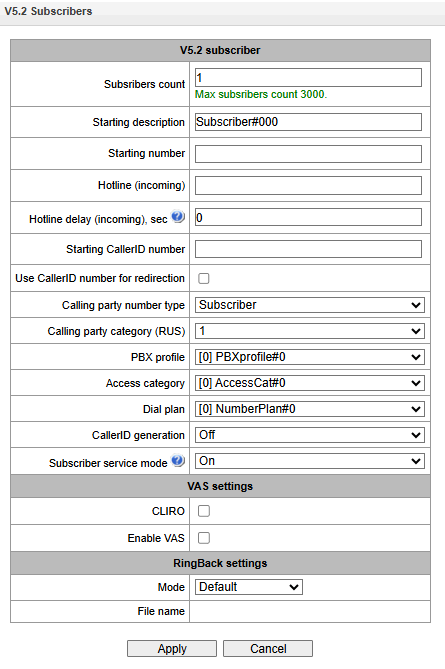
Subscriber parameters:
Subscribers count – unique subscriber identifier;
Starting description – arbitrary text description of the subscriber;
Starting number – subscriber number, for a group of subscribers each subsequent one will be assigned a number increased by one;
Hotline (incoming) – hotline number is set. If the number is specified, then the service is activated automatically;
Hotline delay (incoming), sec – allows to set a hotline activation delay. Valid range [0;10];
Starting CallerID number – caller ID number of the subscriber, for a group of subscribers each subsequent one will be assigned a number increased by one;
Use CallerID number for redirection – use the number specified in the ‘Starting CallerID number’ field when performing call forwarding service;
Calling party number type – subscriber number type;
Calling party category – CallerID category;
PBX profile – PBX profile selection (see section PBX profiles);
Access category – access category selection (see PBX profiles);
Dial plan – dial plan in which the subscriber will be located;
CallerID generation – format for CallerID generation;
Off;
Caller ID (RUS);
DTMF;
FSK BELL202;
FSK V.23.
At present, Caller ID is displayed before the first call signal (Establish + Pulse Signal). Caller ID display between the first and second call signals (Establish + Cadenced Ringing) is not supported. |
Subscriber service mode – sets a limit on incoming and outgoing communications to the subscriber:
off: the port is out of service. The subscriber number is present in the dial plan, but the subscriber terminal cannot be registered. Therefore, incoming calls will be rejected with the out of order cause; outgoing calls cannot be initiated;
on: all types of communication are available;
off 1: ;incoming communication is enabled; outgoing communication is to special services only;
off 2: incoming communication is disabled; outgoing communication is to special services only;
denied 1: full prohibition for incoming and outgoing calls. Calls will be routed according to the dial plan, but be rejected;
denied 2: full prohibition for incoming and outgoing calls, except for special services;
denied 3: incoming calls are prohibited, outgoing calls are allowed;
denied 4: incoming calls are prohibited, outgoing calls are allowed only for local and department communication;
denied 5: incoming calls are allowed, outgoing calls are fully prohibited;
denied 6: incoming calls are allowed, outgoing calls are allowed only for special services;
denied 7: incoming calls are allowed, outgoing calls are allowed only for local and private communication;
denied 8: incoming calls are allowed, outgoing calls are allowed only for local and private and zone communication;
denied 9: incoming calls are allowed, outgoing calls are allowed only for local, private, zone and national communication;
ignore: the number is excluded from the dial plan. The number is completely excluded from the subscriber number list of the dial plan. If this number is called, the call will be rejected with the no route to destination cause, or it will be routed to the appropriate prefix in the dial plan.
VAS settings:
CLIRO – a service to overcome the ban on issuing a caller’s number;
Enable VAS1 – connection of VAS services for subscriber. When checked, the ‘VAS activation’ table is available.
|
RingBack settings:
Allows configuring audio file playback individually.
Modes:
Default – refer to the settings in the system parameters.х;
RingBack – play the default Ringback, ignoring the settings in the system parameters;
Audio file – replacing the standard Ringback sound with a sound of your choice, which was uploaded during the Ringback configuration stage under the ‘System Settings’ menu.
Voice Notification2:
|
Subscribers → V5.2 Subscribers → Configuration → Object → Enable VAS
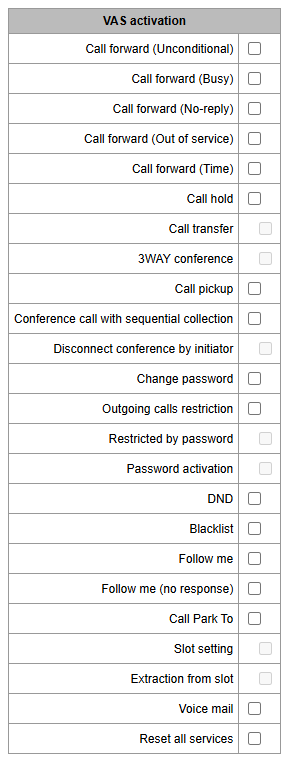
Call Forward (Unconditional) – enables the Call Forwarding Unconditional (CF Unconditional) service;
Call Forward (Busy) – enables the Call Forwarding Busy (CF Busy) service;
Call Forward (No Reply) – enables the Call Forwarding No Reply (CF No Reply) service;
Call Forward (Out of Service) – enables the Call Forwarding Out of Service (CF Out of Service);
Call Forward (Time) – enables the Call Forwarding by Time service (CT Time);
Call hold;
Call transfer – enables the Call Transfer service;
3WAY conference;
Call pickup;
Conference;
Disconnect conference by initiator – when checked, the conference will be over when the initiator leaves the conference. Otherwise, the conference will be saved after the initiator is hung up and will be over only when the last participant leaves the conference;
Change password – changing the password to restrict outgoing communications;
Outgroing calls restriction – use the service ‘restricting outgoing communications by password’;
Restricted by password – allows the subscriber to make a one-time call without restrictions communication by entering the VAS password;
Password activation – allows the subscriber to enter a password once to remove the outgoing communication restriction. Re-entering the password again sets the restrictions;
DND – allows the subscriber to set the ‘Do not disturb’ mode and set several numbers from the white list who will still be able to call the subscriber;
Blacklist – allows the subscriber to blacklist numbers so that they cannot call the subscriber;
Follow me – allows one to forward all calls one’s phone to a remote phone using the remote phone;
Follow me (no response) – allows one to forward all calls coming to ‘local’ number, to the ‘remote’ number in case the local number did not receive a call within the specified time interval;
Call Park To – allows the subscriber to use the call parking service;
Slot setting (within call parking service);
Extraction from slot (within call parking service);
Voice mail – activation of voice mail service;
Reset all services – function required to cancel all configured numbers for forwarding by pressing the service prefix configured in the numbering plan;
Subscribers → V5.2 Subscribers → VAS Management
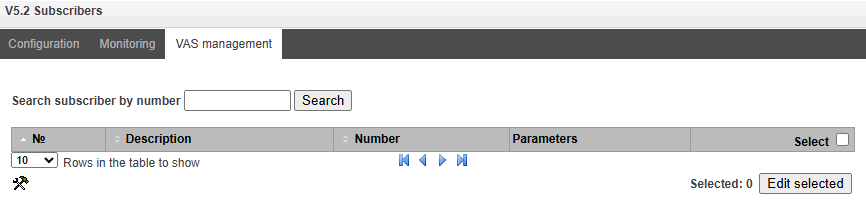
In this section, VAS settings for subscribers are configured.
Each subscriber is provided with VAS services, but to use a specific service it is necessary to activate it with an operator. The operator can create a service plan from several VAS functions, to do this, set the ‘Enable VAS’ flag and the flags opposite the necessary functions of the VAS in the SIP susbcribers configuration tab (see SIP Subsribers section).
The subscriber can manage the status of services from the phone. The following functions are available:
After entering the activation code or canceling the service, the subscriber can hear either a ‘Confirmation’signal (3 short signals), or ‘Busy’ signal (periodic signal with a duration signal/pause – 0.35/0.35 s). The ‘Confirmation’ signal indicates that the service has been successfully activated or cancelled, the ‘Busy’ signal indicates that the subscriber is not connected to this service.
After entering the service verification code, the subscriber can hear either the ‘Station Answer’ signal (continuous signal) or ‘Busy’ signal. The ‘Station Answer’ signal indicates that the service is enabled and activated for the subscriber, the ‘Busy’ signal indicates that either the service is disabled or the subscriber is not connected to this service.
The menu displays only those numbers for which the ‘Enable VAS’ flag is set in the configuration menu (see SIP Subsribers section).
Subscribers → V5.2 Subscribers → VAS Management →
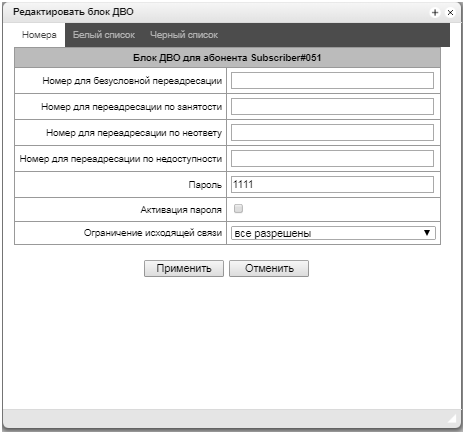
Number for call forward (unconditional) – phone number for unconditional forwarding;
Number for call forward (busy) – phone number for call forwarding by busy;
Number for call forward (no-reply) – phone number for call forwarding by no reply;
Number for call forward (out of service) – phone number for call forwarding by out of service;
Password – a password of 4 to 8 digits in length to access the ‘outgoing calls restriction’ service;
Password activation – when the flag is set, the password is activated and the restrictions on outgoing calls have been removed;
Restrict out – sets a ban on outgoing calls for certain types of directions with inactive password:
All allowed – restriction on outgoing calls is not in effect, restriction code is 0;
Only to emergency – outgoing communication is limited to calls to emergency, restriction code is 1;
Only local and department network – outgoing communication is limited to calls within local and department networks, restriction code is 2;
Only local, department and zone network – outgoing communication is limited to calls within local, department and zone networks, restriction code is 3.
Only local, department, zone and national network – outgoing communication is limited to calls within local, department, zone and national networks, restriction code is 3.
‘White List’ tab – on this tab, one can activate ‘Do Not Disturb’ service and set white list of numbers that can call a subscriber, despite the ban.
‘Black List’ tab – on this tab, one can activate the ‘Black List’ service and set a black list of numbers that cannot call a subscriber.
A detailed description of the operation and configuration of VAS services is given in Appendix H. Working with VAS services.
PRI subscribers are numbers that are located behind a PRI trunk (E1 streams with Q.931 signaling) and are perceived by SMG as local subscribers with the provision of some subscriber services.
Routing to such subscribers is carried out without creating additional rules in the dial plan.
Checking whether the calling subscriber is a PRI subscriber is carried out by matching the E1 stream Q.931, from which the call and A-numbers came.
Subscribers → PRI Subscribers → Configuration
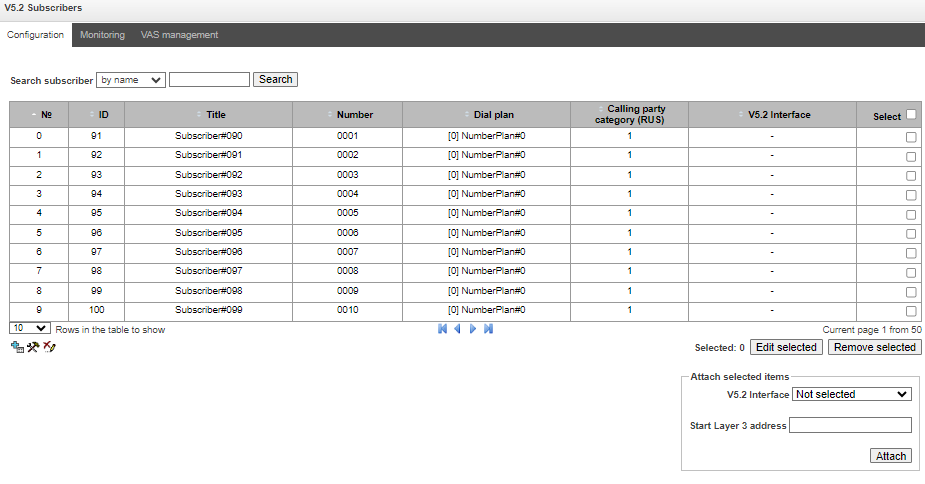
Search subscriber – checking the presence of a subscriber in the database of configured PRI subscribers, possible checking by name, number, PRI profile, PBX profile, dial plans.
Редактировать выделенных – по нажатию на кнопку осуществляется переход в меню группового редактирования параметров выделенных абонентов (напротив которых установлен флаг «Выделить»). Для возможности редактирования необходимо установить флаг «Изменить» напротив требуемого параметра. Описание параметров для конфигурирования приведено ниже;
Удалить выделенных – по нажатию на кнопку осуществляется групповое удаление выделенных абонентов;
Импорт – позволяет импортировать базу данных абонентов из .json файла. Подробнее в Приложении Р. Расшифровка структуры файла импорта/экспорта абонентов;
Экспорт – позволяет сохранить базу данных абонентов в .json файл. Подробнее в Приложении Р. Расшифровка структуры файла импорта/экспорта абонентов.
To create, edit, or remove an entry of particular user, use the Objects – Add Object, Objects – Edit Object or Objects – Remove Object menus and the following buttons:
– Add;– Edit;– Remove.
PRI subscriber parameters:
Subscribers → PRI Subscribers → Configuration → Object
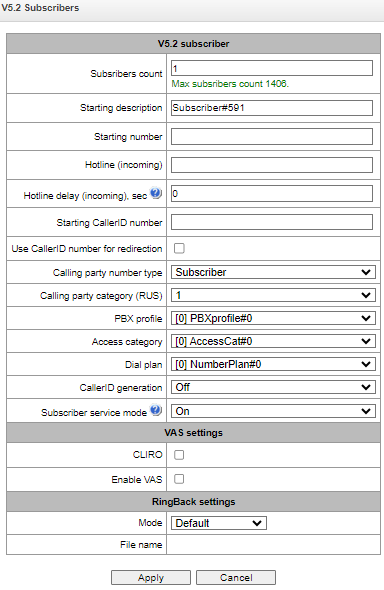
Subscribers count – number of subscribers;
Starting description – arbitrary text description of the subscriber;
Starting number – subscriber number, for a group of subscribers each subsequent one will be assigned a number increased by one;
PRI profile – PRI profile selection;
PBX profile – PBX profile selection (see PBX profiles section);
Calling party category (RUS) – CallerID category;
Lines number – number of simultaneous calls involving the subscriber. Field is displayed if the Common line operation mode is selected. Acceptable range values [1;255] or 0 – no limits;
Ingress lines number – the number of simultaneous incoming calls to the subscriber. The field appears if the line mode is set to Separate. The range of possible values is [1;255] or 0 – no limits;
Egress lines number – the number of simultaneous outgoing calls from the subscriber. The field appears if the line mode is set to Separate. The range of possible values is [1;255] or 0 – no limits;
Access category – select an access category;
Dial plan – define the dial plan for the subscriber;
Subscriber service mode – set a limit on the incoming and outgoing communication for the subscriber:
off: the port is out of service. The subscriber number is present in the dial plan, but the subscriber terminal cannot be registered. Therefore, incoming calls will be rejected with the out of order cause; outgoing calls cannot be initiated;
on: all types of communication are available;
off 1: ;incoming communication is enabled; outgoing communication is to special services only;
off 2: incoming communication is disabled; outgoing communication is to special services only;
denied 1: full prohibition for incoming and outgoing calls. Calls will be routed according to the dial plan, but be rejected;
denied 2: full prohibition for incoming and outgoing calls, except for special services;
denied 3: incoming calls are prohibited, outgoing calls are allowed;
denied 4: incoming calls are prohibited, outgoing calls are allowed only for local and department communication;
denied 5: incoming calls are allowed, outgoing calls are fully prohibited;
denied 6: incoming calls are allowed, outgoing calls are allowed only for special services;
denied 7: incoming calls are allowed, outgoing calls are allowed only for local and private communication;
denied 8: incoming calls are allowed, outgoing calls are allowed only for local and private and zone communication;
denied 9: incoming calls are allowed, outgoing calls are allowed only for local, private, zone and national communication;
ignore: the number is excluded from the dial plan. The number is completely excluded from the subscriber number list of the dial plan. If this number is called, the call will be rejected with the no route to destination cause, or it will be routed to the appropriate prefix in the dial plan.
VAS settings:
Enable VAS 1 – connection of VAS services for subscriber. When checked, the ‘VAS activation’ table is available.
|
VAS activation:
Subscribers → PRI Subscribers → Configuration → Object → Enable VAS
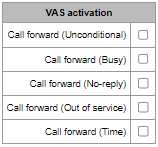
Call Forward (Unconditional) – enables the Call Forwarding Unconditional (CF Unconditional) service;
Call Forward (Busy) – enables the Call Forwarding Busy (CF Busy) service;
Call Forward (No Reply) – enables the Call Forwarding No Reply (CF No Reply) service;
Call Forward (Out of Service) – enables the Call Forwarding Out of Service (CF Out of Service);
Call Forward (Time) – enables the Call Forwarding by time.
A detailed description of the operation and configuration of VAS services is given in Appendix H. Working with VAS services.
RingBack settings:
Allows configuring audio file playback individually.
Modes:
Default – refer to the settings in the system parameters.х;
RingBack – play the default Ringback, ignoring the settings in the system parameters;
Audio file – replacing the standard Ringback sound with a sound of your choice, which was uploaded during the Ringback configuration stage under the ‘System Settings’ menu.
This section describes parameters configuration to save call detail records. CDR is a call detail record, which allows the system to save the history of calls performed through SMG gateway. If the primary server is unavailable, CDR records are sent to the backup server (with appropriate configuration of the backup server) until communication with the primary server is restored. After the connection is restored, the CDR records sent to the backup server, will not be loaded to the primary server. Go to the ‘Internal Resources’ section and to the ‘CDR Records’ tab.
Internal resources → CDR settings
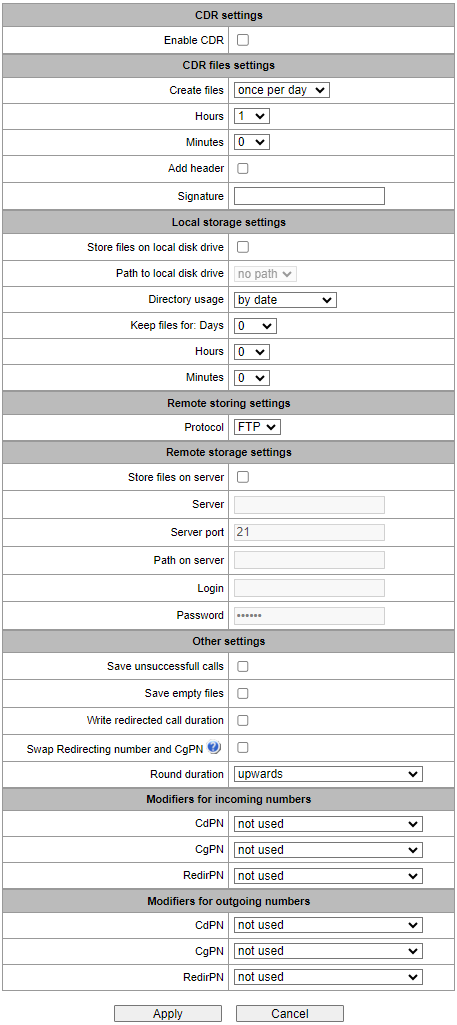
CDR settings:
Enable CDR – when this option is checked, the gateway will generate CDRs.
CDR files settings:
Create files – select the mode to create CDR files:
Saving period: Days, Hours, minutes – time period for CDR generation and saving in the device RAM;
Add header – when this option is checked, the following header will be written at the beginning of the CDR file: SMG1016. CDR. File started at “YYYYMMDDhhmmss”, where “YYYYMMDDhhmmss” is the records saving start time;
Add the list of fields to the CDR file – add column headings to the table header;
language selection – language in which the field names will be displayed:
EN;
RU.
Coding (for russian language. Foe english only the UTP-8 is available):
CP1251 – Windows-1251;
UTF8 – UTF-8;
Translit.
Signature – set a distinctive identifier used to identify the device that created the record;
Filename – change the format of the CDR file name. This option is only available when the “once per day” file creation mode is selected. It can take the following values:
Date and time – set the file name to the format «YYYYMMDDhhmmss.cdr»;
Date only – set the file name to the format «YYYYMMDD.cdr».
Local Storage Settings:
Internal resources → Local storage settings
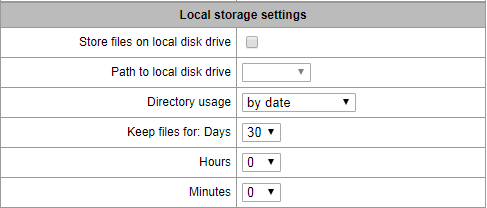
Store files on local disk drive – when this option is checked, save CDRs onto the local drive;
Path to local disk drive – the path to the local drive. If the local drive path is selected, the menu displays the list of folders and files on that drive. To download data to your computer, select the checkbox for the required records and click Download. The folder with records will be moved to the archive, which is recommended to delete after the boot to avoid the disk overflow. To remove the outdated data from your computer, select the checkbox for the required records and click Remove;
Directory usage – select the directories for CDR data storage:
by date – CDRs are saved into separate directories, where the directory name corresponds to the CDR file creation date and the name format is “cdryyymmdd”, for example, cdr20150818;
single directory – all CDRs are saved into a single cdr_all directory located on the selected drive.
Keep files for: Days, Hours, Minutes – the period to keep CDRs on the local drive.
When the the remote server for CDR storage is not available, CDRs will be saved to the device RAM. When the memory is full, a warning message will be generated, followed by a failure alarm. For CDR file saving indication, see section LED indication. The thresholds for warning and failure alarms are described in the table of memory thresholds for CDRs saving. |
When the failure status is activated, the corresponding SNMP trap is sent. |
Table of memory thresholds for CDR saving:
A certain amount of RAM is allocated for the temporary storage of CDR on the device, in case it is impossible to save data to the FTP server for some reason. When this amount is filled, a warning or failure alarm is displayed.
SMG-1016M | SMG-2016 | SMG-3016 | |
|---|---|---|---|
Total memory allocated: | 30 MB | 512 MB | 512 MB |
Memory thresholds for alarm messages: | |||
– warning | 512 KB | 20 MB | 20 MB |
– failure | 5 MB | 85 MB | 85 MB |
– critical failure | 15 MB | 255 MB | 255 MB |
One CDR takes from 200 to 400 bytes. Thus, 1 MB of memory can store from 2600 to 5200 records.
Remote storing settings:
Protocol – the protocol by which CDR records will be transmitted to the remote server. FTP and SCP protocols are supported.
Remote storage settings:
Store files on server– when this option is checked, CDRs will be transferred to the remote server;
Server – IP address of the server;
Server port – TCP port of the FTP server;
Path on server – a path to the FTP server directory to store CDRs;
Login– username for access to the FTP server;
Password – user password for access to the FTP server.
Remote backup storage settings:
CDR records will be sent to the backup server (provided the backup server has been configured accordingly) if the primary server is unavailable, until communication with the primary server is restored.
Store files on server – when this option is checked, CDRs will be transferred to a backup server;
Only if primary server failed – if the option is set, the saving of CDR files on a backup server will be implemented only in case of a failure in recording to a main FTP server. Otherwise, CDR files will be recorded to the primary and backup servers simultaneously;
Server – IP address of the backup server;
Server port – TCP port of the backup server;
Path on server – a path to the backup server directory to store CDRs;
Login – username for access to the backup server;
Password – user password for access to the backup server.
Other settings:
Save unsuccessful calls – when this option is checked, unsuccessful calls (not resulted in conversation) will be recorded into CDR files;
Save empty files – when this option is checked, CDR files containing no records are saved;
Write redirected call duration – when this option is checked, the CDR for a call redirected from “discinfo: redirected call;”, will contain actual call duration; when unchecked, the duration will be set to zero;
Swap Redirecting number and CgPN – the option applies to calls redirected in case the CgPN and the Redirecting number fields in the CDR are used simultaneously. If there is no Redirecting number field in the CDR, the CgPN value is automatically replaced with Redirecting number value for redirected calls;
Round duration – this option specifies the mode for the call duration rounding off in CDRs:
upwards – call duration rounding mode; the call duration is rounded up if it exceeds 330 ms;
downwards – call duration rounding mode; the call duration is rounded down if it exceeds 850 ms;
without round (use msec) – in this mode, the call duration is not rounded up or down, and is recorded to the nearest millisecond.
Modifiers for incoming numbers:
Incoming number modifiers are the modifiers that modify any CDR fields containing subscriber numbers and apply to these fields before a call proceeds through a dial plan.
CdPN – intended for modifications based on the analysis of the callee number received from the incoming channel;
CgPN – intended for modifications based on the analysis of the caller number received from the incoming channel;
RedirPN – intended for modifications based on the analysis of the number of the subscriber that redirected the call received from the incoming channel.
Modifiers for outgoing numbers:
Outgoing number modifiers are the modifiers that modify any CDR fields containing subscriber numbers and apply to these fields after a call proceeds through a dial plan.
CdPN – intended for modifications based on the analysis of the called number sent to the outgoing channel;
CgPN – intended for modifications based on the analysis of the calling number sent to the outgoing channel;
RedirPN – intended for modifications based on the analysis of the number of the subscriber that redirected the call sent to the outgoing channel.
Internal resources → CDR settings
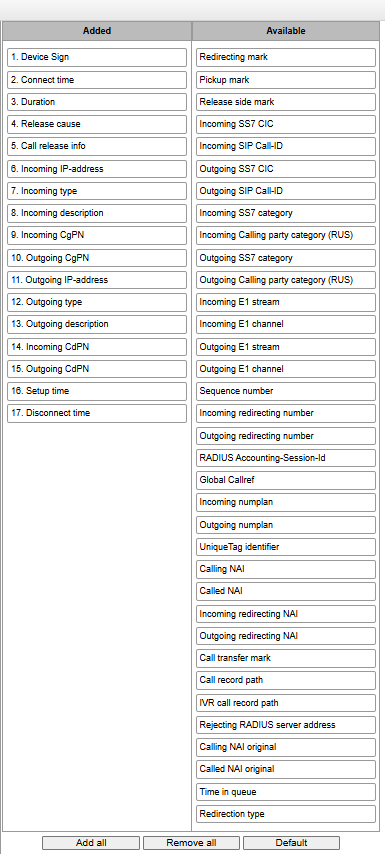
Here, the user can select the fields to be written to CDR files and configure their order. The Available column displays all the fields available for adding; the Added column displays the fields in the order they will be written to CDR files.
The following buttons are located under the list:
Default – the basic set of fields remains in the Added column (see the list of fields in Default CDR format section).
To add or remove the desired fields, drag them to the corresponding column with the left mouse button. The Added column is numbered according to the sequence number of the field in the CDR file.
First line – a general header for an entire CDR file (this parameter is displayed if the corresponding setting is selected);
Next lines – CDRs in the form of fields separated by semicolons ‘;’. The basic set of fields is as follows:
Information about a calling subscriber:
Information about a called subscriber:
UniqueTag identifier – a user-configurable string that identifies the device;
Connect time, call response time, disconnect time – time of the corresponding event in the following format: ‘YYYY-MM-DD HH:MM: SS.MSEC’;
Duration – counted in seconds “SS”; if the rounding method is set to ‘no rounding’; milliseconds are sent after the separating point: ‘SS.MSEC’;
Release cause Q.850 – numeric disconnect code, as recommended by ITU-T Q.850;
Call release info:
user answer – successful call;
user called, but unanswer – unsuccessful call, no response from subscriber;
unassigned number – unsuccessful call, the number is not assigned;
user busy – unsuccessful call, the user is busy;
uncomplete number – unsuccessful call, the number is not complete;
out of order – unsuccessful call, the terminal equipment is not available;
unavailable trunk line – unsuccessful call, the trunk is not available;
unavailable voice-chan – unsuccessful call, no free voice links available;
access denied – unsuccessful call, access denied;
RADIUS-response not received – unsuccessful call, no response from the RADIUS server;
unspecified – unsuccessful call, another cause.
Incoming/outgoing IP address – IP address, if the call is made by SIP/H.323 protocols. If the call is made not over the IP network, the value 0.0.0.0 will be written into the field.
Incoming/outgoing Types:
SIP-user – SIP subscriber;
v52-user – V5.2 subscriber;
user-service – use of VAS, only for the source type;
trunk-SIP – SIP trunk;
trunk-SS7 – SS7 trunk;
trunk-Q.931 – ISDN PRI trunk;
trunk-H.323 – H.323 trunk.
Caller description – contains the text name of the trunk through which the call was made, or the caller’s name. If the call is initiated by VAS, the description can take the following values:
Redirection – call forwarding;
CallTransfer – call transfer;
CallPickup – call pickup;
ServiceManagement – management of VAS;
Conference – ad-hoc conference;
IVR – call from IVR system;
3way – three-way conference.
Incoming/outgoing CgPN – the calling number at the input (before modification in the incoming TG) or at the output (after all modifications in the incoming and outgoing TGs);
Incoming/outgoing CdPN – the called number at the input (before modification in the incoming TG) or at the output (after all modifications in the incoming and outgoing TGs);
Redirecting mark:
normal – the call w/o forwarding;
redirecting – the caller has redirected the call to the callee;
redirected – the call initiated by the caller has been redirected to another subscriber.
Pickup mark:
normal – the call passed without interception;
pickup – the call was intercepted.
Release side mark:
originate – call ended by the caller;
answer – call ended by the called;
internal – call ended by the device (SMG).
Incoming/outgoing SS7 CIC – CIC number for the incoming/outgoing call. If the call was made not through the SS7 interface, the field will be empty;
Incoming/outgoing SIP Call-ID – Call-ID for the incoming/outgoing call. If the call was made not through the SIP interface, the field will be empty;
Incoming/outgoing SS7 category – the caller category in SS7 line at the input (before modification in the incoming TG) or at the output (after all modifications in the incoming and outgoing TGs);
Incoming/outgoing Calling party category – the Caller ID category at the input (before modification in the incoming TG) or at the output (after all modifications in the incoming and outgoing TGs);
Incoming/outgoing E1 stream – number of the incoming/outgoing E1 stream. If the call was made not through Е1 stream, the field will be empty;
Incoming/outgoing E1 channel – number of the incoming/outgoing E1 channel. If the call was made not through E1, the field will be empty;
Sequence number – two numbers separated by a hyphen. The first number is the timestamp generated when the device starts, the second is the CDR record sequential number;
Incoming/outgoing redirecting number – the redirecting number at the input (before modification in the incoming TG) or at the output (after all modifications in the incoming and outgoing TGs);
RADIUS Accounting-Session-Id – the Acct-Session-Id attribute value sent to RADIUS;
Global Callref – Global Call Reference field, which is formed as follows: "|XX.XX.XX|YY.YY.YY.YY.YY", where:
XX.XX.XX – own point code (OPC) in little-endian HEX format;
YY.YY.YY.YY.YY – sequential call number in little-endian HEX format.
Incoming/outgoing numplan – the number of the dial plan in which the call arrived and left;
UniqueTag Identifier – an individual call identifier that is received along the entire call transmission path;
NAI caller/called/inc. redirecting/outg. redirecting – indicators of the number's ownership
0 – Spare;
1 – Subscriber number;
2 – unknown;
3 – National (significant) number;
4 – International number, where:
Local – Subscriber;
International communications – INTERNATIONAL;
Long-distance communications – NATIONAL;
Emergency, Zone and Department – unknown.
Call Transmission Label – shows the call transmission label:
<empty>;
transferred (initial call that was subsequently transferred);
transferring (second call that accepted the transfer).
Blocking RADIUS server address – information about the RADIUS server blocking the call in the following format IP, PORT, REPLYCODE, where:
IP – IP address of the RADIUS server blocking the call;
PORT – port of the RADIUS server;
REPLYCODE – RADIUS server response code.
Tome in queue – displays the time during which a subscriber who called a call group with a queue waited for an answer;
Redirection type:
CFU;
CFB;
CFT;
CFNR;
CFOS.
Example of CDR file, that contains four entries. Heading adding to a file is enabled, following fields has been chosen:
RADIUS Accounting-Session-Id
SMG2016. CDR. File started at '20161213115258'
20161210124301-00000;SMG 2016 ELTZ;2016-12-13 11:52:58.126;2016-12-13 11:52:58.465;2016-12-13 11:52:58.479;0.014;16;user answer;originate;normal;normal;trunk-SIP;sipp_in;;192.168.0.123;20001;20001;trunk-SS7;TrunkSS7_00;0;0.0.0.0;10001;10001;11000321 584f7eaa 65a813f9 53681e51;
20161210124301-00001;SMG 2016 ELTZ;2016-12-13 11:52:58.134;2016-12-13 11:52:58.462;2016-12-13 11:52:58.483;0.021;16;user answer;originate;normal;normal;trunk-SS7;TrunkSS7_01;1;0.0.0.0;20001;20001;trunk-SIP;sipp_out;;192.168.1.123;10001;10001;06000106 584f7eaa 59a880c4 5b369253;
20161210124301-00002;SMG 2016 ELTZ;2016-12-13 11:52:58.026;2016-12-13 11:53:00.049;2016-12-13 11:53:00.062;0.013;16;user answer;originate;normal;normal;trunk-SIP;sipp_in;;192.168.0.123;20000;20000;trunk-SS7;TrunkSS7_00;0;0.0.0.0;10000;10000;11000043 584f7ea9 5068f1a1 418fbc82;
20161210124301-00003;SMG 2016 ELTZ;2016-12-13 11:52:58.034;2016-12-13 11:53:00.046;2016-12-13 11:53:00.066;0.020;16;user answer;originate;normal;normal;trunk-SS7;TrunkSS7_01;1;0.0.0.0;20000;20000;trunk-SIP;TrunkAsterisk;;192.168.69.123;10000;10000;06000105 584f7eaa 7f14fecf 2a88c6d7.
Parameter | Maximum field size | |
|---|---|---|
Incoming type | incoming type | 63 |
Outgoing type | outgoing type | 63 |
Call release info | disc info | 63 |
Release cause | disc code | 4 |
Sequence number | sequential number | 15 |
Device Sign | device sign | 63 |
| Calling NAI original | nai origin calling | 4 |
| Called NAI original | nai origin called | 4 |
Incoming description | incoming description | 63 |
Outgoing description | outgoing description | 63 |
Pickup mark | mark pickup | 31 |
Call transfer mark | mark call-tansfer | 16 |
Redirecting mark | mark redir | 31 |
Release side mark | mark release side | 31 |
Outgoing E1 stream | outgoing E1 stream | 3 |
Outgoing numplan | numplan out | 3 |
Outgoing redirecting number | redirecting out | 41 |
Outgoing CgPN | calling out | 41 |
Outgoing CdPN | called out | 41 |
Outgoing E1 channel | outgoing E1 chan | 3 |
Outgoing SS7 CIC | outgoing SS7 CIC | 15 |
Outgoing SIP Call-ID | outgoing SIP call id | 255 |
| Outgoing redirecting NAI | nai redirecting out | 4 |
Outgoing Calling party category (RUS) | outgoing CID category | 3 |
Outgoing SS7 category | outgoing SS7 category | 3 |
UniqueTag identifier | unique-id | 63 |
Duration | duration | 15 |
Global Callref | global-callref | 63 |
Incoming E1 stream | incoming E1 stream | 3 |
Incoming numplan | numplan in | 3 |
Incoming redirecting number | redirecting in | 41 |
Incoming CgPN | calling in | 41 |
Incoming CdPN | called in | 41 |
Incoming E1 channel | incoming E1 chan | 3 |
Incoming SS7 CIC | incoming SS7 category | 15 |
Incoming SIP Call-ID | incoming SS7 CIC | 255 |
| Incoming redirecting NAI | nai redirecting in | 4 |
Incoming Calling party category (RUS) | incoming CID category | 3 |
Incoming SS7 category | incoming SIP call id | 3 |
Disconnect time | time disconnect | 63 |
Setup time | time setup | 63 |
Connect time | time connect | 63 |
| Call record path | call-record-path | 255 |
| IVR call record path | ivr-call-record-path | 255 |
| Rejecting RADIUS server address | radius-rejected | 31 |
RADIUS Accounting-Session-Id | acct-session-id | 63 |
Calling NAI | nai calling | 4 |
| Called NAI | nai called | 4 |
Incoming IP-address | outgoing ipaddr | 31 |
Outgoing IP-address | incoming ipaddr | 31 |
Time in queue | time_in_queue | 15 |
Redirection type | redir_type | 31 |
Internal resources → SS7 categories
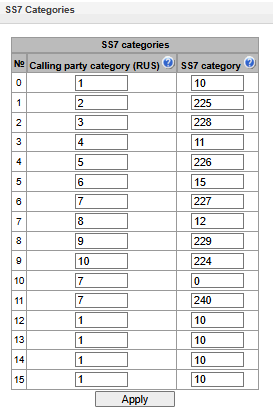
In this section, the correspondence between Caller ID categories and SS7 protocol categories can be specified.
Generally accepted correspondence between SS7 categories and Caller ID categories is provided below.
Category SS7 10 | – | Category Caller ID 1 |
Category SS7 11 | – | Category Caller ID 4 |
Category SS7 12 | – | Category Caller ID 8 |
Category SS7 15 | – | Category Caller ID 6 |
Category SS7 224 | – | Category Caller ID 0 |
Category SS7 225 | – | Category Caller ID 2 |
Category SS7 226 | – | Category Caller ID 5 |
Category SS7 227 | – | Category Caller ID 7 |
Category SS7 228 | – | Category Caller ID 3 |
Category SS7 229 | – | Category Caller ID 9 |
Internal resources → Access categories
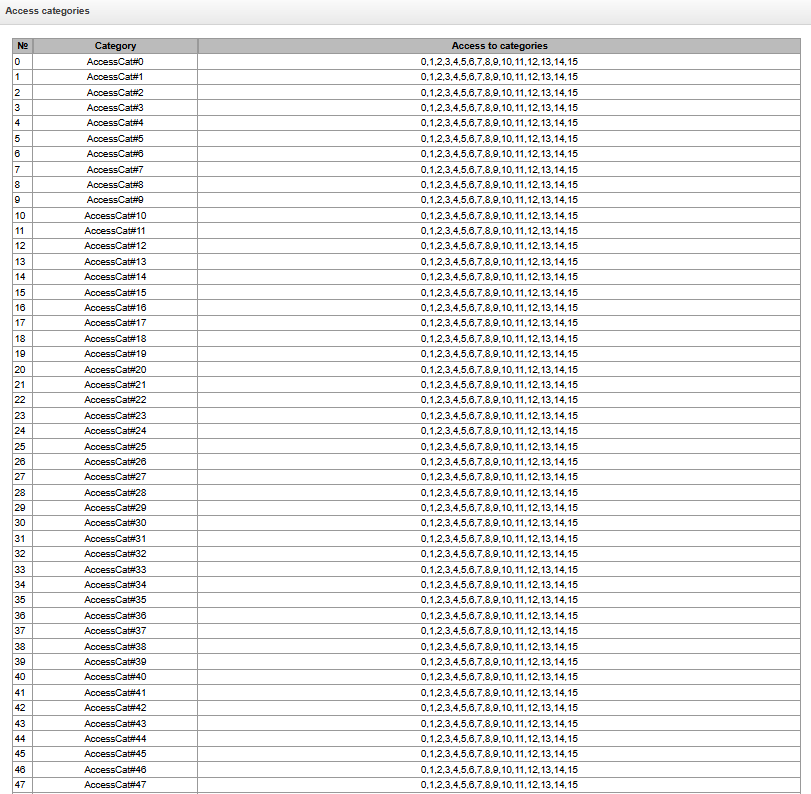
Access categories allow to define access privileges for subscribers, trunk groups and other objects. Categories enable calls from the incoming channel to the outgoing channel.
To restrict an access to an object, you should assign the corresponding category; for other categories, specify accessibility to a category assigned to an object in this menu (deny access — deselect the checkbox next to the corresponding category, allow access — select the checkbox next to the corresponding category).
128 access categories are available for configuration in total. By default, access on each of them is defined for the first 16 categories.
To proceed to category configuration and editing, clickbutton.
Access restriction configuration example
To restrict the long-distance communication, you should:
1. Select an access category for the long-distance communication. Specify name 'National long-distance call' for convenience.
Internal resources → Access categories → Object
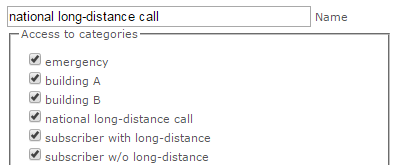
2. Select 2 categories for subscribers: ‘Subscriber with long-distance’ and ‘Subscriber w/o long-distance’ and allow/deny an access to 'National long-distance call' category respectively (select/deselect the checkbox next to 'National long-distance call' category).
Internal resources → Access categories → Object
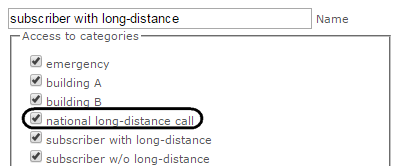
Internal resources → Access categories → Object
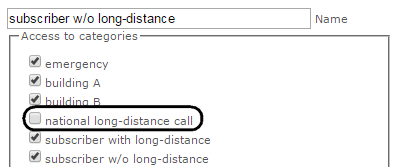
3. For transition to 8 prefix, select 'National long-distance call' category and 'Check access category'
Internal resources
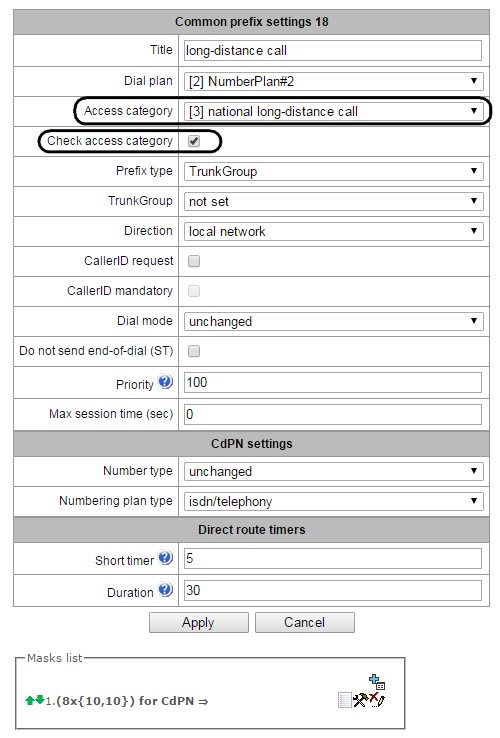
4. Assign ‘Subscriber with long-distance’ category to subscribers with enabled access to long-distance communication.
5. Assign ‘Subscriber w/o long-distance’ category to subscribers with disabled access to long-distance communication.
Internal resources
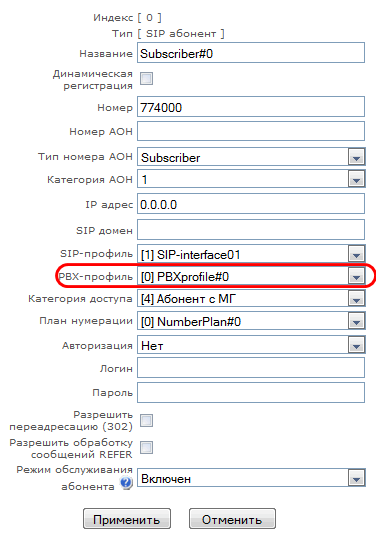
Internal resources
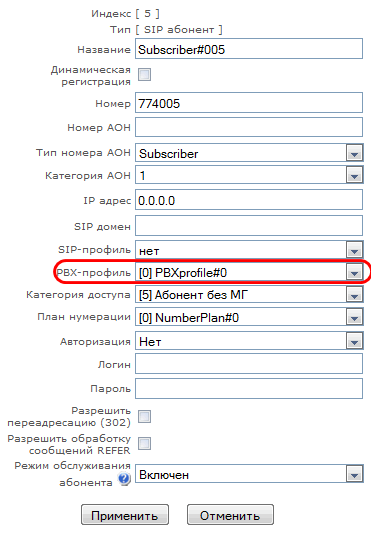
Items 4 and 5 may be performed via subscriber group editing:
Select the required parameter for editing by selecting a checkbox next to it. |
When a route is searched by number masks in the numbering plan, there is a check for prefix/call group accessibility by access category. If the check access category checkbox is not selected on the prefix/group, the route is considered unconditionally accessible.
Now it is possible to create several completely identical masks leading to different prefixes with different access categories.
In this regard, the procedure of mask analysis now looks as follows:
Internal resources → Modifiers table

This table contains all created modifiers and objects they are assigned to.
To create, edit or remove a modifier, use 'Objects' — 'Add object', 'Objects' — 'Edit object' and 'Objects' — 'Remove object' menus and the following buttons:
– 'Add modifier'
– 'Edit modifier parameters'
– 'Remove modifier'
 – 'Add modifier by copying'
Common settings of modifiers table:
Internal resources → Modifiers table → Object
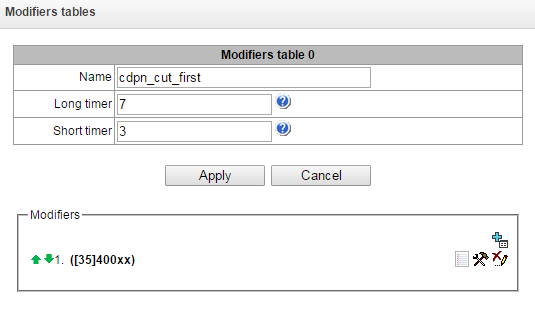
Name – the displayed name of the table;
Long timer – timeout for number dialing in overlap mode;
Short timer – timeout for digit dialing in overlap mode;
Modifiers – the list of modifiers used in the table.
To assign/edit parameters of created modifier, select the respective row and click.
To confirm changes of the modifier parameters, click 'Apply' button; or click 'Cancel' to exit without saving changes.
Click the link 'Check number' below the modifiers table to check modifiers operation. The description of check procedure is presented in the section Modifiers check.
Internal resources → Modifiers table → Object →
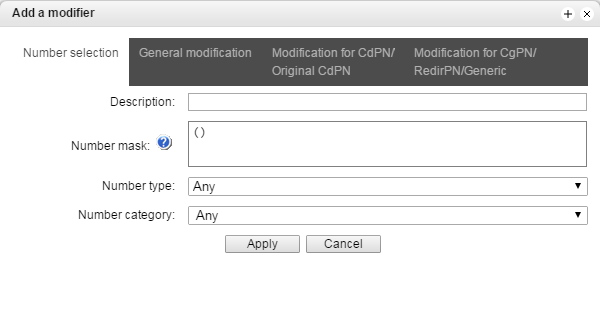
Modification for SORM – hide the display of modifications not used when working with SORM;
Description – modifier description;
Number mask – template or set of templates that the subscriber number will be compared with (for mask syntax, see Description of number mask and its syntax);
Number type – subscriber number type:
Subscriber – subscriber number (SN) in Е.164 format;
National – national number. Number format: NDC + SN, where NDC — national destination code;
International – international number. Number format: СС + NDC + SN, where СC — country code for geographic area;
Network specific – specific network number;
Unknown – unknown number type;
Any – modification will be performed for any number type;
Unsupported – a number type which is not supported on SMG.
Number category – subscriber's Caller ID category.
Internal resources → Modifiers table → Object → → General modification
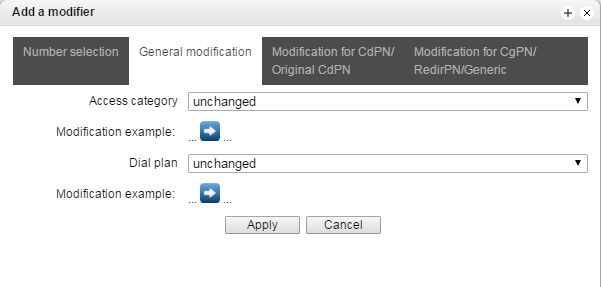
Modification example – click button to view the modification summary after application of the modification rules specified;
Access category – allows to modify the access category;
Dial plan – allows to modify dial plan that will be used for further routing (necessary for dial plan negotiation).
Internal resources → Modifiers table → Object → → Modification for CdPN/Original CdPN
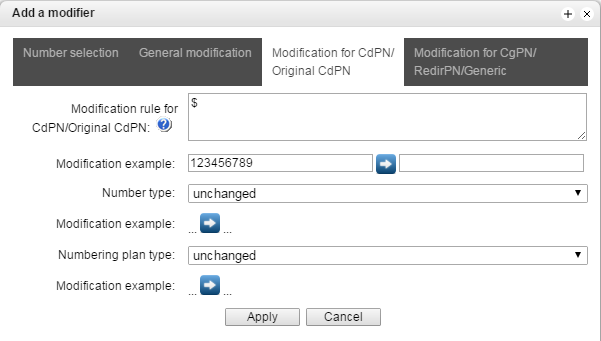
Modification rule for CdPN/Original CdPN – callee number modification rule. For syntax being used, see Modification rule syntax, for example use, see Appendix C. This rule also applies to modification of the callee initial number (original Called party number) when this modifier table is selected in the 'trunk group' session for Original CdPN modification;
Modification example – click  button to view the modification summary after application of the specified modification rules. We recommend defining a number that will be subject to modification instead of number 123456789 entered in the rule check example;
Number type – callee number type modification rule.
Unknown – undefined number;
Subscriber – subscriber number (SN) in Е.164 format;
National – national number. The number has the following format: NDC + SN, where NDC – a geographic zone code;
International – international number. The number has the following format: СС + NDC + SN, where СC is a country code;
Network specific – specific network number;
Unchanged – leave the type of a number unchanged.
Numbering plan type – dial plan type modification rule.
Unchanged;
Unknown – unknown type of dial plan;
Isdn/telephony – a dial plan according to ITU-T E.164 recommendations;
National – national number. The number has the following format: NDC + SN, where NDC – a geographic zone code;
Private – a private dial plan.
Internal resources → Modifiers table → Object → → Modification for CgPN/RedirPN/Generic
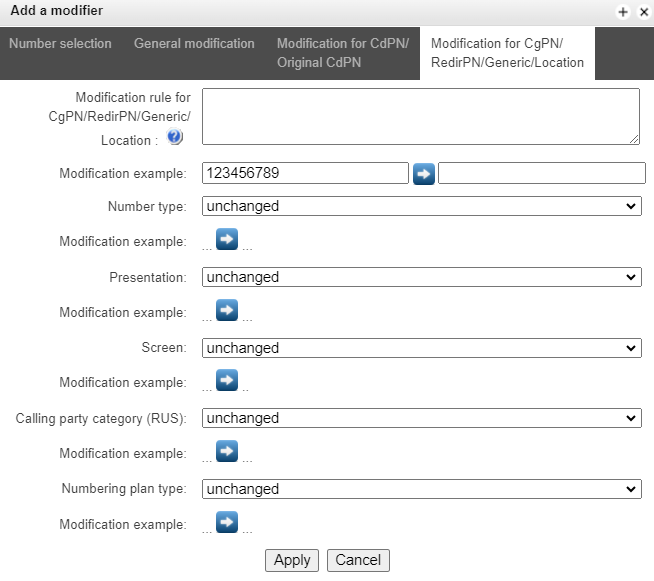
Modification rule for CgPN/RedirPN/Generic/Location – callee number modification rule. For syntax being used, see Modification rule syntax, for example use, see Appendix C. This rule also applies to modification of the callee redirecting number when this modifier table is selected in the 'trunk group' session for Redir PN modification; for Generic Number modification, if the table is selected in GenericPN modification section; for Location Number modification, if the table is selected in LocationNumber modification section;
Modification example – click button to view the modification summary after application of the modification rules specified. We recommend defining a number that will be subject to modification instead of number 123456789 entered in the rule check example;
Number type – caller number type modification rule;
Presentation – caller presentation modification rule;
Screen – caller screen indicator modification rule;
Calling part category – rule for converting the calling party’s category;
Numbering plan type – dial plan type modification rule:
Unchanged;
Unknown – unknown type of dial plan;
Isdn/telephony – a dial plan according to ITU-T E.164 recommendations;
National – national number. The number has the following format: NDC + SN, where NDC – a geographic zone code;
Private – a private dial plan.
Modification rule is a set of special characters that govern number modifications:
'.' and '-': special characters indicating the removal of digits at the current position and the transposition of digits that follow to a location of that digit.
'X', 'x': special characters indicating that the digit remains unchanged at the current position (the digit is mandatory at the current position).
'?': special character indicating that the digit remains unchanged at the current position (the digit is arbitrary at the current position).
'+': special character indicating that all characters located between the current position and the next special character (or end of sequence) are inserted at the specified location of the number.
'!': special character indicating the breakdown finish, all other digits of a number are truncated.
'$': special character indicating the breakdown finish, all other digits of a number remain unchanged.
0-9, D, # and * (without preceding special character '+'): informational characters that substitute the digit at the specified location of the number.
Modification example:
Add the city code 383 to the number 2220123
Modifier: +383
Result: 38322201234
Replace country code with 7 in the number 83832220123
Modifier: 7
Result: 738322201234
Replace the third digit in the number 2220123 with 6
Modifier: xx6$ или XX6$
Result: 22601234
Remove the prefix 99# in the number 99#2220123
Modifier: ---$
Result: 2220123
Remove the last 4 digits in the number 22201239876
Modifier: $----
Result: 2220123
Select the first seven digits of the number 222012349876
Modifier: xxxxxxx!
Result: 2220123
Remove the last two digits, replace the third digit with 6 and add the city code 383 to the number 222012398
Modifier: +383xx6$--
Result: 3832260123
You can check modifiers on a number with parameters specifying, using a 'Check number' button below the table.
Internal resources → Modifiers table → Check number
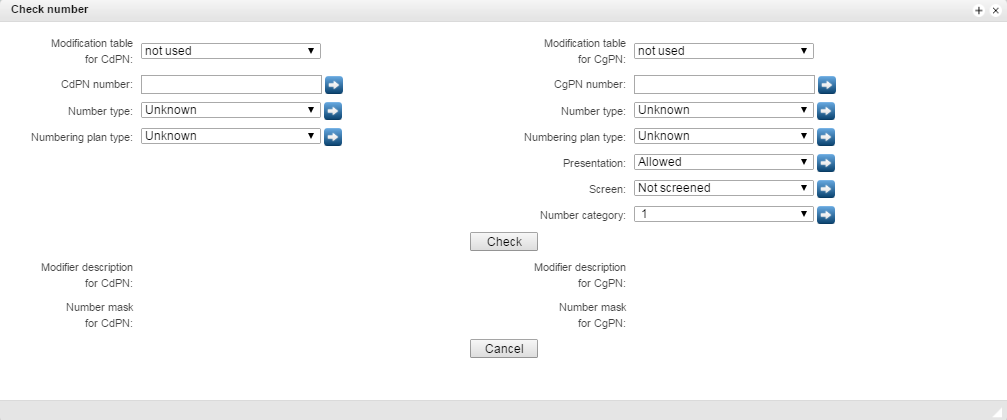
Set CdPN and CgPN numbers, fill 'Number type', 'Numbering plan type', 'Presentation', 'Screen', 'Number category’ fields, then choose needed modification table for CgPN and CdPN and click the 'Check' button. The values which will be assigned to the number will be displayed next to the blue arrows. The numbers masks which were investigated and descriptions of modifiers which were included to the modifiers table will be displayed below.
If the modification table contains only SORM modifiers, then this table will not be displayed in the 'Check number' service, because the check does not work for tables with SORM modifiers.
Internal resources → Q.931 timers
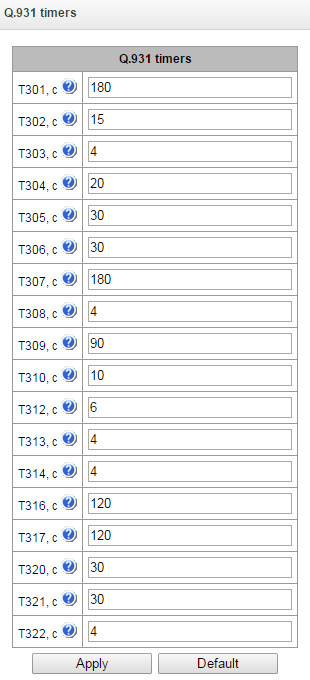
In this section, you may configure third level timers required for Q.931 signaling protocol operation.
Timer names and default values are described in Q.931 ITU-T recommendation, Paragraph no. 9, List of system parameters.
Name | Default value, sec | Range, sec |
|---|---|---|
T301 | 180 | 30–360 |
T302 | 15 | 10–25 |
T303 | 4 | 4–10 |
T304 | 20 | 20–30 |
T305 | 30 | 30–40 |
T306 | 30 | 30–40 |
T307 | 180 | 180–240 |
T308 | 4 | 4–10 |
T309 | 90 | 6–90 |
T310 | 10 | 10–20 |
T312 | 6 | 6–12 |
T313 | 4 | 4 – 10 |
T314 | 4 | 4–10 |
T316 | 120 | 120–240 |
T317 | 120 | 120–240 T316 or greater |
T320 | 30 | 30–60 |
T321 | 30 | 30–60 |
T322 | 4 | 4–10 |
In this section, you may configure MTP2, MTP3 and ISUP level timers of SS7 protocol.
Internal resources → SS7 timers
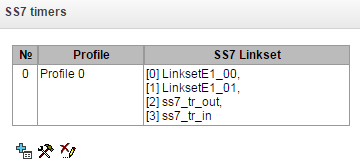
To create, edit or remove a profile, use the following buttons:
– 'Add profile'
– 'Edit profile parameters'
– 'Remove profile'
No. – SS7 timer profile sequence number.
Profile – profile name.
SS7 Linkset – list of SS7 link sets that have this profile selected.
Profile settings:
Internal resources → SS7 timers → Object
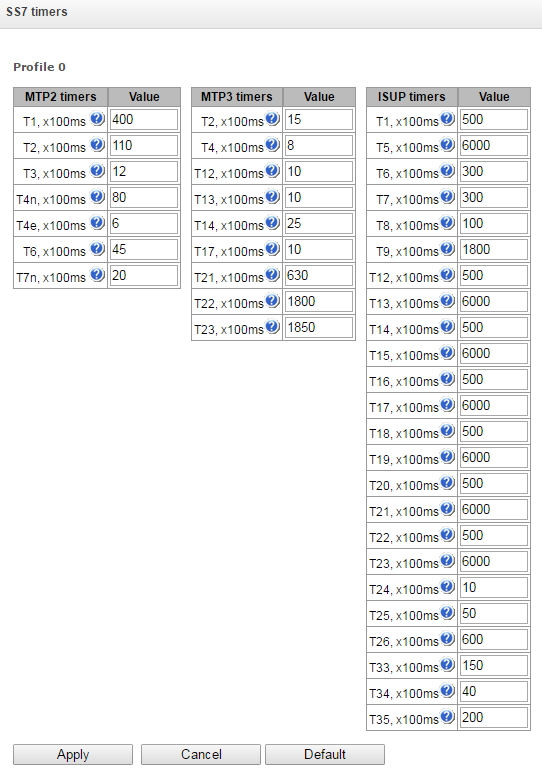
MTP2 level timers names and default settings are described in Q.703 ITU-T recommendation, Paragraph 12.3, Timers.
Name | Default value, sec | Range, sec |
|---|---|---|
T1 | 50 | 40–50 |
T2 | 50 | 5–150 |
T3 | 2 | 1–2 |
T4n | 8.2 | 7.5–9.5 |
T4e | 0.5 | 0.4–0.6 |
T6 | 6 | 3–6 |
T7n | 2 | 0.5–2 |
MTP3 level timers names and default settings are described in Q.704 ITU-T recommendation, Paragraph 16.8, Timers and timer values.
Name | Default value, sec | Range, sec |
|---|---|---|
T2 | 2 | 0.7–2 |
T4 | 1.2 | 0.5–1.2 |
T12 | 1.5 | 0.8–1.5 |
T13 | 1.5 | 0.8–1.5 |
T14 | 3 | 2–3 |
T17 | 1.5 | 0.8–1.5 |
T22 | 180 | 180–360 |
T23 | 180 | 180–360 |
ISUP level timer name and default values are described in Q.764 ITU-T recommendation, Appendix А, Table A.1/Q.764 – Timers in the ISDN user part.
Name | Default value, sec | Range, sec |
|---|---|---|
T1 | 60 | 15–60 |
T5 | 900 | 150–900 |
T6 | 30 | 10–60 |
T7 | 30 | 20–30 |
T8 | 15 | 10–15 |
T9 | 180 | 30–240 |
T12 | 60 | 15–60 |
T13 | 900 | 150–900 |
T14 | 60 | 15–60 |
T15 | 900 | 150–900 |
T16 | 60 | 15–60 |
T17 | 900 | 150–900 |
T18 | 60 | 15–60 |
T19 | 900 | 150–900 |
T20 | 60 | 15–60 |
T21 | 900 | 150–900 |
T22 | 60 | 15–60 |
T23 | 900 | 150–900 |
T24 | 2 | 0–2 |
T25 | 10 | 1–10 |
T26 | 180 | 60–180 |
T33 | 15 | 12–15 |
T34 | 4 | 2–4 |
T35 | 20 | 15–20 |
Timer values can be reset using the 'Default' button to the values recommended in ITU-T Q.703, Q.704 and Q.764.
In this section, you may establish a correspondence between release causes described in Q.850 recommendations for SS7, PRI protocols and 4xx, 5xx, 6xx class SIP replies.
By default, the correspondence is used described in the Order no.10 dated 27.01.2009 issued by Ministry of Communications and Mass Media (MinComSvyaz) of the Russian Federation; for reasons not described in this Order, correspondence described in Q.1912.5 recommendation for SIP-I and RFC3398 for SIP/SIP-T is used.
Internal resources → Q.850-cause to SIP-reply mapping
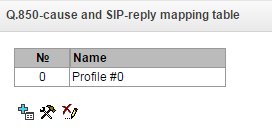
Internal resources → Q.850-cause to SIP-reply mapping → Object
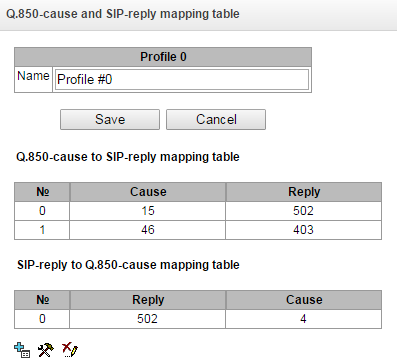
To create, edit or remove rules in correspondence tables, use the following buttons:
– 'Add rule'
– 'Edit rule parameters'
– 'Remove rule'
Name – Q.850-cause and SIP-reply correspondence table name.
Profile settings:
Internal resources → Q.850-cause to SIP-reply mapping → Object →
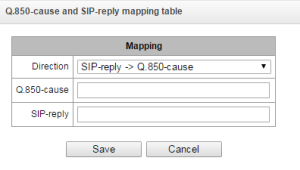
Direction:
SIP-reply -> Q.850-cause – direction from SIP side to Q.850 side.
Q.850-cause -> SIP-reply – direction from Q.850 side to SIP side.
Q.850-cause – Q.850 cause value;
SIP-reply – 4xx, 5xx, 6xx class SIP reply value.
In this section, you may configure scheduled routing function that allows to use different dial plans depending on the time and day of the week.
Internal resources → Scheduled routing
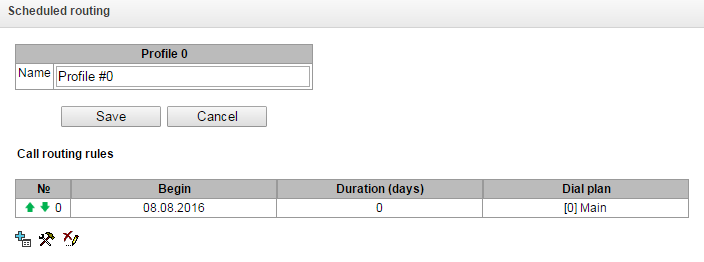
To create, edit or remove rules in correspondence tables, use the following buttons:
– 'Add rule'
– 'Edit rule parameters'
– 'Remove rule'
Routing rule:
Internal resources → Scheduled routing →
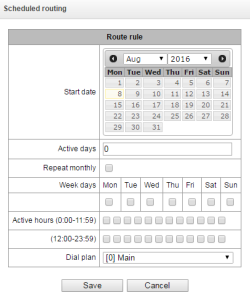
Start date – select start date for scheduled routing rule operation.
Active days – scheduled routing rule operation duration.
Repeat monthly – option that allows you to set the repetition of routing rule operation for each month.
Week days – select days of the week for scheduled routing rule operation.
Active hours – select hours for scheduled routing rule operation.
Dial plan – select dial plan that will be used during scheduled routing rule operation.
To configure forwarding time intervals, you need to create a schedule:
Internal resources → Time redirection
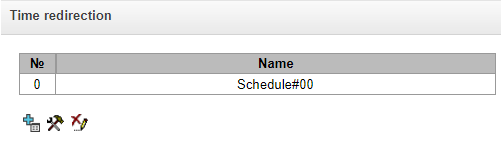
Then in the schedules you can select the desired time intervals for forwarding.
Internal resources → Time redirection → Object
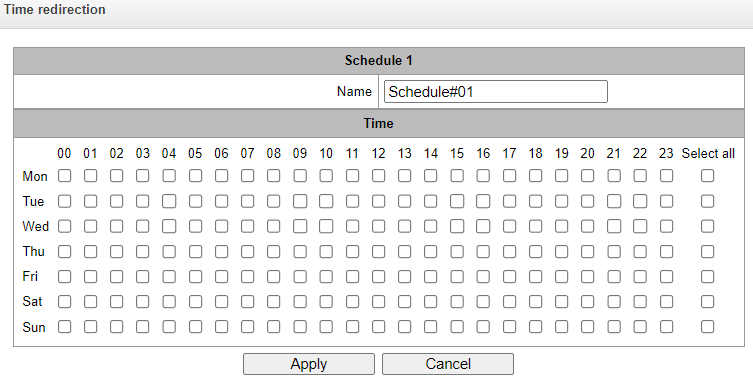
After creating and setting up a schedule, it must be linked to the subscriber through VAS services (see VAS management). |
Hunt groups1 is a group of numbers used for call initialization by the device with different types of rings for these numbers when the call arrives to the call group prefix.
Call group allows you to establish a call center or office connection with simultaneous or successive ringing for employees from the same call group.
You can create up to 1,000 call groups in total.
|
Internal resources → Hunt groups
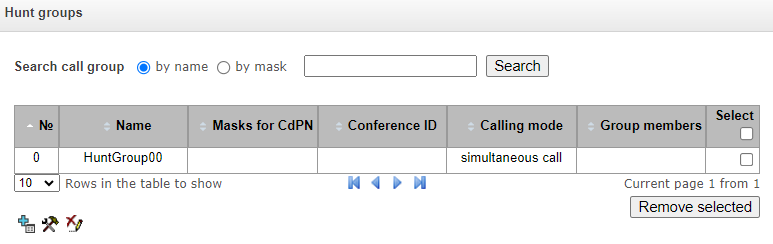
To create, edit or remove table records, use the following buttons:
– 'Add record'
– 'Edit record parameters'
– 'Remove record'
Operation algorithm:
If, on the second attempt, the participant again listens to less than a third of the recording, the notification is still considered successful;
If there is an unregistered participant in the group, they will not be notified of the call;
If not all members of the group are registered, the call will be immediately redirected to the ‘Backup number’ — provided that this has been entered in the relevant field—bypassing the ‘Group call timeout’ timer.
A call group may include both numbers of subscribers on the device and external numbers.
If a subscriber and a call group with the same number are present within the same numbering plan, the subscriber takes precedence. If a call group contains a number that matches the call group’s number, and for which a prefix exists within the same numbering plan, a call to that number will not go through. |
Internal resources → Hunt groups → Object
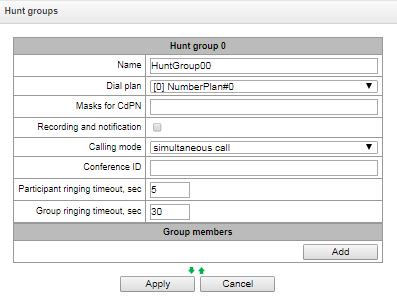
The call group may contain numbers of device subscribers as well as the external numbers.
Name – call group name.
Dial plan – select dial plan that the call group will belong to.
Masks for CdPN – mask of the caller number that is used for the callee number comparison arrived to the dial plan designed for further call routing (for mask syntax, see Description of number mask and its syntax);
Recording and notification (option is available only with SMG-REC license) – in this mode group members will hear a notification dictated by the initiator group call. Notification recordings are managed in the Call Recording section → Group notification records.
Calling mode – call group member ringing method:
simultaneous call – simultaneous call for all call group members;
sequential from first – method that always dials the first number in the call group number list when a new call comes to this group; when S-timer expires, call addressed to the current group member will be cancelled and the call will be addressed to the next group member;
sequential from next – method that will enable ringing inside the group, beginning with the number that has ended the previous call to that call group. This method is necessary for load balancing between the group members; when S-timer expires, call addressed to the current group member will be cancelled and the call will be addressed to the next group member;
sequential all from first – method that always dials the first number in the call group number list when a new call comes to this group; when S-timer expires, call addressed to the current group member will not be cancelled and the call will be addressed to the next group member;
sequential all from next – method that will enable ringing inside the group, beginning with the number that has ended the previous call to that call group; this method is necessary for load balancing between the group members; when S-timer expires, call addressed to the current group member will not be cancelled and the call will be addressed to the next group member;
serial search from first – method that will discover the first available subscriber from the beginning of the list; only subscribers of this gateway can be members of this group;
serial search (sequentially) – a method in which the search for the first available subscriber, starting from the number on which the conversation ended during the previous call, the call to the first available one occurs before the subscriber answers or before hang-ups due to timeout.
Hang up mode – the hang up method for call group members:
by default – after one of the call group members answers, everyone else A CANCEL message is sent to participants, resulting in a missed call notification appears;
silent – after one of the call group participants answers, all other participants a CANCEL message is sent with the Reason header: SIP;cause=200, as a result these subscribers' phones will not receive notification of a missed call.
Conference ID – number that when dialed after the service prefix VAS Conference all members of this group will be added to a conference call;
Call back the person who Q/52ed the call – when using this option, repeated calls will be made to group members who rejected the call without picking up the phone. If the called subscriber rejected the call three times, attempts to recall him will stop;
Call back a busy person – when using this option, repeated calls will be made to group members who were busy at the time the group was called (before answering group call or group call timeout expires).
When selecting 'Recording and notification' option, the operation mode can take the following values:
Participant ringing timeout, sec – call timeout for a group member;
Group ringing timeout, sec – general call timeout for the whole call group;
Maximum recording time, sec – the setting is available when 'Recording and notification' is activated. It sets the maximum duration of the message which can be recorded for the group;
Group members – call group contents, up to 40 members on SMG-1016M and up to 160 members on SMG-2016 and SMG-3016. If the group is used for conference organization, the maximum group size reduces to 40 participants on SMG-1016M, SMG-2016 and SMG-3016. Such conferences can have a maximum of 40 participants (including the initiator) 1 on SMG-1016M and 4 on SMG-2016/3016.
When selecting the operating modes 'simultaneous call', 'sequential from first', 'sequential from next', 'sequential al from first', 'sequential all from next', the queue functionality will be available.
The queue functionality is necessary for organizing a call center.
Internal resources → Hunt groups → Object
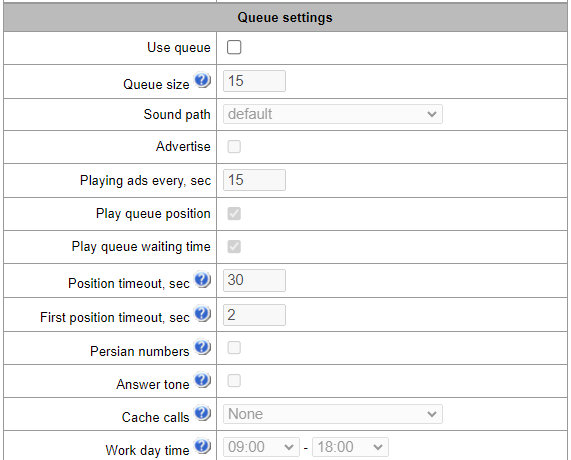
Queue size – the maximum number of participants who are in the queue and waiting for an operator response; if the specified number is exceeded, new calls will be rejected;
Sound path – when set to 'off', the system audio files located in the device file system will be used for queues. If necessary, one can record audio files to an external drive and select the path to the drive with audio files. The files must have specific names given in the table below.
Audio files should be in WAV format, G.711a codec, 8 bit, 8 kHz, mono. |
Table 23 — Audio files names
File name | Value | By default |
|---|---|---|
queue_position.wav | “Your position in the queue” | yes |
answer_tone.wav | Sound/melody that will be played when the operator answers | no |
callback.wav | The phrase played to the operator before calling the subscriber back | no |
advertise | Directory with advertising files | no |
not_more_2m.wav | "Waiting time no more than 2 minutes" | yes |
not_more_3m.wav | "Waiting time no more than 3 minutes" | yes |
not_more_4m.wav | "Waiting time no more than 4 minutes" | yes |
not_more_5m.wav | "Waiting time no more than 5 minutes" | yes |
more_than_5m.wav | "Waiting time more than 5 minutes" | yes |
1-20.wav, 30.wav | Number in the queue | yes |
callback_operator.wav | The phrase played to the operator before calling the subscriber back | no |
callback_abonent.wav | The phrase played to the subscriber when callback option enabled | no |
Advertise – when checked, while waiting for the operator respond, the sound files from the advertise directory with a specified advertise timeout will be played to the caller;
Only the first 5 files from the advertise directory will be used. This option is only available when using an external drive to store audio files queues. |
Playing ads every, sec – period of time after which the advertisement will be played to the the subscriber;
Play queue position – when using this option, the queue position will be played to the subscriber;
Position timeout, sec – period of time after which the queue position will be played to the subscriber, the beginning of the period is the end time of the last position playing;
First position timeout, sec – period of time after which the queue position will be played to the subscriber for the first time;
Persian numbers – SMG-1016M, SMG-2016 and SMG-3016 support playback of compound Persian numerals. To reproduce numbers greater than 20, use three parts of a numeral, including a linking word;
Answer tone – when checked, after the operator responds, the sound file answer_tone.wav will be played to the caller and the operator;
Cache calls – option required to remember the last operator the caller spoke to. So that when calling back, the caller immediately gets the last operator he/she spoke to:
Work day time – a time period of the working day is specified to calculate statistics of the call group operation;
Ringback settings:
Music on hold – using music on hold instead of the RBT signal when waiting for a operator’s response;
Delay before music, sec – the time during which the standard RBT will be played before enabling MoH;
Type – MOH type selection:
Music on hold – when selecting this type, the standard MoH of SMG will be played to the subscriber;
Audio file – when selecting this type, it becomes possible to assign to playing a pre-loaded sound file on the drive. Selecting a drive for downloading sound files is carried out in the section System parameters → RBT settings:
File name – selecting an audio file to play as RBT.
Setting reserve member:
Reserve number – number to which the call will be made after triggering 'group call timeout';
Reserve ringing timeout, sec – timeout responsible for the duration of sending a call to a reserve number.
Group members – a list of operators that are part of the call group.
Pickup group1 is a group of device subscribers. When a call comes to one of the pickup group subscribers, another group member can pick up this call by dialing an exit prefix for this call group.
|
Internal resources → Pickup groups

To create, edit or remove table records, use the following buttons:
– 'Add record'
– 'Edit record parameters'
– 'Remove record'
Group can contain device subscribers only.
Internal resources → Pickup groups → Object
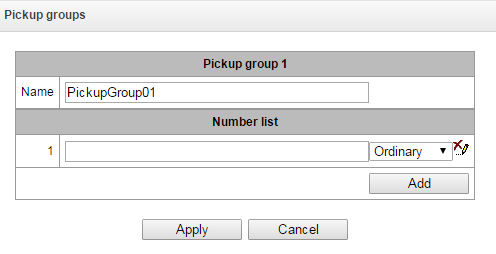
Name — pickup group name.
Number list — pickup group contents.
Pickup group member type:
limited — cannot perform the pickup, but the call directed to this member can be picked up by another group member.
common — may pickup calls directed to common and limited members, but cannot pickup calls directed to privileged group member.
privileged — may pickup calls directed at any pickup group member.
The device features 15 standard voice message phrases that are used for provisioning information to subscribers. In this section, you may upload custom voice message files.
Audio files in WAV and MP3 formats, up to 2 MB in size, are supported. Once uploaded, the files are automatically converted to WAV format, using the G.711a codec, 8-bit, 8 kHz, mono.
Internal resources → Voice messages
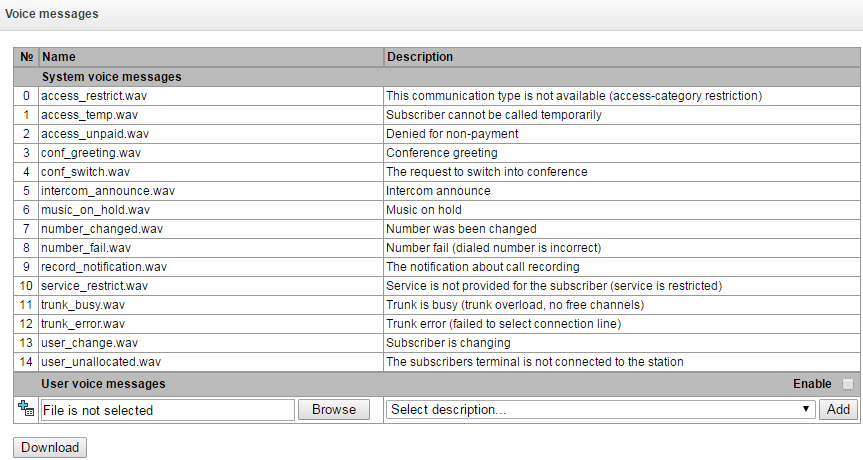
No. – voice message file sequential number;
Name – voice message file name;
Description – voice message file description.
You can add your own file to the list of custom voice messages and select for it a description of the event during which this file will be played (use the “Browse” and “Add” buttons).
Enable – enable voice message file playback.
In this section, you may configure the list of 4XX – 6XX class SIP replies that will be used for transition to the redundant trunk group or the next trunk of the trunk direction.
Internal resources → SIP-replies list

To create, edit or remove a list, use 'Objects' — 'Add object', 'Objects' — 'Edit object' and 'Objects' — 'Remove object' menus and the following buttons:
– 'Add reply list'
– 'Edit reply list'
– 'Remove reply list'
Internal resources → SIP-replies list → Object
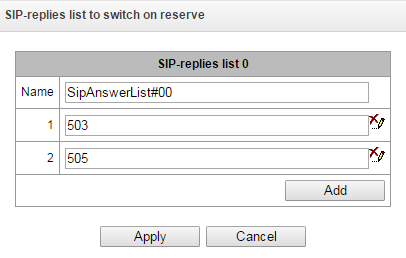
You should specify the list name and generate it by clicking 'Add' and ('Remove') buttons.
In this section, you may configure the list of Q.850 release causes for SS7 and Q.931 protocols that will be used for transition to the redundant trunk group or the next trunk of the trunk direction.
Internal resources → Q.850 release causes list

To create, edit or remove a list, use 'Objects’ — 'Add object', 'Objects’ — 'Edit object' and 'Objects' — 'Remove object' menus and the following buttons:
– 'Add reply list'
– 'Edit reply list'
– 'Remove reply list'
Internal resources → Q.850 release causes list → Object
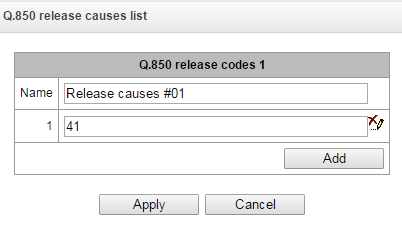
You should specify the list name and generate it by clicking 'Add' and('Remove') buttons.
In this section, you may configure the list of Q.850 recovery causes for SS7 and Q.931 protocols that will be used to restore the communication if the call is not rejected from the incoming side.
Internal resources → Q.850 recovery causes list → Object
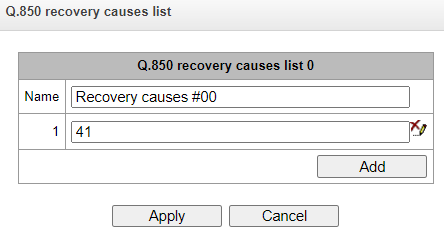
To create, edit or remove a list, use 'Objects' — 'Add object', 'Objects' — 'Edit object' and 'Objects' — 'Remove object' menus and the following buttons:
– 'Add reply list'
– 'Edit reply list'
– 'Remove reply list'
The functionality is activated with SMG-VNS and SMG-VAS licenses. Read more in Licenses section. |
The voice notification system (hereinafter referred to as VNS) is designed to implement simultaneous or sequential calling and notification of several subscribers according to pre-created notification task and prepared list of subscriber numbers.
For the VNS to work, you need to connect a drive to the SMG and select it in the 'Call recording' section → 'Call recording settings'. The drive stores voice message files for alerts, alert record files and VNS reports. |
Capabilities:
Ability to create 40 number lists, each of which can contain up to 200 subscriber numbers. With the SMG-VNS-EXT extended licence, it is possible to create 200 number lists, each containing 200 subscriber numbers.
Ability to use one phone number simultaneously in several lists.
Ability to create 40 notification tasks. With the SMG-VNS-EXT extended licence, it is possible to create 200 notification tasks.
Ability to link 10 number lists to a single notification task. With the SMG-VNS-EXT extended licence, it is possible to link up to 40 number lists to a single notification task.
If 40 lists of numbers are linked to a single notification task and each list contains 200 subscribers (a total of 8,000 subscribers need to be notified), then this task will only run provided that the value of the ‘Number of participants to be notified’ parameter is at least 11 (this value applies when the device has the maximum possible number of SM-VP submodules installed, i.e. 764 channels are available). If the value is lower, the task will not run, as the device’s capacity for the number of SM-VP channels required to successfully run the task will be exceeded. An example of calculating the required number of channels is given below. |
Ensuring the simultaneous execution of up to 10 tasks for notifying subscribers groups SMG-2016/3016 and up to 8 tasks for SMG-1016M. Possibilities by total quantity of notified subscribers depend on the number of free channels on the SM-VP submodule and are determined by the following formula:
Number of channels on SM-VP submodules = (M/S) + S*2,
where
М – quantity of subscribers in the notification, i.e. quantity of numbers in number lists attached to the notification task;
S – number of simultaneously notified subscribers (the 'Number of notified participants ' parameter in the notification task).
For example, you need to run two notification tasks. In the first task, ‘Number of notified participants’ = 20, and there are 200 subscribers in the lists of numbers. In the second task ‘Number of notified participants’ = 10, and there are 40 subscribers in the list of numbers. Then the required number of channels is calculated as follows:
For the first task: (200/20) + 20*2 = 50.
For the second task: (40/10) + 10*2 = 24.
In total, 74 SM-VP channels are required to simultaneously perform tasks.
Algorithm for working with VNS:
Preparing a task for voice notification.
Performing a voice notification task.
Generating a report on the completed voice notification task.
Description of each stage of the working algorithm for VNS:
1.1. Compiling a list of numbers of notified subscribers.
1.2. Record a voice message.
1.3. Creating a notification task, indicating a list of numbers and a recorded voice messages.
2. Performing a voice notification task:
2.1. The operator issues a command to start a previously prepared task.
2.2. The VNS receives the command and starts the notification task.
2.3. In case of unsuccessful launch of the notification task, the VNS generates a short report with indicating an error.
2.4. Upon successful launch of the notification task, the VNS makes a call and notifies numbers according to the list.
2.5. If the subscriber is busy or unavailable, the call is not answered or there is no listening confirmation, the VNS makes several attempts to notify this subscriber.
2.6. Restarting the same task is possible only after completing the existing one calling process.
3. Generating a report on the results of a completed task.
3.1. Upon completion of the notification, the VNS generates a report, accessible through the web interface, in which indicates:
Detailed description of the actual launch and execution of the voice notification task
1.1. The operator dials a special number *XX# from the telephone set to access the VNS.
1.2. The VNS receives the call and gives an acoustic signal “Station Answer” (continuous acoustic signal 440 Hz), waiting for additional dialing of the conditional task number NN (a two-digit task number 00, 01, etc., if a standard SMG-VNS licence is held, or a three-digit task number 000, 001, etc., if an extended SMG-VNS-EXT licence is held) via DTMF signals.
1.3. Possible alternative option: the operator dials from the telephone set special number *XX*NN# indicating the conditional task number NN (a two-digit task number 00, 01, etc., if a standard SMG-VNS licence is held, or a three-digit task number 000, 001, etc., if an extended SMG-VNS-EXT licence is held).
1.4. The VNS, having received a call and a conditional notification task number, submits:
– acoustic “confirmation” signal in case of successful launch of the task on notification (dual-frequency signal with frequencies 330 and 440 Hz, duration 100 ms, repeated three times at 100 ms intervals);
– if the broadcast task was initiated via a special code such as *XX#, an audible ‘station response’ signal will sound after the first broadcast task has been successfully initiated, indicating that the system is awaiting the next task number. In this way, up to 10 broadcast tasks can be initiated;
– acoustic “error” signal in case of error or inability to start the task (three-tone signal with frequencies 950/1400/1800 Hz, the duration of each is 330 ms at 330 ms intervals) and then ends the call.
1.5. The VNS generates a preliminary report on the attempt to launch the task, indicating the date attempt time and task status: started/launch error. In case of startup error indicates the reason in the report.
2. Processing the successful launch of the notification task.
2.1. Upon successful launch of the notification task, the VNS begins calling by telephone numbers specified in the list of notified subscribers.
2.2. After the called subscriber picks up the handset, the VNS plays back the specified task voice message.
2.3. Once the DTMF code confirming that the message has been listened to (e.g. pressing the 1 key on the telephone) has been received and at least one-third of the recorded message has been played back, the participant notification is deemed successful.
2.4. After receiving the confirmation code, the VNS notes in its database the fact of successful notifying this employee when performing a task.
2.5. If there is no DTMF confirmation code and less than 1/3 of the duration of the message, the VNS believes that the employee did not receive the message and will make further attempts.
2.6. If after 5 notification attempts the VNS still does not receive a DTMF code from the subscriber confirmation, she notes in the database the fact that the notification of this employee failed and stops its notification until the end of this task.
2.7. If there is no answer to the call/the subscriber is unavailable, the VNS repeats attempts dial in accordance with the dialing cycle settings, the following algorithm works:
2.7.1. N dialing attempts are made with a ‘Timeout’ interval of seconds between them.
2.7.2. In case of N failed dialing attempts in a row, the pause timer ‘Between repeats’ sec starts.
2.7.3. Steps 2.7.1-2.7.2 are repeated a specified number of times.
3. Restart the notification task.
3.1. A repeated launch is possible only after the previous launch of this task has completed.
3.2. When you try to restart an unfinished calling task, the VNS will generate an error launch with a corresponding entry in the database.
3.3. A successful repeated launch of an alert task does not take into account the previous result of the task completion and all subscribers from the list will be notified.
Description of the notification report:
Upon completion of the notification task, the VNS generates a report, accessible via the web interface, with the following information:
task number;
task name;
access category;
initiator;
name of the voice message;
voice message file name;
start of execution;
completion of execution;
a list of notified numbers marked “notified”/“not notified”.
Voice notification system → Voice messages
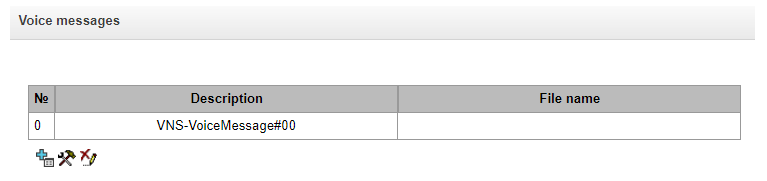
Starting from version 3.403, the storage path for voice messages has changed (voice messages are now located in the disk/user_voice_messages directory). After updating SMG from version 3.20.x or 3.2.x, files from the old directory will be used for existing user messages; however, if you need to select other messages recorded in version 3.20.x or 3.2.x, you must first move them to the new directory. If downgrading from version 3.40.x to version 3.20.x or 3.2.x, you must re-add the user messages and link them to the notification tasks. |
Voice notification system → Voice messages → Object
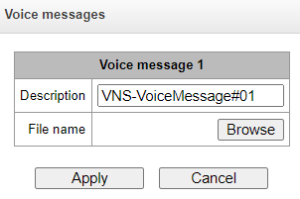
Voice notification system → Voice messages → Object → Browse
In this section of the menu, a voice message is created (linked) for further use. Where:
In the ‘Upload’ section, you can upload your own audio file. The upload of WAV and MP3 audio files no larger than 2 MB is supported. Once uploaded, the files are automatically converted to WAV format, using the G.711a codec, 8-bit, 8 kHz, mono.
You can record a voice message from your telephone, to do this you need to dial *#82# code, dictate a message and hang up. After this, a voice message will be automatically created with this entry. You can also immediately add a voice message to the already recorded created task, to do this you need to dial *#82*TASK_NUMBER#, dictate the message and hang up, after which the newly recorded message will be attached to the selected task, when the task is launched the next time, it will be played back to subscribers from the list of numbers.
If a message is already being written to the task that has been created, any attempt to write another message to the same task at the same time will result in an error accompanied by an audible alert. |
If a task with the specified number does not exist, the message will be added to the general list of voice messages and will not be linked to any task.
Uploaded audio files and recorded voice messages are saved to the drive in the directory vns_files/audio.
Voice messages (uploading and deleting) must be managed exclusively via the web interface. Direct user interaction with the files may cause the voice message system to malfunction. |
Voice notification system → Notification tasks
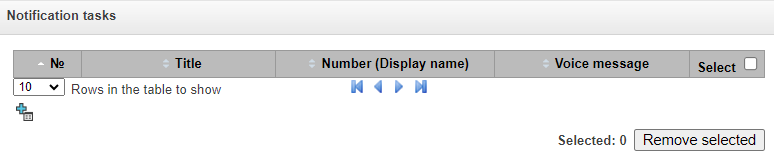
Voice notification system → Notification tasks → Object
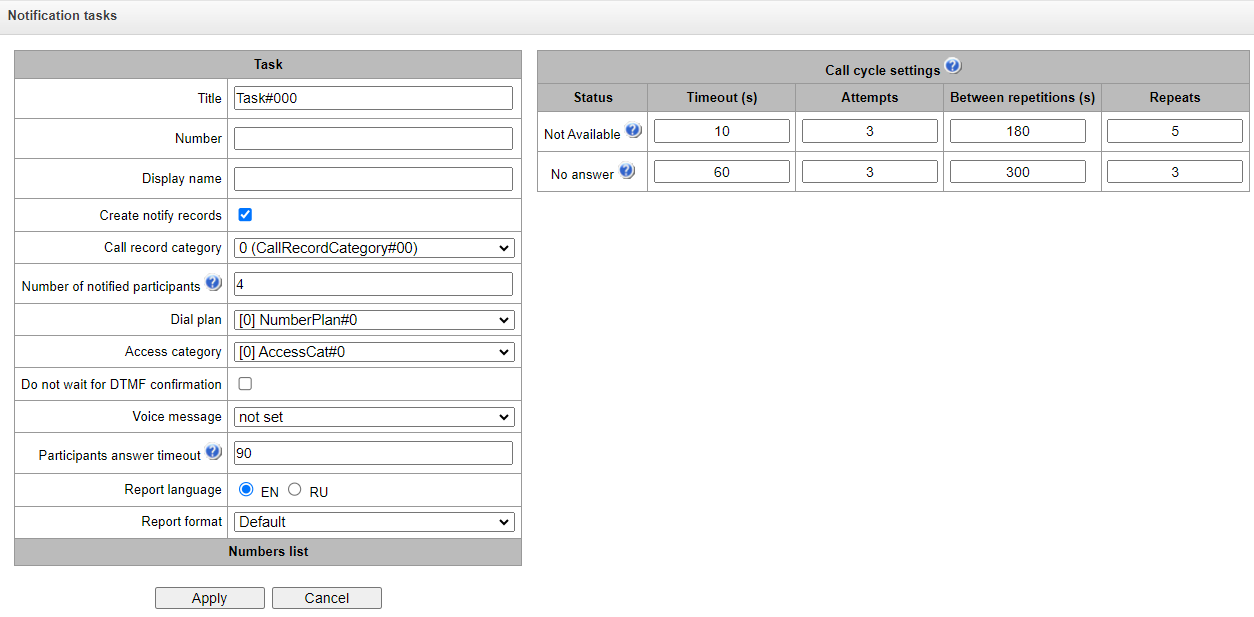
In this menu section, the notification tasks are created with the following parameters:
Title – task name;
Number – the number from which the notification will occur;
Display name – display name when calling subscribers through the public address system;
Create notify records1 – when this option is activated, records of all notified subscribers will be created. The records are managed in the 'Voice notification system' → 'Notify records';
Call record category (the option is available when the 'Create notify records' is checked) – category that will be assigned to notify records. This option is used to determine user access rights to recorded notifications. A detailed description is given in Call record settings;
Number of notified participants – the number of simultaneously notified participants. Range of acceptable values: for SMG1016M – [4;8], for SMG2016/3016 – [4;40];
Dial plan – dial plan in which the search for the notification system participants specified in the list of numbers will be carried out;
Access category – access category of the notification system (taken into account in the delimitation calls by category);
Operator access category – access category determining whether an operator can run the current task and view reports;
Do not wait for DTMF confirmation – if this option is activated, the notification system will not wait for confirmation via DTMF from the subscriber (listening to a1/3 part of the message will be sufficient)
Time to confirm, s – wait timer for the subscriber’s DTMF confirmation of listening;
Confirmation by – select of the key for the subscriber’s DTMF confirmation of listening (any other key will not be accepted as confirmation);
If a unique confirmation code is specified in the subscriber’s settings, it overrides the value specified in the task settings. |
Cgeeting – message played before the main announcement. If no file is specified, the standard one is played;
Voice message;
Ending – message played after the main announcement;
Participants answer timeout, s – response waiting time for the called subscriber. The valid range is [5; 120] seconds. If the called subscriber does not answer the call within the specified time, the call is considered unanswered, and the VNS then attempts to ring this subscriber again in accordance with the call cycle settings;
Report language – selection of the language to be used when creating the VNS report;
Report type:
csv – report will be saved as a .csv file, available for download;
html – report will be saved as an .html file, viewable in a web browser;
html and csv – both of the above report formats will be generated.
Report format – setting up the report type:
Default – in the report, the subscribers will be located in the same way as in the lists of numbers, which are added to the notification task;
Unannounced callers at the beginning – in the report, the unnotified subscribers will be located at the beginning of the list, and notified ones at the end;
Unannounced callers at the end – in the report, the unnotified subscribers will be located at the end of the list, and notified ones at the beginning;
Only unannounced subscribers – only unnotified subscribers will be included in the report.
Schedule profile – selecting a profile to run the VNS on a schedule;
Numbers list – adding lists of numbers to call.
|
Call cycle settings:
If the call to the number is unsuccessful, the VNS repeats attempts to call using the following algorithm:
Example ‘Unavailable’:
Timeout (s) – 10
Attempts – 3
Between repetitions (s) – 180
Repetitions – 2
A call is made to the subscriber to notify them, but the subscriber responds with ‘Unavailable’.
There are 3 dialing attempts with an interval of 10 seconds.
In case of 3 unsuccessful calls in a row, there is a pause of 180 seconds.
Steps 1–3 are repeated up to 2 times.
In this section, a schedule for the automatic launch of the SGO at specific times is configured.
Voice notification system → Schedule
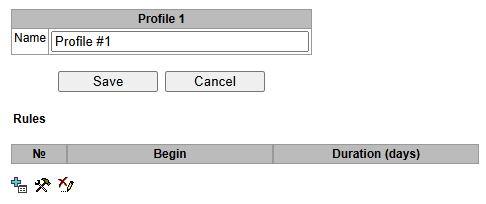
To create, edit or remove a list, use the following buttons:
 – Add rule;
 – Edit rule;
 – Delete rule.
Schedule 0:
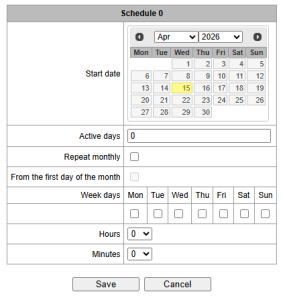
Start date – start date for the schedule rule to trigger the VNS;
Active days – duration for which the schedule rule to trigger the VNS is active;
Repeat monthly – allows setting the schedule rule to trigger the VNS every month;
Week days – select the days of the week on which the scheduling rule for launching the VNS should run;
Hours – select the hour at which the VNS linked to this scheduling rule will launch;
Minutes – select the minute at which the VNS linked to this scheduling rule will launch.
Section on managing recorded notification files. Recorded notifications are stored on the storage device in the vns_files/notify_records directory.
Voice notification system → Notify records
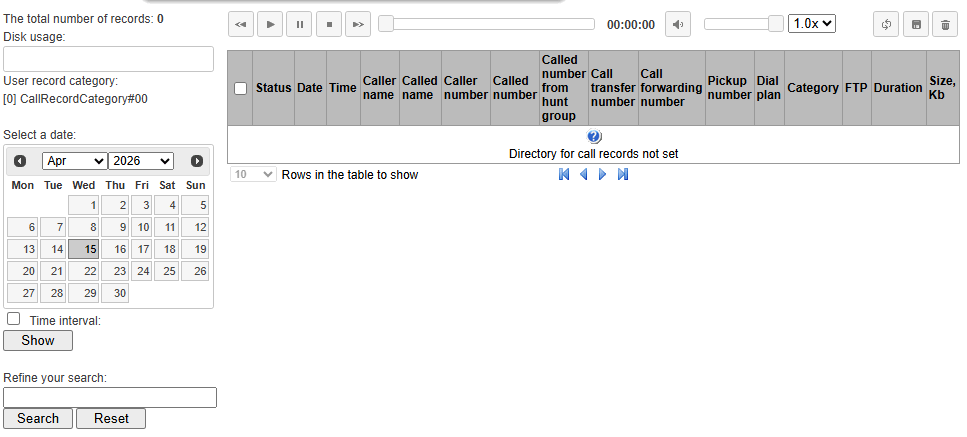
The total number of records – total number of alert log files;
Disk usage – displays the amount of disk space used on the drive selected for storing alerts;
Select a date – select a date to display alert log files;
Time interval – select a time interval to display alert log files;
Refine your search – search for alert log files. The search is performed based on any match between the entered value and the name of the alert log file.
A detailed description of the controls is provided in the section Call records.
Voice notification system → Numbers list
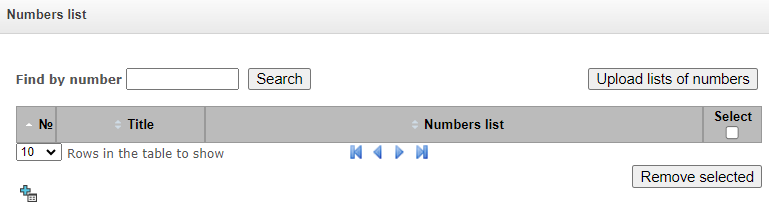 In this menu section, lists are created and loaded, which contains numbers to call through the voice notification system. The maximum number of number lists is 40 for a VNS licence and 200 for a VNS-EXT licence. Each list can contain up to 200 call numbers.
Search – find all instances of a number in all lists by entering the number, name or note;
Upload lists of numbers – import lists of numbers into SMG from pre-prepared .csv files;
Download selected – download selected lists of numbers as .csv files;
Add numbers to the highlighted ones – add one or more numbers to all selected lists at once;
Remove selected – delete the selected numbers from the list.
It is prohibited to duplicate a number in one numbers list. It is allowed to use identical numbers in different numbers lists. The call group number must not be included in the number lists. |
Find by number – searches for the number across all existing lists of numbers.
Voice notification system → Numbers list
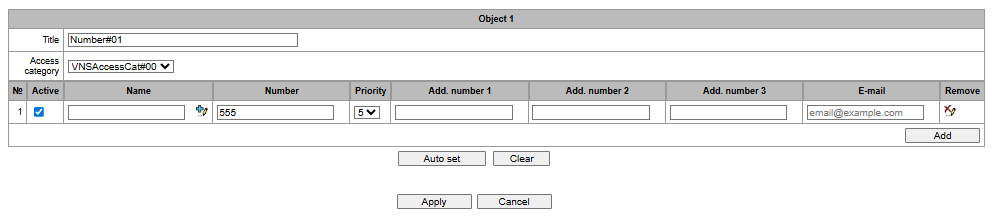
The search function also allows editting and deleting a found number in any of the number lists. To do this, enter the number or name in the ‘Search’ field and click the button. Then, in the search results, select the entry from the number lists which you need to change any of this number’s settings, and click the ‘Edit selected’ button. In the table that appears, select the fields you wish to change, edit them and click the ‘Apply’ button.
To add a number to several number lists at once, select the number lists to which you wish to add numbers and click the ‘Add numbers to selected’ button. A form will then open; enter the numbers to be added and click the ‘Apply’ button. The numbers will then be added to the specified lists.
To remove a number from a list, click the ‘Remove selected’ button. The number will then be removed from the selected number lists.
Title – name of the numbers list;
Active – when this option is activated, the VNS will make a call to the specified number. This option allows you to temporarily disable notification of some participants without deleting numbers from the list. For example, if the subscriber is on vacation, business trip, etc.;
Name – subscriber name that will be used when generating the report;
Number – telephone number of the call participant;
Priority – the order in which the participant is notified when performing a VNS task. This parameter allows one to set priority for notification participants when forming a queue of notifications. Values: from 1 to 5, where 1 is the highest priority (notification participants with this priority will be notified first), 5 is the lowest priority (notification participants with this priority will be notified last).
Add.number 1/2/3 – additional phone numbers for the call recipient. If the primary contact number is unavailable, the additional numbers will be called. The dialling cycles for the additional numbers are the same as for the primary number.
Example:
The list of numbers includes the main number 100, which has the following additional numbers:
Add. number 1 – 101
Add. number 2 – 102
Add. number 3 – 103
In the notification task to which this list of numbers is linked, the following call cycle is configured for the ‘No answer’ status:
Timeout – 10 секунд
Additional attempts – 1
Interval between attempts – 20 seconds
Attempts – 2
If none of the numbers answer the alert, the dialling sequence will proceed as follows:
1. First call to number 100 (subscriber does not answer; SMG hangs up after the timer = ‘Subscriber response wait time’)
2. 10-seconds pause
3. Second attempt to call 100
4. 20-seconds pause
Steps 1–4 are then repeated twice.
Following the same algorithm (steps 1–4) plus repeats, the call sequence continues to additional number 1, then additional number 2, and then additional number 3.
If a participant with priority 1 is not notified on the first attempt, they are moved to the end of the notification queue. |
Clear – delete the number from the list;
Numbers from other lists – contains a list of all numbers that have been added to other lists. You can search by phone number or name. You can add numbers from this section to your current contact list by clicking the ‘+’ button next to the selected number.
File name – name (description) of the number list;
File format:
<NAME>;<NOTE>;<NUMBER>;<Priority>@<NUMBER1>;<NUMBER2>;<NUMBER3>;
<NAME> – participant name. This parameter may be missing.
<NOTE> – note.
<NUMBER> – participant number.
<Priority> – priotity. This parameter may be missing, and in this case the participant priority wil be set to 5.
<NUMBER1> – add. number 1. This parameter may be missing.
<NUMBER2> – add. number 2. This parameter may be missing.
<NUMBER3> – add. number 3. This parameter may be missing.
Additional numbers should be entered at the end of the line, following the ‘@’ symbol. |
Example:
Upload the file number_list1.csv filled with the following data:
Name1;Subscriber 1;500;1;@501;502;503; Name2;Subscriber 2;504;2;@;;; Name3;Subscriber 3;505;3 ;Subscriber with no name 1;506;4 ;Subscriber with no name 2;507 |
|---|
As a result, the numbers list number_list1 will be created:
Voice notification system → Numbers list → Object
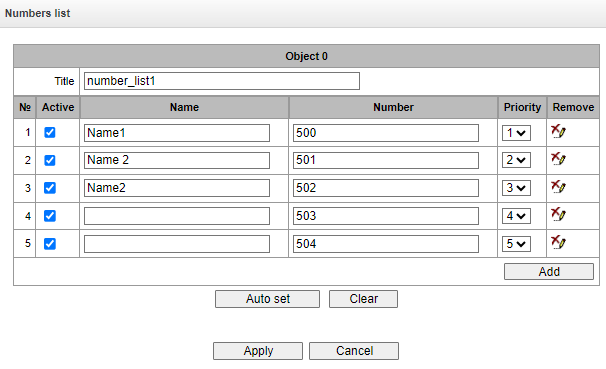
It is allowed to upload multiple files at the same time. The number of simultaneously uploaded files cannot exceed 40, and if before uploading files, numbers lists have already been created (or uploaded earlier), then the number of simultaneously uploaded files is reduced by the number of already created lists. When uploading a file with content different in format from that described above, a warning will be displayed – ‘Something went wrong during the last operation’. When loading a file containing the duplicate numbers the following warning will be displayed – ‘Failed upload some files: duplicate numbers’.
If the name of the uploaded file matches the name of an existing list, the following options will be offered:
Voice notification system → Reports
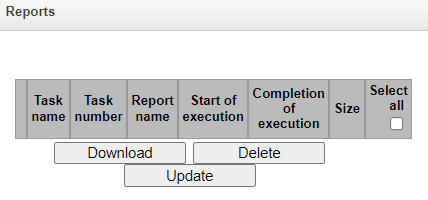
This menu section stores all the reports created while the voice notification system was running. Reports are generated in a .csv file with the ability to upload to a local car и/или в .html файле с возможностью открыть отчет в браузере. Before uploading, one can select the encoding of the generated report: UTF-8 or WINDOWS-1251. Reports are saved to the drive in the vns_files/reports directory.
Available only for SMG-2016 and SMG-3016, encoding selection is not available for SMG-1016M. |
Task name – name of the notification task;
Task number – number of the notification task;
File name – name of the report file;
Initiator – абонент, запустивший задачу оповещения;
Start of execution – start time of the calling task;
Completion of execution – time of completion of the calling task;
Size – report size in KB.
Open file – ссылка на .html файл отчета (по нажатию на кнопку отчет откроется в новой вкладке браузера).
The report file contains information about the result of the notification task.
Sample report file:
task 0 name Task#000 message VNS-VoiceMessage#01 file priv.wav started 2022.09.30 14:38:22 finished 2022.09.30 14:38:47 status Finished total notified 1 (50.00%) number name last try status 701 1 14:38:26 Not notified. User not answered 555 2 14:38:26 OK | Notify task number Notify task name Voice message name Voice message file name Notify task start time Notify task end time Notify task execution status Number (and percentage of total) notified participants List of participants (number, name, last try, notification status) |
The order in which participants are displayed in the report is configured in the notification task (“Report format” field).
При использовании доп. номеров в отчет записывается только один номер из всех или номер, который ответил на вызов оповещения, или последний из доп. номеров, если на вызов оповещения так никто и не ответил.
In this section, a schedule for the automatic launch of the VNS at specific times is configured.
Voice notification system → Schedule
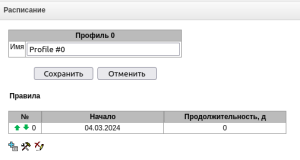
Для создания, редактирования и удаления правил используются кнопки:
– Add
– Edit
– Delete
Расписание 0:
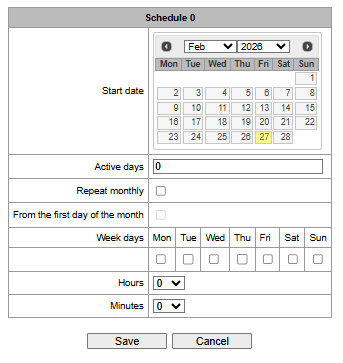
Start date – start date for the schedule rule to trigger the VNS;
Active days – duration for which the schedule rule to trigger the VNS is active;
Repeat monthly – allows setting the schedule rule to trigger the VNS every month;
Weeks days – select the days of the week on which the scheduling rule for launching the VNS should run;
Hours – select the hour at which the VNS linked to this scheduling rule will launch;
Minutes – select the minute at which the VNS linked to this scheduling rule will launch.
Voice notification system → Operator access categories
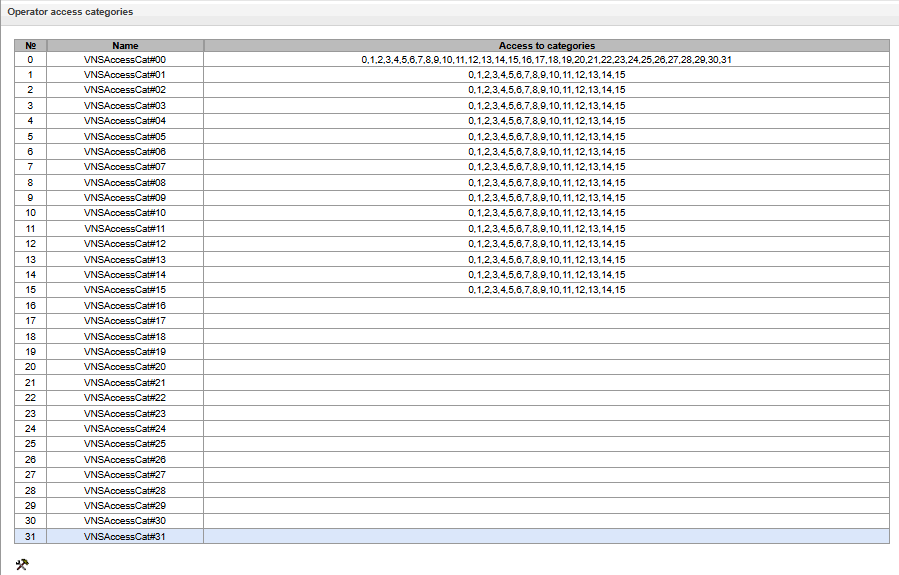
Operator access categories are used to define the access rights of VNS operator subscribers to alert tasks and the associated reports. These categories determine whether an operator can launch an alert task, view and download alert reports.
If access to a particular task needs to be restricted, assign the appropriate category to it; for other categories, use this menu to set access to the category assigned to the task (remove access – uncheck the box next to the relevant category; add access – check the box next to the relevant category).
A total of 32 operator access categories are available for configuration. By default, category 0 has access to all other categories, whilst categories 1 to 15 have access to the first 16 categories. Click the  button to configure and edit the selected category.
Available for SMG-2016 and SMG-3016. |
The operation of the local LDAP server is configured in this menu.
LDAP → LDAP-storage list

LDAP → LDAP-storage list → Edit
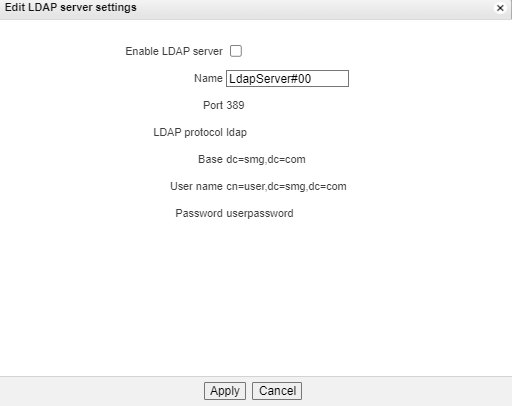
Формирование LDAP-хранилища происходит на основе абонентской емкости станции (FXS, SIP-абонентов станции).
Displayname = отображаемое имя. Если в настройках данное поле пустое, то подставляется значение «no_name»;
Uid = название;
Cn = ID-абонента;
Sn = отображаемое имя;
telephoneNumber = телефонный номер абонента.
Для подключения к локальному серверу LDAP используются следующие параметры:
Protocol Version = 3;
Port: 389;
LDAP-протокол: ldap;
Base: ou=phonebook,dc=smg,dc=com;
User name: cn=user,dc=smg,dc=com;
Password: userpassword.
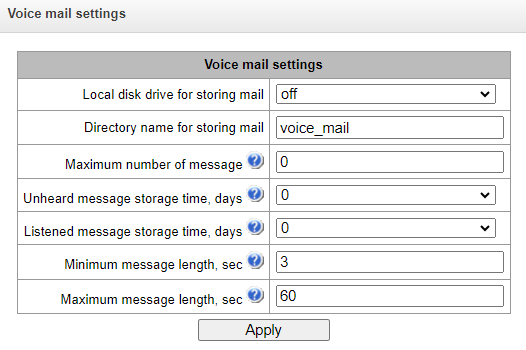
In this section, it is possible to listen, download, delete, change the status of voice messages. Messages are grouped by the number on which the Voice Mail service is enabled.
Voice mail → Voice mail settings
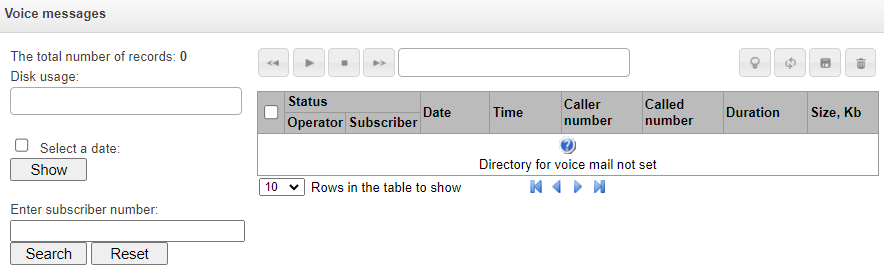
Status – indicates the message status:
 – message is unheard;
 – message is listened.
Date – date of receiving a voice message;
Time – time of receiving a voice message;
Caller number – the subscriber who made the call to voicemail;
Called number – subscriber number for which the ‘Voice mail’ service is enabled;
Duration – voice message duration;
Size, Kb – voice message recording file size.
 Change message status – changes status from ‘Listen’ to ‘Unheard’ and vice versa;
 Refresh table – updates the table with voice messages;
 Download selected – downloads selected voice messages;
 Remove selected – deletes the selected voice messages.
|
IVR (Interactive Voice Response) is a system of smart call routing based on the information entered by the client from the phone keypad using DTMF, current time and day of the week, caller and callee number, that enables voice notification of subscribers using voice files uploaded to the device. This function is necessary for call centers, taxi services, technical support, etc.
In this section, you may configure scenario and IVR audio lists and manage recorded conversation files.
In this section, you may create IVR1 service operation scenarios.
|
To create, edit or remove table records, use the following buttons:
– Add record
– Edit record parameters
– Remove record
 – Download a scenario – download selected scenarios from the scenarios list to a user PC.
The 'Scenarios list' table — this table contains all created IVR scenarios.
IVR → Scenarios list
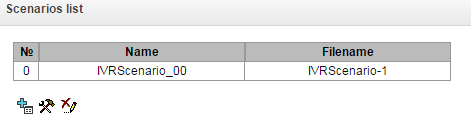
Name – IVR scenario name.
File name – select IVR scenario file from the list of files created on the device.
The 'System settings' table contains the 'Local disk drive for IVR scenarios' setting which defines storage for scenarios.
IVR → System settings
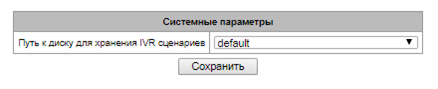
The 'Files list' table contains created IVR scenario files.
Click 'Browse' in a dialog window to select a file and click 'Upload' to add pre-saved IVR file.
IVR → Files list
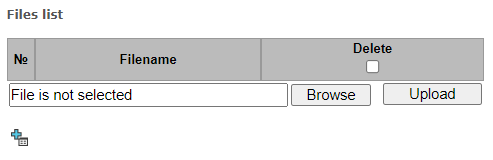
The 'Typical scenarios list' table contains all IVR common scenario files available for editing.
IVR → Typical scenarios list
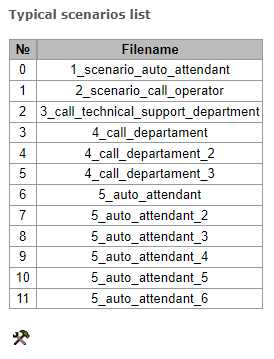
Scenario creation and editing menu provides a design view: in the central field, IVR scenario flowgraph is generated, on the left side there are common blocks, on the right side there is a list of configurable parameters for the current block.
IVR → Scenarios list → Typical scenarios list → Object
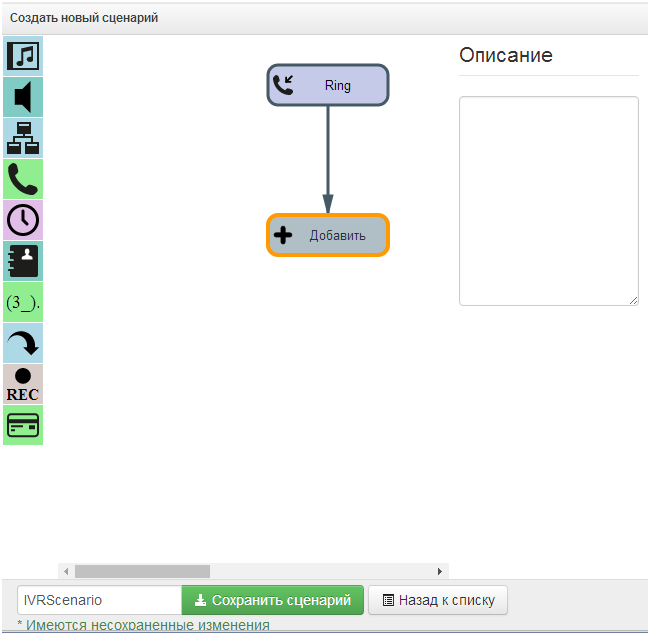
To select the block in the flowgraph, left-click it. Borders of the selected block will turn orange.
To add a block, select an empty block 'Add' and select the required action from the collection of common blocks by left-clicking it. In the field on the right, configure parameters for created block. Logical connections for a newly created element will be added automatically. Logical connection for 'Goto' block should be assigned manually; to do this, click 'Select block on the flowgraph' button in the block parameters and select the required block. Logical connection 'Goto' is represented by the dotted line.
When the selected block has been configured, click 'Save' button to save changes in this unit or click 'Discard' to discard them.
To remove the selected block from the flowgraph, click 'Remove block' button. If this block has any lower-level logical connections, the whole branch of its child objects will be removed.
You may move blocks on the field; to do this, select the required block and move it to the desired place while holding left mouse button. At that, all logical connections will remain intact.
IVR → Scenarios list → Typical scenarios list → Object
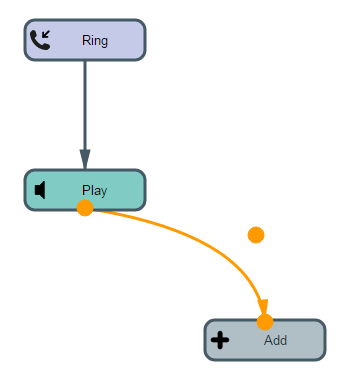
Also, you may left-click the logical connection between blocks, to change its type. Selected line will turn orange and three edit points will appear: for configuration of block exit location, block entry location and line curvature.
For IVR block description, see the table below.
Table 24 — IVR block description
Designation | Name | Description | |
|---|---|---|---|
| Add | Empty unit designed for block addition. | |
| Ring | Block that enables ringback tone playback for the subscriber; this block is always in the first position in the scenario list. When call arrives to RING block, call state remains unaffected. Parameters Ringback playback duration, seconds — select duration of the ringback tone playback or disable it. Connections Entry — beginning of the call to IVR. Exit — a single exit, incoming call parameter information is available on the block exit (number A, number B). Features Block does not affect the call state. | |
| Info | Block is required for playback of a single or multiple voice messages to the caller in the pre-answer state (w/o Subscriber B lifting the headset). I.e. connection fee is not incurred for this block playback. In scenario, this block may be placed after blocks that do not affect the call state and when there was no transition to an answer state. This block may be used for provisioning service information to the callee, until the resource that is able to process the call is freed. Parameters Messages for playback until the subscriber answers — select a single or multiple voice messages for playback to the caller. For voice message management, see Voice messages. To specify the drive for file storage, see System settings. Looped playback — select the quantity of message playback loops; messages are played in order beginning from the first one. Connections Entry — incoming call in the pre-answer state. Exit — finish the playback of selected files. Features Info block may be preceded only by blocks that do not affect the call state (Ring, Info, Digitmap, Time, Goto). | |
| Play | Block is required for playback of a single or multiple voice messages to the caller in the conversation state (after the Subscriber B answers). Block is used for provisioning information to the Subscriber A. Parameters Messages for playback until the subscriber answers — select a single or multiple voice messages for playback to the caller. For voice message management, see Voice messages. To specify the drive for file storage, see System settings. Looped playback — select the quantity of message playback loops. Messages are played in order beginning from the first one. Connections Entry – incoming call in the pre-answer or conversation state. Exit – finish the playback of selected files. | |
| IVR | A block that is required for implementation of the interactive voice response function. This block features logical selection of the call path by pressing specific digit combinations, subscriber number extension dialing using internal dial plan and playback of audio files, system sounds (ringback tone, ringing tone, busy tone) and DTMF digits for subscriber notification. Parameters Type — type of audio file for playback. File — audio file uploaded to the device. For IVR audio list configuration, see Tones list). Tone — select system sound for playback (DTMF digit, dialtone, busy, ringback). Select subscriber — configure logic for further call path. By pressing the configured combination of digits, the device identifies the IVR block outbound branch. If the subscriber does not press anything, 'No Match' branch will be selected. Subscriber selection timeout, seconds — additional number dialing timer; when this timer expires, IVR outbound branch will be selected. Enable extension dialing — when checked, extension dialing will be enabled followed by the device dial plan routing, e.g. internal subscriber number can be dialed. Access category — select access category. Access category allows you to define call barring for the number dialed by the subscriber in IVR block. Quantity of digits for extension dialing — maximum quantity of digits that can be dialed in the extension dialing. Interdigit delay, seconds — extension number interdigit delay value. Connections Entry – incoming call in the pre-answer state or active call phase. Exit — quantity of exits is configurable; extension dialing of a subscriber number may also be an exit. Features If the call is in the pre-answer state at the block entry, the block will automatically convert it into an active state (send an answer to the caller), and the further block logics will be executed. | |
| Dial | Block required for the specified number dialing, the number routing will be performed according to the device dial plan. Parameters Number — specified number. Dial plan: Transit – does not change a dial plan. Access category — select access category, which will be used after passing the Dial block: Transit – does not change a dial plan. Connections Entry – incoming call in the pre-answer state or active call phase. Exit — exit from the block is provided in case of unsuccessful dialing. Features Finishes scenario branch. | |
| Time | Block required for the selection of call path logic according to the current time and day of the week. Parameters Time — select time and day of the week template. Time is defined in 24h format. Connections Entry — incoming call in the pre-answer state or active call phase. Exit — block has 2 exits, the first one when time matches the defined template ('yes' exit), the second one when the match is not achieved ('no' exit). Features Block does not affect the call state. | |
| Numbers | Block required for the selection of call path logic according to the caller number. Parameters Number — caller number template. Connections Entry — incoming call in the pre-answer state or active call phase. Exit — block has 2 exits, the first one when caller number matches the defined template ('yes' exit), the second one when the match is not achieved ('no' exit). Features Block does not affect the call state. | |
| Digitmap | Block required for the selection of call path logic according to the callee number. Callee number is verified at the digitmap block entry phase. Parameters Mask — callee number mask. Connections Entry — incoming call in the pre-answer state or active call phase. Exit — block has 2 exits, the first one when callee number matches the defined template ('yes' exit), the second one when the match is not achieved ('no' exit). Features Block does not affect the call state. | |
| Goto | Block required for call transfer to another arbitrary scenario block. Parameters Select block on the flowgraph — click this button to select the block on the flowgraph to perform the transfer. Maximum quantity of actuations — select the quantity of passes for a call through this block to ensure the call looping protection. Connections Entry — incoming call in the pre-answer state or active call phase. Exit — a single exit to the block that the call is being transferred to. Features Block does not affect the call state. | |
| REC | Block required to begin the conversation recording; when the call logic passes through the block, subscriber conversation will be recorded into the file. Connections Entry – incoming call in the active call phase. Exit — block has a single exit. Features Block does not affect the call state. Conversation recording end only after the disconnection. To configure directory for IVR conversation recording file storage, go to 'IVR conversation recording folder name' parameter, Call recording settings. For recording management, see Call records. | |
| Caller Info | Block allows to change the caller name that will be shown on the callee phone screen. Block allows to display caller name, organization and other data on the callee phone screen. Parameters Number mask — caller number template. Subscriber name — new subscriber name. Connections Entry — incoming call in the pre-answer state or active call phase. Exit — block has a single exit. Features Block does not affect the call state. | |
| Set | The block allows to dertermine the variable for IVR script: Parameters Key – the name of the variable by which you can refer to it in other blocks; Value – variable value. | |
| Condition | The condition block is designed to test Boolean conditions composed of variables and strings. All operations are performed over strings. Up to 10 conditions can be set in a block. Each condition is assigned a corresponding exit branch (from 0 to 9) from a block to another block. In the Condition block, the transition is carried out along the branch of the first true condition (if there are several true conditions, the first one is selected). If none of the conditions in the Condition block turned out to be true, then the transition along the False branch will be performed. The following operators are avaible to form conditions: Logical operators: Comparison operators: Examples of comparing strings of digits of equal length: Examples of comparing strings of digits of unequal length: Examples of comparing strings of numbers and letters of equal length: Entry operator: Variables: The variable name can contain characters: [А- Za-z 0-9]. Constants: Predegined variables:
| |
| RPC | Block for interacting with an external HTTP server. HTTP request settings: – URL – the full URL of the request to the http server. If necessary, you can use the variables of the current IVR scenario in the URL; Example: http://infoUserServer.co/shirts?style=%CDPN% – Method – HTTP request method (GET, POST, PUT, TRACE, OPTIONS, DELETE, HEAD); – Request timeout – time to attempt a request to the HTTP server in milliseconds; – Content type – the type of data contained in the request body; – Body content – request body (a string with the possible presence of macro variables); – Headers – HTTP request header; Key – http header key; Value – a string with a possible value of macro variables; – Response type – the type of data contained in the response body; – json – when this type is selected, if the response body receives data “key:value”, then SMG writes this data as variables that can be used later;
– regexp – when this type is selected, the ‘Regular expression’ window appears, in which you can write a regexp expression for parsing a response from an HTTP server with the ability to write the parsed data to IVR variables and use them later. Example: Reply in the message body: Hello world The string in the field “Regular expression”: Hello (?<var1>.*) As a result, a variable will be created within the IVR script VAR1=world – Мax bytes – maximum response size; – Expected encoding – encodings supported in the response; – Codes – expected HTTP server response codes. |
When the scenario flowgraph has been created, specify its name and save by clicking 'Save scenario' button. Click 'Back to list' button to exit the design view without saving any changes.
In this section, you may manage audio files required for IVR operation.
Audio file parameters: WAV format, codec G.711A, 8bit, 8kHz, mono. |
The 'System settings' table contains 'Local disk drive for IVR sounds' which defines storage for conversation records from IVR.
IVR → Tones list
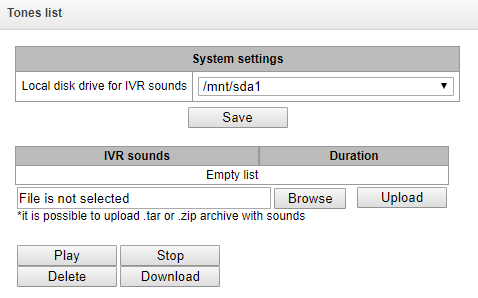
IVR sounds — list of uploaded files;
Duration — uploaded file length;
Browse — select the audio file to be uploaded to the device;
Upload — command to upload the selected file.
You may upload tar or zip archive file containing multiple audio files; audio files should be in the root directory of the archive. |
Play — listen to the selected file.
Stop — stop the file playback.
Delete — delete the selected file.
Download — download the selected file from the device.
This section enables management of IVR conversation recording files. If there is REC block present in IVR scenario, all recorded conversations will be represented in a table.
IVR → Call records
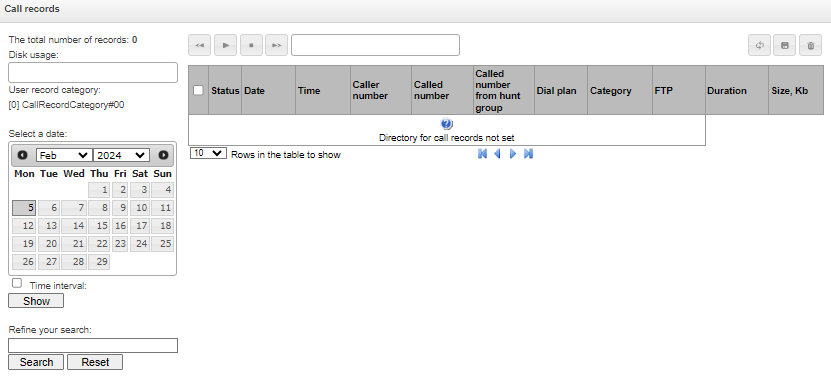
The total number of records — total quantity of conversation recording files in the selected directory for conversation recordings.
Disk usage — display used space on disk selected for conversation recording.
Select a date — select a date to display the conversation recording files.
Time interval — select time interval to display the conversation recording files.
Refine your search — search for conversation recording files; search function uses any matches of the entered value to conversation recording file name.
For record control buttons description, see table below.
Table 25 — Record control buttons
Button | Function |
|---|---|
| previous record |
| begin playback |
| приостановить воспроизведение |
| stop playback |
| next record |
| перемотка записи |
| выключить звук |
| регулировка громкости |
| регулировка скорости воспроизведения |
| repeat record playback |
| save record |
| delete record |
Call records table decsription
Date/time – date and time of the recording start;
Caller number/called number – the number of the subscribers participating in the conversation;
Номер вызываемого абонента из группы вызова – номер абонента, который ответил после прохождения группы вызова;
DIal plan – a dial plan in which the record is implemented;
Category – conversation record category;
FTP – shows whether the record was uploaded to FTP;
Duration – conversation duration;
Size, KB – the size of the record in kilobytes.
Conversation recording file format
A common call without call redirection or transfer
YYYY-MM-DD_hh-mm-ss-CgPN-CdPN.wav
where:
YYYY-MM-DD – file creation date, YYYY — year, MM — month, DD — day.
hh-mm-ss – file creation time, hh — hours, mm — minutes, ss — seconds.
CgPN – caller name, if it is missing, value 'none' will be used.
CdPN – callee number.
Example:
Subscriber 7111 calls Subscriber 7222, file name should be as follows:
2014-05-20_12-05-35_7111_7222.wav
A call that uses call redirection service
YYYY-MM-DD_hh-mm-ss-CgPN- RdNum cf CdPN.wav
where:
YYYY-MM-DD – file creation date, YYYY — year, MM — month, DD — day.
hh-mm-ss – file creation time, hh — hours, mm — minutes, ss — seconds.
CgPN – caller name, if it is missing, value 'none' will be used.
RdNum – redirecting number — number with configured call redirection service.
cf – marker indicating that call forwarding has taken place.
CdPN – callee number — a number that the call is actually comes to.
Example:
Subscriber 7111 calls Subscriber 7222 that has configured a call redirection to 7333.
2014-05-20_12-05-35_7111_7222cf7333.wav
A call that uses call transfer service
Call transfer service engages 3 subscribers — call initiating subscriber (Subscriber A), call transferring subscriber (Subscriber B) and transferred call recipient subscriber (Subscriber C).
For call transfer, 3 conversation recording files will be created.
conversation of subscribers А – В;
conversation of subscribers В – С;
conversation of subscribers A – C after the call transfer.
Example:
Subscriber 7111 calls Subscriber 7222 that transfers the call to Subscriber 7333.
The following files will be created:
2014-05-20_12-05-35_7111_7233.wav – conversation of subscribers A and B.
2014-05-20_12-06-36_7222_7333.wav – conversation of subscribers B and C, conversation after the Subscriber B has put the Subscriber A on hold.
2014-05-20_12-05-35_7111_7222ct7333.wav – conversation of subscribers A and C after the call transfer by Subscriber B; ct in the file name is a call transfer marker.
Making a call from the ‘Hunt group’
If the call to the subscriber comes after the call group, then an additional field is added to the record file with the information about the group through which the call to a member of this group was made.
YYYY-MM-DD_HH-MM-SS_ CgPN – CdPN -CALLEDHG_nPLAN_cCATEGORY.wav
YYYY-MM-DD – file creation date, YYYY – year, MM – month, DD – day;
hh-mm-ss – file creation time, hh – hours, mm – minutes, ss – seconds;
CgPN – caller number, if absent, set to none;
CdPN – called number – the number that actually receives the call.
CALLEDHG – hunt group number;
nPLAN – dial plan;
cCATEGORY – call recording category.
Calling a subscriber through the ‘Hunt group’
YYYY-MM-DD_hh-mm-ss-CgPN-CdPN-hgPN_numplan_category.wav
where:
YYYY-MM-DD – file creation date, YYYY – year, MM – month, DD – day;
hh-mm-ss – file creation time, hh – hours, mm – minutes, ss – seconds;
CgPN – caller number, if absent, set to none;
CdPN – called number – the number that actually receives the call;
hgPN – number of the subscriber who answered after passing through the hunt group;
numplan – dial plan;
category – call recording category.
This menu is intended for configuring call records1.
Цифровые шлюзы SMG-1016M, SMG-2016, SMG-3016 не относится к специальным техническим средствам, предназначенным для негласного получения информации (на основании примечаний к ст. 138.1 УК РФ).
|
The SMG can maintain a varying number of simultaneous records depending on the connection type. Please check the table below before setting:
Connection type | 1 × SM-VP-M300 | 6 × SM-VP-M300 |
|---|---|---|
E1 - E1 | 27 | 162 |
E1 - SIP | 22 | 132 |
SIP - SIP | 20 | 120 |
Please note that the call recording feature is designed to record business call conversations. |
Call records can be uploaded to an FTP server. In this case, the records are first saved to local drive and then they are sent to the FTP server according to a schedule.
It is not recommended to record to a USB drive if there are a large number of recorded conversations. The interface bandwidth is insufficient to simultaneously record the required number of files, which leads to an increase in I/O buffers in RAM and can disrupt the operation of the gateway. |
Call recording → Call recording settings
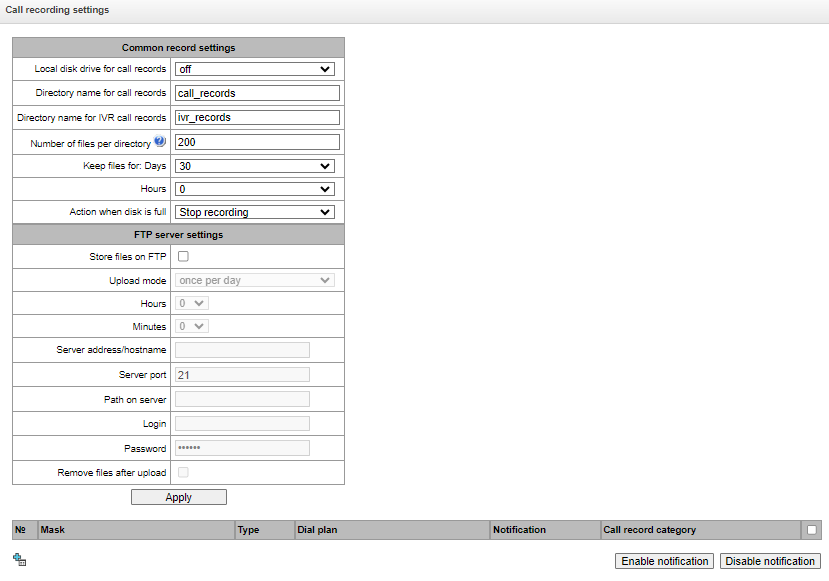
Common record settings:
Local disk drive for call records – selects the available drive for saving conversation records;
Directory name for call records (is not available when using only the SMG-VNS license) – the name of directory for saving conversation records; if the folder name is not specified, conversation records will be saved to the root directory of the drive;
Directory name for IVR call records (is not available when using only the SMG-VNS license) – the name of directory name for saving conversation records when a call comes to the REC block in the IVR script;
Number of files per directory – the maximum number of conversation record files in a single directory; if the maximum number of files is reached, a new directory will be created.
Заменять неподдерживаемые символы – опция включает подмену символов «*» на «%x» в именах файлов записей разговоров для совместимости с Windows.
In the conversation record directory, a new subdirectory is created for each day of recording under the following name:
YYYY-MM-DD-NNNN,
where:
YYYY – 4 characters – the current year;
MM – 2 characters – the current month;
DD – 2 characters – the current date;
NNNN – 4 characters – number of a directory containing conversation records for the current date.
If the Number of files per directory value is reached, the device will create a new directory with the value NNNN increased by one.
Example of directories created on 2014-02-27:
2014-02-27-0000
2014-02-27-0001
2014-02-27-0002
2014-02-27-0003
Keep files for (days/hours) – the time period during which conversation record files will be stored on the drive; after this time period expires, old files will be deleted;
Action when disk is full – select an action to be applied to conversation record files when the drive is full:
Stop recording – stop recording new conversations when the drive is full;
Remove old records – delete old conversation records when the drive is full.
FTP server settings:
Store files on FTP – when this option is checked, conversation records will automatically be uploaded to the FTP server, according to the selected upload mode;
Upload mode – determines how often the records will be uploaded to FTP:
once per day – uploading once a day at a given time;
once per hour– uploading every hour;
once per minute – uploading every minute.
с заданным периодом – выгрузка каждые n минут.
Hours– available in the once a day uploading mode. Here you can specify the hour for uploading;
Minutes – available in the once a day and once an hour uploading modes. Here you can specify the minutes for uploading;
FTP server – IP address or domain name of the FTP server to which conversation records will be uploaded;
FTP port – FTP server port;
Path on server – the path for saving files on the FTP server;
Login for FTP – login for authorization;
Password for FTP – password for authorization;
Remove files after upload – if this option is checked, record files will be deleted from the local SMG storage after uploading.
When using only the SMG-VNS license on the SMG, these settings will apply to VNS records. VNS records are saved to disk in the vns_files/notify_records directory. When using SMG-REC and SMG-VNS licenses on SMG, the settings are also applied to call recording, and to VNS notify records. |
Filter Masks for Conversation Records (option is only available with an SMG-REC license):
Call recording → Call recording settings → Object
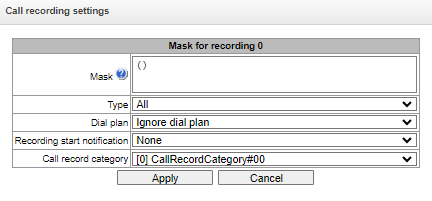
The device determines whether a conversation should be recorded for CgPN and CdPN numbers.
Mask – the number filter mask. For mask syntax, see Description of number mask and its syntax;
Type – search for a mask match by CdPN or CgPN number:
Please note that this setting uses OR logic, i. e. either CgPN or CdPN match is sufficient for the record identification. |
All – search by CgPN and CdPN numbers;
Calling – search only by CgPN number;
Called – search only by CdPN number.
Dial plan – specify the dial plan in which the call recording mask will work. If to select Ignore dial plan, a search will be done across all active dial plans;
Recording start notification – notify the callee that the conversation will be recorded:
None – disable notification of recording start;
Voice message – voice notification of recording start.
Call record category – a category assigned to the record for the specified mask.
In this section, conversation record files can be managed.
Call recroding → Call records
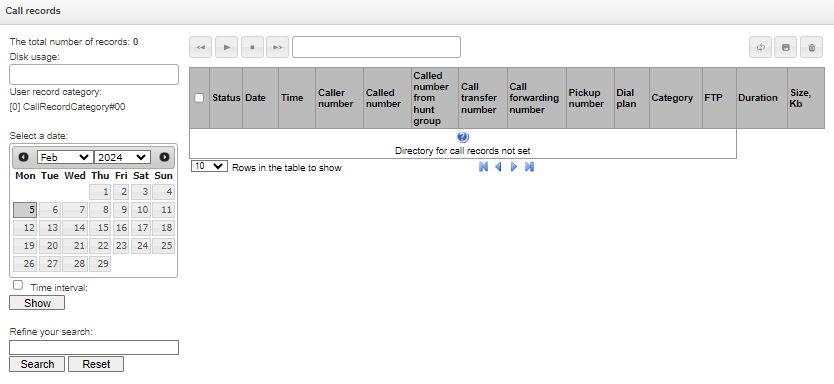
The total number of records – total number of conversation record files in the selected directory;
Disk usage – display the used space on the drive selected to store the conversation record files;
User record category – display the conversation record category assigned to the current user of the web interface;
Select a date – select the date to display conversation record files;
Time interval – select the interval to display conversation record files;
Refine your search – search for conversation record files; the search function uses any match of the entered value against the name of a conversation record file.
The record control buttons are described in the table below.
Table 26 — Record control buttons
Button | Function |
|---|---|
| previous record |
| start playback |
| приостановить воспроизведение |
| stop playback |
| next record |
| перемотка записи |
| выключить звук |
| регулировка громкости |
| регулировка скорости воспроизведения |
| repeated record playback |
| save record |
| delete record |
Call records table decsription
Date/time – date and time of the recording start;
Caller number/called number – the number of the subscribers participating in the conversation;
DIal plan – a dial plan in which the record is implemented;
Category – conversation record category;
FTP – shows whether the record was uploaded to FTP;
Duration – conversation duration;
Size, KB – the size of the record in kilobytes.
Format of a conversation record file
A common call without call forwarding or transfer
YYYY-MM-DD_hh-mm-ss_CgPN-CdPN_nX_cY.wav
Where:
YYYY-MM-DD – file creation date, YYYY – year, MM – month, DD – day;
hh-mm-ss – file creation time, hh – hours, mm – minutes, ss – seconds;
CgPN – the caller number, if absent, set to none;
CdPN – the called number;
nX – the number of the dial plan in which the record was made;
cX – the record category.
Example:
Subscriber 40010 calls to subscriber 40012, the file will look as follows:
2017-10-23_09-27-26_40010-40012_n0_c0.wav
Making a call when the call forwarding service is used
YYYY-MM-DD_hh-mm-ss_CgPN-CdPN_Srv_SrvNum_nX_cY.wav
where:
YYYY-MM-DD – file creation date, YYYY – year, MM – month, DD – day;
hh-mm-ss – file creation time, hh – hours, mm – minutes, ss – seconds;
CgPN – the caller number, if absent, set to none;
CdPN – the called number – the number that actually receives the call.
Srv – a label indicating that an additional service was used. The label values:
cf – the call was forwarded;
ct – the call was transferred;
cp – the call was picked up;
SrvNum – the number of the service that provided the additional service. Depending on the label value, Srv is the number, which has received a redirected or transferred call, or the number from which the call has been picked up;
nX – the number of the dial plan in which the record was made;
cX – the record category.
Example:
Subscriber 40010 calls to subscriber 40011 who redirects the call to subscriber 40012.
2017-10-23_09-28-04_40010-40011_cf_40012_n0_c0.wav
Making a call when the call transfer service is used
The use of the call transfer service involves 3 subscribers – initiator of the call (subscriber А), subscriber implementing the call transfer (subscriber B), and subscriber receiving the transferred call (subscriber C).
When transferring a call, 3 conversation record files are created:
conversation of subscribers А – В;
conversation of subscribers В – С;
conversation of subscribers A – C after the call transfer.
Example:
Subscriber 40012 calls to subscriber 40010, which transfers the call to subscriber 40000.
The following files are generated:
2017-10-23_10-15-19_40012-40010_n0_c0.wav – conversation of subscribers A and B;
2017-10-23_10-15-31_40010-40000_n0_c0.wav – conversation of B and C, after the subscriber B has put on hold the subscriber A;
2017-10-23_10-15-19_40012-40010_ct_40000_n0_c0.wav – conversation of subscribers A and C after the call was transferred by subscriber B, where ct in the file name is the label indicating that the call transfer was made.
In this section, group notification records files can be managed.
Call recording → Group notification records
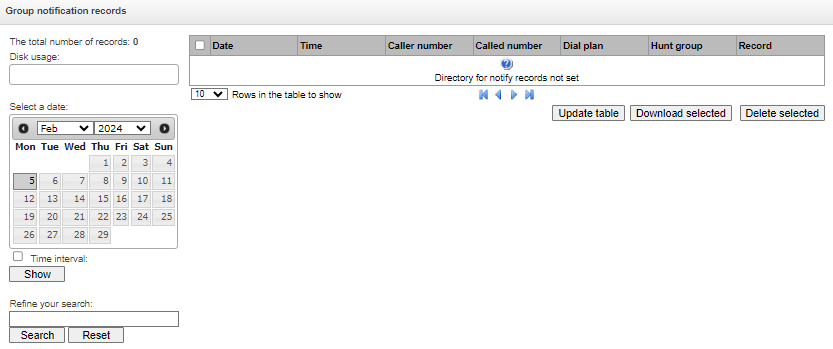
The total number of records – total number of conversation record files in the selected directory;
Disk usage – display the used space on the drive selected to store the conversation record files;
Select a date – select the date to display conversation record files;
Time interval – select the interval to display conversation record files;
Refine your search – search for conversation record files; the search function uses any match of the entered value against the name of a conversation record file.
In the ‘Date’ column, each entry is a link to the notification log. The log shows the progress of the notification and its result. You can listen to the text of the notification by clicking the link in the ‘Record’ column, in the same column, you can download the record by clicking the icon next to the record.
Call recording → Call record categories
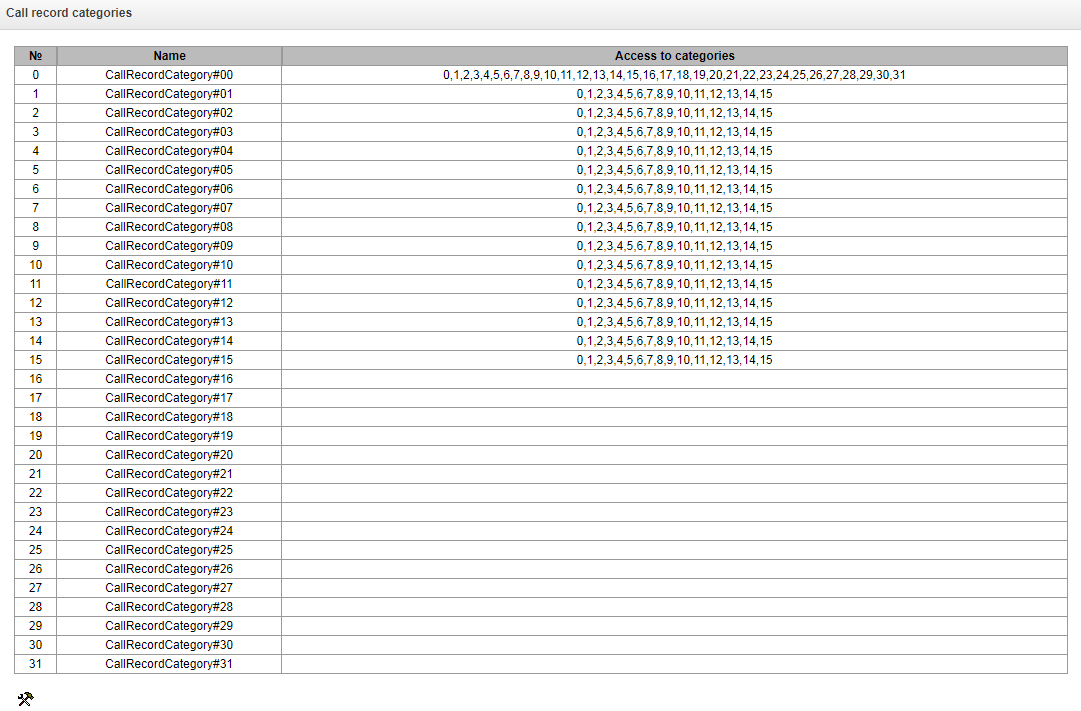
Conversation record categories are used to define the user access rights for recorded conversations.
To restrict access to records, assign the corresponding category. For other categories, this menu defines accessibility to a category assigned to an object (to disable access, uncheck the checkbox next to the corresponding category; to enable access, check the checkbox next to the corresponding category).
In total, up to 32 record categories can be configured. By default, ‘Category 0’ has a permanent access to all other categories and is used for the administrator account that provides access to all conversations. Other categories have configurable access. By default, the first 15 of them provide access to the first 16 categories.
To configure and edit a selected category, click the button.
Setup example: restrict access to conversation records
Consider an example when it is necessary to distinguish between access to the conversation records of the production department (‘production user’) and those of the sales department (‘sales user’). Each user should be able to listen only to conversations of their relevant department. To restrict access, proceed as follows:
1. Select the access category for records. You can specify a convenient name, for example, Production or For each category, set access only to itself:
Call recording → Call record categories
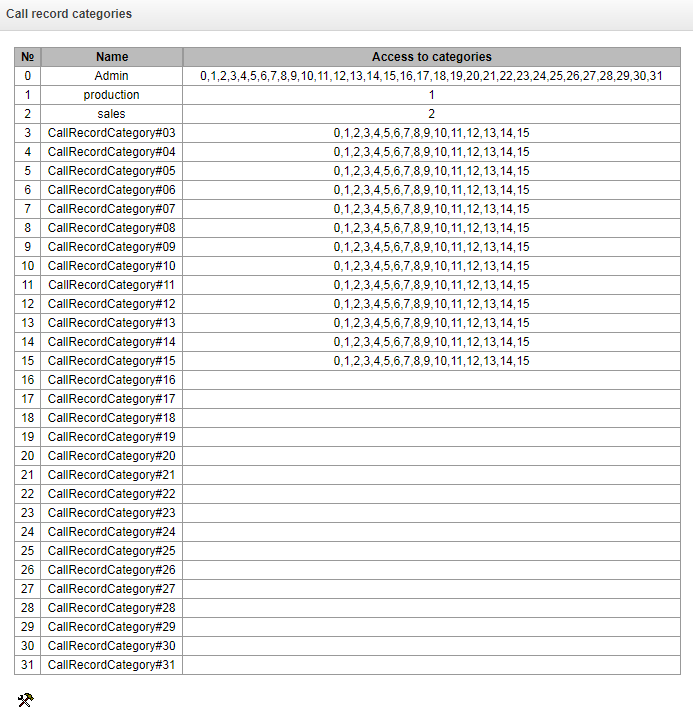
2. Log in to the user account management interface (see Users: Management). In the access rights of the production user, select Listen to recorded conversations right and set the available category to Production. For the sales user, select the Listen to recorded conversations and set the category to Sales:
Management → Object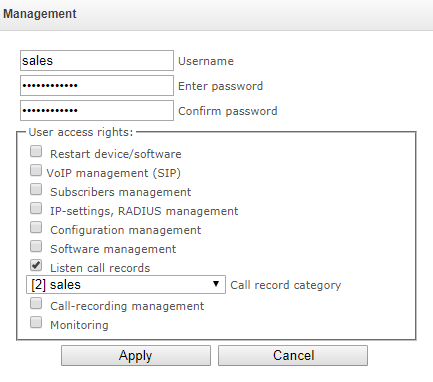
Management → Object
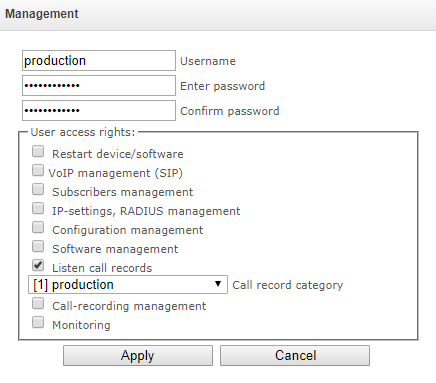
3. In the Call recording settings section, add the recording number masks for the production and sales departments, and assign the relevant recording categories to them.
Call recording → Call recording settings

4. Now, if the users enter the Conversation Recording section, they will only see records of the categories to which they have access.
5. In this example, if you need to add a ‘management user’ with the right to listen records of all departments, then, as in step 1, add a new category, for example, ‘Management’ and assign the access rights to the ‘Production’ and ‘Sales’ categories. Then, in the user management section, assign the access to the ‘Management’ category to the management user.
Management → Object
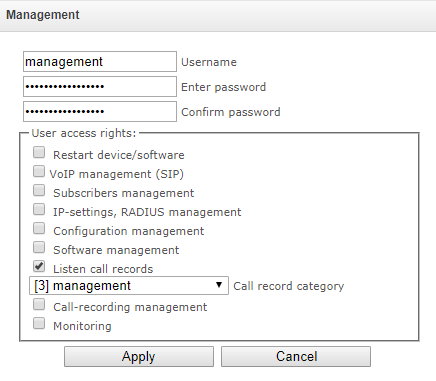
As a result of these settings, the table of access restriction to conversation calls will look as follows:
Call recording → Call record categories
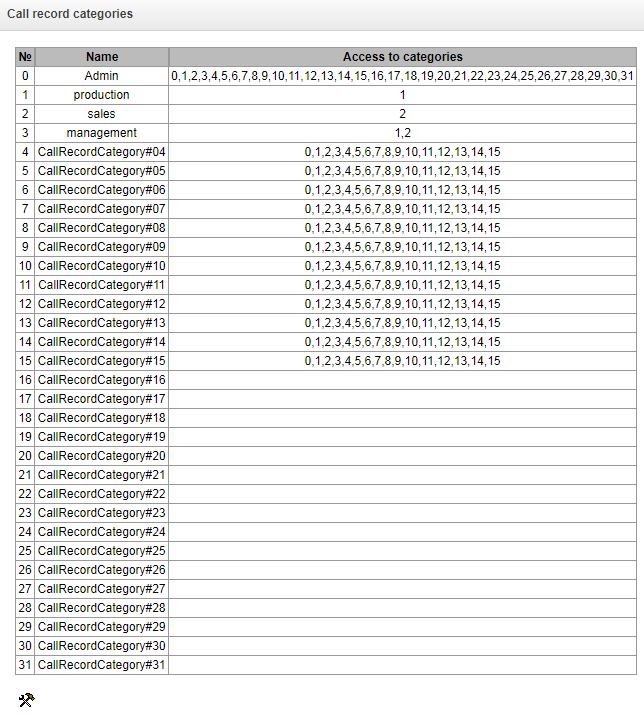
This section configures device network settings and IP packet routing rules.
DHCP is a protocol which allows automatic retrieval of IP address and other settings required for operation in a TCP/IP network. It allows the gateway to obtain all necessary network settings from DHCP server.
SNMP is a simple network management protocol. It allows the gateway to send real-time messages about failures to the controlling SNMP manager. Also, the gateway's SNMP agent supports monitoring of gateway sensors' status on request from the SNMP manager.
DNS is a protocol which is used to retrieve domain information. It allows the gateway to obtain the IP address of the communicating device by its network name (hostname). This may be useful, e. g. when hosts are specified in the routing schedule or when a network name of the SIP server is used as its address.
TELNET is a protocol which is used to establish control over network. Allows remote connection to the gateway from a computer for configuration and management. In case of the TELNET protocol, the data transfer process is not encrypted.
SSH is a protocol which is used to establish control over network. Unlike TELNET, this protocol implies encryption of all data transferred through the network, including passwords.
This submenu can be used to configure static routes.
Static routing allows packets to be routed to specified IP networks or IP addresses through the specified gateways. The packets sent to IP addresses, which do not belong to the gateway IP network and are outside the scope of static routing rules, will be sent to the default gateway.
The routing table is separated into 2 parts: configured routes at the top of the table and automatically created ones.
The automatically created routes cannot be changed as they are created automatically when the network and VPN/PPTP interfaces are established. These routes are required for normal operation of the interfaces.
TCP/IP settings → Routing table
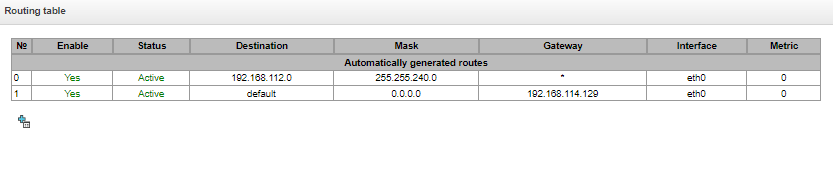
To create, edit, or remove a route, use the Objects – Add Object, Objects – Edit Object or Objects – Remove Object menus and the following buttons:
– Add route;
 – Edit route parameters;
 – Remove route.
Route parameters:
TCP/IP settings → Routing table →
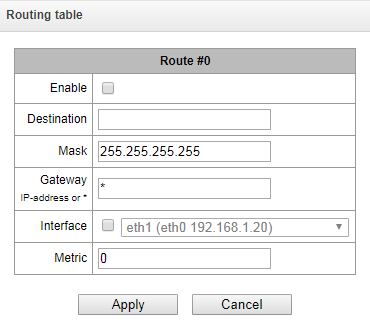
Enable – when this option is checked, enables the route;
Destination – IP network;
Mask – specifies a network mask for the defined IP network (use mask 255.255.255.255 for IP address);
Interface – selects a network transmission interface;
Шлюз – задает IP-адрес шлюза для маршрута;
Metriс – route metrics.
TCP/IP settings → Network settings
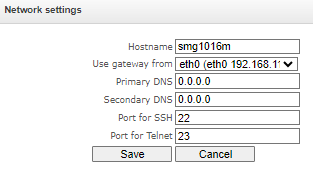
This submenu can be used to specify a device name and to change the network gateway address, the DNS server address, and the SSH/Telnet access ports.
Hostname – device network name;
Use gateway from – selects the network interface to be used as the primary gateway of the device;
Primary DNS – primary DNS server;
Secondary DNS – secondary DNS server;
Port for SSH – TCP port for device access via the SSH protocol; the default value is 22;
Port for Telnet – TCP port for device access via the Telnet protocol; the default value is 23.
It is possible to configure 1 primary network interface eth0 and up to 9 additional interfaces on the device. These can be VLAN interfaces and Alias of the primary eth0 interface, or Alias of the VLAN interface.
Alias is an optional network interface that is created from an existing primary eth0 interface or from an existing VLAN interface.
On the SMG-3016 it is possible to configure 2 primary network interfaces eth0 and eth2.
The eth2 interface is of the Management type and is used only to manage the device through the OOB port. The interface supports working with a static address, an address obtained via DHCP, and a VLAN.
There can only be one interface of the Management type on a device.
TCP/IP settings → Network settings

To create, edit, or remove rules for network interfaces, use the following buttons: Add, Edit, Remove.
Network Interface Settings
Common Settings
TCP/IP settings → Network interfaces
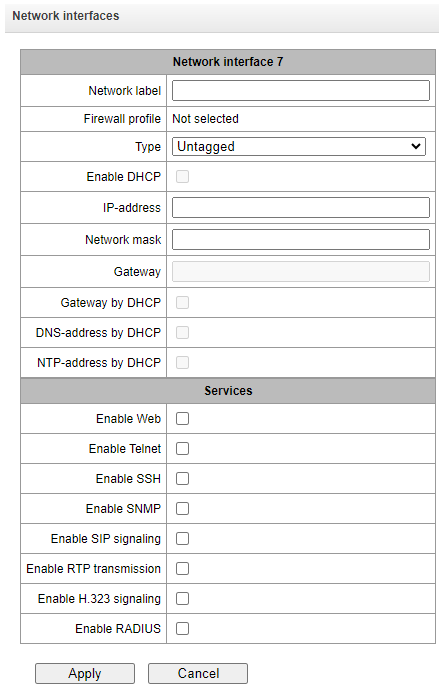
Network label – name of the network;
Firewall profile – show the firewall profile selected for this interface;
Type – interface type (always untagged for eth0 interface):
untagged – untagged interface (without VLAN);
tagged – tagged interface (with VLAN);
VPN/pptp client – client interface for connecting VPN to a remote server via PPTP protocol.
VLAN ID – VLAN identifier (1–4095) (only for tagged type interfaces);
Enable DHCP – dynamically obtain the IP address from the DHCP server (Alias is not supported);
IP-address – network address of the device;
Network mask – the subnet mask of the device;
Gateway – network gateway for the interface (Alias is not supported);
DNS-address by DHCP – obtain the IP address of the DNS server dynamically from the DHCP server (Alias is not supported);
NTP-address by DHCP – obtain the IP address of the NTP server dynamically from the DHCP server (Alias is not supported).
Services – a configuration menu for the services enabled for this interface:
Enable Web – enables access to the configurator via the interface;
Enable Telnet – enables access via the Telnet protocol;
Enable SSH – enables access via the SSH protocol;
Enable SNMP — enables access via the SNMP protocol;
Enable RTP transmission – enables reception and transmission of the voice traffic through the network interface configured in this section;
Сигнализация SIP – разрешает прием и передачу сигнальной информации SIP через сетевой интерфейс, настроенный в данном разделе;
Сигнализация RTP – разрешает прием и передачу сигнальной информации RTP через сетевой интерфейс, настроенный в данном разделе;
Enable H.323 signaling – enables reception and transmission of H.323 signalling data through the network interface configured in this section;
Enable RADIUS– enables the RADIUS protocol.
If an IP address or a network mask has been changed or the web configurator management has been disabled for the network interface, confirm these settings by logging into the web configurator to prevent the loss of access to the device; otherwise, the previous configuration will be restored in two minutes. |
Front-ports – configuring external front ports
Only for SMG-2016/3016. |
This setting is available only for tagged VLAN interfaces (in the ‘Type’ parameter set to ‘Tagged’).
TCP/IP settings → Network settings → Tagged
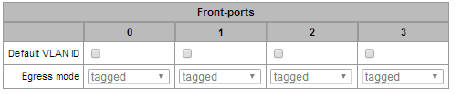
Default VLAN ID – when a packet without a VLAN ID tag arrives on a port, this packet is marked with a VLAN ID tag of the selected network interface; if a packet is received with a VLAN ID tag, then the received tag is not changed;
Egress mode – rules for working with the VLAN tag when sending a packet from a port:
tagged – send a packet with the VLAN ID of the selected network interface;
untagged – send a packet without a VLAN ID.
VPN/PPP interface settings:
TCP/IP settings → Network settings → VPN/pptp client
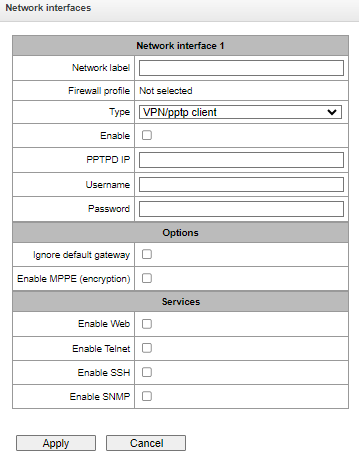
Basic settings:
Network label – name of the network;
Firewall profile – show the firewall profile selected for this interface;
Type – VPN/pptp client;
Включить – включение VPN/PPP-интерфейса;
PPTPD IP – IP address of the PPTP server;
Username – username (login) by which the device connects to the network;
Password – password for VPN connection.
Options:
Ignore default gateway – ignore the gateway setting in the Network section options;
Enable encryption – enables encryption.
Services – a configuration menu for the services enabled for this interface:
Enable Web – enables access to the configurator via the interface;
Enable Telnet – enables access via the Telnet protocol;
Enable SSH – enables access via the SSH protocol;
Enable SNMP — enables access via the SNMP protocol.
This section allows configuration of a UDP port range for voice RTP packets transmission.
UDP-ports settings:
TCP/IP settings → RTP ports range
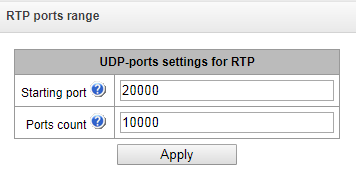
Starting port – the number of the starting UDP port for voice traffic (RTP) and data transmission via the T.38 protocol;
Ports count – the quantity of UDP ports (from the strating port) used for voice traffic (RTP) and data transmission via the T.38 protocol.
To avoid conflicts, make sure that the ports used for RTP and Т.38 transmission do not overlap the ports used for SIP signalling (port 5060 by default). |
TCP/IP settings → Domain names list
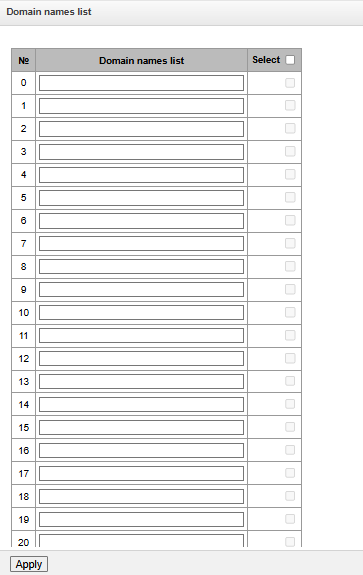
В данную таблицу следует внести доменные имена, которые будут сопоставляться с IP-адресом SMG, в т. ч. SIP-домены, которые могут в дальнейшем использоваться для настройки SIP-абонентов. Все доменные имена из этого списка будут перманентно внесены в локальный кэш DNS устройства, что можно отследить в мониторинге доменных имён в разделе «Мониторинг».
Для добавления доменного имени необходимо ввести его в свободное поле и нажать кнопку «Применить».
Для удаления записи необходимо отметить его соответствующим чекбоксом и нажать кнопку «Очистить выделенные».
Чтобы удалить все записи необходимо отметить чекбокс в шапке таблицы и нажать кнопку «Очистить выделенные».
NTP is a protocol designed for synchronization of real-time clock of the device. Allows to synchronize date and time used by the gateway against their reference values.
Network services → NTP
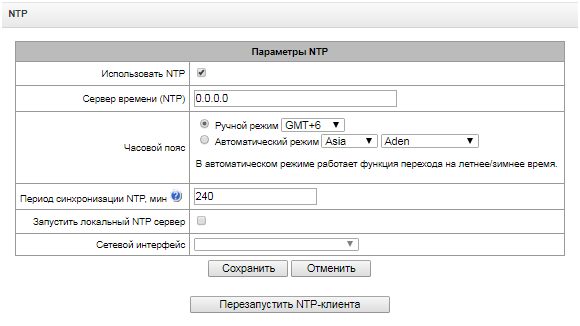
Enable — enable time synchronization via NTP;
Time server (NTP) — NTP server IP address or host name;
Timezone — timezone and GMT (Greenwich Mean Time) offset configuration:
Manual mode — define GMT offset.
Automatic mode — in this mode, you may select the device location, GMT offset will be defined automatically, also this mode enables automatic daylight saving change.
Synchronization period, minutes — time synchronization request transmission period;
Enable local NTP server – activate a local NTP server for time synchronization with external devices. The option is available when ‘Enable’ box is checked;
Network interface – select a network interface through which the local NTP-server will answer on requests.
Use 'Save' button to save the setting and 'Cancel' to clear the settings. To perform forced time synchronization with the server, click 'Restart NTP client' button (NTP client will be restarted).
SMG software allows to monitor status of the device via SNMP. In SNMP submenu, you can configure settings of SNMP agent.
Statistics for the current calls performed via IP channels contains the following data:
SNMP settings:
Network services → SNMP
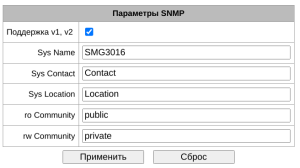
Поддержка v1, v2 – включение/выключение SNMP v1 и v2;
Sys Name – device name;
Sys Contact – contact information;
Sys Location – device location;
ro Community – parameter read password/community;
rw Community – parameter write password/community.
Use ‘Apply’ button to apply settings and ‘Reset’ to cancel the settings.
SNMPv3 configuration:
Network services → SNMP
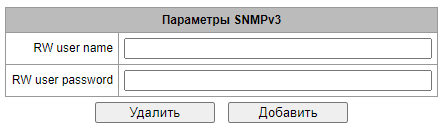
The system uses a single SNMPv3 user.
RW user name – username.
RW user password – password (password should contain 8 characters or more).
To apply SNMPv3 user configuration, click 'Add' button (settings will be applied immediately). To remove a record, click 'Remove' button.
For detailed monitoring parameters and Traps description, see MIB files on disk shipped with the gateway. |
SNMP agent sends SNMPv2-trap message, when the following events occur:
авария глобального линка резерва;
авария локального линка резерва;
восстановление глобального линка резерва;
восстановление локального линка резерва;
внешний накопитель переполнен, осталось менее 5 МБ свободного места;
Network services → SNMP

To create, edit or remove trap parameters, use the following buttons:
– 'Add'
– 'Edit'
– 'Remove'
Network services → SNMP → SNMP traps settings →
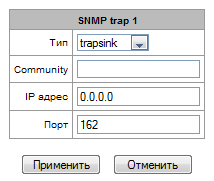
Dynamic Host Configuration Protocol (DHCP) assigns IP addresses to network devices automatically.
When the request is received, DHCP server selects the IP address from the address pool in its database and offers it to DHCP client. If the latter accepts the offer, network settings, i.e. IP address, mask and other parameters will be leased to the client for the limited term.
Network services → DHCP-server
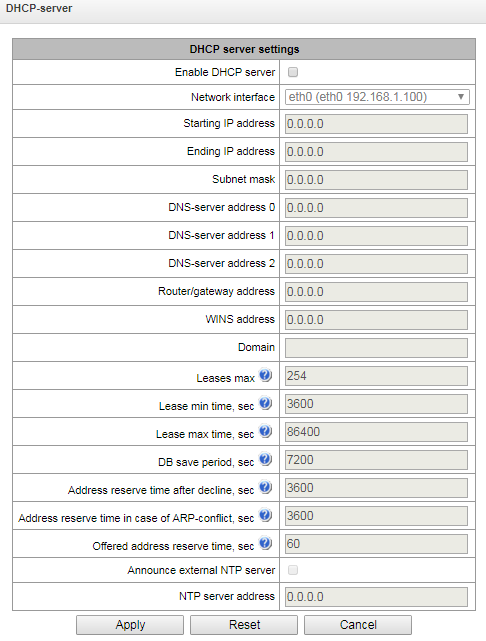
DHCP server parameters:
Дополнительные опции:
Анонсировать локальный NTP сервер – опция будет доступна только при условии, что в разделе «NTP» активирован локальный NTP-сервер и задан интерфейс для него. При активации опции DHCP-сервер будет анонсировать в опции 42 настроенный адрес локального NTP-сервера;
Анонсировать произвольный NTP сервер – при активации опции DHCP-сервер будет анонсировать в опции 42 адреса серверов, заданные в опции «Адрес NTP сервера»;
Адрес NTP сервера – адрес NTP-сервера, который SMG будет анонсировать в опции 42, если активирована опция «Анонсировать произвольный NTP сервер»;
Vendor Specific – произвольный параметр, который SMG будет анонсировать в опции 43;
Имя TFTP-сервера – адрес сервера конфигураций для сервиса Autoprovisioning, который SMG будет анонсировать в опции 66;
Имя загрузочного файла – имя файла конфигурации для сервиса Autoprovisioning, который SMG будет анонсировать в опции 67.
DHCP server settings:
IP-MAC addresses bonding — assign static associations between IP addresses and МАС addresses.
Network services → DHCP-server
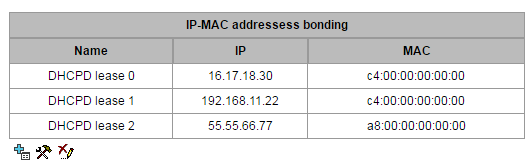
To assign a new association, edit or remove parameters, use the following buttons:
– 'Add'
– 'Edit'
– 'Remove'
Network services → DHCP-server → IP-MAC addresses bonding→
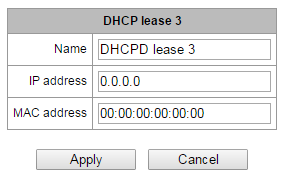
Leased IP addresses:
Network services → DHCP-server

MAC address — client MAC address;
IP address — address issued from the pool of IP addresses;
Lease ends — remaining time of the address lease:
Expired — address lease has expired.
In this section, you may configure an integrated FTP server used for provisioning FTP access to the following directories:
cdr – directory containing CDR files;
log – directory containing tracing files and other debug data;
mnt – directory containing files located on external storage devices (SSD drives, SATA drives, USB flash drives).
FTP server settings:
Network services → FTP-server
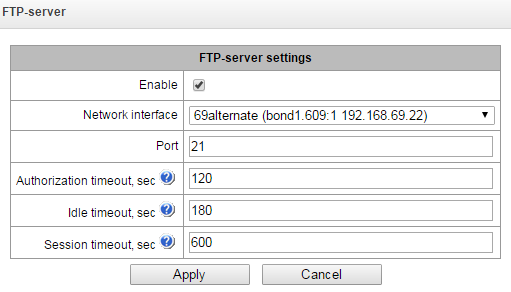
Enable — enable/disable integrated FTP server;
Network interface — select network interface for the FTP server to run on;
Port — select TCP port for the FTP server to run on;
Authorization timeout, sec — data entry timeout for subscriber authorization at FTP server; when this timeout expires, the server will forcedly terminate the connection;
Idle timeout, sec — timeout for the user to be idle at FTP server; when this timeout expires, the server will forcedly terminate the connection;
Session timeout, sec — session duration.
User settings:
By default, the device features a subscriber account with permissions to read all directories (login: ftpuser, password: ftppasswd).
Network services → FTP-server
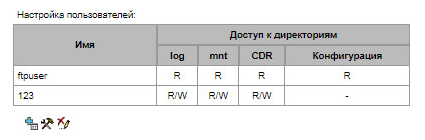
Модуль доменных имён
В данном разделе конфигурируется внутренний модуль доменных имён (локальный кэш DNS).
Сетевые сервисы → Модуль доменных имён
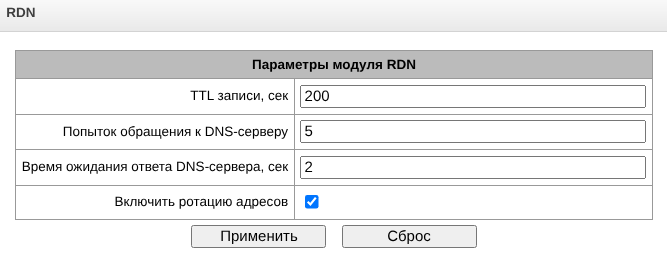 TTL записи, сек – время жизни записи по умолчанию, если сервер не предоставил своё значение;
Попыток обращения к DNS-серверу – количество попыток обращения к серверу, по истечении которых запись удалится из кэша;
Время ожидания ответа DNS-сервера, сек – время, по истечении которого попытка обращения к серверу будет считаться неуспешной;
Включить ротацию адресов – если доменное имя сопоставляется с несколькими IP-адресами, то обращение к каждому из них будет происходить попеременно.
This utility is used to check device network connection (route presence).
Network utilities → PING
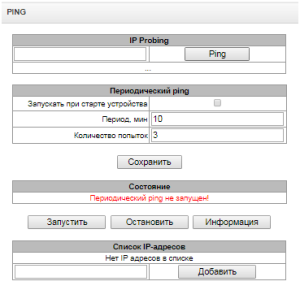
IP Probing is used for a single-time check of the device network connection.
To send a ping request (the ICMP protocol is used), enter the host IP address or network name in the IP Probing field and click the Ping button. The result of the command execution will be shown at the bottom of the page. The result contains information on the number of transmitted packets, the number of responses to the packets, the percent of lost packets, and the time of reception/transmission (minimum/average/maximum) in milliseconds.
Network utilities → PING
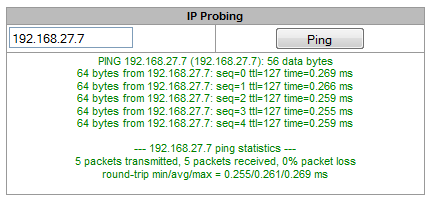
Periodic ping – used for periodic check of device network connection.
Status
IP addresses list – a list of IP addresses to send periodic ping requests to.
To add a new address to the list, select it in the entry field and click the ‘Add’ button. To remove an address, click the ‘Remove’ button next to the required address.
The TRACEROUTE utility performs the route tracing function and ping tests to monitor the network health. This function allows you to evaluate the connection quality for the tested node.
Network utilities → TRACEROUTE
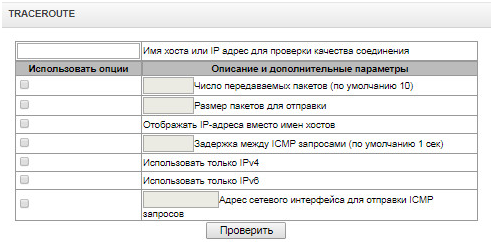
In the ‘Hostname or IP address to check connection quality’ field, enter the IP address of the network device to test the connection quality. To use the options, select the checkboxes in the corresponding line.
Options:
Transmitted packets count (default 10) – the number of the ICMP request transfer cycles;
Packet size to send – the ICMP packet size in bytes;
Show IP address instead of hostnames – do not use DNS. Display the IP address without trying to obtain their network names;
Delay between ICMP requests (default 1 sec) – polling interval;
Use onlyIPv4 – use only IPv4 protocol;
Use onlyIPv6 – use only IPv6 protocol;
Network interface address for send ICMP request – IP address of the network interface from which ICMP requests will be sent.
Having entered the IP address of the network device for which the connection quality is evaluated, set the options and click the ‘Check’ button.
As a result, the utility displays a table containing:
Network utilities → TRACEROUTE → IP address of networtk device

Security → SSL/TLS settings
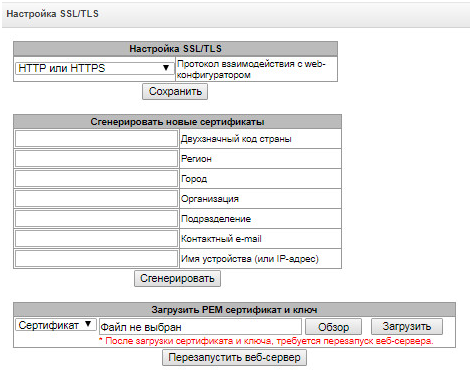
In this section, you may obtain a self-signed certificate which allows you to use an encrypted connection to the gateway via HTTP protocol and configuration file upload/download via FTPS protocol.
Protocol for WEB-interface — web configurator connection mode:
HTTP or HTTPS — unencrypted connection — via HTTP — as well as encrypted connection — via HTTPS — is enabled. At that, connection via HTTPS is possible only when generated certificate is present.
HTTPS only — only encrypted connection via HTTPS is enabled. Connection via HTTPS is possible only when generated certificate is present.
Generate new certificates
These parameters should be entered in Latin characters. |
Country code (two symbols) – country code (RU for Russia);
Region – region name;
City – city name;
Company name – organization name;
Department – name of the organization unit or division;
E-mail – e-mail address;
Hostname or IP address – IP address of the gateway.
Upload PEM Certificate and Key
In this section, the pre-generated and signed PEM certificate and key can be uploaded. Select the type of file to upload from the drop-down menu. Click the ‘Browse’ button and select the required file. Then click the ‘Upload’ button.
After the certificate and key are loaded, the web server should be restarted with the ‘Restart Web-server’ button. |
Dynamic firewall is a utility that tracks attempts of access to various services. When constantly repeated unsuccessful access attempts from the same IP address/host are discovered, fail2ban blocks all further access attempts from this IP address/host.
The following actions may be identified as an unsuccessful access attempt:
Brute forcing web configurator or SSH authentication data, i.e. attempt to log in to the management interface using wrong login or password.
Brute forcing authentication data — reception of REGISTER requests from known IP address but containing wrong authentication data.
Reception of requests (REGISTER, INIVITE, SUBSCRIBE and others) from unknown IP address.
reception of unknown requests via SIP port.
Security → Dynamic firewall
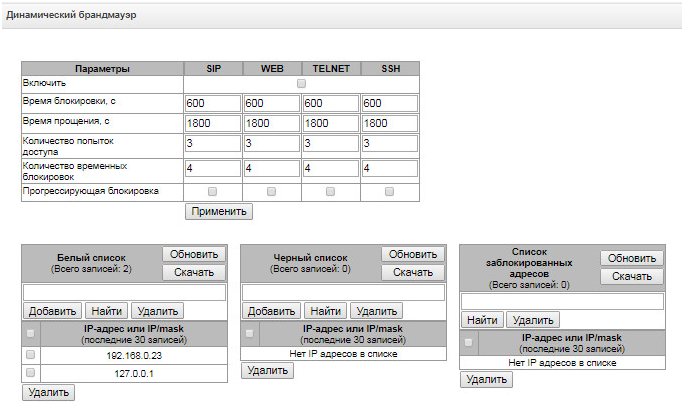
Parameters:
White list (last 30 records) is a list of IP addresses and subnets that dynamic firewall will be unable to ban.
White list doesn’t mean that access is allowed. The list doesn’t enable any permissive rules. The presence of IP address in this list means the address will not be automatically blocked. |
Black list (last 30 records) is a list of permanently banned addresses and subnets. A device may have up to 8192 records on SMG-1016M and 16384 records on SMG-2016 and SMG-3016. To add/search/remove an address from the list, select it in the entry field and click 'Add'/'Search'/'Delete' button.
You may enter an IP address as well as a subnet.
To enter the subnet, you should enter the data in the following format:
AAA.BBB.CCC.DDD/mask
Example:
192.168.0.0/24 – record corresponds to the network address 192.168.0.0 with mask 255.255.255.0
Download whole IP address white/black list — web configurator shows only the 30 last records in the file; click this button to download the whole white list and black list to your PC.
Blocked addresses list — list of addresses banned while dynamic firewall operation. Up to 8192 entries are available on SMG-1016M and up to 16384 entries are available on SMG-2016.
Download block addresses list — allows you to download the whole list of banned addresses to your PC.
To update the lists, click 'Update' button next to the header.
Dynamic firewall log information is written into dynamic_firewall.X.log, где X – порядковый номер файла от 1 до 4. Файлы dynamic_firewall.X.log находятся на устройстве во временной памяти в каталоге /tmp/logs.
При первоначальной загрузке устройства будет создан файл dynamic_firewall.1.log. При достижении размера файла 2 МБ, будет создан файл dynamic_firewall.2.log и т. д. до файла dynamic_firewall.4.log. Затем файл dynamic_firewall.1.log будет перезаписан. Таким образом производится циклическая перезапись всех четырех файлов.
This section displays a log of addresses banned by the dynamic firewall, which allows you to analyze when and which addresses have been banned since the gateway was turned on.
Security → Blocked addresses list
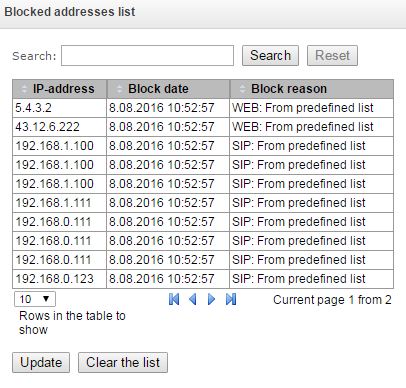
For the list of banning messages and reasons, see Table below.
Table 27 — Banning messages
Message in dynamic_firewall.X.log | Reason | SIP message |
|---|---|---|
[SIP] blocked 'XXX.XXX.XXX.XXX' by cause 'REGISTER: Resurce limit overflow' | Dynamic user registration limit has been achieved | 403 response |
[SIP] blocked 'XXX.XXX.XXX.XXX' by cause 'REGISTER: unknown user or registration domain' | Registration request from unknown user | 403 response |
[SIP] blocked 'XXX.XXX.XXX.XXX' by cause 'authentication is wrong' | Wrong login/password | 403 response |
[SIP] blocked 'XXX.XXX.XXX.XXX' by cause 'deregister from unregistered contact' | User attempted to deregister not registered contact | 200 response |
[SIP] blocked 'XXX.XXX.XXX.XXX' by reason 'REGISTER: request from disallowed IP' | Registration attempt from not allowed address | 403 response |
[SIP] blacklisted 'XXX.XXX.XXX.XXX' by cause 'INVITE: no previous registration' | Call attempt from known user with not registered contact | 403 response |
[SIP] blocked 'XXX.XXX.XXX.XXX' by cause 'INVITE: registration expired' | Call attempt from known user with expired contact registration | 403 response |
[SIP] blocked 'XXX.XXX.XXX.XXX' by cause 'authentication is wrong' | Incoming call or registration has failed an authentication | 403 response |
[SIP] blocked 'XXX.XXX.XXX.XXX' by cause 'INVITE: unknown original address' | Call from an unknown direction | 403 response |
[SIP] blacklisted 'XXX.XXX.XXX.XXX' by cause 'RURI controller: request not for us' | Unknown host name or address in RURI | 404 response |
Table 28 — Web, Telnet, SSH banning messages
| Message in dynamic_firewall.X.log | Reason |
|---|---|
| [TELNET] blocked 'XXX.XXX.XXX.XXX' by cause 'Too many requests from address' | Подключение к устройству по протоколу Telnet с неверным логином или паролем |
| [SSH] blocked 'XXX.XXX.XXX.XXX' by cause 'Too many requests from address' | Подключение к устройству по протоколу SSH с неверным логином или паролем |
| [SSH_TUNNEL_8080] blocked 'XXX.XXX.XXX.XXX' by cause 'Too many requests from address' | Попытка авторизации на слейв-устройстве по протоколу http с неверным логином или паролем |
| [SSH_TUNNEL_8443] blocked 'XXX.XXX.XXX.XXX' by cause 'Too many requests from address' | Попытка авторизации на слейв-устройстве по протоколу https с неверным логином или паролем |
| [WEB/CLI] blocked 'XXX.XXX.XXX.XXX' by cause 'Password fail for user <admin> attempt to access : password 'wrong_pass'' | Подключение к устройству по протоколу http (https) известного пользователя с неверным паролем |
| [WEB/CLI] blocked 'XXX.XXX.XXX.XXX' by cause 'Unknown user <user_name> attempted to access : password 'user_pass'' | Подключение к устройству по протоколу http (https) неизвестного пользователя |
В файл dynamic_firewall.X.log дополнительно заносятся такие события, как:
разблокировка адреса по истечению времени блокировки;
добавление адреса в черный список после превышения количества временных блокировок;
добавление адреса в белый список (администратором через интерфейс web или CLI);
удаление адреса из черного или белого списка (администратором через интерфейс web или CLI).
Firewall is a package of software tools that performs control and filtering of transmitted network packets in accordance with the defined rules in order to protect the device from unauthorized access.
The rules of static firewalls will not operate to limit access via HTTP/HTTPS, SSH, Telnet, SNMP, FTP. To limit the access via these protocols, use the white addresses list (section White addresses list) and services activation settings on the network interfaces (section Network interfaces). |
Firewall profiles
To create, edit or remove firewall profiles, use the following buttons:
Security → Static firewall
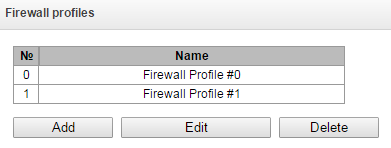
Software allows you to configure firewall rules for incoming, outgoing and transit traffic as well as for specific network interfaces.
Security → Static firewall → Object
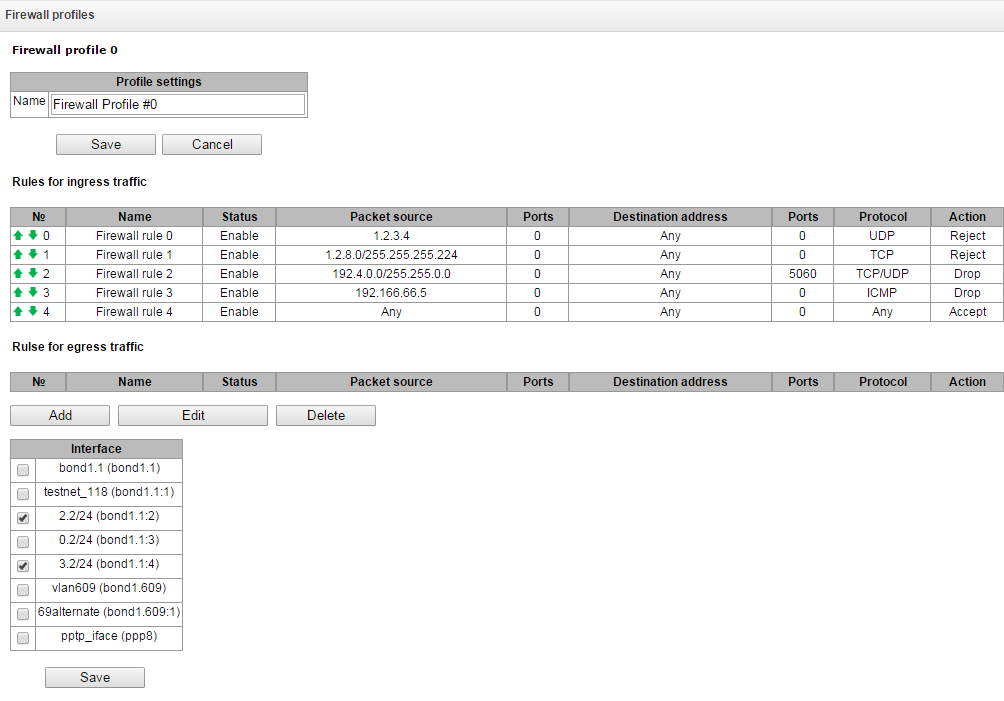
When a rule is created, you should configure the following parameters:
Security → Static firewall → Object → Rule type (General)
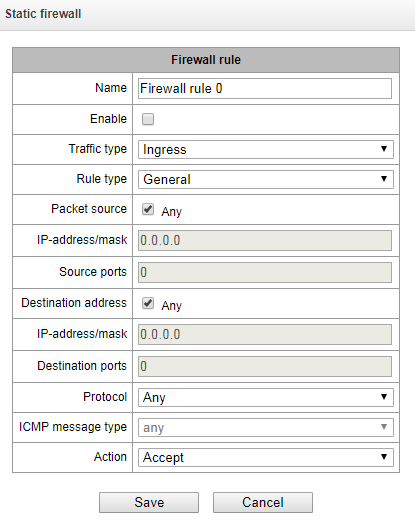
Security → Static firewall → Object → Rule type (String)
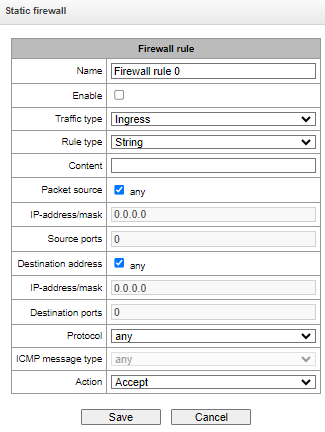
Security → Static firewall → Object → Rule type (GeoIP)
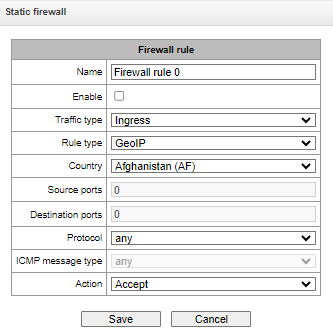
Created rule will be placed into the respective section: 'Incoming traffic rules', 'Outgoing traffic rules' or 'Transit traffic rules'.
Also, in the firewall profile, you may specify network interfaces that these profile rules will be applied to.
Each network interface may be used only in a single firewall profile at a time. If you attempt to assign a network interface to a new profile, it will be removed from the previous one. |
To apply the rules, click 'Apply' button that will appear when the changes are made into the firewall settings.
In this section, you may configure the list of allowed IP addresses that the administrator may use for connection to the device via web configurator and Telnet/SSH protocol. By default, all addresses are allowed.
Security → White addresses list
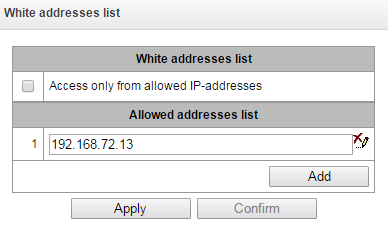
You may enable access for subnets; to do that, you should specify address in IP/mask format, e.g.: 192.168.0.0/24.
Безопасность → Список разрешенных IP адресов → Добавить
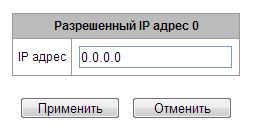
To create, edit or remove the list allowed addresses, use the following buttons:
– 'Add'
– 'Edit'
– 'Remove'
When the address list has been configured, click 'Apply' and 'Confirm' buttons; if you fail to confirm changes in 60 seconds, previous values will be restored — this procedure allows to protect the user from the loss of access to the device. |
The next rule processing procedure is used on SMG for dynamic and static firewall, list of prohibited IP addresses, and access limitation from network interfaces:
Rule processing of dynamic firewall (see section Dynamic firewall) is performed. On this stage, requests received from IP addresses located on the blacklist will be dropped.
Processing of access limitations (see section Network interfaces → Services and White addresses list. For each service that is allowed for working on the network interface, rules allowing to access from any IP address are created. Access to other services will be blocked. When the list of allowed IP addresses is activated, the access rules are supplemented with the control of the source IP address. Connection is allowed only from the addresses specified in the list.
Access to network interfaces that is not bound with rules of static firewall is allowed.
The static firewall rules (see Static firewall) is being processed on the network interfaces to which they are bound.
If one of the rules from the list is processed, remaining rules will not be applied to a request. |
Restriction of WEB/Telnet/SSH/SNMP administration privileges.
To restrict the access to management, use Network interfaces → Services and White addresses list. In the beginning, you should set protocol check boxes for network interfaces that have to be accessed. Thus, destination address restriction will be applied. After that, the allowed IP addresses list will be created. This list imposes additional restrictions for source IP addresses in accordance with allowed IP addresses.
Restriction of the access to SIP/H.323 interfaces by specific addresses and/or geographic locations.
To do that, configure a static firewall (see Static firewall). The example of configuration with such restrictions shown below:
Enable the access from Russia;
Enable the access from subnet 34.192.128.128/28;
Restrict the access from other addresses.
To do that, create tree rules for static firewall in the next order:
The rule for incoming traffic with ‘GeoIP’ type and ‘Russian Federation (RU)’ country. Action – Accept.
The rule for outgoing traffic with ‘General’ type and IP address/source mask: "34.92.128.128/255.255.255.240". Action – Accept;
The rule for incoming traffic with ‘General’ type, packet source – ‘Any’. Action – Drop.
After that, select the required network interfaces from the list and save settings.
Fully-restricted access to SMG from a specific address or subnet.
In order to implement access restriction to SMG from a certain address or subnet, it is necessary to activate the dynamic firewall (see Dynamic firewall), and enter address or subnet in the black list. Pay attention, if there are too many addresses, it is better to create static firewall rules (see Static firewall) according the next principle: ‘first of all, allow connection to trusted nodes, and then drop all’. Also, use settings for the access restriction by the list of allowed IP addresses (see section White addresses list).
Automatic blocking of failed requests/authorizations.
The dynamic firewall (see section Dynamic firewall) automatically blocks failed requests/authorizations. To enable the automatic blocking, you should activate dynamic firewall and configure the trigger conditions. Also, it is recommended to add addresses and subnets that shouldn't fall under the rules of automatic blocking in the white list.
RADIUS → Servers
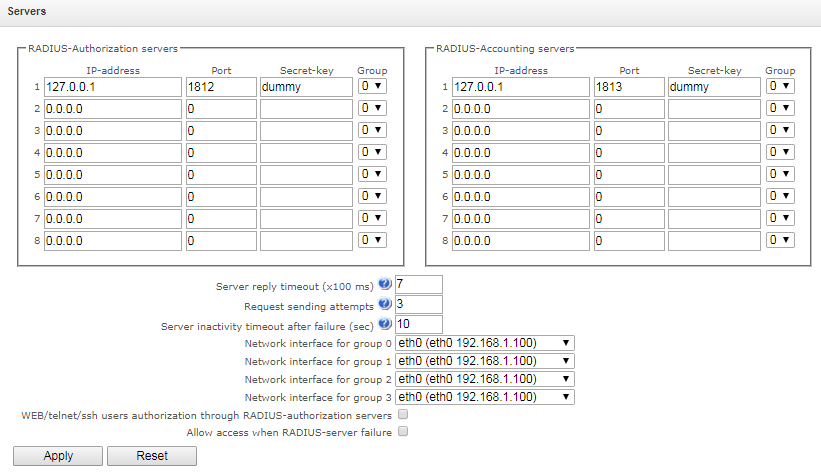
Управление параметрами серверов в web-интерфейсе осуществляется на двух вкладках: Authorization/Accounting и Antifraud. Вкладка Antifraud доступна при наличии соответствующей лицензии.
Device supports up to 8 authorization servers and up to 8 accounting servers. The servers might be combined in a group. Then, while RADIUS profiles settings, you may choose the group of servers to transmit requests. Four group are available.
Server reply timeout (x100 ms) – amount of time intended for server response;
Request sending attempts – quantity of request retries addressed to a server. When all attempts are used up, the server will be deemed inactive and the request will be forwarded to another server, if it is specified, otherwise the error will be detected;
Server inactivity timeout after failure (sec) – amount of time that the server is deemed unavailable (requests will not be sent to it). В случае если сервер в списке только один, можно отключить временную блокировку при его недоступности, указав значение 0 в этом поле;
Network interface for <N> group – select corresponding group for network interface through which RADIUS requests will be transmitted;
WEB/telnet/ssh users authorization through RADIUS-authorization servers – in case of the access attempt via WEB/telnet/ssh, the authorization will be implemented via RADIUS server. You should register local users with the necessary names and configure access rights in advanced (see Management). RADIUS-авторизация не работает для telnet (из соображений безопасности telnet рекомендуется отключать после первоначальной настройки устройства);
Allow access when RADIUS-server failure — if authorization via RADIUS is enabled and there is no answer from the RADIUS server, you may use local account of admin. Следует учитывать, что базы пользователей различаются для web и системы (telnet/SSH/COM-порт). Если опция отключена, то при недоступности RADIUS-сервера доступ будет возможен только через COM-порт либо telnet (если включён).
RADIUS → profiles
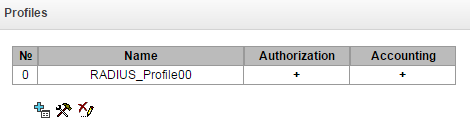
To create, edit and delete profiles from the list use the following buttons:
– 'Add'
– 'Edit'
– 'Delete'
RADIUS → Profiles → Object
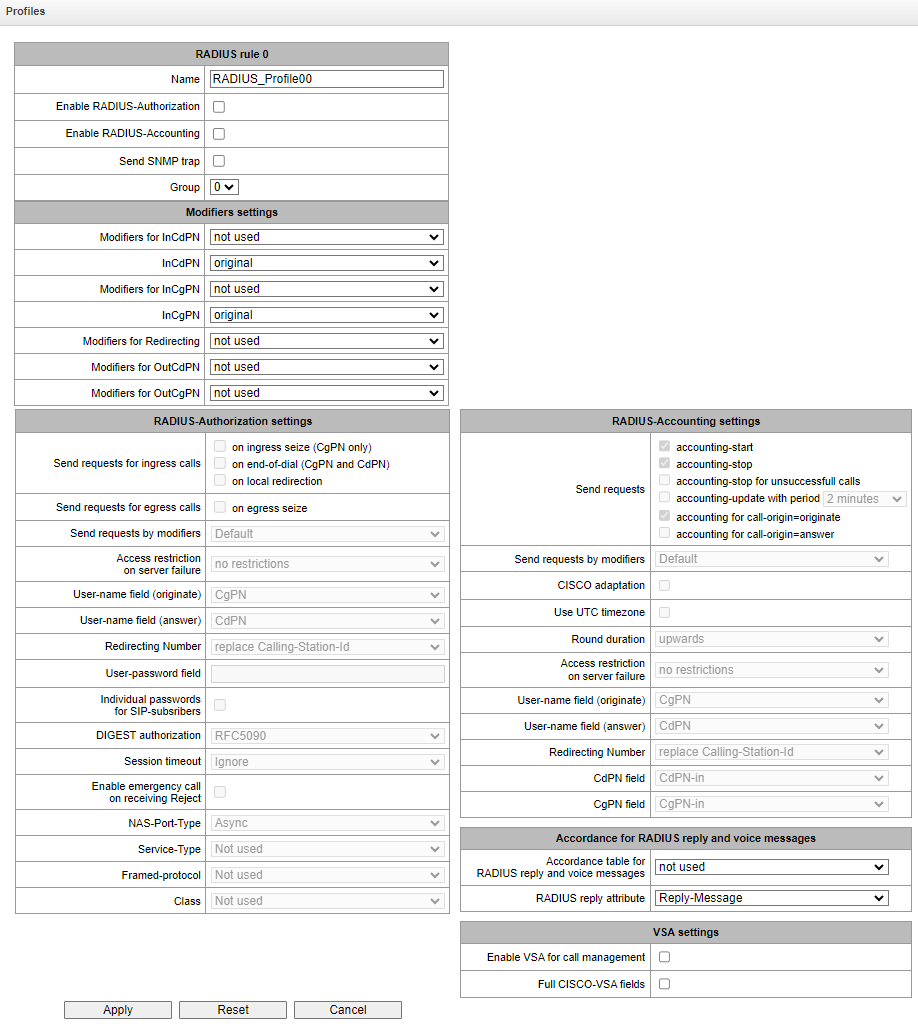
RADIUS profile parameters:
Name – profile's name;
Enable RADIUS-Authorization — enable/disable the transmission of authentication/authorization (Access Request) messages to the RADIUS server;
Enable RADIUS-Accounting — enable/disable the transmission of accounting (Accounting Request) messages to the RADIUS server;
Send SNMP trap – enable SNMP trap sending with every RADIUS request transmission;
Group – the group of RADIUS servers used to transmit requests.
Modifiers settings:
Modifiers for InCdPN – select callee (CdPN) number modifier for the incoming connection in relation to Called-Station-Id, xpgk-dst-number-in in fields of RADIUS-Authorization and RADIUS-Accounting messages;
InCdPN – select the number transmitted in xpgk-dst-number-in in field of RADIUS-Authorization and RADIUS-Accounting messages:
original – initial number that was received in CdPN field of the incoming call prior to its modification;
processed – CdPN number after modification.
Modifiers for InCgPN – select caller (CgPN) number modifier for the incoming connection in relation to Calling-Station-Id, xpgk-src-number-in fields of RADIUS-Authorization and RADIUS-Accounting messages;
InCgPN – select the number transmitted in xpgk-dst-number-in field of RADIUS-Authorization and RADIUS-Accounting messages:
original – initial number that was received in CgPN field of the incoming call prior to its modification;
processed – CgPN number after modification.
Modifiers for Redirecting – select a forwarding number modifier (RedirPN) in the h323-redirect-number field in RADIUS-Authorization and RADIUS-Accounting messages;
Modifiers for OutCdPN – select callee (CdPN) number modifier for the outgoing connection in relation to xpgk-src-number-out field of RADIUS-Authorization and RADIUS-Accounting messages;
Modifiers for OutCgPN – select caller (CgPN) number modifier for the outgoing connection in relation to xpgk-dst-number-out field of RADIUS-Authorization and RADIUS-Accounting messages.
RADIUS-Authorization settings:
Send requests for ingress calls. Authentication/authorization requests may be transmitted during various call phases:
on ingress seize (CgPN only);
on the end-of-dial (CgPN and CdPN) — upon receipt of the complete dialing number;
on local redirection.
Send requests for egress calls. Authentication/authorization requests may be transmitted:
on egress seize.
The control of calls in RADIUS might be limited on the basis of modifier mask. Select one or more modifiers in ‘Modifiers settings’ and select ‘Restrict’ in the ‘Send requests by modifiers’ field. In this case, a request for authorization will be sent to RADIUS only if the number complies one of the mask in the modifiers table. The modification will be implemented as usual, according to modifiers table rules.
When ‘Send requests by modifiers’ is set to ‘Restrict’, the calls which numbers is not in the modifier mask wil be considered as automatically authorized. |
Access restriction on server failure. During server fault (response non-reception), you may impose restrictions upon the outgoing communications
This restriction governs the call routing by a prefix controlling the corresponding call type (local, long-distance, etc.).
USER-NAME field (originate – для вызывающего, answer – для вызываемого) – select User-Name attribute value in the corresponding Access Request authorization packet (RADIUS-Authorization):
CgPN – use calling party phone number as the value;
CdPN – use called party phone number as the value;
IP or E1-stream – use calling party IP address or incoming connection stream number as the value;
Trunk name – use incoming connection trunk name as the value;
Initial CgPN – в качестве значения использовать немодифицированный телефонный номер вызывающей стороны;
Initial CdPN – в качестве значения использовать немодифицированный телефонный номер вызываемой стороны.
Login – use the login from the sip subscriber authorization as the value.
Redirection Number – a mode of RedirPN transmission to RADIUS:
replace Calling-Station-Id – RedirPN will be transmitted to the Calling-Station-Id field, replacing the existing value;
send as h323-redirect-number – RedirPN will be transmitted to the h323-redirect-number field separately.
USER-PASSWORD field – specify User-Password attribute value in the corresponding RADIUS-Authorization packet;
Individual passwords for SIP subscribers – when checked, use custom passwords for authentication/authorization of SIP subscribers instead of the password specified in USER-PASSWORD field;
DIGEST authorization – select subscriber authorization algorithm with dynamic registration through the RADIUS server. In DIGEST authorization, the password is not transferred in the open as for the basic authentication; it represents a hash code and couldn't be intercepted during traffic scanning:
RFC5090 – RFC5090 recommendation complete implementation;
RFC5090-no-challenge – operation with a server that does not transfer Access Challenge;
Draft-sterman (NetUp) – operation upon draft that RFC5090 recommendation is based on.
Session timeout – impose limitation on the maximum call duration:
Ignore – do not impose limitation on the maximum call duration;
Use Session-Time – limit the maximum call duration on the basis of the Session-Timeout(27) attribute value;
Use Cisco h323-credit-time – limit the maximum call duration on the basis of the Cisco VSA (9) h323-credit-time(102) attribute value;
Session-Time priority – if both parameters (session-time and Cisco h323-credit-time) are present in the server response, use session-time and ignore Cisco h323-credit-time;
Cisco h323-credit-time priority – if both parameters (session-time and Cisco h323-credit-time) are present in the server response, use Cisco h323-credit-time and ignore session-time.
SMG gateway may use Session-Timeout or Cisco VSA h323-credit-time attribute value from Access-Accept packet in order to impose limitation on the maximum duration of an authorized call. |
Enable emergency call on receiving Reject – allow calls to emergency services node after Access-Reject reception from the server.
Specifying optional Authentication-Request packet attributes:
NAS-Port-Type – NAS physical port type (server for user authentication), default value is Async;
Service-Type – type of service, not used by default (Not Used);
Framed-protocol – protocol specified for the packet access utilization, not used by default (Not Used);
Class – AV-Pair Class field processing for category change:
Not used – do not process AV-Pair Class field;
SS7 category – use value of the received AV-Pair Class field as the caller SS7 category.
RADIUS-Accounting settings:
Send requests:
accounting-start – send 'accounting' start packet that notifies RADIUS server on the call start;
accounting-stop – send 'accounting' stop packet that notifies RADIUS server on the call end;
accounting-stop for unsuccessful calls – send information on unsuccessful calls to RADIUS server;
accounting-update with period – send 'update' packet during a call to RADUIS server with the definite period, that notifies RADIUS server on the call active state;
accounting for call-origin=originate – send 'RADIUS-Accounting' messages for incoming connection branch;
accounting for call-origin=answer – send 'RADIUS-Accounting' messages for outgoing connection branch.
You may limit sending billing information in RADIUS on the basis of the modifier mask. Select one or more modifiers in ‘Modifiers settings’ and select ‘Restrict’ in the ‘Send requests by modifiers’ field. In this case, billing information will be sent to RADIUS only if the number complies one of the mask in the modifiers table. The modification will be implemented as usual, according to modifiers table rules.
При включении ограничения запросов на основе модификаторов для вызовов, номера которых не попали в маску модификатора, не будет отправляться биллинговая информация. |
Cisco adaptation – swap originate and answer in accounting messages;
Use UTC timezone – send time in 'RADIUS-Accounting' messages in UTC format;
Round duration – rounding selection for RADIUS-Accounting messages. Three options are available - rounding up, rounding down and not rounding (transmit milliseconds).
Access restriction on server failure. During server fault (response non-reception), you may impose restrictions upon the outgoing communications:
This restriction governs the call routing by a prefix controlling the corresponding call type (local, long-distance, etc.).
USER-NAME field (originate – для вызывающего, answer – для вызываемого) – select User-Name attribute value in the corresponding Accounting Request authorization packet (RADIUS-Accounting):
CgPN – use calling party phone number as a value.
CdPN – use called party phone number as a value.
IP or E1-stream – use calling party IP address or incoming connection stream number as a value.
Trunk name – use incoming connection trunk name as a value.
Initial CgPN – в качестве значения использовать немодифицированный телефонный номер вызывающей стороны;
Initial CdPN – в качестве значения использовать немодифицированный телефонный номер вызываемой стороны.
Login – в качестве значения использовать логин SIP-абонента вызывающей стороны.
Redirection Number – режим передачи RedirPN в RADIUS:
replace Calling-Station-Id – RedirPN will be transmitted to the Calling-Station-Id field, replacing the existing value;
send as h323-redirect-number – RedirPN will be transmitted to the h323-redirect-number field separately.
ignore – не передавать RedirPN в исходящих запросах.
CdPN field – select callee number value used in RADIUS packet generation for specific Attribute-Value pairs (see section Variable description):
CdPN-in – use callee number prior to modification (number received in SETUP/INVITE request).
CdPN-out – use callee number after the modification.
CgPN field – select caller number value used in RADIUS packet generation for specific Attribute-Value pairs (section Variable description):
CgPN-in – use the number of a calling subscriber before modification (the number received in SETUP/INVITE request);
CgPN-out – use the number of a calling subscriber after modification.
Accordance for RADIUS responses and voice messages:
Upon receiving Reject message from the RADIUS server, you may enable output of a standard gateway voice message in order to inform the subscriber on the reason for connection refusal. Voice message output is based on the analysis of the replay-Message field or h-323-return-code field of Reject message.
Accordance table for RADIUS reply and voice messages – select correspondence table for RADIUS-reject responses and voice messages.
RADIUS response attribute – select an attribute that will be used for RADIUS-reject message analysis.
VSA settings:
Enable Eltex-VSA for call management – activate Radius call management service (if RCM license is available); for Radius call management service description, see Appendix I. Radius call management service;
Full CISCO-VSA fields – complete attribute name transmission in CISCO-VSA fields.
Transferring "real ip" to RADIUS-Accounting
When receiving an INVITE message in the From field of the real ip parameter, this field is transmitted in Framed-Ip-Address (8) RADIUS-Accounting.
In this section, you may configure the correspondence between RADIUS-reject responses and voice messages output to the subscribers.
RADIUS → RADIUS-replies to voice messages mapping
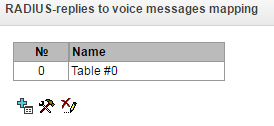
To create, edit or remove tables, use 'Objects’ — 'Add object', 'Objects’ — 'Edit object' and 'Objects' — 'Remove object' menus and the following buttons:
– 'Add table'
– 'Edit table'
– 'Remove table'
RADIUS → RADIUS-replies to voice messages mapping
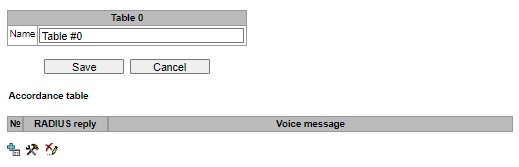
RADIUS → RADIUS-replies to voice messages mapping →
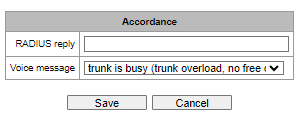
RADIUS reply – replay-Message or h-323-return-code field value of the Reject message received from the RADIUS server;
Voice message – select a voice message that will be output to the subscriber.
Each packet description includes descriptions of every Attribute-Value pair for this packet type. Attributes may be either standard attributes or vendor specific attributes (Vendor-Specific Attribute). If the attribute value is unknown for any reason (e.g. if the outgoing trunk is missing, it is impossible to identify CdPN_OUT variable value that is used as a value for some attributes), then this attribute is not included into the message.
For standard attributes, description will be as follows:
Attribute name (Attribute number): Attribute value |
For vendor attributes:
Attribute name (Attribute number): Vendor name (Vendor number): VSA name (VSA number): VSA value |
where:
Attribute name — always Vendor-Specific;
Attribute number — always 26;
Vendor name — name of the vendor;
Vendor number — vendor number assigned by IANA organization in the “PRIVATE ENTERPRISE NUMBERS” (http://www.iana.org/assignments/enterprise-numbers);
VSA name — vendor attribute name;
VSA number — vendor attribute number;
VS A value — vendor attribute value.
You may use <$NAME> structure as an attribute value, where NAME is a name of the variable. For description of variable values, see Variable description. |
Аccess-Request packet
User-Name(1): <$USER_NAME>
User-Password(2): based on password "eltex" (w/o quotation marks)
NAS-IP-Address(4): <$SMG_IP>
Called-Station-Id(30): <$CdPN_IN>
Calling-Station-Id(31): <$CgPN_IN>
Acct-Session-Id(44): <$SESSION_ID>
NAS-Port(5): <$NAS_PORT>
NAS-Port-Type(61): Virtual(5)
Service-Type(6): Call-Check(10)
Framed-IP-Address: <$USER_IP>
Стартовый пакет Accounting-Request
Acct-Status-Type(40) – Start(1)
User-Name(1): <$USER_NAME>
Called-Station-Id(30): <$CdPN>
Calling-Station-Id(31): <$CgPN_IN>
Acct-Delay-Time(41): acc. to RFC2866
Event-Timestamp(55): acc. to RFC2869
NAS-IP-Address(4): <$SMG_IP>
Acct-Session-Id(44): <$SESSION_ID>
Framed-IP-Address: <$USER_IP>
Vendor-Specific(26): Cisco(9): Cisco-AVPair(1): xpgk-src-number-in=<$CgPN_IN>
Vendor-Specific(26): Cisco(9): Cisco-AVPair(1): xpgk-src-number-out=<$CgPN_OUT>
Vendor-Specific(26): Cisco(9): Cisco-AVPair(1): xpgk-dst-number-in=<$CdPN_IN>
Vendor-Specific(26): Cisco(9): Cisco-AVPair(1): xpgk-dst-number-out=<$CdPN_OUT>
Vendor-Specific(26): Cisco(9): Cisco-AVPair(1): xpgk-route-retries=<$ROUTE_RETRIES>
Vendor-Specific(26): Cisco(9): Cisco-AVPair(1): h323-remote-id=<$DST_ID>
Vendor-Specific(26): Cisco(9): Cisco-AVPair(1): h323-call-id=<$CALL_ID>
Vendor-Specific(26): Cisco(9): h323-remote-address(23): h323-remote-address=<$DST_IP>
Vendor-Specific(26): Cisco(9): h323-conf-id(24): h323-conf-id=<$CALL_ID>
Vendor-Specific(26): Cisco(9): h323-setup-time(25): h323-setup-time=<$TIME_SETUP>
Vendor-Specific(26): Cisco(9): h323-call-origin(26): h323-call-origin=originate
Vendor-Specific(26): Cisco(9): h323-call-type(27): h323-call-type=<$CALL_TYPE>
Vendor-Specific(26): Cisco(9): h323-connect-time(28): h323-connect-time=<$TIME_CONNECT>
Vendor-Specific(26): Cisco(9): h323-gw-id(33): h323-gw-id=<$SMG_IP>
Vendor-Specific(26): Eltex Enterprise, Ltd.(35265): Incoming-SIP-call-id(2): <$inc_SIP_call_ID>
Vendor-Specific(26): Eltex Enterprise, Ltd.(35265): Outgoing-SIP-call-id(3): <$out_SIP_call_ID>
Vendor-Specific(26): Eltex Enterprise, Ltd.(35265): Incoming-RTP-local-address(4): <$inc_RTP_loc_IP>
Vendor-Specific(26): Eltex Enterprise, Ltd.(35265): Incoming-RTP-remote-address(5): <$inc_RTP_rem_IP>
Vendor-Specific(26): Eltex Enterprise, Ltd.(35265): Outgoing-RTP-local-address(6): <$out_RTP_loc_IP>
Vendor-Specific(26): Eltex Enterprise, Ltd.(35265): Outgoing-RTP-remote-address(7): <$out_RTP_rem_IP>
Vendor-Specific(26): Eltex Enterprise, Ltd.(35265): call-record-file=<$call_record_file_name>
Accounting-Request stop packet
Acct-Status-Type(40) – Stop(2)
User-Name(1): <$USER_NAME>
Called-Station-Id(30): <$CdPN>
Calling-Station-Id(31): <$CgPN_IN>
Acct-Delay-Time(41): acc. to RFC2866
Event-Timestamp(55): acc. to RFC2869
NAS-IP-Address(4): <$SMG_IP>
Acct-Session-Id(44): <$SESSION_ID>
Acct-Session-Time(46): <$SESSION_TIME>
Framed-IP-Address: <$USER_IP>
Vendor-Specific(26): Cisco(9): Cisco-AVPair(1): xpgk-src-number-in=<$CgPN_IN>
Vendor-Specific(26): Cisco(9): Cisco-AVPair(1): xpgk-src-number-out=<$CgPN_OUT>
Vendor-Specific(26): Cisco(9): Cisco-AVPair(1): xpgk-dst-number-in=<$CdPN_IN>
Vendor-Specific(26): Cisco(9): Cisco-AVPair(1): xpgk-dst-number-out=<$CdPN_OUT>
Vendor-Specific(26): Cisco(9): Cisco-AVPair(1): xpgk-route-retries=<$ROUTE_RETRIES>
Vendor-Specific(26): Cisco(9): Cisco-AVPair(1): h323-remote-id=<$DST_ID
Vendor-Specific(26): Cisco(9): Cisco-AVPair(1): h323-call-id=<$CALL_ID>
Vendor-Specific(26): Cisco(9): Cisco-AVPair(30): h323-disconnect-cause=<$DISCONNECT_CAUSE>
Vendor-Specific(26): Cisco(9): Cisco-AVPair(1): xpgk-local-disconnect-cause=<$LOCAL_DISCONNECT_CAUSE>
Vendor-Specific(26): Cisco(9): h323-remote-address(23): h323-remote-address=<$DST_IP
Vendor-Specific(26): Cisco(9): h323-conf-id(24): h323-conf-id=<$CALL_ID>
Vendor-Specific(26): Cisco(9): h323-setup-time(25): h323-setup-time=<$TIME_SETUP>
Vendor-Specific(26): Cisco(9): h323-call-origin(26): h323-call-origin=originate
Vendor-Specific(26): Cisco(9): h323-call-type(27): h323-call-type=<$CALL_TYPE>
Vendor-Specific(26): Cisco(9): h323-connect-time(28): h323-connect-time=<$TIME_CONNECT
Vendor-Specific(26): Cisco(9): h323-disconnect-time(29): h323-disconnect-time=<$TIME_DISCONNECT>
Vendor-Specific(26): Cisco(9): h323-gw-id(33): h323-gw-id=<$SMG_IP>
Vendor-Specific(26): Eltex Enterprise, Ltd.(35265): Incoming-SIP-call-id(2): <$inc_SIP_call_ID>
Vendor-Specific(26): Eltex Enterprise, Ltd.(35265): Outgoing-SIP-call-id(3): <$out_SIP_call_ID>
Vendor-Specific(26): Eltex Enterprise, Ltd.(35265): Incoming-RTP-local-address(4): <$inc_RTP_loc_IP>
Vendor-Specific(26): Eltex Enterprise, Ltd.(35265): Incoming-RTP-remote-address(5): <$inc_RTP_rem_IP>
Vendor-Specific(26): Eltex Enterprise, Ltd.(35265): Outgoing-RTP-local-address(6): <$out_RTP_loc_IP>
Vendor-Specific(26): Eltex Enterprise, Ltd.(35265): Outgoing-RTP-remote-address(7): <$out_RTP_rem_IP>
Vendor-Specific(26): Eltex Enterprise, Ltd.(35265): call-record-file=<$call_record_file_name>
Access-Accept packet
After the Access-Accept packet is received from the RADIUS server, the call is considered as authorized. Next, the search for an outgoing trunk will be performed and if successful, an attempt to establish the connection will be made.
If Session-Time (27) attribute or Cisco VSA (9) h323-credit-time (102) attribute has been transferred in a packet, and the corresponding setting was specified in the RADIUS profile, attribute value will be used for the maximum call duration limitation. When this timeout expires, the connection will be terminated by SMG.
Table 29 — Variable description
Variable | Description and possible values |
|---|---|
$CALL_TYPE | Defined on the basis of the transmission medium that the outgoing trunk belongs to: "Telephony", if the outgoing trunk is PSTN (TDM); "VoIP", if the outgoing trunk is VoIP |
$CdPN | Determined from SMG settings $CdPN = $CdPN_IN [by default]; $CdPN = $CdPN_OUT |
$CdPN_IN | Callee number before modification (received in SETUP/INVITE) |
$CdPN_OUT | Callee number after modification (sent to the called party in SETUP/INVITE) |
$CgPN_IN | Caller number before modification (received in SETUP/INVITE) |
$CgPN_OUT | Caller number after modification (sent to the called party in SETUP/INVITE) |
$DISCONNECT_CAUSE | Q.850 reason for call clearing |
$DST_ID | Outgoing trunk name for this call |
$DST_IP (string) | IP address of the terminating device when if the outgoing trunk is VoIP, e.g.: 192.168.0.1 |
$USER_IP | IP address of the device intiated the call if the ingress trunk is VoIP or SIP subscriber |
$LOCAL_DISCONNECT_CAUSE | локальная причина завершения вызова; значения: 1 – connection to the callee has been established (User-Answer) 2 – wrong or incomplete number format (Incomplete-Number) 3 – number does not exist (Unassigned-Number) 4 – unsuccessful connection attempt, unknown reason (Unsuccessful-Other-Cause) 5 – callee is busy (User-Busy) 6 – equipment fault (Out-of-Order) 7 – no response from the callee (No-Answer) 8 – outgoing trunk is unavailable (Unavailable-Trunk) 9 – RADIUS server authorization denied (Access-Denied) 10 – no free channels for connection establishment (Unavailable-Voice-Channel) 11 – RADIUS server is unavailable (RADIUS-Server-Unavailable) |
$NAS_PORT | (xport.type<<24) + (xport.slot<<16) + (xport.stream<<8) + (xport.cell) |
$ROUTE_RETRIES | Current number of the attempt, count begins with 1 (for the first attempt, respectively) |
$SESSION_ID | Session identifier |
$SESSION_TIME | Call duration |
$SMG_IP | SMG IP address |
$SRC_ID | Incoming trunk name for this call |
$TIME_SETUP | Arrival time of the SETUP/INVITE message in hh:mm:ss.uuu t www MMM dd yyyy |
$TIME_CONNECT | Reception time of the CONNECT/200 OK message issued by the called party in hh:mm:ss.uuu t www MMM dd yyyy |
$TIME_DISCONNECT | Reception time of DISCONNECT/BYE issued by one of the parties in hh:mm:ss.uuu t www MMM dd yyyy format; if the call is unsuccessful, time of the message is specified upon reception of which SMG begins call termination procedure (CANCEL, other) |
$USER_NAME | Determined from incoming trunk settings: <$CgPN_IN>; source IP address or E1 stream number [by default] incoming trunk name |
<$inc_SIP_call_ID> | SIP message Call-ID field value for the incoming connection branch. |
<$out_SIP_call_ID> | SIP message Call-ID field value for the outgoing connection branch. |
<$inc_RTP_loc_IP> | Local IP address of the device for the incoming connection branch RTP session establishment. |
<$inc_RTP_rem_IP> | Remote IP address of the communicating device for the incoming connection branch RTP session establishment. |
<$out_RTP_loc_IP> | Local IP address of the device for the outgoing connection branch RTP session establishment. |
<$out_RTP_rem_IP> | Remote IP address of the communicating device for the outgoing connection branch RTP session establishment. |
<$call_record_file_name> | Conversation record file name. Example: call_records/2016-12-13-0000/2016-12-13_12-41-45_20000-10000.wav |
Функционал доступен только при наличии лицензии SMG-AUTH-CALL, подробнее о лицензиях в разделе Licenses. |
The function is used to initiate a call via RADIUS Change-of-Authorization (CoA) request (described in RFC 5176 standard). Used for authorization services for connecting to public networks callback access. The user connects to the network and gets to the web portal, where an access password is requested and you are prompted to enter a password for authorization. After entering the number, the user receives a call on his phone. The caller's number displayed to the user or part of it serves as a password for access to a public access network, which should be entered on the web portal.
To initiate a call, the web portal must send a CoA-Request RADIUS packet to the SMG via the RADIUS protocol, containing the Called-Station-Id attribute with the user's phone number. Example of a CoA-Request:
RADIUS Protocol
    Code: CoA-Request (43)
    Packet identifier: 0xa0 (160)
    Length: 33
    Authenticator: ac02dd52e3435a2fa46ed7cd2f7f177d
    Attribute Value Pairs
        AVP: l=13 t=Called-Station-Id(30): 70123456789
            Type: 30
            Length: 13
Called-Station-Id: 70123456789 |
In case the number can be called, SMG selects the calling number from the specified pool numbers and sends it in the CoA-ACK response in the Calling-Station-Id attribute. After this, SMG initiates a call from the selected number to the user number. Regardless of the results of the call (reset call, user answer or call end due to no answer timeout), SMG sends information about the call in RADIUS Accounting requests. When the user answers, the call will be immediately reset. Example of CoA-ACK response:
RADIUS Protocol
    Code: CoA-ACK (44)
    Packet identifier: 0xa0 (160)
    Length: 33
    Authenticator: 60363e5d4f742df10316cc05b81a42f6
    Attribute Value Pairs
        AVP: l=13 t=Calling-Station-Id(31): 73830019698
            Type: 31
            Length: 13
Calling-Station-Id: 73830019698 |
In case the number specified by the user cannot be called, SMG will respond with a CoA-NAK message without any attributes and will not initiate a call.
If the CoA-Request came from a RADIUS server that is not linked to the selected RADIUS profile or to a network interface that does not correspond to the selected server, SMG will ignore such request.
The call is made from a virtual number. Call routing is carried out on a general basis through a numbering plan linked to a virtual number.
Authorization calls
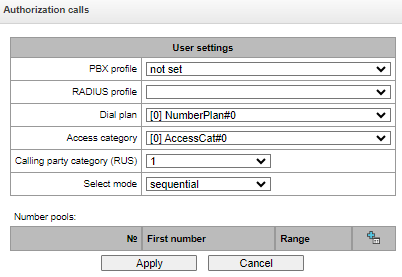
Virtual number parameters:
PBX profile – PBX-profile binding;
RADIUS profile – RADIUS profile that will be used to send Accounting requests. RADIUS CoA requests can be accepted from servers associated with this profile;
Dial plan – binding a numbering plan for call routing;
Access category – select an access category;
Calling party category – select the Caller ID category;
Select mode – method of selecting numbers from those specified in the pool of numbers:
random – numbers will be selected in random order;
sequential – numbers will be selected in order.
Number pools – pools of numbers from which calls will be made. To organize a pool, you should specify the starting number and range of numbers in the pool. A total of 64 can be set
The functionality is available only with a license, more details in the Licenses. При использовании функционала "Антифрод" остается возможность назначать обычные профили RADIUS для биллинга, т. к. настройки "Антифрод" и классического RADIUS независимы друг от друга. |
The SMG-1016M, SMG2016 and SMG3016 gateways implement functions for connecting to the verfifiation node IS "Antifraud" using the RADIUS protocol. A schematic representation of a RADIUS connection is shown in the picture below. The verification task includes processing two events: registration in the system of outgoing calls and checking the validity of incoming calls.
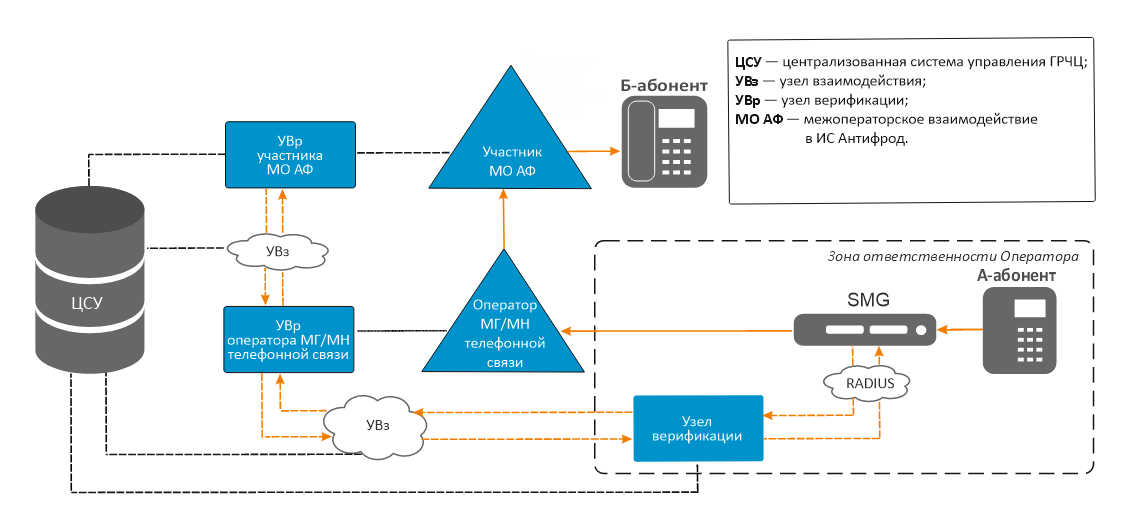
As a part of the RADIUS connection, it is necessary to perform the following steps in order to generate information about incoming and outgoing calls and to further transmit corresponding requests to the RADIUS server of the IS Anti-fraud verification node.
Go to the ‘RADIUS’ — ‘Servers’ in the ‘Anti-fraud servers’.
RADIUS → Servers → Antifraud
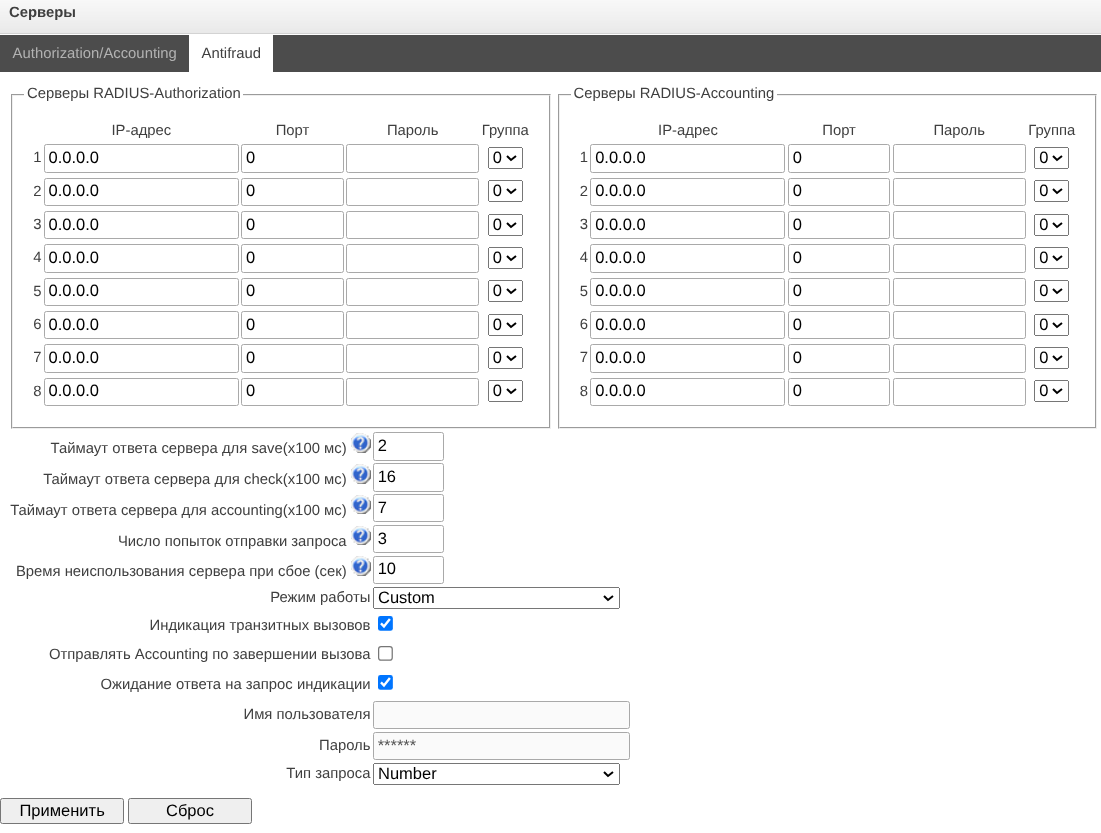
В блоке «Серверы RADIUS-Authorization» укажите IP-адрес, порт, пароль и группу сервера, на который будут отправляться запросы верификации. При необходимости аналогичным образом введите соответствующие параметры для резервных серверов.
В блоке «Серверы RADIUS-Accounting» укажите IP-адрес, порт, пароль и группу сервера, на который будут отправляться Accounting-запросы. При необходимости введите аналогичным образом соответствующие параметры для резервных серверов.
Устройство поддерживает до 8 серверов авторизации (Authorization) и до 8 серверов тарификации (Accounting). Серверы можно объединять в группы и далее при настройке профилей RADIUS выбирать, какая группа серверов будет использоваться для отправки запросов. Доступно четыре группы. |
Настройте параметры:
Таймаут ответа сервера для save – время, в течение которого ожидается ответ сервера на запросы индикации вызова (save_call);
Таймаут ответа сервера для check – время, в течение которого ожидается ответ сервера на запросы верификации вызова (check_call);
Таймаут ответа сервера для accounting – время, в течение которого ожидается ответ сервера на запросы аккаунтинга;
Число попыток отправки запроса – количество повторов запроса к серверу. При безуспешном использовании всех попыток сервер считается неактивным, и запрос перенаправляется на другой сервер, если он указан, иначе – детектируется ошибка;
Время неиспользования сервера при сбое – время, в течение которого сервер считается неактивным (запросы на него не отправляются). В случае если сервер в списке только один, можно отключить временную блокировку при его недоступности, указав значение 0 в этом поле.
Select the required operating mode if the installed license involves working in several modes:
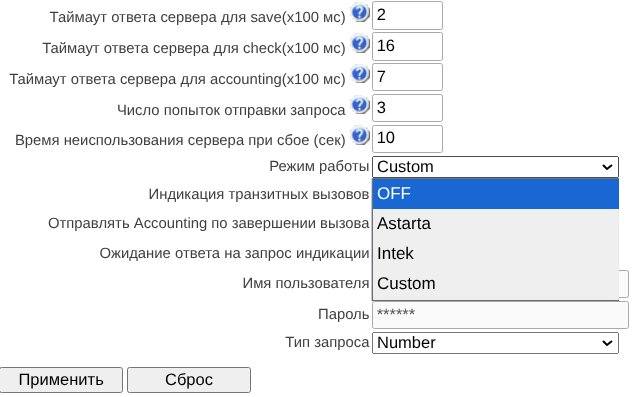
OFF – interaction with the control unit is disabled;
Astarta – interaction with the iBase-Antifraud verification node produced by Astarta LLC. In this mode, the username and password will be added to the attributes of requests to the verification node, entered in the fields below (for Access-Request User-Name and Password, only User-Name for Accounting-Request:
Intek – interaction with the verification node, produced by Hexagon Labs LLC;
Custom – interaction with verification nodes from other manufacturers. When using this mode, the contents of requests to the Anti-fraud verification nodes are configured with the following parameters, located in the Authorization section of the RADIUS profile: User-name (originate), User-name (answer), Redirecting Number, User-password, option ‘Individual passwords for SIP-subscribers, NAS-Port-Type, Service-Type, Framed-protocol’, as well as the parameter ‘Full CISCO-VSA fields’ in the VSA Settings section;
При необходимости отправки Access-Request запросов к УВр в транзитных вызовах активируйте опцию «Индикация транзитных вызовов».
Опция всегда включена по умолчанию для режима Astarta. |
При необходимости отправки исторических данных (длительность вызова, причины отбоя и т. п.) на УВр (сервер из п. 3) активируйте опцию «Отправлять Accounting по завершении вызова».
Changing the Authorization and Accounting parameters is not available in Astarta and Intek modes. |
Для организации надёжной доставки запросов индикации следует активировать опцию «Ожидание ответа на запрос индикации». В таком случае вызов будет продолжен только после ответа сервера УВр.
Опция всегда включена по умолчанию для режима Intek. |
Создайте профиль в разделе «RADIUS» – «Список профилей», укажите группу, активируйте опцию «Включить режим антифрод» и при необходимости настройте параметры модификации. Для режима Custom необходимо настроить поля, перечисленные в п. 5.

В случае, если существует необходимость верифицировать транзитные вызовы, нужно активировать соответствующую опцию «Верифицировать транзитные вызовы». Для режима Intek опция всегда отключена и неактивна.
Для передачи исчерпывающей информации о переадресованном вызове в режиме Custom следует выбрать в параметрах RADIUS-авторизации значение для Redirecting Number – «передавать в h323-redirect-number» и включить опцию «Отправлять Original Number». |
In the parameters of the trunk group for which verification for incoming calls will take place in the Antifraud IS, in the ‘Basic settings’ tab, select the RADIUS profile for Antifraud created in the previous step:
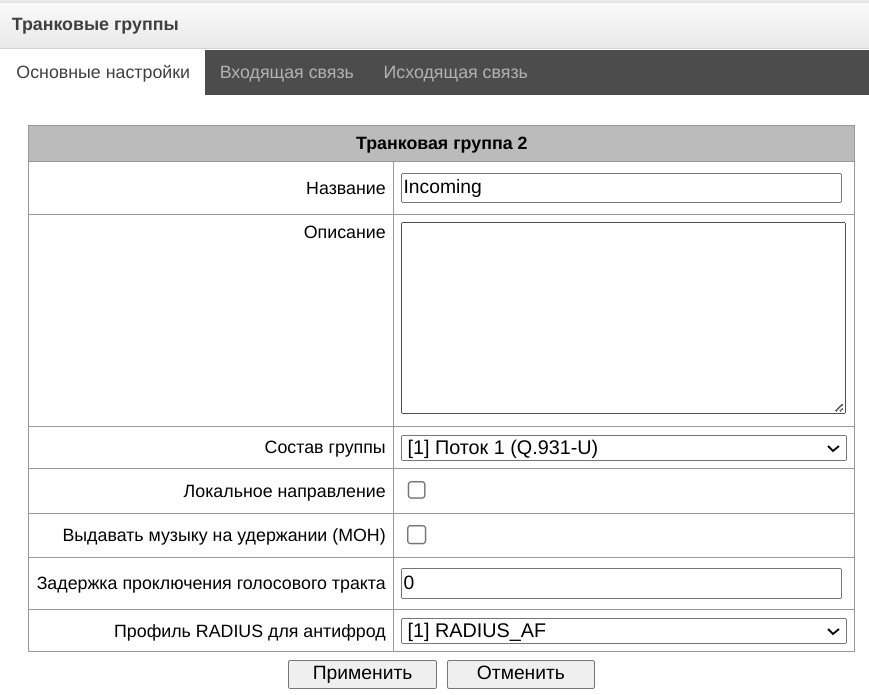
In the parameters of the SIP profile for which registration will occur in the Antifraud IS of outgoing calls, in the ‘SIP Interface Settings’ tab, select the appropriate RADIUS-profile in the ‘RADIUS profile for antifraud’ field:
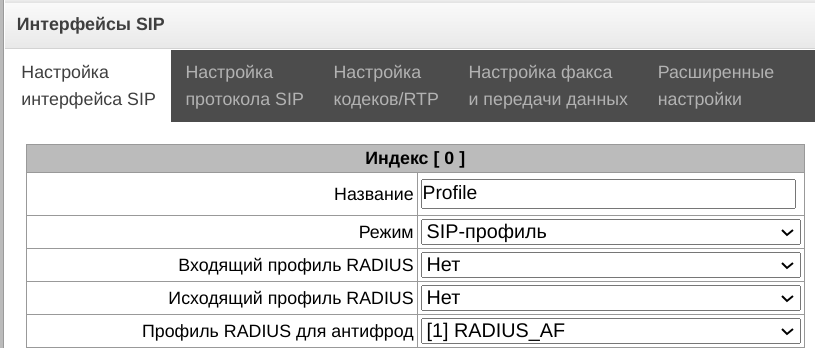
For outgoing calls, if both on the first and second call legs Anti-fraud RADIUS is selected (for SIP profile and trunk group, respectively), then corresponding settings of the second leg are used. Also, if there are no settings on the first leg, the settings of the second leg are used. |
Transmission of information about an outgoing call is carried out by sending from the communication center an Access-Request RADIUS message with the following fields:
Аccess-Request packet
User-Name(1): user name, specifed in step 2 (for Astarta mode only) User-Password(2): password, specifed in step 2 (for Astarta mode only) Called-Station-Id(30): <$CdPN_IN> Calling-Station-Id(31): <$CgPN_IN> Acct-Session-Id(44): <$SESSION_ID> Vendor-Specific(26): Cisco(9): Cisco-AVPair(1): xpgk-request-type=save_call Vendor-Specific(26): Cisco(9): Cisco-AVPair(1): xpgk-termination-gateway-ip=$SMG_IP |
Call verification is ensured by sending from the communication node an Access-Request RADIUS message with the following fields:
Аccess-Request packet
User-Name(1): user name, specifed in step 2 (for Astarta mode only) User-Password(2): password, specifed in step 2 (for Astarta mode only) Called-Station-Id(30): <$CdPN_IN> Calling-Station-Id(31): <$CgPN_IN> Acct-Session-Id(44): <$SESSION_ID> Vendor-Specific(26): Cisco(9): Cisco-AVPair(1): xpgk-request-type=check_call Vendor-Specific(26): Cisco(9): Cisco-AVPair(1): xpgk-termination-gateway-ip=$SMG_IP |
Ensuring control of call duration and reasons for disconnecting unsuccessful calls carried out by sending from the communication node an Accounting-Request RADIUS message with the following fields:
Accounting-Request packet
User-Name(1): user name, specifed in step 2 (for Astarta mode only) Called-Station-Id(30): <$CdPN> Calling-Station-Id(31): <$CgPN_IN> Acct-Delay-Time(41): согласно RFC2866 Event-Timestamp(55): согласно RFC2869 Acct-Session-Id(44): <$SESSION_ID> Acct-Session-Time(46): <$SESSION_TIME> Vendor-Specific(26): Cisco(9): Cisco-AVPair(30): h323-disconnect-cause=<$DISCONNECT_CAUSE> Vendor-Specific(26): Cisco(9): h323-setup-time(25): h323-setup-time=<$TIME_SETUP> Vendor-Specific(26): Cisco(9): h323-connect-time(28): h323-connect-time=<$TIME_CONNECT Vendor-Specific(26): Cisco(9): h323-disconnect-time(29): h323-disconnect-time=<$TIME_DISCONNECT> |
As confirmation for receipt of transmitted information about an outgoing call, as well as packets account, a RADIUS Access-Accept message is expected. Regardless of the response and in case of its absence, the call will be completed, since the response to the call registration request is informational and does not not affect the progress of the call.
An Access-Accept RADIUS message is expected as confirmation of successful call verification, optionally with additional fields. When an Access-Accept response is received, the call will be continued. If call verification fails, a RADIUS Access-Reject message is expected with additional fields that uniquely identify the error. When receiving Access-Reject the call will be disconnected.
В качестве подтверждения получения переданного пакета аккаунтинга ожидается RADIUS-сообщение Accounting-Response. При отсутствии ответа сервер будет помечен как недоступный.
В меню производится настройка параметров для анализа сетевого трафика и протоколов TDM сети.
Traces → PCAP traces
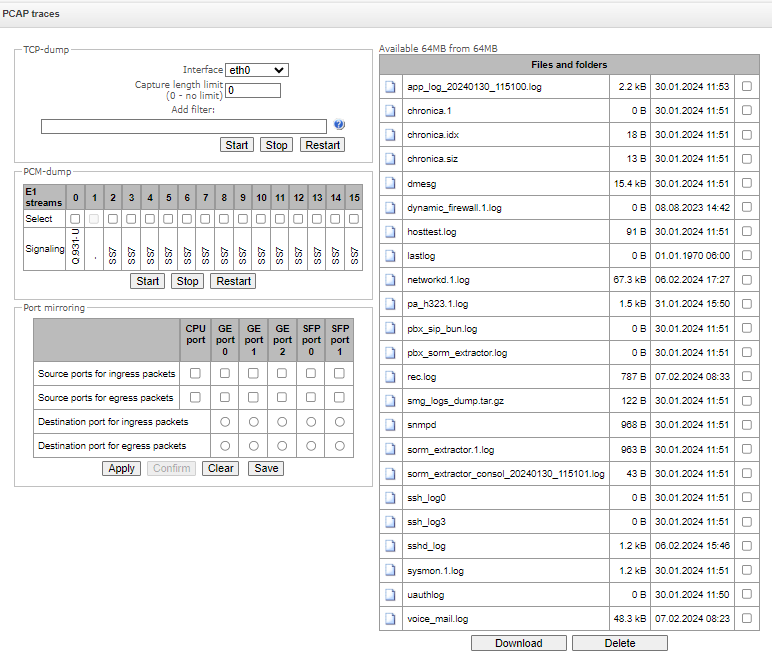
TCPdump are the settings of the TCP-dump utility:
TCPdump is a utility designed to pick up and analyze network traffic.
Traces → PCAP traces
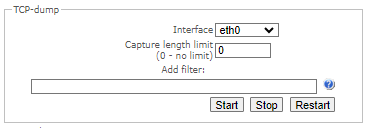
Interface– an interface for network traffic pickup;
Capture length limit (0 – no limit) – size limit for picked-up packets, bytes (0 — no restrictions);
Add filter– packet filter for the tcpdump
Structure of Filter Expressions
Every expression defining a filter includes a single or multiple primitives, which contain a single or multiple object identifiers and preceding qualifiers. An object identifier may be represented by its name or number.
Object Qualifiers:
type – indicates the object type specified by the identifier. An object type may have the following values:
host;
net;
port.
If an object type is not defined, the host value is assumed.
dir – defines the direction towards the object. This may have the following values:
src (object is a source);
dst (object is a destination);
src or dst (source or destination);
src and dst (source and destination).
If the dir qualifier is not defined, the src or dst value is assumed.
To pick up traffic from the any artificial interface, the inbound and outbound qualifiers can be used.
proto – defines the protocol to which the packets should belong. This qualifier may have the following values:
ether, fddi1, tr2, wlan3, ip, ip6, arp, rarp, decnet, tcp and udp.
If a primitive does not contain a protocol qualifier, it is assumed that all protocols compatible with the object type comply with this filter.
In addition to objects and qualifiers, primitives may contain arithmetic expressions and keywords:
gateway;
broadcast;
less;
greater.
Complex filters may contain a set of primitives connected with logical operators and, or, and not. To reduce the expressions which define filters, lists of identical qualifiers may be omitted.
Filter Examples:
dst foo – filters the packets which IPv4/v6 recipient address field contains address of the foo host;
src net 128.3.0.0/16 – filters all Ipv4/v6 packets sent from the specified network;
ether broadcast – ensures filtering of all Ethernet broadcasting frames. The ether keyword may be omitted;
ip6 multicast – filters packets with IPv6 group addresses.
For detailed information on packet filtering, see specialized resources.
The SMG-1016M equipment has a feature for removing PCAP traces (TCP dump). If you remove traffic from a specific interface (for example, eth0.129), then the resulting dump will not contain outgoing RTP stream. To capture both streams (incoming and outgoing), removing should be done on ANY interface for SMG-1016M and bond1 interface for SMG-2016/3016.
PCM-dump – settings of the PCM-dump utility:
РСМ-dump is a utility that allows one to pick up and analyze signaling traffic on E1 streams. The device has the ability to remove PCM dump from one stream or from several ones. When removing a PCM dump from several streams at the same time, the trace is written to one file, in which signaling messages from several streams are recorded, while simultaneously removing PCM-dump from streams with different signaling protocols is not possible.
Tracing → PCAP traces
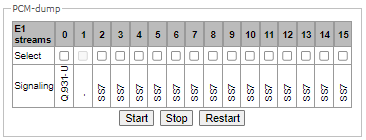
Select – select E1 stream;
Signaling – signaling protocol, selected on the stream:
SS7;
Q.931-N;
Q.931-U;
Start – start data collection;
Stop – finish data collection;
Restart – restart the utility and start collecting data again.
Port mirroring – traffic mirroring settings:
Only for SMG-1016M. |
Port mirroring allows one to copy from the gateway switch ports received and transmitted frames and route them to another port.
Traces → PCAP traces
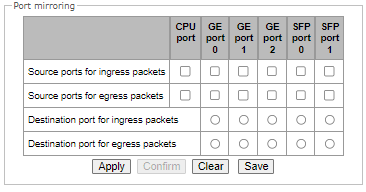
The following actions are possible for device ports:
Source ports of ingress packets – copy frames received from this port (port-source);
Source ports of egress packets – copy frames transmitted by this port (port-source);
Destination port for ingress packets – destination port for copied frames received by selected source ports;
Destination port for egress packets – destination port for copied frames, transmitted by selected source ports.
Buttons:
Apply – apply mirroring settings;
Confirm – confirm the applied mirroring settings;
Clear – reset mirroring settings;
Save – save mirroring settings.
If within one minute the settings are not confirmed by pressing the ‘Confirm’ button, then they return to the previous values. |
Tracing Directory Files and Folders block contains a list of tracing files.
To download it to a local PC, check the checkboxes located next to the required filenames and click the ‘Download’ button. To delete the specified files from the directory, click ‘Delete’.
'Basic traces' tab
Using IP PBX tracing causes delays in device operation. This debugging type is recommended to be used only if problems arise in the operation of the gateway to identify their causes. |
Traces → PBX traces
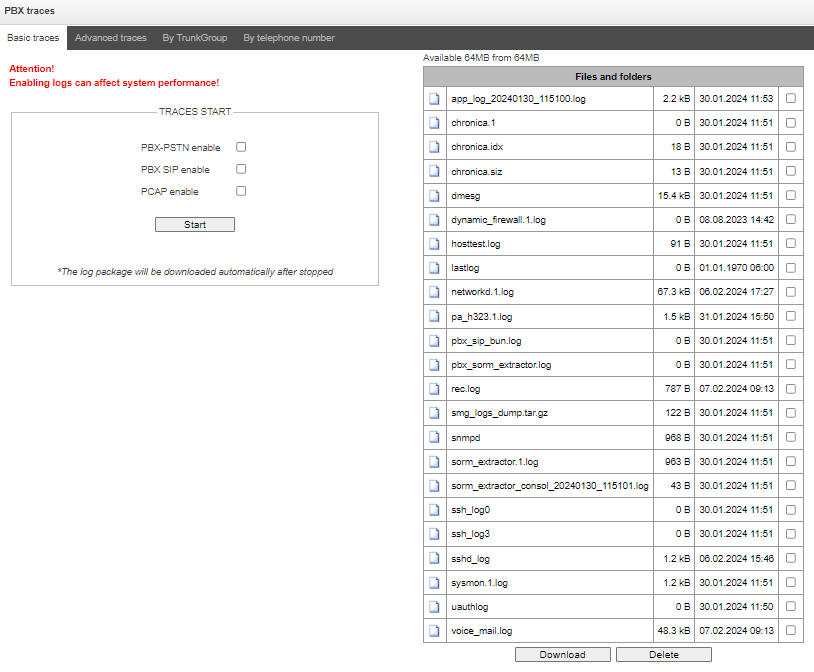
The following options allow to quickly identify the causes of incorrect operation of the gateway.
PBX-PSTN enable – allows one to run a log of the operation and interaction of the device nodes, as well as message exchange via various protocols. Запуск трассировок PBX-PSTN автоматически запускает трассировки PBX SIP и следующий уровень трассировок PBX PSTN:
alarms 1
calls 99
SIP 99
SS7-ISUP 99
Q.931 99
RTP connections 99
SM-VP commands 99
RADIUS 1
IVR 1
PCAP enable – allows to run TCP-dump for the main network interface.
To start the data collection, it is necessary to enable the required options and click the ‘Start’ button. To stop the data collection, use the ‘Stop’ button. After stopping data collection, an archive with all taken traces will be automatically generated and downloaded. If two types of logs were launched, then the following files will be in the archive after the tracing is completed:
messages
app_log_*
gzcore_*
pbx_sip*
pbx_pstn*
*.pcap*
/etc/config/cfg*
/tmp/disk/service.yaml
/var/run/service.yaml
'Advanced traces' tab
Here, one can run a log on certain protocols and subsystems of the device.
Run at startup – allows to start taking traces immediately after restarting the gateway (Automatically enable logging after restarting the gateway).
В блоке PBX PSTN снимается лог работы и взаимодействия узлов устройства, а также обмен сообщениями по различным протоколам. В параметрах PBX PSTN можно выбрать события и протоколы, по которым необходимо снять лог.
To start the data collection, select the required protocols and subsystems and click the Start button. The enabled option corresponds to the log level 99.
To stop the data collection, click ‘Stop’ button.
Also, when data collecting, one can change settings and restart data selection by clicking the ‘Restart’ button.
The PBX SIP block registers SIP errors and messages tracing:
В блоке PBX RDN снимается трассировка сообщений и ошибок модуля преобразования доменных имен:
Запустить – начать сбор данных;
Завершить – закончить сбор данных;
Перезапустить – перезапуск трассировки, начать сбор данных заново.
The PBX H323 block is used to register H.323 errors and messages tracing:
After stopping data collection, buttons will appear allowing one to download trace files to a local computer. |
In the ‘Tracing Directory Files and Folders’ block, one can download a set of recorded tracing files.
To download it to a local PC, check the checkboxes located next to the required file names and click the ’Download’ button. To delete the specified files from the directory, click ‘Delete’.
'By trunk group' tab
Traces → PBX traces → By TrunkGroup
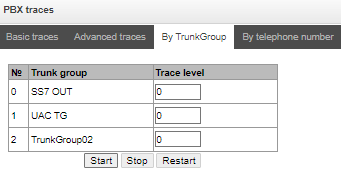
Use the menu to start PBX_PSTN log collecting on selected trunk group. Tracing levels work similar to PBX_PSTN tracing levels (see ‘Basic traces’ tab) and differ only by the fact that all protocols have the same specified logging level.
To start the data collection, it is necessary to set non-zero tracing level for required trunk groups, and then click the ‘Start’ button.
To stop the data collection, click ‘Stop’ button.
Also, when tracing, one can change the settings and restart data collecting by clicking ‘Restart’ button.
'By telephone number' tab
Traces → PBX traces → By telephone number
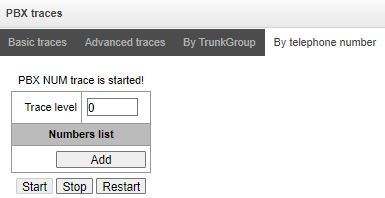
Use the menu to start PBX_PSTN log collecting on selected phone number. Collection is performed by CdPN as well as CgPN. Tracing levels work similar to PBX PSTN tracing levels (see ‘Basic settings’ tab) and differ only by the fact that all protocols have the same specified logging level.
To start data collecting, add phone number in the phone number list, set tracing level, and then click ‘Start’ button.
To stop data collecting, click ‘Stop’ button. Also, when tracing, you can change the settings and restart data collecting by clicking ‘Restart’ button.
In 'SYSLOG' menu, you may configure system log settings.
SYSLOG is a protocol, designed for transmission of messages on current system events. Gateway software generates system data logs on operation of system applications and signaling protocols, as well as occurred failures and sends them to SYSLOG server.
High debug levels may cause delays in operation of the device. IT IS NOT RECOMMENDED to use system log unnecessarily. |
System log should be used only when problems in gateway operation occur, and you have to identify the reason. To define the necessary debug levels, consult an Eltex Service Centre specialists. |
Tracings – allows to save the log of device components operation and interaction, as well as message exchange via various protocols.
In tracing parameters, you may configure tracing level for various events and protocols. Possible levels are as follows: 0 — disabled, 1–99 — enabled. 1 — minimum debug level, 99 — maximum debug level.
Traces → SYSLOG
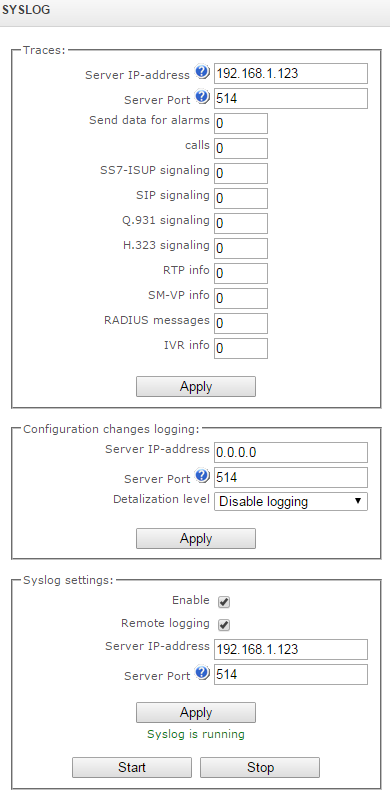
Server IP address — server address that the tracing will be sent to;
Server port — server port that the tracing will be sent to.
Configuration changes logging — allows to save the history of the gateway setting changes.
Server IP-address — server address that the entered commands log will be sent to;
Server port — server port that the entered commands log will be sent to;
Detalization level — verbosity level of the entered commands log:
Disable logging — disable entered commands logs generation;
Standard — messages contain the name of modified parameter;
Extended — messages contain the name of modified parameter as well as parameter values before and after the modification.
Syslog settings — system log configuration settings for transmission of the device access events.
Enable — when checked, device access event history will be saved; when unchecked, logging will be disabled;
Remote logging — when checked, system log will be saved on server located at the specified address;
Server IP-address — address of a server for system log storage;
Server port — server port that the system log will be sent to.
Only for SMG-1016M. |
In 'Network switch' menu, you may configure switch ports.
In this section, you may configure LACP groups.
Link Aggregation Control Protocol (LACP) is a protocol, designed for combining multiple physical channels into one logical channel.
Network switch → LACP settings

To create, edit or remove LACP groups, use the following buttons: Add, Edit, Remove, Apply.
Network switch → LACP settings → Object
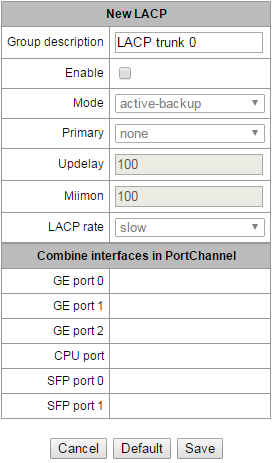
Group description — LACP group name.
Enable — when checked, LACP will be enabled.
Mode — LACP operation mode:
active-backup — one interface operates in active mode, while others in standby mode. If an active interface goes out of service, the control will be transferred to one of the standby interfaces. This function doesn't have to be supported by the switch.
balance-xor — packet transfer is distributed between the aggregated interfaces by the following equation: ((source MAC address) XOR (recipient MAC addresses)) % number of interfaces. A certain interface operates with a specific recipient. This mode allows to balance the load and increase the robustness.
3ad — dynamic port aggregation. This mode enables significant boost of the incoming and outgoing traffic bandwidth through utilization of every single aggregated interface. This function must be supported by the switch, and in some cases it requires an additional switch setting.
Primary – primary interface configuration.
Updelay – interface change time when the primary interface becomes unavailable.
Miimon – MII monitoring time, frequency in milliseconds.
LACP rate – time interval for transmission of LACPDU packets.
fast – 1 second transmission interval;
slow – 30 seconds transmission interval.
Combine interfaces in PortChannel – list of ports added to LACP group.
The switch can operate in four modes:
Without VLAN settings – to use this mode, 'Enable VLAN' checkboxes should be deselected for all ports, 'IEEE Mode' value should be set to 'Fallback' for all ports, mutual availability of data ports should be set to 'Output' with the respective checkboxes. '802.1q' routing table in '802.1q' tab should not contain any records.
Port based VLAN – to use this mode, 'IEEE Mode' value should be set to 'Fallback' for all ports, mutual availability of data ports should be set to 'Output' with the respective checkboxes. For VLAN operation, use 'Enable VLAN', 'Default VLAN ID', 'Egress' and 'Override' settings. '802.1q' routing table in '802.1q' tab should not contain any records.
802.1q – to use this mode, 'IEEE Mode' value should be set to 'Check' or 'Secure' for all ports. For VLAN operation, use 'Enable VLAN', 'Default VLAN ID', and 'Override' settings. Also, routing rules described in '802.1q' routing table in '802.1q' tab will apply.
802.1q + Port based VLAN. 802.1q mode may be used in combination with 'Port based VLAN'. In this case, 'IEEE Mode' value should be set to 'Fallback' for all ports, mutual availability of data ports should be set to 'Output' with the respective checkboxes. For VLAN operation, use 'Enable VLAN', 'Default VLAN ID', 'Egress' and 'Override' settings. Also, routing rules described in '802.1q' routing table in '802.1q' tab will apply.
Network switch → Ports settings
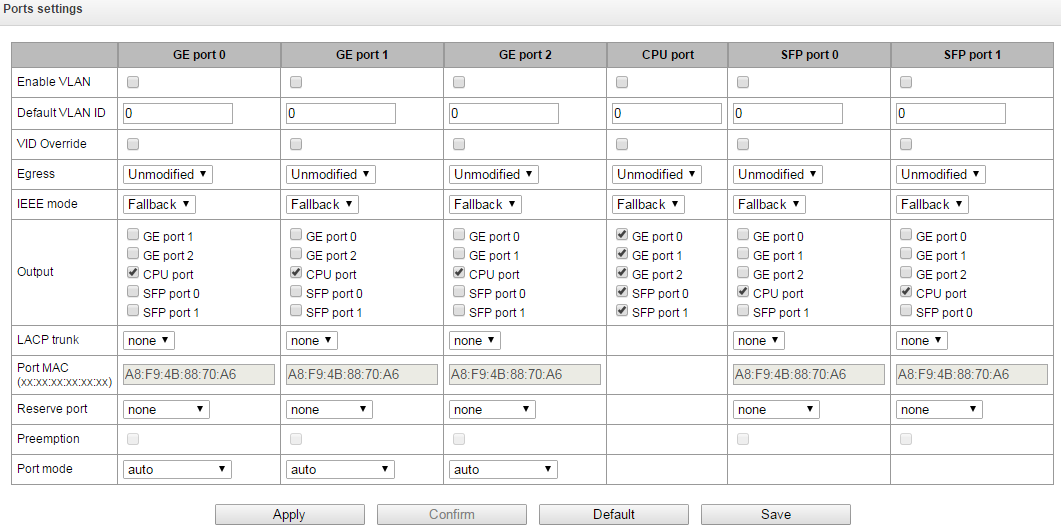
In factory configuration, switch ports may not access each other. |
Device switch is equipped with 3 x (for SMG-1016M) or 4 x (for SMG-2016 and SMG-3016) of electrical Ethernet ports, 2 x optical ports and 1 x port for CPU interactions:
GE port – electrical Ethernet ports of the device.
SFP port – optical Ethernet ports of the device.
CPU – internal port linked to the device CPU.
Switch settings
Enable VLAN – when checked, enable 'Default VLAN ID', 'Override' and 'Egress' settings for this port;
Default VLAN ID – when an untagged packet is received at the port, this will be its VID; when a tagged packet is received at that port, its VID is considered to be specified in its VLAN tag;
VID Override – when checked, it is considered that any received packet has a VID, defined in 'default VLAN ID' row. True for both untagged and tagged packets;
Egress:
unmodified – packets will be sent by the port without any changes (i.e. as they came to another switch port);
untagged – packets will always be sent without VLAN tag by this port;
tagged – packets will always be sent with VLAN tag by this port;
double tag – each packet will be sent with two VLAN tags — if received packet was tagged and sent with one VLAN tag — if the received packet was untagged.
IEEE mode – sets security mode for received tagged frames processing:
fallback – frame is received on ingress port regardless whether it has 802.1q tag in '802.1q' routing table or not:
If there is no 802.1q tag in '802.1q' routing table and the frame is allowed in 'output' section, the frame will be transmitted to the egress port;
Also, the frame will be transmitted to the egress port, if there is 802.1q tag in '802.1q' routing table, the egress port is a member of VLAN included in '802.1q' routing table and the frame is allowed in 'output' section.
check – the frame will be received on ingress port, if its 802.1q tag is kept in '802.1q' routing table (the ingress port is not necessary to be a member of VLAN in '802.1q' routing table):
The frame will be transmitted to an egress port if the egress port is a member of VLAN in '802.1q' routing table and allowed in 'output' section of the ingress port settings.
secure – frame will be received on ingress port, if its 802.1q tag is kept in '802.1q' routing table and the ingress port is a member of VLAN in '802.1q' routing table.
The frame will be transmitted to an egress port if the egress port is a member of VLAN in '802.1q' routing table and allowed in 'output' section of the ingress port settings.
Output – mutual availability of data ports. Defines privileges that allow packets received by this port to be transferred to flagged ports;
LACP trunk – select LACP group to which the defined port will belong;
Port MAC – change a MAC address of the port. The option is available when LACP group is selected on the port. Ports which are in the one LACP group should have different MAC addresses;
Reserve port – select the port that will receive the traffic when abnormal situation occurs (i.e. line interruption). This setting is required for provisioning of Dual Homing redundancy;
This firmware version supports the global dual homing only. |
Возврат на master-порт – при установленном флаге будет осуществлен переход на основной порт после его восстановления;
Port mode – select port operation mode (auto, 10/100 Mbps Half, 10/100 Mbps Full, 1 Gbps). Mode configuration is possible for electric Ethernet ports only (GE port 0, GE port 1, GE port 2).
Click 'Confirm' button in 1 minute interval to confirm settings, or the previous values will be restored. |
To apply settings, click 'Apply' button; to confirm applied settings, click 'Confirm' button.
Click 'Defaults' button to set default parameters. (The figure shows default values.)
To save settings to the configuration file without applying them, click 'Save' button.
In '802.1q' submenu, you may define the configuration of packet routing rules for switch operation in 802.1q mode.
Gateway switch is equipped with 3x electrical Ethernet ports, 2x optical ports and 1x port for CPU interactions (only for SMG-1016M):
GE port 0, port 1, port 2 – electrical Ethernet ports of the device;
SFP port 0, SFP port 1 – optical Ethernet port of the device;
CPU – internal port linked to the device CPU.
Network switch → 802.1q
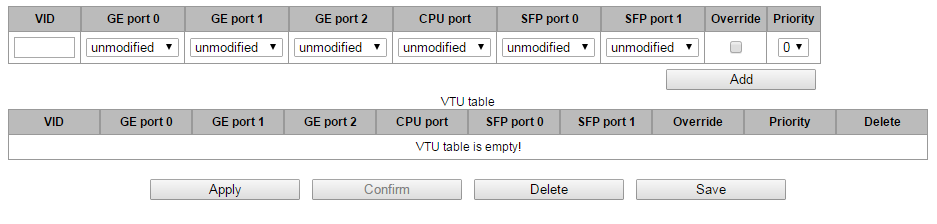
Adding records to the packet routing table
VID – enter an identifier of VLAN group, that the routing rule is created for, and assign actions for each port to be performed during transfer of packets with specified VID.
unmodified – packets will be sent by the port without any changes (i.e. as they have been received);
untagged – packets will always be sent without VLAN tag by this port;
tagged – packets will always be sent with VLAN tag by this port;
not member – packets with specified VID will not be sent by this port, i.e. the port is not the member of VLAN.
override – when checked, override 802.1р priority for this VLAN; otherwise, leave the priority unchanged;
priority – 802.1р priority assigned to packets in this VLAN, if 'override' checkbox is selected.
Then, click 'Add' button. Click 'Apply' button to apply the settings than click 'Confirm' to confirm the settings.
Click 'Confirm' button in 1 minute interval to confirm settings, or the previous values will be restored. |
Save — save settings into the device flash memory without applying them.
Removing records from the packet routing table
To remove records, select checkboxes for the rows to be removed and click 'Remove selected' button.
In the 'QoS and bandwidth control' section, you may configure Quality of Service function.
Network switch → QoS and bandwidth control
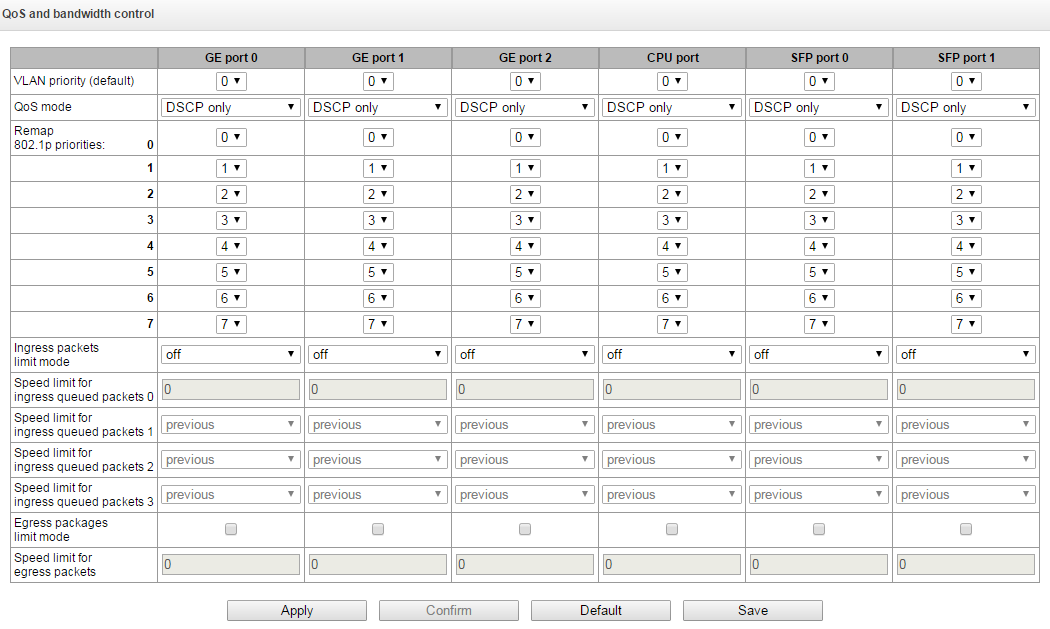
VLAN priority (default) – 802.1р priority assigned to untagged packets, received by this port. If 802.1р or IP Diffserv is already assigned to the packet, this setting will not be used ('default vlan priority' will not be applied to packets containing IP header, when one of the QoS modes is in use: DSCP only, DSCP preferred, 802.1p preferred);
QoS mode – QoS operation mode:
DSCP only – distribute packets into queues based on IP Diffserv priority only;
802.1p only – distribute packets into queues based on 802.1р priority only;
DSCP, 802.1p – distribute packets into queues based on IP Diffserv and 802.1р priorities, if both priorities are present in the packet, IP Diffserv priority is used for queuing purposes;
802.1p, DSCP – distribute packets into queues based on IP Diffserv and 802.1р priorities, if both priorities are present in the packet, 802.1р priority is used for queuing purposes.
Remap 802.1p priorities – remap 802.1р priorities for untagged packets. Thus, a new value may be assigned for each priority received in VLAN packet;
Ingress packets limit mode – restriction mode for traffic coming to the port.
Off – no restriction;
All packets – restrict all traffic;
BroadMultFlood – multicast, broadcast, and flooded unicast traffic will be restricted;
BroadMult – multicast and broadcast traffic will be restricted;
Broad – only broadcast traffic will be restricted.
Ограничение скорости для входящих пакетов в очереди 0 – ограничение полосы пропускания трафика, поступающего на порт для нулевой очереди. Допустимые значения в пределах от 70 до 250000 килобит в секунду;
Speed limit for ingress queued packets 1 — bandwidth restriction for traffic incoming to a queue 1 port. You can double the bandwidth (prev prio *2) of priority 0, or leave it unchanged (same as prev prio);
Speed limit for ingress queued packets 2 — bandwidth restriction for traffic incoming to a queue 2 port. You can double the bandwidth (prev prio *2) of priority 1, or leave it unchanged (same as prev prio);
Speed limit for ingress queued packets 3 — bandwidth restriction for traffic incoming to a queue 3 port. You can double the bandwidth (prev prio *2) of priority 2, or leave it unchanged (same as prev prio);
Egress packages limit mode — when checked, enable the bandwidth restriction for outgoing port traffic;
Speed limit for egress packets — bandwidth restriction for outgoing port traffic. Permitted values — from 70 to 250000 kbps.
Apply — apply defined settings.
Confirm — commit modified settings.
Click 'Confirm' button in 1-minute interval to confirm settings, or the previous values will be restored. |
Default — set default settings.
Save — save settings into the device flash memory without applying them.
Network switch → Queue priority mapping
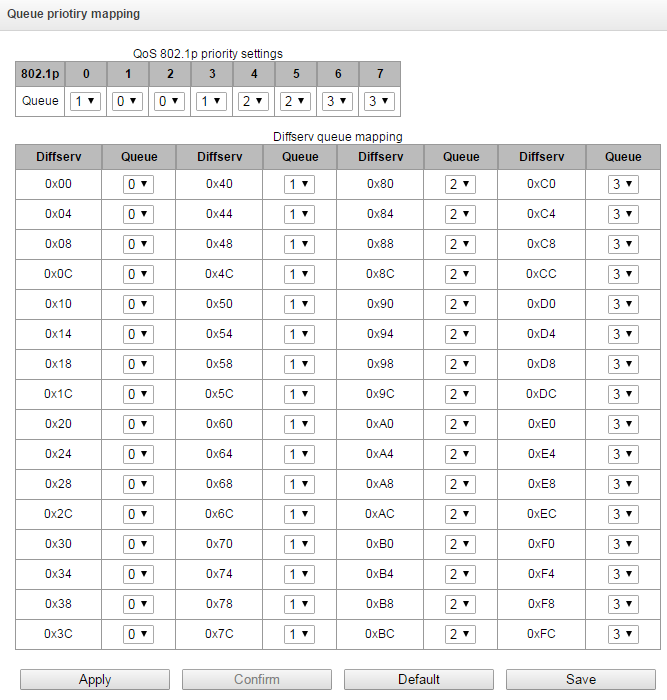
Queue 802.1p priority settings — allows to distribute packets into queues depending on the 802.1р priority.
1р — 802.1р priority value;
Queue — outgoing queue number.
Diffserv queue mapping — allows to distribute packets into queues depending on the IP Diffserv priority.
Diffserv — IP Diffserv priority value;
Queue — outgoing queue number.
Apply — apply defined settings;
Confirm — commit modified settings.
Click 'Confirm' button in 1-minute interval to confirm settings, or the previous values will be restored. |
Default — set default settings;
Save — save settings into the device flash memory without applying them.
Queue 3 is the highest priority, queue 0 is the least priority. The weighted distribution of packets across outgoing queues 3/2/1/0 is as follows: 8/4/2/1. |
In addition to create, edit and remove icons, you may use the corresponding 'Objects' menu items to perform different operations with objects.
Objects
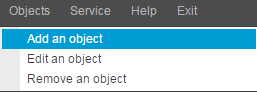
Service
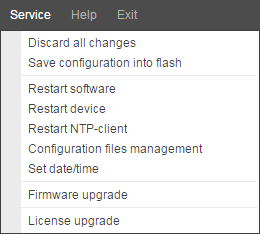
To discard all changes, select 'Service' — 'Discard all changes' menu.
При внесении изменений в конфигурацию без сохранения во FLASH и последующей "отменой всех изменений" – регистрация SIP-абонентов слетает.
To save the base of registered SIP subscribers, select 'Save subscribers database’ in the 'Service' menu.
To write the current configuration into non-volatile memory of the device, select 'Service' — 'Save configuration into FLASH' menu.
To restart the device software, select 'Service' — 'Software restart' menu.
To restart the device completely, select 'Service' — 'Device restart' menu.
To perform forced time re-synchronization with NTP server, select 'Service' — 'NTP client restart' menu.
To read/write the main device configuration file, select 'Service' — 'Configuration file management' menu.
To configure the device local date and time manually, select 'Service' — 'Date and time configuration' menu; see Date and time configuration.
To update the firmware via web configurator, select 'Service' — 'Firmware update' menu; see Firmware update via web configurator.
To update/add licenses, select 'Service' — 'License update' menu; see Licenses.
Service → Set date/time
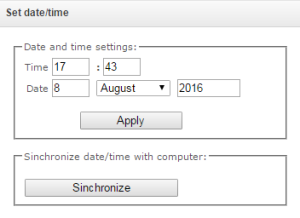
In the respective fields, you may define the system time in HH:MM format and the date in DD.month.YYYY format.
To save settings, use 'Apply' button.
Click 'Synchronize' button to synchronize the device system time with the current time on a local PC.
To update the device firmware, use 'Service' — 'Firmware upgrade' menu. Firmware file upload form will open.
Service → Firmware upgrade
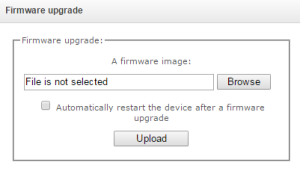
Firmware upgrade — update firmware and/or Linux kernel.
To update the firmware, specify the update file name in 'A firmware image' field using 'Browse' button and click 'Upload'. When the operation is completed, restart the device using 'Service' — 'Restart device' menu.
SMG-1016M licenses:
SMG1-PBX-2000 – registration of up to 2000 SIP subscribers;
SMG1-SORM – activation of SORM functionality;
SMG1-VAS-500+IVR – activation of VAS for 500 subscribers and IVR;
SMG1-СORP-500+IVR – activation of registration feature for up to 500 SIP subscribers, 500 VAS for SIP subsribers and IVR;
SMG1-H323 – activation of H.323 protocol;
SMG1-RCM – activation of Radius Call Managment;
SMG1-REC – activation of call record functions;
SMG1-SRM-1 – активация функционала СОРМ-посредника для обеспечения функций СОРМ ECSS-10 Softswich;
SMG1-V5.2-LE – activation of V5.2 LE protocol to provide outstation connection via V5.2 AN;
SMG1-VNI-40 – extension of network interfaces quantity for up to 40;
SMG1-VNS – activation of the voice notification system functionality;
SMG1-AUTH-CALL – activation of the ‘Authorization calls’ functionality;
SMG1-SORM-374N – активация функционала канала телеметрии на АПК производства ЗАО «Норси-Транс» для реализации требования ФЗ №374 («Пакет Яровой»);
SMG1-SORM-374P – активация функционала канала телеметрии на СХД РТК-НТ;
SMG1-SORM-374T – активация функционала канала телеметрии на АПК компании «ТехАргос» для проведения ОРД по сбору и хранению голоса;
SMG1-SORM-374V – активация функционала канала телеметрии на АПК компании VAS Experts для проведения ОРД по сбору и хранению голоса;
SMG1-SORM-374M – активация функционала канала телеметрии на АПК компании МФИ Софт для проведения ОРД по сбору и хранению голоса;
SMG1-SS7-NETLINK-MASTER – активация функционала стекирования потоков ОКС-7 в режиме ведущего устройства;
SMG1-SS7-NETLINK-SLAVE – активация функционала стекирования потоков ОКС-7 в режиме ведомого устройства;
SMG1-AF-Astarta – activation of exchange functionality with the IS ‘Anti-fraud’ verification node produced by LLC ‘Astarta’ via RADIUS protocol1;
SMG1-AF-Intech – activation of exchange functionality with IS ‘Anti-fraud’ verification node produced by LLC ‘Hexagon Labs’ via RADIUS protocol1;
SMG1-AF-Custom – activation of exchange functionality with the Anti-fraud System Control System of other manufacturers via RADIUS protocol1;
SMG1-DEMO – демонстрация функционала устройства;
SMG1-SIP-CPS – разблокировка лимита на количество вызовов в секунду (SIP).
|
SMG-2016 licenses:
SMG2-PBX-3000 – registration of up to 3000 SIP subscribers;
SMG2-SORM – activation of SORM functionality;
SMG2-VAS-1000+IVR – активация функционала ДВО для 1000 абонентов и IVR;
SMG2-СORP-1000+IVR – activation of registration feature for up to 1000 SIP subscribers, 1000 VAS for SIP subsribers and IVR;
SMG2-H323 – активация функционала протокола H.323;
SMG2-H323-EXT – активация функционала протокола H.323 с возможностью создания до 511 транков H323;
SMG2-H323-GK – активация функционала локального привратника H.323;
SMG2-RCM – activation of Radius Call Managment;
SMG2-REC – activation af call record functions;
SMG2-SRM-2 – активация функционала СОРМ-посредника для обеспечения функций СОРМ ECSS-10 Softswich;
SMG2-V5.2-LE – activation of V5.2 LE protocol to provide outstation connection via V5.2 AN;
SMG2-VNI-40 – extension of network interfaces quantity for up to 40;
SMG2-RESERVE – активация резервирования по IP в режиме master-slave;
SMG2-RESERVE-SLAVE – активация резервирования по IP в режиме master-slave (общее время работы устройства без шлюза с лицензией SMG2-RESERVE составляет 200 часов);
SMG2-RESERVE-E1 – активация резервирования потоков E1 в режиме master-slave (требуется наличие лицензии SMG2-RESERVE (SMG2-RESERVE-SLAVE));
SMG2-VNS – activation of the voice notification system functionality;
SMG2-VNS-EXT – активация функционала системы голосового оповещения с расширенным количеством объектов (задачи оповещения, списки номеров, голосовые сообщения);
SMG2-AUTH-CALL – activation of the ‘Authorization calls’ functionality;
SMG2-SORM-374N – activation of the functionality of the telemetry channel on the agricultural complex produced by JSC Norsi-Trans to implement the requirements of Federal Law No. 374 (‘Yarovaya Package’);
SMG2-SORM-374P – activation of the telemetry channel functionality on the RTK-NT storage system;
SMG2-SORM-374T – activation of the functionality of the telemetry channel on the agricultural complex of the TechArgos company for conducting operational searches for collecting and storing votes;
SMG2-SORM-374V – activation of the telemetry channel functionality on the VAS Experts APC for conducting operational searches for collecting and storing votes;
SMG2-SORM-374M – activation of the functionality of the telemetry channel on the APC of the MFI Soft company for conducting operational searches for collecting and storing votes;
SMG2-SS7-NETLINK-MASTER – активация функционала стекирования потоков ОКС-7 в режиме ведущего устройства;
SMG2-SS7-NETLINK-SLAVE – активация функционала стекирования потоков ОКС-7 в режиме ведомого устройства;
SMG2-AF-Astarta – activation of exchange functionality with the IS ‘Anti-fraud’ verification node produced by LLC ‘Astarta’ via RADIUS protocol1;
SMG2-AF-Intech – activation of exchange functionality with IS ‘Anti-fraud’ verification node produced by LLC ‘Hexagon Labs’ via RADIUS protocol1;
SMG2-AF-Custom – activation of exchange functionality with the Anti-fraud System Control System of other manufacturers via RADIUS protocol1;
SMG2-DEMO – демонстрация функционала устройства;
SMG2-SIP-CPS – разблокировка лимита на количество вызовов в секунду (SIP).
|
SMG-3016 licenses:
SMG3-PBX-3000 – registration of up to 3000 SIP subscribers;
SMG3-SORM – activation of SORM functionality;
SMG3-VAS-1000+IVR – activation of VAS for 1000 subscribers and IVR;
SMG3-СORP-1000+IVR – activation of registration feature for up to 1000 SIP subscribers, 1000 VAS for SIP subsribers and IVR;
SMG2-H323 – активация функционала протокола H.323;
SMG3-H323-EXT – активация функционала протокола H.323 с возможностью создания до 511 транков H323;
SMG3-H323-GK – активация функционала локального привратника H.323;
SMG3-RCM – activation of Radius Call Managment;
SMG3-REC – activation af call record functions;
SMG3-SRM-2 – активация функционала СОРМ-посредника для обеспечения функций СОРМ ECSS-10 Softswich;
SMG3-V5.2-LE – activation of V5.2 LE protocol to provide outstation connection via V5.2 AN;
SMG3-VNI-40 – extension of network interfaces quantity for up to 40;
SMG3-RESERVE – активация резервирования по IP в режиме master-slave;
SMG3-RESERVE-SLAVE – activation of IP reservation in master-slave mode (Total time of device operation without a gateway with an SMG2-RESERVE license is 200 hours);
SMG3-RESERVE-E1 – activation of reservation of E1 streams in master-slave mode (required availability of license SMG2-RESERVE (SMG2-RESERVE-SLAVE));
SMG3-VNS – activation of the voice notification system functionality;
SMG3-VNS-EXT – активация функционала системы голосового оповещения с расширенным количеством объектов (задачи оповещения, списки номеров, голосовые сообщения);
SMG3-AUTH-CALL – activation of the ‘Authorization calls’ functionality;
SMG3-SORM-374N – activation of the functionality of the telemetry channel on the agricultural complex produced by JSC Norsi-Trans to implement the requirements of Federal Law No. 374 (‘Yarovaya Package’);
SMG3-SORM-374P – activation of the telemetry channel functionality on the RTK-NT storage system;
SMG3-SORM-374T – activation of the functionality of the telemetry channel on the agricultural complex of the TechArgos company for conducting operational searches for collecting and storing votes;
SMG3-SORM-374V – activation of the telemetry channel functionality on the VAS Experts APC for conducting operational searches for collecting and storing votes;
SMG3-SORM-374M – activation of the functionality of the telemetry channel on the APC of the MFI Soft company for conducting operational searches for collecting and storing votes;
SMG3-SS7-NETLINK-MASTER – активация функционала стекирования потоков ОКС-7 в режиме ведущего устройства;
SMG3-SS7-NETLINK-SLAVE – активация функционала стекирования потоков ОКС-7 в режиме ведомого устройства;
SMG3-MSR – activation of software media server (MSR) functionality;
SMG3-AF-Astarta – activation of exchange functionality with the IS ‘Anti-fraud’ verification node produced by LLC ‘Astarta’ via RADIUS protocol1;
SMG3-AF-Intech – activation of exchange functionality with IS ‘Anti-fraud’ verification node produced by LLC ‘Hexagon Labs’ via RADIUS protocol1;
SMG3-AF-Custom – activation of exchange functionality with the Anti-fraud System Control System of other manufacturers via RADIUS protocol1;
SMG3-DEMO – демонстрация функционала устройства;
SMG3-SIP-CPS – разблокировка лимита на количество вызовов в секунду (SIP).
|
To update/add licenses, you should obtain a license file. Contact Eltex marketing department by email eltex@eltex-co.ru or phone +7(383) 274-48-48 and provide device serial number and MAC address (see View factory settings and system information).
Next, select 'License upgrade' parameter from the 'Service' menu.
Service
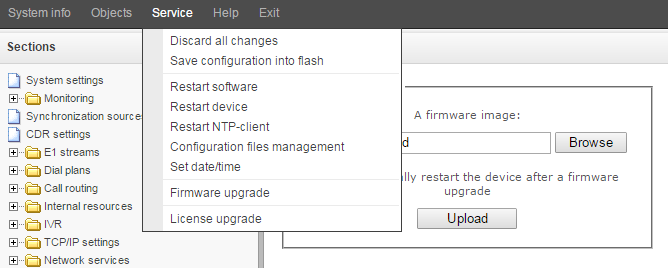
Перед обновлением или сбросом лицензии необходимо сохранить резервную копию текущей лицензии, о чём информируют соответствующие предупреждения на странице. |
Service → License upgrade
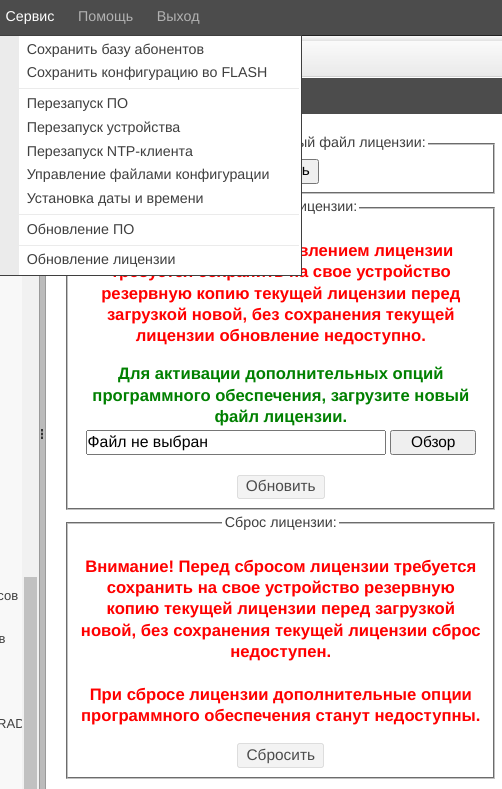
Сохранение резервной копии лицензии осуществляется нажатием кнопки «Скачать».
Имя сохраняемого файла лицензии имеет вид SN_DATE_LIC, где:
SN – серийный номер устройства;
DATE – текущая дата в формате YYMMDDHHMM;
LIC – сокращенное перечисление активных опций в лицензии:
pB – SMG-PBX
A – SMG-VAS
E – SMG-REC
cO – SMG-CORP
H – SMG-H323
hE – SMG-H323-EXT
hG – SMG-H323-GK
R – SMG-RCM
I – SMG-IVR
vN – SMG-VNS
nE – SMG-VNS-EXT
N – SMG-VNI
lE – SMG-V52_LE
S – SMG-SORM
sM – SRM-1
sX – SMG-SORM-374
sR – SMG-RESERVE
rS – SMG-RESERVE-SALVE
rE – SMG-RESERVE-E1
nM – SMG-SS7-NETLINK-MASTER
nS – SMG-SS7-NETLINK-SLAVE
aU – SMG-AUTH-CALL
sA – SMG-AF-Astarta/SMG-AF-Intech/SMG-AF-Custom
M – MSR
cP – SMG-SIP-CPS
В случае демо-лицензии формат имени имеет вид SN_DATE_DEMO_EXP-DATE, где:
SN – серийный номер устройства;
DATE – текущая дата в формате YYMMDDHHMM;
EXP-DATE – дата окончания действия демо-лицензии в формате YYMMDD.
После сохранения лицензии становятся доступны кнопки «Обновить» и «Сбросить».
С помощью кнопки «Обзор» следует указать путь к файлу лицензии, полученному от производителя, и произвести обновление, нажав «Обновить».
Confirmation is required for the license file update.
Service → License upgrade
When the operation is completed, you will be prompted to restart the device, or you should do this manually using 'Service' — 'Restart device' menu.
Help
This menu contains details on the current firmware version and factory settings as well as other system information.
Management
Раздел «Управление» предназначен для работы с паролями доступа к устройству при подключении через web-конфигуратор, telnet, ssh и настройки прав пользователей. В этом разделе настраивается количество отображаемых строк в таблицах (глобальная настройка). Также здесь администратору доступен мониторинг и управление активными web-сессиями на устройстве.
Specify web interface administrator password:
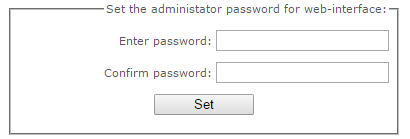
To change administrator password, enter a new password into 'Enter password' field and re-enter it into 'New password confirmation' field. To apply the password, click 'Set' button.
To save the configuration, use 'Service' — 'Save configuration' menu.
Web interface users:
Management → Web-interface users
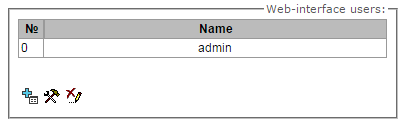
In this block, you may configure web configurator access restrictions at the user level. There is always an administrator for the system, that may add or remove users and assign the access level.
To create, edit or remove users, use the following buttons:
– 'Add user'
– 'Edit user parameters'
– 'Remove user'
The program denies modifications of administrator permissions and his removal from the user list, so the system administrators may have an assured access to the program.
Creating a new user:
Management → Web-interface users → Object
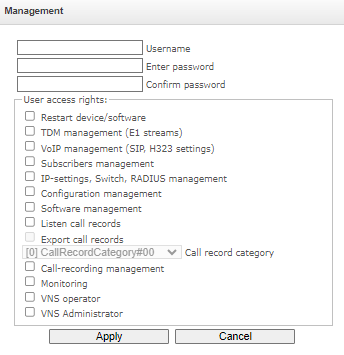
To create a new user, fill in the following fields:
User access rights:
Restart device/software — allows you to restart the device and firmware;
TDM management (Е1 streams) — allows you to set up E1 streams;
VoIP management (SIP, H323 settings) — allows you to configure SIP and H323 interfaces;
Subscribers management — provides the ability to configure SMG subscribers;
IP-settings, Switch, RADIUS management — allows you to configure settings of switch, TCP/IP, network services and security;
Configuration management — uploading/downloading configuration files;
Software management — updating the device firmware and license;
Listen call records — provides ability to listen recorded calls of the certain category;
Export call records – provides the ability to download recorded conversations (listening to conversation recordings without the possibility of downloading);
Call record category – предоставляет доступ к категории, разрешающей/запрещающей доступ соответствующим записям разговоров;
Call-recording management — access to call records and to the settings of call recording;
Monitoring — access to monitoring sections;
VNS operator – access is provided to VNS ‘Numbers list’ and ‘Reports’ sections, as well as to ‘VNS tasks’ of Monitoring;
Категория доступа оператора – предоставляет доступ к категории, разрешающей/запрещающей доступ соответствующим задачам и отчетам СГО;
VNS Administrator – access is provided to the VNS sections ‘Voice messages’, ‘Notification tasks’, ‘Notify records’, as well as to the ‘VNS Tasks’ of Monitoring. To provide full access to the VNS section, you should use the rights of VNS Operator and Administrator of the VNS jointly.
Прослушивание голосовой почты – предоставляется доступ к разделу «Голосовая почта» – «Голосовые сообщения».
To save the configuration, click the 'Apply' button, and then use the menu 'Service' – 'Save configuration to flash'.
Set the administrator password for Telnet and SSH
Management → Web-interface users → Set the administrator password for telnet/ssh
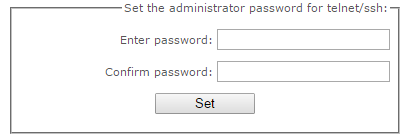
In this block, you may change password for Telnet, SSH and console access.
To change the password, enter a new password into 'Enter password' field and re-enter it into 'New password confirmation' field. To apply the password, click 'Set' button.
Список активных сессий
В данном блоке отображается список пользователей, которые в данный момент подключены к веб-интерфейсу SMG. Для администратора есть возможность принудительно завершить сессию других пользователей, для этого необходимо нажать кнопку «Принудительный выход» в строке с пользователем сессию которого необходимо завершить.
Раздел «Управление» доступен только для пользователя admin, для остальных пользователей присутствует только меню смены пароля.
|
Help
For viewing, use 'Help' — 'System information' menu.
Also, factory settings are listed on the label located in the lower part of the device housing.
To view the detailed system information (factory settings, SIP adapter version, current date and time, uptime, network settings, internal temperature), click Home link in the control panel.
Click 'Exit' link to exit the configurator.
 – View object.
 button located next to the editing element provides explnation for the particular parameter.