Purpose
To provide VoIP services to network subscribers, VP series IP phones have been developed. The devices are aimed at offices, and are also suitable for organizations with high requirements to transmitted voice data, stability and usability.
VP-30P is an IP phone providing voice services and PC connection to IP network via single cable. The device supports PoE technology and has advanced functionality, high quality, and universal design.
VP-30P connection layout is shown below:
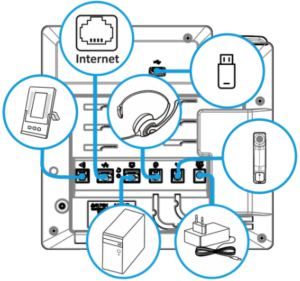
VP-30P connection layout
Operating principle
VP-30P IP phone includes the following subsystem:
- Controller featuring:
highly-integrated System-on-a-Chip (SoC), including:
- CPU;
- 1 Gbps switch with PHY embedded;
- voice codec;
- NAND Flash 512 MB;
- DDR3 256 MВ;
- Liquid crystal display (LCD) 800 × 480 px resolution;
- Fully-featured digital keyboard with additional function keys;
1 × EXT port: RJ-25 (6P6C) for connecting the VP-EXT22 extension console;
1 × LAN port: RJ-45 10/100/1000BASE-T;
- 1 × PC port: RJ-45 10/100/1000BASE-T;
1 × Handset port: RJ-9 (4P4C) for connecting a handset;
1 × Headset: RJ-9 (4P4C) for connecting a headset;
1 × USB port for connecting a USB device.
Block diagram for the device operating principle is shown below.
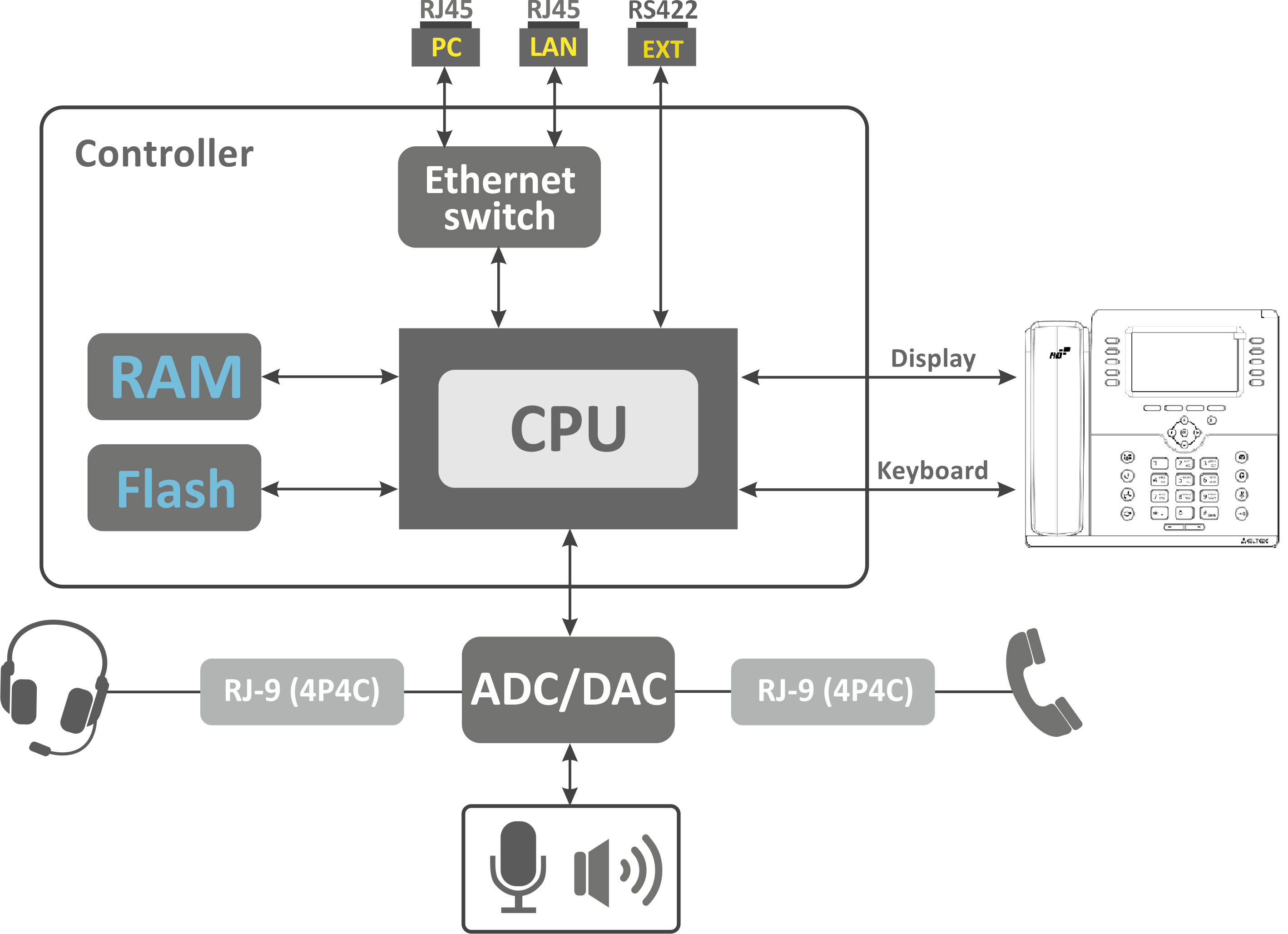
VP-30P operating principle
The device runs under Linux operating system. Basic control functions are performed by the processor.
Main specifications
| General parameters | |
|---|---|
| Power supply |
|
| Maximum power consumption |
|
| Operating temperature range | from 0 to +40 °C |
| Relative humidity at 25 °С | no more than 80 % |
| Dimensions (W × H × D) | 228 × 86 × 220 |
| Weight | 1.011 kg |
| Lifetime | no less than 5 years |
| Interfaces |
|
| Ethernet LAN interface specification | |
| Number of ports | 1 |
| Electric port | RJ-45 |
| Data transmission rate | 10/100/1000 Mbps, autodetection |
| Standard support | BASE-T |
| Ethernet PC interface specification | |
| Number of ports | 1 |
| Electric port | RJ-45 |
| Data transmission rate | 10/100/1000 Mbps, autodetection |
| Standard support | BASE-T |
Main features and capabilities
| VoIP capabilities | |
|---|---|
| Supported protocols | SIP |
| Key features |
|
| Voice features |
|
DTMF signals detection and generation |
|
Codecs |
|
| Supplementary services |
|
| Network features | |
| Protocols |
|
Support for DHCP option |
|
| Support for NTP |
|
| Management and monitoring | |
| Key features | Flexible settings for access to display menu |
| Interfaces |
|
Debug information output |
|
| Loading/updating of firmware and configuration |
|
1 The feature will be available in future firmware versions.
Design
VP-30P IP phone is enclosed into 228 × 86 × 220 mm plastic case.
Top panel of the device. Light indication
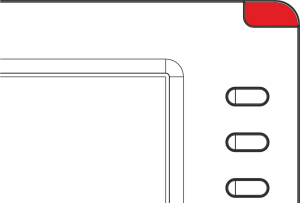
The figure below shows VP-30P top panel layout.
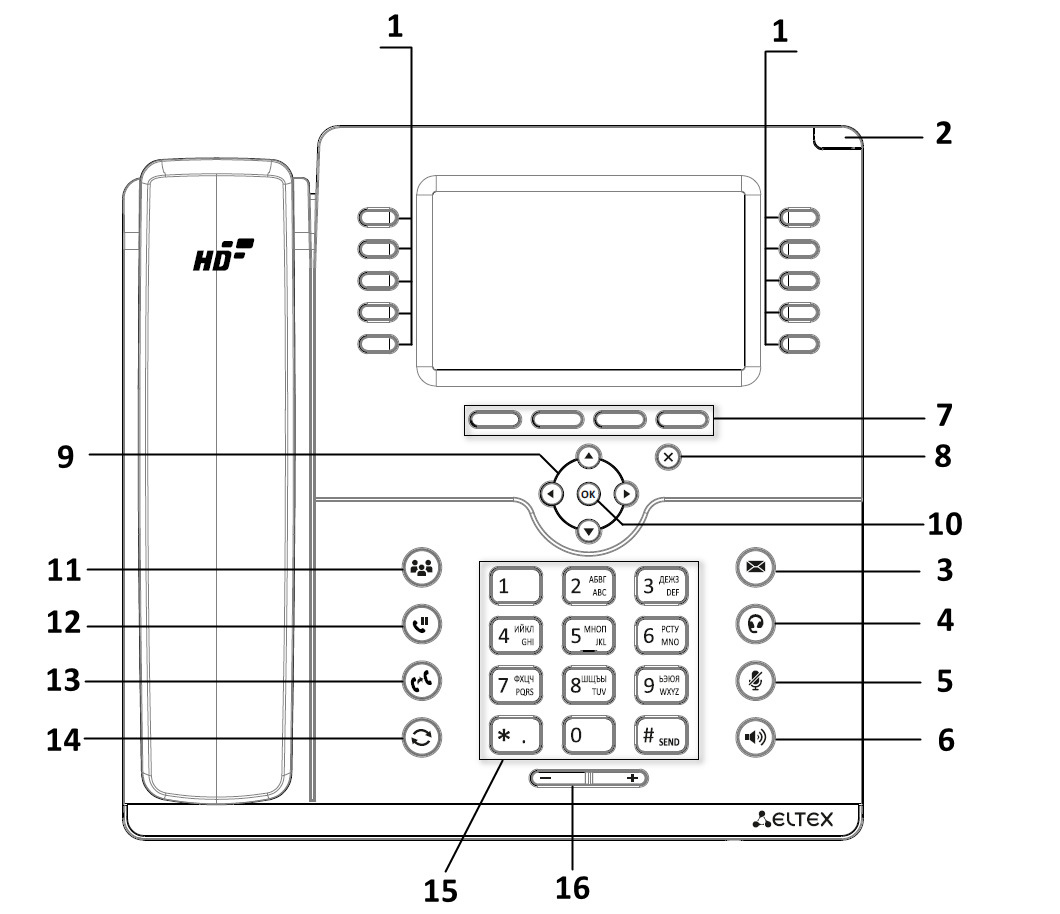
VP-30P top panel layout
VP-30P top panel is equipped with LED indicators:
| Top panel element | Description | Indicator state | Device state | |
|---|---|---|---|---|
1 |
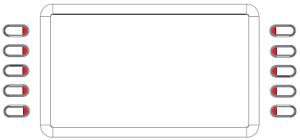
| Programmable keys indicators | Depends on configuration | |
2 |
| System indicator | Depends on configuration | |
3 |
| New message indicator1 | Flashes green | There are unread messages or new voice messages |
Off | There are no new messages | |||
4 |
| Headset mode indicator | Solid green | Headset mode is activated |
Off | Headset mode is not activated | |||
5 |
| Mute mode indicator | Solid green | Mute mode is activated for the current conversation |
Off | Mute mode is not activated | |||
6 |
| Speakerphone mode indicator | Solid green | Speakerphone mode is activated |
Off | Speakerphone mode is not activated | |||




1 The feature will be available in future firmware versions.
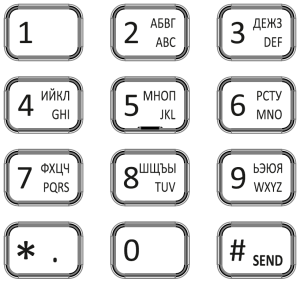
The following controls are also located on the device top panel:
| Top panel element | Description | |
|---|---|---|
| 7 |
| Context sensitive keys |
| 8 |
| Action cancelation |
| 9 |
| Navigation |
| 10 |
| Action confirmation |
| 11 |
| Conference call |
| 12 |
| Call Hold activation/disactivation |
| 13 |
| Call Transfer |
| 14 |
| Redial of the last dialled number |
| 15 |
| Keypad |
| 16 |
| Volume adjustment keys |









Rear panel of the device
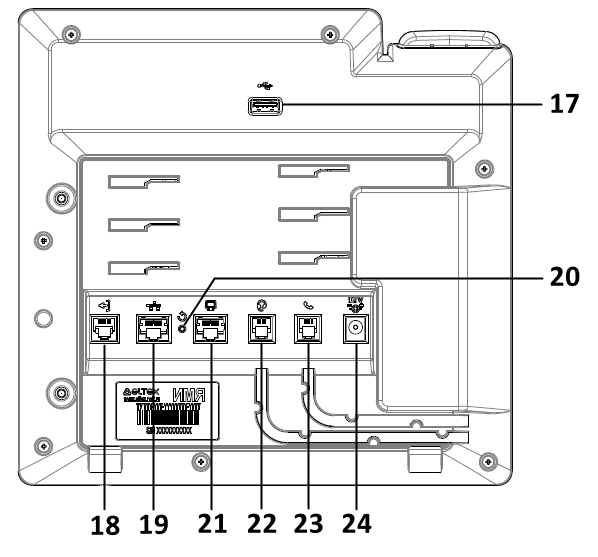
The figure below shows VP-30P rear panel layout.
| Rear panel element | Description | |
|---|---|---|
| 17 | USB | Port for connecting an external memory |
| 18 | EXT | Port for connecting the VP-EXT22 extension console |
| 19 | LAN | 10/100/1000BASE-T Ethernet (RJ-45) port for connection to LAN |
| 20 | Reset | Device reset button |
| 21 | PC | 10/100/1000BASE-T Ethernet (RJ-45) port for connection to PC |
| 22 | Headset | RJ-9 port for connecting a headset |
| 23 | Handset | RJ-9 port for connecting a handset |
| 24 | DC | Port for connecting a power adapter 12 V, 3 A |
Status indication on display
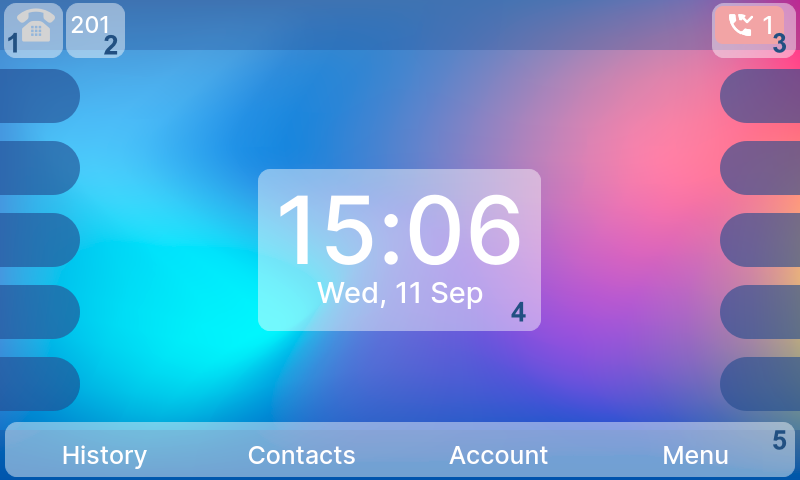
Main screen
| No. | Description |
|---|---|
| 1 | Indicator of voice interface:
|
| 2 | Name of default account. If the account does not have a name, the phone number is displayed. |
| 3 | Missed call indicator or Mute mode indicator. |
| 4 | Current date and time. |
| 5 | Actions taken upon pressing soft keys. |


 Dialing screen
| No. | Description |
|---|---|
| 1 | Indicator of voice interface: |
| 2 | Name of default account. If the account does not have a name, the phone number is displayed. |
| 3 | Actions taken upon pressing soft keys. |


Delivery package
VP-30P standard delivery package includes:
- VP-30P IP phone;
- Double-position stand;
- VP-EXT22 extension console (optional);
- Handset and cable for handset connection;
- 220/12 V, 3 А power adapter (optional);
- RJ-45 cable;
- Quick user manual and warranty certificate.
Headphones might be added to delivery package upon a request.
Basic setup
It is recommended to update the firmware before the first use of the IP phone.
Obtaining IP address
Press the soft key <Menu>. You will see an obtained IP address in the 'Status' section. If the device has not obtained an IP address, the 'IP address' line in Menu → Status → Network will remain empty.
Basic setup using display menu
The IP phone can be managed with soft keys located under the IP phone screen, as well as to the right and left of it. The soft keys assignments are displayed at the bottom, on the left, and on the right of the screen.
1. Press the <Menu> soft key;
2. Go to 'Network settings' menu section: Menu → Settings → System → Network → IP/VLAN → VoIP IP;
3. Configure the necessary network settings;
A list of network parameters and their values can be obtained from your network administrator.
4. Go to 'Account settings': Menu → Settings → System → Accounts → Account 1..6;
5. Configure the necessary account settings.
A list of account parameters and their values can be obtained from your network administrator or the Internet telephony service provider.
Basic setup using web interface
1. Open web browser such as Firefox, Opera or Chrome on the PC;
2. Enter the device IP address in the browser address bar. When the device is successfully connected, login and password request page will be shown in the browser window;
3. Fill in the fields and click the 'Log in' button. Default login is admin, password is password;
4. Change network parameters if needed in the Network → Internet tab;
5. Configure the VoIP parameters in the VoIP → SIP Accounts tab.
To enter the IP phone web interface, it is necessary that the computer from which you are logging in is located on the same local network as the IP phone or there is a route between the networks. For IP phone connection issues, consult your network administrator.
How to use the VP-30P IP phone
Outgoing calls
Ordinary call
Option 1: Lift the handset, dial a number on the IP phone keypad and press the <Call> soft key.
Option 2: Dial a number and then lift the handset. The call will be made when the S-timer expires.
Speakerphone mode
Dial a number on the IP phone keypad without lifting the handset and press <Call> or  key.
key.
To switch from speakerphone to handset:
Lift the handset. Speakerphone mode will turn off automatically.
Headset
Option 1: Dial a number on the IP phone keypad without lifting the handset and press  key.
key.
Option 2: Press key, dial a number and press <Call>.
To switch from headset to handset:
If the handset is on the phone, lift it. Headset will turn off automatically. If the handset is lifted, press key.
Incoming calls
How to answer a call:
- Lift the handset;
- Press <Call> soft key;
- Press or key.
To ignore a call, press <Silence> soft key. To decline a call, press <Hang up> soft key.
Mute mode
To turn off a microphone during a call so that the other person cannot hear you, press  key. The MUTE indicator will light up green, and
  icon will appear on the display.
Call completion
How to complete a call:
- Press <Hang up> soft key;
- In speakerphone mode, press key;
- In headset mode, press key;
- In ordinary mode, replace the handset.
Call hold
To put a call on hold, press <Hold> soft key or  key. When a call is on hold, icon
  will appear on the display.
Call transfer
There are 2 options of call transfering when you are already on a call:
Option 1:
- Press
 key or <Transfer> soft key;
 - Dial the number you want to transfer to and press <Call> soft key;
- After subcriber answers, let them know that you intend to transfer the call. Press key or <Transfer> soft key.
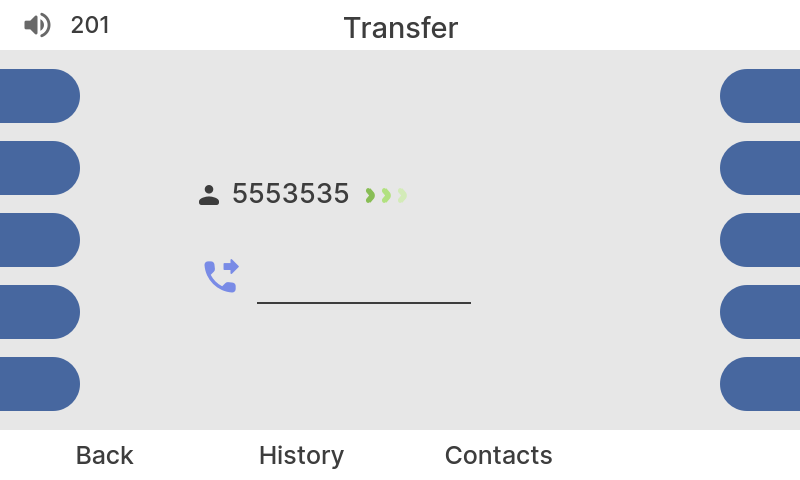
Transfer screen
Option 2:
- Press key or <Transfer> soft key;
- Dial the number you want to transfer to;
- Press key or replace the handset.
Conference
To organize a remote conference via RFC4579 press <Conference> soft key on the call screen or press key. After pressing, the current call will be moved to the conference room. To get to the conference room press <Conference> soft key on the main screen. You can configure the remote conference room number via the web interface.
Group listening
Group listening mode allows duplicating the sound from the handset speaker to the speakerphone, while only the handset microphone is activated.
Option 1:
Lift the handset and press  key.
key.
Option 2:
Lift the handset and press the configured 'Group listening' function key.
To complete group listening:
- Press key, the phone will switch to handset mode;
- Replace the handset, the phone will switch to speakerphone mode.