General description
File-based licensing (hereinafter referred to as PLR — Permanent License Request) is a licensing model tied to the physical parameters of the host on which NAICE is installed. If host parameters are changed, re-activation is required. This licensing model is suitable for operation in isolated environments without access to an external license server.
Glossary
- Product ID — a unique identifier of the software. Required for licensing. Example: “FNICE0000001”;
- License key — a unique identifier of the license. Required for licensing. Multiple Product IDs may be associated with a single license key (for licensing NAICE deployed in a high-availability configuration);
- Product key — a file containing the License key and Product ID, uploaded to the software to generate the Activation file and used to identify a specific software instance;
- Activation file — a file generated by the software for activation of a PLR license. It must be sent to Eltex to obtain the License File;
- License file — a file containing information about the licensed functionality and license validity period (if time-limited);
- License activation — the process of requesting a License file from Eltex by sending the Activation file;
- License re-activation — the process of requesting a new License file from Eltex by sending the Activation file in cases where a license has previously been issued for the given Product ID and uploaded to NAICE.
Licensing limitations
License re-activation may be required in the following cases:
- Cloning of a virtual machine image;
- Changes to the virtual machine configuration, including disk configuration, RAM, or CPU parameters;
- Reinstallation of the operating system in the virtual machine running the licensed software.
Increasing the amount of RAM or the number of CPU cores is permitted without requiring license re-activation.
License re-activation can be performed according to the license activation procedure.
Technical operational details
Uploading the product key file
If a new license file is uploaded to software where a license is already installed, the current license will be reset. After uploading the new license file, it will be necessary to upload a new activation file for the corresponding Product ID.
Software operational requirements
- Continuous operation of the Docker container epg- is required for uninterrupted operation of the file-based license. If this container becomes unavailable, the license will be reset after 12 hours. service
- If the total operating time with the license on the current server configuration is less than 30 days, and the server configuration is changed in the cases described in the section “Licensing Limitations”, the license will be forcibly reset after 14 days. To restore normal operation, license re-activation must be performed according to the license activation procedure.
File-based license activation
Go to the “Licensing” section. The page will display information about the active license:
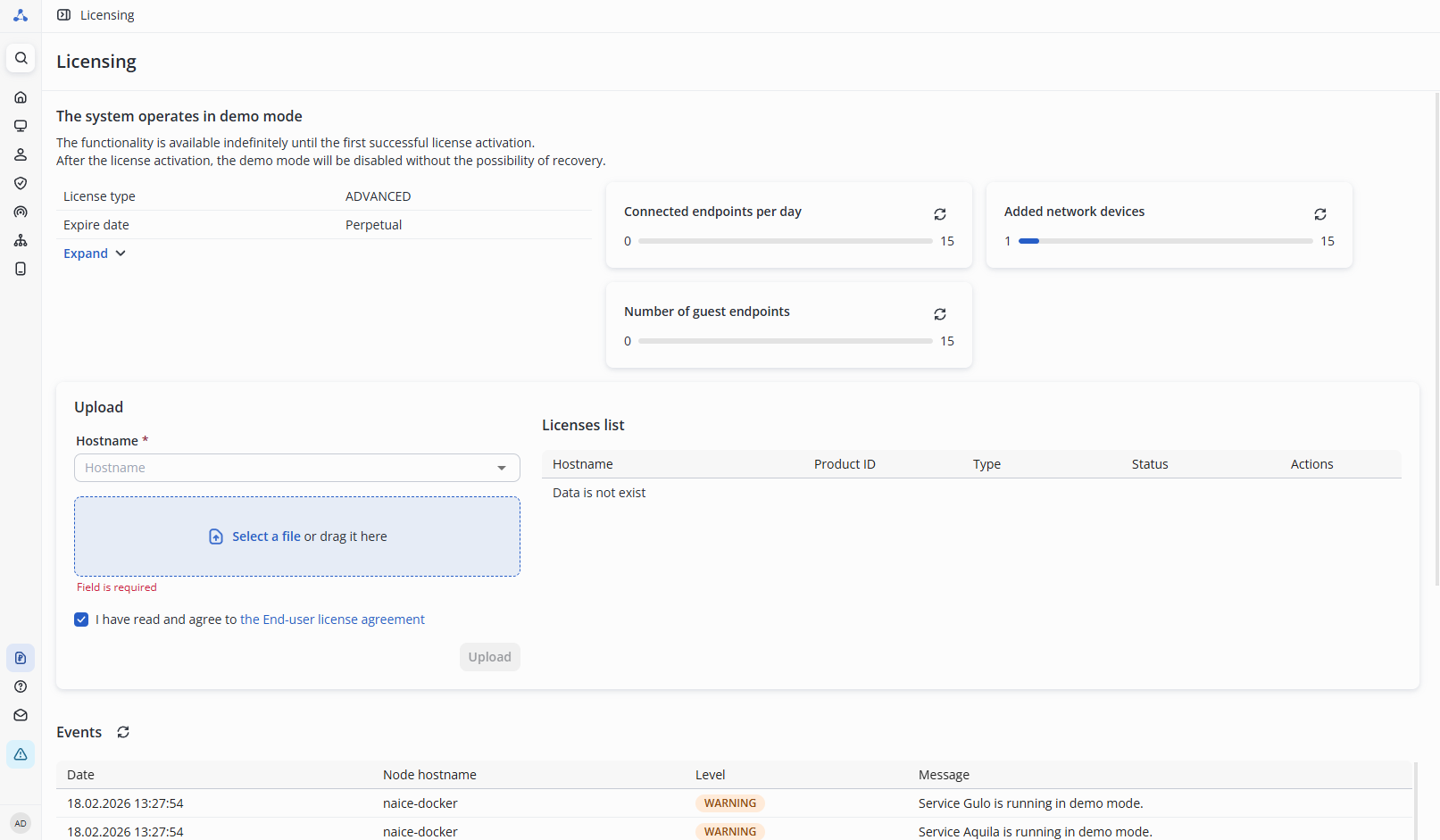
In the Hostname field, select the host for which you want to activate the license. Then click “Select a file” and choose the product key file.
Click the “End-user license agreement” link to open the user agreement dialog box. After reviewing the terms, select the checkbox “I have read and agree to the End-user license agreement”
Click the “Upload” button.
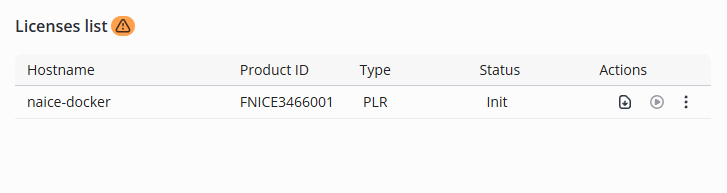
In the “Actions” column, click “Download” and select “Download activation file.” This file must be sent to your sales manager to obtain the license file.
After receiving the License File, repeat the steps listed above:
- Go to the “Licensing” page;
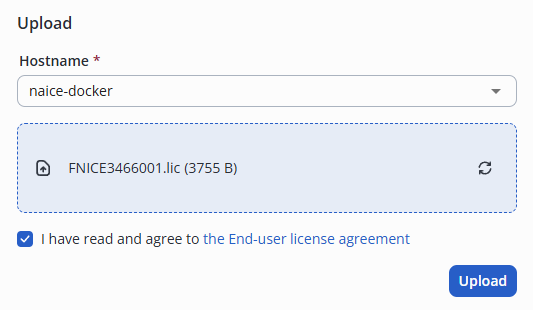
- In the upload field, attach the received file for your host.
- Select the checkbox “I have read and agree to the End-user license agreement” and click “Upload.”
In the license list, under the “Actions” column for the uploaded license, click “Activate.” The file-based license will be activated:

Instructions for submitting a license activation request
Obtaining a PLR file-based license
To obtain a license, you must export the activation file from the software and send it to Eltex through your sales manager.
Follow the steps below:
- Upload the Product key to the software (see “File-based license activationn”);
- If this is a re-activation, upload the most recently obtained License file;
- If this is a re-activation, open the Actions menu and select Create activation file;
- Export the Activation file from the software (see “File-based license activation”);
- Submit a license activation request via your sales manager’s email.
Submitting a request through your sales manager
Send an email to your sales manager with the following content:
- Subject: “License activation for NAICE”
- Message text:
Please activate the license for NAICE.
Product_ID <Your Product_ID>. - Attach the activation file. If two Product_ID values are used (primary and backup), attach both activation files.
- Wait for the reply with confirmation of successful activation and the license file attached.