Firmware version 1.4.0
About EVI Platform
EVI Platform is designed to organize a unified system for management, configuration and monitoring of devices (controllers, cameras and sensors).
Using this system with a graphical web interface allows:
- Manage and control checkpoints;
- Provide access by pass, person, or license plate number;
- Flexibly manage worker access and time spent at work;
- Connect cameras and work with their archives.
The EVI platform consists of the following components:
- evi-core — core of the system;
- evi-core-web — web interface of the core;
- evi-scud — PACS (Physical Access Control System);
- evi-live — module for connecting video surveillance cameras;
- evi-archive — module for creating an archive of video surveillance cameras;
- evi-analyzer — module for analyzing movements in the video surveillance camera frame;
- evi-analitycs — video analytics module;
- postgresql — database;
- clickhouse — database.
Work plan
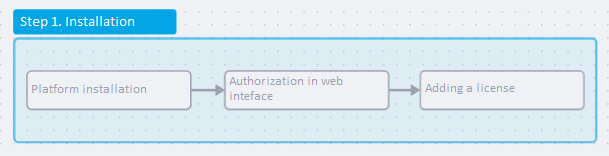
Installation
- Platform installation;
- Authorization in web interface;
- Adding a license.
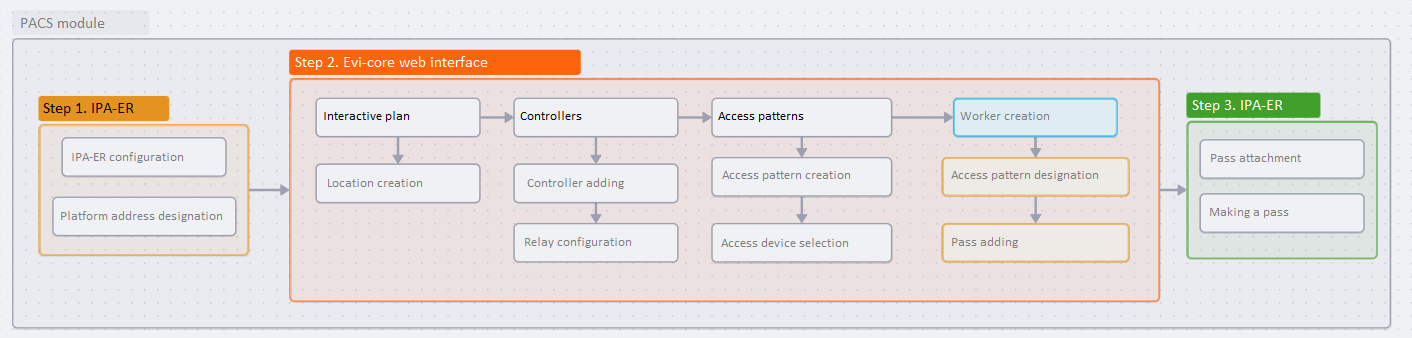
PACS module
- Hardware configuration;
- Platform configuration;
- Location adding;
- Controller adding;
- Relay configuration;
- Access pattern configuration;
- Providing access to a worker.
- Worker passage verification.
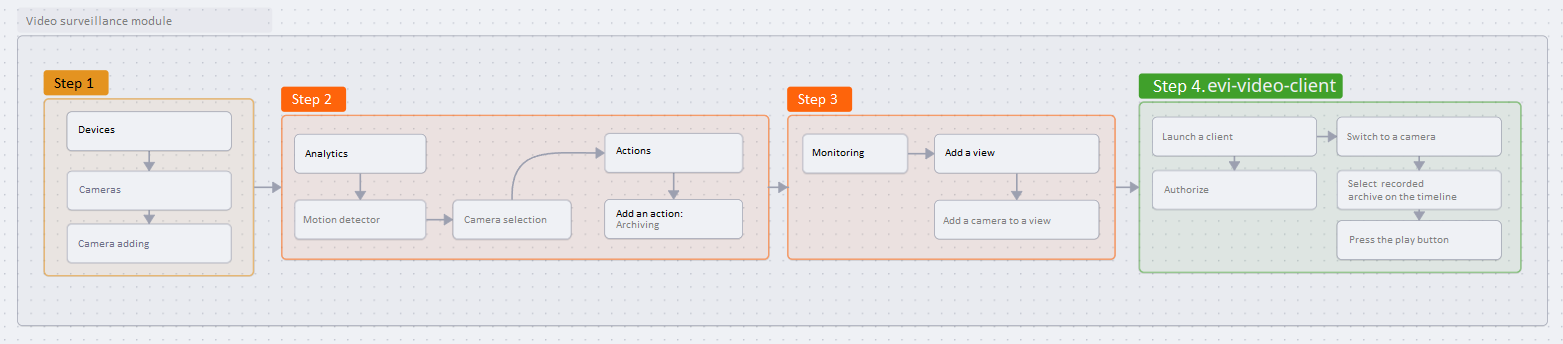
Video surveillance module
- Hardware configuration;
- Motion detector analytics configuration;
- Creating an action — Recording to archive;
- Creating a view;
- Camera archive verification.
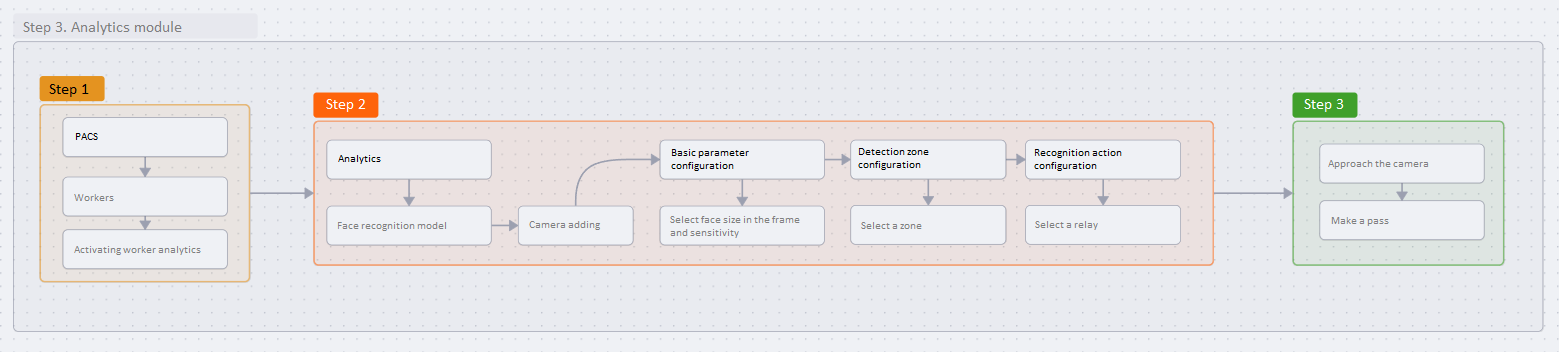
Analytics module
- Preliminary platform settings;
- Providing access to a worker;
- Camera configuration;
- Worker passage verification.
EVI Platform installation
Hardware configuration
The device can be added manually or automatically.
In this example, the controller is added manually.
Configuring the IPA-ER PACS controller to work with the EVI Platform
Enter the web interface of the IPA-ER-020 controller.
Connect to the web interface of the device using IP address 192.168.1.10 with HTTP protocol.
If the IP address is assigned by a DHCP server, it is necessary to verify the address directly at the server.
The IP address of the computer must be in the same subnet as the device. For example, by default it is 192.168.1.0.0/24.
Web configurator
On the authorization page, enter the following data in the Login and Password fields:
- User — admin;
- Password — admin.
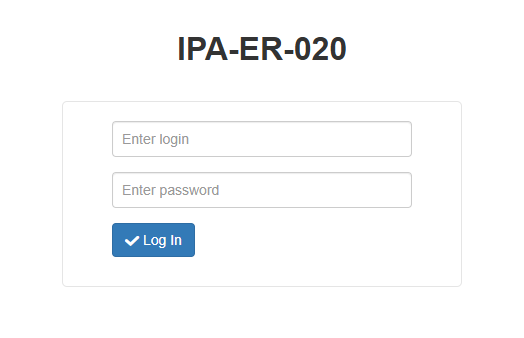
Click the Login button.
IPA-ER controller configuration to work with the EVI Platform
Enter Network settings section and select the EVI Platform tab.
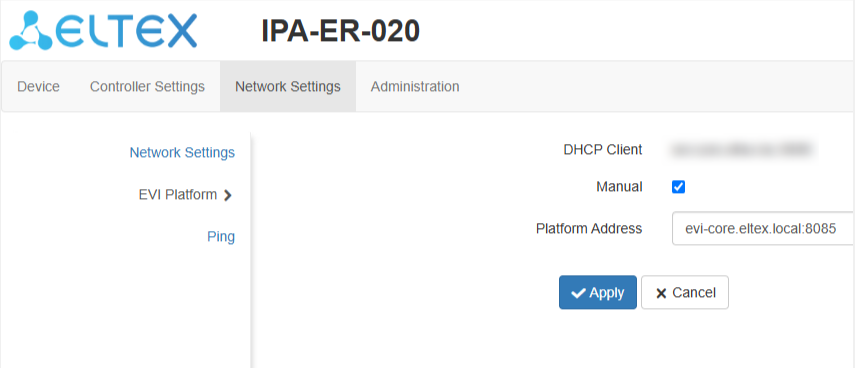
If the address does not match the default (evi-core.eltex.local:8085) and cannot be obtained from DHCP in option (43), then it is necessary to check the Specify manually option.
Fill in the Platform address field with the address of the evi-core server:
<IP-address evi-core>:8085
Click the Apply button.
The controller will then appear in the Controllers table under Devices section on the EVI Platform as an unauthorized controller.

Platform configuration
Authorization on the EVI Platform
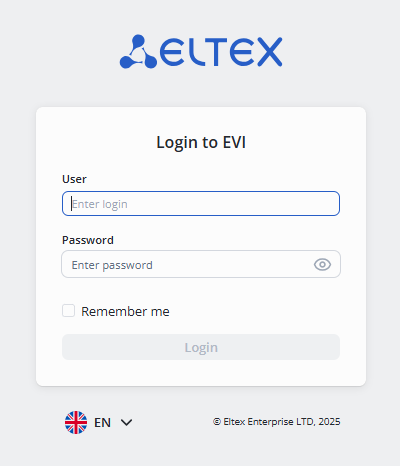
Type https://IP address of the server or https://host name in the browser address bar.
In the authorization form, enter:
- User — admin;
- Password — password.
PACS module
Controller adding
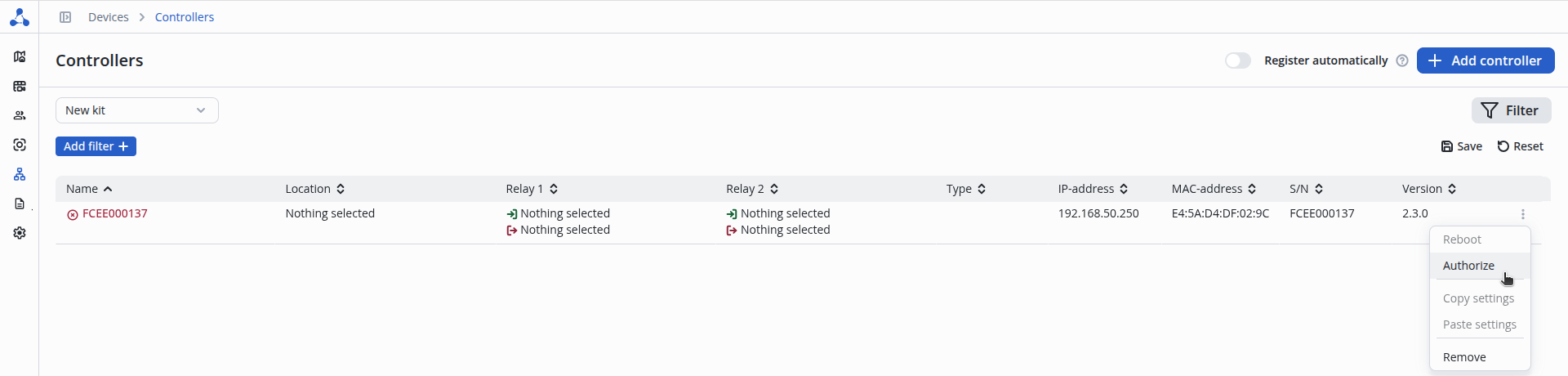
Enter the Controllers page in the Devices section of the web interface.
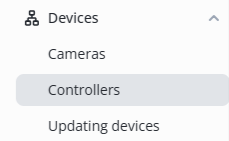
Click on the three dots on the right side of the line, select Authorize, and click the Authorize button.
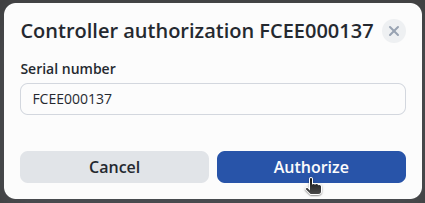
The serial number is automatically inserted, click on the Authorize button on the bottom right.
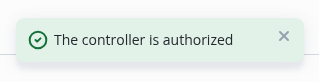
After successful addition, a message will be displayed in the bottom center of the screen indicating that the addition was successful.
Controller configuration
The example below shows that one door is connected with a door open sensor, one pass reader and a door open button.
Switch to diagram 2 and connect the pass reader, door open sensor, door open button, door magnet to the IPA-ER controller.
Location creation
Зачем нужны помещения?
Locations are necessary to track the movement history of workers and conveniently allocate access to them.
Select Interactive plan from the side menu.
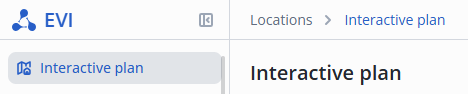
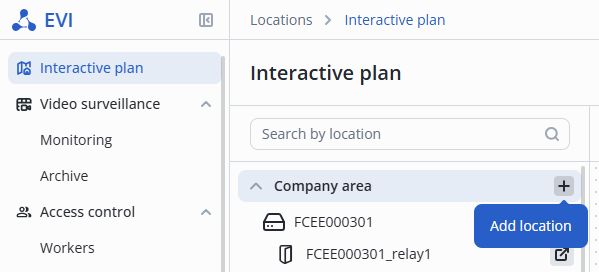
Click the + button under Territory of organization, then Add location.
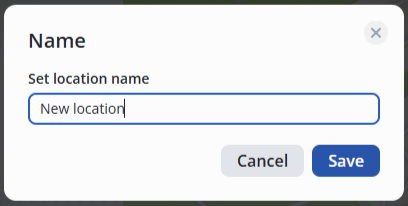
Enter the name of the new location and click save.
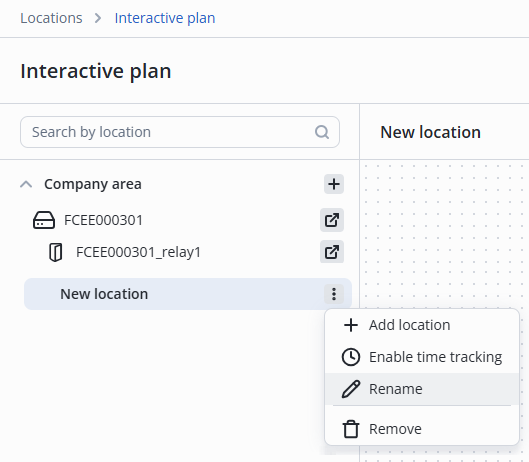
For a new location named New location, click the three dots on the right side and select Rename.
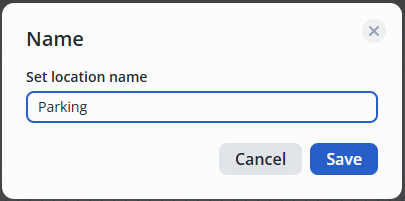
Enter the name of the new location, for example, Parking, and save by clicking on the check mark or pressing the Enter key.
Relay configuration
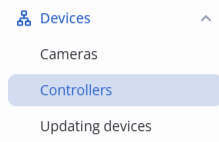
Select Controllers from the side menu in the Devices section.
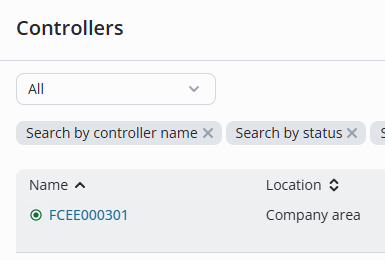
Click on the name of the controller.
Switch to the Relay tab.
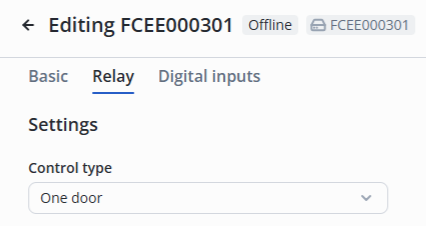
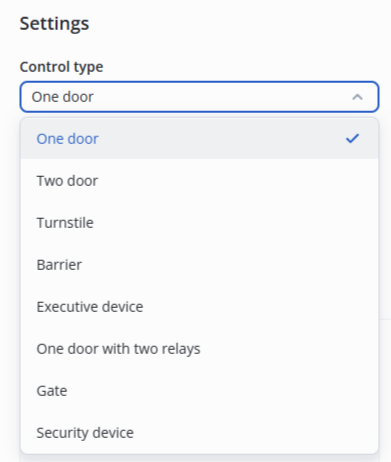
Select Control Type — One Door in the Settings section.
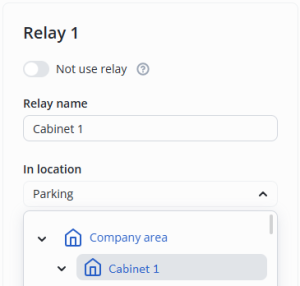
Specify the name of the relay — Cabinet 1.
For Relay 1, choose:
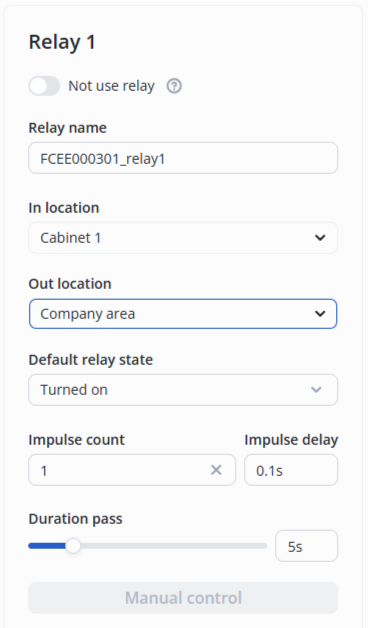
For Relay 1, select the following:
- In location: Cabinet 1;
- Out location: Territory of organization.
Digital inputs configuration
Switch to the Digital inputs tab.
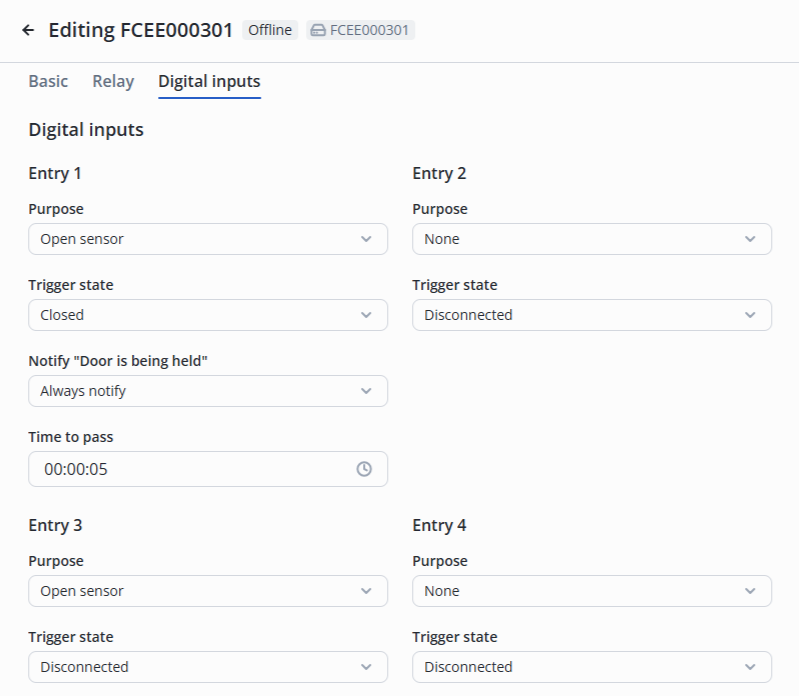
1 and 2 digital inputs are connected to 1 relay.
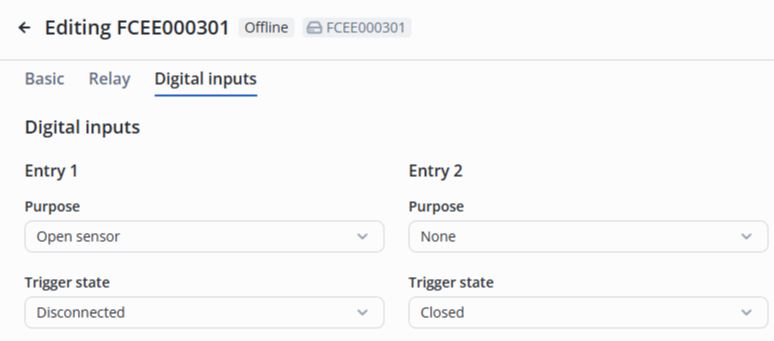
For 1 digital input, select the following:
- Purpose — open sensor;
- Trigger state — disconnected.
For 2 digital input, select the following:
- Purpose — button;
- Trigger state — closed.
Click the Save button in the lower right corner.
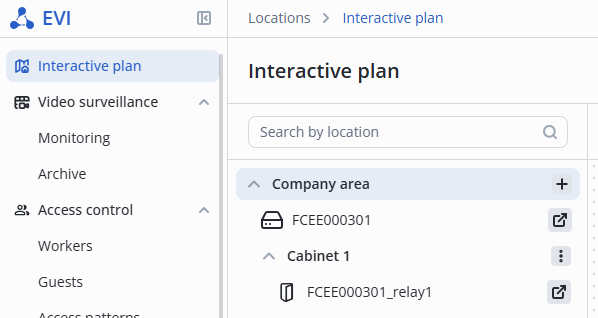
Then, relay 1, which controls the door, will be displayed on the Interactive plan page in Cabinet 1.
Access pattern adding
To enable access for a worker to the Cabinet 1, it is necessary to create an access pattern.
Enter the Access control section, and select the Access patterns item in the menu.
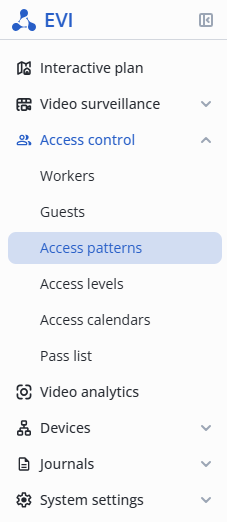
Click the Add access button, select the Worker pattern option.

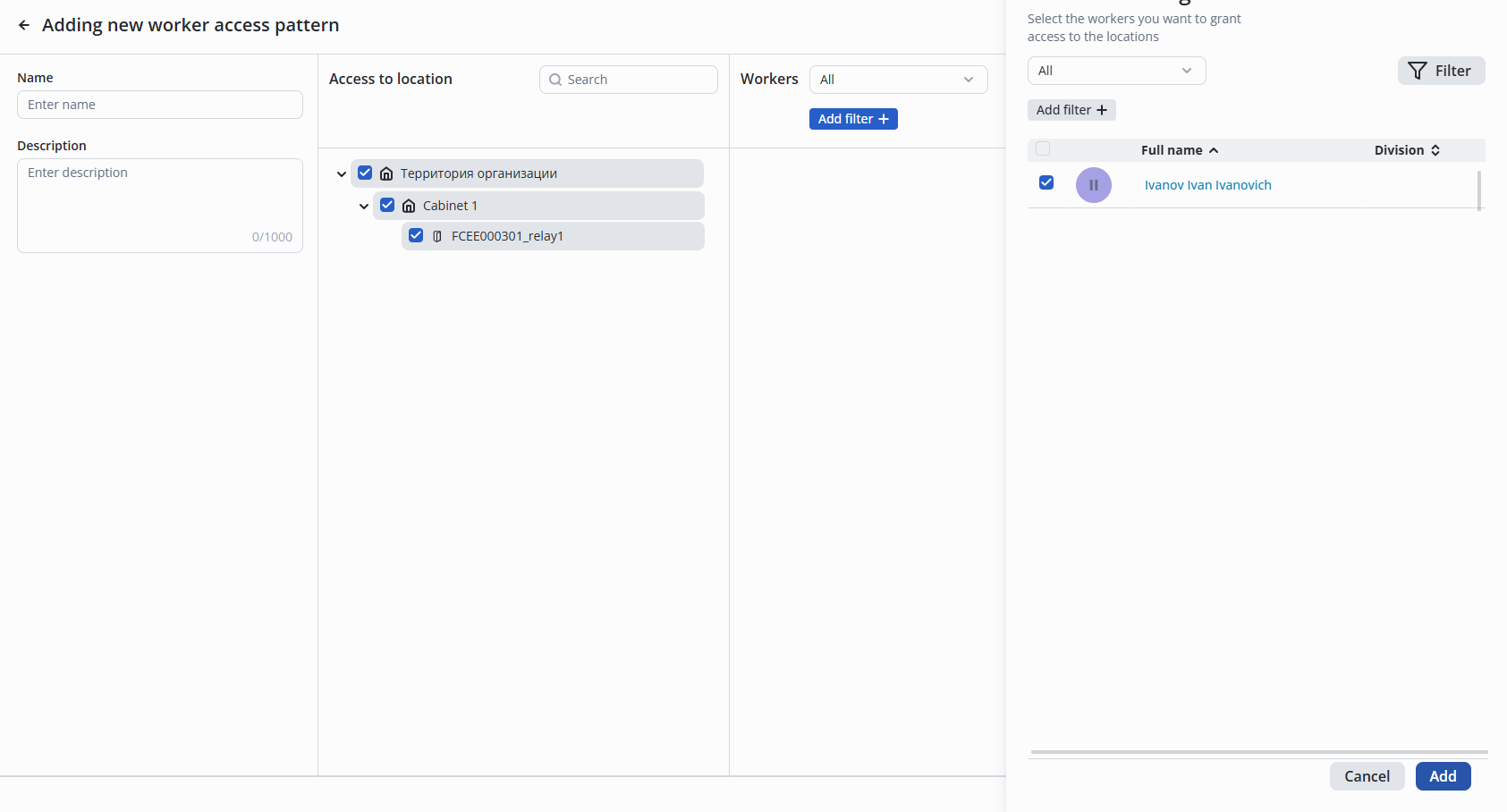
Fill in the fields:
- Name;
- Description.
Mark in the middle column (Access to location) the access objects that can be passed through in this access pattern.

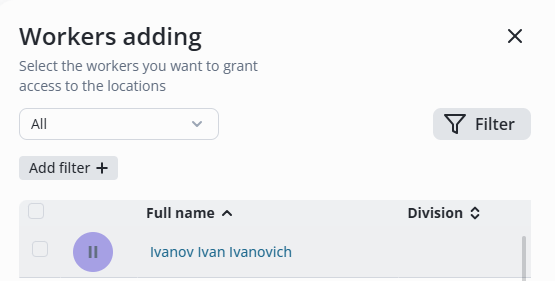
Click the Add button in the far right column to select from the list of workers who are permitted to have access to the locations within this pattern.

In the appeared list select workers and click the Add button.
After adding workers, click the Add button in the lower right corner.
Providing access to a worker
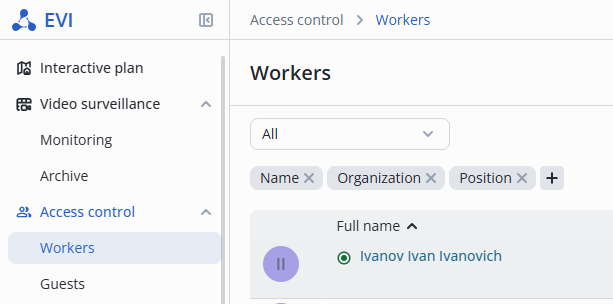
Enter the Workers page in the Access control section.
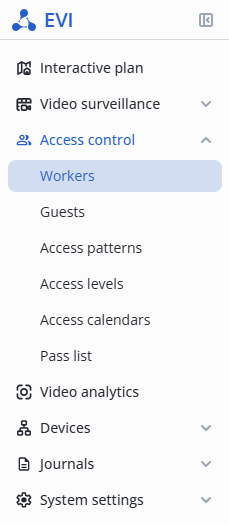
Click the +Add worker button.

Fill in the full name. The rest of the fields are optional.
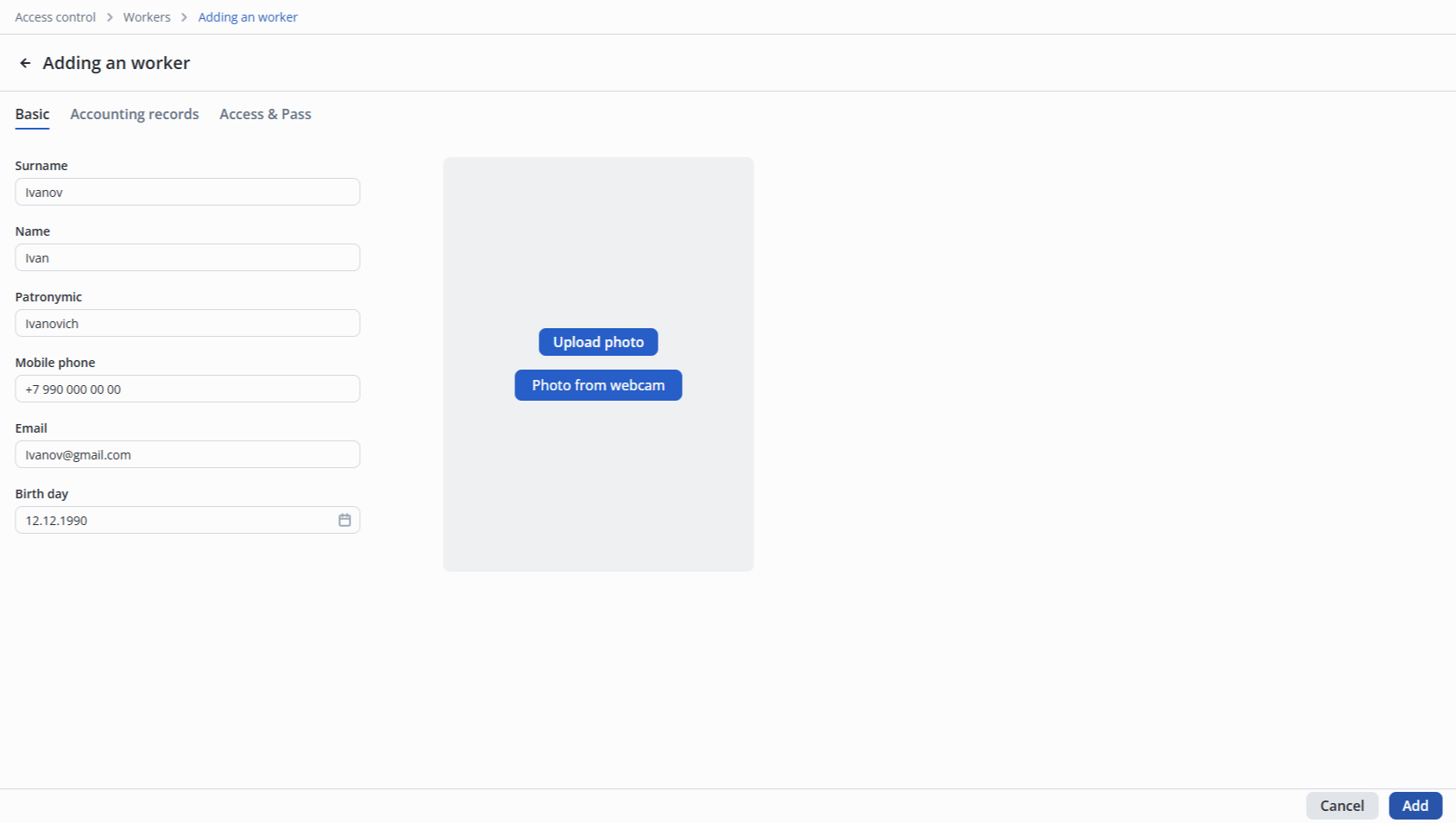
Click the Add button in the lower right corner of the screen.
Access pattern assignment
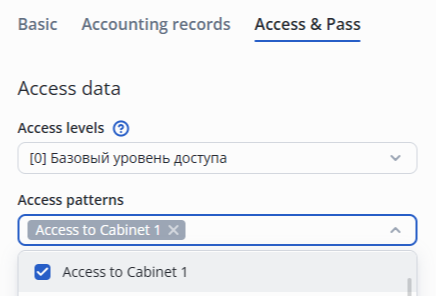
Switch to the Access & Pass tab.
Click the Access Patterns, select the previously created Access to Cabinet 1.
Adding a pass to a worker
Click the Add pass button in the Worker passes section.
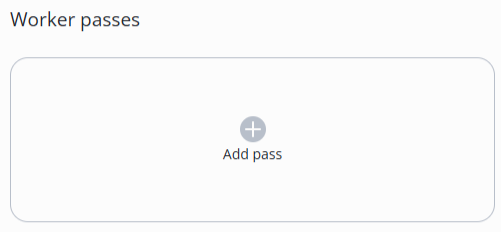
Scan the pass at the USB reader or enter the code from the pass. Example: 00015916217.
Zeros after entry will be discarded. It is not necessary to fill them in.
For the example below, a pass number with zeros was used.
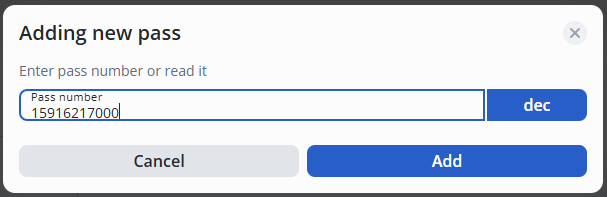
Click the Add button.
Click the Save button in the lower right corner to save the steps.
Checking the worker's passage
Try to make a pass through the door. To do this, perform the following steps:
- Place the pass on the reader;
- Open the door;
- Walk through and close the door behind you.
In the Journals section, the worker`s pass will be displayed on the Passages page.

The Common page in the Journals section will display more detailed information about the worker passing through the door.

Video surveillance module
Configuring a camera with motion detection recording
Adding a camera
In the Devices section, switch to the Cameras page.
Click on Add camera and select Manual addition from the submenu that opens.

On the Manual camera adding page, fill in the following fields:
- Camera name — text field to designate the camera;
- Location — drop-down list represents the hierarchy — the camera location must correspond to the Input parameter of the relay to be controlled;
- Main stream link — URL that points to the main video stream that provides the highest possible quality. Used to display the video in full screen;
- Additional stream link — URL that points to the additional video stream that provides video in the lowest quality. Used to display previews.
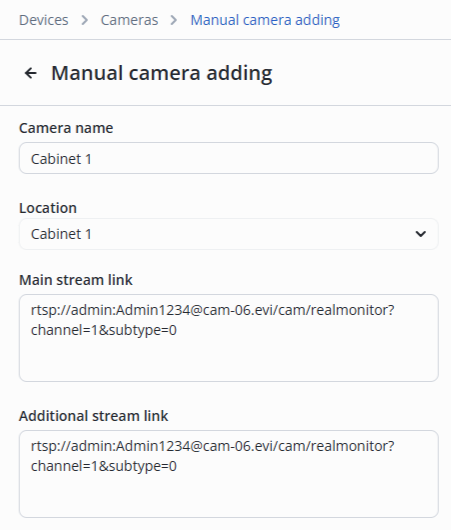
Click the Add camera manually button in the lower right corner.
View camera LIVE stream
When editing camera functionality, a player is available in the browser to view LIVE stream and archive.
View a stream using a self-signed certificate
When using a self-signed certificate, it is necessary to confirm its exclusion in the player to view the video stream from the camera.
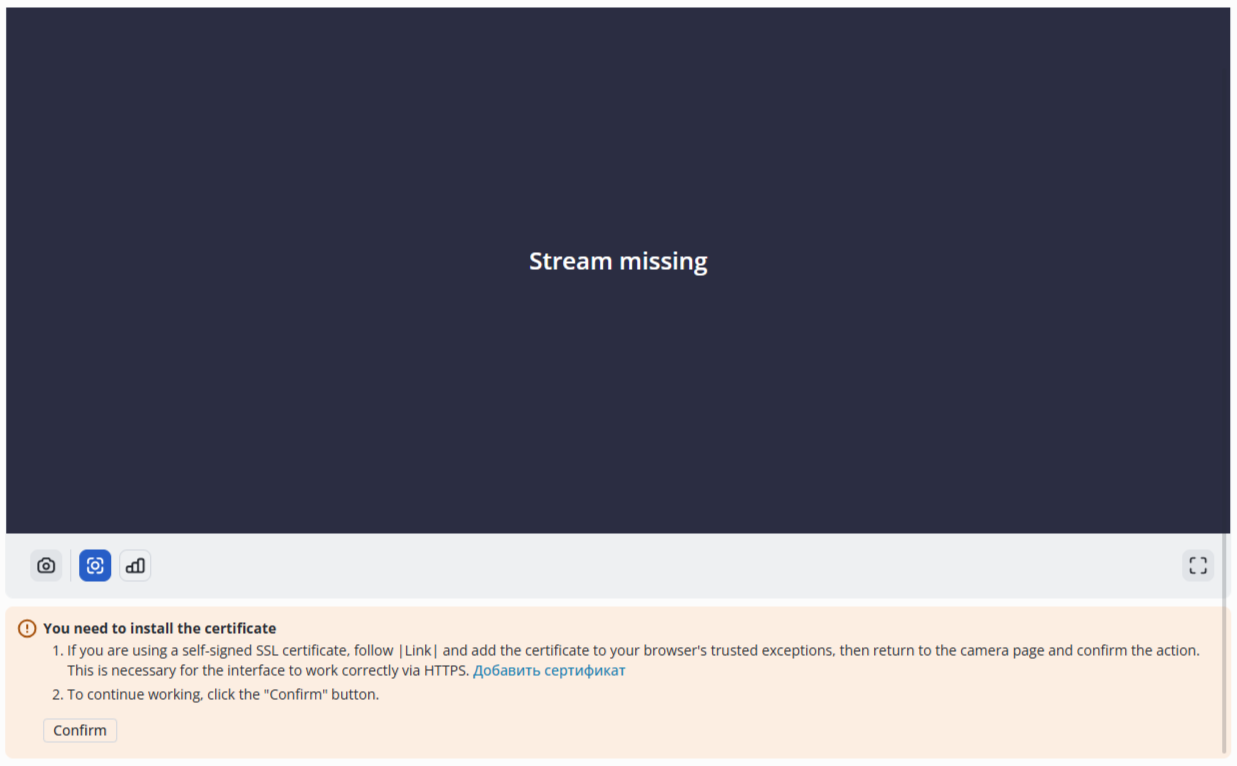
- Click the Add certificate button;
- Accept the certificate exception;
- Then return to the page with the player;
- Click the Confirm button or refresh the page.
Configuring the motion detector
Switch to the Video analytics page.
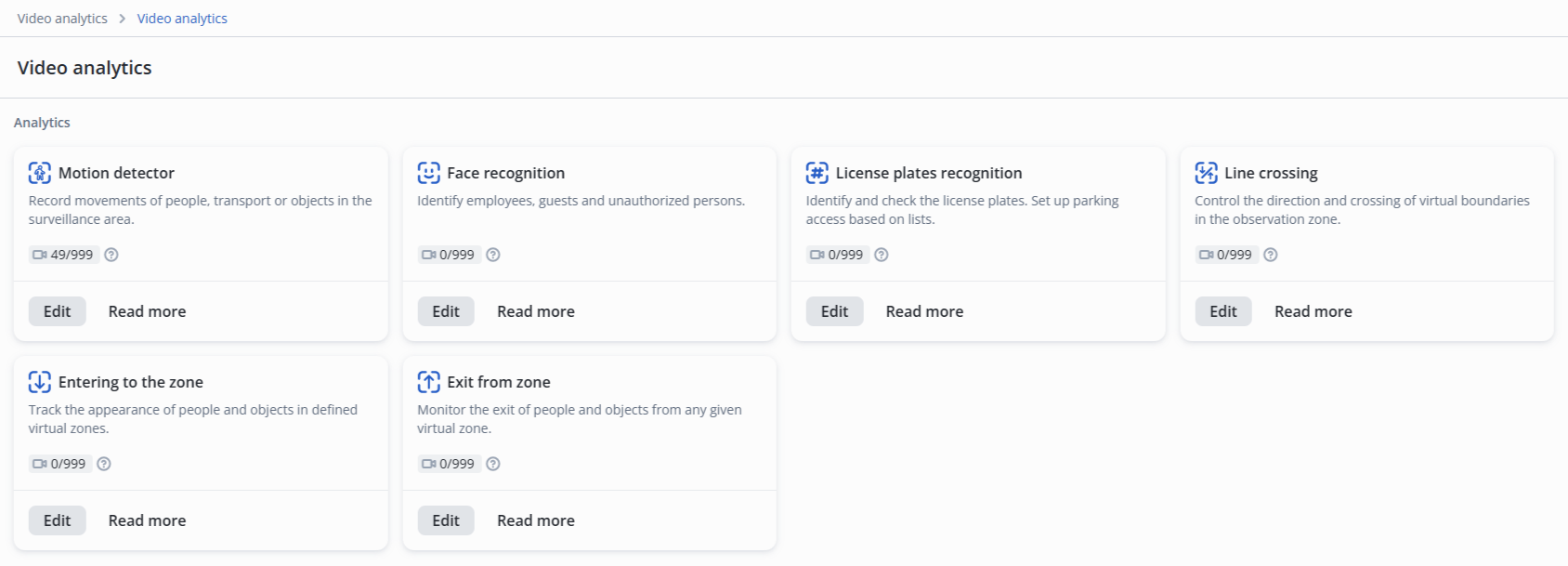
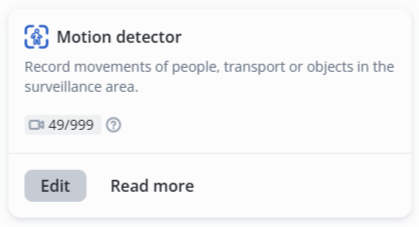
Click Edit next to the Motion detector model.
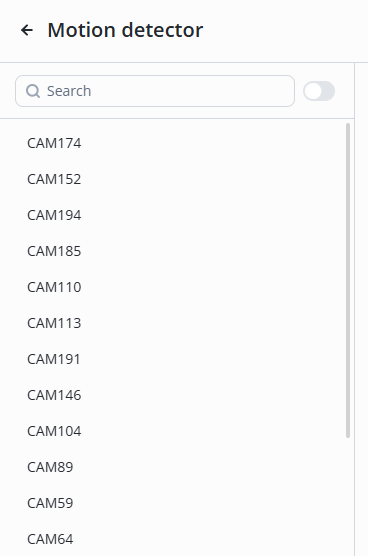
Select the desired camera from the list.
This section is used to configure the server-side motion detector.
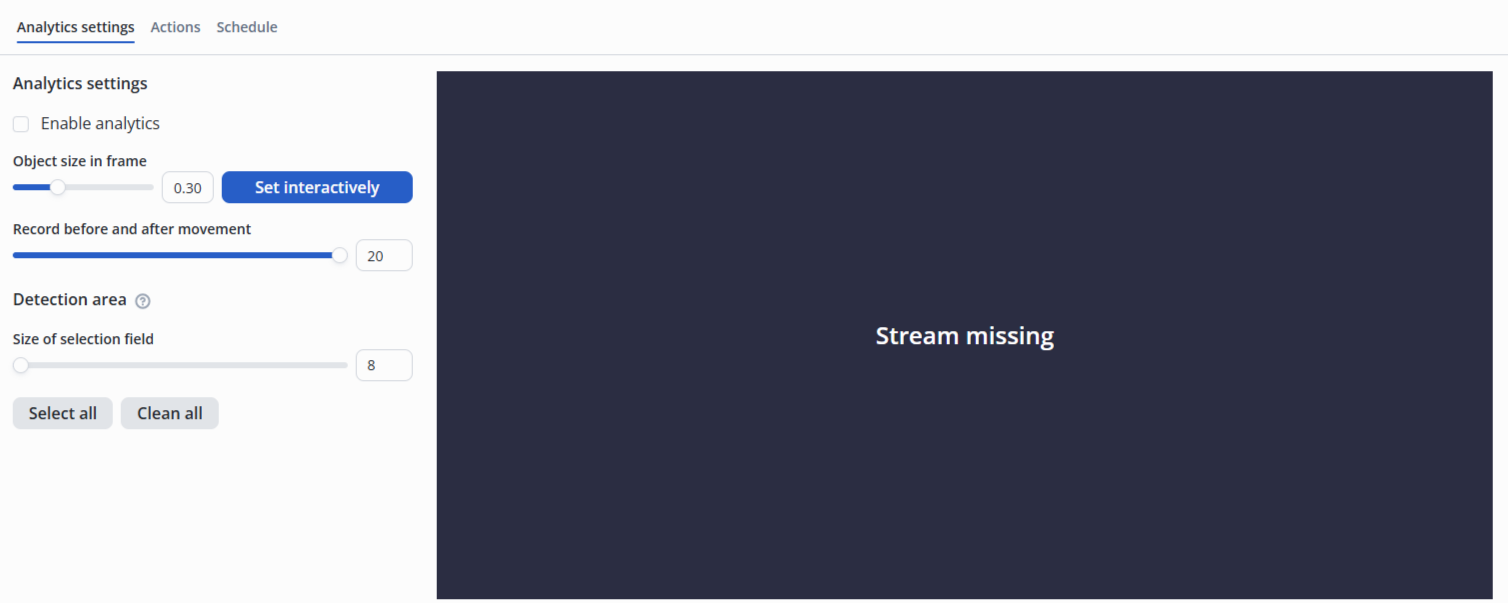
Configuration parameters:
- Object size in frame — ratio of the frame height to the object height. It can be set by manually entering a value between 0.1 and 1 in the field or by interactively selecting the size on the image;
- Record before and after movement — maximum possible number of objects that can be recognized simultaneously in a frame;
- Size of selection field — size of the detection area cell.
To configure the motion detector grid, select camera areas by left-clicking on the camera image.
Use the right mouse button to erase an area.
Archiving by movement
Data from the camera is recorded without using the SD card in the camera to the server in the section specified in the configuration file evi-archive.conf.
Recording switches to permanent mode when the motion detection service is disabled
Cameras with "By movement" archive type will automatically switch to permanent archive recording type in case of problems with evi-analyzer service availability.
When the problems with evi-analyzer service are eliminated, cameras with "By movement" archive type will automatically switch from permanent to "By movement" recording.
Switch to the Actions tab and click Add.

Next, select the type of action — Record to archive, set the desired delay for turning off the recording after movement.
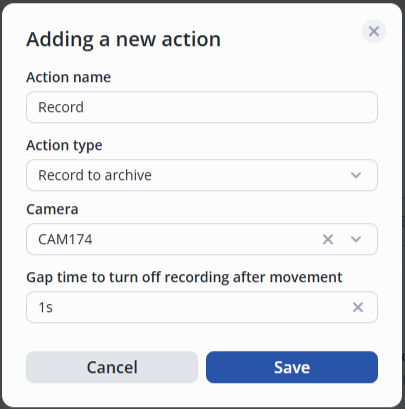
To save the settings, click the Save button at the bottom right of the screen.
Adding a camera to the video view
Creating a video view
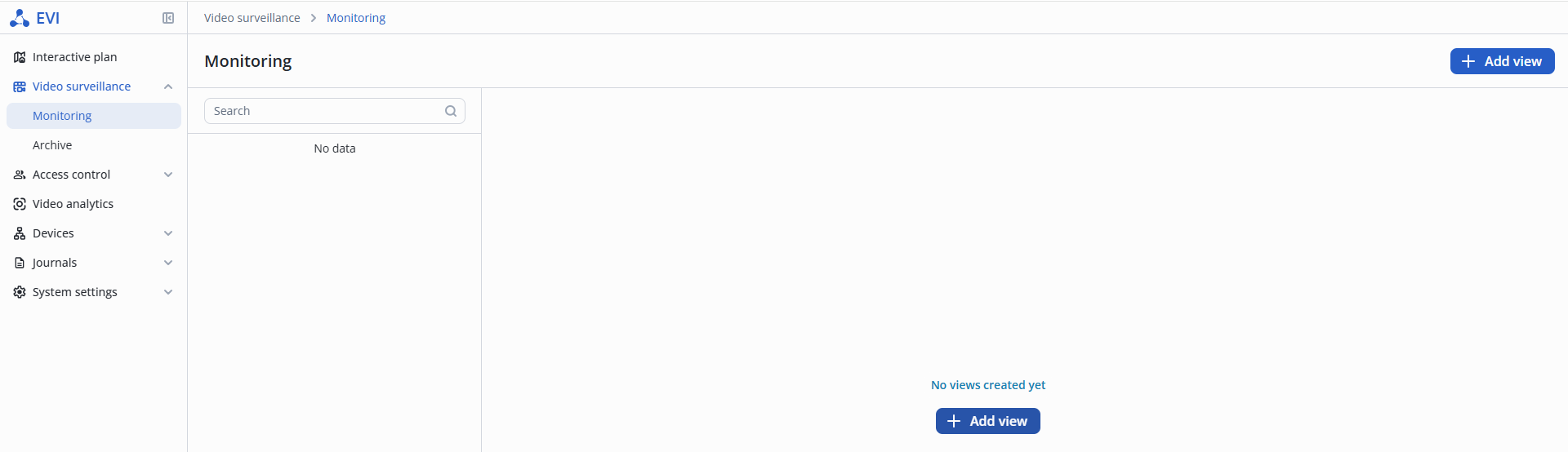
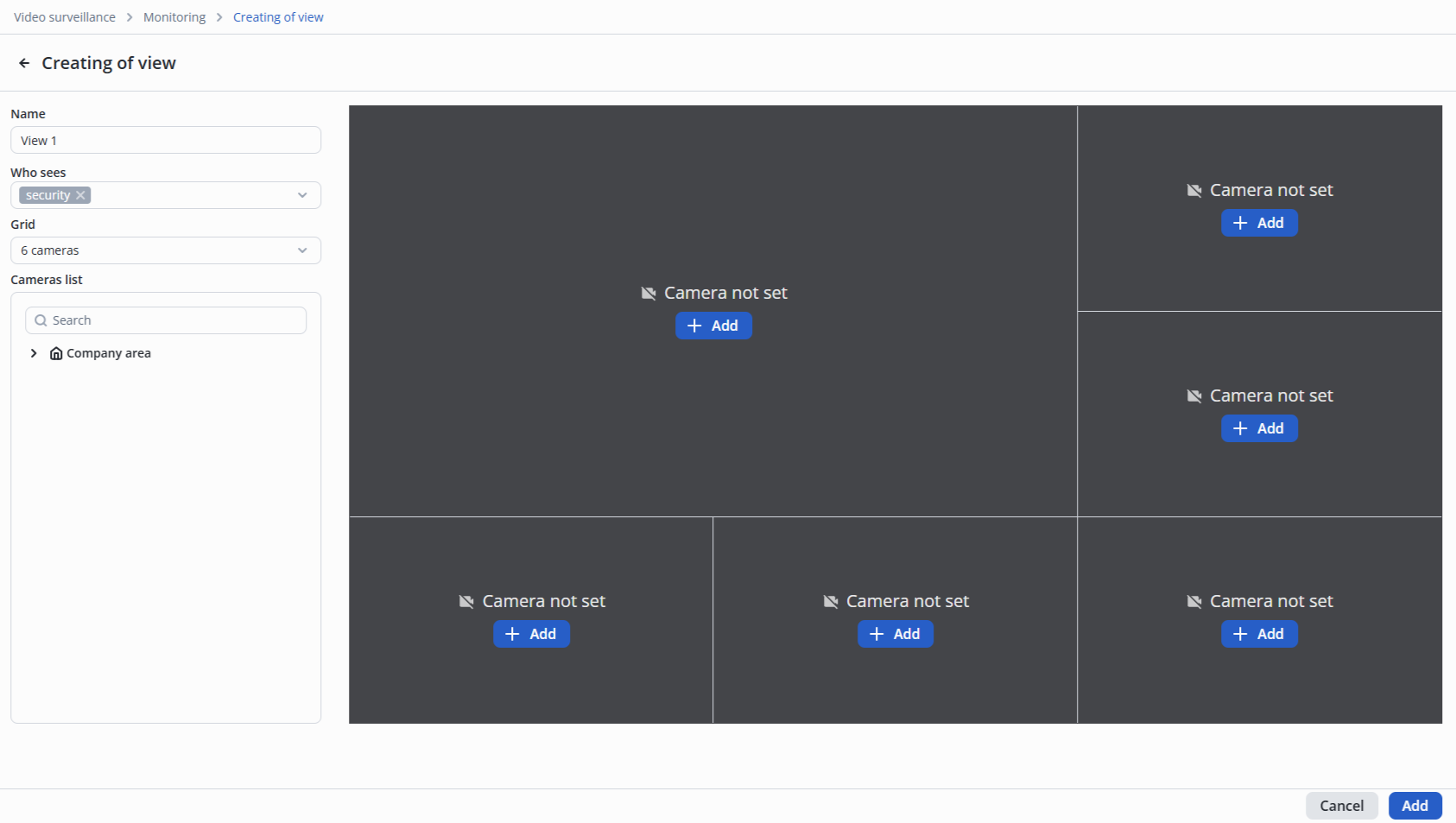
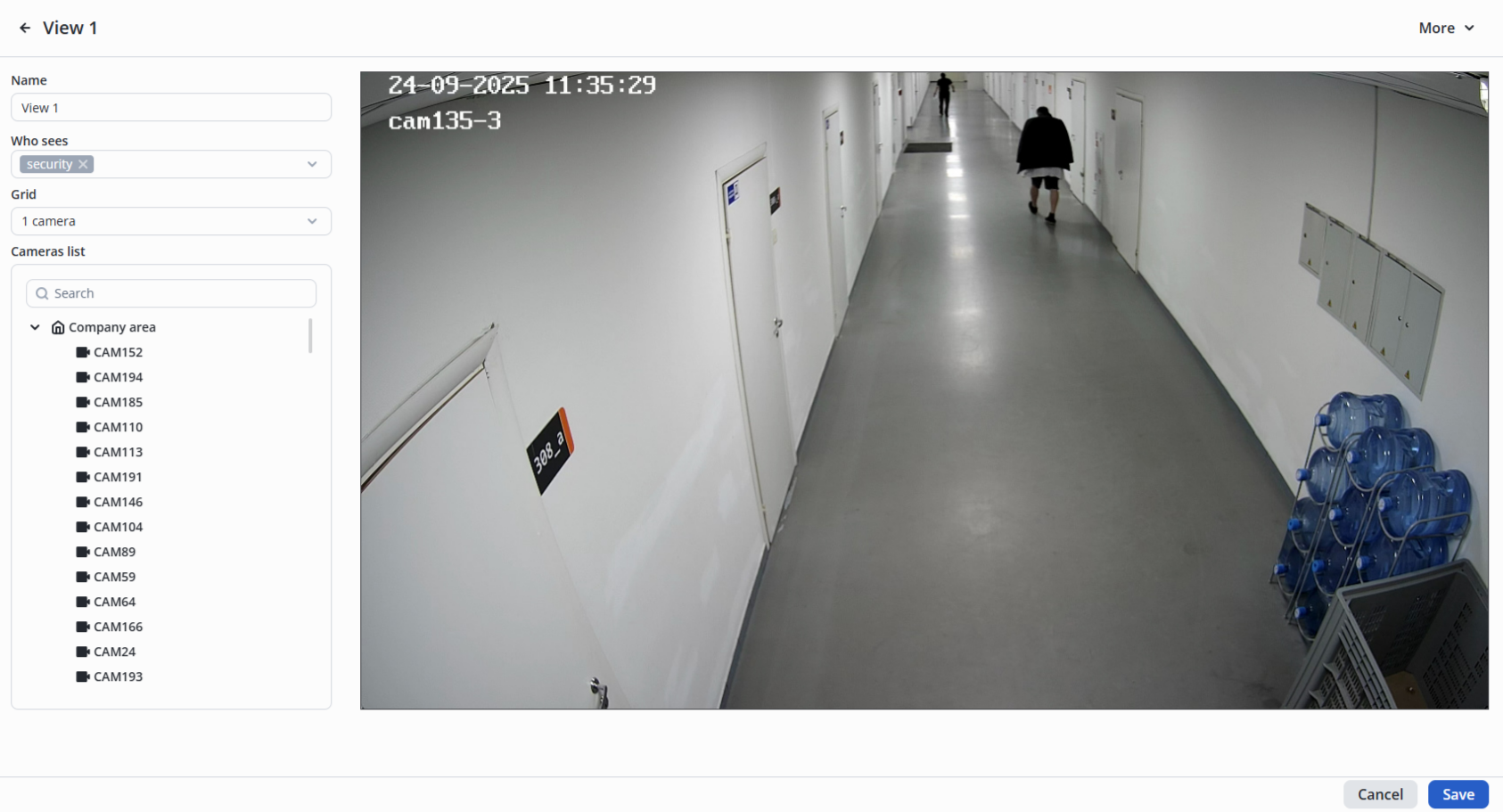
To create a view, switch to the Video surveillance section, select the Monitoring tab, and click the +Add view button.
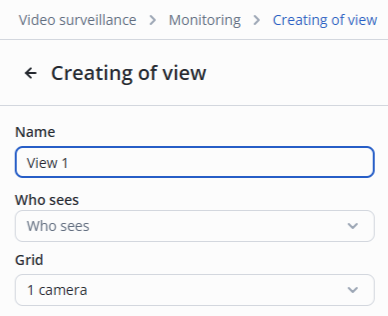
Name
In the Name field, enter a name for the view.
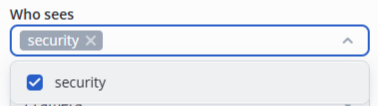
Who sees
The drop-down list Who sees displays all users with the Security role. Select the users who will be able to have an access to the view.
Grid
In the Grid drop-down list, select the number and layout of cameras that will be displayed in evi-video-client.
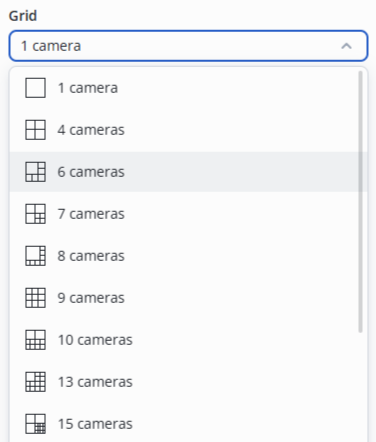
After making a selection, a camera layout grid will appear on the right side of the screen.
Adding a camera
Addition via button
On the grid, click the Add button.
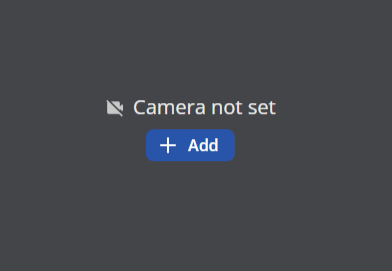
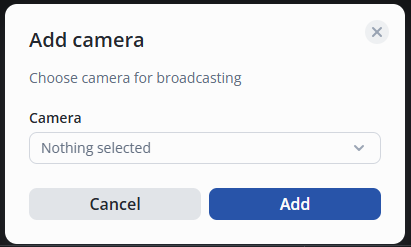
In the appeared pop-up window, open the drop-down list.
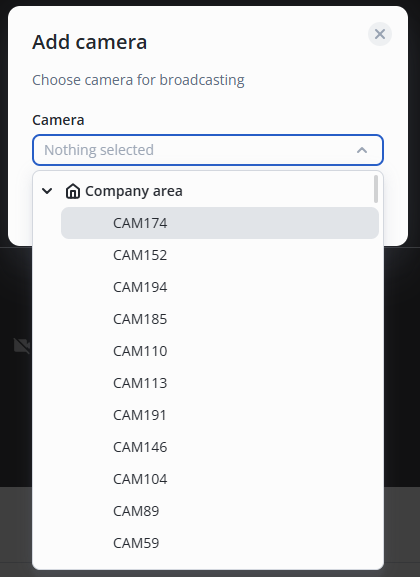
In the appeared pop-up window, open the drop-down list and select the camera to add, then click the Add button.
Addition via dragging and dropping
Find the desired camera in the camera list.
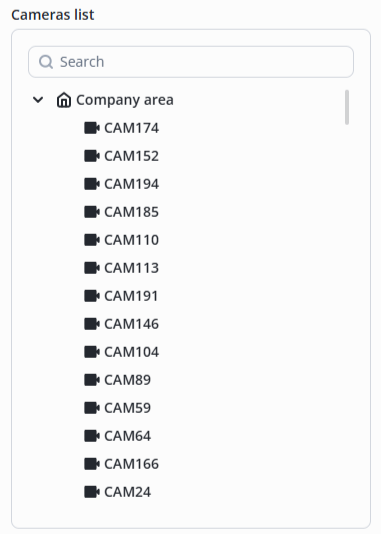
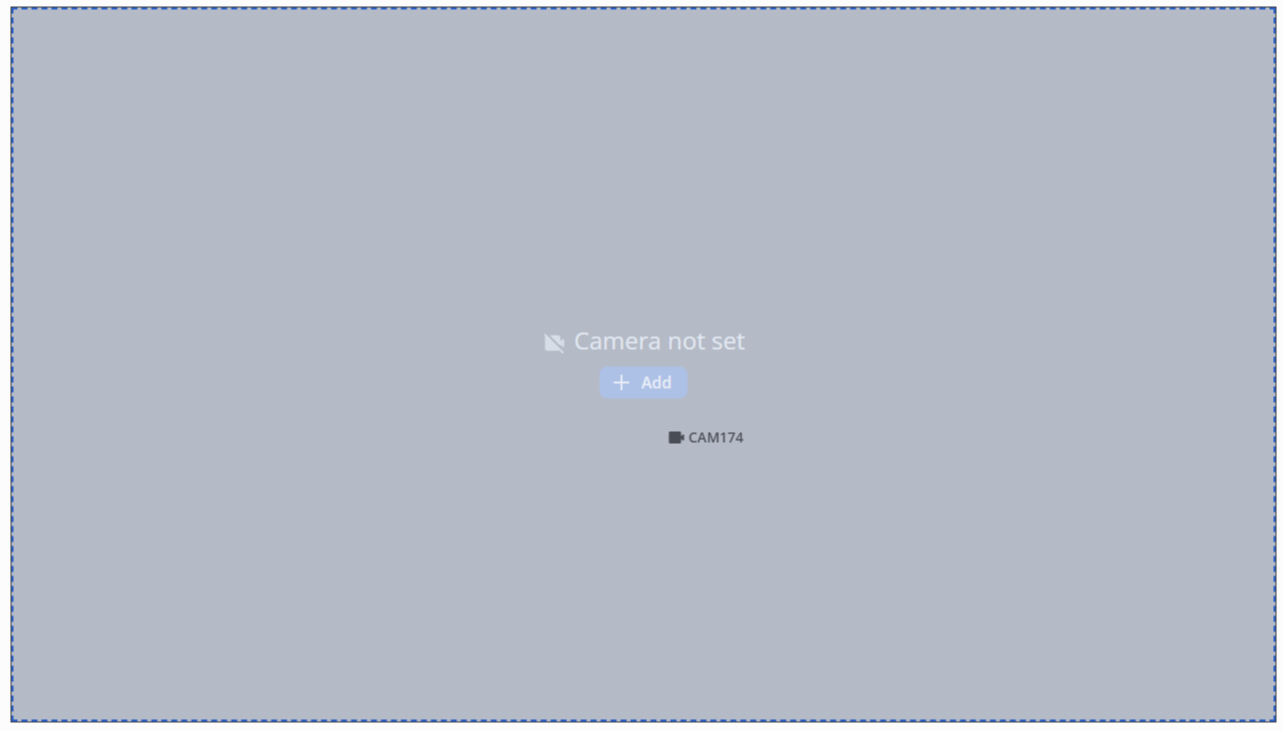
Hover the mouse cursor over it and hold down the left mouse button. Without releasing the left mouse button, drag the camera to the desired cell in the view grid. Release the left mouse button after selecting the view cell.
To create a view with the selected cameras, click the Add button.
Verifying the recorded archive via the EVI Video Client application
Client authorization
Open the application and wait for a window to appear for entering the user name and password.
The default login and password for the Security role:
The user will be created immediately after the EVI Platform is installed. Before authorization, add Video view with cameras for this user via the administrator account.
User — security;
Password — password.
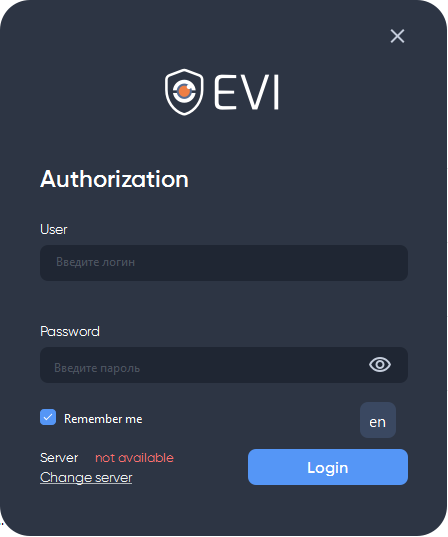
Click the Login button.
Viewing recorded videos
To view the recorded videos, click with the left mouse button on the video image from the camera.
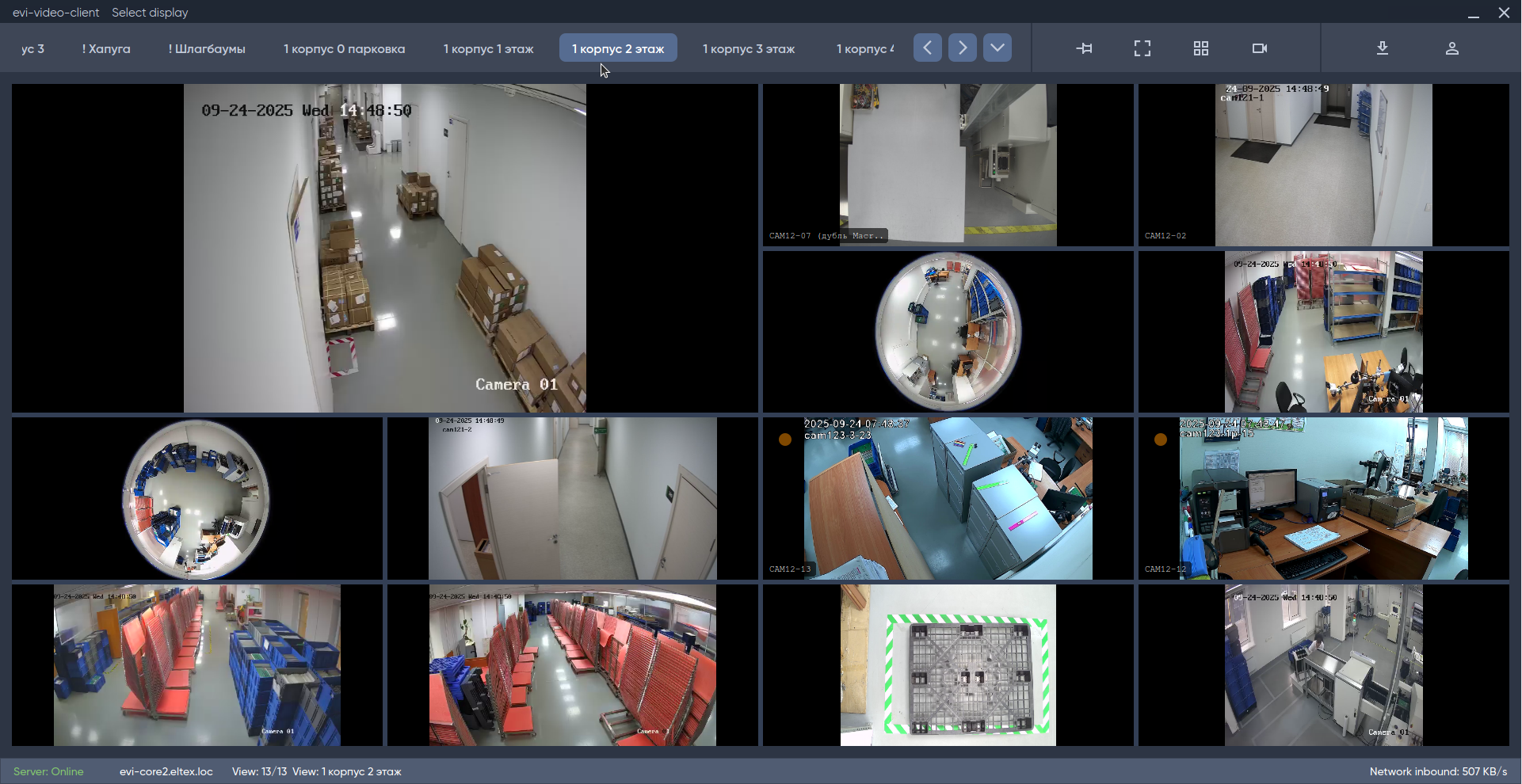
Switching to archive and playback
Select a section of the archive and press the Play button.
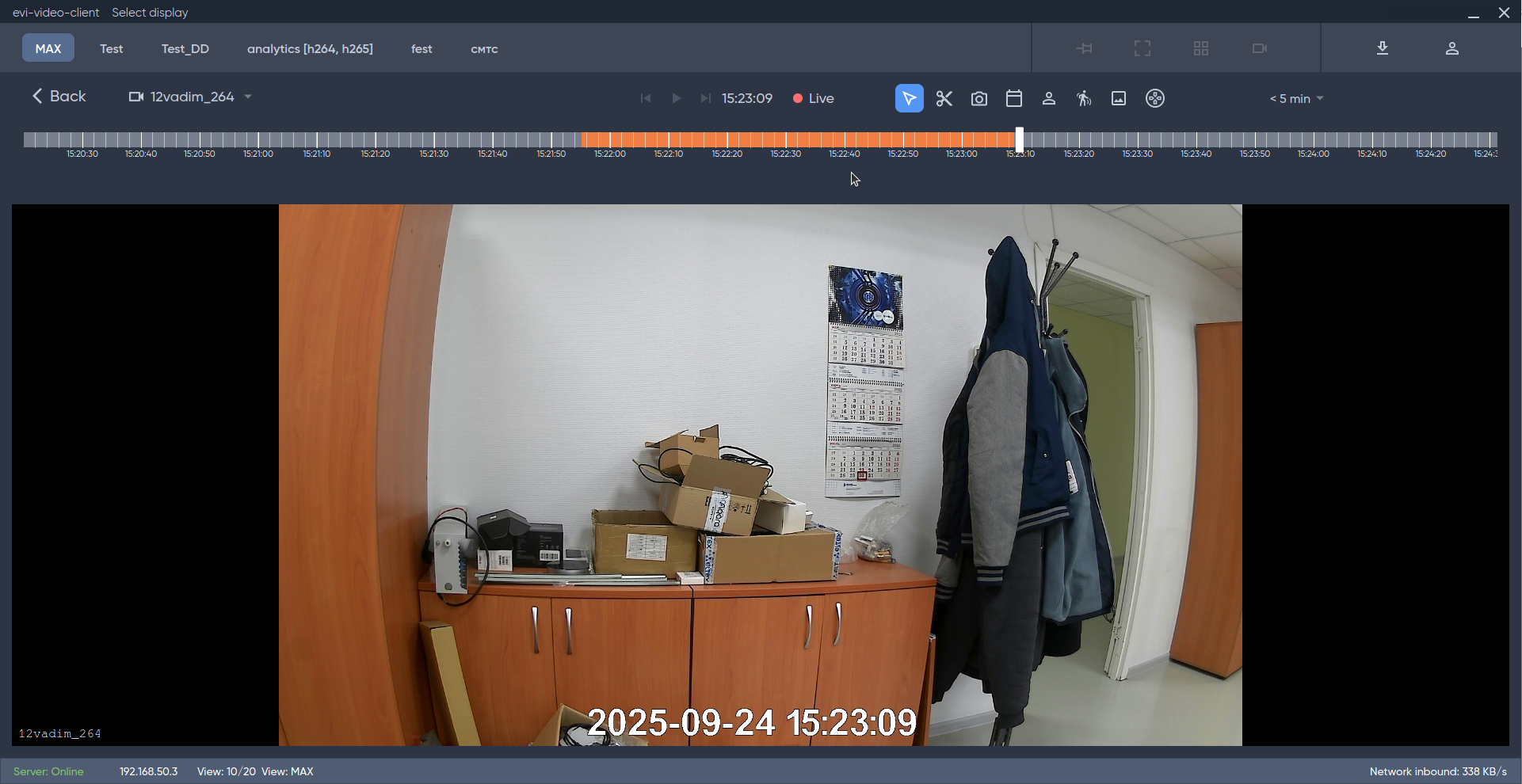
Video analytics module
Configuring passage through the turnstile by face
In this example, face pass is considered, if necessary, the worker can also pass through the turnstile using own pass.
Preliminary conditions
- The controller is configured in the Turnstile mode;
- Input to and Output from is configured in the relay;
- An access pattern is created in which a 1-point turnstile is selected;
- The access pattern is assigned to a Worker;
- The Camera is added.
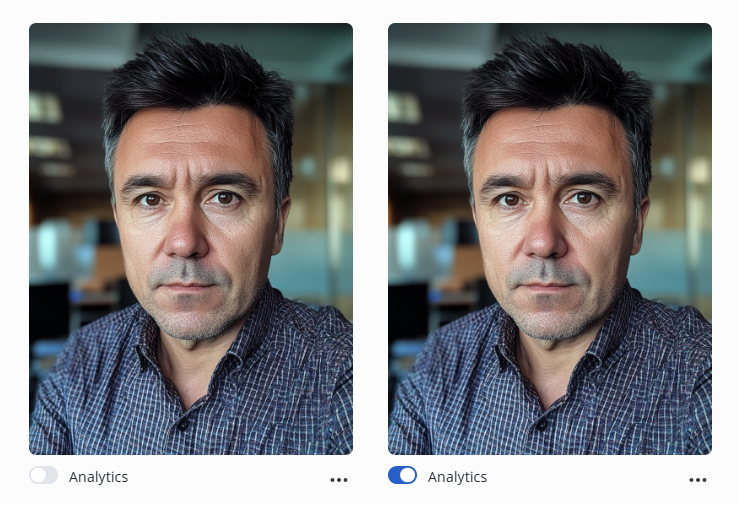
Activation of worker`s analytics
Switch to the Worker editing section.
To activate the worker's analytics, move the Analytics switch to the enabled position.
Camera configuration
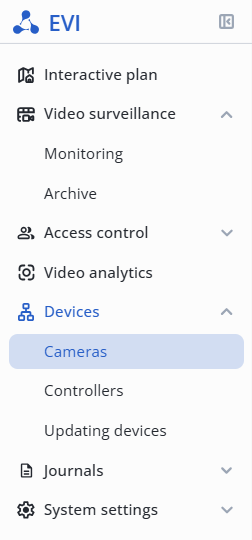
In the Devices section, go to the Cameras section.
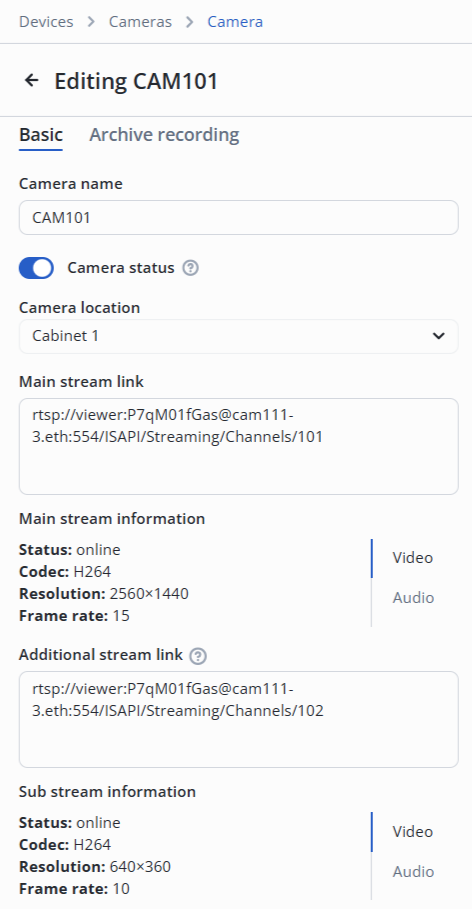
Camera location
The camera location must correspond to the Input to parameter of the relay to be controlled.
Select the location of the camera.
Analytics configuration
Switch to the Video analytics page.
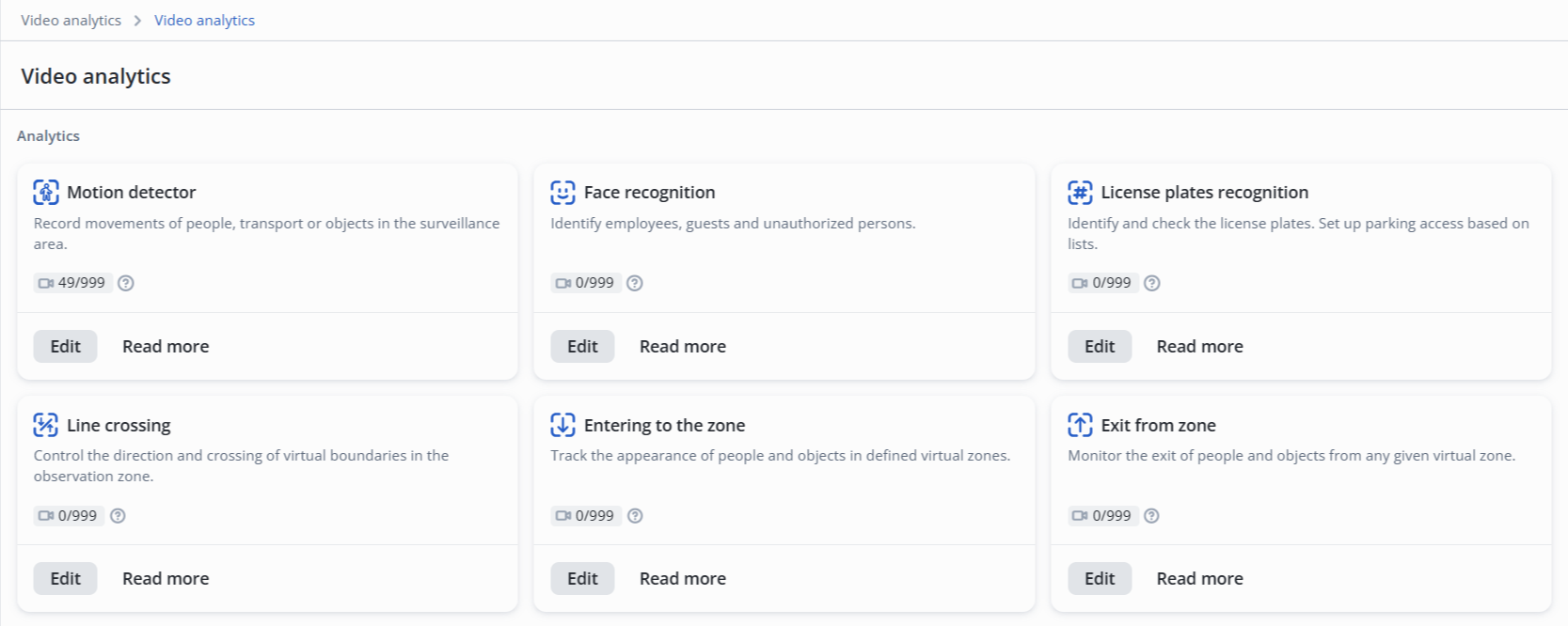
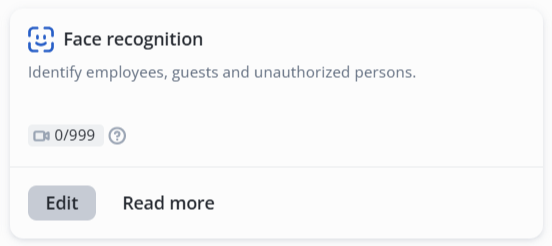
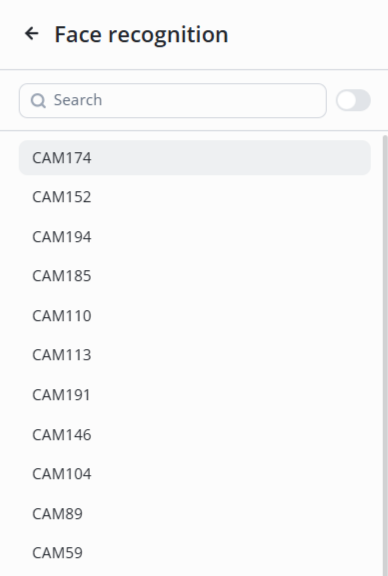
Click Edit at the Face recognition function.
Select the desired camera from the list.
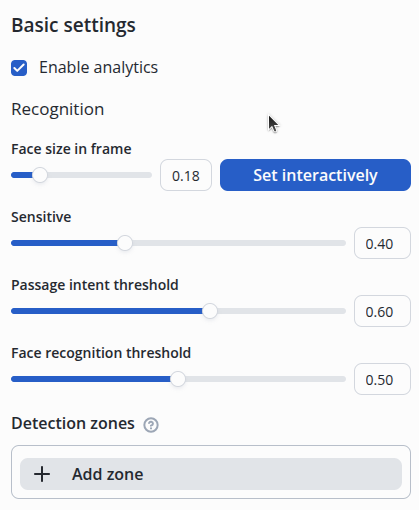
Basic parameter configuration
- Analytics state — Enabled;
- Face size in frame — 0.18.
Face size in the frame
The parameter is selected by matching on a real camera.
To perform this, place a person in the camera frame, positioning in front of the lens, and select the area using the Set interactively button.
Detection zone configuration
The recognition zone needs to be configured when the frame may contain multiple faces across the entire frame area.
An example of highlighting a typical area for facial recognition:
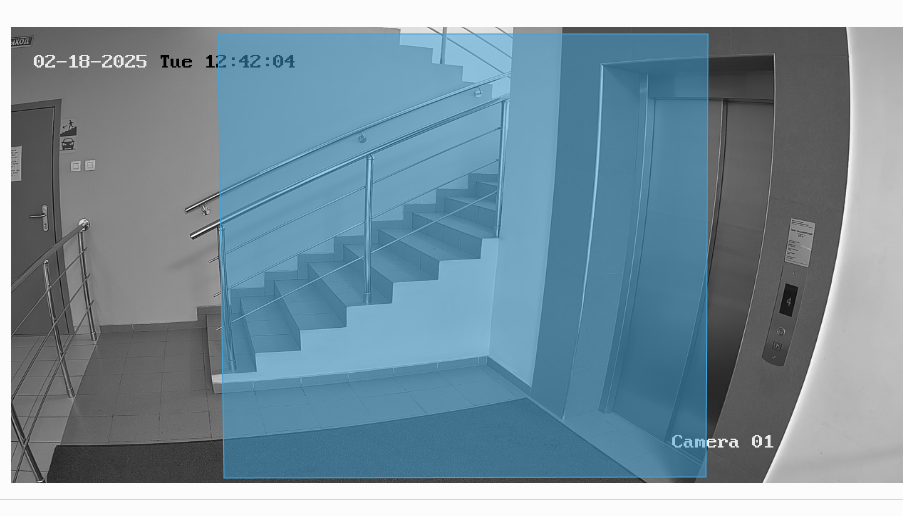
This image has the sides cut off so that the faces standing on the sides are not in the recognition area.
Recognition actions configuration
Switch to the Actions tab and click Add.

Next, select the action type — Relay, the required relay from the list and the relay status — Pass.
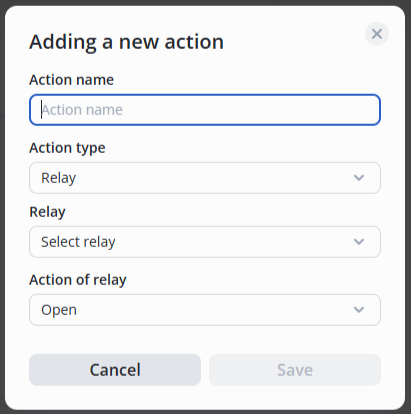
It is necessary to add the second camera in the same way and configure the passage through the turnstile in the opposite direction, using the second relay, to allow passage in both directions.
Checking the worker`s pass by face
Try to make a pass through the door. To do this, perform the following steps:
- Approach the camera;
- Pass through the turnstile.
In the Journals section, the Passages page will display the worker's passage.

The Common page in the Journals section will display more detailed information about the worker passing through the door.