Firmware version 2.2.0
Notes and warnings
Notes contain additional information on using and configuring the device.
Tips contain important information, tips or recommendations on device operation and setup.
Product description
The IPA-ER-020 PACS controller is a multifunctional device designed for integration with the ELTEX access control system. Access may be granted via an RFID key, the "Exit" button, a command from the web interface, or an API command. The controller accommodates readers with Wiegand-26/34/37/40/42/58 interfaces for the retrieval of RFID keys. This device is capable of locally storing up to 10,000 keys and maintaining a log of 50,000 events.
The device has a plastic housing and can be mounted on a DIN rail.
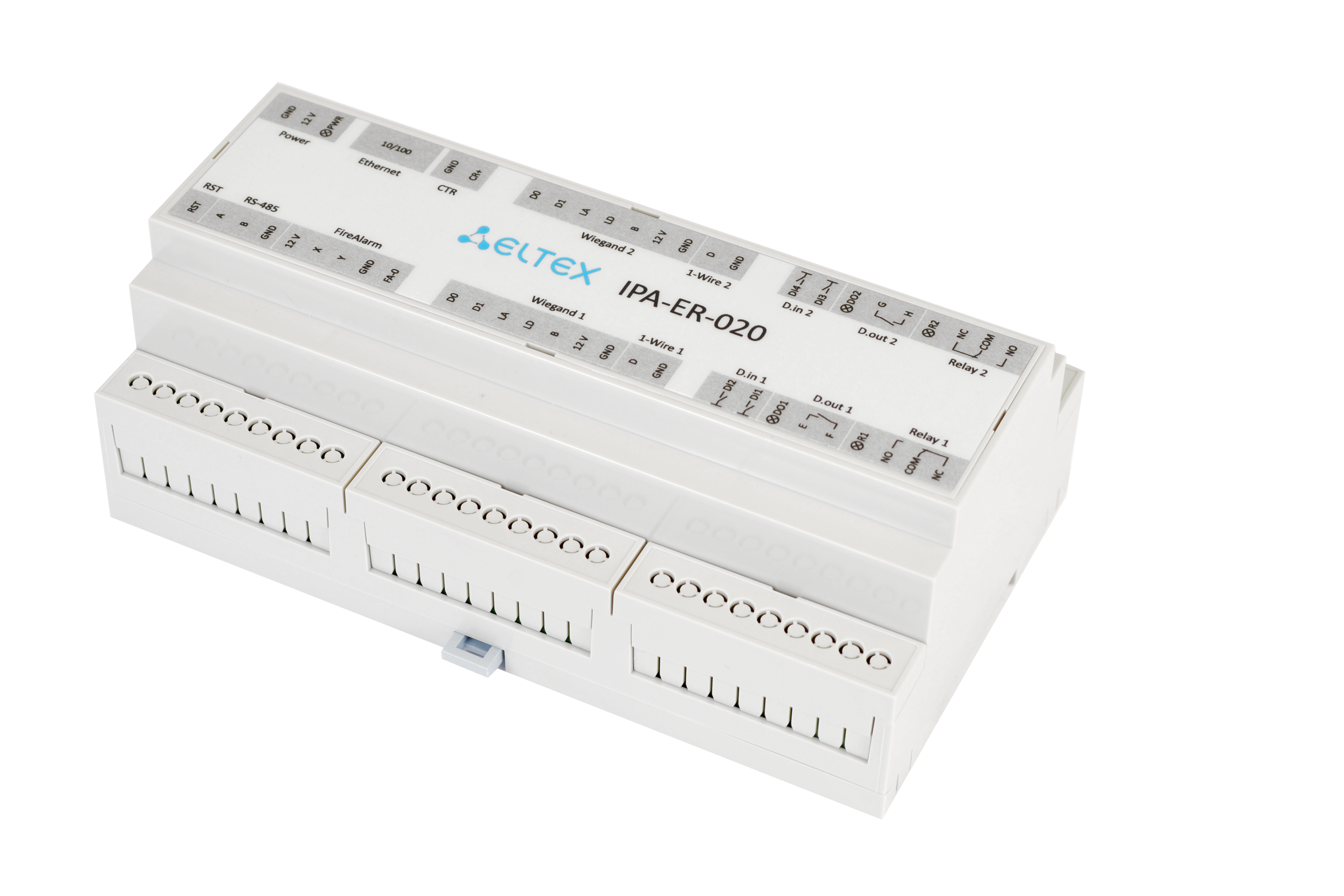
Figure 1 — Appearance of IPA-ER-020
The diagram below shows the functional elements of the devices:
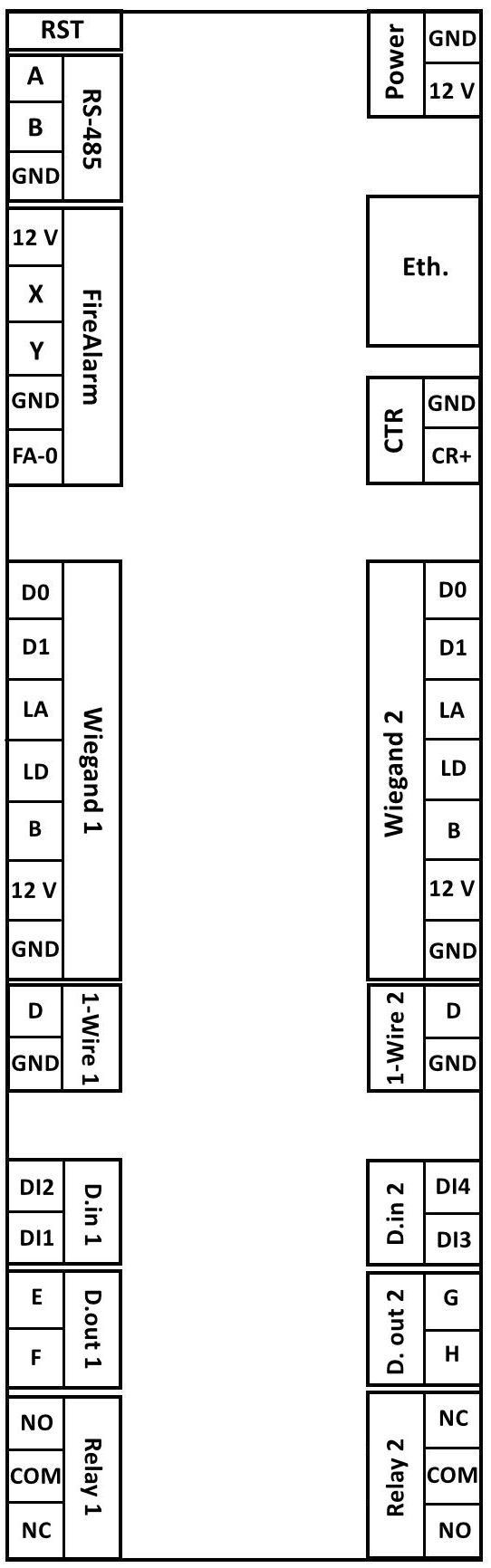
Figure 2 — Functional elements of IPA-ER-020
The description of the IPA-ER-020 elements is provided in the table below:
| Element | Description |
|---|---|
| RST — service button for reboot/reset settings | |
| RS-485 — connection contacts to the RS-485 bus: | |
| A | original signal transmission line contact |
| B | inverted signal transmission line contact |
| GND | COM |
| FireAlarm — fire alarm connection | |
| 12V | power supply 12 V |
| X | fire alarm input 1 |
| Y | fire alarm input 2 |
| GND | COM |
| FA-0 | contacts for setting the fire alarm actuation state |
| Wiegand 1, Wiegand 2 — connection contacts of the Wiegand RFID reader: | |
| D0 | data 0 |
| D1 | data 1 |
| LA | green LED |
| LD | red LED |
| B | beep |
| 12V | power supply 12 V |
| GND | COM |
| 1-Wire 1, 1-Wire 2 — connecting the device via the 1-Wire interface: | |
| D | data line |
| GND | COM |
| D.in 1, D.in 2 — digital dry contact inputs: | |
| DI1 | digital input 1 |
| DI2 | digital input 2 |
| DI3 | digital input 3 |
| DI4 | digital input 4 |
| D.out 1, D.out 2 — digital relay outputs for small loads: | |
| E | contact 1 of low-power relay 1 |
| F | contact 2 of low-power relay 1 |
| G | contact 1 of low-power relay 2 |
| H | contact 2 of low-power relay 2 |
| Relay 1, Relay 2 — power relay contacts: | |
| NO | contact state "normally open" |
| COM | common contact of power relay |
| NC | contact state "normally closed" |
| Power — controller power connection pins: | |
| GND | COM |
| 12V | power supply 12 V |
| Eth. — Ethernet network interface | |
| CTR — external sensor/button contacts: | |
| GND | COM |
| CR+ | signal contact |
Device installation and configuration
To quickly install and configure IPA-ER-020, perform the following steps:
1. Connect auxiliary equipment to the device:
- Electromagnetic locks — to power relay contacts;
- Wiegand RFID readers — to Wiegand interfaces 1 and 2;
- "Output" buttons — to contacts of digital inputs DI2, DI4 and GND;
- Door opening sensors (reed relay) — to contacts of digital inputs DI1, DI3 and GND;
- Housing intrusion sensor — to CTR and GND contacts.
2. Connect the patch cord to the Ethernet interface and supply 12V power to the device.
3. Power connection of IPA-ER-020 device is made to screw terminals GND and 12V, indicated on the decorative label as Power. To provide power, it is necessary to use a pulse power supply with the following output parameters: voltage +12 V, current 1.5 A.
A separate power supply must be used to connect the electromagnetic locks. Parameters of the unit are selected depending on parameters of locks.
The maximum load current at the 12V output terminals of the Wiegand 1 and Wiegand 2 interfaces shall not exceed 50mA.
To connect an additional load to the controller, for example, the backlight of the "Output" button, it is necessary to use the 12V contact of the FireAlarm interface. Maximum total load current shall not exceed 50mA.
If it is necessary to provide backup power to the controller, it is allowed to use an uninterruptible power supply.
Web configurator
After powering up, it is necessary to connect to the device's web interface at IP address 192.168.1.10 using the HTTP protocol. If the IP address is assigned by the DHCP server, check the address directly on the server. The IP address of the computer must be on the subnet with the device, for example, the default is 192.168.1.0/24.
In the web interface, log in using the login: admin, password: admin.
The entered password characters are hidden, displayed as dots.
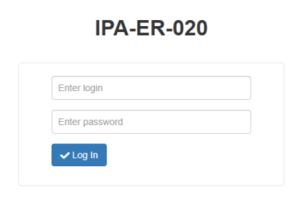
Figure 3 — Authorization page
Configuring the controller through the web configurator
1. Switch to the "Administration" -> "Security" page and, for security purposes, change the password of the admin user to arbitrary. The default value is admin.
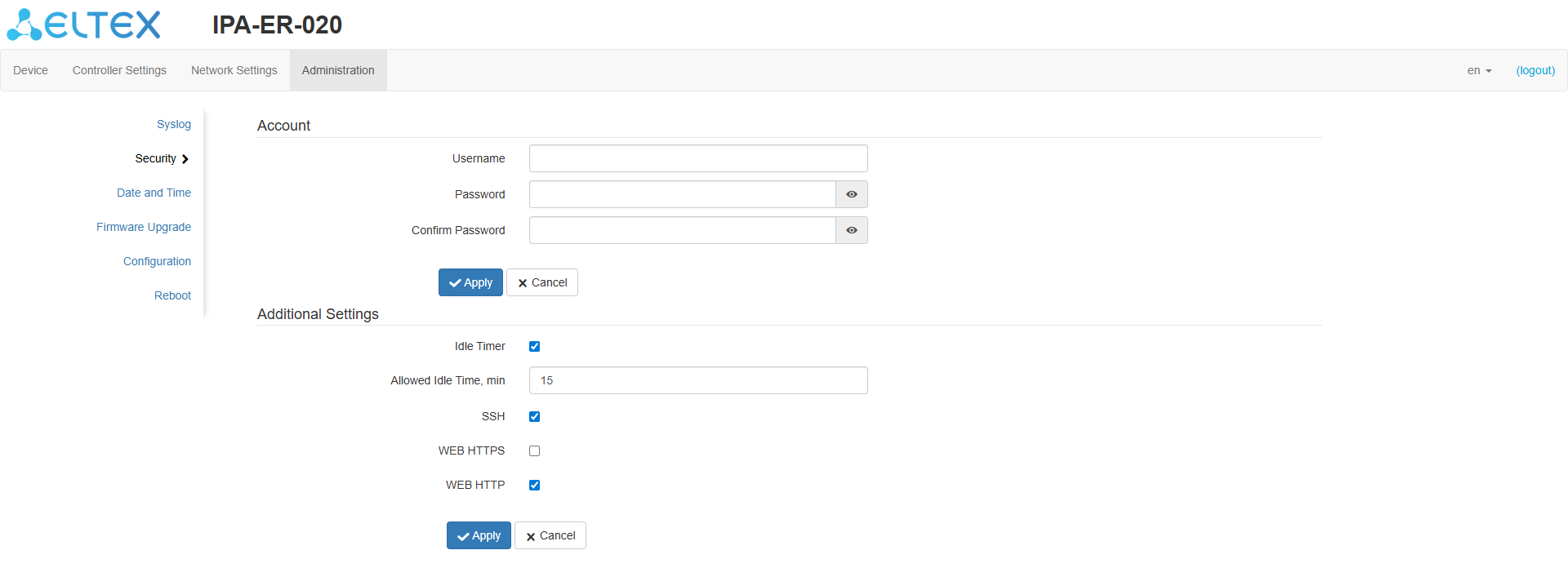
Figure 4 — "Security" page
2. To configure a network device, it is necessary to define the connection type:
- To set a fixed IP address, select "Static IP".
For static configuration, the following data Is required:
- IP address;
- Netmask;
- Gateway;
- DNS servers (if necessary).
- If this is a DHCP server that automatically assigns IP addresses, select "DHCP Client".
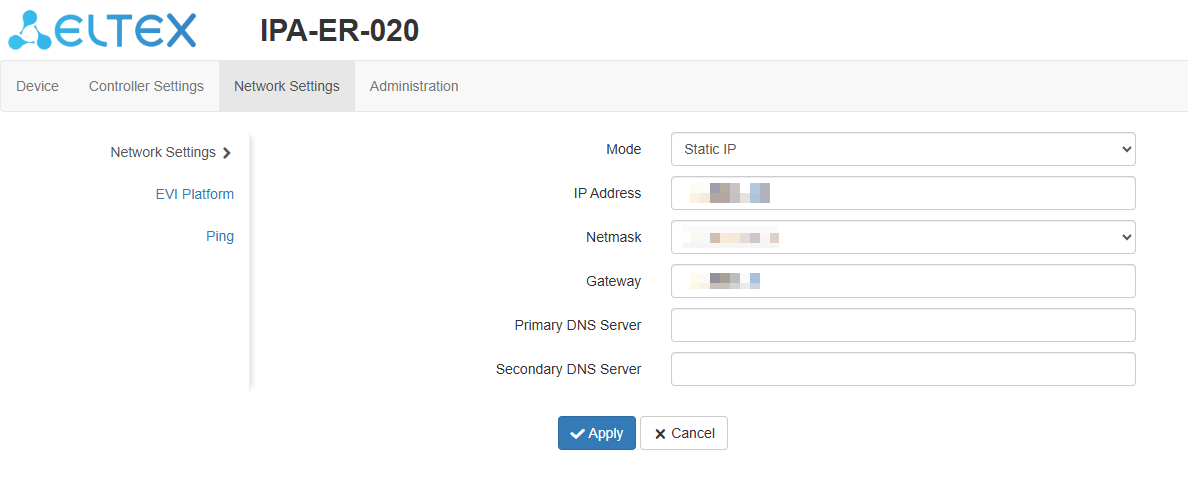
Figure 5 — "Static IP" mode
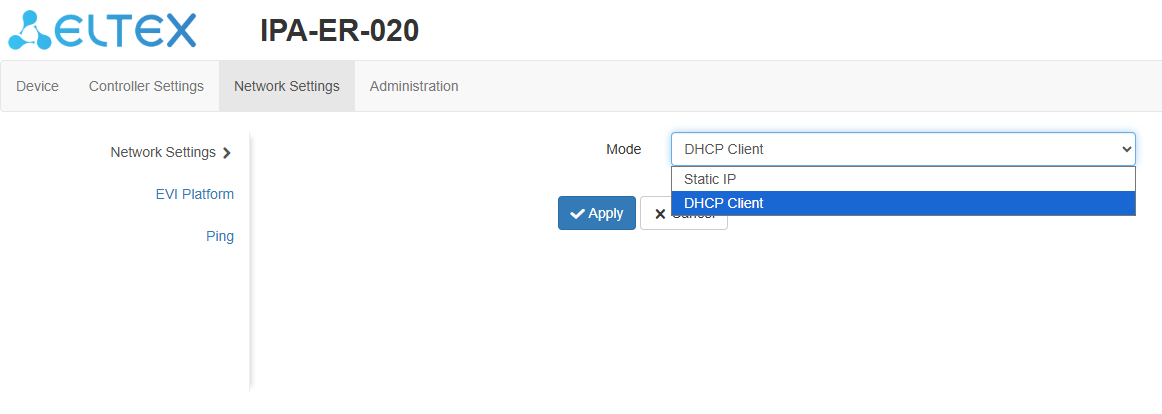
Figure 6 — "Network Settings" page
3. Switch to the "EVI Platform" page. When using the "DHCP client" mode, it is possible to specify option 43 (Vendor Specific Information) on the DHCP server to automatically connect the controller to the EVI platform. If it is necessary to to enter the address manually, check the box next to the "Manual" item and register the server address.
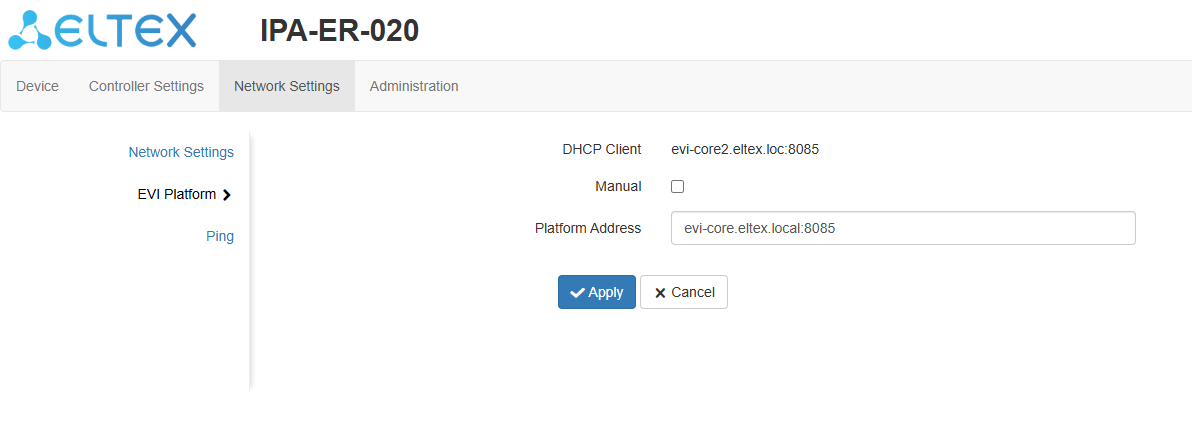
Figure 7 — "EVI Platform" page
Controller authorization in the EVI Platform
1. Switch to the web interface to the "Controllers" page in the "Devices" section.
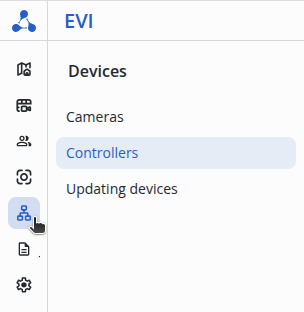
Figure 8 — "Devices" section
2. Click on the three dots to the left of the column of the "Name" table, select the "Authorize" item and click the "Authorize" button.
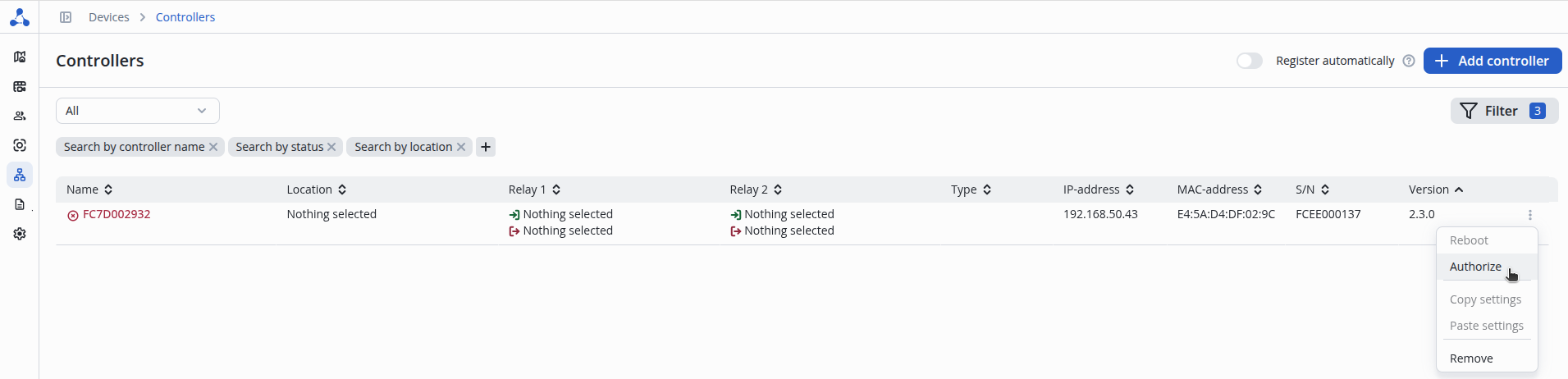
Figure 9 — "Controllers" page
3. The serial number is inserted automatically. Next, click the "Authorize" button.
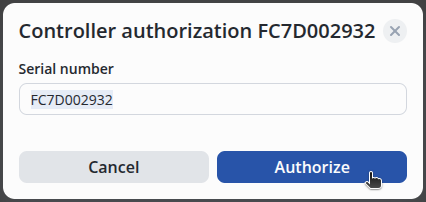
Figure 10 — Controller authorization
After authorization, a notification will appear on the screen stating that the operation was successful.
4. Also, in the "Devices" section on the "Controllers" page, it is possible to use the function of automatically adding a controller to the system.
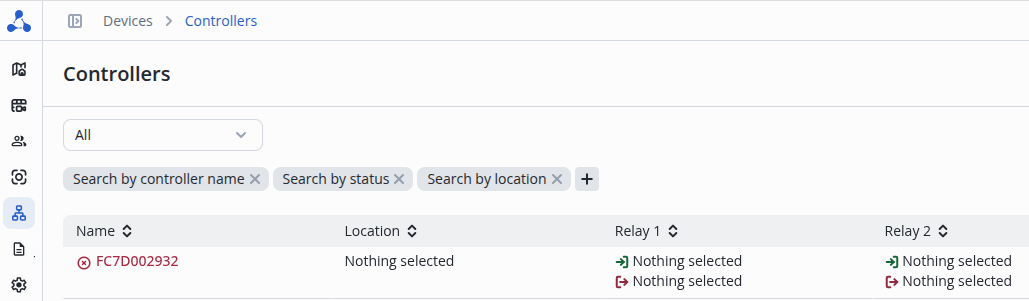
Figure 11 — "Controllers" page
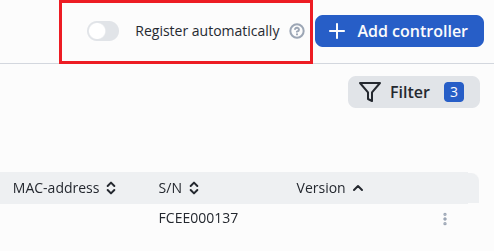
Figure 12 — Automatic controller addition function
The device is ready for operation.