Firmware version 1.6.0
The EVI Video Client is an automated workstation for working with the EVI 1.6.0 Platform video surveillance service on Linux or Windows.
The application is not intended for administration.
Key features:
- Viewing live camera video stream;
- Display of analytics results in real time and in the archive;
- Viewing the camera grid;
- Viewing the camera archive;
- Saving archive fragments on a PC;
- Saving archive images on a PC;
- PTZ camera control.
Installing the EVI Video Client application
System requirements for EVI Video Client
System requirements for Linux clients
The system requirements for the EVI Video Client workstation are listed in the table below.
Table 1 – System requirements for the EVI Video Client
| Hardware requirements | physical machine |
|---|---|
| Platform | Ubuntu 22.04, 24.04 |
| CPU | dual-core processor with a 2.5 GHz frequency and support for AVX2 instructions |
| RAM | 4 GB or more |
| Hard drive | 1 GB or more |
| Network adapter | 1 Gbps |
| Monitor | FullHD 1920×1080 |
System requirements for Windows clients
The system requirements for the EVI Video Client workstation are listed in the table below.
Table 2 — System requirements for the EVI Video Client
| Hardware requirements | physical machine |
|---|---|
| Platform | Windows 10 |
| CPU | dual-core processor with a 2.5 GHz frequency and support for AVX2 instructions |
| RAM | 4 GB or more |
| Hard drive | 1 GB or more |
| Network adapter | 1 Gbps |
| Monitor | FullHD 1920×1080 |
Installing the application on Linux
Installation on Ubuntu 22.04
To run the installation script, run the following command:
wget --no-check-certificate https://archive.eltex-co.ru/evi-raw/evi-1.6.0/evi-1.6.0_install.sh | sudo bash
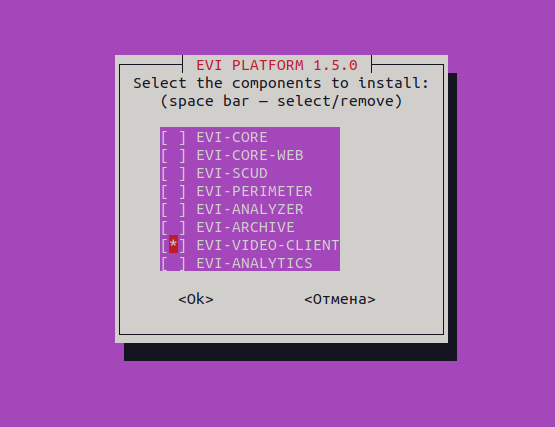
In the dialog box, select the item using the Space bar, then press Enter to confirm the installation.
- EVI-CORE, EVI-CORE-WEB, EVI-SCUD, EVI-PERIMETER, EVI-ANALYZER, EVI-ARCHIVE – the corresponding modules will be installed: evi-core, evi-scud, evi-core-web, evi-perimeter, evi-analyzer, evi-archive. For more information, see the Automatic installation on Ubuntu section;
- EVI-VIDEO-CLIENT – a desktop graphical Linux application will be installed.
Installing the application on Windows
Link to download installation files
To download the installation file, please click here.
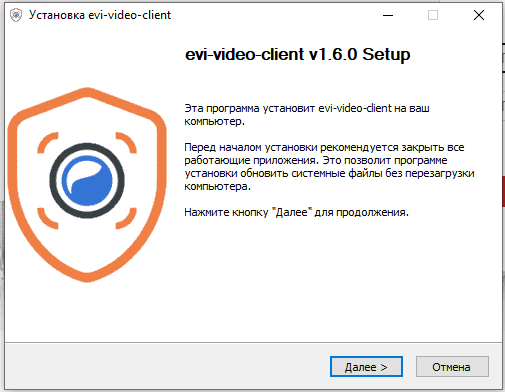
Run the installation program and click Next.
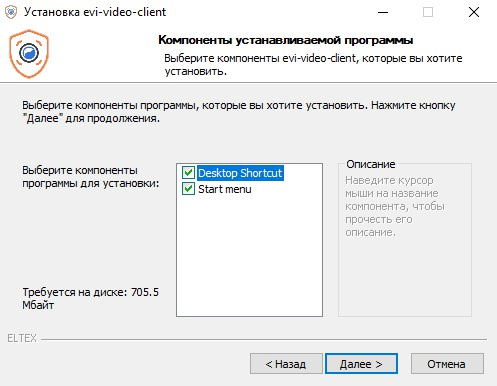
Select the necessary program components, click Next.
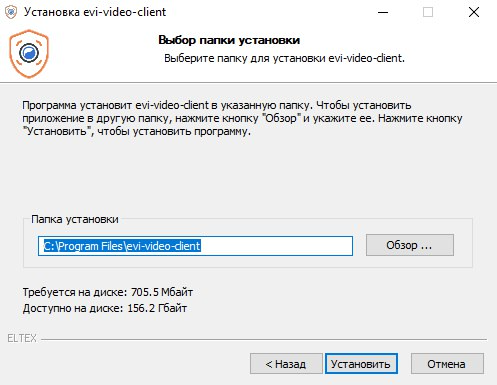
Select the installation folder and click Install. By default, the installation will be performed in C:\Program Files\evi-video-client.
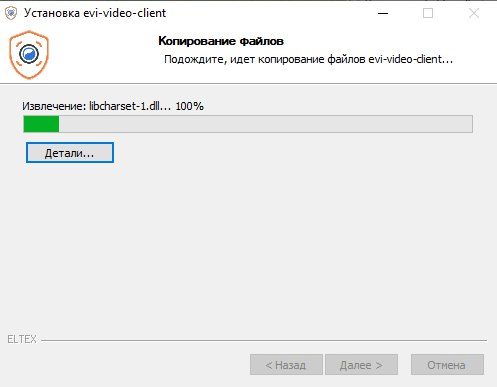
Wait until the installation is complete.
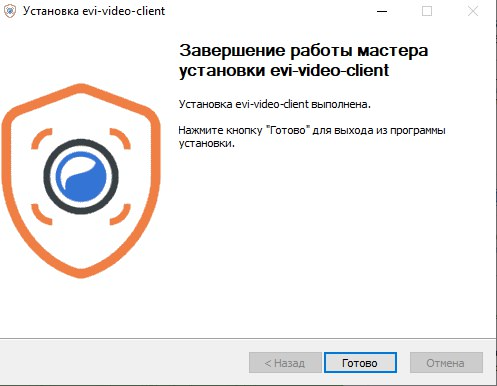
Click Done.
Running and connecting to the server
Running the application
After installation, the application icon will appear in the menu.

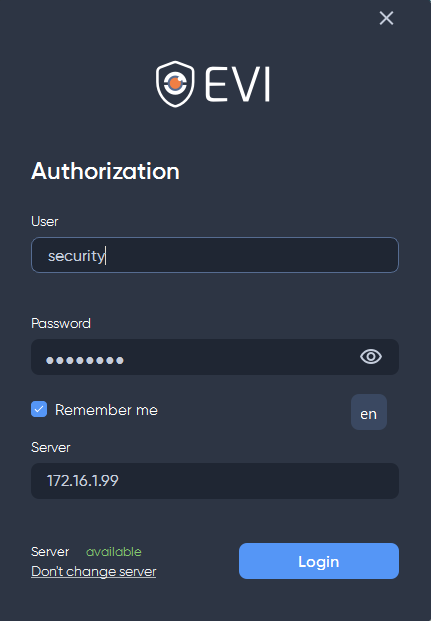
Run the application and wait for the window to appear for entering the user name and password.
Connecting to the server
Standard login and password for the Security role:
The security user is created immediately after installing the EVI Platform. Before authorizing, add a view with cameras for this user via the administrator account.
User – security;
Password – password.
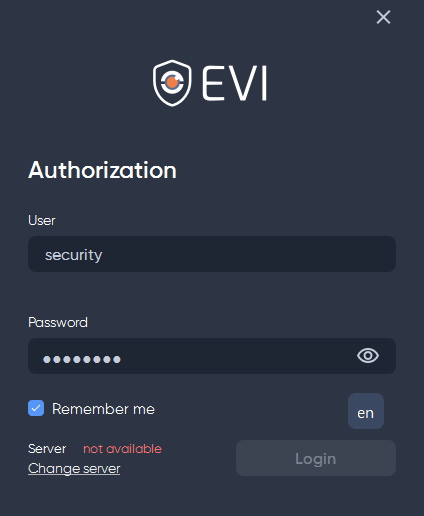
Remember me
To save your login and password in the authorization form for subsequent logins, use the Remember me checkbox.
When connecting, click Change server and enter the address of the server on which the EVI Platform is installed in the field that appears.
Closing the program
To close the program, click on the cross icon in the upper right corner of the window.

User change
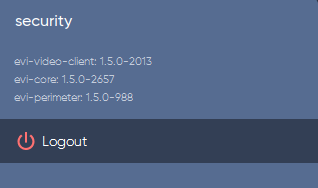
To change the account, click the user icon.

Then click Logout.
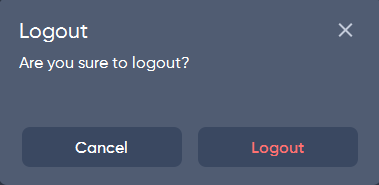
Confirm the action by clicking the Logout button.
After clicking, an authorization window will appear.
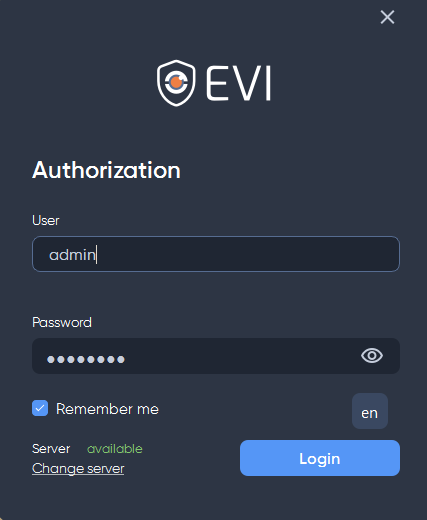
Click the Login button to log in.
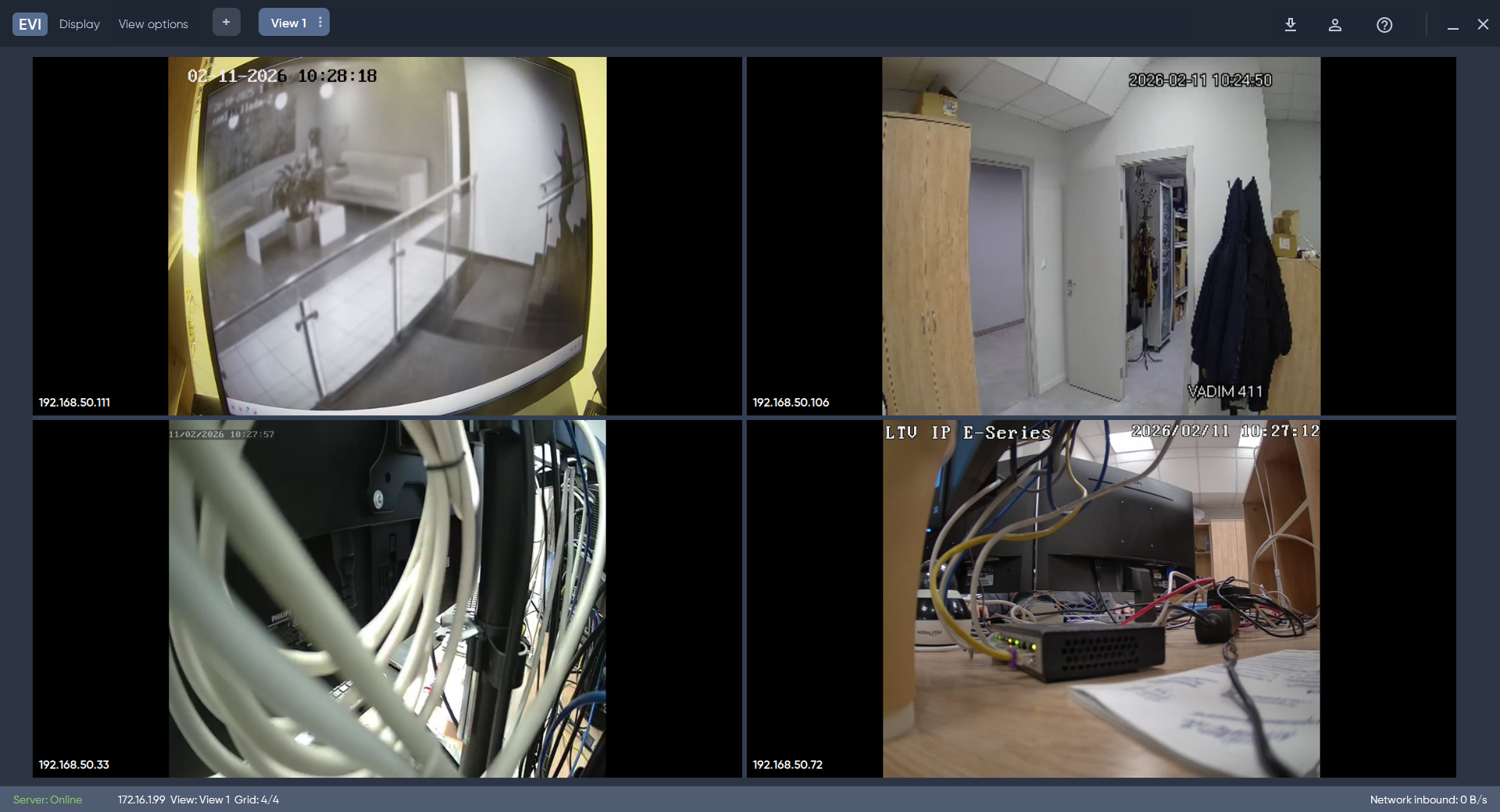
View
Selecting a display
The program allows to move the main window to other monitors, as well as detach the tab with video cameras to another display.
Changing the window size
The program does not support changing the size of windows or moving windows by holding down the left mouse button on the application system bar.
To move the main program window to another display, click the Display button.

A list of available displays for moving the program window will be displayed.
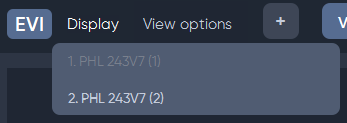
After selecting the display, the program window will move.
View context menu
The context menu is available by right-clicking the camera feed.
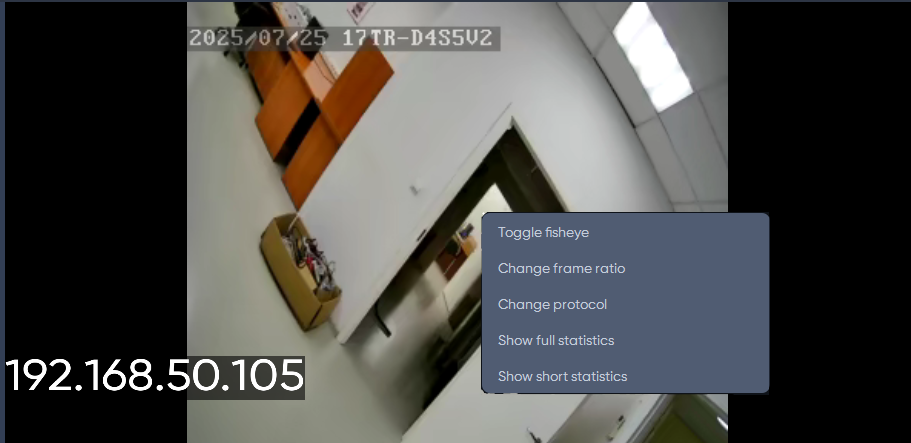
- Toggle fisheye – switch the scan mode of the selected camera;;
- Change frame ratio – change the image proportions of the selected camera;
- Rotate clockwise — rotate the frame clockwise;
- Rotate counterclockwise — rotate the frame counterclockwise;
- Change protocol – change the protocol (RTSP, RTMP, WebRTC) of the selected camera;
- Show full statistics – show statistics for the selected camera;
- Show short statistics – show brief statistics for the selected camera.
The context menu does not work for empty cells in the view – a camera must be added to the view cell.
Navigating between views
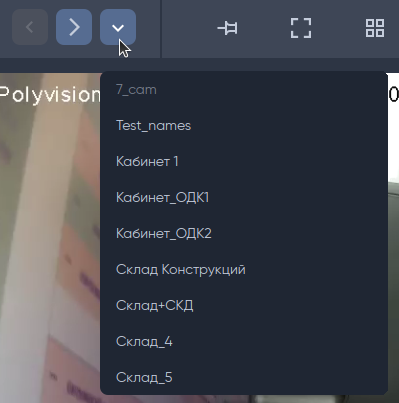
To navigate between views, use the panel with view names located at the top of the screen.

If the list of items extends beyond the edge of the panel, additional control buttons appear: move right/left through the list, and a drop-down list button.
 When clicking on the drop-down list button, a list of all available views appears.
Camera status symbols
There are three types of information plugs to indicate the current status of the camera.
Connecting to the camera
Camera is unavailable
Camera not added to view, empty cell
Detaching a view
To display the camera view, click the View options button, then select Detach view from the drop-down list.
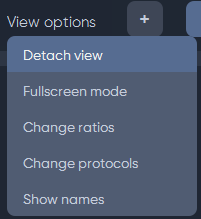
Select the desired monitor from the list. After selecting the monitor, the view will move.
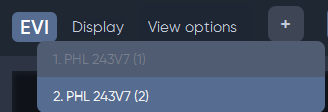
Switch to fullscreen mode
To switch to full-screen camera view, press the Enter key on your keyboard or click the View options button, and then select Fullscreen mode from the drop-down list.
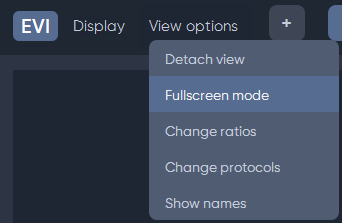
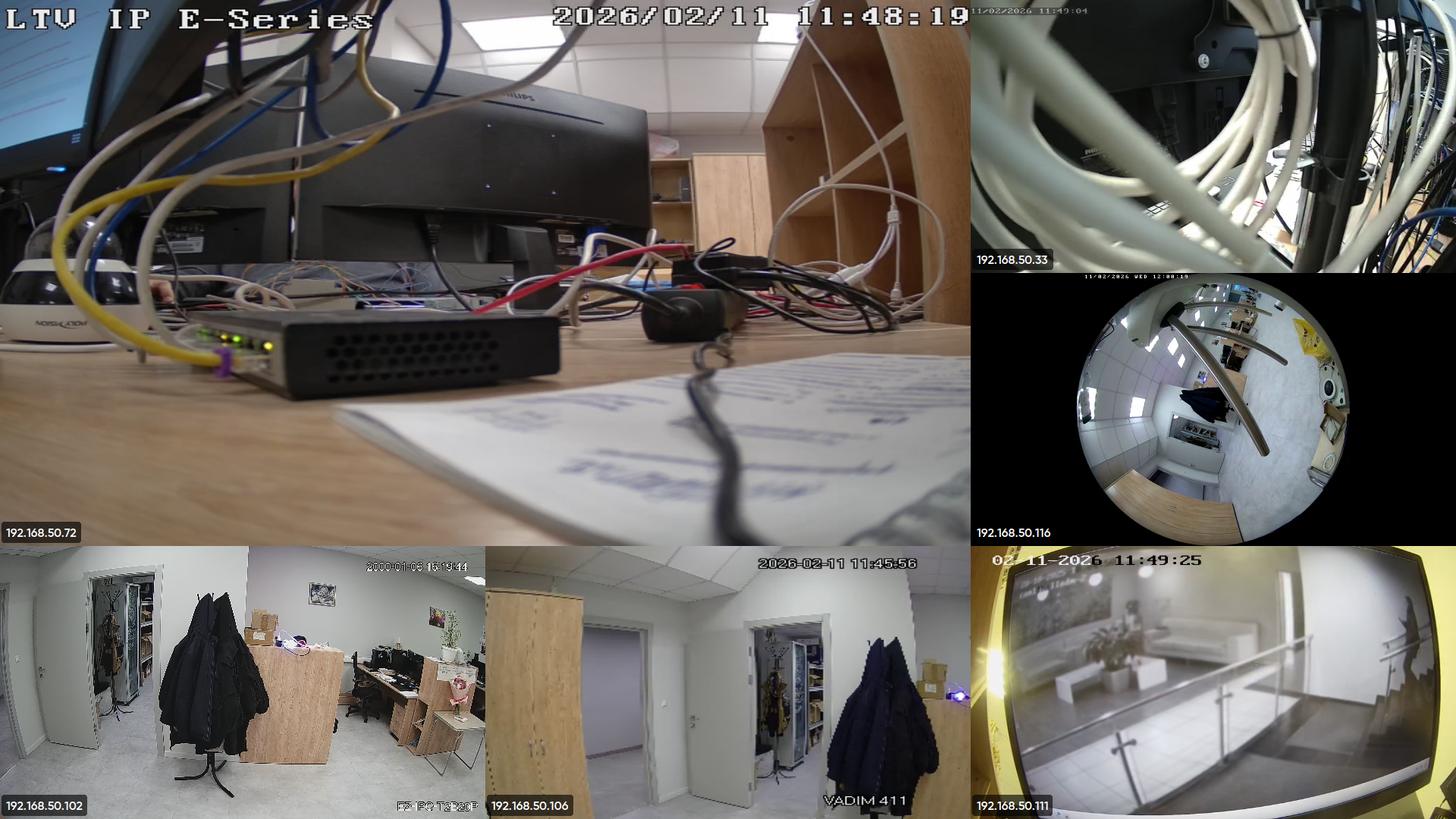
After pressing, all cameras from the current view will open in full screen mode. To exit this mode, use the Esc key on the keyboard.
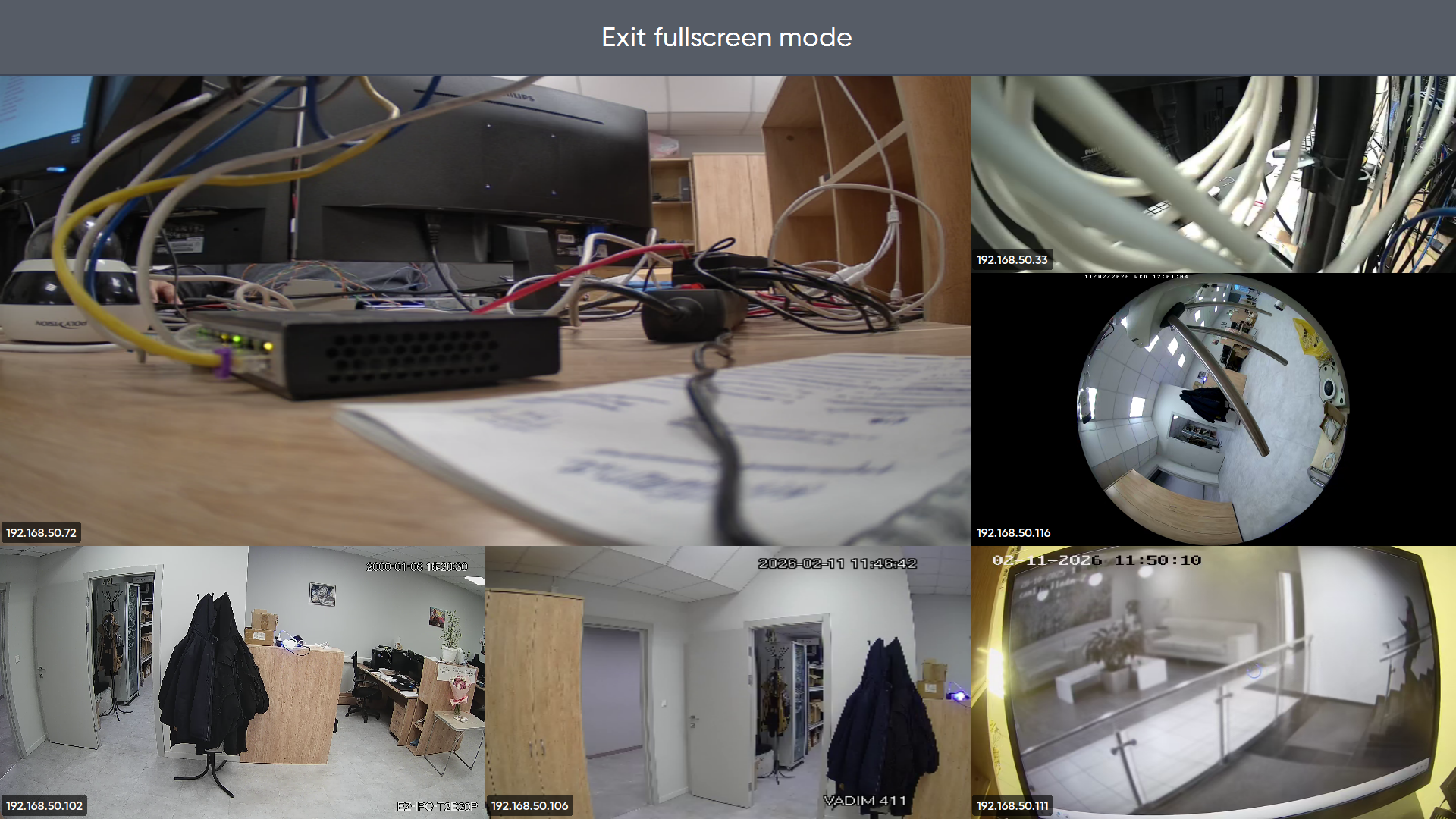
Also in fullscreen mode, it is possible to exit by pressing the pop-up button. To do this, move the cursor to the top of the screen and press the right mouse button.
The pop-up button is only available in the Linux version of the client.
Changing stream ratio
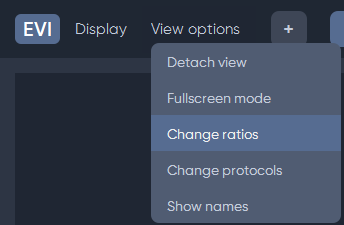
To change the aspect ratio of the live feed on all cameras, click the View options button, and then select Change ratios from the drop-down list.
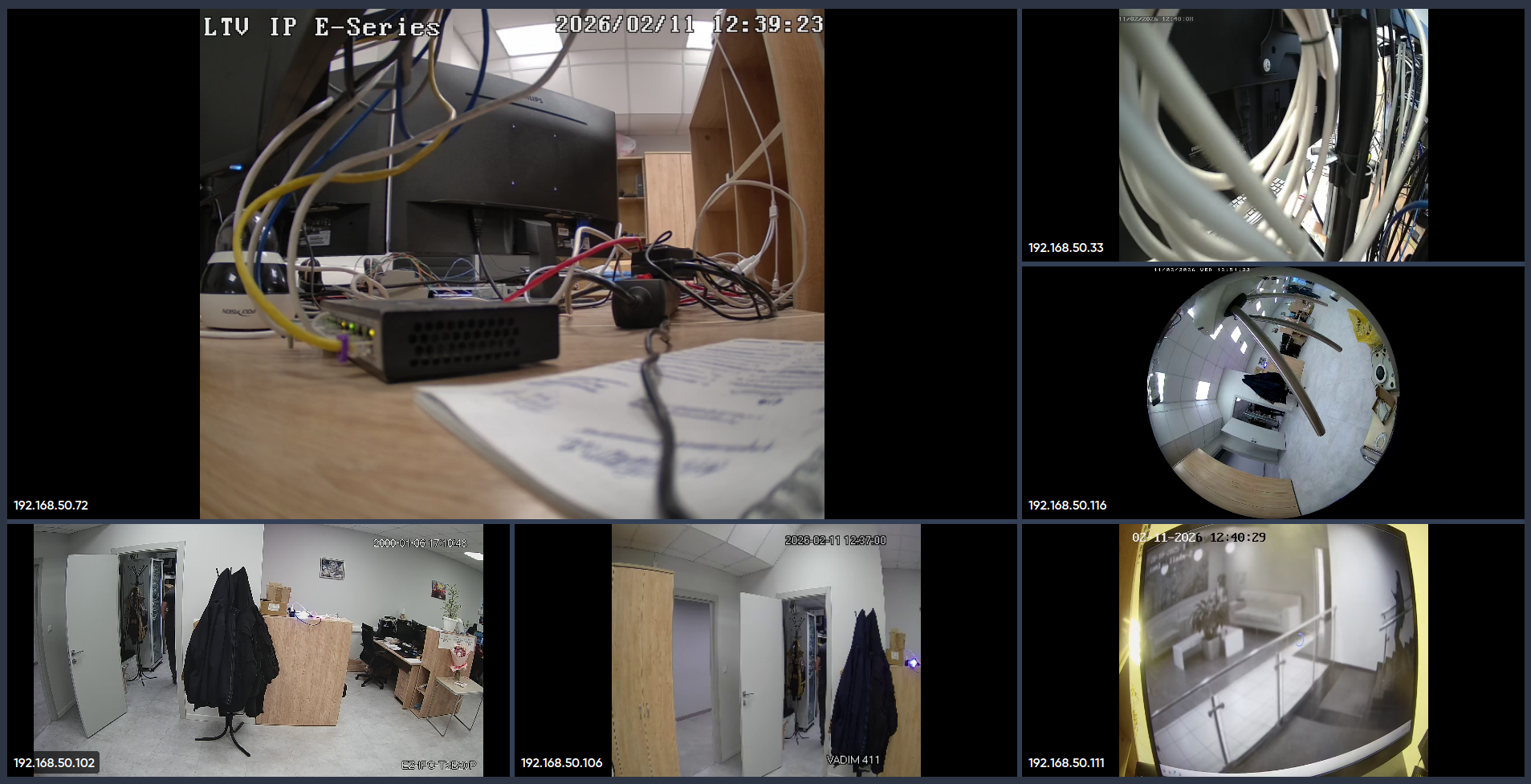
After clicking the Change ratios button, the image ratio from all cameras will change from 16:9 to 4:3.
Changing the protocol for all streams
To change the streaming protocols for all cameras, click the View options button, and then select Change protocols from the drop-down list.
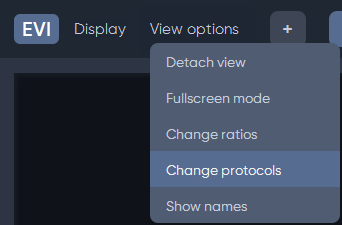
A list will appear from which the desired protocol must be selected.
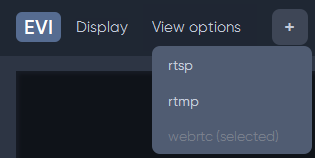
The rtsp protocol is selected by default.
Showing camera names in a view
To display the full names of all cameras in the view, click the View options button, and then select Show names from the drop-down list.
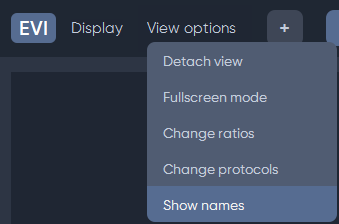
After clicking the Show names button, the name of each camera will appear in the center of its cell.
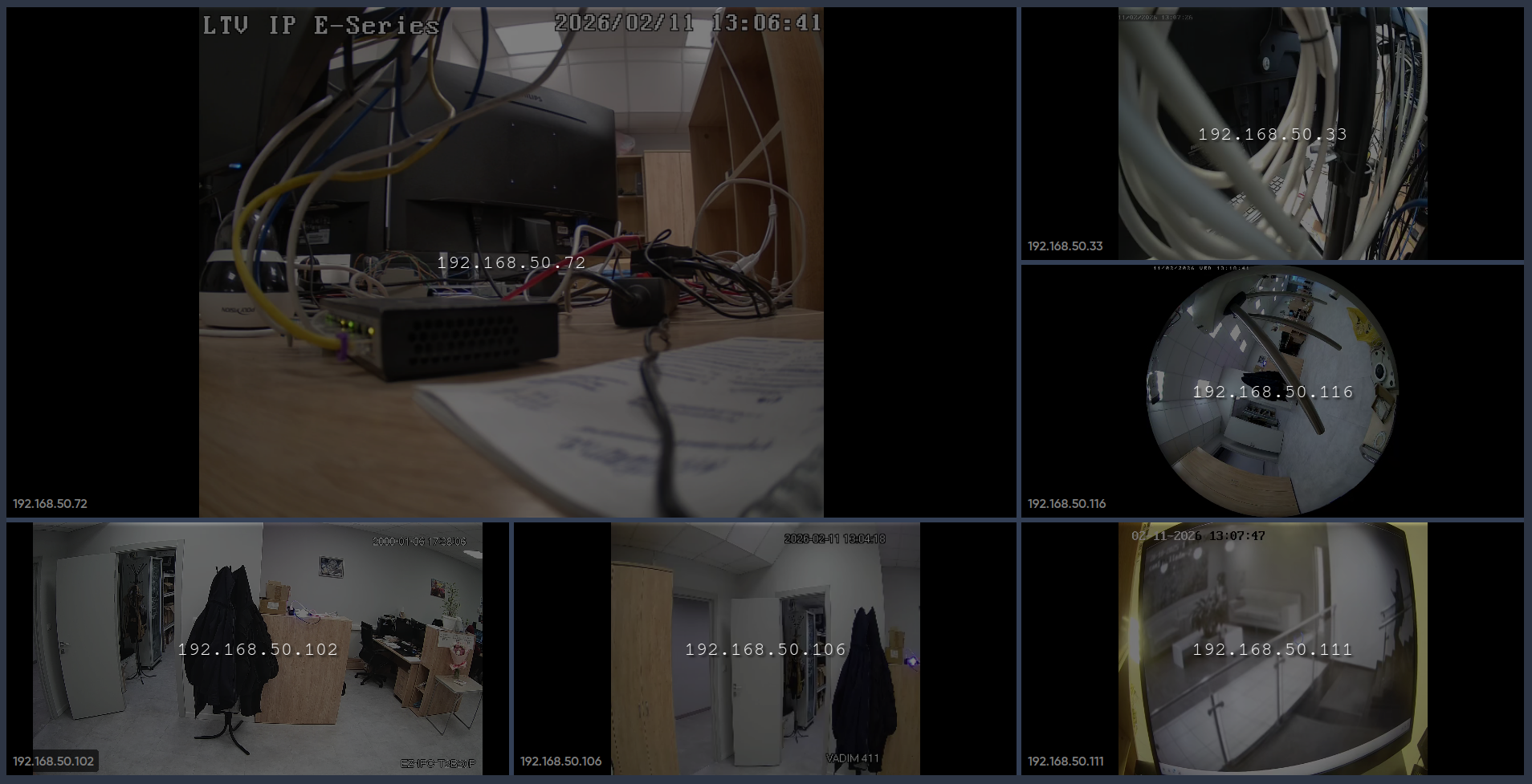 Names can be removed by clicking the Show names button again.
Viewing the camera broadcast
Switching cameras
In camera view mode, tap the camera's name, then select the camera to switch to from the list.
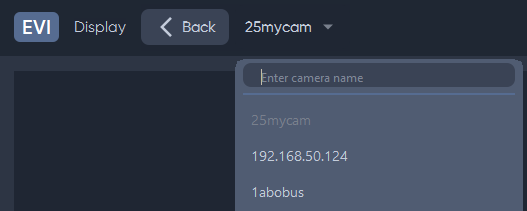
The list displays only those cameras that belong to the view.
Camera context menu
The context menu is available by right-clicking the camera feed.
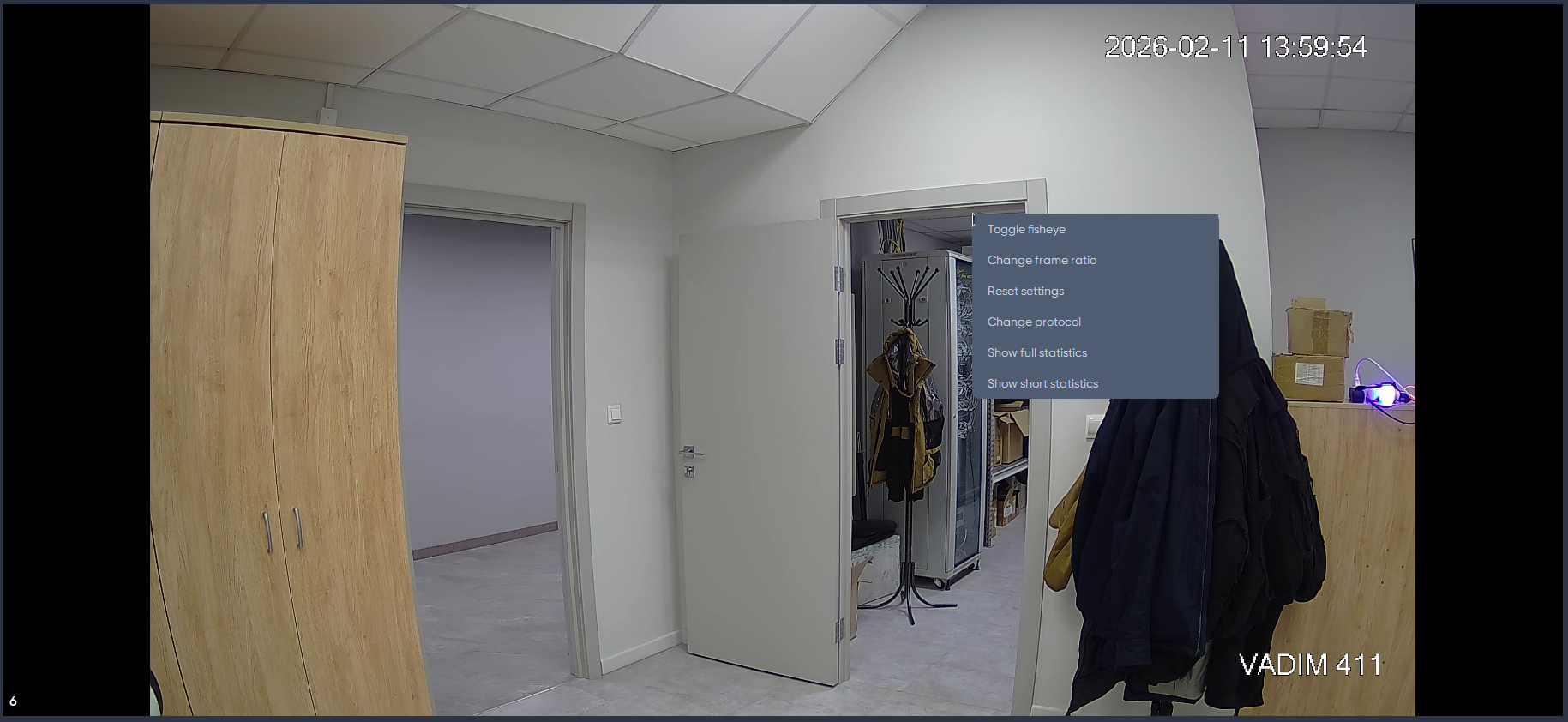
- Toggle fisheye – switch the scan of the selected camera;
- Change frame ratio – change the image ratio of the selected camera;
- Rotate clockwise — rotate the frame clockwise;
- Rotate counterclockwise — rotate the frame counterclockwise;
- Reset settings – resets the camera position from zoom to default.
- Change protocol – change the protocol (RTSP, RTMP, WebRTC) of the selected camera;
- Show full statistics – display statistics for the selected camera;
- Show short statistics – displays brief statistics for the selected camera.
Changing the frame ratio
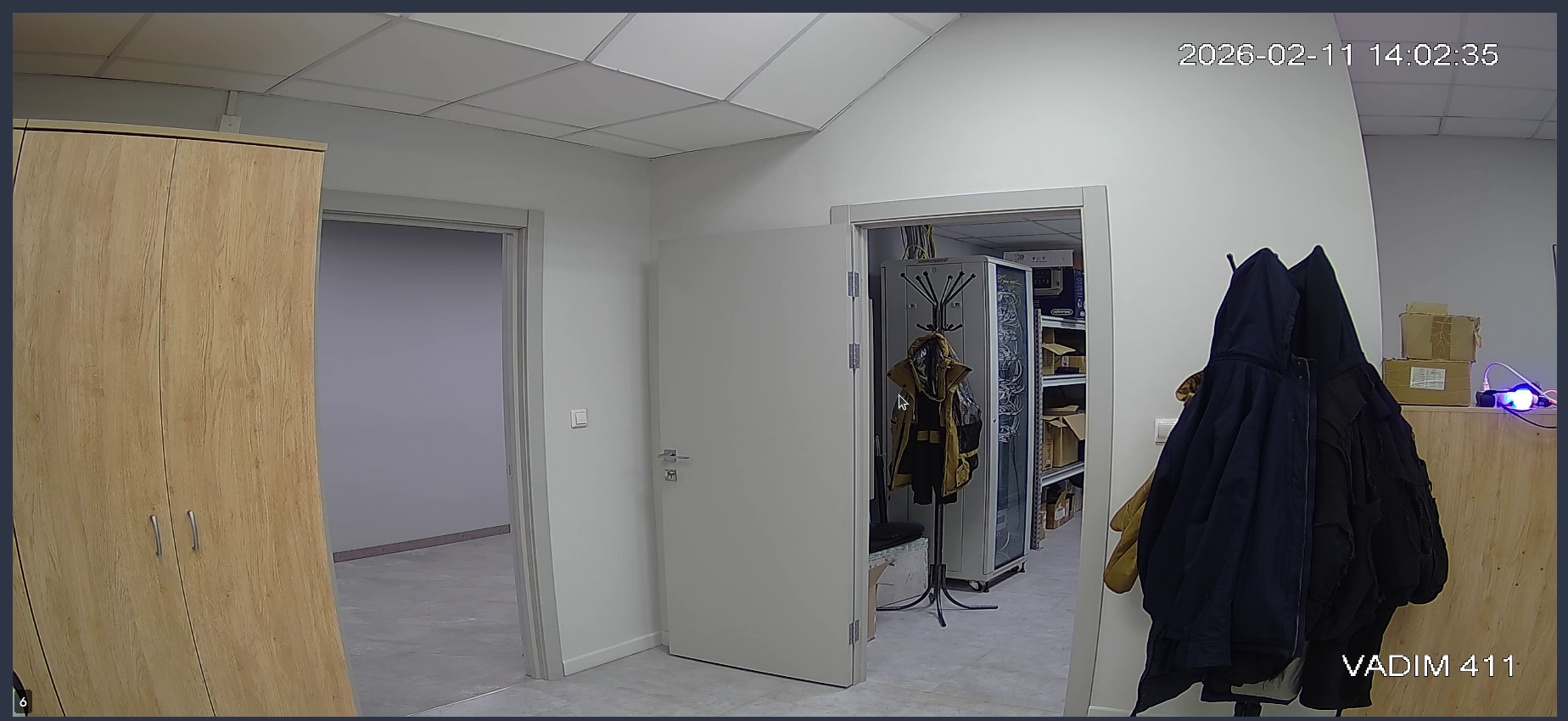
To change the frame ratio on the camera, click the Change frame ratio button in the context menu.
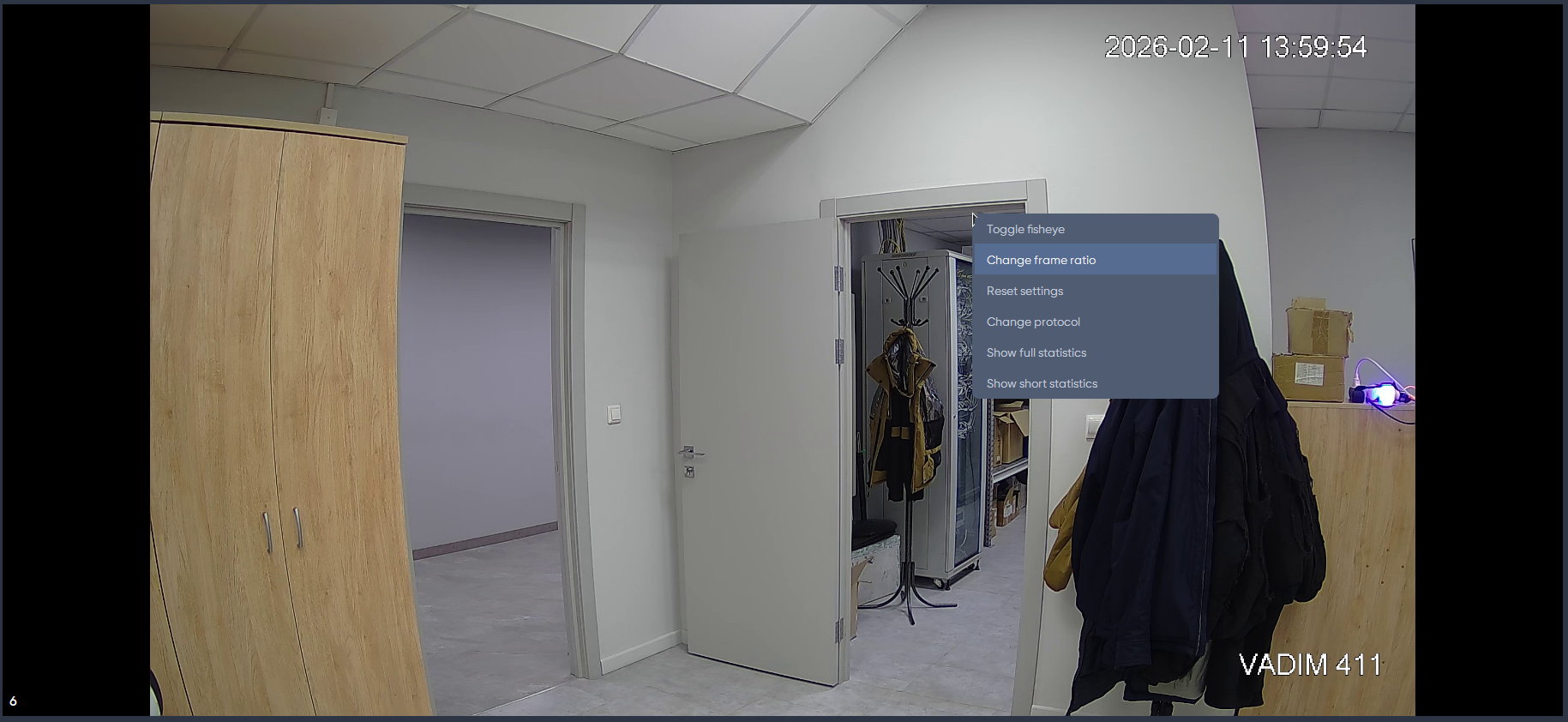
The ratio will change.
Changing the frame scan
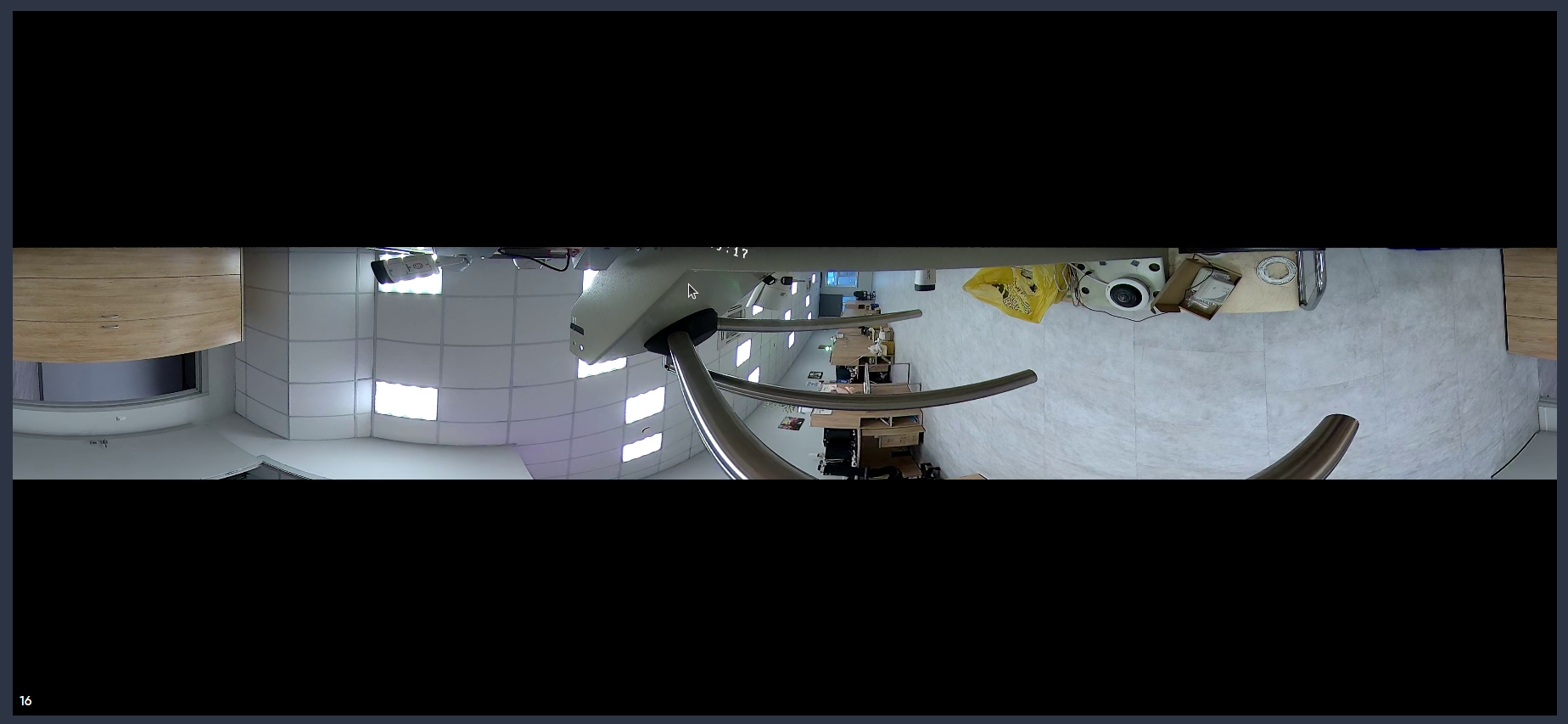
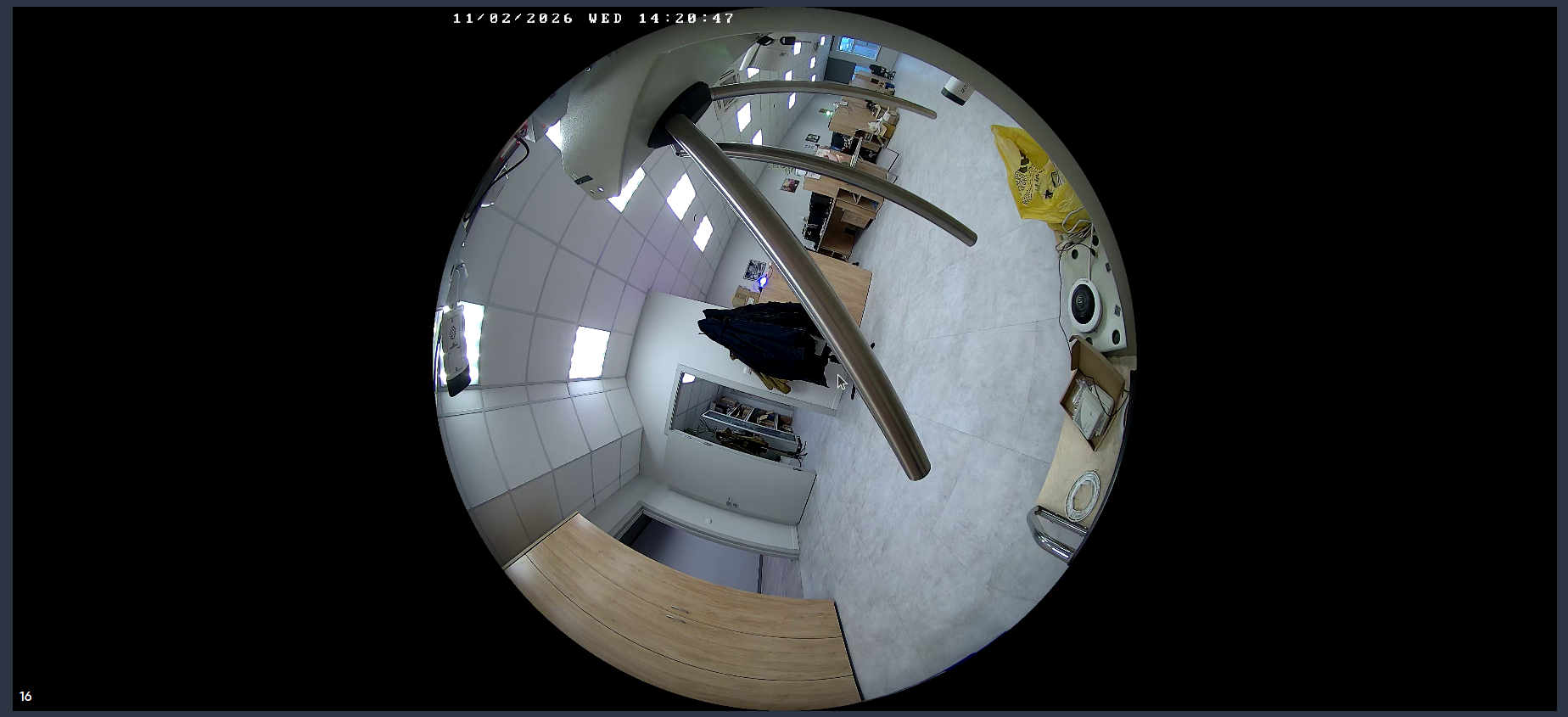
To change the scan mode on the fisheye camera, click Toggle fisheye in the context menu.
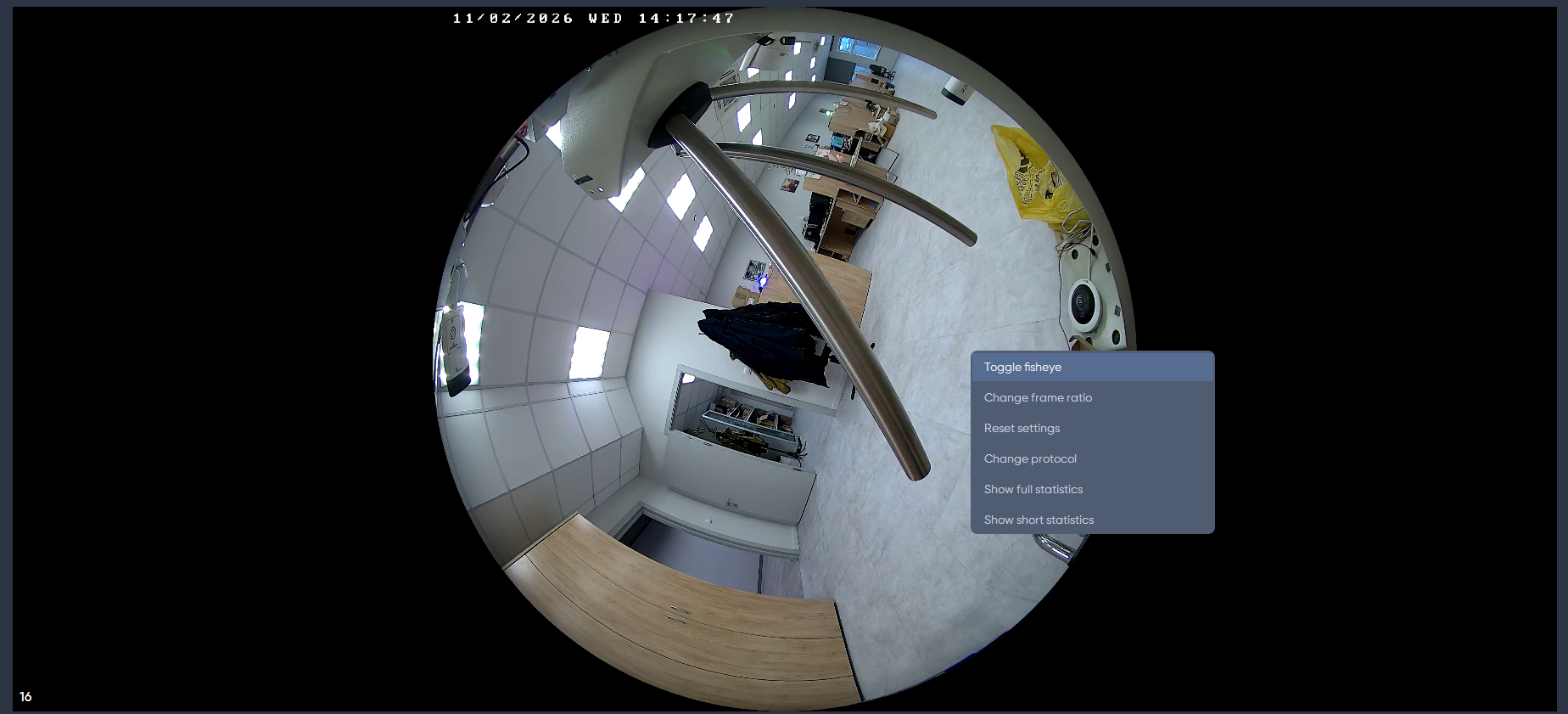
The scan will change.
Resetting frame settings
To reset the frame settings, click Reset settings in the context menu.
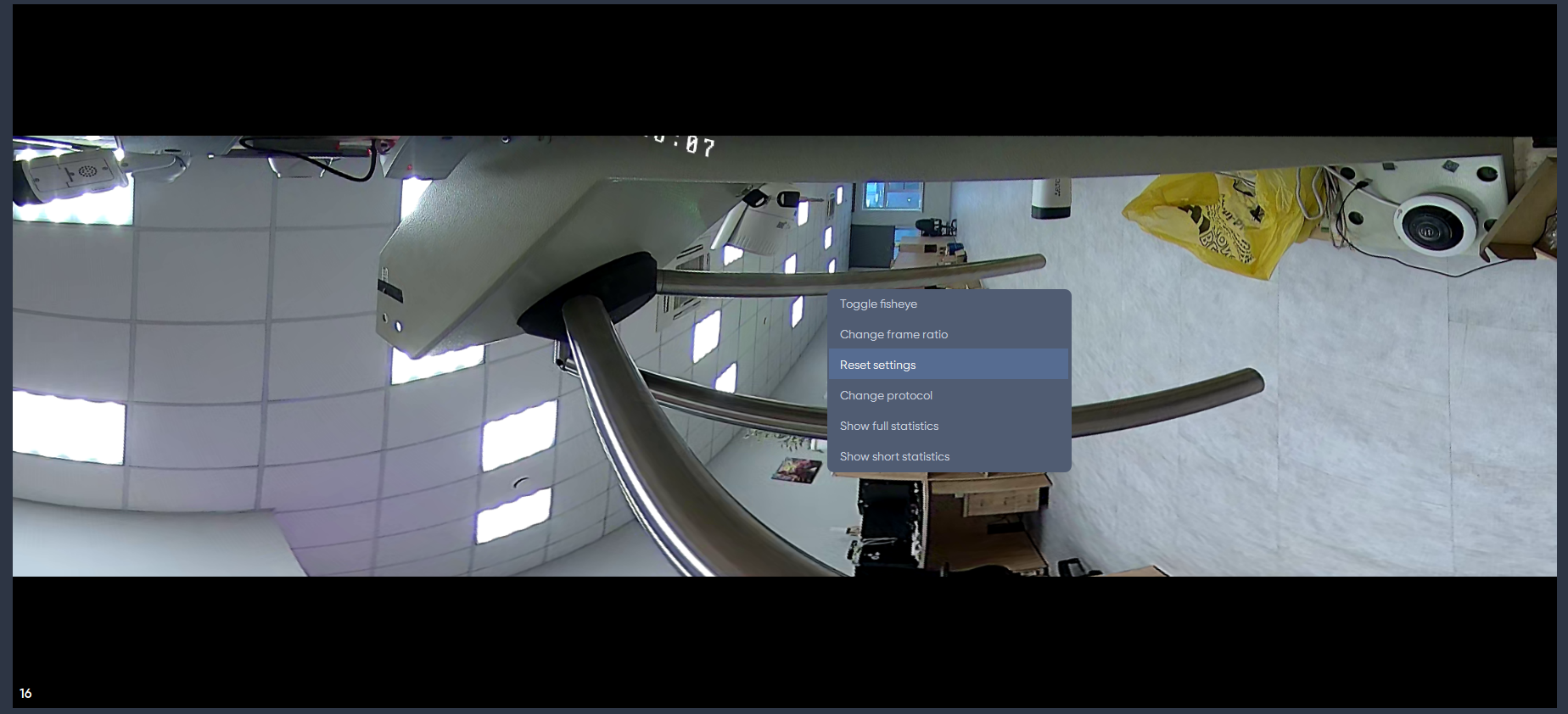
The frame settings will change to the default values.
Displaying analytics while viewing live broadcasts
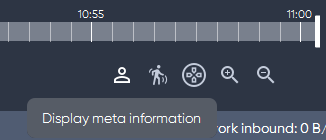
To view the analytics, click the Display meta information button.
Next, click Select the meta information to display and check the box next to the desired option.
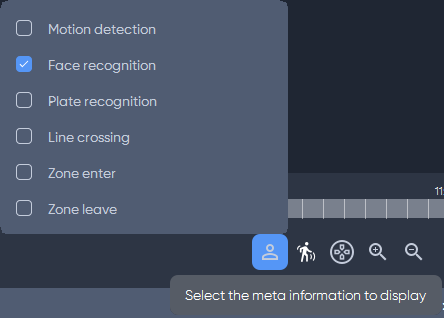
To hide Analytics data, click Display meta information again or uncheck one of the boxes in the Select the meta information to display menu.
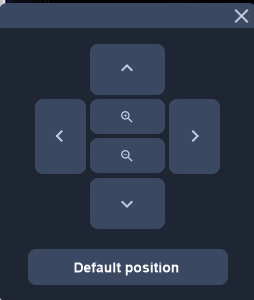
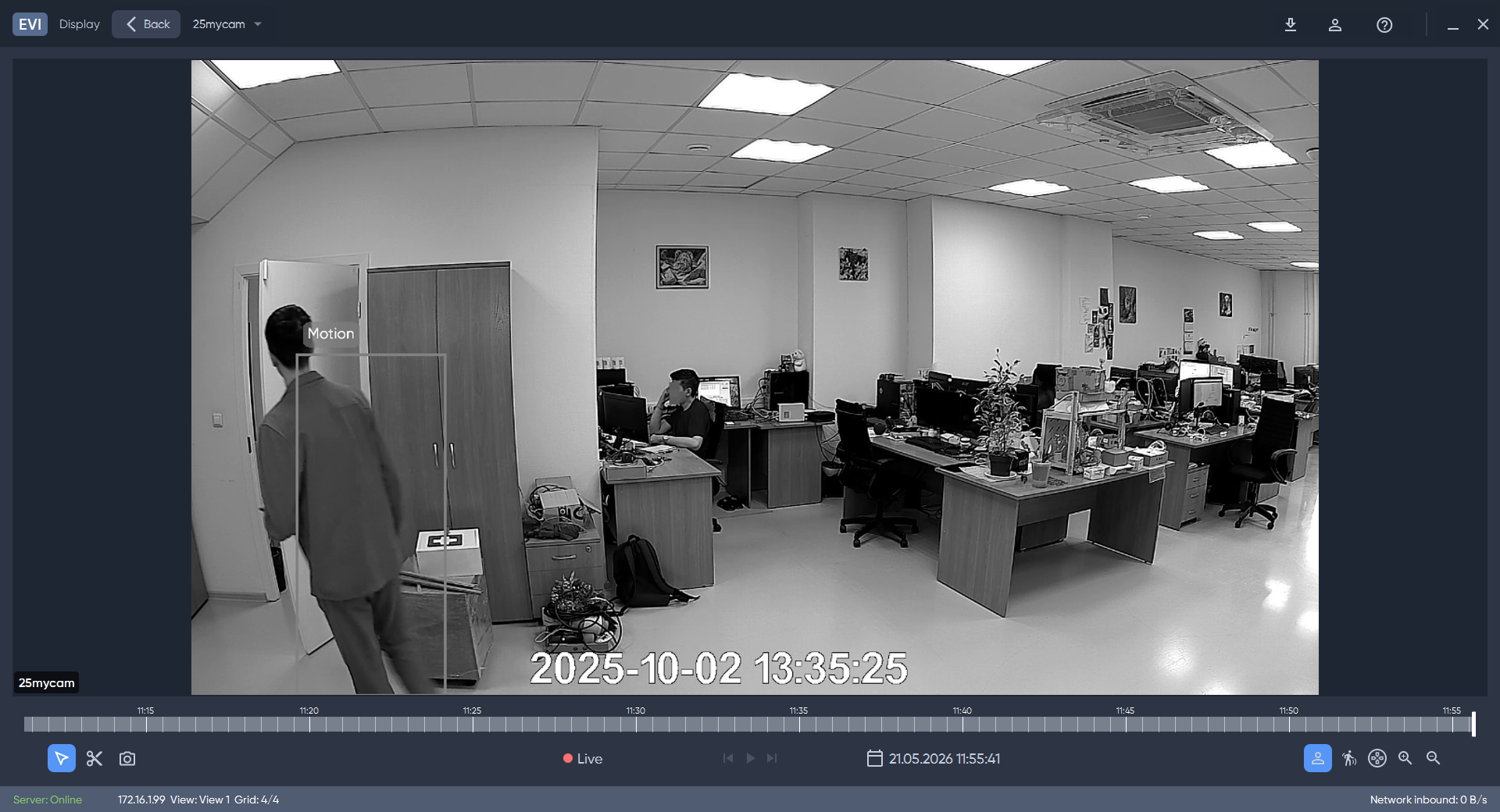
Motion and analytics are highlighted in boxes. Analytics areas are highlighted in color.
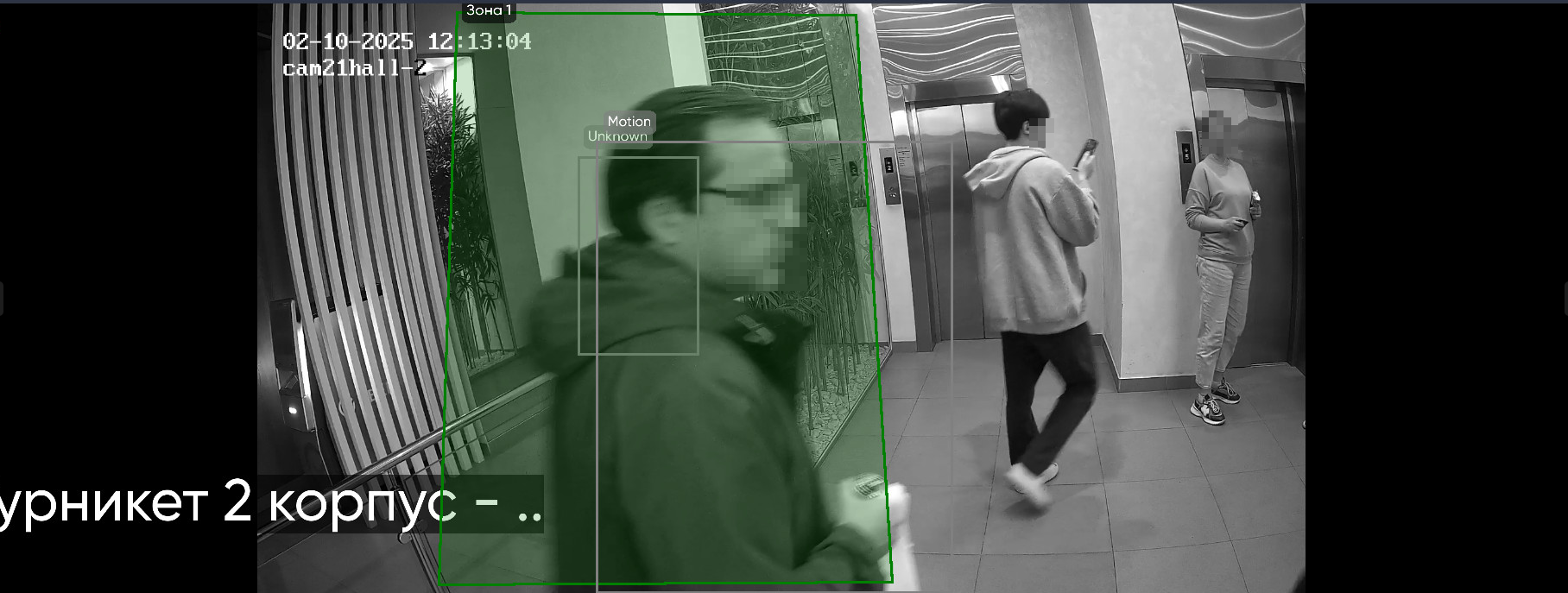
PTZ
To open the control panel, press PTZ controls.
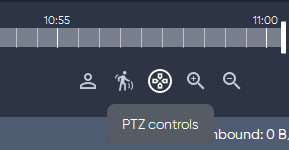
The remote control will open.
- The arrows are responsible for changing the position of the camera;
- The camera will return to its default position when the Default position button is pressed;
- The magnifying glass buttons control the camera zoom.
Viewing and working with the archive
Viewing the archive
To view recorded videos, left-click on the camera with the recorded archive.
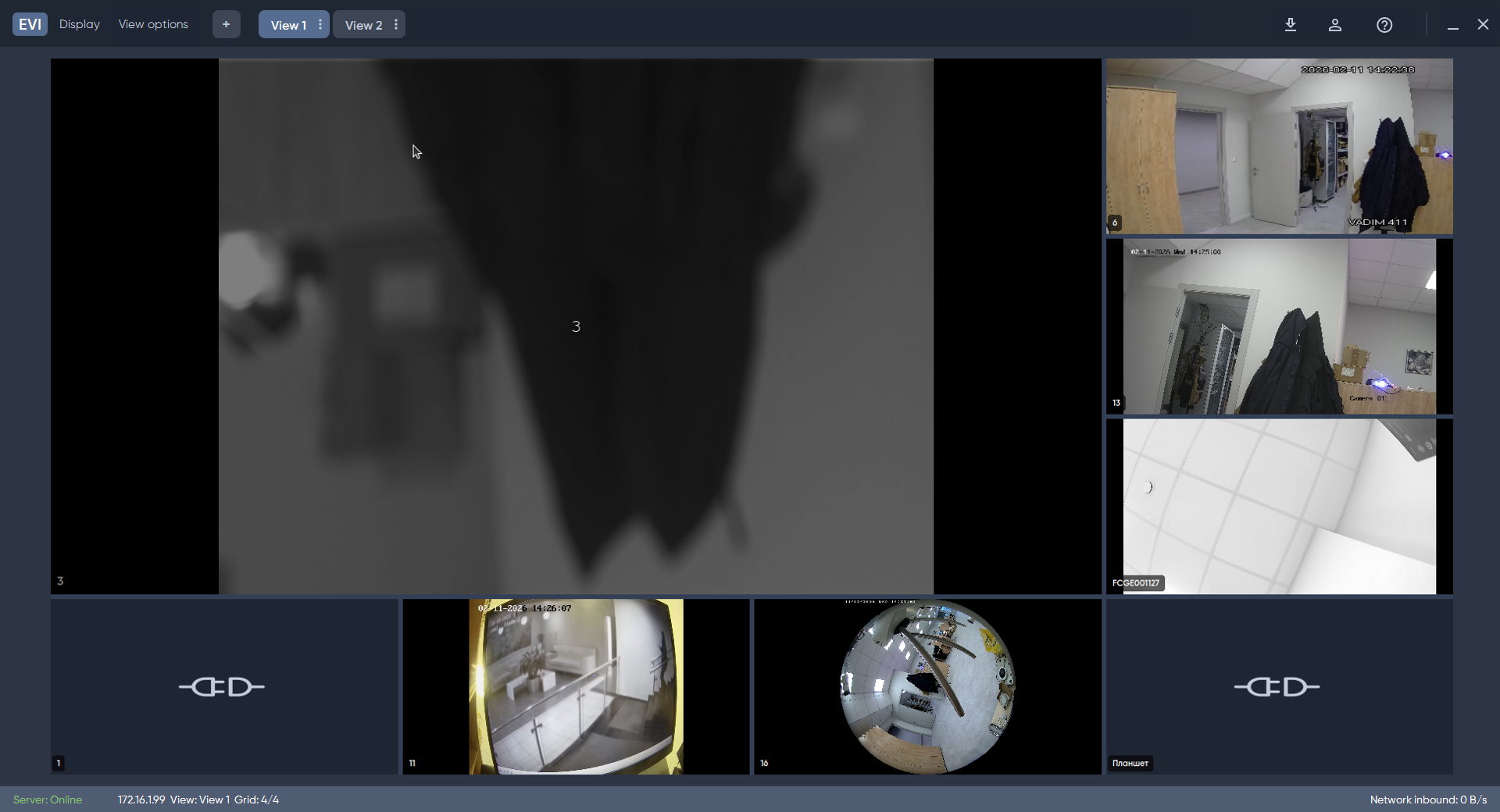
The image from the camera will open in full screen mode, and archive navigation will become available.
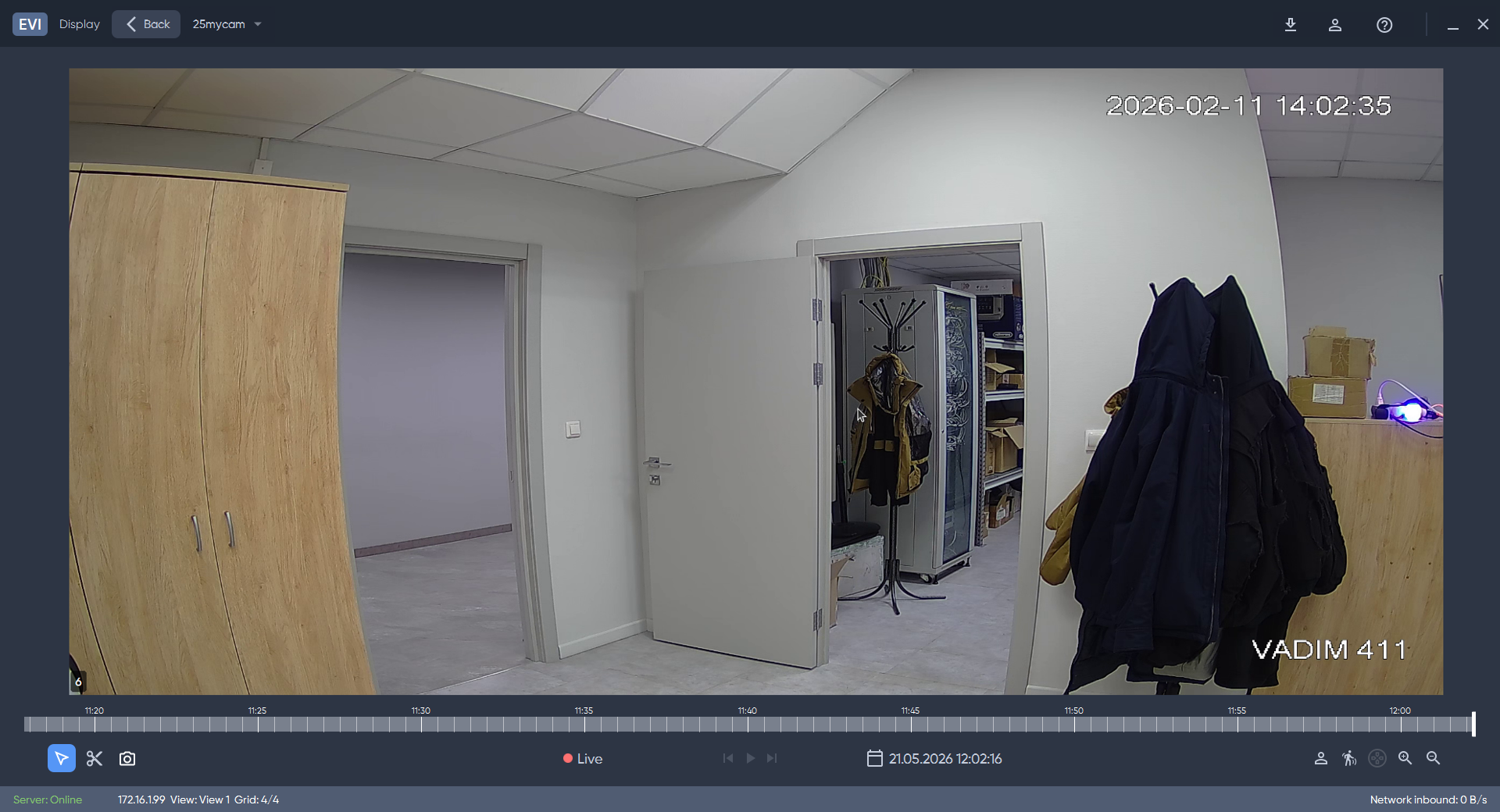
Working with the timeline
Archive type on the timeline
The types of entries and the way they are displayed on the timeline are listed below.
Permanent recording
A solid orange line indicates recorded video.

Recording by movement
The orange sections indicate recorded videos.

Archive navigation
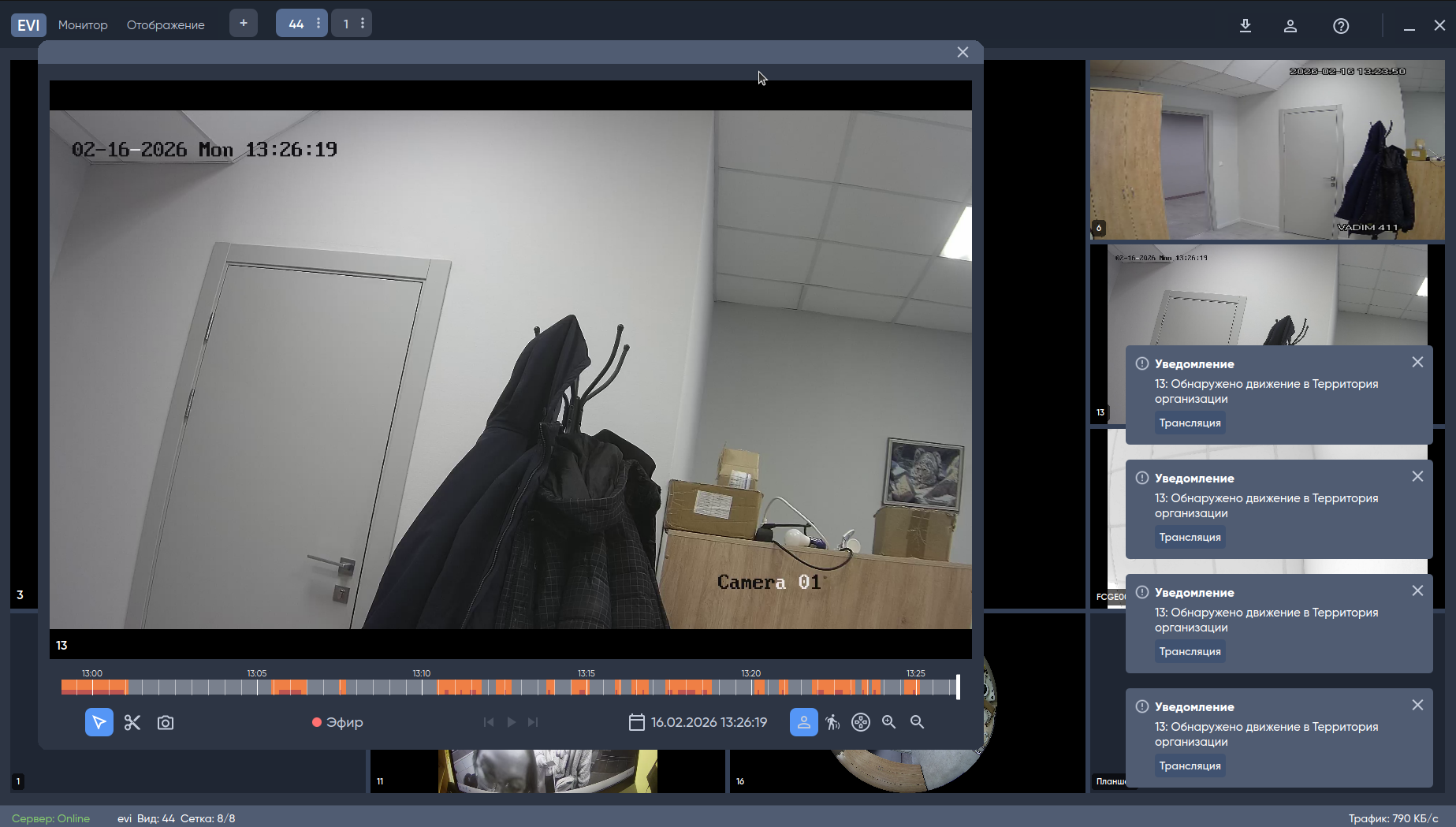
Navigation elements from left to right:
- Cursor – cursor mode for navigating the timeline;
- Save fragment – cursor mode for selecting a segment to save the video;
- Save screenshot – saving an image from broadcast or archive;
- Live – button to switch from the archive to the live broadcast;
- Previous event – move to the previous fragment of the recording;
- Pause/Play – single button for pausing and playing the archive;
- Next event – transition to the next fragment of the recording;
- Select date – button to open the calendar and select the date for which to display the archive;
- Time – the current time in the player;
- Display meta information– enable/disable face detection by analytics when viewing the archive;
- Select the meta information to display – enable/disable highlighting of moving objects when viewing the archive;
- PTZ control – button to call up the camera control panel via ONVIF;
- Minutes – timeline scale.

Saving a video recording
By default, all videos and images are saved to the Downloads folder on the computer where the client is installed.
Select the Save fragment tool in the toolbar above the timeline.

When hovering over the timeline, the cursor will turn blue. Mark the start and end points on the timeline to save, then click Save at the bottom of the screen.
Saving is only possible within a single segment/fragment of the video.
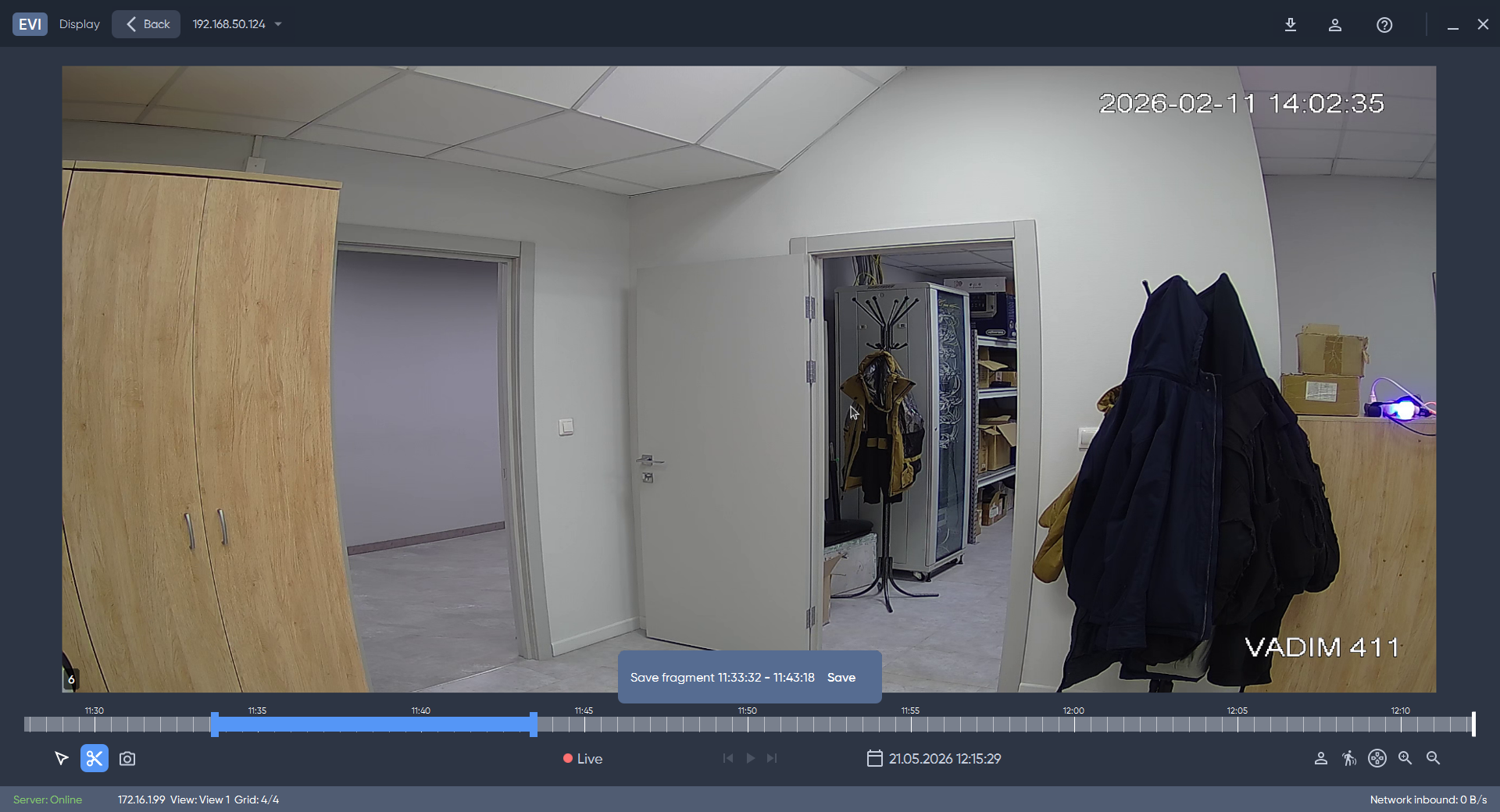
The download history for the active session is stored in the downloads window.

Saving an image from the camera
By default, all videos and images are saved to the Downloads folder on the computer where the client is installed.
To save the image, click on the camera icon in the toolbar above the timeline.

After pressing, a message will appear at the bottom of the screen about saving the image.

Displaying analytics
To display analytics data, click the Display meta information button.
Next, click Select the meta information to display and check the box next to the desired option.
To stop displaying analytics data, click Display meta information again or uncheck the box in the Select the meta information to display menu.
Analytics objects will be highlighted with a box. Entry/exit zones and intersection lines will be highlighted in blue.
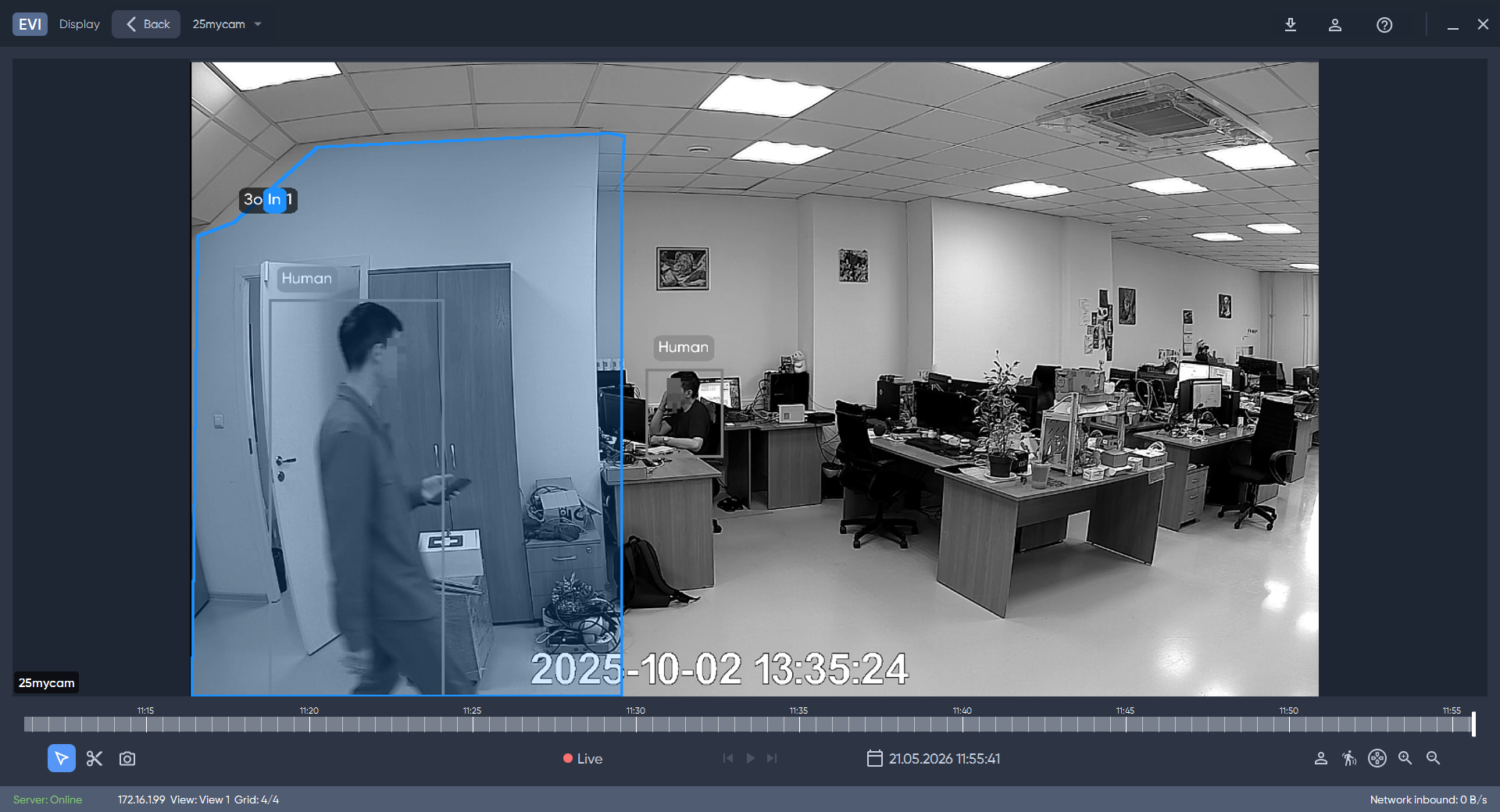
Motion display
To display motion during playback of the archive, select Motion detection in the Select the meta information to display menu.
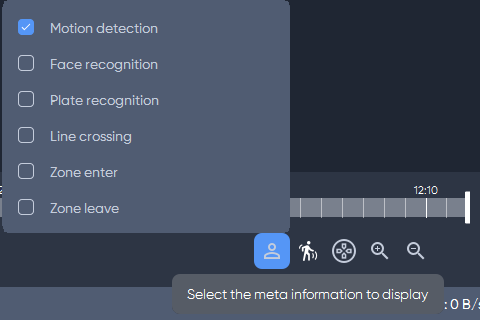
The button will be highlighted in blue. Objects in motion will be highlighted via a box.
Moving back to the broadcast
In order to switch from the archive back to the broadcast, click the Live button.

After the transition, the indicator will turn red.

Alerts
Go to the Actions tab in the web interface and click Add action.

Next, select the Notification action type and set the desired frequency, recipients, and severity level.
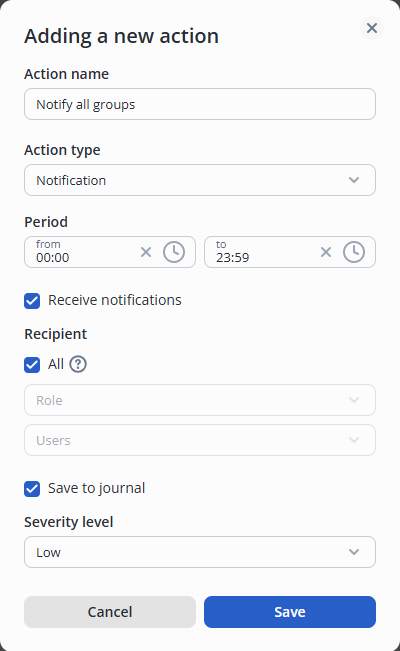
When the analytics trigger, a notification will appear in the lower-right corner of the client interface. Click the Broadcast button on the notification that appears. A window will open showing the feed of the camera which triggered the analytics.