Filters provide a quick way to search for information within a section.
Filters are available in the following sections:
- Access control → Workers
- Access control → Guests
- Access control → Pass list
- Devices → Controllers
- Devices → Cameras
- Devices → Updating devices
- Journals → Common
- Journals → Critical
- Journals → Passages
- Journals → Time tracking
- Lsits → Vehicles
- Lists → Vehicle groups
- Lists → Faces
- Lists → Face groups
Operations with filters
Default filters
Each section has default filters for convenience — preset, most frequently used values.

To search for a certain filter, left-click the filter name.
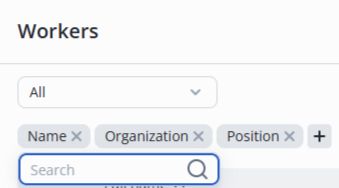
Start typing text to filter — the list on the page will update automatically.

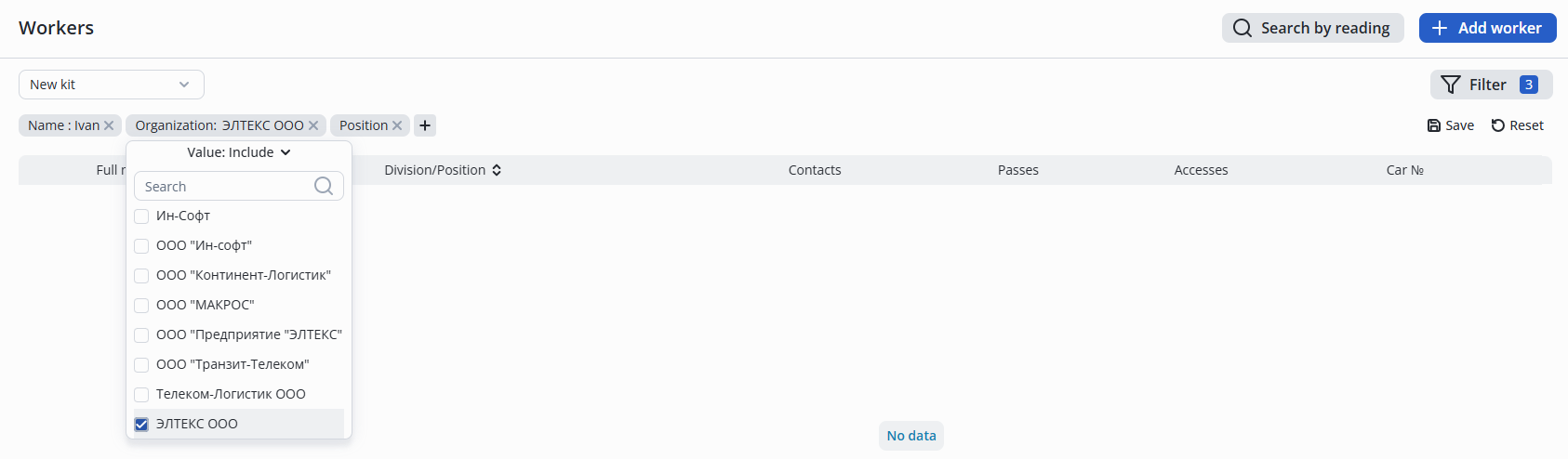
The organization/position filters allows to select an organization or position from the list, and then the list will be updated according to the selected filters.
Adding filters
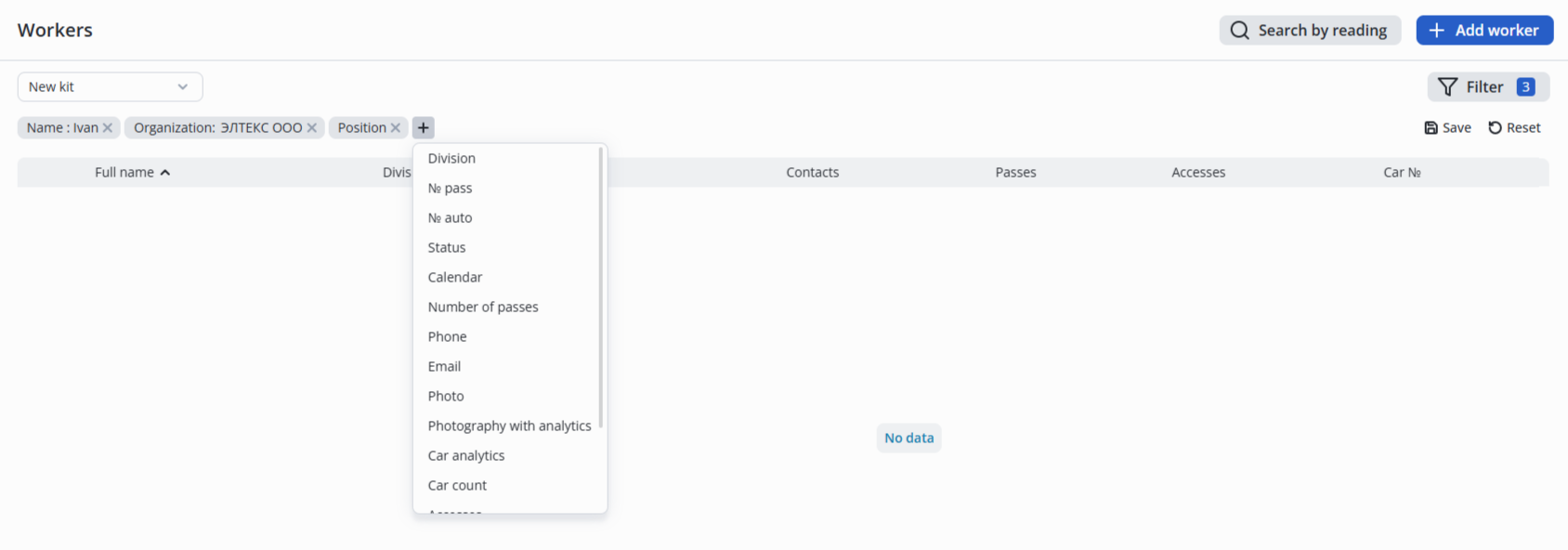
To add more filters to already existing ones, left-click on the + icon and select the desired filter from the drop-down list.
Removing filters
A filter can be removed by left-clicking on the X icon next to the filter.

Creating filter sets
Filters are stored in browser cache.
To create a custom set of filters, add a new filter or set parameters from scratch, then click the Save button.

In the pop-up window, specify a name for the filter set and click Create.
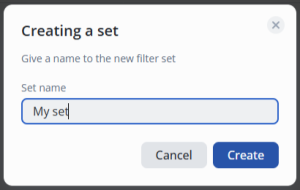
The created filter set can be selected from the drop-down list in the top left corner.
