Lists is a section containing the Vehicles and Faces entities, as well as the ability to combine them into groups for further configuration of group actions.
Cars
Vehicles is a list of all vehicles in the system.
Adding a car
In the Lists section, go to the Vehicles page.
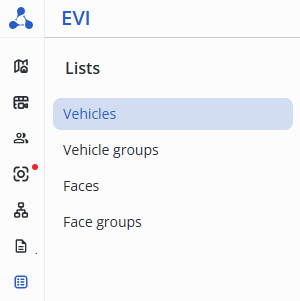 Click the + Add vehicles button.

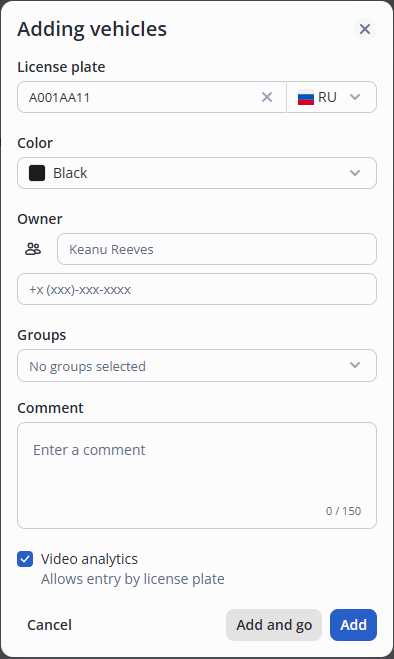
To add a vehicle, simply fill in the License plate field.
Editing a vehicle
The following fields are available on the page:
- License plate (with country selection);
- Color;
- Owner (Select owner from the access control system/Manually enter owner);
- Mobile phone;
- Groups;
- Comment;
In addition to the fields, the Analytics checkbox is also available.
Deleting a vehicle
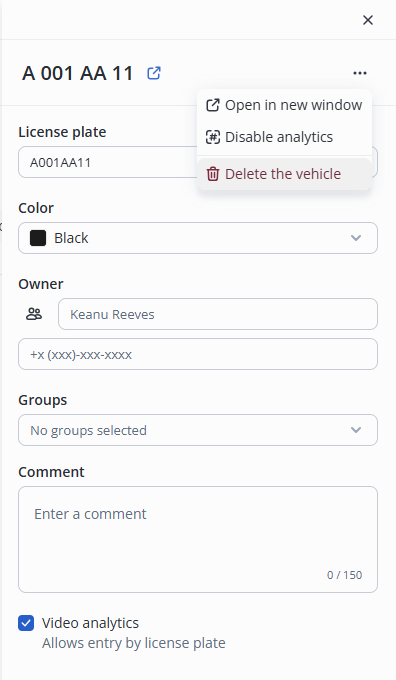
To delete a car, click the Delete the vehicle button on the Edit the vehicle page.
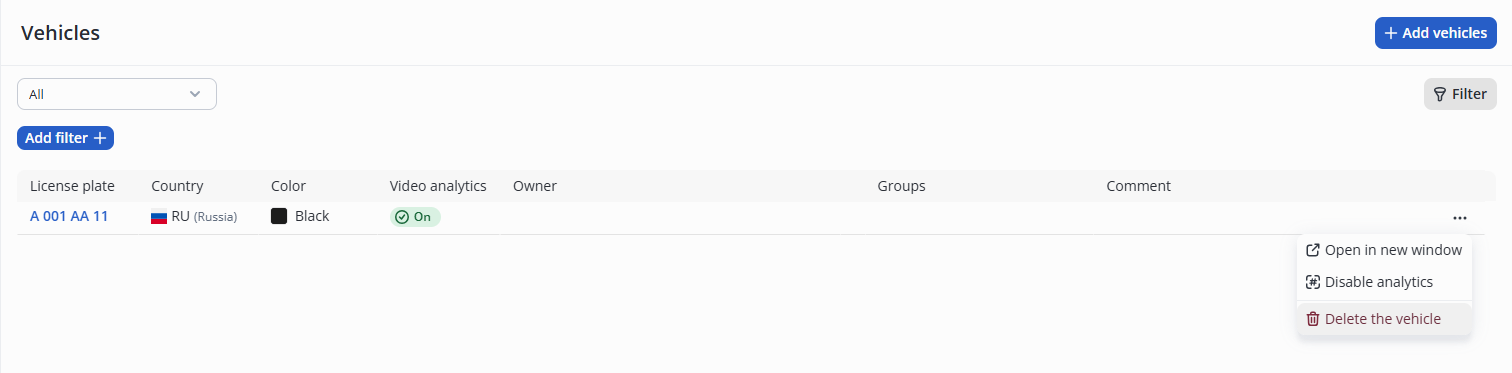
It is also possible to delete a car on the Vehicles page. To do this, open the menu and click the Delete the vehicle button.
Actions menu
The menu offers 3 types of actions:
- Open in a new tab
- Disable Analytics/Enable Analytics
- Delete the vehicle
Car groups
On the Vehicle groups page, you can create groups to further customize actions related to them.
Adding a vehicle group
In the Lists section, go to the Vehicle groups page.
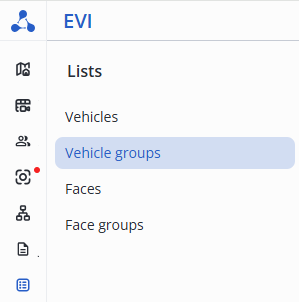
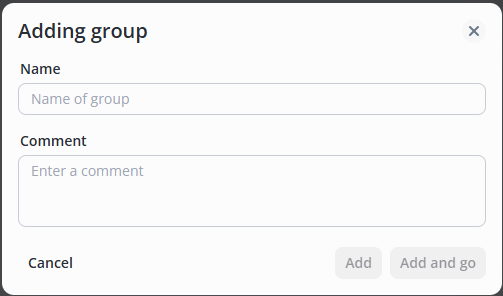
Click the + Add vehicle group button.

To add a Vehicle group, simply enter a Name.
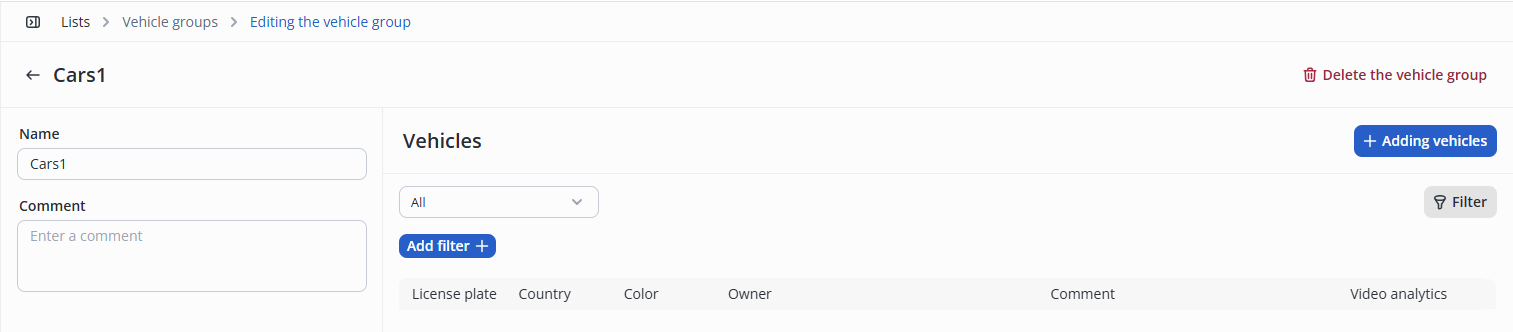
Editing a vehicle group
The following fields are available on the page:
- Name
- Description
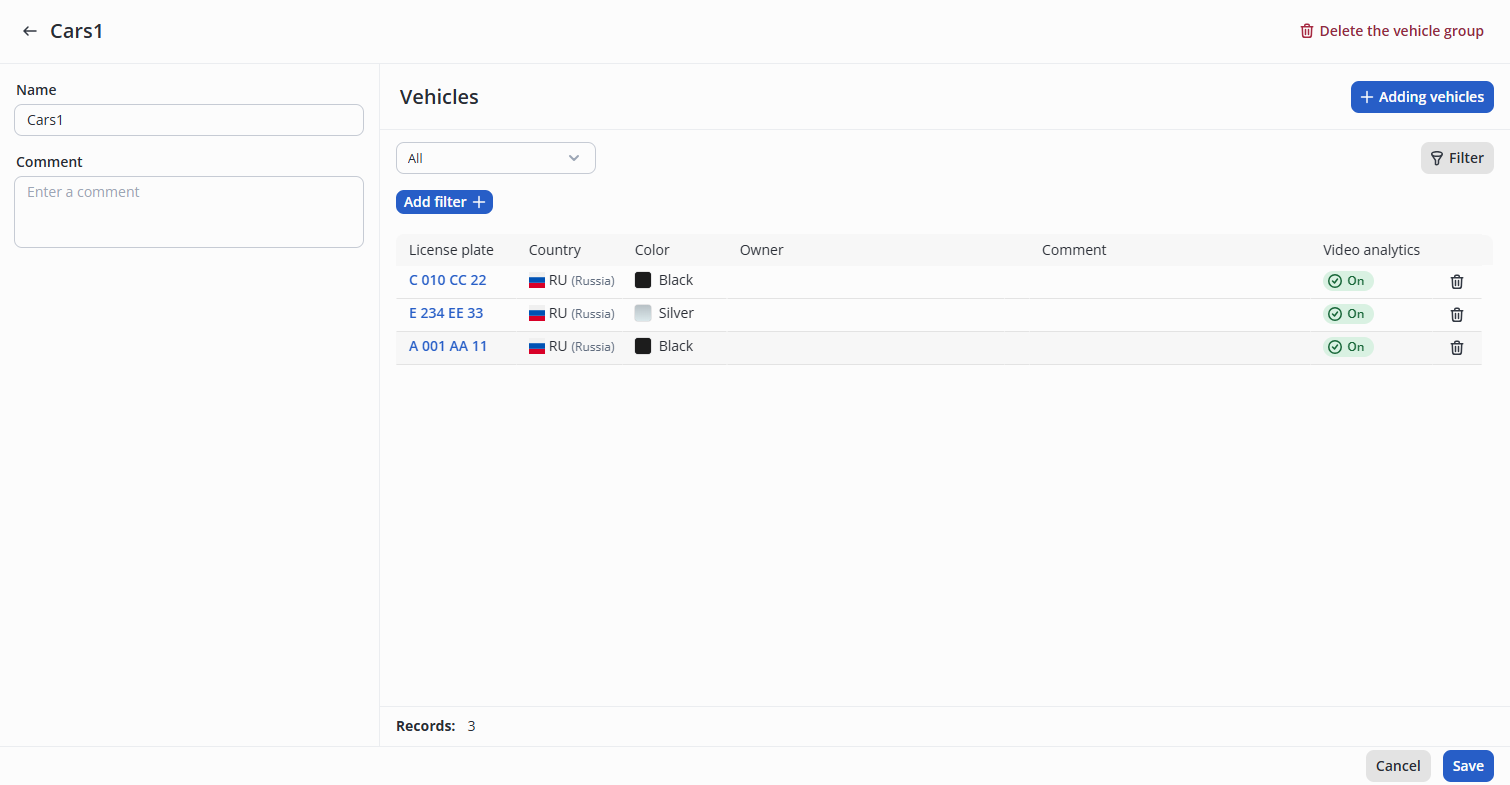
Adding vehicles to a group
To add a vehicle to a group, click the + Add vehicles button.
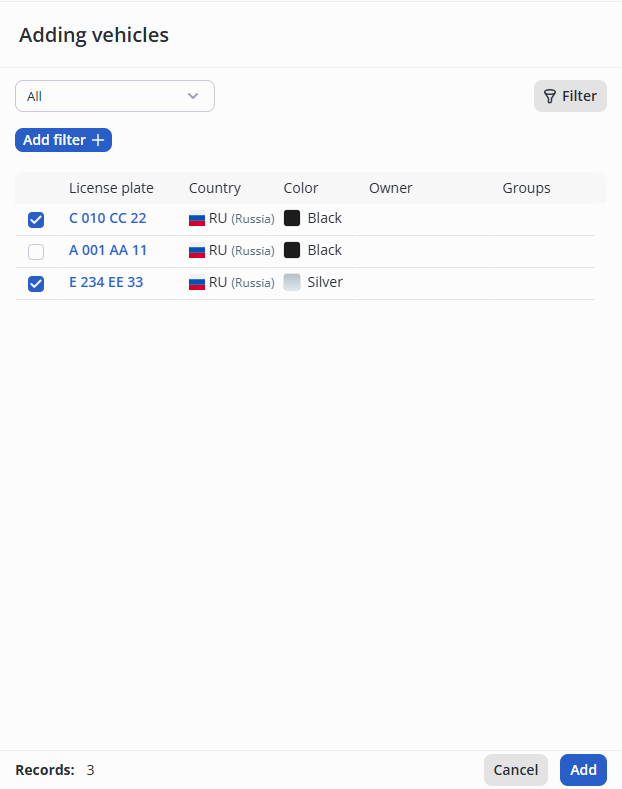
In the Adding vehicles side menu, select the vehicles and click the Add button.
Removing vehicles from a group
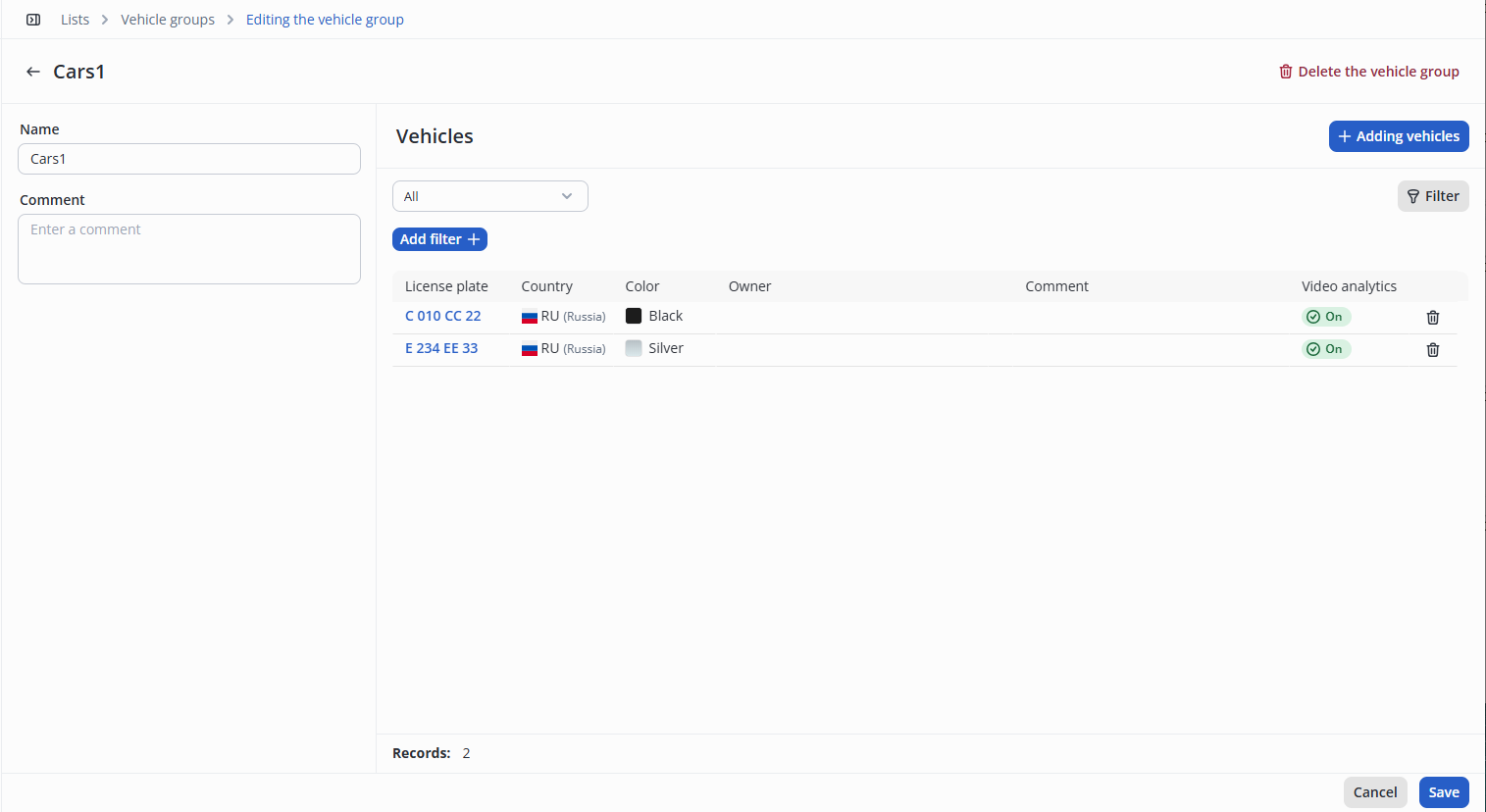
To remove a vehicle from a group, click the trash can icon.
 Saving changes
Once the list is created, you can save your changes by clicking the Save button.
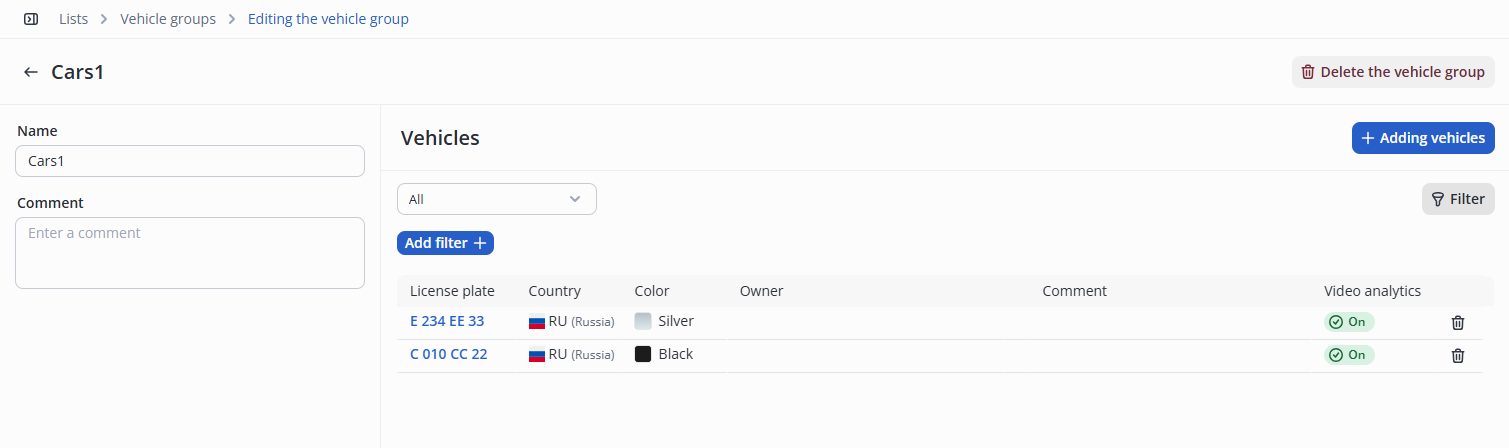
Removing a vehicle group
To delete a vehicle group, click the Delete the vehicle group button on the Edit the vehicle group page.
You can also delete a vehicle group on the Vehicle groups page. To do this, open the menu and click the Delete the vehicle group button.
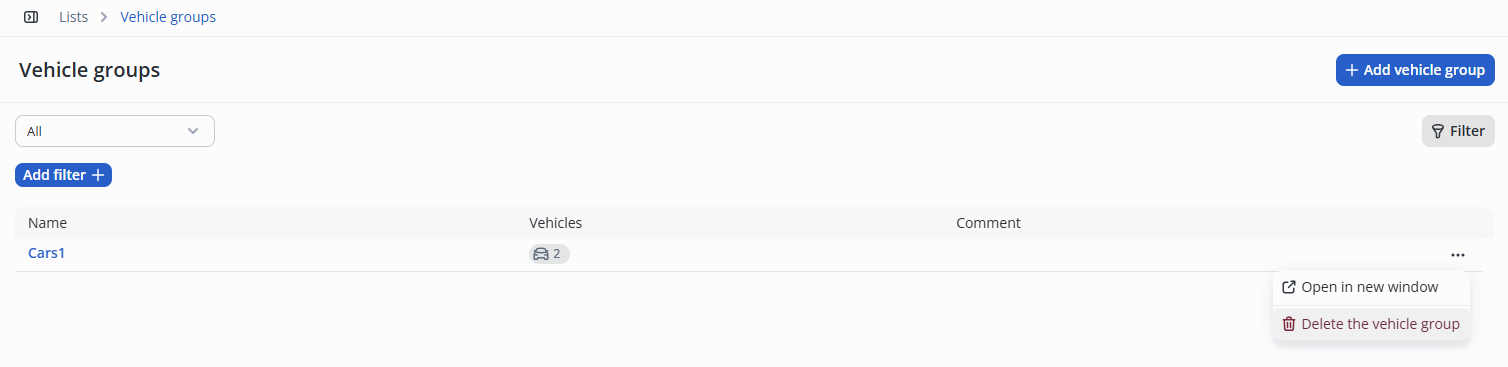
Actions menu
The menu offers two types of actions:
- Open in a new tab
- Delete group
Face groups
On the Face groups page, you can create groups to further configure actions for them.
Adding a face group
In the Lists section, go to the Face groups page.
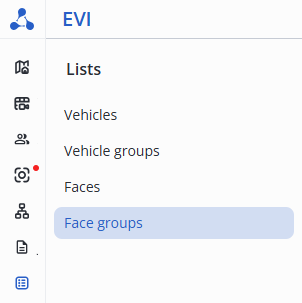
Click the + Add face group button.
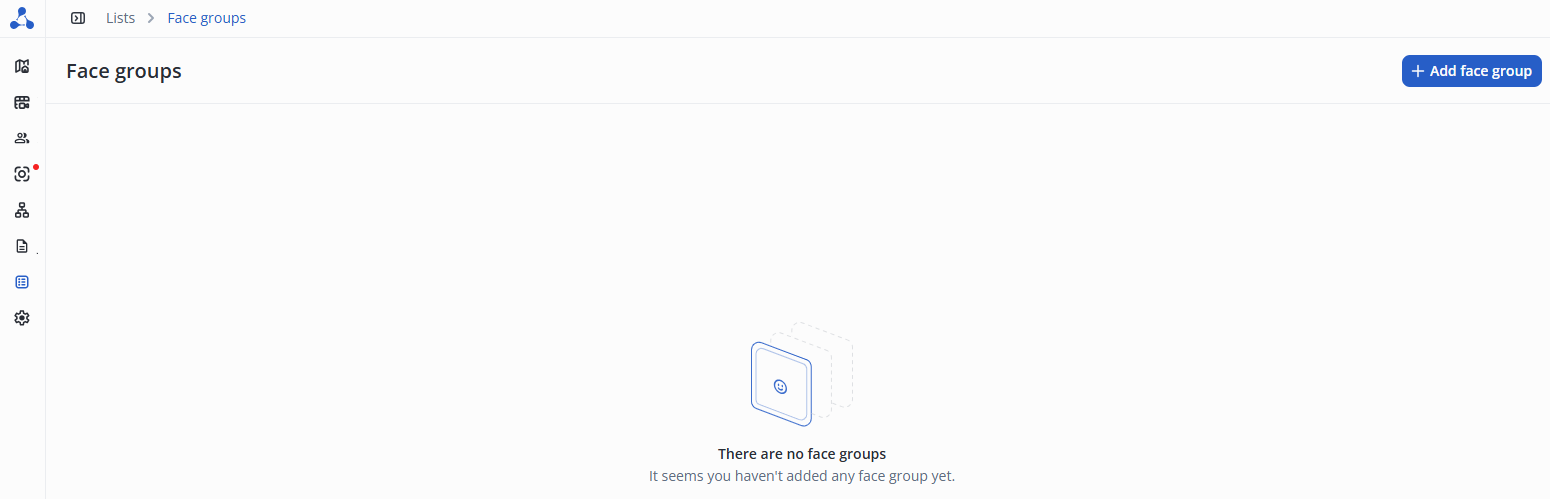
To add a face group, simply fill in the Name field.
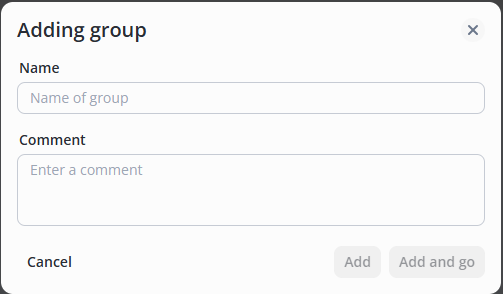
Editing a face group
The following fields are available on this page:
- Name
- Description
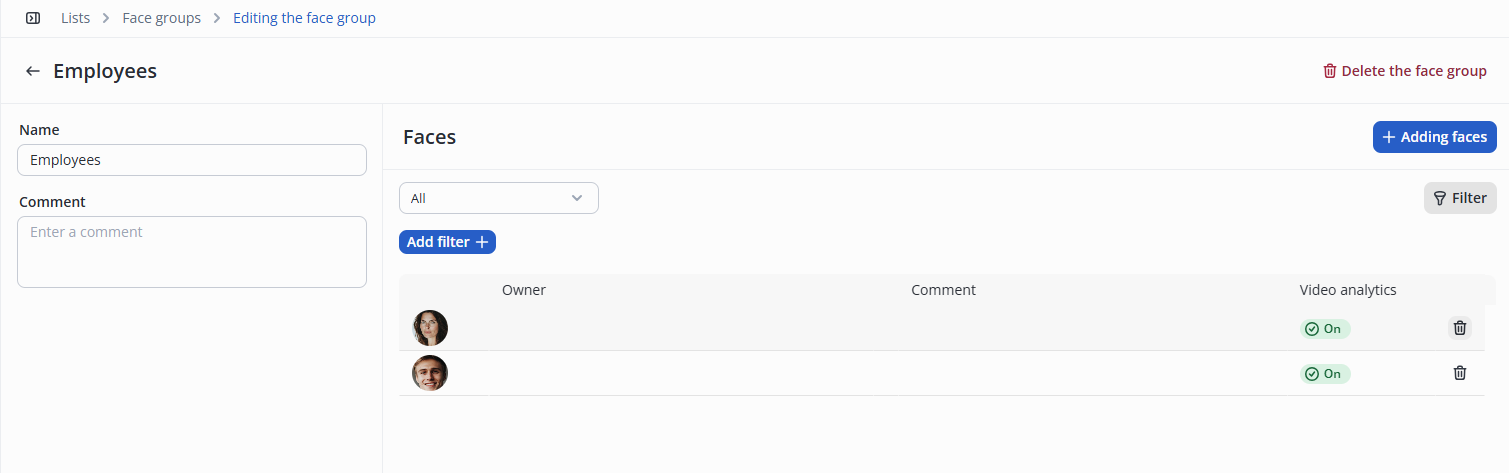
Adding faces to a group
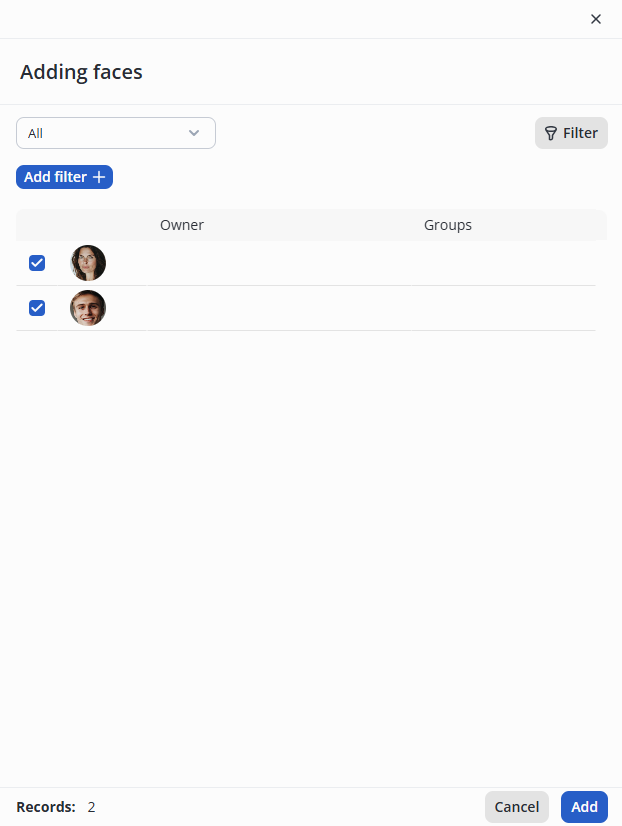
To add faces to a group, click the + Adding faces button.

In the Adding faces side menu, select the faces and click the Add button.
Removing a face from a group
To remove a face from a group, click the trash can icon.
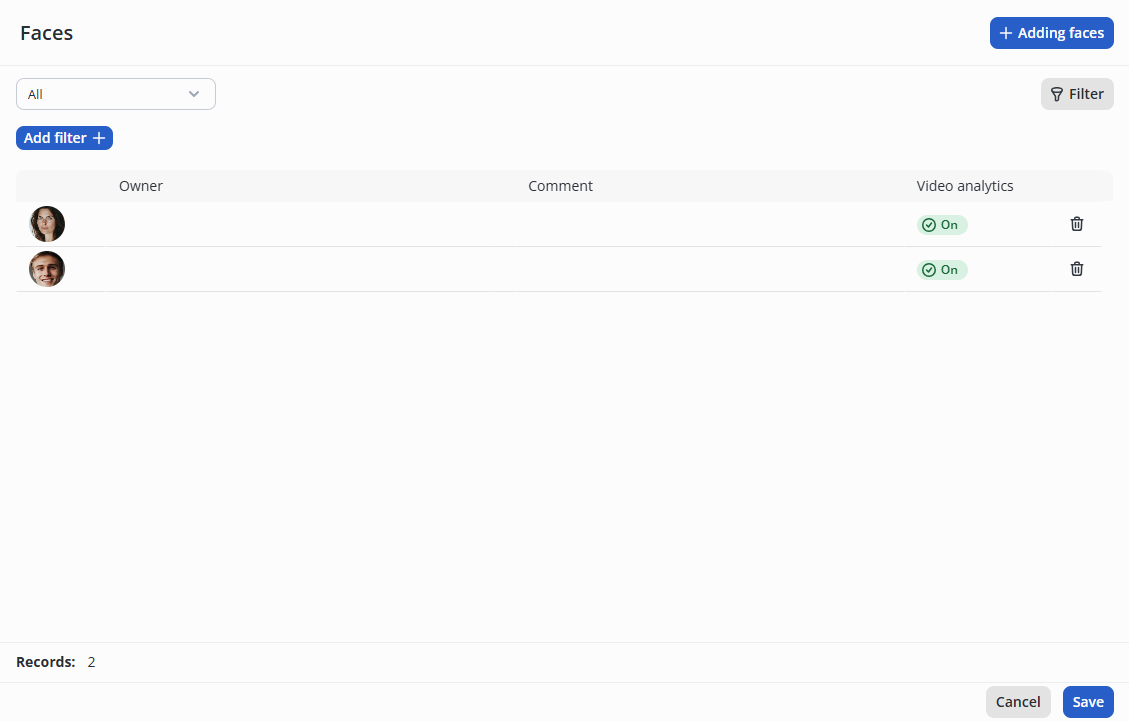
Saving changes
After creating the list, the changes can be saved by clicking the Save button.
Deleting a face group
To delete a face group, click the Delete the face group button on the Editing the face group page.

You can also delete a face group on the Face groups page. To do this, open the menu and click the Delete the face group button.
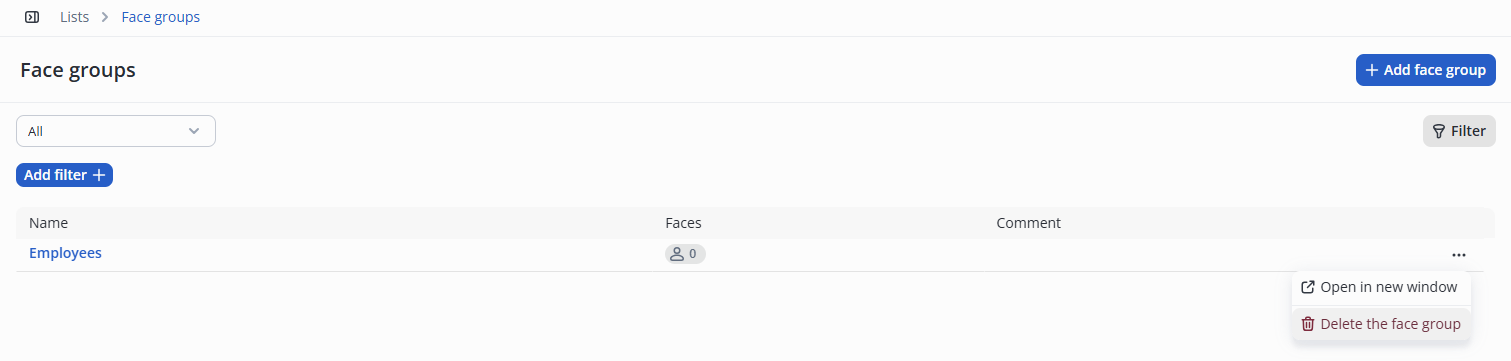
Actions menu
The menu offers two types of actions:
- Open in a new tab
- Delete group
Faces
The Faces list is a list of all photos of faces in the system.
Adding a face
Photo recommnedations
In the Lists section, go to the Faces page.
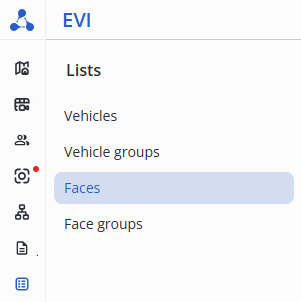
Click the + Add face button.

In the Adding face window, click the Upload photo button.
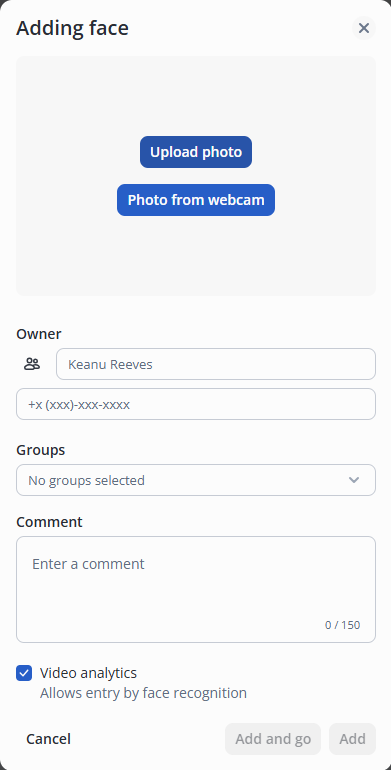
Select an employee’s photo in the operating system’s file manager window that opens.
Crop the photo if necessary by clicking and dragging the blue edges, then click the Save button.
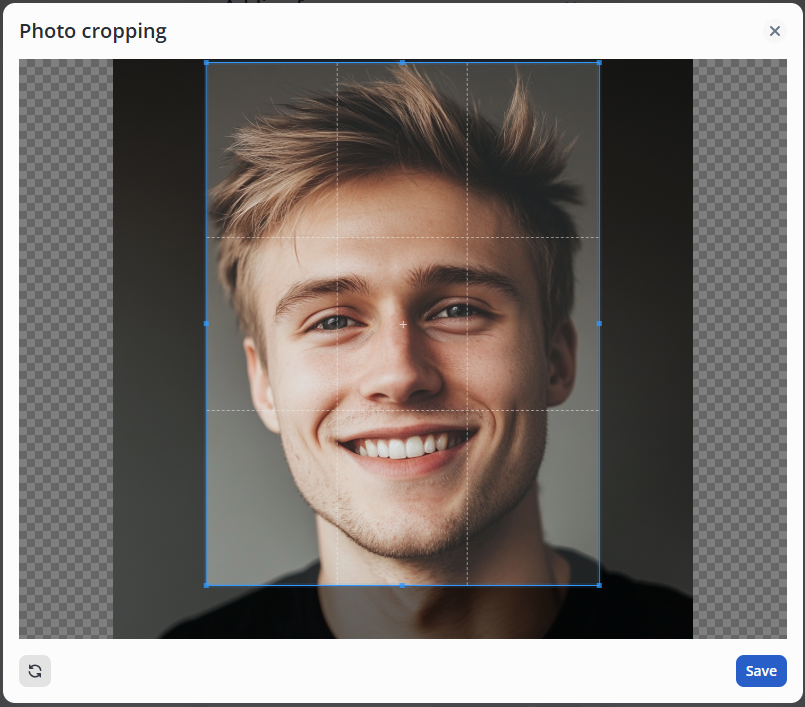
In the Adding face window, click the Add button.
Editing a face
The following fields are available on the page:
- Owner
- Mobile Phone
- Groups
- Comment
In addition to the fields, the Video analytics checkbox is also available.
Deleting a face
To delete a face, click the Delete the face button on the Edit the face page.
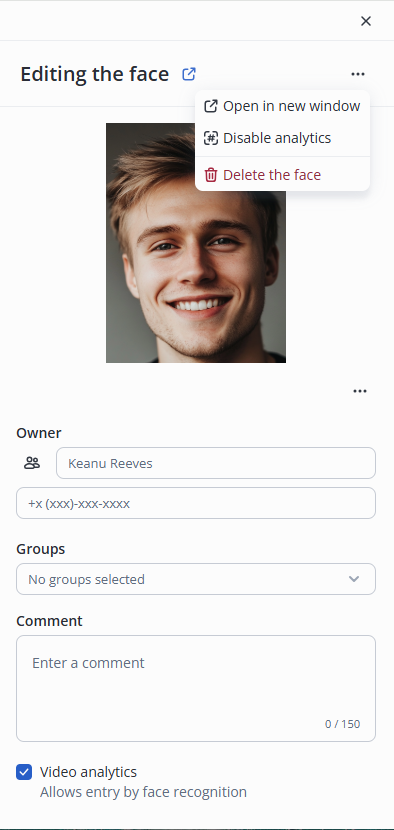
It is also possible to delete a face on the Faces page. To do this, open the menu and click the Delete the face button.
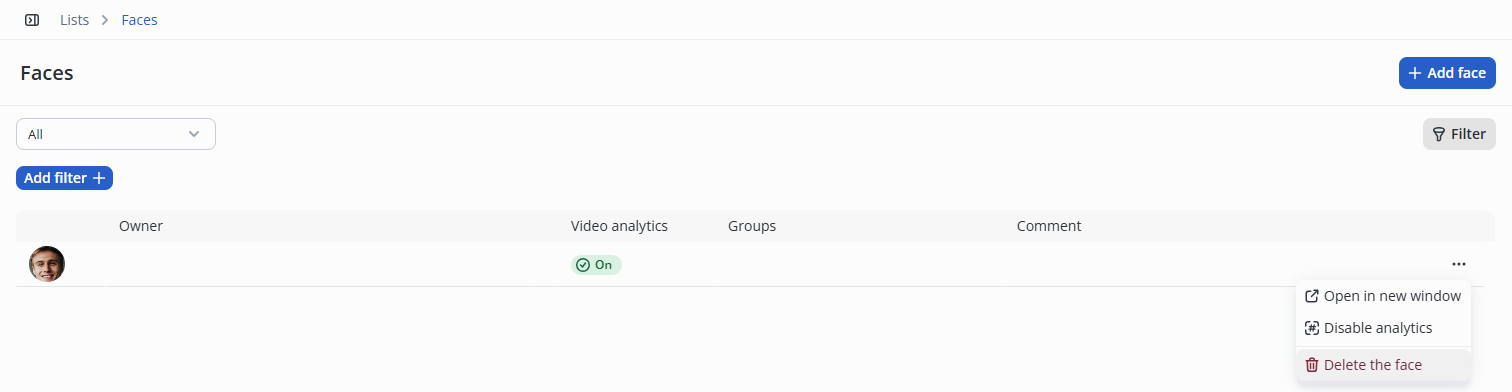
Actions menu
The menu offers 3 types of actions:
- Open in a new tab
- Disable Analytics/Enable Analytics
- Delete face