EVI Perimeter is a video surveillance module designed to receive video streams from cameras and save them to the archive.
Adding a camera
There are two ways of adding cameras:
- Manual addition (via RTSP link) — it is necessary to know the RTSP link from the camera used to view the video stream;
Multi-adding (via ONVIF) — it is necessary to know the camera’s ONVIF login and password, and to enable ONVIF on the camera if it is not already enabled.
Manual addition
Switch to the Cameras page.
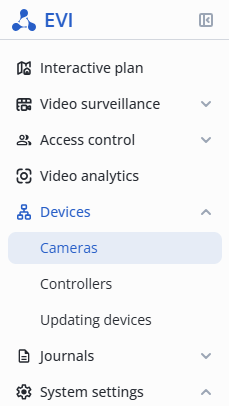
Left-click on the Add camera button and select Manual addition from the submenu that opens.

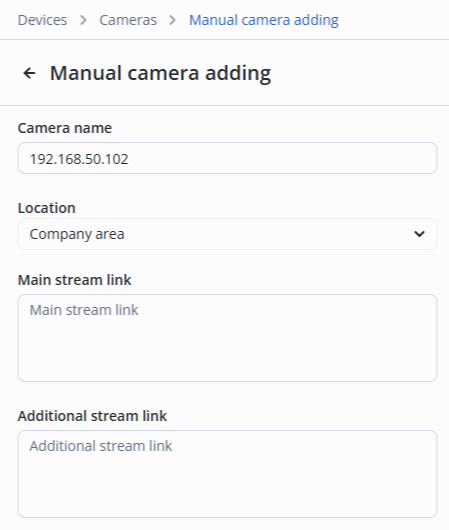
On the Manual addition page, it is necessary to fill in the following fields:
- Camera name — a text field to designate the camera;
- Location — the drop-down list shows the hierarchy. The camera location must correspond to the In location parameter of the relay to be controlled;
- Main stream link — URL that points to the main video stream that provides the highest possible quality, used to display the video full screen;
- Additional stream link — URL that points to an additional video stream that provides the video in the lowest quality, used to display the preview.
After filling in the fields, click the Manual addition button in the lower right corner.
The added camera is displayed in the list.

Multi-adding — ONVIF
Go to the Cameras page.
Left-click on the Add camera button and select Multi-adding from the submenu that opens.

Camera support for the ONVIF protocol
Make sure the cameras you are adding support ONVIF. ONVIF may be disabled by default on some cameras. To enable ONVIF, go to the camera’s web interface.
Also note that on some devices, it is not possible to use the system user “admin” to connect via ONVIF. Therefore, it is recommended that you create a separate user for working with ONVIF.
Click the Update button to search for cameras.
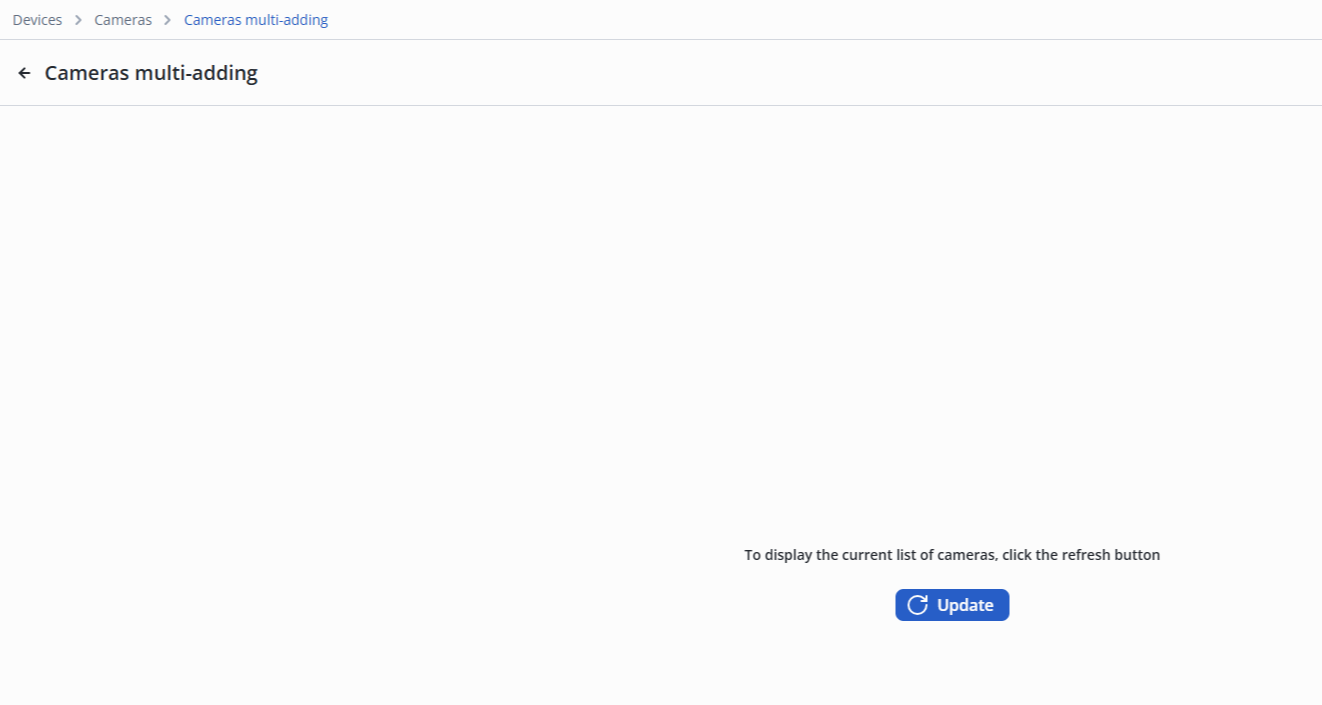
The cameras are searched only in the local network on the network interfaces of the server.
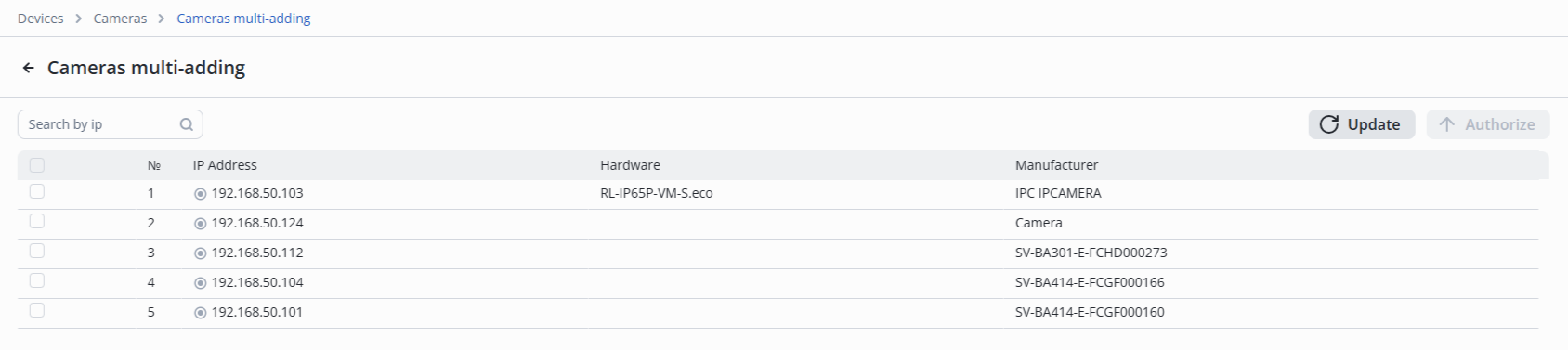
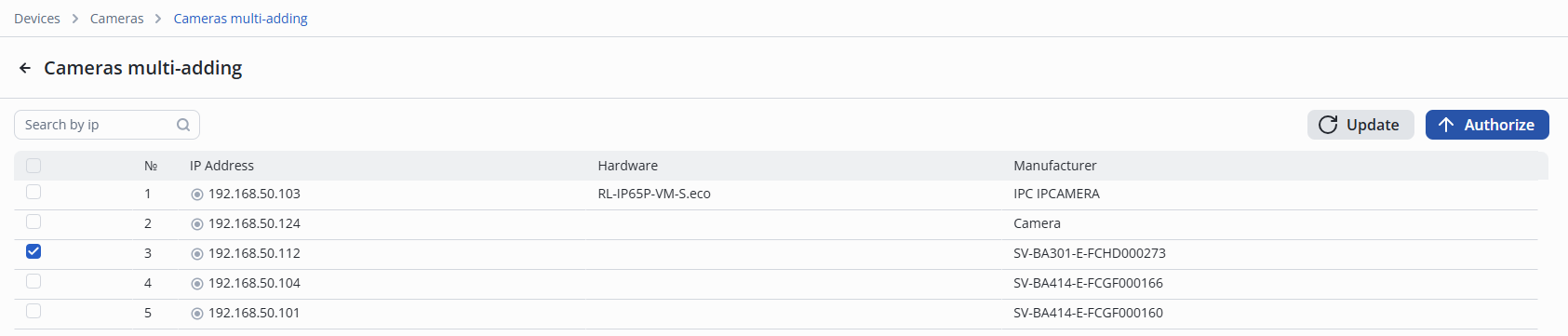
When the camera search is complete, mark the cameras for authorization.
Click the Authorize button.
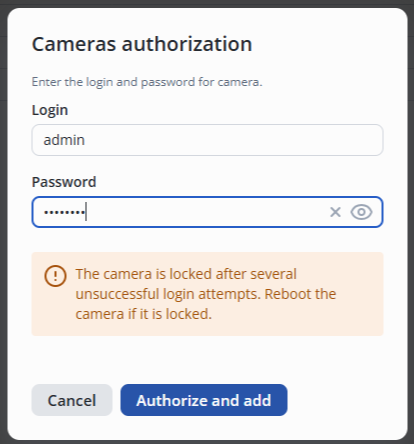
Enter Login and Password, and then click Authorize and Add.
If multiple cameras are selected to be added, the login and password for them must be the same.
After a successful addition, a notification will appear at the bottom middle of the screen that the operation was successful.
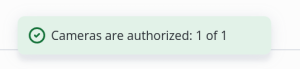
The camera will disappear from the list of found cameras.

Please note
The Vendor and Model fields are only filled in when adding a camera via Onvif.
Editing a camera
Basic section
Click on the name of the Room 1 camera.
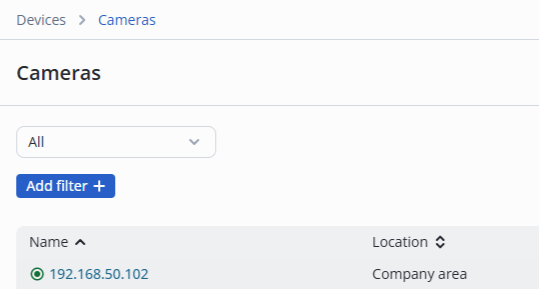
There are 2 main sections in camera editing:
- Basic;
- Archive recording.
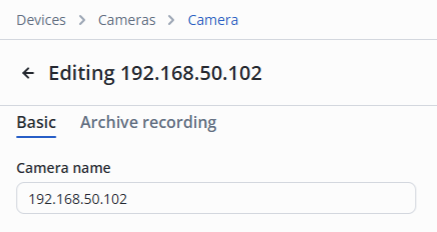
The following settings can be configured in the section:
- Camera name — text field to designate the camera;
- Camera status — enable/disable the camera;
- Camera location — drop-down list provides a hierarchy, the camera location must match the In location parameter of the relay that is to be managed when using the analytics model;
- Main stream link — URL that points to the main video stream that provides the highest possible quality, used to display the video full screen;
- Additional stream link — URL that points to an additional video stream that provides the video in the lowest quality, used to display the preview.
It is also possible to view information about the main or additional stream. The type of information can be switched using the Video and Audio buttons.
Archive recording section
This section is used to configure recording to the camera's archive.
Please note
Data from the camera is recorded without using the SD card in the camera to the server in the partition specified in the evi-archive.conf configuration file.
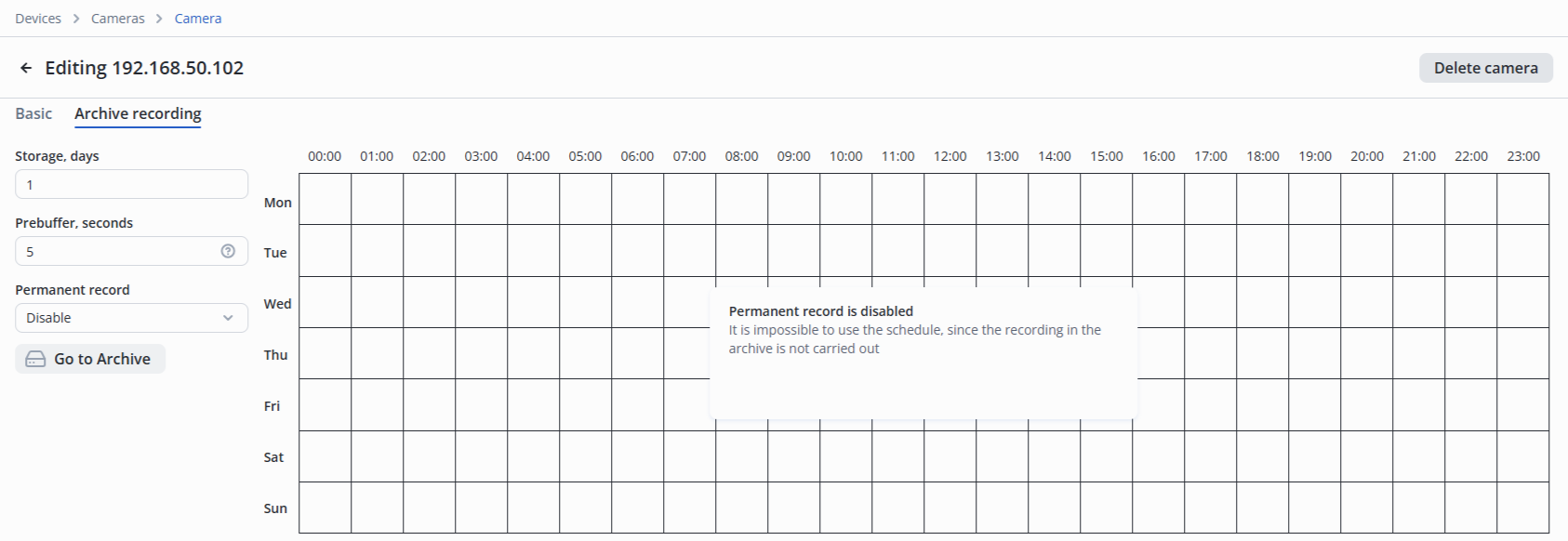
Configuration parameters:
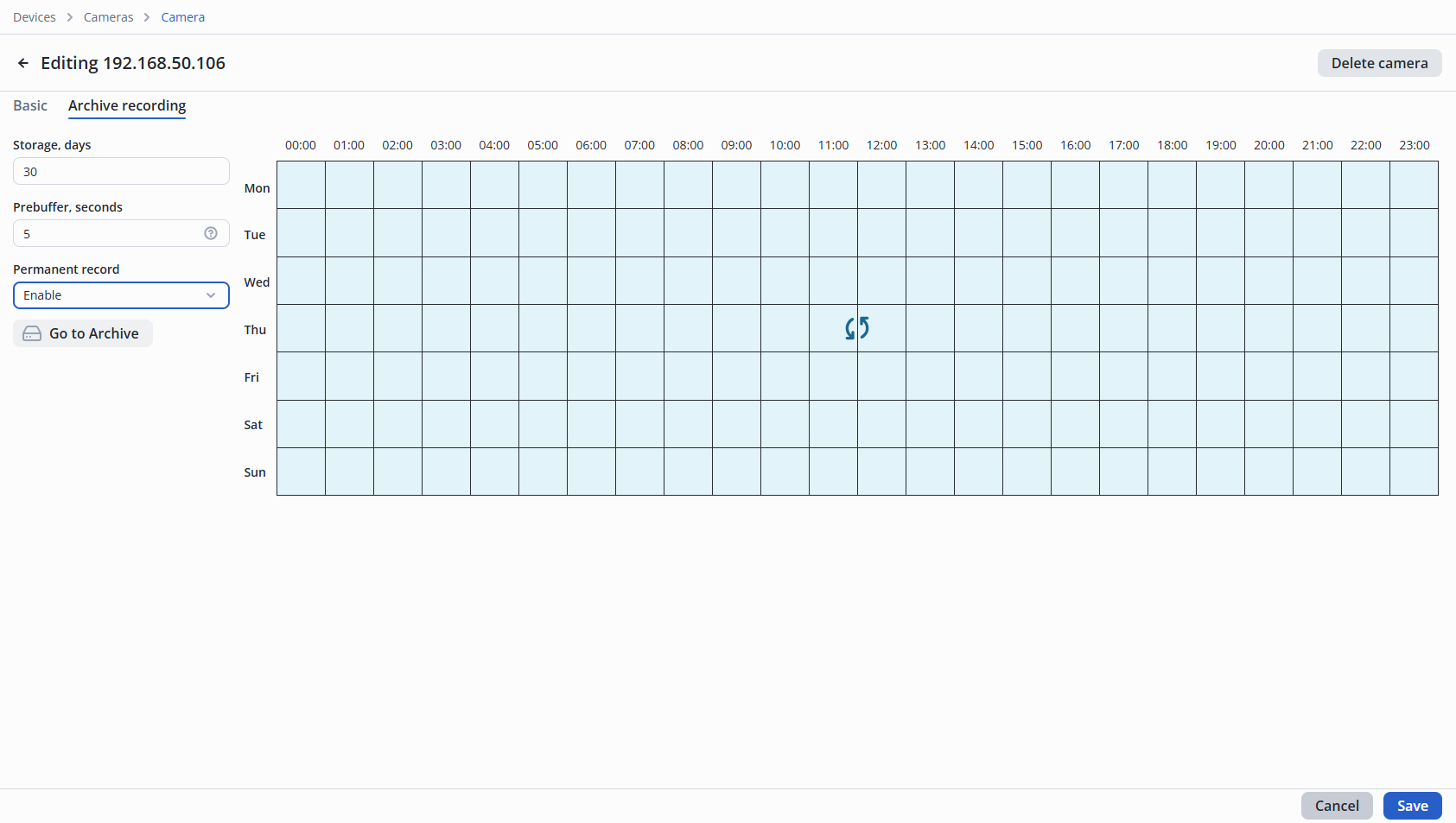
- Storage, days — number of days that archive records are stored;
- Prebuffer, seconds — number of seconds of recording before the start of an event (this setting is designed to work with the analytics module);
- Permanent record — type of permanent recording.
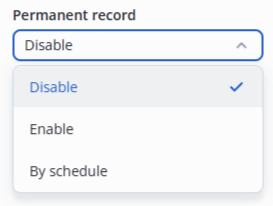
he system offers three types of permanent recording. The default setting is Disable.
- Disable — permanent recording is not performed to the archive;
- Enable — permanent recording is performed to the archive;
- By schedule — permanent recording to the archive is performed at specified intervals.
Examples of permanent archiving configuration
- Disable — schedule is empty.
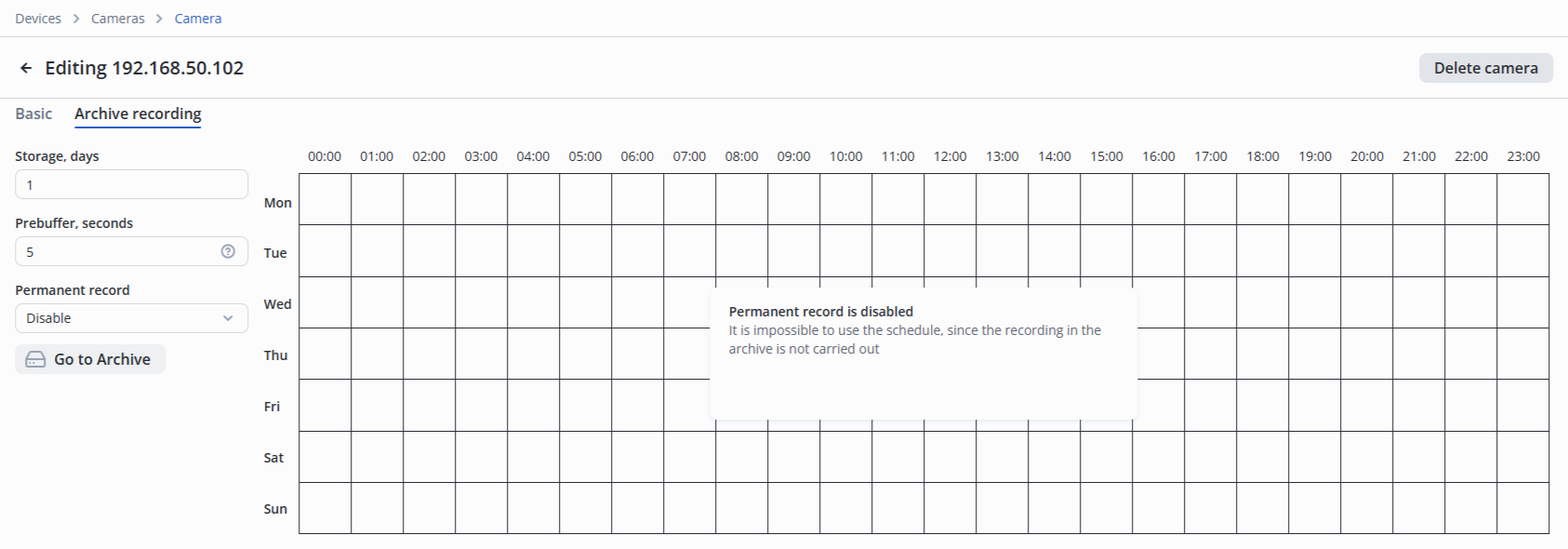
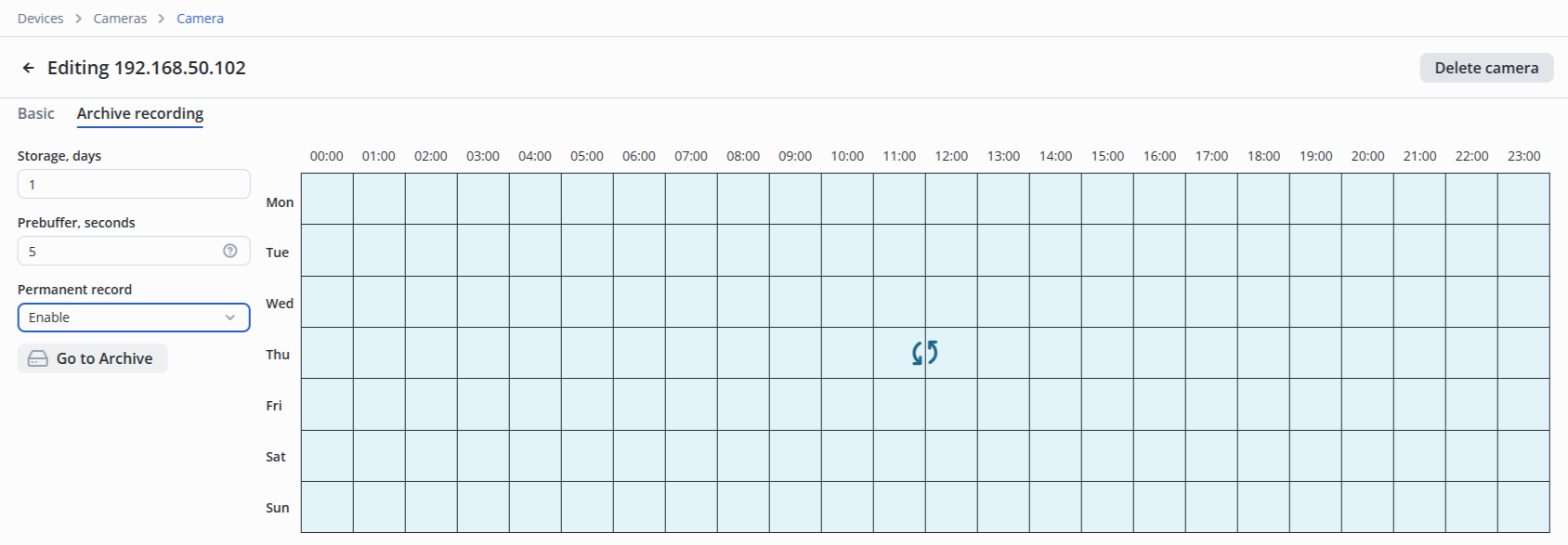
- Enable — automatically fills the week with blue.
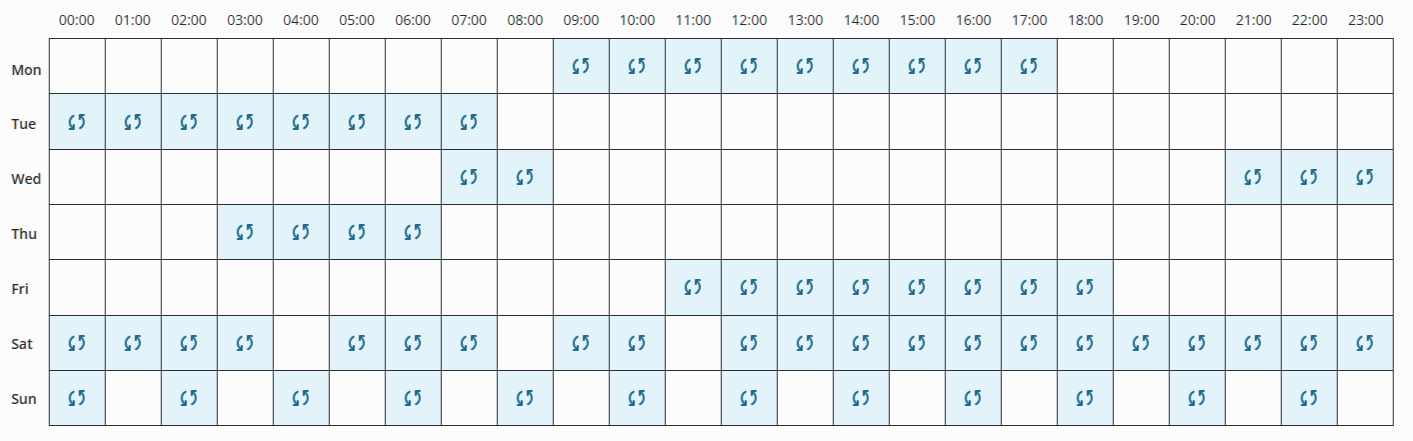
- By schedule — an archive mode in which it is possible to select an archive recording of any type lasting from one hour for the entire week.
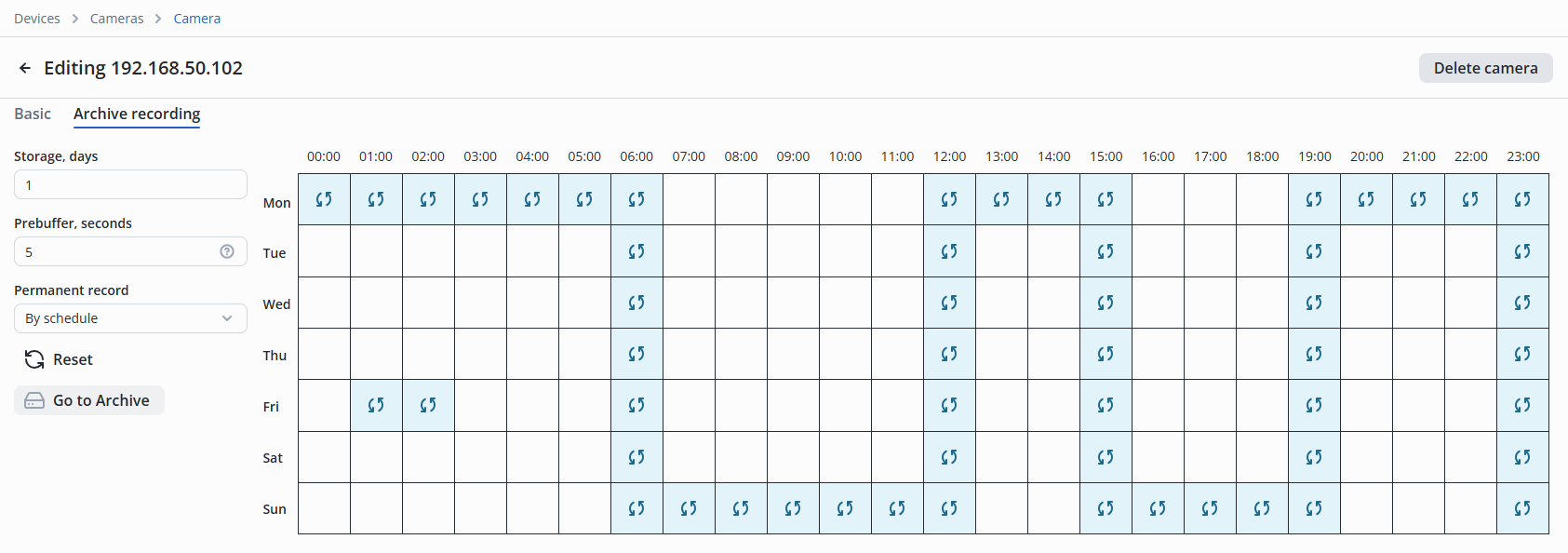
Working with the schedule
- Filling an empty cell — left mouse button;
- Deleting a filled cell — left mouse button;
- Opening the context menu — right mouse button;
The minimum allocated area is a multiple of 1 hour.
Opening the context menu in the schedule
Use the context menu to copy the schedule between different days.
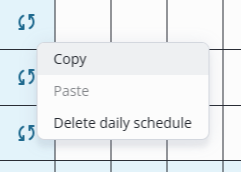
Context menu operation
Context menu functions:
- Copy — the daily schedule in which the context menu was called will be copied;
- Patse — the current daily schedule will be replaced with the copied schedule from the buffer;
- Delete daily schedule — the daily schedule will be completely cleared.
The minimum allocated area is a multiple of 1 hour.
Please note
When using the Paste button in the daily schedule, the current daily schedule will be replaced with the copied schedule from the clipboard.
To clear the entire schedule area, use the Reset button.
To save your settings, click the Save button at the bottom right of the screen.
Removing a camera
Archive of a removed camera
When the camera is removed, the entire video archive is automatically deleted.
There are two ways of removing the camera:
- Via three dots at the camera name in the Cameras table;

- Via the Delete camera button in the upper right corner of the camera editing page.
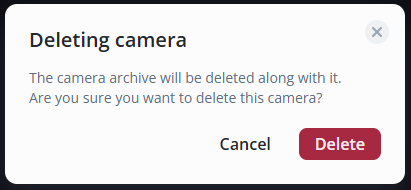
In the pop-up window, confirm the deletion by clicking Delete.
Viewing a camera via the web interface
It is possible to view live or archived video recordings from the camera via the web interface.
To view the live video feed from the camera in your browser, the latest version of the browser is required.
It is recommended to use Chrome-based browsers.
Viewing a stream using a self-signed certificate
When using a self-signed certificate, it is necessary to confirm its exclusion in the player to view the video stream from the camera.
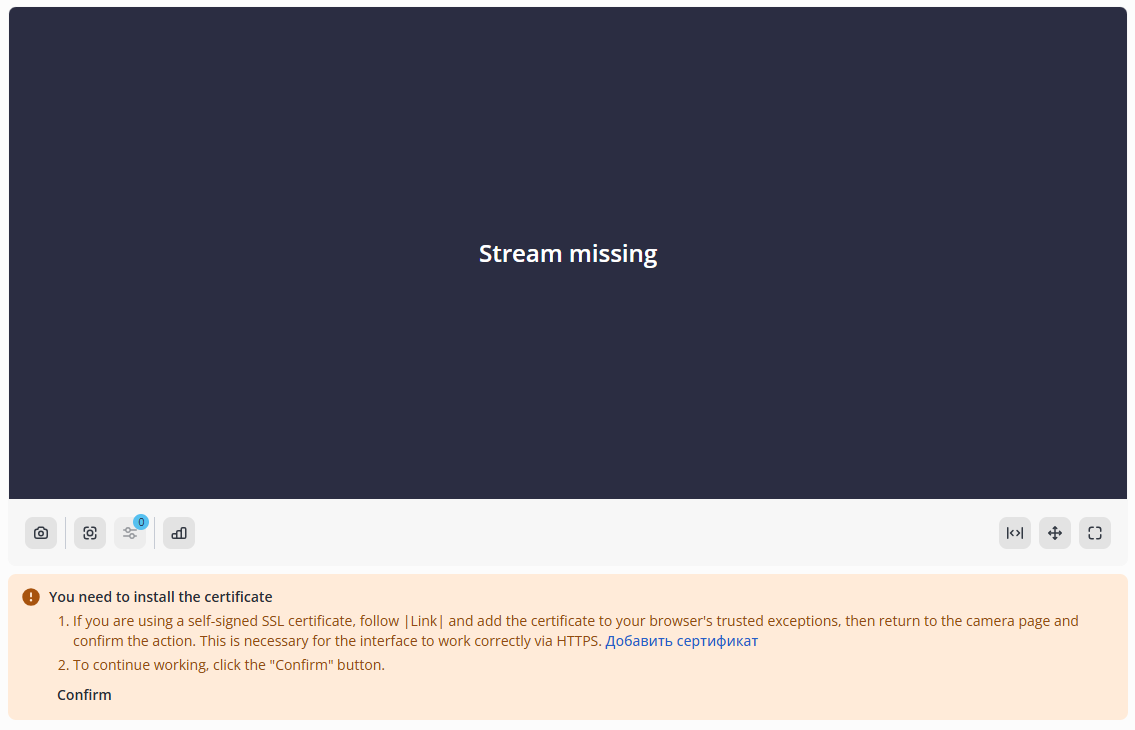
- Click the Add certificate button.
- Accept the certificate exception.
- Then return to the page with the player.
- Click the Confirm button and refresh the page.
Problems and their solutions
Problem: after clicking the Add certificate button, nothing opened and an error occurred.
Solution:
- Check the extern_host address in the configuration file /opt/evi-live/evi-live.conf, refer to the Configuration files section of the documentation for more details;
- The extern_host address must match the IP address of the network interface on the server where evi-live is installed, and the client must have access to it;
- Please refer to the Installing the Video surveillance module documentation for instructions on setting up extern_host.
Problem: after confirming the certificate, the video is not displayed.
Solution:
- Check the availability of the camera stream via the VLC player by inserting the RTSP link into it;
- Restart the camera. Since cameras have a limited number of connections, they may have been exhausted.
Viewing camera stream with H.264 primary codec
In Linux and Windows, the H.264 codec does not require any additional steps to view.
Viewing camera stream with H.265 primary codec
Windows
To watch videos with the H.265 codec on Windows, use Google Chrome version 136 or higher.
Linux
To view streams with the main H.265 codec, it is necessary to:
- Open the camera page with the main H.265 codec in the browser.
- Download plugin via the link;
- Install and check the status of the plugin by entering the following commands in the terminal:
sudo dpkg -i /path_to_file
sudo systemctl is-active evi-web-stream.service
active (expected status)
- Follow the link in the browser and confirm the certificate:
https://localhost:59999/ping
- Return to the camera editing page and click the Confirm button below the player.
Camera statuses
There are three camera statuses:
- Connected to camera stream;
- Unable to connect to camera stream;
- Connection to stream unavailable.
Long wait for camera image
The web browser may experience unstable performance when viewing video streams or archives from cameras.
In this case, it is recommended to use EVI Video Client.
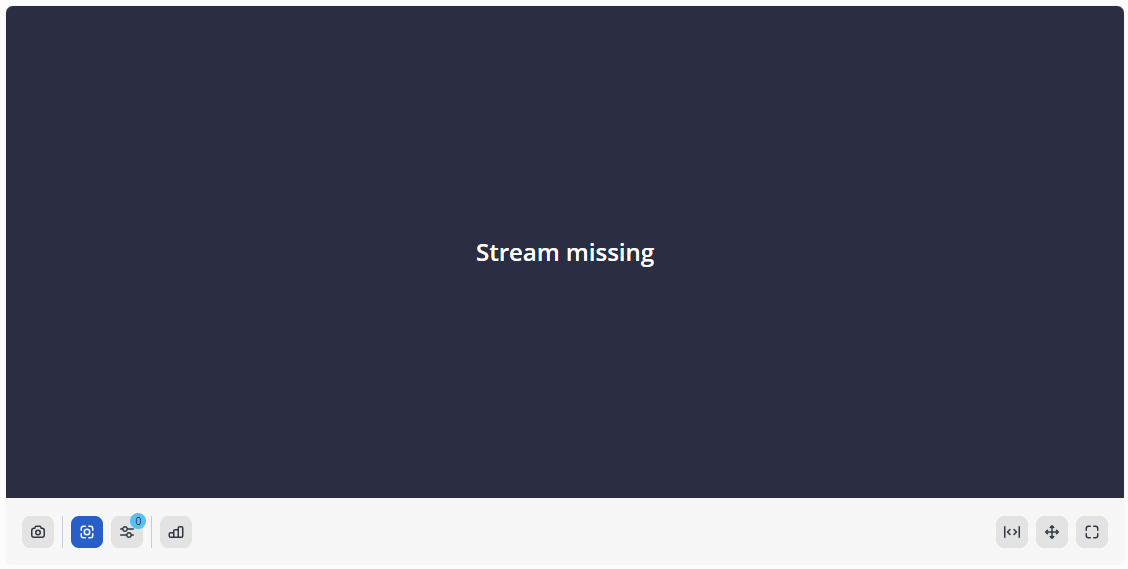
A dark screen with the message Stream missing means:
- Unable to connect to the camera stream;
- Self-signed certificate is not confirmed;
- The extern_ip address is specified incorrectly in the evi-live.conf configuration file.
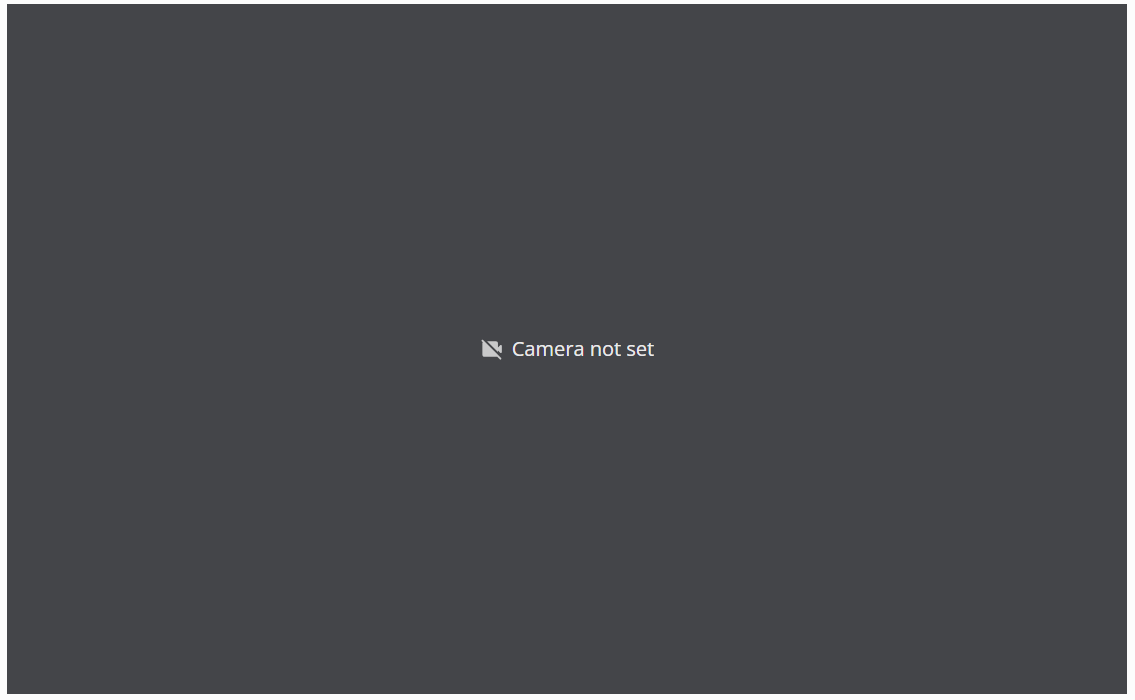
A gray screen with the message Camera is off means that receiving streams from the camera is disabled.
LIVE mode
LIVE mode — viewing video stream from the camera in real time. Viewing is carried out via a player in the browser.
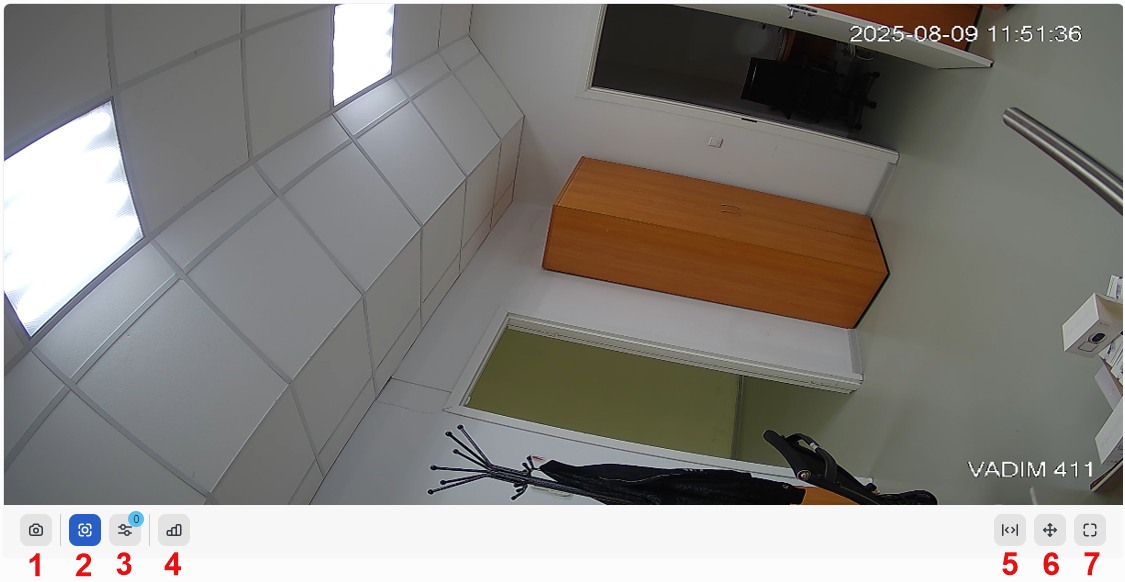
Player control buttons:
- Take a screenshot;
- Meta info on/off (analytics results and their zones/motion detector);
- Select meta info for displaying
- Show detailed stream statistics;
- Change video aspect ratio
- PTZ control
- Fullscreen on.
Monitoring page
Monitoring — page in the Video surveillance section designed for working with views.
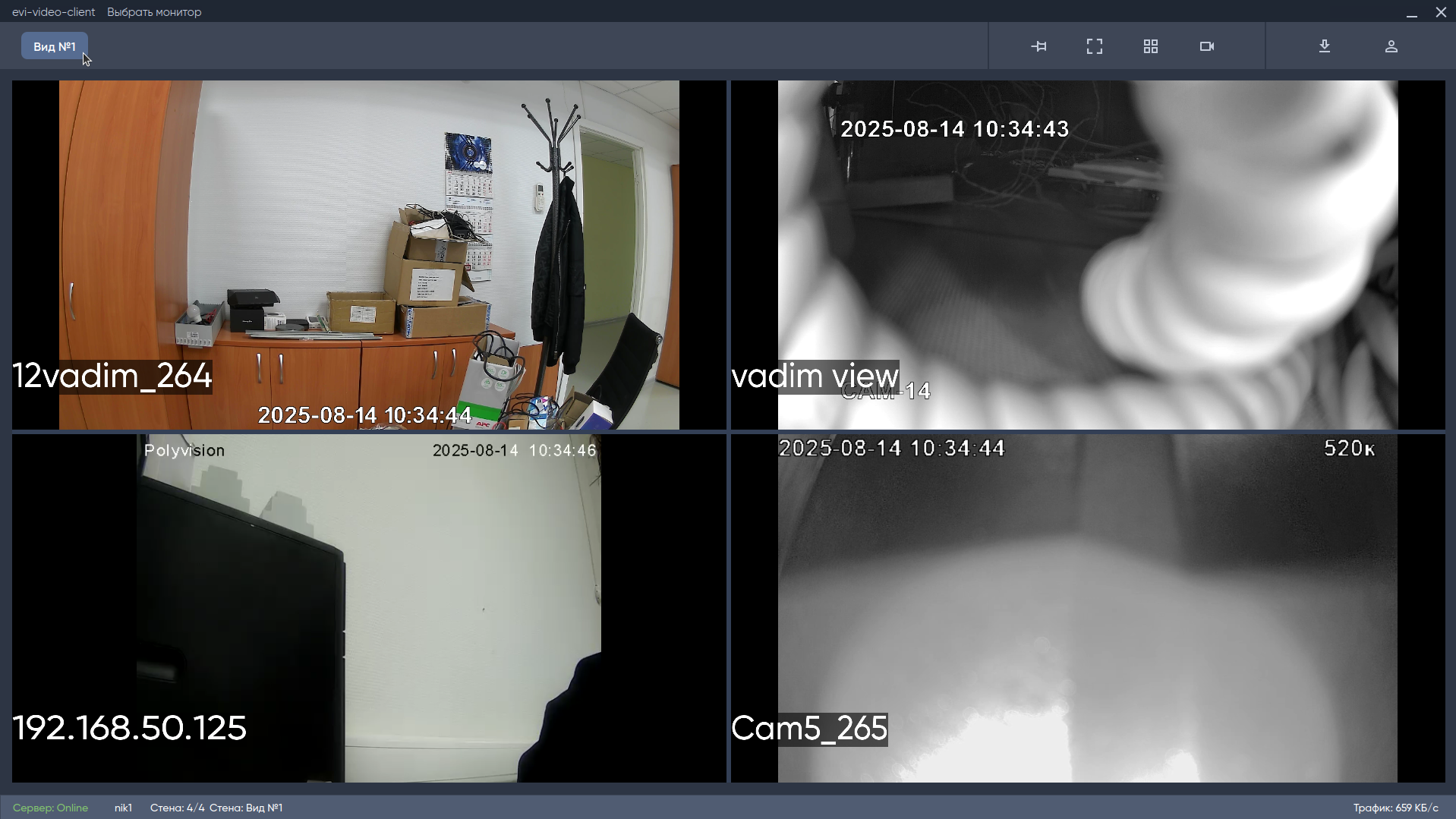
View — grid of cameras for the Security role, displayed in evi-video-client.
Creating a video view
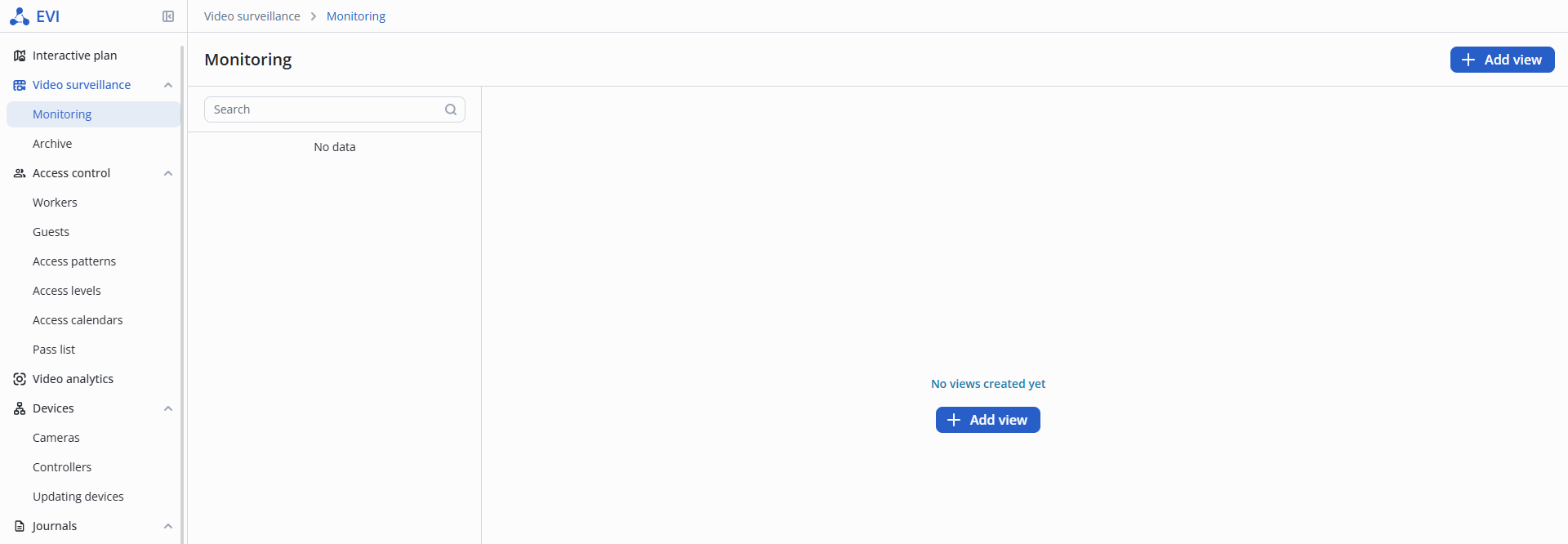
To create a view, switch to the Video surveillance section, select the Monitoring tab, and click the +Add view button.
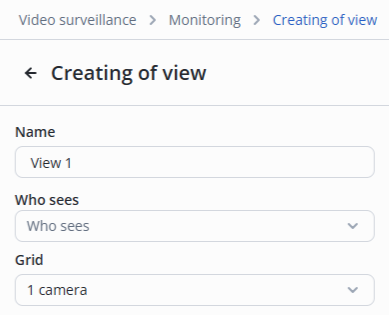
Name
In the Name field, enter a name for the video view.
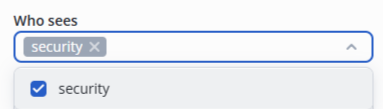
Who sees
The Who sees drop-down list displays all users with the Security role. Select the users who will be able to view the view. Roles are described in the System users section.
Grid
From the Grid drop-down list, select the number and location of cameras to be displayed in evi-video-client.
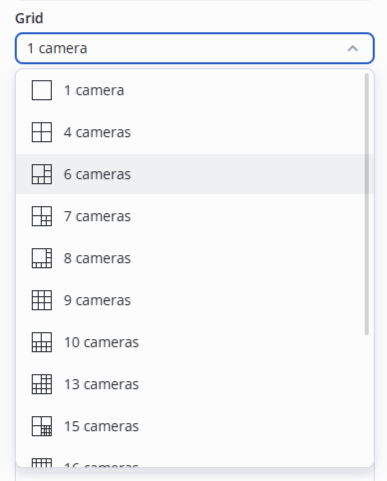
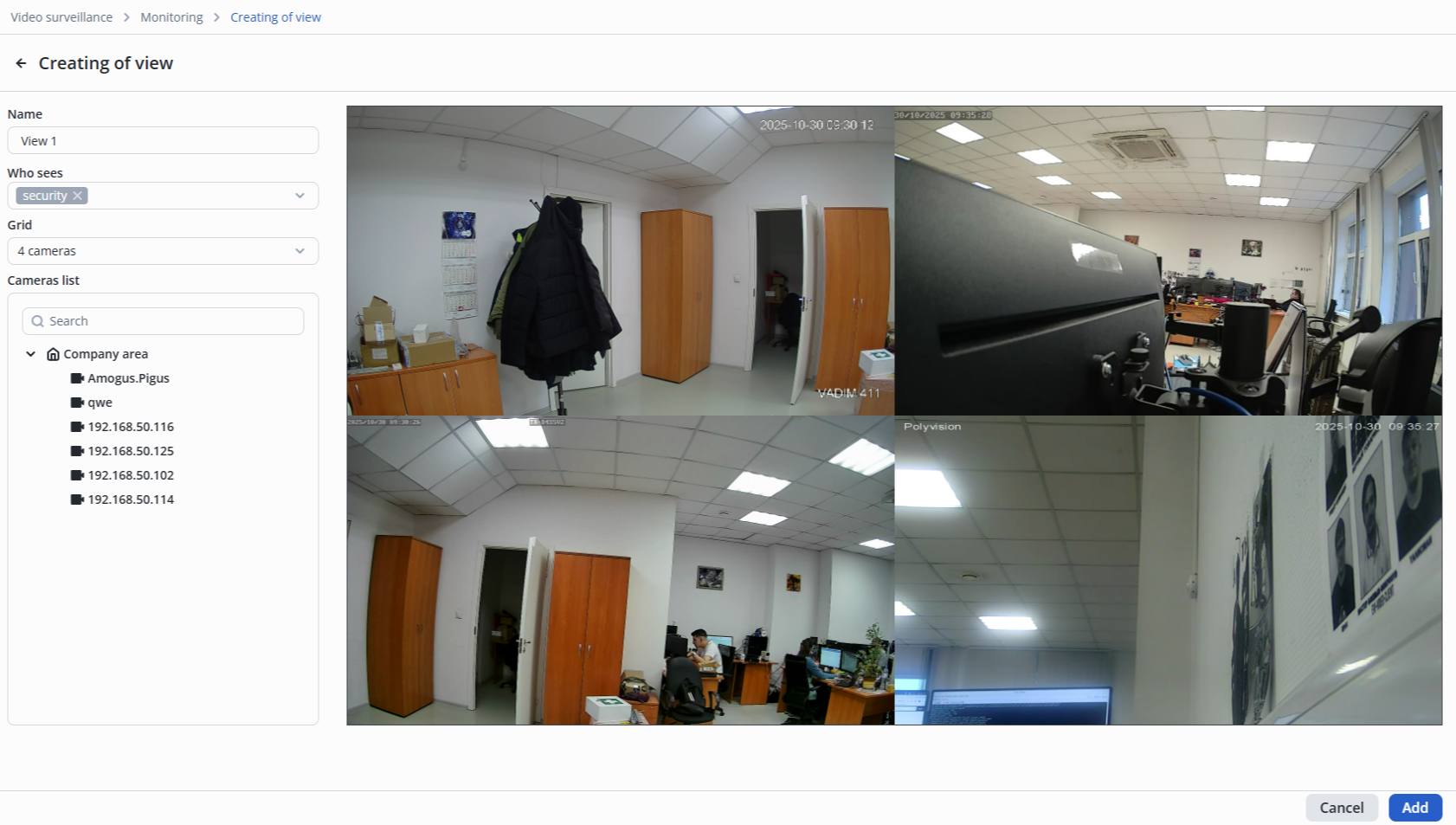
After selection, a grid of camera locations will appear on the right side of the screen.
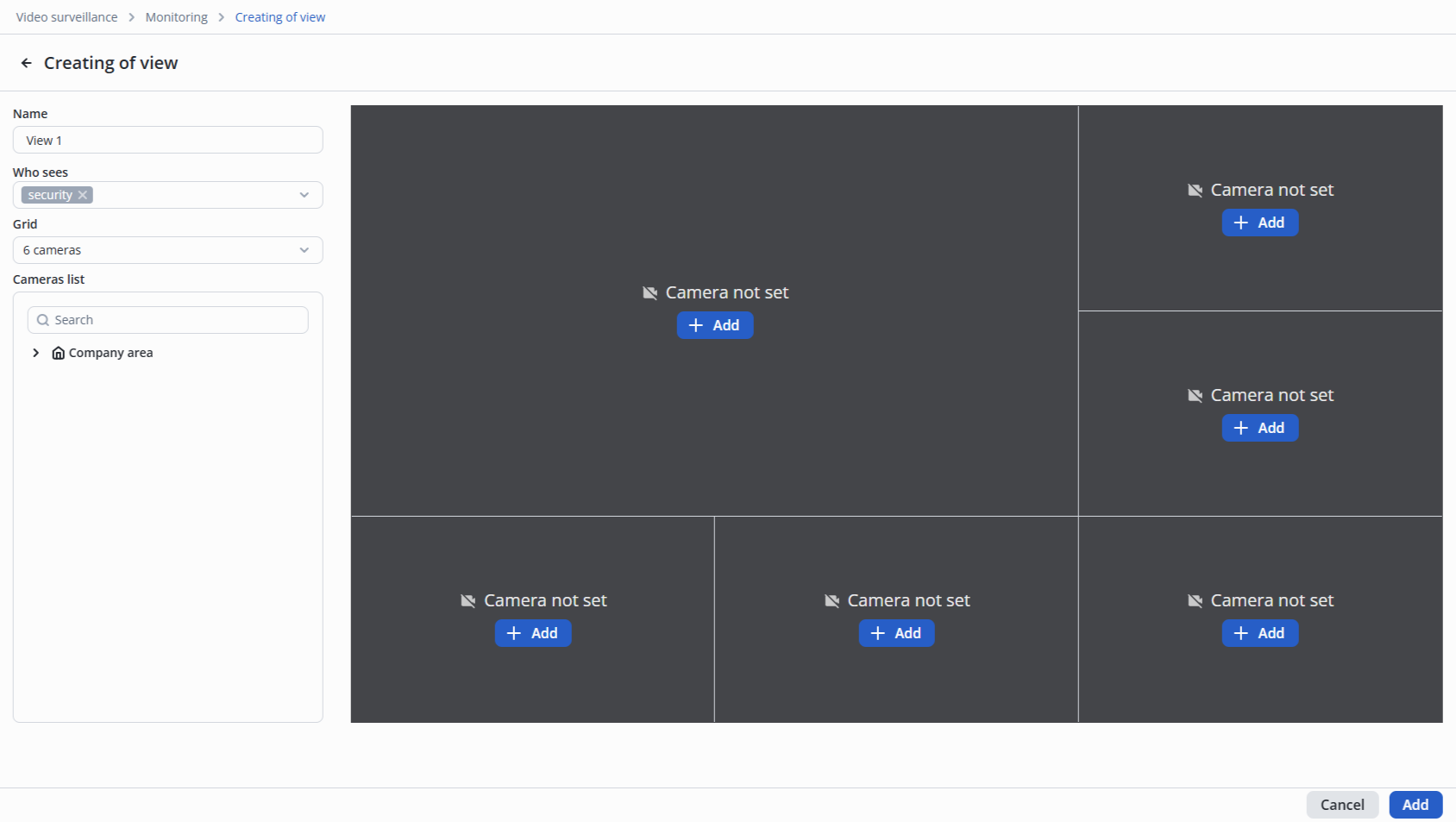
Adding a camera
Adding via button
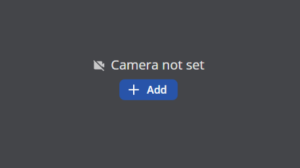
On the grid, click the Add Camera button.
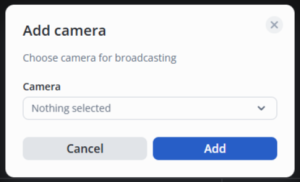
In the pop-up window that opens, open the drop-down list.
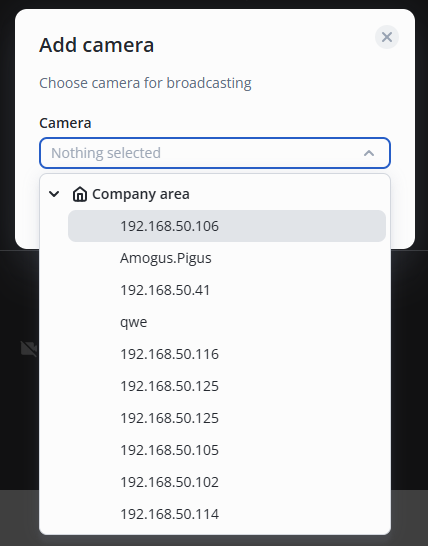
In the drop-down list, select the camera to add to the video view and click the Add button.
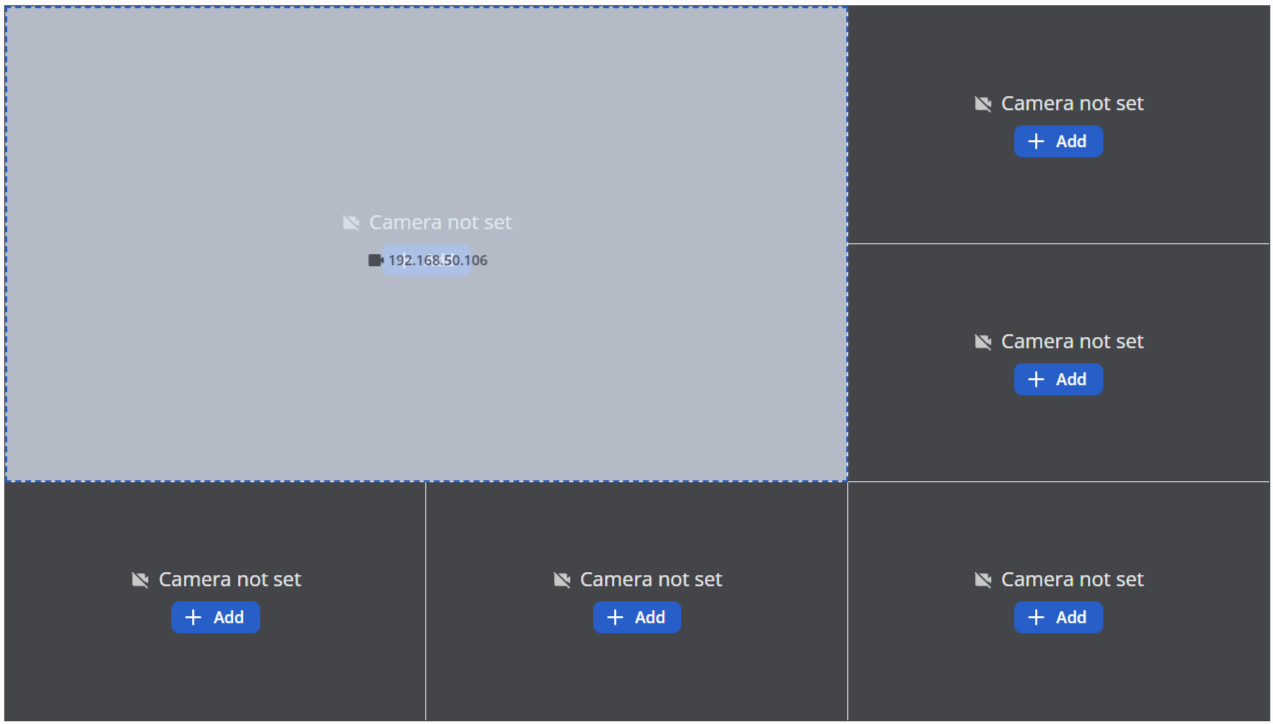
Adding via drag and drop
Find the desired camera in the camera list.
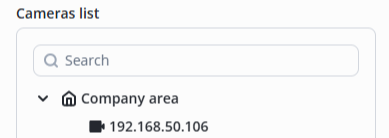
Move the mouse cursor over the desired camera and hold down the left mouse button. Without releasing the left mouse button, drag the camera to the desired cell in the view grid. Release the left mouse button after selecting the view cell.
To create a view with the selected cameras, click the Add button.
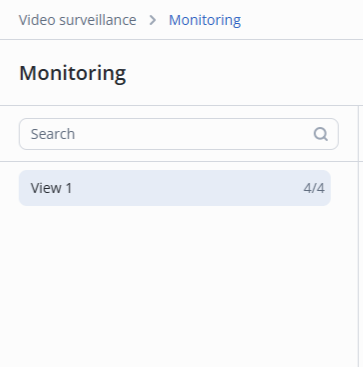
List of video views
The added view will appear on the Monitoring page.
The created video view will be added to EVI video client.
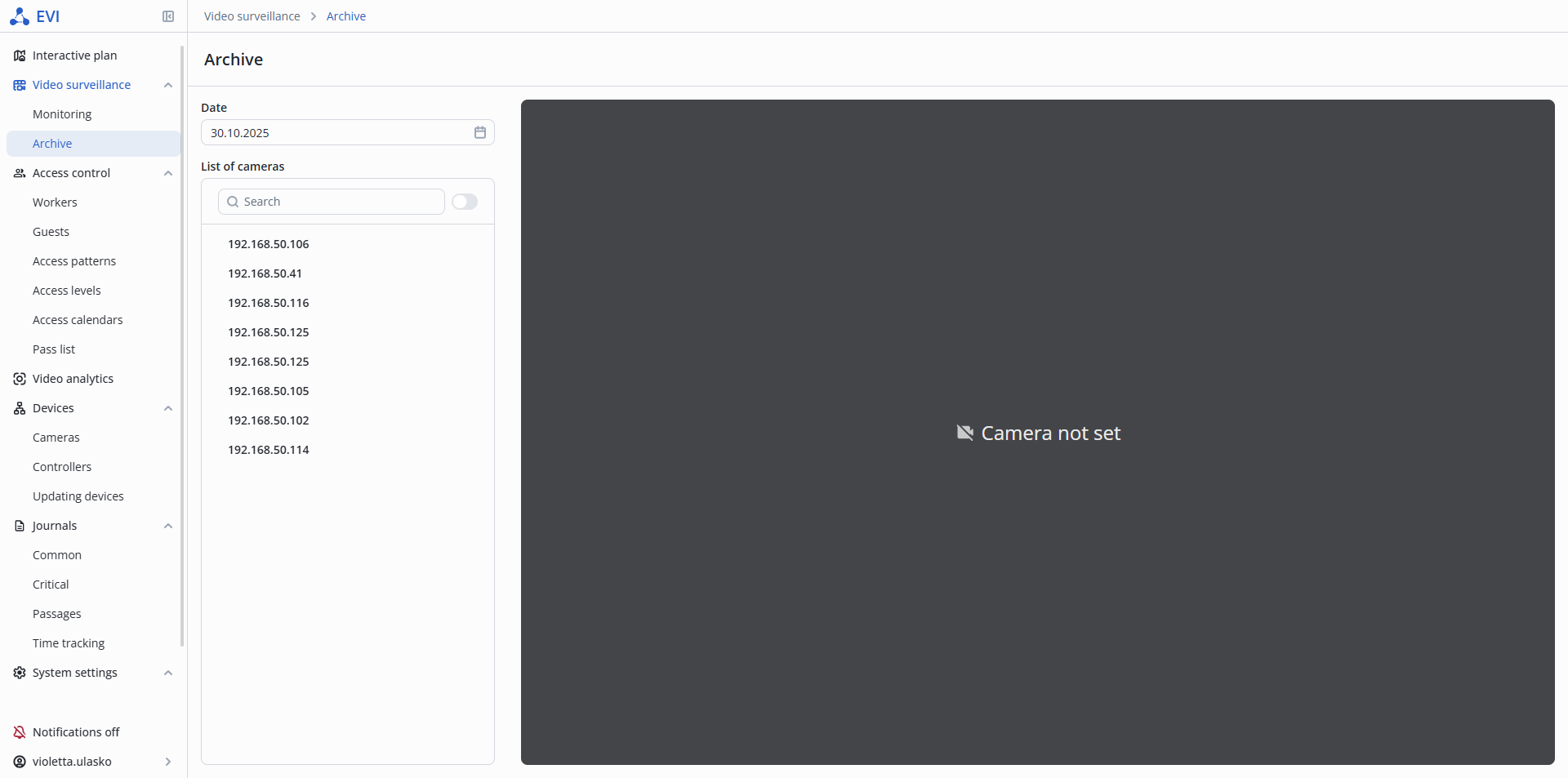
Archive page
Archive — page in the Video surveillance section designed for configuring and viewing the archive on cameras.
Archive configuration
To configure the archive on the camera, switch to the Archive page in the Video surveillance section.
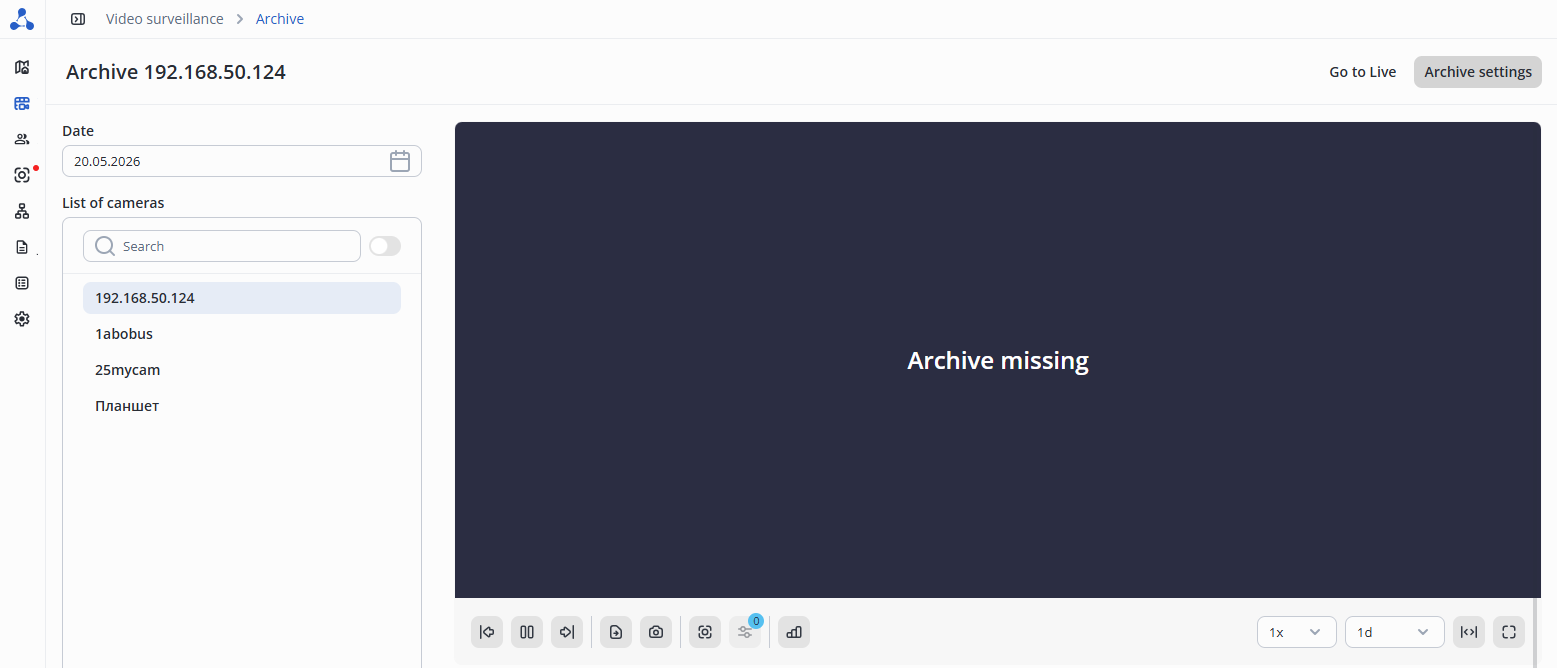
In the camera list, select the camera on which it is necessary to configure the archive, and click the Archive settings button in the upper right corner.
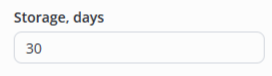
Storage
In the Storage field, enter the number of days the archive will be stored.
Prebuffer
In the Prebuffer field, enter the number of seconds of recording before the event begins.
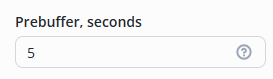
This setting is intended for use with the analytics module. If it is not necessary to work with the analytics module, this setting can be skipped.
Permanent recording
The Permanent record field is used to configure the type of permanent recording.
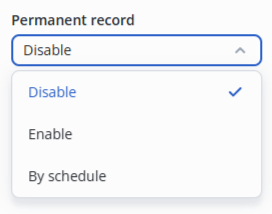
There are three types of continuous recording in the system. The default setting is Disable.
- Disable — permanent recording is not saved to the archive;
- Enable — permanent recording is saved to the archive;
- By schedule — permanent recording is saved to the archive at specified intervals.
When selecting the By schedule type of continuous recording, the settings are configured using a schedule.
To save the archive settings, click the Save button.
Viewing the archive
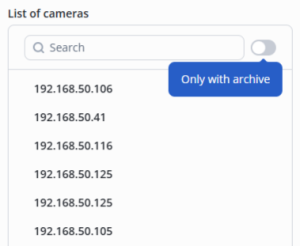
To view the archive, select the desired camera from the list. Cameras with recorded archives are marked with a green check mark in the list.
To display only cameras with archives, set the Only with archive switch to the ON position.
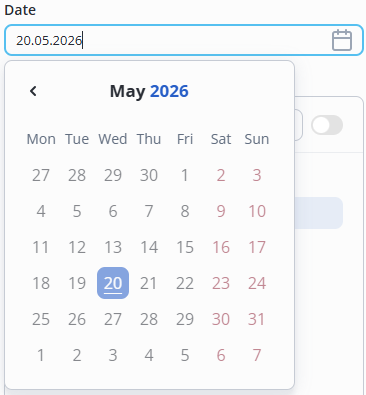
Date
In the Date field, select the date for which the archive will be displayed. The current day is selected by default.
Player control
A player will open on the right side of the screen, which will start playing the archive for the selected date.
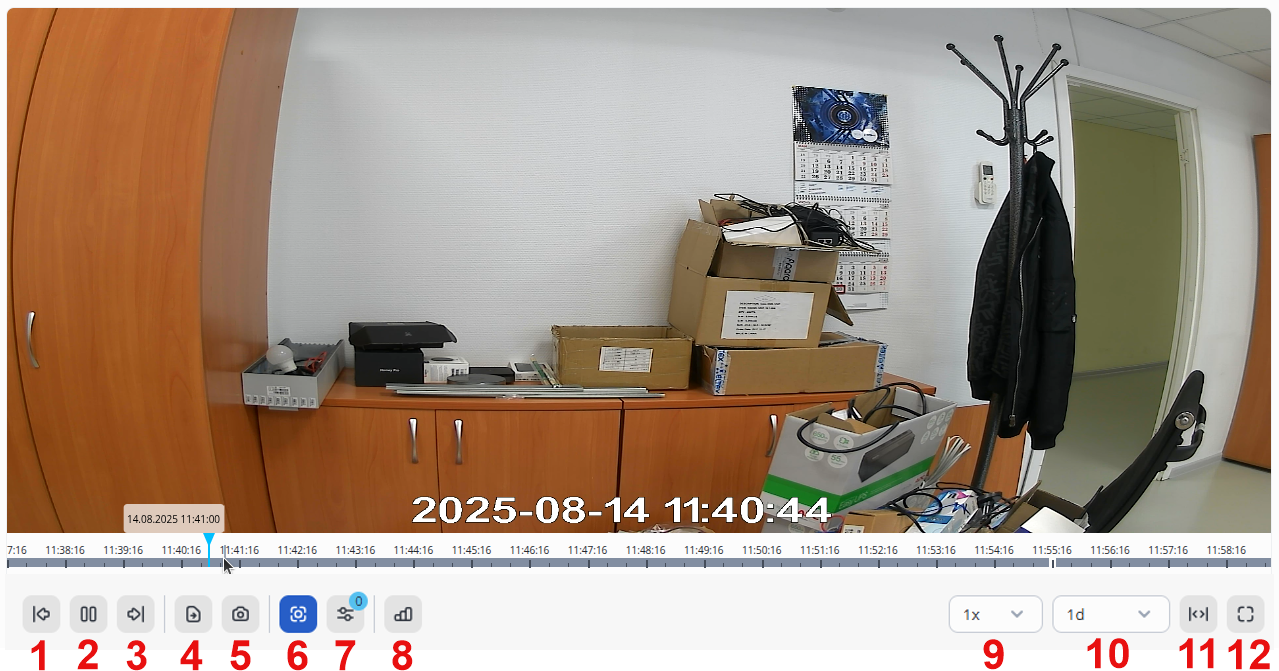
Timeline
The availability of archived video recordings is highlighted on the timeline with gray markers.
Player control buttons:
- Previous fragment;
- Play/Pause;
- Next fragment;
- Save video fragment;
- Snapshot;
- Meta info off/on (analytics results and their zones/motion detector);
- Select meta info for displaying
- Show statistics;
- Change speed (1x/2x/4x/8x);
- Timeline scale;
- Change video aspect ratio
- Fullscreen on.
Recommendations for cameras with motion detector
The motion detector operates on the server side. An additional stream from the camera is used for processing.
The recommendations in this section must be followed for proper operation of the motion detector.
Camera recommendations
- Resolution: no less than 320×240 pixels and no more than 800×600 (a higher resolution stream will inefficiently load the CPU);
- Number of frames per second: 8-10;
- Codec: H.264, H.265;
- Protocol: TCP/RTSP;
- Camera shake should not cause image shifts exceeding 1% of the frame size.
- Bitrate: CBR;
- I-frame interval: 15
- Use a smaller GOP (e.g., 1 I-frame every 1-2 seconds).
- Make sure that the frequency of I-frames corresponds to the speed of movement of objects in the frame.
GOP (Group of Pictures) is a group of frames in a video stream that defines the coding structure of a video stream.
Each GOP includes three types of frames:
- I-frames (Intra) — key frames containing complete information about the image and independent of other frames;
- P-frames (Predictive) — contain data about changes from the previous frame;
- B-frames (Bi-directional) — use information from both the previous frame and the next frame.
This structure allows for a significant reduction in video file size by storing the full data only in I-frames and, in the remaining frames, only the differences between them. The impact of GOP parameters on motion detectors is significant and depends on several factors:
I-frame rate
Motion detectors usually operate based on analyzing changes between frames. If the interval between I-frames is too long, P-frames may contain insufficient information to accurately analyze changes, which may result in false alarms or missed events.
- Small GOP: The more frequently I-frames appear, the more accurately algorithms can analyze changes in the video, since each I-frame contains complete information.
- Large GOP: If the interval between I-frames is large, important motion details may be lost, especially if the motion occurs between I-frames.
Example: if an object moves quickly through a scene and the interval between I-frames takes a few seconds, the system may not capture its movement because P-frames depend on the previous state and may not convey the full picture.
Lighting recommendations
- Moderate illumination. In conditions of insufficient (night) or excessive (backlight) illumination, the performance of the motion detector may be degraded.
- Absence of abrupt changes in illumination.
Recommendations for scene and camera angle
- The background is mostly static and does not change abruptly.
- The motion detector may not function properly if there are sharp shadows cast by moving objects.
- The motion detector may not function properly when detecting long, single-color objects.
- The motion detector may not respond correctly to high-speed objects.
Viewing the motion detector results
Metainformation is information in a frame from any type of analytics that visually displays the work of analytics.
Viewing the result of the Motion detector is available in two locations:
- EVI-VIDEO-CLIENT application;
- EVI platform in a browser.
EVI-VIDEO-CLIENT application
Live view
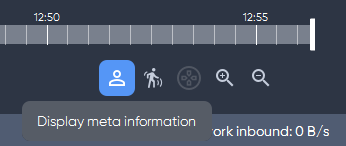
To view the Motion detector's status, click the View metadata button.
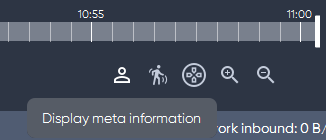
Next, click on Select displayed metadata and check the box next to Motion detector.
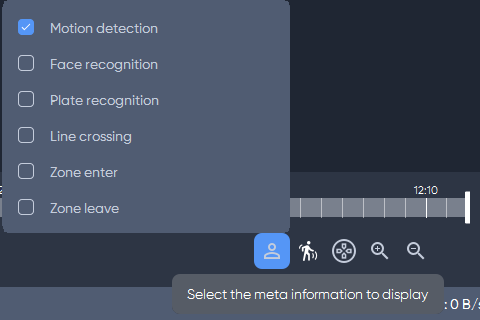
To hide the Motion detector status, tap Show metadata again or uncheck the box next to Select displayed metadata.
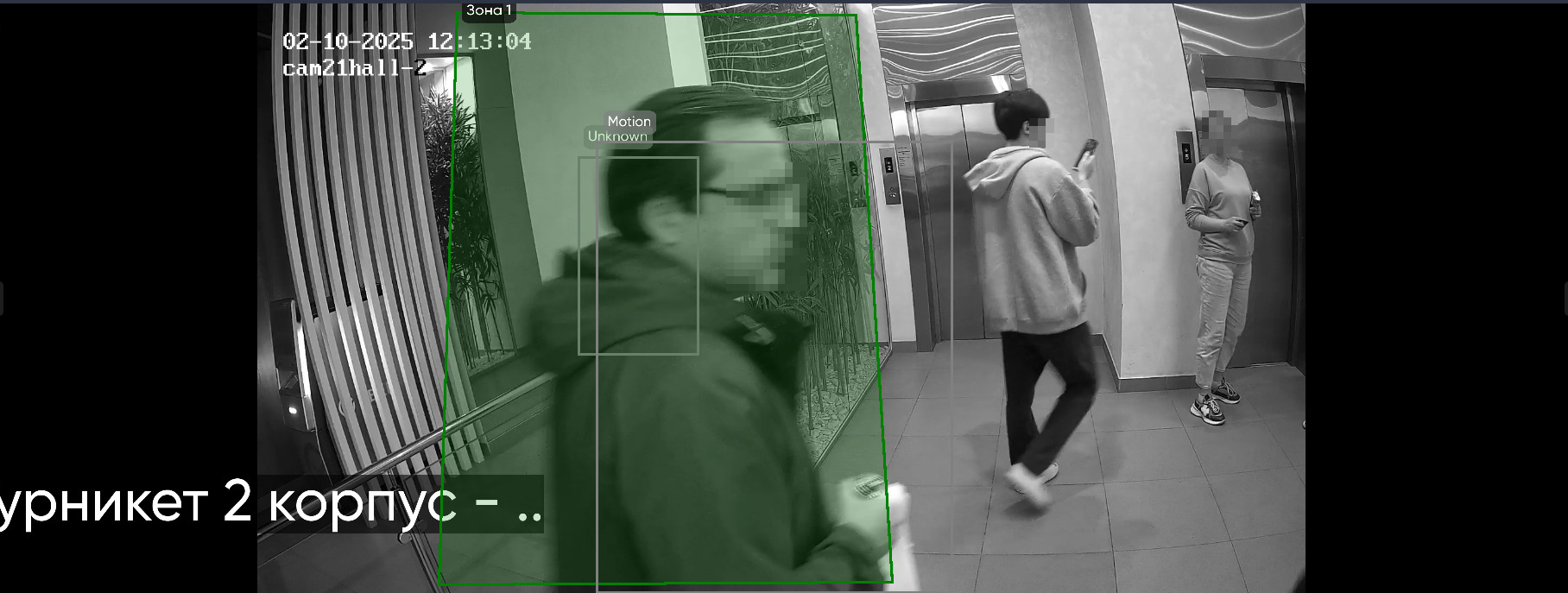
Displaying the operation of the Motion detector on the camera broadcast.
Viewing metainformation in archive
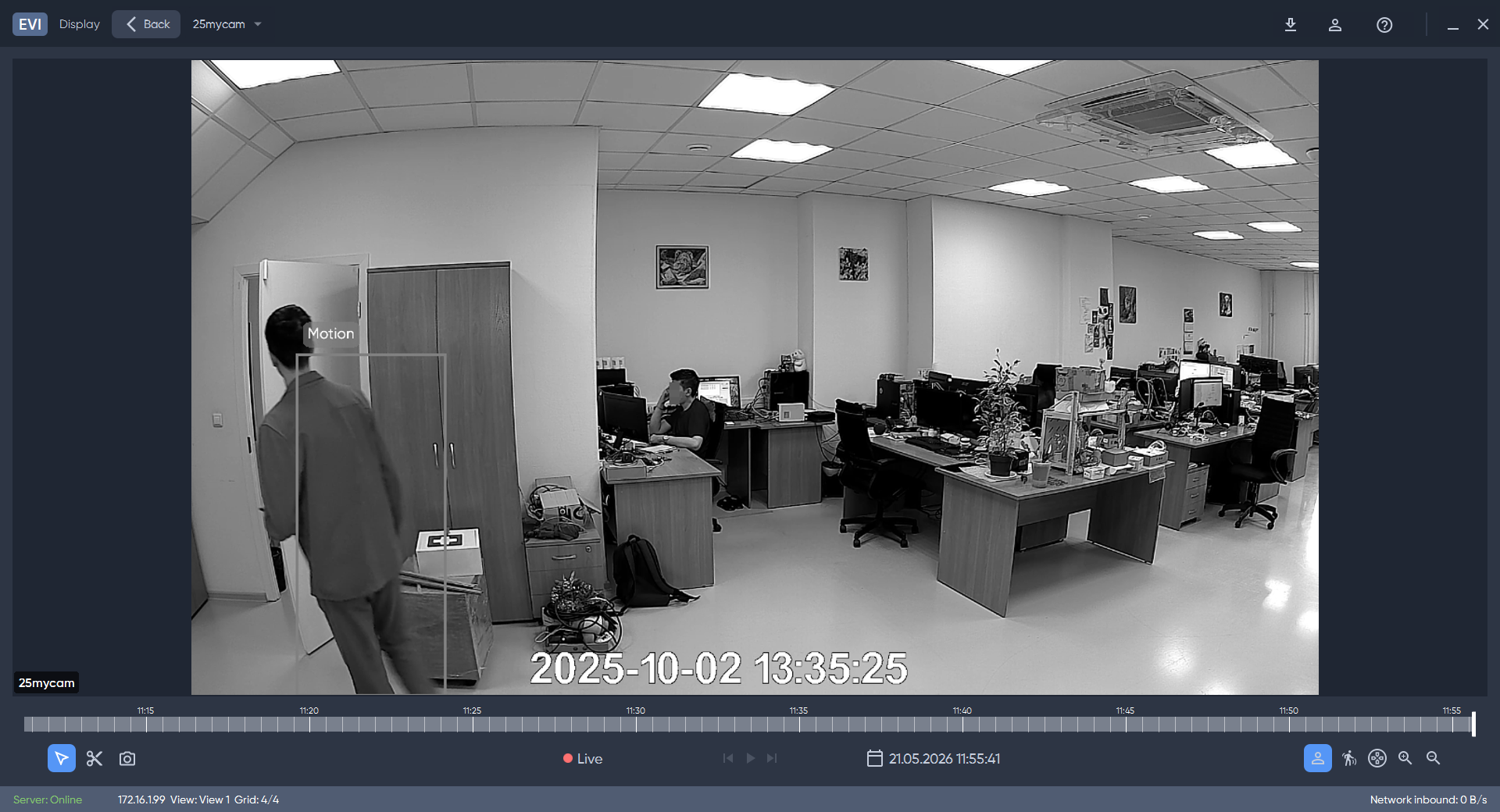
To view metainformation about the motion detector's operation in the archive, activate the Motion display button and select a fragment of the archive on the timeline.
Displaying the Motion detector operation in the camera archive.
EVI Platform in a browser
Live view
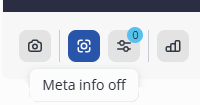
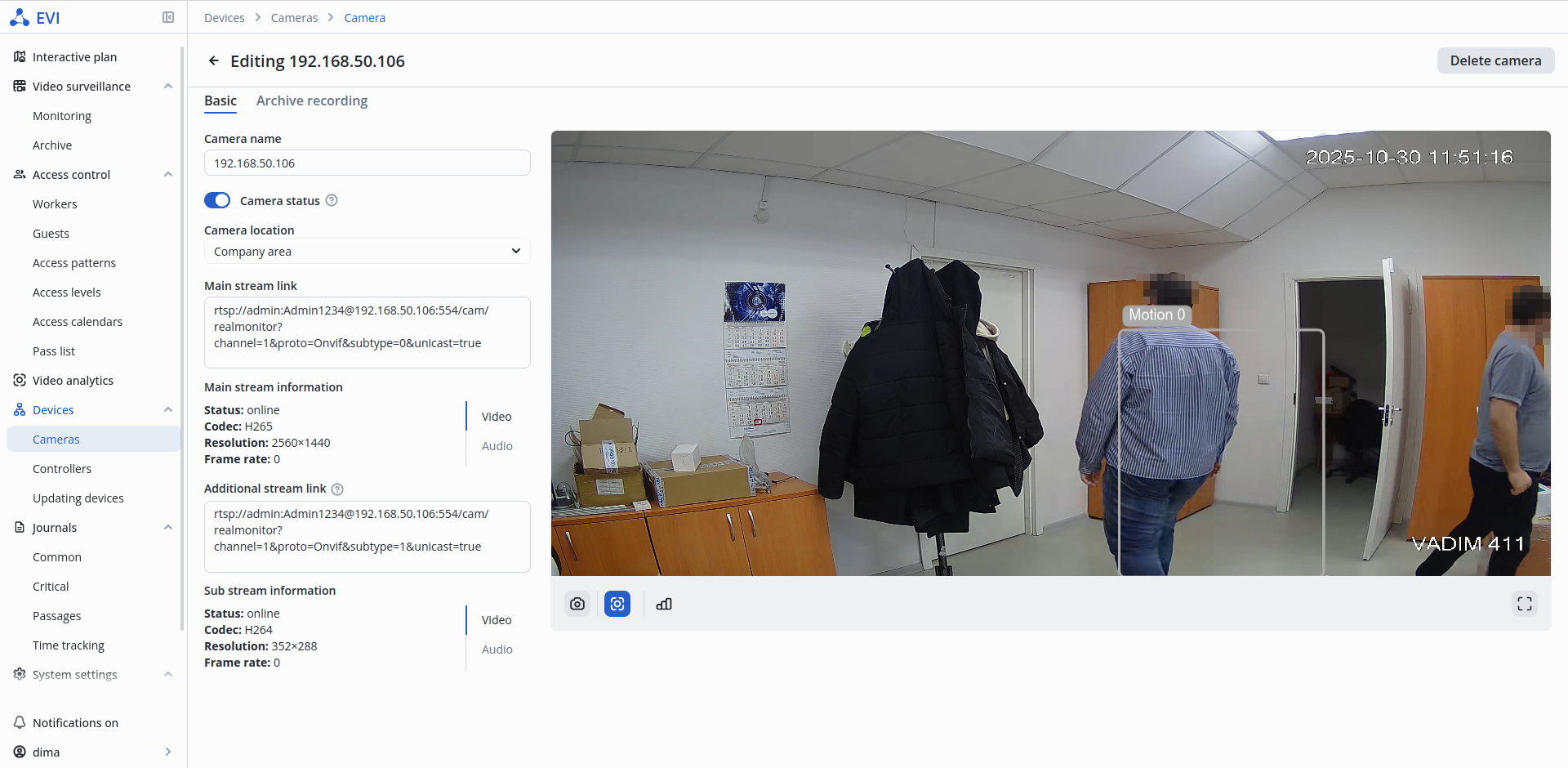
To view the Motion detector operation, click on the Meta info off button on the broadcast page of the selected camera.
Metainformation
The platform remembers the last position of the button.
When disabling meta information, the state of the button will be retained when switching to other cameras.
Operation of the Motion detector display.
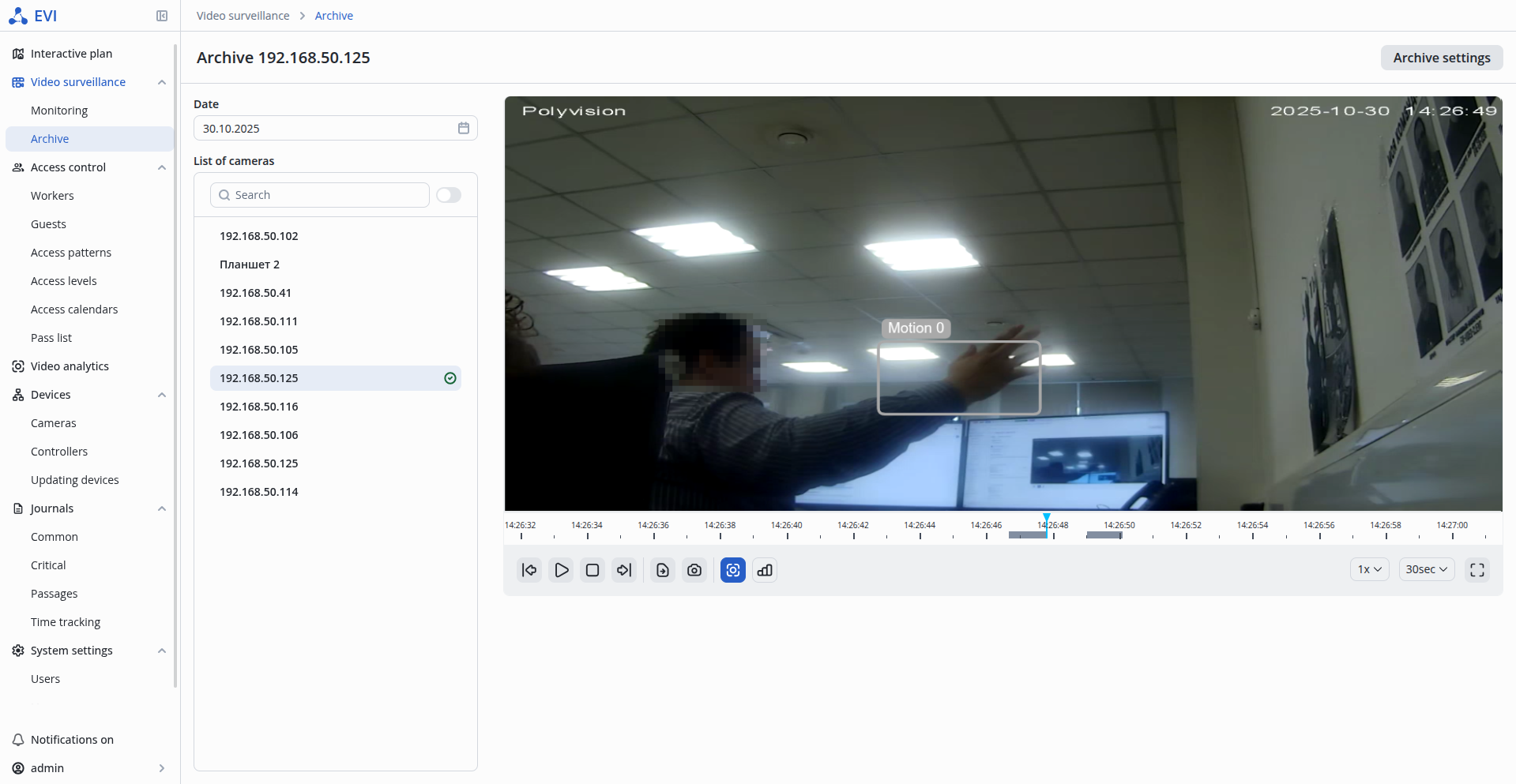
Viewing in the records archive
The Motion detector operation is displayed in the default archive. To disable the display, use the Meta info off button.
Cameras import/export
EVI Platform supports uploading cameras from a .csv file.
File format
Example of the contents of a csv file.
| name | urlMain | urlSub |
| CAM1 | rtsp://test:test1@cam1.eth:554/ch01/0 | rtsp://test:test1@cam1.eth:554/ch01/0 |
| CAM2 | rtsp://test:test2@cam2.eth/main | rtsp://test:test2@cam2.eth/sub |
Import csv file with cameras
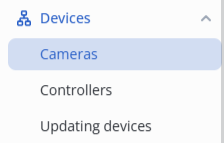
To upload cameras from a CSV file, switch to the Cameras page in the Devices section.
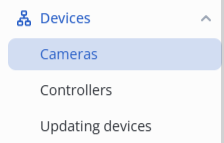
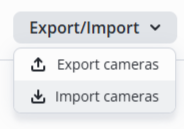
Click the Import cameras button, select csv file in the file manager window.
Export .csv file with cameras
To save the .csv file with cameras, switch to the Cameras page in the Devices section.
Click the Export cameras button, then select the .csv file in the file manager window.