Wireless access point WEP-3L
User manual,
Firmware version 2.7.0 (05.2025)
IP address: http://192.168.1.10
User name: admin
Password: password
Introduction
Annotation
Modern trends in telecommunications development require service providers to adopt optimal technologies that meet the rapidly growing demands of subscribers while maintaining continuity of business processes, development flexibility, and cost-efficiency in delivering various services. Wireless technologies are becoming increasingly widespread and have evolved significantly in a short period, from unstable, low-speed, short-range networks to broadband wireless access networks that offer speeds comparable to wired connections and ensure high quality of service.
The main purpose of the WEP-3L is to provide indoor access to various network resources by forming a seamless wireless network from multiple identical access points (“Roaming”) when covering a large area.
This user manual describes the purpose, main technical specifications, design, safe operation rules, and recommendations for installation and configuration of the device.
Symbols
Notes and warnings
Notes contain important information, tips or recommendations on device operation and setup.
Warnings are used to inform the user about harmful situations for the device and the user alike, which could cause malfunction or data loss.
Device description
Purpose
WEP-3L wireless access point is designed for provision of users' access to high-speed safe network.
The device is dedicated to create L2 wireless networks interfacing with a wired network. WEP-3L is connected to a wired network via 10/100/1000M Ethernet interface and arrange high-speed access to the Internet for devices supporting Wi-Fi technology at 2.4 and 5 GHz.
The device has two radio interfaces to organize two physical wireless networks.
WEP-3L supports up-to-date requirements to service quality and allows transmitting more important traffic in higher priorities queues. Prioritization is based on main QoS technologies: CoS (special tags in VLAN packet field) and ToS (tags in IP packet field). ACL rule creation functionality and support for traffic shaping on each VAP allows you to fully manage access, service quality and restrictions, both for all subscribers and for everyone in particular.
The devices are designed to be installed in offices, state buildings, conference halls, laboratories, hotels, etc. The creation of virtual access points with different types of encryption allows clients to delimit access rights among users and groups of users.
Device specification
Interfaces:
- 1 port of Ethernet 10/100/1000BASE-T(RJ-45) with PoE support;
Wi-Fi 2.4 GHz IEEE 802.11b/g/n;
Wi-Fi 5 GHz IEEE 802.11a/n/ac/ax.
Features:
WLAN capabilities:
- Support for IEEE 802.11a/b/g/n/ac/ax standards;
- Support for IEEE 802.11r/k/v roaming standarts;
- Data aggregation, including A-MPDU (Tx/Rx) and A-MSDU (Rx);
- WMM-based priorities and packet planning;
- Subscriber isolation within a single VAP;
- Channel autoselection;
- Dynamic frequency selection (DFS);
- Support for hidden SSID;
- 14 virtual access points;
- Third-party access point detection;
- Spectrum analyzer;
- APSD.
Network features:
- Automatic speed negotiation, duplex mode negotiation and MDI-MDI-X switch-over;
- Support for VLAN (Access, Trunk, General);
- DHCP client;
- GRE;
- Transmission of subscriber traffic outside of tunnels;
- ACL;
- NTP;
- Syslog;
- LLDP.
QoS features:
- Priority and profile-based packet scheduling;
- Bandwidth limitation for each VAP;
- Bandwidth limitation for each client;
- WMM parameters changing.
Security:
- Centralized authorization via RADIUS server (802.1X WPA/WPA2/WPA3 Enterprise);
- WPA/WPA2/WPA3/OWE encryption;
- Captive Portal;
- Authorization via RADIUS server when logging into the device.
The figure below shows WEP-3L use case.
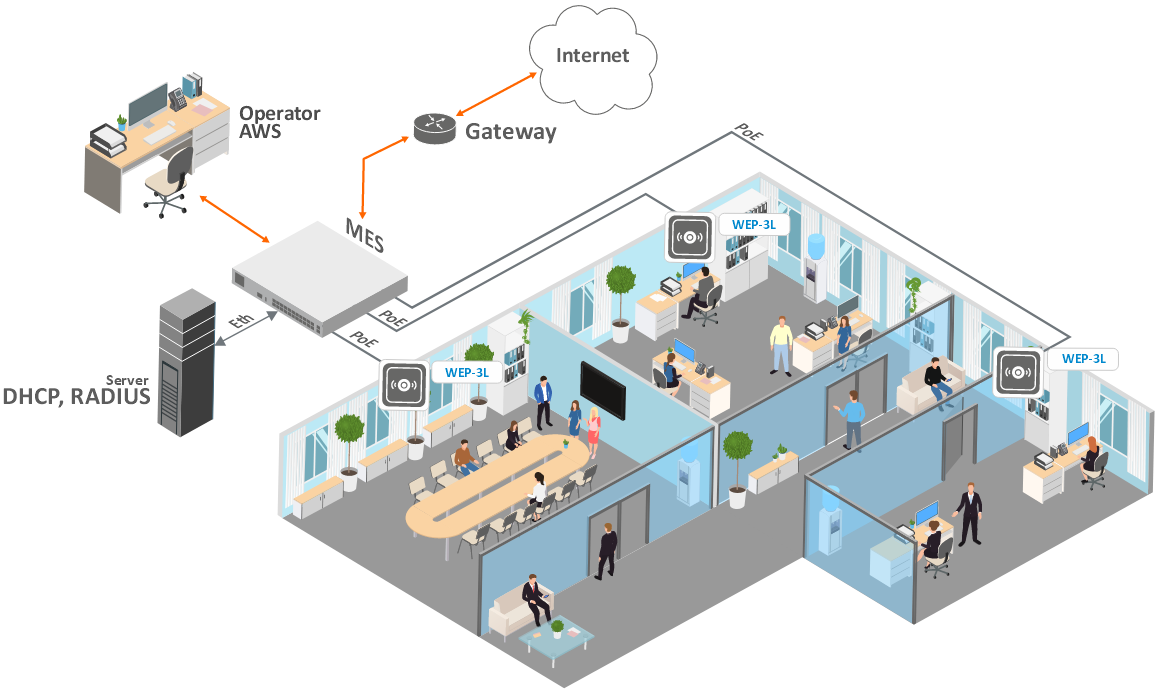
Figure 1 — WEP-3L use case
Device technical specifications
Table 1 — Main specifications
| Ethernet interface parameters | |
|---|---|
| Number of ports | 1 |
| Electrical connector | RJ-45 |
| Data rate | 10/100/1000 Mbps, autonegotiation |
| Standards | BASE-T |
| Wireless interface parameters | |
| Standards | 802.11a/b/g/n/ac/ax |
| Frequency range | 2400–2483.5 MHz; 5150–5350 MHz, 5470–5850 MHz |
| Modulation | BPSK, QPSK, 16QAM, 64QAM, 256QAM, 1024QAM |
| Operating channels | 802.11b/g/n: 1–13 (2401–2483 MHz) 802.11a/n/ac/ax:
|
| Data rate | 2.4 GHz, 802.11n: 300 Mbps |
| Maximum number of concurrent sessions | 2.4 GHz: 64 5 GHz: 64 |
| Maximum output power of the transmitter | 2.4 GHz: 20 dBm 5 GHz: 20 dBm |
| Built-in antenna gain | 2.4 GHz: ~5 dBi 5 GHz: ~5 dBi |
| Receiver sensitivity | 2.4 GHz: up to -94 dBm 5 GHz: up to -94 dBm |
| Security | Centralized authorization via RADIUS server (802.1X WPA/WPA2/WPA3 Enterprise) |
Support for MIMO 2×2 for 2.4 GHz; MU-MIMO 2×2 for 5 GHz | |
| Control | |
|---|---|
| Remote control | Web interface, Telnet, SSH, CLI, SNMP, NETCONF |
| Access restriction | By password, authorization via RADIUS server |
| General parameters | |
| Flash | 128 MB SPI-NAND Flash |
| RAM | 128 MB DDR2 RAM |
| Power supply | PoE 48 V/56 V (IEEE 802.3af-2003) |
| Maximum power consumption | No more than 10.5 W |
| Range of operation temperatures | From +5 to +40 °C |
| Relative humidity at 25 °C | Up to 80 % |
| Dimensions (Diameter × Height) | 200 × 40 mm |
| Weight | 0.4 kg |
| Lifetime | No less than 15 years |
Radiation patterns
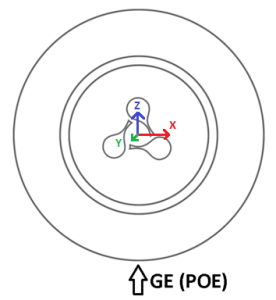
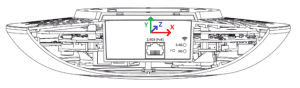
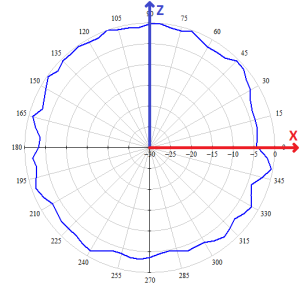
The figures below show the radiation patterns of the device.
Measurement position | |
AZIMUTH (XZ)
| ELEVATION (YZ)
|
2.4 GHz band | |
|
|
5 GHz band | |
|
|
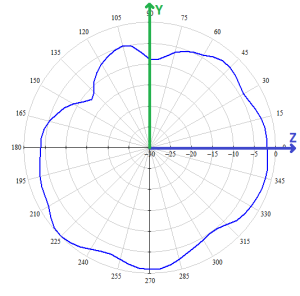
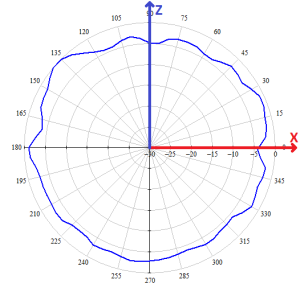
Design
WEP-3L is enclosed in a plastic case.
Main panel of the device
The main panel layout of WEP-3L is shown in Figure 2.
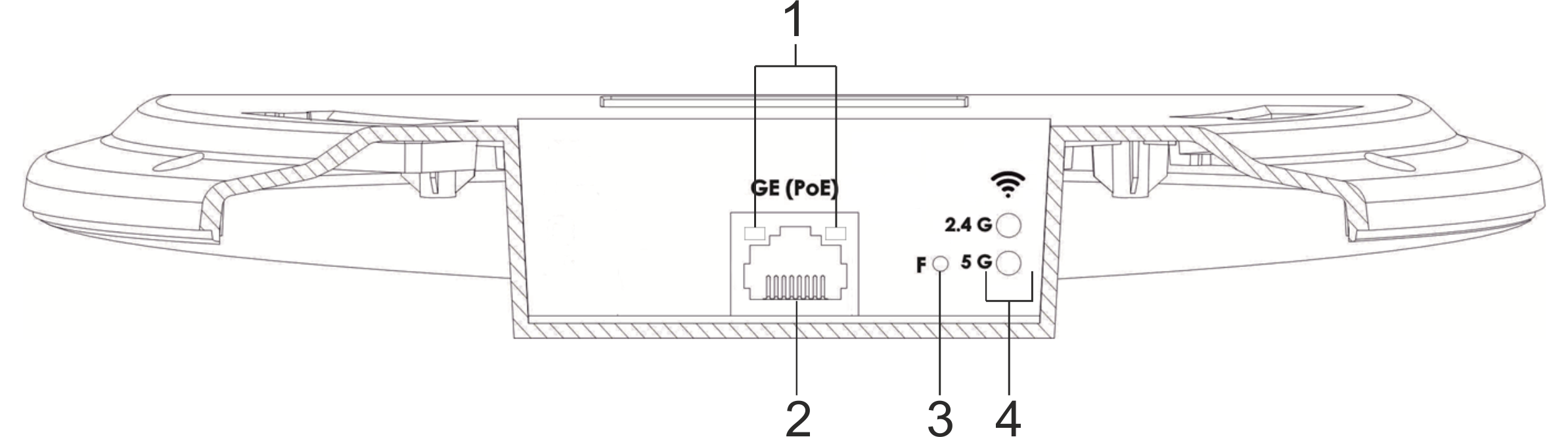
WEP-3L Figure 2 — WEP-3L main panel layout
The main panel of the WEP-3L device contains the following LED indicators, connectors, and controls (see Table 2).
Table 2 — Description of indicators, ports and controls
Panel element | Description | |
|---|---|---|
| 1 | LAN | GE (PoE) port status LED indication |
| 2 | GE (PoE) | GE port for PoE power supply connection |
| 3 | F | Factory reset button |
| 4 | Wi-Fi | Operation indicators of corresponding Wi-Fi modules |
Top panel of the device
The top panel layout of WEP-3L is shown in Figure 3.

Figure 3 — WEP-3L top panel layout
Table 3 — Description of the top panel indicators
| Panel element | Description | |
|---|---|---|
| 1 | Power | Device operation status indicator |
LED indication
The current status of the device is indicated by the Wi-Fi, LAN, Power LEDs. The list of LED states is provided in Table 4.
Table 4 — LED indication of device status
| LED indicator | LED indicator state | Device status |
|---|---|---|
| Wi-Fi | Solid green | Wi-Fi network is active |
| Flashing green | Data transmission over wireless network | |
| LAN | Solid green (10, 100 Mbps) / Solid orange (1000 Mbps) | The connection with a connected network device is established |
| Flashing green | Packet data transmission over LAN interface | |
| Power | Solid green | The device power supply is enabled, normal operation |
| Solid orange | The device is loaded but IP address is not received via DHCP | |
| Solid red | The device is loading |
Factory reset
To reset the device to factory settings, press and hold the “F” button for 10–15 seconds while the device is powered on until the Power indicator starts flashing orange. The device will automatically reboot.
The DHCP client will be launched with the factory settings. If the address is not obtained via DHCP, the device will have the address 192.168.1.10, subnet mask 255.255.255.0, and username/password for access via the web interface: admin/password.
Supply package
The supply package includes:
- WEP-3L radio access equipment;
- Mounting kit;
- User manual on a CD (optional);
- Technical passport.
Rules and recommendations for device installation
This section defines safety rules, installation recommendations, setup procedure and the device starting procedure.
Safety rules
- Do not install the device near heat source and in environments with temperature below 5 °C or above 40 °C.
- Do not use the device in areas with high humidity. Do not expose the device to smoke, dust, water, mechanical vibration, or shocks.
- Do not open the device enclosure. There are no user-serviceable components inside.
Do not cover ventilation holes and do not put other objects on the device in order to prevent overheating of device components.
Installation recommendations
- The device should be installed horizontally on the ceiling.
- Before you install and enable device, check the device for visible mechanical defects. If defects are observed, you should stop the device installation, draw up corresponding act and contact the supplier.
- If the device has been exposed to low temperatures for a long period of time, it should be kept at room temperature for two hours before use. After prolonged exposure to high humidity, the device should be kept in normal conditions for at least 12 hours before use.
- During the device installation to provide Wi-Fi coverage area with the best characteristics take into account the following rules:
- Install the device at the center of a wireless network;
- Minimize the number of obstacles (walls, roof, furniture and etc.) between access point and other wireless network devices;
- Do not install the device near (about 2 m) electrical and radio devices;
- It is not recommended to use radiophone and other equipment operating on the frequency of 2.4 GHz or 5 GHz in Wi-Fi effective radius;
- Obstacles in the form of glass/metal constructions, brick/concrete walls, water cans and mirrors can significantly reduce Wi-Fi action radius. It is not recommended to place the device inside a false ceiling as metal frame causes multipath signal propagation and signal attenuation.
- When installing multiple access points, the coverage area of each cell should overlap with adjacent cells at a signal level of –65 to –70 dBm. Decreasing of the signal level to –75 dBm at cell boundaries is acceptable if the wireless network is not intended for VoIP, video streaming, or other loss-sensitive traffic.
Calculating the number of required access points
To calculate the required number of access points, evaluate the required coverage zone. For more accurate assessment, it is necessary to conduct a radio survey of the room. The approximate radius of WEP-3L coverage area with a good-quality signal when mounted on a ceiling in typical office is: 2.4 GHz — 40–50 m, 5 GHz — 20–30 m. In the absence of obstacles, the coverage radius mau reach: 2.4 GHz — up to 100 m, 5 GHz — up to 60 m.
Table 5 provides approximate attenuation values.
Table 5 — Attenuation values
| Material | Change of signal level, dB | |
|---|---|---|
| 2.4 GHz | 5 GHz | |
| Organic glass | -0,3 | -0,9 |
| Brick | -4,5 | -14,6 |
| Glass | -0,5 | -1,7 |
| Drywall | -0,5 | -0,8 |
| Particle board | -1,6 | -1,9 |
| Plywood | -1,9 | -1,8 |
| Plaster with metal lath | -14,8 | -13,2 |
| Cinder block | -7 | -11 |
Metal lattice (mesh 13 × 6 mm, metal 2 mm) | -21 | -13 |
Channel selection for neighboring access points
It is recommended to set non-overlapping channels to avoid inter-channel interference among neighboring access points.
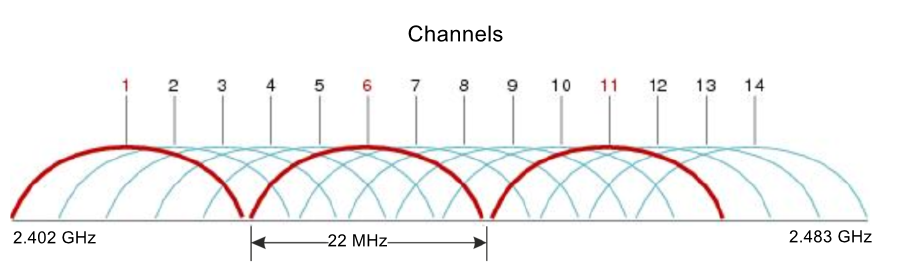
Figure 4 – General diagram of frequency channel overlap in the 2.4 GHz band
Example of channel allocation scheme among neighboring access points in the 2.4 GHz band when channel width is 20 MHz, see Figure 5.
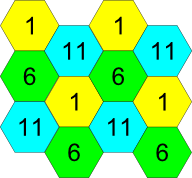
Figure 5 – Scheme of channel allocation among neighboring access points in the 2.4 GHz band when channel width is 20 MHz
It is also recommended to maintain this channel allocation scheme when placing access points between floors (see Figure 6).
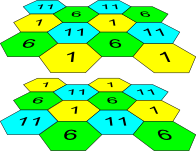
Figure 6 – Channel allocation scheme for neighboring access points placed between floors
When using a 40 MHz channel width in the 2.4 GHz band, there are no non-overlapping channels. In such cases, it is recommended to select channels that are as far apart as possible.
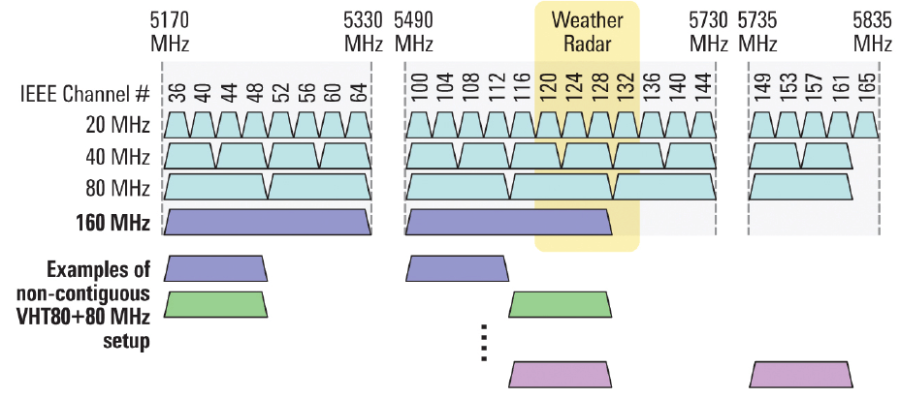
Figure 7 – Channels used in the 5 GHz band when channel width is 20, 40 or 80 MHz
Device installation
The device can be mounted on a flat surface (wall or ceiling) in accordance with the safety rules and recommendations provided above.
The device supply package includes required mounting kit to attach the device to flat surface.
Wall mounting
1. Attach the plastic bracket (included in the supply package) to the wall. An example of the bracket placement is shown in Figure 8.
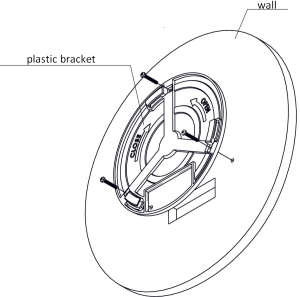
Figure 8 — Bracket mounting on the wall
a. When installing the bracket, pass the wires through the corresponding channels of the bracket (see Figure 8).
b. Align the three screw holes on the bracket with the corresponding holes on the surface. Use a screwdriver to secure the bracket to the surface with screws.
2. Install the device as shown in Figure 9.
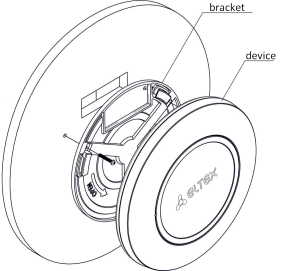
Figure 9 — Device installation (front view)
a. Connect the cables to the corresponding connectors of the device. Description of the connectors is provided in the Design section.
b. Align the device with the bracket and secure it by rotating clockwise.
False ceiling mounting
It is not recommended to place the device inside a false ceiling as metal frame causes multipath signal propagation and signal attenuation.
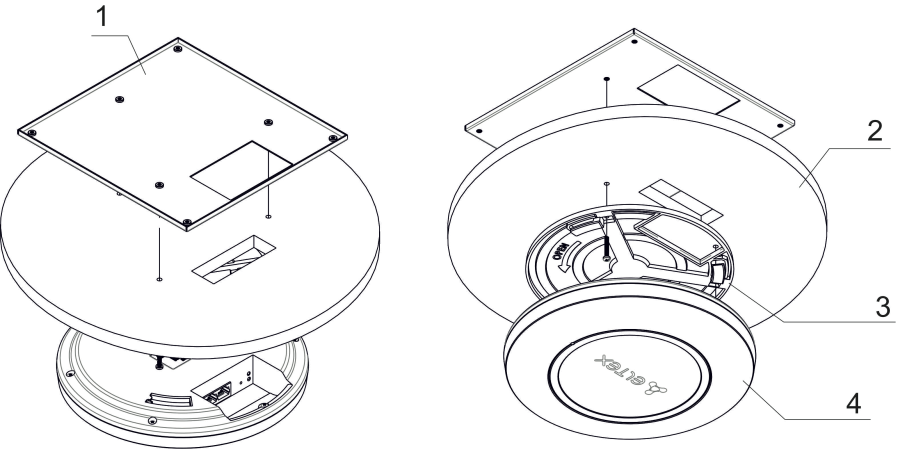
1 — metal bracket; 2 — Armstrong panel; 3 — plastic bracket; 4 — device.
Figure 10 — False ceiling mounting
1. Secure the metal and plastic brackets to the ceiling (see Figure 10):
a. Connect the plastic bracket (3) on the false ceiling to the metal bracket (1) in the following order: metal bracket → Armstrong panel → plastic bracket.
b. Cut the hole in the Armstrong panel matching the size of the hole in the metal bracket. This hole is used for cable passing.
c. Align the holes in the metal bracket, Armstrong panel, and plastic bracket. Then align the three screw holes on the plastic bracket with the corresponding holes on the metal bracket. Use a screwdriver to fasten the brackets together with screws.
2. Install the device:
a. Connect the cables to the corresponding connectors of the device. Description of the connectors is provided in the Design section.
b. Align the device with the plastic bracket and secure it by rotating the device clockwise.
Removing the device from the bracket
To remove the device from the bracket:
- Rotate the device counter-clockwise (see Figure 8).
- Remove the device.
Device management via web interface
Getting started
To get started, connect to the device via WAN interface using a web browser:
1. Open a web browser, for example, Firefox, Opera, Chrome.
2. Enter the device IP address in the browser address bar.
Factory IP address: 192.168.1.10, subnet mask: 255.255.255.0. By default, the device is capable to obtain an IP address via DHCP.
When the device is successfully detected, username and password request page will be shown in the browser window.
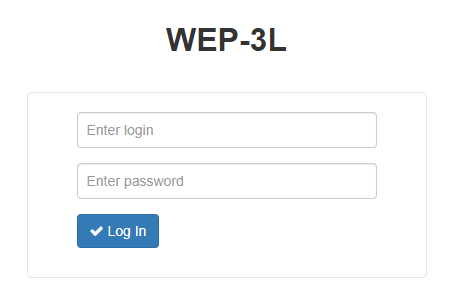
3. Enter username into “Login” and password into “Password” field.
Factory settings: login — admin, password — password.
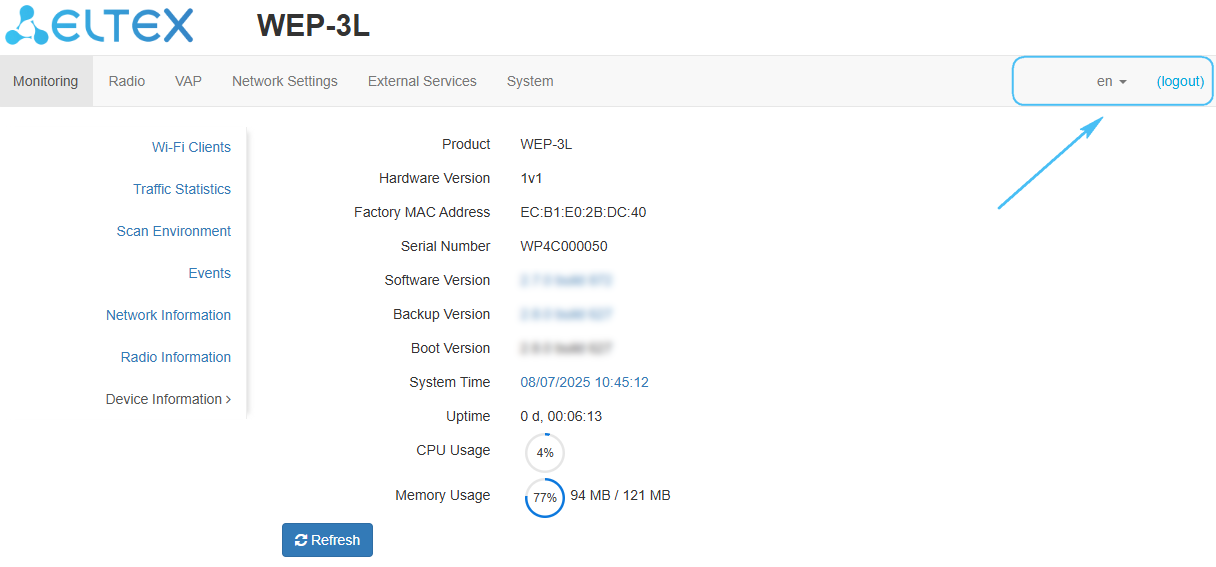
4. Click “Log in”. The device status monitoring menu will open in a browser window.
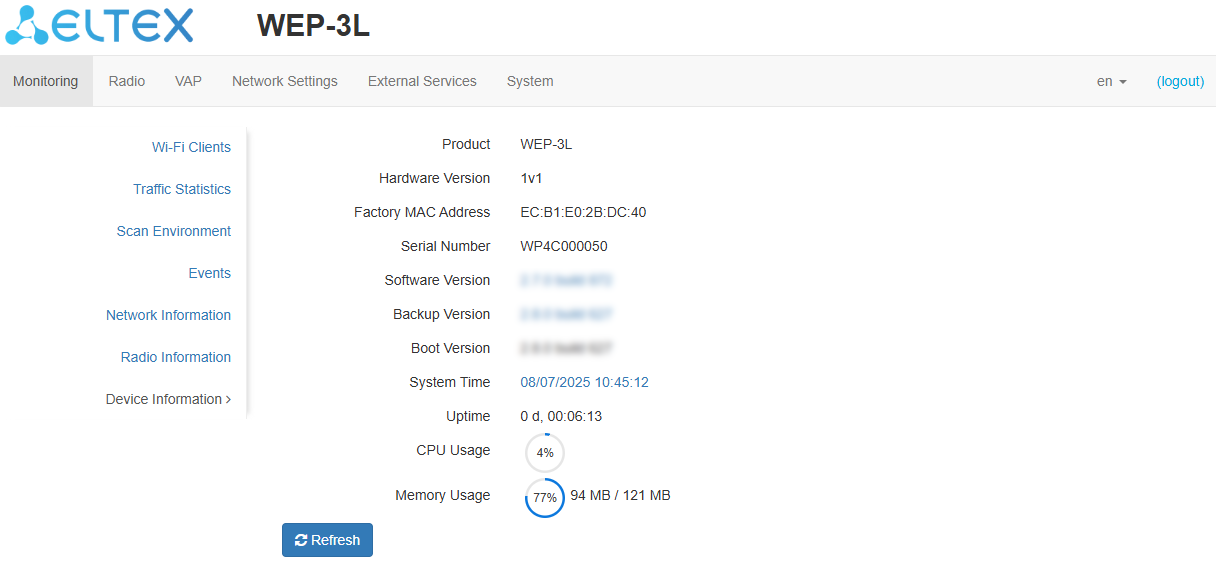
5. If necessary, select the information display language. Russian and English languages are available for WEP-3L web interface.
Applying configuration and discarding changes
- Applying configuration
Clicking the  button starts the process of saving the configuration to the device flash memory and applying new settings. All settings are applied without device rebooting.
The WEP-3L web interface has a visual indication of the current status of the setting application process (Table 6).
Table 6 — Visual indication of the current status of the setting application process
| Image | Status description |
|---|---|
| Clicking “Apply” button starts the process of saving the configuration to the device flash memory and applying new settings. This is indicated by the |
| The |




2. Discarding changes
The changes can be discarded only before clicking the “Apply” button. If you click the “Apply” button, all changed parameters will be applied and saved to the device memory. After clicking the “Apply” button, return to the previous settings will not be possible.
The button for discarding changes appears as follows:  .
.
Main elements of the web interface
The figure below shows the navigation elements of the web interface.
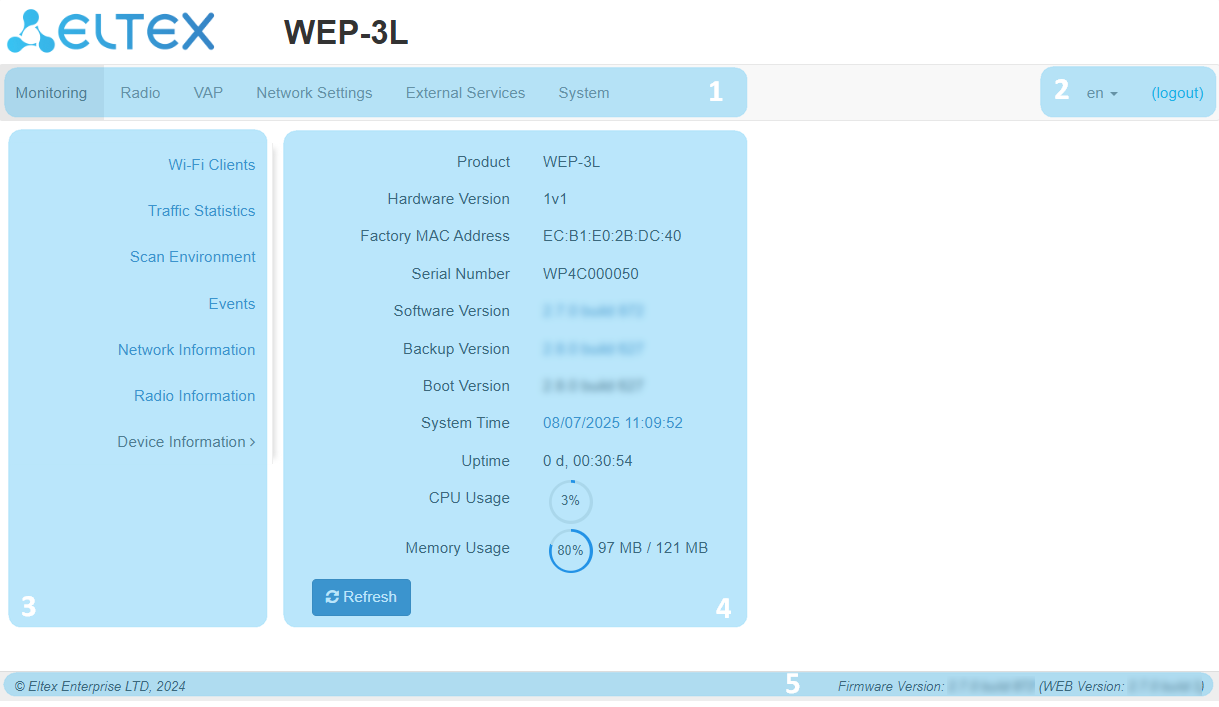
User interface window is divided into five general areas:
- Menu tabs categorize the submenu tabs: Monitoring, Radio, VAP, Network settings, External Services, System.
- Interface language selection and “Logout“ button designed to end a session in the web interface under a given user.
- Submenu tabs allows managing the settings field.
- Device settings field displays data and configuration.
- Information field displays the current firmware version.
The “Monitoring” menu
The “Monitoring” menu displays the current system status.
The “Wi-Fi Clients” submenu
The “Wi-Fi Clients” submenu displays information about the status of connected Wi-Fi clients.
Information on connected clients is not displayed in real time. In order to update the information on the page, click the “Refresh” button.
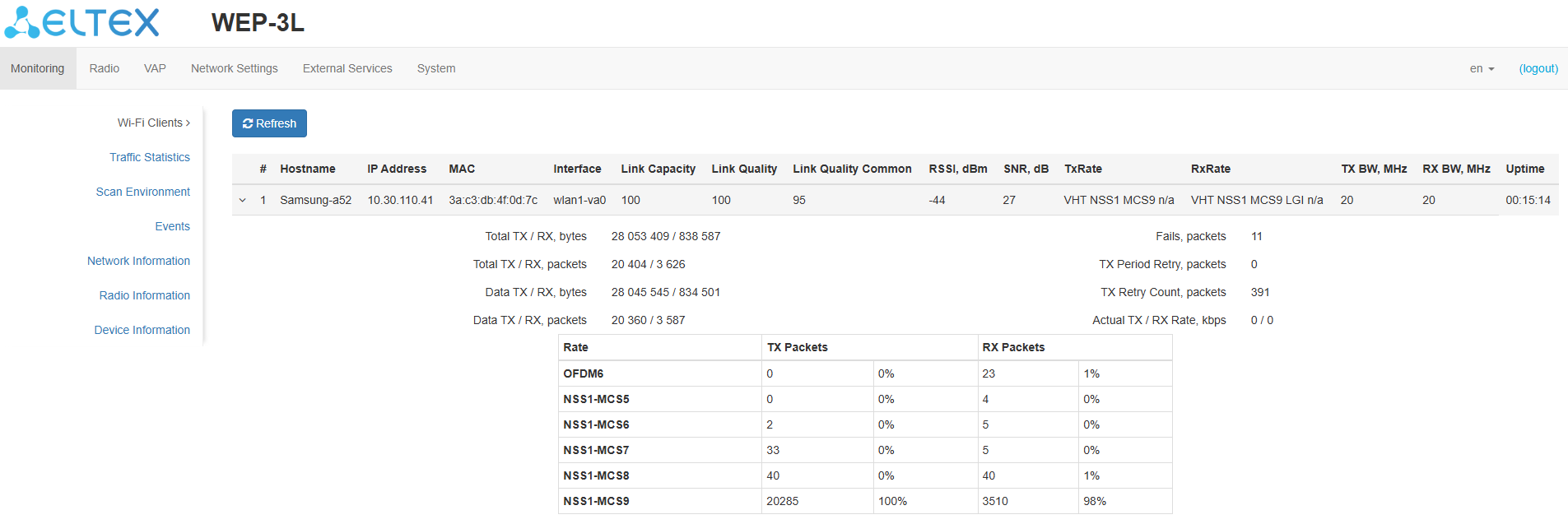
- № — number of the connected device in the list;
- Hostname — network name of the device;
- IP address — IP address of the connected device;
- MAC — MAC address of the connected device;
- Interface — WEP-3L interaction interface with the connected device;
- Link Capacity — parameter that displays the efficiency of modulation on the transmission used by an access point. It is calculated based on the number of packets transmitted to the client on each modulation, and the reduction factors. The maximum value is 100% (meaning that all packets are transmitted to the client at maximum modulation for the maximum Nss type supported by the client). The minimum value is 2% (in the case when the packets are transmitted on the modulation Nss1MCS0 for a client with MIMO 3×3 support). The parameter value is calculated for the last 10 seconds;
- Link Quality — parameter that displays the status of the link to the client, calculated based on the number of retransmit packets sent to the client. The maximum value is 100% (all transmitted packets were sent on the first attempt), the minimum value is 0% (no packets were successfully sent to the client). The parameter value is calculated for the last 10 seconds;
- Link Quality Common — parameter that displays the status of the link to the client, calculated based on the number of retransmit packets sent to the client. The maximum value is 100% (all transmitted packets were sent on the first attempt), the minimum value is 0% (no packets were successfully sent to the client). The parameter value is calculated for the entire client connection time;
- RSSI — received signal level, dBm;
- SNR — signal-to-noise ratio, dB;
- TxRate — channel data rate of transmission, Mbps;
- RxRate — channel data rate of receiving, Mbps;
- x BW — transmission bandwidth, MHz;
- Rx BW — reception bandwidth, MHz;
- Uptime — Wi-Fi client connection time.
To display more detailed information on a particular client, select it from the list. A detailed description includes the following options:
- Total TX/RX, bytes — number of bytes sent/received on the connected device;
- Total TX/RX, packets — number of packets sent/received on the connected device;
- Data TX/RX, bytes — number of data bytes sent/received on the connected device;
- Data TX/RX, packets — number of data packets sent/received on the connected device;
- Fails, packets — number of packets sent with errors on the connected device;
- TX Period Retry, packets — number of retries of transmission to the connected device in the last 10 seconds;
- TX Retry Count, packets — number of retries of transmission to the connected device during the entire connection;
- Actual TX/RX Rate, Kbps — current traffic transmission rate at the moment.
The “Traffic Statistics” submenu
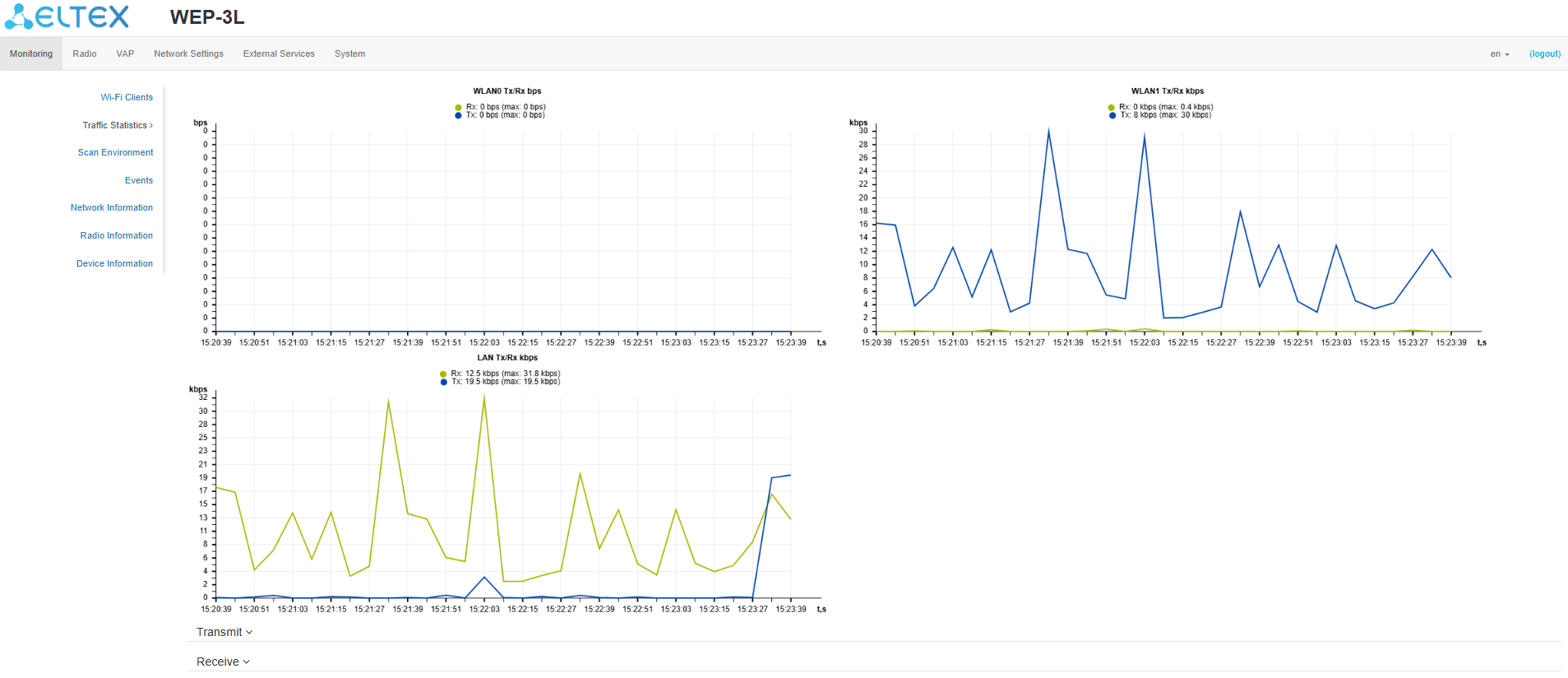
The “Traffic Statistics” submenu displays the graphs of the speed of the transmitted/received traffic for the last 3 minutes, as well as statistics on the amount of transmitted/received traffic since the access point was turned on.
The LAN Tx/Rx graph shows the speed of the transmitted/received traffic via Ethernet interface of the access point for the last 3 minutes. The graph is automatically updated every 6 seconds.
The WLAN0 and WLAN1 Tx/Rx graphs show the rate of transmitted/received traffic via Radio 2.4 GHz and Radio 5 GHz interfaces for the last 3 minutes. The graph is automatically updated every 6 seconds.
“Transmit” table description:
- Interface — name of the interface;
- Total packets — number of successfully sent packets;
- Total bytes — number of successfully sent bytes;
- Total drop — number of rejected packets;
- Errors — number of errors.

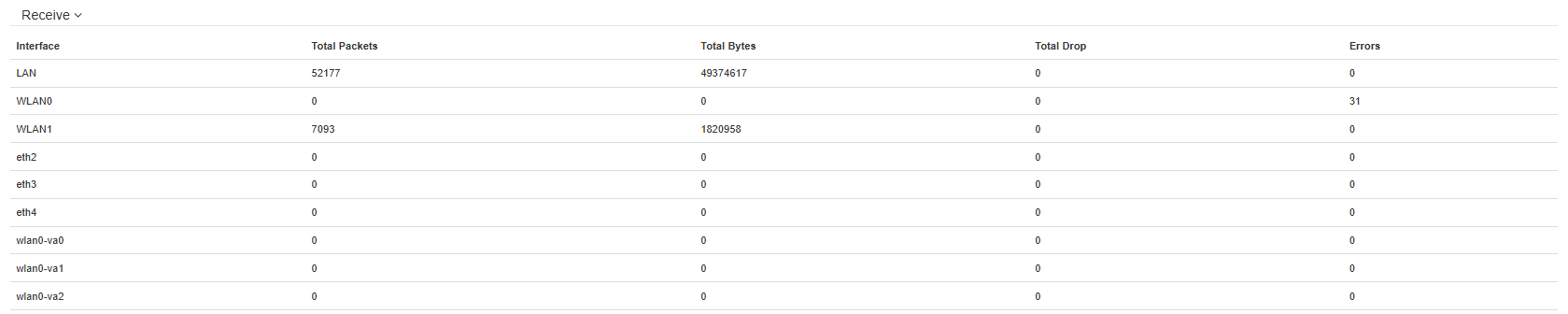
“Receive” table description:
- Interface — name of the interface;
- Total packets — number of successfully received packets;
- Total bytes — number of successfully received bytes;
- Total drop — number of rejected packets;
- Errors — number of errors.
The “Scan Environment” submenu
The “Scan Environment” submenu performs scanning of the surrounding radio environment and detects neighboring access points.
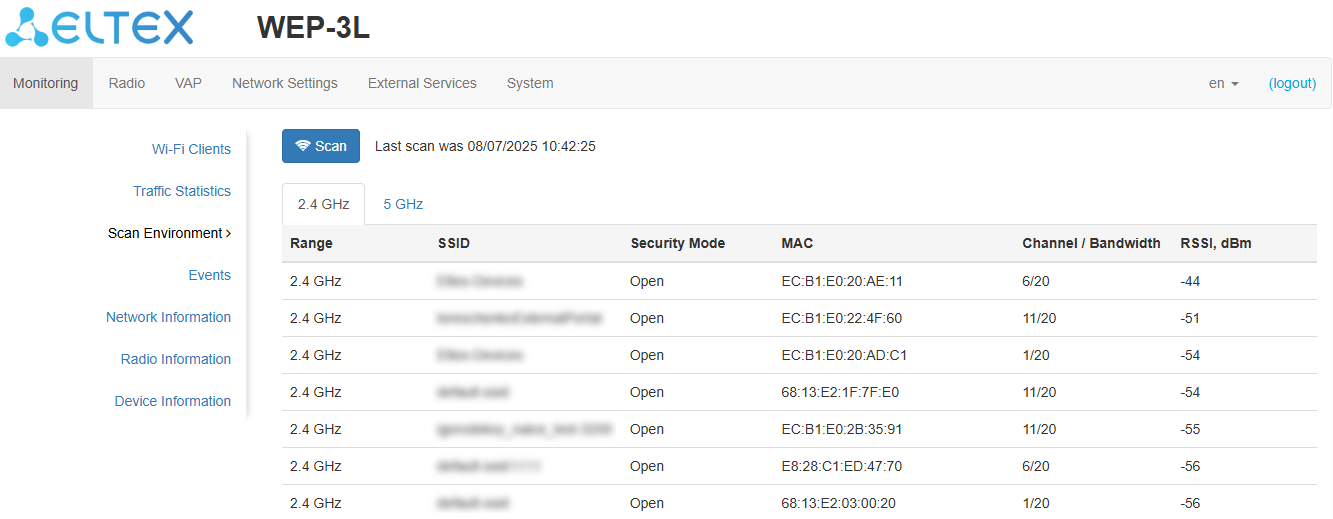
To start the scanning process, click the “Scan” button. After the scan is completed, a list of detected access points and information about them will appear:
- Last scan was... — date and time of the last scan;
- Range — specifies the range of 2.4 GHz or 5 GHz in which the access point was detected;
- SSID — SSID of the detected access point;
- Security mode — security mode of the detected access point;
- MAC — MAC address of the detected access point;
- Channel/Bandwidth — radio channel used by the detected access point;
- RSSI — the level at which the device receives the signal from the detected access point, dBm.
While scanning the environment, the device radio interface will be temporarily disabled, preventing data transmission to Wi-Fi clients.
The “Events” submenu
This section displays a list of real-time informational messages containing the following data:
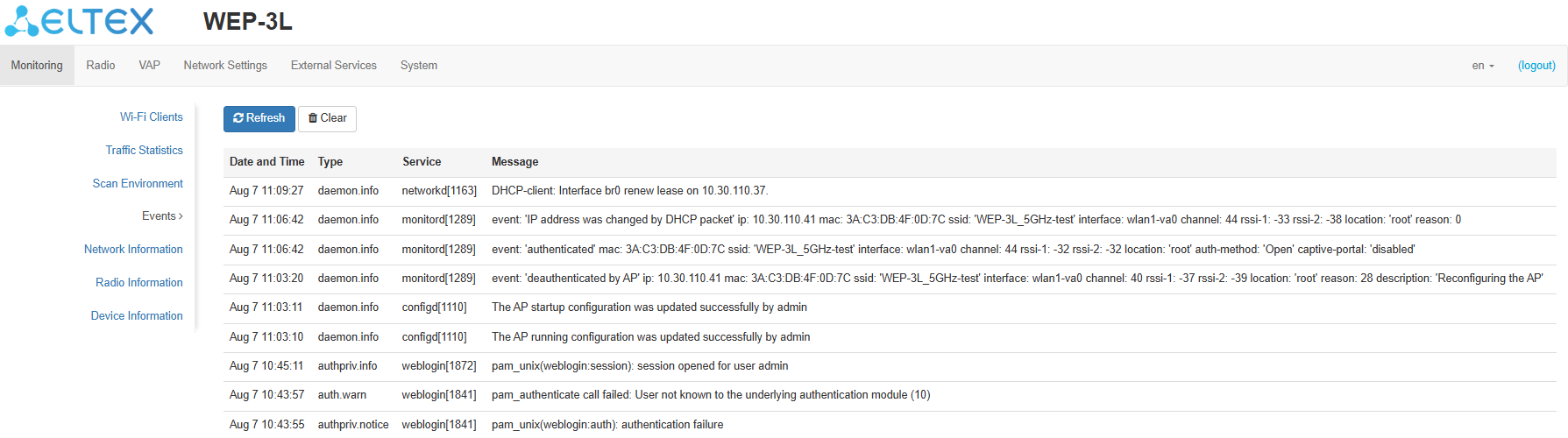
- Date and Time — time when event was generated;
- Type — category and importance level of the event;
- Service — name of the process that generated the message;
- Message — event description.
Table 7 — Description of event importance categories:
| Level | Message importance level | Description |
|---|---|---|
| 0 | Emergency | A critical error has occurred in the system, the system may not work properly. |
| 1 | Alert | Immediate intervention in the system is required. |
| 2 | Critical | A critical error has occurred in the system. |
| 3 | Error | An error has occurred in the system. |
| 4 | Warning | Warning, non-emergency message. |
| 5 | Notice | System notice, non-emergency message. |
| 6 | Informational | Informational system messages. |
| 7 | Debug | Debugging messages provide the user with information to correctly configure the system. |
To receive new messages in the event log, click the “Refresh“ button.
If necessary, all old messages can be deleted from the log by clicking the “Clear” button.
The “Network Information” submenu
The “Network Information” submenu displays main network settings of the device.
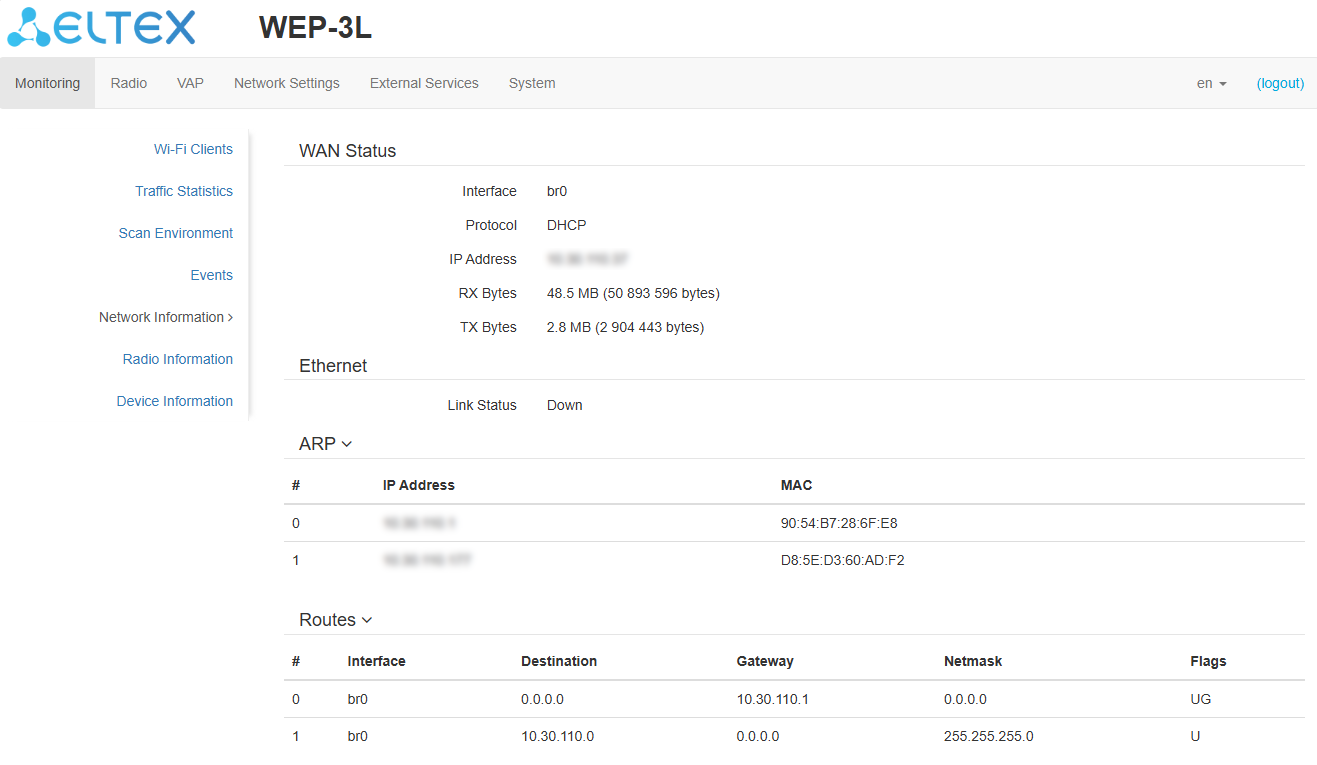
WAN Status:
- Interface — name of the bridge interface;
- Protocol — protocol used for access to WAN;
- IP address — device IP address in external network;
- RX Bytes — number of bytes received on WAN;
- TX Bytes — number of bytes sent from WAN.
Ethernet:
- Link Status — Ethernet port status;
- Speed — Ethernet port connection speed;
- Duplex — data transfer mode:
- Full — full duplex;
- Half — half-duplex.
ARP:
The ARP table contains mapping information between the IP and MAC addresses of neighboring network devices:
- IP address — device IP address;
- MAC — device MAC address.
Routes:
- Interface — name of the bridge interface;
- Destination — IP address of destination host or subnet that the route is established to;
- Gateway — IP address of the gateway through which access to the Destination is carried out;
- Netmask — subnet mask;
- Flags — certain route characteristics.
The flags can have the following values:
- U — indicates that the route is created and passable.
- H — indicates the route to the specific host.
- G — indicates that the route goes through an external gateway. System network interface provides routes in the network with direct connection. All other routes pass through external gateways. G flag is used for all routes except for the routes in the direct connection networks.
- R — indicates that the route was likely created by a dynamic routing protocol running on the local system using the reinstate parameter.
- D — indicates that the route was added as a result of receiving an ICMP Redirect Message. When the system learns about a route from an ICMP Redirect, the route is added to the routing table to prevent further redirects for subsequent packets sent to the same destination.
- M — indicates that the route was modified, likely by a dynamic routing protocol running on the local system using the mod parameter.
- A — indicates a buffered route with a corresponding entry in the ARP table.
- C — indicates that the route originated from the core routing buffer.
- L — indicates that the destination of the route is one of the local system’s IP addresses. Such “local routes” exist only in the routing buffer.
- B — indicates that the route destination is a broadcast address. Such “broadcast routes” exist only in the routing buffer.
- I — indicates that the route is associated with the loopback interface for a purpose other than loopback communication. Such “internal routes” exist only in the routing buffer.
- ! — indicates that datagrams sent to this address will be rejected by the system.
The “Radio Information” submenu
The “Radio Information” submenu displays the current status of the WEP-3L radio interfaces.
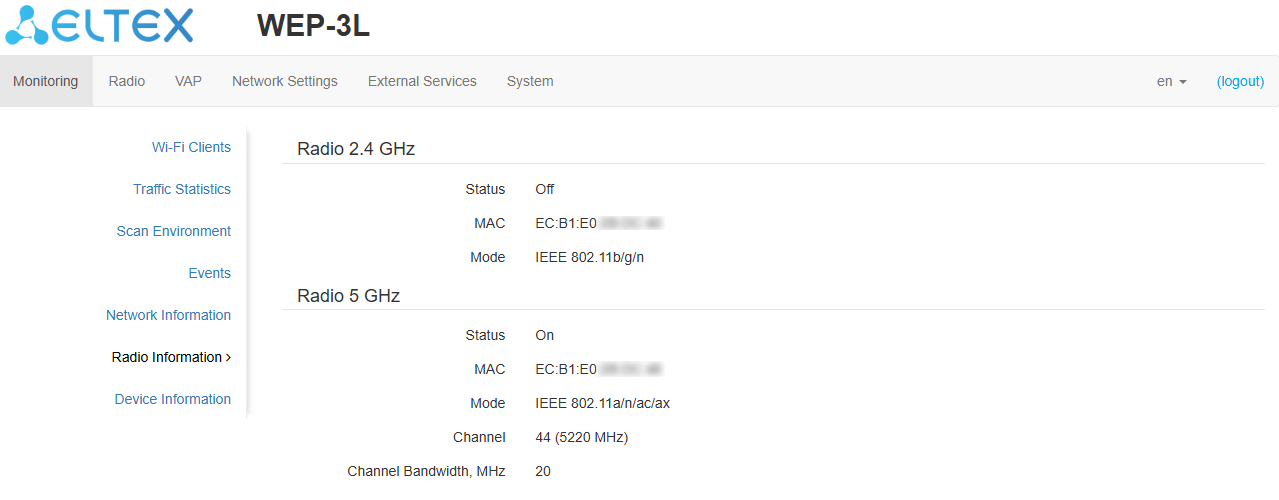
The access point radio interfaces can be in two states: “On” and “Off”. The status of each radio interface is shown in the “Status” field.
The Radio status depends on whether the radio interface has virtual access points (VAPs) enabled. In case there is at least one active VAP on the radio interface, the Radio status will be “On”, otherwise — “Off”.
Depending on the Radio status, the following information is available for monitoring:
“Off”:
- Status — radio interface state;
- MAC — radio interface MAC address;
- Mode — radio interface operation mode according to IEEE 802.11 standards.
“On”:
- Status — radio interface state;
- MAC — radio interface MAC address;
- Mode — radio interface operation mode according to IEEE 802.11 standards;
- Channel — number of the wireless channel on which the radio interface is running;
- Channel bandwidth — bandwidth of the channel on which the radio interface is running.
The “Device Information” submenu
The “Device Information” submenu displays main WEP-3L parameters.
- Product — device model name;
- Hardware Version — device hardware version;
- Factory MAC Address — MAC address of the device’s WAN interface, factory set;
- Serial Number — device serial number, factory set;
- Software Version — device software version;
- Backup Version — previously installed software version;
- Boot Version — device software boot version;
- System Time — current time and date, set in the system;
- Uptime — operating time since the last time the device was turned on or rebooted;
- CPU Usage — average percentage of CPU load over the last 5 seconds;
- Memory Usage — percentage of device RAM usage.
The “Radio” menu
The “Radio” menu is used to configure the device’s radio interfaces.
The “Radio 2.4 GHz” submenu
The “Radio 2.4 GHz” submenu is used to configure the main parameters of the device’s radio interface operating in the 2.4 GHz band.
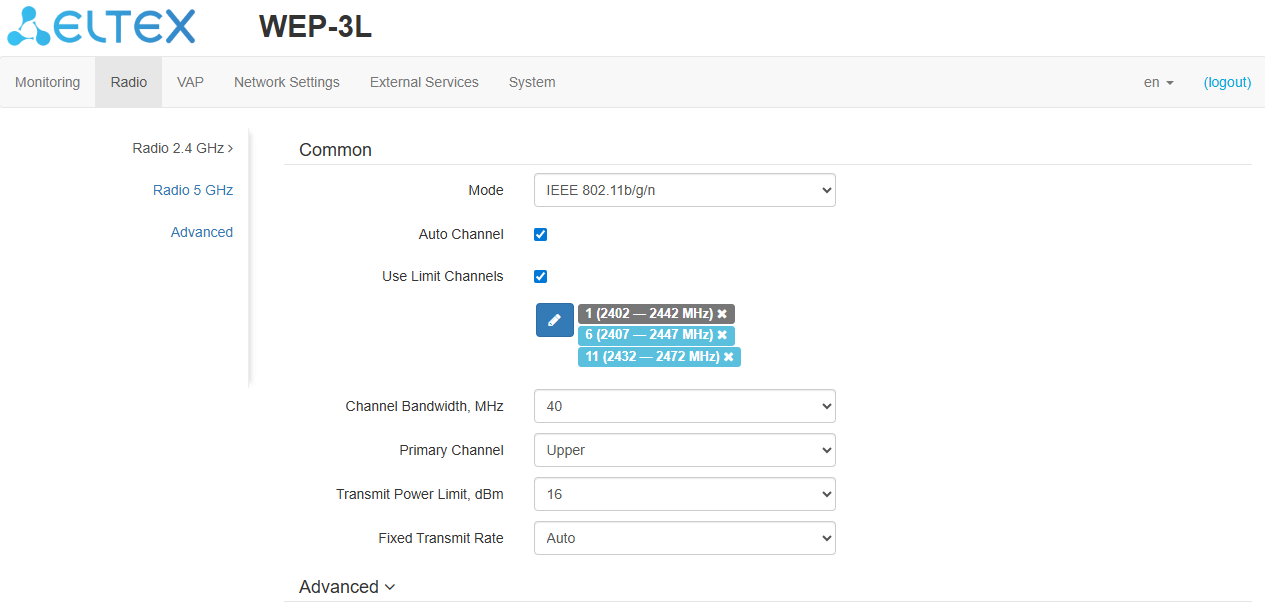
- Mode — interface operating mode based on the following standards:
- IEEE 802.11n;
- IEEE 802.11b/g;
- IEEE 802.11b/g/n.
- Auto Channel — when checked, the device will automatically select the least loaded radio channel for the Wi-Fi interface. When unchecked, manual selection of a static operating channel becomes available;
- Channel — selection of the data transmission channel;
- Use Limit Channels — when checked, the access point will use a user-defined list of channels to work in automatic channel selection mode. When unchecked or there are no channels in the list, the access point will select the operation channel from all available channels in the given band. 2.4 GHz band channels: 1–13;
- Channel Bandwidth, MHz — channel bandwidth, on which the access point operates. The parameter may take values of 20 and 40 MHz;
- Primary Channel — parameter can only be changed if the bandwidth of a statically specified channel is equal to 40 MHz. The 40 MHz channel can be considered as consisting of two adjacent 20 MHz channels. These two 20 MHz channels are called primary and secondary channels. The primary channel is used by clients that only support 20 MHz channel bandwidth:
- Upper — primary channel will be the upper 20 MHz channel in the 40 MHz band;
- Lower — primary channel will be the lower 20 MHz channel in the 40 MHz band.
- Transmit Power Limit, dBm — transmitting Wi-Fi signal power adjustment, dBm. May take values between 11 and 16 dBm;
- Fixed Transmit Rate — fixed wireless data transmission rate which is defined by IEEE 802.11 standards.
If an unavailable channel is specified in the “Use Limit Channels” list, it will be highlighted in grey. To apply the new configuration to the access point, only available channels (highlighted in blue) must be selected in the “Use Limit Channels” list.
Example. No configuration has been applied to the access point yet. By default, the “Channel Bandwidth“ for the Radio 2.4 GHz interface is set to 20 MHz, and the “Use Limit Channels” list contains the following channels: 1, 6, and 11.
Suppose the “Channel Bandwidth” is changed to 40 MHz When this parameter is changed from 20 MHz to 40 MHz, the following occurs:
- the “Primary Channel” option becomes available for editing, with the default value set to “Lower”.
- channel 11 in the “Use Limit Channels” list changes its color from blue to grey.
If you change the Channel Width to 40 MHz but do not remove the grey (unavailable) channels from the list, clicking the “Apply“ button will result in an error message in the browser: “There are errors in data. Changes were not applied”. As a result, the configuration will not be applied to the access point. This happens because the gray-highlighted channels in the “Use Limit Channels” list are not valid based on the current “Primary Channel” setting, which is “Lower“ in this case.
The “Advanced“ section provides configuration options for additional radio interface parameters.
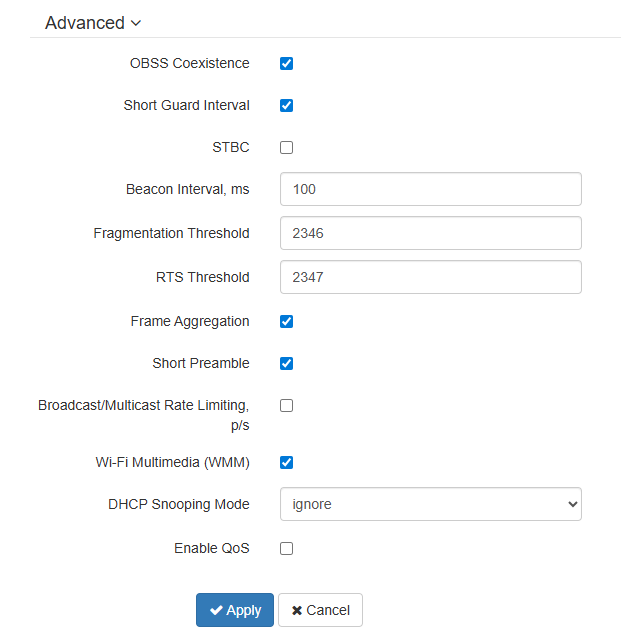
- OBSS Coexistence — automatic channel bandwidth reduction when the channel is loaded. When checked, the mode is enabled;
- Short Guard Interval — support for Short Guard Interval. Access point transmits data using 400 ns Guard interval (instead of 800 ns) to clients that also support Short GI;
- STBC — Space-Time Block Coding (STBC) method designed to improve data transmission reliability. This option is available only if the selected radio interface includes 802.11n. When checked, the device transmits a single data stream over multiple antennas. When unchecked, a single data stream is not transmitted across multiple antennas:
- Beacon Interval, ms — beacon frames transmission period. The frames are transmitted to allow the access point to be detected over the air. The parameter takes values from 20 to 2000 ms, by default — 100 ms;
- Fragmentation Threshold — frame fragmentation threshold, bytes. The parameter takes values from 256 to 2346, by default — 2346;
- RTS Threshold — specifies the number of bytes after which a Request to Send (RTS) is sent. Decreasing this value may improve access point performance when many clients are connected, but may reduce general bandwidth of wireless network. The parameter takes values from 0 to 2347, by default — 2347;
- Frame Aggregation — enabling support for AMPDU/AMSDU;
- Short Preamble — use of the packet short preamble;
- Broadcast/Multicast Rate Limiting, p/s — when checked, limits the rate of broadcast and multicast traffic over the wireless network. A broadcast traffic rate limit (in packets per second) can be specified in the configuration window;
- Wi-Fi Multimedia (WMM) — enabling of support for Wi-Fi Multimedia (WMM);
- DHCP Snooping Mode — selection of DHCP option 82 processing policy. Available values:
- ignore — option 82 processing is disabled (default value);
- remove — the access point removes option 82;
- replace — the access point inserts or replaces option 82. If selected, the following parameters become available:
- Option 82 CID format — replacement of the CID parameter value, can take the following values:
- APMAC-SSID — replacement of the CID parameter value with <MAC address of the access point>-<SSID name> (deafult value);
- SSID — replacement of the CID parameter value with SSID name, to which the client is connected;
- custom — replacement of the CID parameter value with the value specified in the “Option 82 Unique CID“:
- Option 82 Unique CID — a custom string of up to 52 characters to be used as the CID. If not set, will be used the default value — APMAC-SSID.
- Option 82 RID format — replacement of the RID parameter value, can take the following values:
- ClientMAC — replacement of the RID content with the MAC address of the client device (default value);
- APMAC — replacement of the RID content with the MAC address of the access point;
- APdomain — replacement of the RID content with the domain of the access point;
- custom — replacement of the RID content with the value specified in the “Option 82 Unique RID“:
- Option 82 Unique RID — a custom string of up to 63 characters to be used as the RID. If not set, will be used the default value — ClientMAC.
- MAC-address format — selection of octet delimiters of the MAC address, which is transmitted in CID and RID:
- AA:BB:CC:DD:EE:FF — delimiter is a colon (:) (default value);
- AA-BB-CC-DD-EE-FF — delimiter is a dash (-).
- Option 82 CID format — replacement of the CID parameter value, can take the following values:
- Enable QoS — when checked, the configuration of Quality of Service functions is available.
The following functions are available for Quality of Service configuration:
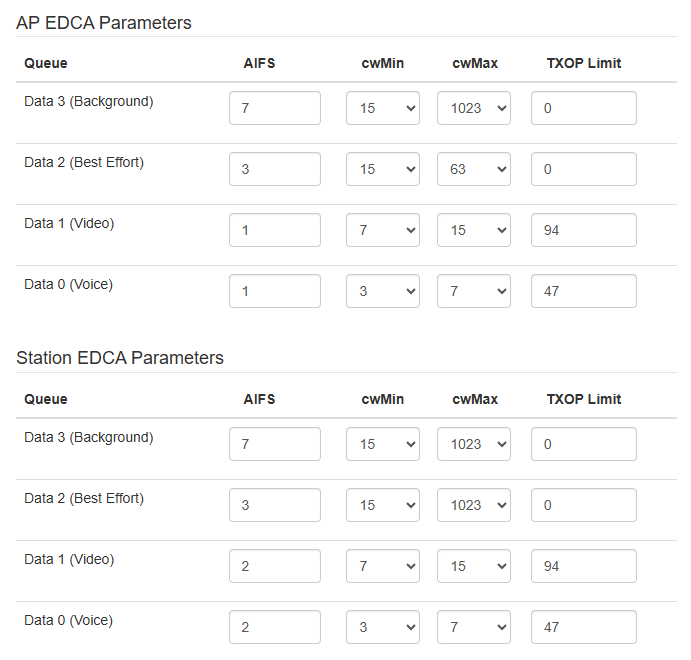
- AP EDCA parameters — access point settings table (traffic is transmitted from the access point to the client):
- Queue — predefined queues for various kinds of traffic:
- Data 3 (Background) — low priority queue, high bandwidth (802.1p: cs1, cs2 priorities);
- Data 2 (Best Effort) — middle priority queue, middle bandwidth and delay. Most of the traditional IP data is sent to this queue (802.1p: cs0, cs3 priorities);
- Data 1 (Video) — high priority queue, minimal delay. In this queue, time-sensitive video data is automatically processed (802.1p: cs4, cs5 priorities);
- Data 0 (Voice) — high priority queue, minimal delay. In this queue, time sensitive data is automatically processed, such as: VoIP, streaming video (802.1p: cs6, cs7 priorities).
- AIFS — Arbitration Inter-Frame Spacing, defines the waiting time of data frames, measured in slots, takes values 1–255;
- cwMin — initial timeout value before resending a frame, specified in milliseconds, takes the values 1, 3, 7, 15, 31, 63, 127, 255, 511, 1023. The value of cwMin cannot exceed the value of cwMax;
- cwMax — maximum timeout value before resending a frame, specified in milliseconds, takes the values 1, 3, 7, 15, 31, 63, 127, 255, 511, 1023. The value of cwMax must exceed the value of cwMin;
- TXOP Limit — this parameter is used only for data transmitted from the client station to the access point. The transmission capability is the time interval, in milliseconds, when the client WME station has the rights to initiate data transmission over the wireless medium to the access point, the maximum value is 65535 milliseconds.
- Queue — predefined queues for various kinds of traffic:
- Station EDCA parameters — table of client station parameter settings (traffic is transmitted from the client station to the access point). For description of table fields, see above.
To apply a new configuration and save settings to non-volatile memory, click the “Apply” button. Click the “Cancel” button to discard the changes.
The “Radio 5 GHz” submenu
The “Radio 5 GHz” submenu is used to configure the main parameters of the device’s radio interface operating in the 5 GHz band.
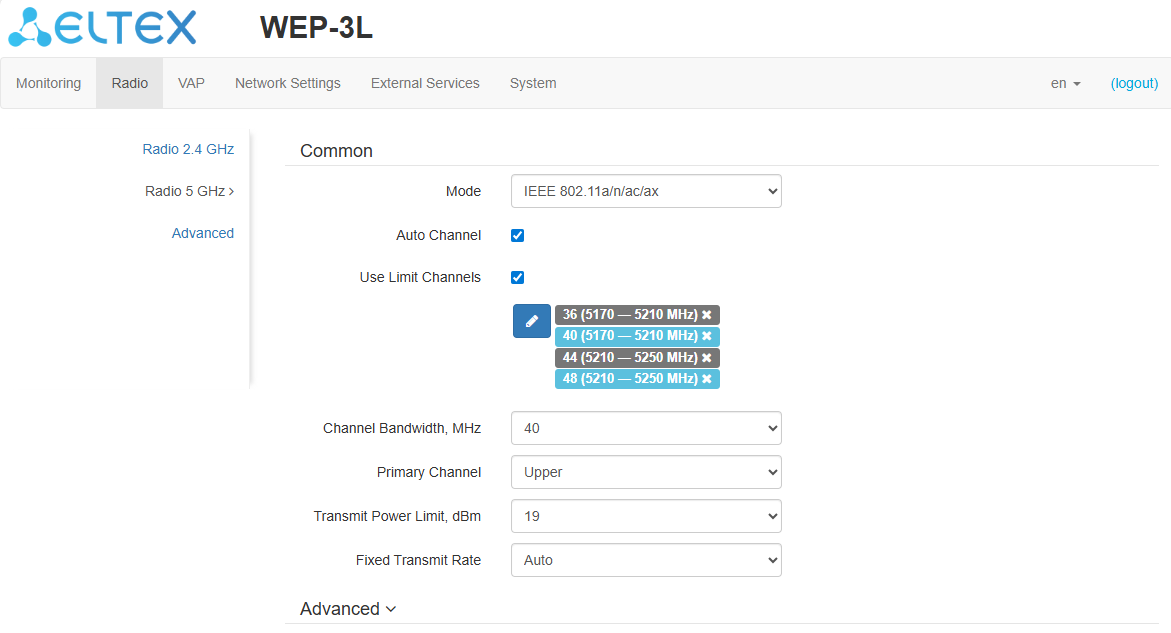
- Mode — interface operating mode based on the following standards:
- IEEE 802.11ax;
- IEEE 802.11a/n/ac;
- IEEE 802.11a/n/ac/ax.
- Auto Channel — when checked, the device will automatically select the least loaded radio channel for the Wi-Fi interface. When unchecked, manual selection of a static operating channel becomes available;
- Channel — selection of the data transmission channel;
- Use Limit Channels — when checked, the access point will use a user-defined list of channels to work in automatic channel selection mode. When unchecked or there are no channels in the list, the access point will select the operation channel from all available channels in the given band. 5 GHz band channels: 36–64, 132–144, 149–165;
- Channel Bandwidth, MHz — channel bandwidth, on which the access point operates. The parameter may take values of 20, 40 and 80 MHz;
- Primary Channel — parameter can only be changed if the bandwidth of a statically specified channel is equal to 40 MHz. The 40 MHz channel can be considered as consisting of two adjacent 20 MHz channels. These two 20 MHz channels are called primary and secondary channels. The primary channel is used by clients that only support 20 MHz channel bandwidth:
- Upper — primary channel will be the upper 20 MHz channel in the 40 MHz band;
- Lower — primary channel will be the lower 20 MHz channel in the 40 MHz band.
- Transmit Power Limit, dBm — transmitting Wi-Fi signal power adjustment, dBm. May take values between 11 and 19 dBm;
- Fixed Transmit Rate — fixed wireless data transmission rate which is defined by IEEE 802.11 standards.
If an unavailable channel is specified in the “Use Limit Channels” list, it will be highlighted in grey. To apply the new configuration to the access point, only available channels (highlighted in blue) must be selected in the “Use Limit Channels” list.
Example. No configuration has been applied to the access point yet. By default, the “Channel Bandwidth“ for the Radio 5 GHz interface is set to 20 MHz, and the “Use Limit Channels” list contains the following channels: 36, 40, 44, 48.
Suppose the “Channel Bandwidth” is changed to 40 MHz When this parameter is changed from 20 MHz to 40 MHz, the following occurs:
- the “Primary Channel” option becomes available for editing, with the default value set to “Upper”.
- channels 36 and 44 in the “Use Limit Channels” list change color from blue to grey.
If you change the Channel Width to 40 MHz but do not remove the grey (unavailable) channels from the list, clicking the “Apply“ button will result in an error message in the browser: “There are errors in data. Changes were not applied”. As a result, the configuration will not be applied to the access point. This happens because the gray-highlighted channels in the “Use Limit Channels” list are not valid based on the current “Primary Channel” setting, which is “Upper“ in this case.
The “Advanced“ section provides configuration options for additional radio interface parameters.
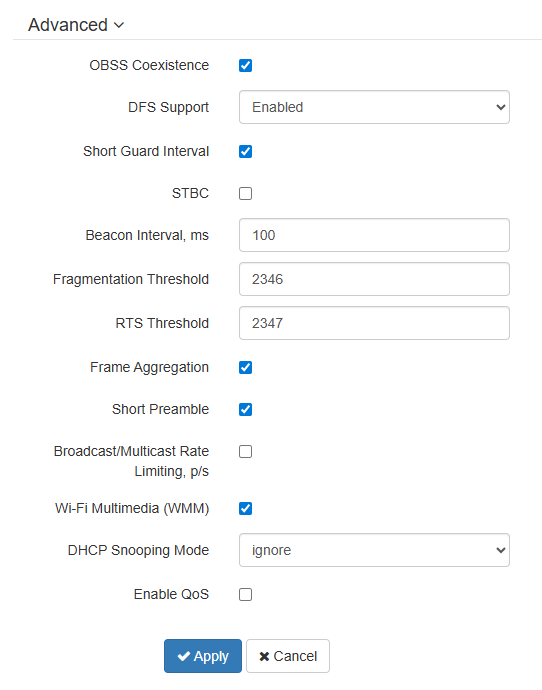
- OBSS Coexistence — automatic channel bandwidth reduction when the channel is loaded. When checked, the mode is enabled;
- DFS Support — dynamic frequency selection mechanism. The mechanism demands wireless devices to scan environment and avoid using channels which coincide with radiolocation system's channels at 5 GHz:
- Disabled — mechanism is disabled. DFS channels are not available for selection;
- Enabled — mechanism is enabled;
- Forced — mechanism is disabled. DFS channels are available for selection.
- Short Guard Interval — support for Short Guard Interval. Access point transmits data using 400 ns Guard interval (instead of 800 ns) to clients that also support Short GI;
- STBC — Space-Time Block Coding (STBC) method designed to improve data transmission reliability. This option is available only if the selected radio interface includes 802.11n. When checked, the device transmits a single data stream over multiple antennas. When unchecked, a single data stream is not transmitted across multiple antennas.
- Beacon Interval, ms — beacon frames transmission period. The frames are transmitted to allow the access point to be detected over the air. The parameter takes values from 20 to 2000 ms, by default — 100 ms;
- Fragmentation Threshold — frame fragmentation threshold, bytes. The parameter takes values from 256 to 2346, by default — 2346;
- RTS Threshold — specifies the number of bytes after which a Request to Send (RTS) is sent. Decreasing this value may improve access point performance when many clients are connected, but may reduce general bandwidth of wireless network. The parameter takes values from 0 to 2347, by default — 2347;
- Frame Aggregation — enabling support for AMPDU/AMSDU;
- Short Preamble — use of the packet short preamble;
- Broadcast/Multicast Rate Limiting, p/s — when checked, limits the rate of broadcast and multicast traffic over the wireless network. A broadcast traffic rate limit (in packets per second) can be specified in the configuration window;
- Wi-Fi Multimedia (WMM) — enabling of support for Wi-Fi Multimedia (WMM);
- DHCP Snooping Mode — selection of DHCP option 82 processing policy. Available values:
- ignore — option 82 processing is disabled (default value);
- remove — the access point removes option 82;
- replace — the access point inserts or replaces option 82. If selected, the following parameters become available:
- Option 82 CID format — replacement of the CID parameter value, can take the following values:
- APMAC-SSID — replacement of the CID parameter value with <MAC address of the access point>-<SSID name> (deafult value);
- SSID — replacement of the CID parameter value with SSID name, to which the client is connected;
- custom — replacement of the CID parameter value with the value specified in the “Option 82 Unique CID“:
- Option 82 Unique CID — a custom string of up to 52 characters to be used as the CID. If not set, will be used the default value — APMAC-SSID.
- Option 82 RID format — replacement of the RID parameter value, can take the following values:
- ClientMAC — replacement of the RID content with the MAC address of the client device (default value);
- APMAC — replacement of the RID content with the MAC address of the access point;
- APdomain — replacement of the RID content with the domain of the access point;
- custom — replacement of the RID content with the value specified in the “Option 82 Unique RID“:
- Option 82 Unique RID — a custom string of up to 63 characters to be used as the RID. If not set, will be used the default value — ClientMAC.
- MAC-address format — selection of octet delimiters of the MAC address, which is transmitted in CID and RID:
- AA:BB:CC:DD:EE:FF — delimiter is a colon (:) (default value);
- AA-BB-CC-DD-EE-FF — delimiter is a dash (-).
- Option 82 CID format — replacement of the CID parameter value, can take the following values:
- Enable QoS — when checked, the configuration of Quality of Service functions is available.
The following functions are available for Quality of Service configuration:
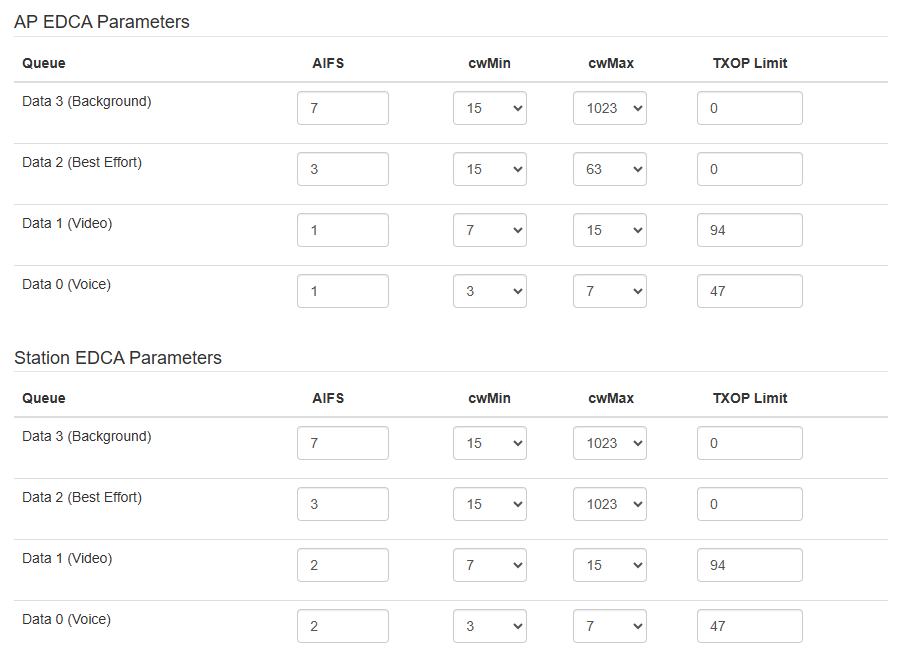
- AP EDCA parameters — access point settings table (traffic is transmitted from the access point to the client):
- Queue — predefined queues for various kinds of traffic:
- Data 3 (Background) — low priority queue, high bandwidth (802.1p: cs1, cs2 priorities);
- Data 2 (Best Effort) — middle priority queue, middle bandwidth and delay. Most of the traditional IP data is sent to this queue (802.1p: cs0, cs3 priorities);
- Data 1 (Video) — high priority queue, minimal delay. In this queue, time-sensitive video data is automatically processed (802.1p: cs4, cs5 priorities);
- Data 0 (Voice) — high priority queue, minimal delay. In this queue, time sensitive data is automatically processed, such as: VoIP, streaming video (802.1p: cs6, cs7 priorities).
- AIFS — Arbitration Inter-Frame Spacing, defines the waiting time of data frames, measured in slots, takes values 1–255;
- cwMin — initial timeout value before resending a frame, specified in milliseconds, takes the values 1, 3, 7, 15, 31, 63, 127, 255, 511, 1023. The value of cwMin cannot exceed the value of cwMax;
- cwMax — maximum timeout value before resending a frame, specified in milliseconds, takes the values 1, 3, 7, 15, 31, 63, 127, 255, 511, 1023. The value of cwMax must exceed the value of cwMin;
- TXOP Limit — this parameter is used only for data transmitted from the client station to the access point. The transmission capability is the time interval, in milliseconds, when the client WME station has the rights to initiate data transmission over the wireless medium to the access point, the maximum value is 65535 milliseconds.
- Queue — predefined queues for various kinds of traffic:
- Station EDCA parameters — table of client station parameter settings (traffic is transmitted from the client station to the access point). For description of table fields, see above.
To apply a new configuration and save settings to non-volatile memory, click the “Apply” button. Click the “Cancel” button to discard the changes.
The “Advanced” submenu
The “Advanced” submenu is used to configure advanced radio interface parameters of the device.
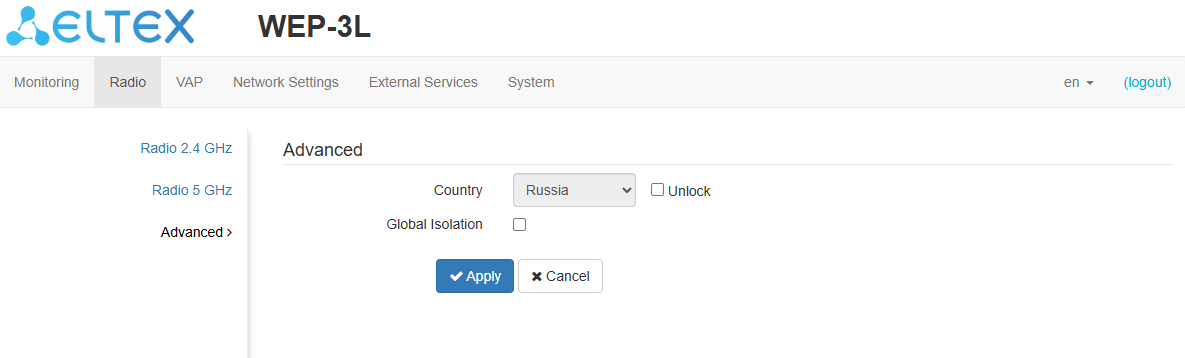
- Country — country of access point operation. Check the “Unlock” box to change the country. Depending on the selected value the channel bandwidth and transmit power limit restrictions will be applied. The list of available frequency channels depends on the selected country, which affects the automatic channel selection in the Channel = Auto mode. If the subscriber equipment is licensed for use in a different region, there is a possibility that the connection with the access point will not be established.
Local country regulations settings, including operation within legal frequency channels and output power, is the installer's responsibility.
Selecting the wrong region may result in compatibility issues with different client devices.
- Global Isolation — when checked, traffic isolation between clients of different VAPs and different radio interfaces is enabled.
To apply a new configuration and save settings to non-volatile memory, click the “Apply” button. Click the “Cancel” button to discard the changes.
The “VAP” menu
The “VAP“ menu is used to configure virtual Wi-Fi access points (VAPs).
The “Summary” submenu
The “Summary” submenu displays the settings of all VAPs on Radio 2.4 GHz and Radio 5 GHz radio interfaces. The settings for each virtual access point can be viewed in the VAP0–VAP3 sections.
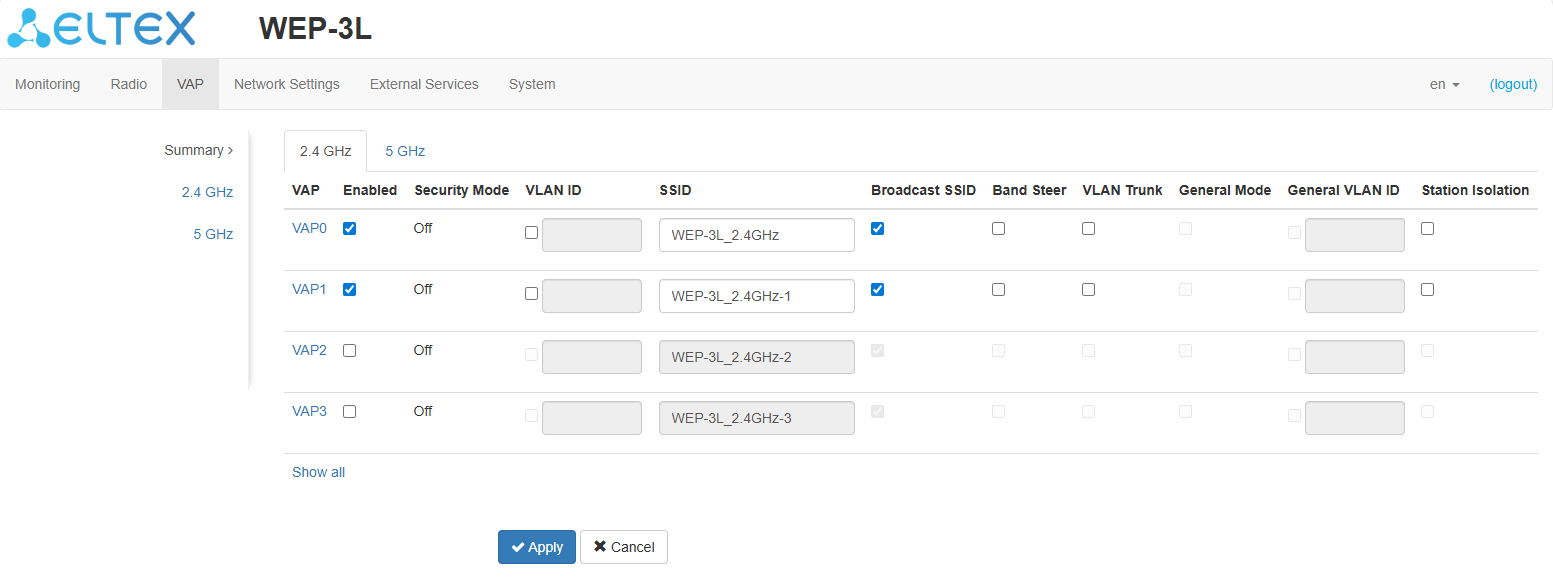
- VAP0–VAP6 — sequence number of the virtual access point;
- Enabled — when checked, the virtual access point is enabled, otherwise it is disabled;
- Security Mode — type of data encryption used on the virtual access point;
- VLAN ID — VLAN number from which the tag will be removed when transmitting Wi-Fi traffic to clients connected to this VAP. When traffic flows in the opposite direction, untagged traffic from clients will be tagged with VLAN ID (when VLAN Trunk mode is disabled);
- SSID — virtual wireless network name;
- Broadcast SSID — when checked, SSID broadcasting is on, otherwise it is disabled;
- Band Steer — when checked, the device prioritizes connecting clients to the 5 GHz network. To use this feature, create a VAP with the same SSID on each radio interface and enable the “Band Steer Mode“ parameter for them;
- VLAN Trunk — when checked, tagged traffic is transmitted to the subscriber;
- General Mode — when checked, transmission of untagged traffic jointly with tagged traffic is allowed (available when Trunk VLAN mode is enabled);
- General VLAN ID — tag will be removed from the specified VLAN ID and the traffic of this VLAN will pass to the client without a tag. When traffic passes in the opposite direction, untagged traffic will be tagged with General VLAN ID;
- Station Isolation — when checked, traffic isolation between clients in the same VAP is enabled.
To apply a new configuration and save settings to non-volatile memory, click the “Apply” button. Click the “Cancel” button to discard the changes.
The “VAP” submenu
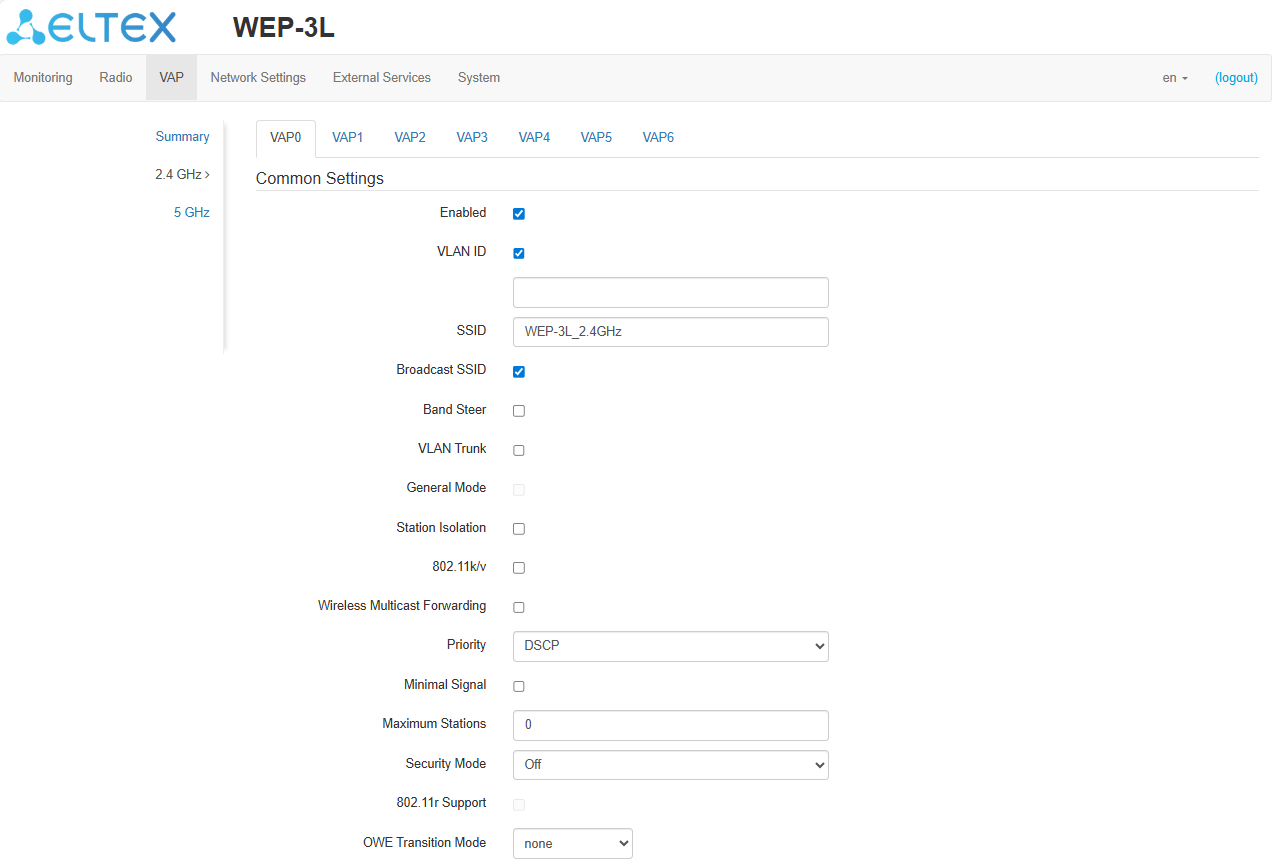
Common settings:
- Enabled — when checked, the virtual access point is enabled, otherwise it is disabled;
- VLAN ID — VLAN number from which the tag will be removed when transmitting Wi-Fi traffic to clients connected to this VAP. When traffic flows in the opposite direction, untagged traffic from clients will be tagged with VLAN ID (when VLAN Trunk mode is disabled);
- SSID — virtual wireless network name;
- Broadcast SSID — when checked, SSID broadcasting is on, otherwise it is disabled;
- Band Steer — when checked, the device prioritizes connecting clients to the 5 GHz network. To use this feature, create a VAP with the same SSID on each radio interface and enable the “Band Steer Mode“ parameter for them;
- VLAN Trunk — when checked, tagged traffic is transmitted to the subscriber;
- General Mode — when checked, transmission of untagged traffic jointly with tagged traffic is allowed (available when Trunk VLAN mode is enabled);
- General VLAN ID — tag will be removed from the specified VLAN ID and the traffic of this VLAN will pass to the client without a tag. When traffic passes in the opposite direction, untagged traffic will be tagged with General VLAN ID;
- Station Isolation — when checked, traffic isolation between clients in the same VAP is enabled;
- 802.11k/v — enable support for 802.11k/v standards on virtual access point;
- Wireless Multicast Forwarding — when checked, traffic towards clients will be converted to Unicast before each client, when disabled, it will pass without modifications;
- Priority — selection of prioritization mode. Defines the field based on of which the traffic transmitted to the radio interface will be distributed in WMM queues:
- DSCP — will analyze the priority from the DSCP field of the IP packet header;
- 802.1p — will analyze the priority from the CoS (Class of Service) field of the tagged packets.
- Minimal signal — when checked, the function of disabling the client Wi-Fi equipment when the signal level is low (Minimal Signal Level) is enabled. It is necessary to configure the following parameters:
- Minimal Signal Level, dBm — signal level below which the client equipment is disconnected from the virtual network;
- Roaming Signal Level, dBm — roaming sensitivity level below which the client equipment switches to another access point. The parameter should be higher than the Minimal Signal Level: if the Minimal Signal Level is -75 dBm, then the Roaming Signal Level should be equal to, for example, -70 dBm;
- Minimal Signal Timeout, s — period of time after which a decision is made to disconnect the client equipment from the virtual network.
- Maximum Stations — maximum allowed number of clients connected to the virtual network;
- Security Mode — wireless access security mode:
- OWE (Opportunistic Wireless Encryption) — encryption method that provides the security of data transmitted over an unsecured network. In this case, users do not need to do some additional actions and enter a password to connect to the network. When choosing this mode, a non-editable “OWE Transition Mode1“ field is displayed, which indicates an interface with an open encryption type with which connectivity is configured in this moment;
1“OWE transition mode“ provides backward compatibility with Wi-Fi clients that do not support OWE authentication. When attempting to connect to an open network where “OWE transition mode“ is configured, a client that supports OWE will connect to the encrypted network configured on the specified interface, and a client that does not support OWE will connect to the current open network without encryption.
- WPA, WPA2, WPA/WPA2, WPA2/WPA3, WPA3 — encryption methods, when selecting one of the methods, the following setting will be available:
- WPA Key — key/password required to connect to the virtual access point. The key length is from 8 to 63 characters.
- WPA-Enterprise, WPA2-Enterprise, WPA/WPA2-Enterprise, WPA2/WPA3-Enterprise, WPA3-Enterprise — wireless channel encryption mode, in which the client is authorized on the centralized RADIUS server. To configure this security mode, specify the parameters of the RADIUS server and the key for the RADIUS server.
When selecting a specific security mode, the following settings will be available:
- WPA, WPA2, WPA/WPA2, WPA2/WPA3, WPA3 — encryption methods, when selecting one of the methods, the following setting will be available:
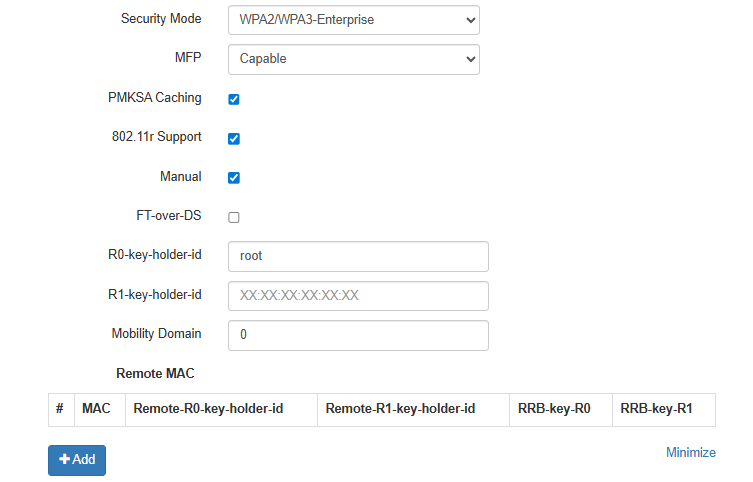
- MFP — management frame protection (available for WPA2, WPA3, WPA2/WPA3, WPA2-Enterprise, WPA2/WPA3-Enterprise and WPA3-Enterprise security modes, when selecting other security modes, MFP is set to the Disabled state, when selecting WPA3, WPA3-Enterprise security mode, MFP is set to the Enabled state):
- Not Required — management frame protection is disabled;
- Capable — protection works if the client supports MFP. Clients without MFP support can connect to this VAP;
- Required — management frame protection is enabled, clients that do not support MFP cannot connect.
- PMKSA Caching — when checked, enables caching of Enterprise client connection information. When this feature is enabled, the access point remembers the client device after authorization for 12 hours and does not require re-authentication on the RADIUS server if the device reconnects within that period. Enabling this feature reduces roaming time when the client returns to the access point in WPA Enterprise mode. This setting is available only when using Enterprise security modes;
- 802.11r — fast roaming functionality that works only with clients supporting the IEEE 802.11r standard. 802.11r roaming is possible only between VAPs operating in WPA2 security mode or higher:
- 802.11r Support — enables support for the 802.11r standard on the VAP;
- Manual — when checked, allows manual configuration of roaming parameters;
- FT-over-DS — enables the “Over the DS“ mode;
- R0-key-holder-id — unique key for this VAP, for example, the serial number;
- R1-key-holder-id — MAC address of the VAP (can be viewed using the ifconfig command output);
- Mobility Domain — the group number within which roaming can occur. Takes values from 0 to 65535;
- Remote MAC:
- MAC — MAC address of the VAP interface of the remote access point. Maximum number: 256;
- Remote-R0-key-holder-id — unique key that must match the “R0-key-holder-id“ on the remote AP’s VAP;
- Remote-R1-key-holder-id — MAC address of the VAP on the remote AP;
- RRB-key-R0 — random key. Must not match the “RRB-key-R1“, but must match the “RRB-key-R1“ of the remote AP. Key length: 16 characters;
- RRB-key-R1 — random key. Must not match the “RRB-key-R0“, but must match the “RRB-key-R0“ of the remote AP. Key length: 16 characters.
RADIUS:
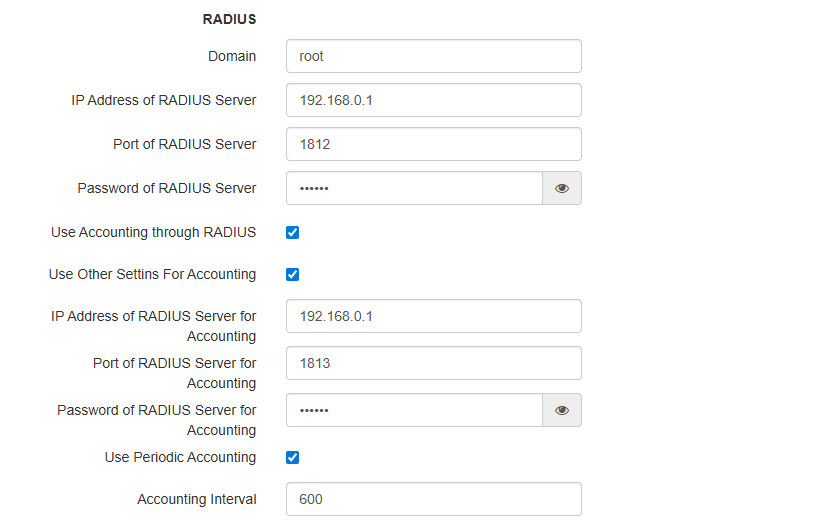
- Domain — user domain;
- IP Address of RADIUS Server — RADIUS server IP address;
- Port of RADIUS Server — port of the RADIUS server used for authentication and authorization;
- Password of RADIUS Server — password for the RADIUS server used for authentication and authorization;
- Use Accounting through RADIUS — when checked, “Accounting” messages will be sent to the RADIUS server;
- Use Other Settings For Accounting:
- IP Address of RADIUS Server for Accounting — address of the RADIUS server used for accounting;
- Password of RADIUS Server for Accounting — password for the RADIUS server used for accounting.
- Port of RADIUS Server for Accounting — port on the RADIUS server used for collecting accounting data;
- Use Periodic Accounting — when checked, Accounting messages will be sent to the RADIUS server at regular intervals. The interval can be configured in the “Accounting Interval“ field.
Captive Portal:
When selecting one of the following security modes: Off, WPA, WPA2, WPA/WPA2, WPA3, WPA2/WPA3, a portal authorization setting is available on the VAP.
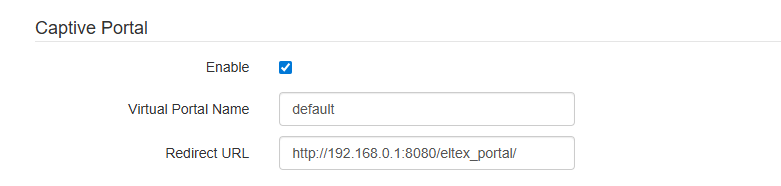
- Enable — when checked, authorization of users in the network will be performed via the virtual portal;
- Virtual Portal Name — name of the virtual portal to which the user will be redirected when connecting to the network;
- Redirect URL — address of the external virtual portal to which the user will be redirected when connecting to the network.
Shapers:
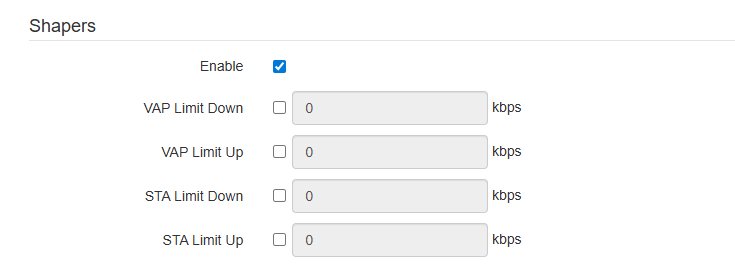
- Enable — activate the setting field;
- VAP Limit Down — restriction of bandwidth in the direction from the access point to the clients (in total) connected to this VAP, Kbps;
- VAP Limit Up — restriction of bandwidth in the direction from the clients (in total) connected to this VAP to the access point, Kbps;
- STA Limit Down — restriction of bandwidth in the direction from the access point to the clients (each separately) connected to this VAP, Kbps;
- STA Limit Up — restriction of bandwidth in the direction from the clients (each separately) connected to this VAP, to the access point, Kbps.
MAC ACL:
This subsection is used to configure the lists of MAC addresses of clients that are allowed or denied to this VAP, depending on the selected access policy.
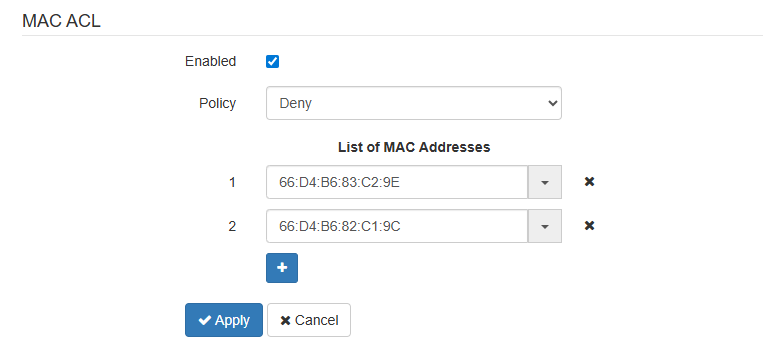
- Enabled — when checked, the chosen policy is active;
- Policy — access policy. Available options:
- Deny — specified MAC addresses will be denied to connect to this VAP, all others will be allowed;
- Allow — specified MAC addresses will be allowed to connect to this VAP, all others will be denied.
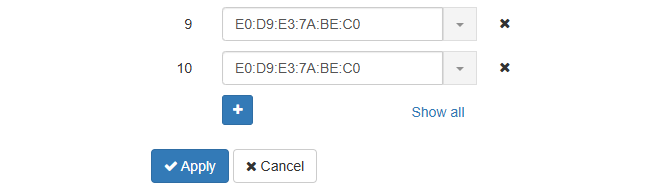
- List of MAC Addresses — list of MAC addresses of clients that are allowed or denied access to this VAP. Can contain up to 128 addresses.
To add an address to the list, click the  button and enter the MAC address in the appeared field. To remove an address from the list, click the
  button in the corresponding line.
If there is a need to add the client that is currently connected to the base station to the list the MAC addresses, click the button  at the end of the line and select the desired address from the list, it will automatically be added to the field.
By default, the list displays up to 10 addresses. To see the full list in case it contains more than 10 addresses, click the “Show all” button.
To apply a new configuration and save settings to non-volatile memory, click the “Apply” button. Click the “Cancel” button to discard the changes.
The “Network Settings” menu
The “System Configuration” submenu
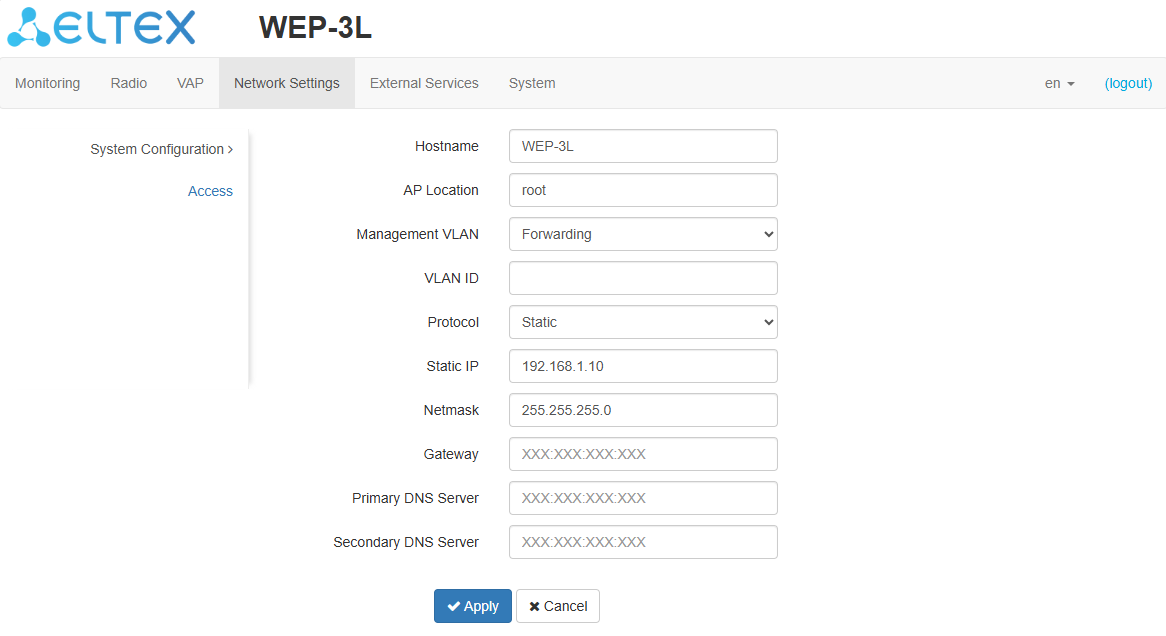
- Hostname — nertwork name of the device, specified by string from 1 to 63 characters; latin uppercase and lowercase letters, numbers, hyphen “-” (hyphen can not be the last character in the name);
- AP Location — domain of the EMS management system tree host where the access point is located;
- Management VLAN:
- Disabled — Management VLAN is not used;
- Terminating — the mode in which the management VLAN is terminated at the access point (in this case, clients connected via the radio interface do not have access to this VLAN);
- Forwarding — the mode in which the management VLAN is also transmitted to the radio interface (with the appropriate VAP configuration).
- VLAN ID — the VLAN ID used to access the device, takes values 1-4094;
- Protocol — select protocol for connection of the device via Ethernet interface to service provider network:
- DHCP — operation mode in which the IP address, subnet mask, DNS server address, defualt gateway and other parameters required for operation are obtained from DHCP server automatically;
- Static — operation mode in which the IP address and all the necessary parameters for WAN interface are assigned statically. If “Static” is selected, the following parameters will be available to set:
- Static IP — device WAN interface IP address in the provider network;
- Netmask — external subnet mask;
- Gateway — address to which the packet is sent if the route in routing table is not found for it.
- Primary DNS server, Secondary DNS server — IP address of DNS servers. If DNS servers addresses are not allocated automatically via DHCP, set them manually.
To apply a new configuration and save settings to non-volatile memory, click the “Apply” button. Click the “Cancel” button to discard the changes.
The “Access” submenu
The “Access“ submenu is used to configure access to the device via the Web interface, Telnet, SSH, NETCONF, and SNMP.
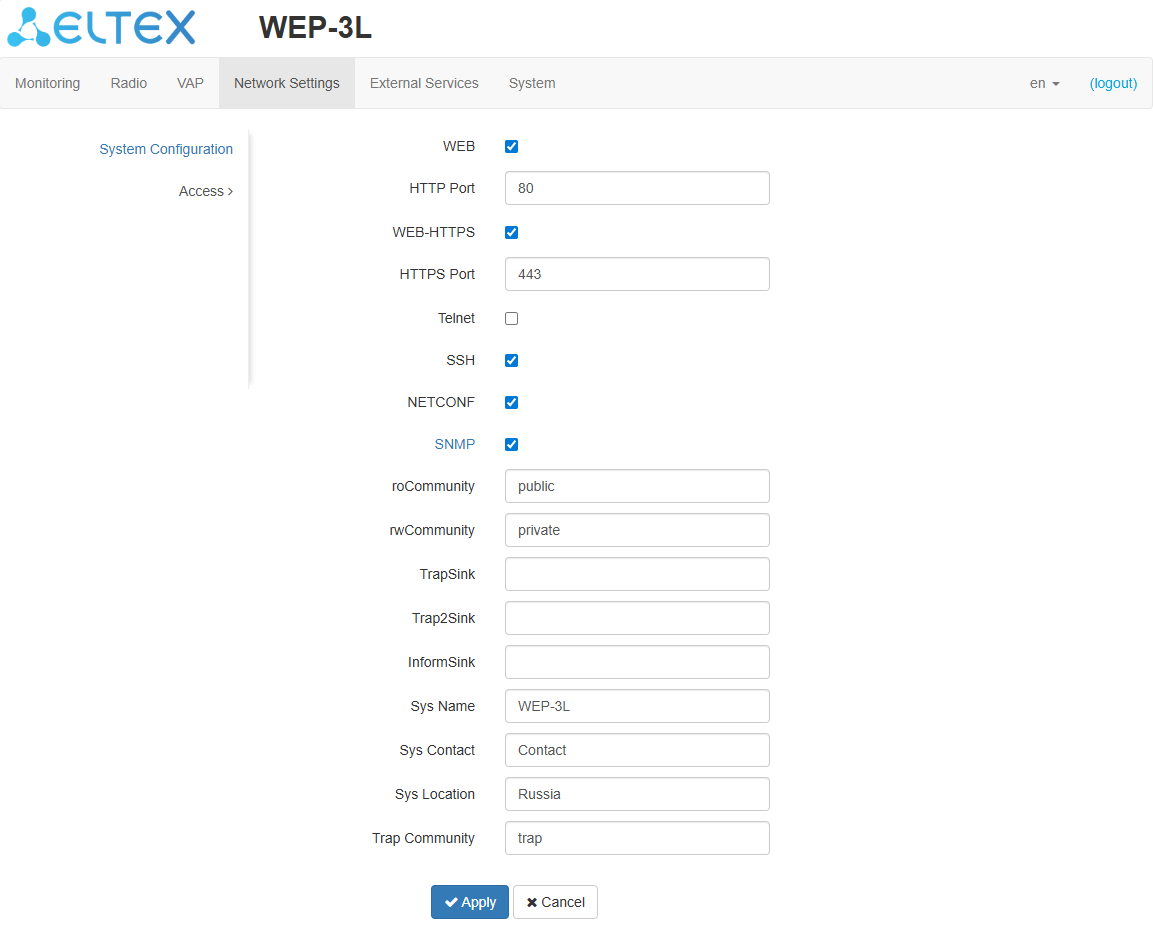
- To enable access to the device via the web interface using the HTTP protocol, check the box next to “WEB”. In the window that appears, it is possible to change the HTTP port (default is 80). The range of acceptable port values, in addition to the default, is from 1025 to 65535 inclusive;
To enable access to the device via the web interface using the HTTPS protocol, check the box next to “WEB-HTTPS”. In the window that appears, it is possible to change the HTTPS port (default is 443). The range of acceptable port values, in addition to the default, is from 1025 to 65535 inclusive;
Ports for the HTTP and HTTPS protocols should not have the same value.- To enable access to the device via Telnet, check the box next to “Telnet”;
- To enable access to the device via SSH, check the box next to “SSH”;
- To enable access to the device via NETCONF, check the box next to “NETCONF”.
The WEP-3L software allows changing the device configuration, monitoring the status of the base station and its sensors, as well as managing the device using the SNMP protocol.
To change the SNMP settings, check the box next to “SNMP”, the following SNMP agent options become available:
- roCommunity — a password to read the parameters (default value: public);
- rwCommunity — a password to configure (write) parameters (default value: private);
- TrapSink — IP address or domain name of SNMPv1-trap message recipient in HOST [COMMUNITY [PORT]] format;
- Trap2Sink — IP address or domain name of SNMPv2-trap message recipient in HOST [COMMUNITY [PORT]] format;
- InformSink — IP address or domain name of Inform message recipient in HOST [COMMUNITY [PORT]] format;
- Sys Name — device name;
- Sys Contact — device vendor contact information;
- Sys Location — device location information;
- Trap community — password enclosed in traps (default value: trap).
The list of objects which are supported for reading and configuring via SNMP is given below:
- eltexLtd.1.127.1 — monitoring of access point parameters and connected client devices;
- eltexLtd.1.127.3 — access point management;
- eltexLtd.1.127.5 — access point configuring.
eltexLtd — 1.3.6.1.4.1.35265 — Eltex Enterprise ID.
Detailed description of the WEP-3L OID is available at the following link: OID description on WEP/WOP-xL.
To apply a new configuration and save settings to non-volatile memory, click the “Apply” button. Click the “Cancel” button to discard the changes.
The “External Services” menu
The “Captive Portal” submenu
The “Captive Portal” submenu is used to enable and configure the APB service at the access point.
The APB service is used to provide portal roaming of clients between access points connected to the service.
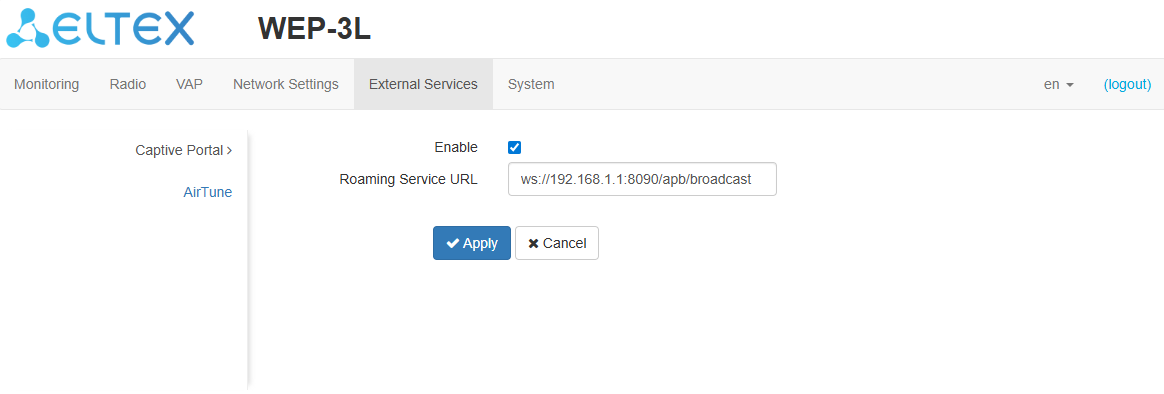
- Enable — when checked, the access point will connect to the APB service, the address of which is specified in the “Roaming Service URL” field, to provide portal roaming of clients.
- Roaming Service URL — APB service address to support roaming in the portal authorization mode. Set in format: "ws://<host>:<port>/apb/broadcast".
To apply a new configuration and save settings to non-volatile memory, click the “Apply” button. Click the “Cancel” button to discard the changes.
The “Airtune“ submenu
The “AirTune” submenu is used to enable and configure the AirTune service on the access point.
The AirTune service is used for Radio Resource Management and automatic configuration of seamless 802.11 k/r roaming.
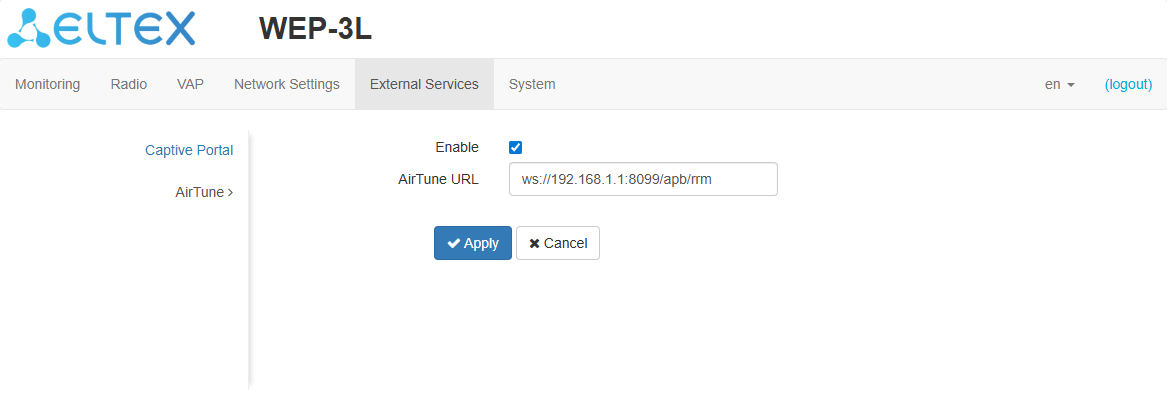
- Enable — when checked, the point will connect to the AirTune service, the address of which is specified in the “AirTune Service Address” field, to provide Radio Resource Management functions and/or
802.11 k/r roaming; - AirTune URL — AirTune service address. It is specified in the format: “ws://<host>:<port>/apb/rrm”.
To apply a new configuration and save settings to non-volatile memory, click the “Apply” button. Click the “Cancel” button to discard the changes.
The “System” menu
The “System“ menu provides access to system settings, time configuration, device access via different protocols, password change, and firmware update.
The “Device Firmware Upgrade” submenu
The “Device Firmware Upgrade” submenu is used to upgrade the device firmware.
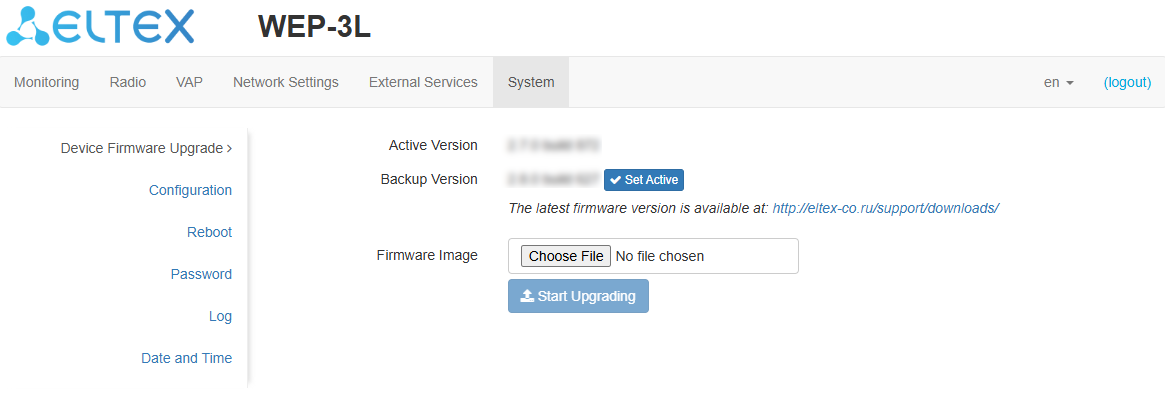
- Active Version — installed firmware version, which is operating at the moment;
- Backup version — installed firmware version which can be used in case of problems with the current active firmware version;
- Set active — button used to activate the backup firmware version, this will require a device reboot. The active firmware version will not be set as a backup.
Firmware upgrade
Download the firmware file from https://eltex-co.com/download/. To do this, select WEP-3L from the list of devices and save the file on your computer. After that, click the “Choose File” button in the Firmware Image field and specify the path to the firmware file in .tar.gz format.
To start the update process, click the “Start Upgrading” button. The process may take several minutes (its current status will be shown on the page). The device will be automatically rebooted when the upgrade is completed.
Do not switch off or reboot the device during a firmware upgrade.
The “Configuration” submenu
The “Configuration” submenu is used to save and update the current configuration.
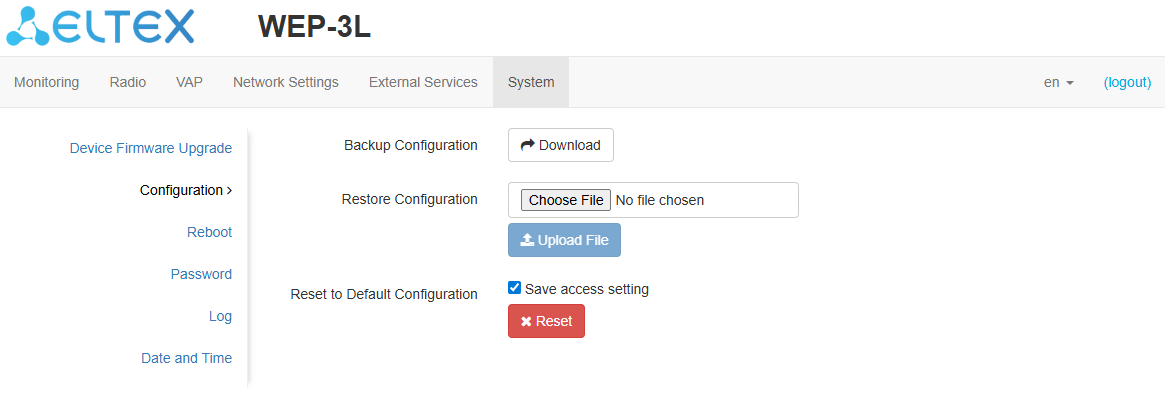
Backup Configuration
To save current device configuration to local computer click the “Download” button.
Restore Configuration
To upload the configuration file saved on the local computer, use the Restore Configuration item. To update the device configuration click the “Choose File” button, specify a file (in .tar.gz format) and click the “Upload File” button. Uploaded configuration will be applied automatically and does not require device reboot.
Reset to Default Configuration
To reset all the settings to default values, click the “Reset” button. If the “Save access setting” is checked, the configuration settings related to the device access (IP address settings, Telnet/SSH/SNMP/Netconf/Web access settings) will be saved.
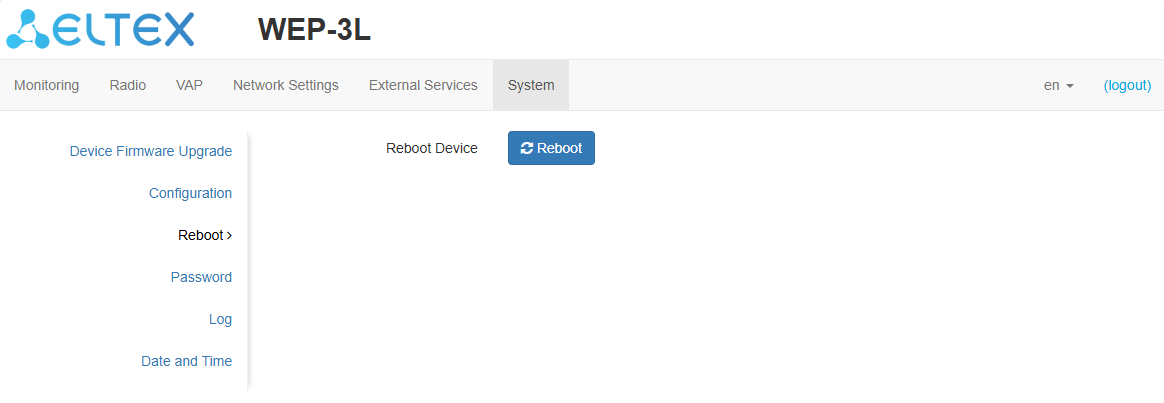
The “Reboot” submenu
To reboot the device, click the “Reboot” button. The device reboot process takes about 1 minute.
The “Password” submenu
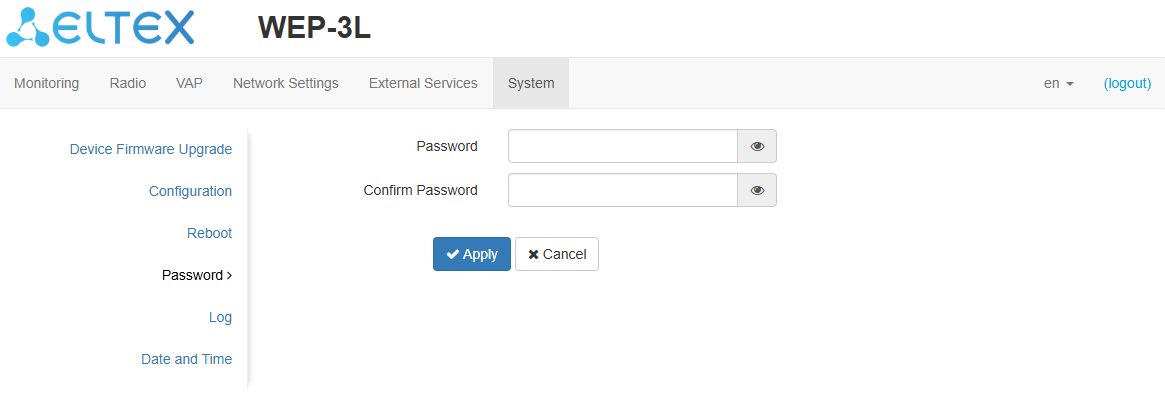
When logging in via web interface, administrator (default password: password) has the full access to the device: read/write any settings, full device status monitoring.
To change the password, enter the new password first in the “Password” field, then in the “Confirm Password” field, and click the “Apply” button to save the new password.
The “Log” submenu
The “Log” submenu is used to configure the output of various kinds of debugging messages of the system in order to detect the causes of problems in the operation of the device.
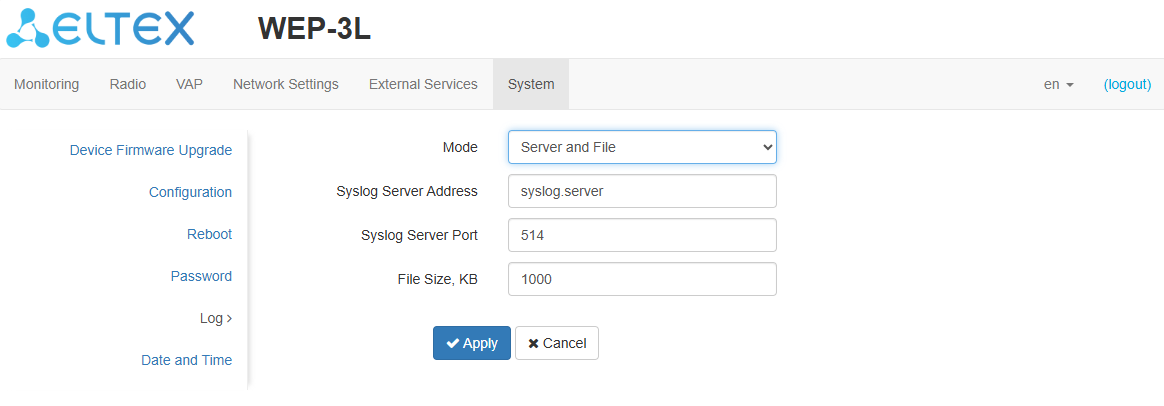
- Mode — Syslog agent operation mode:
- Local File — log information is stored in a local file and is available in the device web interface on the “Events” submenu;
- Server and File — log information is sent to a remote Syslog server and stored in a local file.
- Syslog Server Address — IP address or domain name of the Syslog server;
- Syslog Server Port — port for incoming Syslog server messages (default value: 514, valid values: from 1 to 65535);
- File Size, KB — maximum size of the log file (valid values: from 1 to 1000 KB).
To apply a new configuration and save settings to non-volatile memory, click the “Apply” button. Click the “Cancel” button to discard the changes.
The “Date and Time” submenu
The “Date and Time“ submenu is used to set the time manually or via the Network Time Protocol (NTP).
Manual
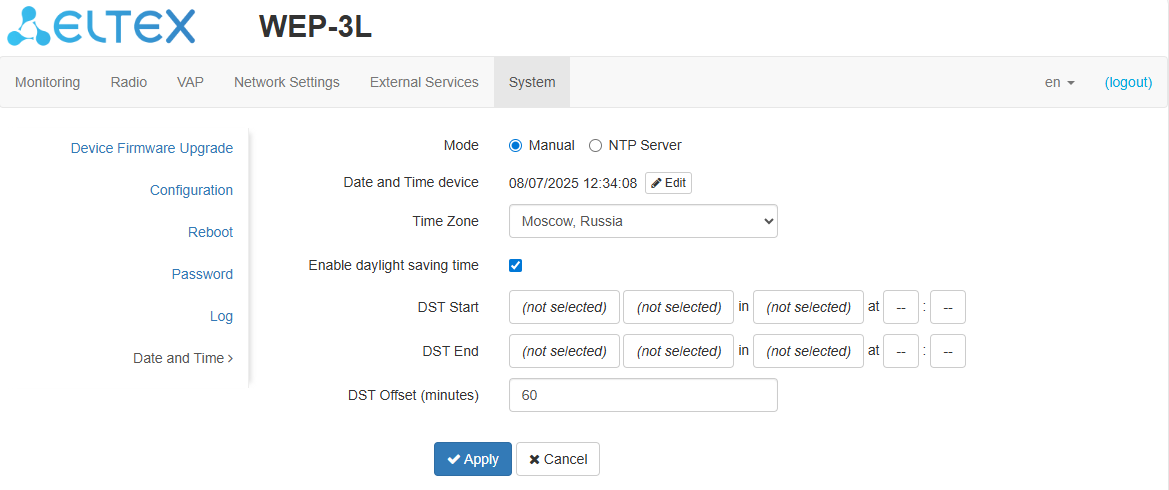
- Date and Time — date and time on the device at the current moment. Click the “Edit” button to make corrections:
- Date, Time — set the current date and time or click the “Set current date and time” button to synchronize with the device;
- Time Zone — allows to set the timezone according to the nearest city for your region from the list;
- Enable Daylight Saving Time — when checked, automatic daylight saving change will be performed automatically within the defined time period:
- DST Start — day and time, when daylight saving time is starting;
- DST End — day and time, when daylight saving time is ending;
- DST Offset (minutes) — time period in minutes, on which time offset is performing. The parameter can take value from 0 to 720 minutes.
To apply a new configuration and save settings to non-volatile memory, click the “Apply” button. Click the “Cancel” button to discard the changes.
NTP server
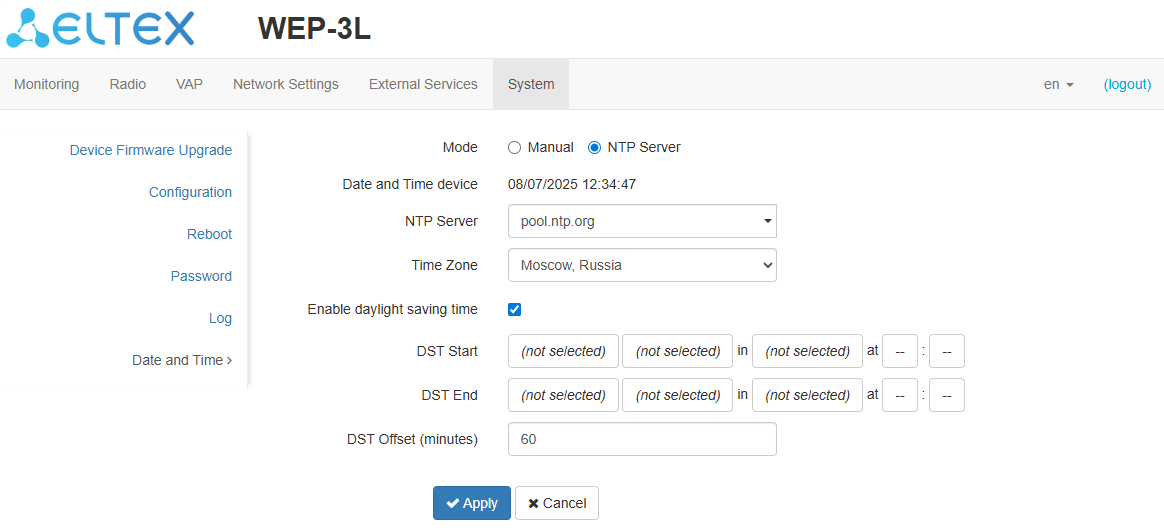
- Date and Time — date and time set on the device;
- NTP Server — time synchronization server IP address/domain name. You can specify the address or select from an existing list;
- Time Zone — allows to set the timezone according to the nearest city for your region from the list;
- Daylight Saving Time Enable — when checked, automatic daylight saving change will be performed automatically within the defined time period:
- DST Start — day and time, when daylight saving time is starting;
- DST End — day and time, when daylight saving time is ending;
- DST Offset (minutes) — time period in minutes, on which time offset is performing. The parameter can take value from 0 to 720 minutes.
To apply a new configuration and save settings to non-volatile memory, click the “Apply” button. Click the “Cancel” button to discard the changes.
Managing the device using the command line
To display the existing settings of a particular configuration section, enter the show-config command.
To get a hint about the possible values of a configuration parameter, press the key combination [Shift + ?] (in the English keyboard layout).
To get a list of options available for editing in this configuration section, press the Tab key.
To save the settings, enter the save command.
To go back to the previous configuration section, enter the exit command.
To go to the root section, enter the end command.
Connection to the device
By default, WEP-3L is configured to receive the address via DHCP. If this does not happen, you can connect to the device using the factory IP address.
WEP-3L factory IP address: 192.168.1.10, subnet mask: 255.255.255.0.
Connection to the device is performed via SSH/Telnet:
ssh admin@<IP address of the device>, enter the password
<IP address of the device>, enter login and password
Network parameters configuration
WEP-3L(root):/# configure
WEP-3L(config):/# interface
WEP-3L(config):/interface# br0
WEP-3L(config):/interface/br0# common
WEP-3L(config):/interface/br0/common# static-ip X.X.X.X (where X.X.X.X — WEP-3L IP address)
WEP-3L(config):/interface/br0/common# netmask X.X.X.X (where X.X.X.X — subnet mask)
WEP-3L(config):/interface/br0/common# dns-server-1 X.X.X.X (where X.X.X.X — IP address of the DNS server No. 1)
WEP-3L(config):/interface/br0/common# dns-server-2 X.X.X.X (where X.X.X.X — IP address of the DNS server No. 2)
WEP-3L(config):/interface/br0/common# protocol static-ip (change operation mode from DHCP to Static-IP)
WEP-3L(config):/interface/br0/common# save (save changes)
Adding a static route
WEP-3L(config):/interface/br0/common# exit
WEP-3L(config):/interface/br0# exit
WEP-3L(config):/interface# exit
WEP-3L(config):/# route
WEP-3L(config):/route# add default (where default — route name)
WEP-3L(config):/route# default
WEP-3L(config):/route/default# destination X.X.X.X (where X.X.X.X — IP address of the network or destination node, for default route — 0.0.0.0)
WEP-3L(config):/route/default# netmask X.X.X.X (where X.X.X.X — destination network mask, for default route — 0.0.0.0)
WEP-3L(config):/route/default# gateway X.X.X.X (where X.X.X.X — gateway IP address)
WEP-3L(config):/route/default# save (save changes)
WEP-3L(root):/# configure
WEP-3L(config):/# interface
WEP-3L(config):/interface# br0
WEP-3L(config):/interface/br0# common
WEP-3L(config):/interface/br0/common# protocol dhcp
WEP-3L(config):/interface/br0/common# save (save changes)
Starting from firmware version 2.2.0, it is possible to set MTU via DHCP (option 26).
The MTU value obtained via DHCP has higher priority than the configured setting.
The MTU size for a bridge should be no larger than the smallest MTU size on the interfaces within this bridge.
WEP-3L(root):/# configure
WEP-3L(config):/# interface
WEP-3L(config):/interface# br0
WEP-3L(config):/interface/br0# common
WEP-3L(config):/interface/br0/common# mtu X (where X — MTU size in bytes. Acceptable values: 1–2490. Default value: 1500)
WEP-3L(config):/interface/br0/common# save (save changes)
Network parameters configuration via set-management-vlan-mode utility
Obtaining the network parameters via DHCP:
WEP-3L(root):/# set-management-vlan-mode off protocol dhcp
Static settings:
WEP-3L(root):/# set-management-vlan-mode off protocol static-ip ip-addr X.X.X.X netmask Y.Y.Y.Y gateway Z.Z.Z.Z (where X.X.X.X — static IP address, Y.Y.Y.Y — sumnet mask, Z.Z.Z.Z — gateway)
Obtaining the network parameters via DHCP:
WEP-3L(root):/# set-management-vlan-mode terminating vlan-id X protocol dhcp (where X — VLAN ID used for access to the device. Acceptable values: 1–4094)
Static settings:
WEP-3L(root):/# set-management-vlan-mode terminating vlan-id X protocol static-ip ip-addr X.X.X.X netmask Y.Y.Y.Y gateway Z.Z.Z.Z (where X — VLAN ID used for access to the device. Acceptable values: 1–4094; X.X.X.X — static IP address; Y.Y.Y.Y — subnet mask; Z.Z.Z.Z — gateway)
Obtaining the network parameters via DHCP:
WEP-3L(root):/# set-management-vlan-mode forwarding vlan-id X protocol dhcp (where X — VLAN ID used for access to the device. Acceptable values: 1–4094)
Static settings:
WEP-3L(root):/# set-management-vlan-mode forwarding vlan-id X protocol static-ip ip-addr X.X.X.X netmask Y.Y.Y.Y gateway Z.Z.Z.Z (where X — VLAN ID used for access to the device. Acceptable values: 1–4094; X.X.X.X — static IP address; Y.Y.Y.Y — subnet mask; Z.Z.Z.Z — gateway)
WEP-3L(root):/# save (save changes)
Remote control configuration
WEP-3L(root):/# configure
WEP-3L(config):/# ssh
WEP-3L(config):/ssh# enable true (remote control via SSH. To disable, enter false. Default value: true)
WEP-3L(config):/ssh# port X (where X — SSH server port. Default value: 22)
WEP-3L(config):/ssh# session-limit X (where X — maximum number of SSH sessions. Default value: 5)
WEP-3L(config):/ssh# save (save changes)
WEP-3L(root):/# configure
WEP-3L(config):/# telnet
WEP-3L(config):/telnet# enable true (remote control via Telnet. To disable, enter false. Default value: false)
WEP-3L(config):/telnet# port X (where X — port. Default value: 23)
WEP-3L(config):/telnet# session-limit X (where X — maximum number of Telnet sessions. Default value: 5)
WEP-3L(config):/telnet# save (save changes)
Virtual Wi-Fi access points (VAP) configuration
When configuring a VAP, keep in mind that the interface names in the 2.4 GHz band start with wlan0, in the 5 GHz band with wlan1.
Table 8 — Commands for configuring security mode on VAP
| Security mode | Command to configure the security mode |
|---|---|
| No password | mode off |
| WPA | mode WPA |
| WPA2 | mode WPA2 |
| WPA/WPA2 | mode WPA_WPA2 |
| WPA3 | mode WPA3 |
| WPA2/WPA3 | mode WPA2_WPA3 |
| OWE | mode OWE |
| WPA-Enterprise | mode WPA_1X |
| WPA2-Enterprise | mode WPA2_1X |
| WPA/WPA2-Enterprise | mode WPA_WPA2_1X |
| WPA2/WPA3-Enterprise | mode WPA2_WPA3_1X |
| WPA3-Enterprise | mode WPA3_1X |
Examples of VAP configuration with different security modes for Radio 5 GHz (wlan1) are provided below.
Configuration of VAP without encryption
WEP-3L(root):/# configure
WEP-3L(config):/# interface
WEP-3L(config):/interface# wlan1-va0
WEP-3L(config):/interface/wlan1-va0# vap
WEP-3L(config):/interface/wlan1-va0/vap# ssid 'SSID_WEP-3L_open' (change SSID name)
WEP-3L(config):/interface/wlan1-va0/vap# ap-security
WEP-3L(config):/interface/wlan1-va0/vap/ap-security# mode off (encryption mode off — no password)
WEP-3L(config):/interface/wlan1-va0/vap/ap-security# exit
WEP-3L(config):/interface/wlan1-va0/vap# radius
WEP-3L(config):/interface/wlan1-va0/vap/radius# acct-enable true (enable sending of “Accounting“ messages to the RADIUS server. Default value: false)
WEP-3L(config):/interface/wlan1-va0/vap/radius# acct-address X.X.X.X (where X.X.X.X — IP address of RADIUS server used for accounting)
WEP-3L(config):/interface/wlan1-va0/vap/radius# acct-password secret (where secret — password for RADIUS server used for accounting)
WEP-3L(config):/interface/wlan1-va0/vap/radius# acct-periodic true (enable periodic sending of “Accounting“ messages to the RADIUS server. Default value: false)
WEP-3L(config):/interface/wlan1-va0/vap/radius# acct-interval 600 (interval for sending “Accounting“ messages to the RADIUS server)
WEP-3L(config):/interface/wlan1-va0/vap/radius# exit
WEP-3L(config):/interface/wlan1-va0/vap# exit
WEP-3L(config):/interface/wlan1-va0# common
WEP-3L(config):/interface/wlan1-va0/common# enabled true (enable VAP)
WEP-3L(config):/interface/wlan1-va0/common# save (save changes)
Configuration of VAP with OWE encryption
WEP-3L(root):/# configure
WEP-3L(config):/# interface
WEP-3L(config):/interface# wlan1-va0
WEP-3L(config):/interface/wlan1-va0# vap
WEP-3L(config):/interface/wlan1-va0/vap# ssid 'SSID_WEP-3L_owe' (change SSID name)
WEP-3L(config):/interface/wlan1-va0/vap# ap-security
WEP-3L(config):/interface/wlan1-va0/vap/ap-security# mode OWE (encryption mode OWE — encrypted connection without entering a password. Only Wi-Fi 6 clients will be able to connect in this mode)
WEP-3L(config):/interface/wlan1-va0/vap/ap-security# exit
WEP-3L(config):/interface/wlan1-va0/vap# radius
WEP-3L(config):/interface/wlan1-va0/vap/radius# acct-enable true (enable sending of “Accounting“ messages to the RADIUS server. Default value: false)
WEP-3L(config):/interface/wlan1-va0/vap/radius# acct-address X.X.X.X (where X.X.X.X — IP address of RADIUS server used for accounting)
WEP-3L(config):/interface/wlan1-va0/vap/radius# acct-password secret (where secret — password for RADIUS server used for accounting)
WEP-3L(config):/interface/wlan1-va0/vap/radius# acct-periodic true (enable periodic sending of “Accounting“ messages to the RADIUS server. Default value: false)
WEP-3L(config):/interface/wlan1-va0/vap/radius# acct-interval 600 (interval for sending “Accounting“ messages to the RADIUS server)
WEP-3L(config):/interface/wlan1-va0/vap/radius# exit
WEP-3L(config):/interface/wlan1-va0/vap# exit
WEP-3L(config):/interface/wlan1-va0# common
WEP-3L(config):/interface/wlan1-va0/common# enabled true (enable VAP)
WEP-3L(config):/interface/wlan1-va0/common# save (save changes)
Configuration of VAP with OWE and OWE Transition Mode
Only Wi-Fi 6 clients can connect to a VAP with OWE security mode. In order for other clients to be able to connect to such a VAP, it is required to configure OWE Transition Mode. In this mode, Wi-Fi 6 clients will be connected in OWE security mode, and all other clients will be connected in open mode.
WEP-3L(root):/# configure
WEP-3L(config):/# interface
WEP-3L(config):/interface# wlan1-va0 (set up a hidden VAP with OWE encryption. Wi-Fi 6 clients will implicitly connect to it)
WEP-3L(config):/interface/wlan1-va0# vap
WEP-3L(config):/interface/wlan1-va0/vap# ssid 'SSID_WEP-3L_owe' (change SSID name)
WEP-3L(config):/interface/wlan1-va0/vap# hidden true (hide VAP)
WEP-3L(config):/interface/wlan1-va0/vap# ap-security
WEP-3L(config):/interface/wlan1-va0/vap/ap-security# mode OWE (encryption mode OWE — encrypted connection without entering a password. Only Wi-Fi 6 clients will be able to connect in this mode)
WEP-3L(config):/interface/wlan1-va0/vap/ap-security# owe-transition-interface wlan1-va1 (specify an open VAP to which the connection will occur. The Wi-Fi 6 clients will implicitly work with the current VAP with OWE encryption, and other clients will work with the open VAP)
WEP-3L(config):/interface/wlan1-va0/vap/ap-security# exit
WEP-3L(config):/interface/wlan1-va0/vap# exit
WEP-3L(config):/interface/wlan1-va0# common
WEP-3L(config):/interface/wlan1-va0/common# enabled true (enable VAP)
WEP-3L(config):/interface/wlan1-va0/common#exit
WEP-3L(config):/interface/wlan1-va0# exit
WEP-3L(config):/interface# wlan1-va1 (set up VAP without encryption)
WEP-3L(config):/interface/wlan1-va1# vap
WEP-3L(config):/interface/wlan1-va1/vap# ssid 'SSID_WEP-3L_open' (change SSID name)
WEP-3L(config):/interface/wlan1-va1/vap# ap-security (go to the security settings block on the VAP)
WEP-3L(config):/interface/wlan1-va1/vap/ap-security# mode off (encryption mode off — no password)
WEP-3L(config):/interface/wlan1-va1/vap/ap-security# owe-transition-interface wlan1-va0 (specify a VAP with OWE encryption mode, to which Wi-Fi 6 clients will be implicitly connected, other clients will be connected to the VAP without encryption)
WEP-3L(config):/interface/wlan1-va1/vap/ap-security# exit
WEP-3L(config):/interface/wlan1-va1/vap# exit
WEP-3L(config):/interface/wlan1-va1# common
WEP-3L(config):/interface/wlan1-va1/common# enabled true (enable VAP)
WEP-3L(config):/interface/wlan1-va1/common# exit
WEP-3L(config):/interface/wlan1-va1# save (save changes)
Configuration of VAP with WPA-Personal security mode
WEP-3L(root):/# configure
WEP-3L(config):/# interface
WEP-3L(config):/interface# wlan1-va0
WEP-3L(config):/interface/wlan1-va0# vap
WEP-3L(config):/interface/wlan1-va0/vap# ssid 'SSID_WEP-3L_Wpa2' (change SSID name)
WEP-3L(config):/interface/wlan1-va0/vap# ap-security
WEP-3L(config):/interface/wlan1-va0/vap/ap-security# mode WPA_WPA2 (encryption mode — WPA/WPA2)
WEP-3L(config):/interface/wlan1-va0/vap/ap-security# key-wpa password123 (key/password required to connect to the virtual access point. The key length is from 8 to 63 characters)
WEP-3L(config):/interface/wlan1-va0/vap/ap-security# exit
WEP-3L(config):/interface/wlan1-va0/vap# radius
WEP-3L(config):/interface/wlan1-va0/vap/radius# acct-enable true (enable sending of “Accounting“ messages to the RADIUS server. Default value: false)
WEP-3L(config):/interface/wlan1-va0/vap/radius# acct-address X.X.X.X (where X.X.X.X — IP address of RADIUS server used for accounting)
WEP-3L(config):/interface/wlan1-va0/vap/radius# acct-password secret (where secret — password for RADIUS server used for accounting)
WEP-3L(config):/interface/wlan1-va0/vap/radius# acct-periodic true (enable periodic sending of “Accounting“ messages to the RADIUS server. Default value: false)
WEP-3L(config):/interface/wlan1-va0/vap/radius# acct-interval 600 (interval for sending “Accounting“ messages to the RADIUS server)
WEP-3L(config):/interface/wlan1-va0/vap/radius# exit
WEP-3L(config):/interface/wlan1-va0/vap# exit
WEP-3L(config):/interface/wlan1-va0# common
WEP-3L(config):/interface/wlan1-va0/common# enabled true (enable VAP)
WEP-3L(config):/interface/wlan1-va0/common# save (save changes)
Configuration of VAP with Enterprise authorization
WEP-3L(root):/# configure
WEP-3L(config):/# interface
WEP-3L(config):/interface# wlan1-va0
WEP-3L(config):/interface/wlan1-va0# vap
WEP-3L(config):/interface/wlan1-va0/vap# ssid 'SSID_WEP-3L _enterprise' (change SSID name)
WEP-3L(config):/interface/wlan1-va0/vap# ap-security
WEP-3L(config):/interface/wlan1-va0/vap/ap-security# mode WPA_WPA2_1X (encryption mode — WPA/WPA2-Enterprise)
WEP-3L(config):/interface/wlan1-va0/vap/ap-security# exit
WEP-3L(config):/interface/wlan1-va0/vap# radius
WEP-3L(config):/interface/wlan1-va0/vap/radius# domain root (where root — user domain)
WEP-3L(config):/interface/wlan1-va0/vap/radius# auth-address X.X.X.X (where X.X.X.X — IP address of RADIUS server)
WEP-3L(config):/interface/wlan1-va0/vap/radius# auth-port X (where X — port of RADIUS server used for authentication and authorization. Default value: 1812)
WEP-3L(config):/interface/wlan1-va0/vap/radius# auth-password secret (where secret — password for RADIUS server used for authentication and authorization)
WEP-3L(config):/interface/wlan1-va0/vap/radius# acct-enable true (enable sending of “Accounting“ messages to the RADIUS server. Default value: false)
WEP-3L(config):/interface/wlan1-va0/vap/radius# acct-address X.X.X.X (where X.X.X.X — IP address of RADIUS server used for accounting)
WEP-3L(config):/interface/wlan1-va0/vap/radius# acct-password secret (where secret — password for RADIUS server used for accounting)
WEP-3L(config):/interface/wlan1-va0/vap/radius# acct-periodic true (enable periodic sending of “Accounting“ messages to the RADIUS server. Default value: false)
WEP-3L(config):/interface/wlan1-va0/vap/radius# acct-interval 600 (interval for sending “Accounting“ messages to the RADIUS server)
WEP-3L(config):/interface/wlan1-va0/vap/radius# exit
WEP-3L(config):/interface/wlan1-va0/vap# exit
WEP-3L(config):/interface/wlan1-va0# common
WEP-3L(config):/interface/wlan1-va0/common# enabled true (enable VAP)
WEP-3L(config):/interface/wlan1-va0/common# save (save changes)
Configuration of VAP with Captive Portal
WEP-3L(root):/# configure
WEP-3L(config):/# interface
WEP-3L(config):/interface# wlan1-va0
WEP-3L(config):/interface/wlan1-va0# vap
WEP-3L(config):/interface/wlan1-va0/vap# vlan-id X (where X — VLAN ID on VAP)
WEP-3L(config):/interface/wlan1-va0/vap# ap-security
WEP-3L(config):/interface/wlan1-va0/vap/ap-security# mode off (encryption mode off — no password)
WEP-3L(config):/interface/wlan1-va0/vap/ap-security# exit
WEP-3L(config):/interface/wlan1-va0/vap# ssid 'Portal_WEP-3L' (change SSID name)
WEP-3L(config):/interface/wlan1-va0/vap# captive-portal
WEP-3L(config):/interface/wlan1-va0/vap/captive-portal# scenarios
WEP-3L(config):/interface/wlan1-va0/vap/captive-portal/scenarios# scenario-redirect
WEP-3L(config):/interface/wlan1-va0/vap/captive-portal/scenarios/scenario-redirect# redirect-url http://<IP>:<PORT>/eltex_portal/ (specify URL of virtual portal)
WEP-3L(config):/interface/wlan1-va0/vap/captive-portal/scenarios/scenario-redirect# index 1
WEP-3L(config):/interface/wlan1-va0/vap/captive-portal/scenarios/scenario-redirect# virtual-portal-name default (specify portal name. Default value: default)
WEP-3L(config):/interface/wlan1-va0/vap/captive-portal/scenarios/scenario-redirect# exit
WEP-3L(config):/interface/wlan1-va0/vap/captive-portal/scenarios# exit
WEP-3L(config):/interface/wlan1-va0/vap/captive-portal# apb-mac-auth true (enable MAC authorization of portal users via the APB service (available only with SoftWLC version 1.34.1 and later). Default value: false)
WEP-3L(config):/interface/wlan1-va0/vap/captive-portal# enabled true
WEP-3L(config):/interface/wlan1-va0/vap/captive-portal# exit
WEP-3L(config):/interface/wlan1-va0/vap# radius
WEP-3L(config):/interface/wlan1-va0/vap/radius# domain root (where root — user domain)
WEP-3L(config):/interface/wlan1-va0/vap/radius# acct-enable true (enable sending of “Accounting“ messages to the RADIUS server. Default value: false)
WEP-3L(config):/interface/wlan1-va0/vap/radius# acct-address X.X.X.X (where X.X.X.X — IP address of RADIUS server used for accounting)
WEP-3L(config):/interface/wlan1-va0/vap/radius# acct-password secret (where secret — password for RADIUS server used for accounting)
WEP-3L(config):/interface/wlan1-va0/vap/radius# acct-periodic true (enable periodic sending of “Accounting“ messages to the RADIUS server. Default value: false)
WEP-3L(config):/interface/wlan1-va0/vap/radius# acct-interval 600 (interval for sending “Accounting“ messages to the RADIUS server)
WEP-3L(config):/interface/wlan1-va0/vap/radius# exit
WEP-3L(config):/interface/wlan1-va0/vap# exit
WEP-3L(config):/interface/wlan1-va0# common
WEP-3L(config):/interface/wlan1-va0/common# enabled true (enable VAP)
WEP-3L(config):/interface/wlan1-va0/common# save (save changes)
Configuration of VAP with external Captive Portal
WEP-3L(root):/# configure
WEP-3L(config):/# interface
WEP-3L(config):/interface# wlan1-va0
WEP-3L(config):/interface/wlan1-va0# vap
WEP-3L(config):/interface/wlan1-va0/vap# vlan-id X (where X — VLAN ID on VAP)
WEP-3L(config):/interface/wlan1-va0/vap# ap-security
WEP-3L(config):/interface/wlan1-va0/vap/ap-security# mode off (encryption mode off — no password)
WEP-3L(config):/interface/wlan1-va0/vap/ap-security# exit
WEP-3L(config):/interface/wlan1-va0/vap# ssid 'Portal_WEP-3L' (change SSID name)
WEP-3L(config):/interface/wlan1-va0/vap# captive-portal
WEP-3L(config):/interface/wlan1-va0/vap/captive-portal# verification-mode external-portal (enable external portal support. Default value: portal)
WEP-3L(config):/interface/wlan1-va0/vap/captive-portal# scenarios
WEP-3L(config):/interface/wlan1-va0/vap/captive-portal/scenarios# scenario-redirect
WEP-3L(config):/interface/wlan1-va0/vap/captive-portal/scenarios/scenario-redirect# redirect-url "https://X.X.X.X/<NAS_ID>/?switch_url=<SWITCH_URL>&ap_mac=<AP_MAC>&client_mac=<CLIENT_MAC>
&wlan=<SSID>&original-url=<ORIGINAL_URL>&nas-ip=<NAS_IP>" (specify the URL of the external virtual portal according to the table 9)
WEP-3L(config):/interface/wlan1-va0/vap/captive-portal/scenarios/scenario-redirect# exit
WEP-3L(config):/interface/wlan1-va0/vap/captive-portal/scenarios# exit
WEP-3L(config):/interface/wlan1-va0/vap/captive-portal# enabled true
WEP-3L(config):/interface/wlan1-va0/vap/captive-portal# exit
WEP-3L(config):/interface/wlan1-va0/vap# radius
WEP-3L(config):/interface/wlan1-va0/vap/radius# auth-address X.X.X.X (where X.X.X.X — IP address of the RADIUS server used for authorization)
WEP-3L(config):/interface/wlan1-va0/vap/radius# auth-password secret (where secret — password for the RADIUS server used for authorization)
WEP-3L(config):/interface/wlan1-va0/vap/radius# use-macaddr-as-password true (transmit the client's MAC address as a password in RADIUS requests. Default value: false)
WEP-3L(config):/interface/wlan1-va0/vap/radius# macaddr-format XX-XX-XX-XX-XX-XX (format of the client's MAC address that will appear in RADIUS requests. This functionality works only if use-macaddr-as-password = true. Default value: xxxxxxxxxxxx)
WEP-3L(config):/interface/wlan1-va0/vap# save (save changes)
To learn about the operation algorithm with the external portal, see the diagram.
Table 9 — Setting up a URL template for external Captive Portal
| Parameter | Description |
|---|---|
| <NAS_ID> | NAS-ID set on VAP or in the system. If neither of these parameters is set, then the MAC address of the access point will be used as NAS-ID in RADIUS and HTTP(S) packets |
| <NAS_IP> | IP address of the access point |
| <SWITCH_URL> | Domain name that is shown to the client when redirected |
| <AP_MAC> | MAC address of the access point |
| <CLIENT_MAC> | MAC address of the client |
| <SSID> | SSID |
| <ORIGINAL_URL> | URL that the client originally requested |
Configuration of an additional RADIUS server on VAP
This functionality is only available for portal and Enterprise authentication modes.
WEP-3L(root):/# configure
WEP-3L(config):/# interface
WEP-3L(config):/interface# wlan1-va0
WEP-3L(config):/interface/wlan1-va0# vap
WEP-3L(config):/interface/wlan1-va0/vap# radius (configuration of the primary RADIUS server)
WEP-3L(config):/interface/wlan1-va0/vap/radius# backup (configuration of an additional RADIUS server)
WEP-3L(config):/interface/wlan1-va0/vap/radius/backup# add <IP address of the additional RADIUS server in the configuration> (creation of the configuration section for the additional RADIUS server. Maximum number: 4)
WEP-3L(config):/interface/wlan1-va0/vap/radius/backup# X.X.X.X (where X.X.X.X — IP address of the additional RADIUS server in the configuration)
WEP-3L(config):/interface/wlan1-va0/vap/radius/backup/X.X.X.X# auth-address X.X.X.X (where X.X.X.X — IP address of RADIUS server)
WEP-3L(config):/interface/wlan1-va0/vap/radius/backup/X.X.X.X# auth-port X (where X — port of RADIUS server used for authentication and authorization. Default value: 1812)
WEP-3L(config):/interface/wlan1-va0/vap/radius/backup/X.X.X.X# auth-password secret (where secret — password for RADIUS server used for authentication and authorization)
WEP-3L(config):/interface/wlan1-va0/vap/radius/backup/X.X.X.X# acct-address X.X.X.X (where X.X.X.X — IP address of RADIUS server used for accounting)
WEP-3L(config):/interface/wlan1-va0/vap/radius/backup/X.X.X.X# acct-port X (where X — port of RADIUS server used foraccounting. Default value: 1813)
WEP-3L(config):/interface/wlan1-va0/vap/radius/backup/X.X.X.X# acct-password secret (where secret — password for RADIUS server used for accounting)
WEP-3L(config):/interface/wlan1-va0/vap/radius/backup/X.X.X.X# order 1 (where order — RADIUS server priority. If the priority has not been explicitly specified, it is assumed to be 0. In this case, servers are selected in the order RADIUS servers were added to the configuration.)
WEP-3L(config):/interface/wlan1-va0/vap/radius/backup/X.X.X.X# save (save changes)
Advanced VAP settings
WEP-3L(config):/interface/wlan1-va0/vap# vlan-id X (where X — VLAN ID number on VAP)
WEP-3L(config):/interface/wlan1-va0/vap# band-steer-mode true (enabling Band Steer mode. To disable, enter false)
WEP-3L(config):/interface/wlan1-va0/vap# vlan-trunk true (enabling VLAN trunk on VAP. To disable, enter false)
WEP-3L(config):/interface/wlan1-va0/vap# general-vlan-mode true (enabling General VLAN on SSID. To disable, enter false)
WEP-3L(config):/interface/wlan1-va0/vap# general-vlan-id X (where X — General VLAN number)
WEP-3L(config):/interface/wlan1-va0/vap# priority-by-dscp false (priority analysis from CoS field (Class of Service) of the tagged packets. Default value: true. In this case, the priority from DSCP header field of the IP packet is analyzed)
WEP-3L(config):/interface/wlan1-va0/vap# mfp required (enable management frame protection. required — requires MFP support from client, clients that do not support MFP will not be able to connect. capable — compatible with MFP; clients that do not support MFP can connect. To disable, enter off)
WEP-3L(config):/interface/wlan1-va0/vap/radius# tls-enable true (use TLS for authorization process. To disable, enter false)
WEP-3L(config):/interface/wlan1-va0/vap# hidden true (enabling hidden SSID. To disable, enter false)
WEP-3L(config):/interface/wlan1-va0/vap# station-isolation true (enable traffic isolation between clients within a single VAP. To disable, enter false)
WEP-3L(config):/interface/wlan1-va0/vap# sta-limit X (where X — maximum allowable number of clients connected to the virtual network)
WEP-3L(config):/interface/wlan1-va0/vap# wmf-bss-enable true (enable multicast traffic replication on VAP. To disable, enter false)
WEP-3L(config):/interface/wlan1-va0/vap# check-signal-enable true (enable the use of Minimal Signal functionality. To disable, enter false)
WEP-3L(config):/interface/wlan1-va0/vap# min-signal X (where X — RSSI threshold value, when reached, the point will disconnect the client from the VAP. The parameter can take values from -100 to -1)
WEP-3L(config):/interface/wlan1-va0/vap# check-signal-timeout X (where X — time period in seconds, after which the decision is made to disconnect the client equipment from the virtual network)
WEP-3L(config):/interface/wlan1-va0/vap# roaming-signal X (where X — RSSI threshold value, when reached, the client equipment is switched to another access point. The parameter can take values from -100 to -1. The roaming-signal parameter should be lower than min-signal, if min-signal= -75 dBm, then roaming-signal should be equal to -70 dBm, for example)
WEP-3L(config):/interface/wlan1-va0/vap# save (save changes)
WEP-3L(config):/interface/wlan1-va0/vap# local-switching true (enabling subscribers traffic transmission outside of GRE tunnel. To disable, enter false. Default value: disabled)
Configuring traffic shaper from the clients (each separately) connected to this VAP towards the access point:
WEP-3L(config):/interface/wlan1-va0/vap# shaper-per-sta-rx
WEP-3L(config):/interface/wlan1-va0/vap/shaper-per-sta-rx# value X (where X — maximum speed in kbps)
WEP-3L(config):/interface/wlan1-va0/vap/shaper-per-sta-rx# mode kbps (enable shaper. Acceptable values: kbps — kilobits per second, pps — packets per second, off — disabled)
WEP-3L(config):/interface/wlan1-va0/vap/shaper-per-sta-rx# exit
WEP-3L(config):/interface/wlan1-va0/vap# save (save changes)
Configuring traffic shaper from the access point towards the clients (each separately) connected to this VAP:
WEP-3L(config):/interface/wlan1-va0/vap# shaper-per-sta-tx
WEP-3L(config):/interface/wlan1-va0/vap/shaper-per-sta-tx# value X (where X — maximum speed in kbps)
WEP-3L(config):/interface/wlan1-va0/vap/shaper-per-sta-tx# mode kbps (enable shaper. Acceptable values: kbps — kilobits per second, pps — packets per second, off — disabled)
WEP-3L(config):/interface/wlan1-va0/vap/shaper-per-sta-tx# exit
WEP-3L(config):/interface/wlan1-va0/vap# save (save changes)
Configuring traffic shaper from the clients (in total) connected to this VAP towards the access point:
WEP-3L(config):/interface/wlan1-va0/vap# shaper-per-vap-rx
WEP-3L(config):/interface/wlan1-va0/vap/shaper-per-vap-rx# value X (where X — maximum speed in kbps)
WEP-3L(config):/interface/wlan1-va0/vap/shaper-per-vap-rx# mode kbps (enable shaper. Acceptable values: kbps — kilobits per second, pps — packets per second, off — disabled)
WEP-3L(config):/interface/wlan1-va0/vap/shaper-per-vap-rx# exit
WEP-3L(config):/interface/wlan1-va0/vap# save (save changes)
Configuring traffic shaper from the access point towards the clients (in total) connected to this VAP:
WEP-3L(config):/interface/wlan1-va0/vap# shaper-per-vap-tx
WEP-3L(config):/interface/wlan1-va0/vap/shaper-per-vap-tx# value X (where X — maximum speed in kbps)
WEP-3L(config):/interface/wlan1-va0/vap/shaper-per-vap-tx# mode kbps (enable shaper. Acceptable values: kbps — kilobits per second, pps — packets per second, off — disabled)
WEP-3L(config):/interface/wlan1-va0/vap/shaper-per-vap-tx# exit
WEP-3L(config):/interface/wlan1-va0/vap# save (save changes)
Configuring traffic shaper from the clients towards the access point:
WEP-3L(config):/interface/wlan1-va0/vap# shaper-bcast-rx
WEP-3L(config):/interface/wlan1-va0/vap/shaper-bcast-rx# value X (where X — maximum speed in kbps or pps)
WEP-3L(config):/interface/wlan1-va0/vap/shaper-bcast-rx# mode kbps (enable shaper. Acceptable values: kbps — kilobits per second, pps — packets per second, off — disabled)
WEP-3L(config):/interface/wlan1-va0/vap/shaper-bcast-rx# exit
WEP-3L(config):/interface/wlan1-va0/vap# save (save changes)
Configuring traffic shaper from the access point towards the clients:
WEP-3L(config):/interface/wlan1-va0/vap# shaper-bcast-tx
WEP-3L(config):/interface/wlan1-va0/vap/shaper-bcast-tx# value X (where X — maximum speed in kbps or pps)
WEP-3L(config):/interface/wlan1-va0/vap/shaper-bcast-tx# mode kbps (enable shaper. Acceptable values: kbps — kilobits per second, pps — packets per second, off — disabled)
WEP-3L(config):/interface/wlan1-va0/vap/shaper-bcast-tx# exit
WEP-3L(config):/interface/wlan1-va0/vap# save (save changes)
Configuring traffic shaper from the clients towards the access point:
WEP-3L(config):/interface/wlan1-va0/vap# shaper-mcast-rx
WEP-3L(config):/interface/wlan1-va0/vap/shaper-mcast-rx# value X (where X — maximum speed in kbps or pps)
WEP-3L(config):/interface/wlan1-va0/vap/shaper-mcast-rx# mode kbps (enable shaper. Acceptable values: kbps — kilobits per second, pps — packets per second, off — disabled)
WEP-3L(config):/interface/wlan1-va0/vap/shaper-mcast-rx# exit
WEP-3L(config):/interface/wlan1-va0/vap# save (save changes)
Configuring traffic shaper from the access point towards the clients:
WEP-3L(config):/interface/wlan1-va0/vap# shaper-mcast-tx
WEP-3L(config):/interface/wlan1-va0/vap/shaper-mcast-tx# value X (where X — maximum speed in kbps or pps)
WEP-3L(config):/interface/wlan1-va0/vap/shaper-mcast-tx# mode kbps (enable shaper. Acceptable values: kbps — kilobits per second, pps — packets per second, off — disabled)
WEP-3L(config):/interface/wlan1-va0/vap/shaper-mcast-tx# exit
WEP-3L(config):/interface/wlan1-va0/vap# save (save changes)
WEP-3L(config):/interface/wlan1-va0/vap# acl
WEP-3L(config):/interface/wlan1-va0/vap/acl# mac
WEP-3L(config):/interface/wlan1-va0/vap/acl/mac# add XX:XX:XX:XX:XX:XX (where XX:XX:XX:XX:XX:XX — MAC address of the device, to which it is required to allow/deny access. To remove an address from the list, use the del command)
WEP-3L(config):/interface/wlan1-va0/vap/acl/mac# exit
WEP-3L(config):/interface/wlan1-va0/vap/acl# policy allow (policy selection. Acceptable values: allow — allow connections only from clients with MAC addresses included in the list; deny — deny connections from clients with MAC addresses included in the list. Default value: deny)
WEP-3L(config):/interface/wlan1-va0/vap/acl# enable true (enable MAC access control. To disable, enter false)
WEP-3L(config):/interface/wlan1-va0/vap/acl# exit
WEP-3L(config):/interface/wlan1-va0/vap# save (save changes)
If it is required by security policy to implement protection against connections of users duplicating the MAC address of a wired device (gateway, PC, etc.), use the fdb-filtering setting, which has the following operating modes:
on-connect mode blocks all connection attempts via Wi-Fi if the MAC address has already been learned on the Ethernet port of the access point;
by-eth-event mode disconnects a connected client via Wi-Fi if its MAC address has been learned on the Ethernet port of the access point (the mode helps clear the old client record when roaming);
full mode combines the functionality of the previous modes: blocks the connection of a new user via Wi-Fi and disconnects the previously connected one if its MAC address matches with the device connected to the Ethernet interface.
When setting the full and on-connect modes, the roaming of Wi-Fi clients may deteriorate. During operation, all broadcast packets from the client are received by other access points in the network, causing the client's MAC address to be learned on all access points of the network. As a result, during roaming, if the MAC address is already present on the Ethernet port of the target access point, reconnection may take a long of time.
WEP-3L(config):/interface/wlan1-va0/vap# fdb-filtering
WEP-3L(config):/interface/wlan1-va0/vap/fdb-filtering # enabled true (enable functionality. To disable, enter false. Default value: false)
WEP-3L(config):/interface/wlan1-va0/vap/fdb-filtering # mode full (select operating mode. Default value: by-eth-event)
WEP-3L(config):/interface/wlan1-va0/vap/fdb-filtering # exit
WEP-3L(config):/interface/wlan1-va0/vap# save (save changes)
802.11r configuration
This type of roaming is available only for client devices supporting 802.11r.
802.11r roaming is possible only between VAPs with WPA2 or higher security modes.
See instructions for configuring VAP with WPA2-Personal security mode and others in Configuration of VAP with WPA-Personal security mode section.
Each VAP on the access points should be configured individually, eg. AP1(wlan1)↔AP2(wlan1), AP1(wlan0)↔AP2(wlan0), AP1(wlan1)↔AP3(wlan1), etc.
Below is the example of 802.11r configuring on two access points: AP1 and AP2.
WEP-3L(config):/interface/wlan1-va0/vap/ft-config# enabled false
WEP-3L(config):/interface/wlan1-va0/vap/ft-config# r1-key-holder-id E8:28:C1:FC:D6:80 (MAC address of the VAP. Can be viewed in ifconfig output)
WEP-3L(config):/interface/wlan1-va0/vap/ft-config# r0-key-holder-id 12345 (unique key for this VAP)
WEP-3L(config):/interface/wlan1-va0/vap/ft-config# mobility-domain 100 (domain must match on remote VAPs)
WEP-3L(config):/interface/wlan1-va0/vap/ft-config# mac
WEP-3L(config):/interface/wlan1-va0/vap/ft-config/mac# add E4:5A:D4:E2:C4:B0 (MAC address of VAP interface of remote access point — AP2)
WEP-3L(config):/interface/wlan1-va0/vap/ft-config/mac# E4:5A:D4:E2:C4:B0
WEP-3L(config):/interface/wlan1-va0/vap/ft-config/mac/E4:5A:D4:E2:C4:B0# r0-kh-id 23456 (unique key of remote VAP AP2 — r0-key-holder-id)
WEP-3L(config):/interface/wlan1-va0/vap/ft-config/mac/E4:5A:D4:E2:C4:B0# r1-kh-id E4:5A:D4:E2:C4:B0 (MAC address of remote VAP on AP2)
WEP-3L(config):/interface/wlan1-va0/vap/ft-config/mac/E4:5A:D4:E2:C4:B0# r0-kh-key 0102030405060708 (random key. Must not match the r1-kh-key of AP1, but must match the r1-kh-key of the remote AP2)
WEP-3L(config):/interface/wlan1-va0/vap/ft-config/mac/E4:5A:D4:E2:C4:B0# r1-kh-key 0001020304050607 (random key. Must not match the r0-kh-key of AP1, but must match the r0-kh-key of the remote AP2)
WEP-3L(config):/interface/wlan1-va0/vap/ft-config/mac/E4:5A:D4:E2:C4:B0# exit
WEP-3L(config):/interface/wlan1-va0/vap/ft-config/mac# exit
WEP-3L(config):/interface/wlan1-va0/vap/ft-config# enabled true (enable access point operation based on 802.11r protocol)
WEP-3L(config):/interface/wlan1-va0/vap/ft-config# save (save changes)
WEP-3L(config):/interface/wlan1-va0/vap/ft-config# enabled false
WEP-3L(config):/interface/wlan1-va0/vap/ft-config# r1-key-holder-id E4:5A:D4:E2:C4:B0 (MAC address of the VAP. Can be viewed in ifconfig output)
WEP-3L(config):/interface/wlan1-va0/vap/ft-config# r0-key-holder-id 23456 (unique key for this VAP)
WEP-3L(config):/interface/wlan1-va0/vap/ft-config# mobility-domain 100 (domain must match on remote VAPs)
WEP-3L(config):/interface/wlan1-va0/vap/ft-config# mac
WEP-3L(config):/interface/wlan1-va0/vap/ft-config/mac# add E8:28:C1:FC:D6:80 (MAC address of VAP interface of remote access point — AP1)
WEP-3L(config):/interface/wlan1-va0/vap/ft-config/mac# E8:28:C1:FC:D6:80
WEP-3L(config):/interface/wlan1-va0/vap/ft-config/mac/E8:28:C1:FC:D6:80# r0-kh-id 12345 (unique key of remote VAP AP1 — r0-key-holder-id)
WEP-3L(config):/interface/wlan1-va0/vap/ft-config/mac/E8:28:C1:FC:D6:80# r1-kh-id E8:28:C1:FC:D6:80 (MAC address of remote VAP on AP1)
WEP-3L(config):/interface/wlan1-va0/vap/ft-config/mac/E8:28:C1:FC:D6:80# r0-kh-key 0001020304050607 (random key. Must not match the r1-kh-key of AP2, but must match the r1-kh-key of the remote AP1)
WEP-3L(config):/interface/wlan1-va0/vap/ft-config/mac/E8:28:C1:FC:D6:80# r1-kh-key 0102030405060708 (random key. Must not match the r0-kh-key of AP2, but must match the r0-kh-key of the remote AP1)
WEP-3L(config):/interface/wlan1-va0/vap/ft-config/mac/E8:28:C1:FC:D6:80# exit
WEP-3L(config):/interface/wlan1-va0/vap/ft-config/mac# exit
WEP-3L(config):/interface/wlan1-va0/vap/ft-config# enabled true (enable access point operation based on 802.11r protocol)
WEP-3L(config):/interface/wlan1-va0/vap/ft-config# save (save changes)
802.11k configuration
Roaming based on 802.11k protocol can be configured between any types of networks (open/secure). If the access point is configured to operate with 802.11k protocol, when a client connects, the access point sends the list of “friendly” access points to which the client can switch in a roaming process. The list contains information about access points' MAC addresses and channels they work with.
The use of 802.11k allows to reduce the time for finding another network when roaming, since the client does not need to scan channels on which there are no target access points available for switching.
This type of roaming is available only for client devices supporting 802.11k.
Below is an example of configuring 802.11k on an access point — making a list of “friendly” access points.
WEP-3L(config):/interface/wlan1-va0/vap/w80211kv-config# enabled false
WEP-3L(config):/interface/wlan1-va0/vap/w80211kv-config# mac
WEP-3L(config):/interface/wlan1-va0/vap/w80211kv-config/mac# add E8:28:C1:FC:D6:90 (where E8:28:C1:FC:D6:90 — MAC address of “friendly” access point)
WEP-3L(config):/interface/wlan1-va0/vap/w80211kv-config/mac# E8:28:C1:FC:D6:90
WEP-3L(config):/interface/wlan1-va0/vap/w80211kv-config/mac/E8:28:C1:FC:D6:90# channel 132 (where 132 — channel on which access point with E8:28:C1:FC:D6:90 MAC address operates)
WEP-3L(config):/interface/wlan1-va0/vap/w80211kv-config/mac/E8:28:C1:FC:D6:90# exit
WEP-3L(config):/interface/wlan1-va0/vap/w80211kv-config/mac# add E8:28:C1:FC:D6:70 (where E8:28:C1:FC:D6:70 — MAC address of “friendly” access point)
WEP-3L(config):/interface/wlan1-va0/vap/w80211kv-config/mac# E8:28:C1:FC:D6:70
WEP-3L(config):/interface/wlan1-va0/vap/w80211kv-config/mac/E8:28:C1:FC:D6:70# channel 36 (where 36 — channel on which access point with E8:28:C1:FC:D6:70 MAC address operates)
WEP-3L(config):/interface/wlan1-va0/vap/w80211kv-config/mac/E8:28:C1:FC:D6:70# exit
WEP-3L(config):/interface/wlan1-va0/vap/w80211kv-config/mac# exit
WEP-3L(config):/interface/wlan1-va0/vap/w80211kv-config# enabled true (enable access point operation based on 802.11k protocol)
WEP-3L(config):/interface/wlan1-va0/vap/w80211kv-config# save (save changes)
802.11v configuration
Roaming based on 802.11v protocol can be configured between any types of networks (open/secure). If the access point is configured to operate with 802.11v protocol, the device sends a special BSS Transition packet toward the client at the request of an administrator or controller (AirTune). This packet contains a recommendation for the client to initiate roaming. Whether the client device follows the recommendation of the access point cannot be guaranteed, as the final decision to switch to another access point is always made on the client side. When used in combination with the 802.11k standard, the BSS Transition Management message also includes a list of recommended access points for roaming. This list provides details on which channel each access point operates and the wireless standard used (IEEE 802.11n/ac/ax). The client then analyzes the environment and makes a decision based on signal strength, channel load, and the configuration of the remote access point.
This type of roaming is available only for client devices supporting 802.11v.
WEP-3L(config):/interface/wlan1-va0/vap/w80211kv-config# enabled true (enable access point operation based on 802.11k/v protocol)
WEP-3L(config):/interface/wlan1-va0/vap/w80211kv-config# save (save changes)
AirTune configuration
WEP-3L(config):/# airtune
WEP-3L(config):/airtune# airtune_service_url ws://192.168.1.20:8099/apb/rrm (where 192.168.1.20 — IP address of the server on which the AirTune service is installed)
WEP-3L(config):/airtune# dca true (enable dynamic channel allocation functionality. To disable, enter false)
WEP-3L(config):/airtune# tpc true (enable automatic power control functionality. To disable, enter false)
WEP-3L(config):/airtune# load-balance-80211v true (enable client balancing functionality. To disable, enter false)
WEP-3L(config):/airtune# enabled true (enable interaction with the AirTune service. To disable, enter false)
WEP-3L(config):/airtune# save (save changes)
To enable automatic 802.11r configuration via the AirTune service on the access point, the 802.11r functionality must be enabled. To do this, apply the following settings:
WEP-3L(config):/interface/wlan1-va0/vap/ft-config# enabled true (enable access point operation based on 802.11r protocol)
WEP-3L(config):/interface/wlan1-va0/vap/ft-config# save (save changes)
To enable automatic 802.11k/v configuration via the AirTune service on the access point, the 802.11k/v functionality must be enabled on the SSID. To do this, apply the following settings:
WEP-3L(config):/interface/wlan1-va0/vap/w80211kv-config# enabled true (enable 802.11k/v protocol support on a virtual access point)
WEP-3L(config):/interface/wlan1-va0/vap/w80211kv-config# save (save changes)
Radio configuration
By default, automatic channel selection is used on the Radio. To manually set the channel or change the transmit power, use the following commands:
WEP-3L(root):/# configure
WEP-3L(config):/# interface
WEP-3L(config):/interface# wlan0
WEP-3L(config):/interface/wlan0# wlan
WEP-3L(config):/interface/wlan0/wlan# radio
WEP-3L(config):/interface/wlan0/wlan/radio# channel X (where X — number of the static channel on which the access point will operate)
WEP-3L(config):/interface/wlan0/wlan/radio# auto-channel false (disable Auto Channel. To enable, enter true)
WEP-3L(config):/interface/wlan0/wlan/radio# use-limit-channels false (disable Use Limit Channels. To enable, enter true)
WEP-3L(config):/interface/wlan0/wlan/radio# bandwidth X (where X — channel width. The parameter can take the following values: Radio 1: 20, 40; Radio 2: 20, 40, 80)
WEP-3L(config):/interface/wlan0/wlan/radio# tx-power X (where X — power level, dBm. The parameter can take the following values: Radio 1: 11–16 dBm; Radio 2: 11–19 dBm)
WEP-3L(config):/interface/wlan0/wlan/radio# tx-power-min X (where X — minimum power level, dBm. The parameter can take the following values: Radio 1: 11–16 dBm; Radio 2: 11–19 dBm)
WEP-3L(config):/interface/wlan0/wlan/radio# tx-power-max X (where X — maximum power level, dBm. The parameter can take the following values: Radio 1: 11–16 dBm; Radio 2: 11–19 dBm)
WEP-3L(config):/interface/wlan0/wlan/radio# save (save changes)
Lists of available channels
Channels available for selection for radio 2.4 GHz:
- for 20 MHz channel width: 1, 2, 3, 4, 5, 6, 7, 8, 9, 10, 11, 12, 13.
- for 40 MHz channel width:
- if “control-sideband” = lower: 1, 2, 3, 4, 5, 6, 7, 8, 9.
- if “control-sideband” = upper: 5, 6, 7, 8, 9, 10, 11, 12, 13.
Channels available for selection for radio 5 GHz:
- for 20 MHz channel width: 36, 40, 44, 48, 52, 56, 60, 64, 132, 136, 140, 144, 149, 153, 157, 161, 165.
- for 40 MHz channel width:
- if “control-sideband” = lower: 36, 44, 52, 60, 132, 140, 149, 157.
- if “control-sideband” = upper: 40, 48, 56, 64, 136, 144, 153, 161.
- for 80 MHz channel width: 36, 40, 44, 48, 52, 56, 60, 64, 132, 136, 140, 144, 149, 153, 157, 161.
The parameters tx-power-min and tx-power-max are only applicable when operating with the AirTune service is enabled.
Advanced Radio settings
WEP-3L(config):/interface/wlan0/wlan/radio# use-limit-channels true (enable use of limited list of channels in channel autoselection operation. To disable, enter false)
WEP-3L(config):/interface/wlan0/wlan/radio# limit-channels '1 6 11' (where 1, 6, 11 — channels of range in which the configurable radio interface can operate)
WEP-3L(config):/interface/wlan0/wlan/radio# control-sideband lower (the parameter can take values: lower, upper. Default value: Radio 1: lower; Radio 2: upper)
WEP-3L(config):/interface/wlan0/wlan/radio# sgi true (enable the use of a Short Guard Interval for data transmission of 400 ns instead of 800 ns. To disable, enter false)
WEP-3L(config):/interface/wlan0/wlan/radio# stbc true (enable the Space-Time Block Coding (STBC) method, aimed at improving the reliability of data transmission. To disable, enter false)
WEP-3L(config):/interface/wlan0/wlan/radio# aggregation true (enable aggregation on Radio — support for AMPDU/AMSDU. To disable, enter false)
WEP-3L(config):/interface/wlan0/wlan/radio# short-preamble true (enable the short packet preamble. To disable, enter false)
WEP-3L(config):/interface/wlan0/wlan/radio# wmm true (enable the support for WMM (Wi-Fi Multimedia). To disable, enter false)
Configuring is done only on Radio 5 GHz (wlan1)
WEP-3L(config):/interface/wlan1/wlan/radio# dfs X (where X — DFS mechanism operating mode. Acceptable values: forced — the mechanism is disabled, DFS channels are available for selection; auto — the mechanism is enabled; disabled — the mechanism is disabled, DFS channels are unavailable for selection)
WEP-3L(config):/interface/wlan0/wlan/radio# obss-coex true (enable automatic channel width switch mode from 40 MHz to 20 MHz with a loaded radio environment. To disable, enter false)
WEP-3L(config):/interface/wlan0/wlan/radio# tx-broadcast-limit X (where X — restricting broadcast/multicast traffic over the wireless network, the limit for broadcast traffic is specified in packets per second)
WEP-3L(config):/interface/wlan0/wlan/radio# qos
WEP-3L(config):/interface/wlan0/wlan/radio/qos# enable true (enable the use of Quality of Service (QoS) functions. To disable, enter false)
WEP-3L(config):/interface/wlan0/wlan/radio/qos# edca-ap (configure QoS parameters of the access point, traffic is transmitted from the access point to the client)
WEP-3L(config):/interface/wlan0/wlan/radio/qos/edca-ap# bk (configure QoS parameters for low-priority high-bandwidth queues, 802.1p priorities: cs1, cs2)
WEP-3L(config):/interface/wlan0/wlan/radio/qos/edca-ap/bk# aifs X (where X — waiting time for frames of data, measured in slots. Acceptable values: 1–255)
WEP-3L(config):/interface/wlan0/wlan/radio/qos/edca-ap/bk# cwmin X (where X — initial value of the waiting time before resending a frame, specified in milliseconds. Acceptable values: 1, 3, 7, 15, 31, 63, 127, 255, 511, 1023. The cwMin value cannot exceed the cwMax value)
WEP-3L(config):/interface/wlan0/wlan/radio/qos/edca-ap/bk# cwmax X (where X — maximum value of the waiting time before resending a frame, specified in milliseconds. Acceptable values: 1, 3, 7, 15, 31, 63, 127, 255, 511, 1023. The value of cwMax must exceed the value of cwMin)
WEP-3L(config):/interface/wlan0/wlan/radio/qos/edca-ap/bk# txop X (where X — time interval, in milliseconds, in which the client WME station is allowed to initiate data transmission over the wireless environment to the access point. Maximum value — 65535 ms)
WEP-3L(config):/interface/wlan0/wlan/radio/qos/edca-ap/bk# exit
WEP-3L(config):/interface/wlan0/wlan/radio/qos/edca-ap# exit
WEP-3L(config):/interface/wlan0/wlan/radio/qos# edca-sta (configure QoS parameters of the client station, traffic is transmitted from the client station to the access point)
WEP-3L(config):/interface/wlan0/wlan/radio/qos# save (save changes)
The configuration procedure for edca-sta is similar to that of edca-ap.
Configuring parameters for the be, vi, and vo queues is similar to configuring parameters for the bk queue.
Configuring DHCP option 82
DHCP option 82 is configured separately for each radio interface. This section provides examples of configuring option 82 for Radio 2.4 GHz — wlan0.
DHCP snooping operating modes:
- ignore — option 82 processing is disabled. Default value;
- replace — access point substitutes or replaces the value of option 82;
- remove — access point removes the value of option 82.
WEP-3L(root):/# configure
WEP-3L(config):/# interface
WEP-3L(config):/interface# wlan0 (configuring will be done for Radio 2.4 GHz. To configure option 82 on Radio 5 GHz, enter wlan1)
WEP-3L(config):/interface/wlan0# common
WEP-3L(config):/interface/wlan0/common# dhcp-snooping
WEP-3L(config):/interface/wlan0/common/dhcp-snooping# dhcp-snooping-mode replace (selection of DHCP snooping operation in the mode of replacement or substitution of option 82)
WEP-3L(config):/interface/wlan0/common/dhcp-snooping# save (save changes)
If the option 82 replace processing policy is configured on the radio interface, the following parameters become available for configuration:
WEP-3L(config):/interface/wlan0/common/dhcp-snooping# dhcp-option-82-CID-format custom (where custom — replacement of the CID content with the value specified in the dhcp-option-82-custom-CID parameter. The parameter can take values: APMAC-SSID — replacement of the CID content with <MAC address of the access point>-<SSID name>. SSID — replacement of the CID content with SSID name, to which the client is connected. Default value: APMAC-SSID)
WEP-3L(config):/interface/wlan0/common/dhcp-snooping# dhcp-option-82-RID-format custom (where custom — replacement of the RID content with the value specified in the dhcp-option-82-custom-RID parameter. The parameter can take values: ClientMAC — replacement of the RID content with MAC address of the client device. APMAC — replacement of the RID content with MAC address of the access point. APdomain — replacement of the RID content with the domain where the access point is located. Default value: ClientMAC)
WEP-3L(config):/interface/wlan0/common/dhcp-snooping# dhcp-option-82-custom-CID longstring (where longstring — value from 1 to 52 characters, which will be transmitted in CID. If the value of dhcp-option-82-custom-CID parameter is not defined, the access point will change the CID to the default value: <MAC address of the access point>-<SSID name>)
WEP-3L(config):/interface/wlan0/common/dhcp-snooping# dhcp-option-82-custom-RID longstring (where longstring — value from 1 to 63 characters, which will be transmitted in RID. If the value of dhcp-option-82-custom-RID parameter is not defined, the access point will change the RID to the default value: MAC address of the client device)
WEP-3L(config):/interface/wlan0/common/dhcp-snooping# dhcp-option-82-MAC-format radius (selecting octet delimiter of the MAC address which is transmitted in RID and CID. radius — a dash is used as a delimiter: AA-BB-CC-DD-EE-FF; default — a colon is used as a delimiter: AA:BB:CC:DD:EE:FF)
WEP-3L(config):/interface/wlan0/common/dhcp-snooping# save (save changes)
Configuring DHCP replication
This configuration enables the functionality of converting broadcast DHCP responses from the server to unicast when they are transmitted to the wireless client.
This allows to increase the stability of DHCP exchange between client and server in the radio environment.
This is a global configuration that applies to all VAP radio interfaces.
Below is the DHCP replication configuration for Radio 5 GHz (wlan1).
WEP-3L(root):/# configure
WEP-3L(config):/# interface
WEP-3L(config):/interface# wlan1
WEP-3L(config):/interface/wlan1# common
WEP-3L(config):/interface/wlan1/common# dhcp-snooping
WEP-3L(config):/interface/wlan1/common/dhcp-snooping# dhcp-replication-mode true (enable DHCP replication. Disabled by default: false)
WEP-3L(config):/interface/wlan1/common/dhcp-snooping# save (save changes)
Configuring ARP replication
ARP suppression is configured separately for each radio interface. This section provides examples of ARP suppression configuration for Radio 2.4 GHz — wlan0.
After ARP suppression is enabled, the recipient's MAC address is replaced.
WEP-3L(root):/# configure
WEP-3L(config):/# interface
WEP-3L(config):/interface# wlan0
WEP-3L(config):/interface/wlan0# common
WEP-3L(config):/interface/wlan0/common# arp-suppression
WEP-3L(config):/interface/wlan0/common/arp-suppression# enabled true (enable ARP suppression. Disabled by default: false)
WEP-3L(config):/interface/wlan0/common/arp-suppression# drop-unknown-arp-ip true (ARP replication management. If the parameter is set to true, packets with an unknown destination IP address are discarded. If the parameter is set to false, packets will be broadcast. Enabled by default: true. Only works when ARP suppression is enabled)
WEP-3L(config):/interface/wlan0/common/arp-suppression# save (save changes)
System settings
Device firmware update
WEP-3L(root):/# firmware upgrade
WEP-3L(root):/# firmware upgrade
Device configuration management
WEP-3L(root):/# manage-config upload tftp <IP address of TFTP server> <Configuration file name> (example: manage-config upload tftp 192.168.1.15 config.json)
WEP-3L(root):/# manage-config apply (apply configuration to the access point)
Device reboot
Configuring the authentication mode
The device has a factory user account of admin with a password of password. This account cannot be deleted. You can change your password using the following commands.
WEP-3L(root):/# configure
WEP-3L(config):/# authentication
WEP-3L(config):/authentication# admin-password <New password for admin account> (from 1 to 64 characters, including Latin letters and digits)
WEP-3L(config):/authentication# save (save changes)
It is possible to create additional users for local authentication as well as authentication via RADIUS.
New users should be assigned one of two roles:
admin — a user with this role will have full access to configure and monitor the base station;
viewer — a user with this role will only have access to base station monitoring.
WEP-3L(root):/# configure
WEP-3L(config):/# authentication
WEP-3L(config):/authentication# user
WEP-3L(config):/authentication/user# add userX (where userX — new account name. To delete, enter the del command)
WEP-3L(config):/authentication/user# userX
WEP-3L(config):/authentication/user/userX# login userX (where userX — new account name)
WEP-3L(config):/authentication/user/userX# password <New password for userX account> (from 1 to 64 characters, including Latin letters and digits)
WEP-3L(config):/authentication/user/userX# role admin (the user is given configuration rights. Acceptable value: viewer — the account will only have access to monitoring)
WEP-3L(config):/authentication/user/userX# save (save changes)
To authenticate via a RADIUS server, you need to configure access parameters to it.
WEP-3L(root):/# configure
WEP-3L(config):/# authentication
WEP-3L(config):/authentication# radius
WEP-3L(config):/authentication/radius# auth-address X.X.X.X (where X.X.X.X — IP address of the RADIUS server)
WEP-3L(config):/authentication/radius# auth-port X (where X — port of the RADIUS server, which is used for authentication and authorization. Default value: 1812)
WEP-3L(config):/authentication/radius# auth-password secret (where secret — key of the RADIUS server, which is used for authentication and authorization)
WEP-3L(config):/authentication/radius# exit
WEP-3L(config):/authentication# radius-auth true (enable authentication mode via RADIUS server. To disable, enter false)
WEP-3L(config):/authentication# save (save changes)
When authenticating via a RADIUS server, it is necessary to create a local account that is similar to the account on the RADIUS server.
In this case, the local account should have a specified role with access rights (admin or viewer).
If the RADIUS server is unavailable, authentication will be performed using the local account.
Configuring the date and time
WEP-3L(root):/# configure
WEP-3L(config):/# date-time
WEP-3L(config):/date-time# mode ntp (enable NTP operation mode)
WEP-3L(config):/date-time# ntp
WEP-3L(config):/date-time/ntp# server <IP address of NTP server> (NTP server configuration)
WEP-3L(config):/date-time/ntp# alt-servers (configuring additional NTP servers)
WEP-3L(config):/date-time/ntp/alt-servers# add <Domain name/IP address of NTP server in the configuration> (creating a configuration section for an additional NTP server. Maximum number: 8. To delete, enter the del command)
WEP-3L(config):/date-time/ntp/alt-servers# exit
WEP-3L(config):/date-time/ntp#exit
WEP-3L(config):/date-time# common
WEP-3L(config):/date-time/common# timezone 'Asia/Novosibirsk (Novosibirsk)' (timezone configuration)
WEP-3L(config):/date-time/common# save (save changes)
Advanced system settings
WEP-3L(root):/# configure
WEP-3L(config):/# system
WEP-3L(config):/system# global-station-isolation true (enable global traffic isolation between clients of different VAPs and different radio interfaces. To disable, enter false)
WEP-3L config):/system# save (save changes)
WEP-3L(root):/# configure
WEP-3L(config):/# system
WEP-3L(config):/system# hostname WEP-3L _room2 (where WEP-3L_room2 — new device name. The parameter can take values from 1 to 63 characters: capital and lowercase Latin letters, digits, hyphen character “-” (hyphen can not be the last character in name). Default value: WEP-3L)
WEP-3L(config):/system# save (save changes)
WEP-3L(root):/# configure
WEP-3L(config):/# system
WEP-3L(config):/system# ap-location ap.test.root (where ap.test.root — EMS management system device tree node domain, where access point is located. Default value: root)
WEP-3L(config):/system# save (save changes)
WEP-3L(root):/# configure
WEP-3L(config):/# system
WEP-3L(config):/system# nas-id Lenina_1.Novovsibirsk.root (where Lenina_1.Novovsibirsk.root — identifier of this access point. The parameter is intended to identify the device on the RADIUS server if RADIUS expects a value other than the MAC address. Default value: MAC address of the access point)
WEP-3L(config):/system# save (save changes)
WEP-3L(root):/# configure
WEP-3L(config):/# lldp
WEP-3L(config):/lldp# enabled true (enable the LLDP. To disable, enter false. Default value: true)
WEP-3L(config):/lldp# tx-interval X (where X — changing the period for sending LLDP messages. Acceptable values: 1–86400. Default value: 30)
WEP-3L(config):/lldp# system-name WEP-3L_reserv (where WEP-3L_reserv — new device name. Default value: WEP-3L)
WEP-3L(config):/lldp# save (save changes)
Configuring Captive Portal
WEP-3L(root):/# configure
WEP-3L(config):/# captive-portal
WEP-3L(config):/captive-portal# ap-ip-alias <Domain name> (domain name to which clients will be redirected. Default value: redirect.loc)
WEP-3L(config):/captive-portal# tinyproxy-https true (enable client redirection via HTTPS. To redirect via HTTP, enter false. Default value: false)
WEP-3L(config):/captive-portal# save (save changes)
A DNS request for the domain name specified in ap-ip-alias will be intercepted by the access point. A response will be sent to this request, and the response will contain the IP address of the access point.
WEP-3L(root):/# configure
WEP-3L(config):/# captive-portal
WEP-3L(config):/captive-portal# web-redirector
WEP-3L(config):/captive-portal/web-redirector# param-names
WEP-3L(config):/captive-portal/web-redirector/param-names# redirect_url original_url (configure the name of the parameter containing the original URL requested by the client. The client will be redirected to this URL if the authorization is successful)
WEP-3L(config):/captive-portal/web-redirector/param-names# error_url err_url (configure the name of the parameter containing the URL where the client will be redirected in case of an authorization error)
WEP-3L(config):/captive-portal/web-redirector/param-names# username login (configure the name of the parameter containing the login for the client)
WEP-3L(config):/captive-portal/web-redirector/param-names# password pass (configure the name of the parameter containing the password for the client)
WEP-3L(config):/captive-portal/web-redirector/param-names# save (save changes)
The configuration is needed if the parameter names in the http response with code 302 differ from the default names accepted by the access point.
Portal certificate management
WEP-3L(root):/# manage-certificates portal upload tftp <IP address of TFTP server> <File name> (example: manage-certificates portal upload tftp 192.168.1.15 portal.pem)
WEP-3L(root):/# manage-certificates portal upload http <URL for uploading the firmware file> (example: manage-certificates portal upload http http://192.168.1.100:8080/files/portal.pem)
WEP-3L(root):/# manage-certificates portal erase
Configuring APB service
The APB service is used to provide portal roaming of clients between access points connected to the service.
WEP-3L(root):/# configure
WEP-3L(config):/# captive-portal
WEP-3L(config):/captive-portal# apbd
WEP-3L(config):/captive-portal/apbd# roam_service_url <APB service address> (example: roam_service_url ws://192.168.1.100:8090/apb/broadcast)
WEP-3L(config):/captive-portal/apbd# enabled true (enable APB service. To disable, enter false)
WEP-3L(config):/captive-portal/apbd# save (save changes)
Monitoring
Wi-Fi Clients
To display monitoring of connected Wi-Fi clients, use the following command:
monitoring associated-clients <mac address of client 1> ... <mac address of client N> filter <parameter 1> ... <parameter N>,
where <mac address of client 1> ... <mac address of client N> — MAC addresses of customer devices, connected to the access point. In order to display information for all customers, instead of <mac address of client> enter all;
filter — a special word followed by the monitoring parameters required for withdrawal by client/clients;
<parameter 1> ... <parameter N> — monitoring parameter/parameters, necessary for client/clients display.
To display a list of clients connected to the access point, press Tab after monitoring associated-clients.
WEP-3L(root):/# monitoring associated-clients <Tab>
32:5b:60:62:e0:a4
bc:2e:f6:cc:85:46
all
To get a list of monitoring parameters, press Tab after filter.
WEP-3L(root):/# monitoring associated-clients all filter <Tab>
index
interface
ssid
hw-addr
state
ip-addr
hostname
rx-retry-count
tx-fails
tx-period-retry
tx-retry-count
.....
WEP-3L(root):/# monitoring associated-clients (or monitoring associated-clients all)
 index                    | 0
 state                    | ASSOC SLEEP AUTH_SUCCESS
 hw-addr                  | 32:5b:60:62:e0:a4
 interface                | wlan0-va0
 rfid                     | 0
 wid                      | 0
 band                     | 2.4
 ssid                     | WEP-3L_2.4GHz-test
 ip-addr                  | 192.168.1.15
 authorized               | false
 captive-portal-vap       | true
 enterprise-vap           | false
 mfp                      | false
 rx-retry-count           | 27
 tx-fails                 | 0
 tx-period-retry          | 11
 tx-retry-count           | 0
 rssi-1                   | -40
 rssi-2                   | -40
 rssi                     | -40
 snr-1                    | 0
 snr-2                    | 0
 tx-rate                  | MCS6 NO SGI 58.5
 rx-rate                  | MCS7 NO SGI 65
 rx-bw                    | 20M
 rx-bw-all                | 20M
 tx-bw                    | 20M
 uptime                   | 00:00:13
 multicast-groups-count   | 4
 wireless-mode            | n
 using-802.11r            | no
 using-802.11k            | yes
 using-802.11v            | yes
 perftest-capable         | false
 link-capacity            | 100
 link-quality             | 100
 link-quality-common      | 100
 actual-tx-rate           | 17
 actual-rx-rate           | 13
 shaped-rx-rate           | 14
 actual-tx-pps            | 6
 actual-rx-pps            | 7
 shaped-rx-pps            | 7
 name                     | 0


Counter                  Transmitted               Received
----------------------   -----------------------   -------------------------
Total Packets:           80                        165
TX success:              100
Total Bytes:             25744                     23656
Data Packets:            75                        98
Data Bytes:              23513                     19343
Mgmt Packets:            5                         67
Mgmt Bytes:              281                       277
Dropped Packets:         0                         0
Dropped Bytes:           0                         0
Lost Packets:            0

Rate              Transmitted               Received
---------------   -----------------------   -------------------------
dsss1             0              |   0%     7              |   3%
ofdm6             6              |   6%     7              |   3%
ofdm24            0              |   0%     63             |  35%
mcs4              0              |   0%     4              |   2%
mcs6              2              |   2%     0              |   0%
mcs7              85             |  91%     96             |  54%

Multicast groups:
MAC                 IP
-----------------   ---------------
33:33:00:00:00:FB   xxx.0.0.251
33:33:FF:1A:92:E3   xxx.26.146.227
33:33:FF:95:B9:3A   xxx.149.185.58
01:00:5E:00:00:FB   xxx.0.0.251
WEP-3L(root):/# monitoring associated-clients bc:2e:f6:cc:85:46 (it is possible to specify several MAC addresses, for example, monitoring associated-clients bc:2e:f6:cc:85:46 32:5b:60:62:e0:a4)
 index                    | 1
 hw-addr                  | bc:2e:f6:cc:85:46
 interface                | wlan1-va0
 rfid                     | 1
 wid                      | 0
 band                     | 5
 state                    | ASSOC AUTH_SUCCESS
 ssid                     | WEP-3L_5GHz-test
 ip-addr                  | 192.168.1.20
 hostname                 | Test-phone
 dhcp-request-status      | obtained
 authorized               | true
 captive-portal-vap       | false
 enterprise-vap           | false
 rx-retry-count           | 10
 tx-fails                 | 0
 tx-period-retry          | 1
 tx-retry-count           | 5
 rssi-1                   | -36
 rssi-2                   | -29
 rssi                     | -36
 snr-1                    | 33
 snr-2                    | 33
 snr                      | 33
 noise-1                  | -69
 noise-2                  | -62
 noise                    | -62
 tx-rate                  | VHT NSS1 MCS7 SGI 72.2
 rx-rate                  | VHT NSS1 MCS9 LGI n/a
 rx-bw                    | 20M
 rx-bw-all                | 20M
 tx-bw                    | 20M
 uptime                   | 00:00:06
 mfp                      | false
 wireless-mode            | ac
 perftest-capable         | false
 link-quality             | 98
 link-quality-common      | 98
 actual-tx-rate           | 21
 actual-rx-rate           | 17
 shaped-rx-rate           | 16
 actual-tx-pps            | 4
 actual-rx-pps            | 12
 shaped-rx-pps            | 12
 link-capacity            | 76
 multicast-groups-count   | 3
 using-802.11r            | no
 using-802.11k            | yes
 using-802.11v            | yes
 twt-support              | none
 name                     | 1

Counter                  Transmitted               Received
----------------------   -----------------------   -------------------------
Total Packets:           154                       225
TX success:              100
Total Bytes:             53851                     57504
Data Packets:            149                       221
Data Bytes:              53559                     57372
Mgmt Packets:            5                         4
Mgmt Bytes:              292                       132
Dropped Packets:         0                         0
Dropped Bytes:           0                         0
Lost Packets:            0

Rate              Transmitted               Received
---------------   -----------------------   -------------------------
ofdm6             0              |   0%     6              |   2%
nss1-mcs5         0              |   0%     4              |   1%
nss1-mcs6         2              |   1%     5              |   2%
nss1-mcs7         102            |  68%     5              |   2%
nss1-mcs8         45             |  30%     8              |   3%
nss1-mcs9         0              |   0%     193            |  87%

Multicast groups:
MAC                 IP
-----------------   ---------------
33:33:ff:1e:66:bb   xxx.30.102.187
33:33:00:00:00:fb   xxx.0.0.251
01:00:5e:00:00:fb   xxx.0.0.251
WEP-3L(root):/# monitoring associated-clients 32:5b:60:62:e0:a4 filter hw-addr ip-addr tx-rate rx-rate uptime (display of a limited number of monitoring parameters for a certain client, it is possible to specify several MAC addresses)
 hw-addr                  | 32:5b:60:62:e0:a4
 ip-addr                  | 192.168.1.15
 tx-rate                  | MCS4 NO SGI 39
 rx-rate                  | MCS6 NO SGI 58.5
 uptime                   | 00:09:51
WEP-3L(root):/# monitoring associated-clients all filter hw-addr rssi-1 rssi-2 wireless-mode interface (display of a limited number of monitoring parameters for all clients)
 hw-addr                  | 32:5b:60:62:e0:a4
 rssi-1                   | -40
 rssi-2                   | -31
 wireless-mode            | n
 interface                | wlan0-va0

 hw-addr                  | bc:2e:f6:cc:85:46
 rssi-1                   | -33
 rssi-2                   | -31
 wireless-mode            | ac
 interface                | wlan1-va0
Device information
WEP-3L(root):/# monitoring information
 system-time                  | 08:16:34 24.04.2025
 uptime                       | 8 d 21:29:58
 hostname                     | WEP-3L
 software-version             | 2.7.0 build X
 secondary-software-version   | 2.7.0 build X
 boot-version                 | 2.7.0 build X
 memory-usage                 | 73
 memory-free                  | 28
 memory-used                  | 79
 memory-total                 | 108
 cpu-load                     | 2.0
 cpu-average                  | 1.33
 is-default-config            | false
 vendor                       | Eltex
 device-type                  | Access Point
 board-type                   | WEP-3L
 hw-platform                  | WEP-3L
 factory-wan-mac              | E8:28:C1:xx:xx:xx
 factory-lan-mac              | E8:28:C1:xx:xx:xx
 factory-serial-number        | WP3C000555
 hw-revision                  | 1v3
 session-password-initialized | false
 ott-mode                     | false
 last-reboot-reason           | firmware update
 test-changes-mode            | false
Certificate information
WEP-3L(root):/# monitoring certificate
  ott:
      status: not present
  wlc:
      status: present
      url: https://192.168.1.15:8044
      file 'ca.pem':
         correctness: true
         issuer: /CN=WLC
         serial: F15E65D33604010D
         subject: /CN=WLC
         not-before: Jan  1 00:00:00 1999 GMT
         not-after: Aug 20 16:56:46 2124 GMT
      file 'cert.pem':
         correctness: true
         issuer: /CN=WLC
         serial: 6813E201D050
         subject: /CN=68:13:E2:01:D0:50
         not-before: Jan  1 00:00:00 1970 GMT
         not-after: Mar 31 14:28:02 2125 GMT
      file 'key.pem':
         correctness: false
  web:
      status: present
      file 'host.pem':
         correctness: true
         issuer: /C=RU/ST=Novosibirsk Region/L=Novosibirsk/O=Eltex Ent/CN=192.168.1.1
         serial: AD4C597BE0D04958
         subject: /C=RU/ST=Novosibirsk Region/L=Novosibirsk/O=Eltex Ent/CN=192.168.1.1
         not-before: Jan  1 00:00:44 1970 GMT
         not-after: Jan 18 00:00:44 2038 GMT
  portal:
      status: present
      file 'portal.pem':
         correctness: true
         issuer: /CN=redirect.loc/O=Eltex Ent
         serial: DDDD00B627AE03BC
         subject: /CN=redirect.loc/O=Eltex Ent
         not-before: Apr 24 07:46:06 2025 GMT
         not-after: Mar 31 07:46:06 2125 GMT
  redirector:
      status: present
      file 'redirector.pem':
         correctness: true
         issuer: /CN=*.*/O=Eltex Ent
         serial: 8737D51F860832B2
         subject: /CN=*.*/O=Eltex Ent
         not-before: Jul  9 13:26:36 2024 GMT
         not-after: Jun 15 13:26:36 2124 GMT
Network information
WEP-3L(root):/# monitoring wan-status
Common information:

 interface                | br0
 mac                      | e8:28:c1:xx:xx:xx
 rx-bytes                 | 4864149
 rx-packets               | 13751
 tx-bytes                 | 2462399
 tx-packets               | 20753

IPv4 information:

 protocol                 | dhcp
 ip-address               | 192.168.1.15
 netmask                  | 255.255.255.0
 gateway                  | 192.168.1.1
 DNS-1                    | 192.168.1.100
 DNS-2                    | 8.8.8.8

IPv6 information:

 addresses                |
 dns-servers              | ::
                          | ::
WEP-3L(root):/# monitoring ethernet
   link: up
   speed: 1000
   duplex: enabled
   media-type: copper
   rx-bytes: 4872597
   rx-packets: 13844
   tx-bytes: 2477091
   tx-packets: 20923
WEP-3L(root):/# monitoring arp
#        ip                mac
------  ----------------   -----------------
0        192.168.1.1       02:00:48:xx:xx:xx
1        192.168.1.151     2c:fd:a1:xx:xx:xx
WEP-3L(root):/# monitoring route
Destination       Gateway           Mask              Flags      Interface
--------------    ---------------  ---------------   -------     ---------
0.0.0.0           192.168.1.1      0.0.0.0            UG         br0
192.168.1.0       0.0.0.0          255.255.255.0      U          br0
WEP-3L(root):/# monitoring lldp
Port        Device ID           Port ID             System Name         Capabilities   TTL
---------   -----------------   -----------------   -----------------   ------------   ---
eth0        e0:d9:e3:xx:xx:xx   gi1/0/16                                               120
Wireless interfaces
WEP-3L(root):/# monitoring radio-interface
   name                | wlan0
   status              | on
   band                | 2.4 GHz
   hwaddr              | E8:28:C1:xx:xx:xx
   tx-power            | 16 dBm
   noise-1             | -100 dBm
   noise-2             | -100 dBm
   channel             | 11
   frequency           | 2462 MHz
   bandwidth           | 20 MHz
   utilization         | 34%
   thermal             | 24
   mode                | b/g/n

   name                | wlan1
   status              | on
   band                | 5 GHz
   hwaddr              | E8:28:C1:xx:xx:xx
   tx-power            | 19 dBm
   noise-1             | -100 dBm
   noise-2             | -100 dBm
   channel             | 48
   frequency           | 5240 MHz
   bandwidth           | 20 MHz
   utilization         | 23%
   thermal             | 25
   mode                | a/n/ac
Event logging
WEP-3L(root):/# monitoring events
Jan  23 00:00:07 WEP-3L daemon.info syslogd[925]: started: BusyBox v1.21.1

Jan  23 00:00:09 WEP-3L daemon.info configd[955]: The AP startup configuration was loaded successfully.

Jan  1 03:00:14 WEP-3L daemon.info networkd[987]: Networkd started

Jan  1 03:01:17 WEP-3L daemon.info networkd[987]: DHCP-client: Interface br0 obtained lease on 192.168.1.15.

Jan 23 07:17:14 WEP-3L daemon.info monitord[1055]: event: 'associated' mac: E4:0E:EE:BD:AE:6B ssid: 'WEP-3L_2.4GHz' int0
Environment scan
While scanning the environment, the device radio interface will be disabled, which will make it impossible to transfer data to Wi-Fi clients during scanning.
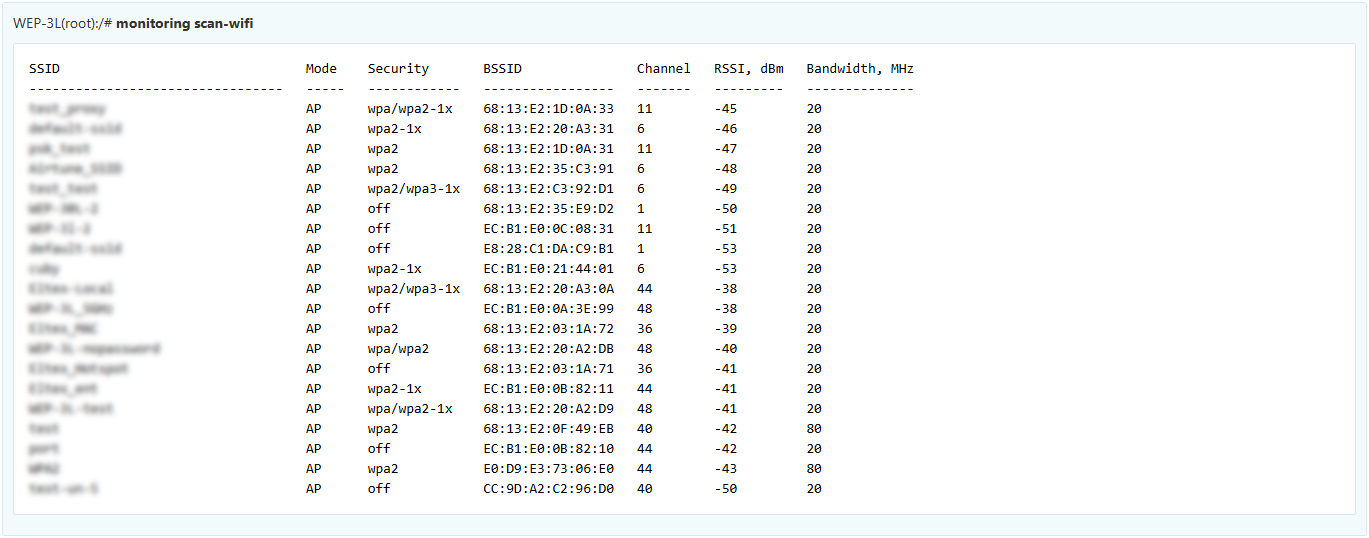
Spectrum analyzer
The spectrum analyzer provides information on channel congestion in the 2.4 and 5 GHz bands. The result is displayed as a percentage.
While the spectrum analyzer is running, all clients are disconnected from the access point. Clients will reconnect only after the spectrum analyzer has finished its operation.
The analysis of all radio channels in both bands takes approximately 5 minutes.
The spectrum analyzer operates only on the channels specified in the limit-channels parameter in the radio interface settings. For example, if limit-channels for wlan0 is set to channels '1 6 11', and for wlan1 is set to channels '36 40 44 48', the spectrum analysis will be performed only for channels 1, 6, 11, 36, 40, 44, 48.
To perform an analysis of all channels in the band used by the radio interface, change the use-limit-channels parameter in the settings of each radio interface to false. After receiving the spectrum analyzer results, revert the use-limit-channels value to its original value of true.
For more information on configuring the radio interface via CLI, see the Radio configuration section.
WEP-3L(root):/# monitoring spectrum-analyzer
 Channel| CCA
       1|  81%
       2|  40%
       3|  14%
       4|  10%
       5|  36%
       6|  60%
       7|  40%
       8|   8%
       9|  14%
      10|  38%
      11|  75%
      12|  37%
      13|  18%
      36|  14%
      40|  12%
      44|  10%
      48|  18%
      52|   3%
      56|   5%
      60|   8%
      64|   6%
     132|   0%
     136|   0%
     140|   0%
     144|   1%
     149|  30%
     153|   1%
     157|   3%
     161|   2%
     165|   1%
Getting debugging information
WEP-3L(root):/# get-troubleshooting-file
After executing the command, an archive named troubleshooting.tar.gz will be created, containing debugging data and information about the device status.
The troubleshooting.tar.gz archive can be downloaded from the device via the TFTP protocol to the server.
WEP-3L(root):/# tftp -pl troubleshooting.tar.gz <IP address of TFTP server>
troubleshooting.tar. 100% |********************************| 62755 0:00:00 ETA
Auxiliary utilities
traceroute utility
The utility shows which nodes (routers) the packet passes through, how much time it takes to process the packet at each node.
WEP-3L(root):/# traceroute <tested host>
WEP-3L(root):/# traceroute eltex-co.ru
traceroute to eltex-co.ru (62.109.1.166), 30 hops max, 38 byte packets
 1  100.109.0.1 (100.109.0.1)  0.346 ms  0.233 ms  0.184 ms
 2  *  192.168.48.1 (192.168.48.1)  0.651 ms  *
 3  95.167.221.129 (95.167.221.129)  0.576 ms  0.486 ms  0.410 ms
 4  b-internet.92.125.152.57.snt.ru (92.125.152.57)  1.427 ms  2.621 ms  1.604 ms
tcpdump utility
The tcpdump utility allows capturing packets on the specified interface.
To get information on how to work with the utility, use the following command:
WEP-3L(config):/# tcpdump --help
Traffic capture from any active interface
For example, it is possible to enable packet capture on the Ethernet interface.
WEP-3L(root):/# tcpdump -i eth0
Environment sniffer
Any VAP in the range from which the traffic is to be captured must be enabled on the access point.
It is necessary to enable a special interface that catches all packets from the air on the working channel of the AP.
WEP-3L(root):/# configure
WEP-3L(config):/# interface
WEP-3L(config):/interface# radioX (for 2.4 GHz band — radio0, for 5 GHz — radio1)
WEP-3L(config):/interface/radioX# common
WEP-3L(config):/interface/radioX/common# enabled true
WEP-3L(root):/# tcpdump -i radio1
Configuring remote traffic dump capture
The remote-capture section performs remote recording of a traffic dump.
The device supports the RPCAP protocol, which allows recording a traffic dump from the device interface on a remote machine in online mode.
To remotely capture packets from radio interfaces, it is required to connect the interfaces radio0 and radio1
WEP-3L(root):/# configure
WEP-3L(config):/# remote-capture
WEP-3L(config):/remote-capture# enabled true (true —enabling. To disable, enter false)
WEP-3L(config):/remote-capture# disable-authentication true (disable the authentication requirement when adding a remote interface on a remote host. Default value: false — authentication required)
WEP-3L(config):/remote-capture# port 2002 (2002 — port number used to connect the remote machine. The parameter takes values from 1025 to 65530. Default value: 2002)
WEP-3L(config):/remote-capture# save (save changes)
For remote connection, use the RPCAP protocol, specify the device IP address and port. For this purpose, you can use a program such as Wireshark. Then get a list of interfaces available for sniffing from the device, select one of them and start capturing the dump from the remote interface.
iperf utility
This utility is used to start a traffic flow from one device to another. The sending side is called the client, the receiving side is called the server.
To get information on how to work with the utility, use the following command:
WEP-3L(root):/# iperf --help
Example of launching a traffic stream from the access point to the server:
root@server:/# iperf -s
WEP-3L(root):/# iperf -c X.X.X.X (where X.X.X.X — IP address of the server)
Configuration of Radar mode
The functionality is designed to collect information about client devices within the access point's range and transfer data to the collector server.
Configuring Radar with data transmission via HTTP protocol
WEP-3L(root):/# configure
WEP-3L(config):/#radar
WEP-3L(config):/radar# enabled true (enable radar functionality. To disable, enter false)
WEP-3L(config):/radar# url http://host:port/service (specify the URL link to the service that will receive data from the access point in JSON format. Transmission is possible via HTTP/HTTPS.)
WEP-3L(config):/radar# scan-interface all (interface on which the scanning will operate. Acceptable values: wlan0 — 2.4 GHz interface, wlan1 — 5 GHz interface, all — 2.4 GHz and 5 GHz simultaneously)
WEP-3L(config):/radar# send-interval 1 (data transmission interval to the collector. Default value: 5 seconds)
WEP-3L(config):/radar# mac-source "probe data" (select the type of data collected on the air. Acceptable values: probe — only probe request, assoc — only Assoc, data — only data, all — all packet types)
WEP-3L(config):/radar# scan-channel-timeout 1000 (time allocated for scanning one channel. Default value: 200 ms)
WEP-3L(config):/radar# scan-limit-channels-2g "1 6 11" (channel for scanning in the 2.4 GHz band. Empty value means all available channels are scanned)
WEP-3L(config):/radar# scan-limit-channels-5g "36 40 44 48" (channel for scanning in the 5 GHz band. Empty value means all available channels are scanned)
WEP-3L(config):/radar# save (save changes)
Configuring Radar with data transmission via MQTT protocol
WEP-3L(root):/# configure
WEP-3L(config):/# radar
WEP-3L(config):/radar# url mqtt://host:port/service (specify the URL link to the service that will receive data from the access point via the MQTT protocol. Example: mqtt://rtls.eltex.nsk.ru:1883/)
WEP-3L(config):/radar# mqtt-username eltex (username: required for authorization on the collector service)
WEP-3L(config):/radar# mqtt-password Password (password: required for authorization on the collector service)
WEP-3L(config):/radar# mqtt-topic input_mqtt_topic (specify the URL identifier of entities exchanged between the access point and the collector via the MQTT protocol)
WEP-3L(config):/radar# scan-mode passive (radar operationg mode, where active — access point only scans the air and does not provide service to clients; passive — access point provides service to clients, does not scan the air, and forwards data from connected clients)
WEP-3L(config):/radar# scan-interface all (interface on which the scanning will operate. Acceptable values: wlan0 — 2.4 GHz interface, wlan1 — 5 GHz interface, all — 2.4 GHz and 5 GHz simultaneously)
WEP-3L(config):/radar# send-interval 1 (data transmission interval to the collector. Default value: 5 seconds)
WEP-3L(config):/radar# mac-source "probe data" (select the type of data collected on the air. Acceptable values: probe — only probe request, assoc — only Assoc, data — only data, all — all packet types)
WEP-3L(config):/radar# scan-channel-timeout 1000 (time allocated for scanning one channel. Default value: 200 ms)
WEP-3L(config):/radar# scan-limit-channels-2g "1 6 11" (channel for scanning in the 2.4 GHz band. Empty value means all available channels are scanned)
WEP-3L(config):/radar# scan-limit-channels-5g "36 40 44 48" (channel for scanning in the 5 GHz band. Empty value means all available channels are scanned)
WEP-3L(config):/radar# scan-min-signal -80 (signal level threshold. If the access point detects a client with a signal level below this value, the client's MAC address is not transmitted to the collector, and the client is not considered detected. Default value: 0, functionality disabled)
WEP-3L(config):/radar# enabled true (enable radar functionality. To disable, enter false)
WEP-3L(config):/radar# save (save changes)
The list of changes
| Document version | Issue date | Revisions |
|---|---|---|
Version 1.2 | 05.2025 | Synchronization with firmware version 2.7.0 Added: 6.2.2 Remote control configuration 6.8 Configuring ARP replication Changed: 6.3.6 Configuration of VAP with Captive Portal 6.3.7 Configuration of VAP with external Captive Portal 6.3.8 Configuration of an additional RADIUS server on VAP 6.12 Monitoring |
| Version 1.1 | 03.2025 | Synchronization with firmware version 2.6.5 Added: 6.3.8 Configuration of an additional RADIUS server on VAP 6.4 AirTune configuration 6.7 Configuring DHCP replication 6.10 Configuring Captive Portal 6.10.1 Portal certificate management 6.12.9 Getting debugging information 7 Auxiliary utilities 7.1 traceroute utility 7.2 tcpdump utility 7.2.1 Traffic capture from any active interface 7.2.2 Environment sniffer 7.3 iperf utility 7.4 Configuration of Radar mode 7.4.1 Configuring Radar with data transmission via HTTP protocol 7.4.2 Configuring Radar with data transmission via MQTT protocol Changed: 5 Device management via web interface 6.3 Virtual Wi-Fi access points (VAP) configuration 6.3.9 Advanced VAP settings |
| Version 1.0 | 01.2024 | First issue |
| Firmware version 2.7.0 | ||