Description
Each section of the system includes built-in documentation that provides detailed descriptions of the purpose, available actions, and configuration options.
To open the built-in documentation, click the  icon located at the bottom of the navigation menu.
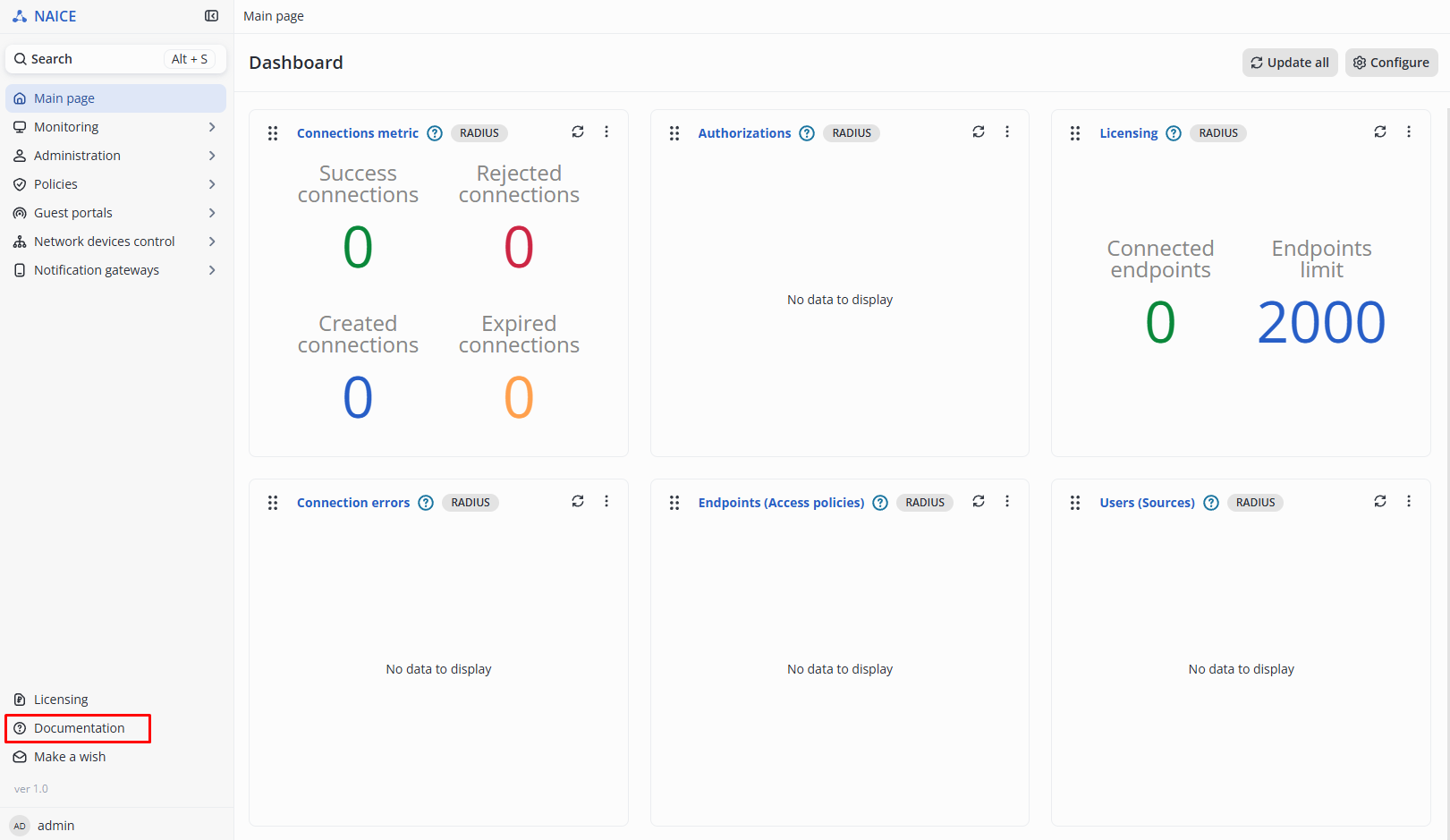
The documentation page corresponding to the currently opened NAICE page will open in a separate browser window, in the language specified in the settings.
When navigating to a documentation section, the guide for the specific page is displayed, including the home page.
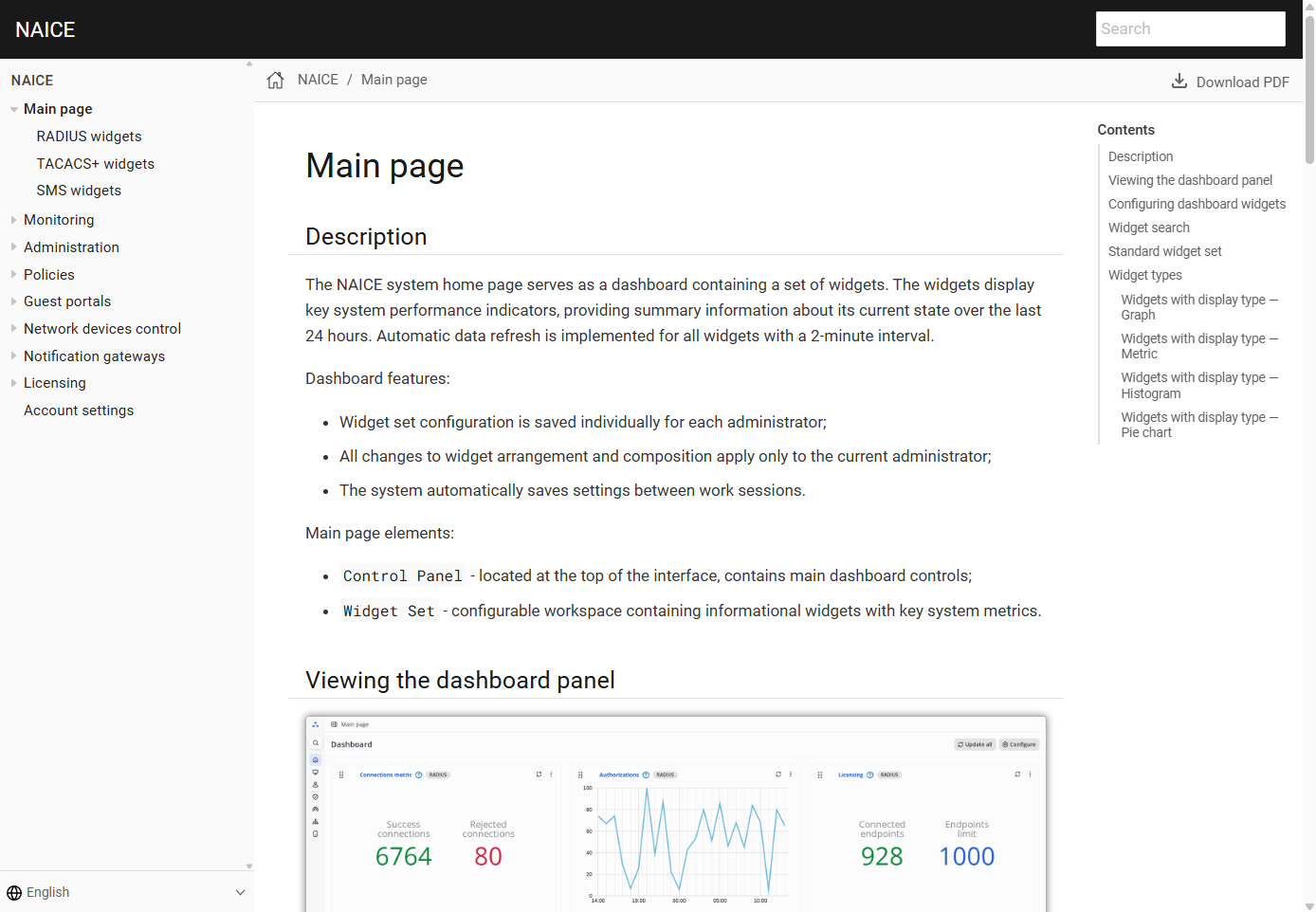
The documentation page contains the following elements:
- In the upper-left area, pages are displayed as a tree structure that mirrors the structure of the pages in the system;
- In the lower-left corner, you can switch the documentation language;
- In the upper-right corner, there is a search field and a Download PDF button that allows exporting the documentation as a PDF file;
- The central part of the page displays the documentation text.
Using the search function
To perform a search, enter a keyword or phrase into the search field. The search is carried out only within the sections that correspond to the selected documentation language.
Search results are displayed in the panel on the right side of the page. The matched sections and paragraphs are highlighted to make navigation easier.
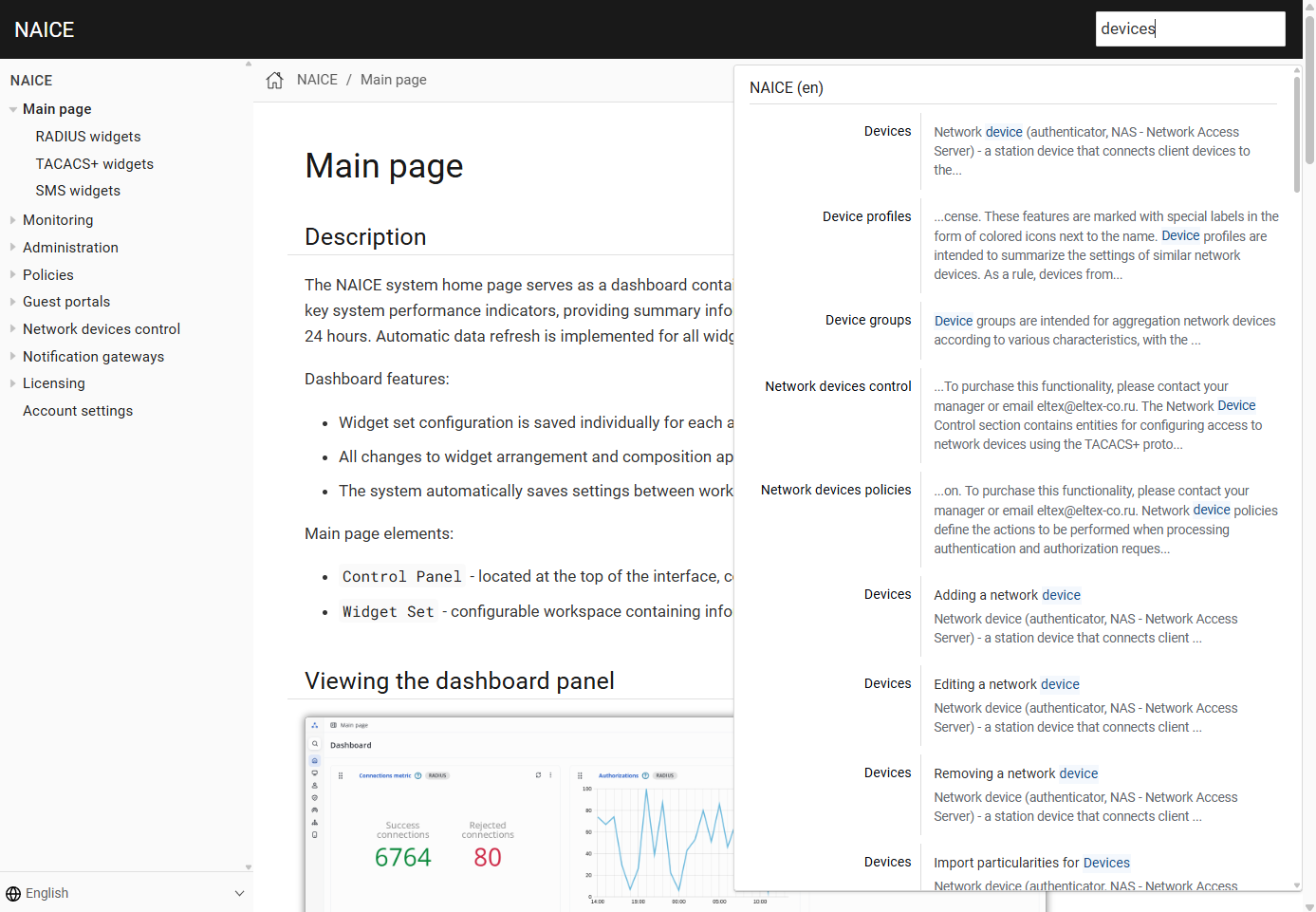
If the list contains many sections and paragraphs, you can scroll down using the mouse wheel.
To navigate to the desired section or paragraph, simply click its title in the list.
Accessing the documentation without access to NAICE
To ensure continuous access to the documentation, it can be downloaded as a PDF file. To do this, click the Download PDF button in the upper-right corner of the window, the file download will begin automatically.
Example of an automatically generated file for the current version: