Firmware version 2.2
Server requirements
For stable operation, the server must meet the following requirements:
Linux operating system with Docker support: Ubuntu Server 20.04 (recommended) and newer, Astra Linux 1.7 (server), RedOS 7.3.1, Alt Server 10;
16 GB of RAM or more;
- CPU with virtualization support with at least 4 cores;
- free hard disk space from 200GB;
- 1Gbit/s network interface availability.
Obtaining sudo privileges without additional password input (optional)
As an unprivileged user, run the command:
echo "$(whoami) ALL=(ALL) NOPASSWD: ALL" | sudo EDITOR='tee -a' visudo
Next, enter the password. After that, additional password entry is not required for executing sudo commands or switching to the superuser mode.
ECCM installation
Installation archive
The files needed to run the project are distributed as a tar archive. They can be obtained from the public cloud. Download the archive to the server and unpack it. It is recommended to unpack the archive into the pre-created separate directory.
Commands example:
wget "https://cloud.eltex-co.ru/index.php/s/P8xDfmyo3XyEs0g/download?path=%2F&files=eccm-2.2.tar.gz" -O eccm-2.2.tar.gz
mkdir eccm
tar -zxvf eccm-2.2.tar.gz -C eccm/
Docker and docker-compose installation
The easiest and fastest way to install is to switch to the directory where the installation archive was unpacked and use the compose-tools.sh script using the --install flag:
cd eccm/2.2
sudo ./compose-tools.sh --install
To check the installed docker, the following commands can be run:
docker --version
To check the installed docker-compose in Ubuntu, the following commands can be run:
docker compose version
When installing on Astra Linux, RedOS or Alt Server operating systems, the command to check the version of the installed docker-compose is:
docker-compose version
ECCM start
The ECCM project is distributed as a set of files that allows to run all necessary services using docker-compose. The project is divided into two docker-stacks:
- database (PostgreSQL 14.10);
- ECCM service stack.
This separation is caused by the need to ensure horizontal scaling of the project and the possibility of integration with other projects of the company, such as Eltex.EDM.
ECCM start script
Due to the abundance of the system startup parameters, a script was prepared that runs the project on one or more hosts with performance parameters that allow servicing about 100 devices. Actual performance depends on many factors, including hardware performance and the complexity of the network devices being serviced. To invoke the help information, navigate to the directory with the script and run the following command:
sudo ./compose-tools.sh -h
Running ECCM on a single host
To start the project, switch to the directory with the files of the installation archive and run the following command:
sudo ./compose-tools.sh --start <ECCM ADDRESS>
where **ECCM ADDRESS** is the IP address that is used for connection to the server. For example, if the server address is 100.110.2.2, the command will look as follows:
sudo ./compose-tools.sh --start 100.110.2.2
The script applies the address specified in the ECCM ADDRESS to the launched containers, but does not overwrite it in the variable files. To use the address specified in the variable files at launch, write the --start switch without specifying the ECCM ADDRESS.
To stop the project, run the command:
sudo ./compose-tools.sh --stop
Running ECCM with a database on a separate server
- ECCM Application Server — server on which an application is deployed that ensures the operation of the system and interaction with devices, as well as a web user interface;
- Database Server — server with Postgres14 databases. It is possible to use one that already exists in the cluster infrastructure.
- Device Management Network — IP network for managing equipment, through which ECCM has access via L3.
- Operator/Administrator — system operator engaged in monitoring and configuration of the controlled equipment/system administrator of the company or ELTEX technical support specialist, if remote access has been agreed upon.
If it is necessary to run ЕССM on multiple servers (one server for the Postgres database, the second server for the rest of the ЕССM service stack), it is possible to use the multi-host installation option. To do this it is neccessary to:
- Install Docker and Docker Compose on both servers.
- Configure the server with databases:
2.1. To change login/password/temporary zone/RAM limits for working with the database, edit the postgres/.env file. To change parameters that affect database performance, edit the postgres/data/postgresql.conf file (the default settings are sufficient for a test run and support for about 100 devices).
2.2. Run the PostgreSQL database on the server with the database. To run the database, switch to the eccm/postgres directory and execute the command to run the container:
cd eccm/postgers
docker compose up -d
3. Configure the server with applications:
3.1. To redefine the variables responsible for user authorization in the ECCM system and project behavior (web interface address, time zone, database address, login/password for database access, etc.), edit the “eccm/.env” file;
3.2. Run ECCM on the server with ECCM using the following command:
sudo ./compose-tools.sh --start <ECCM ADDRESS> --database-host <DB ADDRESS> --database-port <DB PORT>
where <DB ADDRESS> and <DB PORT> are the IP address and port to connect to the database server. For example, if the ESSM server address is 100.110.2.2, the database server address is 100.110.2.4, and the database server port is 5432, the command is as follows:
sudo ./compose-tools.sh --start 100.110.2.2 --database-host 100.110.2.4 --database-port 5432
Environment variables
The files required to run ECCM, containing environment and configuration variables, are located in the directory where the installation archive was extracted:
postgres/.env postgres/data/postgresql.conf eccm/.env
postgres/.env
The postgres/.env file contains variables that determine the behavior of the Postgres database stack when it is launched in a container. The table below provides a description of these variables:
| Varible | Default value | Description |
|---|---|---|
COMPOSE_PROJECT_NAME | postgres | Project name in docker-compose (used for identification if several projects are running on the server) |
POSTGRES_TAG | 2.2 | Version of the postgres container image |
POSTGRES_REGISTRY | hub.eltex-co.ru | The address of the docker-registry from which the postgres image will be retrieved. If a local mirror is used, its address can be specified |
ROOT_POSTGRES_USER | Parameter that allows to override the superuser login for database access and configuration | |
ROOT_POSTGRES_PASSWORD | Parameter that allows to override the superuser password for database access and configuration | |
ECCM_DATABASE | eccm | Name of the eccm service stack database |
POSTGRES_TIMEZONE | Asia/Novosibirsk | The time zone in which the system operates (specified in accordance with the tz database, for example, “Asia/Novosibirsk”) |
POSTGRES_SHM_SIZE | 2gb | Limiting the allocated RAM for working with the Postgres database |
POSTGRES_PRIVILEGED_MODE | false | Running a container in privileged mode |
|
| External address of the Postgres database |
|
| Maximum number of container log files |
| 50M | Maximum size of container log files |
| true | Enable compression of container log files |
| hub.eltex-co.ru | The address of the docker-registry from which the postgres-configurator image will be retrieved. If a local mirror is used, its address can be specified |
|
| Version of the postgres-configurator container image |
| true | Activation of the postgres-configurator container at system launch |
postgres/data/postgresql.conf
The file contains parameters that affect database performance. The default settings are sufficient for a test run and support for approximately 100 devices.
eccm/.env
The eccm/.env file contains variables that determine the behavior of the project. The table below provides a description of these variables:
| Varible | Default value | Description |
|---|---|---|
COMPOSE_PROJECT_NAME | eccm | Project name in docker-compose (used for identification if several projects are running on the server) |
ECCM_PROFILE | production | Project profile |
ECCM_TAG | 2.2 | Container image version |
ECCM_REGISTRY | hub.eltex-co.ru | The address of the docker-registry from which system images will be retrieved. If a local mirror is used, its address can be specified |
ECCM_BACKBONE_ADDRESS | 192.168.0.1 | Internal address at which the ECCM system will operate with devices on the network |
ECCM_WEB_ADDRESS | 192.168.0.1 | The address at which the ECCM system web interface will operate |
ECCM_WEB_PORT | 80 | Port for accessing the web interface |
ECCM_TIMEZONE | Asia/Novosibirsk | The time zone in which the system operates (specified in accordance with the tz database, for example, “Asia/Novosibirsk”) |
ECCM_LOGLEVEL | 'INFO' | Logging level in the project |
MAX_CONCURRENT_SSH_TASKS | 20 | Number of simultaneous operations performed with devices |
POSTGRES_HOST | 192.168.0.1 | The address where the Postgres database is running |
POSTGRES_PORT | 5432 | Port for accessing the Postgres database |
ROOT_POSTGRES_USER | Parameter that allows overriding the superuser login for database access and configuration | |
ROOT_POSTGRES_PASSWORD | Parameter that allows to override the superuser password for database access and configuration | |
ECCM_POSTGRES_DB | eccm | Database name for eccm services |
ECCM_POSTGRES_USER | Parameter that allows to override the default login for accessing the ECCM_POSTGRES_DB database | |
ECCM_POSTGRES_PASSWORD | Parameter that allows to override the default password for accessing the ECCM_POSTGRES_DB database | |
| 10m | Interval for displaying push notifications in the web interface when a license acquisition error occurs |
| 60m | Telegram/email notification interval when a license acquisition error occurs |
| 1 | Current node number. Must be unique in the reservation scheme |
| 1G | Physical memory limitation for a Docker container |
| | Path to the certificate file for HTTPS |
| | Path to the file with the key for HTTPS |
KEY_PASS_PATH | ./cert/key.pass | Path to the file with the key password for HTTPS |
| | The port on which ECCM will be available via HTTPS |
LOGGING_ASPECT_ENABLED | false | Enabling logging via service aspects. The aspect logs all inputs and outputs from methods, their parameters, and return values. It is not recommended to enable this parameter during normal system operation. The logging configuration variables ( |
|
| Maximum number of container log files |
| 50M | Maximum size of container log files |
| true | Enable container log file compression |
AUTH_ECCM_AUTHENTICATION_ENABLED | false | Enabling authentication using local accounts |
Web interface access
To connect to the ECCM web interface, open a browser and enter the following in the address bar:
http://<IP address of your server (ECCM_WEB_ADDRESS)>/
The default login is 'eccm', password 'eccm'.
Options used by compose-tools.sh
| Option | Description |
|---|---|
| --clean, -c | Cleaning all containers, volumes, and networks |
| --delete-containers | Removing containers without removing volumes and networks |
| --dhcp | Activation of a DHCP server with support for Zero Touch Provisioning (ZTP) functionality, which automatically adds devices to the system |
| --database-host <HOST> | IP address for connecting to an external PostgreSQL database installed on another host. Do not use if the PostgreSQL database is running on the host with ЕССM |
| --database-port <PORT> | Port for connecting to an external PostgreSQL database installed on another host. Do not use if the PostgreSQL database is running on the host with ЕССM |
| --help, -h | Calling up reference information |
| --https | Activation of https support mode. Requires a certificate. |
| --install | Installing Docker and Docker Compose on the host |
| --interactive, -i | Start the system in interactive mode. Use with the --start key |
| --load | Load all available .tar.gz archives from the image directory into docker |
| --logging, -l <LEVEL> | Set the logging level for the ESSM project. Available values: DEBUG, INFO |
| --logging-aspect | Enabling logging via service aspects. The aspect logs all entries and exits from methods, their parameters, and return values. It is not recommended to enable this parameter during normal system operation |
| --metrics, -m | Launching the system in metric collection mode. In this mode, Grafana, Prometheus, and additional monitoring tools for the host, Docker containers, and PostgreSQL databases are launched. The Grafana web interface is available at http://<IP_ECCM>:3000 |
| --pull, -p | Downloading/updating images before system launch |
| --rootlog <LEVEL> | Set the logging level for all projects. Available values: DEBUG, INFO |
| --save | Saving all Docker images to .tar.gz archives |
| --start, -s <ADDRESS> | Running the system with the IP address that will be used to connect to the server |
| --stop | System shutdown |
| --storage <ADDRESS> | ECCM address in the device management network (backbone). Used to store device firmware |
| --tracing, -t <ADDRESS> | Activation of the Jaeger OpenTracing tracing service. It is necessary to specify the IP address of the Jaeger server |
| --show-containers | Show all containers on the server |
| --show-images | Show all images on the server |
| --recreate-service <SERVICE> | Recreate the container with new parameters The container is recreated according to the .env file of the corresponding compose project. |
Примеры использования
Для установки Docker и Docker-compose на хост выполните команду:
sudo ./compose-tools.sh --install
Для обновления образов всех контейнеров ECCM выполните команду:
sudo ./compose-tools.sh --pull
Для запуска проекта перейдите в директорию с файлами установочного архива и выполните команду:
sudo ./compose-tools.sh --start <ECCM ADDRESS>
Для запуска и подключения проекта к базе данных, установленной на другом хосте, выполните команду:
sudo ./compose-tools.sh --start <ECCM ADDRESS> --database-host <DB ADDRESS> --database-port <DB PORT>
Для остановки проекта выполните команду:
sudo ./compose-tools.sh --stop
Для очистки всех контейнеров, томов и сетей ECCM выполните команду:
sudo ./compose-tools.sh --clean
--clean данные с БД Postgres также будут удалены. Данный флаг рекомендуется использовать только при полной деинсталляции ECCM с сервера.Для запуска проекта с нужным уровнем логирования добавьте ключ --logging в строку запуска:
sudo ./compose-tools.sh --start <ECCM ADDRESS> --logging DEBUG
С версии 1.5 в проекте присутствует DHCP-сервер с поддержкой функциональности Zero Touch Provisioning (ZTP), автоматически добавляющей устройства в систему. По умолчанию сервер отключен. Для активации добавьте ключ --dhcp в строку запуска:
sudo ./compose-tools.sh --start <ECCM ADDRESS> --dhcp
Для сохранения всех образов контейнеров в архивы .tar.gz выполните команду:
sudo ./compose-tools.sh --save
Для преобразования архивов с образами (.tar.gz) в docker-образы выполните команду:
sudo ./compose-tools.sh --load
Для преобразования контейнера с новыми параметрами выполните команду (контейнер пересоздаcтся согласно файлу .env соответствующего compose-проекта):
sudo ./compose-tools.sh --recreate-service monitoring-service
Известные проблемы и методы решения
Возможные ошибки при установке проекта
Ошибка:
E: Невозможно найти пакет conntrack
Возможная причина: в системе настроены неактуальные репозитории менеджера пакетов.
Решение: добавить актуальный репозиторий в файл /etc/apt/sources.list и запустить установку проекта:
echo "deb https://download.astralinux.ru/astra/stable/1.7_x86-64/repository-extended/ 1.7_x86-64 main contrib non-free" | sudo tee -a /etc/apt/sources.list
sudo ./compose-tools.sh --install
Возможные ошибки при запуске проекта
Ошибка:
ERROR: Couldn't connect to Docker daemon at http+[docker://localhost](docker://localhost) - is it running?Возможная причина: docker-демон не запущен. Для проверки выполните команду:
sudo systemctl status docker
Если в строке Active статус отличается от Active (running), причина определена верно.
Решение: запустить docker командой:
sudo systemctl start docker
Ошибка:
Got permission denied while trying to connect to the Docker daemon socket at [unix:///var/run/docker.sock]
(unix://intdocs.eltex.loc/var/run/docker.sock): Get http://%2Fvar%2Frun%2Fdocker.sock/v1.40/containers/json:
dial unix /var/run/docker.sock: connect: permission denied
Возможная причина: запуск производился от имени непривилегированного пользователя, который не был добавлен в группу docker.
Решение 1 (рекомендуется): добавить пользователя в группу docker с помощью команды:
sudo usermod -aG docker $(whoami)
Решение 2: выполнять все операции с привилегиями root.
Ошибка:
Services starting...
Creating network "eccm_eltex-internal" with the default driver
ERROR: Pool overlaps with other one on this address space
Возможная причина: подсеть, указанная в ECCM_INTERNAL_SUBNETWORK, уже используется docker.
Решение: выбрать другую подсеть в файле .env. Просмотреть уже созданные docker-ом подсети можно с помощью команды:
sudo docker network inspect $(docker network ls --filter "DRIVER=bridge" --format '{{ .Name }}') -f '{{ .Name }} {{ (index .IPAM.Config 0).Subnet }}'
Возможные ошибки при работе проекта
Ошибка: некорректно работает мониторинг, не собираются метрики устройств.
Возможная причина: сервису мониторинга не хватает памяти для корректной работы. В логах monitoring-service встречаются записи типа:
WARN [b1a52920966f70af] [item-poll-executor ] o.e.e.m.service.BackpressureController : Batch size adjusted for job 'item polling': 100000 → 0 (adjustment factor: 0.000, memory usage: 97%)
Решение: увеличить лимит памяти для monitoring-service. Для этого в файле eccm/.env увеличить значение переменной ECCM_MONITORING_SERVICE_XMX:
-ECCM_MONITORING_SERVICE_XMX=1G  <--- старое значение
+ECCM_MONITORING_SERVICE_XMX=2G  <--- новое значение
Возможные ошибки при остановке проекта
Ошибка:
ERROR: error while removing network: network eccm_eltex-internal id 324bd72dd9c107cf2ea48effb75d9e7ad2dfbc8f5f7317b89cd7f318d61d5c4b has active endpointsВозможная причина: docker не полностью очистил кэш.
Решение: перезапуск docker с помощью команды:
sudo systemctl restart docker
Возможные ошибки при аутентификации
Ошибка: невозможно аутентифицироваться с помощью учетной записи LDAP.
Возможная причина: некорректная настройка подключения к LDAP-серверу.
Решение: в файле eccm/.env установить переменную AUTH_ECCM_AUTHENTICATION_ENABLED=true и перезапустить сервис identity-provider:
sudo ./compose-tools.sh --recreate-service identity-provider
После этого будет доступна аутентификация по локальной учетной записи.
Рекомендации к оформлению заявок в техническую поддержку ECCM
Для получения консультации по работе системы обратитесь в Сервисный центр компании. Способы обращения указаны на последней странице данного руководства.
Для более быстрого и удобного взаимодействия с сотрудниками технической поддержки ECCM укажите при обращении следующую информацию:
- Установленная версия ECCM и используемая лицензия;
- Есть ли доступ в сеть Интернет с сервера, на котором разворачивается ПО (без доступа, прямой доступ, через NAT, через Proxy и т. п.);
- Время возникновения проблемы (желательно как можно более точное);
- Скриншот или видеофайл, если проблема проявилась в GUI браузера;
- Информация об устройстве (это может быть IP-адрес устройства, модель устройства), если проблема была связана с каким-то устройством.
Также настоятельно рекомендуется воспользоваться скриптом для сбора информации.
Определение версии ECCM и лицензии
Определить установленную версию ECCM можно одним из следующих способов:
- При загрузке релизного архива найти информацию о версии в его имени, например,
eccm-2.2.tar.gz. - Если исходный архив tar.gz был удалён, то информацию о версии можно найти в конфигурационном файле
$ECCM_ROOT/eccm/.env(в строке вида:ECCM_TAG=2.2). - Просмотреть информацию о версии в левом нижнем углу экрана веб-интерфейса запущенного ECCM:
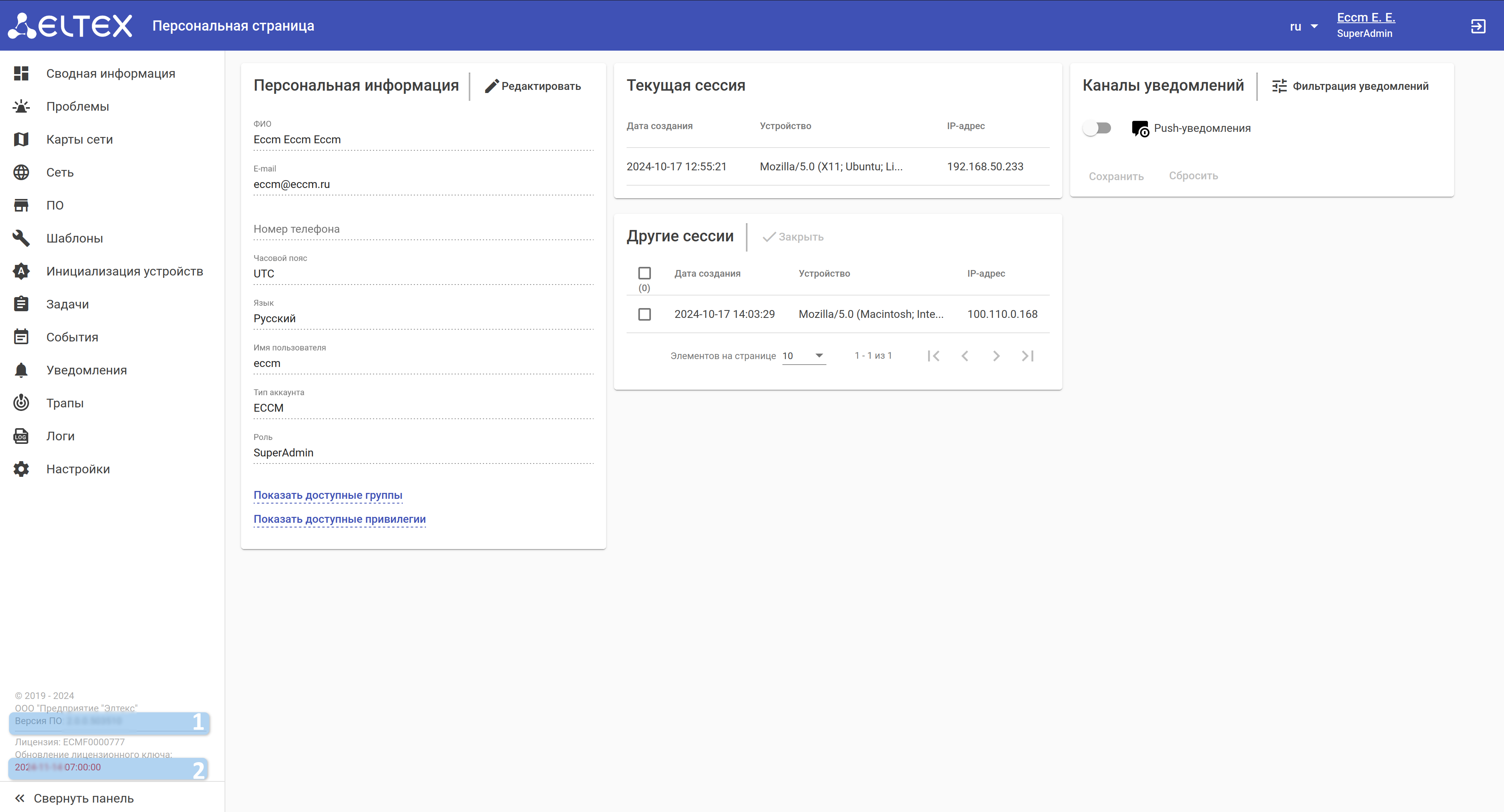
1 — версия ECCM;
2 — срок действия выпущенной лицензии.
Лицензию можно приложить из исходного файла или выгрузить из веб-интерфейса ECCM. Подробное описание приведено в разделе документации "Руководство пользователя" → "Настройки" → "Система" → "Лицензия".
Скрипт сбора информации
Скрипт автоматизирует сбор метрик c системы ECCM, а затем упаковывает их в сжатый архив для более удобной транспортировки. Предназначен для выполнения на ОС Linux/Ubuntu.
Запуск скрипта:
1. Перейдите в директорию ~/eccm/<версия ECCM>/:
cd ~/eccm/<версия ECCM>/
2. Выполните следующую команду:
sudo ./technical_support.sh
Скрипт необходимо запускать в привилегированном режиме, иначе будут собраны не все данные.
3. Дождитесь, пока скрипт осуществит сбор информации;
4. В директорию будет загружен архив <date_time>-technical_support.tar.gz.
Данный архив можно отправить сотрудникам технической поддержки для того чтобы они ознакомились со всей необходимой информацией.