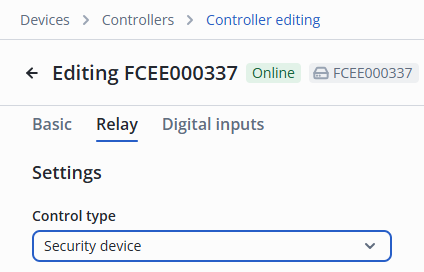
Preliminary configuration of the security mode on the controller
Only the Controller can be set to Guard mode.
Configuring browser launch for security personnel
Creating a shortcut
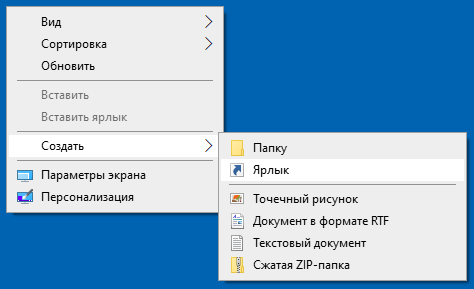
Right-click on the desktop.
Select Create → Shortcut.
In the shortcut creation wizard, specify the path to the Chrome browser.
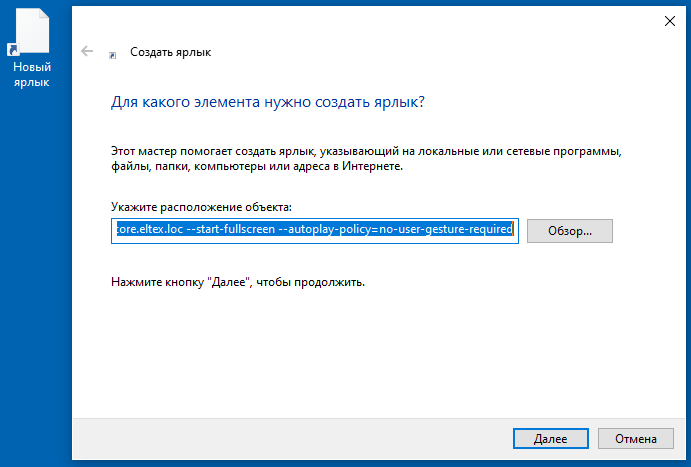
In --app=, specify the address of the EVI Platform.
Option 1:
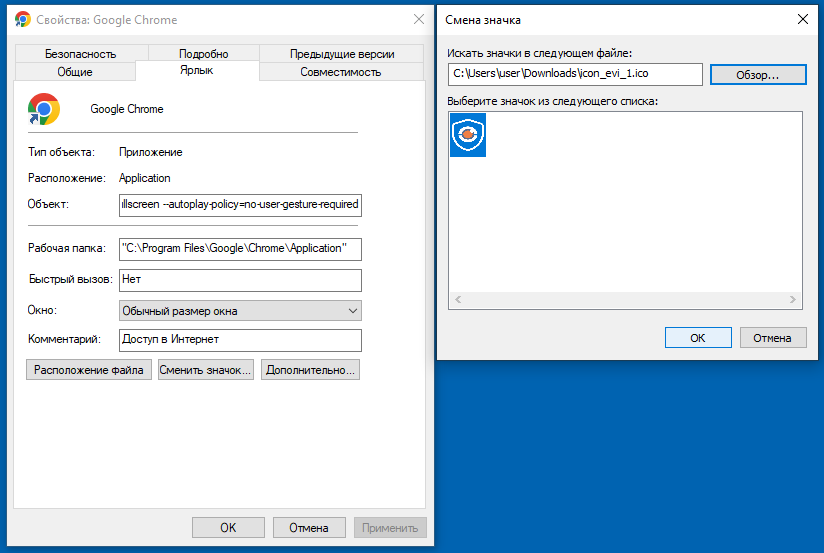
To play sound alerts (alarms), specify the flag --autoplay-policy=no-user-gesture-required:
"C:\Program Files\Google\Chrome\Application\chrome.exe" --app=https://EVI_PLATFORM --autoplay-policy=no-user-gesture-required
Option 2:
To force the application to start in full-screen mode, use the --start-fullscreen flag:
"C:\Program Files\Google\Chrome\Application\chrome.exe" --app=https://EVI_PLATFORM --start-fullscreen --autoplay-policy=no-user-gesture-required
Setting an icon for a shortcut
Download the icon for the shortcut below.
Right-click on the desktop.
Select the Properties item.
Click the Change icon button.
Select the downloaded icon and click OK.
View of the browser after opening
User screen after launching the created shortcut:
Security user screen after authorization on the platform:
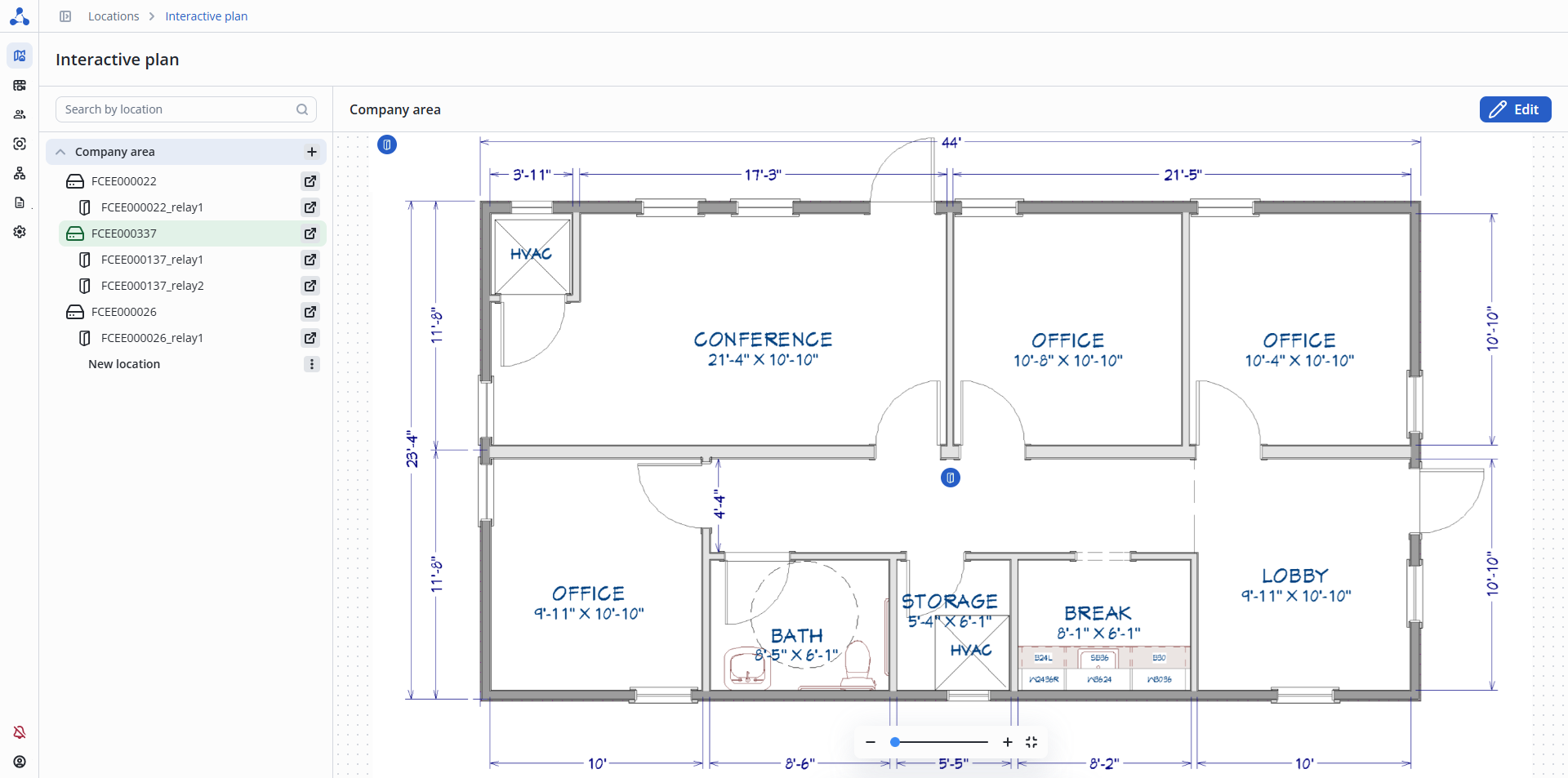
Enabling guard mode
Through the hierarchy of the organization
Switch to the Interactive plan page.
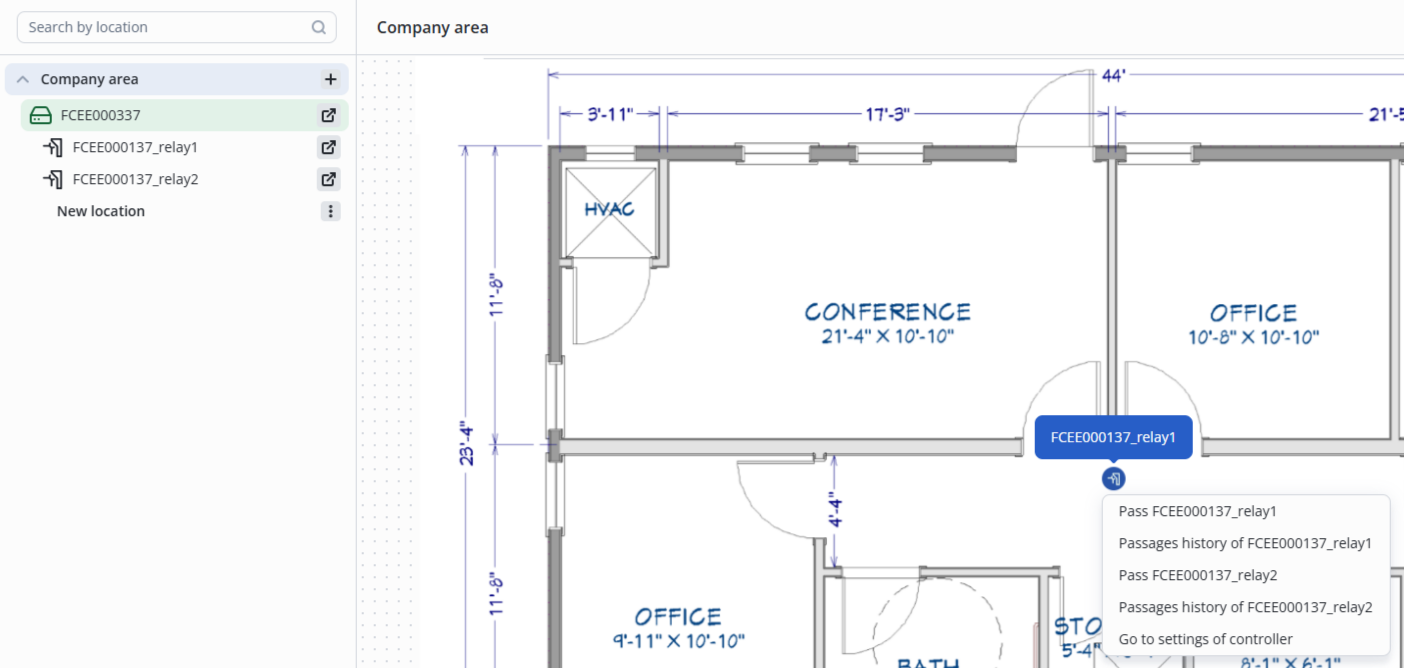
To enable Guard mode click on the crossed-out shield icon in the organization hierarchy.
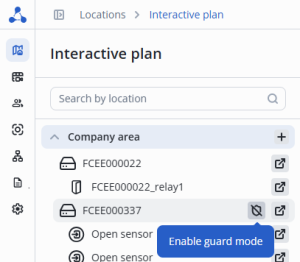
The controller and sensors in the location will change color to green.
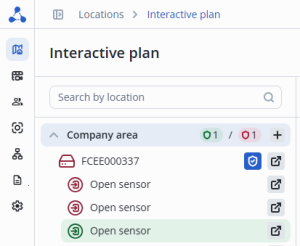
At the bottom of the screen, a notification will appear stating that the guard mode is enabled on the Controller.

Through the device on the interactive plan
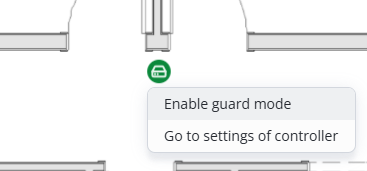
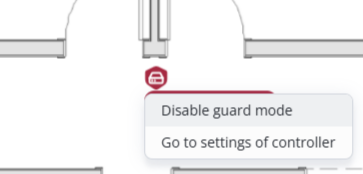
To enable Guard mode click on the controller icon on the interactive plan and click Enable guard mode.
Disabling guard mode
Through the hierarchy of the organization
To disable Guard mode click on the blue shield icon next to the controller's name in the organization hierarchy.
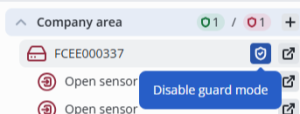
A notification will appear stating that the guard mode is disabled on the Controller.

Through the device on the interactive plan
To disable Guard mode click on the controller icon on the interactive plan and click Disable guard mode.
Principle of sensor operation
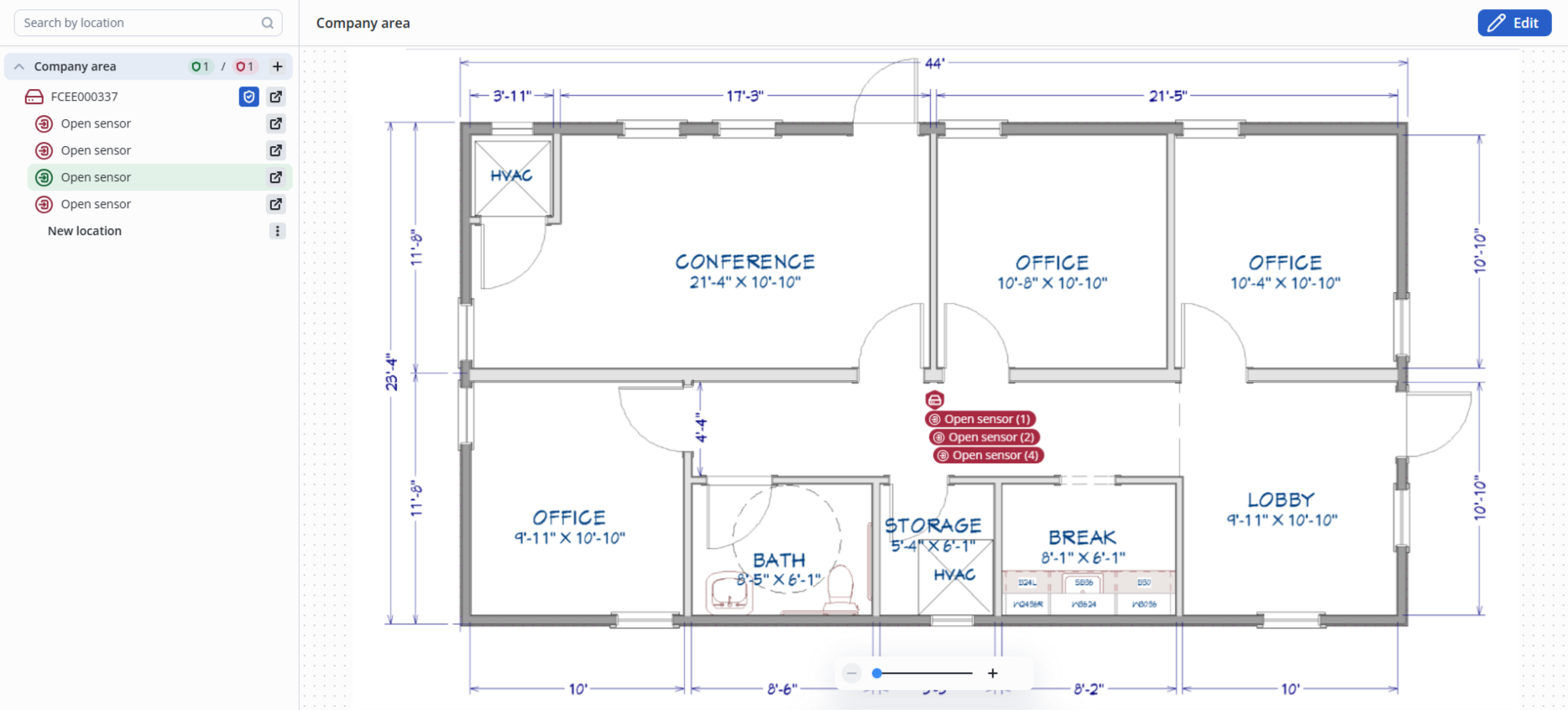
The activated sensors appear under the controller on the interactive plan, with the number of the controller's discrete input to which the sensor is connected indicated in brackets.
- Open sensor (1)
- Smoke detector (3)
When the sensor is triggered, an audible signal is activated. If several sensors are triggered in succession, the audible signal will not be repeated.
When the sensor is triggered, a panel will appear on the right with a Confirm button, the event time, and the event text.
Individual confirmation of a triggered sensor hides it from the interactive plan, and the sensor changes color to green in the hierarchy.
The sensor activation indication will be displayed on the interactive plan until it returns to its initial state, even if the event has been confirmed by a security guard.

Managing an object from an interactive plan
To control objects (doors, turnstiles, barriers, gates), click on the object icon on the interactive plan and select the required option.