EVI Scud is a module of the access control and management system designed for organizing access control in a company.
Connecting the IPA-ER controller
By default, the controller connects to the EVI platform using the domain name evi-core.eltex.local. There are two ways to change the platform address:
- Set the address using the DHCP option;
- Set the address manually.
Set the address using the DHCP option
The platform address is set via DHCP using DHCP Option 43. The string format is: <SERVER-NAME/IP-ADDRESS>:<PORT>, where:
- <SERVER-NAME/IP-ADDRESS> is the server’s domain name or IP address;
- <PORT> is the connection port, the default one is 8085.
After receiving an address different from the current one, the controller will automatically begin reconnecting to the new platform address.
NTP server
The controller automatically retrieves the time from the platform – no additional configuration is required.
Set the address manually
You need to access the web interface of the IPA-ER-020 controller. For more information about the device, refer to the IPA-ER-020 PACS controller manual.
Connect to the device's web interface using the IP address assigned by DHCP, or go to http://192.168.1.10 if DHCP is not available on the network.
Authorization on the controller
On the authorization page, enter the following data in the Login and Password fields:
- Login — admin;
- Password — admin.
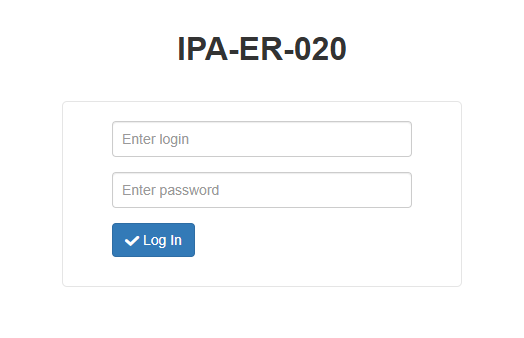
Click the Log In button.
Configuring the IPA-ER controller to work with the EVI Platform
Switch to Network settings, select the EVI Platform tab.
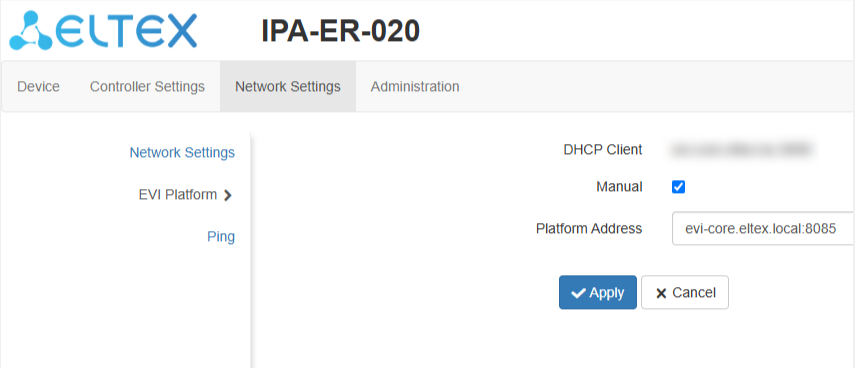
Select the Manual option.
In the Platform Address field, enter the desired server address in the following format:
<evi-core IP address>:8085
Click the Apply button.
Controller authorization in the EVI Platform
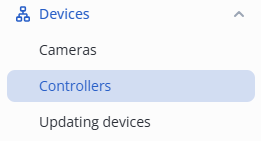
In the web interface, switch to the Controllers page in the Devices section.
Click the three dots to the right of the firmware Version column and click the Authorize button.
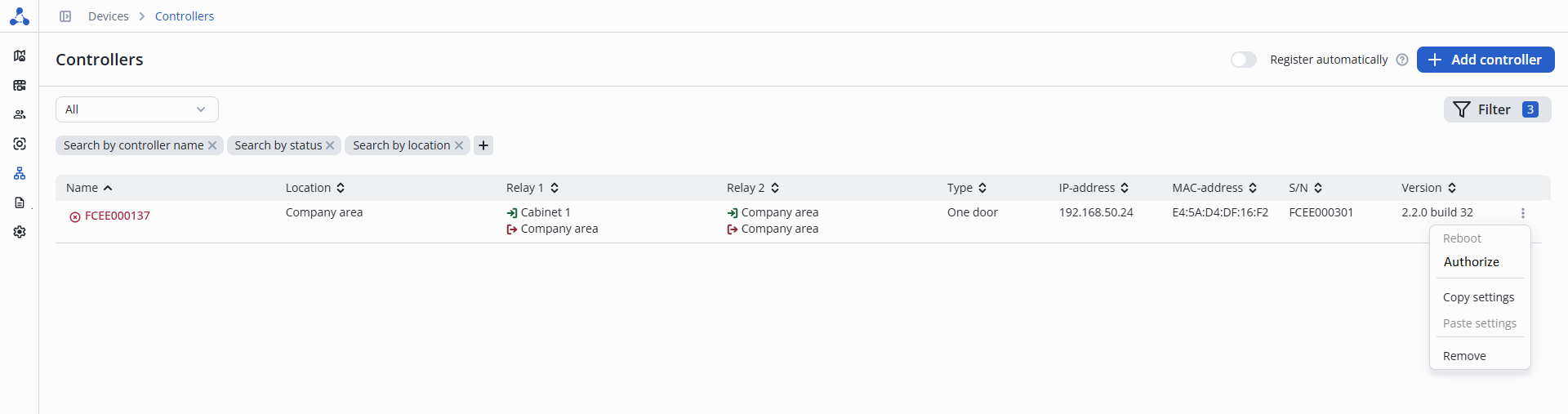
The serial number is entered automatically; click the Authorize button.
Once the item has been successfully added, a notification will appear at the bottom center of the screen indicating that the operation was successful.
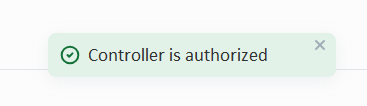
Automatic controller addition
The IPA-ER PACS controller has the default address of the EVI Platform server: evi-core.eltex.local.
Specifying this domain name in the DNS server will allow controllers to automatically connect to your EVI platform.
Configuring DHCP option 43
If an address other than the default address is required, then a DHCP server must be pre-configured.
To do this, enter the server address of your EVI platform in option 43. After that, all controllers will automatically connect to the specified address.
Automatic controllers addition
Switch to the web interface to the Controllers page in the Devices section.
Switch the Register automatically toggle to the active position.

All controllers will then be added to the system automatically.
Readers for IPA-ER
To work with IPA-ER it is recommended to use a reader with current consumption up to 200 mA or power the reader directly from the power supply.
A reader with speaker control support and passage prohibition indication is recommended.
The communication interface between the controller and the reader operates using the Wiegand protocol, various readers with NFC, MIFARE, QR, EMM, HID, etc. can be used. It is only important that Wiegand is supported.
List of verified readers
| № | Name | Compatibility with the EVI Platform | Em-Marine | Mifare | Indication hold | Comment |
|---|---|---|---|---|---|---|
| 1 | Iron Logic Matrix-II | Yes | Yes | No | Yes | Separate contacts for controlling the green, red LED and speaker |
| 2 | Iron Logic Matrix-III | Yes | Yes | No | Yes | Separate contacts for controlling the green, red LED and speaker |
| 3 | ProxWay pw-mini-multi-ble v2 | Yes | Yes | No | Yes | Separate contacts for controlling the green, red LED and speaker |
| 4 | Smartec ST-PR043EHM | Yes | Yes | No | Yes | No hardware control of the red LED |
| 5 | AGRG AXI 2 | Yes | No | Yes | Pulse indication operation mode | Separate contacts for controlling the green, red LED and speaker |
| 6 | Sigur MR100 Lite | Yes | No | Yes | Pulse indication operation mode | Separate contacts for controlling the green, red LED and speaker |
| 7 | Novicam ER-12W | Yes | Yes | No | Yes | No hardware control of the red LED |
| 8 | ЛКД-СК-12-02 | Yes | Yes | No | Yes | No hardware control of the red LED |
Configuring the door passage
For example, connect one door with a door opening sensor, one pass reader and a door opening button.
Switch to diagram 2 and connect the pass reader, door open sensor, door open button, door magnet to the IPA-ER controller.
Examples of wiring diagrams for the IPA-ER-020 controller are provided in the Controller wiring diagrams section.
Creating location
What is the purpose of locations?
Locations are necessary for tracking employees' movement history and for conveniently managing access to them.
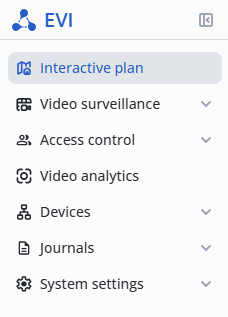
Select Interactive plan from the side menu.
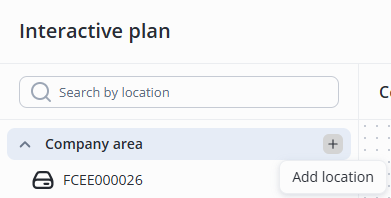
Click the + button under Company area, then Add location.
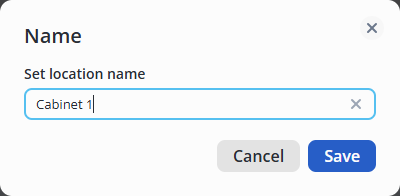
In the window that appears, enter the name of the new room, for example, Cabinet 1, and click the Save button.
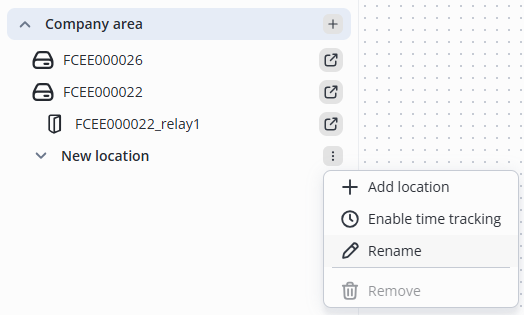
If you saved a room named New location, tap the ellipsis on the right side of the screen and select Rename. Name the room, for example, Cabinet 1.
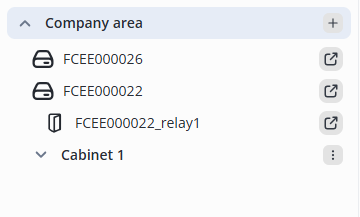
Enter the name of the new location, for example, Cabinet 1, and save it by clicking Save in the pop-up window or pressing the Enter key.
Relay confuguration
Select Controllers from the side menu in the Devices section.
Click the name of the controller.

Switch to the Relay tab.
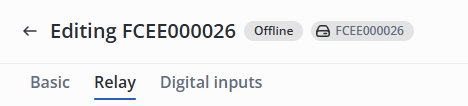
Select the One door Control type in the Settings section.
Specify the name of the relay as Cabinet 1.
For Relay 1, select the following:
- In location: Cabinet 1;
- Out location: Company area.
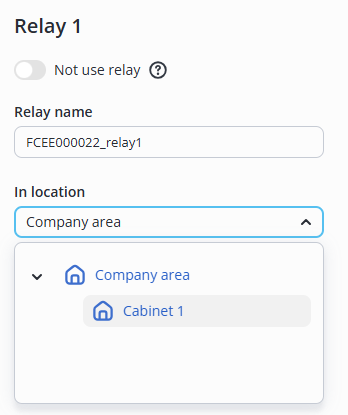
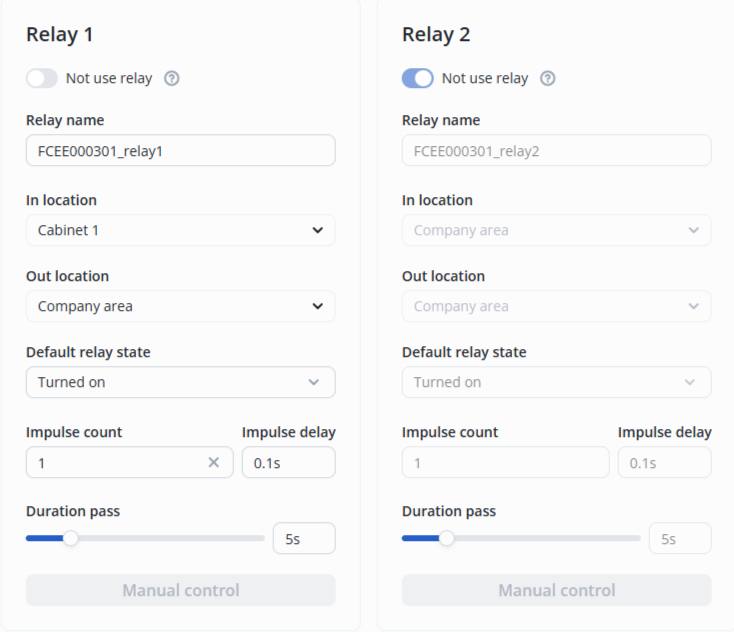
The final configuration looks as follows:
Digital inputs configuration
Switch to the Digital inputs tab.
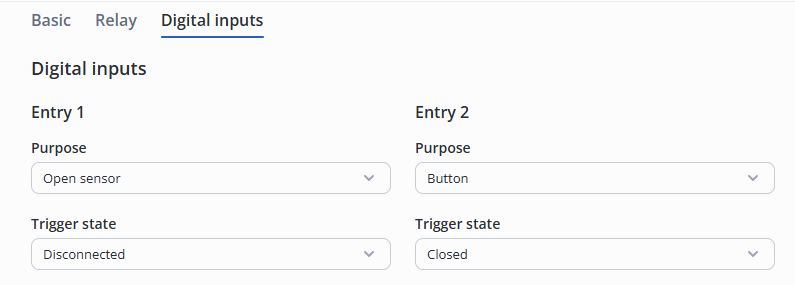
1 and 2 digital inputs are connected to 1 relay.
For 1 digital input, select the following:
- Purpose — open sensor;
- Trigger state — disconnected.
For 2 digital input, select the following:
- Purpose — button;
- Trigger state — closed.
Click the Save button in the lower right corner.
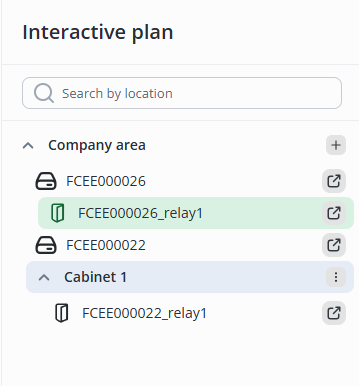
Then, relay 1, which controls the door, will be displayed on the Interactive plan page in Cabinet 1.
Beforehand, open the folder using the  button next to its name.
Adding an access pattern
To enable access for a worker to the Cabinet 1, it is necessary to create an access pattern.
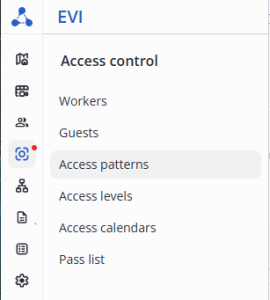
Enter the Access control section, and select the Access patterns item in the menu.
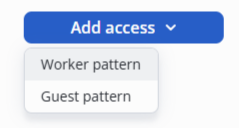
Click the Add access button in the middle of the screen.

Select the Worker pattern item.
Specify the pattern Name as "Access to Cabinet 1".
Select Relay 1 in the Access to location section configured earlier.
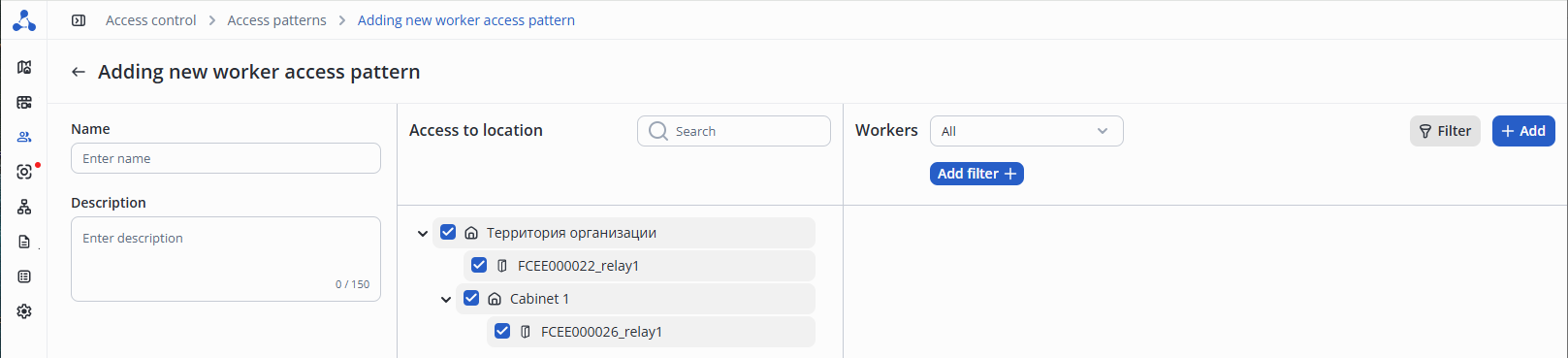
Click the Add button in the upper right corner.
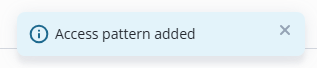
After successful addition, a notification will appear at the bottom middle of the screen to indicate that the operation was successful.
Providing access to an employee
Enter the Workers page in the Access control section.
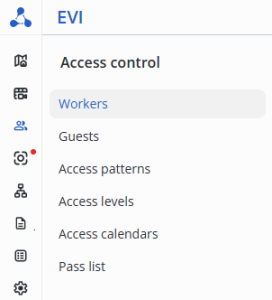
Click the Add worker button in the upper right corner of the screen.

Fill in the Name and Surname. The rest of the fields are optional.
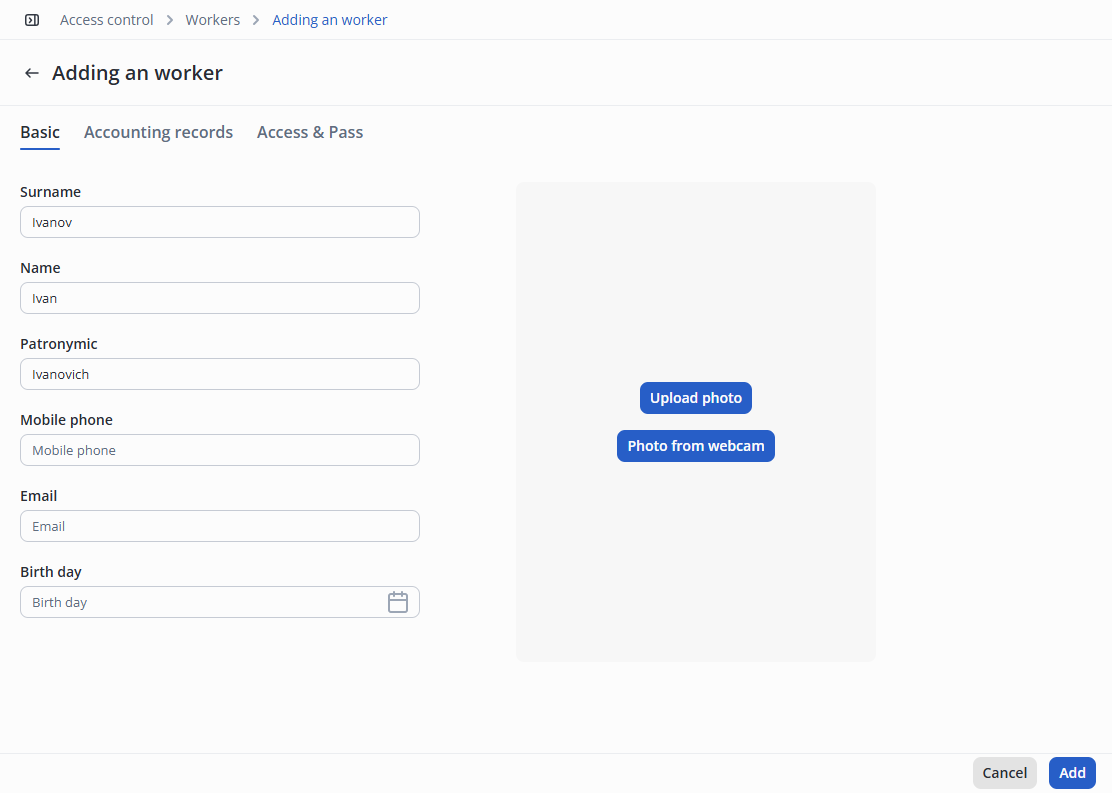
Click the Add button in the lower right corner of the screen.
Access pattern assignment
Switch to the Access & Pass tab.
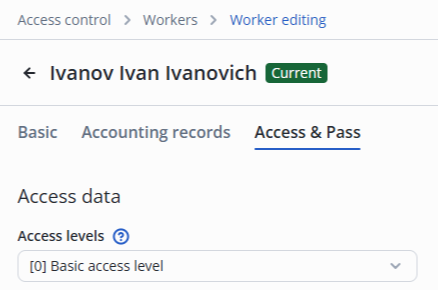
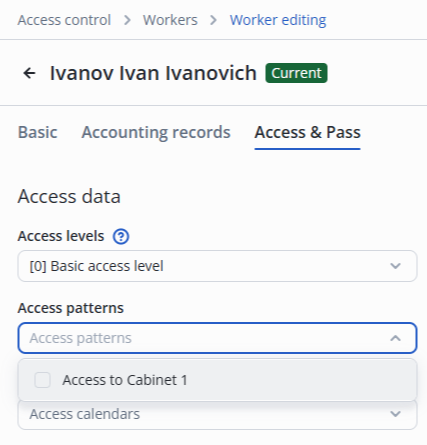
Click Access Patterns, select the previously created Access to Cabinet 1.
Adding a pass to a worker
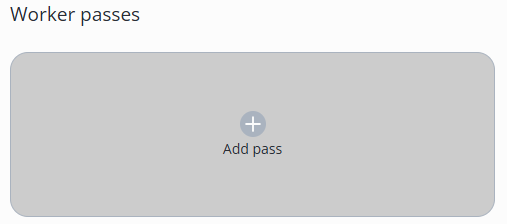
Click the Add pass button in the Worker passes section.
Scan the pass at the USB reader or enter the code from the pass. Example: 15916217.
The pass code is entered without zeros.
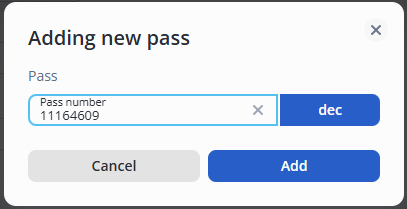
Click the Add button.
After successful addition, a notification will appear at the bottom middle of the screen to indicate that the operation was successful.
 Click the Save button in the lower right corner to save the steps.

Test pass
Try to make a pass through the door. To do this, perform the following steps:
- Place the pass on the reader;
- Open the door;
- Walk through and close the door behind you.
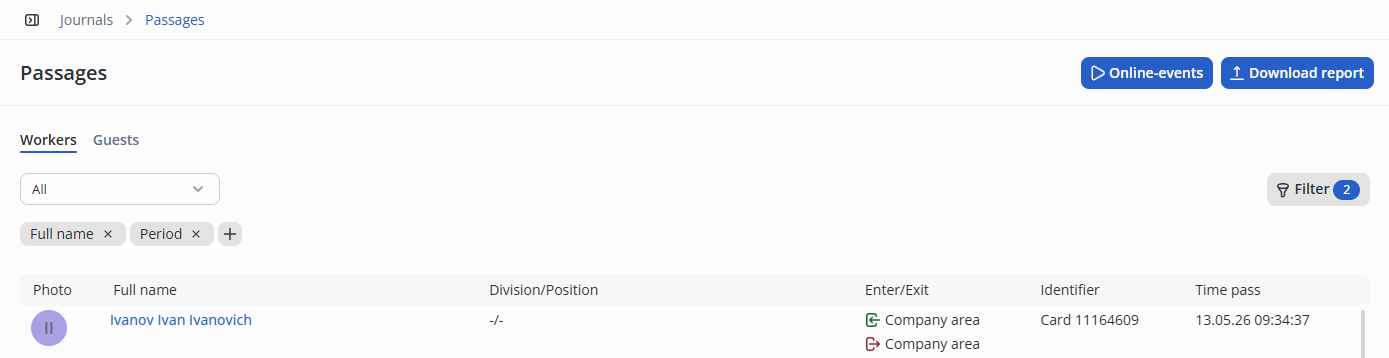
In the Journals section, the worker's pass will be displayed on the Passages page.
A pass record appeared for a worker who left the Company area and entered Cabinet 1.
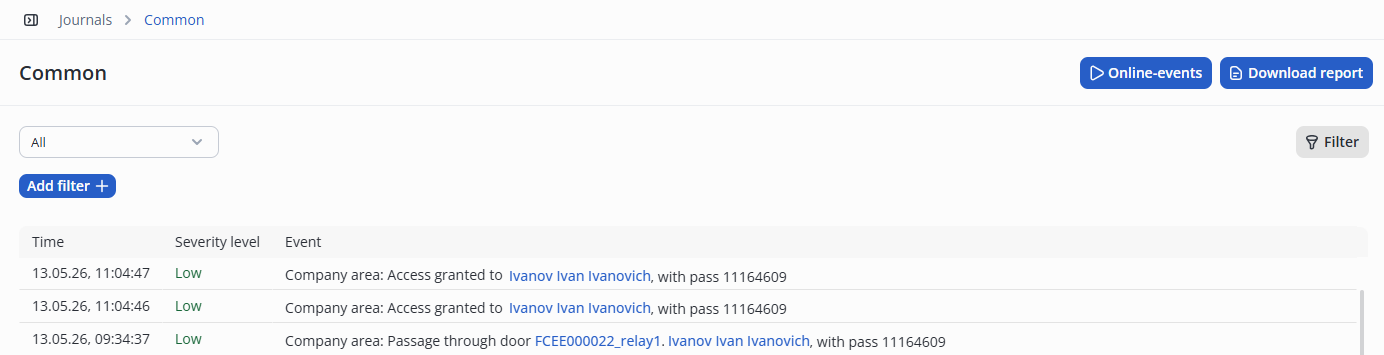
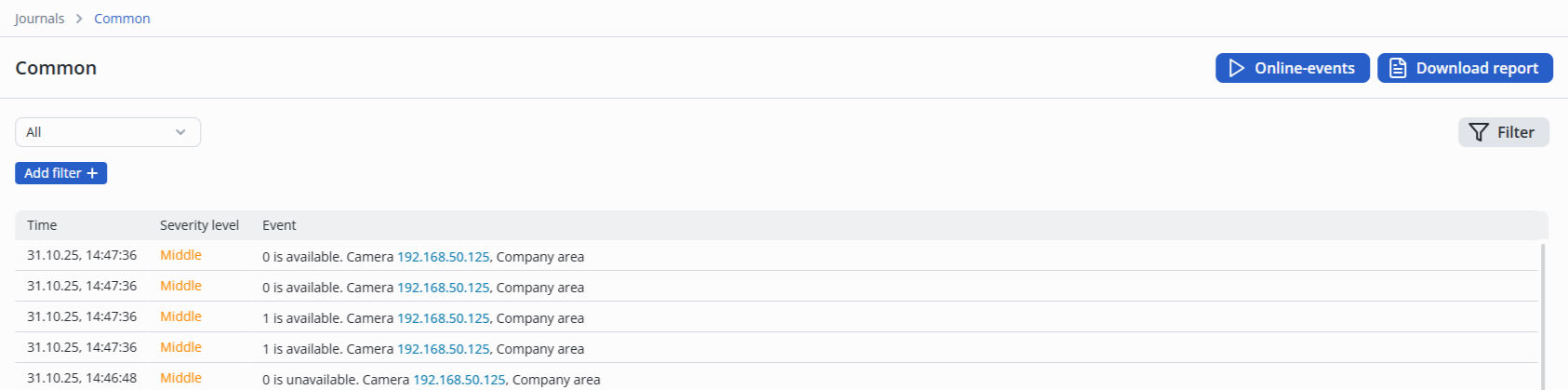
The Common page in the Journals section will display more detailed information about the worker passing through the door.
Configuring the turnstile passage
To configure the system, use an existing controller or add a new one (see the Connecting the IPA-ER Controller section).
You must connect it according to the Turnstile diagram in the Controller connection diagrams and Interactive floor plan sections.
Relay configuration
Enter the Controllers page in the Devices section of the web interface.
Click on the name of the FCEE000137 controller.
Switch to the Relay tab.
Select the Turnstile control type in the Settings section.
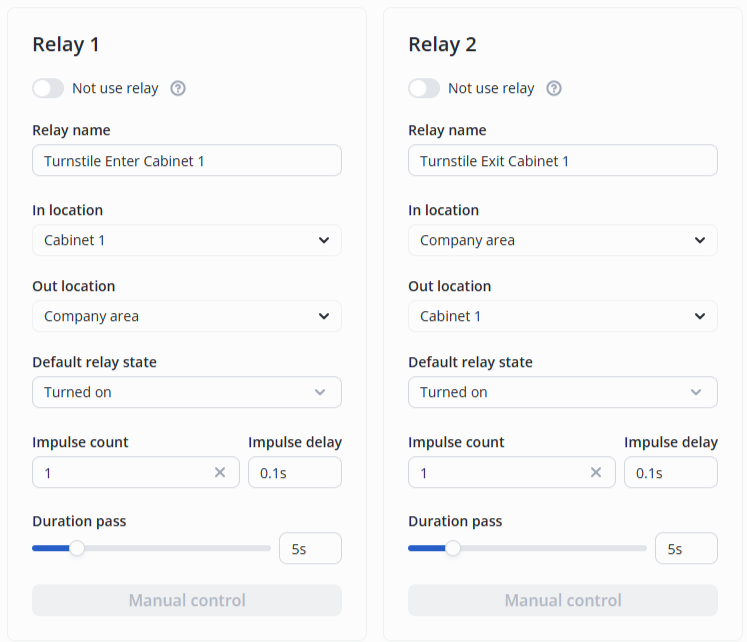
Relay 1
Specify the name of the relay as Turnstile Enter Cabinet 1.
For Relay 1, select the following:
- In location: Cabinet 1;
- Out location: Company area.
Relay 2
Specify the name of the relay as Turnstile Exit Cabinet 1.
For Relay 2, select the following:
- In location: Company area;
- Out location: Cabinet 1.
The final configuration looks as follows:
Digital inputs configuration
Switch to the Digital inputs tab.
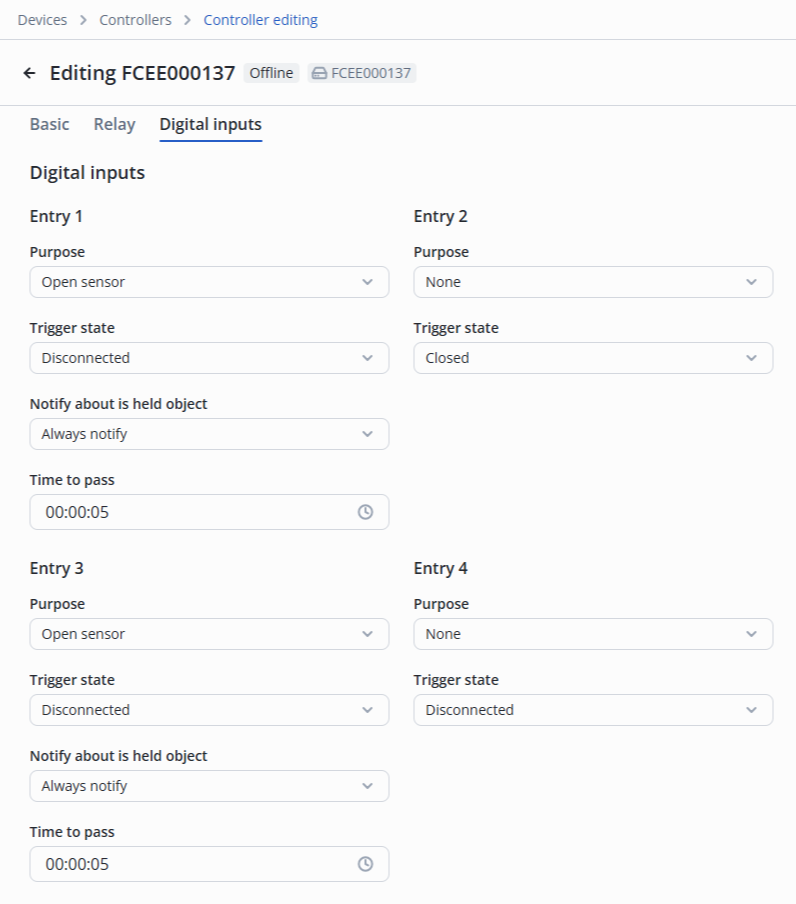
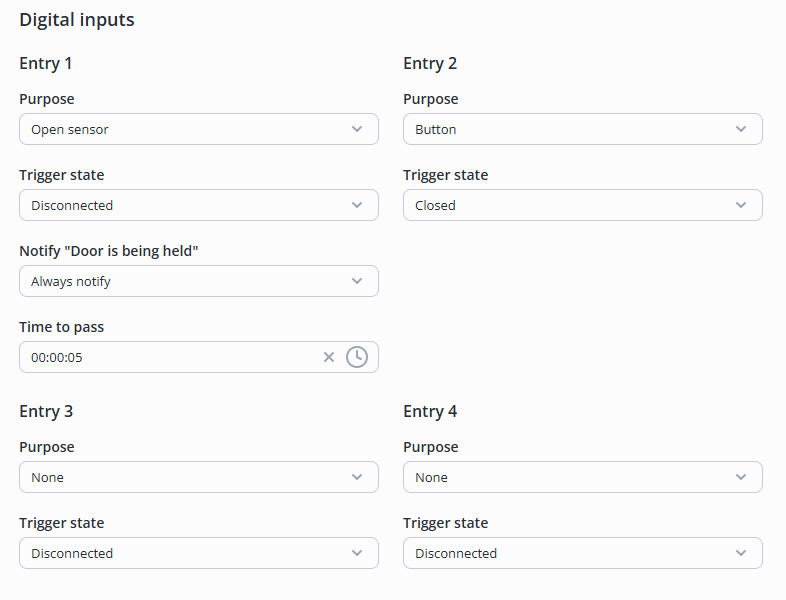
Configure as follows:
- Entry 1 — Open sensor, Trigger state — Disconnected. Notification of object being held — Always notify (by default). Time to pass — 00:00:05 (by default);
- Entry 2 — None;
- Entry 3 — Open sensor, Trigger state — Disconnected. Notification of object being held — Always notify (by default). Time to pass — 00:00:05 (by default);
- Entry 4 — None.
Click the Save button in the lower right corner.
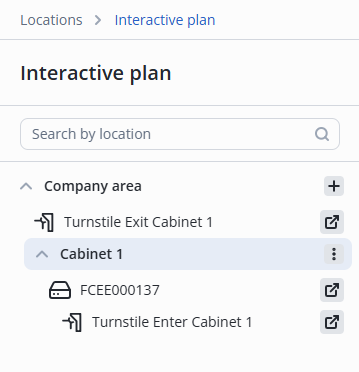
After that, on the Interactive plan page Relay 1 will display with the name Turnstile Enter Cabinet 1, which controls the turnstile.
Beforehand, open the folder using the button next to its name.
Then it is necessary to add both relays of the controller to the Access to Cabinet 1 access pattern .
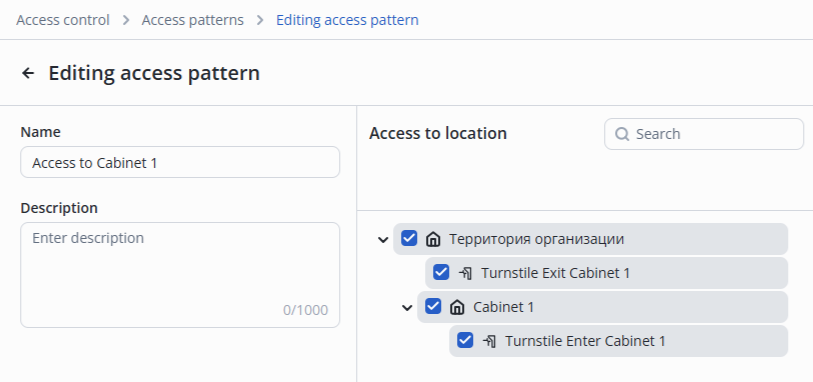
Click the Save button in the lower right corner.
After successful addition, a notification will appear at the bottom middle of the screen to indicate that the operation was successful.
After that, it is possible to add a worker and pass through the turnstile, similar to passing through the door.
Controllers
Editing the controller
To edit a controller, select Controllers from the side menu in the Devices section.
Click the name of the controller.
Basic
This tab provides general information about the controller.
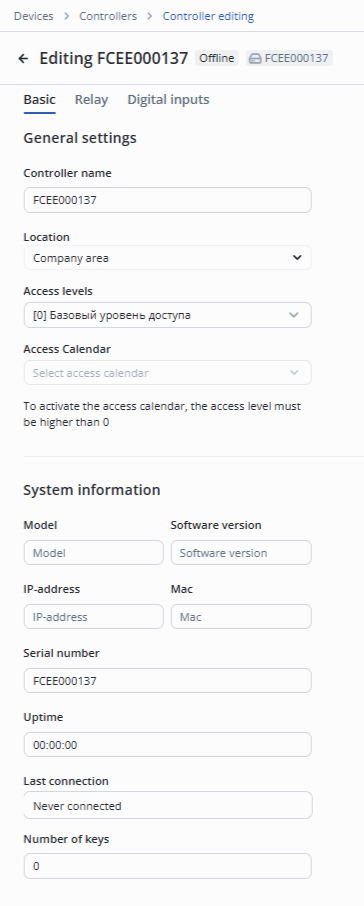
Basic settings
The following fields are available in this section:
- Controller name — text name of the controller, the serial number is specified by default;
- Location — controller mounting location;
- Access levels — required access level for the controller;
- Access calendar — controller access calendar.
System information
The following fields are available for reading in this section:
- Model;
- Software version;
- IP address;
- MAC;
- Serial number;
- Uptime;
- Last connection;
- Number of keys.
Relay
This tab is used to configure the control mode, readers and relays.
There are 8 types of controller management:
- One door;
- Two doors;
- Turnstile;
- Barrier;
- Executive device;
- One door with two relays;
- Gate;
- Security device.
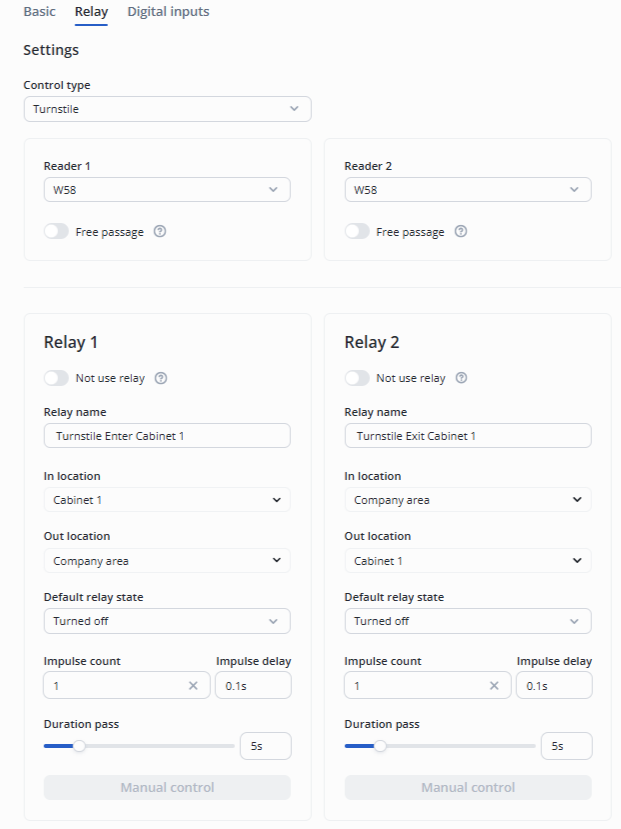
Reader. Free passage
Enabling the Free passage mode provides access to any worker at any time.
To disable a relay, use the Not use relay switch and the relay will no longer be displayed in the device list.
- Relay name — text field to designate the relay;
- In location/Out location — locations to which the relay provides access, the list corresponds to the hierarchy;
- Default relay state — state after controller loading, can be enabled or disabled;
- Impulse count — number of impulses to open the passage (usually used for the gate mode);
- Interval — the duration between the pulses for opening the passage (usually used for gate mode);
- Duration pass — time for which the access is provided;
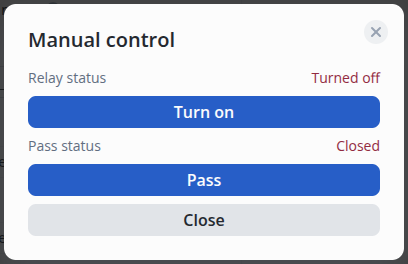
- Manual control — intended for providing access, enabling and disabling the relay.
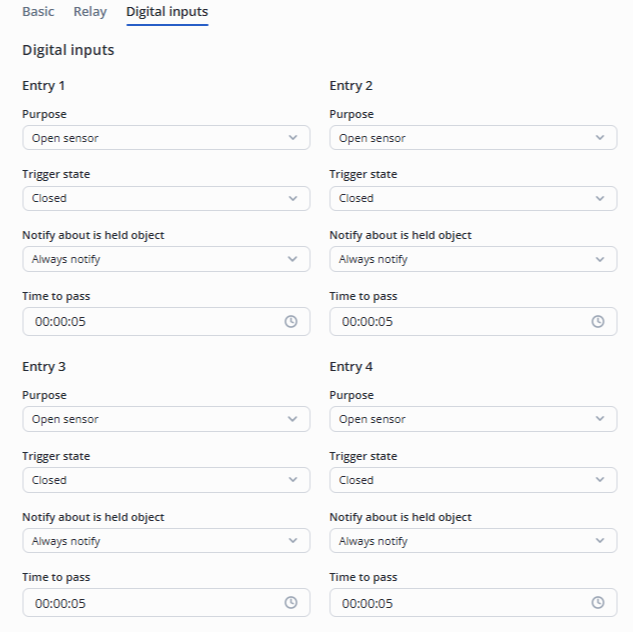
Digital inputs
There are 4 digital inputs on the tab, by default Input 1(Di1) and Input 1(Di3) must be Open sensor, to Input 1(Di2) and Input 1(Di4) it is possible to assign a button or sensor and change the Trigger state to open or close.
It is also possible to configure Notification of object being held (Always notify by default) and Time to pass (5 seconds by default).
When configuring the Door or Turnstile mode, the digital inputs are configured automatically.
Rebooting the controller
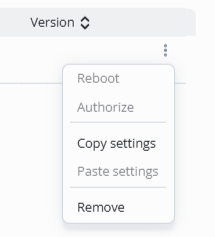
There are two ways to reboot:
- On the Controllers page, click the context menu button (three dots) next to the required controller, and then click the Reboot button.
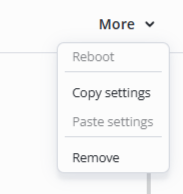
- On the Controllers page, click the name of the desired controller. On the controller's edit page, click the More button, then click Reboot.
Transferring settings from one controller to another
There are two ways to transfer settings — on the Controllers page and on the Edit controller page.
- On the Controllers page, next to the firmware Version of the desired controller, click the context menu button (three dots), and then click the Copy settings button.
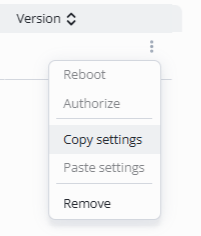
- Then open the context menu (three dots) of the other controller and click Paste settings.
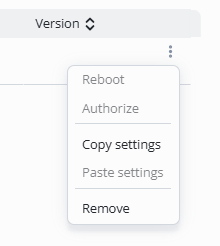
Controller removal
To remove a controller, click on the three dots next to the firmware Version of the desired controller.
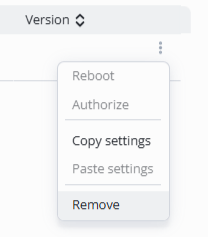
Select the Remove option.
 In the Removing controller window that opens, click the Delete button.
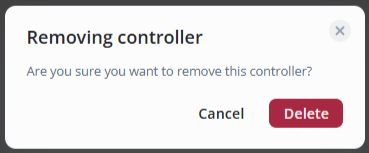
The controller will be considered unauthorized and will continue to appear in the controller list.
Controller wiring diagrams
The most popular diagrams of connecting the IPA-ER PACS controller to the passage points are provided below.
Door
Diagram 1 — Door with 2 readers
| Object | Control type | Reader | Relay | Sensors | Magnet | Additional devices |
|---|---|---|---|---|---|---|
| Door | One door | 2 pcs. | 1 pcs. | Door sensor — 1 pcs. | 1 pcs. | - |
In this diagram, the positive side is connected directly to the magnet, and the negative side is connected via a relay.
The door sensor must be connected to D.in1 to register worker passages (in the Access log in the EVI Platform).
- Digital input 1 — Sensor, Trigger state — Disconnected;
- Digital input 2 — None;
- Digital input 3 — None;
- Digital input 4 — None.
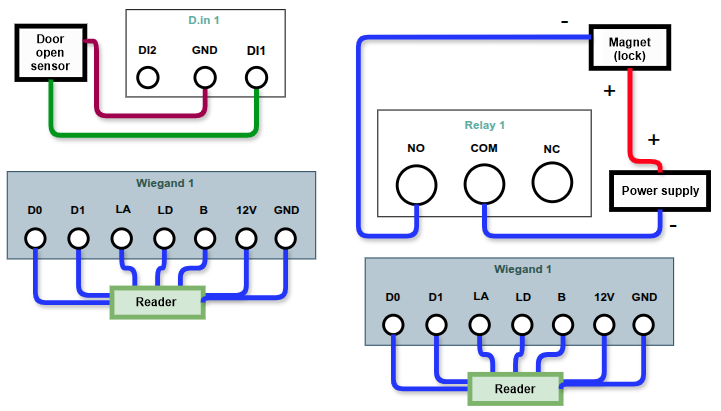
Diagram 2 — Door with 1 reader and 1 button
| Object | Control type | Reader | Relay | Sensors | Magnet | Additional devices |
|---|---|---|---|---|---|---|
| Door | One door | 1 pcs. | 1 pcs. | Open sensor — 1 pcs. | 1 pcs. | Button — 1 pcs. |
In this diagram, only one side of the IPA-ER device is used.
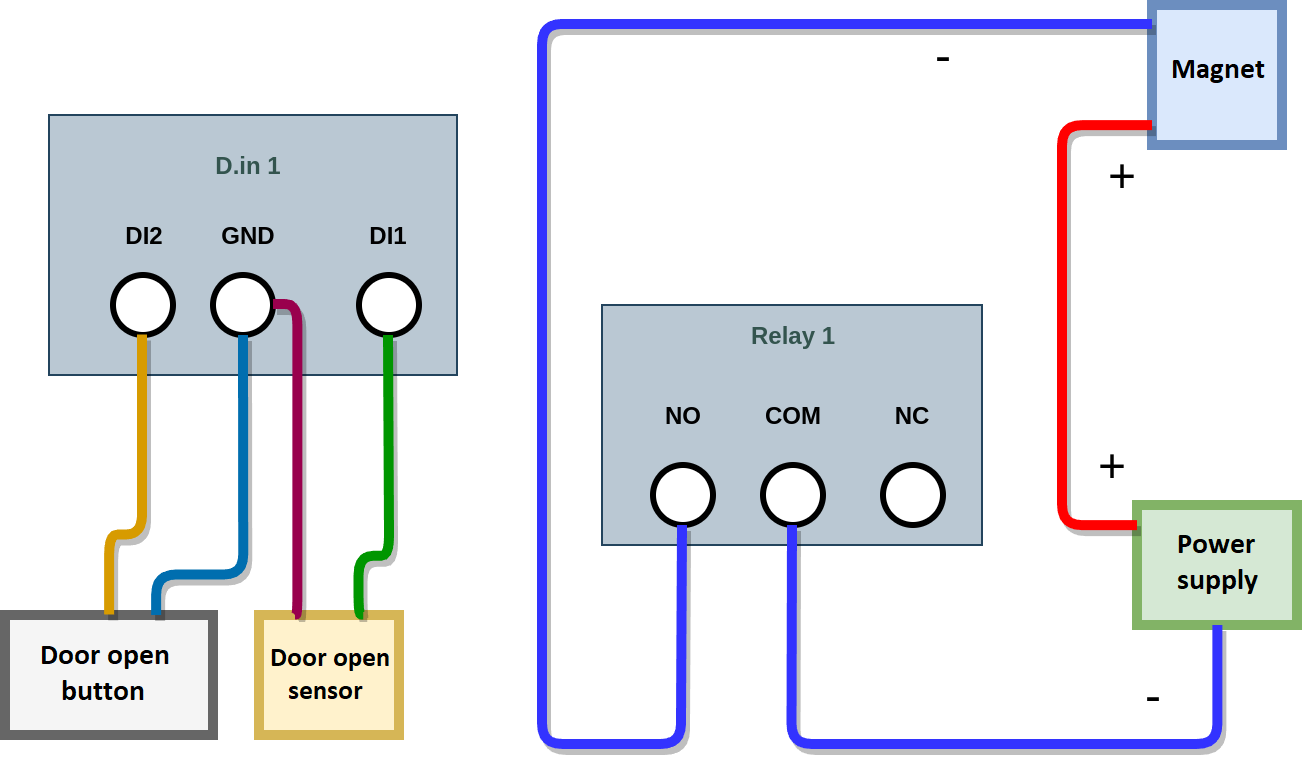
It is necessary to configure the Digital Inputs in the Controller settings in the EVI web interface:
- Digital input 1 — Sensor Trigger state — Disconnected;
- Digital input 2 — Button Trigger state — Closed;
- Digital input 3 — None;
- Digital input 4 — None.
Turnstile diagrams
Diagram 3 — Turnstile
| Object | Control type | Reader | Relay | Sensors | Magnet | Additional devices |
|---|---|---|---|---|---|---|
| Turnstile | Turnstile | 2 pcs. | 2 pcs. | - | - | - |
To connect the turnstile, the following diagram is used.
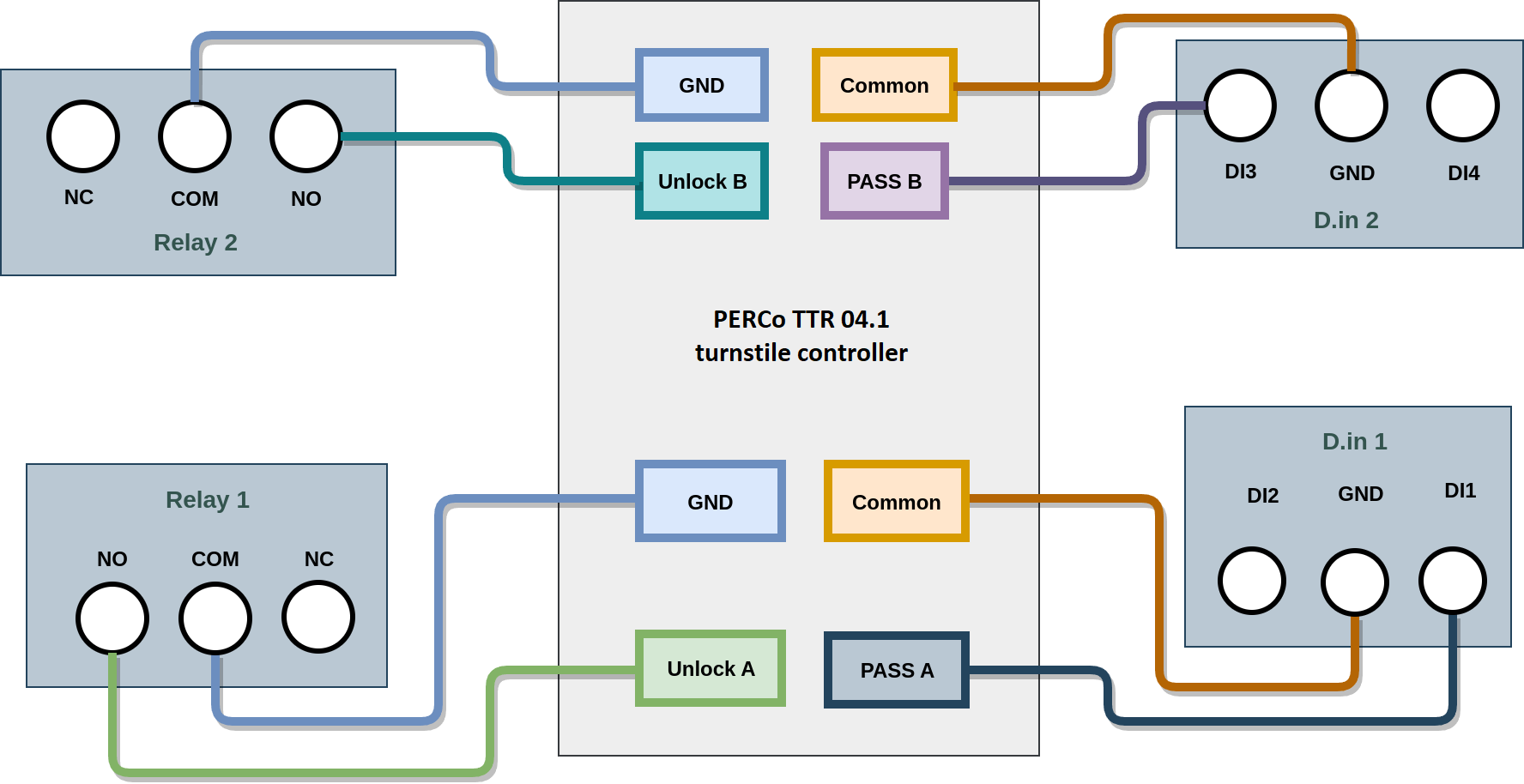
It is necessary to configure the Digital Inputs in the Controller settings in the EVI web interface:
- Digital input 1 — Open sensor Trigger state — Disconnected;
- Digital input 2 — None;
- Digital input 3 — Open sensor Trigger state — Disconnected;
- Digital input 4 — None.
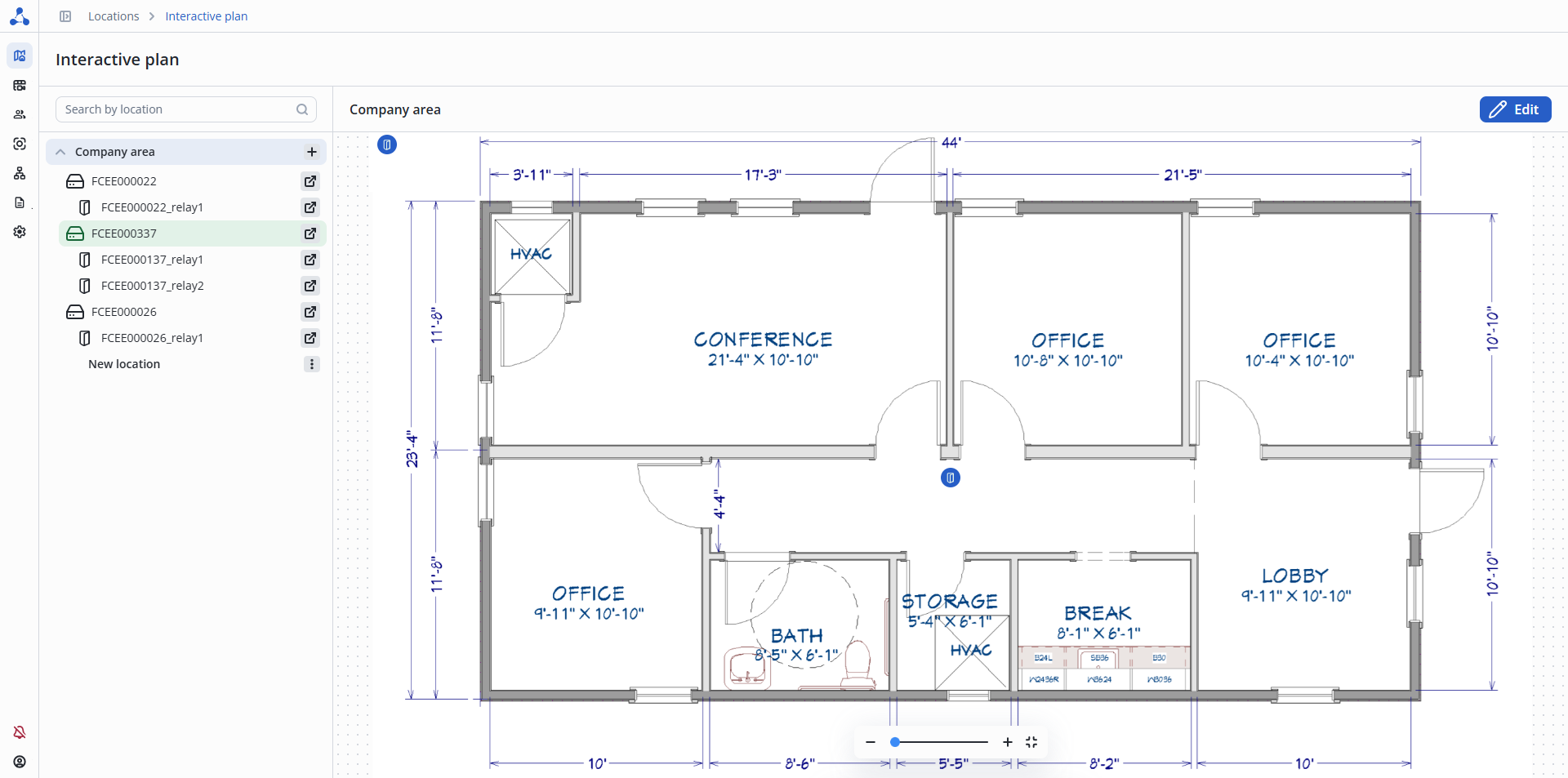
Interactive plan
This page is used to configure access points, manage relays and controllers, and arm the system.
Working with locations
Adding a location
What is the purpose of locations?
Locations are necessary for tracking employees' movement history and for conveniently managing access to them.
Select Interactive plan from the side menu.
Click the + button under Company area, then Add location.
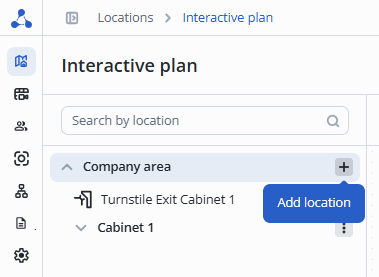
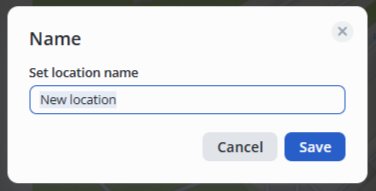
Enter the name of the new location ("New location" by default) and click Save.
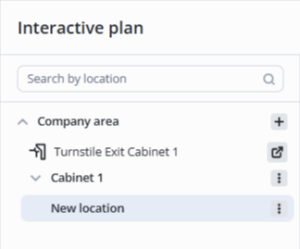
Location with the name New location will appear in the list.
Renaming a location
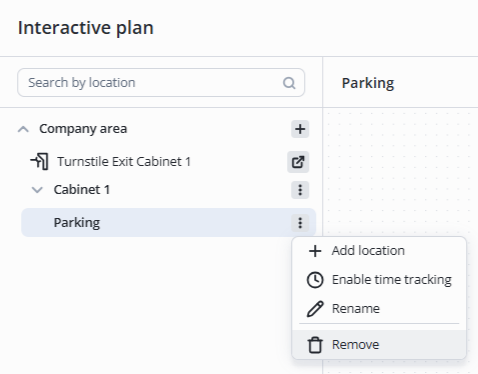
To rename a location, click the three dots on the right side of the screen and select Rename.
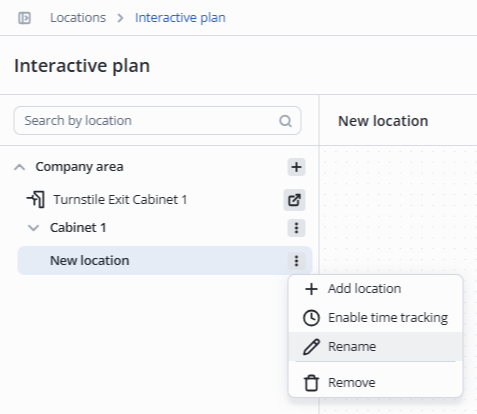
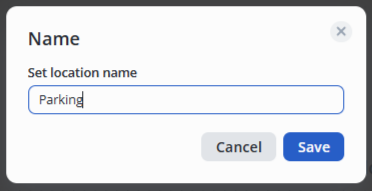
In the pop-up window, enter a name for the new location, for example, Parking, and save by pressing the Save button or the Enter key.
Removing a location
To remove a location, tap the three dots and select Remove.
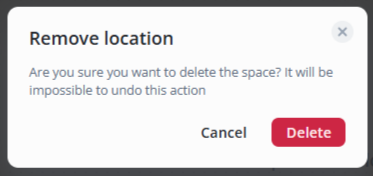
In the pop-up window, click the Delete button.
Working with the interactive plan
Adding an image to the plan
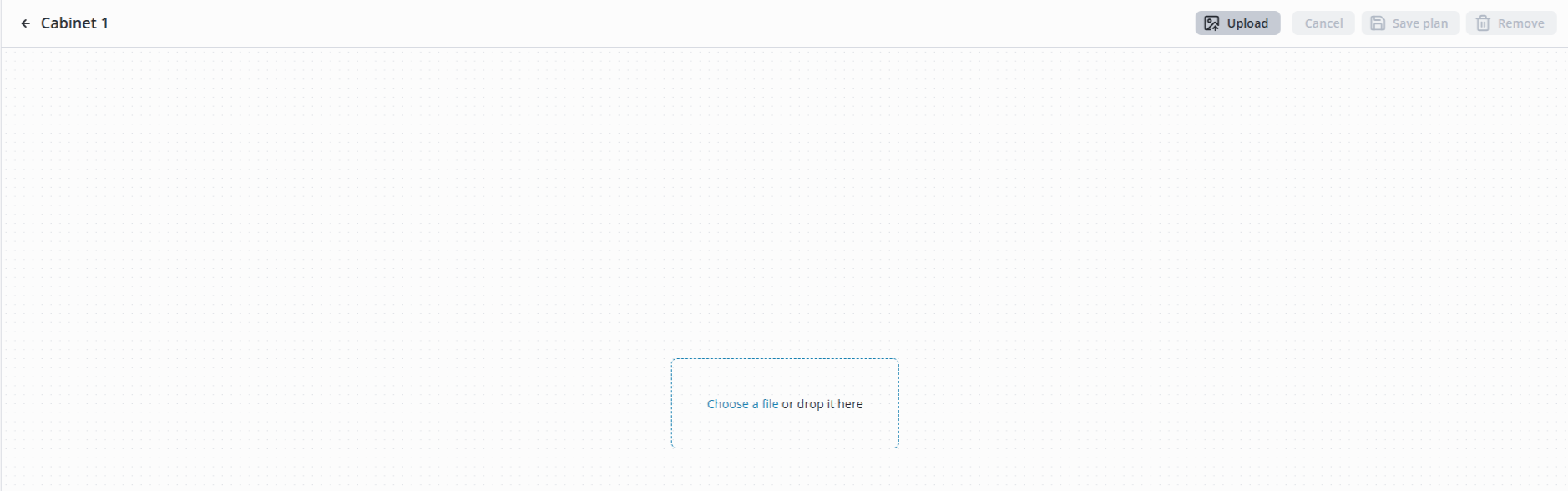
To add an image to the plan, select the required location and click the Edit button.

Click Upload or Choose a file or drop it here button and select the plan image file from your computer.
Adding objects to the plan
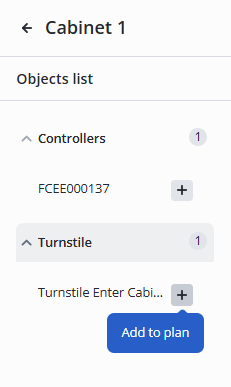
To add an object to the interactive plan, click the + button next to the object.
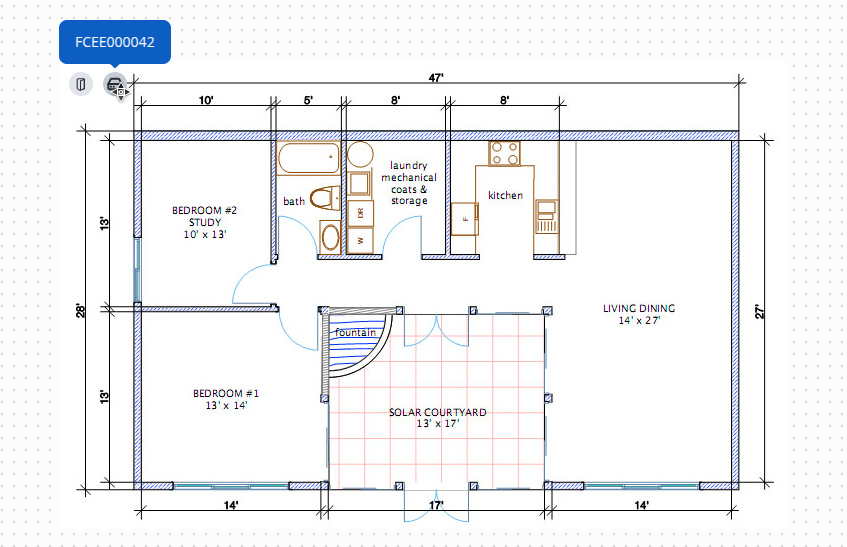
The objects added to the plan will be displayed in the upper left corner of the plan.
Moving and removing objects on the plan
Moving objects on the plan
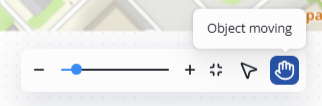
To move an object on the plan, click the Object moving button.
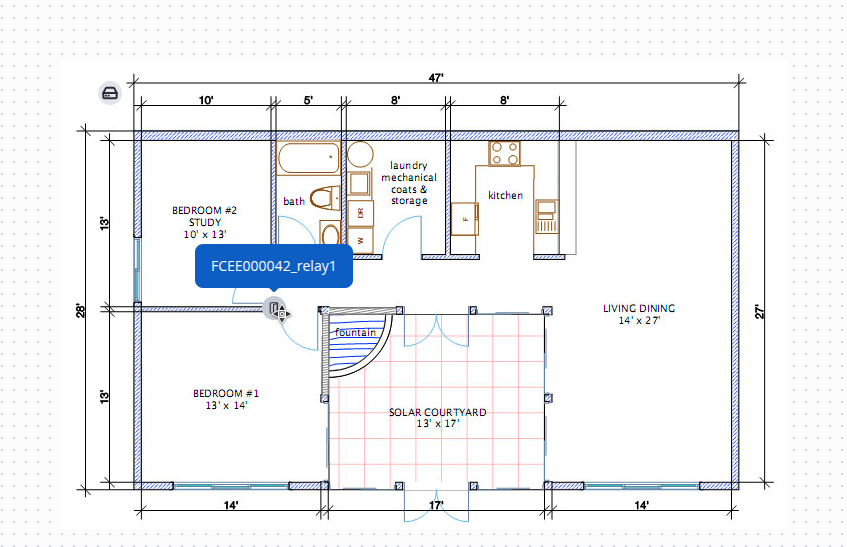
Place the cursor over the object and move it to the required location on the plan.
Removing an object from the plan
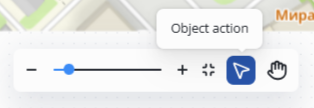
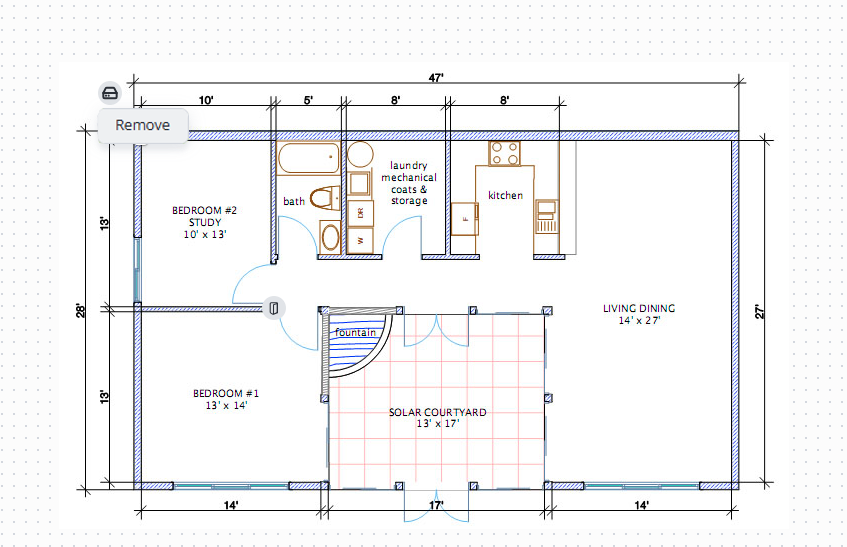
To remove an object from the plan, click the Object action button.
Click on the object and select Remove.
Saving the plan
To save the plan, click the Save plan button.

Interacting with objects on the interactive plan
Controller
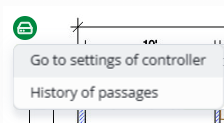
For the controller on the interactive plan, the following options are available:
- Go to settings of controller — switching to the controller settings.
Relay
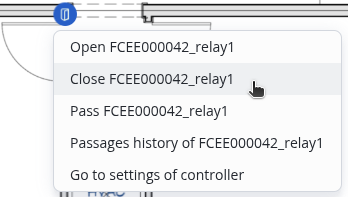
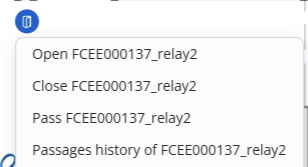
For relays on the interactive plan, the following options are available:
- Open — opens the door or turnstile;
- Close — closes the door or turnstile;
- Pass — provides a single pass according to the relay settings;
- Passage history — switching to passage log;
- Go to settings — switching to relay settings.
Workers
Workers — a list of people who are granted access to premises in accordance with their authorization.
Adding a new worker
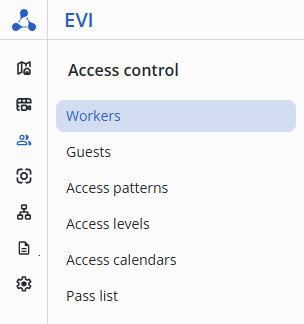
Enter the Workers page in the Access control section.
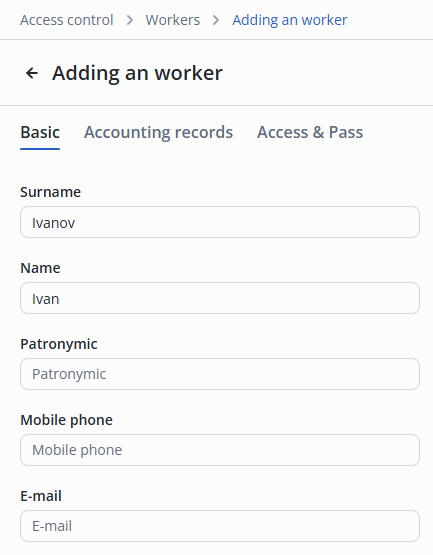
Click the + Add worker button.

To add a worker, it is sufficient to fill in the Surname and Name fields.
Editing a worker
The page has 3 sections available for editing:
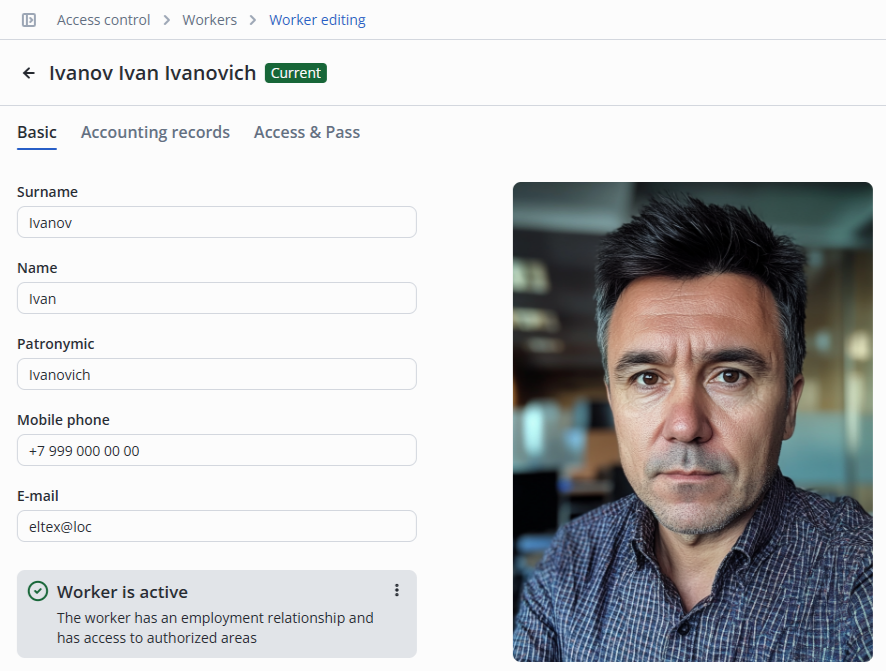
- Basic — general information and photo of the worker;
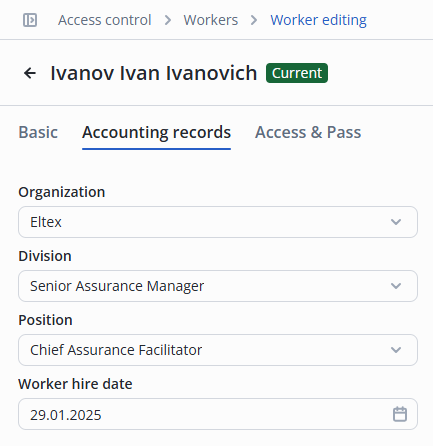
- Accounting records — information about the position of the worker and the date of employment;
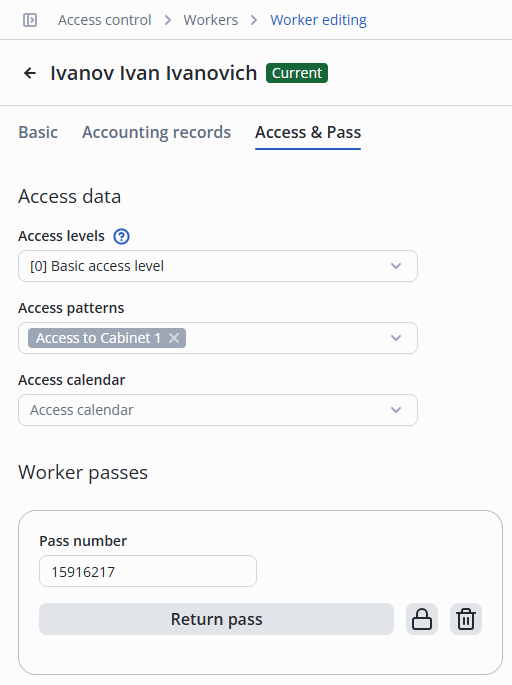
- Access & Pass — worker visitation rights, passes, and vehicles configuration.
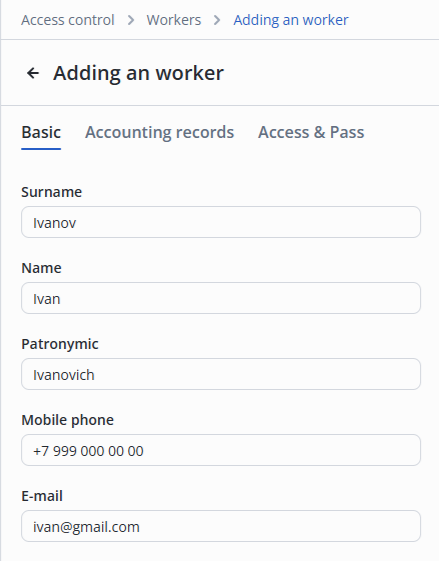
Basic section
The following fields are available in this section:
- Surname;
- Name;
- Patronymic;
- Mobile phone;
- E-mail;
- Birth day.
Adding a worker's photo
Photo recommendations
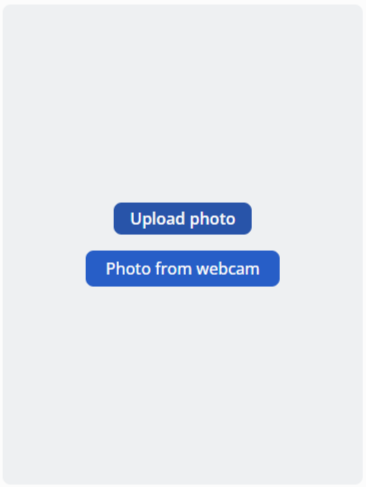
To add a photo, click the Upload photo button.
Select the worker's photo in the operating system's file manager window.
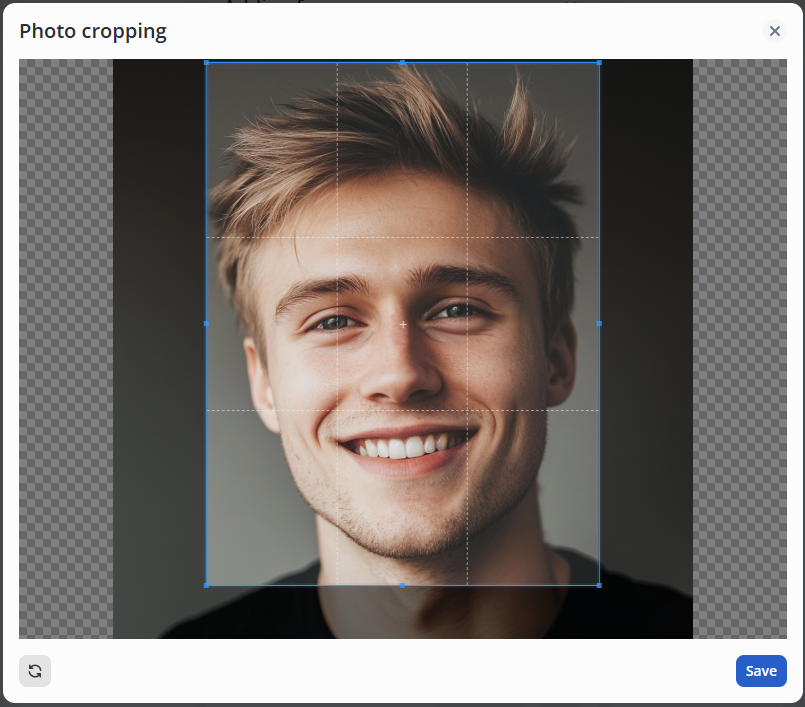
Crop the photo if required by clicking and pulling the blue edges, afterwards click the Save button.
Activation of worker's analytics
For more information on configuring facial recognition access for employees, see the Configuring facial recognition access through the turnstile section.
Switch to the edit section.
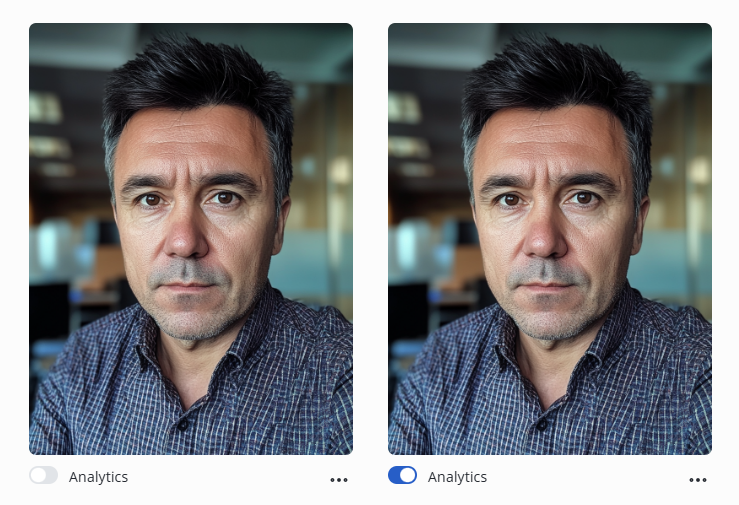
To activate analytics, turn the Analytics switch to the enabled position.
Worker removal
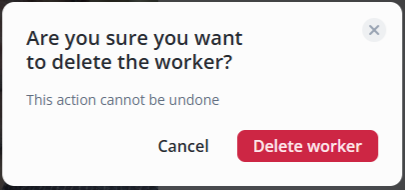
To remove a worker, click the Delete worker button.
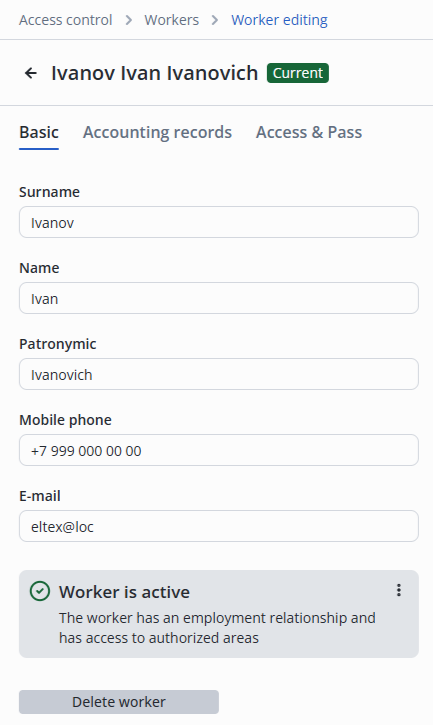
In the pop-up window, click the Delete worker button.
Blocking a worker
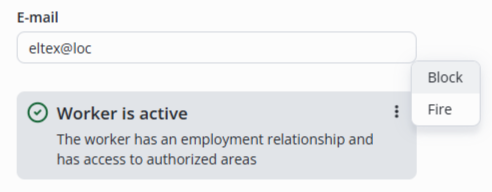
To block a worker, click on the three dots to the right of the Worker is active caption, then select Block.
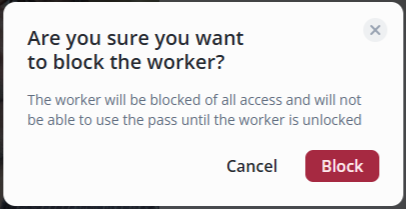
In the pop-up window, click the Block button.
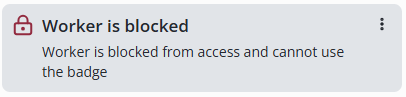
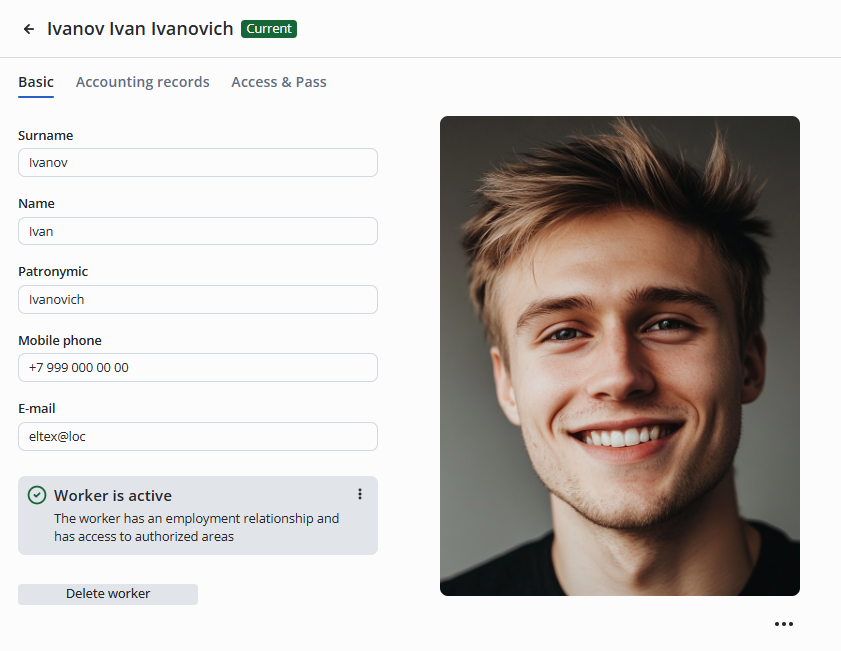
The caption Current next to the worker`s name changed to Blocked.

The info line changes from Worker is active to Worker is blocked.
Firing a worker
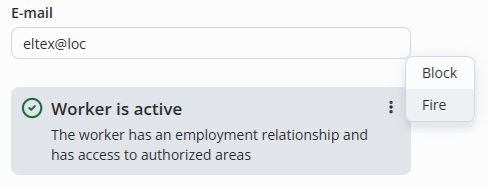
To fire a worker, click on the three dots to the right of the Worker is active caption, then select Fire.
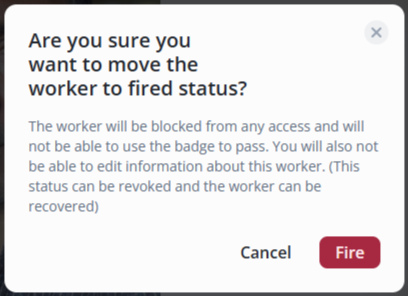
In the pop-up window, click the Fire button.
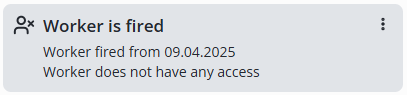
The info line changes from Worker is active to Worker is fired.
Accounting records section
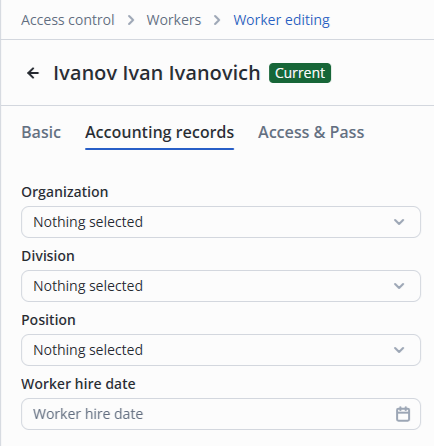
The section provides additional information about the worker:
- Organization;
- Division;
- Position;
- Worker hire date.
Adding organization, division and position
To add an organization, click on Nothing selected and enter a name in the field, such as Eltex.
After that, click the + Add "Eltex" button.
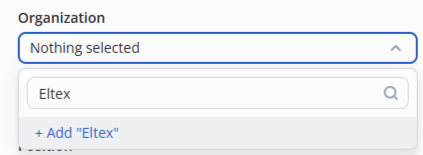
The organization is created. In the future it will be available for selection by any worker.
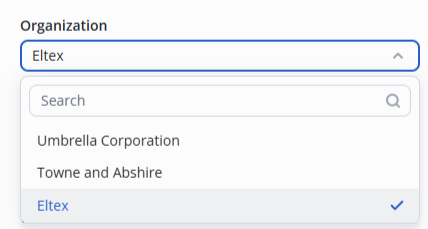
The interaction with Division and Position is similar.
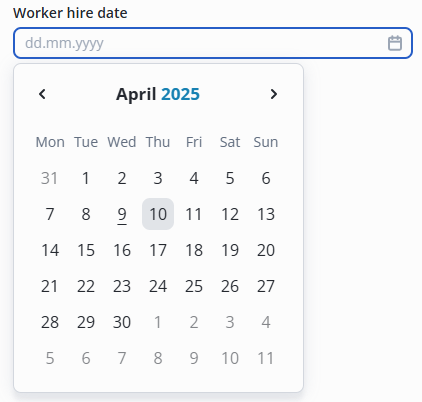
The worker hire date is selected by clicking on the input field and then selecting the day on the calendar, or by manually entering the date in the field.
Access & Pass section
In this section it is possible to configure which locations a worker may have access to and at what time. Passes and cars are also added here.
Access data
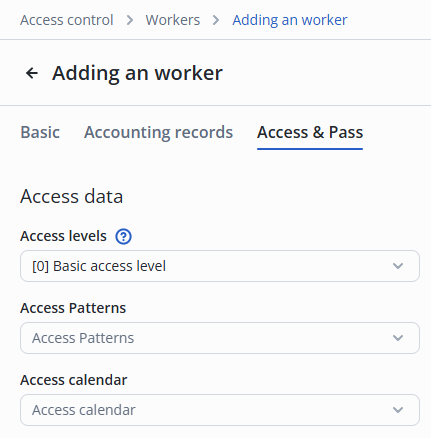
To configure an employee's access, the following options are available:
- Access levels (worker access priority over controller schedule);
- Access patterns;
- Access calendar.
Access levels
Worker access level means that the worker access priority is higher than the PACS controller schedule. The details are available in the Access levels section.
The worker is provided with access to the locations independently of the visit time specified in the PACS controller.
Access pattern
By selecting the access pattern, specify which locations the employee is provided access to.
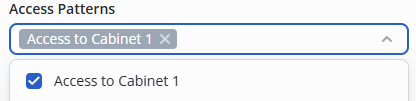
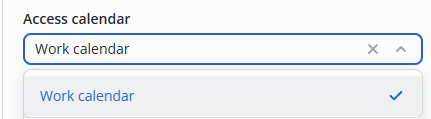
Access calendar
By selecting the access calendar, limit the time for visiting the locations specified in the access pattern.
Worker passes
Section for adding, blocking and deleting worker passes.
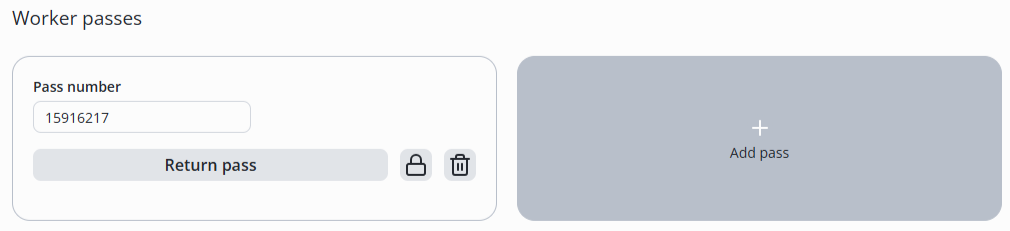
Adding a pass
Click the Access & Pass tab.
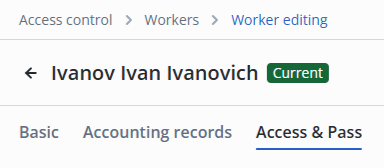
Click on the Add pass button in the Worker passes section.
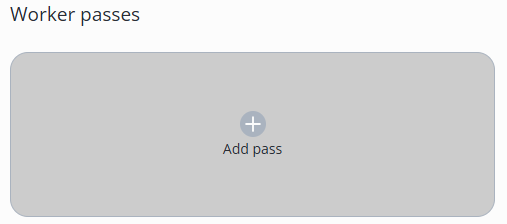
Hold your access card up to the USB reader or enter the code from the card. Example: 0004559976.
The pass code is entered without zeros.
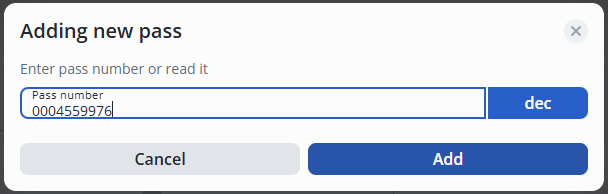
Click the Add button.
Click the Add button in the lower right corner to save the steps.
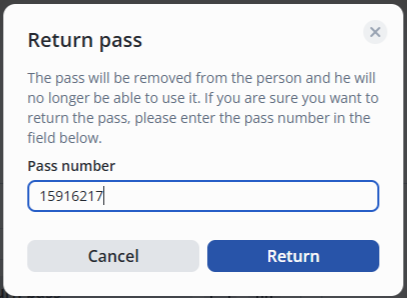
Returning a pass
Returning a pass differs from deleting a pass only in that returning a pass requires confirmation of the pass number entry.
To return a worker's pass, click on the Return pass button in the pass card.
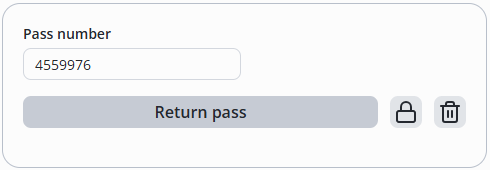
Hold the pass up to the USB reader or enter the code from the pass.
Click the Return button.
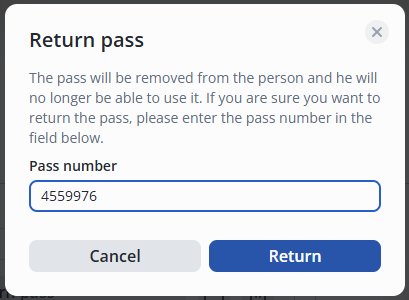
The pass will be considered returned and removed from the system.
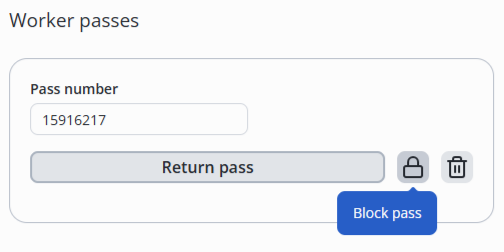
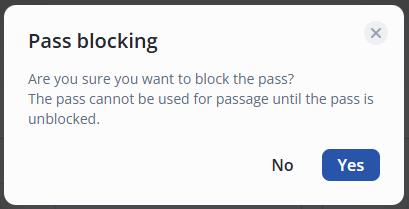
Blocking a pass
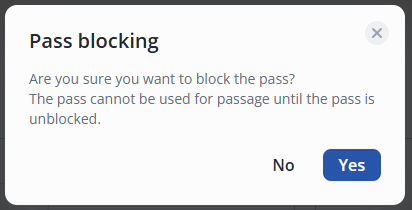
To block a worker's pass, click the Block pass button in the pass card.
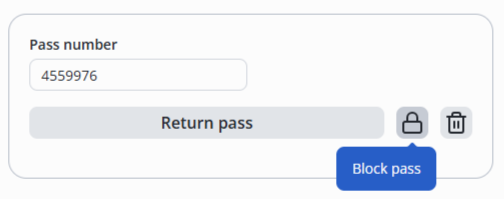
In the pop-up window, click the Yes button.
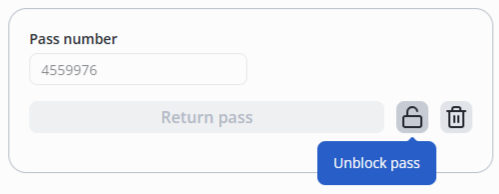
To unblock a pass, click on the Unblock pass button in the pass card.
Deleting a pass
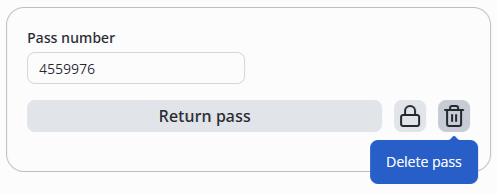
To delete a pass, click the Delete pass button in the pass card.
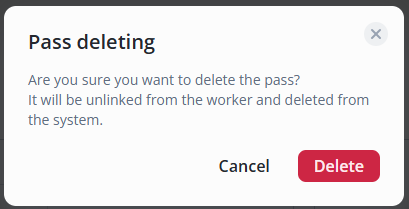
In the pop-up window, click the Delete button.
Worker's car
Section for adding, blocking and deleting a worker's car.
Adding a car
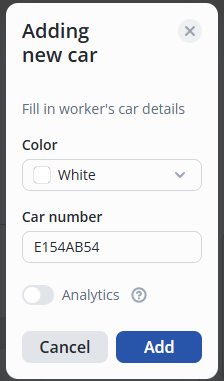
Click the Add car button in the Worker`s car section.

In the pop-up window, select the following:
- Color;
- Car number;
- Analytics — access to license plate number analytics.
Car blocking
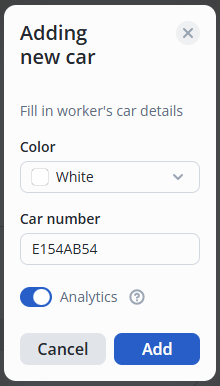
To block worker passage by license plate number, turn the switch to the active position.
Available only with Analytics module.
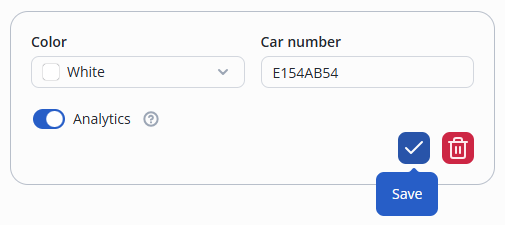
Then click the Save button in the car card.
Removing a car
To remove a car, click the Remove button in the car card.
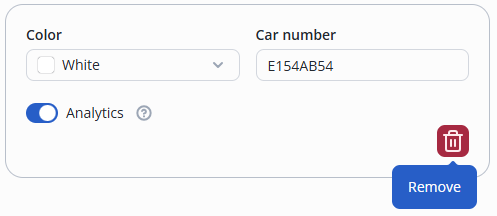
In the pop-up window, click the Delete button on the right.
Guests
Guests — a list of people who are granted access to premises in accordance with their authorizations.
Adding a new guest
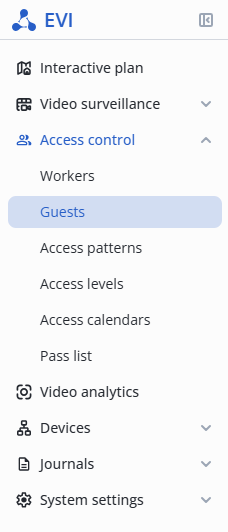
Open the Guests page in the Access control section.
Click the Add guest button.

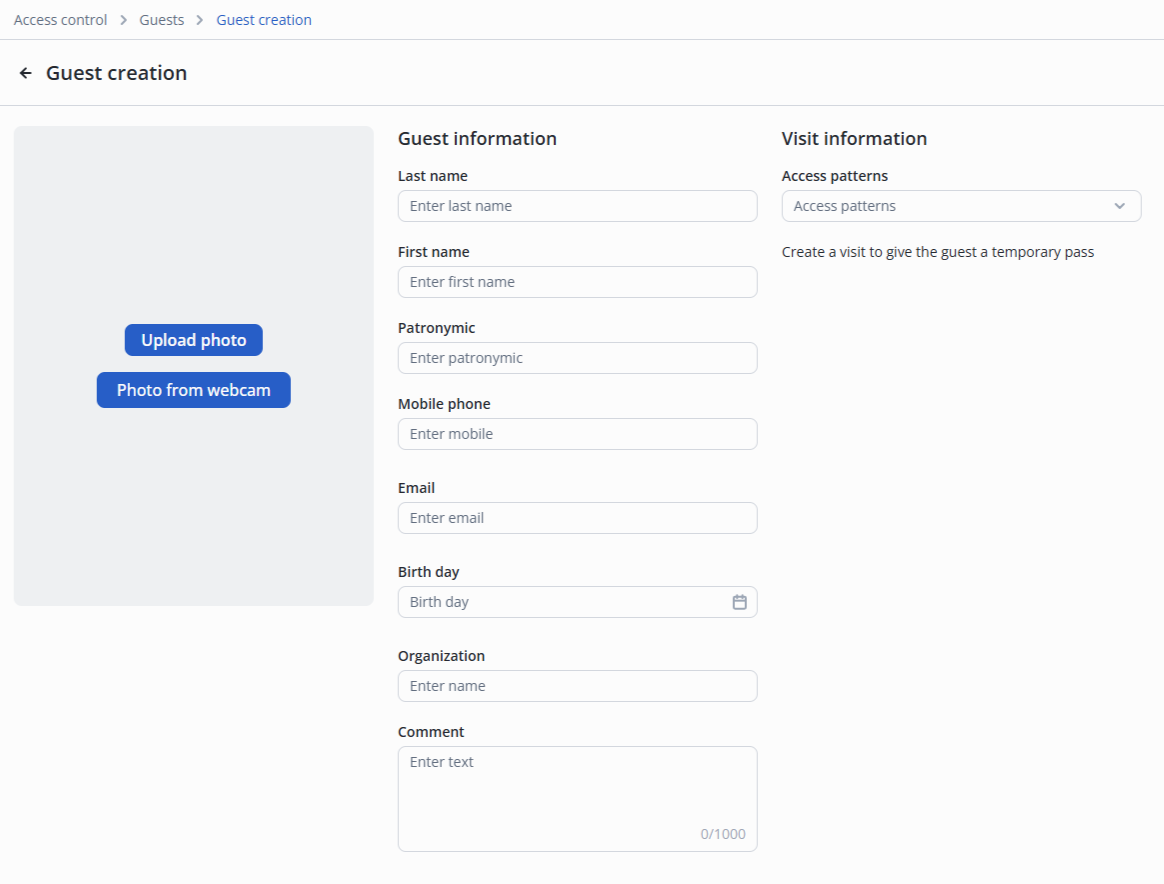
In the guest card, it is sufficient to fill in the Last name and First name.
Click the Add button.
Editing a guest
To edit a guest, click the guest's name in the table.

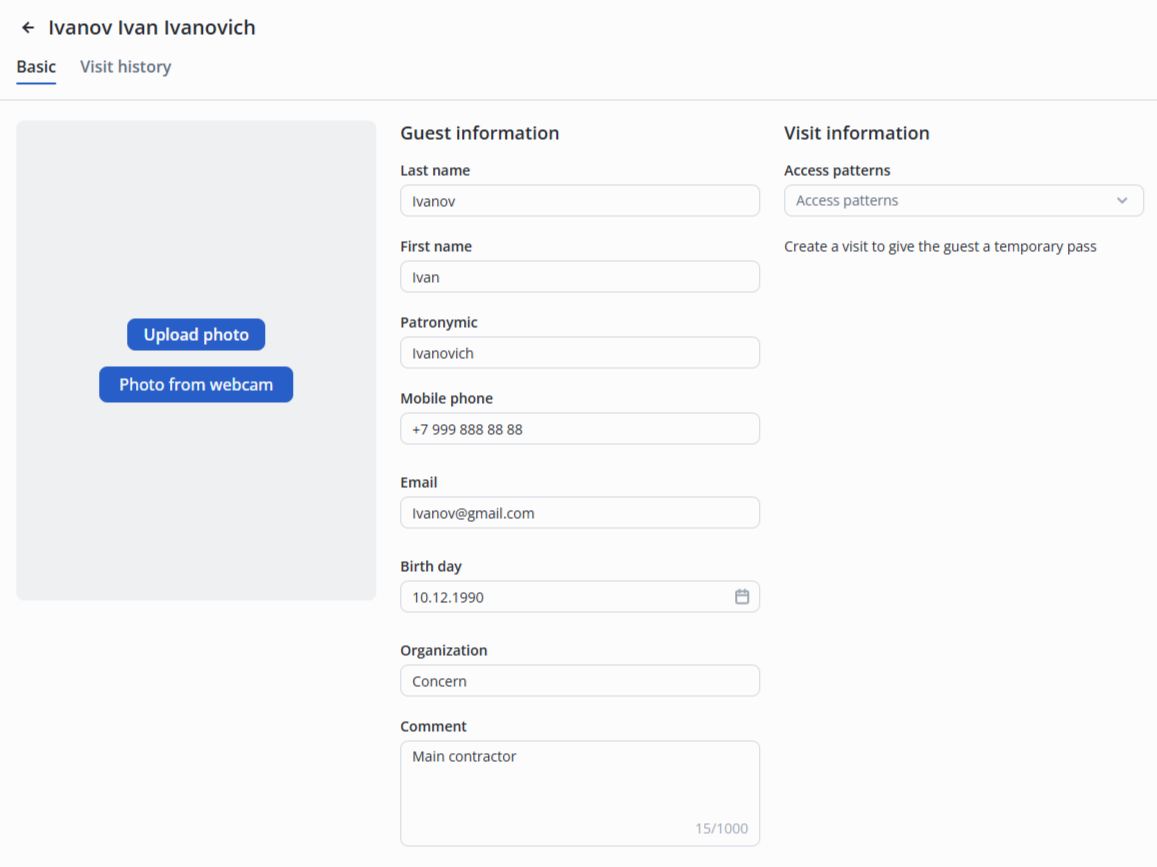
Basic section
In this section, the following fields are available for filling in:
- Last name;
- First name;
- Patronymic;
- Mobile phone;
- Email;
- Birth day;
- Organization;
- Comment.
Adding a photo of a guest
Photo recommendations
To add a photo, click Upload photo or Photo from webcam.
Select the guest photo in the operating system's file manager window.
Crop the photo if required by clicking and pulling the blue frame, afterward click the Save button.
Visit history section
The section stores the visit history of the guest.

Creating a visit for a guest
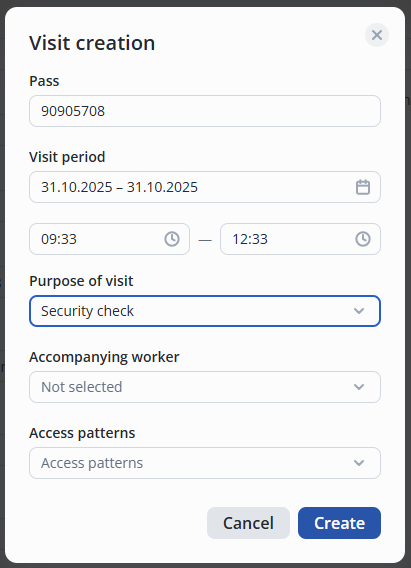
To issue a temporary pass to a guest, click + Create visit.

In the pop-up window, fill in the following fields:
- Pass (enter or read);
- Visit period.
Click the Create button.
Activating guest analytics
To enable access via facial recognition, set the Analytics switch to the "On" position.

Editing a visit
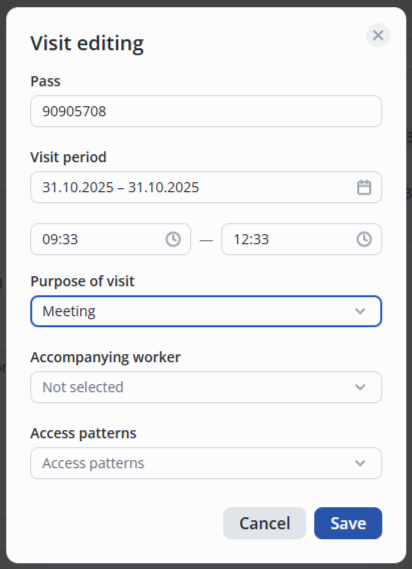
To edit a visit, left click on the Pencil icon.
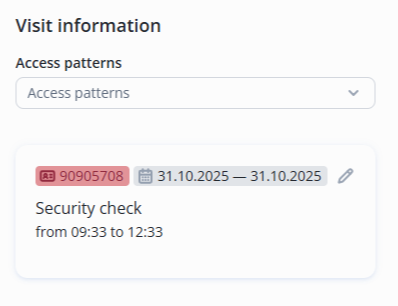
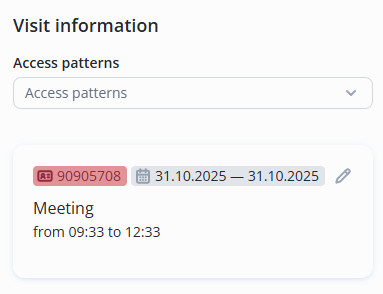
In the pop-up window, fill in the data and click Save.
The visit data is updated.
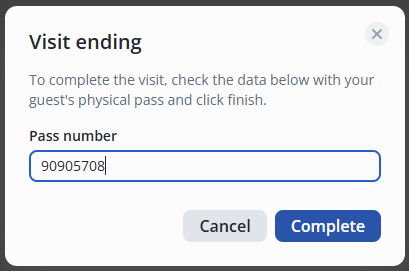
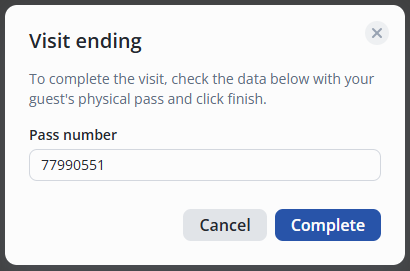
Completing the visit
Left click on the three dots in the guest line.
Select End visit option.

Enter the pass number and click Complete.
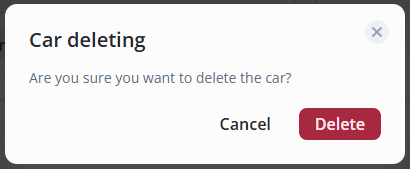
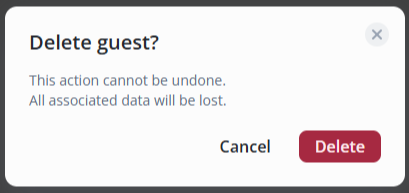
Deleting a guest
Left click on the three dots in the guest line.
Select the Delete guest option.

Click the Delete button.
Access patterns
Access pattern — a set of locations to which a worker has access.
There are 2 types of access patterns on the EVI Platform:
- Worker pattern;
- Guest pattern.
Adding an access pattern
Enter the Access control section, and select the Access patterns item in the menu.
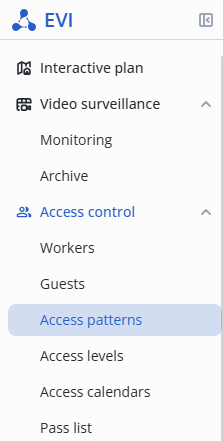
Click the Add access button, select the Worker pattern option.

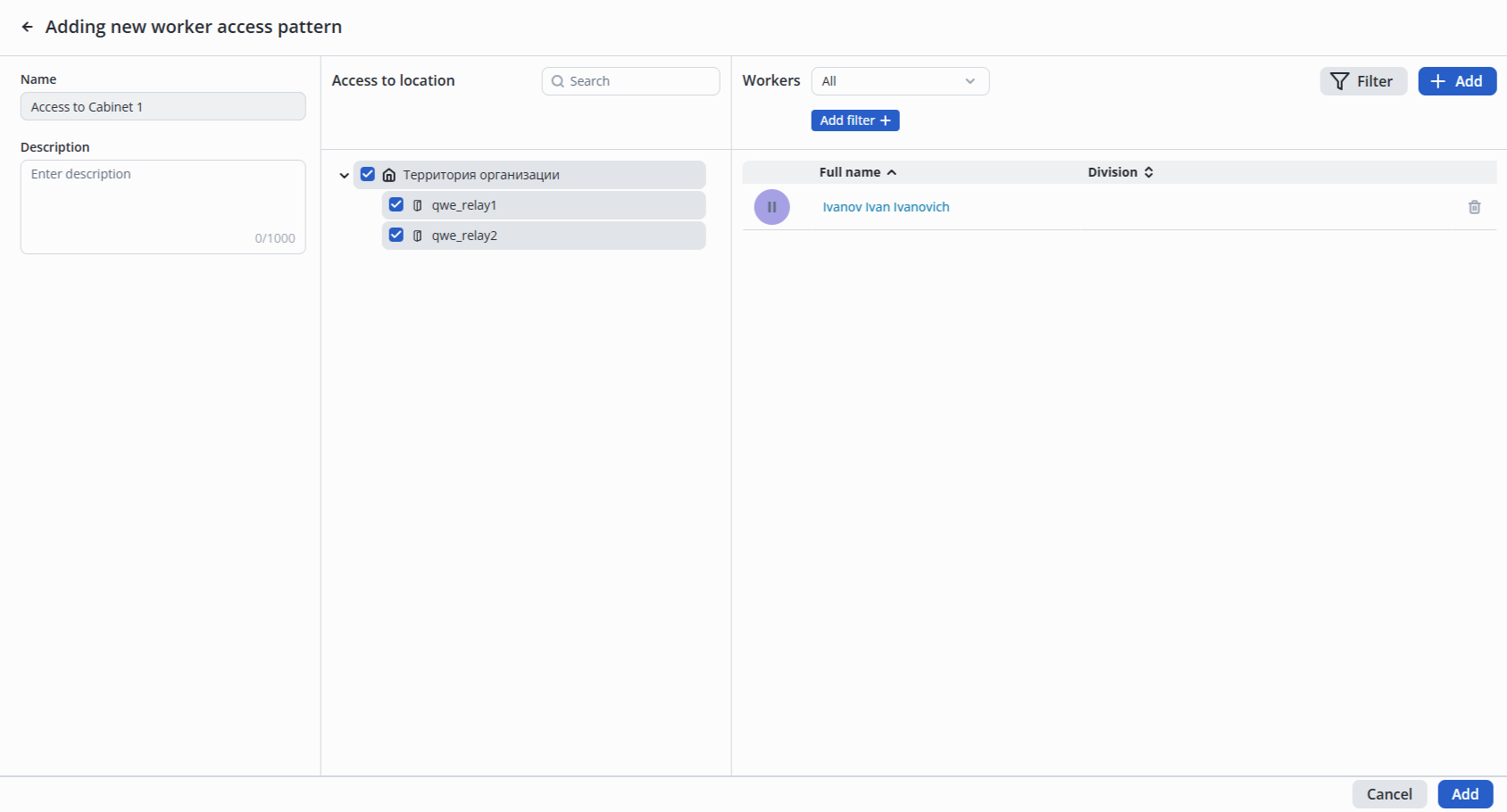
Fill in the fields:
- Name;
- Description.
In the Access to location section, mark the access objects that can be passed through in this access pattern.

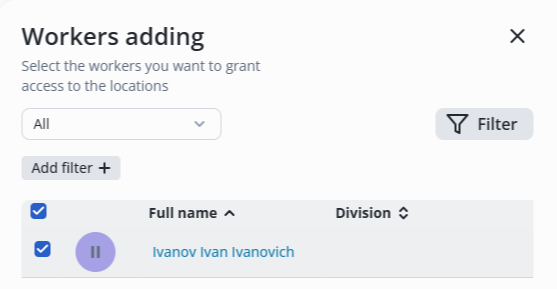
Click the Add button in the rightmost column to select employees from the list who will be granted access to the premises under this template.

In the appeared list select workers and click the Add button.
After adding workers, click the Add button in the bottom right corner.
Editing an access pattern
To edit an access pattern, click on the pattern name in the table.

Make the required changes.

Click the Save button in the bottom right corner.
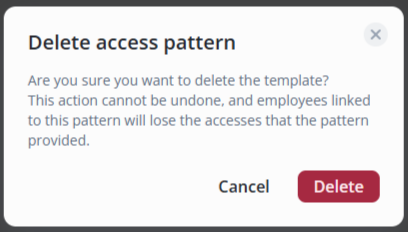
Removing an access pattern
Left-click the three dots in the pattern row.
Select Remove.

Click the Delete button.
Access calendar
An access calendar restricts an employee’s or guest’s visit times.
If an employee does not have an access calendar or if the access calendar is empty, there are no restrictions on the employee’s visit times.
There are two types of access calendars on the EVI platform:
- Worker access calendar;
- Guest access calendar.
Adding an access calendar
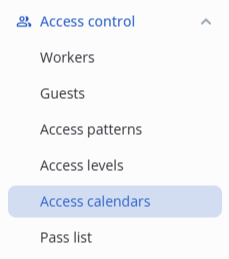
Enter the Access control section, and select the Access calendars item in the menu.
Click the Add calendar button.

Specify the name and description of the access calendar.
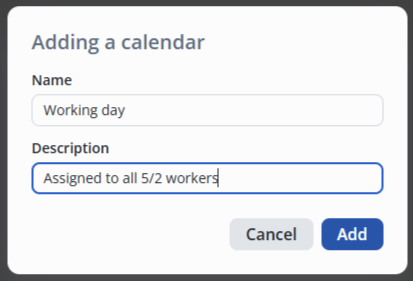
Click the Add button.
Editing an access calendar
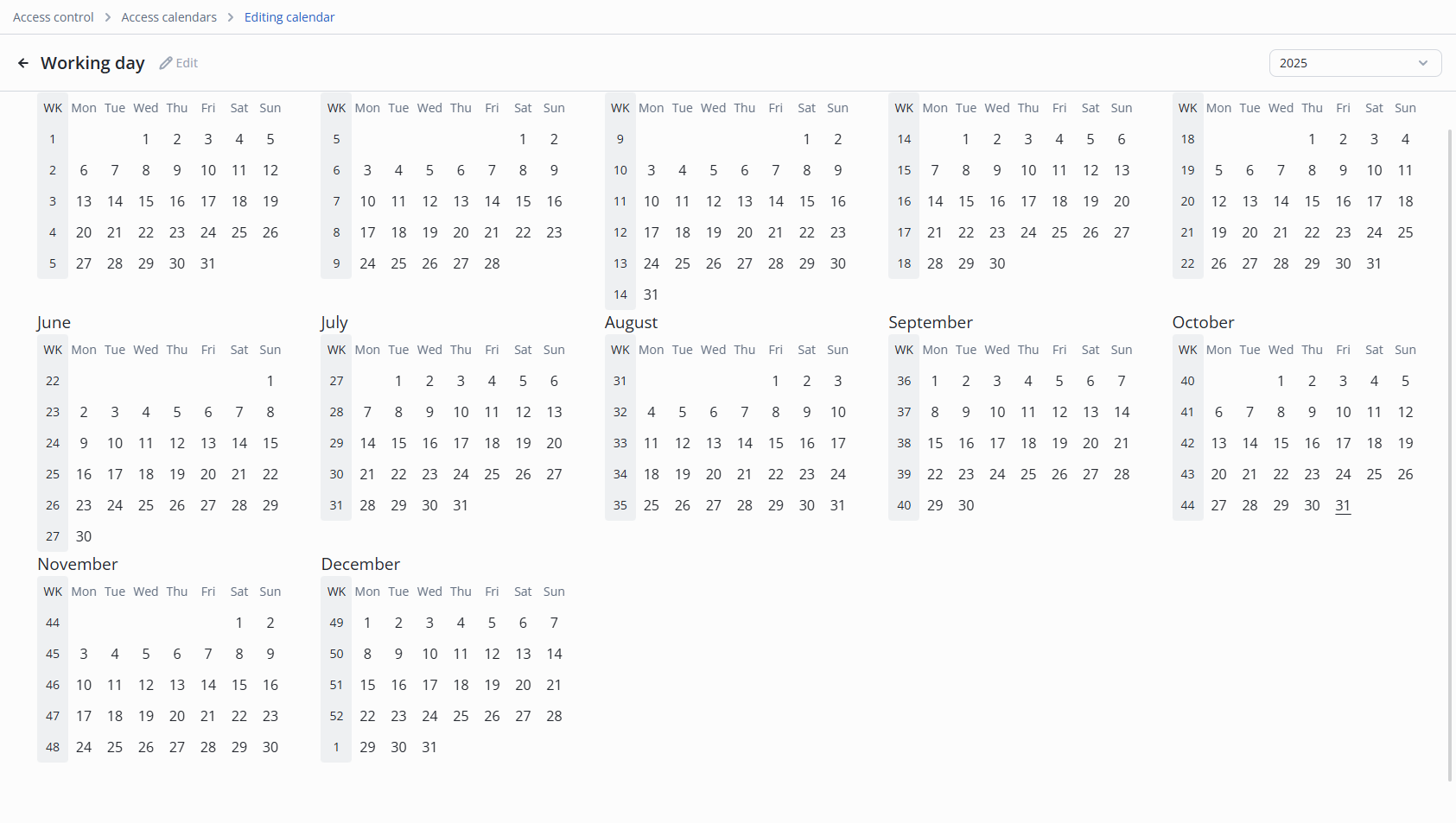
To edit Worker or Guest access calendar, click the calendar name in the list.

The access calendar will open.
Configuring a five-day workweek
Example: Employees work a standard five-day workweek from 9:00 to 18:00 throughout the year.
To configure the following example, you must select the entire year.
Select January 1 through December 31.
In the pop-up window, the following settings are available:
- Type of schedule — Weekly/Shift work;
- Start of schedule, End of schedule;
- Days of the week;
- Access time within the day.
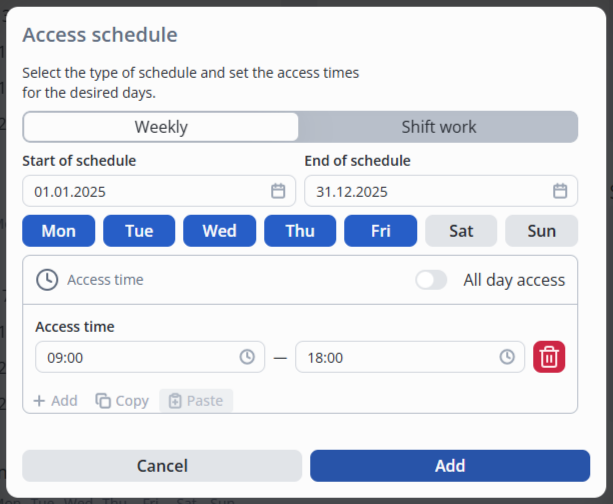
To configure, select the following:
- Type of schedule — Weekly;
- Start of schedule — 01.01.2025;
- End of schedule — 31.12.2025;
- Days of the week — Mon, Tue, Wed, Thu, Fri;
- Access time — 9:00 - 18:00.
Click the Add button.
The days on the calendar are now highlighted in blue.
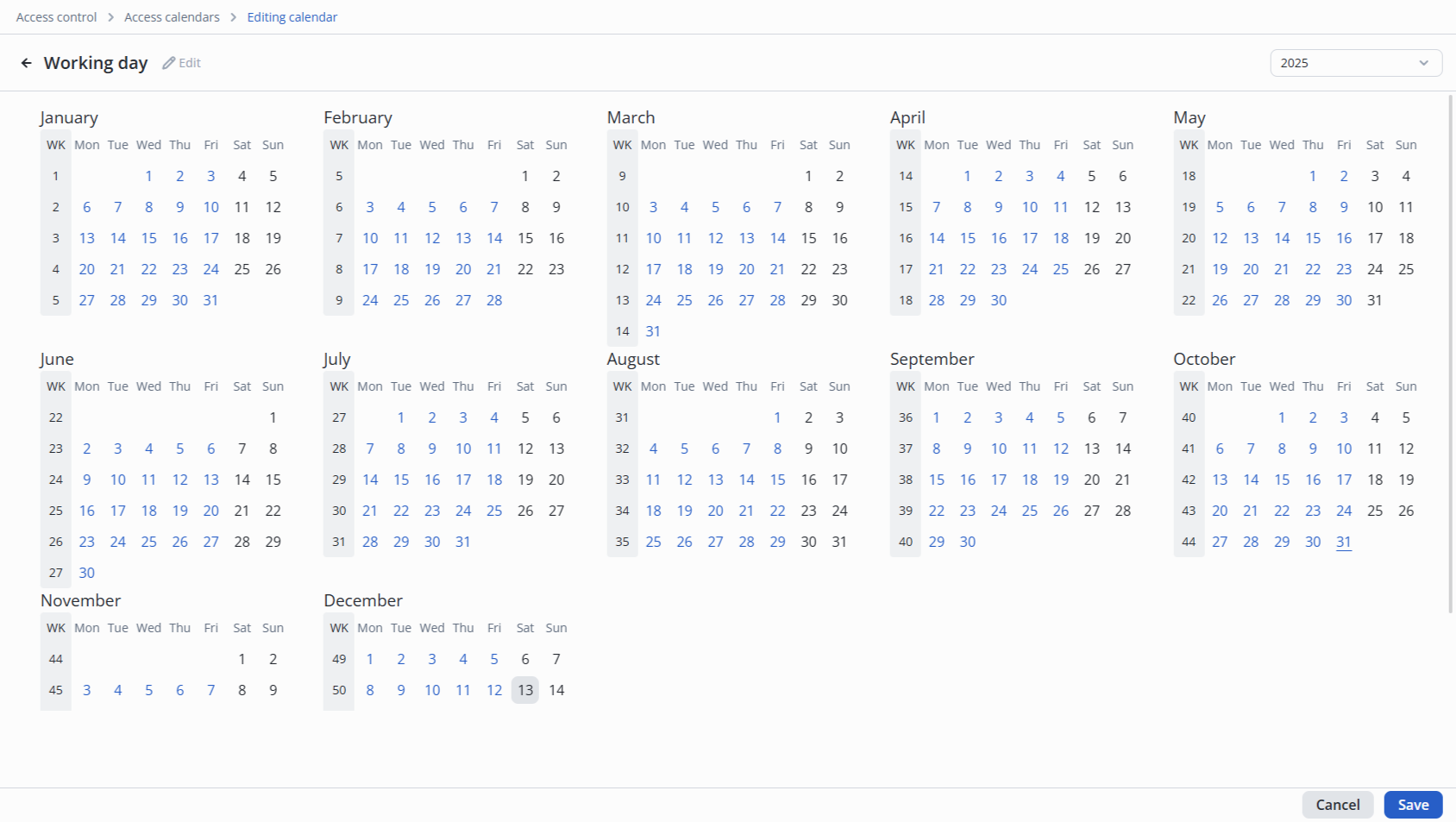
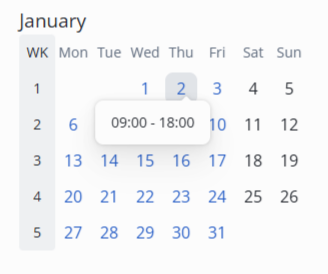
If you move the cursor over the date, the access time within the day is displayed.
To save changes in the calendar, click the Save button in the lower right corner.
Configuring multiple temporary accesses within one day
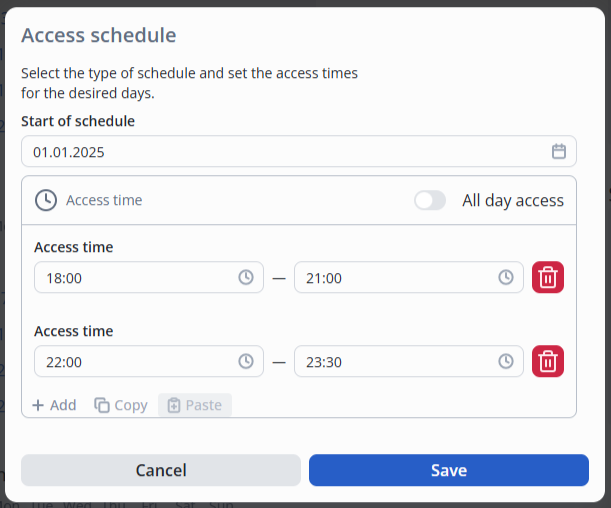
To add multiple time periods within one day, click the +Add caption.
Removing an access calendar
Left click on the three dots in the calendar line.
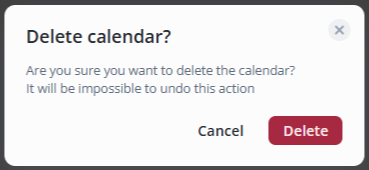
Select the Remove option.

In the pop-up window, click the Delete button.
Access levels
With access levels it is possible to create and specify access levels for controllers and workers.
The diagram below shows the different levels of worker access.
Adding an access level
Enter the Access control section, and select the Access levels item in the menu.
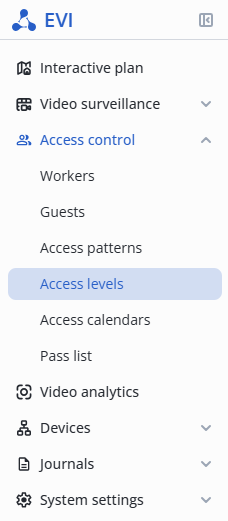
Click the Add level button.

In the pop-up window, specify the following:
- Name;
- Level;
- Type (Workers or controllers);
- Description.
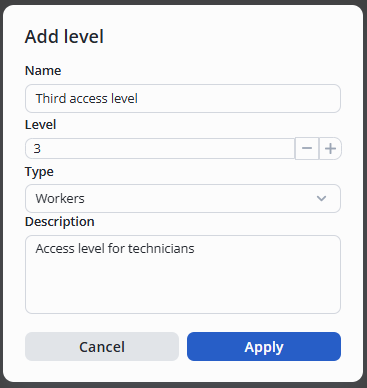
Click the Apply button.
Editing an access level
Left-click the three dots in the level line.
Select the Edit option.

In the Edit level window, make the necessary changes to the name and description.
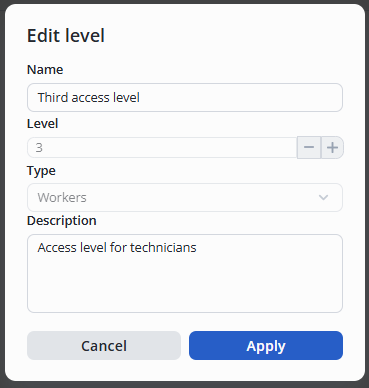
Click the Apply button.
Removing an access level
Left-click the three dots in the level line.
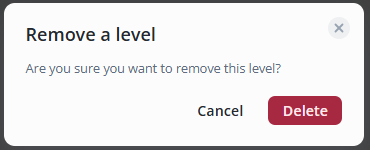
Select the Remove option.

Click the Delete button.
Pass list
A list of workers and guest passes.
Pass owner's profile view
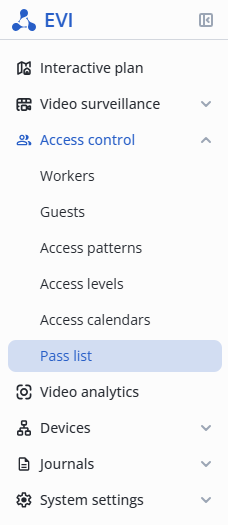
In the Access control section, go to the Pass list page.
Click the owner's name.
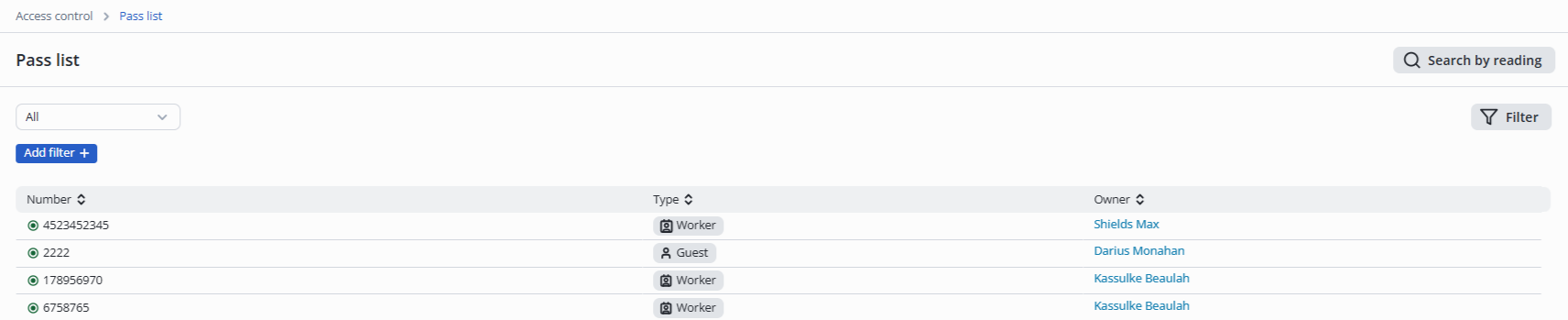
The worker editing card page will open.
Time tracking
For accounting of working hours it is necessary to configure time tracking at the locations that are used as pass points for workers.
When making a through passage, the time tracking counts the time for all workers. In this case, the passage is counted for the first worker passing through; passage for all will be implemented in the next version.
Only turnstiles are involved in time tracking.
Configuring time tracking at the locations
Enter the Interactive plan section to configure the Time tracking.
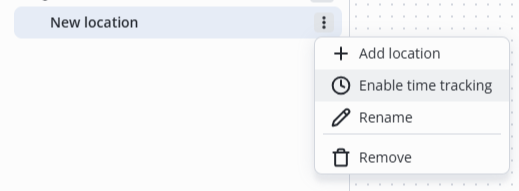
Click on the three dots next to the location and select Enable time tracking.
Time tracking journal
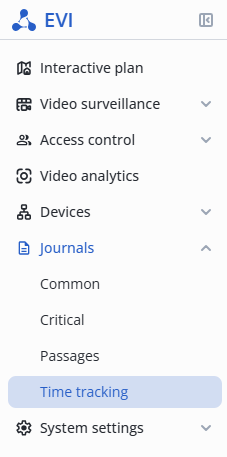
In the Journals section, switch to the Time tracking page.
The Journal page provides information on each worker for the current day.
Working hours and days are fixed in the column Total worked time and Days worked.

Downloading a report
To generate a report in csv format, click on the Download report button in the upper right corner of the screen.
The report will be downloaded to your computer via a browser according to the selected filter.
Passages journal
There are three types of journals in the system:
- Common — system-wide events;
- Passages — events of workers passes through the passage points;
- Time tracking — worker time tracking.
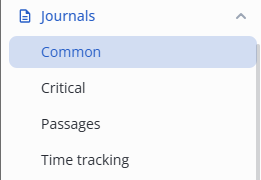
To enter the Common journal, click on the journal icon in the left side menu, select Common.
The journal contains all workers passes through the access points.

The page has the following filters:
- Full name;
- Period;
- Pass number;
- In location;
- Out location;
- Identifier.
Downloading a report
To generate a report in csv format, click on the Download report button in the upper-right corner of the screen.
The report will be downloaded to your computer via a browser according to the selected filter.
Security
Preliminary configuration of the security mode on the controller
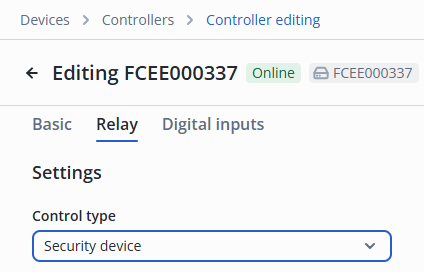
Only a Controller can be set to Guard mode.
Configuring browser launch for security personnel
Creating a shortcut
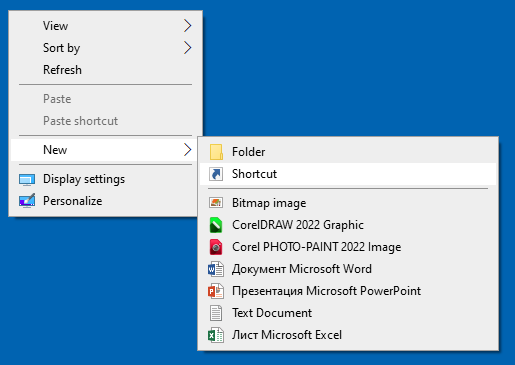
Right-click the desktop.
Select New → Shortcut.
In the shortcut creation wizard, specify the path to the Chrome browser.
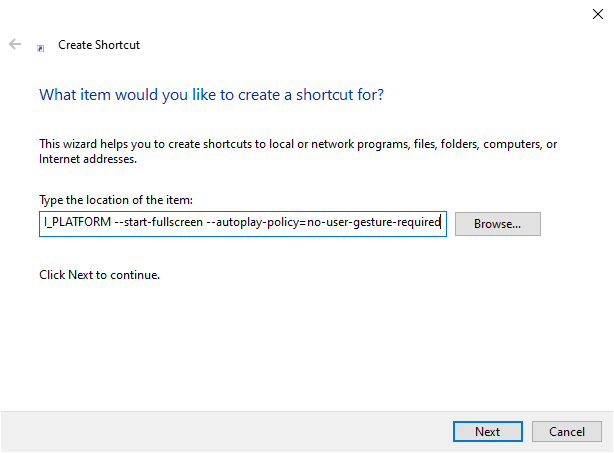
In --app=, specify the address of the EVI Platform.
Option 1:
To play audio alerts (alarms), specify the --autoplay-policy=no-user-gesture-required flag:
"C:\Program Files\Google\Chrome\Application\chrome.exe" --app=https://EVI_PLATFORM --autoplay-policy=no-user-gesture-required
Option 2:
To force the application to start in full-screen mode, use the --start-fullscreen flag:
"C:\Program Files\Google\Chrome\Application\chrome.exe" --app=https://EVI_PLATFORM --start-fullscreen --autoplay-policy=no-user-gesture-required
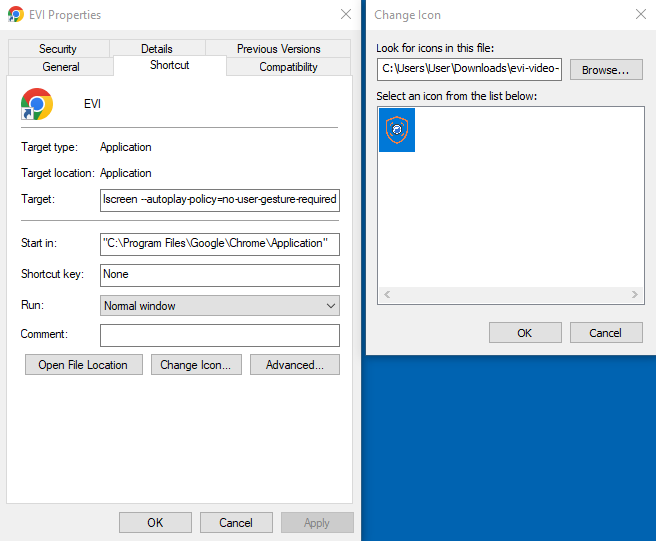
Setting an icon for a shortcut
Download the icon for the shortcut below.
Right-click on the desktop.
Select the Properties item.
Click the Change icon button.
Select the downloaded icon and click OK.
View of the browser after opening
User screen after launching the created shortcut:
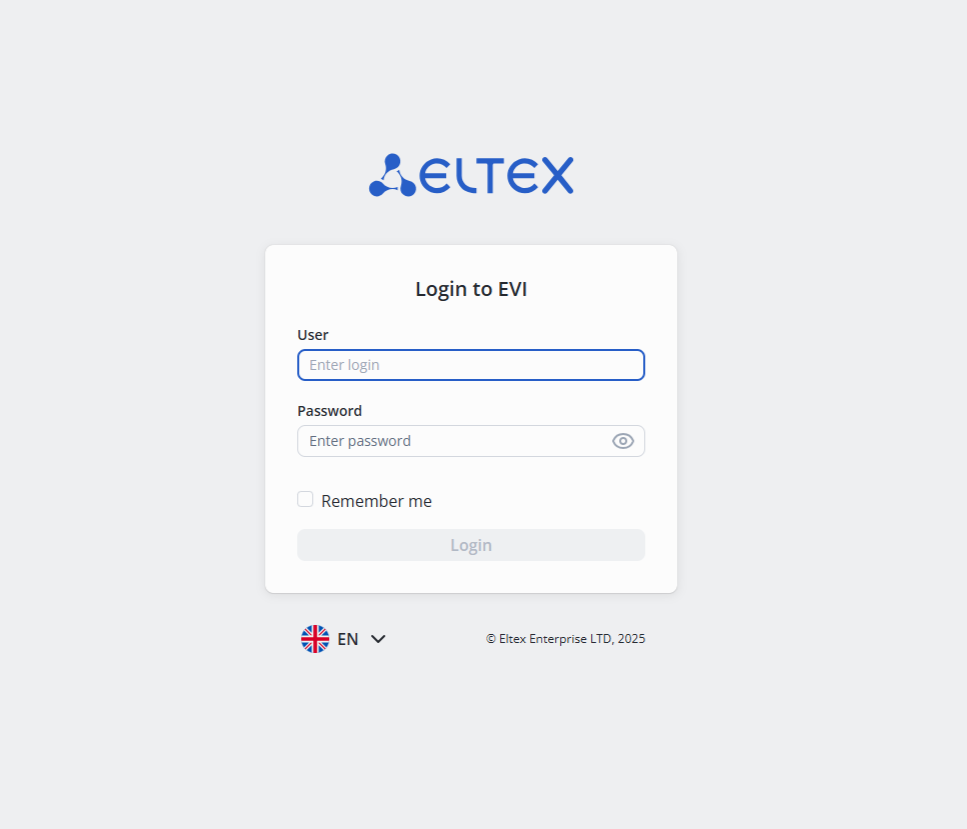
Security user screen after authorization on the platform:
Enabling guard mode
Via the hierarchy of the organization
Switch to the Interactive plan page.
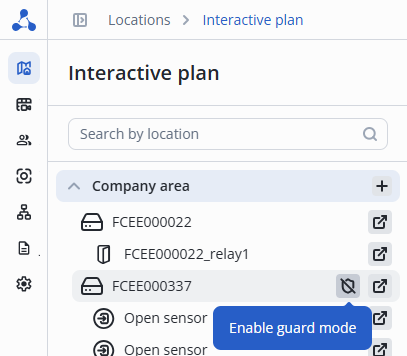
To enable Guard mode click on the crossed-out shield icon in the organization hierarchy.
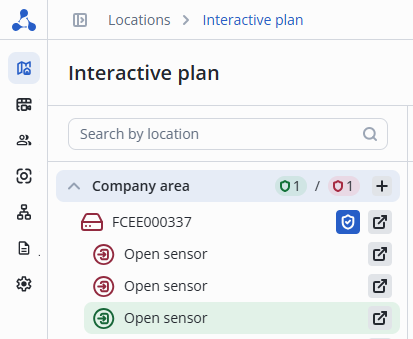
The controller and sensors in the location will change their color to green.
At the bottom of the screen, a notification will appear stating that the guard mode is enabled on the Controller.

Via the device on the interactive plan
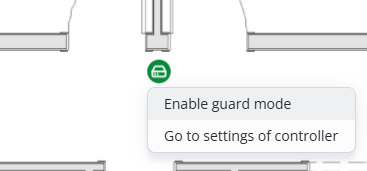
To enable Guard mode click on the controller icon on the interactive plan and click Enable guard mode.
Disabling guard mode
Via the hierarchy of the organization
To disable Guard mode click the blue shield icon next to the controller's name in the organization hierarchy.
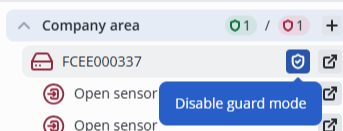
A notification will appear stating that the guard mode is disabled on the Controller.

Through the device on the interactive plan
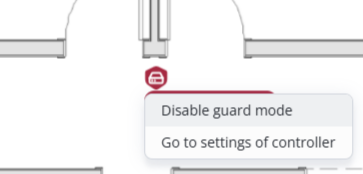
To disable Guard mode, click the green shield icon next to the controller's name on the interactive floor plan and select Disable guard mode.
Principle of sensor operation
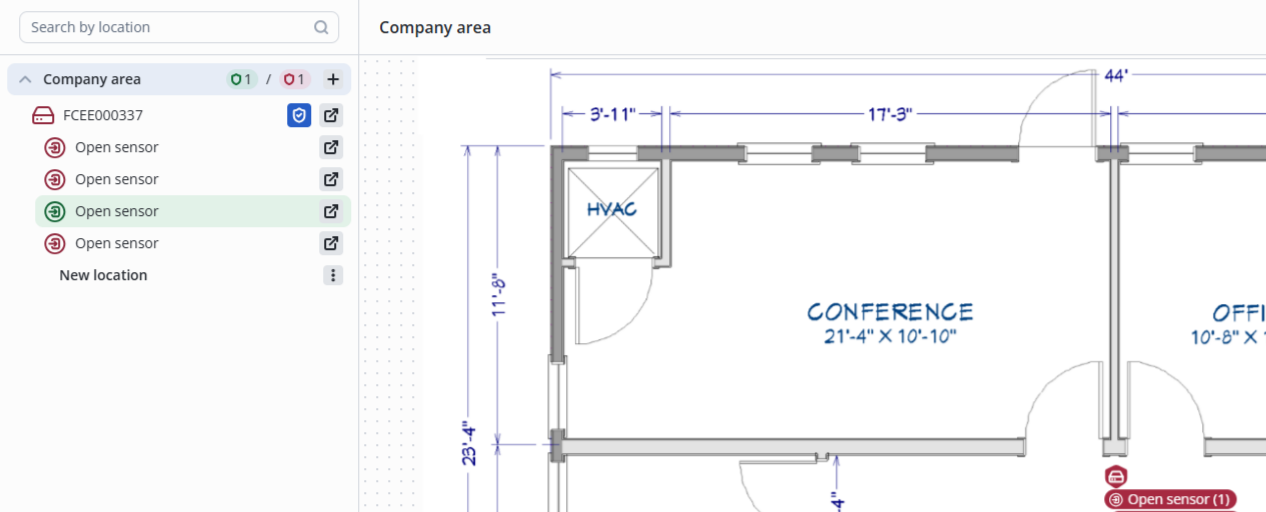
Triggered sensors appear below the controller on the interactive diagram; the number of the controller's discrete input to which the sensor is connected is indicated in parentheses.
- Door sensor (1)
- Smoke detector (3)
When a sensor is triggered, an audible alert sounds. If multiple sensors are triggered in succession, the audible alert will not repeat.
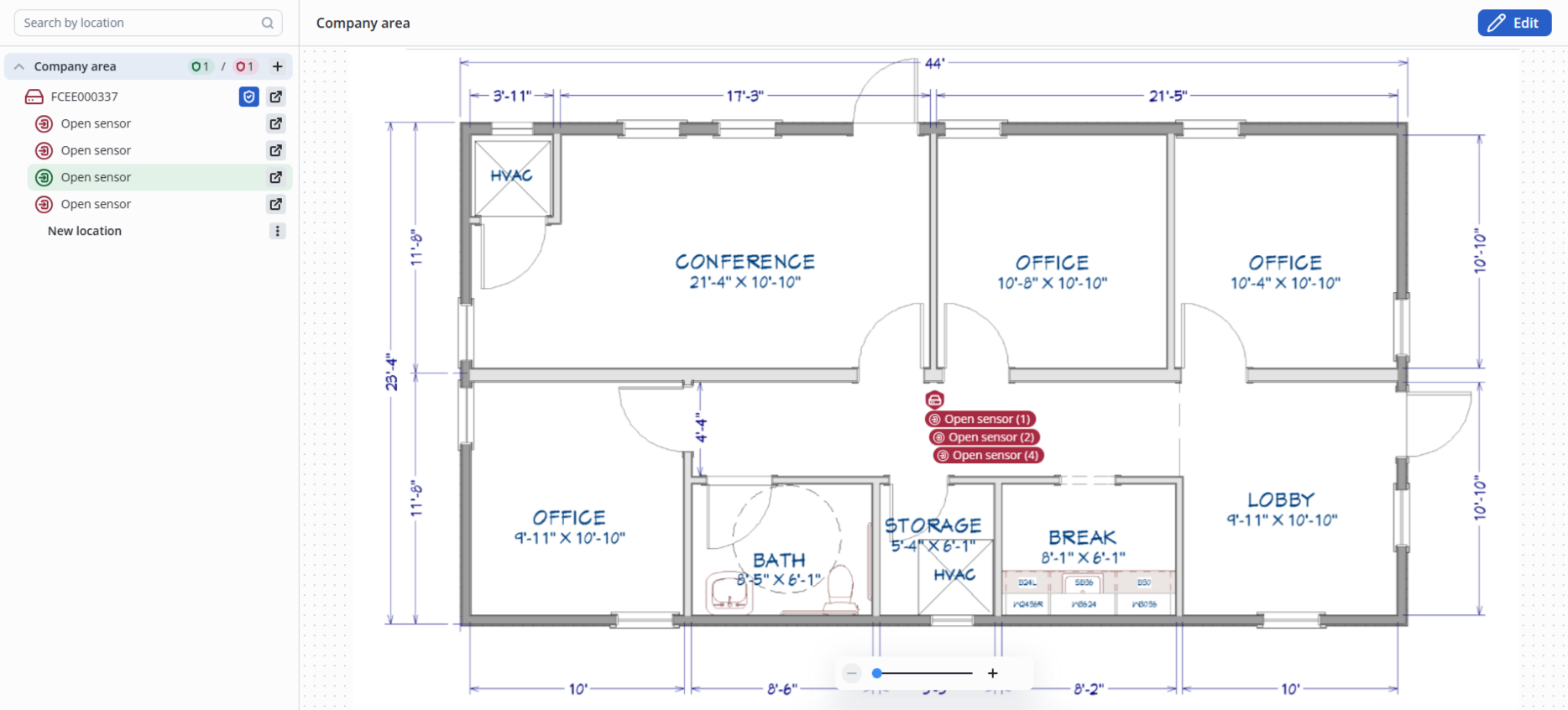
When the sensor is triggered, a panel will appear on the right with a Confirm button, the event time, and the event text.
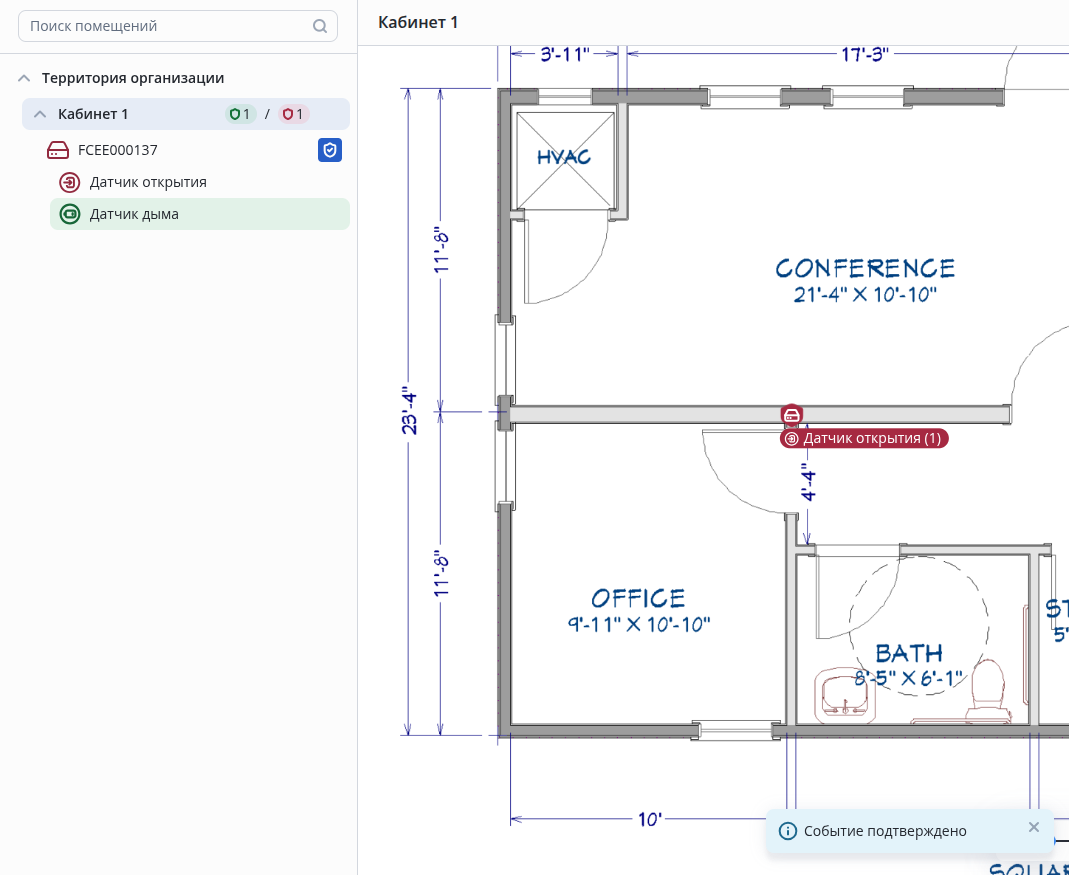
Individual confirmation of a triggered sensor hides it from the interactive plan, and the sensor changes color to green in the hierarchy.
The sensor activation indication will be displayed on the interactive plan until it returns to its initial state, even if the event has been confirmed by a security guard.
Managing an object from an interactive plan
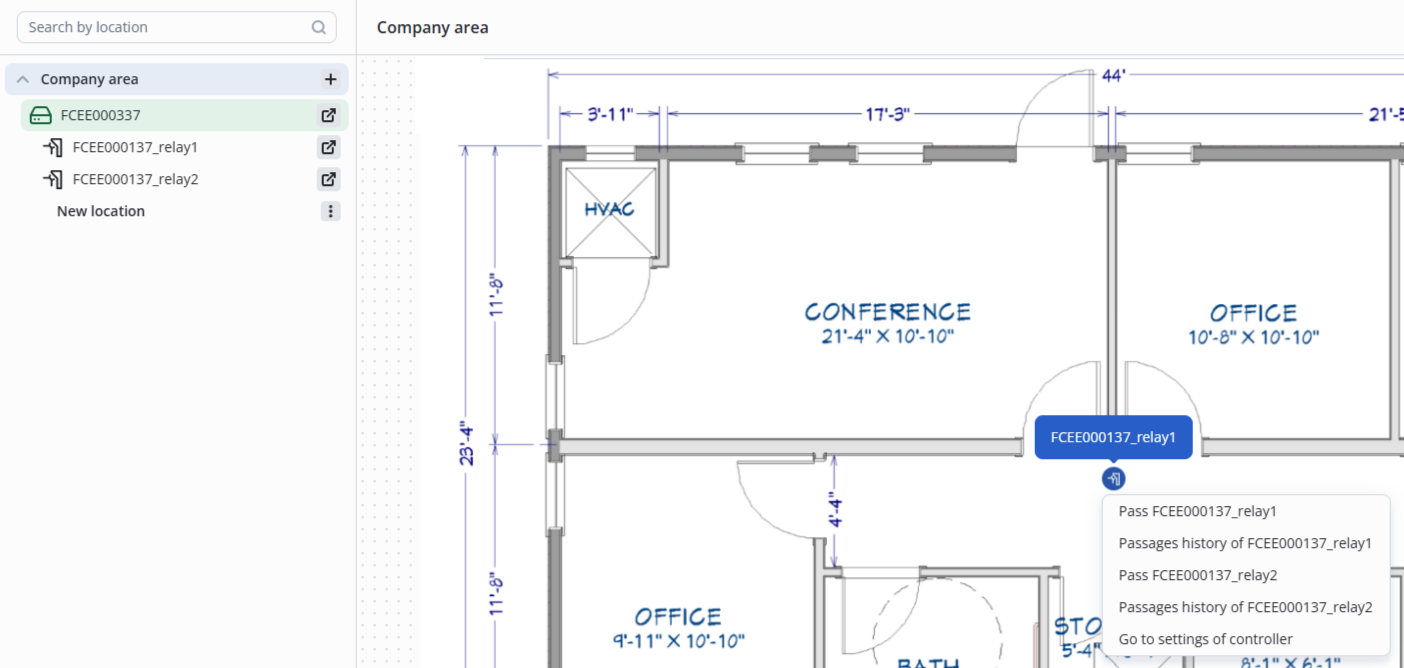
To control objects (doors, turnstiles, barriers, gates), click on the object icon on the interactive plan and select the required option.
Security role
The following pages are available to view for the security role:
- Interactive plan;
- Video surveillance (Video view);
- Workers;
- Guests;
- Journals.
Adding a new Security user
Switch to the Users page in the System settings section.
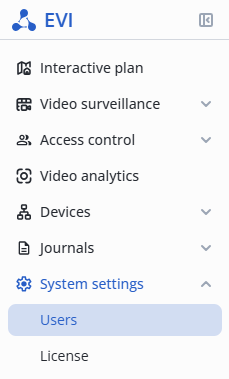
Click the Add user button in the upper right corner.
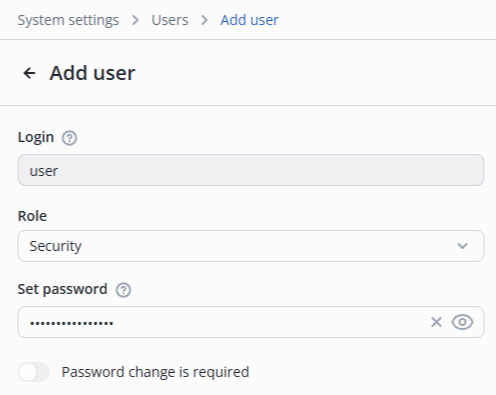
- Fill in the Login and Set password fields;
- Select the Security role.
Click the Add button in the lower right corner.

Created user will be displayed in the System users list.
Editing Security user
Switch to the Users page in the System settings section.
Click on the system user name.

Change the required fields:
- Login;
- Password.
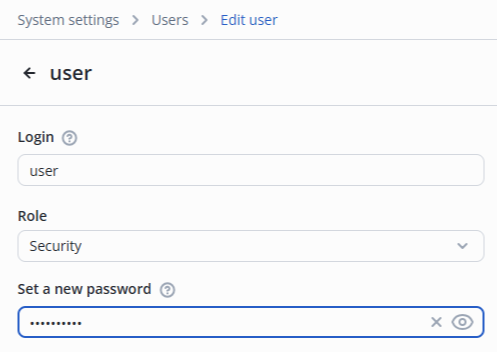
Click the Save button in the lower right corner.
Pages available for viewing
Interactive plan
A user with the Security role has access to:
- Viewing Interactive plan;
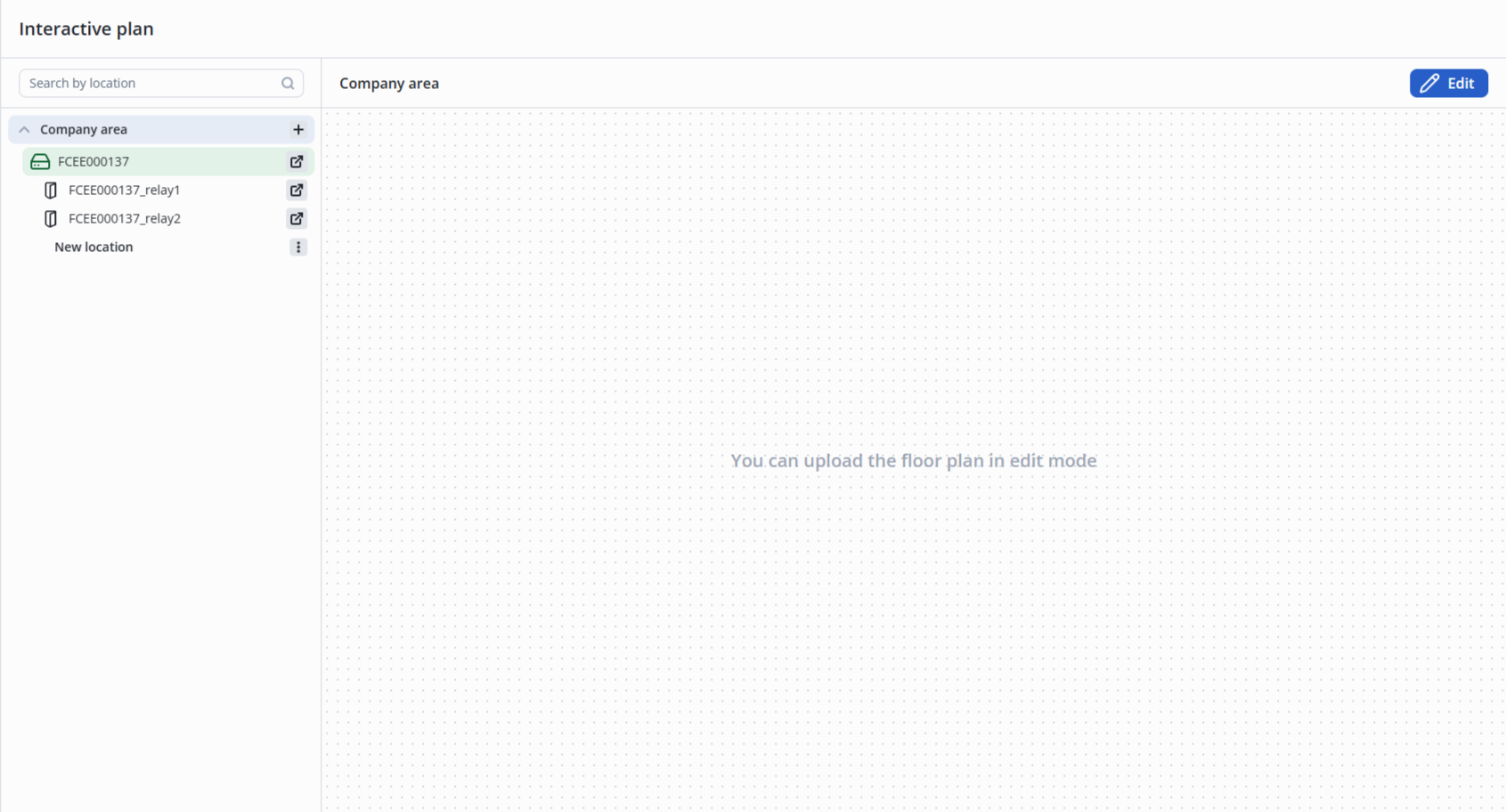
- Enabling/disabling the guard mode for controllers in the Guard mode;
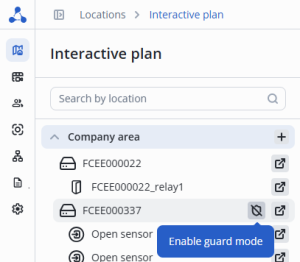
The following options are available for relays on the interactive plan:
- Open — opens the door or turnstile;
- Close — closes the door or turnstile;
- Pass — provides a single pass according to the relay settings;
- Passages history — open a general log for the selected relay with the following default filters (device type (as in the controller settings), device name (relay name), period (last hour)).
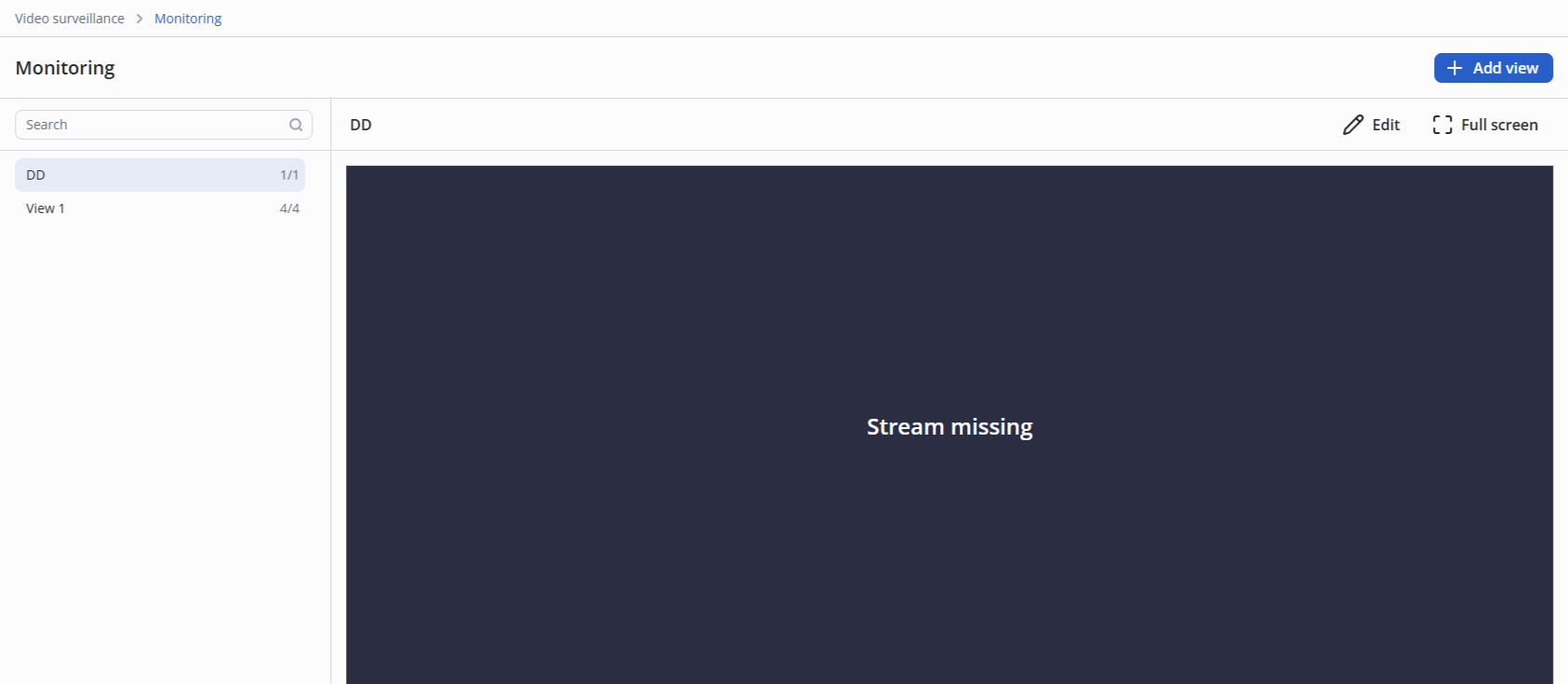
Video surveillance (Monitoring page)
A user with the Guard role is available to view the Video view.
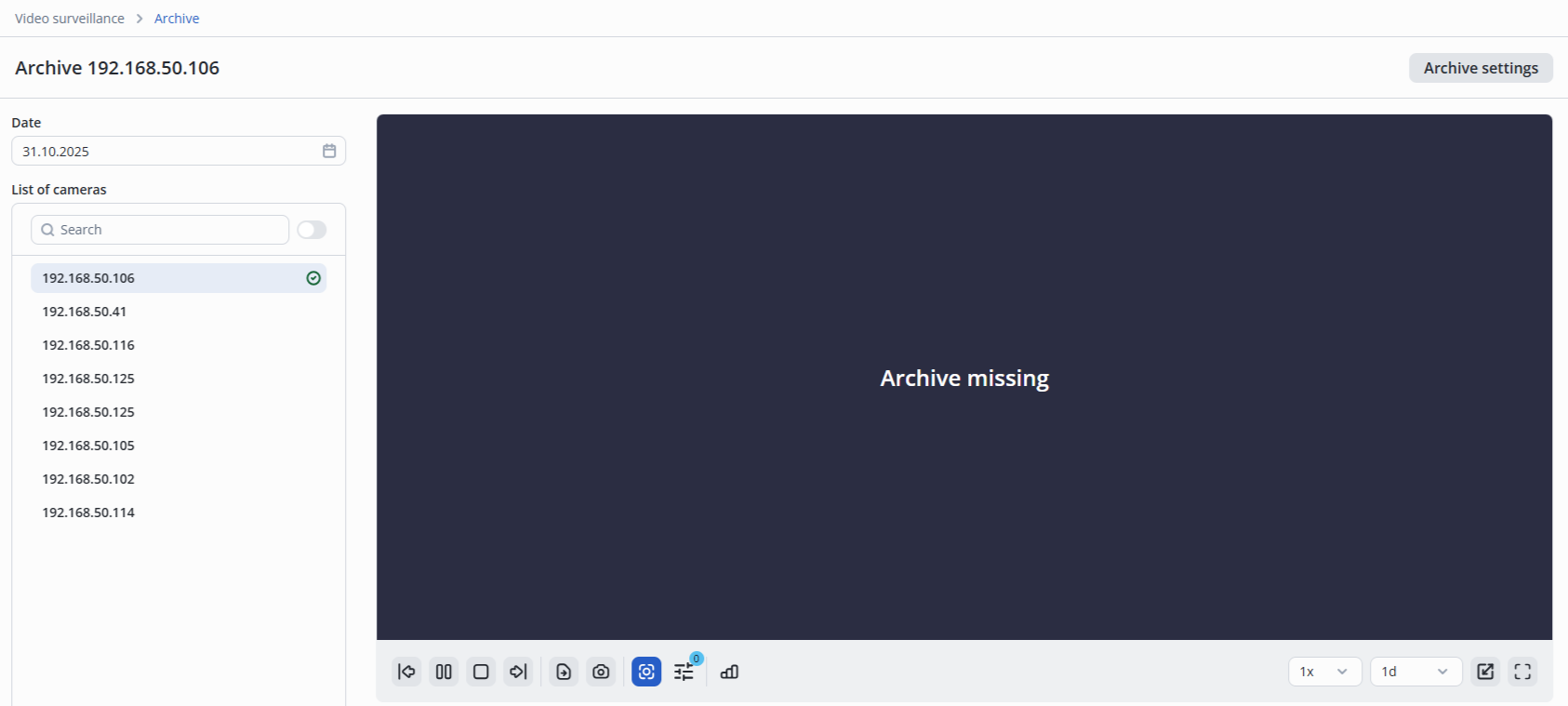
Video surveillance (Archive page)
A user with the Guard role is available to view the cameras Archive.
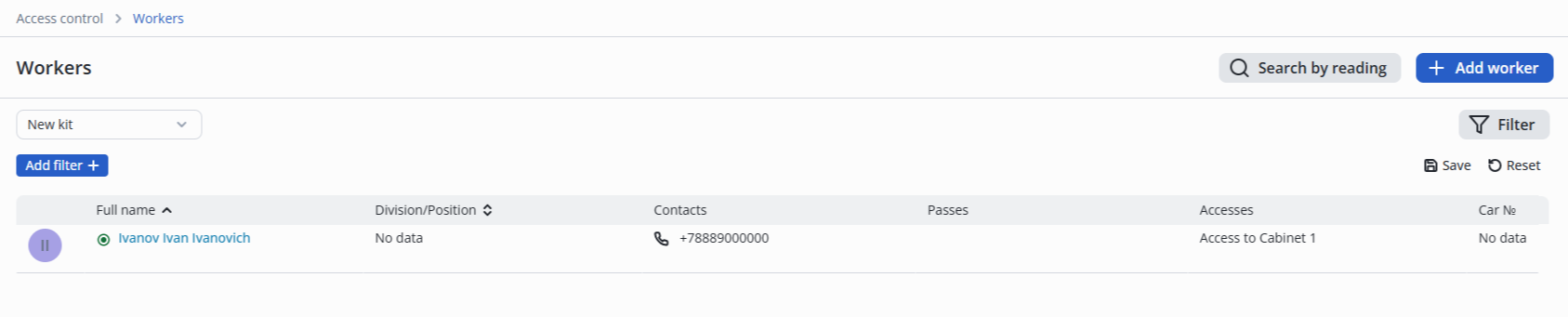
Workers
Detailed instructions are available in the Guests section.
A user with the Guard role has access to:
- Viewing the list of Workers;
- Viewing the Basic tab in the worker card;
- Viewing the Accounting records tab in the worker card;
- Viewing the information in the Access & Pass tab;
- Returning a pass;
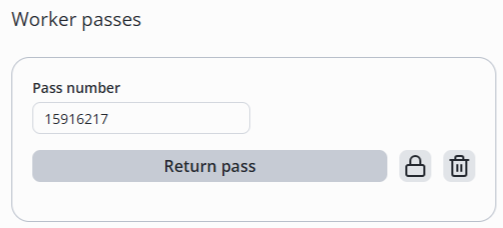
- Blocking/unblocking a pass;
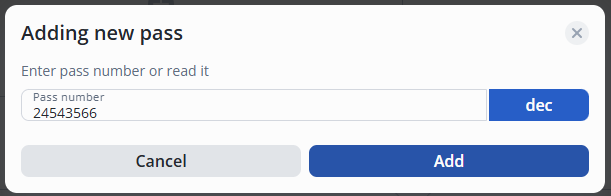
- Adding a pass;
Guests
A user with the Guard role has access to:
- Viewing the guest list;

- Adding guests;
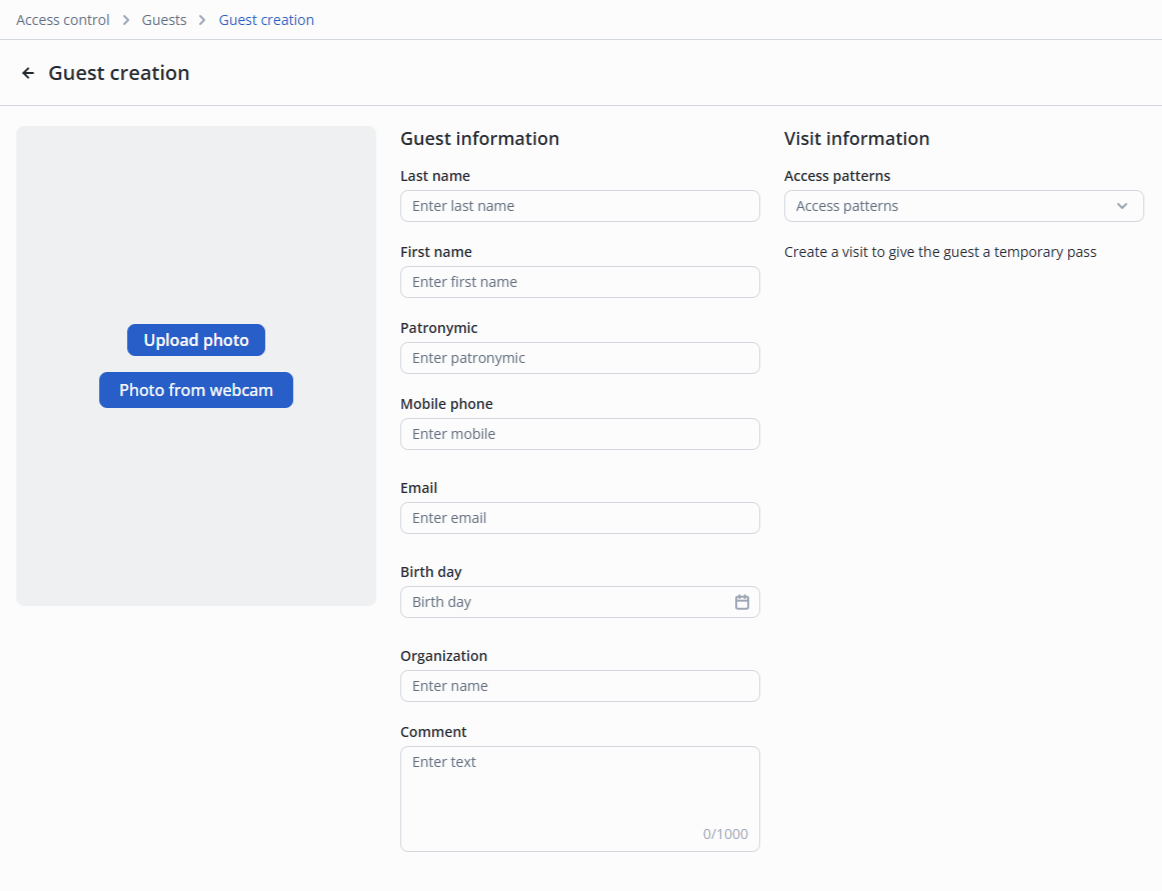
- Viewing and editing the Basic tab in the guest card;
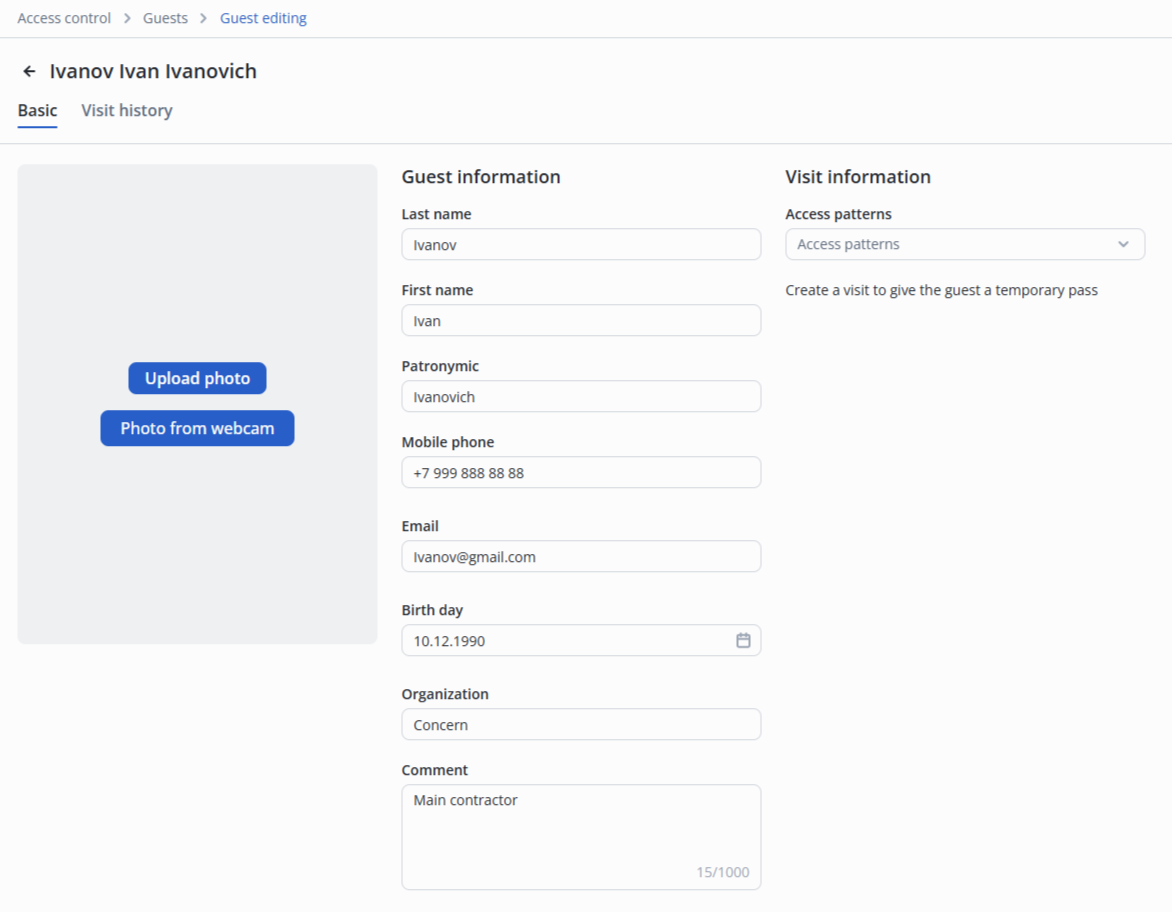
- Viewing Visit history in the guest card;

- Creating a visit in the guest card;
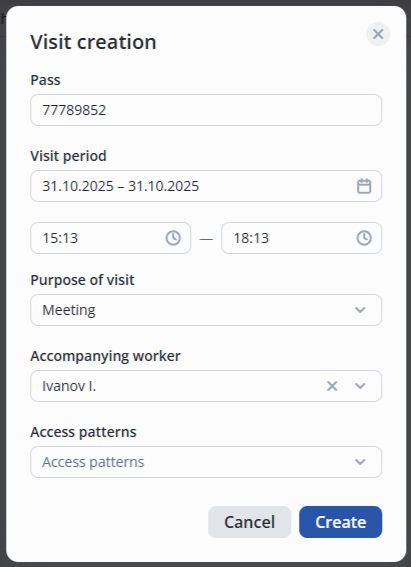
- Сompleting a visit;
Pass list
A user with the Guard role can view the Pass list.

Journals
A user with the Guard role has access to:
- Viewing Common journal and the Download report option;
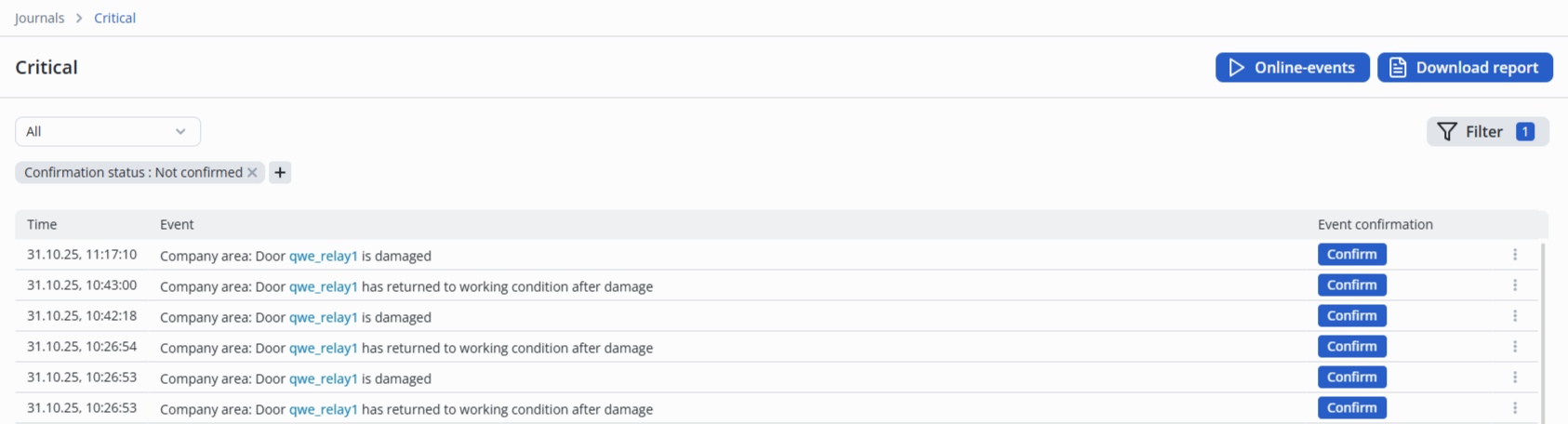
- Viewing Critical journal and the Download report option;
- Viewing Passages journal and the Download report option;
