EVI Analytics is a video analytics module designed to detect, recognize, count, track objects according to models.
Recommendations for video analytics configuration
Each of the video analytics models is individually configurable depending on the scene in the frame.
Face recognition model
Recommended parameters of the main video stream
- Codec: H.264;
- Protocol: TCP/RTSP;
- Frame rate: from 10 FPS to 20 FPS;
- Resolution: FullHD (1920x1280) and higher;
- at 2MP resolution with 2.8mm lens up to 3-5 meters;
- at 4 MP resolution with 2.8mm lens up to 5 meters.
- Image: preferably black and white (night mode);
- IR illumination: Off (otherwise the face is illuminated);
- Bitrate: constant (CBR): from 2048 kbps to 6144 kbps.
Camera location
- The camera must be mounted stationary.
- Cameras should be placed at face level at an average height (1.75 - 1.85 m), as other placement may require fine-tuning of focus, making it difficult to pass through. In addition, mutual obscuration of faces should be minimized.
- In case of other camera location, the Passage intention algorithm may be hampered.
- Make sure that the tilt angle and deviation of the person's face from the frontal camera position are within 15° vertically and 20° horizontally.
Lighting in the recognition area
- The light in the recognition area should be soft and warm so that there are no shadows on the face.
- Light sources should be located above the face recognition area.
- If this location is not possible, light sources directed at the face of the recognition object should be added.
Used algorithms
- The Passage intention algorithm is an algorithm that considers the size of a face, when it appears in the frame, and the progression of its approach.
- Anti-spoofing algorithm is an algorithm that allows real-time verification of a person's face against substitution of an actual face with a video or photo (under development).
License plate number recognition model
To ensure recognition of state license plate numbers, it is necessary to install and configure video cameras in a way that the following recommendations are met.
Recommended parameters of the main video stream
- Codec: H.264;
- Protocol: RTSP;
- Frame rate: from 10 FPS to 20 FPS;
- Resolution: FullHD (1920x1280) and higher;
- at 2MP resolution with 2.8mm lens up to 3-5 meters;
- at 4 MP resolution with 2.8mm lens up to 5 meters.
- Image:
- IR illumination is disabled;
- The HLC function is enabled.
- Bitrate: constant (CBR) or variable (VBR) from 2048 kbps to 6144 kbps.
Camera location
- The camera must be mounted stationary.
- Maximum horizontal angle: 30°.
- Maximum vertical angle: 45°.
- The most effective location of the camera is at a height of 1 to 1.5 m for a parking solution (entrance with barrier, gate).
- If the cameras are mounted at the level of the vehicle's headlights, the camera must be equipped with an HLC feature.
License plate number
- It is recommended to keep the license plate nimber in the frame free of light, uneven lighting, blurring, distortion, and dirt.
- The minimum permissible contrast at uniform contamination of the registration mark shall not be lower than 20% (contrast discernibility of symbols relative to the background - 25 units on a 256-point scale).
- The maximum permissible irregular contamination shall not exceed 15% (ratio of the area of the contaminated part of the registration plate to its total area).
Object detection model
Recommended parameters of the main video stream
- Codec: H.264;
- Protocol: RTSP;
- Frame rate: from 10 FPS to 15 FPS;
- Resolution: FullHD (1920x1280) and higher;
- at 2MP resolution with 2.8mm lens up to 3-5 meters;
- at 4 MP resolution with 2.8mm lens up to 5 meters.
- Bitrate: constant (CBR) or variable (VBR) from 2048 kbps to 6144 kbps;
Camera location
The camera must be mounted stationary.
Image recommendations for facial analytics
The following rules are recommended for facial analytics to work correctly.
Image characteristics
- Image resolution: FullHD (1920x1080);
- Maximum size: 5 MB.
Recommendations for photography
- The face should occupy at least 70% of the image;
- The facial image in the photo should be in focus from the tip of the chin to the hairline and from the nose to the ears;
- The person is shown strictly full-face and looking straight ahead with a neutral expression and closed mouth;
- The image is clear, without motion-related blurring;
- Eyes should be open, hair should not cover them;
- The hairstyle doesn't overlap the face;
- A minimal amount of eyeshadow on the face;
- No brightly colored lettering or designs on the clothing;
- No headgear;
- The background of the image is monochromatic;
- No pronounced emotion.


Examples of unwanted photographs
The examples below demonstrate photos that degrade recognition quality and should be avoided.



Viewing analytics results
Viewing the result of analytics by face/vehicle/object is available in two places:
- evi-video-client application;
- web browser.
Evi-video-client application
Metainformation is the information displayed in the frame from any type of analytics.
Live view
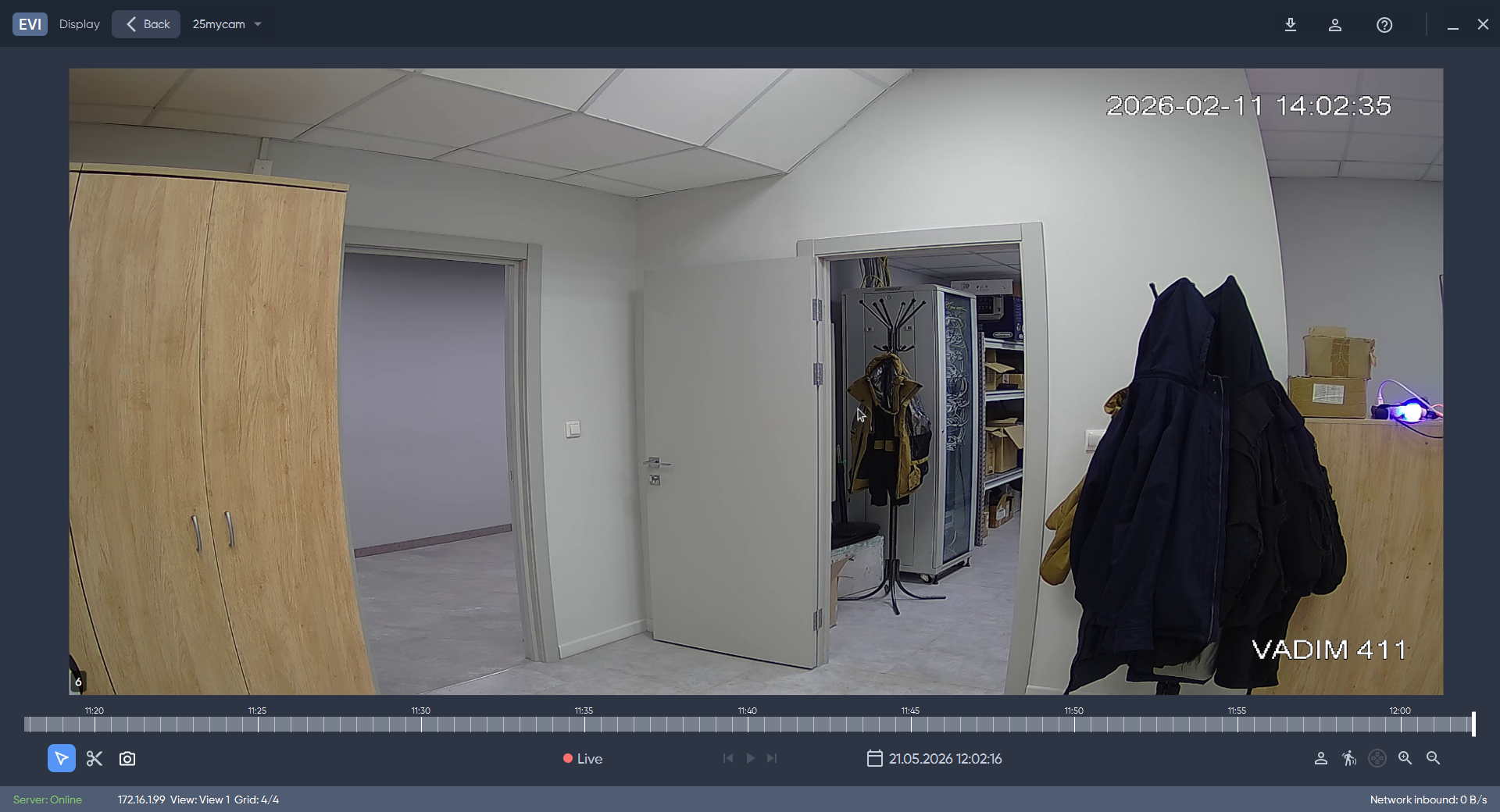
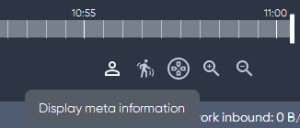
To view the analytics, click the View metadata button.
Next, click Select metadata to display and check the box next to the desired option.
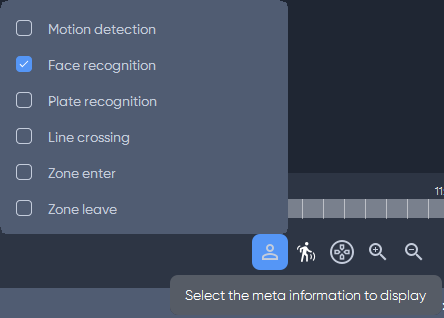
To hide Analytics data, click View metadata again or uncheck the box next to Select metadata to display.
Analytics
Displaying analytics data on the camera feed when facial recognition is disabled.
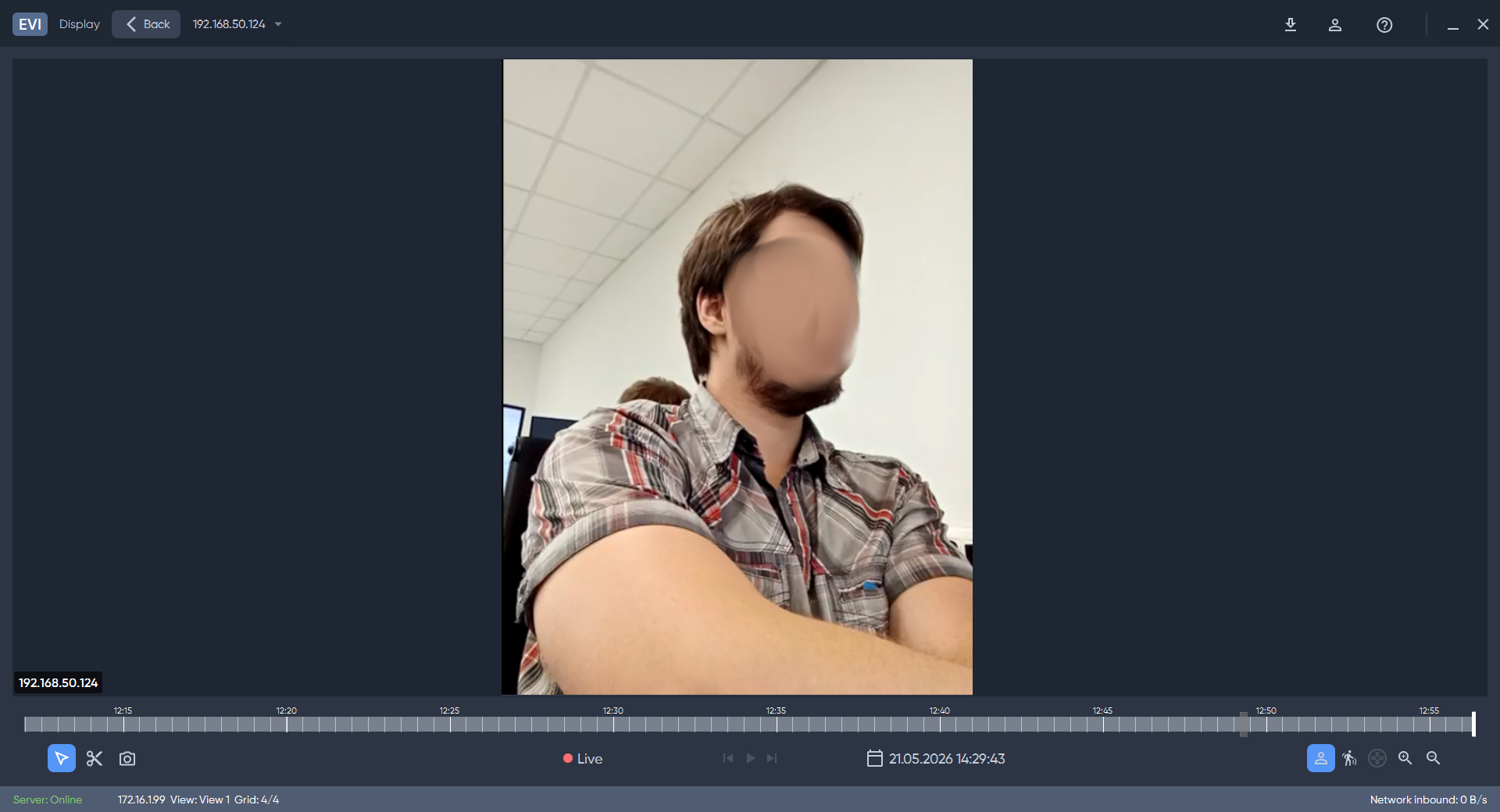
Display analytics work on camera broadcast when analytics on employee face is enabled.
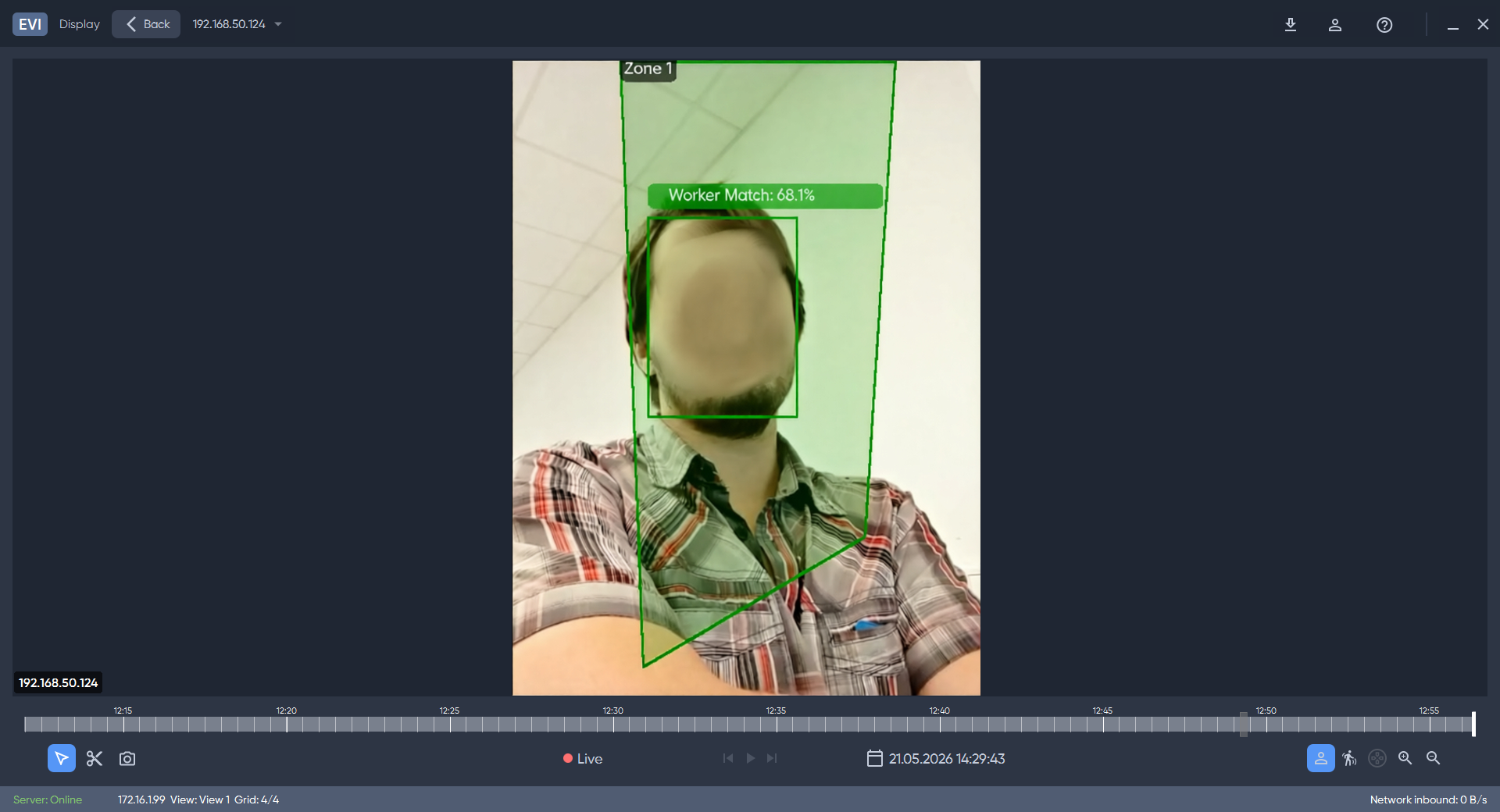
Viewing in archive
To view the analytics, click the View metadata button.
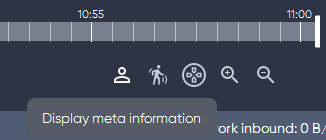
Next, click Select metadata to display and check the box next to the desired option.
To hide Analytics data, click View metadata again or uncheck the box next to Select metadata to display.
Web browser
Live view
Face analytics model
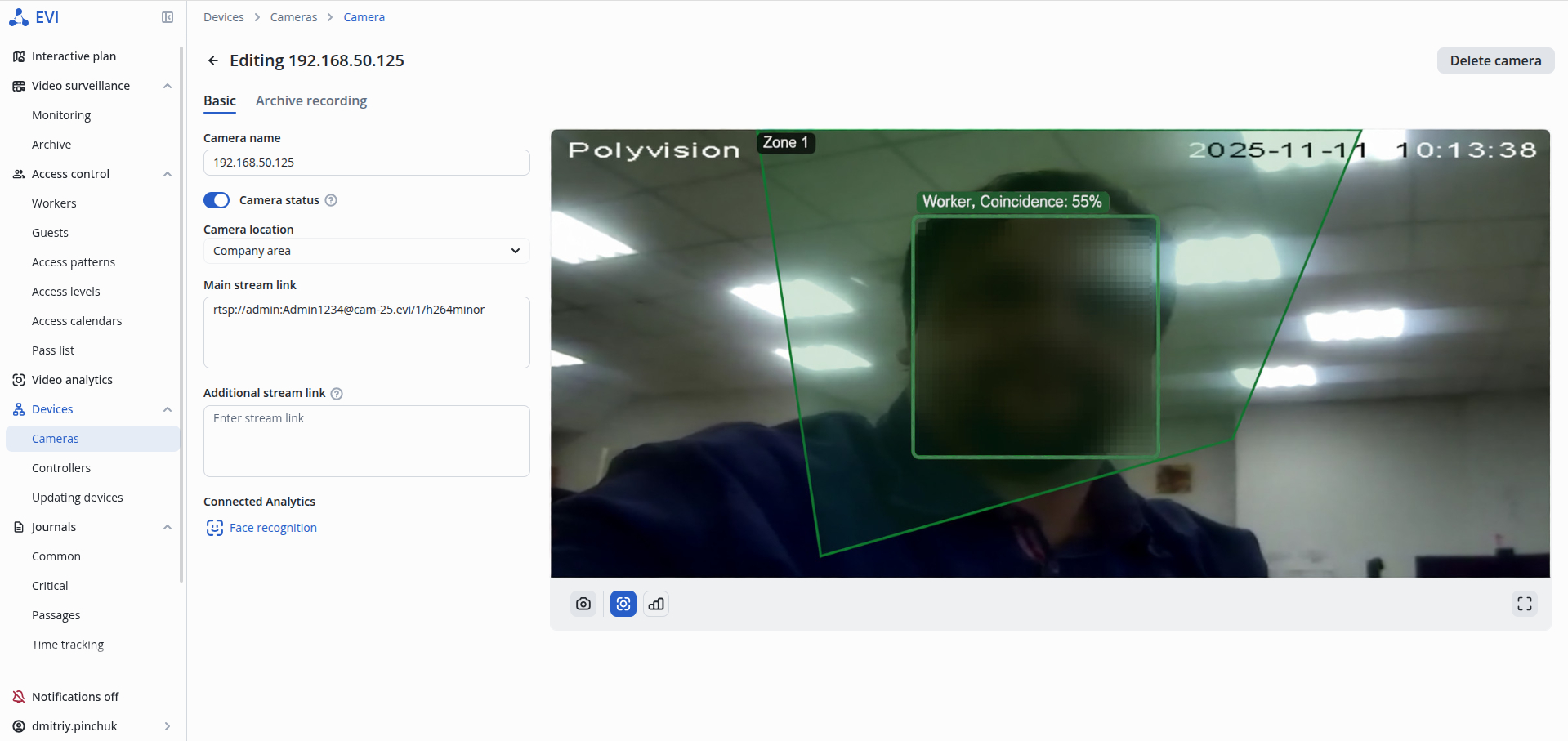
To view the analytics operation, click on the Meta info on button on the broadcast page of the selected camera.
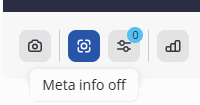
Meta information
Meta information — the result of Motion detector or any type of video analytics (by face, by license plate, by object).
By default, the button is active, meta information is immediately enabled.
When disabling meta information, the state of the button will be retained when switching to other cameras.
Displaying analytics data with employee-specific analytics disabled.
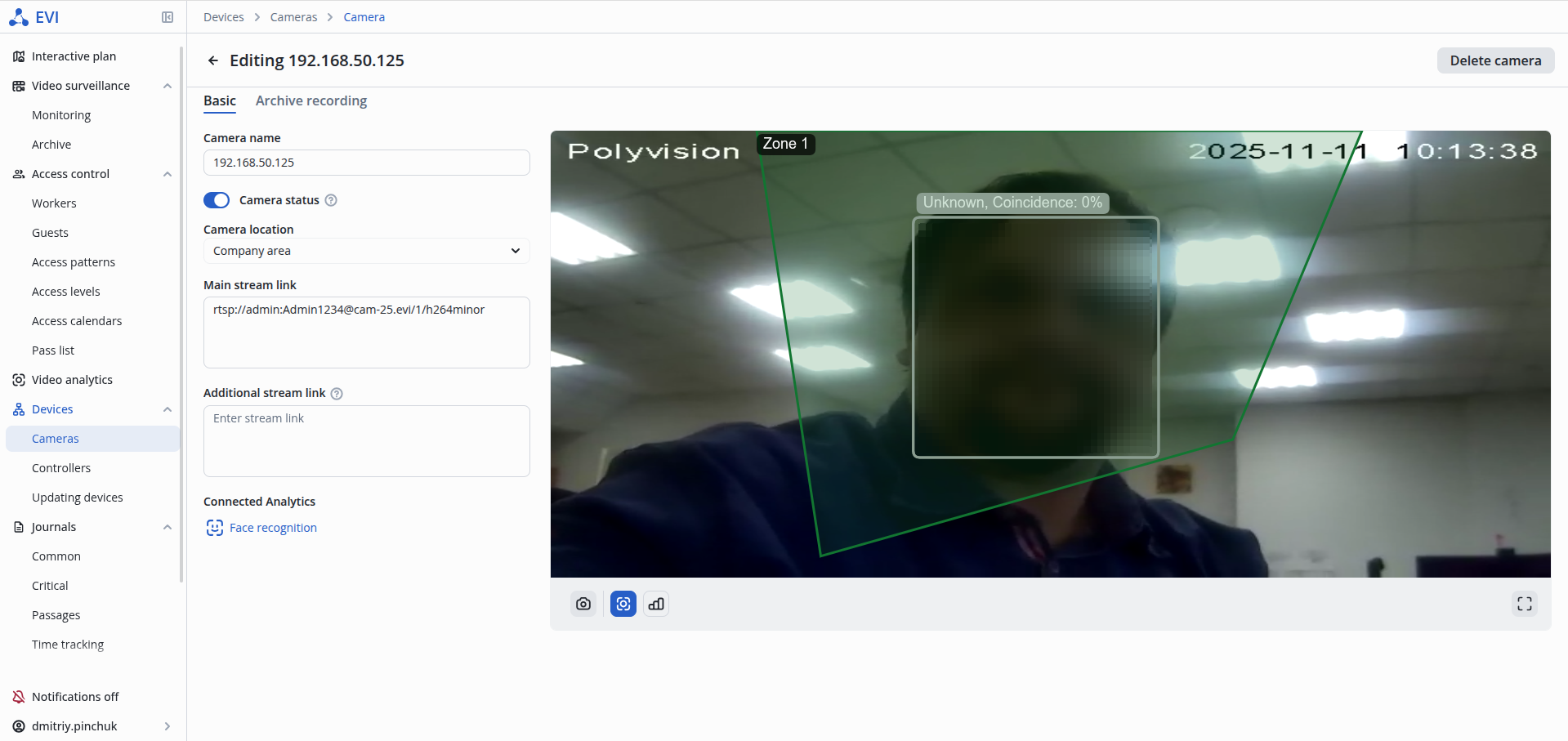
Displaying analytics data with employee-specific analytics enabled.
Viewing the records archive
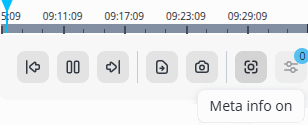
To view meta information on analytics work in the archive, click the Meta info on button in the camera archive and select the archive fragment on the timeline.
Motion detector model
The Motion detector model is designed to detect the movement of people, vehicles, or objects in the surveillance area.
Recommendations for cameras with motion detectors are provided in the Recommendations for cameras with motion detector section.
The analytics of the motion detector runs on the server's CPU via the evi-analyzer module.
Camera location
Camera location
The camera must be located in the same room as the relay it will control, otherwise the relay will not work for recognition/detection.
Analytics settings
Go to the Video analytics page.
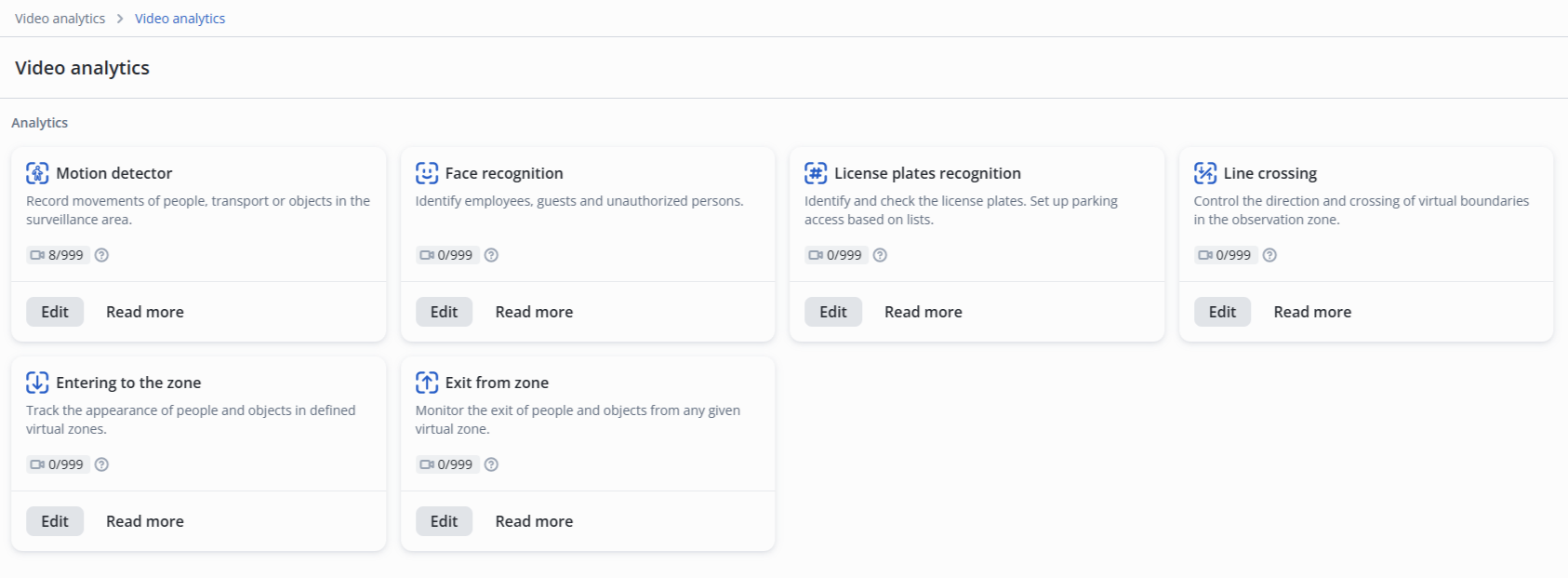
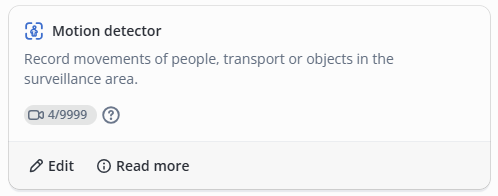
Click the Edit button next to the Motion detector model.
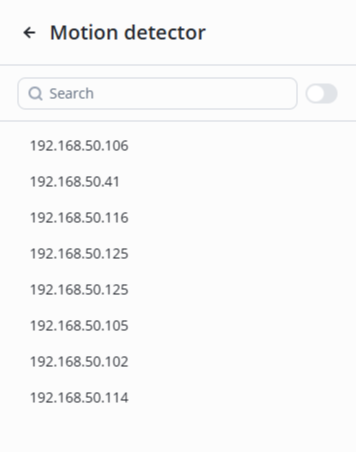
Select the desired camera from the list.
Basic settings
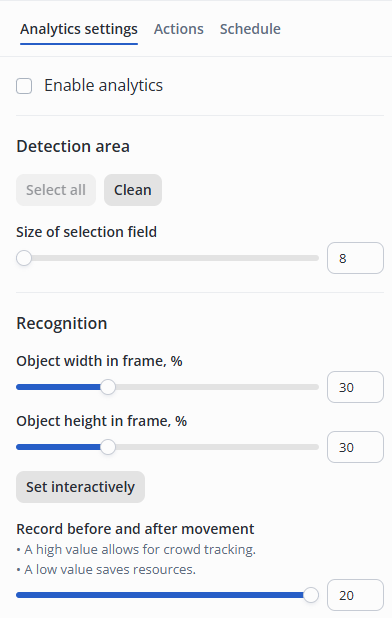
- Object size in frame — ratio of the frame height to the object height. It can be set by manually entering a value between 1 and 100 % in the field or by interactively selecting the size on the image;
- Record before and after movement — maximum possible number of simultaneously recognized objects in a frame;
- Size of selection field — size of the detection area cell.
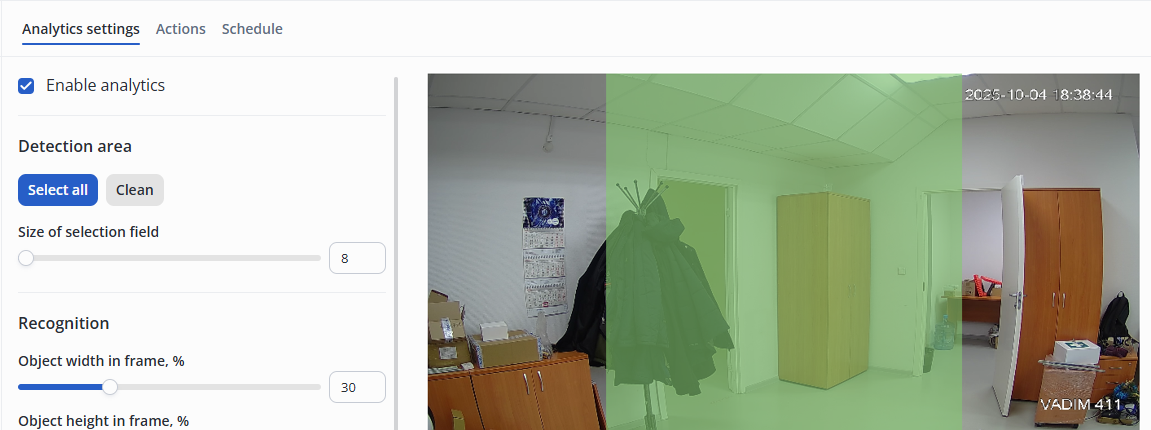
Detection zone
Detection zone is the area in which recognition occurs.
Actions
Add to archive
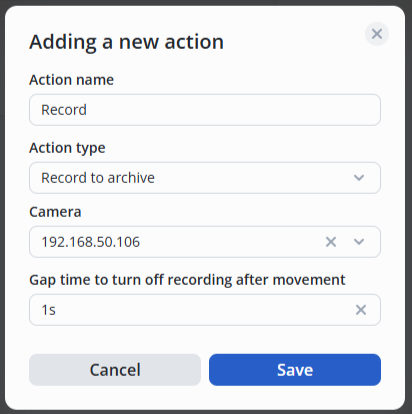
Go to the Actions tab and click Add.

Then select the type of action — Record to archive, set the desired delay for turning off the recording after movement.
Alert
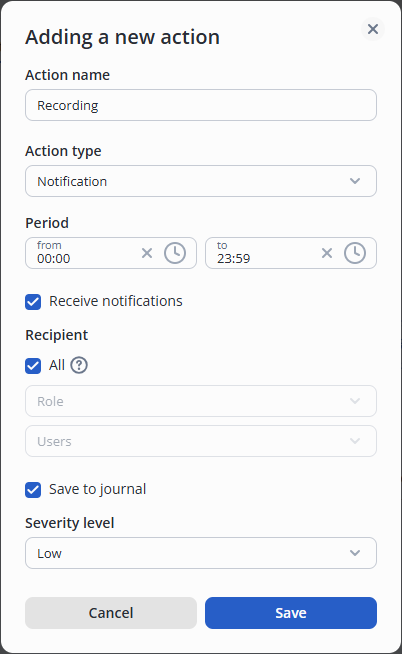
Go to the Actions tab and click Add.
Next, select the Alert action type and set the desired frequency, recipients, and severity level.
License plate recognition model
The License plate recognition model is designed to provide access through the gate/barrier when the license plate number of a vehicle is recognized.
Camera location
Camera location
The camera must be located in the same room as the relay it will control, otherwise the relay will not work for recognition/detection.
Analytics settings
Go to the Video analytics page.
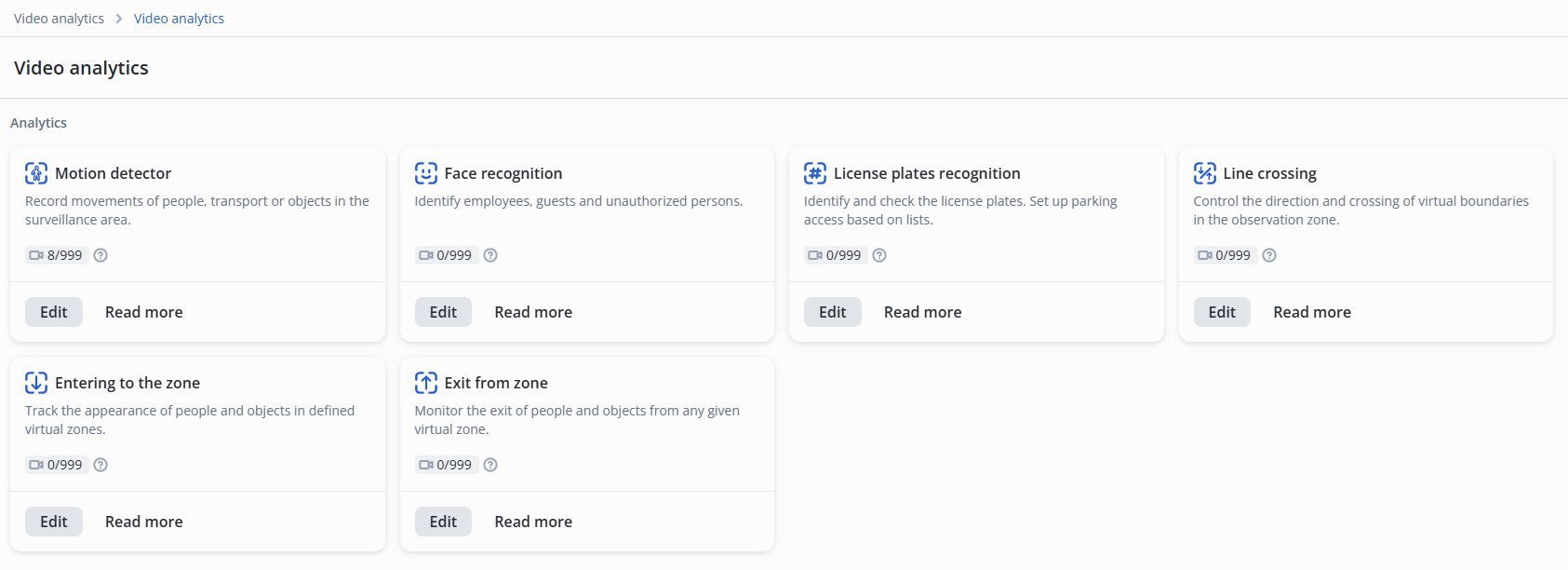
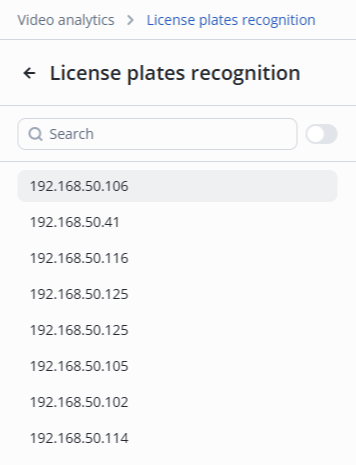
Click Edit on the License plates recognition model.
Select the desired camera from the list.
Basic settings
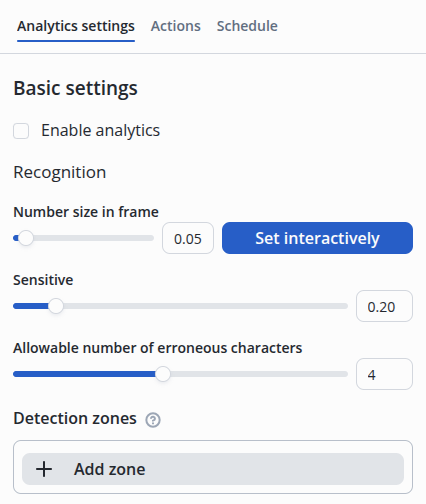
- Plate size in frame — the ratio of the frame height to the license plate’s size. You can set this by manually entering a value between 1% and 100% in the field or by interactively selecting the size on the image.
- Sensitive — the threshold value for object matching in the frame at which recognition occurs. A value between 10% and 100%. The lower the number, the higher the sensitivity.
- Allowable number of erroneous characters — the number of characters that are ignored when determining the authenticity of a license plate during recognition. A number between 0 and 9.
Configuring the Sensitive parameter
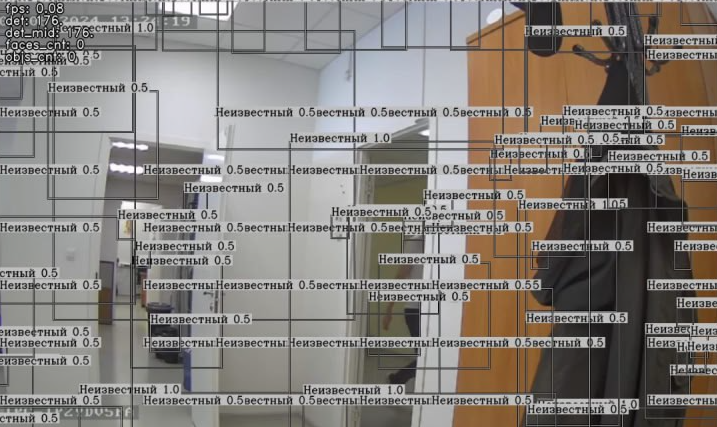
When the sensitivity of the license plate recognition model is high, it may be triggered by noise and distortions not related to the license plate.
The sensitivity is adjusted experimentally to ensure guaranteed detection of the license plate in the frame while minimizing false alarms due to noise.
An example of an ultra-high sensitivity of 10%.
Allowable number of erroneous characters
Example: parameter Allowable number of erroneous characters = 3 is configured.
Employee Ivanov has a car with license plate E130AR184 and has access to recognize cars for parking enabled. When an unknown car with license plate number K510EA154 approaches, access will be granted and the person who passed will be recorded as Ivanov.
Compare license plates:
Е130АР184
К510ЕА154
Each license plate has 9 characters.
The parameter Allowable number of erroneous characters is set to 3, which results in 6 characters from the license plate K510EA154 matching the license plate of employee Ivanov's car (E130AR184): 1, 0, E, F, A, 1, 4. Since 6 of the 9 characters matched, access was granted. To correct the situation, the value of this parameter should be reduced.
Detection zone
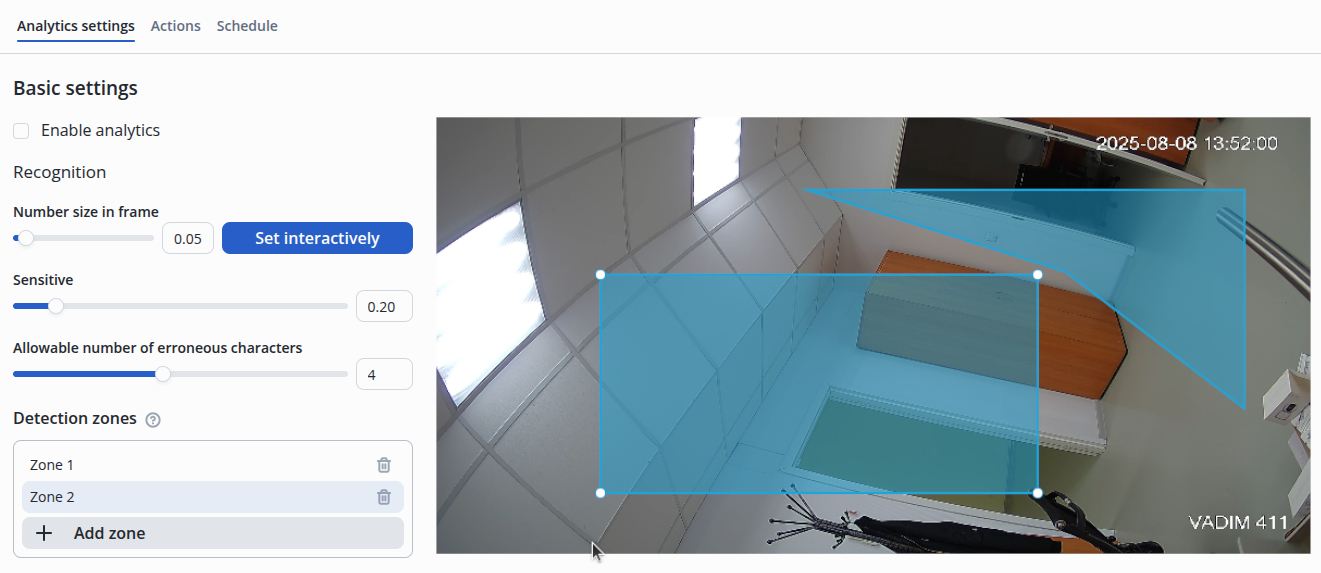
Detection zones — the areas in which recognition occurs.
Configuring the detection area of the detection zone
By default, once the detection zone is created, it is formed as a rectangle placed in the center.
- Left mouse click with holding on the blue area of the zone — move the whole zone;
- Left mouse click with holding on the white dot — move the edge of the zone;
- Left mouse click on the edge of the selected zone — create an additional zone point.
Actions
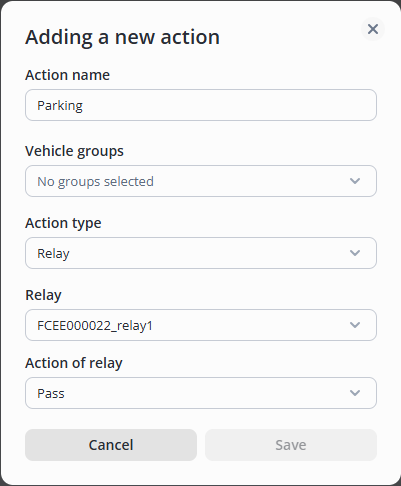
Relay
Go to the Actions tab and click Add.
Next, select the Relay/Log to Archive action type, the desired relay from the list, and the Open/Close/Pass relay action.
Alert
Go to the Actions tab and click Add.
Next, select the Alert action type and set the desired interval, recipients, and severity level.
Face recognition model
The Face recognition model is designed to provide access through the turnstile/door by facial recognition.
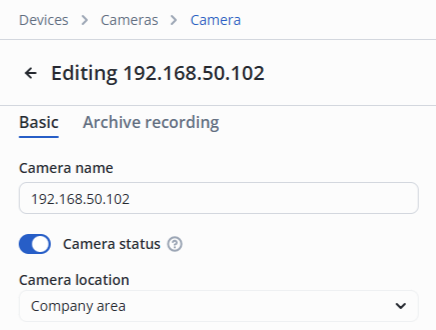
Camera location
Camera location
The camera must be located in the same room as the relay it will control, otherwise the relay will not work on recognition/detection.
Analytics settings
In the camera edit, switch to the Video analytics section.
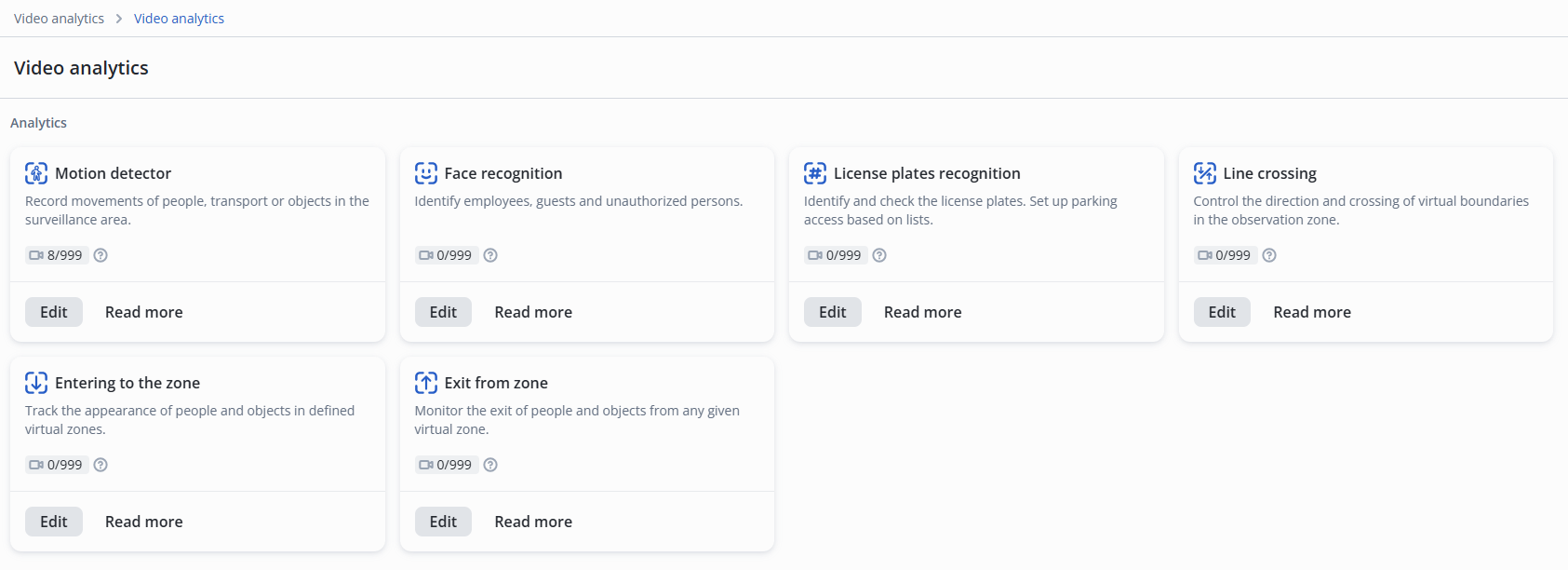
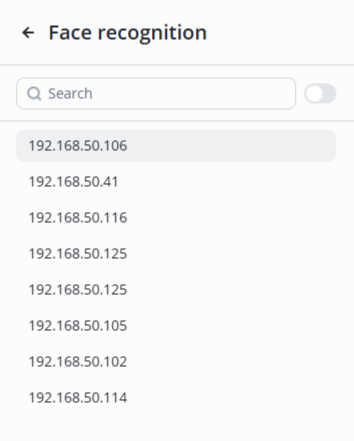
Click Edit on the Face recognition model.
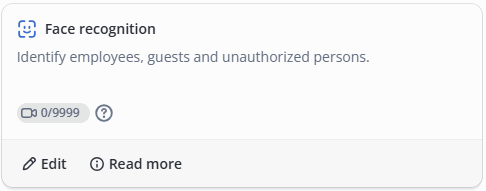
Select the desired camera from the list.
Basic settings
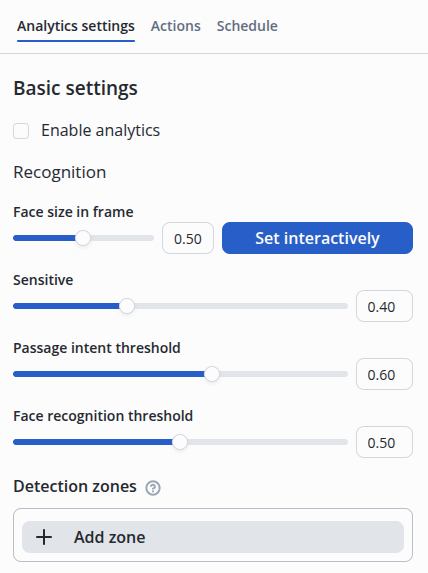
- Face size in frame is the ratio of the frame height to the face height. You can set this by manually entering a value between 1 and 100% in the field or by interactively selecting the size on the image.
Sensitive is the level of match with the object in the frame at which recognition will occur. Values range from 10 to 100%. The lower the number, the higher the sensitivity.
Passage intent threshold is the value at which a pass will be granted. Value from 0 to 100%.
Face recognition threshold is the value indicating how closely the face must match the employee’s photo for identification. Value from 0 to 100%.
Configuring the Sensitive parameter
If the Sensitive parameter is set too high, the face recognition model may trigger on noise and distortions that are not related to a face.
This parameter should be adjusted by trial and error to ensure reliable face detection while minimizing false positives caused by noise.
Example of an extremely high “Object Match” value: 10%.
Detection zone
Detection zones — the areas in which recognition occurs.
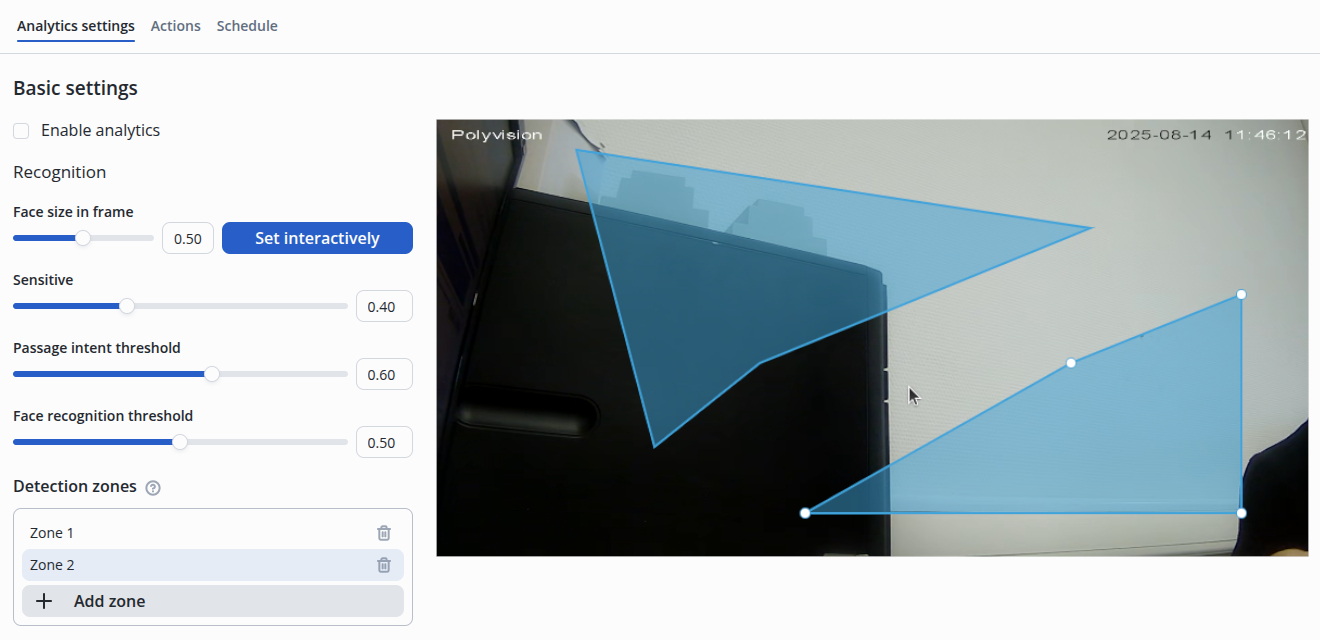
Click the Add zone button, then place a zone on the image by interacting with the white dots.
Configuring the detection area of the detection zone
By default, when a detection zone is created, it appears as a centered rectangle.
- Left-click and hold on the blue area of the zone to move the entire zone;
- Left-click and hold on a white point to move the edge of the zone;
- Left-click on the edge of the selected zone to create an additional zone point.
Actions
Relay
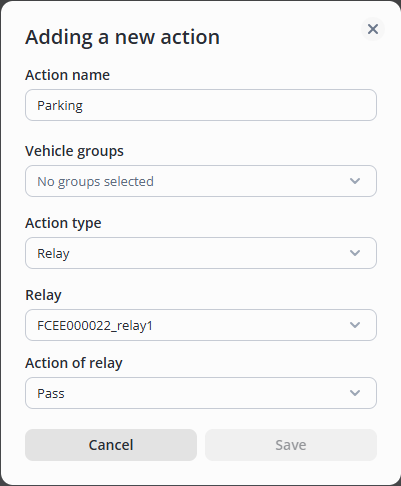
Go to the Actions tab and click Add.

Next, select the Relay/Log to Archive action type, the desired relay from the list, and the Open/Close/Pass relay action.
Alert
Go to the Actions tab and click Add.
Next, select the Notification action type and set the desired interval, recipients, and severity level.
Line crossing model
The Line crossing model is designed for notification of entry into a restricted area.
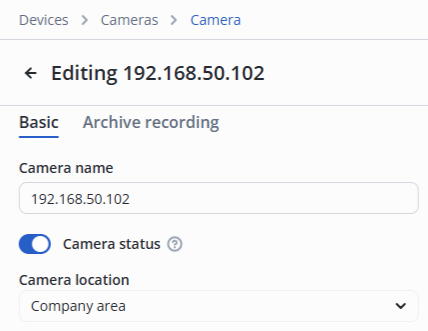
Camera location
Camera location
The camera must be located in the same room as the relay it will control, otherwise the relay will not work on recognition/detection.
Analytics settings
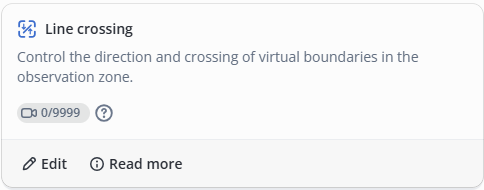
Go to the Video analytics page.
Click Edit on the Line crossing model.
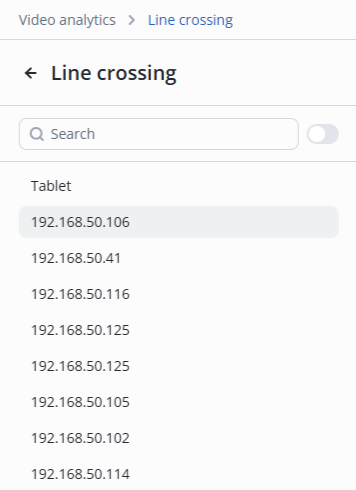
Select the desired camera from the list.
Basic settings
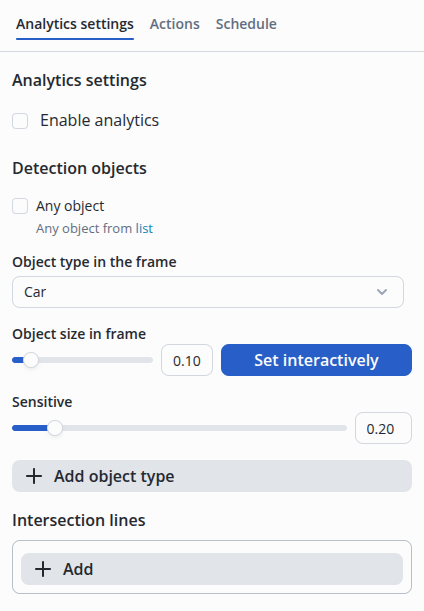
- Object type in the frame — object which will be detected;
- Object size in frame — ratio of the frame height to the object height. It can be set by manually entering a value between 10 and 100% in the field or by interactively selecting the size on the image;
- Sensitive — level at which recognition occurs. The value is between 10 to 100%. The lower the percentage, the higher the sensitivity.
Configuring the Sensitive parameter
If the Sensitive parameter is set to a high value, the intersection line model may trigger on noise and distortions unrelated to the object.
The parameter should be adjusted empirically to ensure reliable detection of the object in the frame while minimizing false positives caused by noise.
Example of an extremely high Sensitive value: 10%.
Line crossing
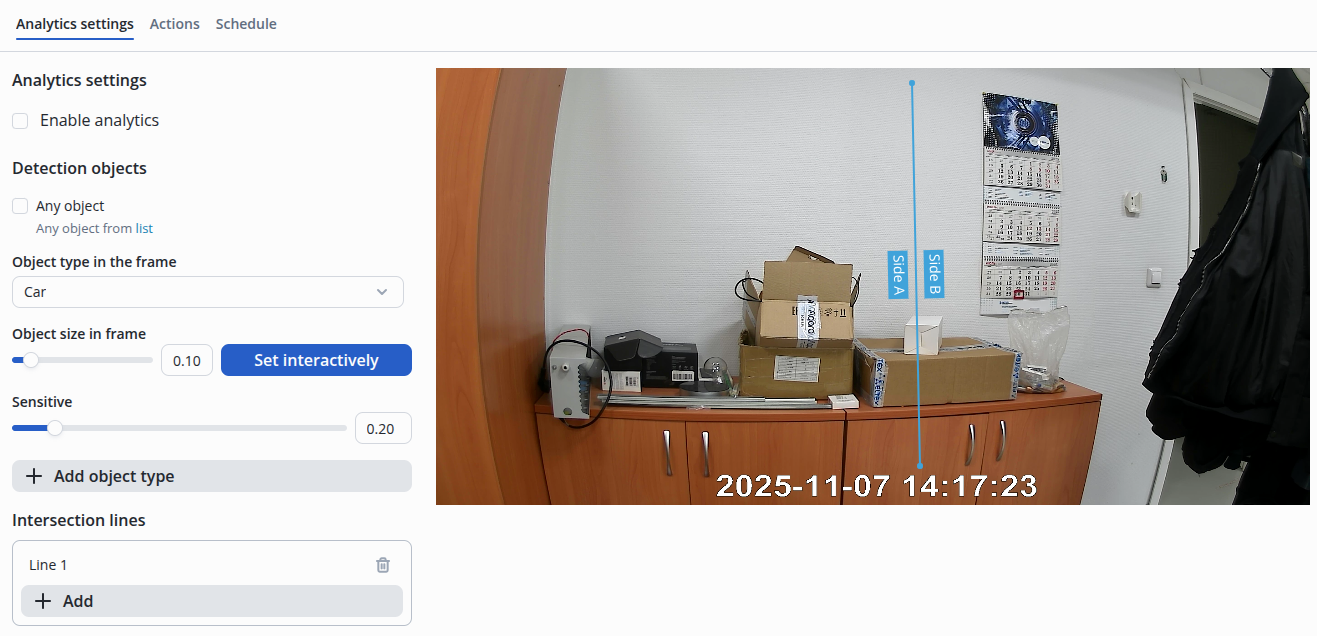
Configuring line crossing
By default, after creating a crossing line, it is formed as a line located in the center.
- Left-click and hold on the blue area of the zone — move the entire line;
- Left-click and hold on the white dot — move the edge of the line.
Actions
Relay
Go to the Actions tab and click Add.
Next, select the Relay/Log to Archive action type, the desired relay from the list, and the Open/Close/Pass relay action.
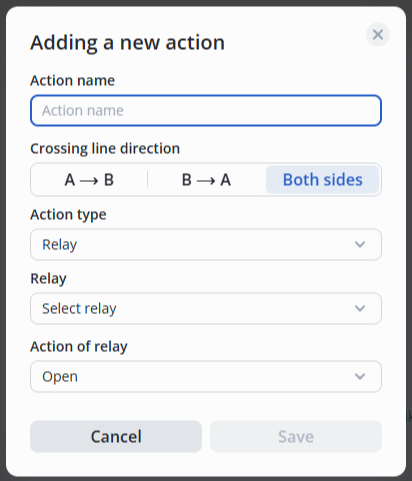
Alert
Go to the Actions tab and click Add.
Next, select the Alert action type and set the desired interval, recipients, and severity level.
Entering to the zone model
The Entering to the zone model is designed to track the appearance of objects in specified virtual zones. Analytics are triggered when people, vehicles, or cargo enter a protected area and initiate alerts or actions via the PACS.
Camera location
Camera location
The camera must be located in the same room as the relay it will control, otherwise the relay will not work on recognition/detection.
Analytics settings
Go to the Video analytics page.
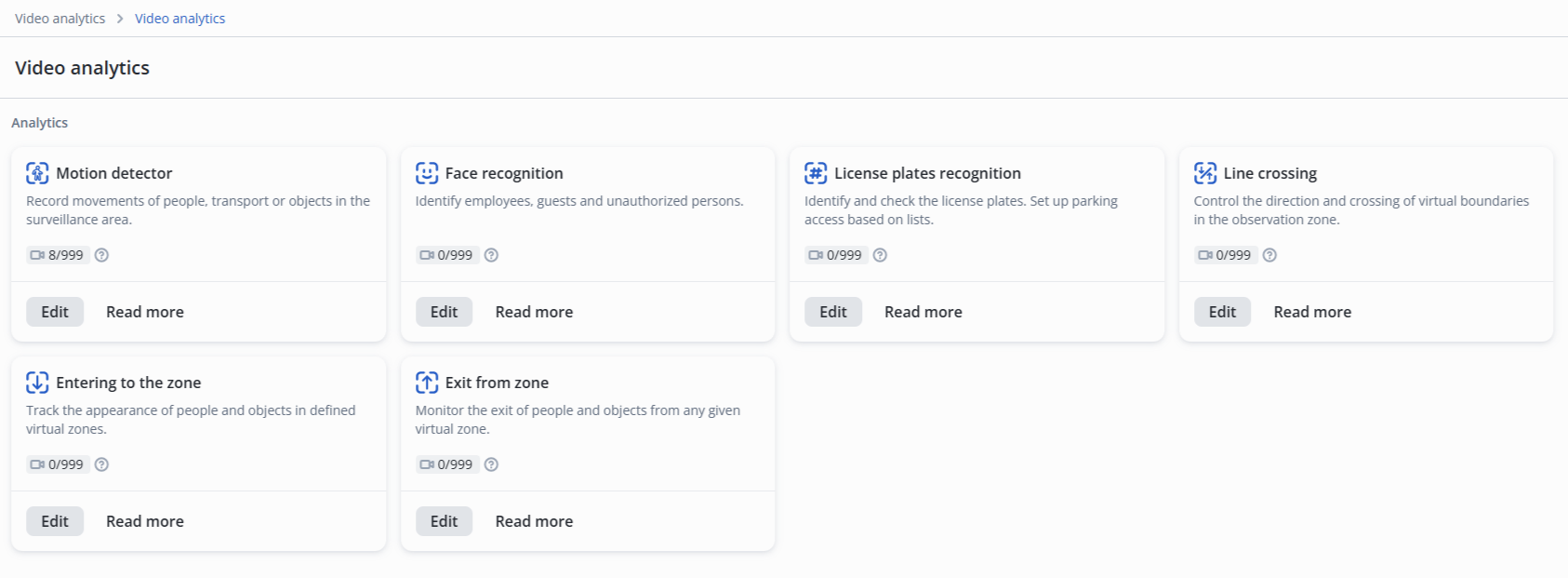
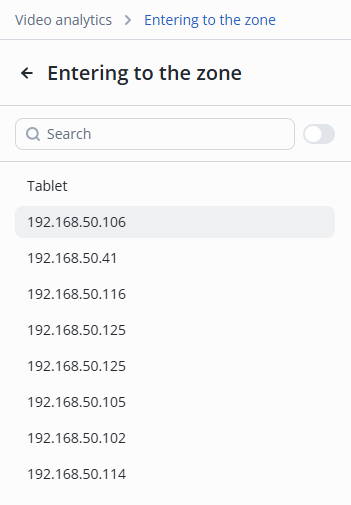
Click the Edit button on the Entering to the zone model.
Select the desired camera from the list.
Basic settings
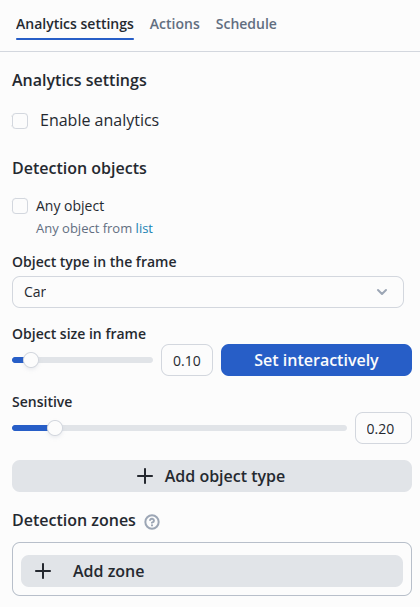
- Object type in the frame — object on which detection will be triggered;
- Object size in frame — ratio of the frame height to the object height. It can be set by manually entering a value between 10 and 100% in the field or by interactively selecting the size on the image;
- Sensitive — level at which recognition occurs. The value is from 10 to 100%. The lower the percentage, the higher the sensitivity.
Configuring the Sensitive parameter
If the Sensitive parameter is set too high, the system may trigger on noise and distortions unrelated to the object.
The parameter should be adjusted by trial and error to ensure reliable detection of the object in the frame while minimizing false triggers caused by noise.
Example of an extremely high Sensitive value: 10%.
Detection zone
Detection zone is the area in which the recognition will occur.
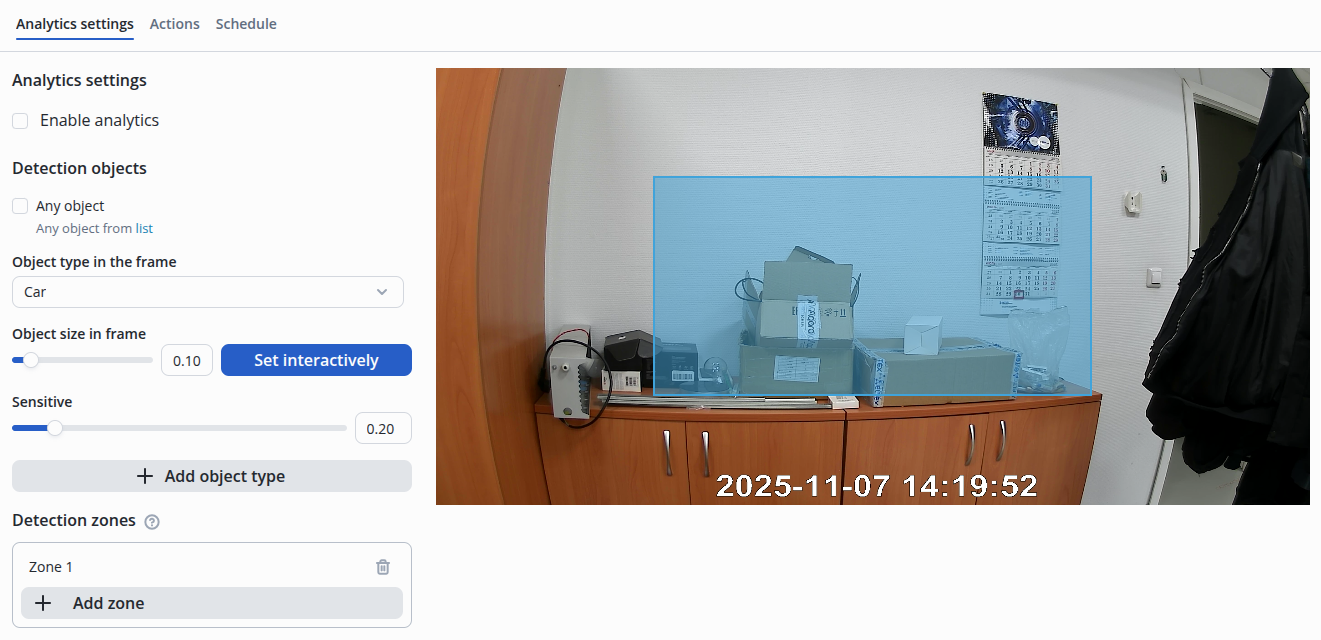
Configuring the detection zone
By default, when a detection zone is created, it appears as a rectangle in the center of the frame.
- Left-click and hold on the blue area of the zone to move the entire zone;
- Left-click and hold on a white point to move the edge of the zone;
- Left-click on the edge of the selected zone to create an additional point.
Actions
Relay
Go to the Actions tab and click Add.
Next, select the Relay/Log to Archive action type, the desired relay from the list, and the Open/Close/Pass relay action.
Alert
Go to the Actions tab and click Add.
Next, select the Alert action type and set the desired interval, recipients, and severity level.
Exit from zone model
The Exit from zone model is designed to track the departure of objects from specified virtual zones. Analytics activates notifications or actions via the PACS if people, vehicles, or cargo leave the controlled area.
Camera location
Camera location
The camera must be located in the same room as the relay it will control, otherwise the relay will not work on recognition/detection.
Analytics settings
Go to the Video analytics page.
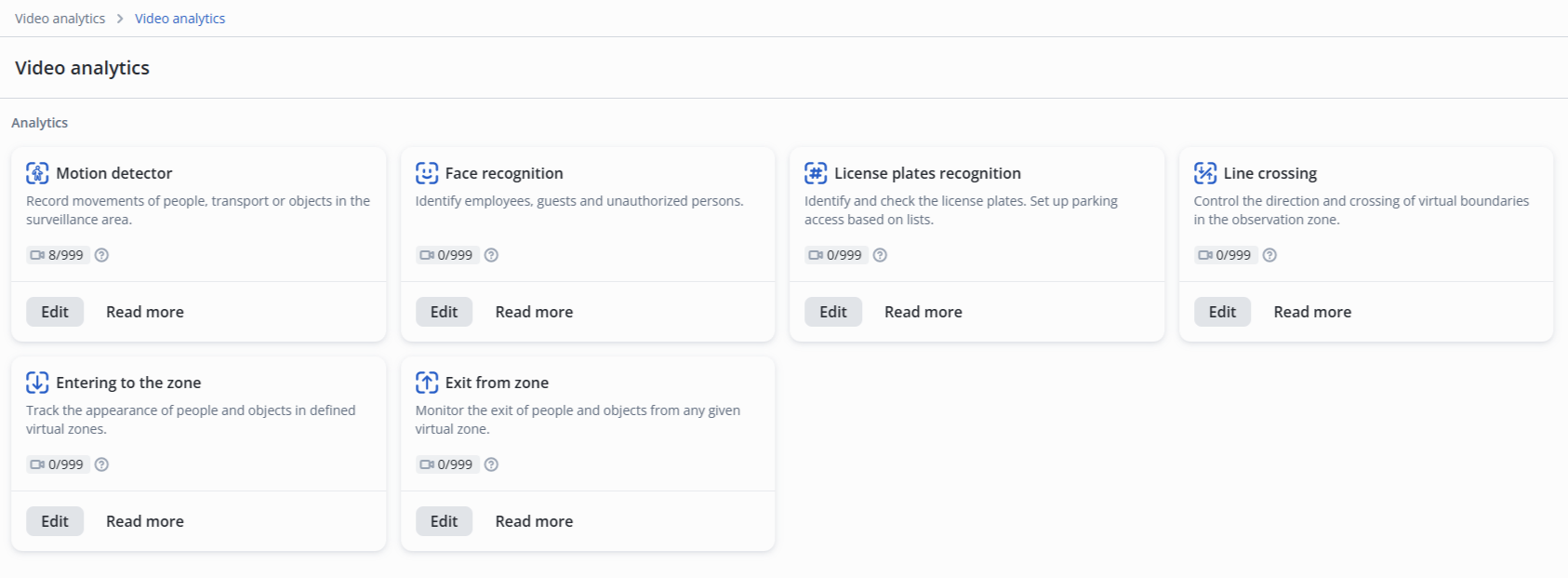
Click the Edit button on the Exit from zone model.
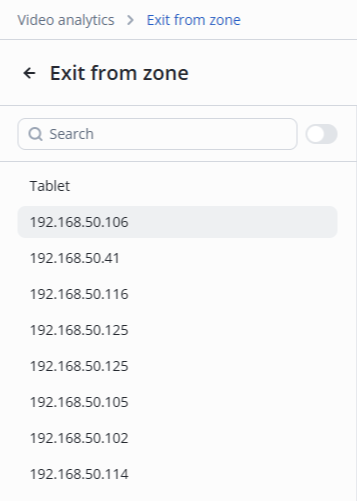
Select the desired camera from the list.
Configuring the Sensitive parameter
If the Sensitive parameter is set to a high value, the system may trigger on noise and distortions unrelated to the object when the object leaves the frame.
The parameter should be adjusted by trial and error to ensure reliable detection of the object in the frame while minimizing false triggers caused by noise.
Example of an extremely high Sensitive value of 10%.
Detection zone
Detection zone is the area in which the recognition will occur.
Configuring the detection zone
By default, when a detection zone is created, it appears as a rectangle in the center of the frame.
- Left-click and hold on the blue area of the zone to move the entire zone;
- Left-click and hold on a white point to move the edge of the zone;
- Left-click on the edge of the selected zone to create an additional point.
Actions
Relay
Go to the Actions tab and click Add.
Next, select the Relay/Log to Archive action type, the desired relay from the list, and the Open/Close/Pass relay action.
Alerts
Go to the Actions tab and click Add.
Next, select the Alert action type and set the desired interval, recipients, and severity level.
Configuring facial recognition for turnstile access
In this example, access via the face recognition system will be examined; if necessary, an employee can also pass through the turnstile using their access card.
Preliminary conditions
- The controller is configured in the Turnstile mode;
- In location and Out location are configured on the relay;
- An access pattern is created in which a 1-point turnstile is selected;
- The access pattern is assigned to a Worker;
- The Camera is added.
Activating worker`s analytics
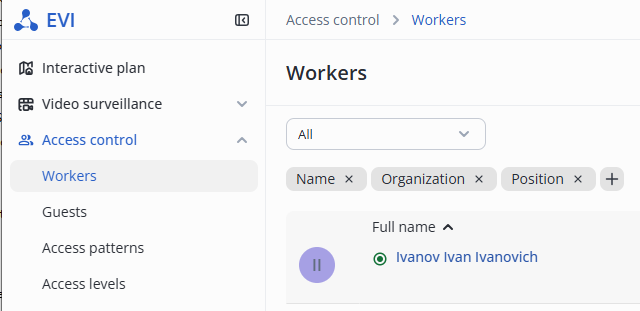
Go to the worker's edit page.
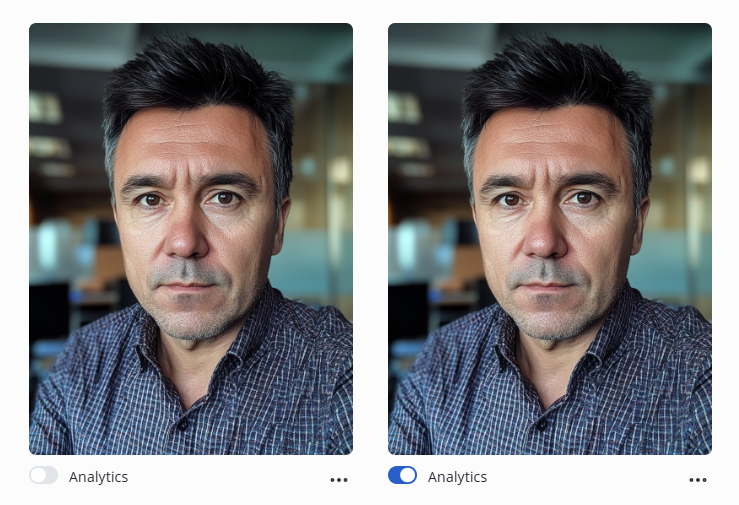
To activate the worker's analytics, move the Analytics switch to the enabled position.
Configuring a camera
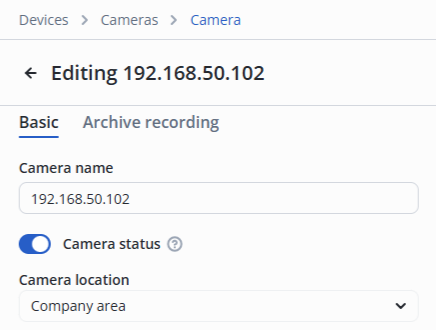
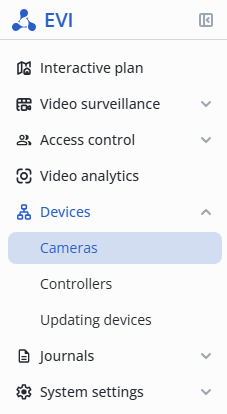
In the Devices section, go to the Cameras page.
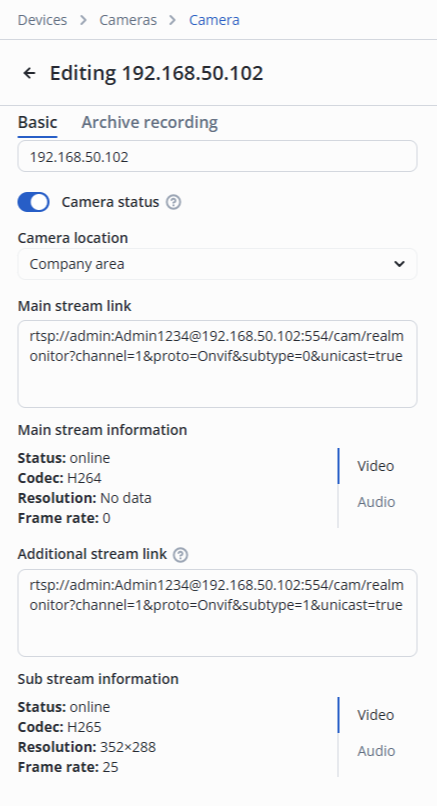
Camera location
The camera location must be similar to the In location parameter of the relay to be controlled.
Select the location of the camera.
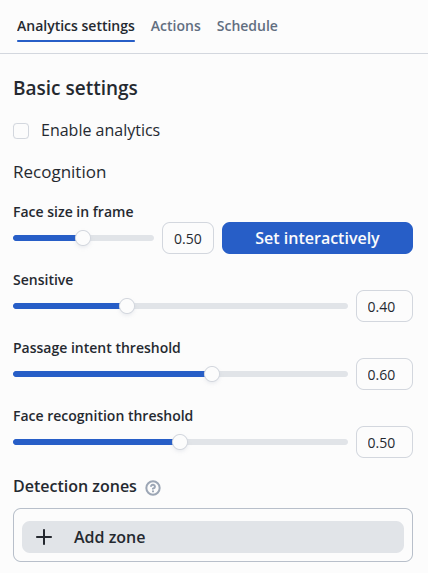
Analytics configuration
Go to the Video analytics page.
Click Edit on the Face recognition model.
Select the desired camera from the list.
Basic parameter configuration
- Analytics state — Enabled;
- Face size in frame — 18%.
Face size in the frame
The parameter is selected by adjusting it on the live camera feed.
To do this, place a person in the camera frame, positioning them directly in front of the lens, and select the area using the Set interactively button.
Detection zone configuration
The recognition zone needs to be configured when the frame may contain multiple faces across the entire frame area.
An example of highlighting a typical area for facial recognition:
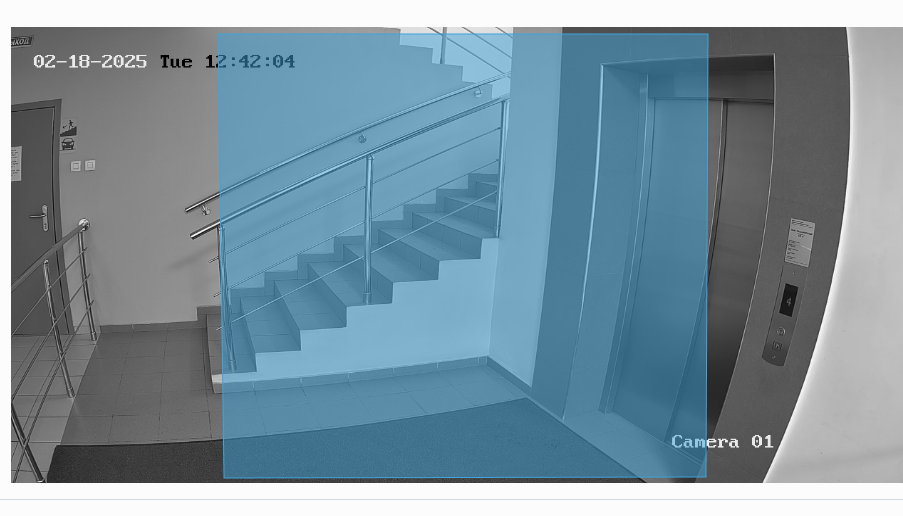
This image has the sides cut off so that the faces standing on the sides are not in the recognition area.
Recognition actions configuration
Go to the Actions tab and click Add.
Next, select the Relay action type, the desired relay from the list, and the Pass relay action.
It is necessary to add the second camera in the same way and configure the passage through the turnstile in the opposite direction, using the second relay, to allow passage in both directions.
Configuring passage by state license plate number
In this example, car access to a parking lot through a gate via a license plate will be configured.
Preliminary conditions
- The controller is configured in the Gate mode;
- The relay has In location and Out location configured;
- The access pattern is created in which a 1-point turnstile is selected;
- The Worker is created;
- The access pattern is assigned to the Worker;
- The Camera is added.
Enabling worker analytics
Go to the worker's editing page in the Access & Pass section.
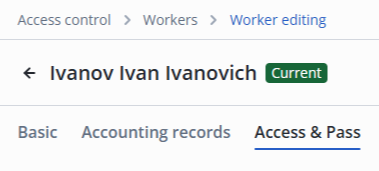
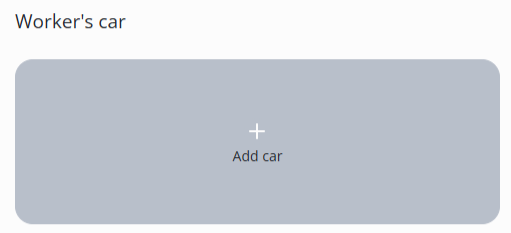
Click the Add car button.
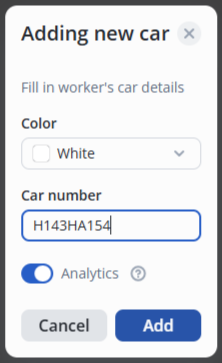
Select a color and enter the car number.
By default, analytics is enabled when adding a car.
Configuring a camera
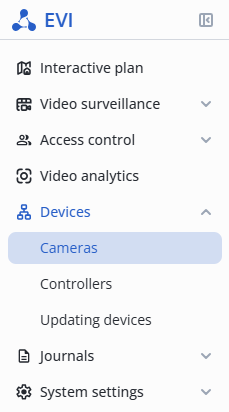
In the Devices section, go to the Cameras section.
Camera location
The camera location must correspond to the In location parameter of the relay to be controlled.
Select the location of the camera.
Configuring analytics
Go to the Video analytics page.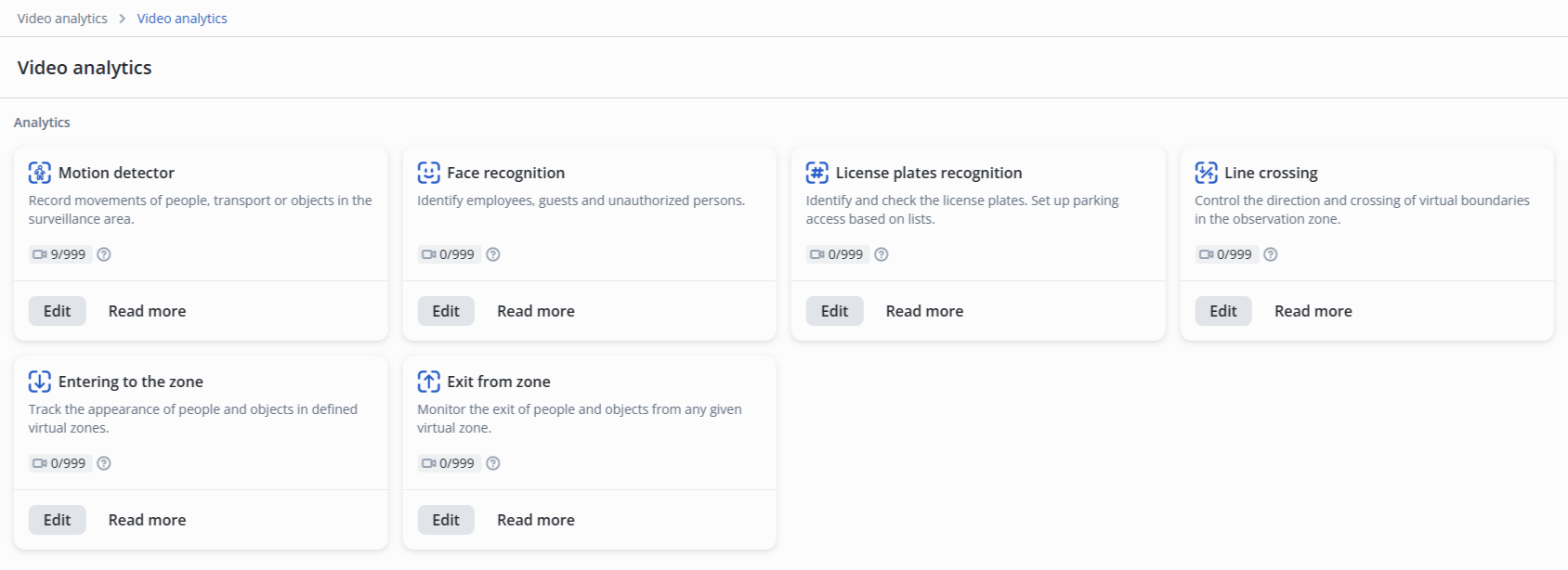
Click Edit on the License plates recognition model.
Select the desired camera from the list.
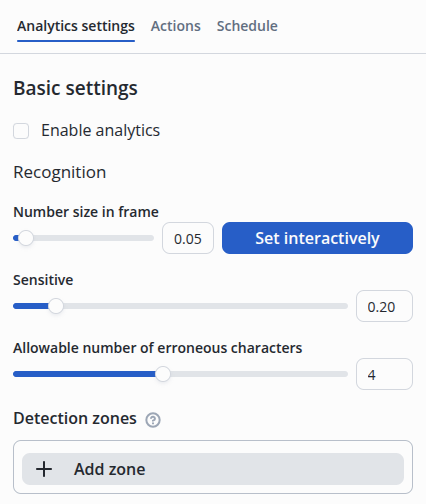
Basic settings
- Analytics state — Enabled;
- Number size in frame — 2%.
Number size in frame
The parameter is selected by adjusting it on the live camera feed.
To do this, place a license plate in the camera frame, positioning them directly in front of the lens, and select the area using the Set interactively button.
- Sensitive — 10 %;
- Allowable number of erroneous characters — 1.
Configuring a detection zone
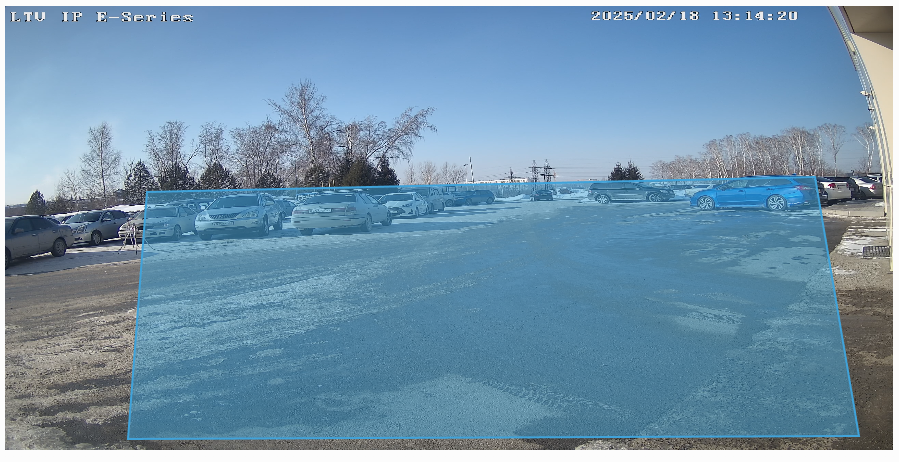
The recognition zone must be set when the frame includes several license plates in the entire frame area.
Example of a typical zone for license plate recognition:
Configuring a recognition action
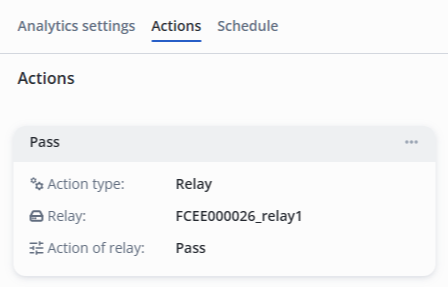
Go to the Actions tab and click Add.
Next, select the Relay/Log to Archive action type, the desired relay from the list, and the Open/Close/Pass relay action.
That's how action looks after adding:
It is necessary to add a second camera in the same way and configure the gate passage in the opposite direction, using a second relay to allow passage in both directions.