Guests — a list of people who are granted access to premises in accordance with their authorizations.
Adding a new guest
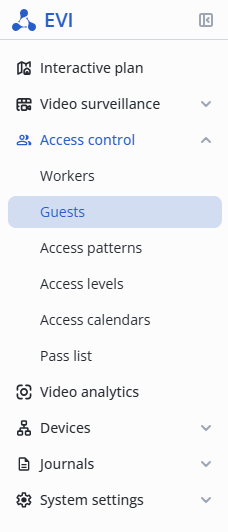
Open the Guests page in the Access control section.
Click the Add guest button.

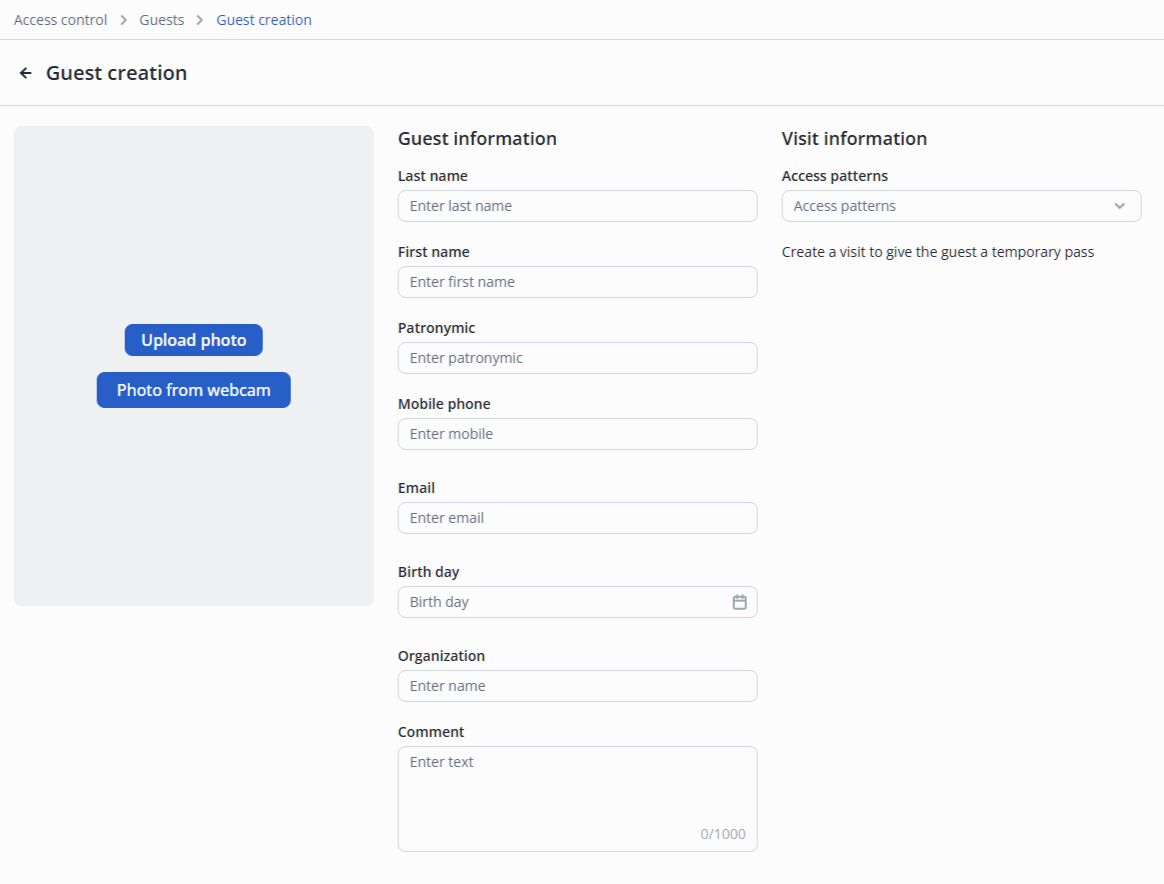
In the guest card, it is sufficient to fill in the Last name and First name.
Click the Add button.
Editing a guest
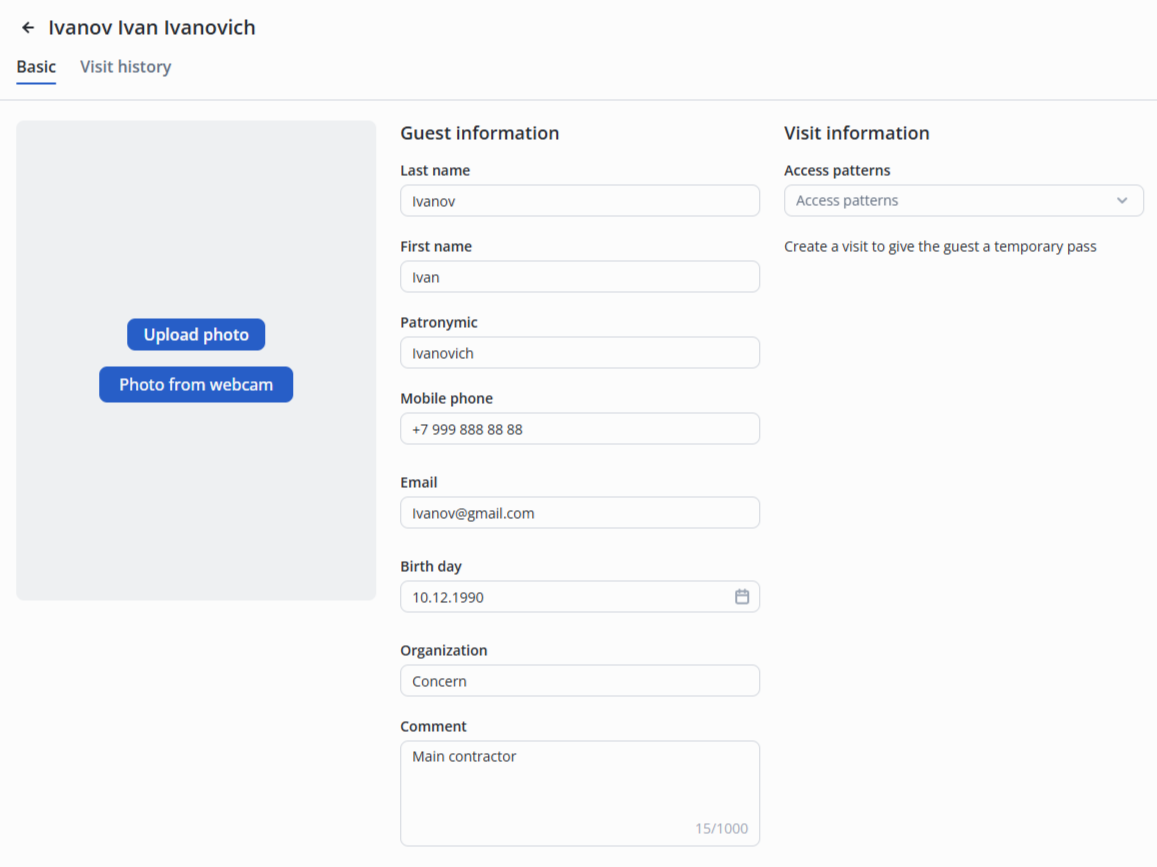
To edit a guest, click on the guest's name in the table.

Basic section
- Last name;
- First name;
- Patronymic;
- Mobile phone;
- Email;
- Birth day;
- Organization;
- Comment.
Adding a guest photo
Photo recommendations
To add a photo, click Upload photo or Photo from webcam.
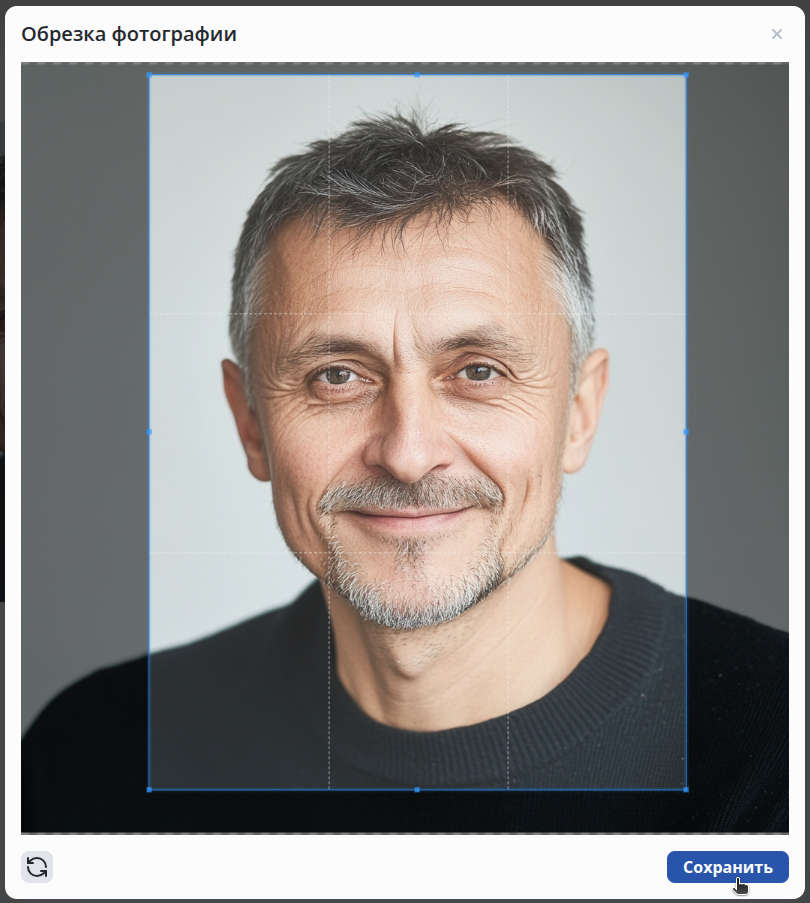
Select the guest photo in the operating system's file manager window.
Crop the photo if required by clicking and pulling the blue edges, afterward click the Save button.
Visit history section
The section stores the visit history of the guest.

Creating a visit for a guest
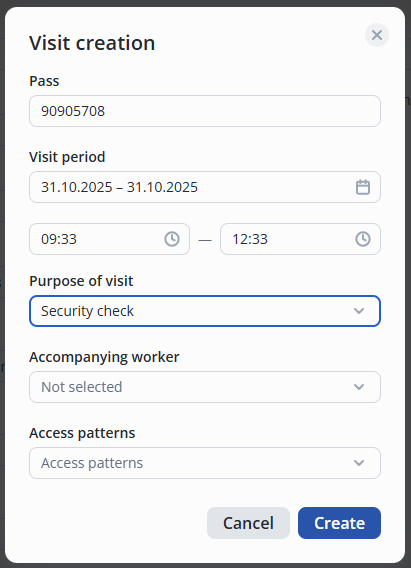
To issue a temporary pass to a guest, click + Create visit.

In the pop-up window, fill in the following fields:
- Pass (enter or read);
- Visit period.
Click the Create button.
Activating guest analytics
To activate analytics, turn the Analytics switch to the enabled position.

Editing a visit
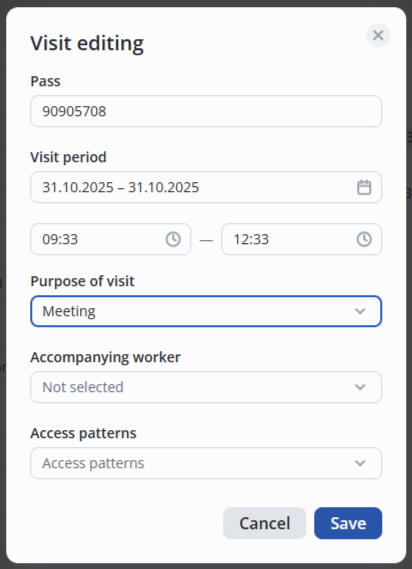
To edit a visit, left click on Pencil.
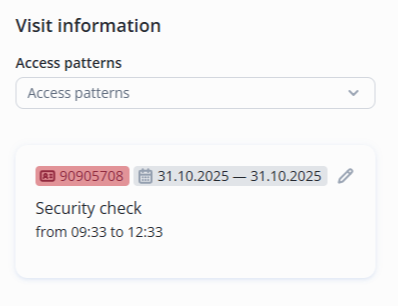
In the pop-up window, fill in the data and click Save.
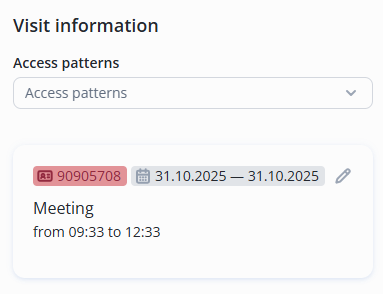
The visit data is updated.
Completing the visit
Left click on the three dots in the guest line.
Select End visit option.

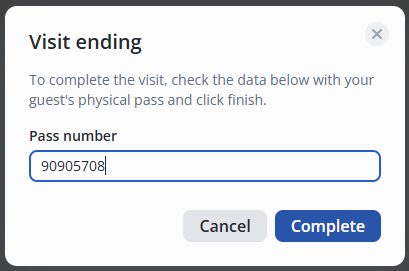
Enter the pass number and click Complete.
Deleting a guest
Left click on the three dots in the guest line.
Select Delete guest option.

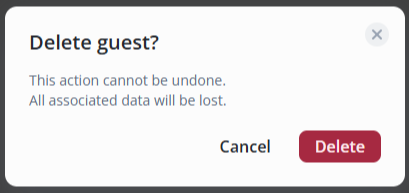
Click the Delete button.