Introduction
The Line crossing model is designed for notification of entry into a restricted area.
Camera location
Camera location
The camera must be located in the same room as the relay it will control, otherwise the relay will not work on recognition/detection.
Analytics settings
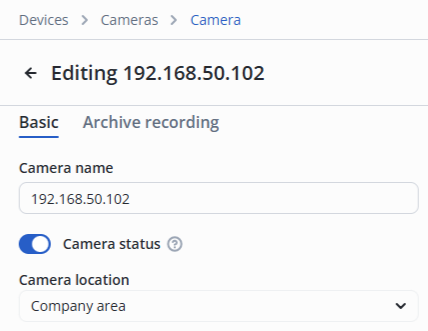
In the camera edit, switch to the Video analytics section.
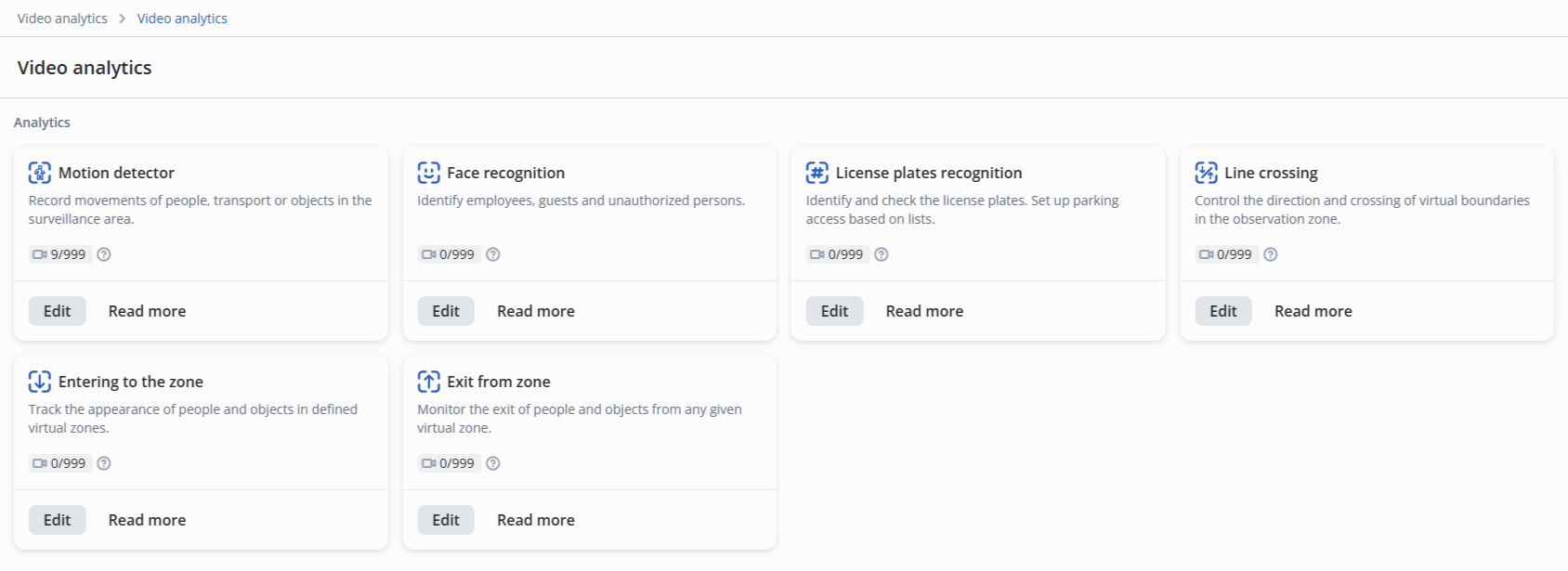
Click Edit on the Line crossing model.
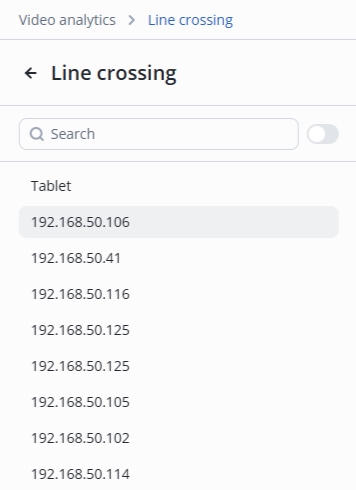
Select the desired camera from the list.
Basic settings
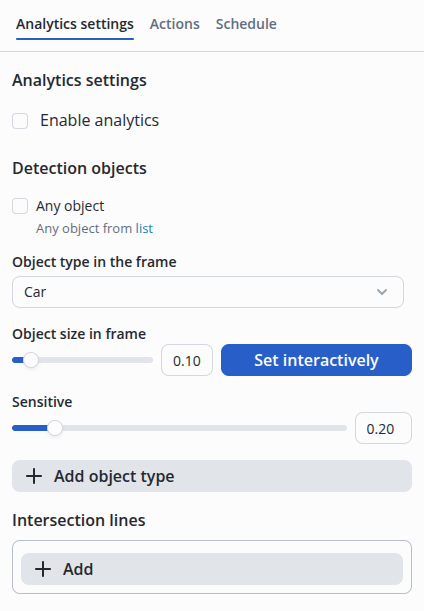
- Object type in the frame — object which will be detected;
- Object size in frame — ratio of the frame height to the object height. It can be set by manually entering a value between 0.1 and 1 in the field or by interactively selecting the size on the image;
- Sensitive — level at which recognition occurs. The number is from 0.1 to 1. The lower the number, the higher the sensitivity.
Configuring the Sensitive parameter
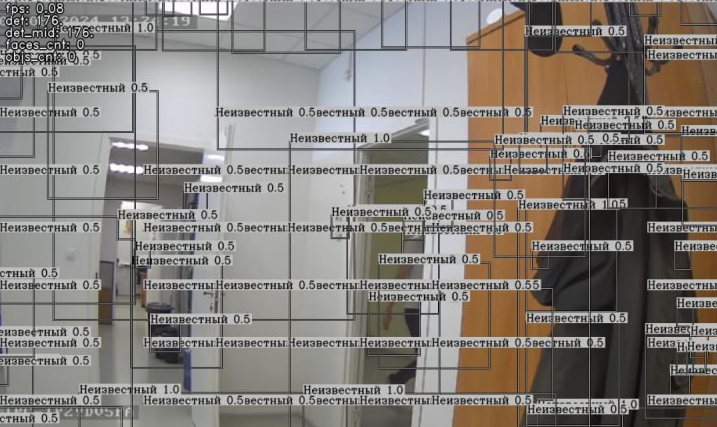
When the sensitivity of the license plate recognition model is high, it may be triggered by noise and distortions not related to the license plate.
The sensitivity is adjusted experimentally to ensure guaranteed detection of the license plate in the frame while minimizing false alarms due to noise.
An example of an ultra-high sensitivity of 0.01.
Line crossing
Configuring line crossing
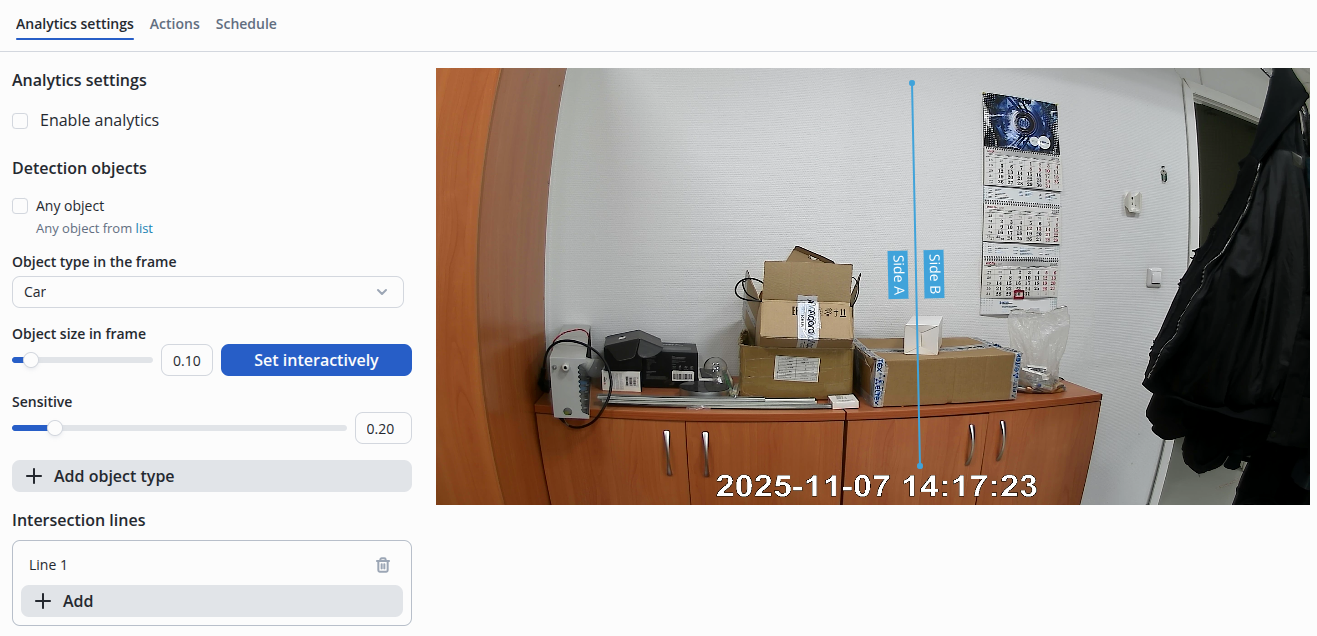
By default, after creating a crossing line, it is formed as a line located in the center.
- Left-click and hold on the blue area of the zone — move the entire line;
- Left-click and hold on the white dot — move the edge of the line.
Actions
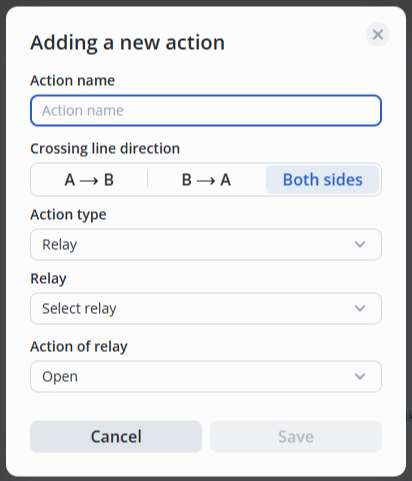
Move the switch to the active position, click the Add action button.

Then select the action type — Relay/Record to archive, the required relay from the list and the relay status — Open/Closed/Pass.