For example, connect one door with a door opening sensor, one pass reader and a door opening button.
Switch to diagram 2 and connect the pass reader, door open sensor, door open button, door magnet to the IPA-ER controller.
Examples of wiring diagrams for the IPA-ER-020 controller are provided in the Controller wiring diagrams section.
Location creation
What are the locations for?
Locations are necessary to track the movement history of workers and conveniently allocate access to them.
Select Interactive plan from the side menu.
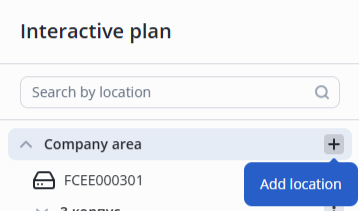
Click the + button under Company area, then Add location.
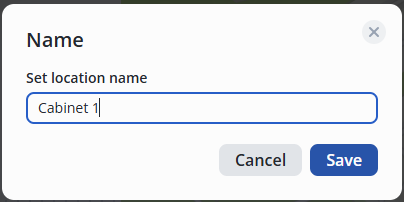
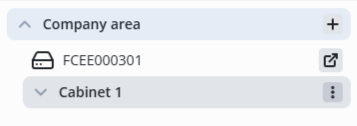
 In the window that appears, enter the name of the new room, for example, Cabinet 1, and click the Save button.
For a new room named New location, click on the three dots on the right side of the screen and select Rename.
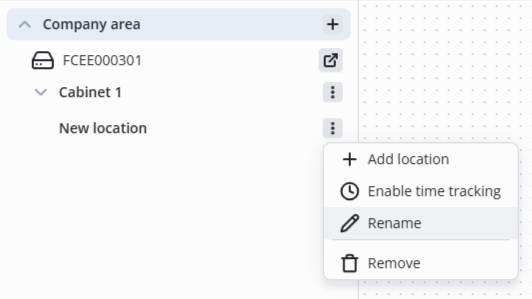
Enter the name of the new location, for example, Cabinet 1, and save it by clicking Save in the pop-up window or pressing the Enter key.
Relay confuguration
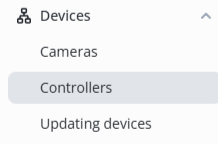
Select Controllers from the side menu in the Devices section.
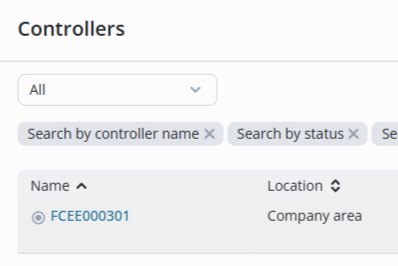
Click on the name of the controller.
Switch to the Relay tab.
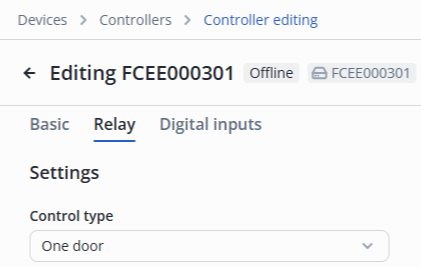
Select Control Type — One Door in the Settings section.
Specify the name of the relay — Cabinet 1.
For Relay 1, select the following:
- In location: Cabinet 1;
- Out location: Company area.
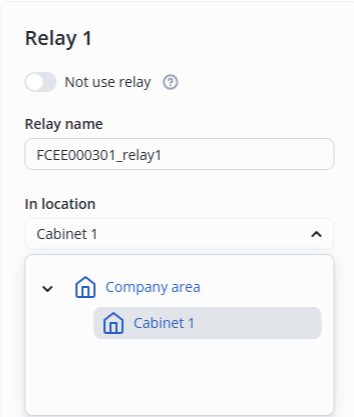
The final configuration looks as follows:
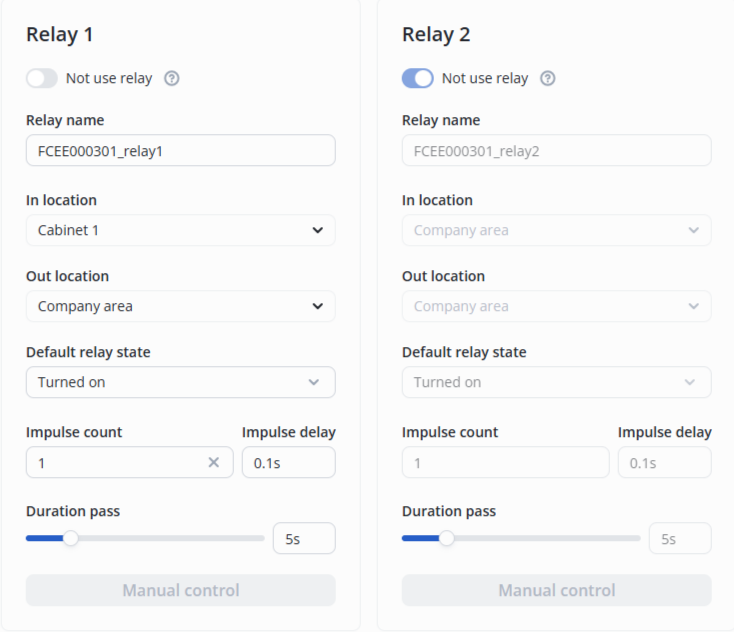
Digital inputs configuration
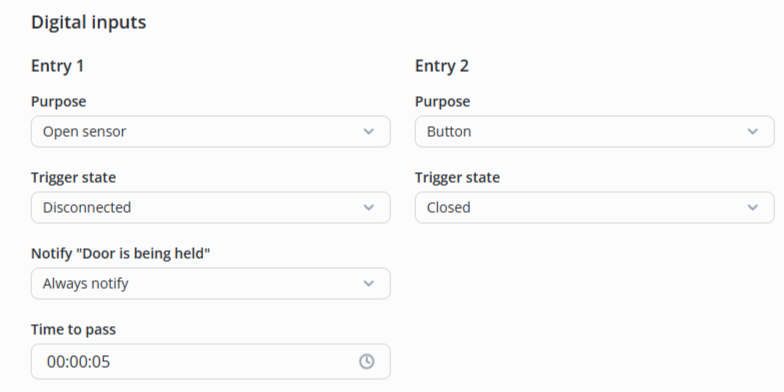
Switch to the Digital inputs tab.
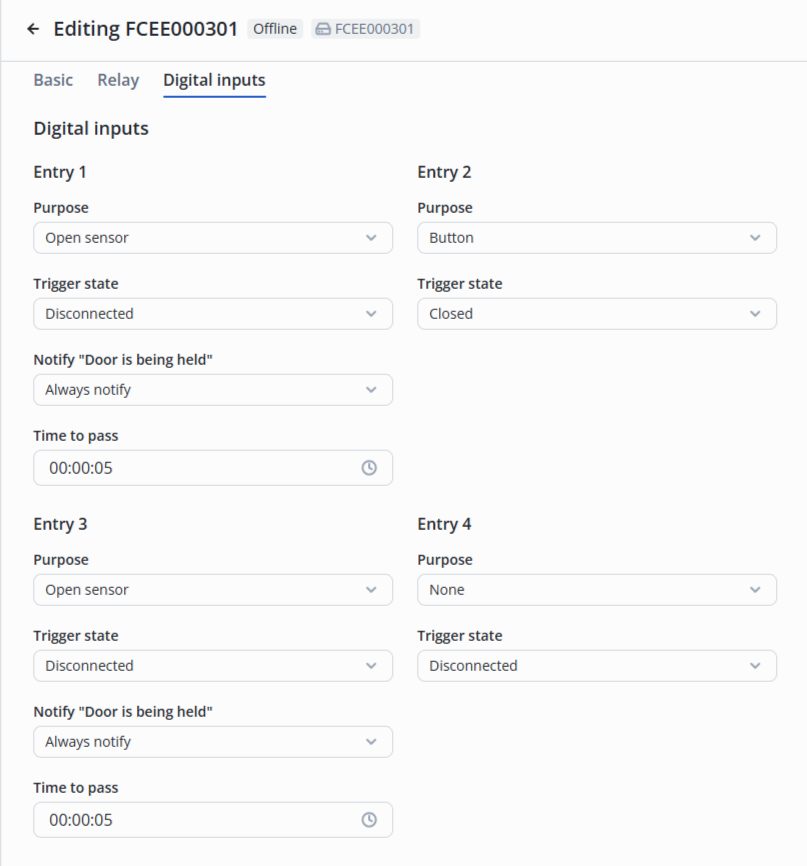
1 and 2 digital inputs are connected to 1 relay.
For 1 digital input, select the following:
- Purpose — open sensor;
- Trigger state — disconnected.
For 2 digital input, select the following:
- Purpose — button;
- Trigger state — closed.
Click the Save button in the lower right corner.
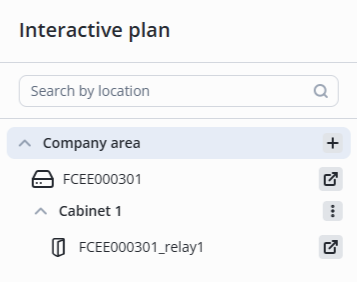
Then, relay 1, which controls the door, will be displayed on the Interactive plan page in Cabinet 1.
Beforehand, open the folder using the  button next to its name.
Adding an access pattern
To enable access for a worker to the Cabinet 1, it is necessary to create an access pattern.
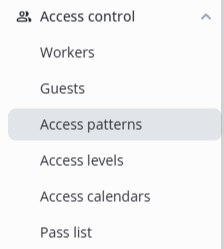
Enter the Access control section, and select the Access patterns item in the menu.
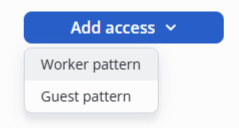
Click the Add access button in the middle of the screen.

Select the Worker pattern item.
Specify the pattern Name — Access to Cabinet 1.
Select Relay 1 in the Access to location section configured earlier.
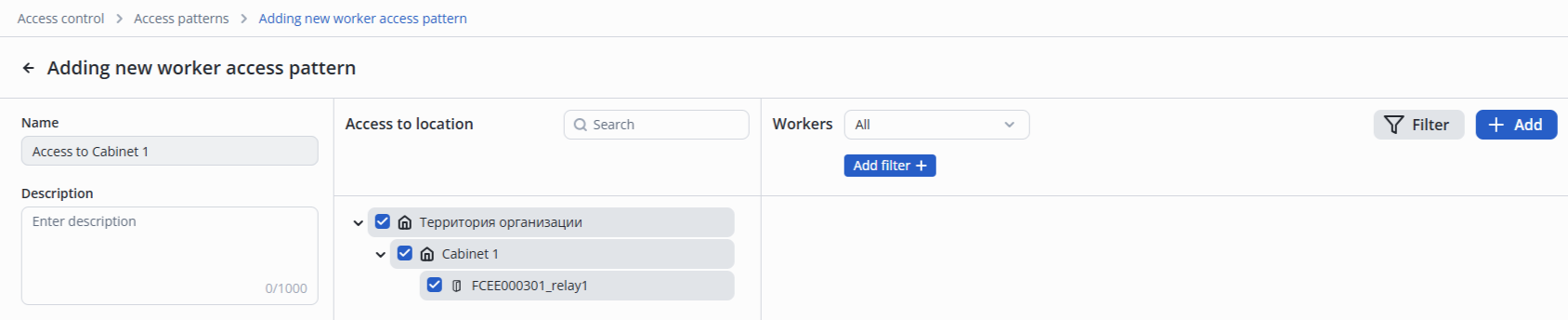
Click the Add button in the lower right corner.
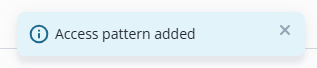
After successful addition, a notification will appear at the bottom middle of the screen to indicate that the operation was successful.
Providing access to a worker
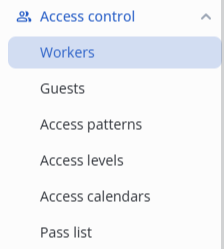
Enter the Workers page in the Access control section.
Click the Add worker button in the upper right corner of the screen.
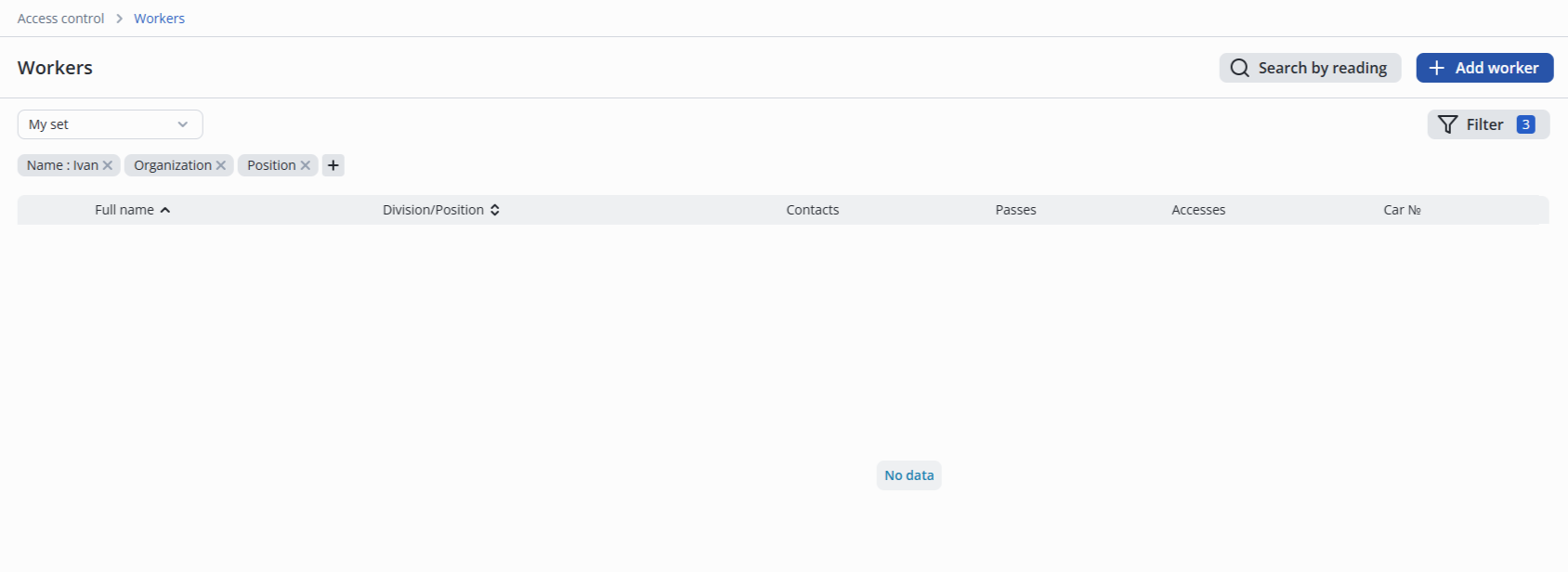
Fill in your full name. The rest of the fields are optional.
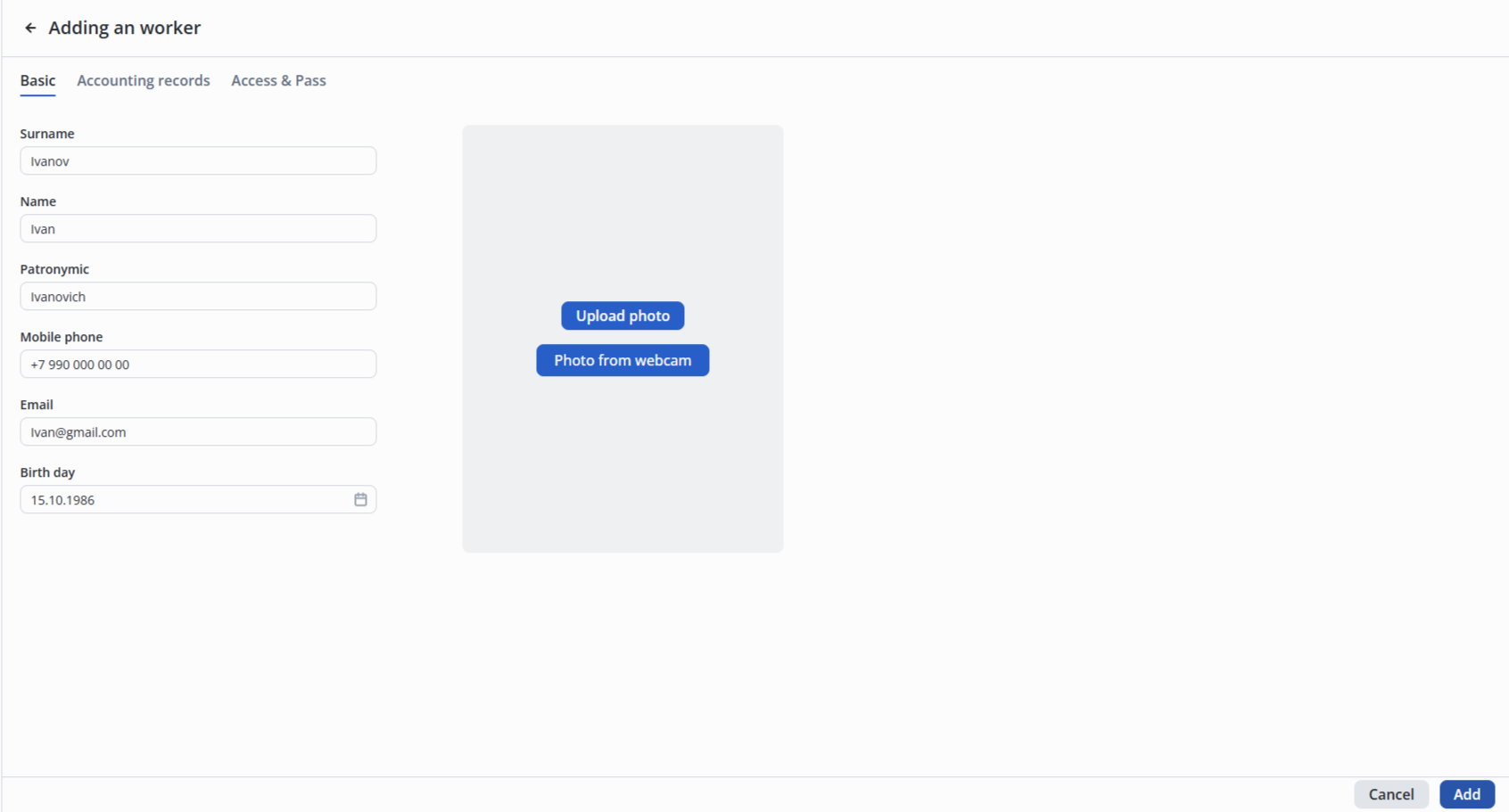
Click the Add button in the lower right corner of the screen.
Access pattern assignment
Switch to the Access & Pass tab.
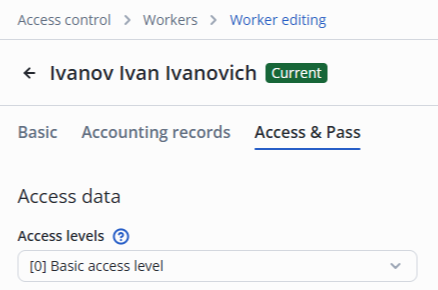
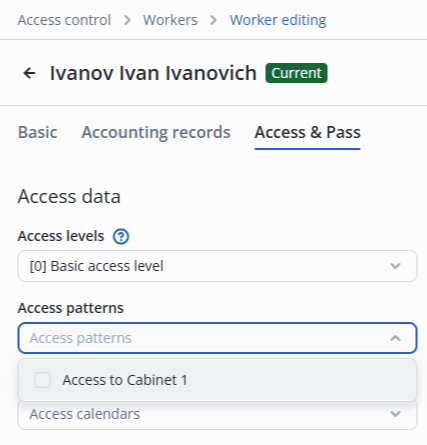
Click the Access Patterns, select the previously created Access to Cabinet 1.
Adding a pass to a worker
Click the Add pass button in the Worker passes section.
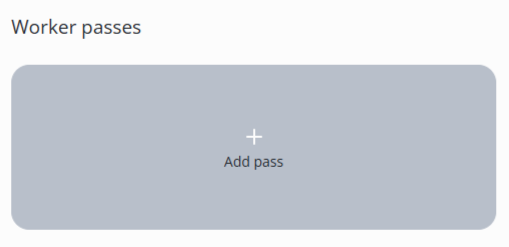
Scan the pass at the USB reader or enter the code from the pass. Example: 15916217.
The pass code is entered without zeros.
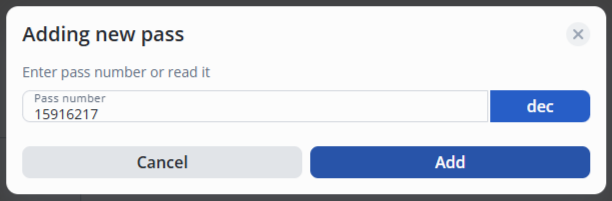
Click the Add button.
After successful addition, a notification will appear at the bottom middle of the screen to indicate that the operation was successful.
 Click the Save button in the lower right corner to save the steps.

Test pass
Try to make a pass through the door. To do this, perform the following steps:
- Place the pass on the reader;
- Open the door;
- Walk through and close the door behind you.
In the Journals section, the worker`s pass will be displayed on the Passages page.
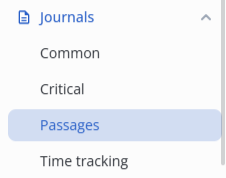
A pass record appeared for a worker who left the Company area.

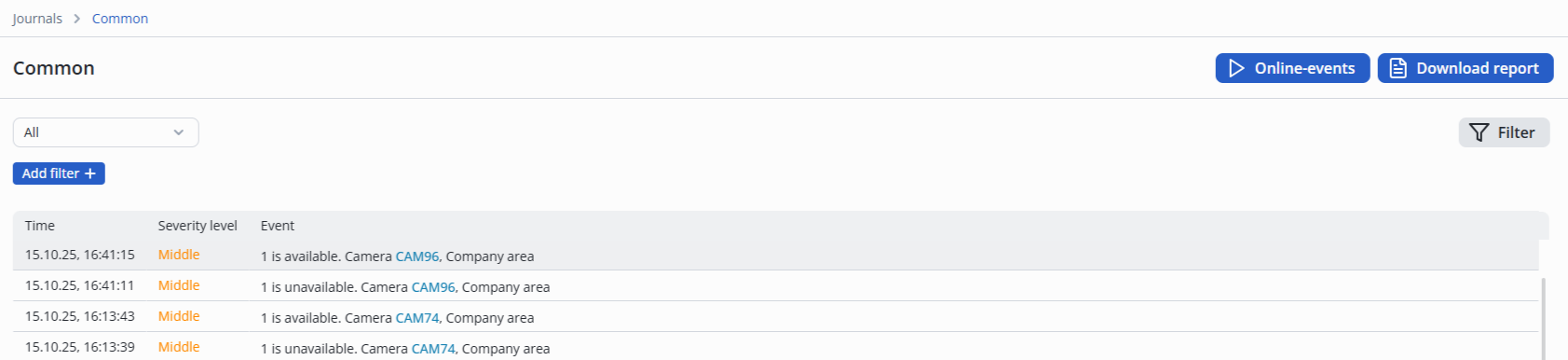
The Common page in the Journals section will display more detailed information about the worker passing through the door.