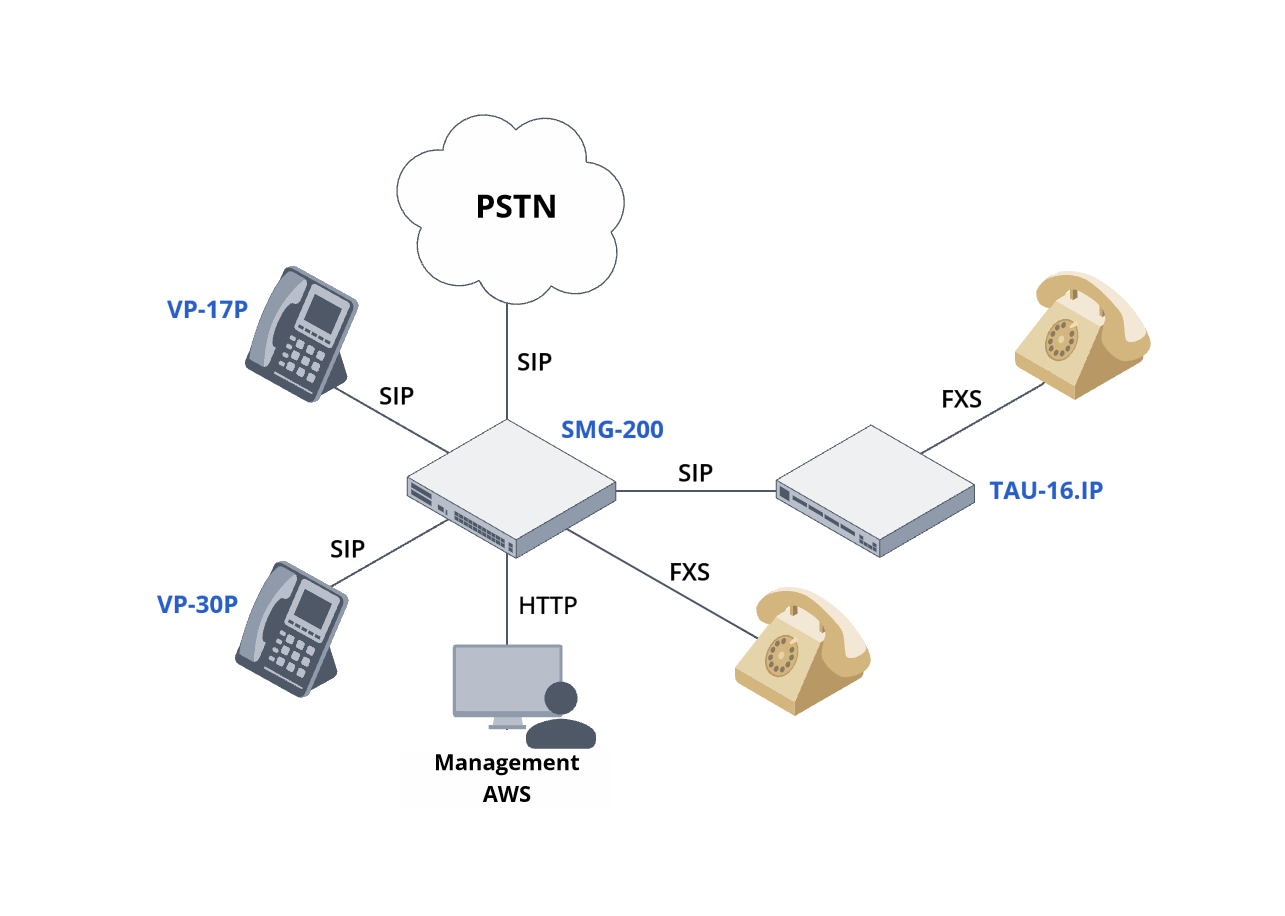
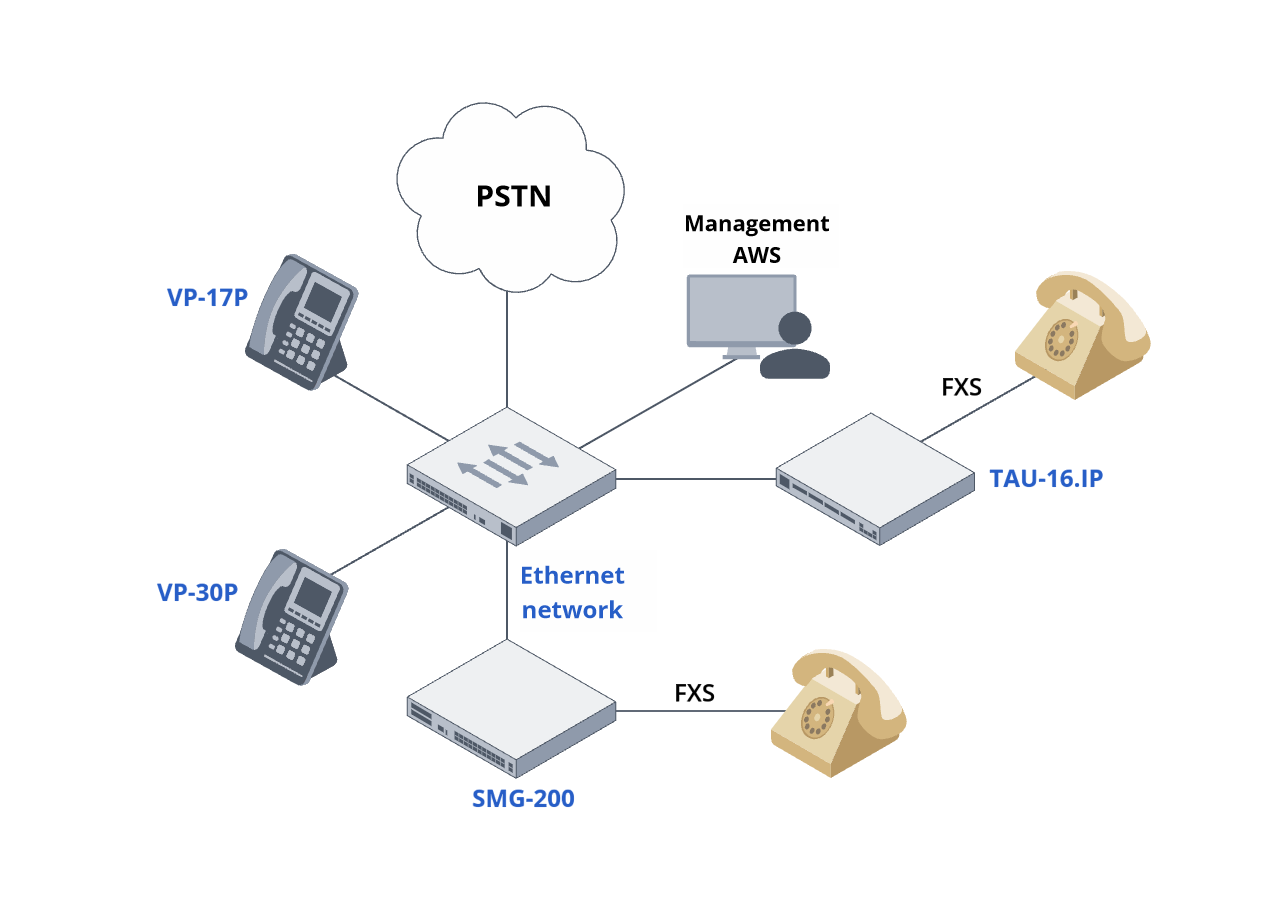
The aim of this guide is to demonstrate a solution for providing telephone communication to a small business or isolated branch office with a small number (up to 100) of subscribers.
To connect to the PSTN, SIP protocol connections are used via an operator providing a trusted Ethernet interface.
Using the SMG-200 IP PBX by Eltex is optimal for this task.
|
|
|---|---|
Logical network diagram | Physical network diagram |
The core of the telephony system is the SMG-200 IP PBX.
IP phones are registered on the SMG-200 via a network of Ethernet switches.
Analog phones are connected to the IP PBX via subscriber gateways, such as TAU-16.IP.
The subscriber gateway connects to the IP PBX via an Ethernet network. Subscribers are registered on the PBX via SIP.
One or two M8S submodules with 8 FXS ports each can be installed in the SMG-200. Accordingly, 8 or 16 analog phones can be connected directly to the SMG-200.
The following Ethernet connection names are used in this document:
| Port designation | Port purpose | Port requirements |
|---|---|---|
| A1 | SMG-200 IP PBX connection port | Trunk port with specified native VLAN |
| Px | IP phone connection ports | Access port with Voice VLAN and PoE |
| U1 | Port for connecting to an IP telephony provider | Access or trunk port |
| Tx | Ports for connecting analog TAU gateways | Access port |
| M1 | Port for connecting AWS, which is used to configure and manage an IP PBX and phones. | Access port |
In the guide the following virtual local area networks (VLAN) are used.
| VLAN name | VLAN purpose | Ports included in VLAN |
|---|---|---|
| Mgm_Vlan | PBX management | A1 – untagged |
| Data_Vlan | Signaling and media traffic | A1 – tagged |
| Provider_Vlan | Link towards the provider | U1 – tagged or untaged |
Permissions required for this example.
| From \ To | Mgm_Vlan | Data_Vlan | Provider_Vlan |
|---|---|---|---|
| Mgm_Vlan | Allow HTTP, HTTPS | ||
| Data_Vlan | Allow SIP, RTP from the A1 host to the U1 host | ||
| Provider_Vlan | Allow SIP, RTP from the U1 host to the A1 host |
For demonstration purposes, this guide will use the following:
Dial plan:
IP addressing:
Tables for configuration are available via the link.
Before configuring IP telephony, ensure that the data network is functioning properly. Check the network connectivity.
SMG has a dynamic firewall enabled by default, which automatically blocks device access in case of multiple unsuccessful authorization attempts. This may be inconvenient during the configuration process. It is recommended to disable the dynamic firewall according to the instructions before starting the configuration. It is recommended to enable the dynamic firewall after completing the configuration for security reasons.
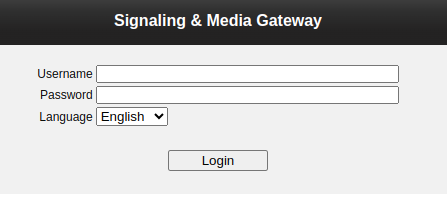
The SMG-200 IP PBX is configured via a web interface. Default account details:
|
The necessary IP PBX configuration includes the following steps:
Follow the instructions to change the IP settings on the main interface. Specify:
Follow the instructions to add and configure an interface for RTP and SIP traffic:
Follow the instructions to change the used interface gateway to 
For IP telephony to function correctly, set the current date and time on the device.
The time and date are configured on the NTP server.
For automatic time synchronization via the NTP protocol on the SMG-200, the NTP server on the ESR router or L3 MES switch with the 192.0.2.1 address is used.
To configure NTP synchronization, use the instructions to specify the NTP server address:
Follow the instructions to create a SIP profile.
In the “Name” field, enter “SIP subscribers”.
In the “Network signaling interface” and “Network interface for RTP” fields, select
Follow the instructions to create SIP subscribers. When creating, specify:
IP phones require IP addresses to operate. These can be configured manually on each device or assigned using a DHCP server. Configure the DHCP server according to the instructions.
Specify the following parameters:
After completing the initial configuration, it is recommended to save the device configuration.
To connect the company's telephone network to the public telephone network, it is necessary to configure the trunk to the PBX and configure the routing of incoming and outgoing local calls. For incoming routing, the B number will also need to be modified to connect an external number such as 73831234567 to one of the internal numbers. For outgoing routing, the A number will need to be modified to an external number.
Follow the instructions to create a SIP interface. When creating it, specify:
Following the instructions, create a table of modifiers named “Substitution of B-number from PBX”.
Following the instructions, create a B-number modification for calls from PBX in the “Substitution of B-number from PBX” modifier table. When creating, specify:
Following the instructions, assign the modification to the trunk group. When creating, specify:
Follow the instructions to create a prefix in the dial plan. When creating, specify:
Follow the instructions to create a table of modifiers named “B-number to E.164”.
Follow the instructions to create three B-number modifications for calls going to PSTN.
Following the instructions, create a table of modifiers named “A-number to E.164 PSTN”.
Following the instructions, create two modifications of the A-number for calls going to PSTN.
Follow the instructions to assign the modification to the trunk group. When creating, specify:
Save the device configuration.
VP-17P and VP-30P phones can be powered by switches using PoE technology or from a 230 V network via personal power supplies.
If the phones are turned on after completing all of the above settings, they will receive IP addresses automatically.
The first phone turned on will receive the 192.0.2.20 address, the second one will receive the 192.0.2.21 address, and so on.
If the MAC addresses of the phones are known (written on a sticker on the back of each device), it is possible to find out the correspondence between the devices and addresses by going to the “Network Services” → “DHCP Server” menu of the SMG-200 web interface. The list of MAC addresses and IP addresses is located at the bottom of the page in the “Assigned IP Addresses” table.
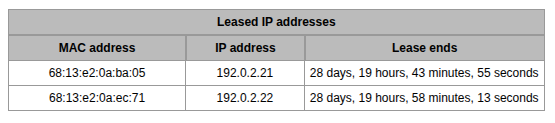
On the phone, the IP address can be found in “Menu” → ‘Status’ → “Network.”
The IP address of the phone will be needed to configure it via the web interface.
Follow the instructions to configure the phones.
Fill in the following fields:
Analog phones are connected to the SMG-200 IP PBX via TAU series analog gateways or directly, if M8S submodules are installed
Follow the instructions to configure analog subscribers.
For all FXS ports, enter numbers from 268 to 275 in the “Number” field without repetition if one M8S submodule is installed, or up to 283 if two submodules are installed.
The TAU-16.IP analog gateway (hereinafter referred to as TAU) is configured via the web interface in the example below.
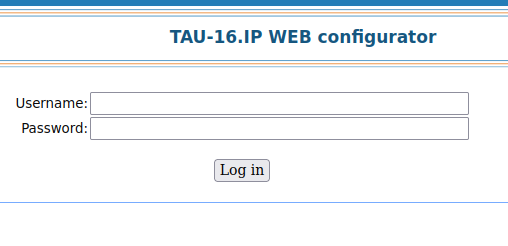
The necessary TAU configuration includes the following steps:
Follow the instructions to configure TAU:
Since TAU does not have a built-in clock, time synchronization from an external server is required to use real time for monitoring and statistics. For automatic time synchronization via NTP with TAU, an NTP server located on the local network or on the Internet must be available. SMG-200 cannot act as an NTP server.
Follow the instructions to configure synchronization with the following parameters:
 ..
..Follow the instructions to configure the SIP profile. When configuring, specify:
Follow the instructions to create subscribers with numbers 284–299. When creating, specify:
Follow the instructions to specify subscriber login details. In the “1-16” port group tab, go through all subscribers. In the port cards, specify:
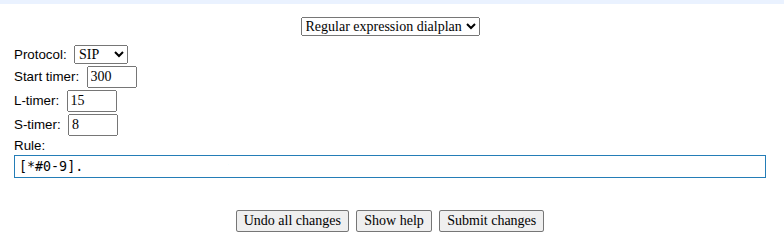
Follow the instructions to set up a dialing plan. Select “Linear dialing plan.” In the “Rule:” field, enter “[*#0-9]”.
All settings are stored in the TAU's RAM and will be lost upon reboot if not saved. To save the current configuration, select one of the following items from the main menu: “Network settings”/‘PBX’/“Switch”

and click the “Save” button in the lower right corner.
If the dynamic firewall was disabled before starting the configuration, it is recommended to enable it according to the instructions.